
Microsoft Office 2007 Excel Chapter 4 Financial Functions

- Slides: 81
Microsoft Office 2007 Excel Chapter 4 Financial Functions, Data Tables, and Amortization Schedules
Objectives • Control the color and thickness of outlines and borders • Assign a name to a cell and refer to the cell in a formula using the assigned name • Determine the monthly payment of a loan using the financial function PMT • Use the financial functions PV (present value) and FV (future value) • Create a data table to analyze data in a worksheet • Add a pointer to a data table • Create an amortization schedule Microsoft Office 2007: Complete Concepts and Techniques - Windows Vista Edition 2
Objectives • Analyze worksheet data by changing values • Use names and the Set Print Area command to print sections of a worksheet • Set print options • Protect and unprotect cells in a worksheet • Use the formula checking features of Excel • Hide and unhide cell gridlines, rows, columns, sheets, and workbooks Microsoft Office 2007: Complete Concepts and Techniques - Windows Vista Edition 3
Plan Ahead • Create and format the Loan Payment Calculator section of the worksheet • Create and format the Interest Rate Schedule section of the worksheet • Create and format the Amortization Schedule section of the worksheet • Specify and name print areas of the worksheet. • Determine which cells to protect and unprotect in the worksheet Microsoft Office 2007: Complete Concepts and Techniques - Windows Vista Edition 4
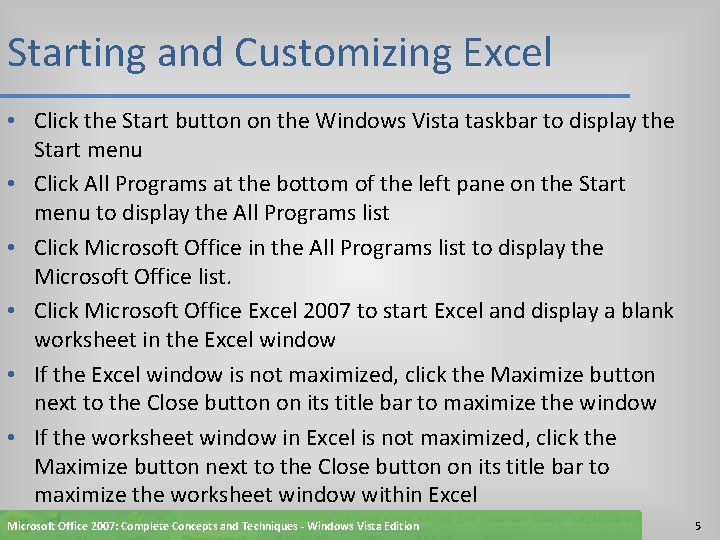
Starting and Customizing Excel • Click the Start button on the Windows Vista taskbar to display the Start menu • Click All Programs at the bottom of the left pane on the Start menu to display the All Programs list • Click Microsoft Office in the All Programs list to display the Microsoft Office list. • Click Microsoft Office Excel 2007 to start Excel and display a blank worksheet in the Excel window • If the Excel window is not maximized, click the Maximize button next to the Close button on its title bar to maximize the window • If the worksheet window in Excel is not maximized, click the Maximize button next to the Close button on its title bar to maximize the worksheet window within Excel Microsoft Office 2007: Complete Concepts and Techniques - Windows Vista Edition 5
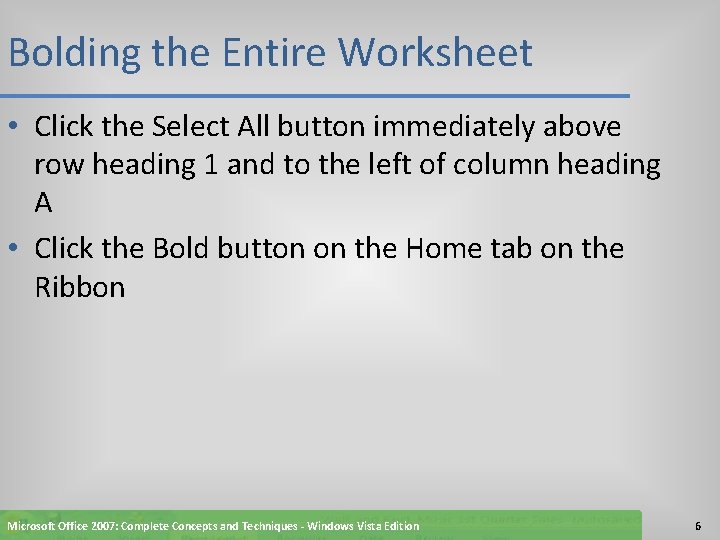
Bolding the Entire Worksheet • Click the Select All button immediately above row heading 1 and to the left of column heading A • Click the Bold button on the Home tab on the Ribbon Microsoft Office 2007: Complete Concepts and Techniques - Windows Vista Edition 6
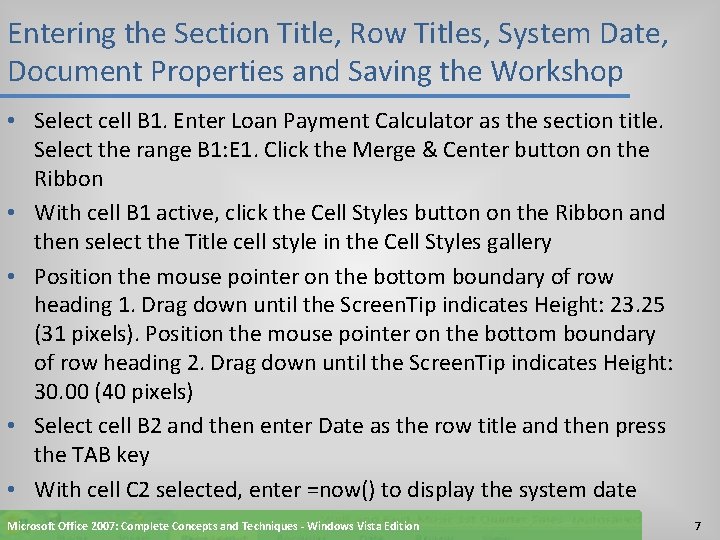
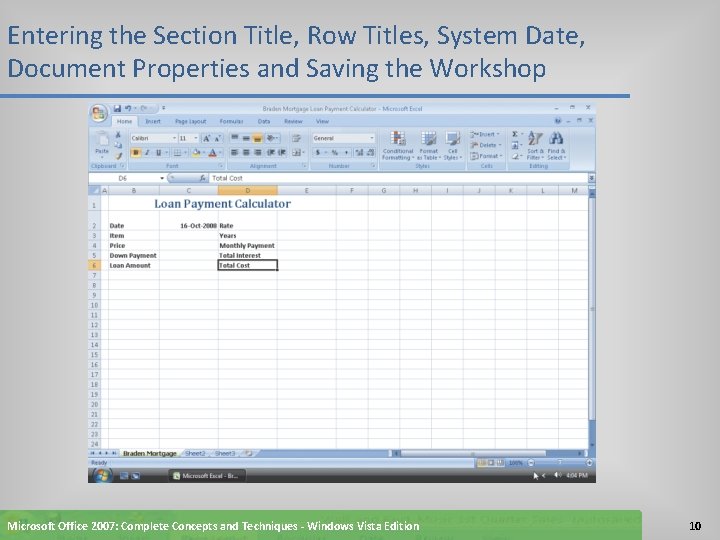
Entering the Section Title, Row Titles, System Date, Document Properties and Saving the Workshop • Select cell B 1. Enter Loan Payment Calculator as the section title. Select the range B 1: E 1. Click the Merge & Center button on the Ribbon • With cell B 1 active, click the Cell Styles button on the Ribbon and then select the Title cell style in the Cell Styles gallery • Position the mouse pointer on the bottom boundary of row heading 1. Drag down until the Screen. Tip indicates Height: 23. 25 (31 pixels). Position the mouse pointer on the bottom boundary of row heading 2. Drag down until the Screen. Tip indicates Height: 30. 00 (40 pixels) • Select cell B 2 and then enter Date as the row title and then press the TAB key • With cell C 2 selected, enter =now() to display the system date Microsoft Office 2007: Complete Concepts and Techniques - Windows Vista Edition 7
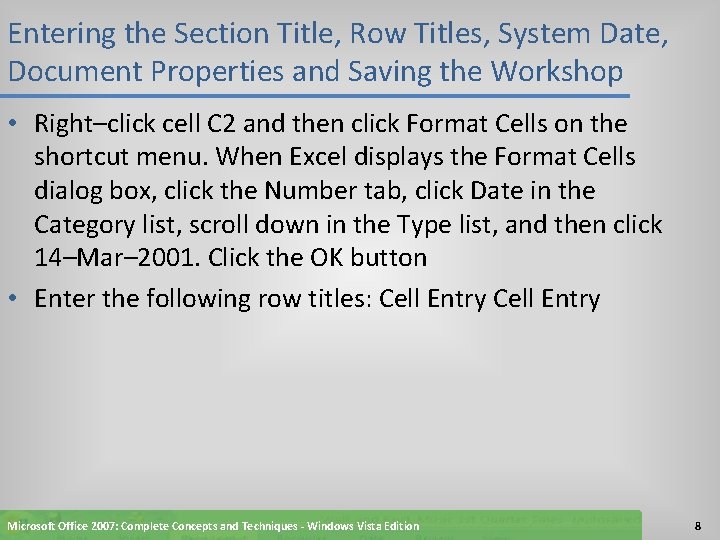
Entering the Section Title, Row Titles, System Date, Document Properties and Saving the Workshop • Right–click cell C 2 and then click Format Cells on the shortcut menu. When Excel displays the Format Cells dialog box, click the Number tab, click Date in the Category list, scroll down in the Type list, and then click 14–Mar– 2001. Click the OK button • Enter the following row titles: Cell Entry Microsoft Office 2007: Complete Concepts and Techniques - Windows Vista Edition 8
Entering the Section Title, Row Titles, System Date, Document Properties and Saving the Workshop • Position the mouse pointer on the right boundary of column heading A and then drag to the left until the Screen. Tip indicates Width: 1. 57 (16 pixels) • Position the mouse pointer on the right boundary of column heading B and then drag to the right until the Screen. Tip indicates Width: 13. 86 (102 pixels) • Click column heading C to select it and then drag through column headings D and E. Position the mouse pointer on the right boundary of column heading C and then drag until the Screen. Tip indicates Width: 16. 29 (119 pixels) • Double–click the Sheet 1 tab and then enter Braden Mortgage as the sheet name. Right– click the tab and then click Tab Color. Click Light Green (column 5, row 1) in the Standard Colors area and then select cell D 6 • Update the document properties with your name and any other relevant information • With a USB flash drive connected to one of the computer’s USB ports, click the Save button on the Quick Access Toolbar. Save the workbook using the file name Braden Mortgage Loan Payment Calculator on the USB flash drive Microsoft Office 2007: Complete Concepts and Techniques - Windows Vista Edition 9
Entering the Section Title, Row Titles, System Date, Document Properties and Saving the Workshop Microsoft Office 2007: Complete Concepts and Techniques - Windows Vista Edition 10
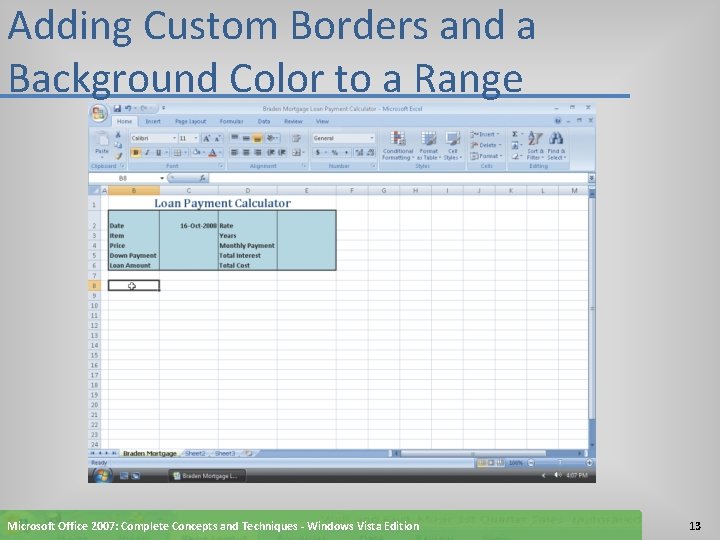
Adding Custom Borders and a Background Color to a Range • Select the range B 2: E 6 and then right–click to display the shortcut menu • Click Format Cells on the shortcut menu • When Excel displays the Format Cells dialog box, click the Border tab • Click the medium line style in the Style area (column 2, row 5) Microsoft Office 2007: Complete Concepts and Techniques - Windows Vista Edition 11
Adding Custom Borders and a Background Color to a Range • Click the Outline button in the Presets area to display a preview of the outline border in the Border area • Click the light border in the Style area (column 1, row 7) and then click the Vertical Line button in the Border area to preview the black vertical border in the Border area • Click the Fill tab and then click light blue (column 9, row 3) in the Background Color area • Click the OK button and then select cell B 8 to deselect the range B 2: E 6, add a black outline with vertical borders to the right side of each column in the range B 2: E 6, and add a light blue fill color to the range Microsoft Office 2007: Complete Concepts and Techniques - Windows Vista Edition 12
Adding Custom Borders and a Background Color to a Range Microsoft Office 2007: Complete Concepts and Techniques - Windows Vista Edition 13
Formatting Cells before Entering Values • Select the range C 4: C 6. While holding down the CTRL key, select the nonadjacent range E 4: E 6 • Right–click one of the selected ranges and then click Format Cells on the shortcut menu. • When Excel displays the Format Cells dialog box, click the Number tab. Click Currency in the Category list and then click the second format, $1, 234. 10, in the Negative numbers list. Click the OK button to assign the Currency style format with a floating dollar sign to the ranges C 4: C 6 and E 4: E 6 Microsoft Office 2007: Complete Concepts and Techniques - Windows Vista Edition 14
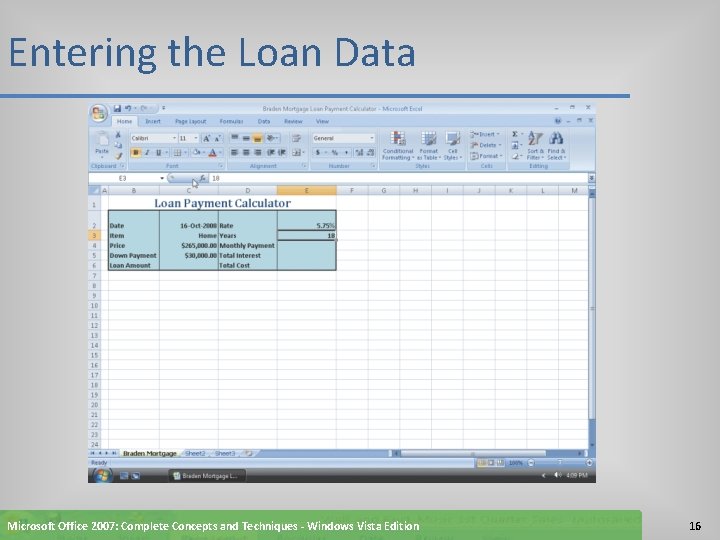
Entering the Loan Data • Select cell C 3. Type Home and then click the Enter box in the formula bar. With cell C 3 still active, click the Align Text Right button on the Ribbon. Select cell C 4 and then enter 265000 for the price of the house. Select cell C 5 and then enter 30000 for the down payment. • Select cell E 2. Enter 5. 75% for the interest rate. Select cell E 3 and then enter 18 for the number of years to complete the entry of loan data in the worksheet Microsoft Office 2007: Complete Concepts and Techniques - Windows Vista Edition 15
Entering the Loan Data Microsoft Office 2007: Complete Concepts and Techniques - Windows Vista Edition 16
Creating Names Based on Row Titles • Select the range B 4: C 6 • Click the Formulas tab on the Ribbon • Click the Create from Selection button on the Ribbon to display the Create Names from Selection dialog box • Click the OK button • Select the range D 2: E 6 and then click the Create from Selection button on the Ribbon Microsoft Office 2007: Complete Concepts and Techniques - Windows Vista Edition 17
Creating Names Based on Row Titles • Click the OK button on the Create Names from Selection dialog box to assign names to the range E 2: E 6 • Select cell B 8 to deselect the range D 2: E 6 and then click the Name box arrow in the formula bar to view the names created Microsoft Office 2007: Complete Concepts and Techniques - Windows Vista Edition 18
Creating Names Based on Row Titles Microsoft Office 2007: Complete Concepts and Techniques - Windows Vista Edition 19
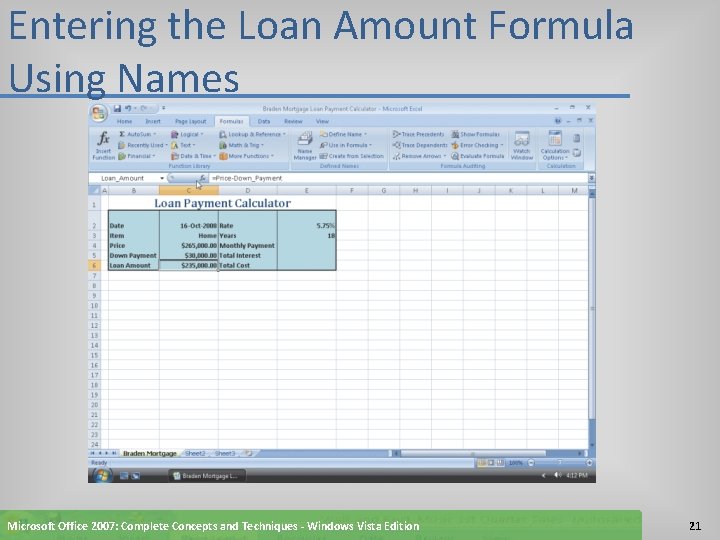
Entering the Loan Amount Formula Using Names • Select cell C 6 • Type = (equal sign), click cell C 4, type – (minus sign), and then click cell C 5 to display the formula in cell C 6 and in the formula bar using the names of the cells rather then the cell references • Click the Enter box to assign the formula =Price – Down_Payment to cell C 6 Microsoft Office 2007: Complete Concepts and Techniques - Windows Vista Edition 20
Entering the Loan Amount Formula Using Names Microsoft Office 2007: Complete Concepts and Techniques - Windows Vista Edition 21
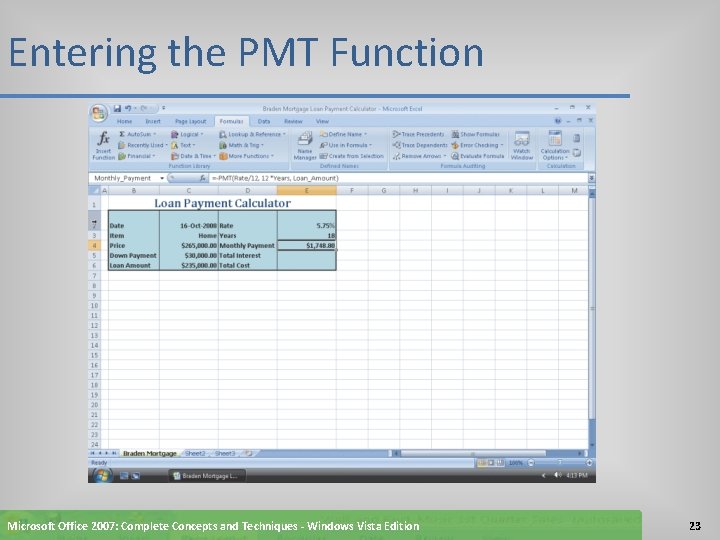
Entering the PMT Function • Select cell E 4. Type –pmt(rate / 12, 12*years, loan_amount as the function to display the PMT function in cell E 4 and in the formula bar • If necessary, scroll the worksheet to the left using the horizontal scrollbar • Click the Enter box in the formula bar to complete the function Microsoft Office 2007: Complete Concepts and Techniques - Windows Vista Edition 22
Entering the PMT Function Microsoft Office 2007: Complete Concepts and Techniques - Windows Vista Edition 23
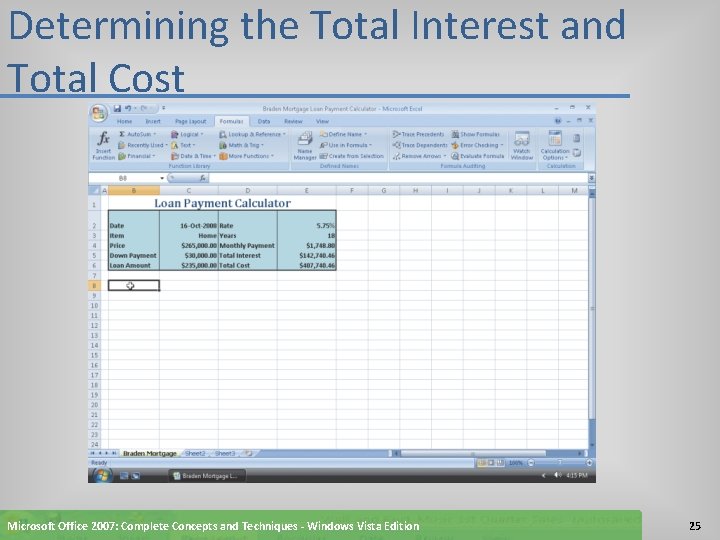
Determining the Total Interest and Total Cost • Select cell E 5. Use Point mode and the keyboard to enter the formula =12 * years * monthly_payment – loan_amount to determine the total interest • Select cell E 6. Use Point mode and the keyboard to enter the formula =price + total_ interest to determine the total cost • Select cell B 8 to deselect cell E 6 • Click the Save button on the Quick Access Toolbar to save the workbook using the file name Braden Mortgage Loan Payment Calculator Microsoft Office 2007: Complete Concepts and Techniques - Windows Vista Edition 24
Determining the Total Interest and Total Cost Microsoft Office 2007: Complete Concepts and Techniques - Windows Vista Edition 25
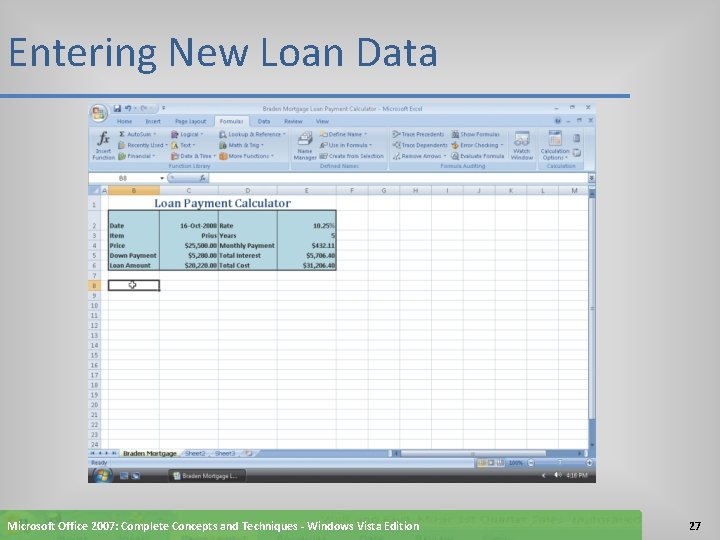
Entering New Loan Data • Select cell C 3. Type Prius and then press the DOWN ARROW key • In cell C 4, type 25500 and then press the DOWN ARROW key • In cell C 5, type 5280 and then select cell E 2 • In cell E 2, type 10. 25% and then press the DOWN ARROW key • In cell E 3, type 5 and then select cell B 8 to recalculate the loan information in cells C 6, E 4, E 5, and E 6 Microsoft Office 2007: Complete Concepts and Techniques - Windows Vista Edition 26
Entering New Loan Data Microsoft Office 2007: Complete Concepts and Techniques - Windows Vista Edition 27
Entering the Original Loan Data • Select cell C 3. Type Home and then press the DOWN ARROW key • In cell C 4, type 265000 and then press the DOWN ARROW key • In cell C 5, type 30000 and then select cell E 2 • In cell E 2, type 5. 75 and then press the DOWN ARROW key • In cell E 3, type 18 and then select cell B 8 Microsoft Office 2007: Complete Concepts and Techniques - Windows Vista Edition 28
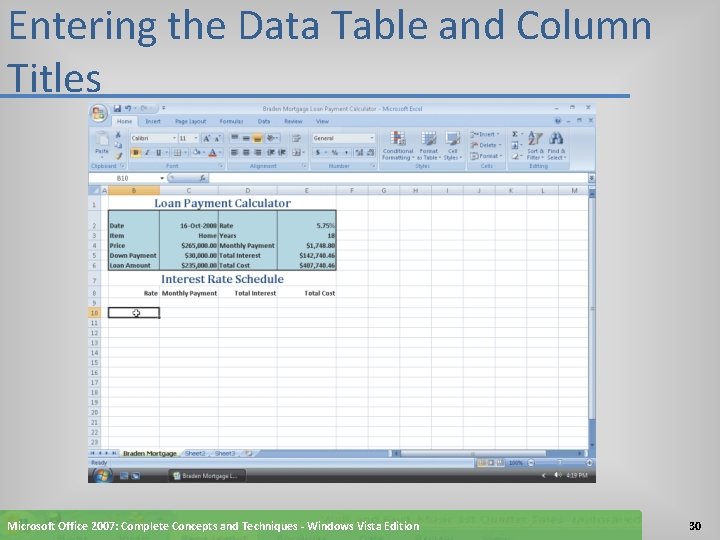
Entering the Data Table and Column Titles • Click the Home tab on the Ribbon. Select cell B 7. Enter Interest Rate Schedule as the data table section title • Select cell B 1. Click the Format Painter button on the Ribbon. Select cell B 7 to copy the format of cell B 1 • Enter the column titles in the range B 8: E 8 as shown in Figure 4– 21. Select the range B 8: E 8 and then click the Align Text Right button on the Ribbon to right–align the column titles. • Position the mouse pointer on the bottom boundary of row heading 7. Drag down until the Screen. Tip indicates Height: 23. 25 (31 pixels). Position the mouse pointer on the bottom boundary of row heading 8. Drag down until the Screen. Tip indicates Height: 18. 00 (24 pixels). Click cell B 10 to deselect the range B 8: E 8 Microsoft Office 2007: Complete Concepts and Techniques - Windows Vista Edition 29
Entering the Data Table and Column Titles Microsoft Office 2007: Complete Concepts and Techniques - Windows Vista Edition 30
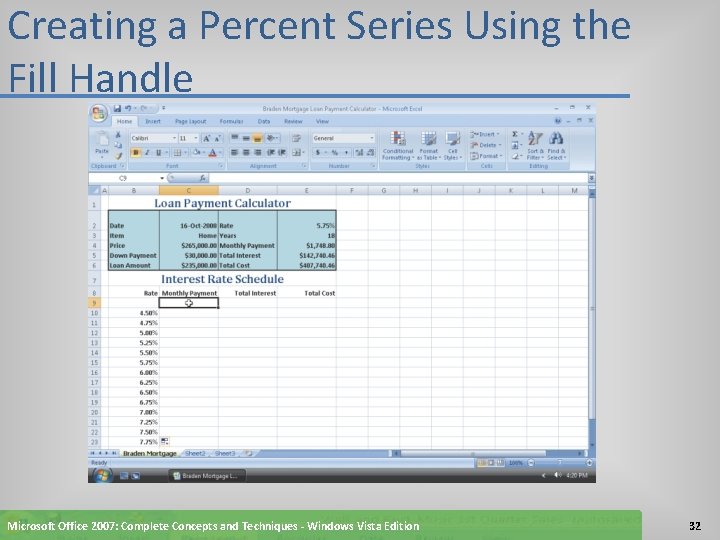
Creating a Percent Series Using the Fill Handle • With cell B 10 selected, enter 4. 50% as the first number in the series • Select cell B 11 and then enter 4. 75% as the second number in the series • Select the range B 10: B 11 • Drag the fill handle through cell B 23 to create the border of the fill area as indicated by the shaded border. Do not release the mouse button • Release the mouse button to generate the percent series from 4. 50 to 7. 75% and display the Auto Fill Options button. Click cell C 9 to deselect the range B 10: B 23 Microsoft Office 2007: Complete Concepts and Techniques - Windows Vista Edition 31
Creating a Percent Series Using the Fill Handle Microsoft Office 2007: Complete Concepts and Techniques - Windows Vista Edition 32
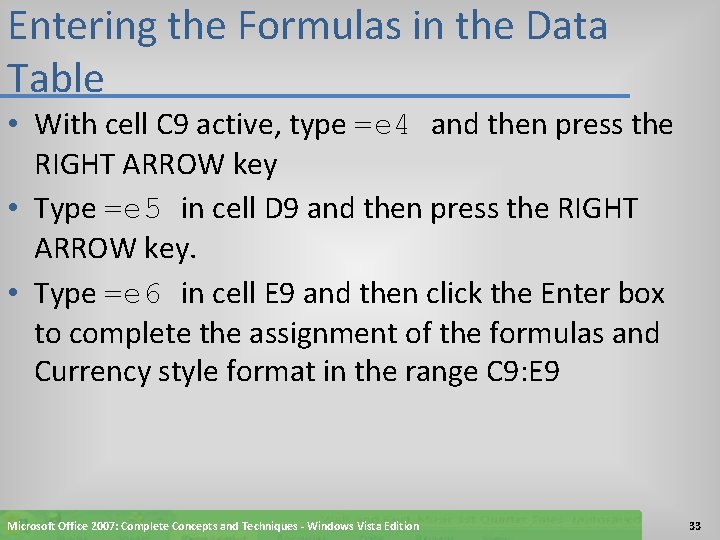
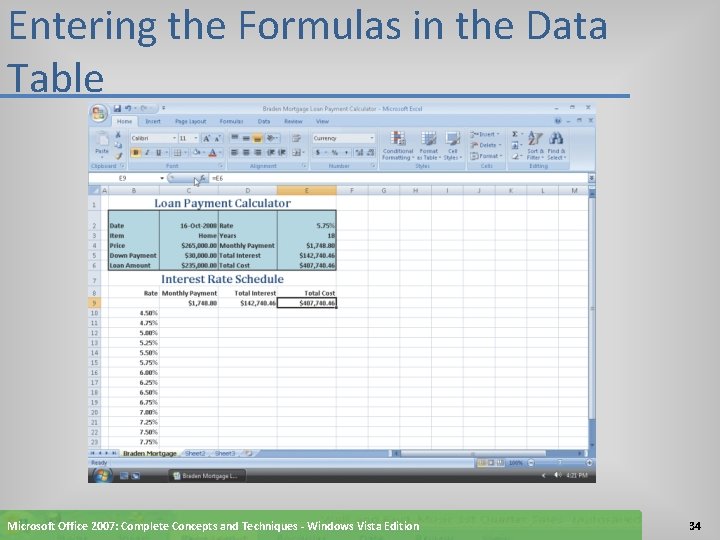
Entering the Formulas in the Data Table • With cell C 9 active, type =e 4 and then press the RIGHT ARROW key • Type =e 5 in cell D 9 and then press the RIGHT ARROW key. • Type =e 6 in cell E 9 and then click the Enter box to complete the assignment of the formulas and Currency style format in the range C 9: E 9 Microsoft Office 2007: Complete Concepts and Techniques - Windows Vista Edition 33
Entering the Formulas in the Data Table Microsoft Office 2007: Complete Concepts and Techniques - Windows Vista Edition 34
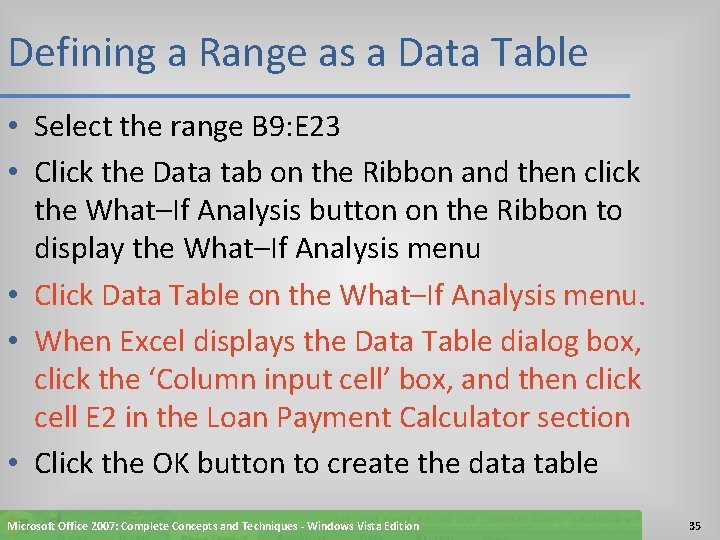
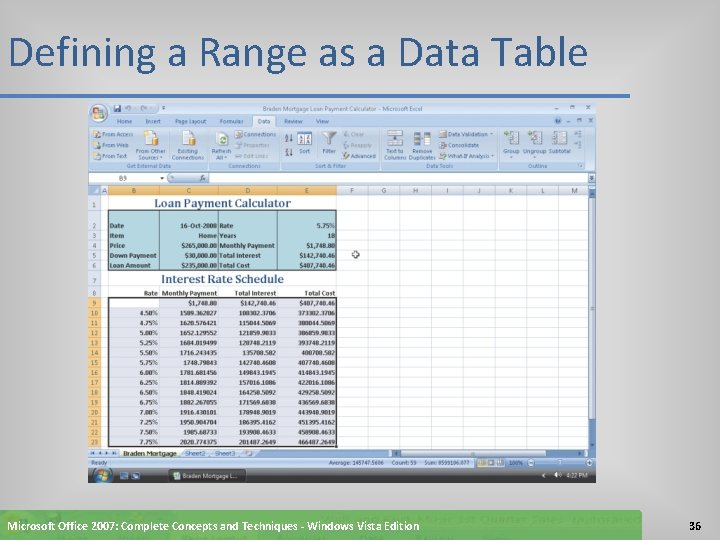
Defining a Range as a Data Table • Select the range B 9: E 23 • Click the Data tab on the Ribbon and then click the What–If Analysis button on the Ribbon to display the What–If Analysis menu • Click Data Table on the What–If Analysis menu. • When Excel displays the Data Table dialog box, click the ‘Column input cell’ box, and then click cell E 2 in the Loan Payment Calculator section • Click the OK button to create the data table Microsoft Office 2007: Complete Concepts and Techniques - Windows Vista Edition 35
Defining a Range as a Data Table Microsoft Office 2007: Complete Concepts and Techniques - Windows Vista Edition 36
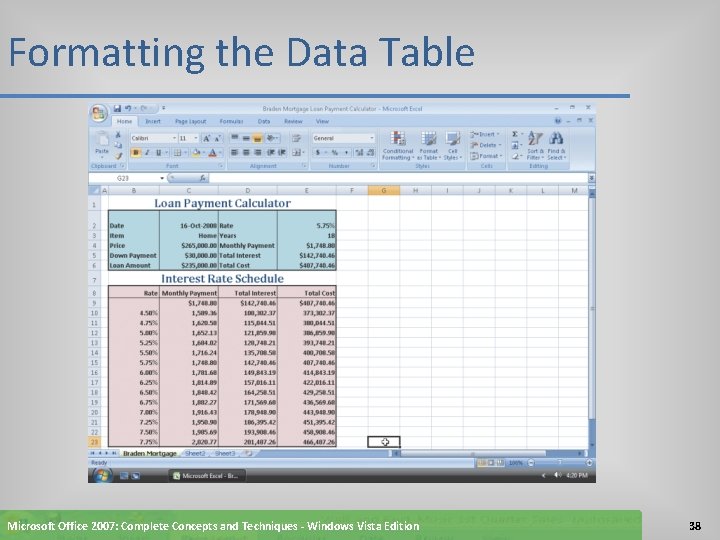
Formatting the Data Table • • • Select the range B 8: E 23. Right–click the selected range and then click Format Cells on the shortcut menu. When Excel displays the Format Cells dialog box, click the Border tab, and then click the medium line style in the Style area (column 2, row 5). Click the Outline button in the Presets area. Click the light border in the Style area (column 1, row 7) and then click the Vertical Line button in the Border area to preview the black vertical border in the Border area Click the Fill tab and then click the light red color box (column 6, row 2). Click the OK button Select the range B 8: E 8. Click the Home tab on the Ribbon and then click the Borders button to assign a light bottom border Select the range C 10: E 23 and right–click. Click Format Cells on the shortcut menu. When Excel displays the Format Cells dialog box, click the Number tab. Click Currency in the Category list, click the Symbol box arrow, click None, and then click the second format, 1, 234. 10, in the Negative numbers list. Click the OK button to display the worksheet as shown in Figure 4– 28. Click the Save button on the Quick Access Toolbar to save the workbook using the file name Braden Mortgage Loan Payment Calculator Microsoft Office 2007: Complete Concepts and Techniques - Windows Vista Edition 37
Formatting the Data Table Microsoft Office 2007: Complete Concepts and Techniques - Windows Vista Edition 38
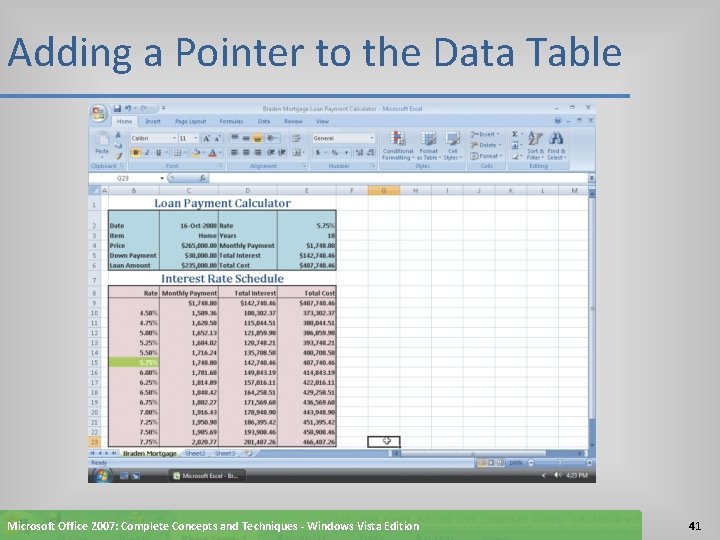
Adding a Pointer to the Data Table • Select the range B 10: B 23 • Click the Conditional Formatting button on the Home tab on the Ribbon to display the Conditional Formatting menu Click New Rule on the Conditional Formatting menu • When Excel displays the New Formatting Rule dialog box, click ‘Format only cells that contain’ in the Select a Rule Type box. Select Cell Value in the left list in the ‘Format only cells with’ area and then select equal to in the middle list. • Type =$E$2 in the right box Microsoft Office 2007: Complete Concepts and Techniques - Windows Vista Edition 39
Adding a Pointer to the Data Table • Click the Format button, click the Fill tab, and then click Green (column 5, row 7) on the Background color palette • Click the Font tab, click the Color box arrow, and then click White (column 1, row 1) on the Color palette in the Theme area • Click the OK button in the Format Cells dialog box to display the New Formatting Rule dialog box • Click the OK button in the New Formatting Rule dialog box. Click cell G 23 to deselect the range B 10: B 23 • Select cell E 2 and then enter 7. 25 as the interest rate • Enter 5. 75 in cell E 2 to return the Loan Payment Calculator section and Interest Rate Schedule section to their original states Microsoft Office 2007: Complete Concepts and Techniques - Windows Vista Edition 40
Adding a Pointer to the Data Table Microsoft Office 2007: Complete Concepts and Techniques - Windows Vista Edition 41
Changing Column Widths and Entering Titles • Position the mouse pointer on the right boundary of column heading F and then drag to the left until the Screen. Tip shows Width: 1. 57 (16 pixels) • Position the mouse pointer on the right boundary of column heading G and then drag to the left until the Screen. Tip shows Width: 8. 43 (64 pixels) • Drag through column headings H through K to select them. Position the mouse pointer on the right boundary of column heading K and then drag to the right until the Screen. Tip shows Width: 14. 00 (103 pixels) • Select cell G 1. Type Amortization Schedule as the section title. Press the ENTER key Microsoft Office 2007: Complete Concepts and Techniques - Windows Vista Edition 42
Changing Column Widths and Entering Titles • Select cell B 1. Click the Format Painter button on the Ribbon. Click cell G 1 to copy the format of cell B 1. Click the Merge & Center button on the Ribbon to split cell G 1. Select the range G 1: K 1 and then click the Merge & Center button on the Ribbon • Enter the column titles in the range G 2: K 2. Where appropriate, press ALT+ENTER to enter the titles on two lines. Select the range G 2: K 2 and then click the Align Text Right button on the Ribbon. Select cell G 3 to display the section title and column headings Microsoft Office 2007: Complete Concepts and Techniques - Windows Vista Edition 43
Changing Column Widths and Entering Titles Microsoft Office 2007: Complete Concepts and Techniques - Windows Vista Edition 44
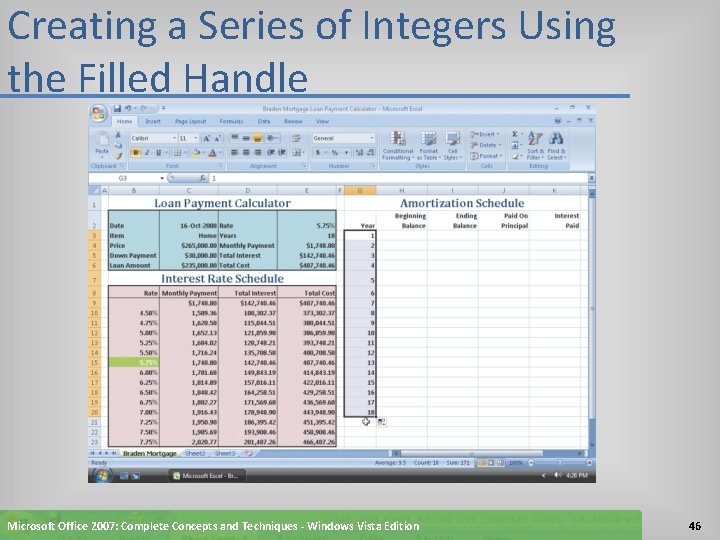
Creating a Series of Integers Using the Filled Handle • With cell G 3 active, enter 1 as the initial year. Select cell G 4 and then enter 2 to represent the next year • Select the range G 3: G 4 and then point to the fill handle. Drag the fill handle through cell G 20 to create the series of integers 1 through 18 in the range G 3: G 20 Microsoft Office 2007: Complete Concepts and Techniques - Windows Vista Edition 45
Creating a Series of Integers Using the Filled Handle Microsoft Office 2007: Complete Concepts and Techniques - Windows Vista Edition 46
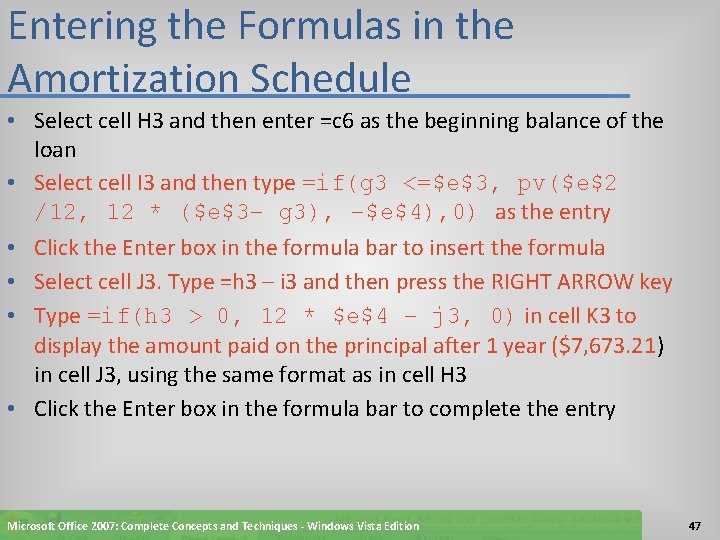
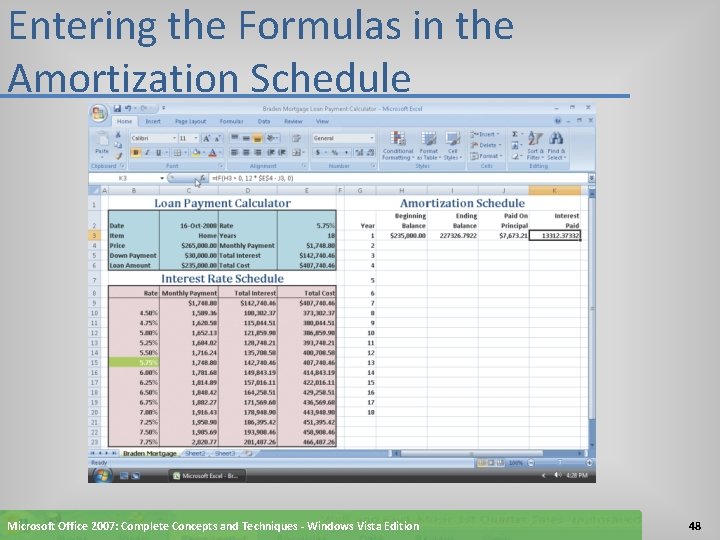
Entering the Formulas in the Amortization Schedule • Select cell H 3 and then enter =c 6 as the beginning balance of the loan • Select cell I 3 and then type =if(g 3 <=$e$3, pv($e$2 /12, 12 * ($e$3– g 3), –$e$4), 0) as the entry • Click the Enter box in the formula bar to insert the formula • Select cell J 3. Type =h 3 – i 3 and then press the RIGHT ARROW key • Type =if(h 3 > 0, 12 * $e$4 – j 3, 0) in cell K 3 to display the amount paid on the principal after 1 year ($7, 673. 21) in cell J 3, using the same format as in cell H 3 • Click the Enter box in the formula bar to complete the entry Microsoft Office 2007: Complete Concepts and Techniques - Windows Vista Edition 47
Entering the Formulas in the Amortization Schedule Microsoft Office 2007: Complete Concepts and Techniques - Windows Vista Edition 48
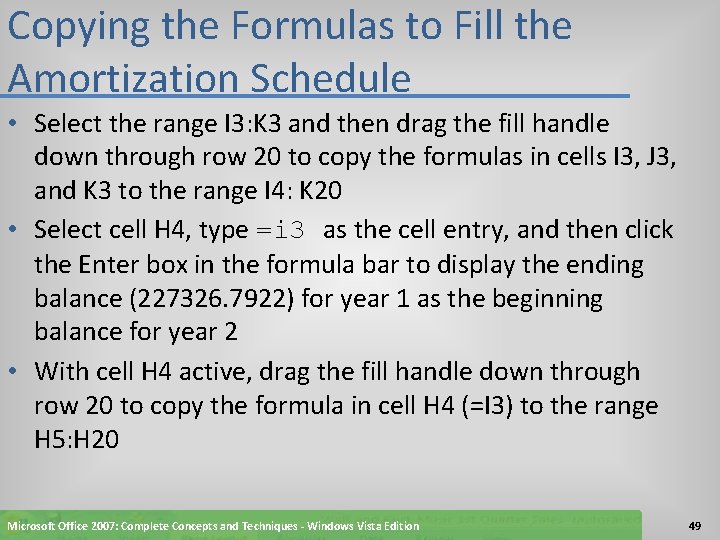
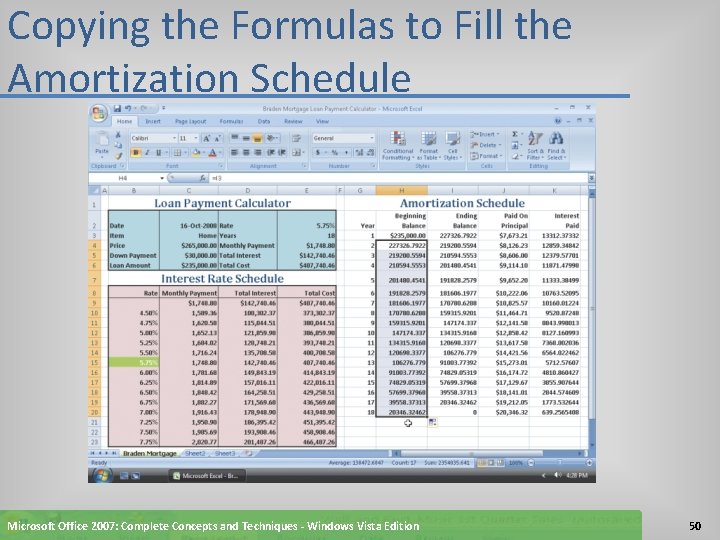
Copying the Formulas to Fill the Amortization Schedule • Select the range I 3: K 3 and then drag the fill handle down through row 20 to copy the formulas in cells I 3, J 3, and K 3 to the range I 4: K 20 • Select cell H 4, type =i 3 as the cell entry, and then click the Enter box in the formula bar to display the ending balance (227326. 7922) for year 1 as the beginning balance for year 2 • With cell H 4 active, drag the fill handle down through row 20 to copy the formula in cell H 4 (=I 3) to the range H 5: H 20 Microsoft Office 2007: Complete Concepts and Techniques - Windows Vista Edition 49
Copying the Formulas to Fill the Amortization Schedule Microsoft Office 2007: Complete Concepts and Techniques - Windows Vista Edition 50
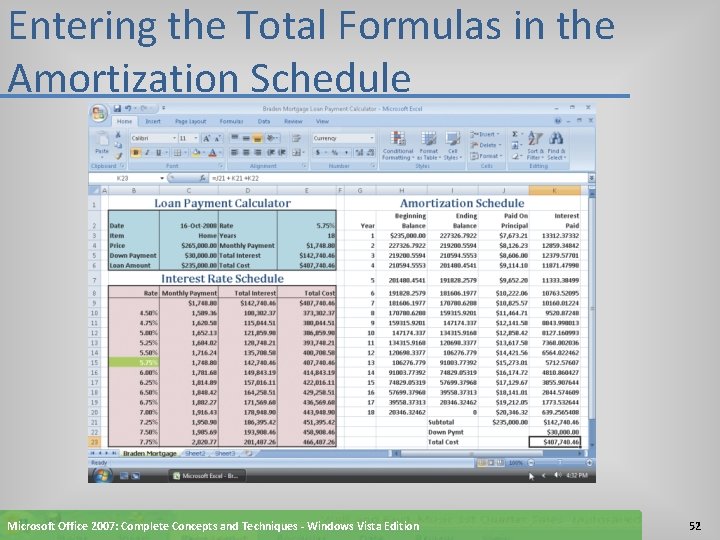
Entering the Total Formulas in the Amortization Schedule • Select cell I 21. Enter Subtotal as the row title. Select the range J 21: K 21. Click the Sum button on the Ribbon • Select cell I 22. Type Down Pymt as the row title. Select cell K 22 and then enter =c 5 as the down payment • Select cell I 23. Type Total Cost as the row title. Select cell K 23, type =j 21 + k 22 as the total cost, and then click the Enter box in the formula bar to complete the amortization schedule totals Microsoft Office 2007: Complete Concepts and Techniques - Windows Vista Edition 51
Entering the Total Formulas in the Amortization Schedule Microsoft Office 2007: Complete Concepts and Techniques - Windows Vista Edition 52
Formatting the Numbers in the Amortization Schedule • Select cell H 3. Click the Format Painter button on the Home tab on the Ribbon. Drag through the range I 3: K 3 to assign the Currency style format to the cells • Select the range H 4: K 20 and then right–click. Click Format Cells on the shortcut menu. When Excel displays the Format Cells dialog box, click the Number tab. Click Currency in the Category list, click the Symbol box arrow, click None, and then click the second format, 1, 234. 10, in the Negative numbers list. Click the OK button • Select cell H 21 to deselect the range H 4: K 20 to display the numbers in the amortization schedule Microsoft Office 2007: Complete Concepts and Techniques - Windows Vista Edition 53
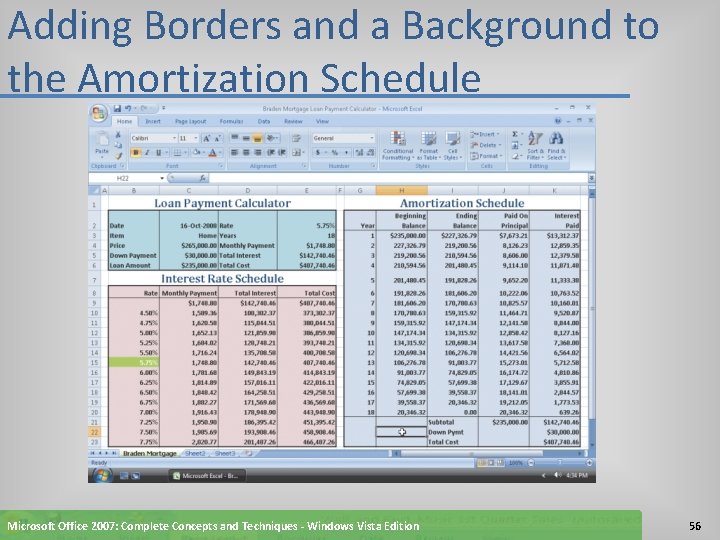
Adding Borders and a Background to the Amortization Schedule • Select the range G 2: K 23. Right–click the selected range and then click Format Cells on the shortcut menu. When Excel displays the Format Cells dialog box, click the Border tab • Click the medium line style in the Style area (column 2, row 5). Click the Outline button in the Presets area • Click the light line style in the Style area (column 1, row 7). Click the vertical line button in the Border area • Click the Fill tab and then click light blue (column 5, row 2). Click the OK button Microsoft Office 2007: Complete Concepts and Techniques - Windows Vista Edition 54
Adding Borders and a Background to the Amortization Schedule • Select the range G 2: K 2. Click the Borders button on the Home tab on the Ribbon to assign the range a light bottom border • Select the range G 20: K 20 and then click the Borders button on the Home tab on the Ribbon to assign the range a light bottom border. Select cell H 22 to display the worksheet • Click the Save button on the Quick Access Toolbar to save the workbook using the file name, Braden Mortgage Loan Payment Calculator Microsoft Office 2007: Complete Concepts and Techniques - Windows Vista Edition 55
Adding Borders and a Background to the Amortization Schedule Microsoft Office 2007: Complete Concepts and Techniques - Windows Vista Edition 56
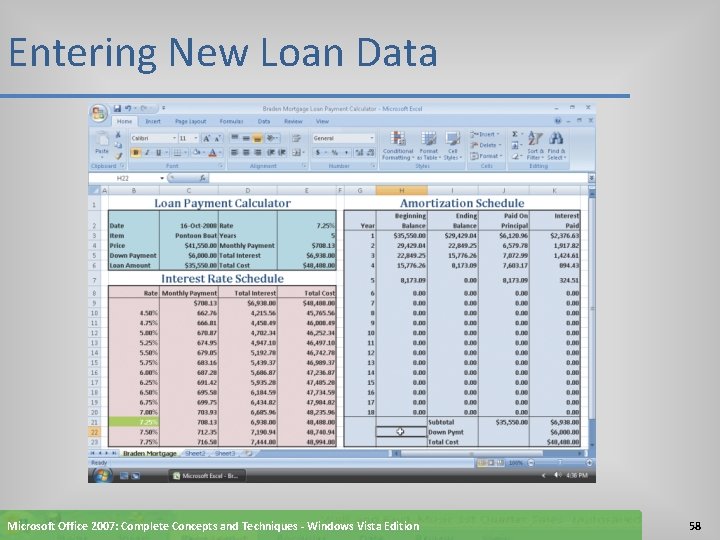
Entering New Loan Data • Select cell C 3. Type Pontoon Boat and then press the DOWN ARROW key • In cell C 4, type 41550 and then press the DOWN ARROW key • In cell C 5, type 6000 as the down payment. • Select cell E 2, type 7. 25 and then press the DOWN ARROW key • In cell E 3, type 5 and then press the DOWN ARROW key. Select cell H 22 to display the worksheet Microsoft Office 2007: Complete Concepts and Techniques - Windows Vista Edition 57
Entering New Loan Data Microsoft Office 2007: Complete Concepts and Techniques - Windows Vista Edition 58
Entering the Original Loan Data • Select cell C 3. Type Home and then press the DOWN ARROW key • In cell C 4, type 265000 and then press the DOWN ARROW key • In cell C 5, type 30000 as the down payment • Select cell E 2, type 5. 75 and then press the DOWN ARROW key • In cell E 3, type 18 and then click the Enter box in the formula bar or press the ENTER key to complete the entry of the original load data. Select cell H 22 Microsoft Office 2007: Complete Concepts and Techniques - Windows Vista Edition 59
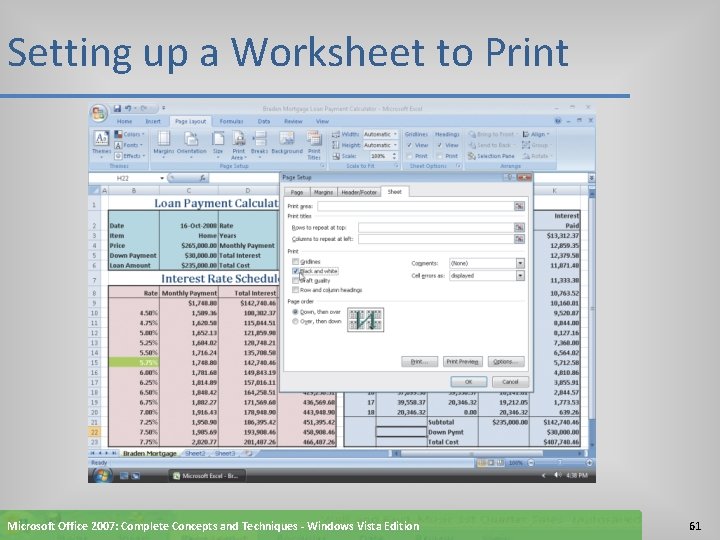
Setting up a Worksheet to Print • Click the Page Layout tab on the Ribbon and then click the Page Setup Dialog Box Launcher on the Ribbon • When Excel displays the Page Setup dialog box, click the Page tab and then click Fit to in the Scaling area to set the worksheet to print on one page • Click the Sheet tab and then click ‘Black and white’ in the Print area to select the check box • Click the OK button Microsoft Office 2007: Complete Concepts and Techniques - Windows Vista Edition 60
Setting up a Worksheet to Print Microsoft Office 2007: Complete Concepts and Techniques - Windows Vista Edition 61
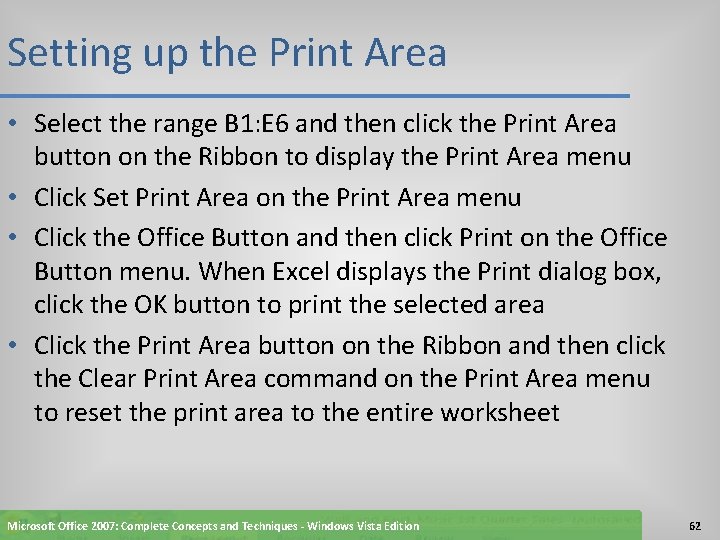
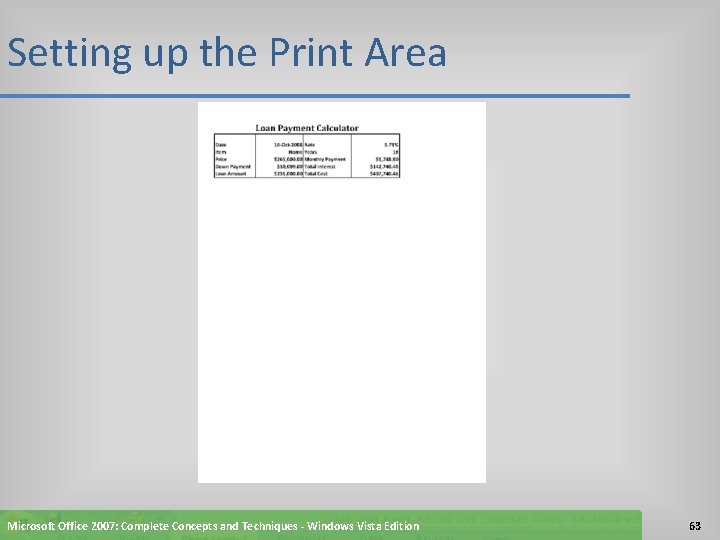
Setting up the Print Area • Select the range B 1: E 6 and then click the Print Area button on the Ribbon to display the Print Area menu • Click Set Print Area on the Print Area menu • Click the Office Button and then click Print on the Office Button menu. When Excel displays the Print dialog box, click the OK button to print the selected area • Click the Print Area button on the Ribbon and then click the Clear Print Area command on the Print Area menu to reset the print area to the entire worksheet Microsoft Office 2007: Complete Concepts and Techniques - Windows Vista Edition 62
Setting up the Print Area Microsoft Office 2007: Complete Concepts and Techniques - Windows Vista Edition 63
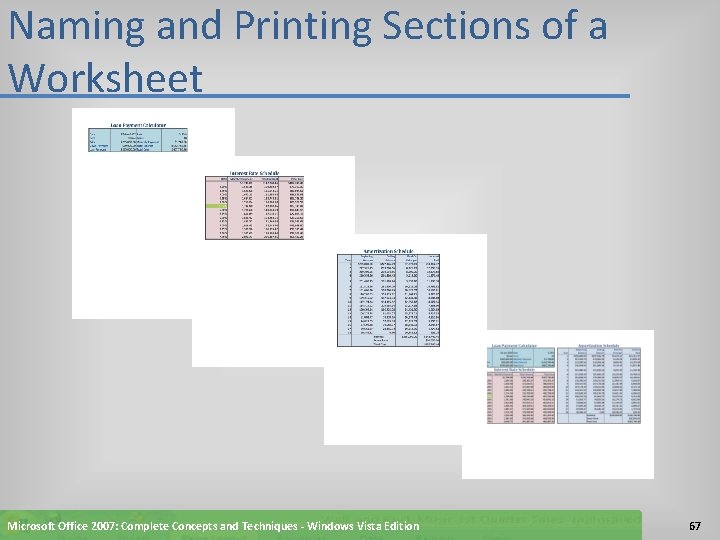
Naming and Printing Sections of a Worksheet • If necessary, select the range B 1: E 6, click the Name box, and then type Loan_Payment as the name of the range • Press the ENTER key • Select the range B 7: E 23, click the Name box, type Interest_Schedule as the name of the range, and then press the ENTER key • Select the range G 1: K 23, click the Name box, type Amortization_ Schedule as the name of the range, and then press the ENTER key • Select the range B 1: K 23, click the Name box, type All_Sections as the name of the range, and then press the ENTER key Microsoft Office 2007: Complete Concepts and Techniques - Windows Vista Edition 64
Naming and Printing Sections of a Worksheet • Select cell H 22 and then click the Name box arrow in the formula bar to display the Name list with the new range names • Click Loan_Payment in the Name list to select the range B 1: E 6 • Click the Office Button and then click Print on the Office Button menu to display the Print dialog box. • When Excel displays the Print dialog box, click Selection in the Print what area Microsoft Office 2007: Complete Concepts and Techniques - Windows Vista Edition 65
Naming and Printing Sections of a Worksheet • Click the OK button to print the Loan_Payment range • One at a time, use the Name box to select the names Interest_Schedule, Amortization_Schedule, and All_Sections, and then print them following the instructions in Step 3 • Click the Save button on the Quick Access Toolbar to save the workbook using the fi le name, Braden Mortgage Loan Payment Calculator. Microsoft Office 2007: Complete Concepts and Techniques - Windows Vista Edition 66
Naming and Printing Sections of a Worksheet Microsoft Office 2007: Complete Concepts and Techniques - Windows Vista Edition 67
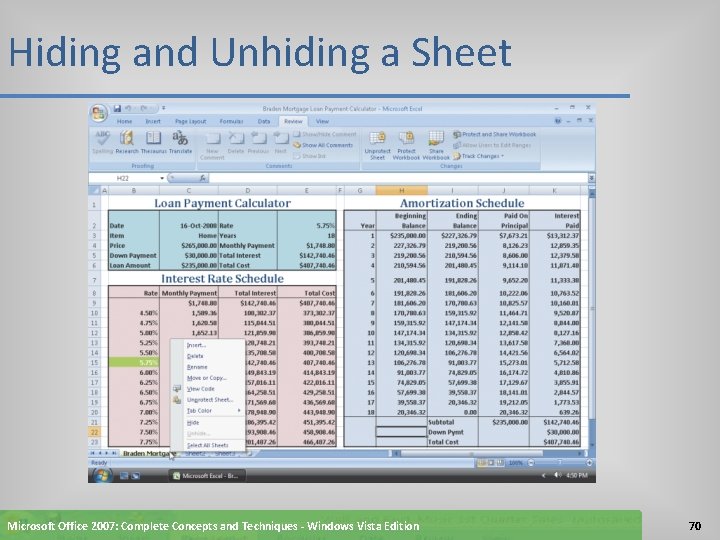
Hiding and Unhiding a Sheet • If the Braden Mortgage sheet is not active, click its sheet tab • Right–click the sheet tab to display the shortcut menu • Click Hide on the shortcut menu to hide the Braden Mortgage sheet • Right–click any sheet tab to display the shortcut menu Microsoft Office 2007: Complete Concepts and Techniques - Windows Vista Edition 68
Hiding and Unhiding a Sheet • Click Unhide on the shortcut menu to open the Unhide dialog box • When Excel displays the Unhide dialog box, if necessary, click Braden Mortgage in the Unhide sheet list • Click the OK button to unhide the Braden Mortgage sheet Microsoft Office 2007: Complete Concepts and Techniques - Windows Vista Edition 69
Hiding and Unhiding a Sheet Microsoft Office 2007: Complete Concepts and Techniques - Windows Vista Edition 70
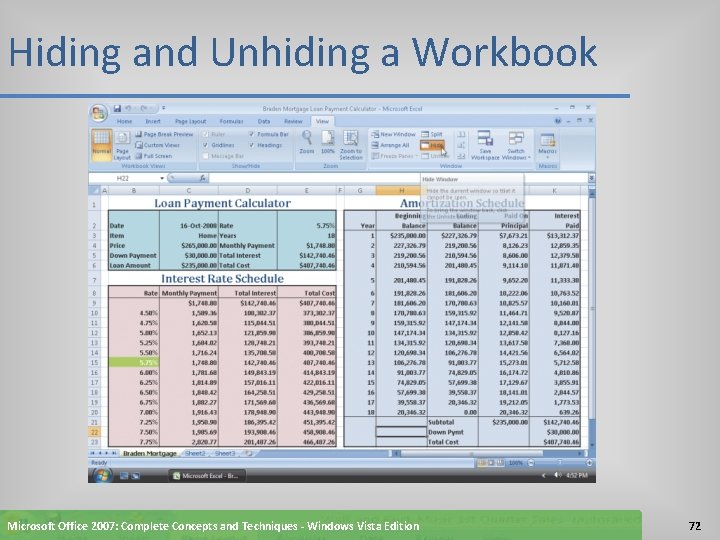
Hiding and Unhiding a Workbook • Click the View tab on the Ribbon • Click the Hide button on the Ribbon to hide the Braden Mortgage workbook • Click the Unhide button on the Ribbon • When Excel displays the Unhide dialog box, if necessary, click Braden Mortgage Loan Payment Calculator in the Unhide workbook list • Click the OK button to unhide the Braden Mortgage Loan Payment Calculator workbook as it was shown in Figure 4– 62 Microsoft Office 2007: Complete Concepts and Techniques - Windows Vista Edition 71
Hiding and Unhiding a Workbook Microsoft Office 2007: Complete Concepts and Techniques - Windows Vista Edition 72
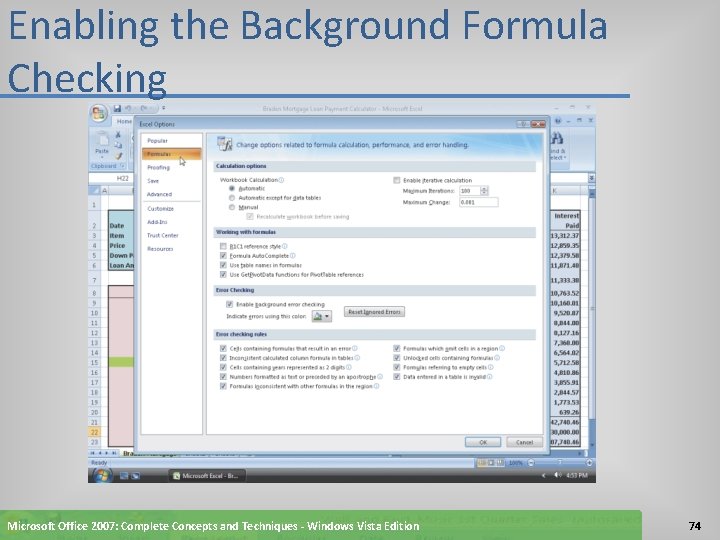
Enabling the Background Formula Checking • Click the Office Button on the Ribbon, click the Excel Options button, and then click the Formulas button • If necessary, click ‘Enable background error checking’ in the Error Checking area to select it • Click any check box in the ‘Error checking rules’ area that does not contain a check mark • Click the OK button Microsoft Office 2007: Complete Concepts and Techniques - Windows Vista Edition 73
Enabling the Background Formula Checking Microsoft Office 2007: Complete Concepts and Techniques - Windows Vista Edition 74
Quitting Excel • Click the Close button on the right side of the title bar • If Excel displays a Microsoft Office Excel dialog box, click the No button Microsoft Office 2007: Complete Concepts and Techniques - Windows Vista Edition 75
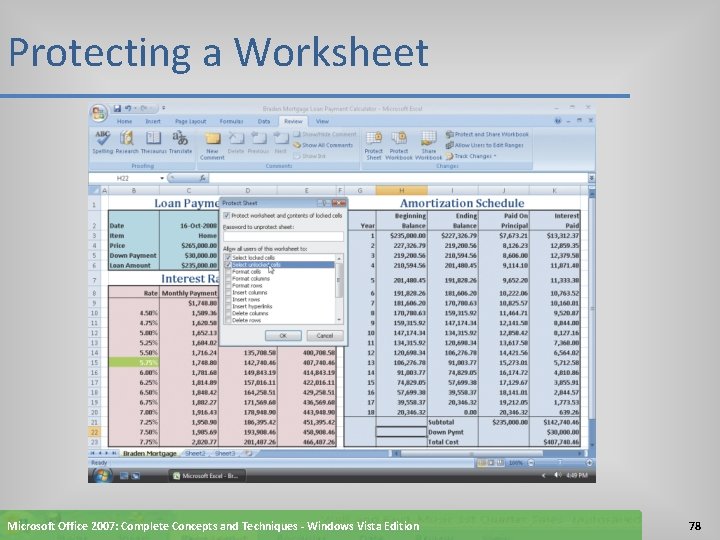
Protecting a Worksheet • Select the range C 3: C 5 • Hold down the CTRL key and then select the nonadjacent range E 2: E 3 • Right–click one of the selected ranges to display the shortcut menu • Click Format Cells on the shortcut menu • When Excel displays the Custom Lists dialog box, click the Protection tab, and then click Locked to remove the check mark Microsoft Office 2007: Complete Concepts and Techniques - Windows Vista Edition 76
Protecting a Worksheet • Click the OK button and then select cell H 22 to deselect the ranges C 3: C 5 and E 2: E 3 • Click the Review tab on the Ribbon • Click the Protect Sheet button on the Ribbon to display the Protect Sheet dialog box • When Excel displays the Protect Sheet dialog box, make sure the Protect worksheet and contents of locked cells check box at the top of the dialog box and the first two check boxes in the list contain check marks • Click the OK button in the Protect Sheet dialog box • Click the Save button on the Quick Access Toolbar Microsoft Office 2007: Complete Concepts and Techniques - Windows Vista Edition 77
Protecting a Worksheet Microsoft Office 2007: Complete Concepts and Techniques - Windows Vista Edition 78
Summary • Control the color and thickness of outlines and borders • Assign a name to a cell and refer to the cell in a formula using the assigned name • Determine the monthly payment of a loan using the financial function PMT • Use the financial functions PV (present value) and FV (future value) • Create a data table to analyze data in a worksheet • Add a pointer to a data table • Create an amortization schedule Microsoft Office 2007: Complete Concepts and Techniques - Windows Vista Edition 79
Summary • Analyze worksheet data by changing values • Use names and the Set Print Area command to print sections of a worksheet • Set print options • Protect and unprotect cells in a worksheet • Use the formula checking features of Excel • Hide and unhide cell gridlines, rows, columns, sheets, and workbooks Microsoft Office 2007: Complete Concepts and Techniques - Windows Vista Edition 80
Microsoft Office 2007 Excel Chapter 4 Complete