
Microsoft Office 2003 Introductory Concepts and Techniques Office
- Slides: 64
Microsoft Office 2003 Introductory Concepts and Techniques Office 2003 Integration Integrating Office 2003 Applications and the World Wide Web
Objectives • Integrate the Office 2003 applications to create a Web site • Add hyperlinks to a Word document • Embed an Excel chart into a Word document • Add scrolling text to a Web page created in Word Office Integration: Integrating Office 2003 Applications and the World Wide Web 2
Objectives • Add a hyperlink to a Power. Point slide • Create Web pages from a Power. Point presentation • Create a data access page from an Access database • Test a Web site in a browser Office Integration: Integrating Office 2003 Applications and the World Wide Web 3
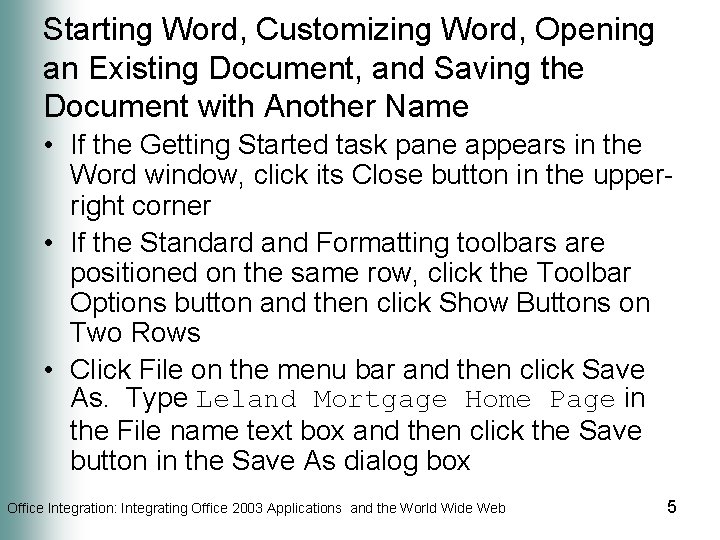
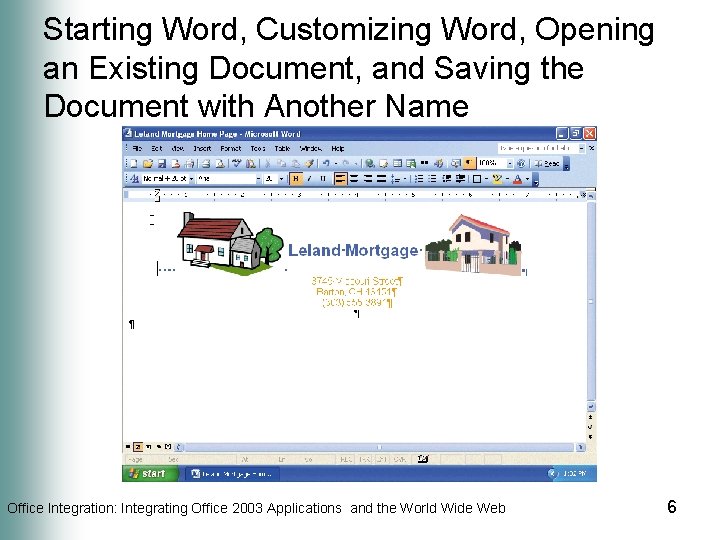
Starting Word, Customizing Word, Opening an Existing Document, and Saving the Document with Another Name • Insert the Integration Data Files for Students into your computer’s USB port • Select Open Office Document on the All Programs submenu of the Start menu • Click the Look in box arrow and then click USB flash drive in the Look in list • Double-click Leland Mortgage Letterhead • If the Language bar is displayed, right-click it and then click Close the Language bar on the shortcut menu Office Integration: Integrating Office 2003 Applications and the World Wide Web 4
Starting Word, Customizing Word, Opening an Existing Document, and Saving the Document with Another Name • If the Getting Started task pane appears in the Word window, click its Close button in the upperright corner • If the Standard and Formatting toolbars are positioned on the same row, click the Toolbar Options button and then click Show Buttons on Two Rows • Click File on the menu bar and then click Save As. Type Leland Mortgage Home Page in the File name text box and then click the Save button in the Save As dialog box Office Integration: Integrating Office 2003 Applications and the World Wide Web 5
Starting Word, Customizing Word, Opening an Existing Document, and Saving the Document with Another Name Office Integration: Integrating Office 2003 Applications and the World Wide Web 6
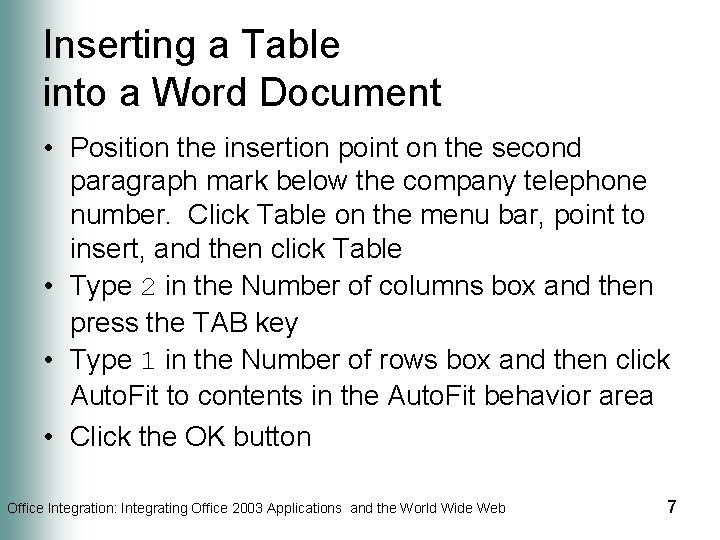
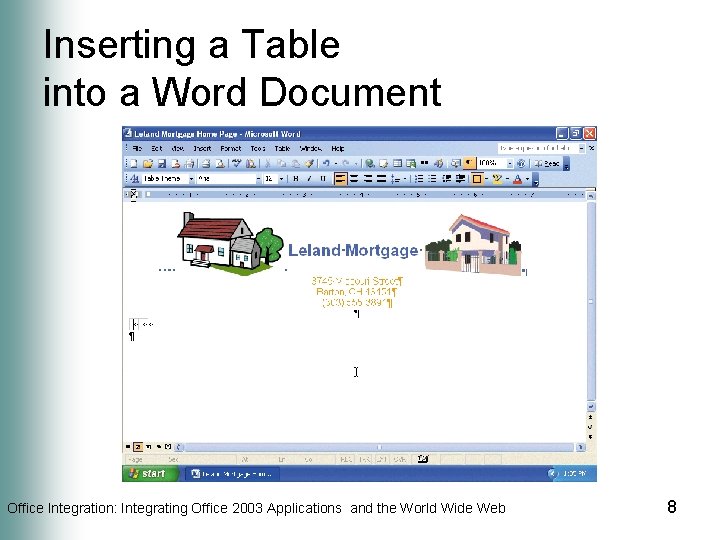
Inserting a Table into a Word Document • Position the insertion point on the second paragraph mark below the company telephone number. Click Table on the menu bar, point to insert, and then click Table • Type 2 in the Number of columns box and then press the TAB key • Type 1 in the Number of rows box and then click Auto. Fit to contents in the Auto. Fit behavior area • Click the OK button Office Integration: Integrating Office 2003 Applications and the World Wide Web 7
Inserting a Table into a Word Document Office Integration: Integrating Office 2003 Applications and the World Wide Web 8
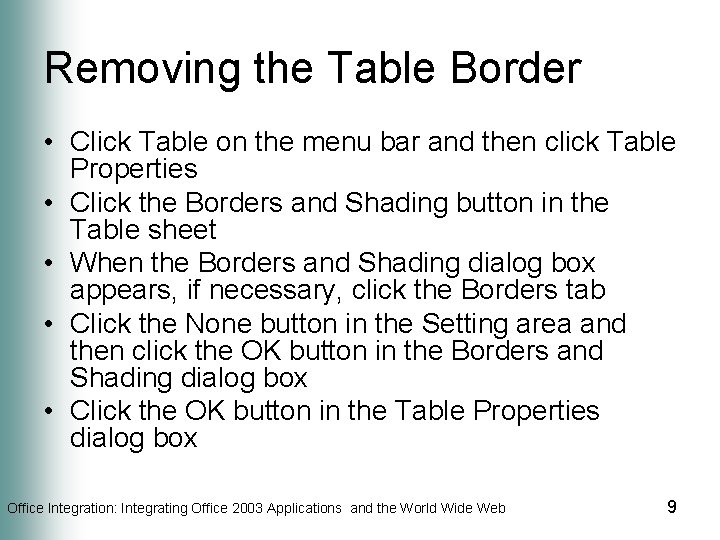
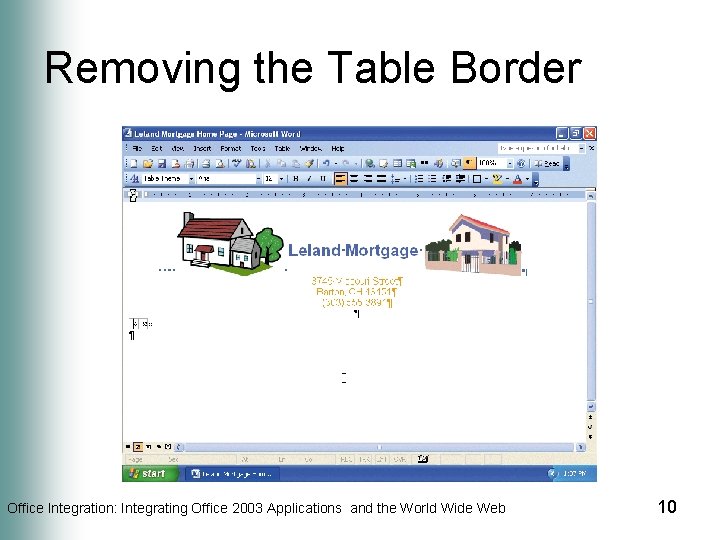
Removing the Table Border • Click Table on the menu bar and then click Table Properties • Click the Borders and Shading button in the Table sheet • When the Borders and Shading dialog box appears, if necessary, click the Borders tab • Click the None button in the Setting area and then click the OK button in the Borders and Shading dialog box • Click the OK button in the Table Properties dialog box Office Integration: Integrating Office 2003 Applications and the World Wide Web 9
Removing the Table Border Office Integration: Integrating Office 2003 Applications and the World Wide Web 10
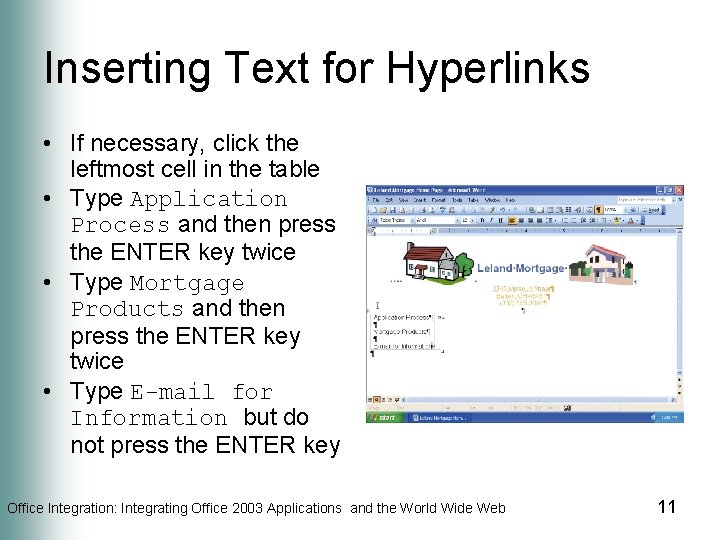
Inserting Text for Hyperlinks • If necessary, click the leftmost cell in the table • Type Application Process and then press the ENTER key twice • Type Mortgage Products and then press the ENTER key twice • Type E-mail for Information but do not press the ENTER key Office Integration: Integrating Office 2003 Applications and the World Wide Web 11
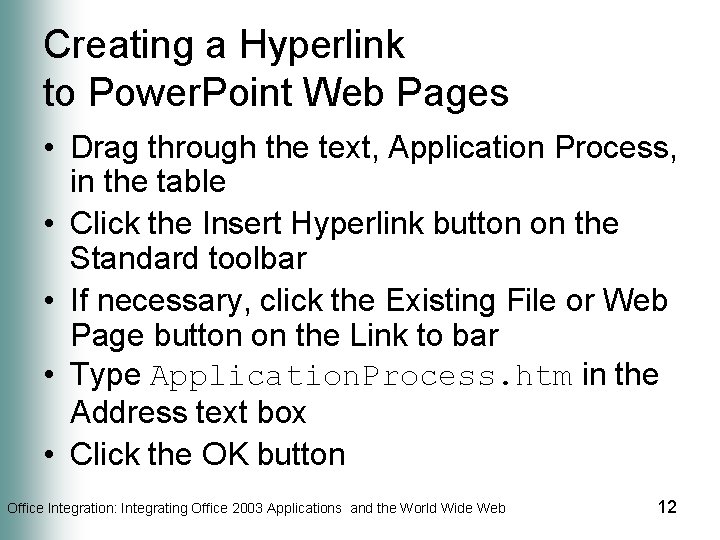
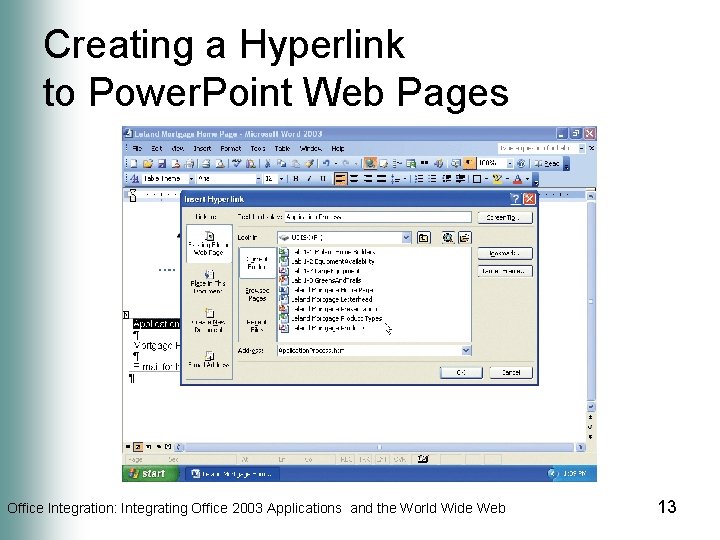
Creating a Hyperlink to Power. Point Web Pages • Drag through the text, Application Process, in the table • Click the Insert Hyperlink button on the Standard toolbar • If necessary, click the Existing File or Web Page button on the Link to bar • Type Application. Process. htm in the Address text box • Click the OK button Office Integration: Integrating Office 2003 Applications and the World Wide Web 12
Creating a Hyperlink to Power. Point Web Pages Office Integration: Integrating Office 2003 Applications and the World Wide Web 13
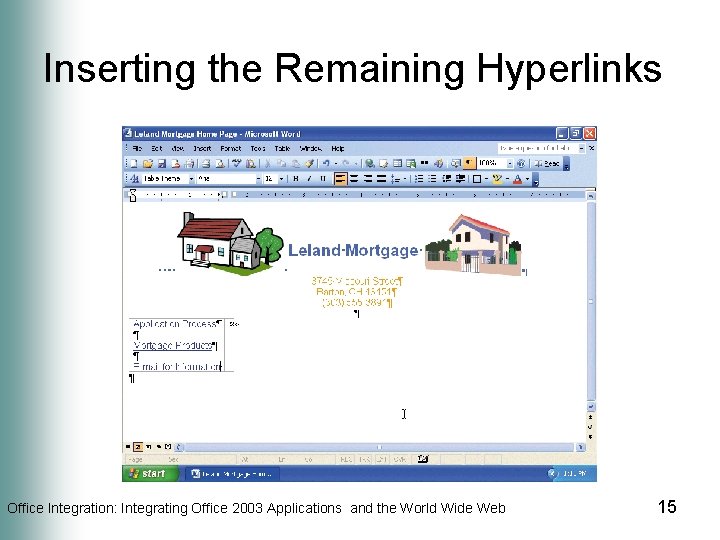
Inserting the Remaining Hyperlinks • Drag through the text, Mortgage Products, in the table. Click the Insert Hyperlink button on the Standard toolbar • Type Mortgage. Products. htm in the Address text box and then click the OK button • Drag through the text, E-mail for Information. Click the Insert Hyperlink button on the Standard toolbar and then click E-mail Address on the Link to bar • Type manager@isp. com in the E-mail address text box • Type Mortgage Application in the Subject box and then click the OK button Office Integration: Integrating Office 2003 Applications and the World Wide Web 14
Inserting the Remaining Hyperlinks Office Integration: Integrating Office 2003 Applications and the World Wide Web 15
Starting Excel, Customizing Excel, and Opening an Existing Workbook • Click the Start button on the Windows taskbar, point to All Programs on the Start menu, and then click Open Office Document on the All Programs submenu • Click the Look in box arrow and then click USB flash drive in the Look in list • Double-click the Leland Mortgage Types workbook Office Integration: Integrating Office 2003 Applications and the World Wide Web 16
Starting Excel, Customizing Excel, and Opening an Existing Workbook • If the Language bar is displayed, right-click it and then click Close the Language bar on the shortcut menu • If the Getting Started task pane is displayed in the Excel window, click its Close button in the upper-right corner. If the Chart toolbar is displayed, click its Close button • If the Standard and Formatting toolbars are positioned on the same row, click the Toolbar Options button and then click Show Buttons on Two Rows Office Integration: Integrating Office 2003 Applications and the World Wide Web 17
Embedding an Excel Chart into a Word Document • Click the Mortgage Amount Chart tab • Click the white area around the chart area to select the chart and then click the Copy button on the Standard toolbar • Click the Leland Mortgage Home Page button on the taskbar • If necessary, click the right column of the table Office Integration: Integrating Office 2003 Applications and the World Wide Web 18
Embedding an Excel Chart into a Word Document • Click Edit on the menu bar • Click Paste Special • If necessary, click Microsoft Excel Chart Object in the As list • Click the OK button Office Integration: Integrating Office 2003 Applications and the World Wide Web 19
Embedding an Excel Chart into a Word Document Office Integration: Integrating Office 2003 Applications and the World Wide Web 20
Changing the Size of an Embedded Object • • • If necessary, click the Bar chart to select it Click Format on the menu bar Click Object If necessary, click the Size tab In the Scale area, if necessary, click the Height box up or down arrow or the Width box up or down arrow until 90% appears in both the Height box and the Width box Office Integration: Integrating Office 2003 Applications and the World Wide Web 21
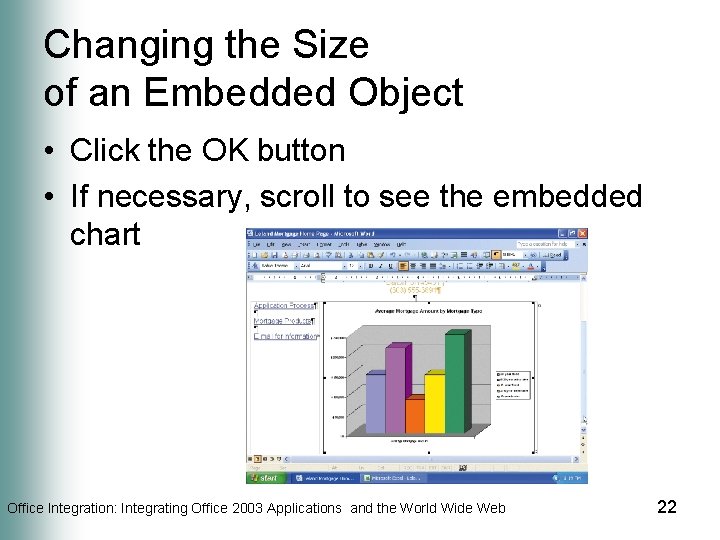
Changing the Size of an Embedded Object • Click the OK button • If necessary, scroll to see the embedded chart Office Integration: Integrating Office 2003 Applications and the World Wide Web 22
Quitting Excel • Right-click the Microsoft Office Excel – Leland Mortgage Product Types button on the taskbar. Click Close on the shortcut menu. If prompted to save changes, click the No button • If the Microsoft Excel dialog box appears regarding saving the large amount of information on the Clipboard, click the No button Office Integration: Integrating Office 2003 Applications and the World Wide Web 23
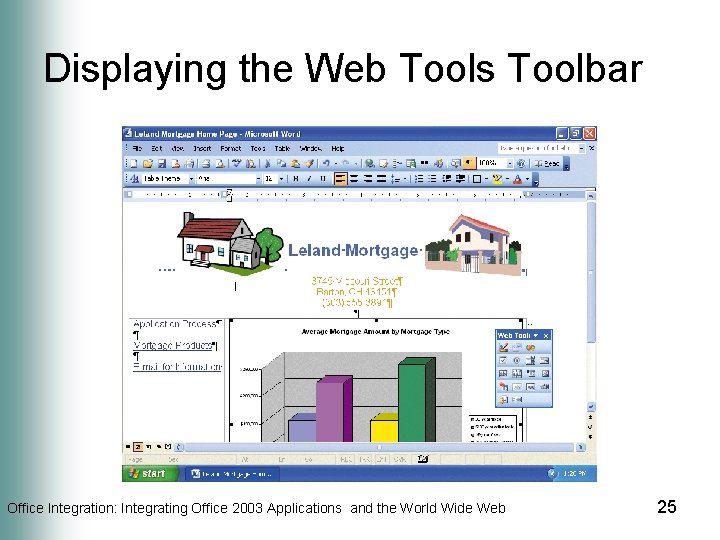
Displaying the Web Tools Toolbar • If necessary, scroll to see the top of the document • Click View on the menu bar, point to Toolbars, and then click Web Tools on the Toolbars submenu • If necessary, point to the Web Tools toolbar title bar and drag the toolbar to the center, right side of the window Office Integration: Integrating Office 2003 Applications and the World Wide Web 24
Displaying the Web Tools Toolbar Office Integration: Integrating Office 2003 Applications and the World Wide Web 25
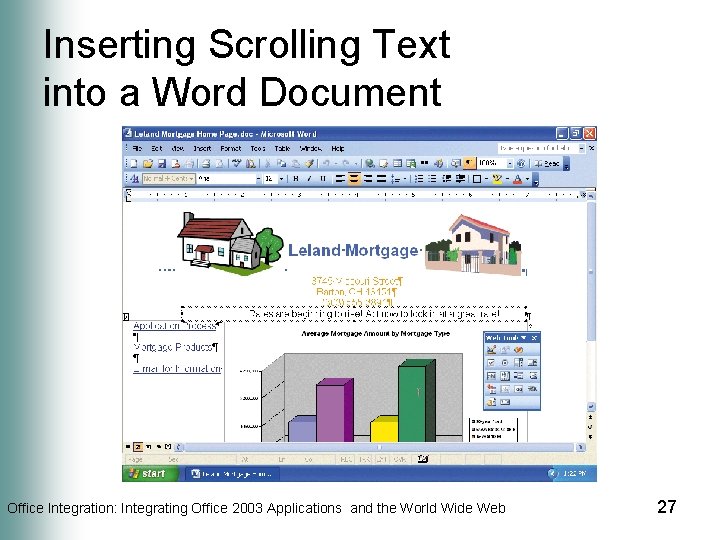
Inserting Scrolling Text into a Word Document • Click the paragraph mark below the Leland Mortgage heading and then click the Scrolling Text button on the Web Tools toolbar • Click the Behavior box arrow and then click Slide in the list • Drag through the text, Scrolling Text, in the Type the scrolling text here text box • Type Rates are beginning to rise! Act now to lock in a great rate! as the scrolling text • Drag the Speed slide one speed marker to the left and then click the OK button Office Integration: Integrating Office 2003 Applications and the World Wide Web 26
Inserting Scrolling Text into a Word Document Office Integration: Integrating Office 2003 Applications and the World Wide Web 27
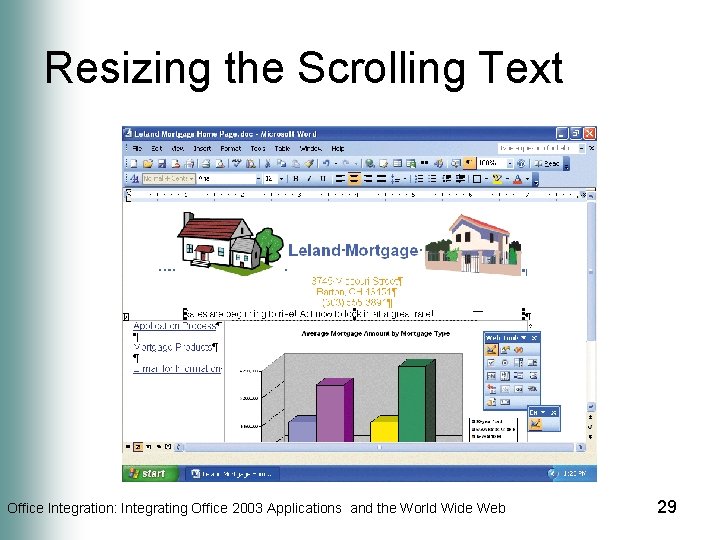
Resizing the Scrolling Text • Click the Design Mode button on the Web Tools toolbar • If necessary, click anywhere within the scrolling text box to select the text • Point to the center sizing handle on the right side of the text box • Drag the center sizing handle to the left, so that it is positioned approximately as shown on the following slide • Release the mouse button Office Integration: Integrating Office 2003 Applications and the World Wide Web 28
Resizing the Scrolling Text Office Integration: Integrating Office 2003 Applications and the World Wide Web 29
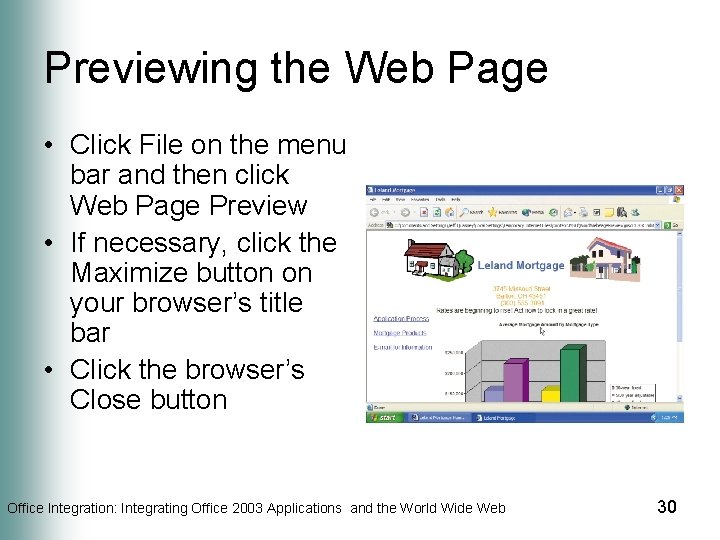
Previewing the Web Page • Click File on the menu bar and then click Web Page Preview • If necessary, click the Maximize button on your browser’s title bar • Click the browser’s Close button Office Integration: Integrating Office 2003 Applications and the World Wide Web 30
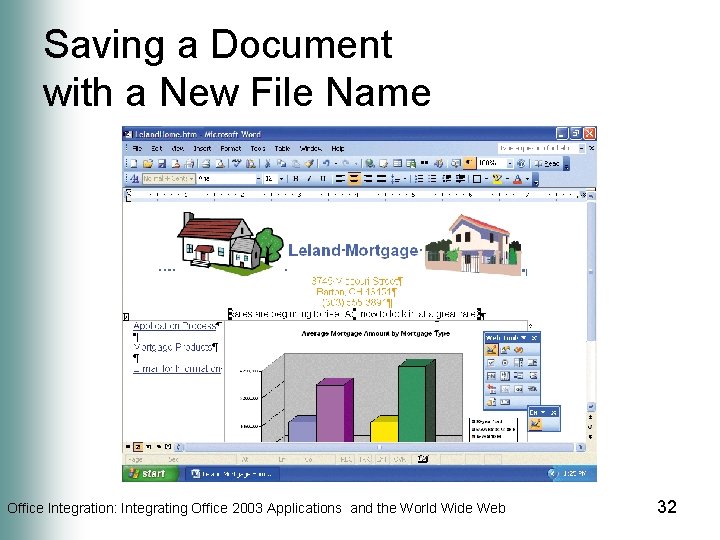
Saving a Document with a New File Name • Click File on the menu bar then click Save as Web page. If the Microsoft Office Word dialog box appears, click the Continue button • Type Leland. Home in the File name text box • Select Web Page in the Save as type box • If necessary, click the Save in box arrow and then click USB flash drive in the Save in list • Click the Save button in the Save As dialog box. If the Microsoft Office Word dialog box appears, click the Continue button Office Integration: Integrating Office 2003 Applications and the World Wide Web 31
Saving a Document with a New File Name Office Integration: Integrating Office 2003 Applications and the World Wide Web 32
Quitting Word • Click the Close button on the Microsoft Word title bar Office Integration: Integrating Office 2003 Applications and the World Wide Web 33
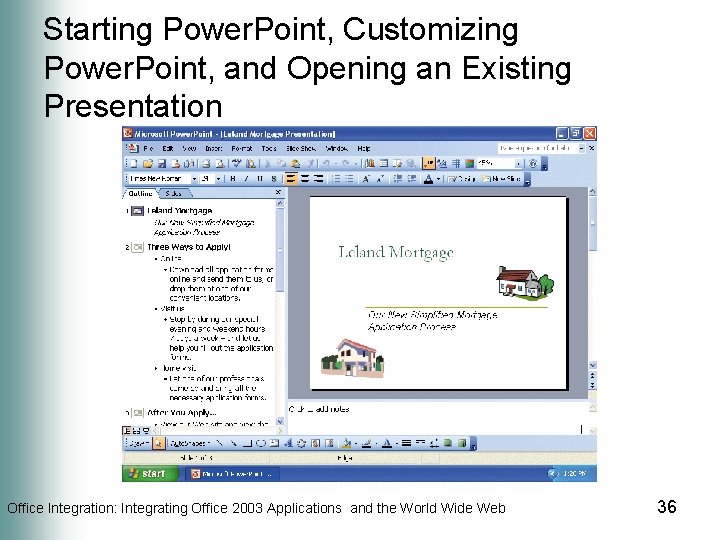
Starting Power. Point, Customizing Power. Point, and Opening an Existing Presentation • Click the Start button on the Windows taskbar, point to All Programs on the Start menu, and then click Open Office Document on the All Programs submenu • Click the Look in box arrow and then click USB flash drive in the Look in list • Double-click the Leland Mortgage Presentation name Office Integration: Integrating Office 2003 Applications and the World Wide Web 34
Starting Power. Point, Customizing Power. Point, and Opening an Existing Presentation • If the Language bar is displayed, right-click it and then click Close the Language bar on the shortcut menu • If the Getting Started task pane appears in the Power. Point window, click its Close button in the upper-right corner • If the Standard and Formatting toolbars are positioned on the same row, click the Toolbar Options button and then click Show Buttons on Two Rows Office Integration: Integrating Office 2003 Applications and the World Wide Web 35
Starting Power. Point, Customizing Power. Point, and Opening an Existing Presentation Office Integration: Integrating Office 2003 Applications and the World Wide Web 36
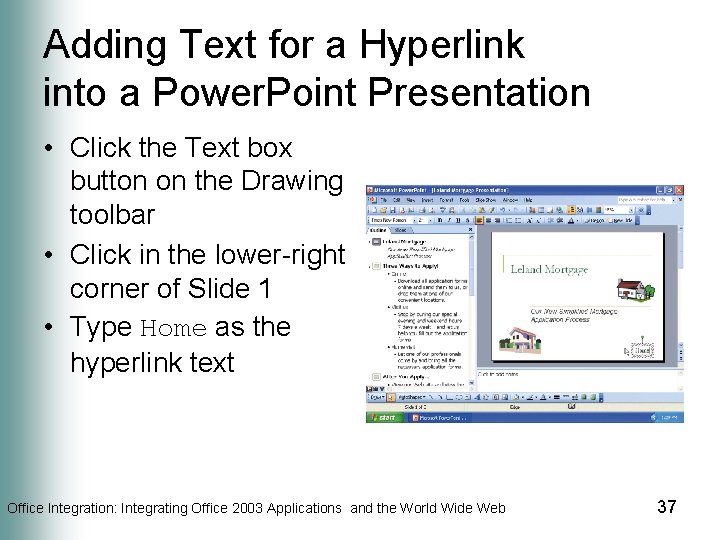
Adding Text for a Hyperlink into a Power. Point Presentation • Click the Text box button on the Drawing toolbar • Click in the lower-right corner of Slide 1 • Type Home as the hyperlink text Office Integration: Integrating Office 2003 Applications and the World Wide Web 37
Inserting a Hyperlink into a Power. Point Presentation • Double-click the word, Home, inside the text box you just inserted • If necessary, click the Font Size box arrow on the Formatting toolbar and then click 24 • Click the Bold button on the Formatting toolbar Office Integration: Integrating Office 2003 Applications and the World Wide Web 38
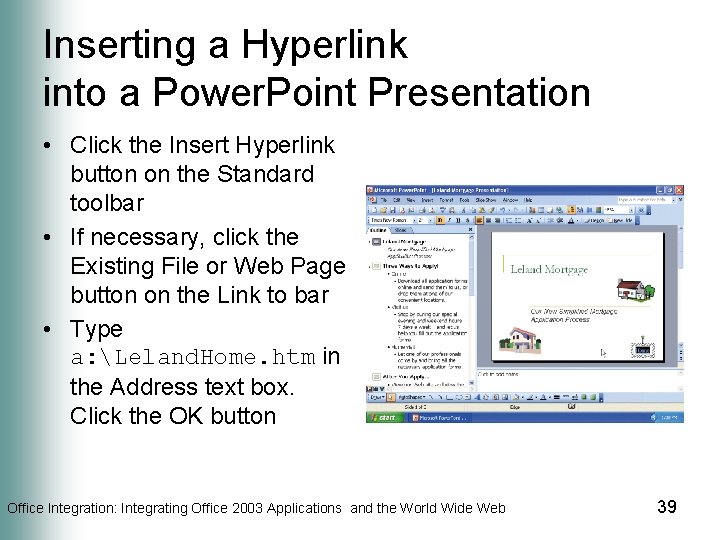
Inserting a Hyperlink into a Power. Point Presentation • Click the Insert Hyperlink button on the Standard toolbar • If necessary, click the Existing File or Web Page button on the Link to bar • Type a: Leland. Home. htm in the Address text box. Click the OK button Office Integration: Integrating Office 2003 Applications and the World Wide Web 39
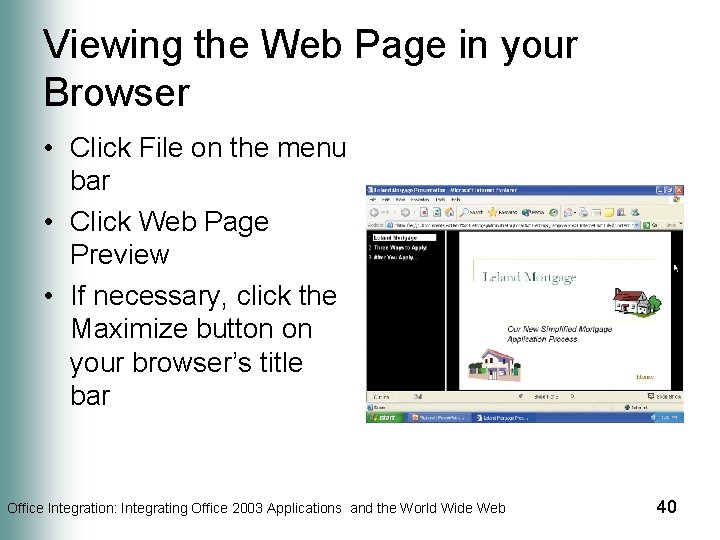
Viewing the Web Page in your Browser • Click File on the menu bar • Click Web Page Preview • If necessary, click the Maximize button on your browser’s title bar Office Integration: Integrating Office 2003 Applications and the World Wide Web 40
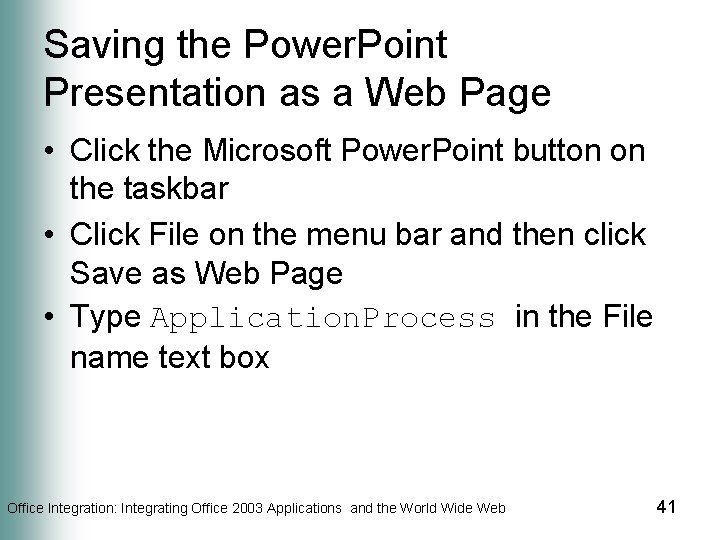
Saving the Power. Point Presentation as a Web Page • Click the Microsoft Power. Point button on the taskbar • Click File on the menu bar and then click Save as Web Page • Type Application. Process in the File name text box Office Integration: Integrating Office 2003 Applications and the World Wide Web 41
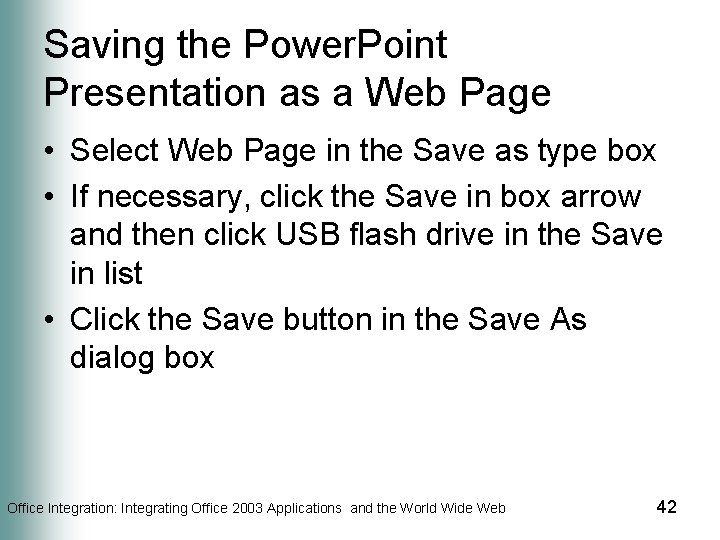
Saving the Power. Point Presentation as a Web Page • Select Web Page in the Save as type box • If necessary, click the Save in box arrow and then click USB flash drive in the Save in list • Click the Save button in the Save As dialog box Office Integration: Integrating Office 2003 Applications and the World Wide Web 42
Quitting Power. Point and Closing your Browser • Click the Close button on the Power. Point title bar • Click the Close button on the browser title bar Office Integration: Integrating Office 2003 Applications and the World Wide Web 43
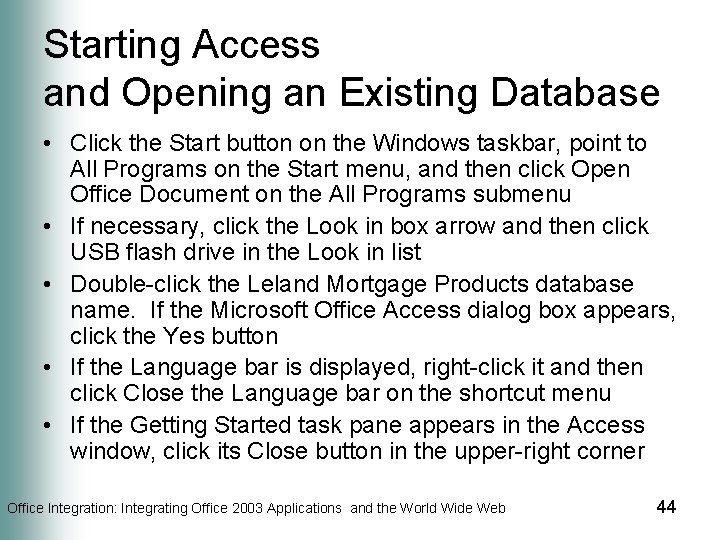
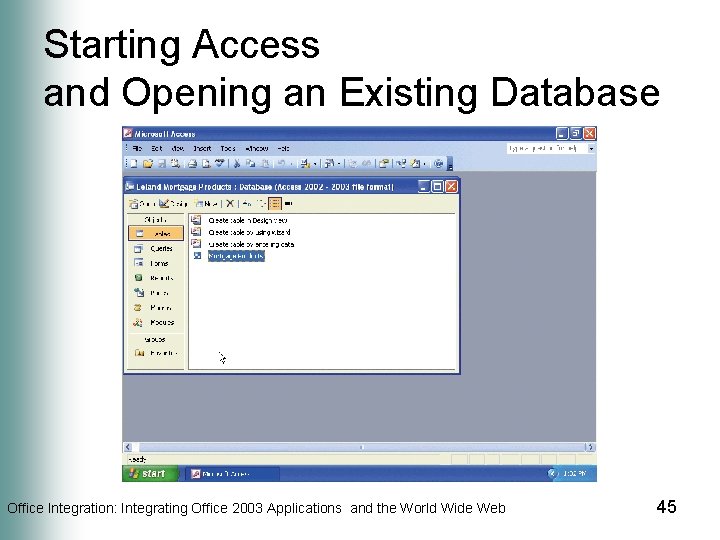
Starting Access and Opening an Existing Database • Click the Start button on the Windows taskbar, point to All Programs on the Start menu, and then click Open Office Document on the All Programs submenu • If necessary, click the Look in box arrow and then click USB flash drive in the Look in list • Double-click the Leland Mortgage Products database name. If the Microsoft Office Access dialog box appears, click the Yes button • If the Language bar is displayed, right-click it and then click Close the Language bar on the shortcut menu • If the Getting Started task pane appears in the Access window, click its Close button in the upper-right corner Office Integration: Integrating Office 2003 Applications and the World Wide Web 44
Starting Access and Opening an Existing Database Office Integration: Integrating Office 2003 Applications and the World Wide Web 45
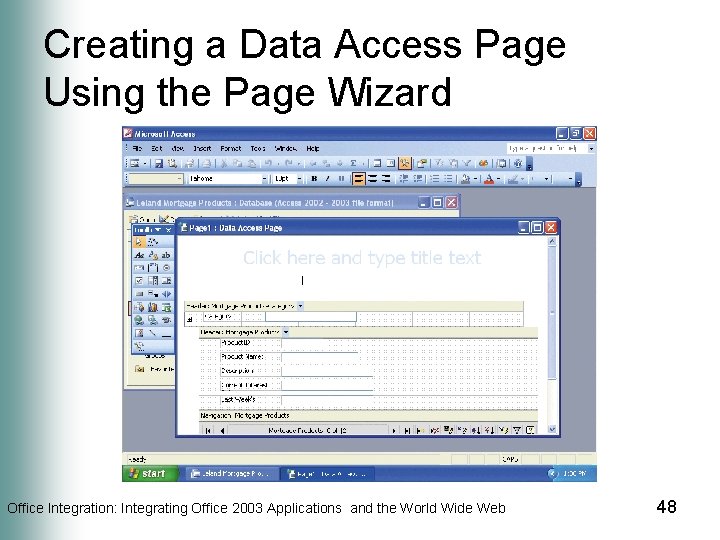
Creating a Data Access Page Using the Page Wizard • Click the Pages object on the Objects bar • Double-click Create data access page by using wizard • Click the Add All Fields button to add all the fields • Click the Next button • Double-click Category in the box on the left Office Integration: Integrating Office 2003 Applications and the World Wide Web 46
Creating a Data Access Page Using the Page Wizard • Click the Next button and then type Savings Products in the What title do you want for your page? text box • If necessary, click Modify the page’s design to select it • Click the Finish button • If necessary, close the Field List pane Office Integration: Integrating Office 2003 Applications and the World Wide Web 47
Creating a Data Access Page Using the Page Wizard Office Integration: Integrating Office 2003 Applications and the World Wide Web 48
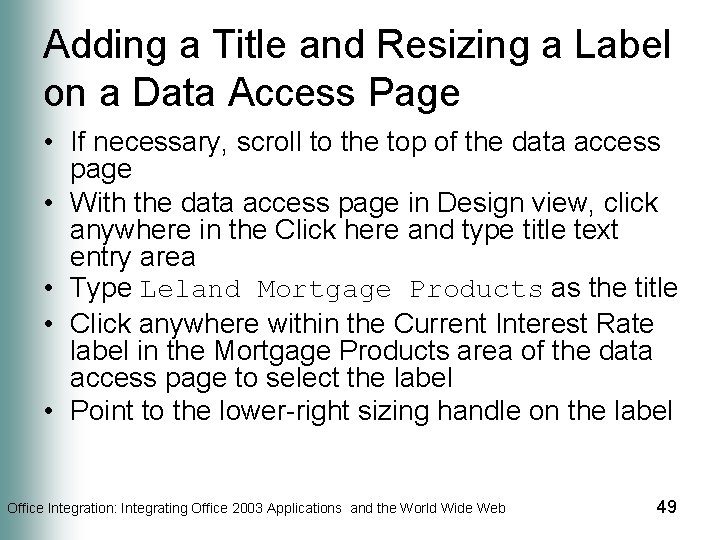
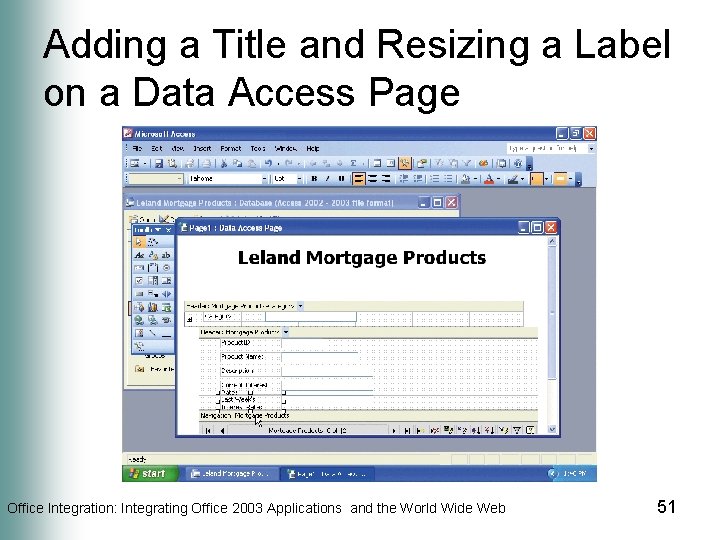
Adding a Title and Resizing a Label on a Data Access Page • If necessary, scroll to the top of the data access page • With the data access page in Design view, click anywhere in the Click here and type title text entry area • Type Leland Mortgage Products as the title • Click anywhere within the Current Interest Rate label in the Mortgage Products area of the data access page to select the label • Point to the lower-right sizing handle on the label Office Integration: Integrating Office 2003 Applications and the World Wide Web 49
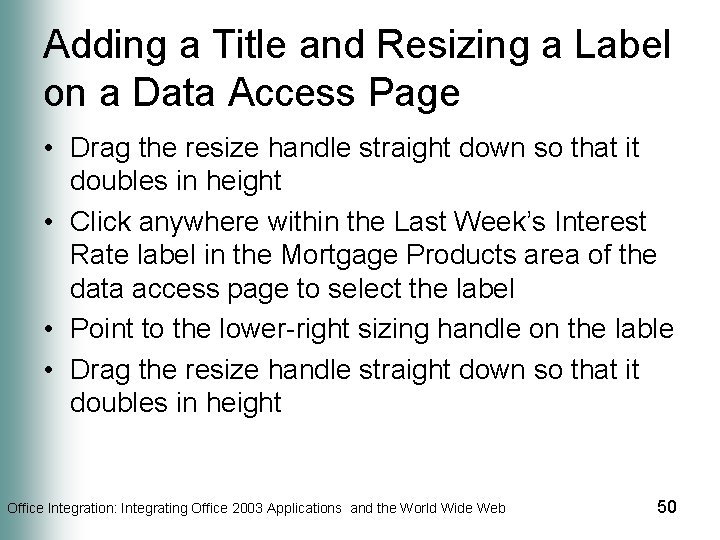
Adding a Title and Resizing a Label on a Data Access Page • Drag the resize handle straight down so that it doubles in height • Click anywhere within the Last Week’s Interest Rate label in the Mortgage Products area of the data access page to select the label • Point to the lower-right sizing handle on the lable • Drag the resize handle straight down so that it doubles in height Office Integration: Integrating Office 2003 Applications and the World Wide Web 50
Adding a Title and Resizing a Label on a Data Access Page Office Integration: Integrating Office 2003 Applications and the World Wide Web 51
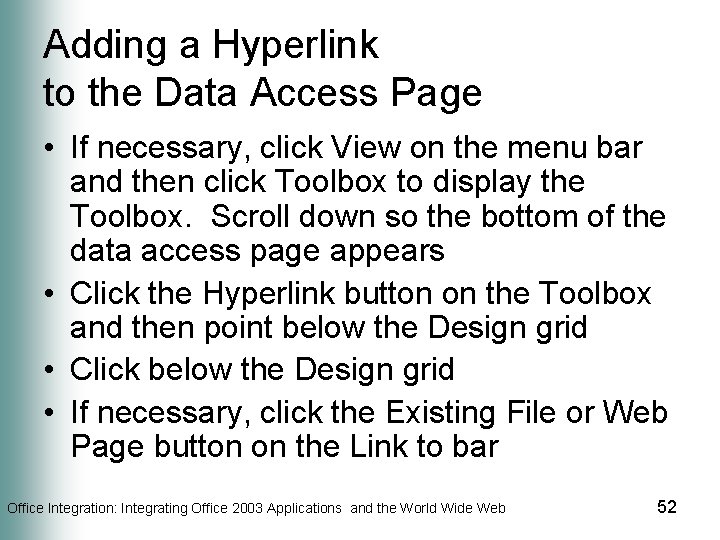
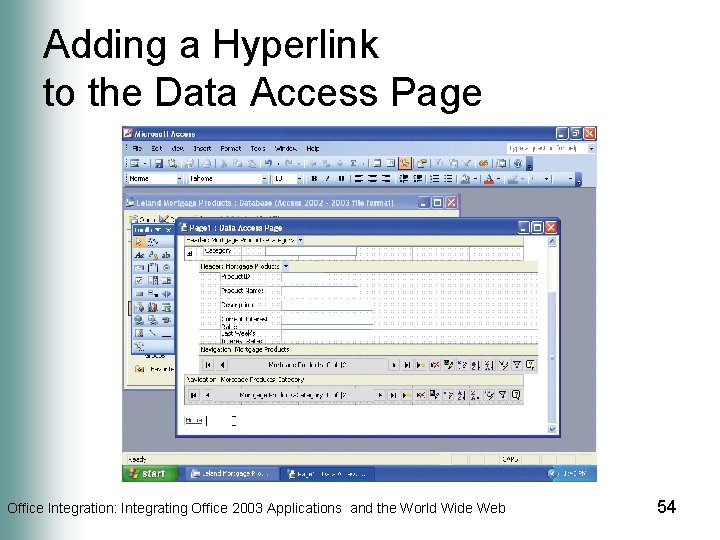
Adding a Hyperlink to the Data Access Page • If necessary, click View on the menu bar and then click Toolbox to display the Toolbox. Scroll down so the bottom of the data access page appears • Click the Hyperlink button on the Toolbox and then point below the Design grid • Click below the Design grid • If necessary, click the Existing File or Web Page button on the Link to bar Office Integration: Integrating Office 2003 Applications and the World Wide Web 52
Adding a Hyperlink to the Data Access Page • Type Home in the Text to display text box • Type Leland. Home. htm in the Address text box and then click the OK button. If the Microsoft Office Access box appears, click the OK button • Click anywhere on the data access page to deselect the hyperlink box Office Integration: Integrating Office 2003 Applications and the World Wide Web 53
Adding a Hyperlink to the Data Access Page Office Integration: Integrating Office 2003 Applications and the World Wide Web 54
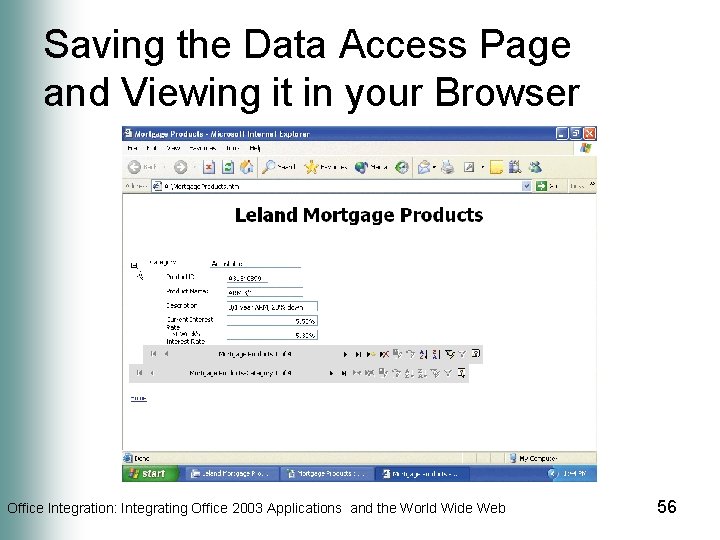
Saving the Data Access Page and Viewing it in your Browser • Click File on the menu bar and then click Web Page Preview. When the Microsoft Office Access dialog box appears, click the Yes button • When the Save As Data Access Page dialog box appears, type Mortgage Products in the File name text box. If necessary, click USB flash drive in the Save in list • Click the Save button in the Save As Data Access Page dialog box • Click the Expand indicator to the left of the Category label to expand the display Office Integration: Integrating Office 2003 Applications and the World Wide Web 55
Saving the Data Access Page and Viewing it in your Browser Office Integration: Integrating Office 2003 Applications and the World Wide Web 56
Quitting Access and Closing your Browser • Right-click the Leland Mortgage Products button on the taskbar and then click Close on the shortcut menu • Click the Close button on the Access title bar to quit Access Office Integration: Integrating Office 2003 Applications and the World Wide Web 57
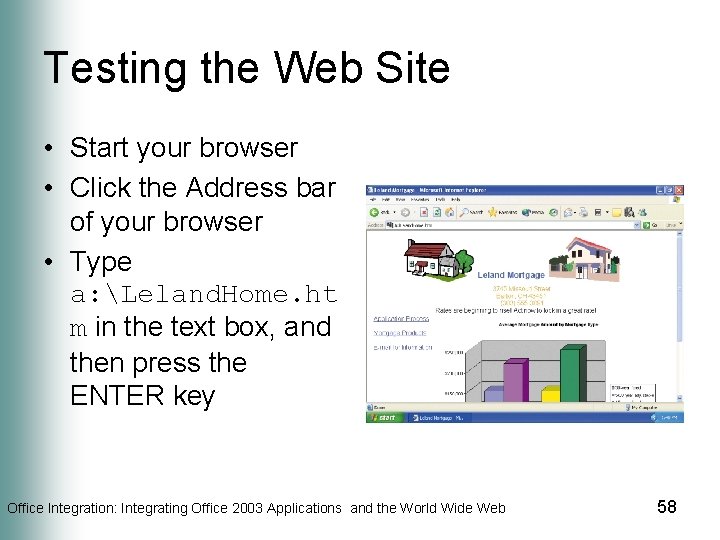
Testing the Web Site • Start your browser • Click the Address bar of your browser • Type a: Leland. Home. ht m in the text box, and then press the ENTER key Office Integration: Integrating Office 2003 Applications and the World Wide Web 58
Verifying the Hyperlinks • Click the Application Process hyperlink • Click the navigation buttons to view all slides on the Web page • On the first slide on the Power. Point Web page, click the Home hyperlink Office Integration: Integrating Office 2003 Applications and the World Wide Web 59
Verifying the Hyperlinks • Click the Mortgage Products hyperlink. Click the Expand Collapse indicators and then scroll through the database using the navigation toolbars • On the data access page, click the Home hyperlink • Click the E-mail for Information hyperlink Office Integration: Integrating Office 2003 Applications and the World Wide Web 60
Quitting E-Mail and Closing your Browser • Click the Close button on your e-mail program • Click the Close button on your browser’s title bar Office Integration: Integrating Office 2003 Applications and the World Wide Web 61
Summary • Integrate the Office 2003 applications to create a Web site • Add hyperlinks to a Word document • Embed an Excel chart into a Word document • Add scrolling text to a Web page created in Word Office Integration: Integrating Office 2003 Applications and the World Wide Web 62
Summary • Add a hyperlink to a Power. Point slide • Create Web pages from a Power. Point presentation • Create a data access page from an Access database • Test a Web site in a browser Office Integration: Integrating Office 2003 Applications and the World Wide Web 63
Microsoft Office 2003 Introductory Concepts and Techniques Office Integration Complete