
Microsoft Flow Approvals Reza Dorrani Principal Consultant Power











- Slides: 25
Microsoft Flow Approvals - Reza Dorrani
Principal Consultant & Power Platform Practice Technical Lead at Catapult Systems Microsoft Flow All Star Microsoft Flow Community Super User (Flownaut) Reza Dorrani About Me Founder and User Group Leader of Houston Power. Apps and Flow User Group Microsoft Flow and Power. Apps Community Top Contributor (Jul-Aug-Sep 2019)
Agenda Microsoft Flow Approvals Overview Approval Patterns Demos Best Practices
Microsoft Flow Approvals
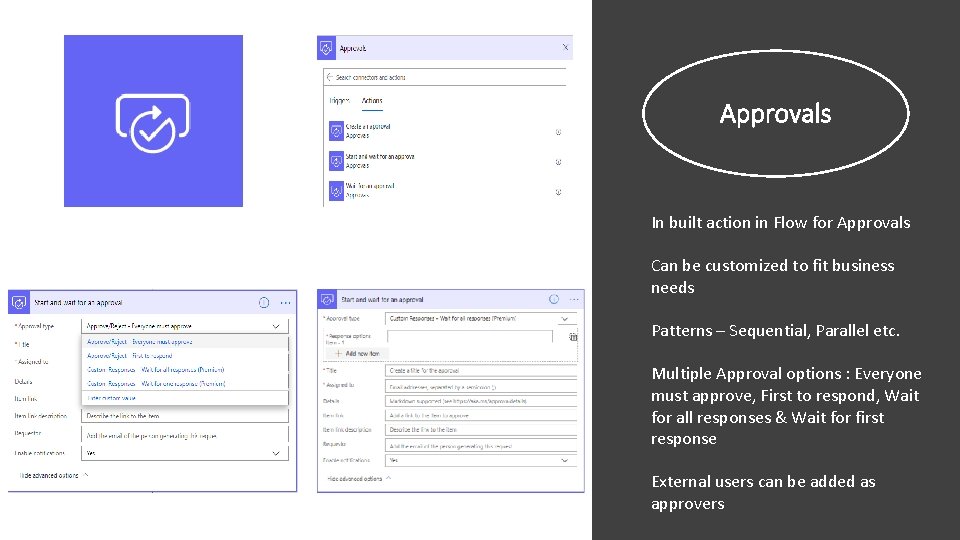
Approvals In built action in Flow for Approvals Can be customized to fit business needs Patterns – Sequential, Parallel etc. Multiple Approval options : Everyone must approve, First to respond, Wait for all responses & Wait for first response External users can be added as approvers
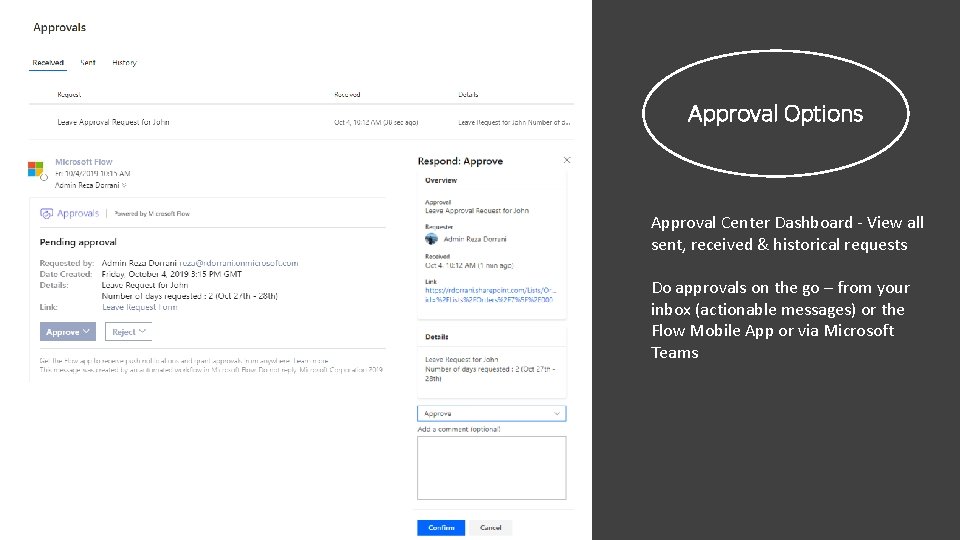
Approval Options Approval Center Dashboard - View all sent, received & historical requests Do approvals on the go – from your inbox (actionable messages) or the Flow Mobile App or via Microsoft Teams
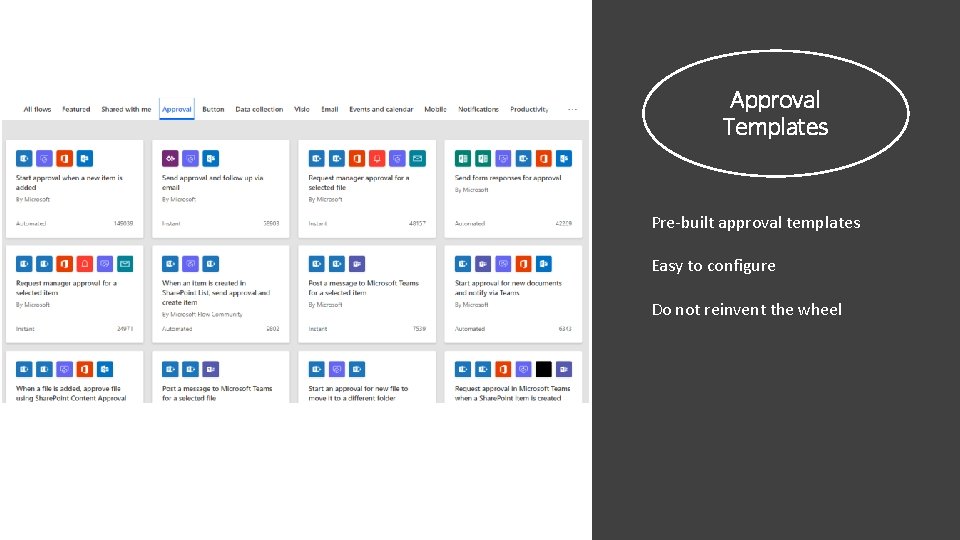
Approval Templates Pre-built approval templates Easy to configure Do not reinvent the wheel
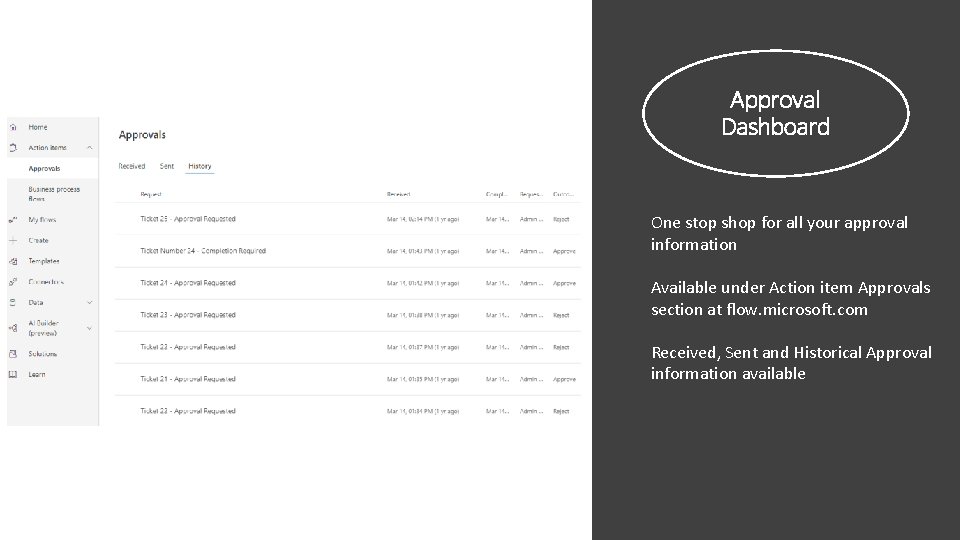
Approval Dashboard One stop shop for all your approval information Available under Action item Approvals section at flow. microsoft. com Received, Sent and Historical Approval information available
Approval Patterns
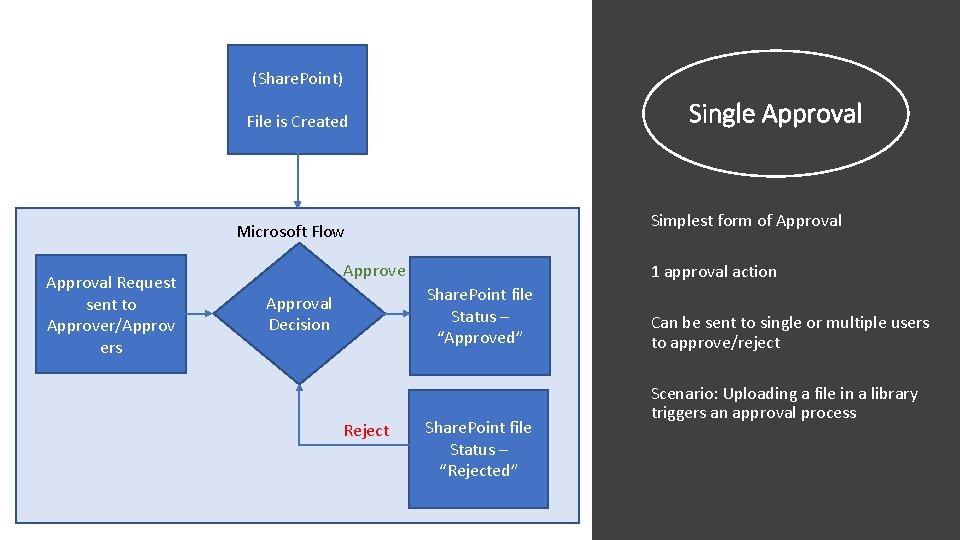
(Share. Point) Single Approval File is Created Simplest form of Approval Microsoft Flow Approval Request sent to Approver/Approv ers Approve 1 approval action Share. Point file Status – “Approved” Approval Decision Reject Share. Point file Status – “Rejected” Can be sent to single or multiple users to approve/reject Scenario: Uploading a file in a library triggers an approval process
Demo Single Approval Pattern
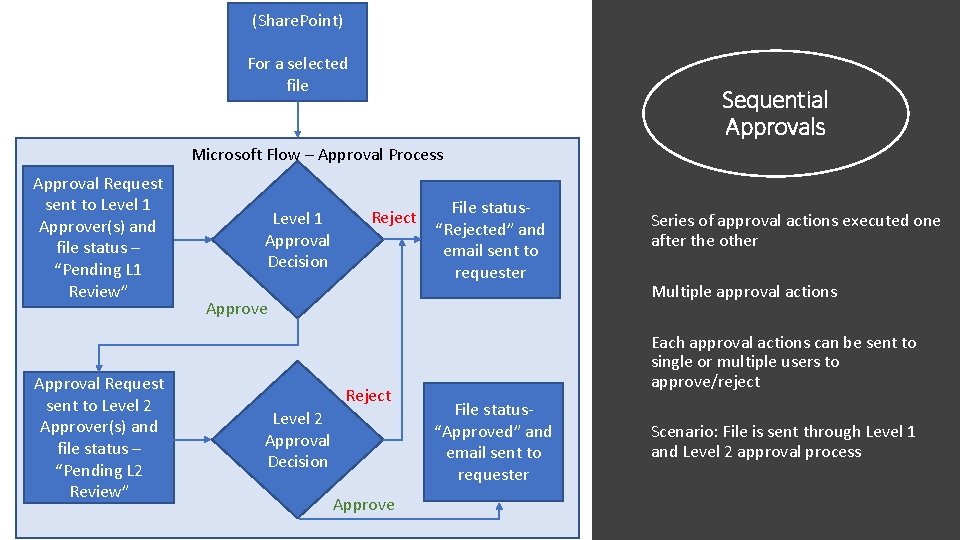
(Share. Point) For a selected file Sequential Approvals Microsoft Flow – Approval Process Approval Request sent to Level 1 Approver(s) and file status – “Pending L 1 Review” Approval Request sent to Level 2 Approver(s) and file status – “Pending L 2 Review” Level 1 Approval Decision Reject File status“Rejected” and email sent to requester Approve Reject Level 2 Approval Decision Approve Series of approval actions executed one after the other Multiple approval actions Each approval actions can be sent to single or multiple users to approve/reject File status“Approved” and email sent to requester Scenario: File is sent through Level 1 and Level 2 approval process
Demo Sequential Approval Pattern
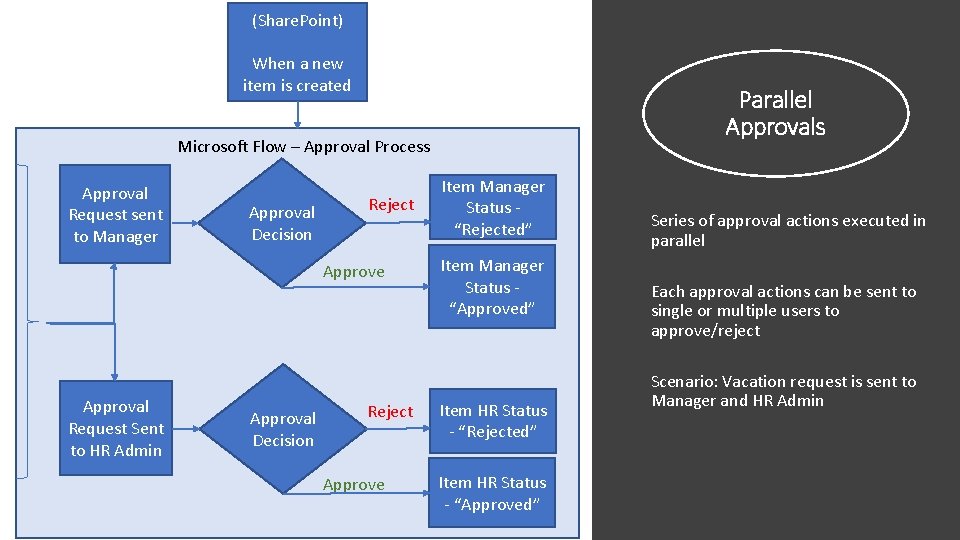
(Share. Point) When a new item is created Parallel Approvals Microsoft Flow – Approval Process Approval Request sent to Manager Approval Decision Reject Approve Approval Request Sent to HR Admin Approval Decision Reject Approve Item Manager Status “Rejected” Item Manager Status “Approved” Item HR Status - “Rejected” Item HR Status - “Approved” Series of approval actions executed in parallel Each approval actions can be sent to single or multiple users to approve/reject Scenario: Vacation request is sent to Manager and HR Admin
Demo Parallel Approval Pattern
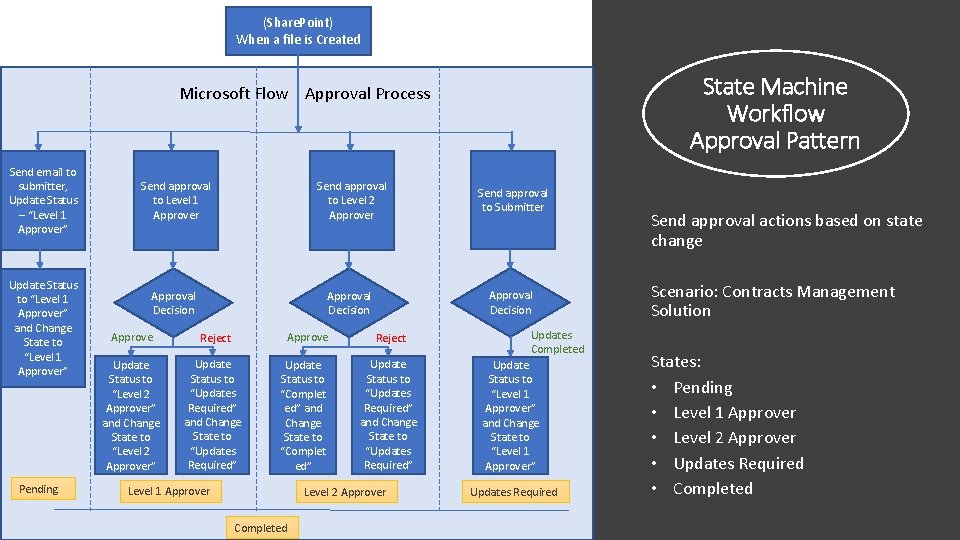
(Share. Point) When a file is Created State Machine Workflow Approval Pattern Microsoft Flow Approval Process Send email to submitter, Update Status – “Level 1 Approver” Update Status to “Level 1 Approver” and Change State to “Level 1 Approver” Pending Send approval to Level 1 Approver Send approval to Level 2 Approver Send approval to Submitter Approval Decision Approve Reject Update Status to “Level 2 Approver” and Change State to “Level 2 Approver” Update Status to “Updates Required” and Change State to “Updates Required” Update Status to “Complet ed” and Change State to “Complet ed” Level 1 Approver Reject Update Status to “Updates Required” and Change State to “Updates Required” Level 2 Approver Completed Updates Completed Update Status to “Level 1 Approver” and Change State to “Level 1 Approver” Updates Required Send approval actions based on state change Scenario: Contracts Management Solution States: • Pending • Level 1 Approver • Level 2 Approver • Updates Required • Completed
Demo State Machine Approval Pattern
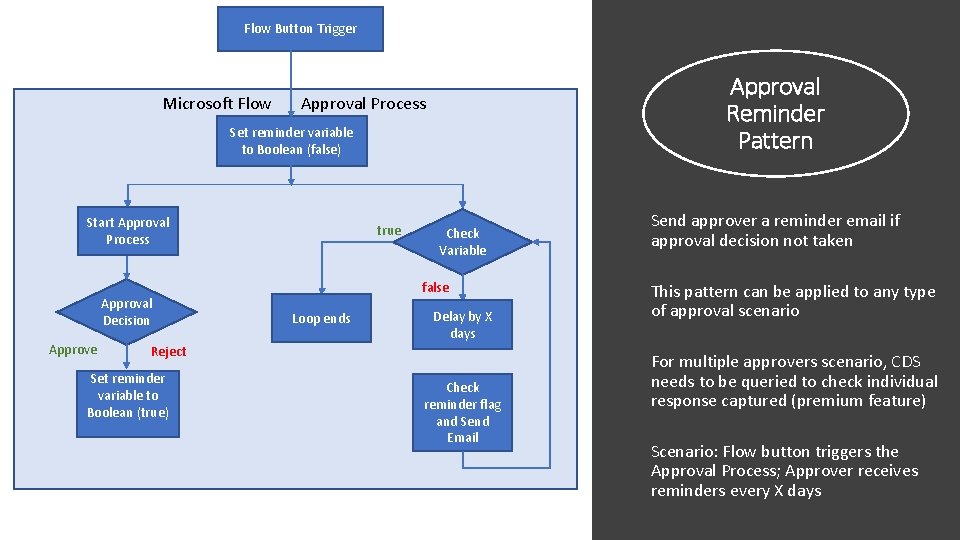
Flow Button Trigger Microsoft Flow Approval Reminder Pattern Approval Process Set reminder variable to Boolean (false) Start Approval Process Approval Decision Approve true Check Variable false Loop ends Delay by X days Reject Set reminder variable to Boolean (true) Check reminder flag and Send Email Send approver a reminder email if approval decision not taken This pattern can be applied to any type of approval scenario For multiple approvers scenario, CDS needs to be queried to check individual response captured (premium feature) Scenario: Flow button triggers the Approval Process; Approver receives reminders every X days
Demo Approval Reminder Pattern
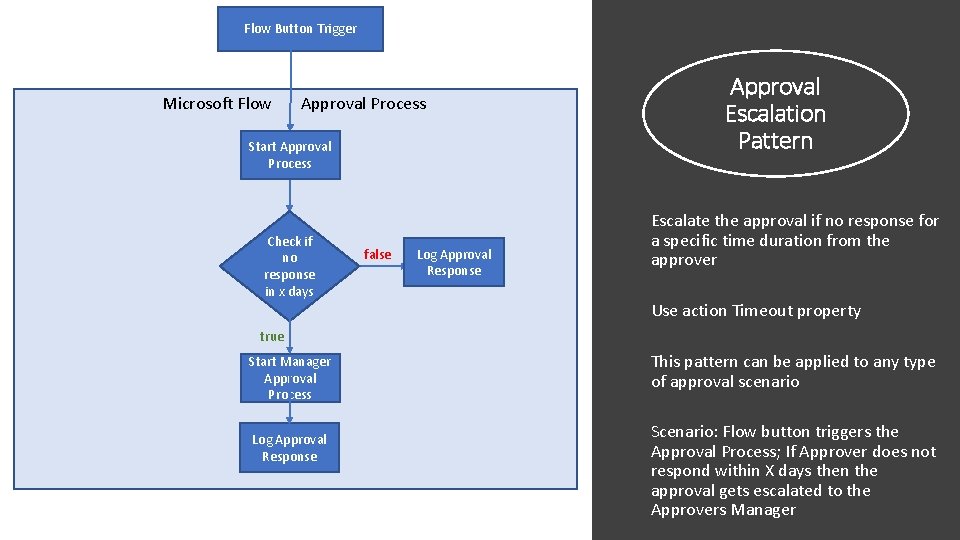
Flow Button Trigger Microsoft Flow Approval Process Start Approval Process Check if no response in x days false Log Approval Response Approval Escalation Pattern Escalate the approval if no response for a specific time duration from the approver Use action Timeout property true Start Manager Approval Process Log Approval Response This pattern can be applied to any type of approval scenario Scenario: Flow button triggers the Approval Process; If Approver does not respond within X days then the approval gets escalated to the Approvers Manager
Demo Approval Escalation Pattern
Best Practices Plan for Flow run duration of 30 days when building complex approval processes (Check Serge Luca’s pattern) Use reminder pattern to notify approvers Use escalation pattern to auto complete or move the process forward Utilize all options for Approval – Approval Dashboard, Teams, Email Actionable Messages and Flow Mobile App
Limitations Flow run duration is 30 days (will be increased to 90 in future) No direct state machine approval action (Use template ) Approvals can be reassigned (to prevent reassignment use premium feature) No option to attach files with Approval (Coming soon) Approval card cannot be customized (coming soon)
Reza. Dorrani@outlook. com @rezadorrani https: //rezadorrani. com/ Reza Dorrani Let’s Connect https: //www. youtube. com/c/rezadorrani
Thank You