
MICROSOFT EXCEL 2020 ICA SUMMER SEMESTER INSTRUCTOR MAHWISH













- Slides: 50
MICROSOFT EXCEL 2020 ICA – SUMMER SEMESTER INSTRUCTOR: MAHWISH AMJAD STUDENT: SIMRA SAIRA – 13119
Sources of Information Lecture Presentations and Videos on Microsoft Excel Coursera Excel Skills for Business: Essentials Excel Skills for Business: Intermediate Tutorial Links
This Presentation is divided into 3 parts INTRODUCTION FORMULA FUNCTIONS BUILT-IN FUNCTIONS
Introduction to Microsoft Excel
Purpose of using Microsoft Excel? Basic Tools Part 1 of 3: Introduction Data Entry Data Navigation Printing
Purpose of using Microsoft Excel? Basic Tools Data Entry Data Navigation Printing
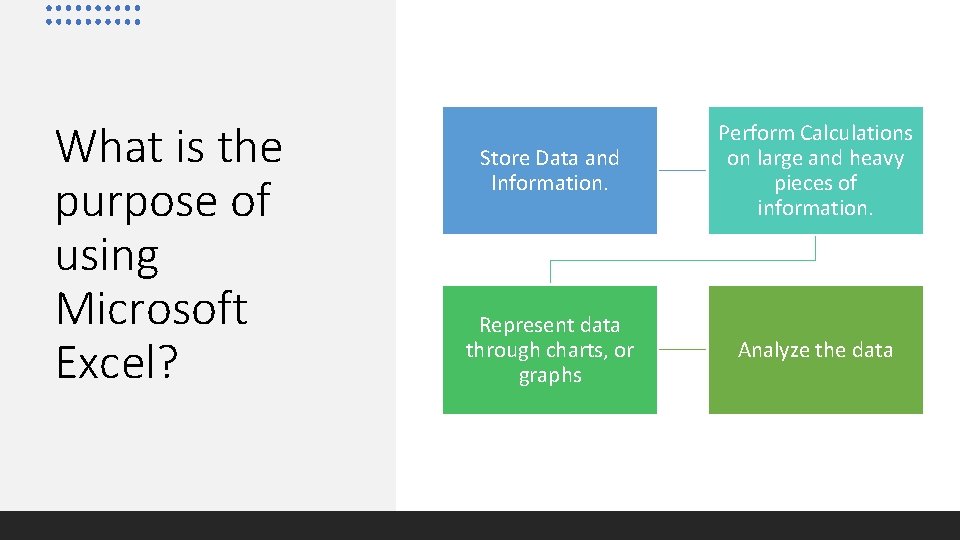
What is the purpose of using Microsoft Excel? Store Data and Information. Perform Calculations on large and heavy pieces of information. Represent data through charts, or graphs Analyze the data
Purpose of using Microsoft Excel? Basic Tools Data Entry Data Navigation Printing
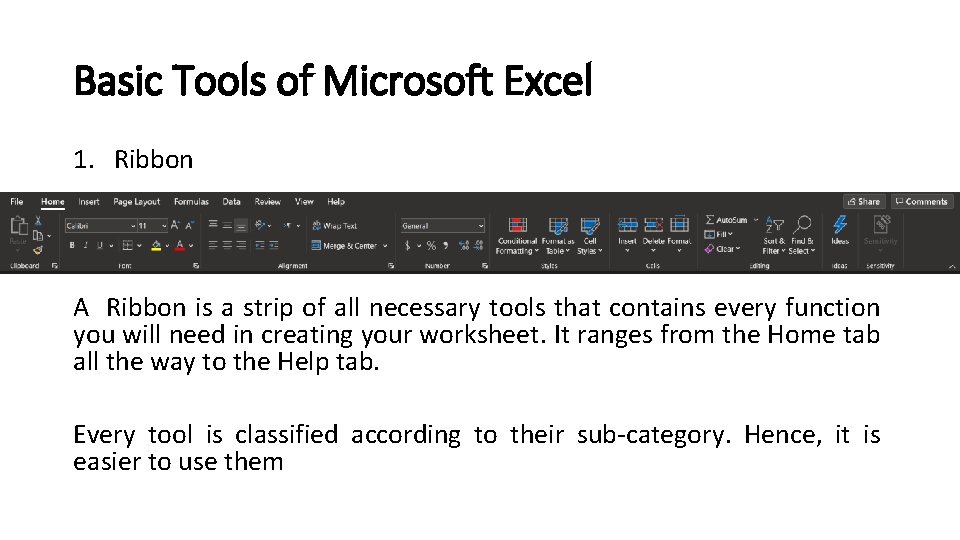
Basic Tools of Microsoft Excel 1. Ribbon A Ribbon is a strip of all necessary tools that contains every function you will need in creating your worksheet. It ranges from the Home tab all the way to the Help tab. Every tool is classified according to their sub-category. Hence, it is easier to use them
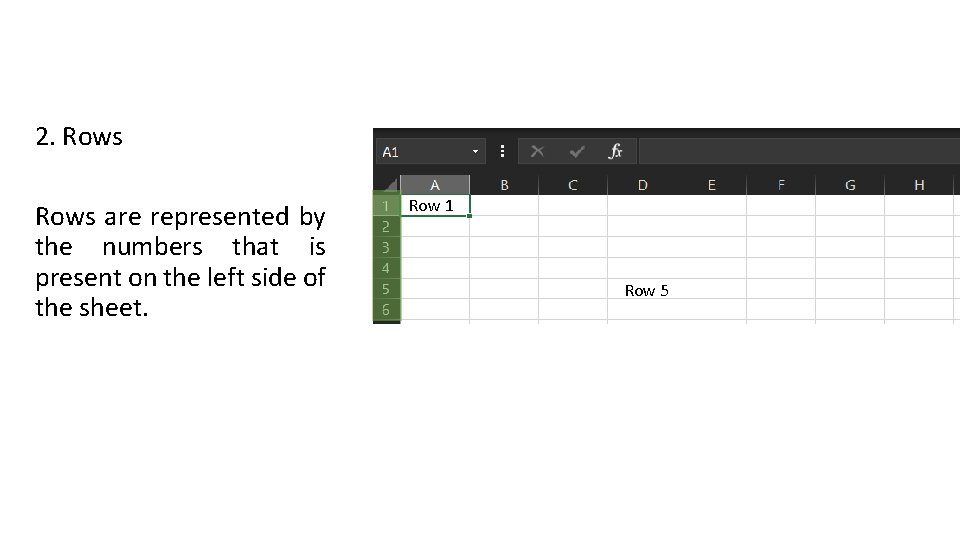
2. Rows are represented by the numbers that is present on the left side of the sheet. Row 1 Row 5
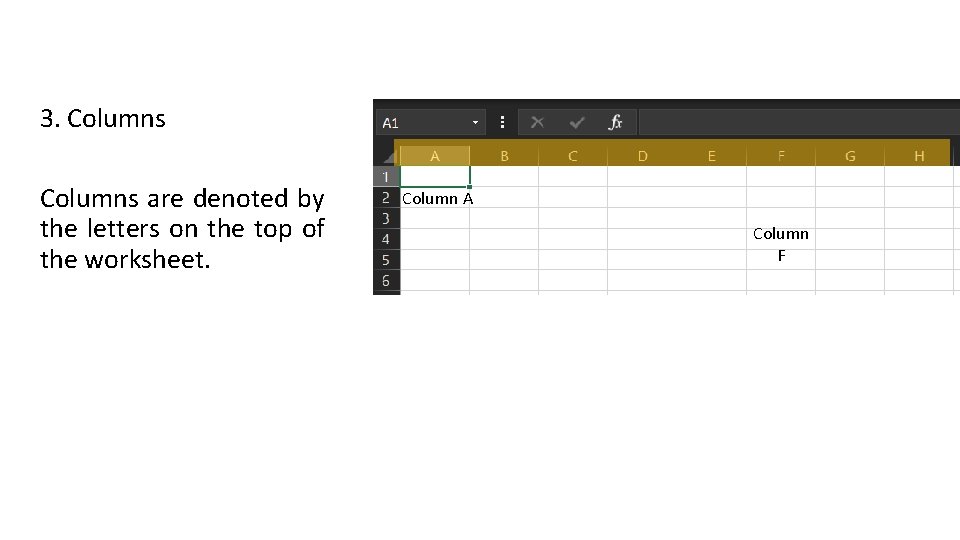
3. Columns are denoted by the letters on the top of the worksheet. Column A Column F
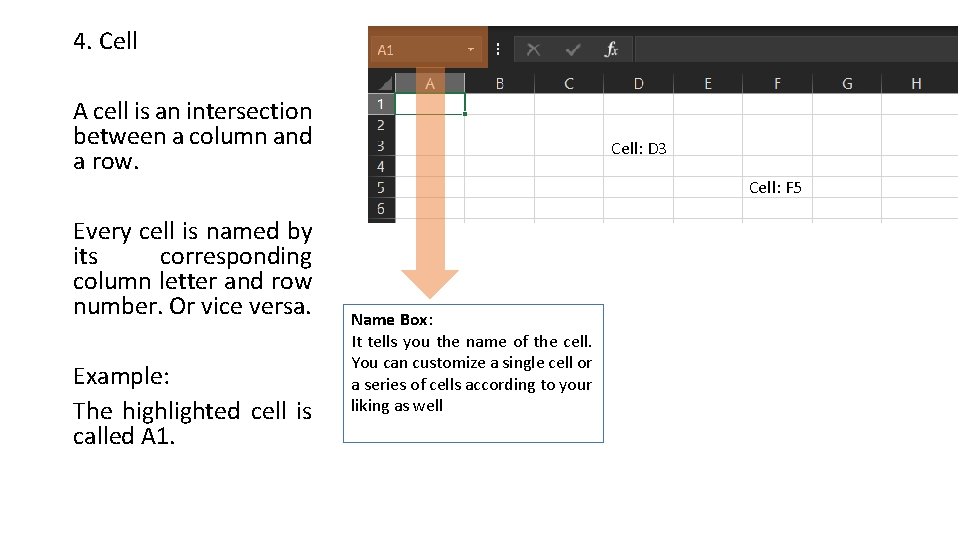
4. Cell A cell is an intersection between a column and a row. Every cell is named by its corresponding column letter and row number. Or vice versa. Example: The highlighted cell is called A 1. Cell: D 3 Cell: F 5 Name Box: It tells you the name of the cell. You can customize a single cell or a series of cells according to your liking as well
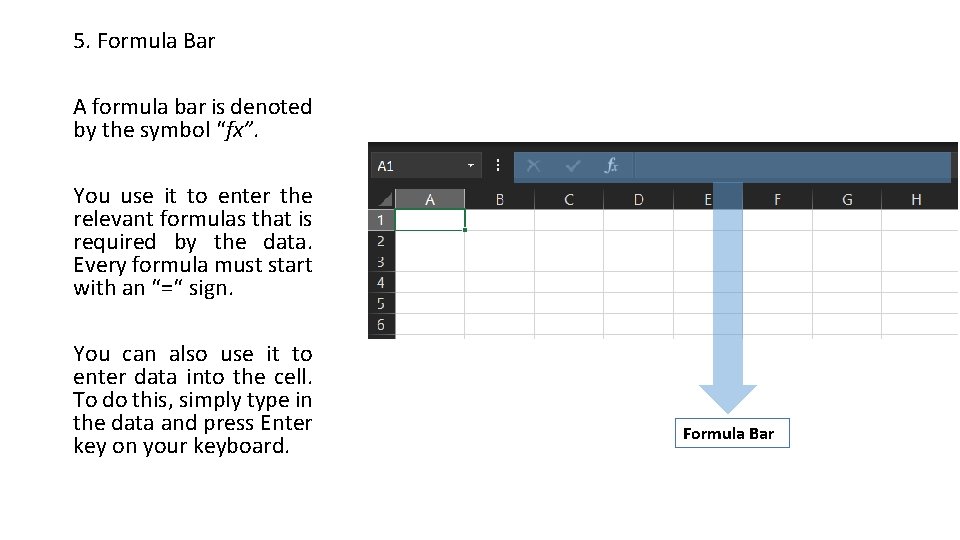
5. Formula Bar A formula bar is denoted by the symbol “fx”. You use it to enter the relevant formulas that is required by the data. Every formula must start with an “=“ sign. You can also use it to enter data into the cell. To do this, simply type in the data and press Enter key on your keyboard. Formula Bar
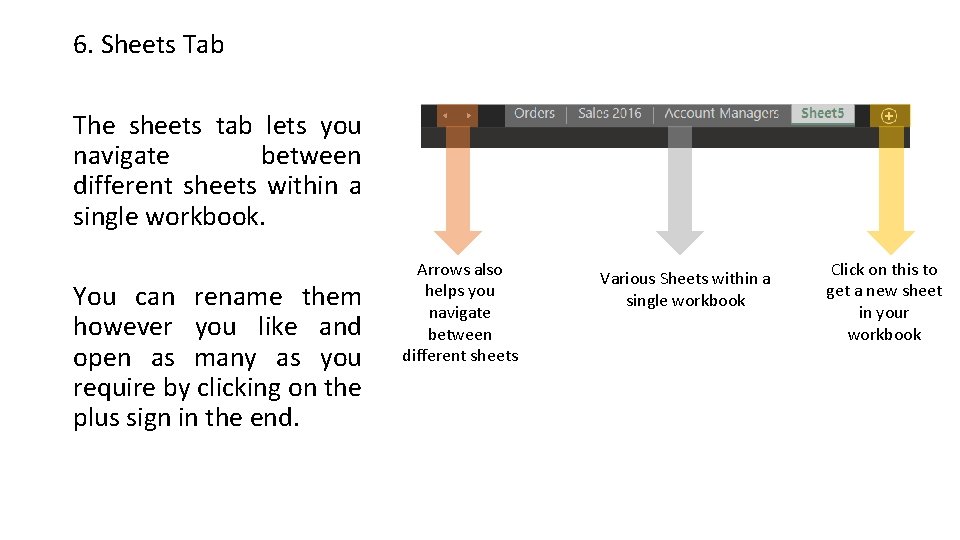
6. Sheets Tab The sheets tab lets you navigate between different sheets within a single workbook. You can rename them however you like and open as many as you require by clicking on the plus sign in the end. Arrows also helps you navigate between different sheets Various Sheets within a single workbook Click on this to get a new sheet in your workbook
Purpose of using Microsoft Excel? Basic Tools Data Entry Data Navigation Printing
Data Entry • Data entry is simply the art of entering a data into a spreadsheet whether large or small. • It is done via 2 ways: 1. Entering data directly into the cell. 2. Entering data in the formula bar.
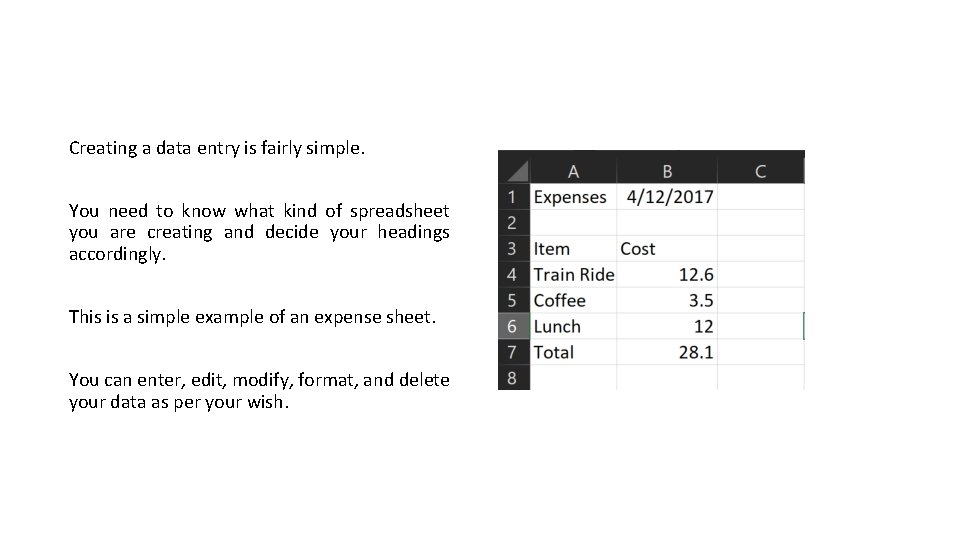
Creating a data entry is fairly simple. You need to know what kind of spreadsheet you are creating and decide your headings accordingly. This is a simple example of an expense sheet. You can enter, edit, modify, format, and delete your data as per your wish.
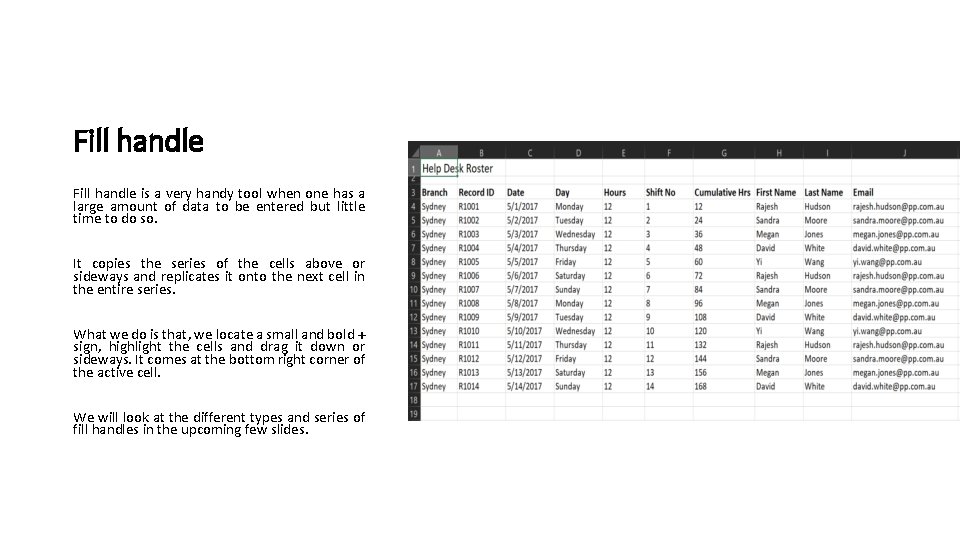
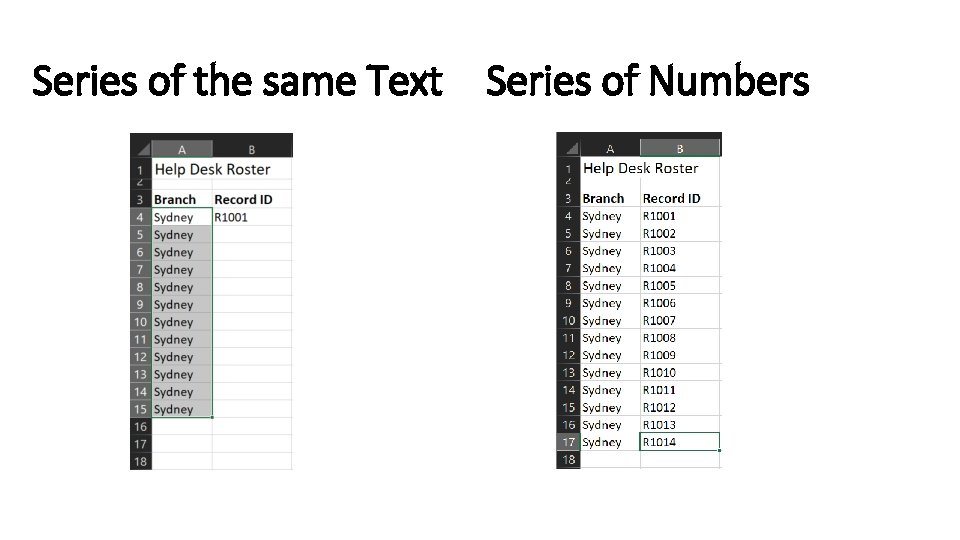
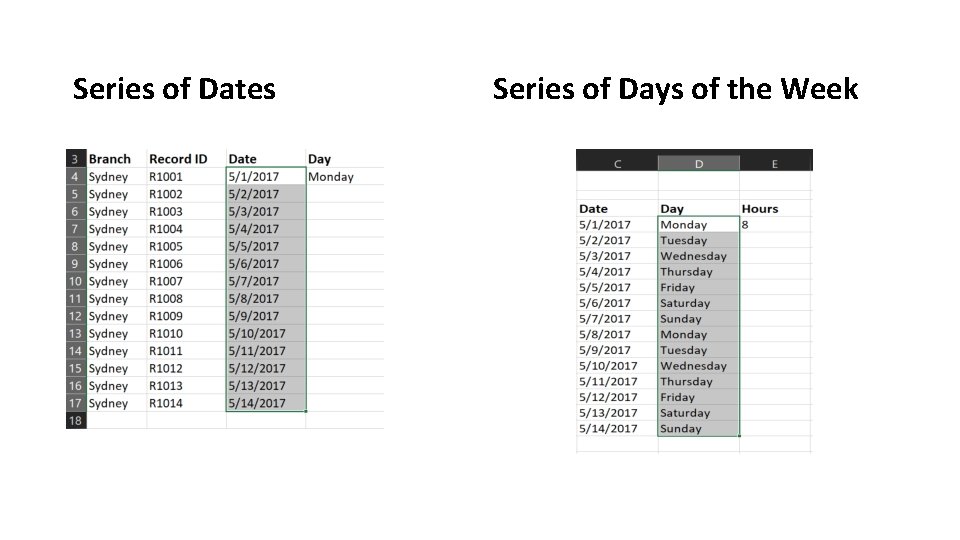
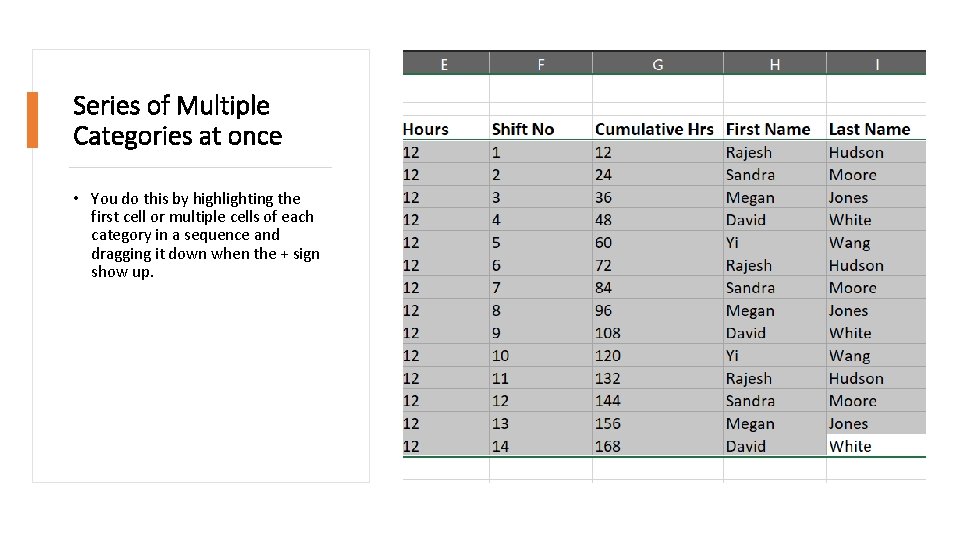
Fill handle is a very handy tool when one has a large amount of data to be entered but little time to do so. It copies the series of the cells above or sideways and replicates it onto the next cell in the entire series. What we do is that, we locate a small and bold + sign, highlight the cells and drag it down or sideways. It comes at the bottom right corner of the active cell. We will look at the different types and series of fill handles in the upcoming few slides.
Series of the same Text Series of Numbers
Series of Dates Series of Days of the Week
Series of Multiple Categories at once • You do this by highlighting the first cell or multiple cells of each category in a sequence and dragging it down when the + sign show up.
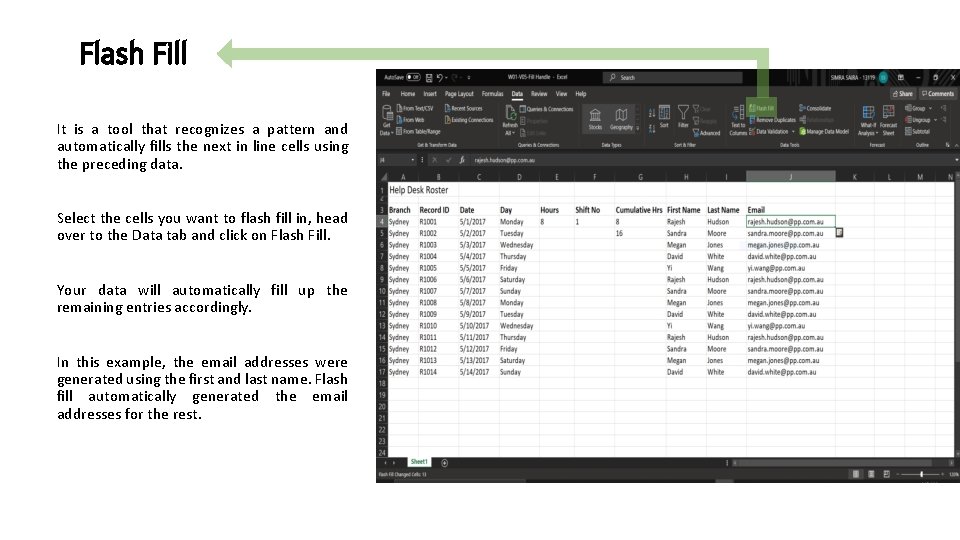
Flash Fill It is a tool that recognizes a pattern and automatically fills the next in line cells using the preceding data. Select the cells you want to flash fill in, head over to the Data tab and click on Flash Fill. Your data will automatically fill up the remaining entries accordingly. In this example, the email addresses were generated using the first and last name. Flash fill automatically generated the email addresses for the rest.
Purpose of using Microsoft Excel? Basic Tools Data Entry Data Navigation Printing
Data Navigation This tool is important when working with MS Excel. One should know how to move about within your worksheet. We will see some of the effective options that help us navigate easily.
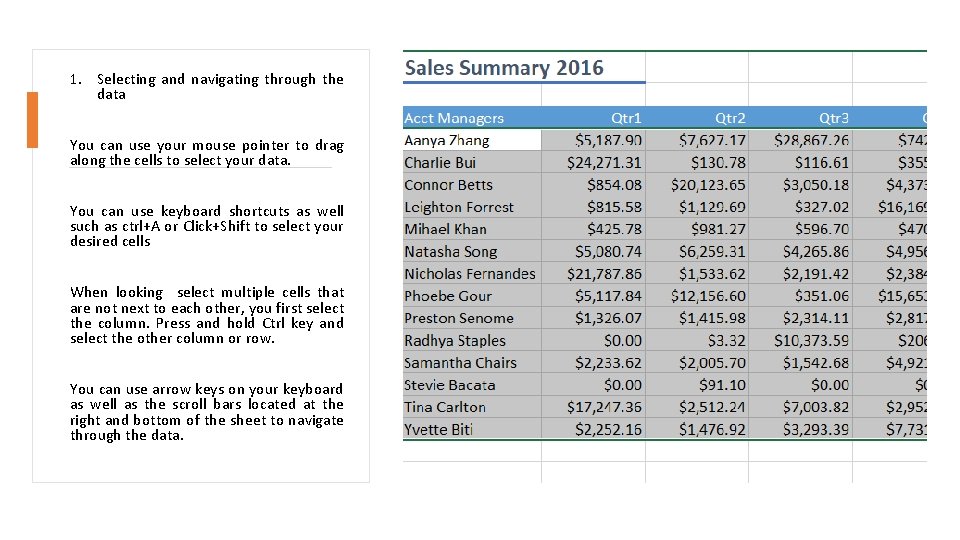
1. Selecting and navigating through the data You can use your mouse pointer to drag along the cells to select your data. You can use keyboard shortcuts as well such as ctrl+A or Click+Shift to select your desired cells When looking select multiple cells that are not next to each other, you first select the column. Press and hold Ctrl key and select the other column or row. You can use arrow keys on your keyboard as well as the scroll bars located at the right and bottom of the sheet to navigate through the data.
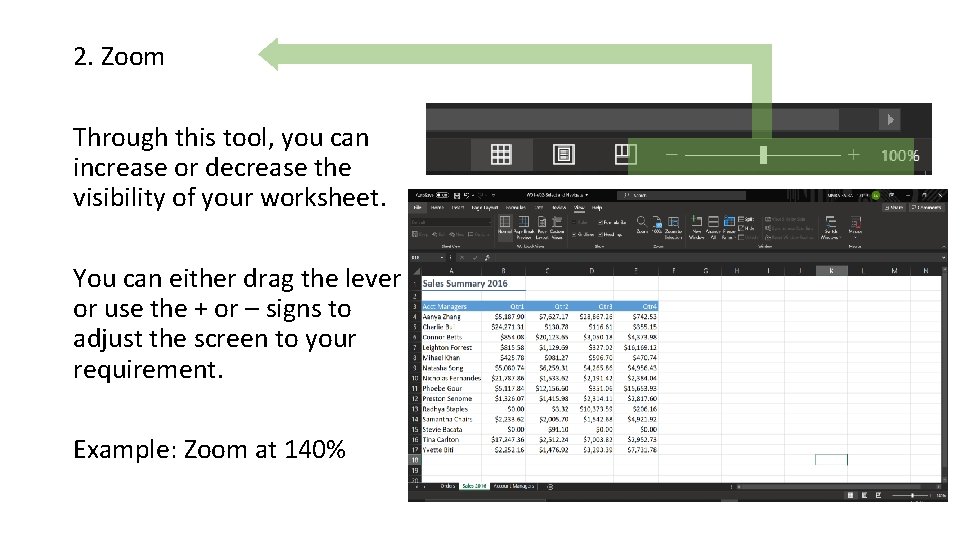
2. Zoom Through this tool, you can increase or decrease the visibility of your worksheet. You can either drag the lever or use the + or – signs to adjust the screen to your requirement. Example: Zoom at 140%
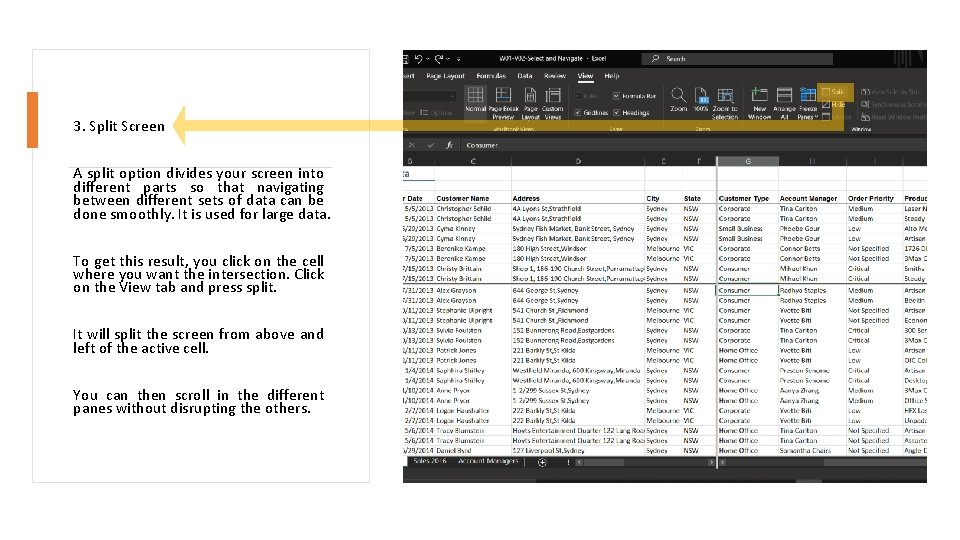
3. Split Screen A split option divides your screen into different parts so that navigating between different sets of data can be done smoothly. It is used for large data. To get this result, you click on the cell where you want the intersection. Click on the View tab and press split. It will split the screen from above and left of the active cell. You can then scroll in the different panes without disrupting the others.
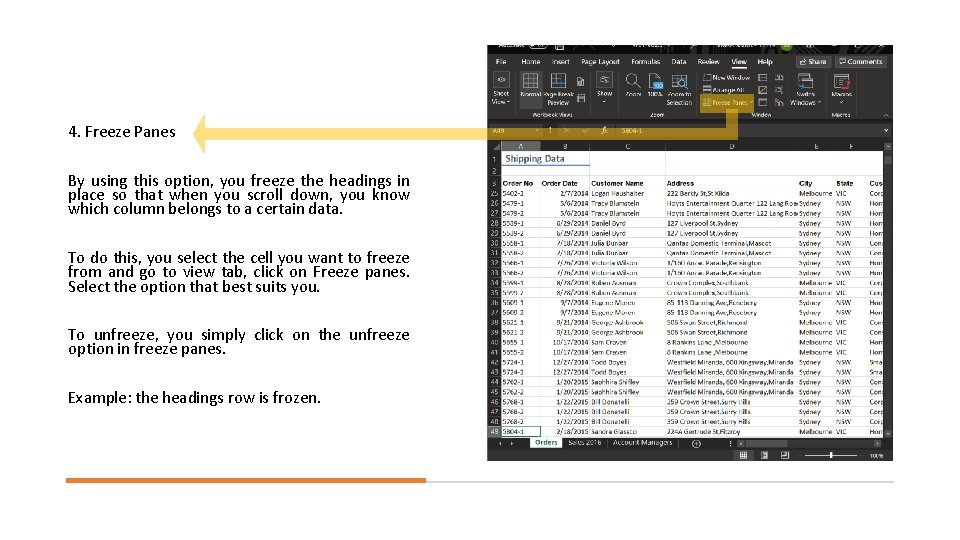
4. Freeze Panes By using this option, you freeze the headings in place so that when you scroll down, you know which column belongs to a certain data. To do this, you select the cell you want to freeze from and go to view tab, click on Freeze panes. Select the option that best suits you. To unfreeze, you simply click on the unfreeze option in freeze panes. Example: the headings row is frozen.
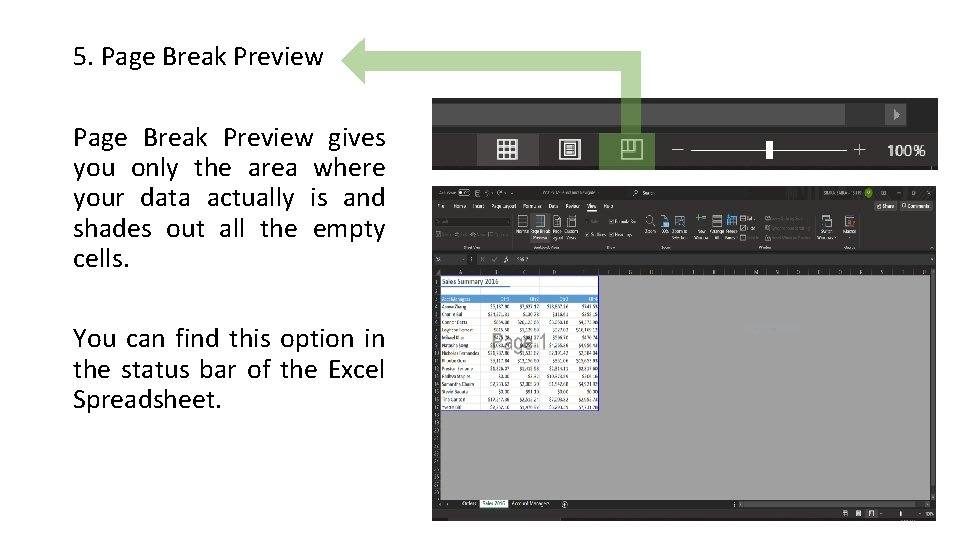
5. Page Break Preview gives you only the area where your data actually is and shades out all the empty cells. You can find this option in the status bar of the Excel Spreadsheet.
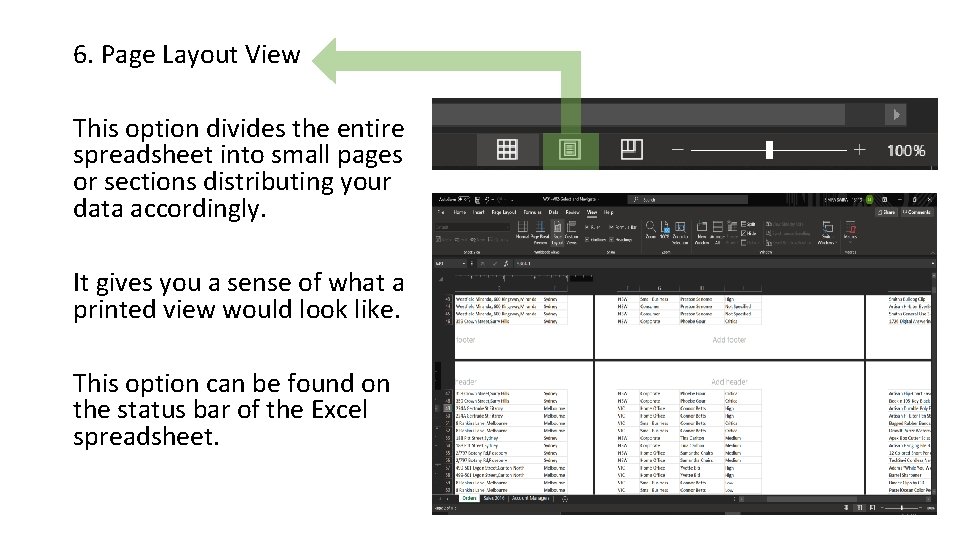
6. Page Layout View This option divides the entire spreadsheet into small pages or sections distributing your data accordingly. It gives you a sense of what a printed view would look like. This option can be found on the status bar of the Excel spreadsheet.
Purpose of using Microsoft Excel? Basic Tools Data Entry Data Navigation Printing
Printing
Formula Functions
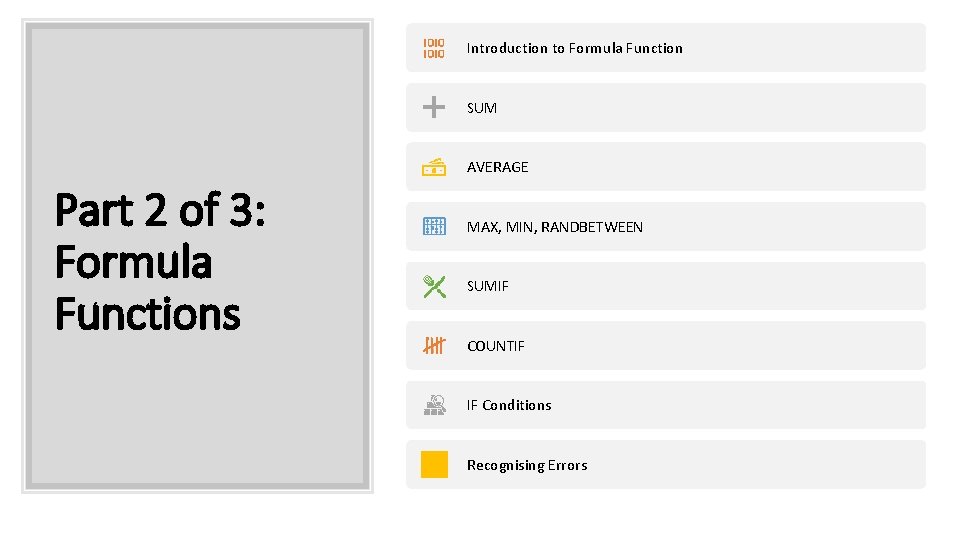
Introduction to Formula Function SUM AVERAGE Part 2 of 3: Formula Functions MAX, MIN, RANDBETWEEN SUMIF COUNTIF IF Conditions Recognising Errors
Introduction to Formula Functions • A formula is used to calculate and analyze the data. • They are Excel defined equations that perform calculations in your spreadsheet based on your required analysis. • Every formula must have an “=“ sign at the beginning. It is an indication that you are commanding MS Excel to perform a task for you. • You have the choice of using pre-defined excel formulas or create your own. • All formulas can be changed and edited in the formula bar or by pressing F 2 on the keyboard.
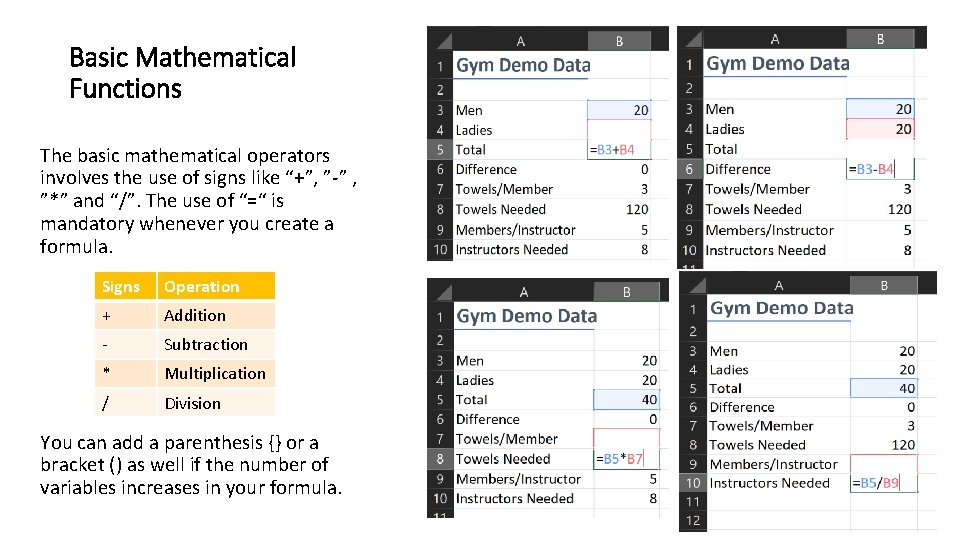
Basic Mathematical Functions The basic mathematical operators involves the use of signs like “+”, ”-” , ”*” and “/”. The use of “=“ is mandatory whenever you create a formula. Signs Operation + Addition - Subtraction * Multiplication / Division You can add a parenthesis {} or a bracket () as well if the number of variables increases in your formula.
Introduction to Formula Functions SUM AVERAGE MAX, MIN, RANDBETWEEN SUMIF COUNTIF IF Conditions Recognizing Errors
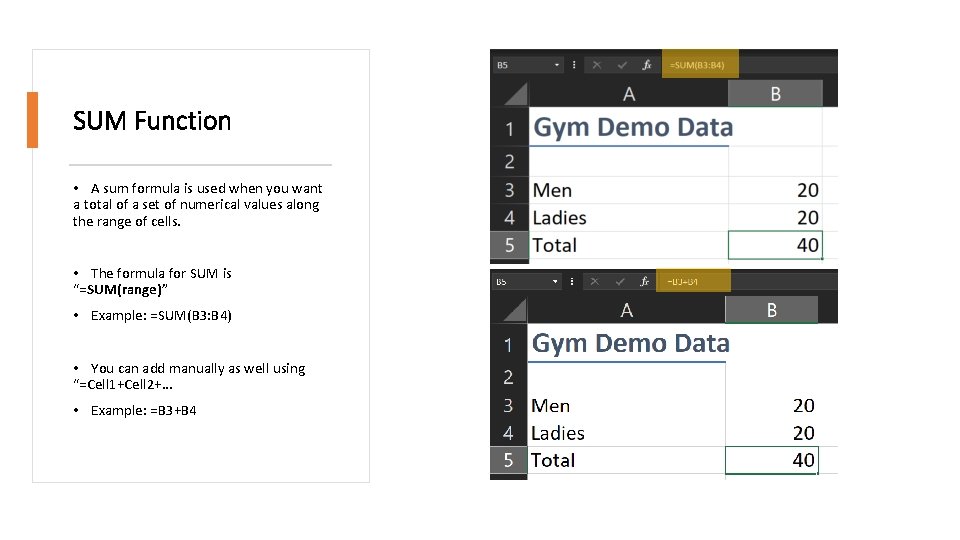
SUM Function • A sum formula is used when you want a total of a set of numerical values along the range of cells. • The formula for SUM is “=SUM(range)” • Example: =SUM(B 3: B 4) • You can add manually as well using “=Cell 1+Cell 2+… • Example: =B 3+B 4
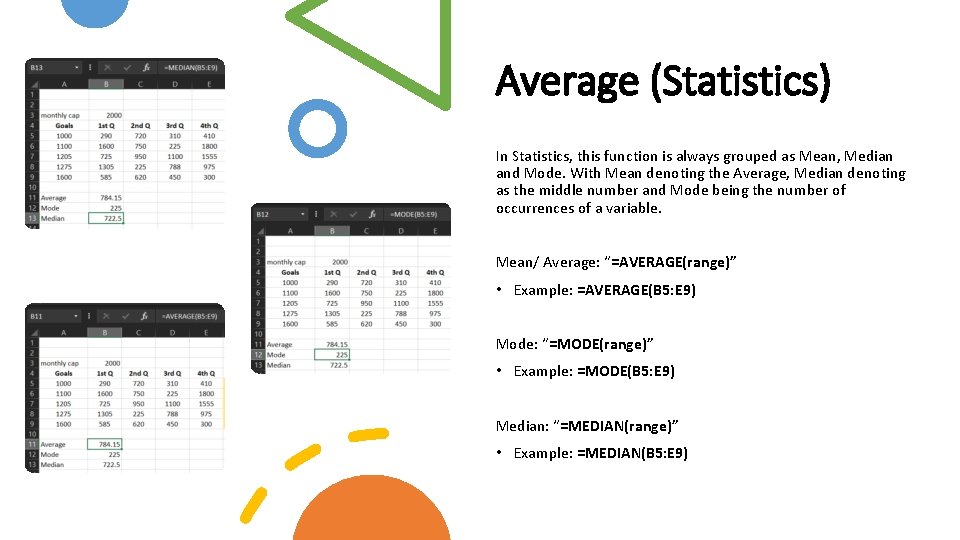
Average (Statistics) In Statistics, this function is always grouped as Mean, Median and Mode. With Mean denoting the Average, Median denoting as the middle number and Mode being the number of occurrences of a variable. Mean/ Average: “=AVERAGE(range)” • Example: =AVERAGE(B 5: E 9) Mode: “=MODE(range)” • Example: =MODE(B 5: E 9) Median: “=MEDIAN(range)” • Example: =MEDIAN(B 5: E 9)
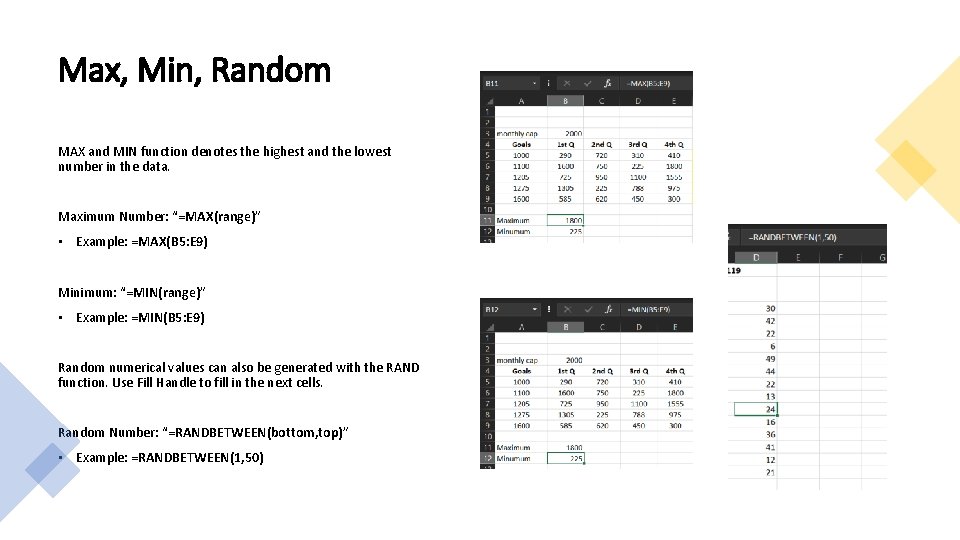
Max, Min, Random MAX and MIN function denotes the highest and the lowest number in the data. Maximum Number: “=MAX(range)” • Example: =MAX(B 5: E 9) Minimum: “=MIN(range)” • Example: =MIN(B 5: E 9) Random numerical values can also be generated with the RAND function. Use Fill Handle to fill in the next cells. Random Number: “=RANDBETWEEN(bottom, top)” • Example: =RANDBETWEEN(1, 50)
SUMIF
COUNTIF
IF Conditions
Nested IF
IF ELSE
Built-in Functions
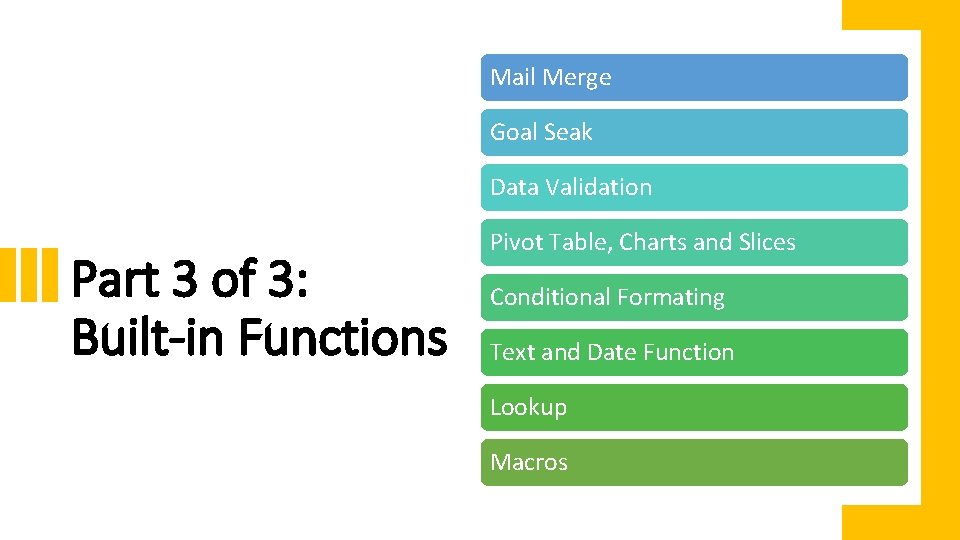
Mail Merge Goal Seak Data Validation Part 3 of 3: Built-in Functions Pivot Table, Charts and Slices Conditional Formating Text and Date Function Lookup Macros
Mail Merge A mail merge is a tool that is used to multiple documents at once. They are used to cater to bulk emails, letters and labels. Each document is distinct having an identical layout, text, and formatting apart from only a few sections that are different. It is done on MS Word and MS Excel Both
Mail Merge Goal Seak Data Validation Pivot Table, Charts and Slices Conditional Formating Text and Date Function Lookup Macros