
Microsoft Excel 2013 Lecture 2 Intermediate Excel 1

- Slides: 38
Microsoft Excel 2013 Lecture 2 Intermediate Excel 1
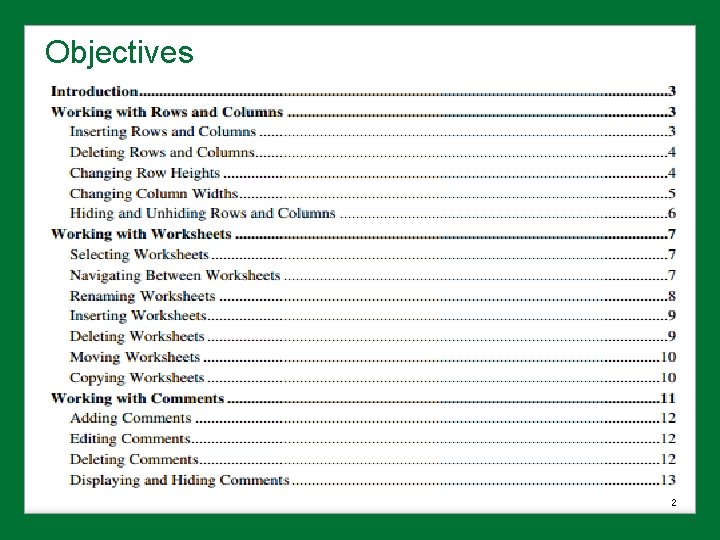
Objectives 2
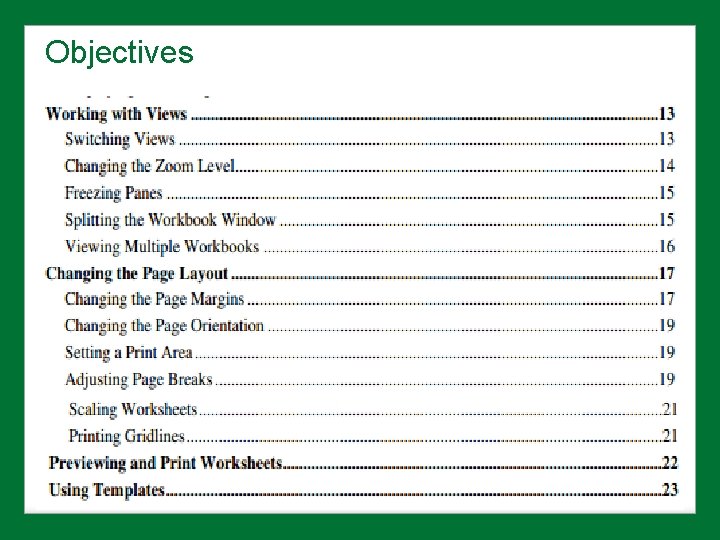
Objectives 3
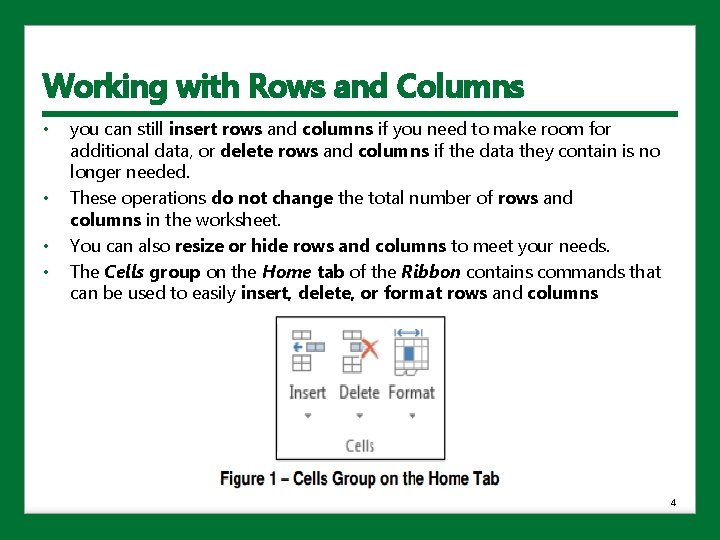
Working with Rows and Columns • • you can still insert rows and columns if you need to make room for additional data, or delete rows and columns if the data they contain is no longer needed. These operations do not change the total number of rows and columns in the worksheet. You can also resize or hide rows and columns to meet your needs. The Cells group on the Home tab of the Ribbon contains commands that can be used to easily insert, delete, or format rows and columns 4
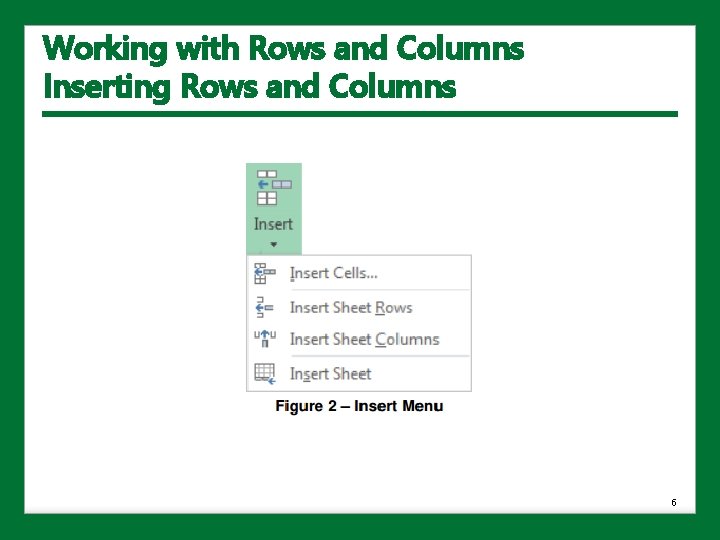
Working with Rows and Columns • • • Rows are inserted above the selected row; columns are inserted to the left of the selected column. To insert a row: 1. Select the row above which you want to insert a new row. 2. On the Home tab, in the Cells group, click the Insert arrow, and then click Insert Sheet Rows. NOTE: You can also insert a row by right-clicking the header of the row above which you want to insert the new row, and then clicking Insert on the shortcut menu. To insert a column: 1. Select the column to the left of which you want to insert a new column. 2. On the Home tab, in the Cells group, click the Insert arrow, and then click Insert Sheet Columns. NOTE: You can also insert a column by right-clicking the header of the column to the left of which you want to insert the new column, and then clicking Insert on the shortcut menu. 5
Working with Rows and Columns Inserting Rows and Columns 6
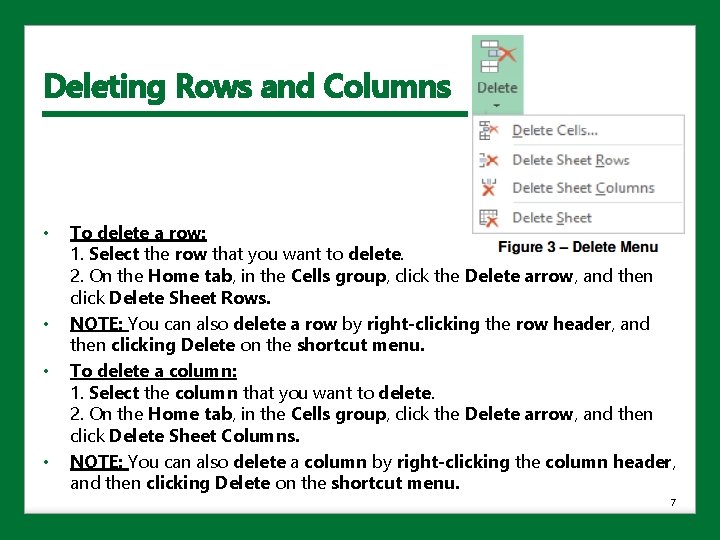
Deleting Rows and Columns • • To delete a row: 1. Select the row that you want to delete. 2. On the Home tab, in the Cells group, click the Delete arrow, and then click Delete Sheet Rows. NOTE: You can also delete a row by right-clicking the row header, and then clicking Delete on the shortcut menu. To delete a column: 1. Select the column that you want to delete. 2. On the Home tab, in the Cells group, click the Delete arrow, and then click Delete Sheet Columns. NOTE: You can also delete a column by right-clicking the column header, and then clicking Delete on the shortcut menu. 7
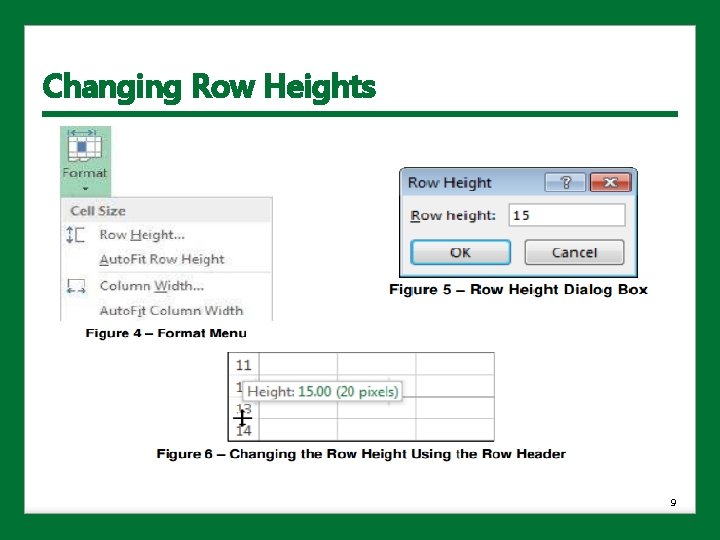
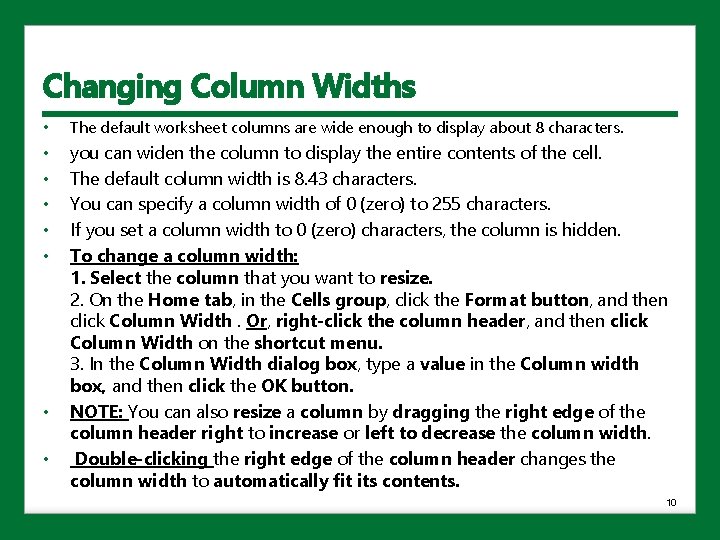
Changing Row Heights • • Excel automatically adjusts row heights to accommodate the tallest entry in the row. The default row height is 15 points. You can specify a row height of 0 (zero) to 409 points. If you set a row height to 0 (zero) points, the row is hidden. To change a row height: 1. Select the row that you want to resize. 2. On the Home tab, in the Cells group, click the Format button, and then click Row Height. Or, right-click the row header, and then click Row Height on the shortcut menu. 3. In the Row Height dialog box, type a value in the Row height box, and then click the OK button. NOTE: You can also resize a row by dragging the bottom edge of the row header down to increase or up to decrease the row height. Double-clicking the bottom edge of the row header changes the row height to automatically fit its contents. 8
Changing Row Heights 9
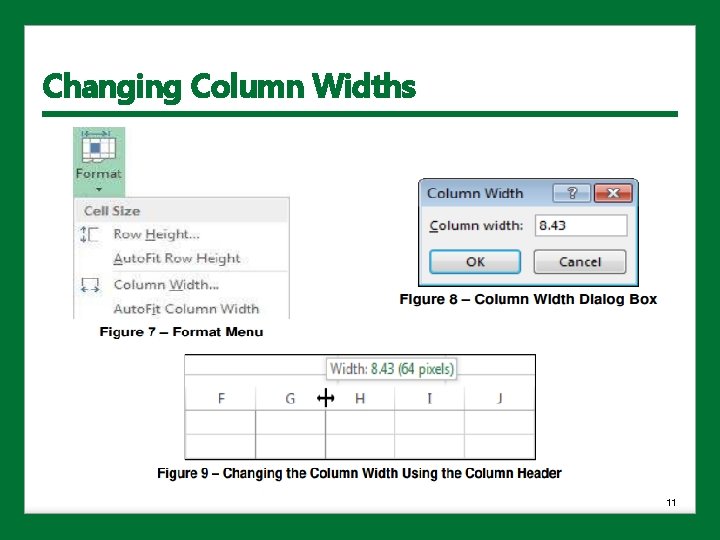
Changing Column Widths • The default worksheet columns are wide enough to display about 8 characters. • • • you can widen the column to display the entire contents of the cell. The default column width is 8. 43 characters. You can specify a column width of 0 (zero) to 255 characters. If you set a column width to 0 (zero) characters, the column is hidden. To change a column width: 1. Select the column that you want to resize. 2. On the Home tab, in the Cells group, click the Format button, and then click Column Width. Or, right-click the column header, and then click Column Width on the shortcut menu. 3. In the Column Width dialog box, type a value in the Column width box, and then click the OK button. NOTE: You can also resize a column by dragging the right edge of the column header right to increase or left to decrease the column width. Double-clicking the right edge of the column header changes the column width to automatically fit its contents. • • 10
Changing Column Widths 11
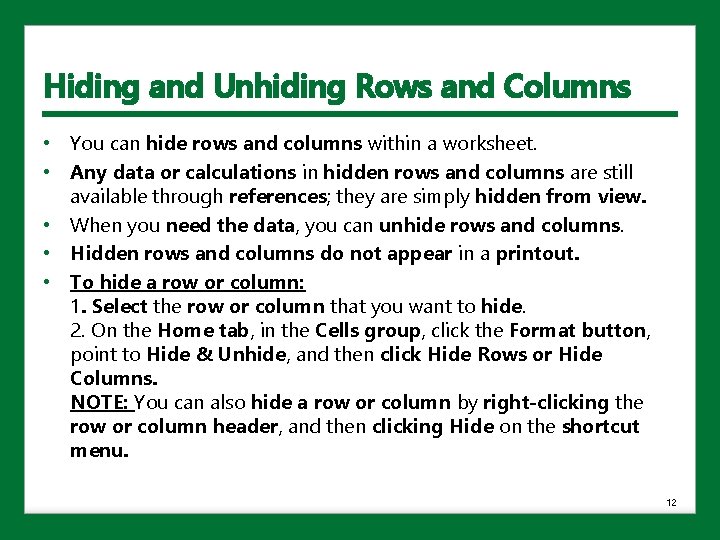
Hiding and Unhiding Rows and Columns • You can hide rows and columns within a worksheet. • Any data or calculations in hidden rows and columns are still available through references; they are simply hidden from view. • When you need the data, you can unhide rows and columns. • Hidden rows and columns do not appear in a printout. • To hide a row or column: 1. Select the row or column that you want to hide. 2. On the Home tab, in the Cells group, click the Format button, point to Hide & Unhide, and then click Hide Rows or Hide Columns. NOTE: You can also hide a row or column by right-clicking the row or column header, and then clicking Hide on the shortcut menu. 12
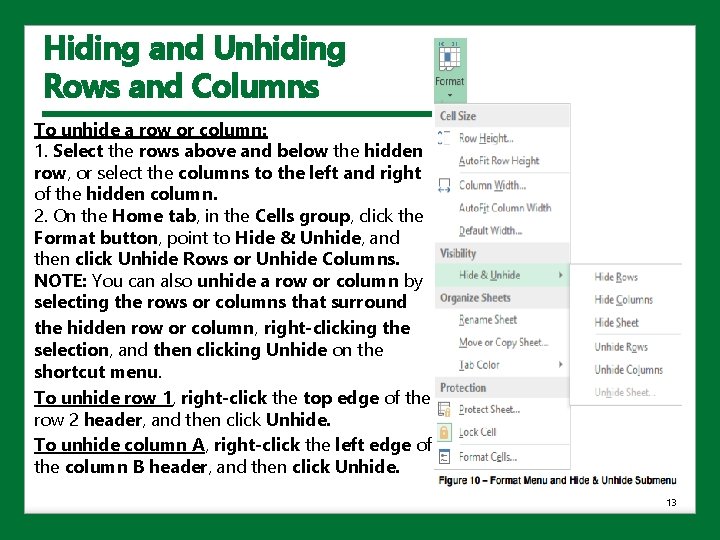
Hiding and Unhiding Rows and Columns • • • To unhide a row or column: 1. Select the rows above and below the hidden row, or select the columns to the left and right of the hidden column. 2. On the Home tab, in the Cells group, click the Format button, point to Hide & Unhide, and then click Unhide Rows or Unhide Columns. NOTE: You can also unhide a row or column by selecting the rows or columns that surround the hidden row or column, right-clicking the selection, and then clicking Unhide on the shortcut menu. To unhide row 1, right-click the top edge of the row 2 header, and then click Unhide. To unhide column A, right-click the left edge of the column B header, and then click Unhide. 13
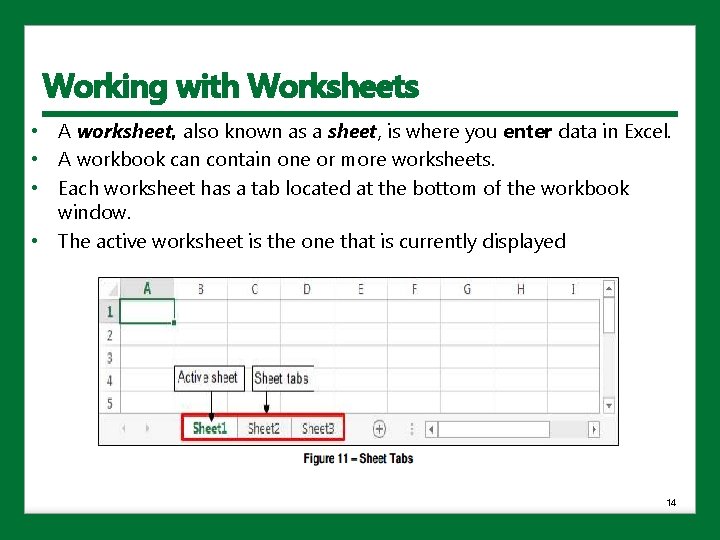
Working with Worksheets • A worksheet, also known as a sheet, is where you enter data in Excel. • A workbook can contain one or more worksheets. • Each worksheet has a tab located at the bottom of the workbook window. • The active worksheet is the one that is currently displayed 14
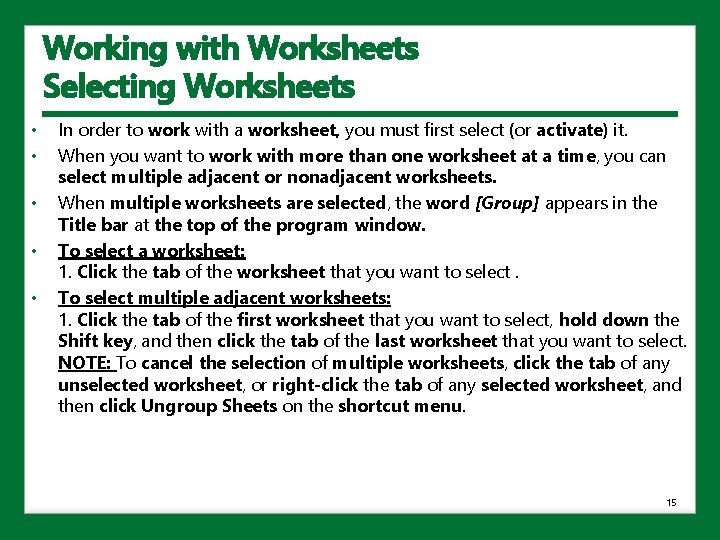
Working with Worksheets Selecting Worksheets • • • In order to work with a worksheet, you must first select (or activate) it. When you want to work with more than one worksheet at a time, you can select multiple adjacent or nonadjacent worksheets. When multiple worksheets are selected, the word [Group] appears in the Title bar at the top of the program window. To select a worksheet: 1. Click the tab of the worksheet that you want to select. To select multiple adjacent worksheets: 1. Click the tab of the first worksheet that you want to select, hold down the Shift key, and then click the tab of the last worksheet that you want to select. NOTE: To cancel the selection of multiple worksheets, click the tab of any unselected worksheet, or right-click the tab of any selected worksheet, and then click Ungroup Sheets on the shortcut menu. 15
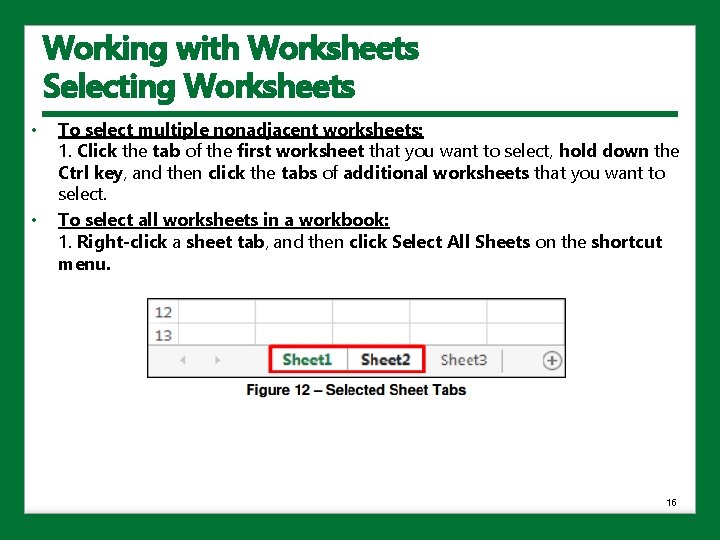
Working with Worksheets Selecting Worksheets • • To select multiple nonadjacent worksheets: 1. Click the tab of the first worksheet that you want to select, hold down the Ctrl key, and then click the tabs of additional worksheets that you want to select. To select all worksheets in a workbook: 1. Right-click a sheet tab, and then click Select All Sheets on the shortcut menu. 16
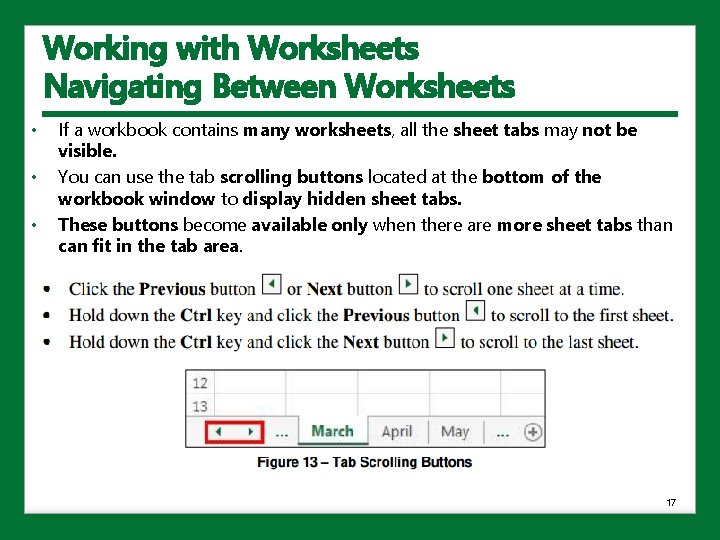
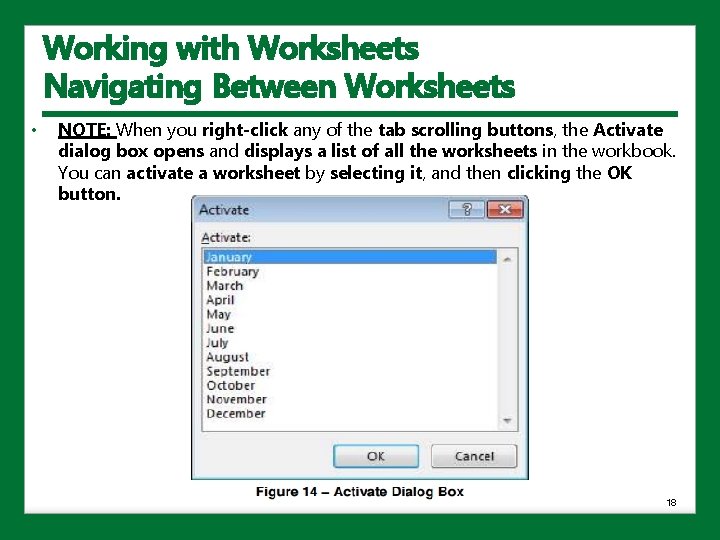
Working with Worksheets Navigating Between Worksheets • • • If a workbook contains many worksheets, all the sheet tabs may not be visible. You can use the tab scrolling buttons located at the bottom of the workbook window to display hidden sheet tabs. These buttons become available only when there are more sheet tabs than can fit in the tab area. 17
Working with Worksheets Navigating Between Worksheets • NOTE: When you right-click any of the tab scrolling buttons, the Activate dialog box opens and displays a list of all the worksheets in the workbook. You can activate a worksheet by selecting it, and then clicking the OK button. 18
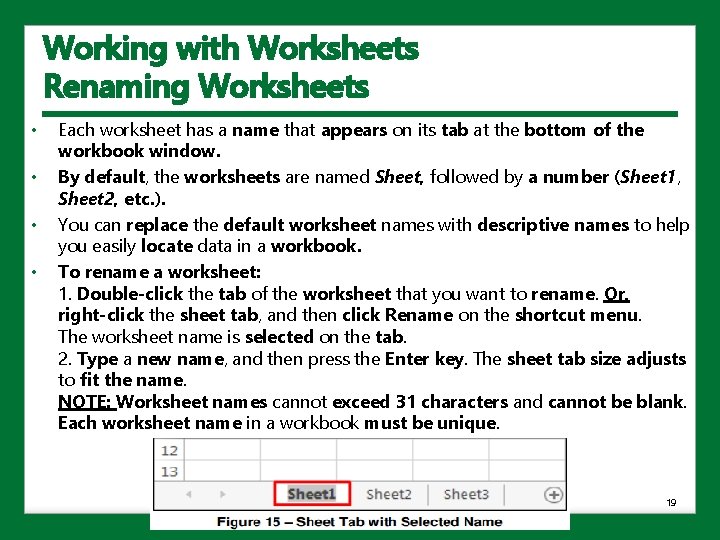
Working with Worksheets Renaming Worksheets • • Each worksheet has a name that appears on its tab at the bottom of the workbook window. By default, the worksheets are named Sheet, followed by a number (Sheet 1, Sheet 2, etc. ). You can replace the default worksheet names with descriptive names to help you easily locate data in a workbook. To rename a worksheet: 1. Double-click the tab of the worksheet that you want to rename. Or, right-click the sheet tab, and then click Rename on the shortcut menu. The worksheet name is selected on the tab. 2. Type a new name, and then press the Enter key. The sheet tab size adjusts to fit the name. NOTE: Worksheet names cannot exceed 31 characters and cannot be blank. Each worksheet name in a workbook must be unique. 19
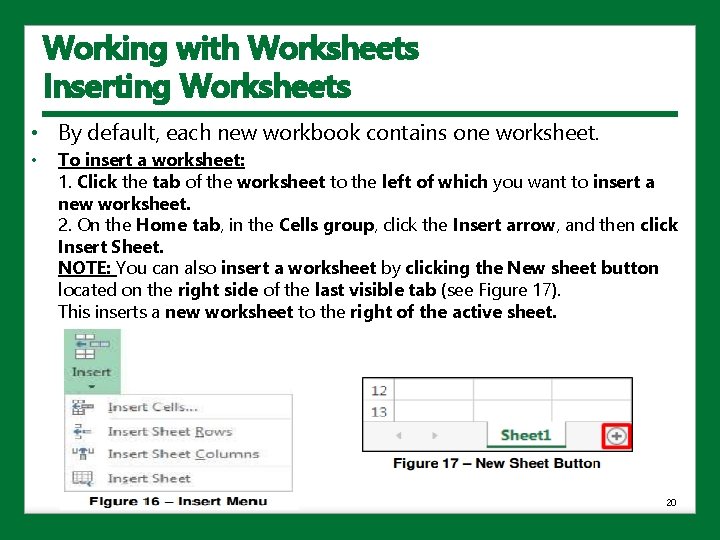
Working with Worksheets Inserting Worksheets • By default, each new workbook contains one worksheet. • To insert a worksheet: 1. Click the tab of the worksheet to the left of which you want to insert a new worksheet. 2. On the Home tab, in the Cells group, click the Insert arrow, and then click Insert Sheet. NOTE: You can also insert a worksheet by clicking the New sheet button located on the right side of the last visible tab (see Figure 17). This inserts a new worksheet to the right of the active sheet. 20
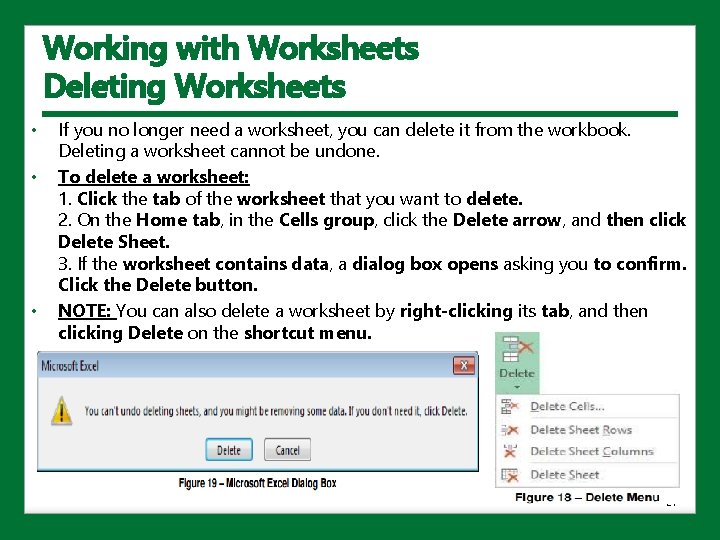
Working with Worksheets Deleting Worksheets • • • If you no longer need a worksheet, you can delete it from the workbook. Deleting a worksheet cannot be undone. To delete a worksheet: 1. Click the tab of the worksheet that you want to delete. 2. On the Home tab, in the Cells group, click the Delete arrow, and then click Delete Sheet. 3. If the worksheet contains data, a dialog box opens asking you to confirm. Click the Delete button. NOTE: You can also delete a worksheet by right-clicking its tab, and then clicking Delete on the shortcut menu. 21
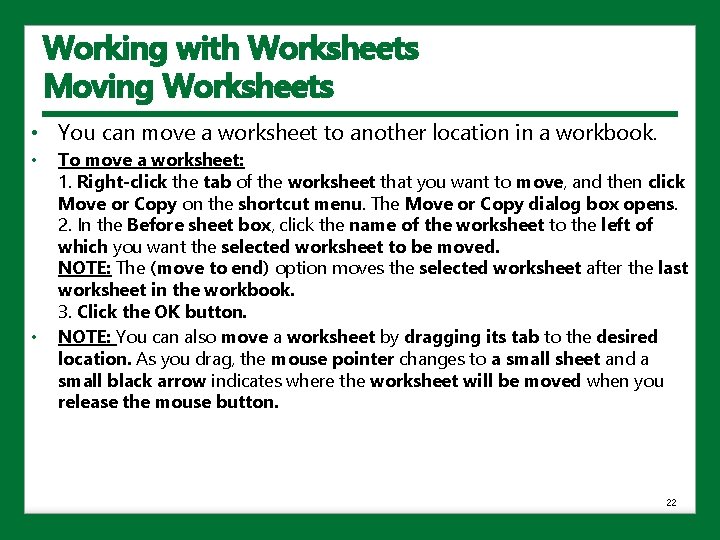
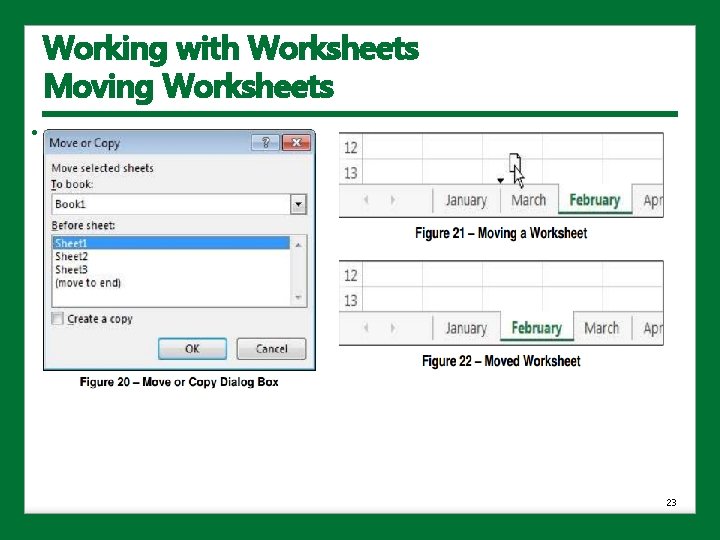
Working with Worksheets Moving Worksheets • You can move a worksheet to another location in a workbook. • • To move a worksheet: 1. Right-click the tab of the worksheet that you want to move, and then click Move or Copy on the shortcut menu. The Move or Copy dialog box opens. 2. In the Before sheet box, click the name of the worksheet to the left of which you want the selected worksheet to be moved. NOTE: The (move to end) option moves the selected worksheet after the last worksheet in the workbook. 3. Click the OK button. NOTE: You can also move a worksheet by dragging its tab to the desired location. As you drag, the mouse pointer changes to a small sheet and a small black arrow indicates where the worksheet will be moved when you release the mouse button. 22
Working with Worksheets Moving Worksheets • 23
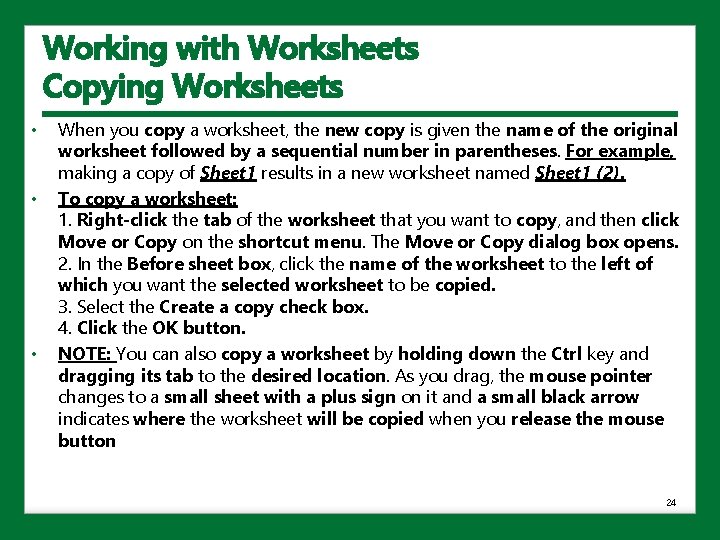
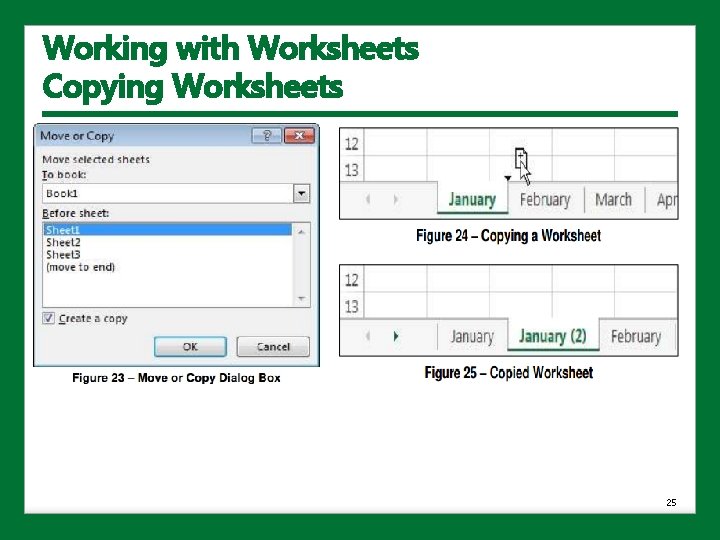
Working with Worksheets Copying Worksheets • • • When you copy a worksheet, the new copy is given the name of the original worksheet followed by a sequential number in parentheses. For example, making a copy of Sheet 1 results in a new worksheet named Sheet 1 (2). To copy a worksheet: 1. Right-click the tab of the worksheet that you want to copy, and then click Move or Copy on the shortcut menu. The Move or Copy dialog box opens. 2. In the Before sheet box, click the name of the worksheet to the left of which you want the selected worksheet to be copied. 3. Select the Create a copy check box. 4. Click the OK button. NOTE: You can also copy a worksheet by holding down the Ctrl key and dragging its tab to the desired location. As you drag, the mouse pointer changes to a small sheet with a plus sign on it and a small black arrow indicates where the worksheet will be copied when you release the mouse button 24
Working with Worksheets Copying Worksheets • 25
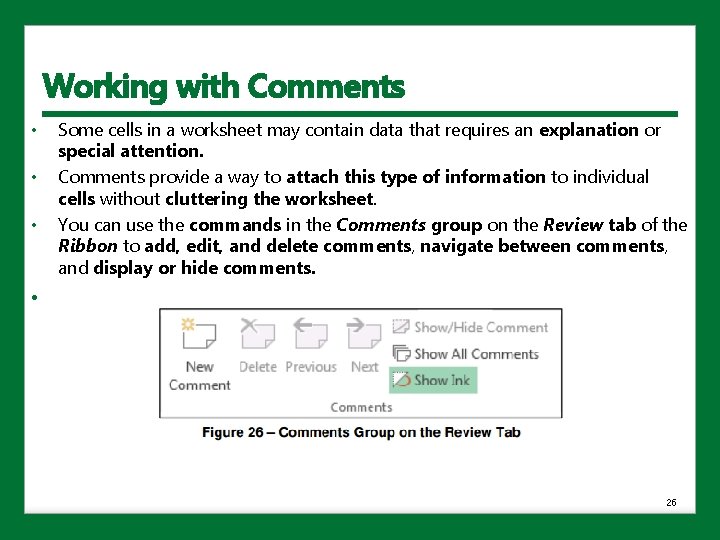
Working with Comments • • • Some cells in a worksheet may contain data that requires an explanation or special attention. Comments provide a way to attach this type of information to individual cells without cluttering the worksheet. You can use the commands in the Comments group on the Review tab of the Ribbon to add, edit, and delete comments, navigate between comments, and display or hide comments. • 26
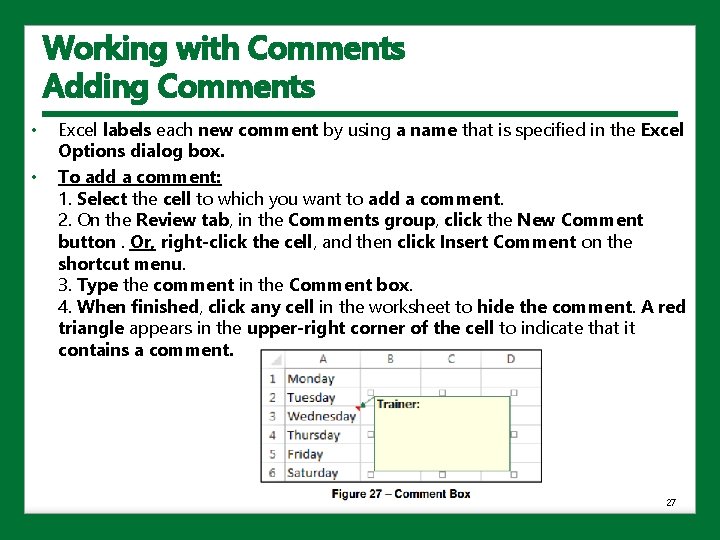
Working with Comments Adding Comments • • Excel labels each new comment by using a name that is specified in the Excel Options dialog box. To add a comment: 1. Select the cell to which you want to add a comment. 2. On the Review tab, in the Comments group, click the New Comment button. Or, right-click the cell, and then click Insert Comment on the shortcut menu. 3. Type the comment in the Comment box. 4. When finished, click any cell in the worksheet to hide the comment. A red triangle appears in the upper-right corner of the cell to indicate that it contains a comment. 27
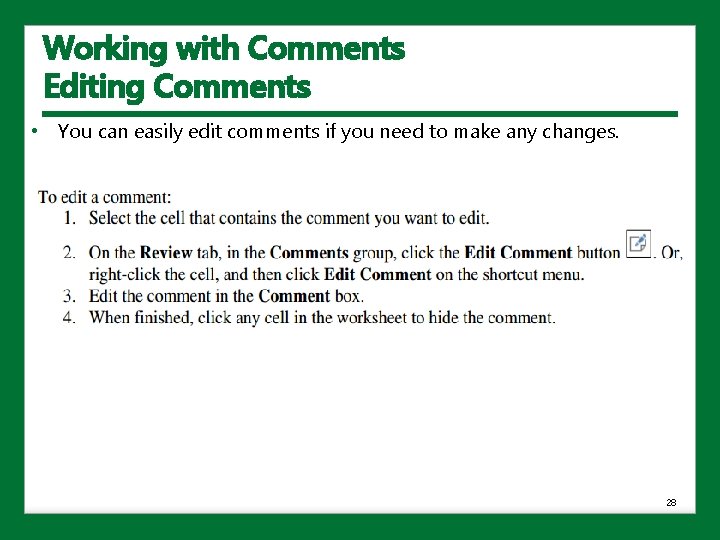
Working with Comments Editing Comments • You can easily edit comments if you need to make any changes. 28
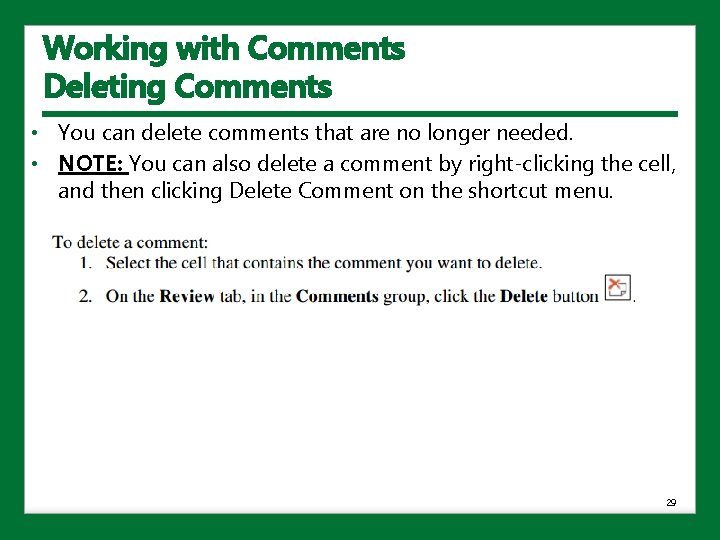
Working with Comments Deleting Comments • You can delete comments that are no longer needed. • NOTE: You can also delete a comment by right-clicking the cell, and then clicking Delete Comment on the shortcut menu. 29
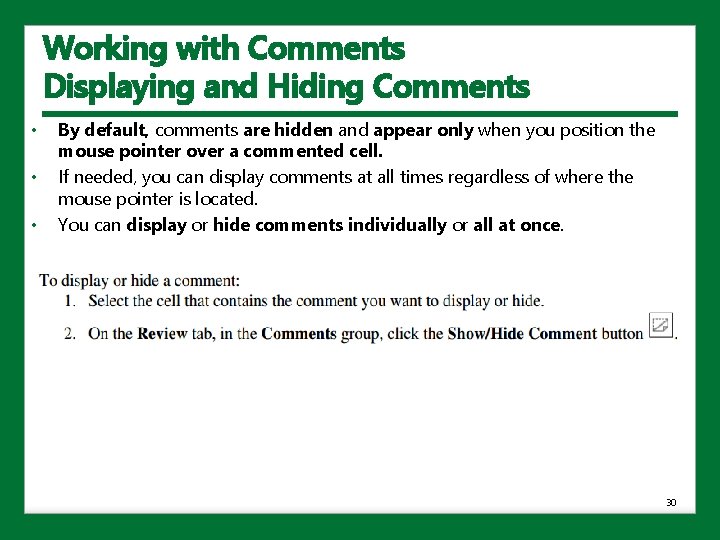
Working with Comments Displaying and Hiding Comments • • • By default, comments are hidden and appear only when you position the mouse pointer over a commented cell. If needed, you can display comments at all times regardless of where the mouse pointer is located. You can display or hide comments individually or all at once. 30
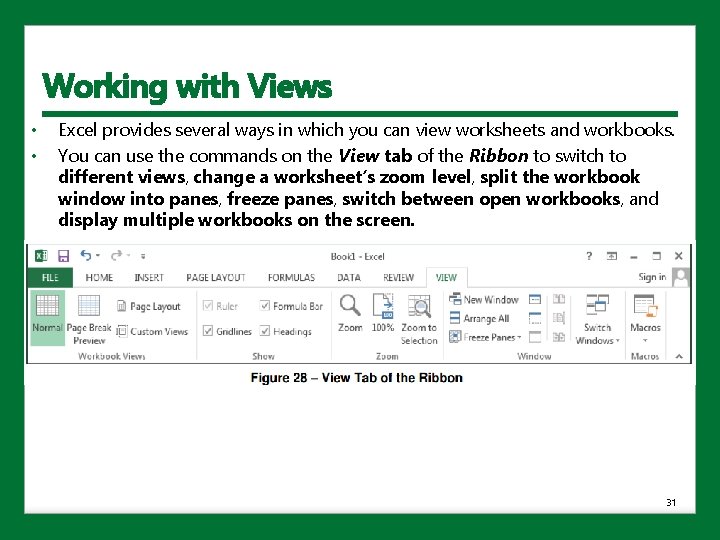
Working with Views • • Excel provides several ways in which you can view worksheets and workbooks. You can use the commands on the View tab of the Ribbon to switch to different views, change a worksheet’s zoom level, split the workbook window into panes, freeze panes, switch between open workbooks, and display multiple workbooks on the screen. • 31
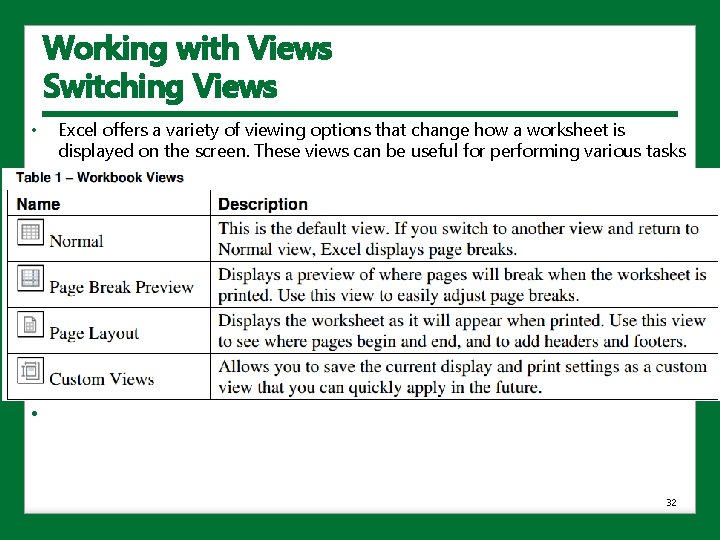
Working with Views Switching Views • Excel offers a variety of viewing options that change how a worksheet is displayed on the screen. These views can be useful for performing various tasks • 32
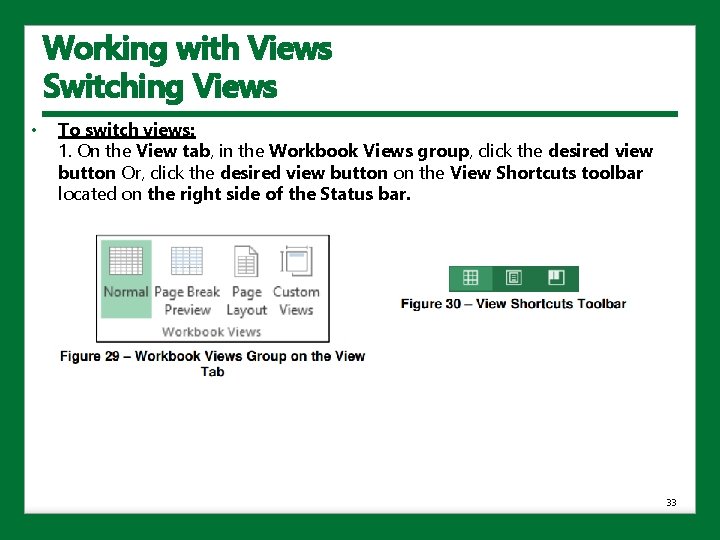
Working with Views Switching Views • To switch views: 1. On the View tab, in the Workbook Views group, click the desired view button Or, click the desired view button on the View Shortcuts toolbar located on the right side of the Status bar. 33
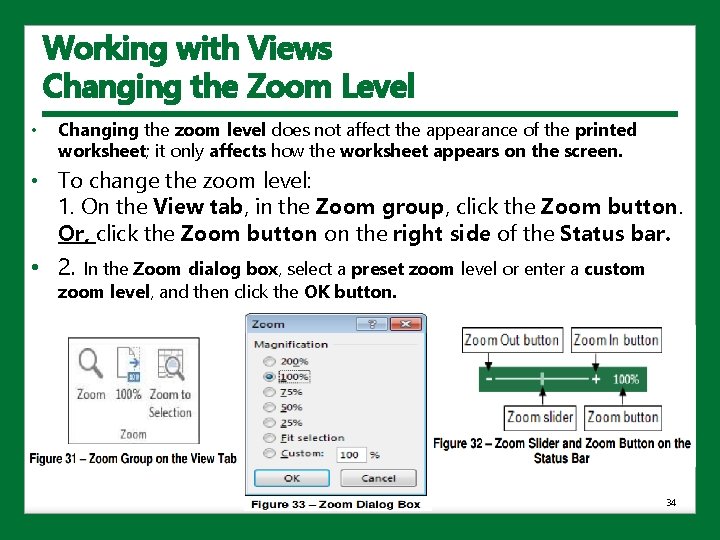
Working with Views Changing the Zoom Level • Changing the zoom level does not affect the appearance of the printed worksheet; it only affects how the worksheet appears on the screen. • To change the zoom level: 1. On the View tab, in the Zoom group, click the Zoom button. Or, click the Zoom button on the right side of the Status bar. • 2. In the Zoom dialog box, select a preset zoom level or enter a custom zoom level, and then click the OK button. 34
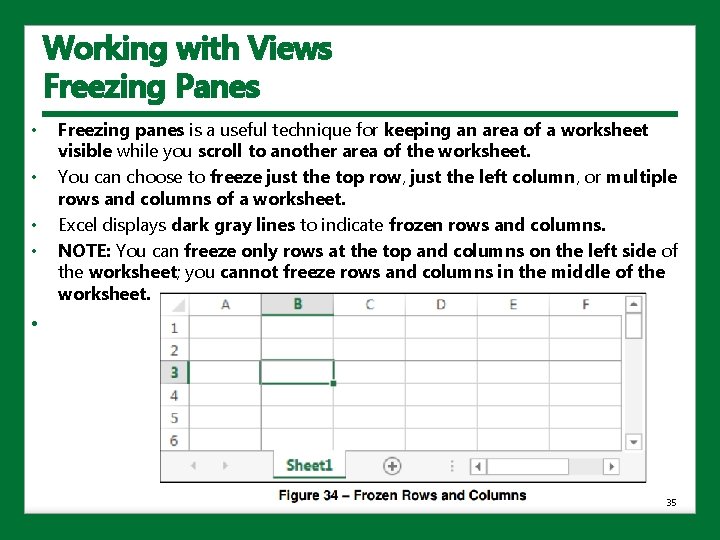
Working with Views Freezing Panes • • Freezing panes is a useful technique for keeping an area of a worksheet visible while you scroll to another area of the worksheet. You can choose to freeze just the top row, just the left column, or multiple rows and columns of a worksheet. Excel displays dark gray lines to indicate frozen rows and columns. NOTE: You can freeze only rows at the top and columns on the left side of the worksheet; you cannot freeze rows and columns in the middle of the worksheet. • 35
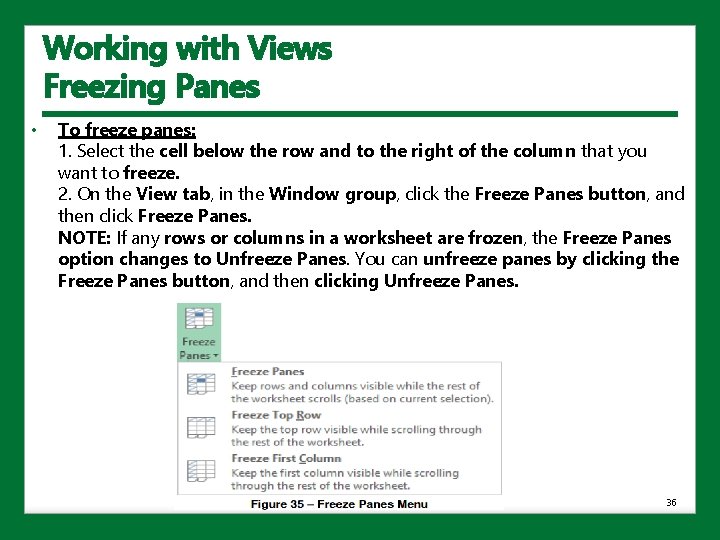
Working with Views Freezing Panes • To freeze panes: 1. Select the cell below the row and to the right of the column that you want to freeze. 2. On the View tab, in the Window group, click the Freeze Panes button, and then click Freeze Panes. NOTE: If any rows or columns in a worksheet are frozen, the Freeze Panes option changes to Unfreeze Panes. You can unfreeze panes by clicking the Freeze Panes button, and then clicking Unfreeze Panes. 36
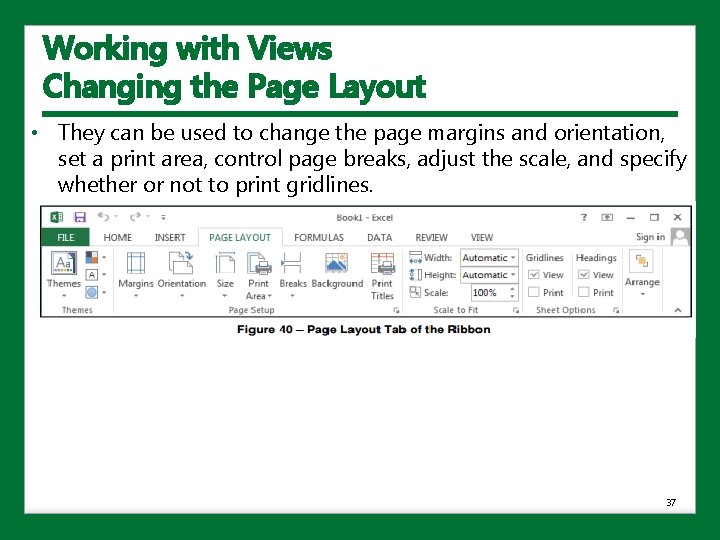
Working with Views Changing the Page Layout • They can be used to change the page margins and orientation, set a print area, control page breaks, adjust the scale, and specify whether or not to print gridlines. 37
Working with Views Changing the Page Layout • • Setting a Print Area Changing the Page Orientation Changing the Page Margins Adjusting Page Breaks Scaling Worksheets Printing Gridlines Previewing and Print Worksheets 38