
Microsoft Excel 2010 a lessonapproach Lesson 6 Using


- Slides: 51
Microsoft® Excel 2010 a lessonapproach Lesson 6 Using Dates, Times, and Logical Functions © 2011 The Mc. Graw-Hill Companies, Inc. All rights reserved.
Objectives 1 • Key and format dates and times. 2 • Use Date & Time functions. 3 • Use date and time arithmetic. a lesson approach 4 • Use the IF function. 2 5 • Create and edit cell styles. 6 • Use the AND, OR, and NOT functions. 7 • Prepare worksheets for output. © 2011 The Mc. Graw-Hill Companies, Inc. All rights reserved.
Objective 1 a lesson approach Keying and Formatting Dates and Times 3 © 2011 The Mc. Graw-Hill Companies, Inc. All rights reserved.
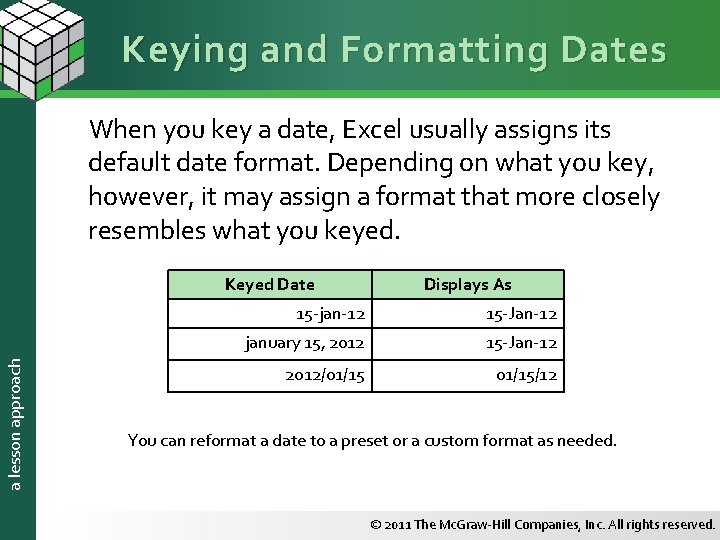
Keying and Formatting Dates When you key a date, Excel usually assigns its default date format. Depending on what you key, however, it may assign a format that more closely resembles what you keyed. a lesson approach Keyed Date Displays As 15 -jan-12 15 -Jan-12 january 15, 2012 15 -Jan-12 2012/01/15/12 You can reformat a date to a preset or a custom format as needed. © 2011 The Mc. Graw-Hill Companies, Inc. All rights reserved.
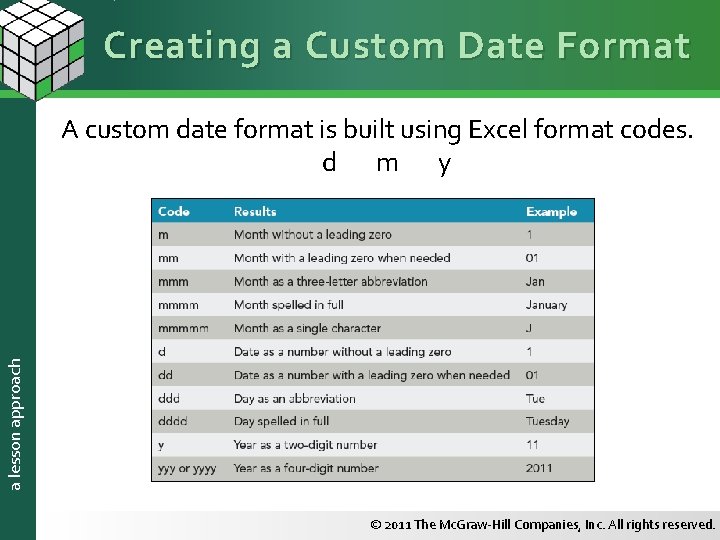
Creating a Custom Date Format a lesson approach A custom date format is built using Excel format codes. d m y © 2011 The Mc. Graw-Hill Companies, Inc. All rights reserved.
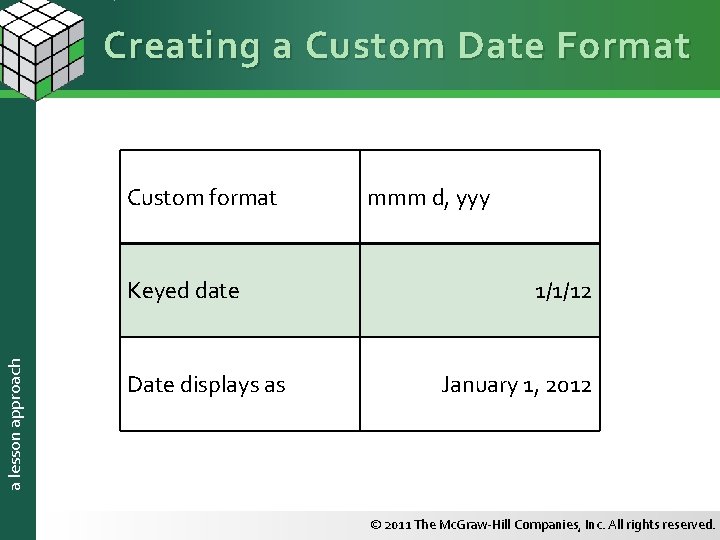
Creating a Custom Date Format Custom format a lesson approach Keyed date Date displays as mmm d, yyy 1/1/12 January 1, 2012 © 2011 The Mc. Graw-Hill Companies, Inc. All rights reserved.
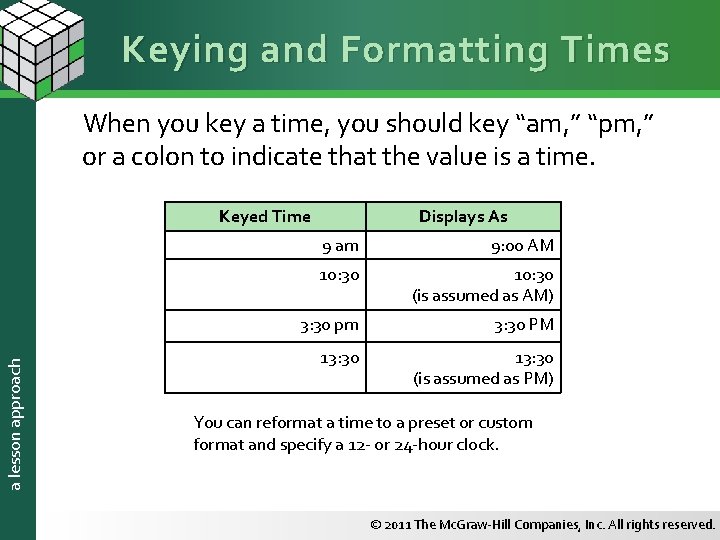
Keying and Formatting Times When you key a time, you should key “am, ” “pm, ” or a colon to indicate that the value is a time. a lesson approach Keyed Time Displays As 9 am 9: 00 AM 10: 30 (is assumed as AM) 3: 30 pm 3: 30 PM 13: 30 (is assumed as PM) You can reformat a time to a preset or custom format and specify a 12 - or 24 -hour clock. © 2011 The Mc. Graw-Hill Companies, Inc. All rights reserved.
Objective 2 a lesson approach Using Date and Time Functions 8 © 2011 The Mc. Graw-Hill Companies, Inc. All rights reserved.
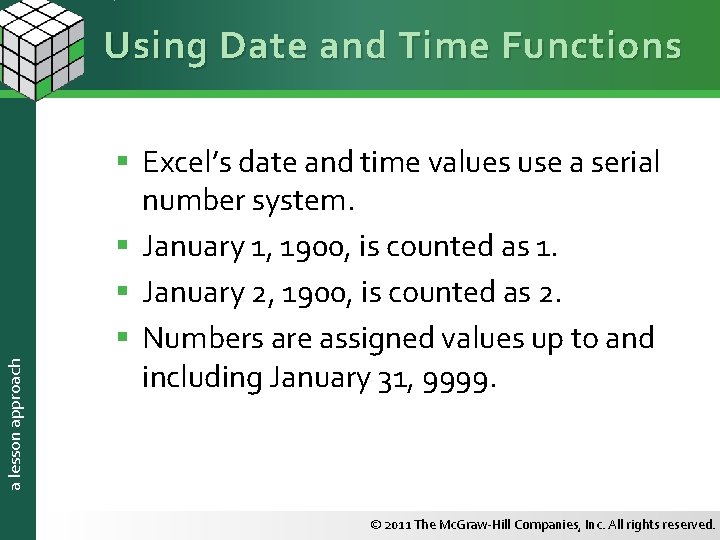
a lesson approach Using Date and Time Functions § Excel’s date and time values use a serial number system. § January 1, 1900, is counted as 1. § January 2, 1900, is counted as 2. § Numbers are assigned values up to and including January 31, 9999. © 2011 The Mc. Graw-Hill Companies, Inc. All rights reserved.
a lesson approach Using TODAY () and NOW() § Both functions use the computer’s clock to display the current date. § Either result can be formatted to show the date and/or the time. § Neither of these functions has arguments. § Both of these functions are volatile. © 2011 The Mc. Graw-Hill Companies, Inc. All rights reserved.
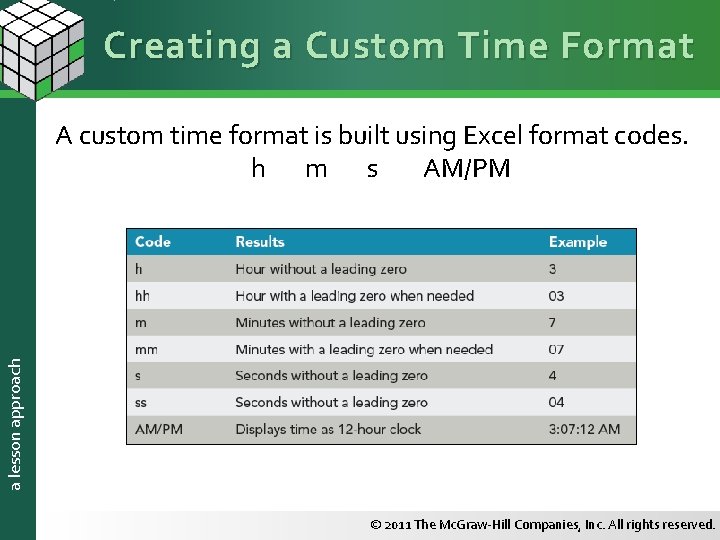
Creating a Custom Time Format a lesson approach A custom time format is built using Excel format codes. h m s AM/PM © 2011 The Mc. Graw-Hill Companies, Inc. All rights reserved.
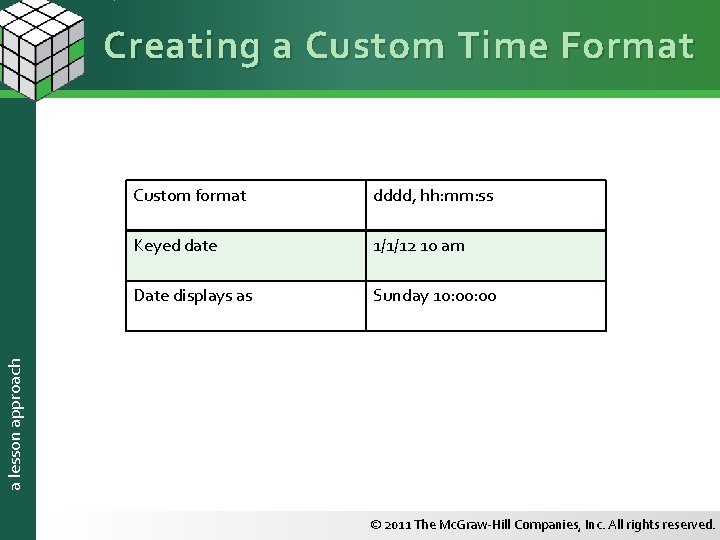
Creating a Custom Time Format dddd, hh: mm: ss Keyed date 1/1/12 10 am Date displays as Sunday 10: 00 a lesson approach Custom format © 2011 The Mc. Graw-Hill Companies, Inc. All rights reserved.
Objective 3 a lesson approach Using Date and Time Arithmetic 13 © 2011 The Mc. Graw-Hill Companies, Inc. All rights reserved.
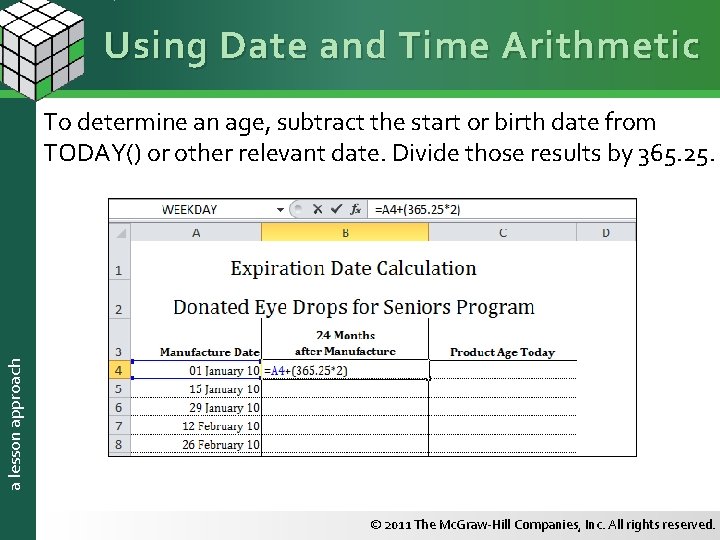
Using Date and Time Arithmetic a lesson approach To determine an age, subtract the start or birth date from TODAY() or other relevant date. Divide those results by 365. 25. © 2011 The Mc. Graw-Hill Companies, Inc. All rights reserved.
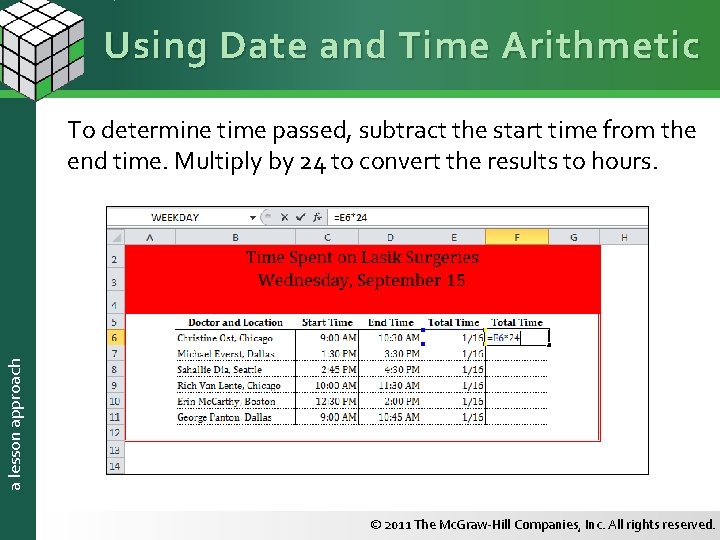
Using Date and Time Arithmetic a lesson approach To determine time passed, subtract the start time from the end time. Multiply by 24 to convert the results to hours. © 2011 The Mc. Graw-Hill Companies, Inc. All rights reserved.
Objective 4 a lesson approach Using the IF Function 16 © 2011 The Mc. Graw-Hill Companies, Inc. All rights reserved.
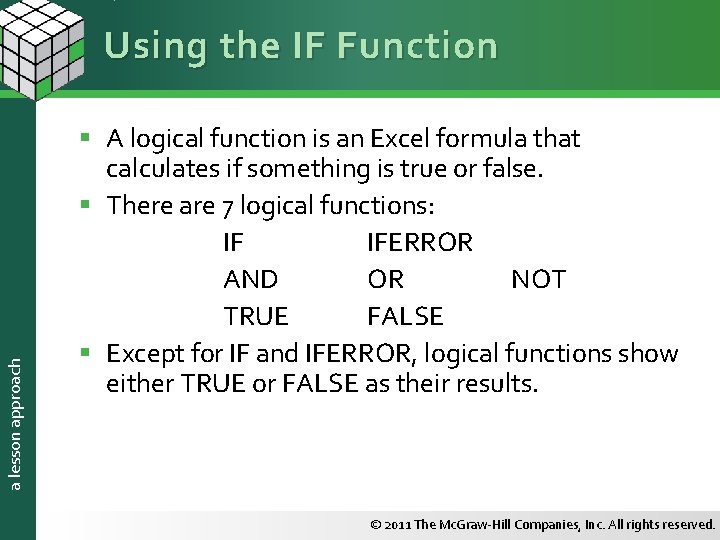
a lesson approach Using the IF Function § A logical function is an Excel formula that calculates if something is true or false. § There are 7 logical functions: IF IFERROR AND OR NOT TRUE FALSE § Except for IF and IFERROR, logical functions show either TRUE or FALSE as their results. © 2011 The Mc. Graw-Hill Companies, Inc. All rights reserved.
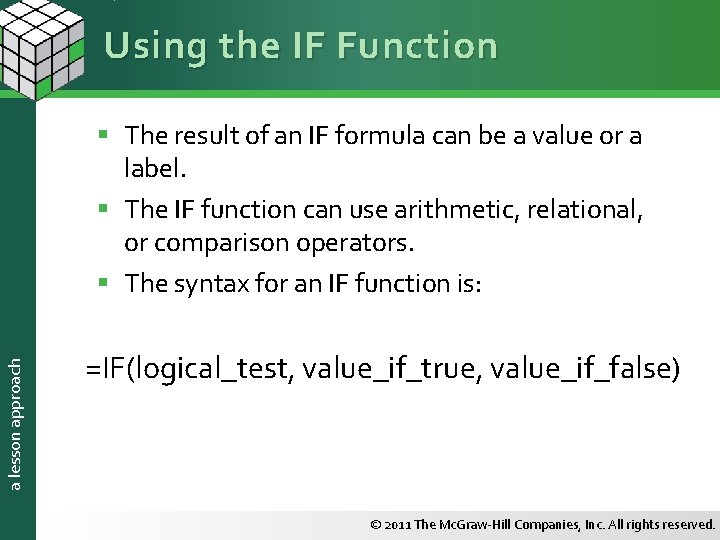
Using the IF Function a lesson approach § The result of an IF formula can be a value or a label. § The IF function can use arithmetic, relational, or comparison operators. § The syntax for an IF function is: =IF(logical_test, value_if_true, value_if_false) © 2011 The Mc. Graw-Hill Companies, Inc. All rights reserved.
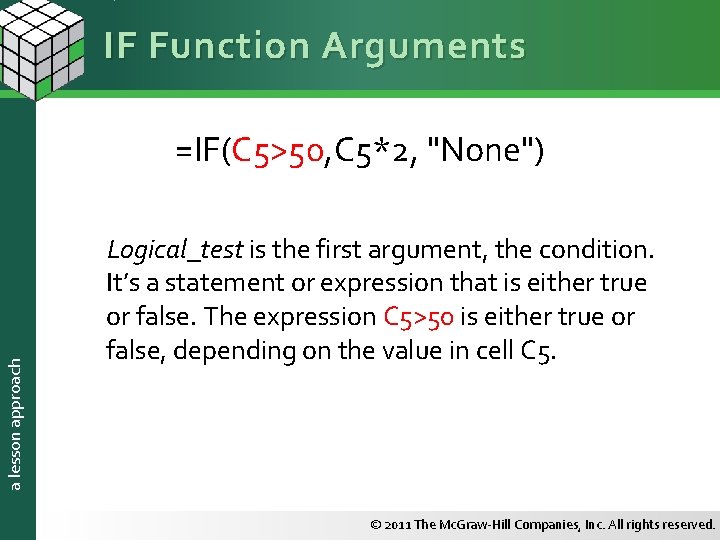
IF Function Arguments a lesson approach =IF(C 5>50, C 5*2, "None") Logical_test is the first argument, the condition. It’s a statement or expression that is either true or false. The expression C 5>50 is either true or false, depending on the value in cell C 5. © 2011 The Mc. Graw-Hill Companies, Inc. All rights reserved.
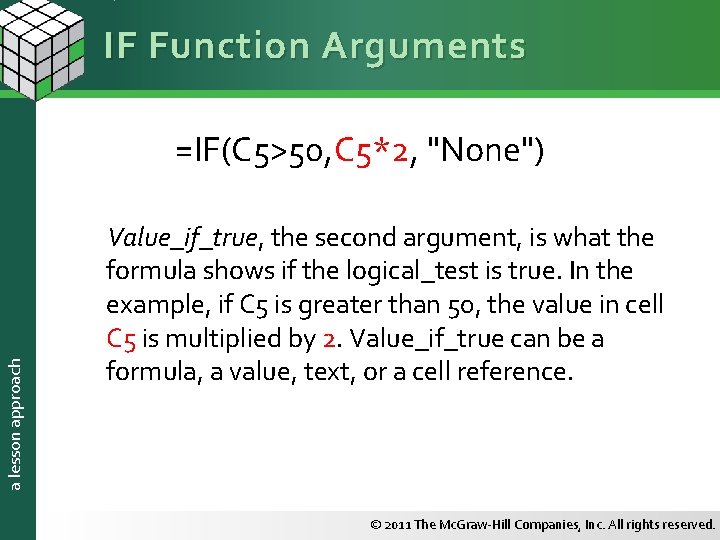
IF Function Arguments a lesson approach =IF(C 5>50, C 5*2, "None") Value_if_true, the second argument, is what the formula shows if the logical_test is true. In the example, if C 5 is greater than 50, the value in cell C 5 is multiplied by 2. Value_if_true can be a formula, a value, text, or a cell reference. © 2011 The Mc. Graw-Hill Companies, Inc. All rights reserved.
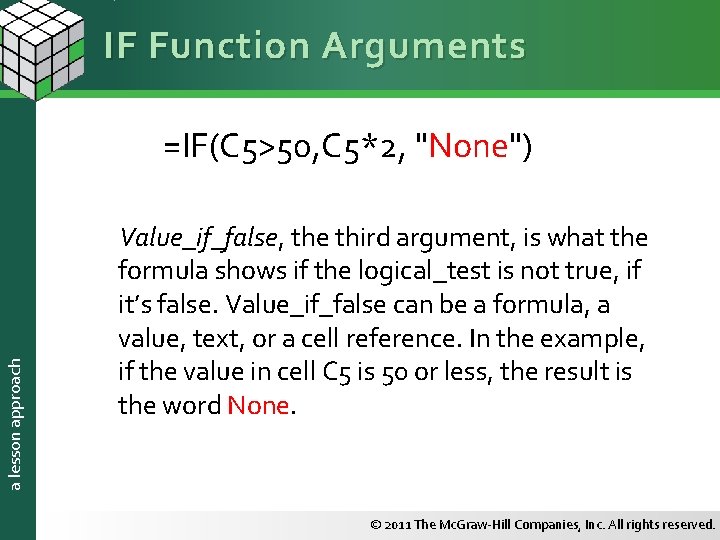
IF Function Arguments a lesson approach =IF(C 5>50, C 5*2, "None") Value_if_false, the third argument, is what the formula shows if the logical_test is not true, if it’s false. Value_if_false can be a formula, a value, text, or a cell reference. In the example, if the value in cell C 5 is 50 or less, the result is the word None. © 2011 The Mc. Graw-Hill Companies, Inc. All rights reserved.
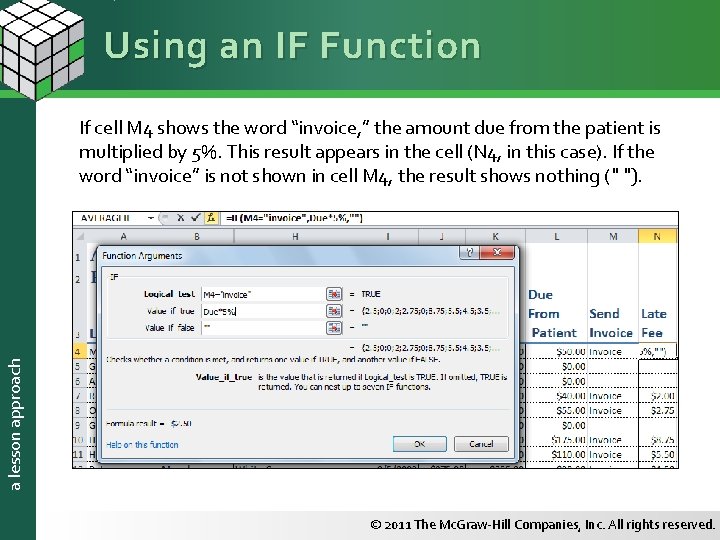
Using an IF Function a lesson approach If cell M 4 shows the word “invoice, ” the amount due from the patient is multiplied by 5%. This result appears in the cell (N 4, in this case). If the word “invoice” is not shown in cell M 4, the result shows nothing (" "). © 2011 The Mc. Graw-Hill Companies, Inc. All rights reserved.
Objective 5 a lesson approach Creating and Editing Cell Styles 23 © 2011 The Mc. Graw-Hill Companies, Inc. All rights reserved.
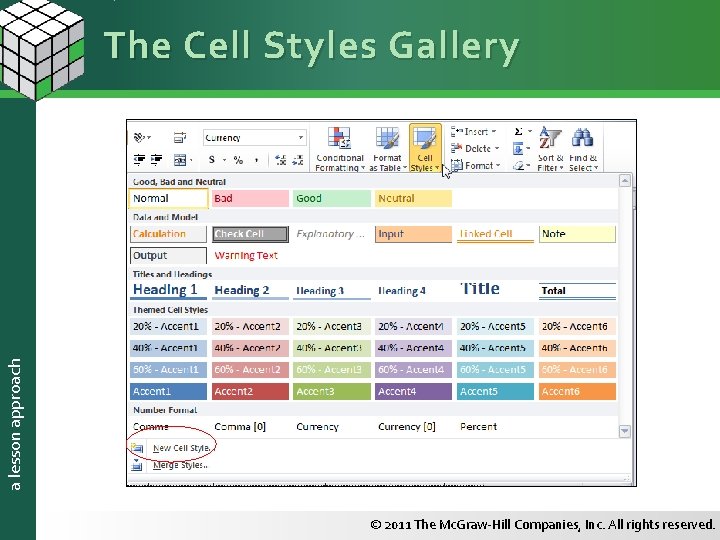
a lesson approach Creating and Editing Cell Styles § A cell style is a set of formatting attributes for labels or values. § A cell style can contain font, number format, border, alignment, fill, and cell protection settings. § The default cell style is named Normal. § Click the Cell Styles button to see the Cell Styles gallery. © 2011 The Mc. Graw-Hill Companies, Inc. All rights reserved.
a lesson approach The Cell Styles Gallery © 2011 The Mc. Graw-Hill Companies, Inc. All rights reserved.
a lesson approach Creating and Editing Cell Styles § Create your own cell style by choosing New Cell Style in the Cell Styles gallery. § Name the style and click Format. Make your choices. § Your saved style names appear at the top of the gallery. § When you edit a style, cells formatted by it are automatically reformatted. © 2011 The Mc. Graw-Hill Companies, Inc. All rights reserved.
Objective 6 a lesson approach Using the AND, OR, and NOT Functions 27 © 2011 The Mc. Graw-Hill Companies, Inc. All rights reserved.
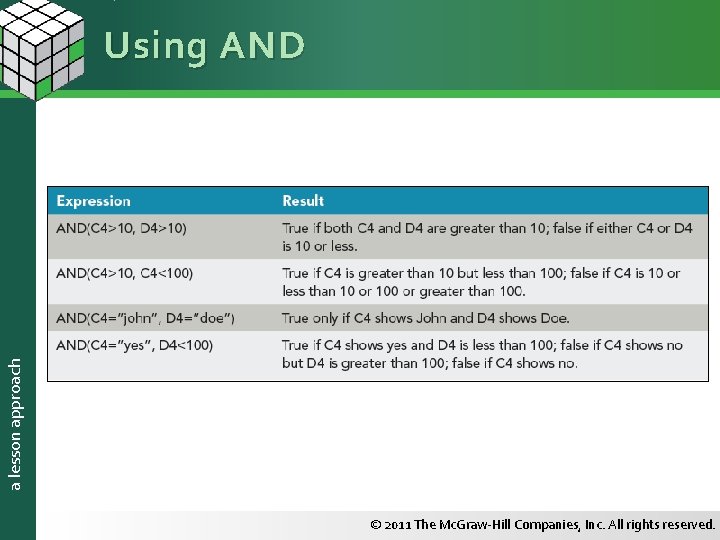
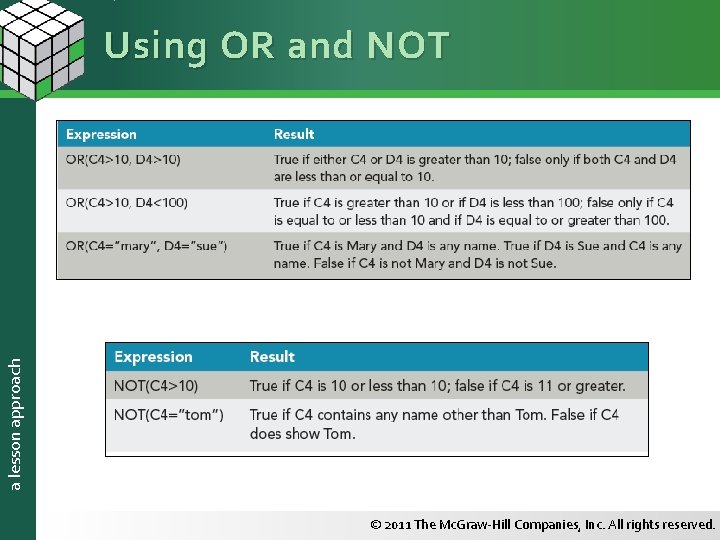
a lesson approach Using the AND , OR, and NOT Functions § These logical functions show either TRUE or FALSE as the result. § They are often used as arguments for other functions (known as “nesting” functions). § They enable you to check for multiple conditions. © 2011 The Mc. Graw-Hill Companies, Inc. All rights reserved.
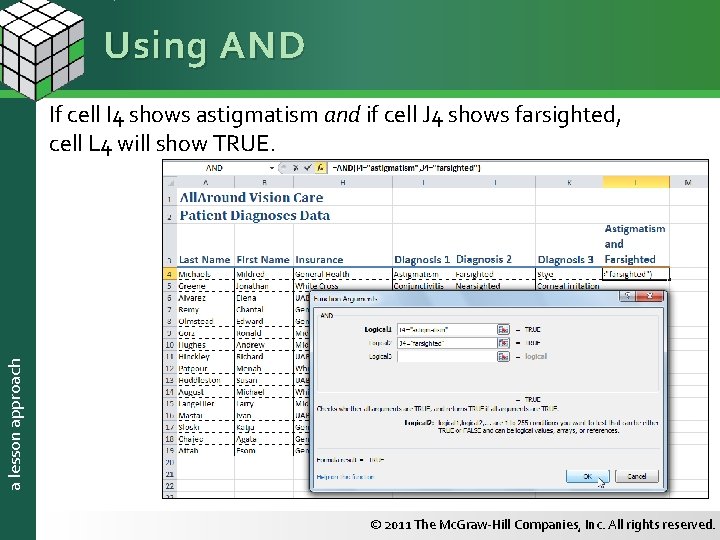
Using AND a lesson approach If cell I 4 shows astigmatism and if cell J 4 shows farsighted, cell L 4 will show TRUE. © 2011 The Mc. Graw-Hill Companies, Inc. All rights reserved.
a lesson approach Using AND © 2011 The Mc. Graw-Hill Companies, Inc. All rights reserved.
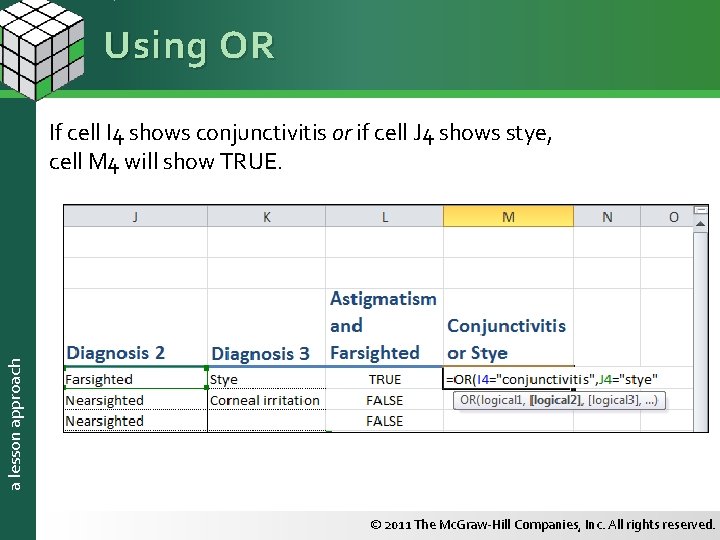
Using OR a lesson approach If cell I 4 shows conjunctivitis or if cell J 4 shows stye, cell M 4 will show TRUE. © 2011 The Mc. Graw-Hill Companies, Inc. All rights reserved.
a lesson approach Using OR and NOT © 2011 The Mc. Graw-Hill Companies, Inc. All rights reserved.
Objective 7 a lesson approach Preparing Worksheets for Output 33 © 2011 The Mc. Graw-Hill Companies, Inc. All rights reserved.
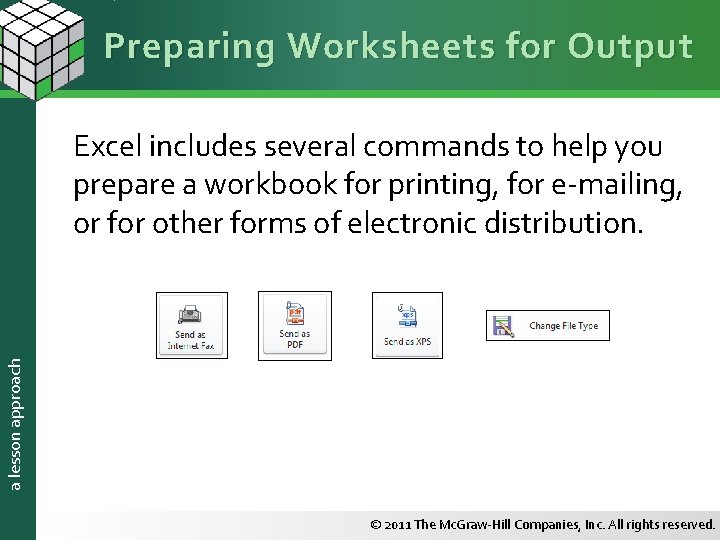
Preparing Worksheets for Output a lesson approach Excel includes several commands to help you prepare a workbook for printing, for e-mailing, or for other forms of electronic distribution. © 2011 The Mc. Graw-Hill Companies, Inc. All rights reserved.
a lesson approach Preparing Worksheets for Output § A page break is a code in a worksheet that tells the printer to start a new page. § Excel inserts automatic page breaks based on the paper size, the margins, the column widths, the font size, etc. § You can insert and delete manual page breaks, too. © 2011 The Mc. Graw-Hill Companies, Inc. All rights reserved.
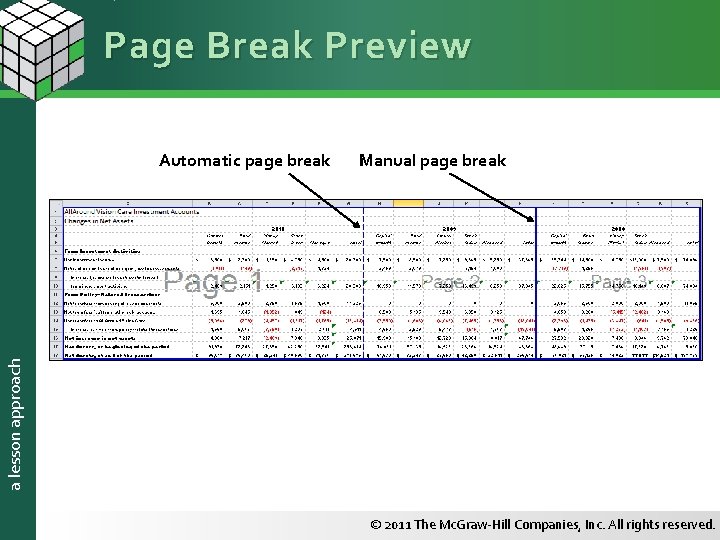
Page Break Preview Manual page break a lesson approach Automatic page break © 2011 The Mc. Graw-Hill Companies, Inc. All rights reserved.
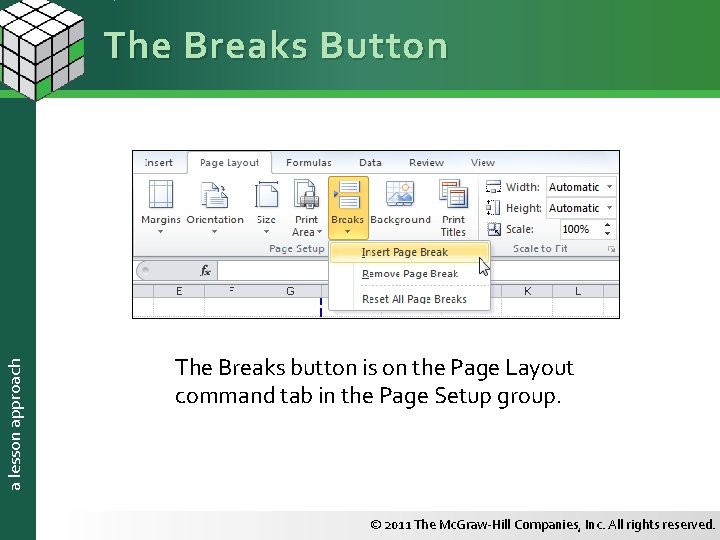
a lesson approach The Breaks Button The Breaks button is on the Page Layout command tab in the Page Setup group. © 2011 The Mc. Graw-Hill Companies, Inc. All rights reserved.
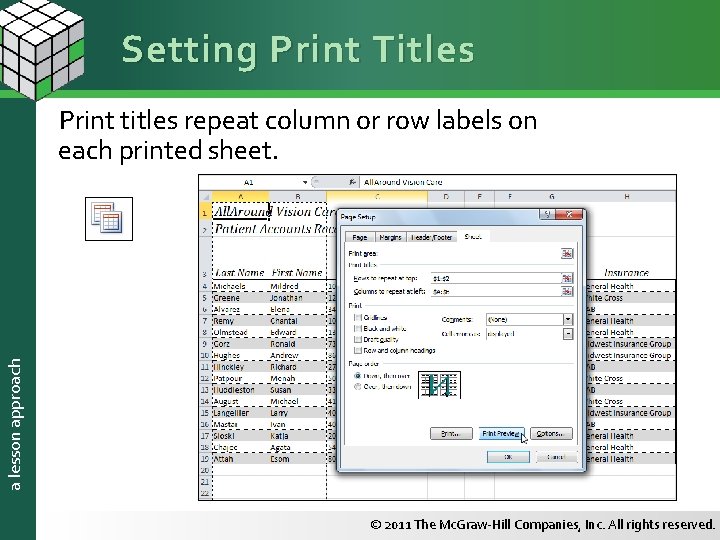
Setting Print Titles a lesson approach Print titles repeat column or row labels on each printed sheet. © 2011 The Mc. Graw-Hill Companies, Inc. All rights reserved.
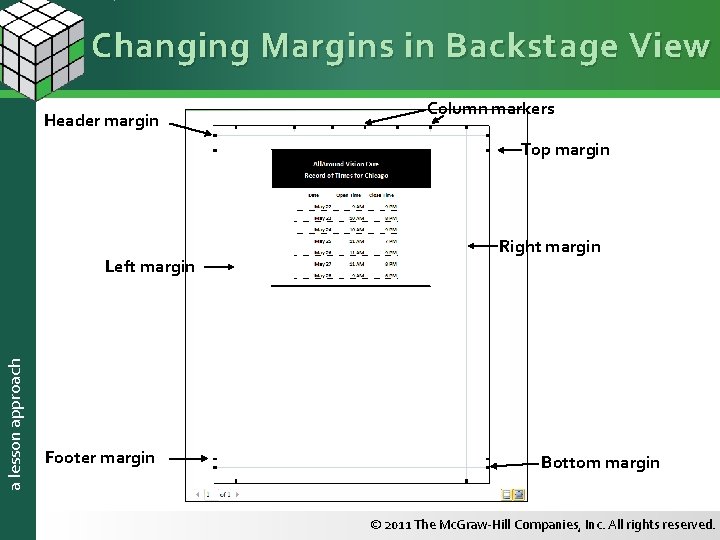
Changing Margins in Backstage View Header margin Column markers Top margin a lesson approach Left margin Footer margin Right margin Bottom margin © 2011 The Mc. Graw-Hill Companies, Inc. All rights reserved.
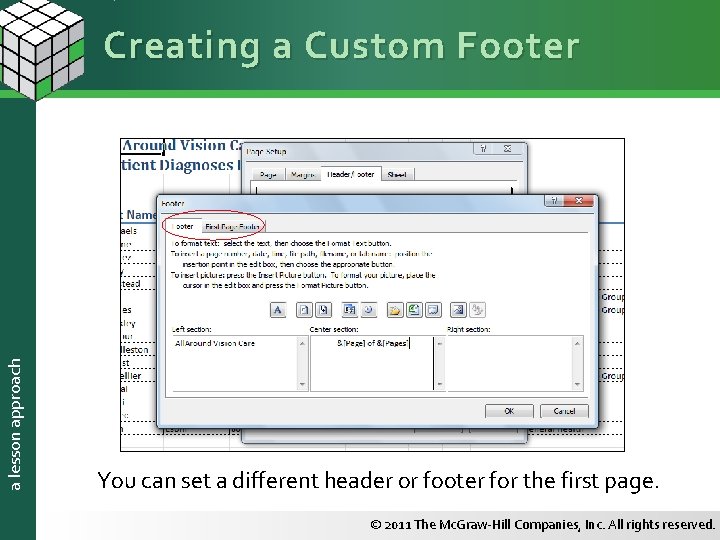
a lesson approach Creating a Custom Footer You can set a different header or footer for the first page. © 2011 The Mc. Graw-Hill Companies, Inc. All rights reserved.
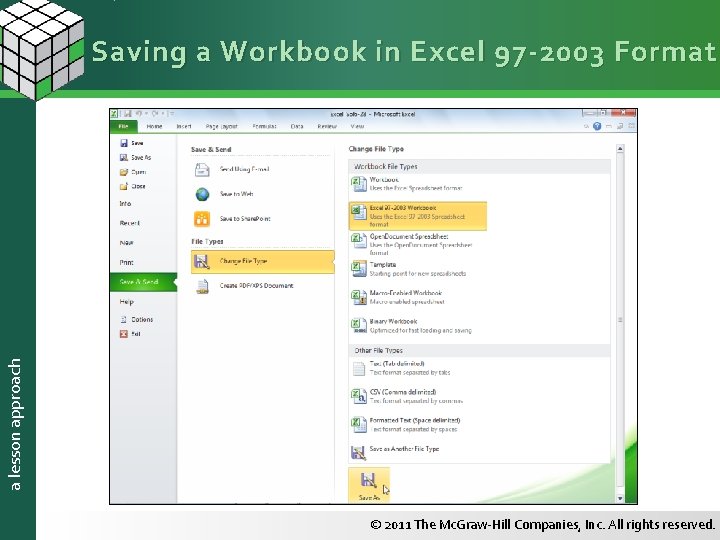
a lesson approach Saving a Workbook in Excel 97 -2003 Format © 2011 The Mc. Graw-Hill Companies, Inc. All rights reserved.
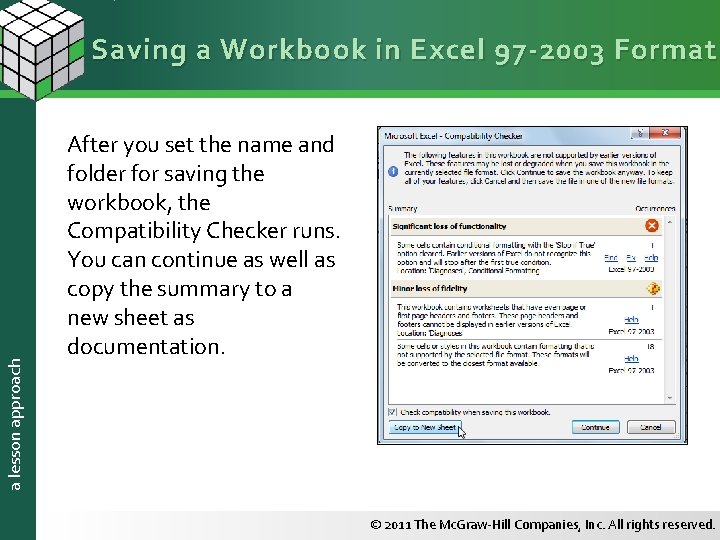
a lesson approach Saving a Workbook in Excel 97 -2003 Format After you set the name and folder for saving the workbook, the Compatibility Checker runs. You can continue as well as copy the summary to a new sheet as documentation. © 2011 The Mc. Graw-Hill Companies, Inc. All rights reserved.
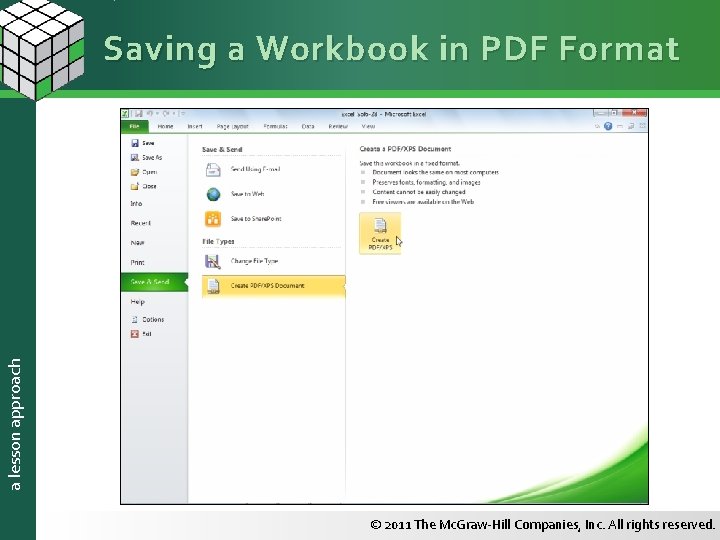
a lesson approach Saving a Workbook in PDF Format © 2011 The Mc. Graw-Hill Companies, Inc. All rights reserved.
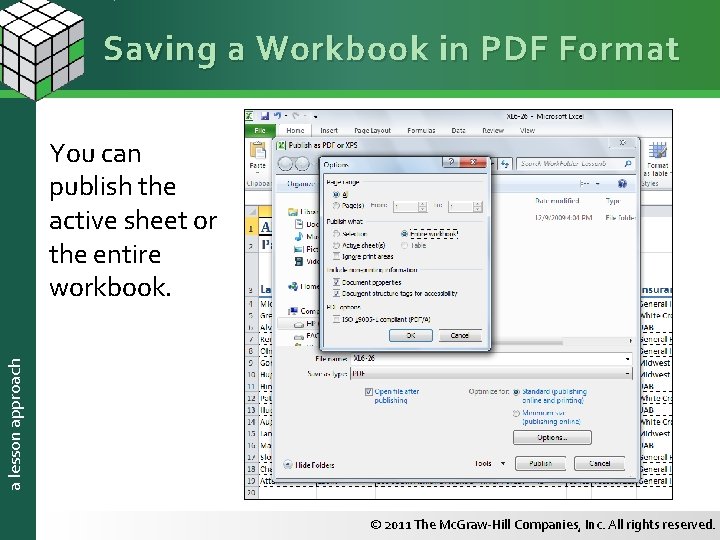
Saving a Workbook in PDF Format a lesson approach You can publish the active sheet or the entire workbook. © 2011 The Mc. Graw-Hill Companies, Inc. All rights reserved.
a lesson approach Summary § Dates and times are common data types. § Most dates and times are automatically formatted with an appropriate style based on what you key. § Custom date and time formats use codes to specify how the value appears. © 2011 The Mc. Graw-Hill Companies, Inc. All rights reserved.
a lesson approach Summary § Because of Excel’s serial number system for dates, date and time arithmetic is possible. § Date and Time functions display or convert dates and times into various formats so that the values can be used as needed. § TODAY() and NOW() are volatile functions. © 2011 The Mc. Graw-Hill Companies, Inc. All rights reserved.
a lesson approach Summary § A cell style is a set of formatting attributes for labels and values. § Cell styles are coordinated with the document theme. They are listed in a gallery and are subject to Live Preview. § You can remove all formatting from a cell and return to the default Normal style. § You can create your own cell styles and save them with the workbook. © 2011 The Mc. Graw-Hill Companies, Inc. All rights reserved.
a lesson approach Summary § The IF function enables you to create formulas that test whether a condition is true and specify what should be shown or done. § The IF function can show text in its result, it can calculate a value, or it can show a cell reference. § AND, OR, and NOT are logical functions that show either TRUE or FALSE as a result. © 2011 The Mc. Graw-Hill Companies, Inc. All rights reserved.
a lesson approach Summary § Page breaks determine where a new printed page starts. § Excel inserts automatic page breaks based on the paper size, the margins, font size, and the amount of data. § You can insert and delete your own page breaks. § Page Break Preview shows the page breaks as solid (manual) or dashed (automatic) blue lines. © 2011 The Mc. Graw-Hill Companies, Inc. All rights reserved.
a lesson approach Summary § If a worksheet requires more than one printed page, use Print Titles to repeat column or row headings on each page. § There are options to set different headers or footers on even and odd pages or on the first printed page. § You can print each page number as well as the total number of pages in a worksheet as a header or a footer. © 2011 The Mc. Graw-Hill Companies, Inc. All rights reserved.
a lesson approach Summary § A workbook can be saved in Excel 97 -2003 format for sharing. § The Excel Compatibility Checker finds features and formats that may not work in Excel 97 -2003 format. § A workbook can be saved as a PDF file for viewing by any one who has Adobe Reader. © 2011 The Mc. Graw-Hill Companies, Inc. All rights reserved.