
Microsoft Excel 2000 Lecture 1 Overview of Excel





- Slides: 51
Microsoft Excel 2000 Lecture 1
Overview of Excel • • • Excel is a spreadsheet program. Excel is used to analyse numerical data. Excel replaces the function of a calculator. You can enter and format data easily. You can analyse data by using formulas and functions. • You can view data as a graph or chart. • You can make what-if analysis.
Loading Excel 2000 • Click START Menu. • Choose Programs. • Choose Microsoft Excel.
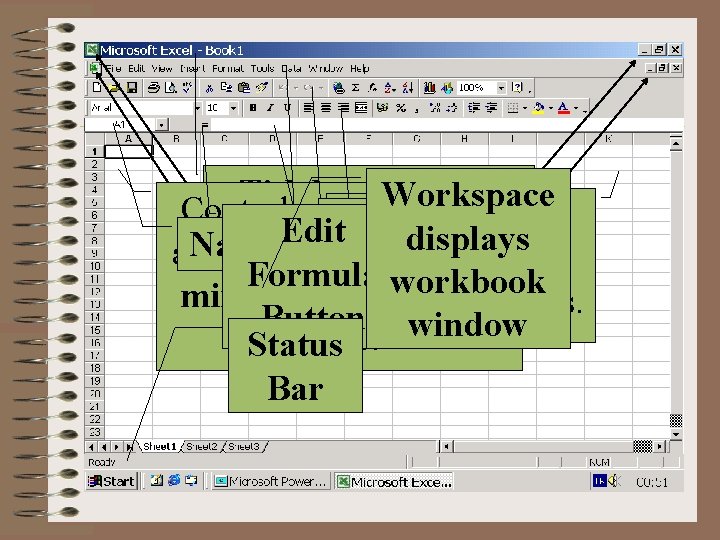
Introducing Excel Window
Titlebar displays Workspace Control-menu buttons Minimize, Standard Formula Edit program name and displays Menubar Name Box Format are restore, move, size, Restore and Toolbar Bar Formula filename. workbook Toolbar minimize, maximize, Close buttons. Button window close. Status Bar
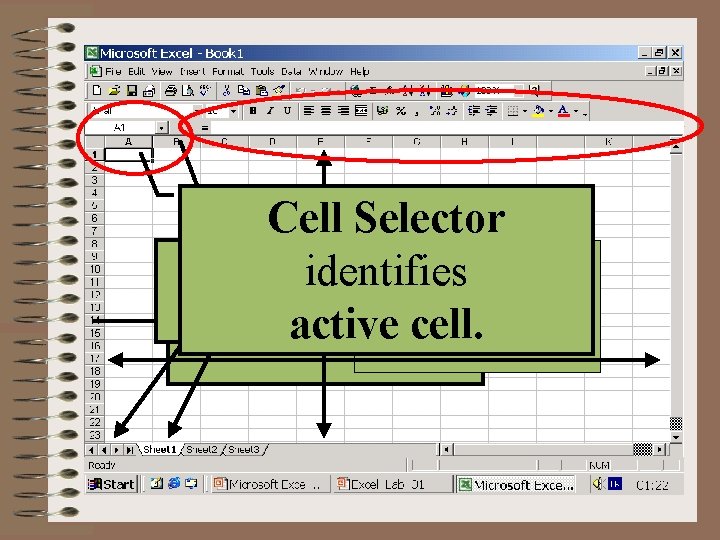
Workbook Window • Displays a new blank workbook file containing three blank sheets. • A sheet is used to display different types of information, such as financial data or charts. • Whenever you open a new workbook it displays a worksheet. • A worksheet, also referred as spreadsheet is a rectangular grid of rows and columns used to enter data. It is the primary type of sheet you will use in excel. • The parts of the worksheet are. . .
Introducing Workbook Window
Cell Selector Column Letters Tab Scroll identifies Active Sheet Row Buttons Column cell. Row active Numbers
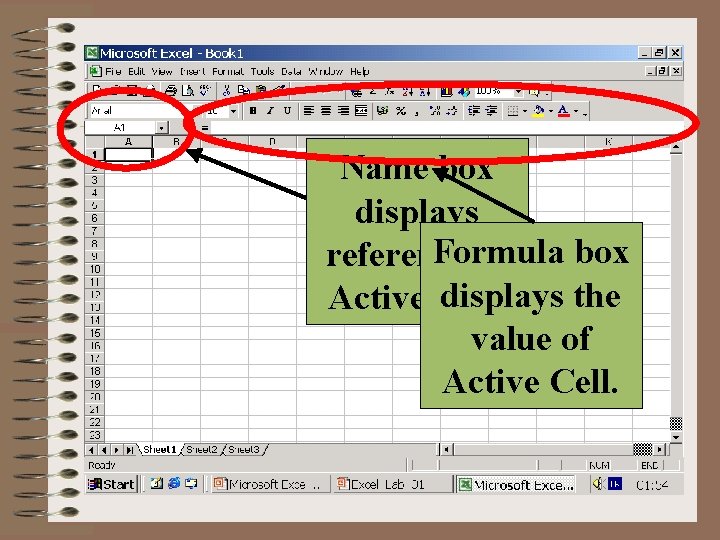
Name box displays Formula box reference of displays the Active Cell. value of Active Cell.
Using the Office Assistant • You can use the office assistant as in MS Word. • Press F 1 to display office assistant. • Then you can type your question and display the related help topics as usual.
Using Toolbars • Standard and Formatting toolbars are displayed automatically. • Standard toolbar contains most frequently used buttons. • Buttons on the formatting toolbar are used to change the format and the design of the worksheets. • You can open toolbars by using View Toolbars. . . Menu item.
Moving around the Worksheet • Either the MOUSE or the KEYBOARD can be used to move CELL SELECTOR from one cell to another.
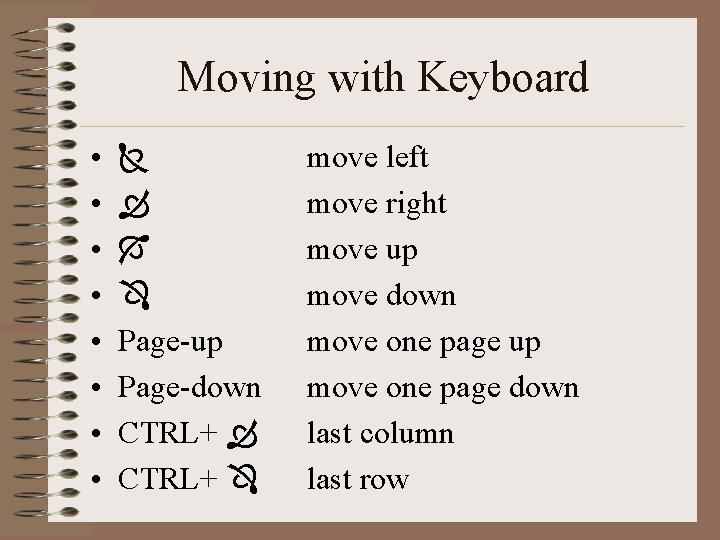
Moving with Keyboard • • Page-up Page-down CTRL+ move left move right move up move down move one page up move one page down last column last row
Entering Data
Types of Entries • The information you enter in a cell can be: – TEXT – NUMBERS – FORMULAS
Text Entries • Can contain any combination of letters, numbers, spaces, and any other special characters. • Max 32000 characters can be entered in a cell. • By default they are aligned to left.
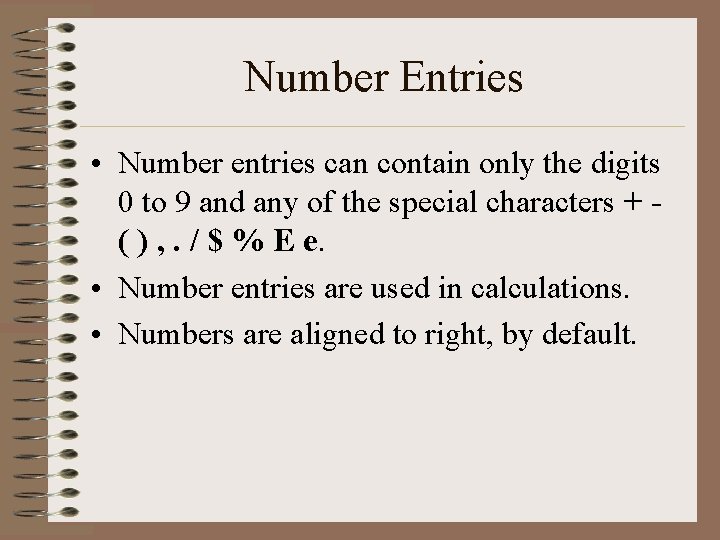
Number Entries • Number entries can contain only the digits 0 to 9 and any of the special characters + ( ) , . / $ % E e. • Number entries are used in calculations. • Numbers are aligned to right, by default.
Formula Entries • An entry that begins with an equal sign “=“ is a formula. • Formula entries perform calculations using numbers or data contained in other cells. The resulting value is a variable value because it can change if the data it depends changes. • In contrast a number value is a constant value.
Entering Data Example
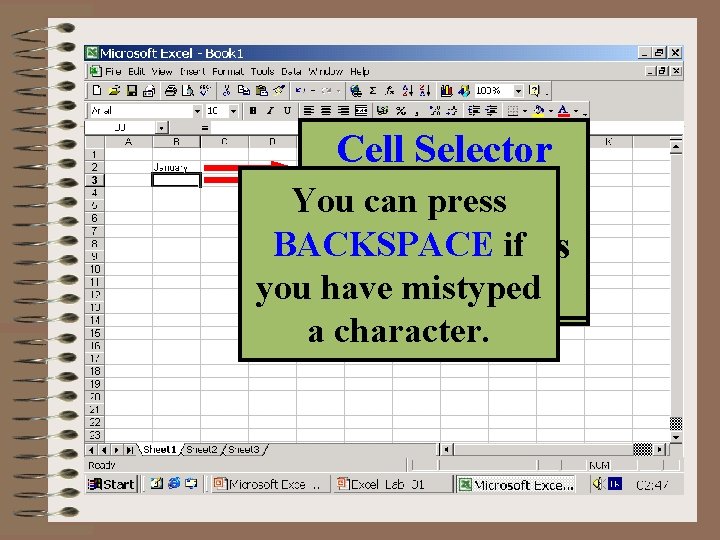
Cell Selector Text entries You can use cancel and Goto B 2 and moves down Type “anuary” to You can press Active CELL enter buttons to cancel Let’s are LEFT complete the word BACKSPACE if after you press “J” displays Entry Formula CANCEL ENTER Bar the entry or complete to “January” and Aligned. you have mistyped Enter Data ENTER. the entry with your and Insertion press ENTER. character. Displays BUTTON Entry a character. mouse. Point
Enter Edit Delete Copy: Data
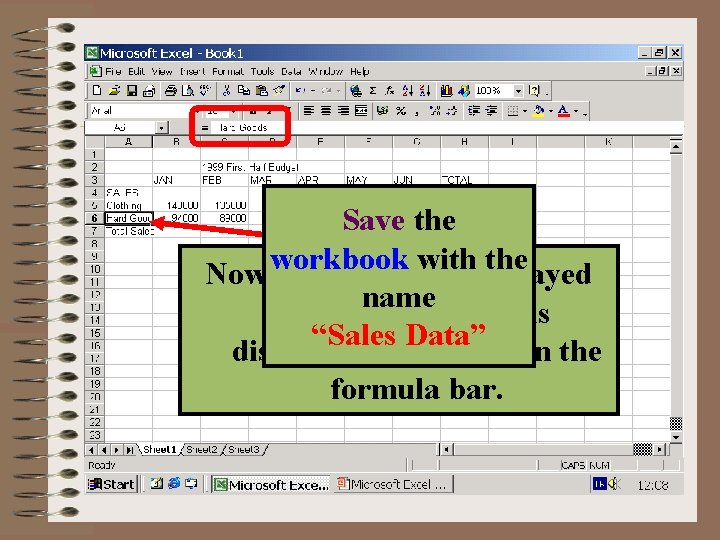
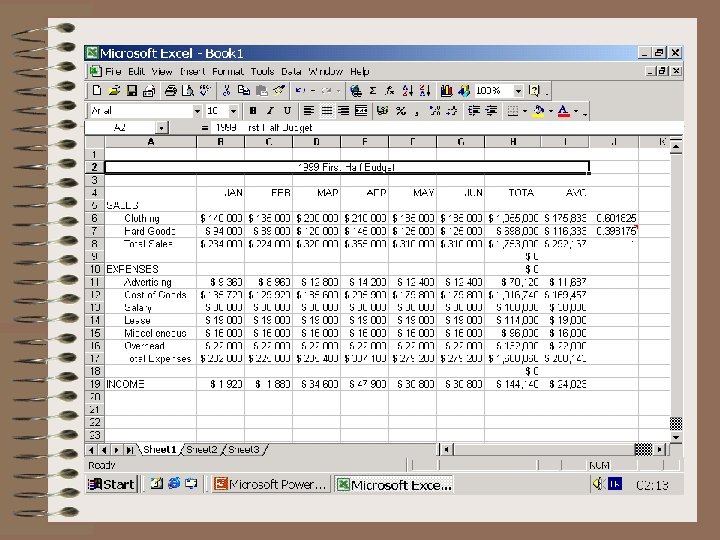
1. Position insertion These: Mouse pointer is Write following: You can move point to end of the DELETE key BACKSPACE key Insertion Now write row headings: B 6 94000 1. 1. Put Let’s your Edit mouse the now an I-beam. You C 5 135000 Moving horizontally write insertion point by word January. Save the Move to B 5 deletes the next deletes the previous Point A 4 SALES C 6 89000 Numeric entries are Move to C 2 and type the words FEB, MAR, 2. Press BACKSPACE 6 Contents over cell of B 3. the cell can position workbook with the D 5 200000 using HOME, END, You should have a 2. Type 140000 Now A 6 cannot be displayed character to the A 5 APR, Clothing D 6 120000 ENTERING MAY, JUNHalf and times. right aligned by “ 1999 First name 2. 3. Double B 3 and click change or insertion point by E 5 210000 , keys. similar looking Long text Entry. completely, but it is Press A 6 Hard Goods in cells C 3 E 6 145000 3. TOTAL Type “AN”. I-Beam. default. NUMBERS “Sales Data” Budget” January press F 2. to JAN. using mouse as F 5 185000 worksheet. displayed completely in the through H 3. 4. Press Enter button. A 7 Total Sales well. F 6 125000 formula bar. G 5 185000 G 6 125000
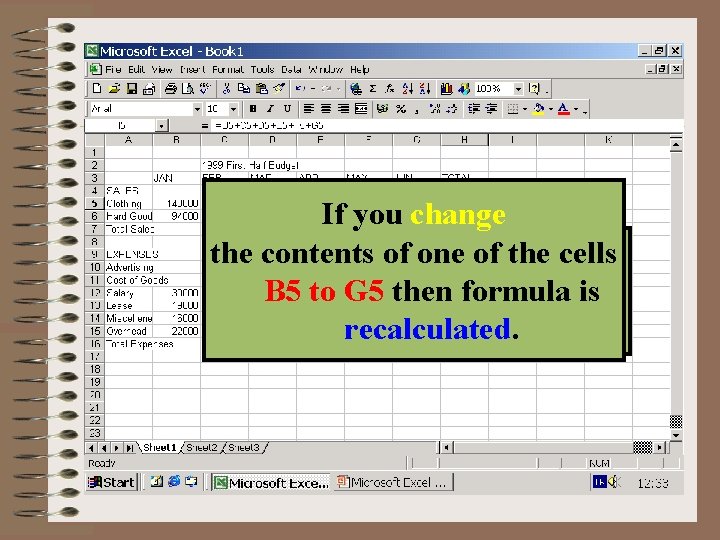
Then select cells C 13 to G 15 and CUT, COPY, PASTE press paste again. 1. Move to cell B 5 Ifcopy youcontents change Then SHORT-CUTS Now select cells 2. the Enter contents of one of the cells of B 12 to C 12 by CUT CTRL+X Results of the calculation ENTERING through Now select D 12 cells to G 12 B 13 =B 5+C 5+D 5+E 5+F 5+G 5 Now enter B 5 to. Copy G 5 then formula is using & Paste COPY CTRL+C appears in the cell. and to B 15 press and paste. copy FORMULAS 3. Press ENTER. Expenses Data. recalculated. buttons. PASTE CTRL+V cells.
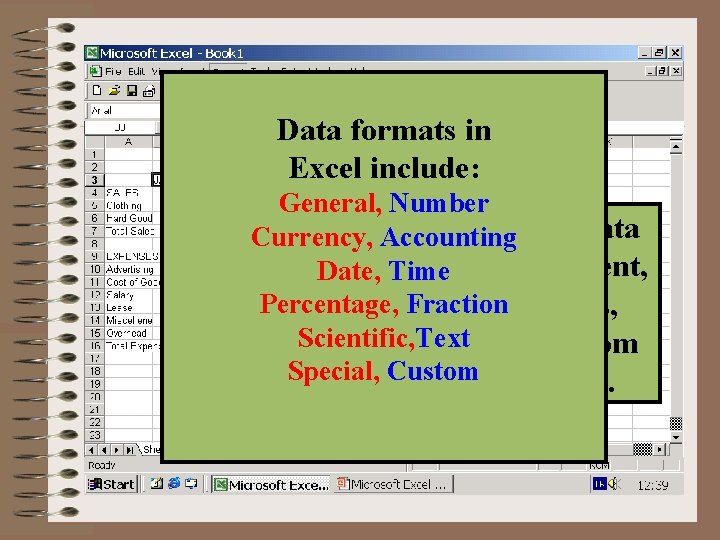
Data formats in Excel include: General, Number You can change Data Currency, Accounting You can change the format of Alignment, Date, Format, Time cells using Format Cells. . . Percentage, Fraction Fonts, Borders, Menu item. Scientific, Text Background, from Special, Custom this dialog box.
Previewing and Printing Worksheets
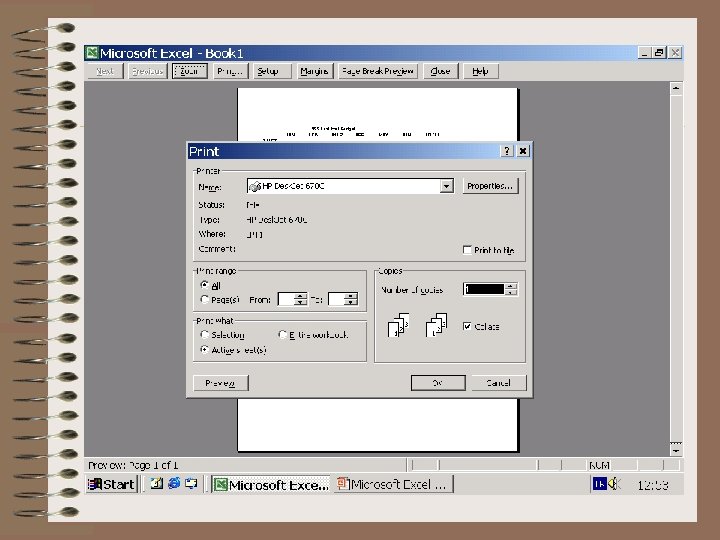
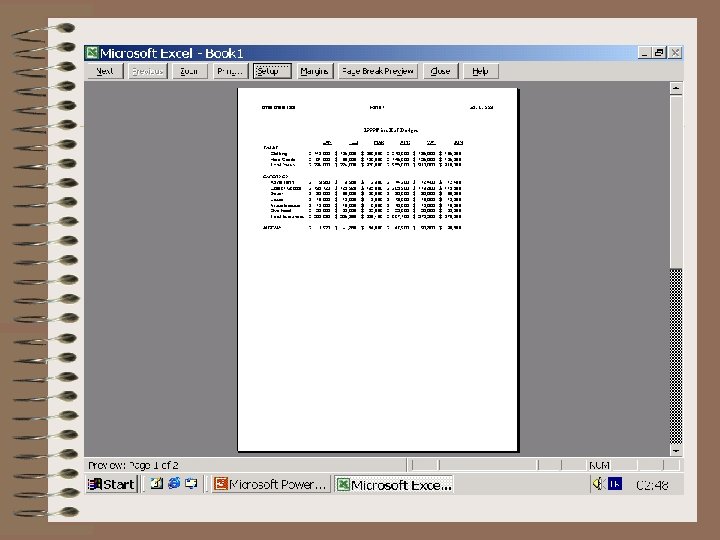
Previewing and an Excel Preview Printing File Print Preview. . . Workbook Print File Print. . .
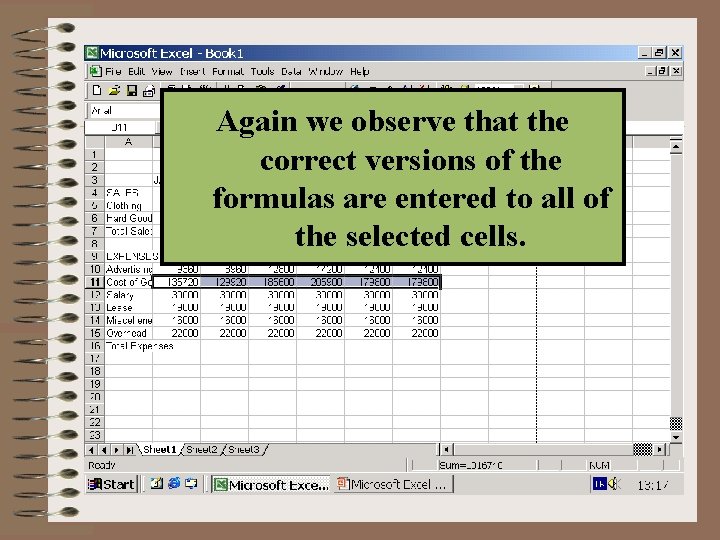
1. Select cells through B 10 Againtowe observe that the G 10. correct versions of the 2. Type =B 7*4% 1. Move to. Now B 7 Formulas B 7*4%, C 7*4%, . . . G 7*4% 3. Press CTRL+Enter formulas are entered to all of Enter the formula 2. Notice Type = that theautomaticly. formula in are entered Write formulas using the selected cells. Copy You the can formula copy the inis. B 7 to=B 5+B 6 thechanges cells Formula 3. =B 7*58% Select B 5 B 7 =B 5+B 6 print to formulas cells C 7 in tothe G 7 using in calculated in cell B 7 relative tomode the cellsame it is 4. Press + range way range-selection. astoother values. copied. It becomes B 11 G 11 5. Select B 6 in C 7. same 6. using Press=C 5+C 6 Entermethod. Command
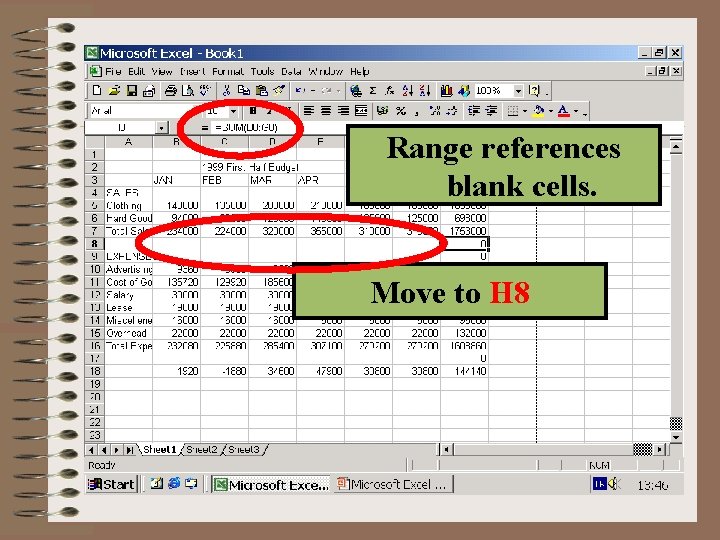
Now Range references • Goto cell B 18 and blank cells. Press Autosum button. Using functions you can select range B 18 to Excelthe proposes a range Now copy the function increase your G 18. to automaticly for you. Productivity. You can write Range Move from to cell B 16. to range Range is corrected. Excel Function proposals Now select range Copy cell H 6 to • Goto Then. Now Enter formula and press Press Enter Obsreve result. Move to H 8 =SUM(B 10: B 15) instead of the formula Argument C 16 to G 16. Press Enter incorrect Name range. B 6 tobutton. G 6 and enter range Autosum H 7 to H 18. =B 7 -B 16 command B 10+B 11+B 12+B 13+B 14+B 15 • ress. Command. CTRL+Enter. formula. Entering Functions
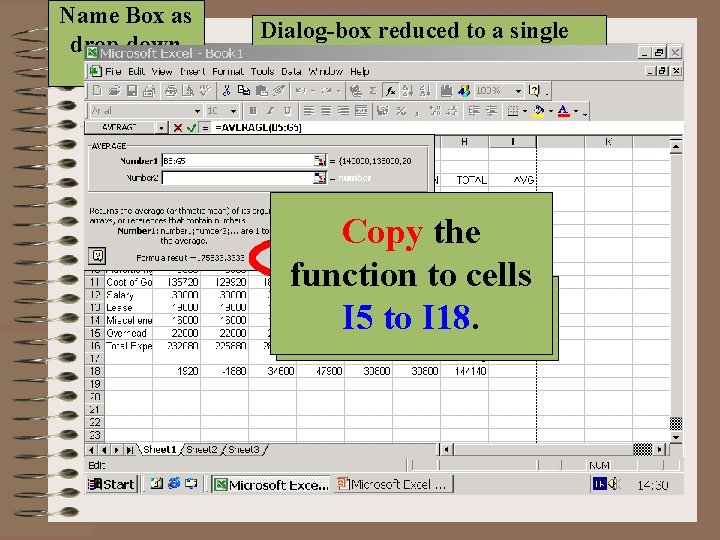
Name Box as Dialog-box reduced to a single drop down bar to allow easy access to list Proposed Argument Range worksheet. Hide dialog box to select range. Press 1. Select Paste Function Restores Because the proposed argumentoflist Description Press Copy Restore the Statistical display of 1. incorrect, Move to I 3. Select B 5 through G 5 is (it. Button includes total) we function Another way to 2. Then dialog box. function Dialog to box cells will select the actual 2. Type AVG andrange. enter a function. Average is right align it. 3. Press OK I 5 button. to I 18. Press OK. Formula 1. Click Paste Hide Dialog Box button. Function Result 3. Move to I 5. Calculated utility.
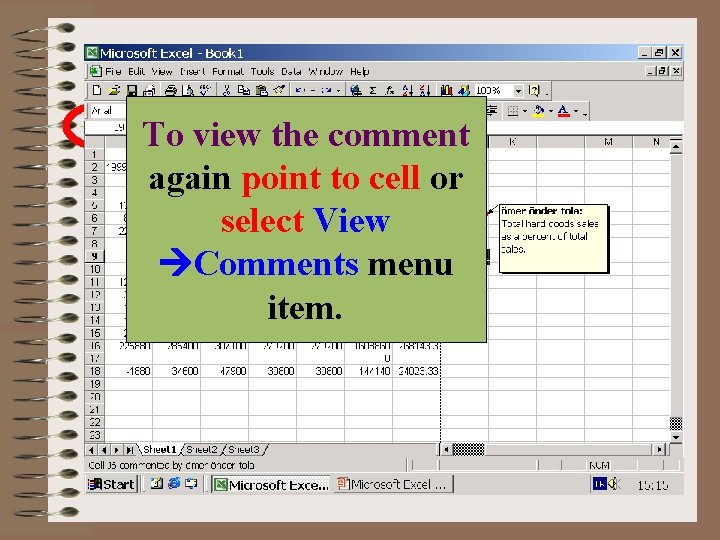
Enter comment to text box. Red triangle cell To view the indicates comment has a comment. Comment again towas cellto or What point we Reference wanted types text box After copying J 5 to If you continue To clarify the meaning Type “Total hard 1. Move to J 5. compute ratiocomment H 6/H 7. So select View the Press Enter name. To close Error occurs Move cursor to H 7 J 6 Relative goods sales as areference. press F 4 you will F 2 to observe on the Goto J 5 and press H 7 must be an absolute of cell contents can click anywhere outside 2. percent Enter =H 5/H 7 Command when itkind Comments menu start of H 7 and of total sales” $H$7 Absolute reference. observe all of because formula reference rather than a Copy cell to J 6. formula bar that the comment box. edit it. enter a comment to a To get ratio of shows $H$7 as comment. press F 4. $H 7 Mixed reference. relative references. ($H$7, item. H 7 Insert reference becomes H 6/H 8 cell. H$7 From menu reference. sale to total sales. Mixed $H 7, H$7, reference. H 7). doesn’t change. select Comment
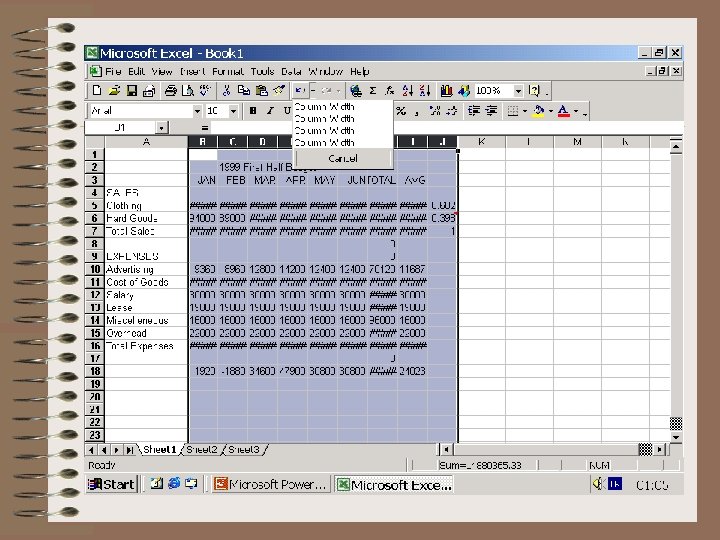
Changing the column width
Column Width Next you want to see The column width canhow be All. The the cells in the selected columns Drag the column size or width of a column As you can see, this new Now you can set the columns would becolumn quickly adjusted by dragging After entering the numbers for have changed to five character spaces. divider line located To set the width of multiple controls how much information can To undo several actions at width is too small. To cancel the most width of all columns by displayed if you decrease the column divider line January in column B, any long Notice that a series of number signs to the right of the columns you should select berecent displayed inall awidth cell. A text entry Column Acolumns once, open the Undo drop. Adjusting operation and restore the setting the of one the width of the located to the right of the headings in column A were cut off or (#####) appears in most of the column letter. the columns you want by that isoffrom longer than the column width down list contains and select many the actions Column Widths worksheet to how it was prior to your the selected columns. B to J. You can column letter. Dragging it to interrupted. To allow the long text worksheet cells. Whenever the width the first one and will be fully displayed only if theof interrupted youclicking want to reverse. All actions change Click UNDO. The effects Just repeat the previous decrease the width of all entries the to right be fully increases displayed, column you can of a cell is too small to display then dragging your mouse. tocolumns right aregoto blank. Ifare the above the selected actions headings. Reference Line thecells column width setting are reversed step. And then A 1. the individually, width. Max width is are increase thecolumn’s width. entire number, number signs cells contains data, then the text is also reversed. shows the place to but there prior column width setting. is a faster way to 255. displayed. interrupted. ofdo thethis. moving column width.
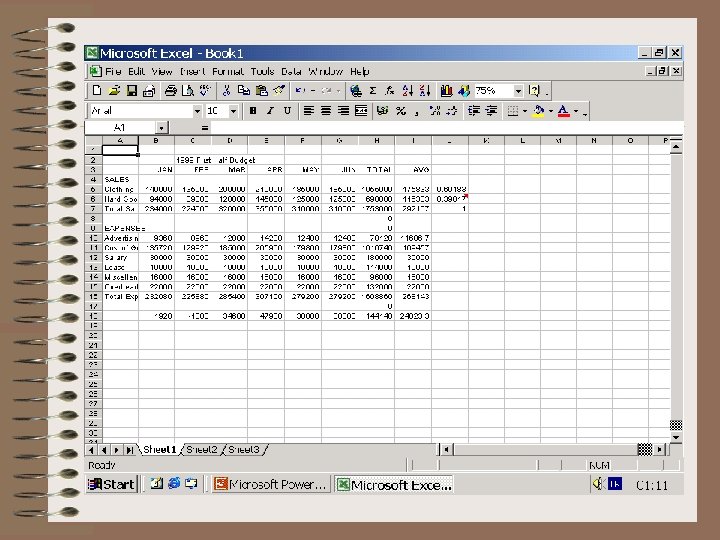
Zooming the worksheet
You can reduce or enlarge Youamount want toofdisplay more the information displayed information: onscreen by Open zoom drop-down changing the magnification from menu. between Select 1075%. to 400 percent.
Formatting Numbers • Number format affect how numbers look on screen when they are printed. They do not affect how excel stores or uses the values in calculations. • The default format setting that controls how numbers are displayed in worksheet is General. • General automatically sets the number format to a Date, Time, Comma, Currency, Percent or Scientific number format depending on the characters you used when entering data.
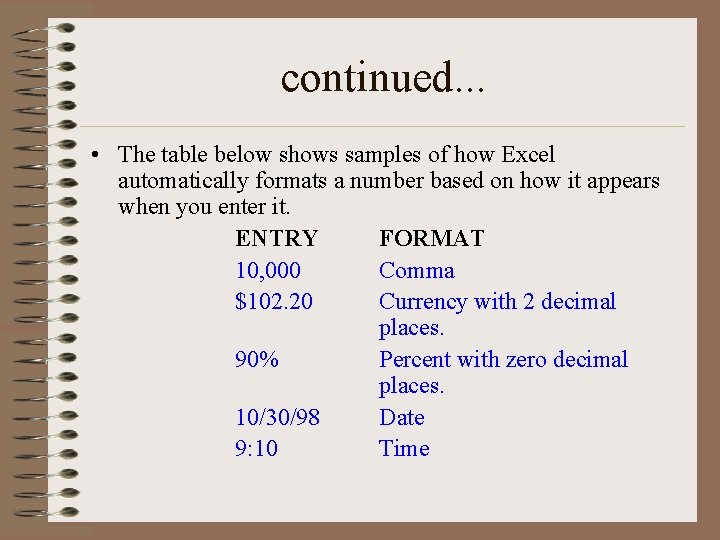
continued. . . • The table below shows samples of how Excel automatically formats a number based on how it appears when you enter it. ENTRY FORMAT 10, 000 Comma $102. 20 Currency with 2 decimal places. 90% Percent with zero decimal places. 10/30/98 Date 9: 10 Time
continued. . . • If no symbol is used, Excel leaves the number unformatted. • Unformatted numbers are displayed without a thousand separator such as comma, with negative values preceded by a – (minus sign), and with as many decimal place settings as the cell space allows.
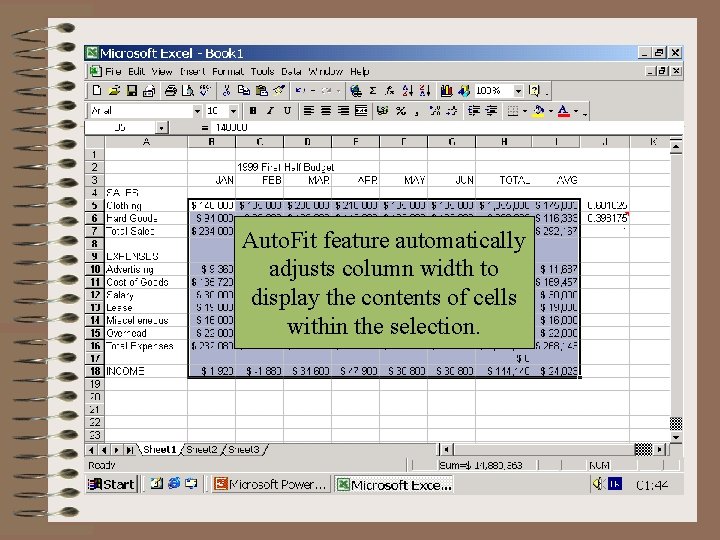
A quick way of selecting a You will change thethat number Auto. Fit feature automatically Then Select A second category range is to select the first cell If necessary open the Using this method select the. I 18 Click OK. format of cells through B 5 to adjusts column width to Format/Column/Auto. Fit number as. I 18. of displays the range then Shift number tab press and Click format cells. Click decrease decimal range B 5 through todisplay dollar signs, ofcommas, the contents cells Menu Item. currency is accounting. key and then pressing the last select currency. places button 2 times. and places. within the selection. keydecimal of the range.
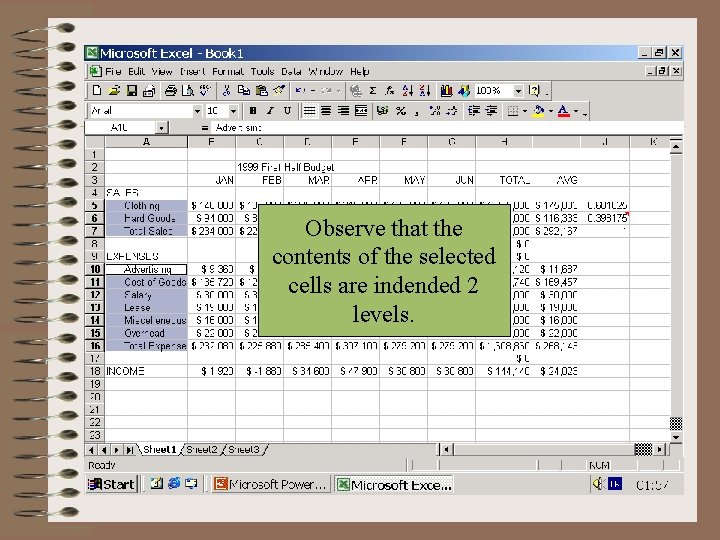
Cell Alignment
Select cells from A 5 to Observe that the A 7 and A 10 open to A 16 by Now contents of the. This selected time we will set using CTRL key. Format/Cells and. Left select cells are indended 2 alignment and Alignment tab. levels. Indentation level to 2. You can set cell alignment to any item in this drop-down box.
Inserting rows
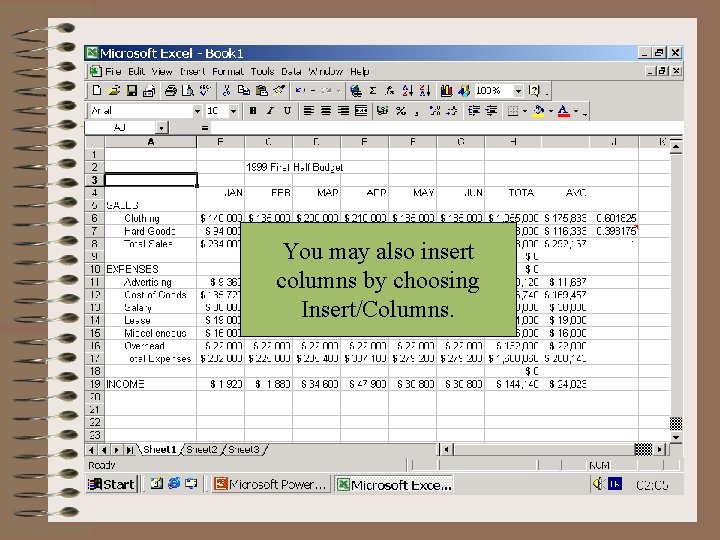
You may want to insert You may insert rows after filling some Goto A 3 also and Select columns choosing parts of by theitem worksheet. Insert/Rows from the Insert/Columns. Youmenu may do bar. this by choosing Insert/Rows.
Centering Across a Selection
You may want to set a Select cells heading for your Press Merge and at Lets make our heading from A 2 on workbook, visible on the Center button C 3 centered. to toolbar. I 2 workbook. format
Changing Fonts and Font Styles
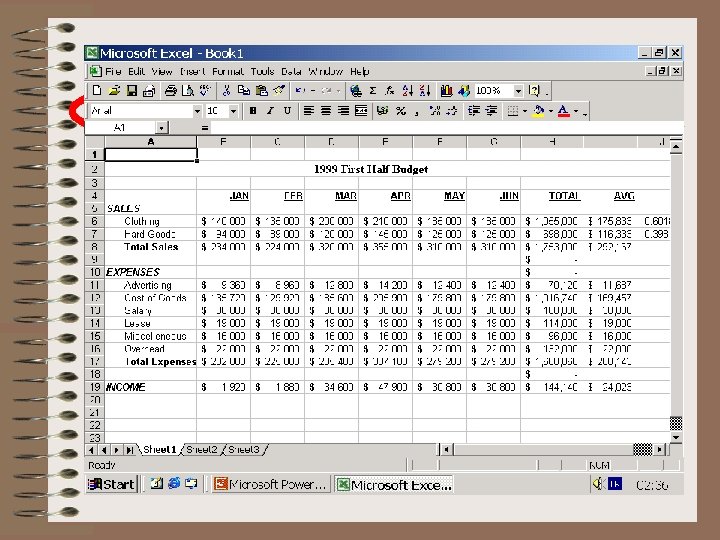
You want to improve the Font settings Select are appearence by. Change Double-click format Nowworksheet select range B 6 to I 19. Finally, you want to Times common Newto Roman all Select B 4 through Select 12 from enhancing the appearance of painter. Click A 10 Move to A 5. Press format to Accounting from bold and underline from Office font-face familyin drop of. A 8 row heading I 4. font Click size bold Bold. dropand the. Set title. To do this you can and A 19. Bold and Italic. Format/Cells. . . the column programs. down list. and A 17 to Bold. down underline. list. change the font settings. Click format painter. Then select Format/Columns/Auto. Fit headings. Selection. . .
Adding Headers and Footers
Open lista You Header can select and select your predefined footer Select Setup. . . Select Header/Footer To add page a header, name, by date, the same tab. Preview the worksheet using number option. method. File/Print Preview.
Changing Page Orientation
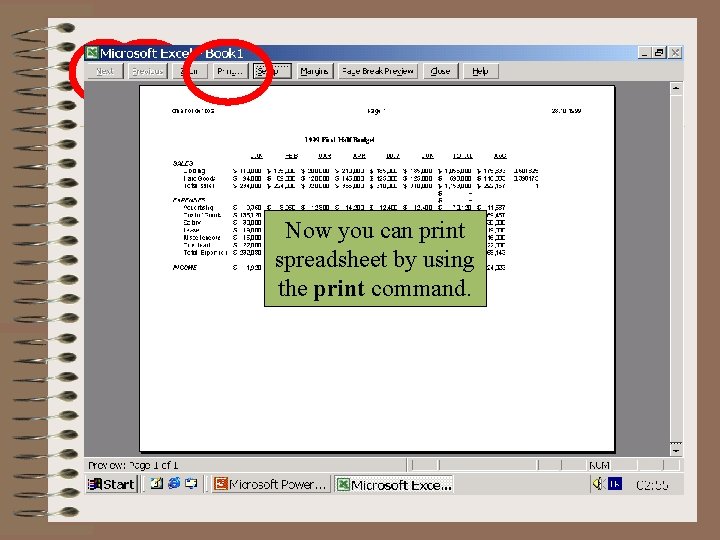
You can use Now press Now youthat can print Notice landscape style entire to previous and spreadsheet by using To see second page fit Dont the does contents not fit of on forget to then choose Then choose theworksheet print command. click next. the screen. on the set page tab. setup. landscape option. same paper.
End of lecture. Don’t forget to save your work.