
MICROSOFT DIGITAL LITERACY LESSON 1 INTRODUCTION TO COMPUTERS
- Slides: 31
MICROSOFT DIGITAL LITERACY
LESSON 1: INTRODUCTION TO COMPUTERS Lesson Contents � The roles of computers Lesson Objectives After completing this lesson, you will be able to: Describe the importance of computers in today’s world. Identify the main parts of a computer. Identify the steps for starting and shutting down a computer. Identify the different groups of keys on a keyboard. Perform different tasks by using a mouse. � Parts of the computer � Using a computer � Overview of a keyboard � Using a mouse � Input, output and storage devices
TOPIC 1: THE ROLES OF COMPUTERS A computer is an electronic device that you can use to store and process information. Computers help you perform a variety of tasks such as receiving and sending messages to family and friends, making presentations, and maintaining records. Computers are also used in education, research, broadcasting news, making weather forecasts, and for various other business and recreational activities. You can save time, effort, and money by using computers.
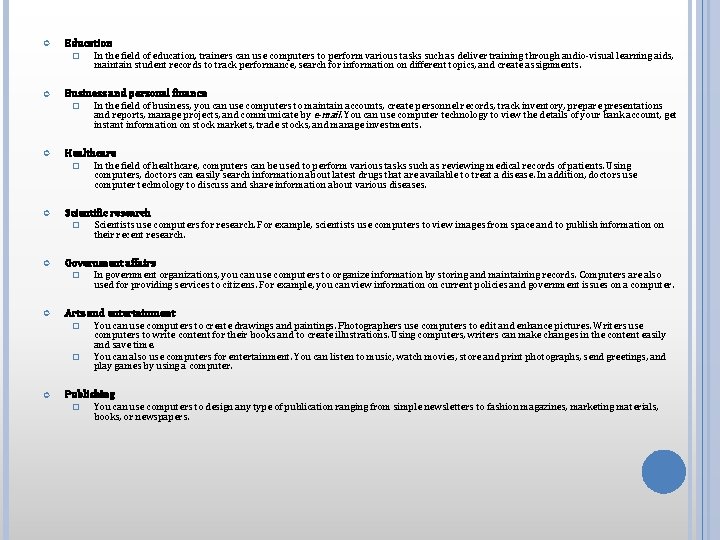
Education � Business and personal finance � In government organizations, you can use computers to organize information by storing and maintaining records. Computers are also used for providing services to citizens. For example, you can view information on current policies and government issues on a computer. Arts and entertainment � � Scientists use computers for research. For example, scientists use computers to view images from space and to publish information on their recent research. Government affairs � In the field of healthcare, computers can be used to perform various tasks such as reviewing medical records of patients. Using computers, doctors can easily search information about latest drugs that are available to treat a disease. In addition, doctors use computer technology to discuss and share information about various diseases. Scientific research � In the field of business, you can use computers to maintain accounts, create personnel records, track inventory, prepare presentations and reports, manage projects, and communicate by e-mail. You can use computer technology to view the details of your bank account, get instant information on stock markets, trade stocks, and manage investments. Healthcare � In the field of education, trainers can use computers to perform various tasks such as deliver training through audio-visual learning aids, maintain student records to track performance, search for information on different topics, and create assignments. You can use computers to create drawings and paintings. Photographers use computers to edit and enhance pictures. Writers use computers to write content for their books and to create illustrations. Using computers, writers can make changes in the content easily and save time. You can also use computers for entertainment. You can listen to music, watch movies, store and print photographs, send greetings, and play games by using a computer. Publishing � You can use computers to design any type of publication ranging from simple newsletters to fashion magazines, marketing materials, books, or newspapers.
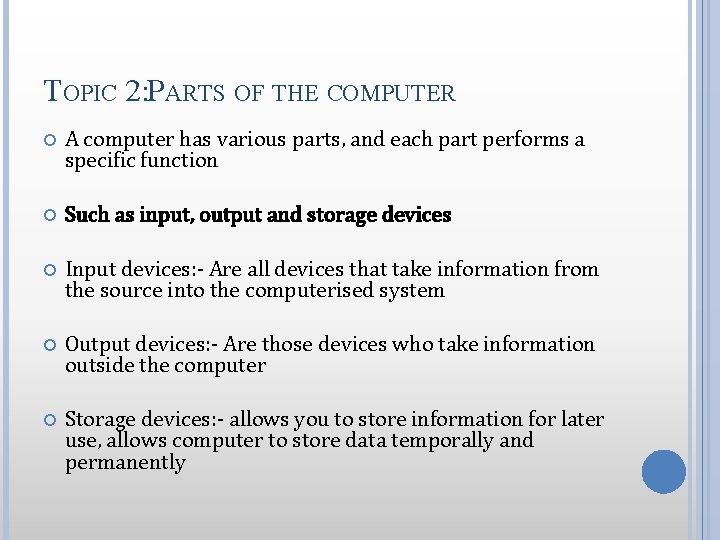
TOPIC 2: PARTS OF THE COMPUTER A computer has various parts, and each part performs a specific function Such as input, output and storage devices Input devices: - Are all devices that take information from the source into the computerised system Output devices: - Are those devices who take information outside the computer Storage devices: - allows you to store information for later use, allows computer to store data temporally and permanently
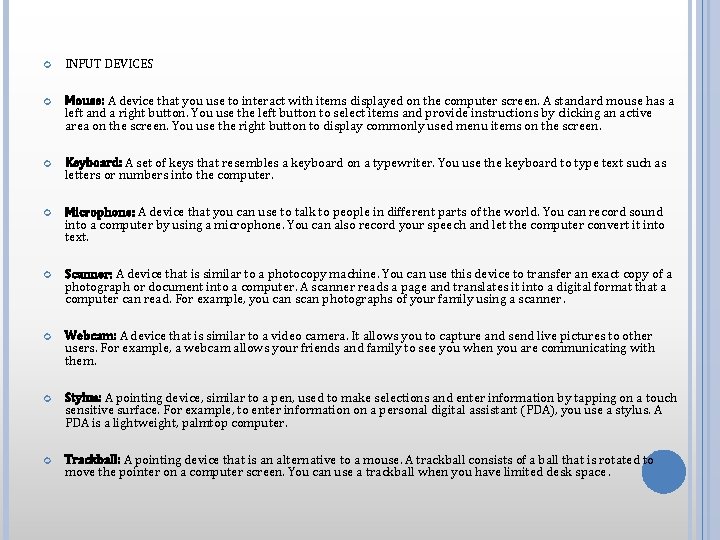
INPUT DEVICES Mouse: A device that you use to interact with items displayed on the computer screen. A standard mouse has a left and a right button. You use the left button to select items and provide instructions by clicking an active area on the screen. You use the right button to display commonly used menu items on the screen. Keyboard: A set of keys that resembles a keyboard on a typewriter. You use the keyboard to type text such as letters or numbers into the computer. Microphone: A device that you can use to talk to people in different parts of the world. You can record sound into a computer by using a microphone. You can also record your speech and let the computer convert it into text. Scanner: A device that is similar to a photocopy machine. You can use this device to transfer an exact copy of a photograph or document into a computer. A scanner reads a page and translates it into a digital format that a computer can read. For example, you can scan photographs of your family using a scanner. Webcam: A device that is similar to a video camera. It allows you to capture and send live pictures to other users. For example, a webcam allows your friends and family to see you when you are communicating with them. Stylus: A pointing device, similar to a pen, used to make selections and enter information by tapping on a touch sensitive surface. For example, to enter information on a personal digital assistant (PDA), you use a stylus. A PDA is a lightweight, palmtop computer. Trackball: A pointing device that is an alternative to a mouse. A trackball consists of a ball that is rotated to move the pointer on a computer screen. You can use a trackball when you have limited desk space.
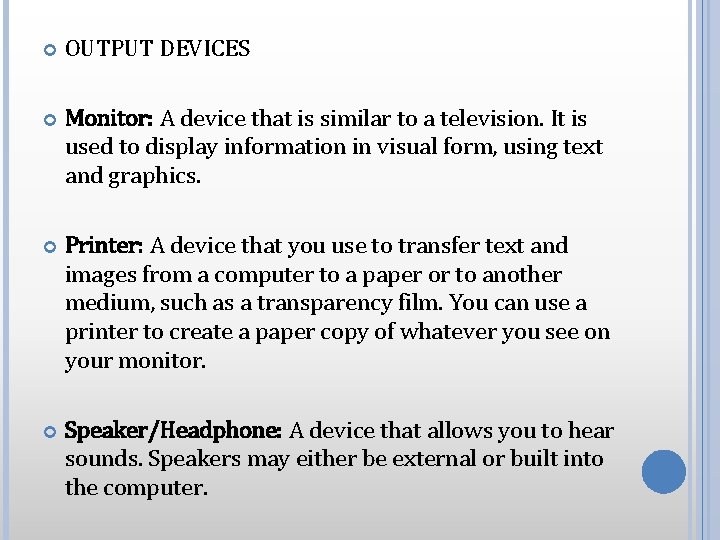
OUTPUT DEVICES Monitor: A device that is similar to a television. It is used to display information in visual form, using text and graphics. Printer: A device that you use to transfer text and images from a computer to a paper or to another medium, such as a transparency film. You can use a printer to create a paper copy of whatever you see on your monitor. Speaker/Headphone: A device that allows you to hear sounds. Speakers may either be external or built into the computer.
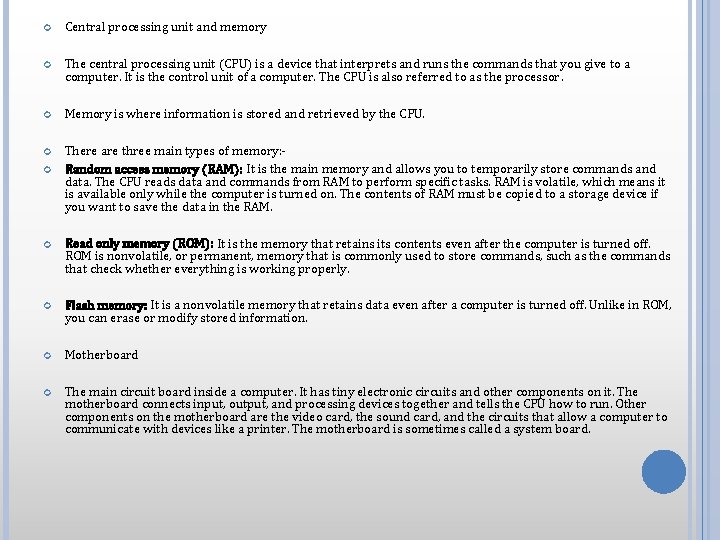
Central processing unit and memory The central processing unit (CPU) is a device that interprets and runs the commands that you give to a computer. It is the control unit of a computer. The CPU is also referred to as the processor. Memory is where information is stored and retrieved by the CPU. There are three main types of memory: Random access memory (RAM): It is the main memory and allows you to temporarily store commands and data. The CPU reads data and commands from RAM to perform specific tasks. RAM is volatile, which means it is available only while the computer is turned on. The contents of RAM must be copied to a storage device if you want to save the data in the RAM. Read only memory (ROM): It is the memory that retains its contents even after the computer is turned off. ROM is nonvolatile, or permanent, memory that is commonly used to store commands, such as the commands that check whether everything is working properly. Flash memory: It is a nonvolatile memory that retains data even after a computer is turned off. Unlike in ROM, you can erase or modify stored information. Motherboard The main circuit board inside a computer. It has tiny electronic circuits and other components on it. The motherboard connects input, output, and processing devices together and tells the CPU how to run. Other components on the motherboard are the video card, the sound card, and the circuits that allow a computer to communicate with devices like a printer. The motherboard is sometimes called a system board.
An expansion card A circuit board that can be attached to a motherboard to add features such as video display and audio capability to your computer. An expansion card improves the performance of your computer and enhances its features. Expansion cards are also called expansion boards. Some types of expansion cards are described in the following list. Video card: It is connected to a computer monitor and is used to display information on the monitor. Network interface card (NIC): It allows a computer to be connected to other computers so that information can be exchanged between them. Sound card: It converts audio signals from a microphone, audio tape, or some other source to digital signals, which can be stored as a computer audio file. Sound cards also convert computer audio files to electrical signals, which you can play through a speaker or a headphone. You connect microphone and speakers to a sound card. Storage devices Hard disk: A magnetic disk that is usually the main storage device on most computers. It can be an external or an internal device. Floppy disk: A portable storage device that allows you to store a small amount of data. A disadvantage of this disk is that it can be easily damaged by heat, dust, or magnetic fields. CD-ROM: A portable storage medium that allows you to store 400 times more data than on a floppy disk. It is less prone to damage than a floppy disk. DVD-ROM: A portable storage medium that is similar to a CD-ROM; however, it can store larger amounts of data than a floppy disk or a CD-ROM. A DVD-ROM is commonly used to store movies and videos. Ports and connections A port is a channel through which data is transferred between input/output devices and the processor. There are several types of ports that you can use to connect a computer to external devices and networks.
Topic 3: using a computer � You can use a computer for anything you want Topic 4: overview of keyboarding � An input device that you can use to type commands or text into a computer. Topic 5: using a mouse � small device that you can use to move, select, and open items on your computer screen.
LESSON 2: COMMON COMPUTER TERMINOLOGY Lesson Contents Lesson Objectives Introduction to Hardware Identify the primary hardware components of a computer. What Is an Operating System? Explain an operating system. Overview of Programs and Data Explain programs and data. Introduction to Networks Describe a network and the types of networks. Using the Internet Explain the terms Internet, World Wide Web, and intranet.
TOPIC 1: INTRODUCTION TO HARDWARE Hardware refers to all the physical components of a computer. It includes all input devices, processing devices, storage devices, and output devices. The keyboard, mouse, motherboard, monitor, hard disk, cables, and printer are all examples of hardware.
TOPIC 2: WHAT IS AN OPERATING SYSTEM? which controls and manages the hardware connected to your computer. The operating system provides an interface that helps you to interact with the computer. An example of one of the latest operating systems is Windows 10
TOPIC 3: OVERVIEW OF PROGRAMS AND DATA There are many types of programs. Some programs allow you to perform tasks such as writing letters, doing calculations, or sending e-mail messages. For example, a word processor, such as Microsoft Office Word 2007, is a program that helps you create a letter. Other programs allow you to create illustrations, play games, watch movies, or communicate with other computer users. Programs process data that you provide as input to your computer. This data can be in the form of text, graphics, audio, or video depending on the type of program. For example, Calculator is a program that requires input in the form of numbers. Similarly, Sound Recorder is a program that requires input in the form of audio. When the program receives the data, it processes the data and displays the output on the screen. You can save this output in a file. Depending on the type of data that a file contains, the file is classified as an audio file, a text file, a graphics file, or a video file.
TOPIC 4: INTRODUCTION TO NETWORKS A group of computers and associated devices that are linked together to facilitate sharing information is called a network. Networks can also be used to share data and devices such as printers. You can also communicate with other computer users on the network. A typical network has the following three components: � Server. The main computer on a network that provides services to other computers on the network. A server decides which computers are allowed to access the hardware and software on the network. � Workstation. A computer connected to a network. You use a workstation to access the hardware and software on a network. � Communication channel. A path or link that connects computers or peripheral devices, such as printers and disk drives, to transfer information. Cables are commonly used as communication channels in a network, but networks can also transfer information through wireless connections. Depending upon the area covered, a network can be categorized as a local area network (LAN) or a wide area network (WAN).
MAIN CATEGORIES OF NETWORK LAN A LAN connects devices within a limited area, such as a home or a small group of offices. � It commonly includes computers and shared resources such as printers and scanners. � WAN A WAN is a network that connects devices in geographically separated areas. � You can use the resources of a WAN to connect two or more LANs by using long wires, optical cables, and satellites. � Many organizations use a WAN to connect their networks across different countries. The Internet is an example of a WAN. �
TOPIC 5: THE USE OF INTERNET The Internet is a worldwide collection of public networks that are linked to each other for information exchange. The Internet started as a network to facilitate communication between government and educational departments in the United States. The World Wide Web (WWW), or the Web, is another service that the Internet provides. WWW includes specially formatted documents that are interlinked and stored on servers around the world. You can use the Internet and its services to send messages to other Internet users, search and apply for jobs, watch movies, and buy and sell products. Many organizations use a special type of network to communicate and share information within the organization. Such a network is called an intranet. An intranet is similar to the WWW but is accessible only to authorized users of the organization. An intranet is much smaller than the Internet and can provide services such as document distribution, software distribution, access to databases, and training.
LESSON 3: COMPUTER PERFORMANCE AND FEATURES Lesson Contents Lesson Objectives Types of Computers Compare the features of different types of computers. Explain the role of memory. Explain the basics of computer performance. Describe the types of productivity programs and their uses. Describe the types of communication programs and their uses. Describe the uses of educational and entertainment programs. The Role of Memory Computer Performance Productivity Programs Communication Programs Educational and Entertainment Programs
TOPIC 1: TYPES OF COMPUTERS Desktop computers � � Laptop computers are lightweight personal computers. Laptop computers are smaller in size as compared to a desktop computer and are designed for travel. Laptop computers are also called notebook computers. The main feature of laptop computers is that they are small and portable. As the name suggests, these can easily be placed on the lap of a user. Desktop computers run on electricity only, while laptop computers run on electricity or on batteries that can be recharged. However, laptop computers consume more power than desktop computers with a similar hardware setup. Laptop computers perform the same tasks as desktop computers, but laptop computers generally cost more than desktop computers. Handheld computers � Desktop computers are made up of individual components such as a monitor, a keyboard, a system unit, and a printer. Desktop computers are not portable and are generally placed on the surface of a desk or a table. The components of desktop computers can easily be replaced or upgraded. Desktop computers usually have more memory, a larger hard drive, more ports, and a bigger display than laptops and other portable computers. Desktop computers can run continuously for long periods of time. Handheld computers are devices used for specific everyday tasks, such as managing personal data. These are smaller than laptops and provide fewer features compared to desktop computers or laptops. These can also perform basic wordprocessing activities and help you access the Internet. You can also send and receive e-mail messages by using handheld computers. Several handheld computer models can also work as cellular phones or digital cameras. Tablet computers � Tablet computers are fully functional computers that allow you to write directly on the screen by using a tablet pen. You can also use the tablet pen to perform mouse functions. Tablet computers, therefore, do not need a keyboard and a mouse.
TOPIC 2: THE ROLE OF MEMORY Bit � Byte � One megabyte (MB) is equal to 1, 024 KB. The amount of information contained in 1 MB is approximately equal to a complete textbook. Gigabyte � One kilobyte (KB) is equal to 1, 024 bytes. Most of the user data stored in a computer, such as simple e-mail messages or a text file, occupies storage space of a few kilobytes. Megabyte � A byte is a combination of eight bits arranged in a particular sequence. Each sequence represents a single character, symbol, digit, or letter. A byte forms the basic unit that is used to measure the storage capacity of a storage device. Kilobyte � A bit is the smallest unit of information that a computer handles. A single bit can hold only one of two values, 0 or 1. One of the two values is always present. A single bit conveys little meaningful information. However, you can obtain more meaningful information by combining consecutive bits into larger units. One gigabyte (GB) is equal to 1, 024 MB, which is approximately a billion bytes. Most computers today have hard disks with large capacities that are measured in gigabytes. A gigabyte denotes a huge storage capacity. For example, a video film stored on a computer can occupy more than 1 GB of space. Terabyte � One terabyte is equal to 1, 024 GB, approximately a trillion bytes. Storage devices having capacities in terabytes are generally used by organizations that need to store large volumes of data. A terabyte is so large that a few terabytes of memory space can contain the complete text of a large number of books.
TOPIC 3: COMPUTER PERFORMANCE CPU speed � Hard disk factors � The CPU is the brain of the computer and its speed is an important factor that affects the overall performance of the computer. The CPU speed is the rate at which the CPU can perform a task, such as moving data to and from RAM, or performing a numerical calculation. If you have two computers that are identical except for the CPU speed, the computer with the faster CPU completes a task more quickly. Hard disks differ in storage capacities as well as their speed of data storage and retrieval. If the speed of data retrieval is fast, the computer takes less time to start and to load programs. Additionally, the speed and size of the hard disk play an important role when a program needs to process large volumes of data. RAM � The speed of retrieving data stored on RAM is very fast and for this reason the computer uses it to store the information that is currently in use. If the amount of RAM is large enough to hold all of the information in use, this can result in faster computer performance. The RAM speed and the amount of RAM are important factors in personal computer performance. When there is not enough RAM in a computer, the computer slows down or fails to function properly.
TOPIC 4: PRODUCTIVITY PROGRAMS Word-processing and publishing programs You use word-processing programs to create and modify text-based documents. You can type in and modify text, use the spelling checker and the built-in thesaurus, and format the document. By using these programs, you can also create personal and professional documents. � Microsoft Office Word 2007 is a commonly used word-processing program. � Publishing programs are used to combine text and graphics to create documents such as brochures, greeting cards, annual reports, books, or magazines. These programs also include word-processing and graphics features that allow you to refine parts of the document. Presentation programs You use presentation programs to present your information in the form of slides. You can add sound and pictures to these slides to make them more attractive and informative. � Microsoft Office Power. Point 2007 is a commonly used presentation program. �
Spreadsheet programs You use spreadsheet programs to create budgets, manage accounts, perform mathematical calculations, and convert numerical data into charts and graphs. Spreadsheets store information in a table, with values spread over horizontal rows and vertical columns. Each value is stored in a cell. A cell is the intersection of a row and a column. � Microsoft Office Excel 2007 is an example of a spreadsheet program. � Database programs You use database programs to store and manage data in an organized way. By using these programs, you can also sort or search for the information stored in a database. In addition, you can create simple reports from the data that you have stored. For example, you can use a database program to store customer details, create and manage inventory, and track sales. You can then create reports to target sales or plan customer services. � An example of a database program is Microsoft Office Access 2007. � Graphics programs You use graphics programs to create and edit drawings. You can also use these programs to enhance photographs. � The Paint program in Windows Vista is an example of a graphics program that allows you to create drawings. �
TOPIC 5: COMMUNICATION PROGRAMS Window live messenger We chat Whatsapp Mxit Twitter Facebook Badoo Vibe Smiggle Pepclub
TOPIC 6: EDUCATIONAL AND ENTERTAINMENT PROGRAMS Educational software is used in classrooms, offices, and homes. Educational software is available on various topics that are applicable to different age groups. For example, Microsoft Encarta is a widely used digital encyclopedia that is available on both CD-ROM and DVD-ROM. You can also use computers as a source of entertainment. You can use entertainment software to play games, listen to music, record music, draw pictures, and watch movies on a computer. Video CDs and DVDs that allow you to watch movies and music videos as well as listen to music are all examples of entertainment software that is used for recreation.
LESSON 4: COMPUTER OPERATING SYSTEMS Lesson Contents Lesson Objectives Functions of an Operating System Explain the common functions of an operating system. Introduction to the Windows Vista GUI Identify the components of the Windows Vista GUI. Explain the options that are available in the Windows Vista Start Menu. Work with the Windows Vista GUI within programs. Manage files and folders in Windows Explorer. Perform basic file operations. Start Menu Options Working with Windows-Based Programs Managing Files and Folders Performing Basic File Operations
TOPIC 1: FUNCTIONS OF AN OPERATING SYSTEM Provides a user interface � Provides utilities to configure your system � A GUI-based operating system provides easy-to-use utilities to help you configure your computer. These utilities are small programs that help you perform specific functions, such as connecting to a network, managing resources, and adding new programs to your computer. For example, Windows Vista provides a backup program to save your important data. Helps manage computer resources � Many operating systems provide visual elements, such as icons and menus, to help you interact with a computer. You can use a mouse to select icons and issue commands. For example, you can double-click a file to open it with the appropriate program. An operating system helps manage hardware. Programs communicate with the operating system to work with the required hardware, such as the CPU, to complete the required tasks. Helps secure data by controlling user access to a computer An operating system allows you to secure your data. It helps you specify authentication and authorization rights to control access to your computer and its resources. � Authentication is the process by which the computer system validates a user's logon information. An operating system can help you create a username and a password, so that only those users who know the username and password can access the resources on your computer. � In addition, you can associate specific permissions to each username. This is called authorization. For example, you can prevent users from printing documents from your computer.
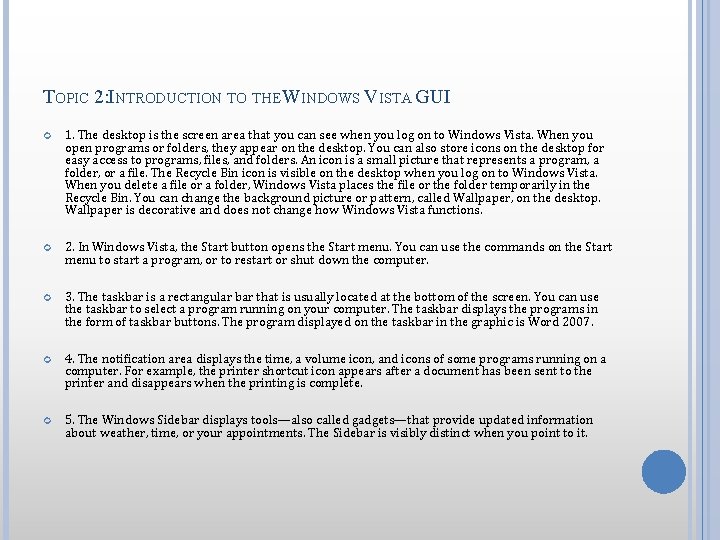
TOPIC 2: INTRODUCTION TO THE WINDOWS VISTA GUI 1. The desktop is the screen area that you can see when you log on to Windows Vista. When you open programs or folders, they appear on the desktop. You can also store icons on the desktop for easy access to programs, files, and folders. An icon is a small picture that represents a program, a folder, or a file. The Recycle Bin icon is visible on the desktop when you log on to Windows Vista. When you delete a file or a folder, Windows Vista places the file or the folder temporarily in the Recycle Bin. You can change the background picture or pattern, called Wallpaper, on the desktop. Wallpaper is decorative and does not change how Windows Vista functions. 2. In Windows Vista, the Start button opens the Start menu. You can use the commands on the Start menu to start a program, or to restart or shut down the computer. 3. The taskbar is a rectangular bar that is usually located at the bottom of the screen. You can use the taskbar to select a program running on your computer. The taskbar displays the programs in the form of taskbar buttons. The program displayed on the taskbar in the graphic is Word 2007. 4. The notification area displays the time, a volume icon, and icons of some programs running on a computer. For example, the printer shortcut icon appears after a document has been sent to the printer and disappears when the printing is complete. 5. The Windows Sidebar displays tools—also called gadgets—that provide updated information about weather, time, or your appointments. The Sidebar is visibly distinct when you point to it.
Topic 3: Working with Windows-Based Programs � Self practice Topic 4: Managing Files and Folders � Open discussion Topic 5: Performing Basic File Operations � Word documents (. docx) � Images (. gif and. jpg) � Executable programs (. exe) � Multimedia files (. wma and others)
LESSON 5: CAREER OPPORTUNITIES Information worker � � IT professional � � � An information worker (also called a home and office user), such as a data entry operator, a warehouse manager, or a travel agent, uses the computer to enter and maintain records. For example, a data entry operator can use the computer to create documents and maintain records. These records can be analyzed by the computer to generate reports. A warehouse manager keeps an account of the warehouse stocks. With the help of a computer, the warehouse manager also plans the schedules for the people working in the warehouse. Travel agents use computers to provide their customers with information on various holiday destinations, flight schedules, and details about a specific location. The details may range from information on the weather to hotel accommodations. Bank clerks use computer to process transactions of their customers. Using computers, bank clerks provide information, such as account balance and interest rates, to their customers. You can also use your computer knowledge to work as an IT professional. Network administrators, graphic designers, and database administrators are some examples of IT professionals. Network administrators are responsible for managing a network and installing new devices on the network. They also add and remove individuals from the list of authorized users. They archive files on a computer and administer access rights. Graphic designers use computers to create graphics and animations for commercial purposes. Database administrators work with databases to maintain and organize the information stored on a computer. A database is an organized collection of information on a computer. Software developer � A software developer creates software for commercial purposes, such as managing the inventory for a small business or editing a media file. Similar to a software developer, a computer game designer creates games that can be played on computers.
MODULE 3: PRODUCTIVITY PROGRAMS 2697 BE Overview of Productivity Programs Word processors You can use a word processor to create documents that mostly contain text. An example of a commonly used word processor is Microsoft Office Word 2007. Spreadsheet programs You can use a spreadsheet program to work with numbers and perform mathematical calculations. A common example of a spreadsheet program is Microsoft Office Excel 2007. Presentation programs You can use a presentation program to combine graphics and text to create presentations. An example of a presentation program is Microsoft Office Power. Point 2007. Database programs You can use a database program to organize data, such as contact information of customers and products bought by them, in a format that is easy to use and modify. A common database program is Microsoft Office Access 2007.