
Microsoft CE Technology Training Solution Area Data Analytics



























- Slides: 179
Microsoft C+E Technology Training Solution Area Data Analytics Solution Business Intelligence Technology Power BI Introduction Peter Myers
Module outline 01: Microsoft Power BI overview 02: Working with the Power BI service 03: Connecting to Power BI data sources 04: Creating Power BI Desktop solutions 05: Power BI for the developer
© 2016 Microsoft Corporation. All rights reserved. Microsoft, Windows, Microsoft Azure, and other product names are or may be registered trademarks and/or trademarks in the U. S. and/or other countries. The information herein is for informational purposes only and represents the current view of Microsoft Corporation as of the date of this presentation. Because Microsoft must respond to changing market conditions, it should not be interpreted to be a commitment on the part of Microsoft, and Microsoft cannot guarantee the accuracy of any information provided after the date of this presentation. MICROSOFT MAKES NO WARRANTIES, EXPRESS, IMPLIED OR STATUTORY, AS TO THE INFORMATION IN THIS PRESENTATION
Microsoft C+E Technology Training Solution Area Data Analytics Solution Business Intelligence Technology Power BI Module 01 Microsoft Power BI Overview Peter Myers
Module outline A new generation of BI Introducing Microsoft Power BI overview Signing up for Power BI announcements
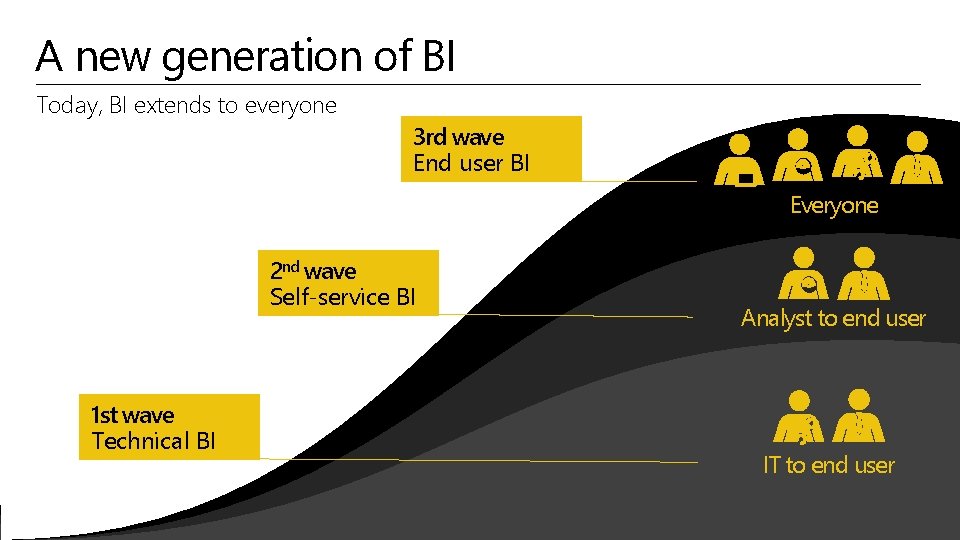
A new generation of BI Today, BI extends to everyone 3 rd wave End user BI Everyone 2 nd wave Self-service BI 1 st wave Technical BI Analyst to end user IT to end user
A new generation of BI Turning data into business insights is challenging Common BI challenges include… End-to-end view Data often resides in disparate locations, making it difficult to see a complete picture of your business Multiple data sources Data residing in Saa. S solutions, and other external locations, is difficult to access and refresh securely Right data for the right users at the right time Different roles have different needs, and business users need the latest operational data
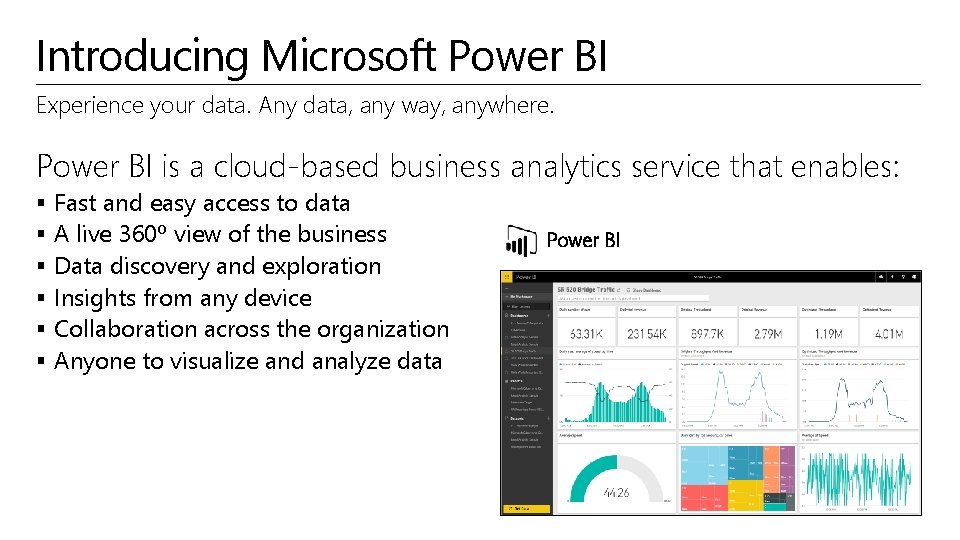
Introducing Microsoft Power BI Experience your data. Any data, any way, anywhere. Power BI is a cloud-based business analytics service that enables: § § § Fast and easy access to data A live 360º view of the business Data discovery and exploration Insights from any device Collaboration across the organization Anyone to visualize and analyze data Power BI
Introducing Microsoft Power BI Key benefits and differentiators Pre-built content packs, consisting of dashboards and reports, for popular Saa. S solutions Real-time dashboard updates Secure, live connection to your data sources, on-premises and in the cloud Intuitive data exploration by using natural language query Integration with familiar Microsoft products, and commitment for scale and availability in Azure Fast deployment, hybrid configuration, secure, and integrated with existing IT systems
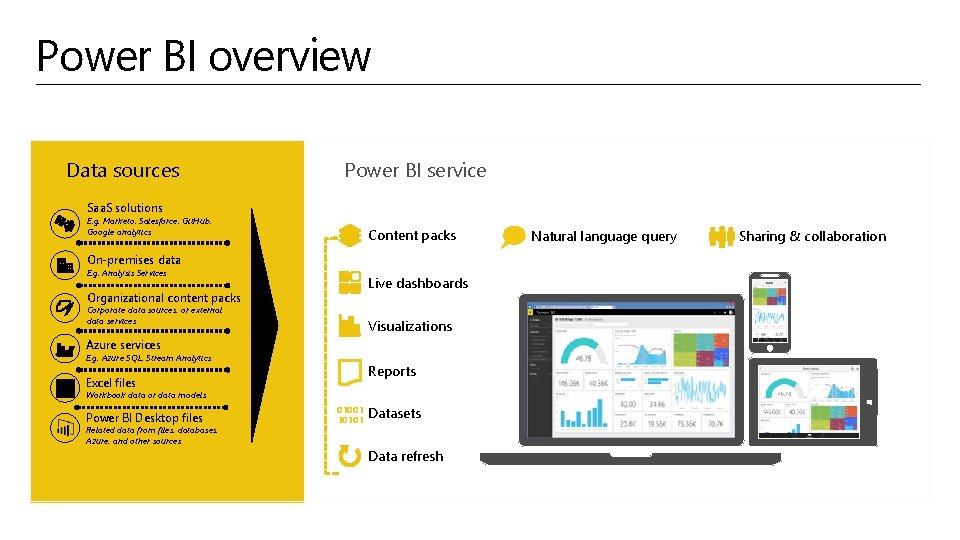
Power BI overview Data sources Power BI service Saa. S solutions E. g. Marketo, Salesforce, Git. Hub, Google analytics Content packs On-premises data E. g. Analysis Services Live dashboards Organizational content packs Corporate data sources, or external data services Visualizations Azure services E. g. Azure SQL, Stream Analytics Reports Excel files Workbook data or data models Power BI Desktop files Related data from files, databases, Azure, and other sources 01001 10101 Datasets Data refresh Natural language query Sharing & collaboration
Power BI overview Saa. S solutions E. g. Marketo, Salesforce, Git. Hub, Google analytics Content packs Natural language query Sharing & collaboration On-premises data E. g. Analysis Services Live dashboards Organizational content packs Corporate data sources, or external data services Visualizations Azure services E. g. Azure SQL, Stream Analytics Reports Excel files Workbook data and data models 01001 10101 Power BI Desktop files Related data from files, databases, Azure, and other sources Datasets Data refresh Power BI Desktop Prepare Power BI REST API Explore Report Share
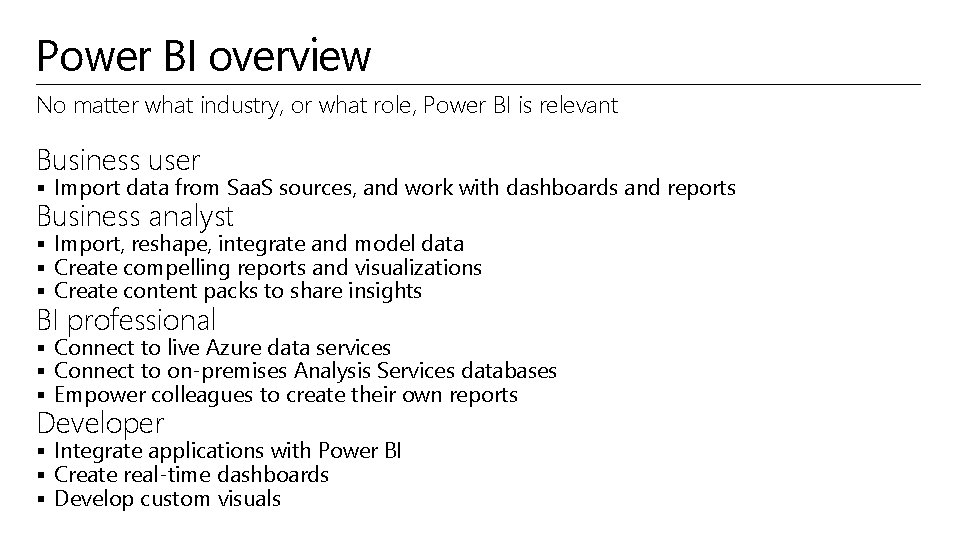
Power BI overview No matter what industry, or what role, Power BI is relevant Business user § Import data from Saa. S sources, and work with dashboards and reports Business analyst § Import, reshape, integrate and model data § Create compelling reports and visualizations § Create content packs to share insights BI professional § Connect to live Azure data services § Connect to on-premises Analysis Services databases § Empower colleagues to create their own reports Developer § Integrate applications with Power BI § Create real-time dashboards § Develop custom visuals
Signing up for Power BI Sign up can be achieved for free, and within seconds § Power BI works only with an organizational account, associated with a work or school email address Encourage customers to trial Power BI for free, and to realize the benefits of Power BI Pro features
Power BI announcements Gartner positions Microsoft as a leader in BI and Analytics Platform February 2016: Gartner has positioned Microsoft as a Leader, for the ninth consecutive year, in the Magic Quadrant for Business Intelligence and Analytics Platforms § For the first time, Microsoft is placed furthest in vision within the Leaders quadrant
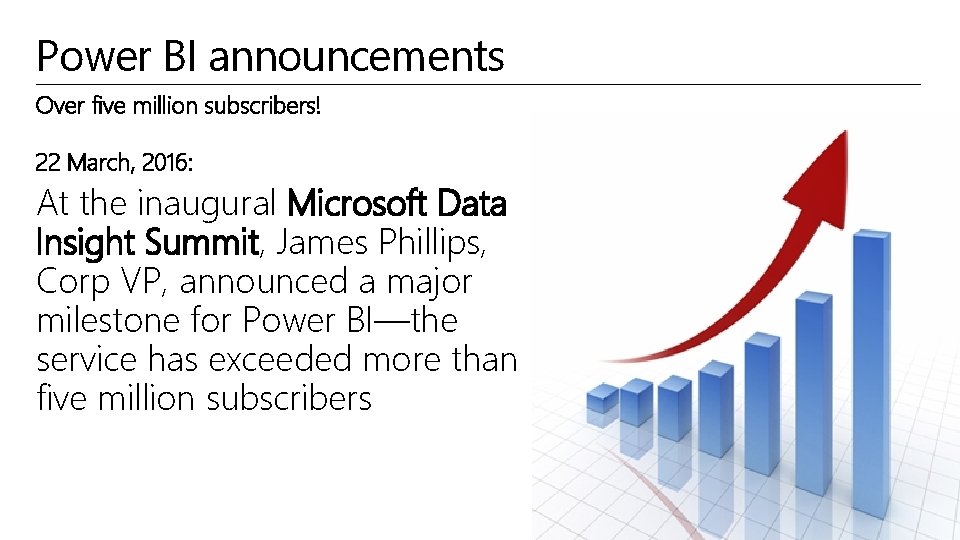
Power BI announcements Over five million subscribers! 22 March, 2016: At the inaugural Microsoft Data Insight Summit, James Phillips, Corp VP, announced a major milestone for Power BI—the service has exceeded more than five million subscribers
Key takeaways § Power BI is a cloud-based business analytics service, delivering end user BI § Power BI delivers numerous benefits and differentiators § § § Pre-built content packs Real-time dashboard updates Live connections to on-premises and cloud data sources Intuitive data exploration by using natural language query Integration with familiar Microsoft products and services Fast deployment, hybrid configuration, secure, and integrated with existing IT systems § Microsoft is placed furthest in vision within the BI and Analytics Platform Leaders quadrant
Resources Power BI site § http: //powerbi. microsoft. com Power BI documentation § http: //support. powerbi. com/ Power BI community § http: //community. powerbi. com/ Power BI blog § http: //blogs. msdn. com/b/powerbi/
Resources Continued Microsoft Cloud and Enterprise Partner Resources § http: //aka. ms/powerbipartners § Includes up-to-date resources: § § § Customer-ready materials Customer evidence Training and labs Demos “What to do next” Gartner positions Microsoft as a leader in BI and Analytics Platforms § https: //powerbi. microsoft. com/en-us/blog/gartner-positions-microsoft-as-a- leader-in-bi-and-analytics-platforms/
© 2016 Microsoft Corporation. All rights reserved. Microsoft, Windows, Microsoft Azure, and other product names are or may be registered trademarks and/or trademarks in the U. S. and/or other countries. The information herein is for informational purposes only and represents the current view of Microsoft Corporation as of the date of this presentation. Because Microsoft must respond to changing market conditions, it should not be interpreted to be a commitment on the part of Microsoft, and Microsoft cannot guarantee the accuracy of any information provided after the date of this presentation. MICROSOFT MAKES NO WARRANTIES, EXPRESS, IMPLIED OR STATUTORY, AS TO THE INFORMATION IN THIS PRESENTATION
Microsoft C+E Technology Training Solution Area Data Analytics Solution Business Intelligence Technology Power BI Module 02 Working With the Power BI Service Peter Myers
Module outline Introducing the Power BI online service Creating and exploring reports Assembling dashboards Exploring with Q&A Mobile applications Sharing and collaborating Describing additional capabilities Tenant settings
Introducing the Power BI online service The Power BI online service offers a simple, intuitive experience for interacting with data The service and features have been designed to: § Simplify engaging with data from heterogeneous sources § Fuel faster, more insightful business decisions § Deliver a rich, consolidated view of key information, no matter where the underlying data is stored § Share data insights
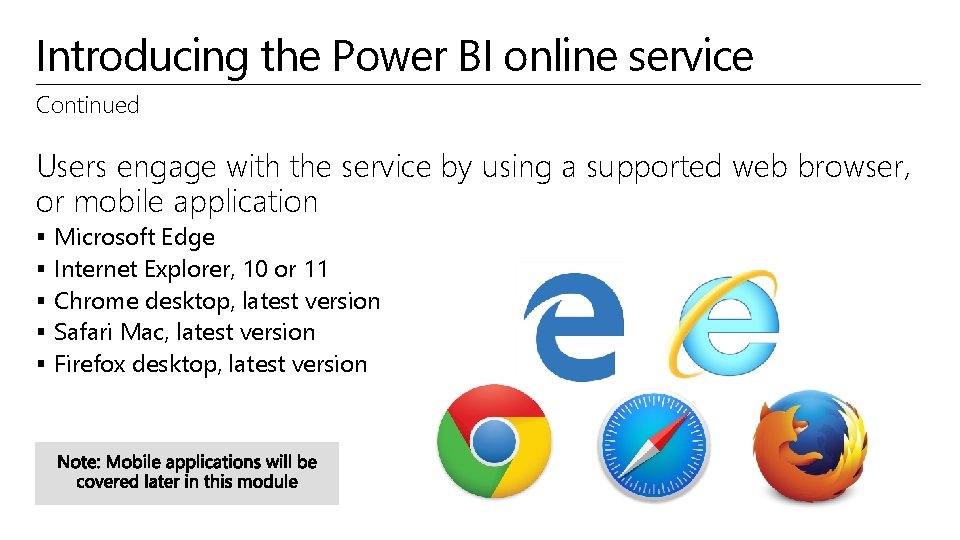
Introducing the Power BI online service Continued Users engage with the service by using a supported web browser, or mobile application § § § Microsoft Edge Internet Explorer, 10 or 11 Chrome desktop, latest version Safari Mac, latest version Firefox desktop, latest version
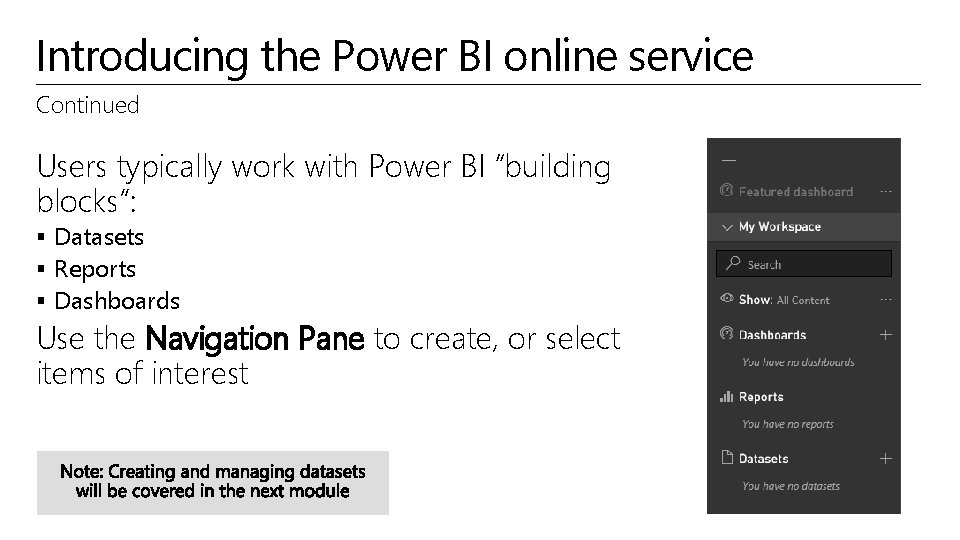
Introducing the Power BI online service Continued Users typically work with Power BI “building blocks”: § Datasets § Reports § Dashboards Use the Navigation Pane to create, or select items of interest
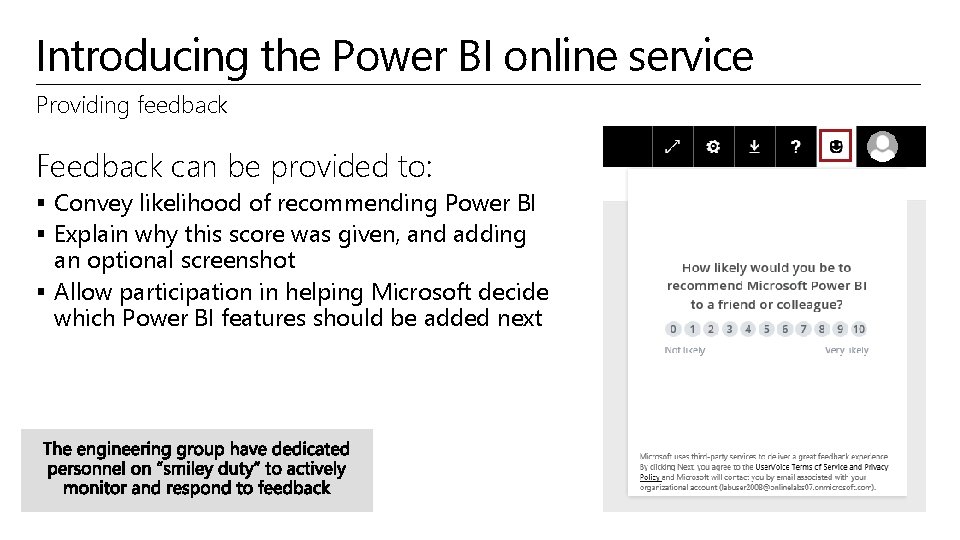
Introducing the Power BI online service Providing feedback Feedback can be provided to: § Convey likelihood of recommending Power BI § Explain why this score was given, and adding an optional screenshot § Allow participation in helping Microsoft decide which Power BI features should be added next
Creating and exploring reports Creating reports Use reports to layout visualizations across one or more pages Rich, interactive reports can be created, updated and explored in the web browser experience § A report is based on a single dataset § Reports consist of one or more pages § Each page can be named, and consists of visualizations and shapes
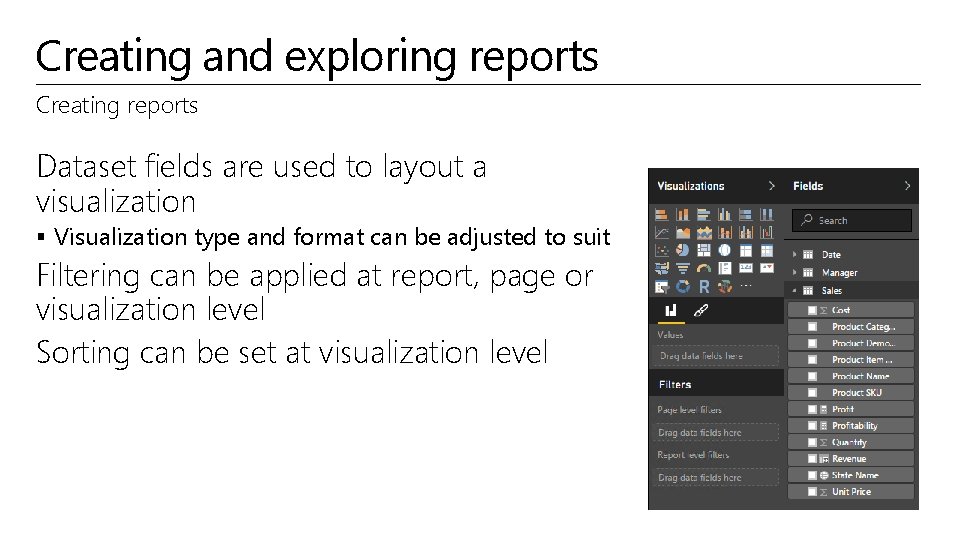
Creating and exploring reports Creating reports Dataset fields are used to layout a visualization § Visualization type and format can be adjusted to suit Filtering can be applied at report, page or visualization level Sorting can be set at visualization level
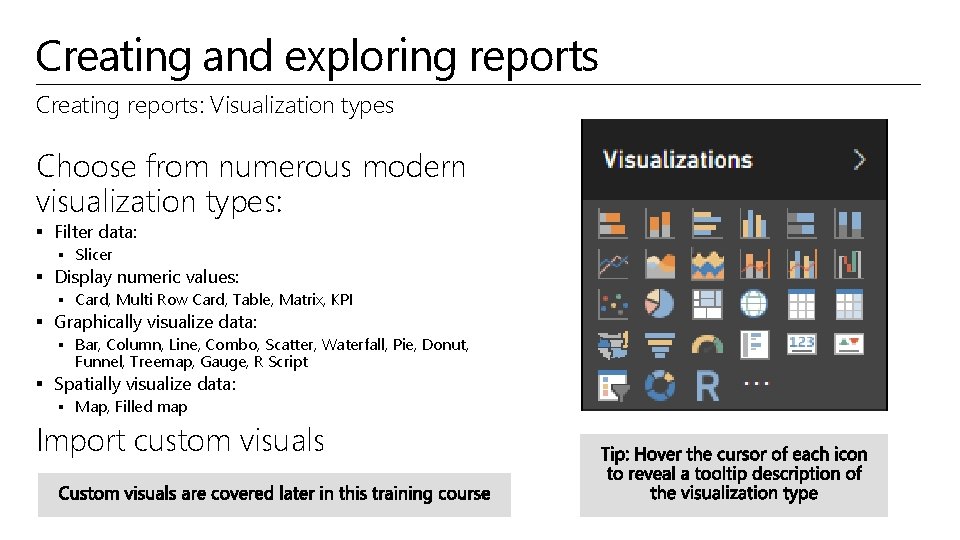
Creating and exploring reports Creating reports: Visualization types Choose from numerous modern visualization types: § Filter data: § Slicer § Display numeric values: § Card, Multi Row Card, Table, Matrix, KPI § Graphically visualize data: § Bar, Column, Line, Combo, Scatter, Waterfall, Pie, Donut, Funnel, Treemap, Gauge, R Script § Spatially visualize data: § Map, Filled map Import custom visuals
Creating and exploring reports Exploring reports Reports are either in Reading View or Editing View § In both views, report pages can be opened in Full Screen Mode, or individual visualizations can be popped out/in to see them zoomed in/out In Reading View: § § Users cannot change the report definition Users can interact by changing filters or sorting Users can highlight values in one visualization to filter other page visualizations Shared reports can only be opened in Reading View In Editing View: § Users can interact, as in Reading View § Users can also update the report (add/remove/reorder pages or visualizations)
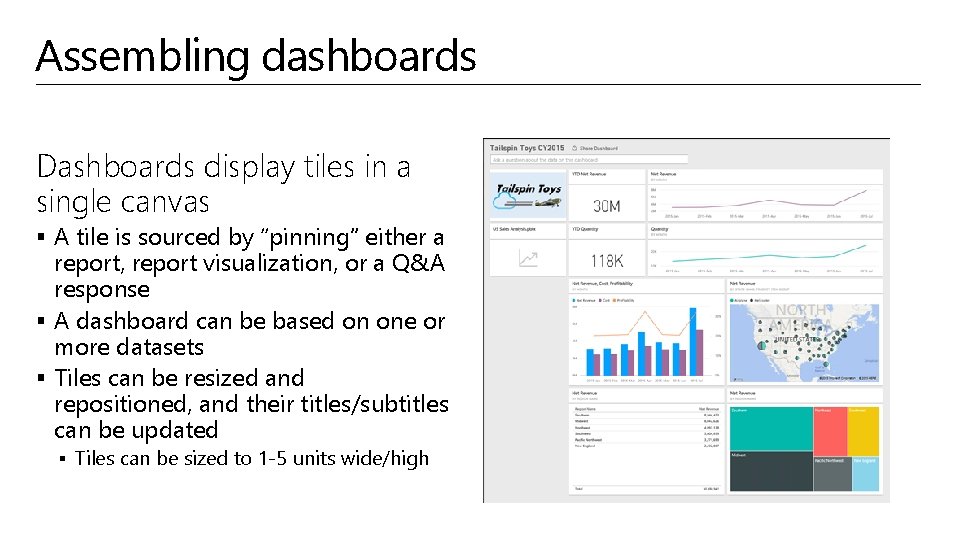
Assembling dashboards Dashboards display tiles in a single canvas § A tile is sourced by “pinning” either a report, report visualization, or a Q&A response § A dashboard can be based on one or more datasets § Tiles can be resized and repositioned, and their titles/subtitles can be updated § Tiles can be sized to 1 -5 units wide/high
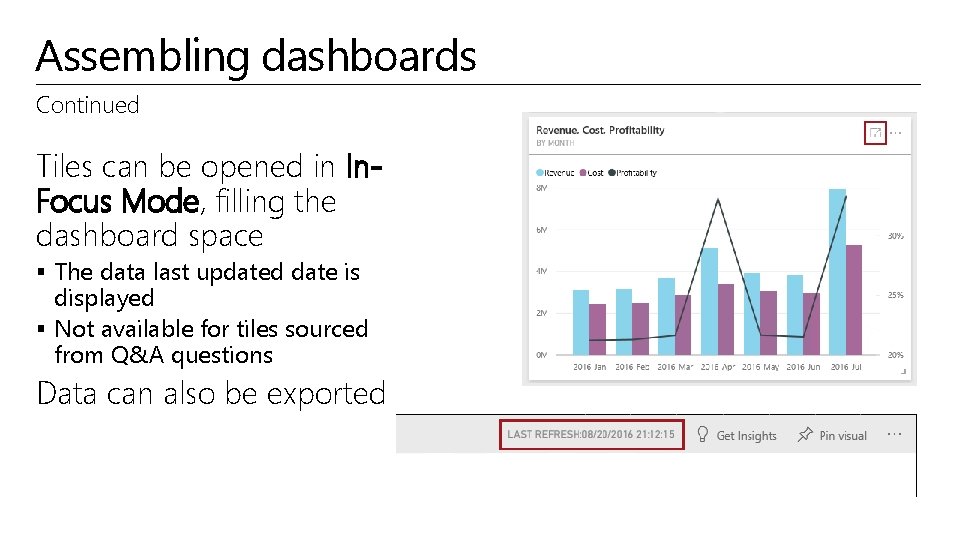
Assembling dashboards Continued Tiles can be opened in In. Focus Mode, filling the dashboard space § The data last updated date is displayed § Not available for tiles sourced from Q&A questions Data can also be exported
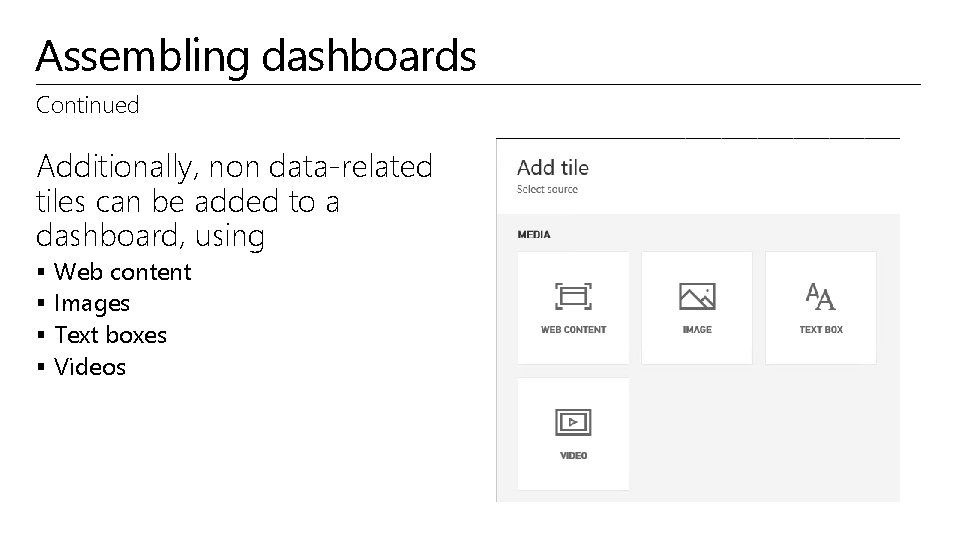
Assembling dashboards Continued Additionally, non data-related tiles can be added to a dashboard, using § § Web content Images Text boxes Videos
Assembling dashboards Continued Dashboards enable interactivity § By default, clicking on a tile will drill through to its source § However, a custom link (URL) can be set to override this default behavior Dashboard tiles can reflect live, real-time data § For non real-time datasets, tile thumbnails are automatically cached every 15 minutes Dashboards can be displayed in Full Screen Mode § Additionally, all tiles can be displayed by using Fit to Screen
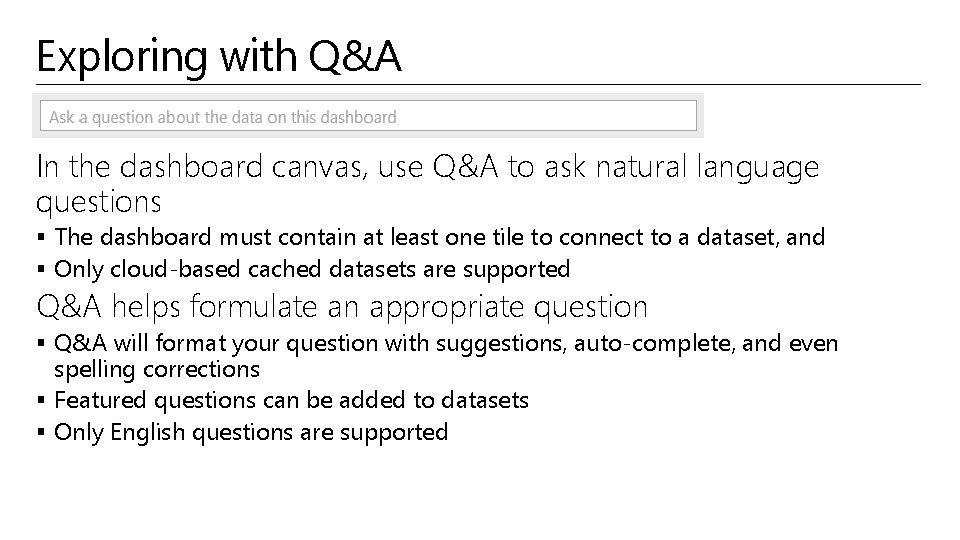
Exploring with Q&A In the dashboard canvas, use Q&A to ask natural language questions § The dashboard must contain at least one tile to connect to a dataset, and § Only cloud-based cached datasets are supported Q&A helps formulate an appropriate question § Q&A will format your question with suggestions, auto-complete, and even spelling corrections § Featured questions can be added to datasets § Only English questions are supported
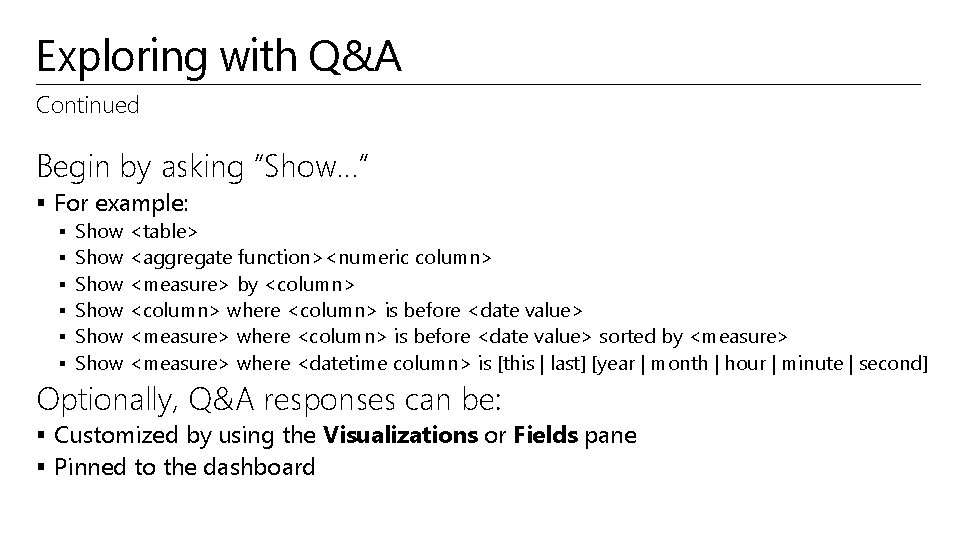
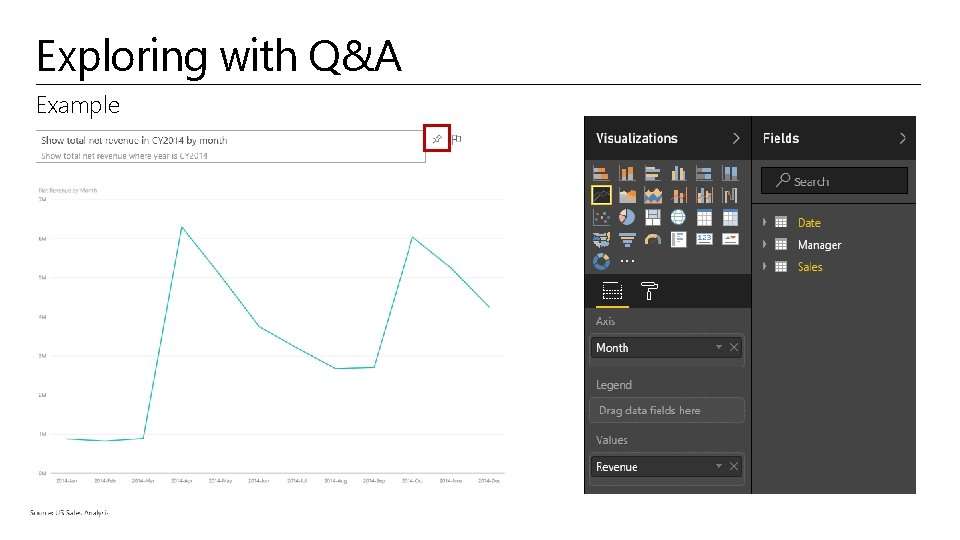
Exploring with Q&A Continued Begin by asking “Show…” § For example: § § § Show <table> Show <aggregate function><numeric column> Show <measure> by <column> Show <column> where <column> is before <date value> Show <measure> where <column> is before <date value> sorted by <measure> Show <measure> where <datetime column> is [this | last] [year | month | hour | minute | second] Optionally, Q&A responses can be: § Customized by using the Visualizations or Fields pane § Pinned to the dashboard
Exploring with Q&A Example
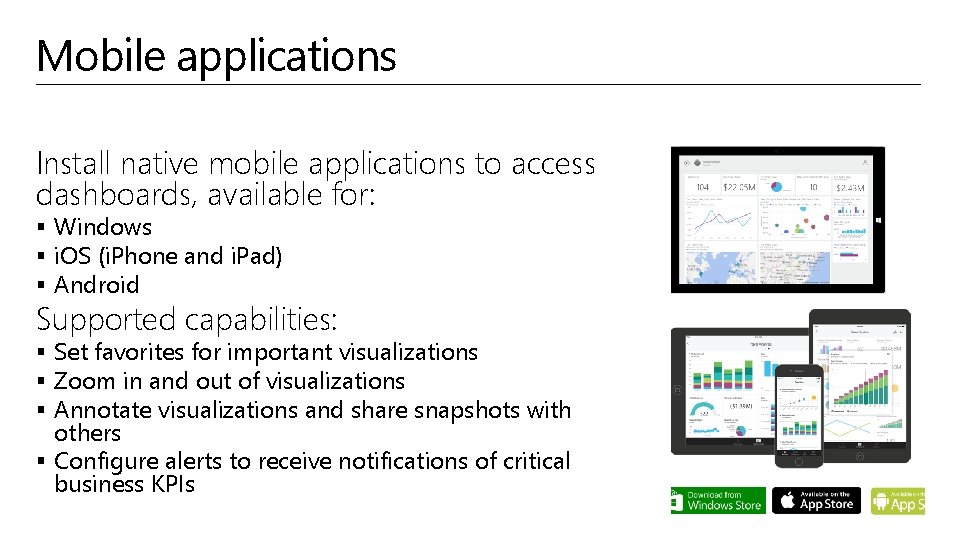
Mobile applications Install native mobile applications to access dashboards, available for: § Windows § i. OS (i. Phone and i. Pad) § Android Supported capabilities: § Set favorites for important visualizations § Zoom in and out of visualizations § Annotate visualizations and share snapshots with others § Configure alerts to receive notifications of critical business KPIs
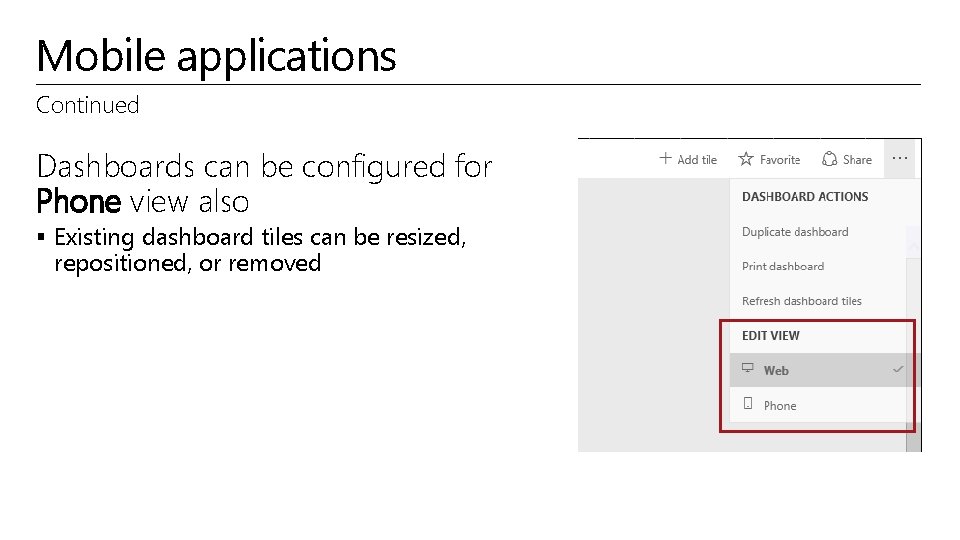
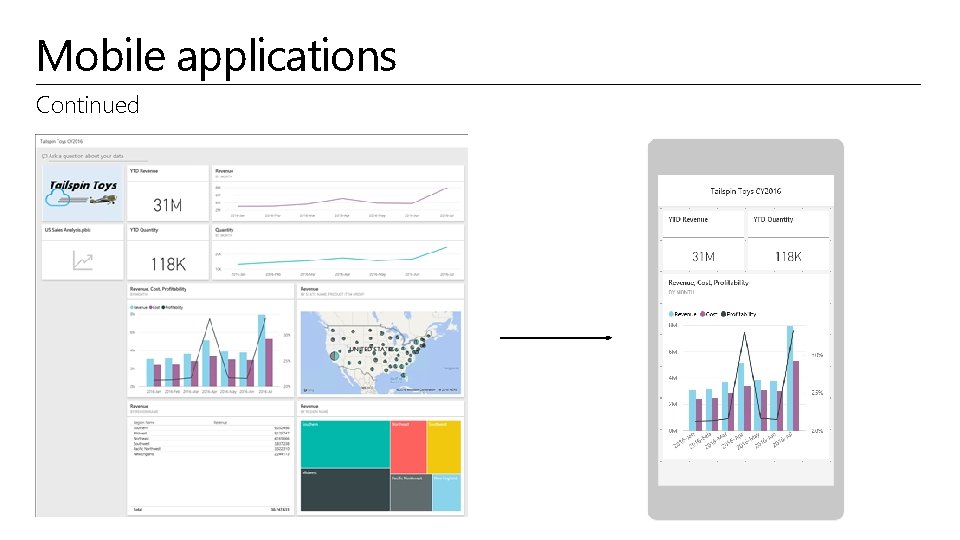
Mobile applications Continued Dashboards can be configured for Phone view also § Existing dashboard tiles can be resized, repositioned, or removed
Mobile applications Continued
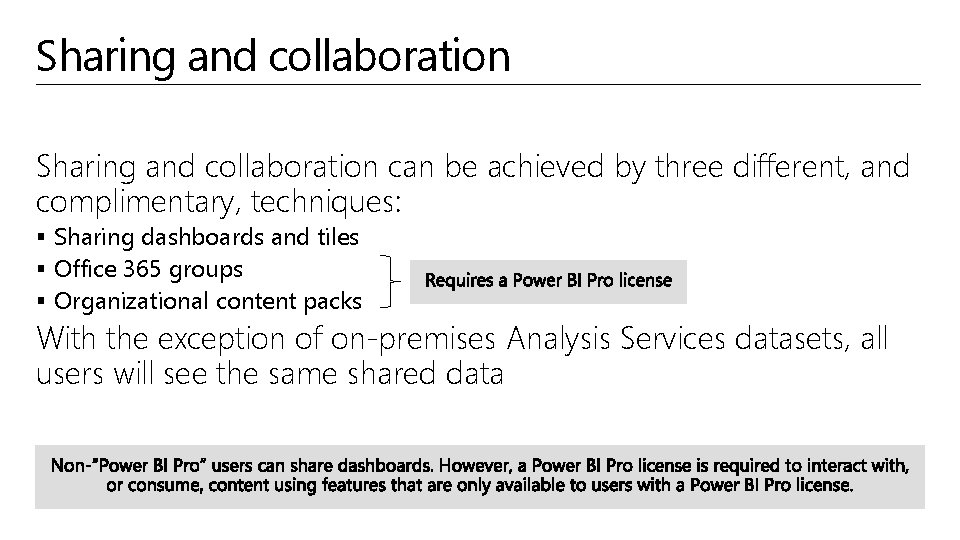
Sharing and collaboration can be achieved by three different, and complimentary, techniques: § Sharing dashboards and tiles § Office 365 groups § Organizational content packs With the exception of on-premises Analysis Services datasets, all users will see the same shared data
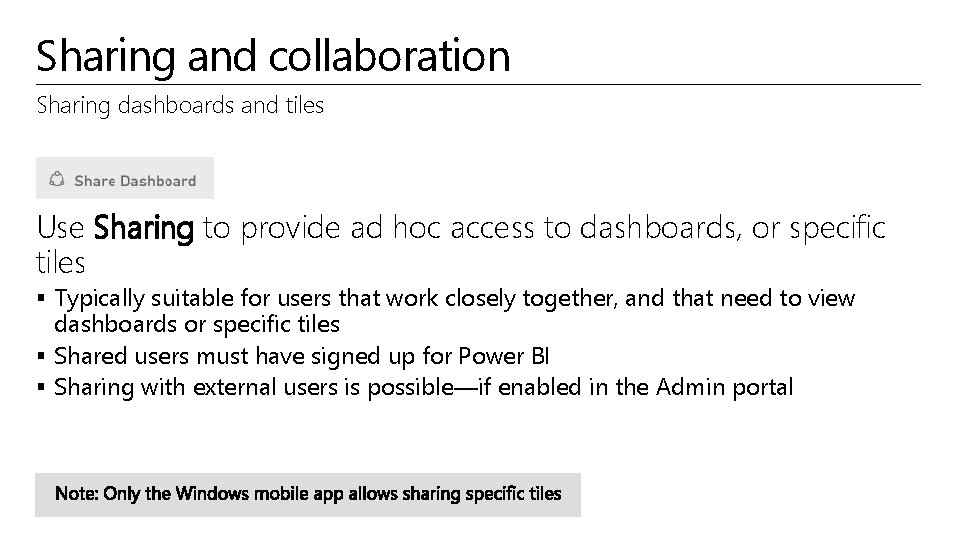
Sharing and collaboration Sharing dashboards and tiles Use Sharing to provide ad hoc access to dashboards, or specific tiles § Typically suitable for users that work closely together, and that need to view dashboards or specific tiles § Shared users must have signed up for Power BI § Sharing with external users is possible—if enabled in the Admin portal
Sharing and collaboration Sharing dashboards and tiles: Continued § Shared items are identified by , are read-only and cannot be personalized § Dependent datasets are not made visible § The dashboard owner can: § Allow other users to re-share—internal users only § Review shared access, and stop sharing with specific users § Save dashboard changes, which then become immediately available to all shared users § Dashboards can be shared from a user’s workspace, or from a group
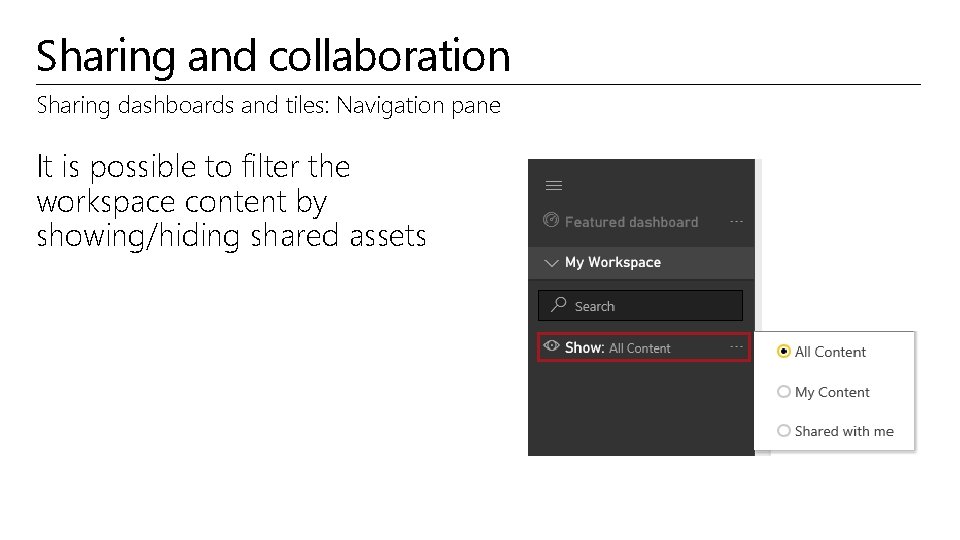
Sharing and collaboration Sharing dashboards and tiles: Navigation pane It is possible to filter the workspace content by showing/hiding shared assets
Sharing and collaboration Office 365 groups Use Office 365 groups to manage and share content § Typically suitable for teams/collaborators with whom you work closely for a common purpose/project Like a user, groups can own content § The owner of the group is by default, an admin § Group admins can manage the membership, and promote others users as admins § Every member of the group: § Must belong to the same tenant § Has either read-only permission, or complete permissions to update, create and delete the group content § Must have the Power BI Pro license
Sharing and collaboration Organizational content packs Use organizational content packs to make content available to broad audiences, and to allow personalization § Typically suitable for anyone who might be interested in this content A content pack is defined in terms of a title, description, image, and specific items: § Datasets § Reports § Dashboards
Sharing and collaboration Organizational content packs: Continued Content packs are discoverable in the Content Gallery and can be made available to: § Entire organization—if enabled in the Admin portal § Members of a security or Office 365 group § Individuals within the same tenant By default, dashboards and reports are read-only § However, members can unlock and personalize them Updates made to a content pack will: § Apply automatically to non-personalized content § Notify a user that has personalized content, so they may take appropriate action
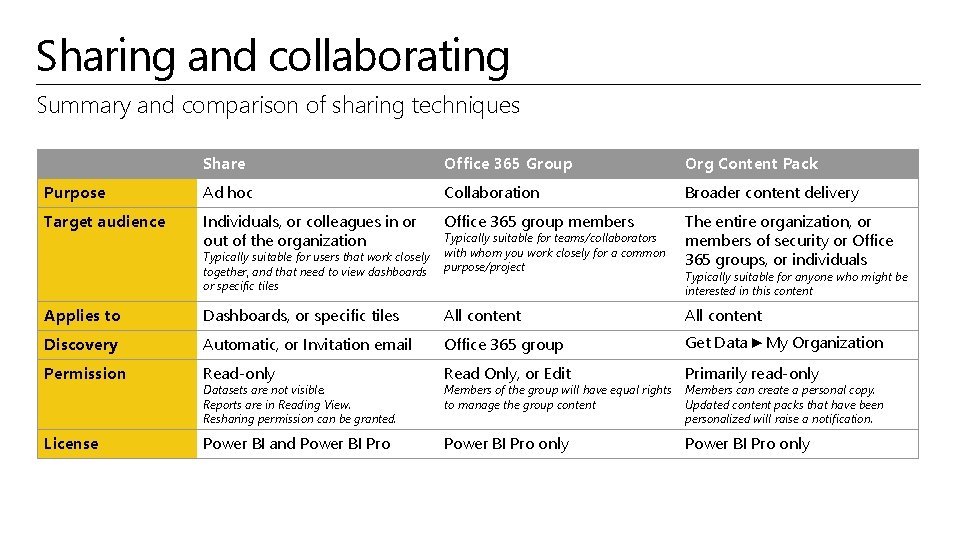
Sharing and collaborating Summary and comparison of sharing techniques Share Office 365 Group Org Content Pack Purpose Ad hoc Collaboration Broader content delivery Target audience Individuals, or colleagues in or out of the organization Office 365 group members Typically suitable for teams/collaborators with whom you work closely for a common purpose/project The entire organization, or members of security or Office 365 groups, or individuals Typically suitable for users that work closely together, and that need to view dashboards or specific tiles Typically suitable for anyone who might be interested in this content Applies to Dashboards, or specific tiles All content Discovery Automatic, or Invitation email Office 365 group Get Data ► My Organization Permission Read-only Read Only, or Edit Primarily read-only License Power BI and Power BI Pro only Datasets are not visible. Reports are in Reading View. Resharing permission can be granted. Members of the group will have equal rights to manage the group content Members can create a personal copy. Updated content packs that have been personalized will raise a notification.
Describing additional capabilities § § § Pinning SQL Server Reporting Services reports Pinning Excel ranges Pinning snapshots of Excel elements Pinning real-time data (Preview) Quick Insights Analyze in Excel Web publishing Row-level security Data alerts Cortana for Power BI Dashboard data classification
Describing additional capabilities Pinning SQL Server Reporting Services reports Visuals from existing, on-premises Reporting Services reports, can be pinned to Power BI dashboards § To setup, use Reporting Services Configuration Manager to register the report server with Power BI § To pin visuals, use Report Manager to select a visual and to also configure the frequency of updates (hourly or daily) § Updates are achieved by using a Reporting Services subscription § Available only with SQL Server 2016 (all editions)
Describing additional capabilities Pinning Excel ranges Ranges can be pinned from Excel workbooks that have been saved in: § One. Drive for Business, or § Another group-shared document library Ranges can contain data, charts, tables, Pivot. Tables, Pivot. Charts, and other Excel parts You can view—but not pin—tiles from workbooks that have been shared with you
Describing additional capabilities Pinning snapshots of Excel elements Install the Power BI Publisher for Excel add-in to share snapshots of Excel elements to online dashboards in seconds: § Elements include Pivot. Tables, charts, and ranges § Requires Excel 2007, or later (32 - or 64 -bit), and Internet Explorer 10, or later
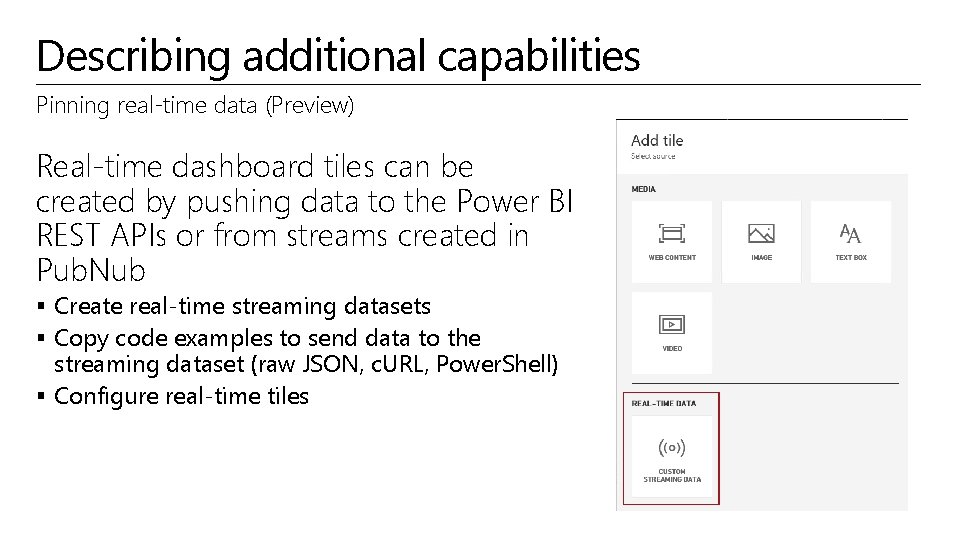
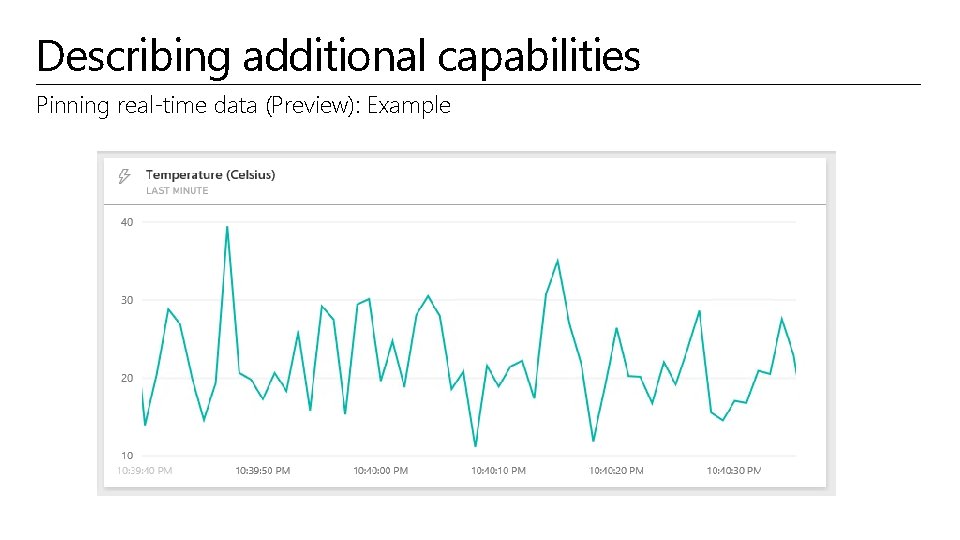
Describing additional capabilities Pinning real-time data (Preview) Real-time dashboard tiles can be created by pushing data to the Power BI REST APIs or from streams created in Pub. Nub § Create real-time streaming datasets § Copy code examples to send data to the streaming dataset (raw JSON, c. URL, Power. Shell) § Configure real-time tiles
Describing additional capabilities Pinning real-time data (Preview): Example
Describing additional capabilities Quick Insights Use Quick Insights to generate interesting interactive visualizations based on your data § Can be run on entire dataset (Quick Insights), or on a specific dashboard tile (Scoped Quick Insights) § Presents up to 32 separate insights in a special Quick Insights canvas § Insights can be pinned to dashboards, and to continue further, additional Quick Insights can be run on the insights
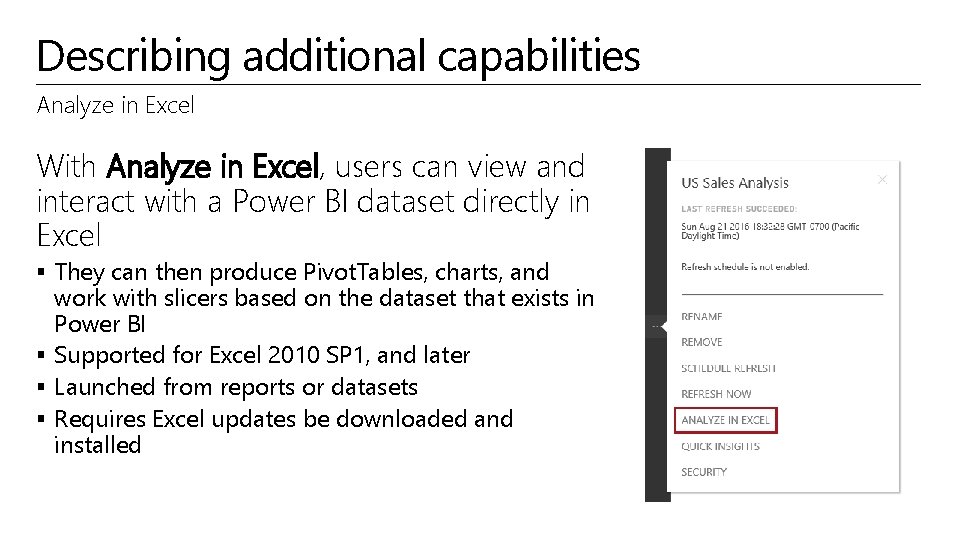
Describing additional capabilities Analyze in Excel With Analyze in Excel, users can view and interact with a Power BI dataset directly in Excel § They can then produce Pivot. Tables, charts, and work with slicers based on the dataset that exists in Power BI § Supported for Excel 2010 SP 1, and later § Launched from reports or datasets § Requires Excel updates be downloaded and installed
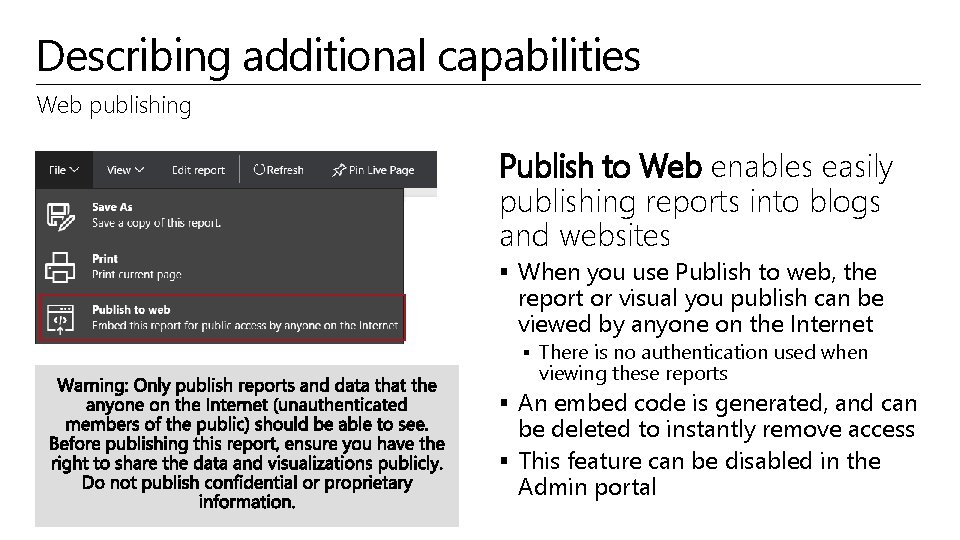
Describing additional capabilities Web publishing Publish to Web enables easily publishing reports into blogs and websites § When you use Publish to web, the report or visual you publish can be viewed by anyone on the Internet § There is no authentication used when viewing these reports § An embed code is generated, and can be deleted to instantly remove access § This feature can be disabled in the Admin portal
Describing additional capabilities Web publishing: Continued Data refreshes are automatically reflected in an embedded report or visual § It can take approximately one hour for refreshed data to be visible from embed codes Limitations: § § § Reports using real-time data sources Reports using row-level security Reports using Analysis Services hosted on-premises Reports shared to you directly, or through an organizational content pack Reports in a group in which you are not an edit member "R" Visuals are not currently supported in Publish to web reports
Describing additional capabilities Row-level security It is possible to restrict data access on datasets for given users § Filters restrict data at the row level, and are assigned to roles § Users are also assigned to roles As the owner of a dataset, it is possible to: § Assign users to roles § View reports for different roles
Describing additional capabilities Row-level security: Continued Limitations: § § § Can only be defined on datasets created by using Power BI Desktop Only imported data and Direct. Query connections are supported Q&A and Cortana are not supported Analyze in Excel is not supported External sharing is not supported If applied to a dataset owned by a group, roles will only be applied to read-only members
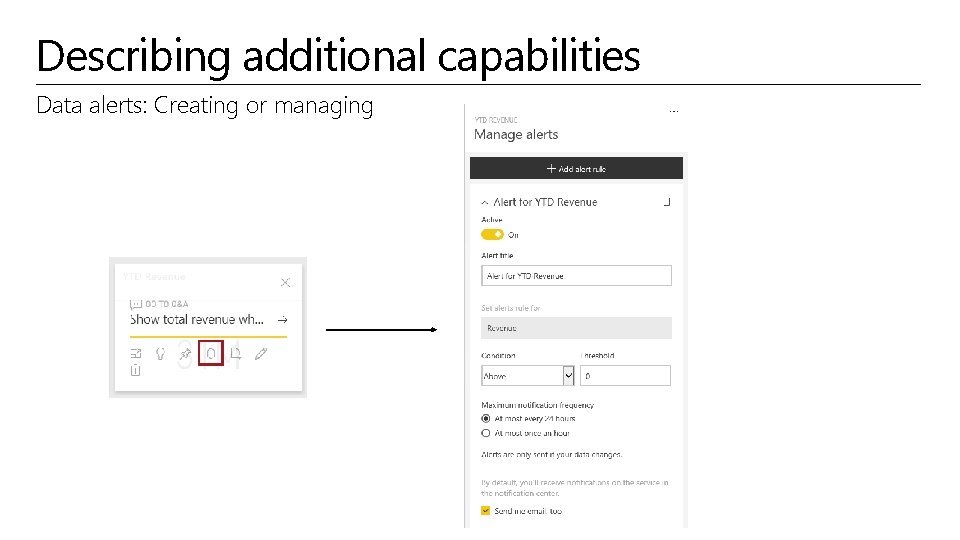
Describing additional capabilities Data alerts notify users of changes beyond set limits § Configured on dashboard tiles § Fully synchronized across platforms; set and view data alerts in the mobile apps, and also in the Power BI service § Alert notifications provide details and links to view the tile or dashboard, and also insights Limitations: § Alerts are currently not supported for card tiles with date/time measures § Alerts only work with numeric data types § Alerts only work on data that is refreshed; they do not work on static data
Describing additional capabilities Data alerts: Creating or managing
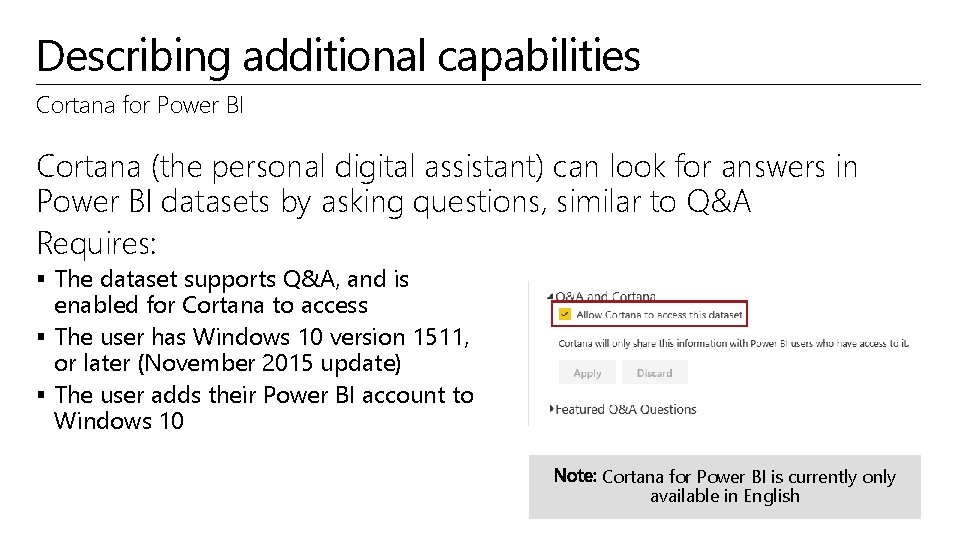
Describing additional capabilities Cortana for Power BI Cortana (the personal digital assistant) can look for answers in Power BI datasets by asking questions, similar to Q&A Requires: § The dataset supports Q&A, and is enabled for Cortana to access § The user has Windows 10 version 1511, or later (November 2015 update) § The user adds their Power BI account to Windows 10 Cortana for Power BI is currently only available in English
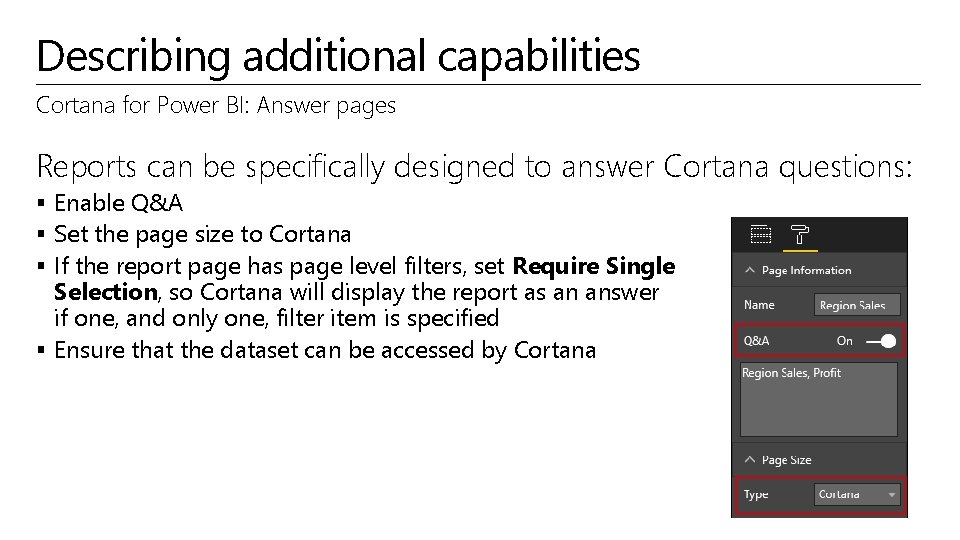
Describing additional capabilities Cortana for Power BI: Answer pages Reports can be specifically designed to answer Cortana questions: § Enable Q&A § Set the page size to Cortana § If the report page has page level filters, set Require Single Selection, so Cortana will display the report as an answer if one, and only one, filter item is specified § Ensure that the dataset can be accessed by Cortana
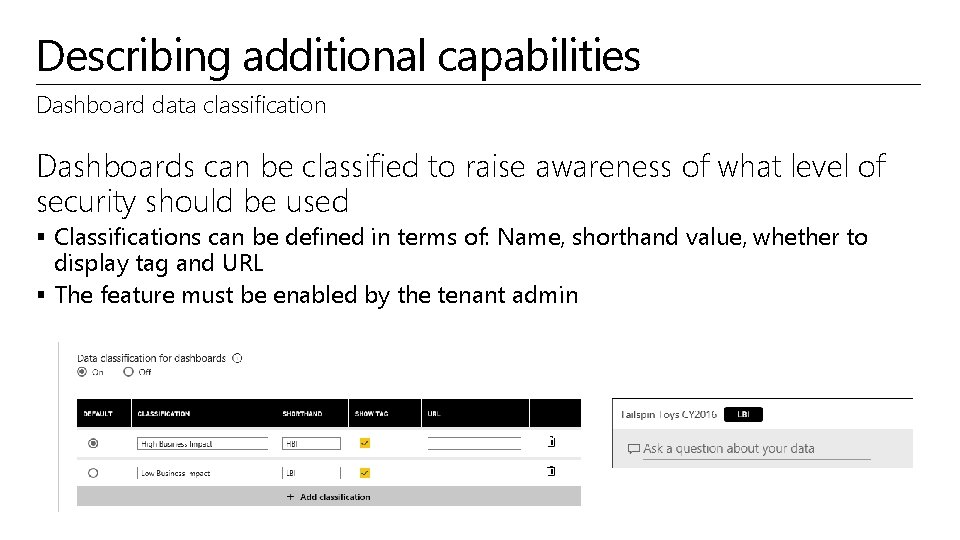
Describing additional capabilities Dashboard data classification Dashboards can be classified to raise awareness of what level of security should be used § Classifications can be defined in terms of: Name, shorthand value, whether to display tag and URL § The feature must be enabled by the tenant admin
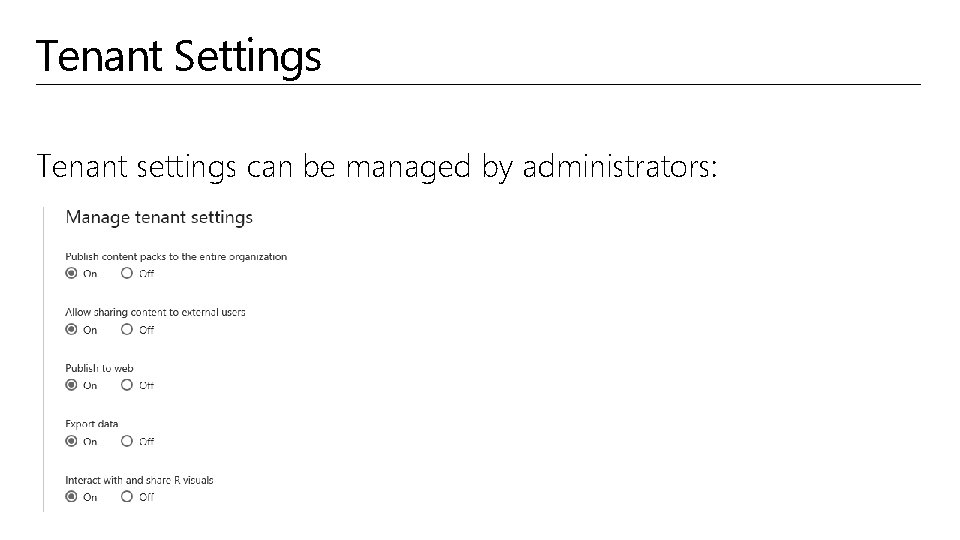
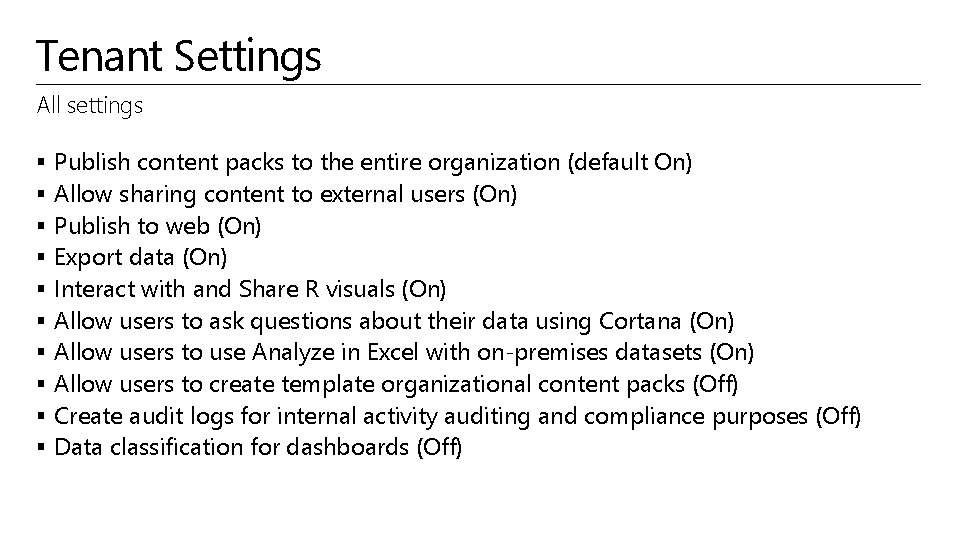
Tenant Settings Tenant settings can be managed by administrators:
Tenant Settings All settings § § § § § Publish content packs to the entire organization (default On) Allow sharing content to external users (On) Publish to web (On) Export data (On) Interact with and Share R visuals (On) Allow users to ask questions about their data using Cortana (On) Allow users to use Analyze in Excel with on-premises datasets (On) Allow users to create template organizational content packs (Off) Create audit logs for internal activity auditing and compliance purposes (Off) Data classification for dashboards (Off)
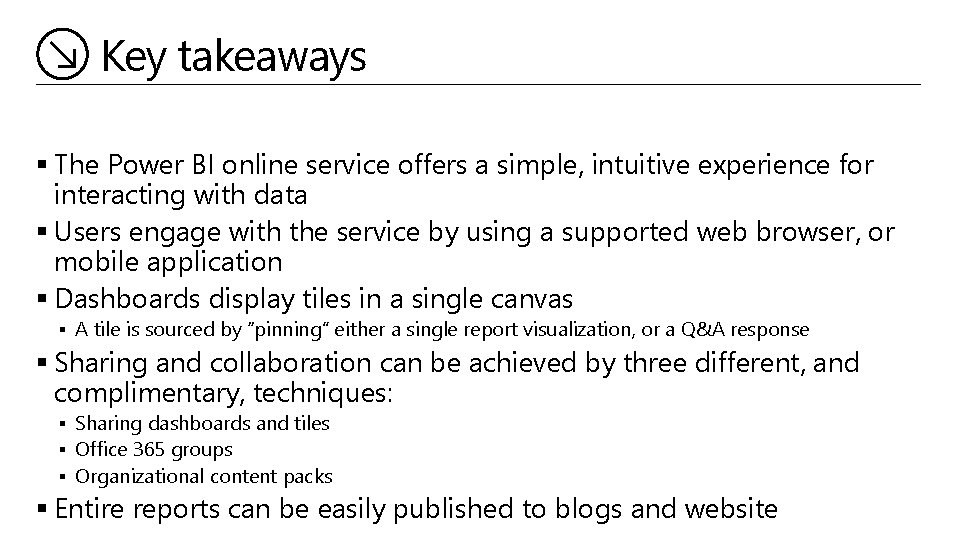
Key takeaways § The Power BI online service offers a simple, intuitive experience for interacting with data § Users engage with the service by using a supported web browser, or mobile application § Dashboards display tiles in a single canvas § A tile is sourced by “pinning” either a single report visualization, or a Q&A response § Sharing and collaboration can be achieved by three different, and complimentary, techniques: § Sharing dashboards and tiles § Office 365 groups § Organizational content packs § Entire reports can be easily published to blogs and website
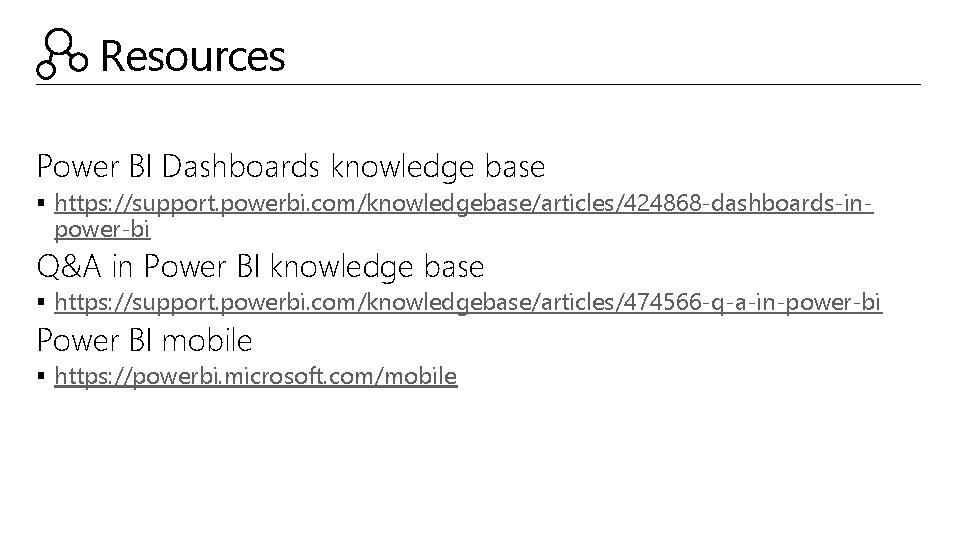
Resources Power BI Dashboards knowledge base § https: //support. powerbi. com/knowledgebase/articles/424868 -dashboards-in- power-bi Q&A in Power BI knowledge base § https: //support. powerbi. com/knowledgebase/articles/474566 -q-a-in-power-bi Power BI mobile § https: //powerbi. microsoft. com/mobile
© 2016 Microsoft Corporation. All rights reserved. Microsoft, Windows, Microsoft Azure, and other product names are or may be registered trademarks and/or trademarks in the U. S. and/or other countries. The information herein is for informational purposes only and represents the current view of Microsoft Corporation as of the date of this presentation. Because Microsoft must respond to changing market conditions, it should not be interpreted to be a commitment on the part of Microsoft, and Microsoft cannot guarantee the accuracy of any information provided after the date of this presentation. MICROSOFT MAKES NO WARRANTIES, EXPRESS, IMPLIED OR STATUTORY, AS TO THE INFORMATION IN THIS PRESENTATION
Microsoft C+E Technology Training Solution Area Data Analytics Solution Business Intelligence Technology Power BI Module 03 Connecting to Power BI Data Sources Peter Myers
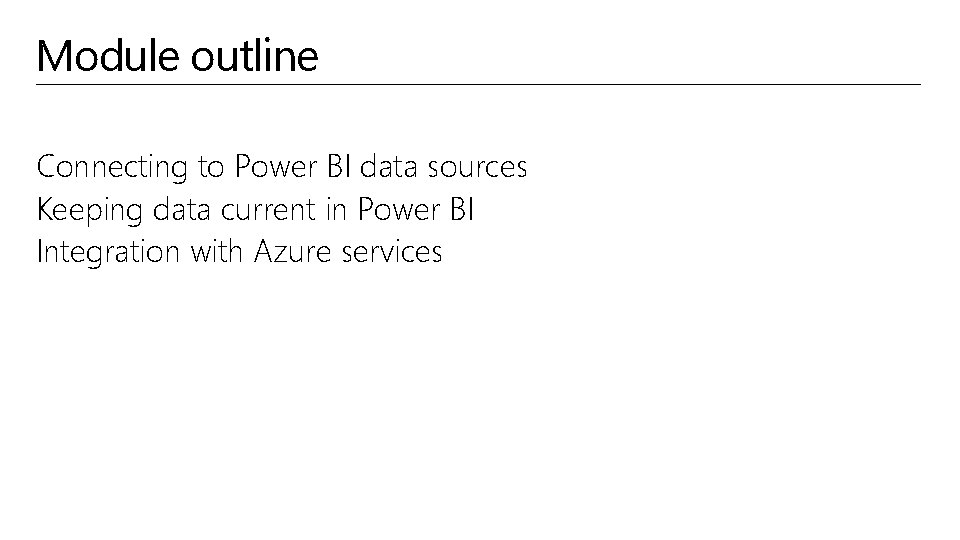
Module outline Connecting to Power BI data sources Keeping data current in Power BI Integration with Azure services
Connecting to Power BI data sources Connecting to data through Power BI is easy, and can be achieved with a variety of data source formats: § Content packs: § My Organization § Services § Files, including: § Power BI Desktop files § Excel workbooks § Databases and data services – cloud and on-premises
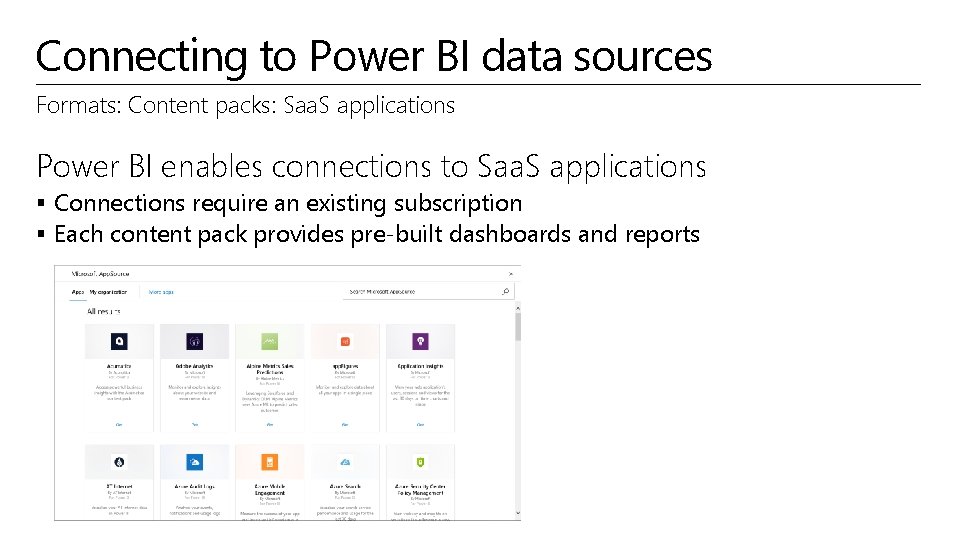
Connecting to Power BI data sources Formats: Content packs: Saa. S applications Power BI enables connections to Saa. S applications § Connections require an existing subscription § Each content pack provides pre-built dashboards and reports
Connecting to Power BI data sources Formats: Files can be uploaded, or connected to on One. Drive for Business, One. Drive Personal or Share. Point Online § Updates to One. Drive files will appear automatically in dashboards and reports Supported file types: § Power BI Desktop files § Excel workbooks § CSV files Maximum size for uploaded files: 250 MB
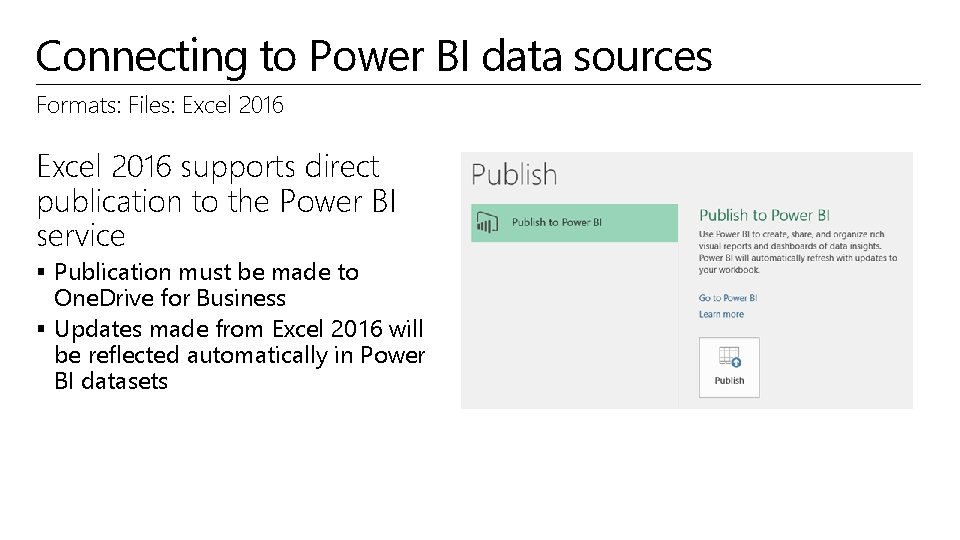
Connecting to Power BI data sources Formats: Files: Excel 2016 supports direct publication to the Power BI service § Publication must be made to One. Drive for Business § Updates made from Excel 2016 will be reflected automatically in Power BI datasets
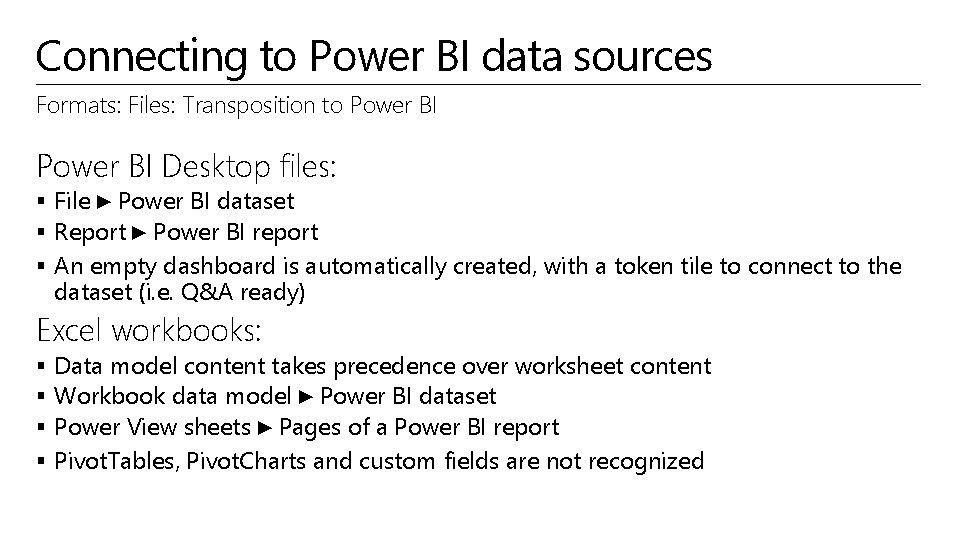
Connecting to Power BI data sources Formats: Files: Transposition to Power BI Desktop files: § File ► Power BI dataset § Report ► Power BI report § An empty dashboard is automatically created, with a token tile to connect to the dataset (i. e. Q&A ready) Excel workbooks: § Data model content takes precedence over worksheet content § Workbook data model ► Power BI dataset § Power View sheets ► Pages of a Power BI report § Pivot. Tables, Pivot. Charts and custom fields are not recognized
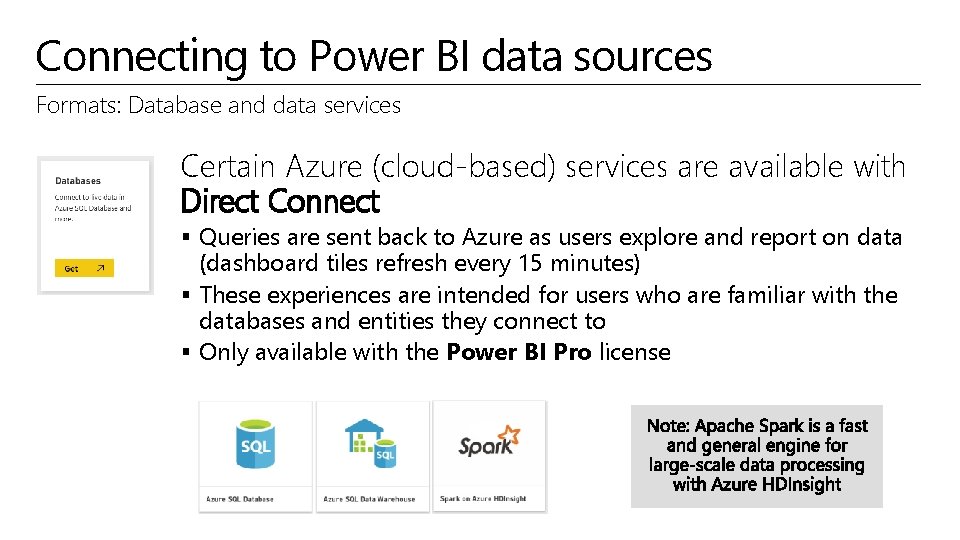
Connecting to Power BI data sources Formats: Database and data services Certain Azure (cloud-based) services are available with Direct Connect § Queries are sent back to Azure as users explore and report on data (dashboard tiles refresh every 15 minutes) § These experiences are intended for users who are familiar with the databases and entities they connect to § Only available with the Power BI Pro license
Connecting to Power BI data sources Formats: Database and data services: SQL Server Analysis Services Live connections to on-premises data can be made to SQL Server Analysis Services § Supported for SQL Server 2012 and later § The user’s identity is passed through, and so read access is required, and role permissions (row filters) will be enforced § Q&A natural language querying is not supported § Only available with the Power BI Pro license
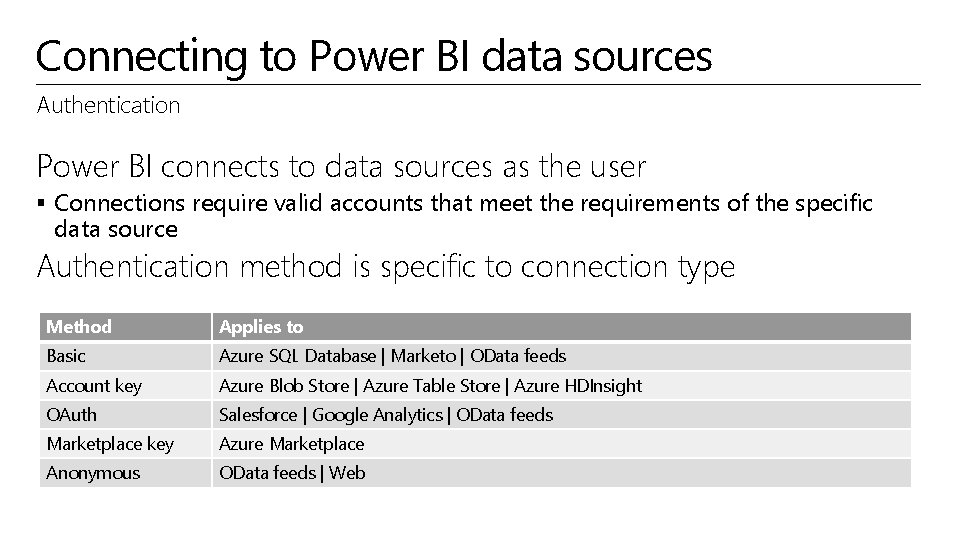
Connecting to Power BI data sources Authentication Power BI connects to data sources as the user § Connections require valid accounts that meet the requirements of the specific data source Authentication method is specific to connection type Method Applies to Basic Azure SQL Database | Marketo | OData feeds Account key Azure Blob Store | Azure Table Store | Azure HDInsight OAuth Salesforce | Google Analytics | OData feeds Marketplace key Azure Marketplace Anonymous OData feeds | Web
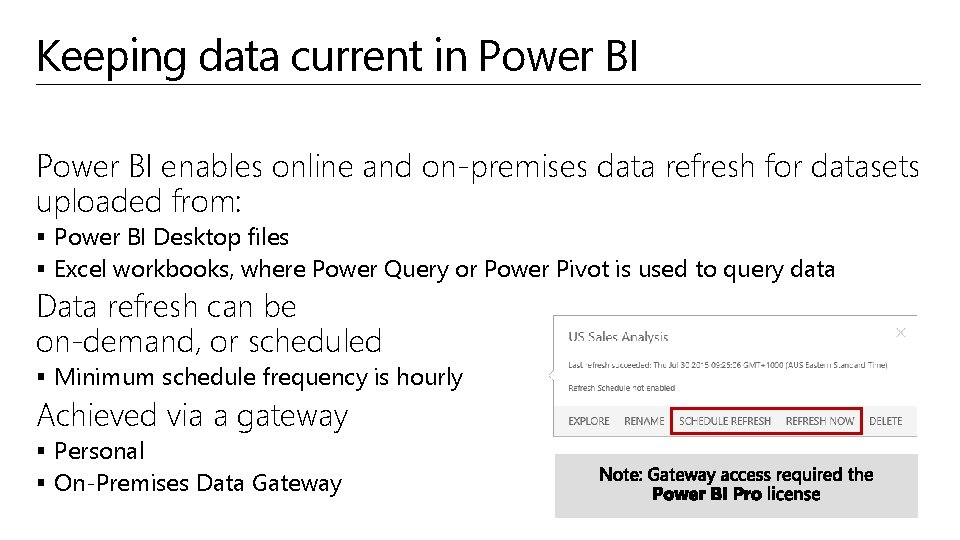
Keeping data current in Power BI enables online and on-premises data refresh for datasets uploaded from: § Power BI Desktop files § Excel workbooks, where Power Query or Power Pivot is used to query data Data refresh can be on-demand, or scheduled § Minimum schedule frequency is hourly Achieved via a gateway § Personal § On-Premises Data Gateway
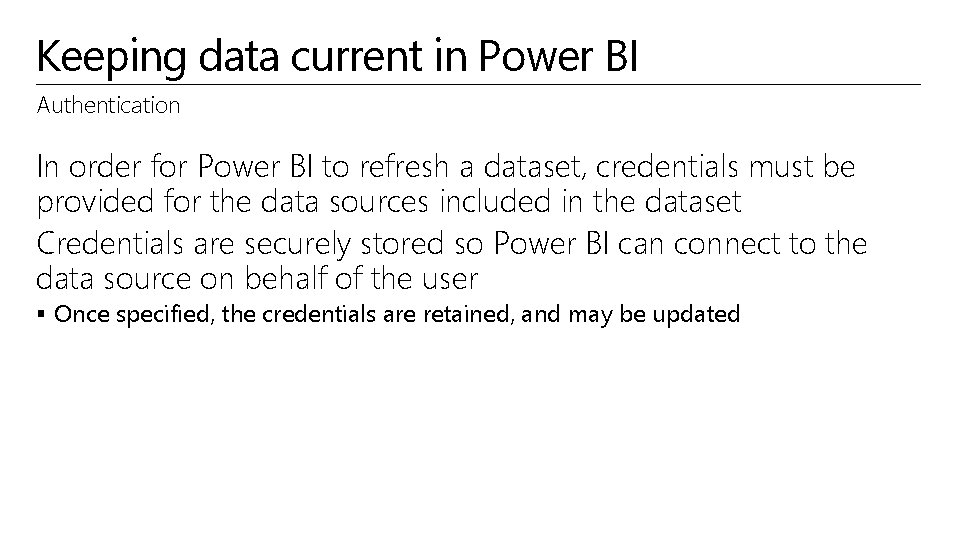
Keeping data current in Power BI Authentication In order for Power BI to refresh a dataset, credentials must be provided for the data sources included in the dataset Credentials are securely stored so Power BI can connect to the data source on behalf of the user § Once specified, the credentials are retained, and may be updated
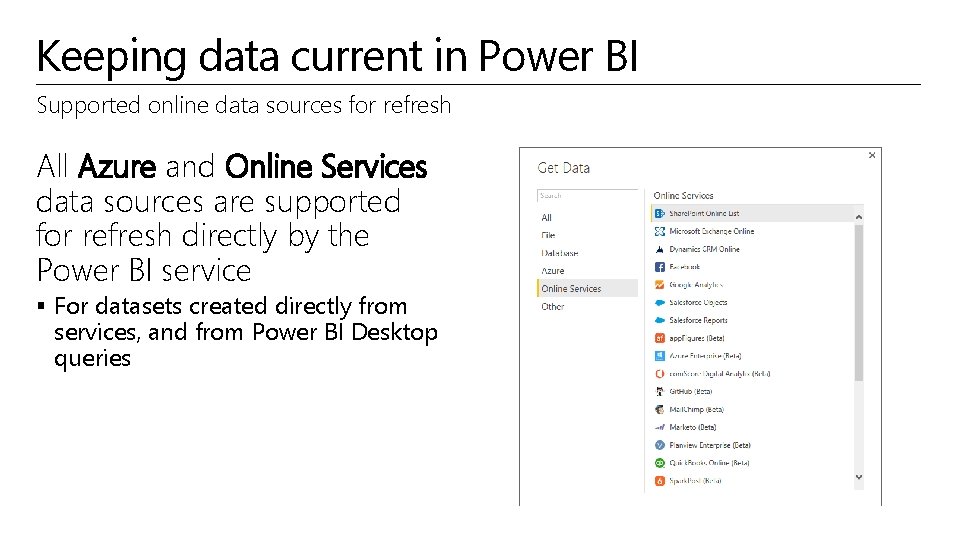
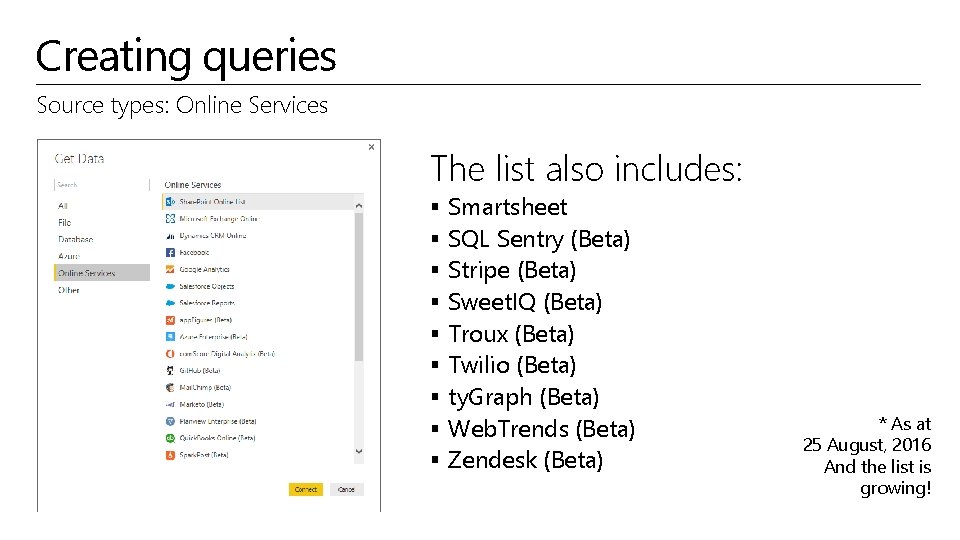
Keeping data current in Power BI Supported online data sources for refresh All Azure and Online Services data sources are supported for refresh directly by the Power BI service § For datasets created directly from services, and from Power BI Desktop queries
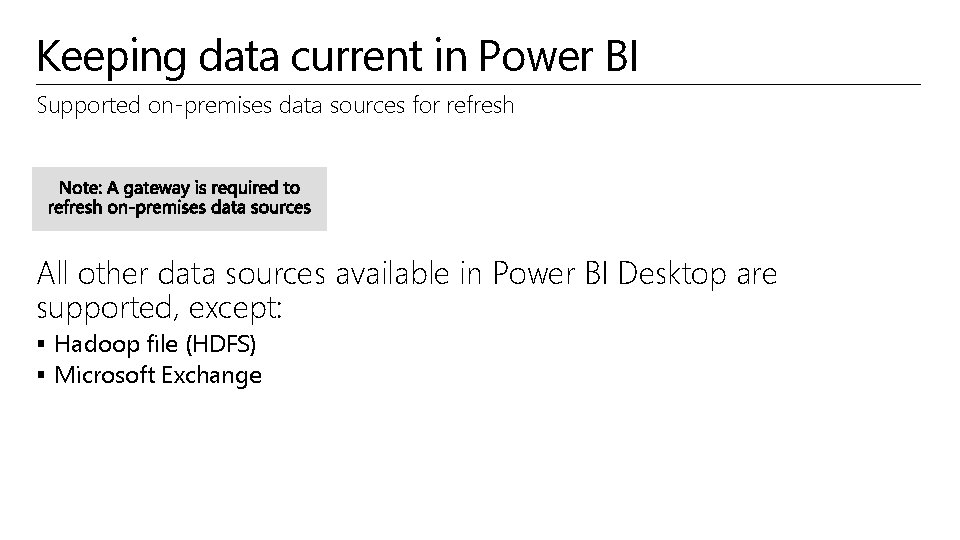
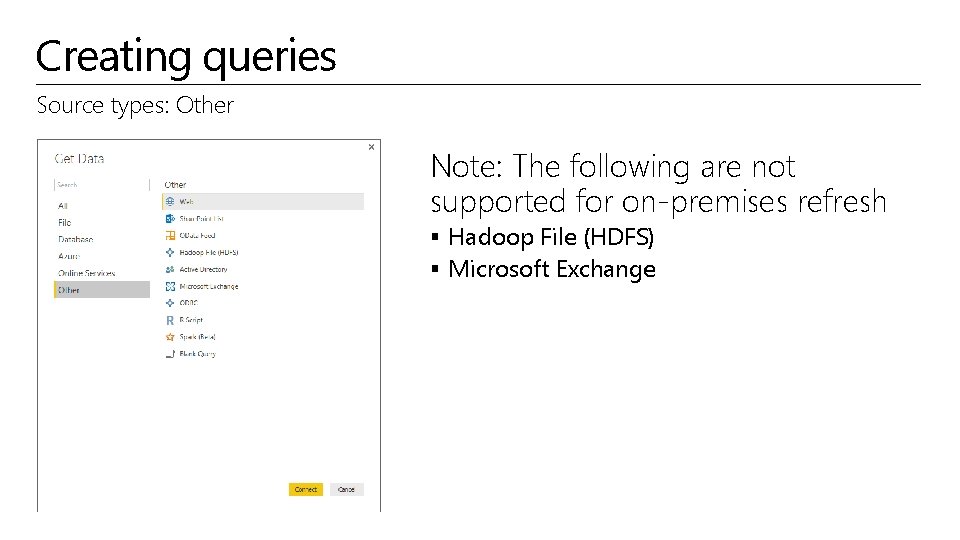
Keeping data current in Power BI Supported on-premises data sources for refresh All other data sources available in Power BI Desktop are supported, except: § Hadoop file (HDFS) § Microsoft Exchange
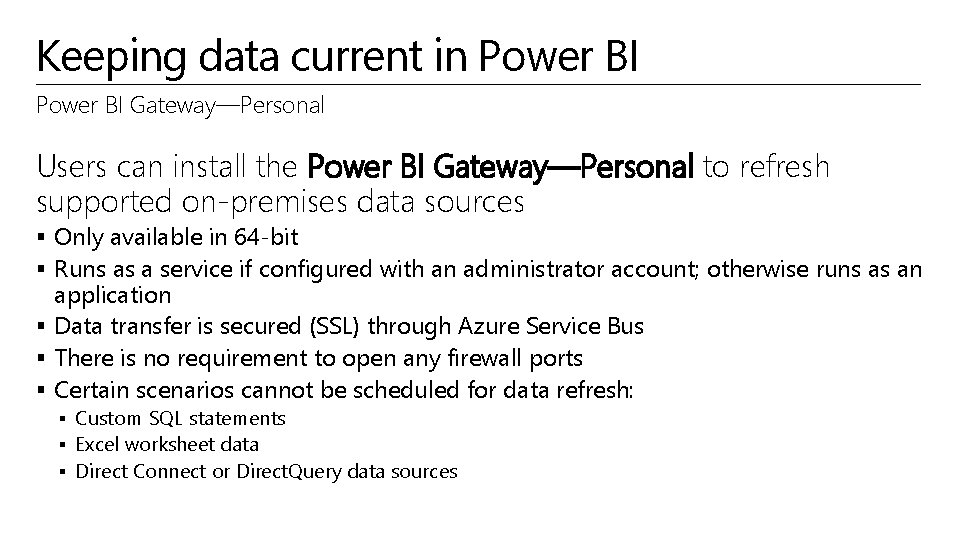
Keeping data current in Power BI Gateway—Personal Users can install the Power BI Gateway—Personal to refresh supported on-premises data sources § Only available in 64 -bit § Runs as a service if configured with an administrator account; otherwise runs as an application § Data transfer is secured (SSL) through Azure Service Bus § There is no requirement to open any firewall ports § Certain scenarios cannot be scheduled for data refresh: § Custom SQL statements § Excel worksheet data § Direct Connect or Direct. Query data sources
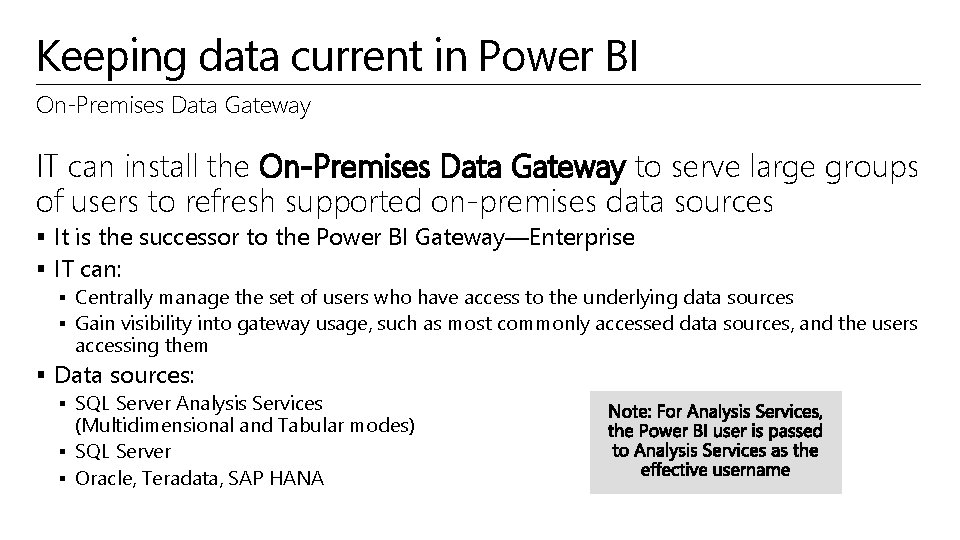
Keeping data current in Power BI On-Premises Data Gateway IT can install the On-Premises Data Gateway to serve large groups of users to refresh supported on-premises data sources § It is the successor to the Power BI Gateway—Enterprise § IT can: § Centrally manage the set of users who have access to the underlying data sources § Gain visibility into gateway usage, such as most commonly accessed data sources, and the users accessing them § Data sources: § SQL Server Analysis Services (Multidimensional and Tabular modes) § SQL Server § Oracle, Teradata, SAP HANA
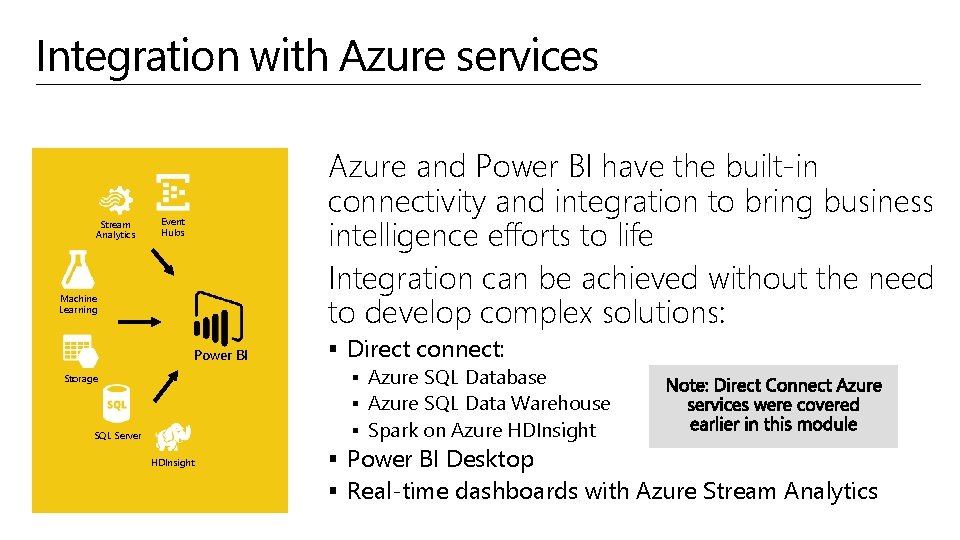
Integration with Azure services Stream Analytics Azure and Power BI have the built-in connectivity and integration to bring business intelligence efforts to life Integration can be achieved without the need to develop complex solutions: Event Hubs Machine Learning Power BI Storage SQL Server HDInsight § Direct connect: § Azure SQL Database § Azure SQL Data Warehouse § Spark on Azure HDInsight § Power BI Desktop § Real-time dashboards with Azure Stream Analytics
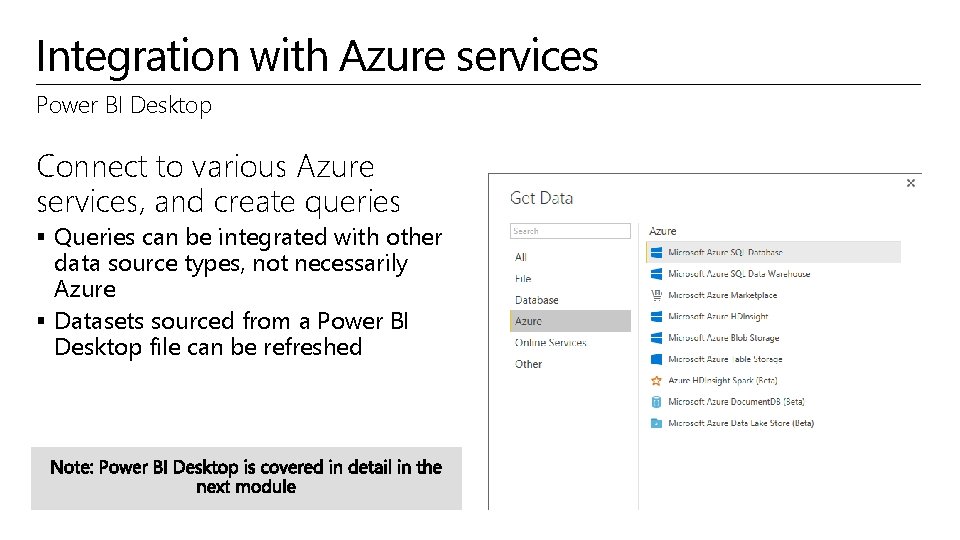
Integration with Azure services Power BI Desktop Connect to various Azure services, and create queries § Queries can be integrated with other data source types, not necessarily Azure § Datasets sourced from a Power BI Desktop file can be refreshed
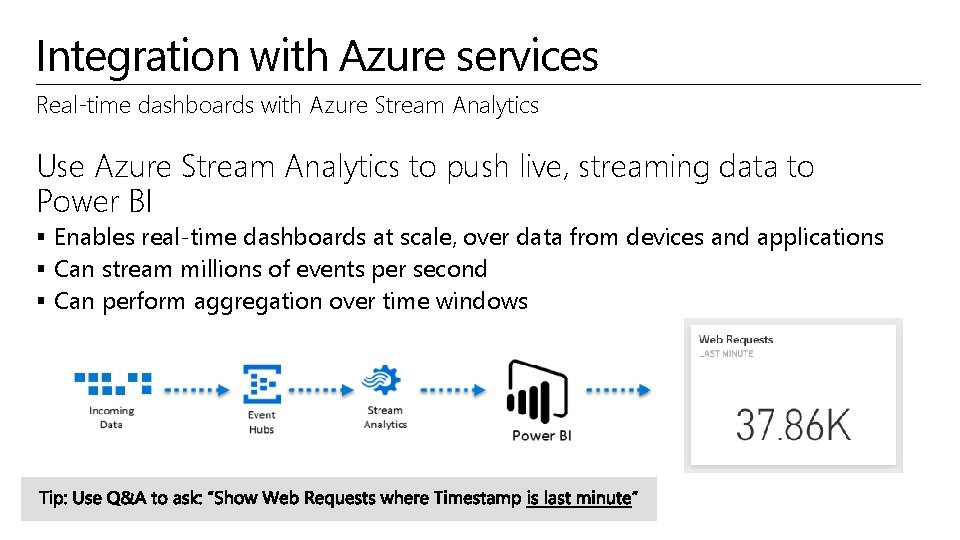
Integration with Azure services Real-time dashboards with Azure Stream Analytics Use Azure Stream Analytics to push live, streaming data to Power BI § Enables real-time dashboards at scale, over data from devices and applications § Can stream millions of events per second § Can perform aggregation over time windows
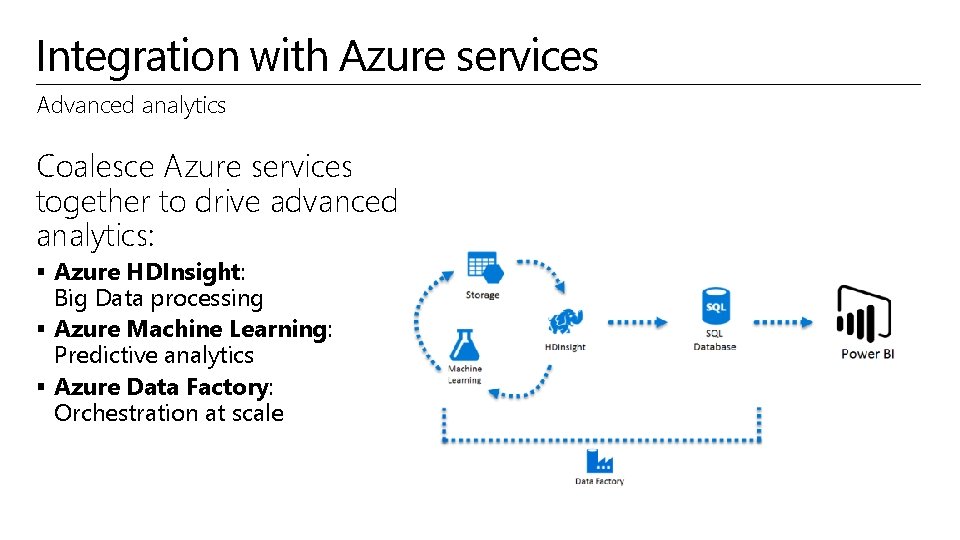
Integration with Azure services Advanced analytics Coalesce Azure services together to drive advanced analytics: § Azure HDInsight: Big Data processing § Azure Machine Learning: Predictive analytics § Azure Data Factory: Orchestration at scale
Key takeaways § Connecting to data through Power BI is easy § Power BI enables connections to Saa. S applications § Files can be uploaded, or connected on One. Drive for Business, One. Drive Personal, or Share. Point Online § Live connections to on-premises data can be made to: § SQL Server Analysis Services (Multidimensional and Tabular modes) § SQL Server § Oracle, Teradata, and SAP HANA § Power BI enables online and on-premises data refresh § Azure and Power BI have the built-in connectivity and integration to easily bring Business Intelligence efforts to life
Resources Power BI Get Data knowledge base § https: //support. powerbi. com/knowledgebase/topics/63369 -get-data Azure and Power BI knowledge base § https: //support. powerbi. com/knowledgebase/articles/568614 -azure-and-power-bi Power BI Security whitepaper § https: //support. powerbi. com/knowledgebase/articles/667840 -power-bi-security § Addresses commonly asked Power BI security questions
© 2016 Microsoft Corporation. All rights reserved. Microsoft, Windows, Microsoft Azure, and other product names are or may be registered trademarks and/or trademarks in the U. S. and/or other countries. The information herein is for informational purposes only and represents the current view of Microsoft Corporation as of the date of this presentation. Because Microsoft must respond to changing market conditions, it should not be interpreted to be a commitment on the part of Microsoft, and Microsoft cannot guarantee the accuracy of any information provided after the date of this presentation. MICROSOFT MAKES NO WARRANTIES, EXPRESS, IMPLIED OR STATUTORY, AS TO THE INFORMATION IN THIS PRESENTATION
Microsoft C+E Technology Training Solution Area Data Analytics Solution Business Intelligence Technology Power BI Module 04 Creating Power BI Desktop Solutions Peter Myers
Module outline Introducing Power BI Desktop Creating queries Configuring relationships Enhancing the model Securing the model Designing reports Publishing to Power BI Describing additional capabilities
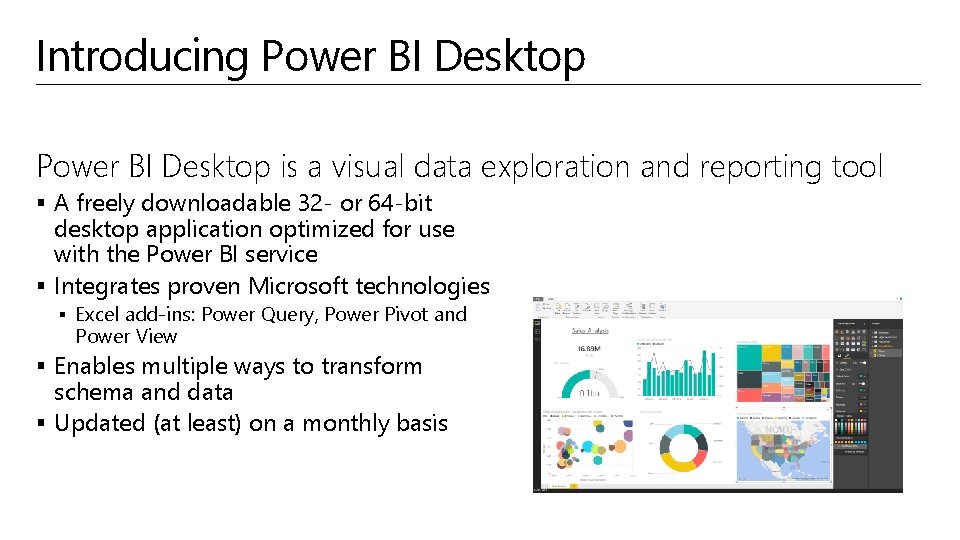
Introducing Power BI Desktop is a visual data exploration and reporting tool § A freely downloadable 32 - or 64 -bit desktop application optimized for use with the Power BI service § Integrates proven Microsoft technologies § Excel add-ins: Power Query, Power Pivot and Power View § Enables multiple ways to transform schema and data § Updated (at least) on a monthly basis
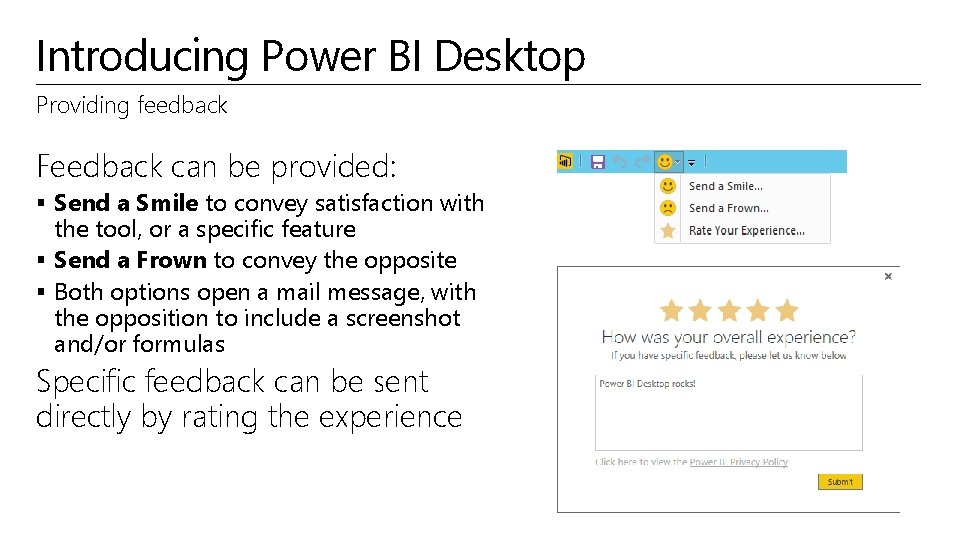
Introducing Power BI Desktop Providing feedback Feedback can be provided: § Send a Smile to convey satisfaction with the tool, or a specific feature § Send a Frown to convey the opposite § Both options open a mail message, with the opposition to include a screenshot and/or formulas Specific feedback can be sent directly by rating the experience
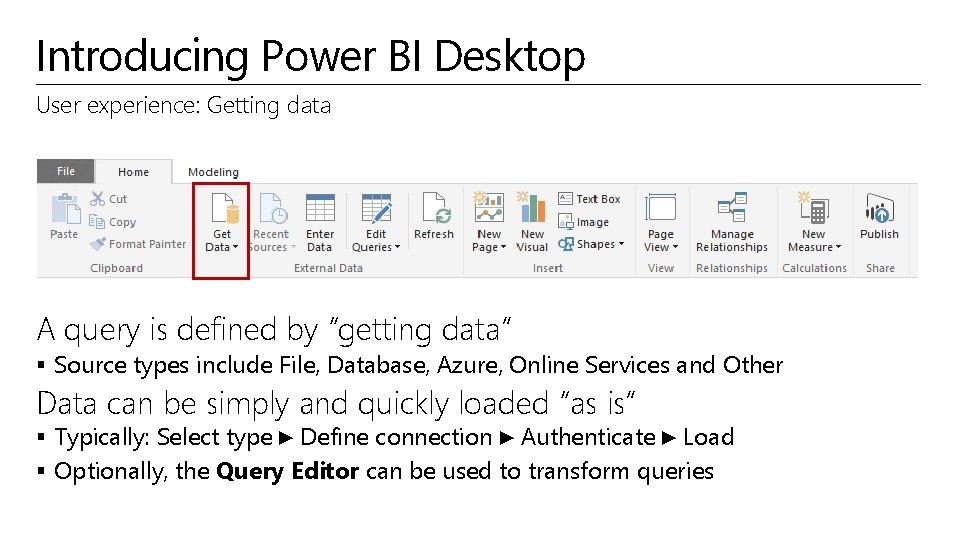
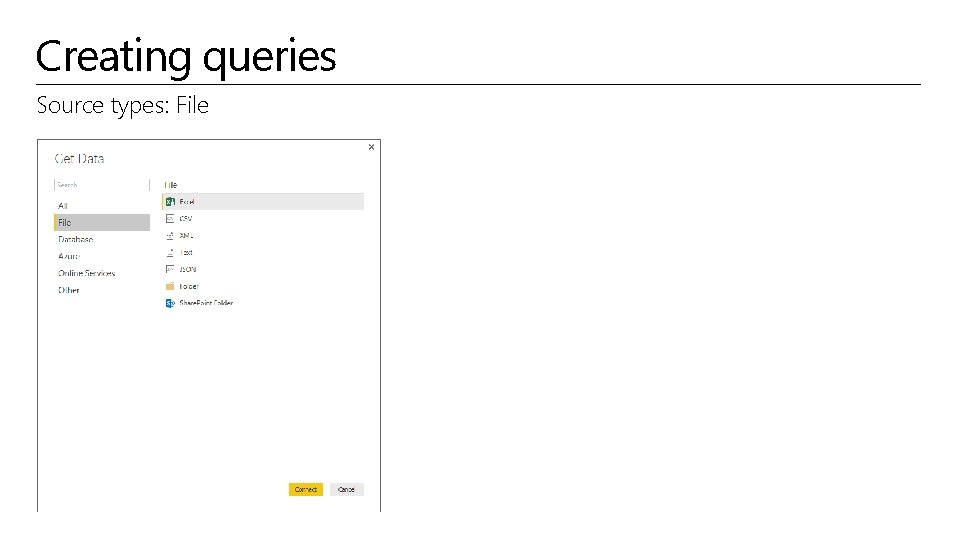
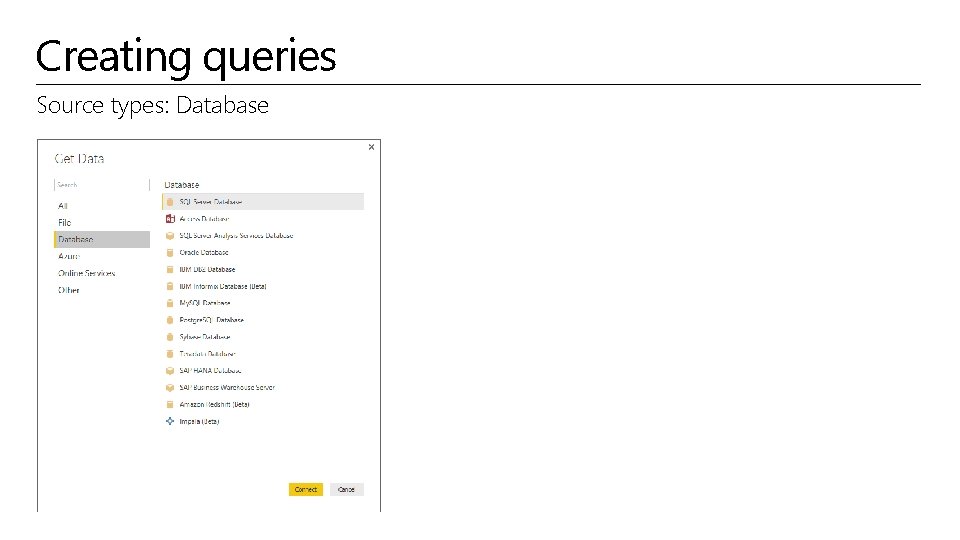
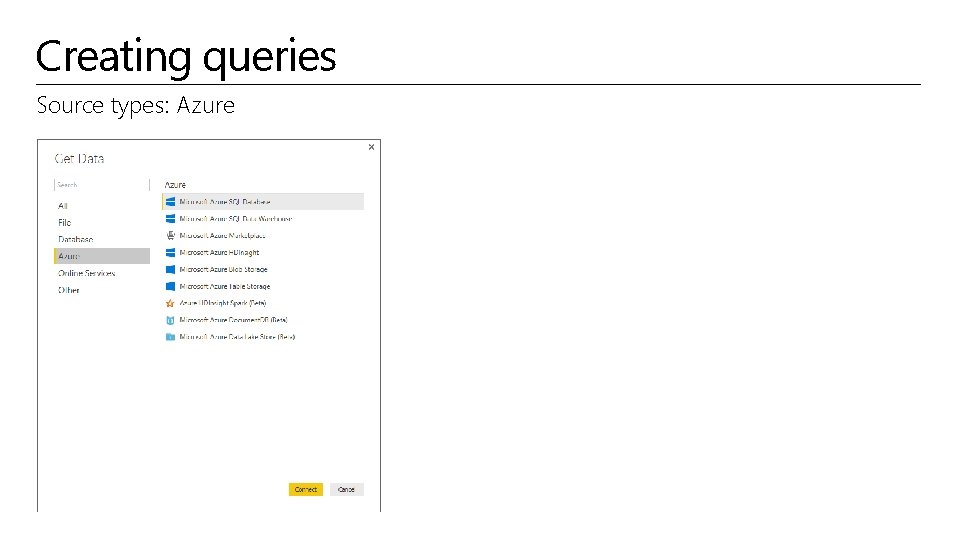
Introducing Power BI Desktop User experience: Getting data A query is defined by “getting data” § Source types include File, Database, Azure, Online Services and Other Data can be simply and quickly loaded “as is” § Typically: Select type ► Define connection ► Authenticate ► Load § Optionally, the Query Editor can be used to transform queries
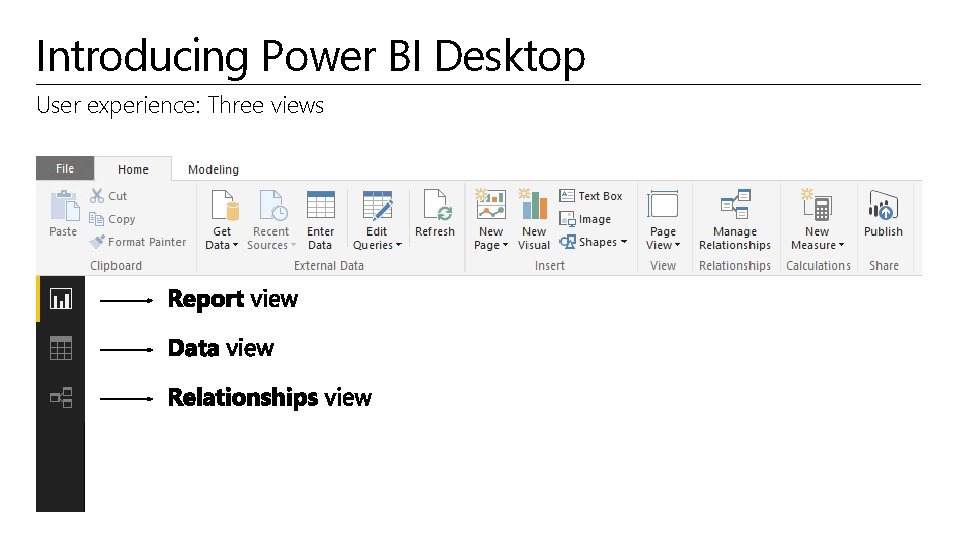
Introducing Power BI Desktop User experience: Three views
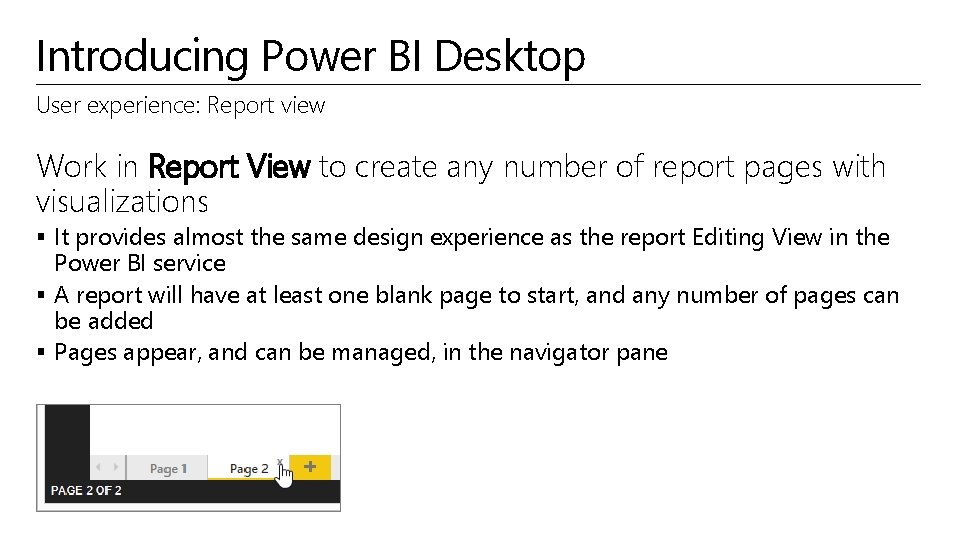
Introducing Power BI Desktop User experience: Report view Work in Report View to create any number of report pages with visualizations § It provides almost the same design experience as the report Editing View in the Power BI service § A report will have at least one blank page to start, and any number of pages can be added § Pages appear, and can be managed, in the navigator pane
Introducing Power BI Desktop User experience: Report view: Continued The intent of the application is to land the user on the report canvas as quickly as possible § Built-in intelligence will often infer relationships, and detect data types and categories § Evidence suggests that most schemas are relatively simple, and so the optimized path is: Load data ► Visualize Many model transformations can be applied while working in Report View § § Change data types, formats, calculation formulas Rename fields Sort columns Manage relationships
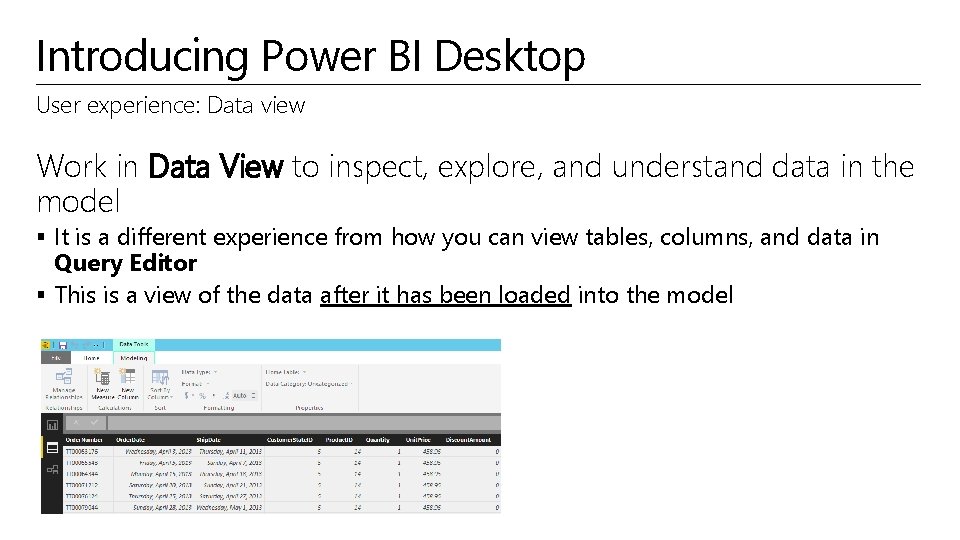
Introducing Power BI Desktop User experience: Data view Work in Data View to inspect, explore, and understand data in the model § It is a different experience from how you can view tables, columns, and data in Query Editor § This is a view of the data after it has been loaded into the model
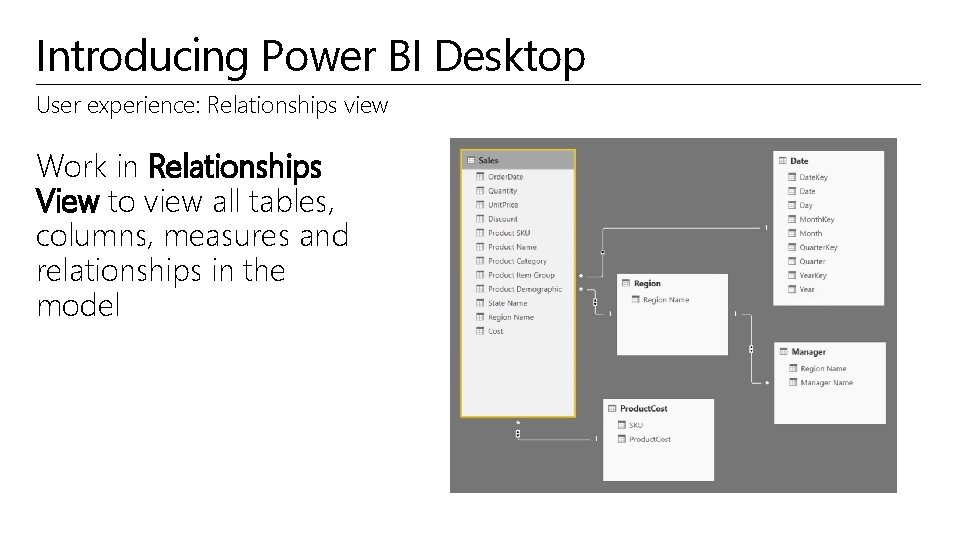
Introducing Power BI Desktop User experience: Relationships view Work in Relationships View to view all tables, columns, measures and relationships in the model
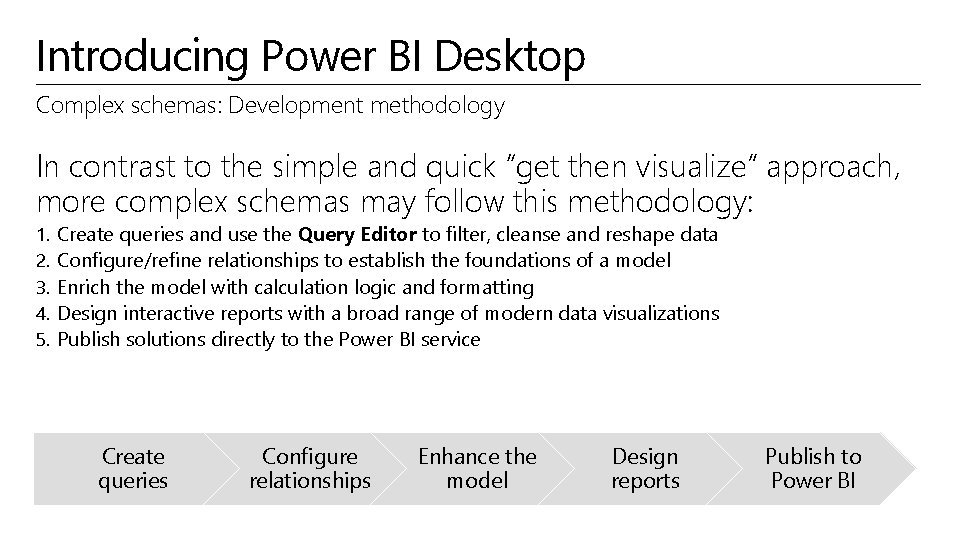
Introducing Power BI Desktop Complex schemas: Development methodology In contrast to the simple and quick “get then visualize” approach, more complex schemas may follow this methodology: 1. 2. 3. 4. 5. Create queries and use the Query Editor to filter, cleanse and reshape data Configure/refine relationships to establish the foundations of a model Enrich the model with calculation logic and formatting Design interactive reports with a broad range of modern data visualizations Publish solutions directly to the Power BI service Create queries Configure relationships Enhance the model Design reports Publish to Power BI
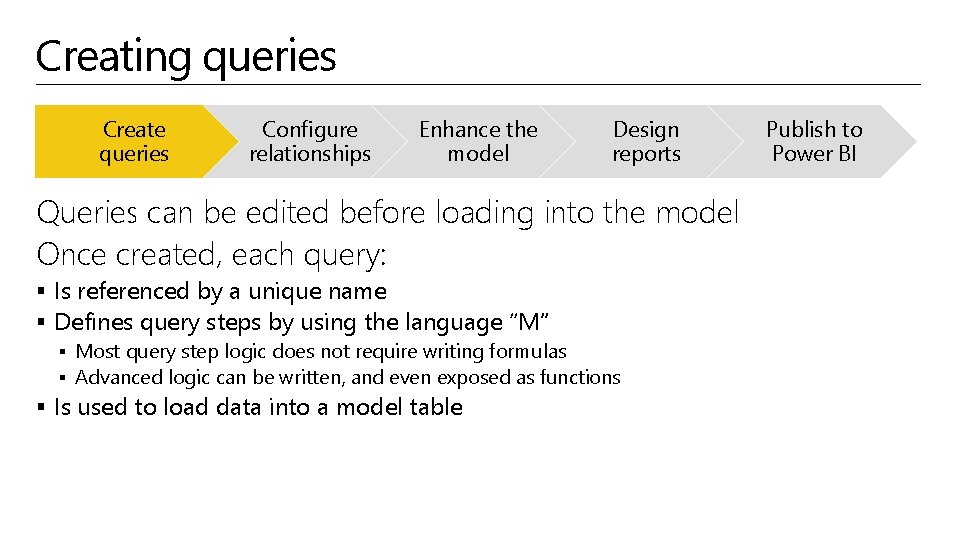
Creating queries Create queries Configure relationships Enhance the model Design reports Queries can be edited before loading into the model Once created, each query: § Is referenced by a unique name § Defines query steps by using the language “M” § Most query step logic does not require writing formulas § Advanced logic can be written, and even exposed as functions § Is used to load data into a model table Publish to Power BI
Creating queries Source types: File
Creating queries Source types: Database
Creating queries Source types: Azure
Creating queries Source types: Online Services The list also includes: § § § § § Smartsheet SQL Sentry (Beta) Stripe (Beta) Sweet. IQ (Beta) Troux (Beta) Twilio (Beta) ty. Graph (Beta) Web. Trends (Beta) Zendesk (Beta) * As at 25 August, 2016 And the list is growing!
Creating queries Source types: Other Note: The following are not supported for on-premises refresh § Hadoop File (HDFS) § Microsoft Exchange
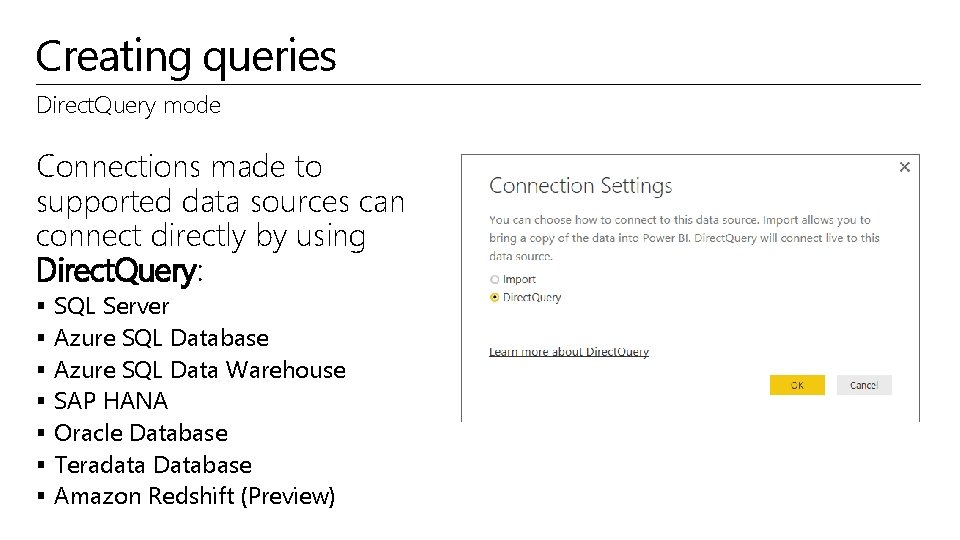
Creating queries Direct. Query mode Connections made to supported data sources can connect directly by using Direct. Query: § § § § SQL Server Azure SQL Database Azure SQL Data Warehouse SAP HANA Oracle Database Teradata Database Amazon Redshift (Preview)
Creating queries Direct. Query mode: Continued When published to the Power BI Service: § Until credentials are supplied, opening a published report or exploring a dataset created with a Direct. Query connection to an online service results in an error § For on-premises data sources that use Direct. Query, an On-Premises Data Gateway must be installed and the data sources must be registered to establish a data connection Benefits: § Allows building visualizations over very large datasets § Reports always use current data
Creating queries Directy. Query mode: Continued Limitations: § § All tables must come from a single database The Query Editor query cannot be overly complex DAX formula are restricted to a subset of the DAX functions Relationship filtering is limited to a single direction, rather than both directions § If enabled, a preview feature allows cross filtering in both directions § The data type of a column cannot be changed § Q&A is not supported § Quick Insights are not available
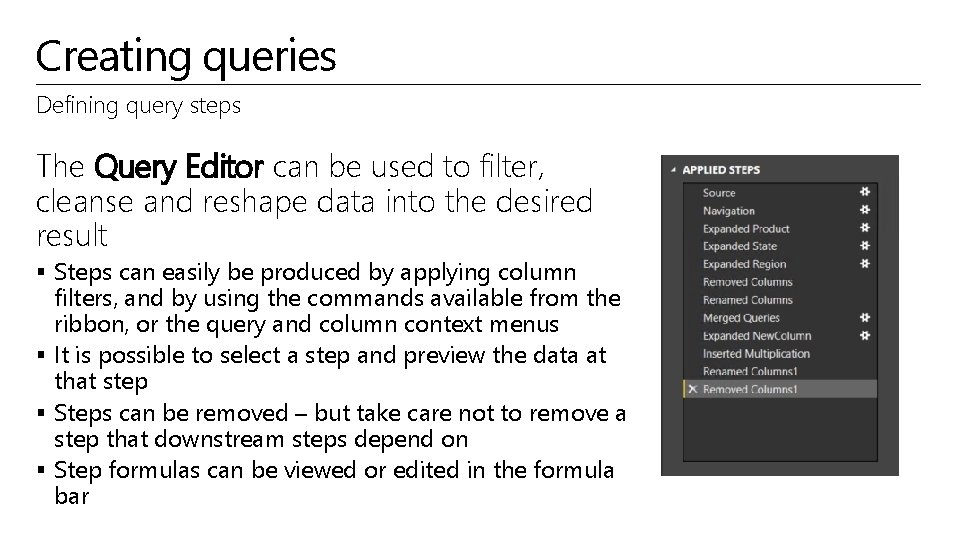
Creating queries Defining query steps The Query Editor can be used to filter, cleanse and reshape data into the desired result § Steps can easily be produced by applying column filters, and by using the commands available from the ribbon, or the query and column context menus § It is possible to select a step and preview the data at that step § Steps can be removed – but take care not to remove a step that downstream steps depend on § Step formulas can be viewed or edited in the formula bar
Creating queries Defining query steps: Commands Numerous commands are available on the Query Editor ribbons and context menus to: § § § Manage columns Reduce rows, including removing errors Transform Split Add columns, by using formulas As the editor experience is WYSIWYG, users can easily experiment and roll-back changes
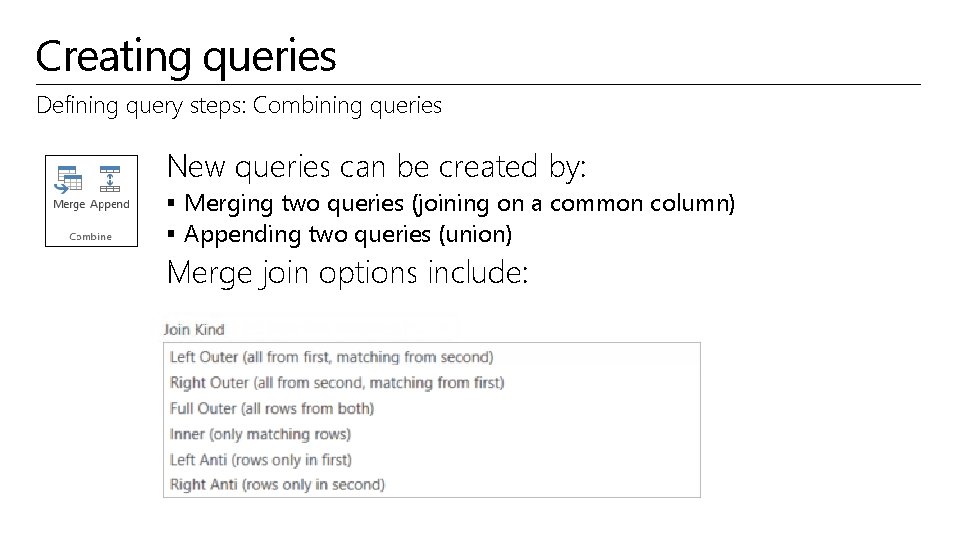
Creating queries Defining query steps: Combining queries New queries can be created by: § Merging two queries (joining on a common column) § Appending two queries (union) Merge join options include:
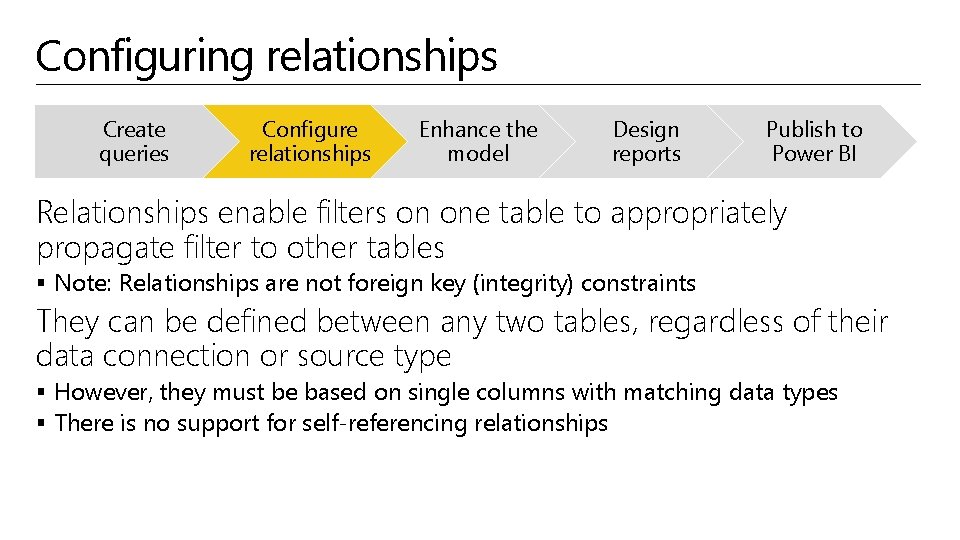
Configuring relationships Create queries Configure relationships Enhance the model Design reports Publish to Power BI Relationships enable filters on one table to appropriately propagate filter to other tables § Note: Relationships are not foreign key (integrity) constraints They can be defined between any two tables, regardless of their data connection or source type § However, they must be based on single columns with matching data types § There is no support for self-referencing relationships
Configuring relationships Advanced options It is possible to define multiple relationship paths between two tables § One relationship must be active, and will be used by default during model browsing § The remaining relationships are inactive, and can be used explicitly in model calculations
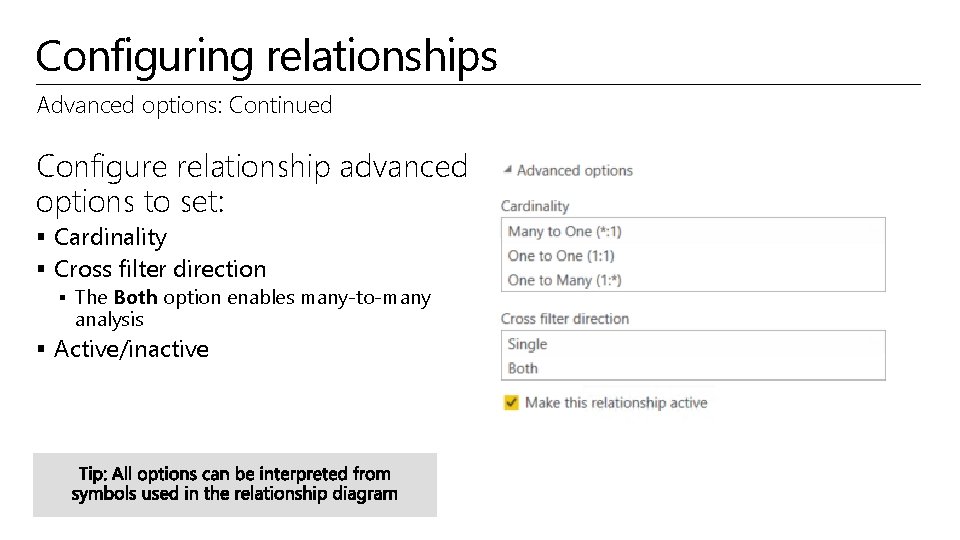
Configuring relationships Advanced options: Continued Configure relationship advanced options to set: § Cardinality § Cross filter direction § The Both option enables many-to-many analysis § Active/inactive
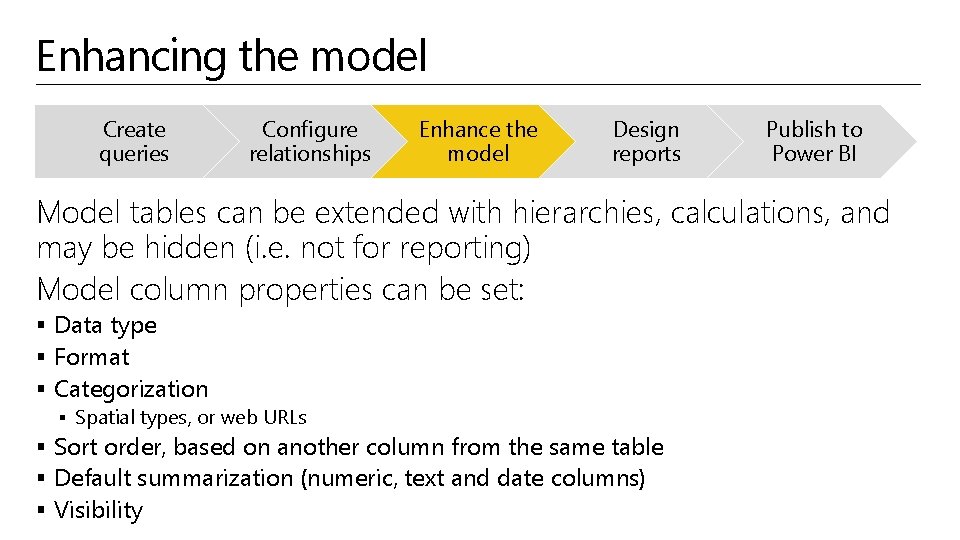
Enhancing the model Create queries Configure relationships Enhance the model Design reports Publish to Power BI Model tables can be extended with hierarchies, calculations, and may be hidden (i. e. not for reporting) Model column properties can be set: § Data type § Format § Categorization § Spatial types, or web URLs § Sort order, based on another column from the same table § Default summarization (numeric, text and date columns) § Visibility
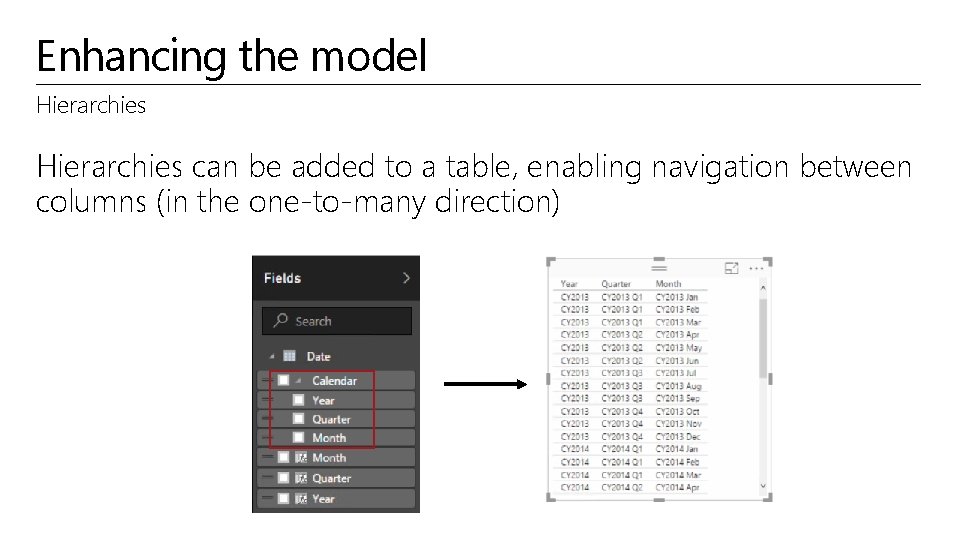
Enhancing the model Hierarchies can be added to a table, enabling navigation between columns (in the one-to-many direction)
Enhancing the model Calculations There are three different types of calculations, and each are defined by using DAX: § Calculated columns § Calculated tables § Measures DAX = Data Analysis EXpressions (DAX), consisting of: § § § Excel functions (~80 functions) Table functions Aggregate functions Relationship navigation functions Context modification functions Time Intelligence functions
Enhancing the model Calculations: Calculated columns Define Calculated Columns to add new columns to tables Column values for each row are materialized and stored in the model § If possible, to reduce the model size, avoid creating them Column values are recalculated when: § The table is refreshed § Formula dependencies are refreshed
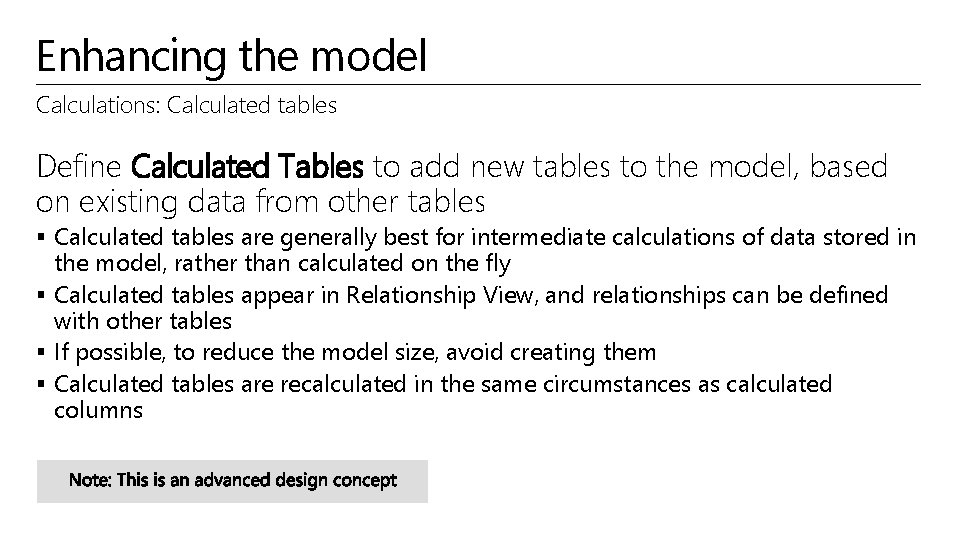
Enhancing the model Calculations: Calculated tables Define Calculated Tables to add new tables to the model, based on existing data from other tables § Calculated tables are generally best for intermediate calculations of data stored in the model, rather than calculated on the fly § Calculated tables appear in Relationship View, and relationships can be defined with other tables § If possible, to reduce the model size, avoid creating them § Calculated tables are recalculated in the same circumstances as calculated columns
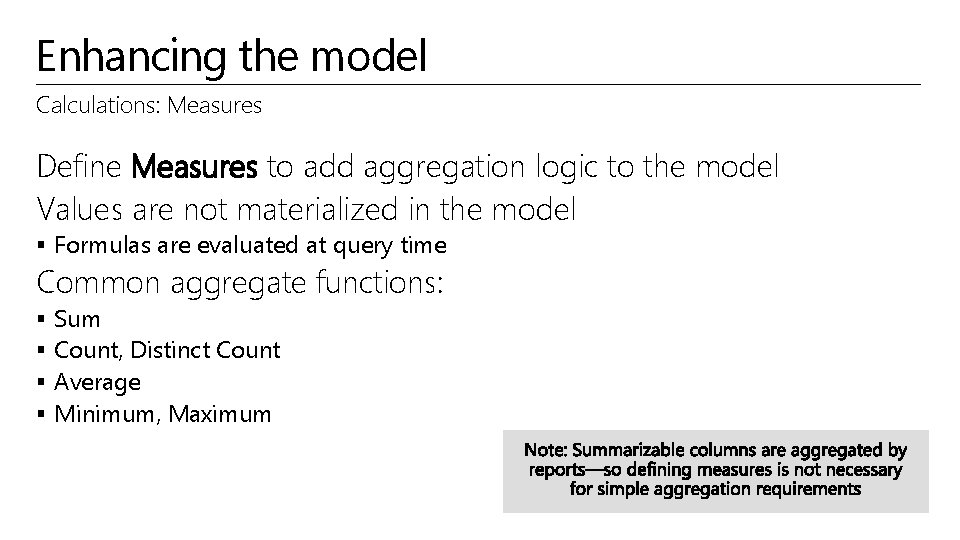
Enhancing the model Calculations: Measures Define Measures to add aggregation logic to the model Values are not materialized in the model § Formulas are evaluated at query time Common aggregate functions: § § Sum Count, Distinct Count Average Minimum, Maximum
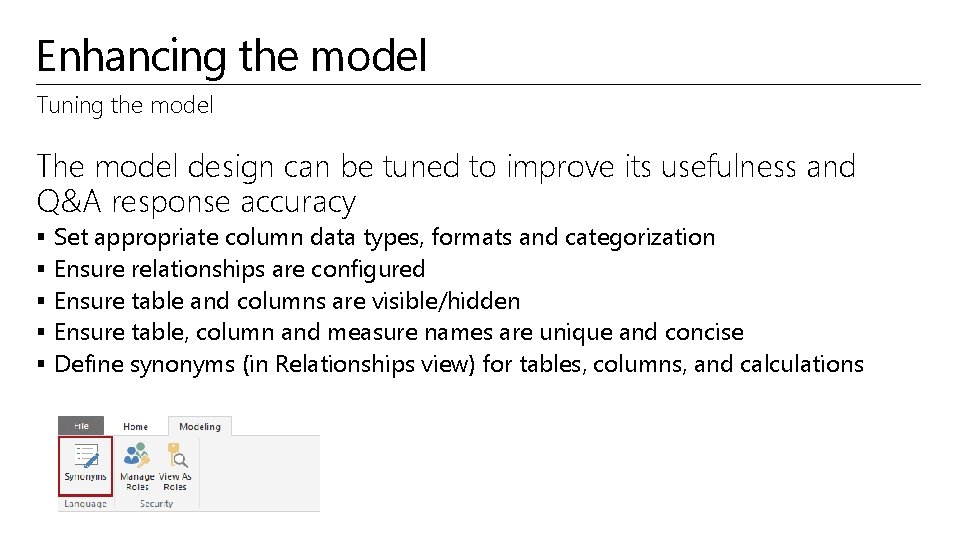
Enhancing the model Tuning the model The model design can be tuned to improve its usefulness and Q&A response accuracy § § § Set appropriate column data types, formats and categorization Ensure relationships are configured Ensure table and columns are visible/hidden Ensure table, column and measure names are unique and concise Define synonyms (in Relationships view) for tables, columns, and calculations
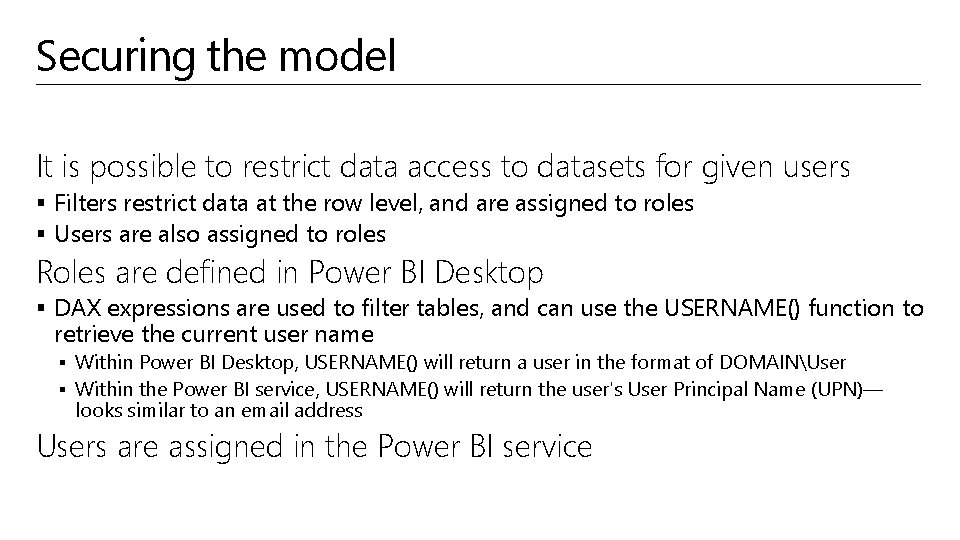
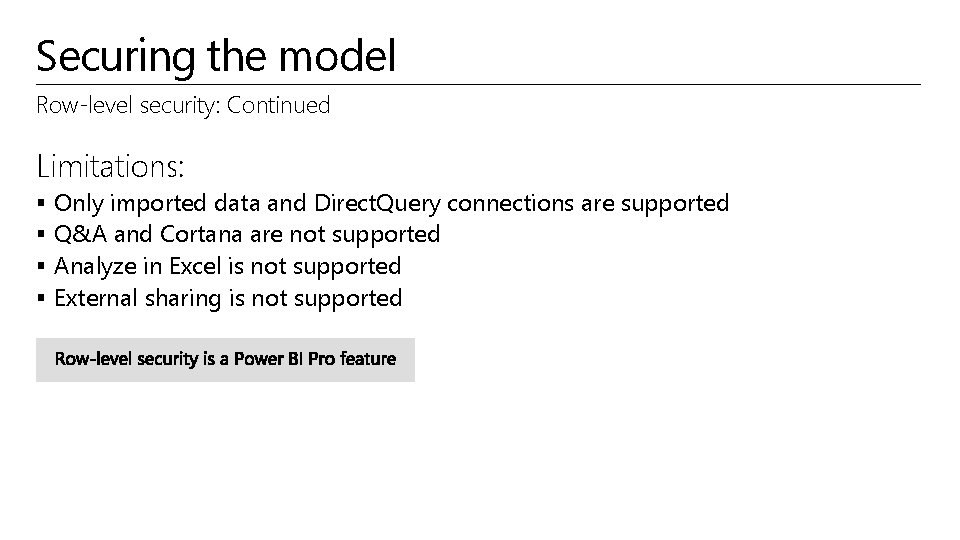
Securing the model It is possible to restrict data access to datasets for given users § Filters restrict data at the row level, and are assigned to roles § Users are also assigned to roles Roles are defined in Power BI Desktop § DAX expressions are used to filter tables, and can use the USERNAME() function to retrieve the current user name § Within Power BI Desktop, USERNAME() will return a user in the format of DOMAINUser § Within the Power BI service, USERNAME() will return the user's User Principal Name (UPN)— looks similar to an email address Users are assigned in the Power BI service
Securing the model Row-level security: Continued Limitations: § § Only imported data and Direct. Query connections are supported Q&A and Cortana are not supported Analyze in Excel is not supported External sharing is not supported
Designing reports Create queries Configure relationships Enhance the model Design reports Publish to Power BI Reports can be designed based on the visible model interface The design experience is almost the same as is available in the Power BI online service § Text boxes, images and shapes can be added § Text boxes can contain hyperlinks
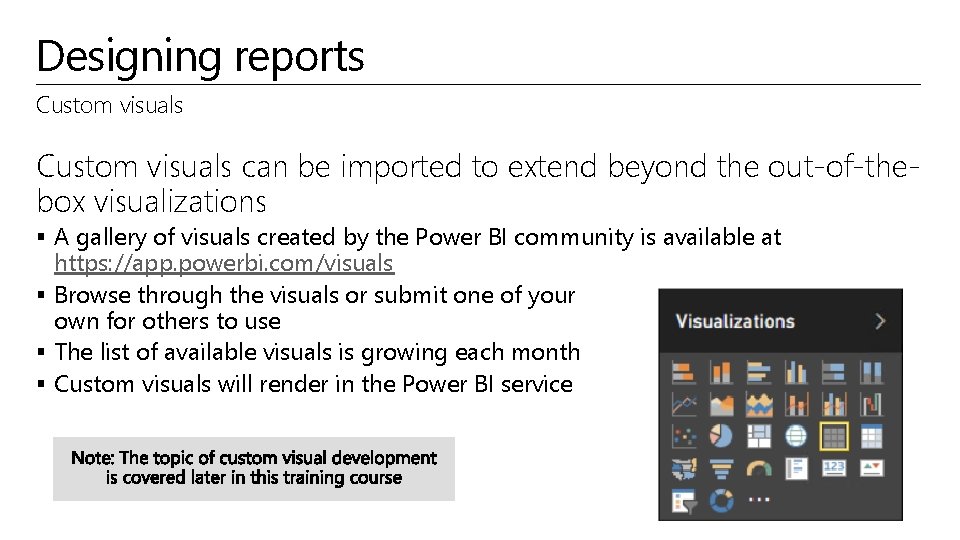
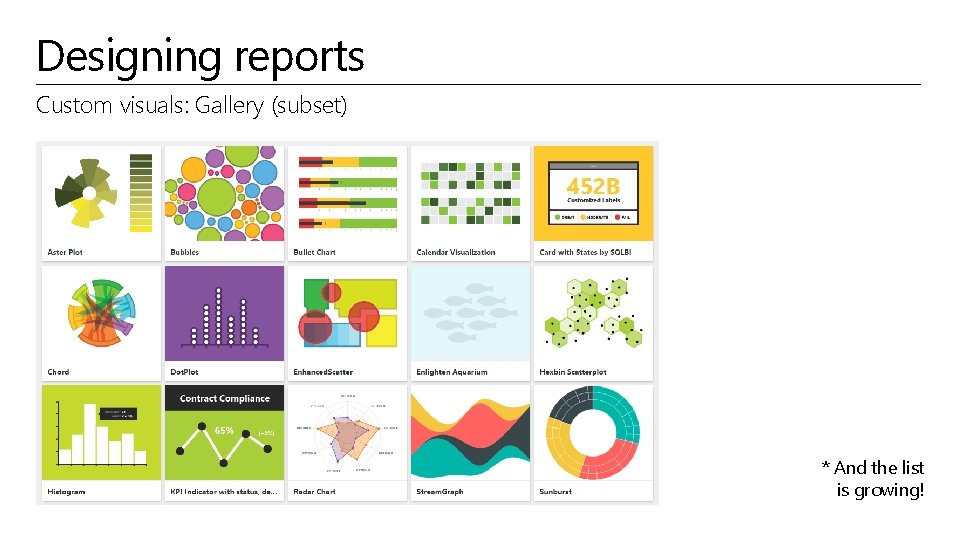
Designing reports Custom visuals can be imported to extend beyond the out-of-thebox visualizations § A gallery of visuals created by the Power BI community is available at https: //app. powerbi. com/visuals § Browse through the visuals or submit one of your own for others to use § The list of available visuals is growing each month § Custom visuals will render in the Power BI service
Designing reports Custom visuals: Gallery (subset) * And the list is growing!
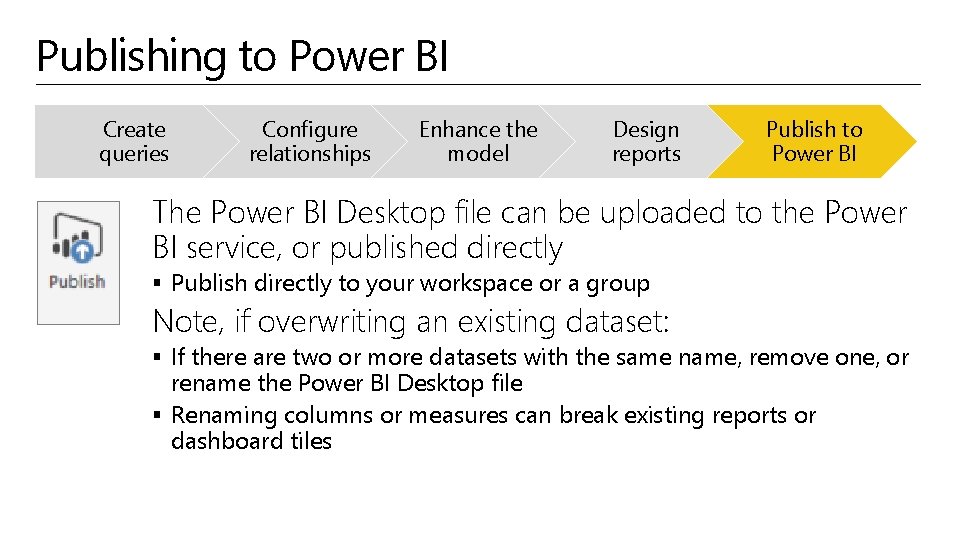
Publishing to Power BI Create queries Configure relationships Enhance the model Design reports Publish to Power BI The Power BI Desktop file can be uploaded to the Power BI service, or published directly § Publish directly to your workspace or a group Note, if overwriting an existing dataset: § If there are two or more datasets with the same name, remove one, or rename the Power BI Desktop file § Renaming columns or measures can break existing reports or dashboard tiles
Publishing to Power BI Continued If row-level security roles have been defined, once published, assign users to roles
Describing additional capabilities Additional capabilities: § § § Query parameters Power BI template files Running R scripts Generating R visuals Shape maps (Preview)
Describing additional capabilities Query parameters allow users to easily make parts of their reports and data models depend on one or more parameter values Parameters are defined in terms of: § Name, Description, Type, Allowed Values, Default and Current Value Parameters are like other queries, and can be referenced from queries and loaded to the data model
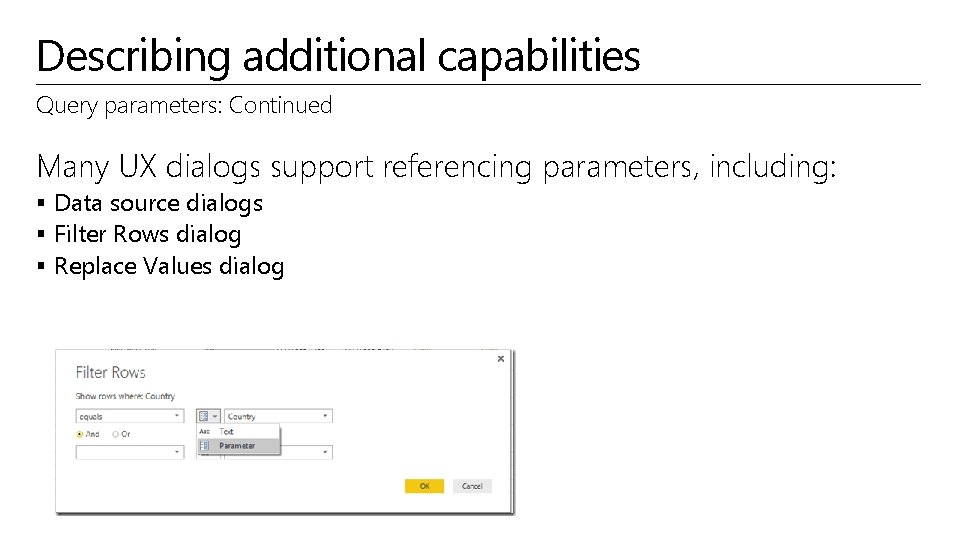
Describing additional capabilities Query parameters: Continued Many UX dialogs support referencing parameters, including: § Data source dialogs § Filter Rows dialog § Replace Values dialog
Describing additional capabilities Power BI template files Templates allow users to export the definition of a Power BI Desktop report without including the actual data § Power BI Desktop report = query definitions + data model + report + parameters, if any § Users can easily instantiate a template by using Power BI Desktop, which will ask them for parameter values (if required) and create a new Power BI Desktop report (PBIX file) based upon the contents in the template file (PBIT file)
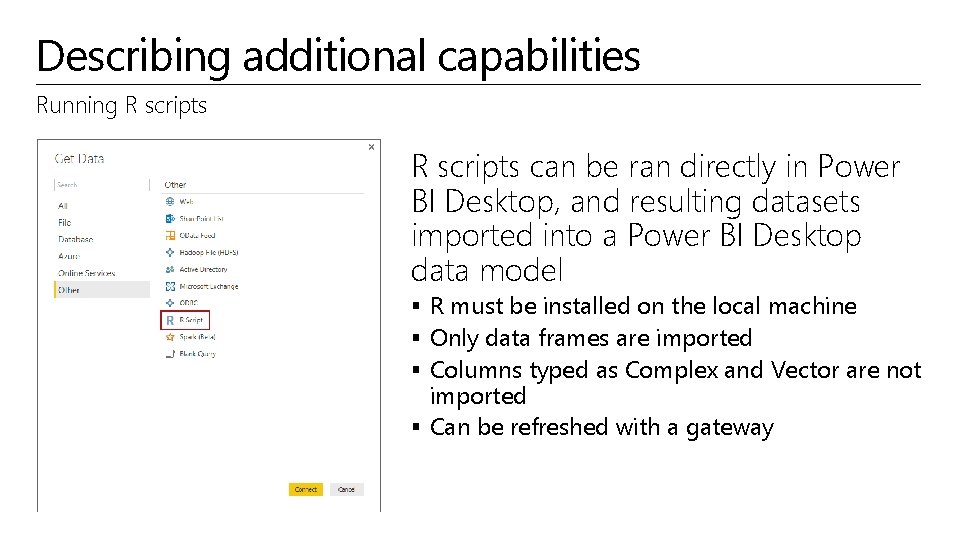
Describing additional capabilities Running R scripts can be ran directly in Power BI Desktop, and resulting datasets imported into a Power BI Desktop data model § R must be installed on the local machine § Only data frames are imported § Columns typed as Complex and Vector are not imported § Can be refreshed with a gateway
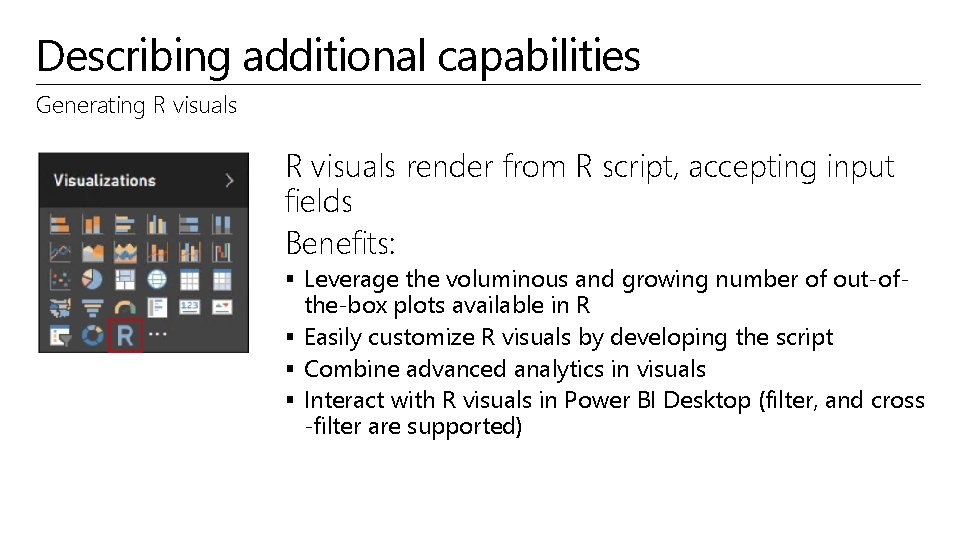
Describing additional capabilities Generating R visuals render from R script, accepting input fields Benefits: § Leverage the voluminous and growing number of out-of- the-box plots available in R § Easily customize R visuals by developing the script § Combine advanced analytics in visuals § Interact with R visuals in Power BI Desktop (filter, and cross -filter are supported)
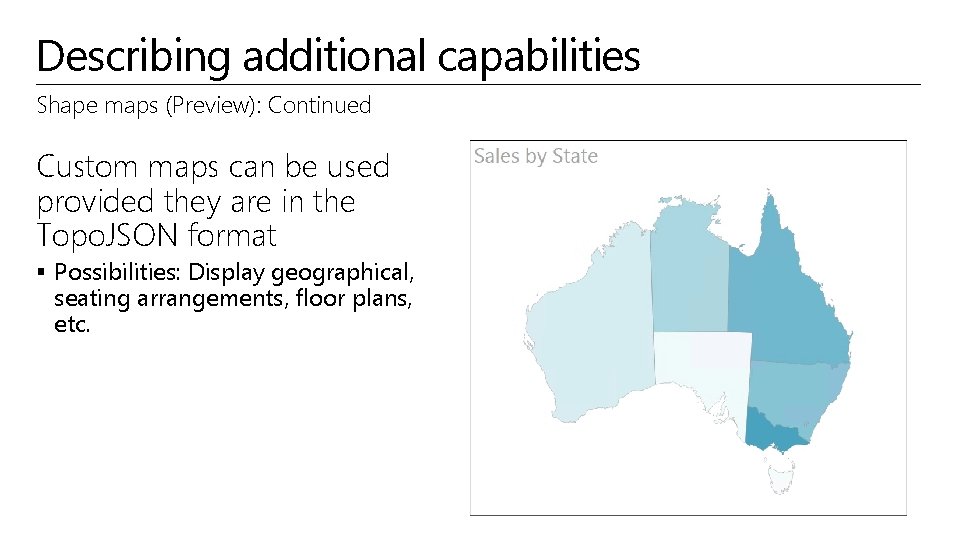
Describing additional capabilities Shape maps (Preview) A Shape Map visual shows relative comparisons of regions on a map by applying different colors to different regions § In contrast to the Map visual, Shape Map cannot show precise geographical locations of data points on a map; instead, its main purpose is to show relative comparisons of regions on a map by coloring them differently
Describing additional capabilities Shape maps (Preview): Continued Custom maps can be used provided they are in the Topo. JSON format § Possibilities: Display geographical, seating arrangements, floor plans, etc.
Key takeaways § Power BI Desktop is a companion desktop application to Power BI § Power BI Desktop is a visual data exploration and reporting tool § The tool enables simple and quick visualization of data § For complex schemas, a development methodology can involve: § § § Creating queries Configuring relationships Enhancing the model with hierarchies and calculations Designing reports, including the use of custom visuals Publishing to Power BI § The user can choose to work in the way that makes sense to them § Power BI Desktop files, once published, can have their data sources refreshed
Resources Power BI Desktop knowledge base § https: //support. powerbi. com/knowledgebase/topics/68530 -power-bi-desktop Tips and tricks for creating reports in Power BI Desktop § https: //support. powerbi. com/knowledgebase/articles/464157 -tips-and-tricks-for- creating-reports-in-power-bi-d DAX Resource Center § “Your one stop shop for all things DAX” § http: //social. technet. microsoft. com/wiki/contents/articles/1088. dax-resource- center. aspx
Resources Power BI Visuals Gallery § https: //app. powerbi. com/visuals
© 2016 Microsoft Corporation. All rights reserved. Microsoft, Windows, Microsoft Azure, and other product names are or may be registered trademarks and/or trademarks in the U. S. and/or other countries. The information herein is for informational purposes only and represents the current view of Microsoft Corporation as of the date of this presentation. Because Microsoft must respond to changing market conditions, it should not be interpreted to be a commitment on the part of Microsoft, and Microsoft cannot guarantee the accuracy of any information provided after the date of this presentation. MICROSOFT MAKES NO WARRANTIES, EXPRESS, IMPLIED OR STATUTORY, AS TO THE INFORMATION IN THIS PRESENTATION
Microsoft C+E Technology Training Solution Area Data Analytics Solution Business Intelligence Technology Power BI Module 05 Power BI For the Developer Peter Myers
Module outline Extending Power BI REST API Custom visuals Azure Power BI Embedded
Extending Power BI Exciting opportunities exist for developers to extend, embed and customize the Power BI experience § § Power BI REST API Integrate Power BI into an app Custom visuals Azure Power BI Embedded
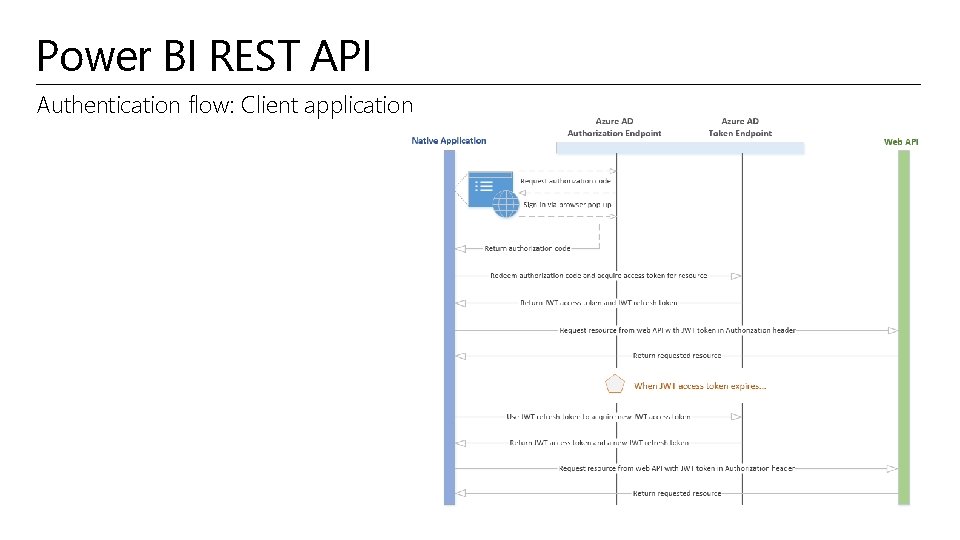
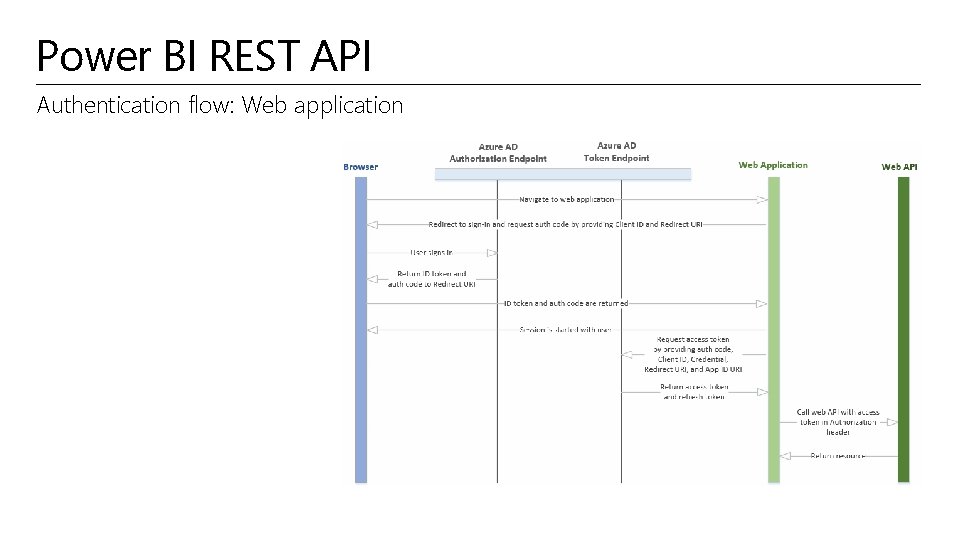
Power BI REST API Use the Power BI REST API to push data directly from an application into a Power BI dataset § Client application § Web application Programmatically manage resources: § Datasets § Tables Dashboards will update in real-time as data is added § No more waiting, or needing to press the Refresh button!
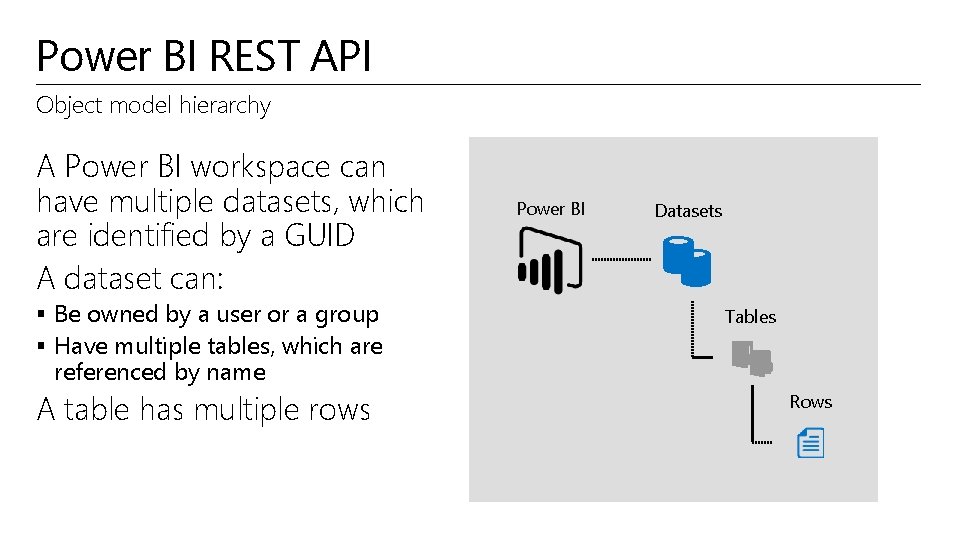
Power BI REST API Object model hierarchy A Power BI workspace can have multiple datasets, which are identified by a GUID A dataset can: § Be owned by a user or a group § Have multiple tables, which are Power BI Datasets Tables referenced by name A table has multiple rows Rows
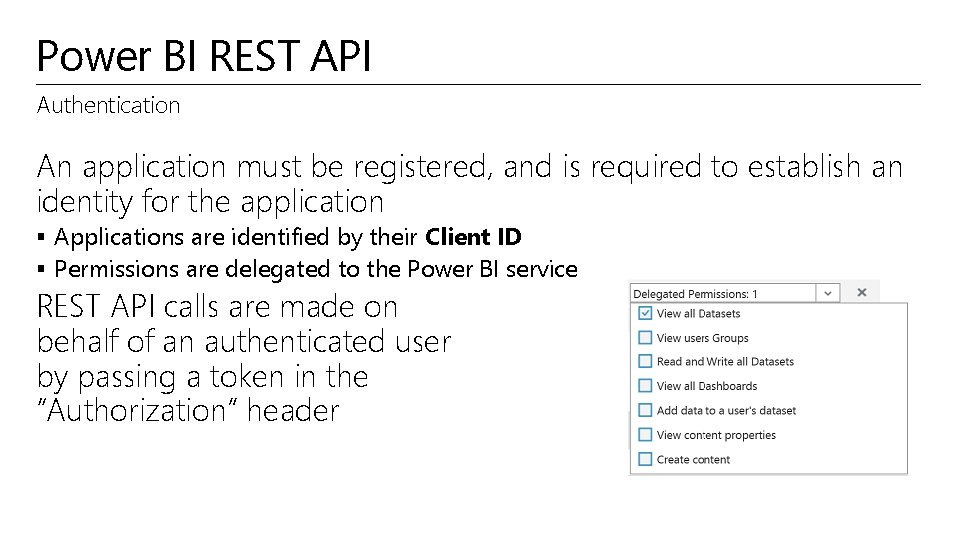
Power BI REST API Authentication An application must be registered, and is required to establish an identity for the application § Applications are identified by their Client ID § Permissions are delegated to the Power BI service REST API calls are made on behalf of an authenticated user by passing a token in the “Authorization” header
Power BI REST API Application registration An application can be registered with § Power BI App Registration Tool at http: //dev. powerbi. com/apps, or § Azure Management Portal The Power BI App Registration Tool is the easiest option since there are just a few fields to fill in If you want to make changes to you app, this can only be done through the Azure Management Portal
Power BI REST API Authentication flow: Client application
Power BI REST API Authentication flow: Web application
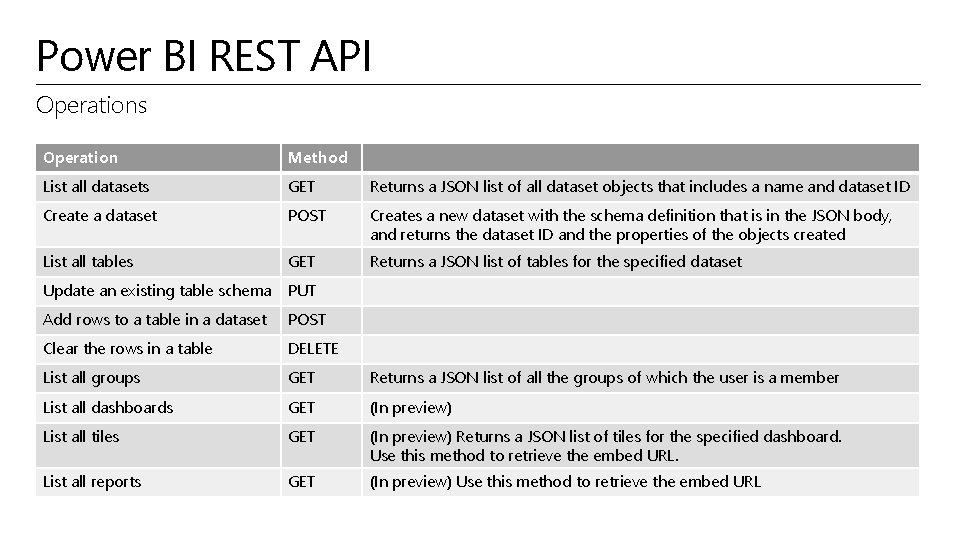
Power BI REST API Operations Operation Method List all datasets GET Returns a JSON list of all dataset objects that includes a name and dataset ID Create a dataset POST Creates a new dataset with the schema definition that is in the JSON body, and returns the dataset ID and the properties of the objects created List all tables GET Returns a JSON list of tables for the specified dataset Update an existing table schema PUT Add rows to a table in a dataset POST Clear the rows in a table DELETE List all groups GET Returns a JSON list of all the groups of which the user is a member List all dashboards GET (In preview) List all tiles GET (In preview) Returns a JSON list of tiles for the specified dashboard. Use this method to retrieve the embed URL. List all reports GET (In preview) Use this method to retrieve the embed URL
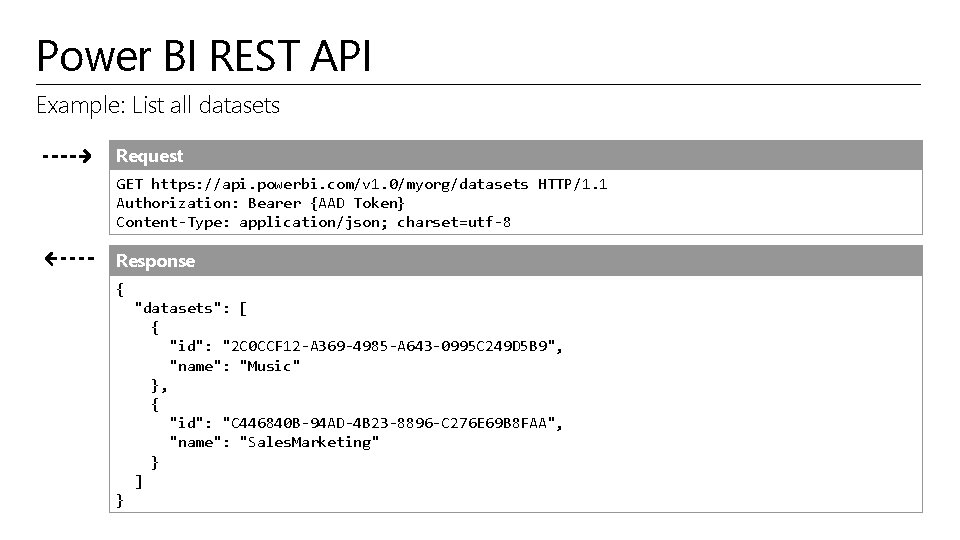
Power BI REST API Example: List all datasets Request GET https: //api. powerbi. com/v 1. 0/myorg/datasets HTTP/1. 1 Authorization: Bearer {AAD Token} Content-Type: application/json; charset=utf-8 Response { "datasets": [ { "id": "2 C 0 CCF 12 -A 369 -4985 -A 643 -0995 C 249 D 5 B 9", "name": "Music" }, { "id": "C 446840 B-94 AD-4 B 23 -8896 -C 276 E 69 B 8 FAA", "name": "Sales. Marketing" } ] }
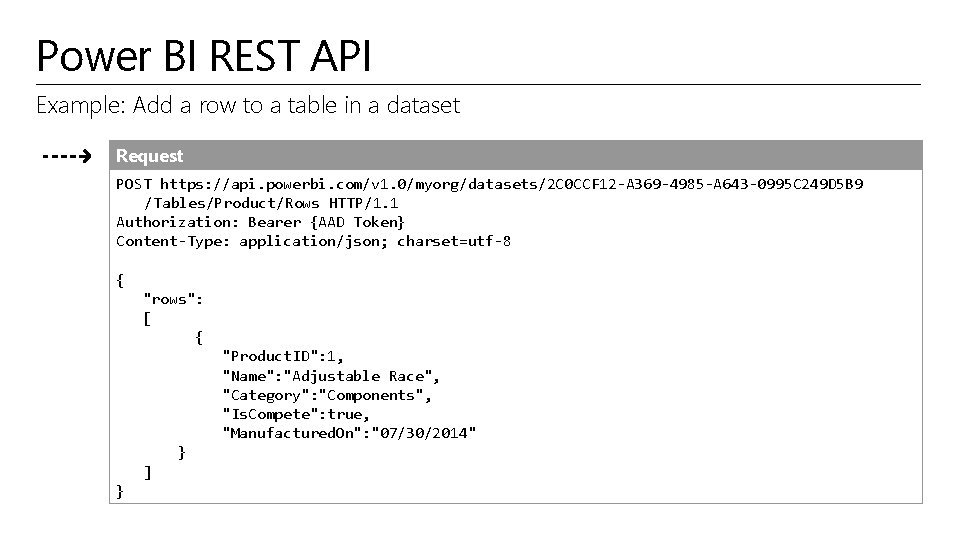
Power BI REST API Example: Add a row to a table in a dataset Request POST https: //api. powerbi. com/v 1. 0/myorg/datasets/2 C 0 CCF 12 -A 369 -4985 -A 643 -0995 C 249 D 5 B 9 /Tables/Product/Rows HTTP/1. 1 Authorization: Bearer {AAD Token} Content-Type: application/json; charset=utf-8 { "rows": [ { "Product. ID": 1, "Name": "Adjustable Race", "Category": "Components", "Is. Compete": true, "Manufactured. On": "07/30/2014" } ] }
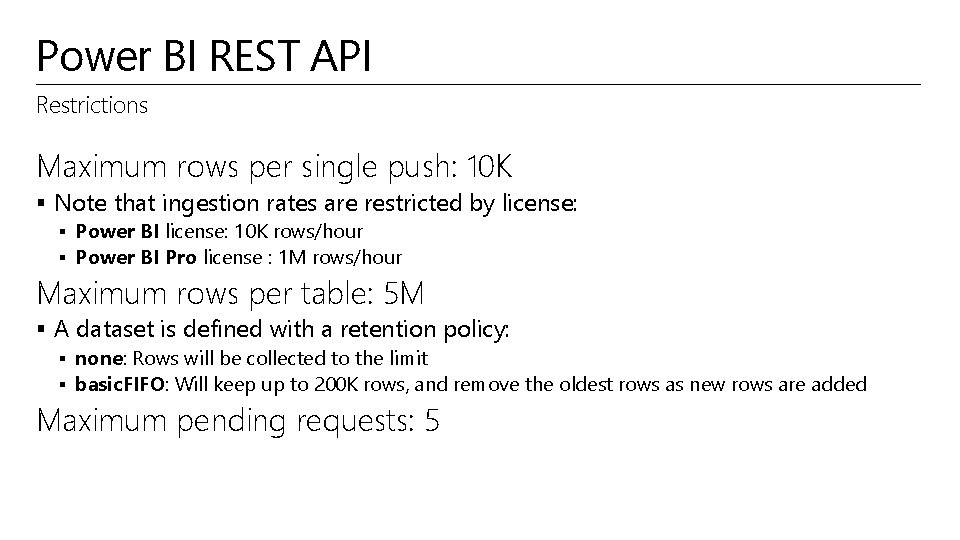
Power BI REST API Restrictions Maximum rows per single push: 10 K § Note that ingestion rates are restricted by license: § Power BI license: 10 K rows/hour § Power BI Pro license : 1 M rows/hour Maximum rows per table: 5 M § A dataset is defined with a retention policy: § none: Rows will be collected to the limit § basic. FIFO: Will keep up to 200 K rows, and remove the oldest rows as new rows are added Maximum pending requests: 5
Integrate Power BI Integrate a Power BI tile or report into an app with an IFrame HTML element § For example, create a custom mobile app to display real-time Power BI tiles and reports on the user’s mobile device Use the REST API to retrieve the embed URL Once embedded, a click event handler can be added to enable navigation to the dashboard This capability is presently in preview
Custom visuals Developers can develop custom visuals for use in Power BI solutions To help developers get started, Microsoft has published the code for all of their visualizations § This is all available as an open source project on Git. Hub § The project contains over 20 visualization types, the framework to run them, and the testing infrastructure that enables you to build high quality visualizations § The framework provides all the interfaces required to integrate fully with Power BI's selection, filtering, and other UI experiences § Developers are encouraged to submit their custom visuals to the Power BI Visuals Gallery for sharing with the Power BI community
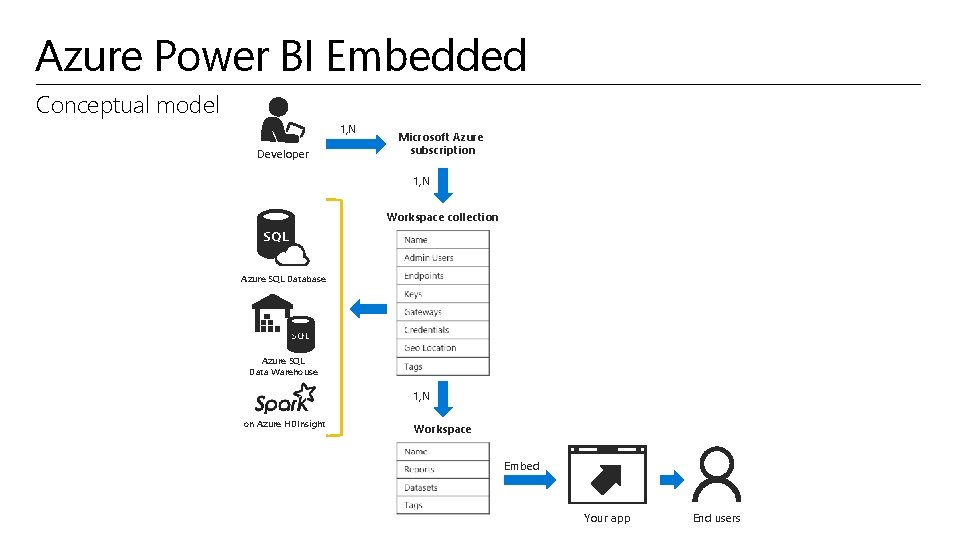
Azure Power BI Embedded is an Azure service, enabling the integration of Power BI reports into apps
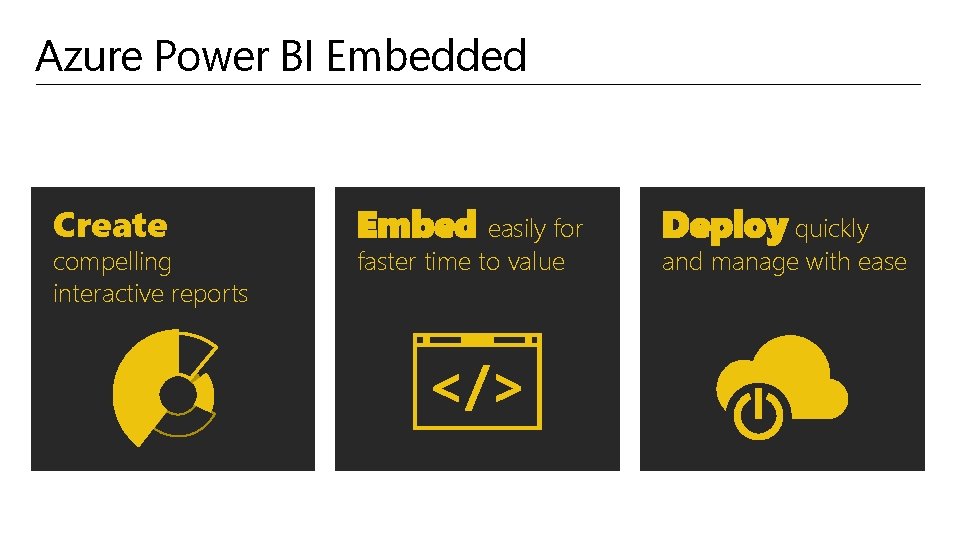
Azure Power BI Embedded Create compelling interactive reports Embed easily for faster time to value Deploy quickly and manage with ease
Azure Power BI Embedded Key attributes § Easily author interactive reports without writing any code using Power BI Desktop § Choose modern visualizations out-of-the-box or customize without building them from scratch for your reports § Easily embed interactive visuals in your app using REST APIs and the Power BI SDK § Ensure consistent high-fidelity data experiences on any device § Use your existing authentication and authorization methods § Speed up time to value without redesigning your existing app § Pay only for what you use with no upfront costs
Azure Power BI Embedded Conceptual model 1, N Developer Microsoft Azure subscription 1, N Workspace collection Azure SQL Database Azure SQL Data Warehouse 1, N on Azure HDInsight Workspace Embed Your app End users
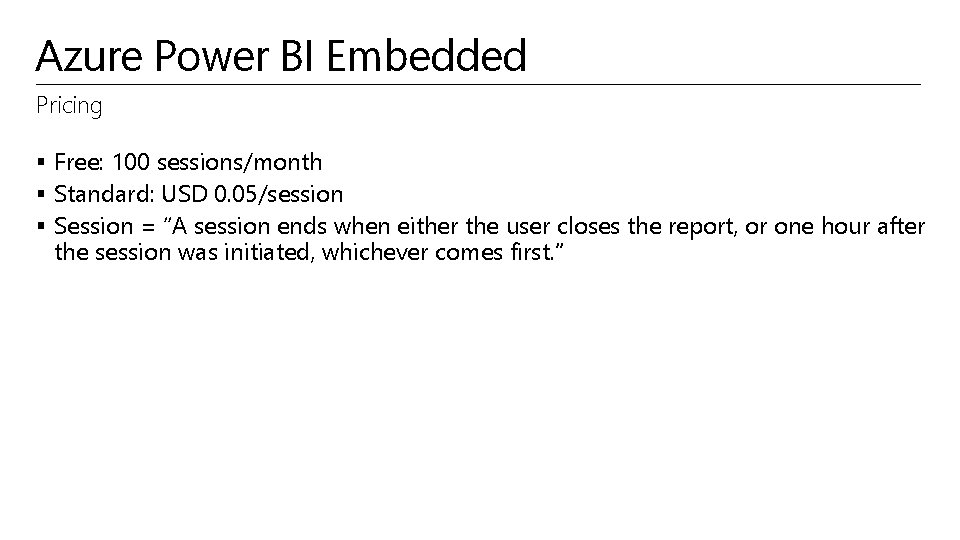
Azure Power BI Embedded Pricing § Free: 100 sessions/month § Standard: USD 0. 05/session § Session = “A session ends when either the user closes the report, or one hour after the session was initiated, whichever comes first. ”
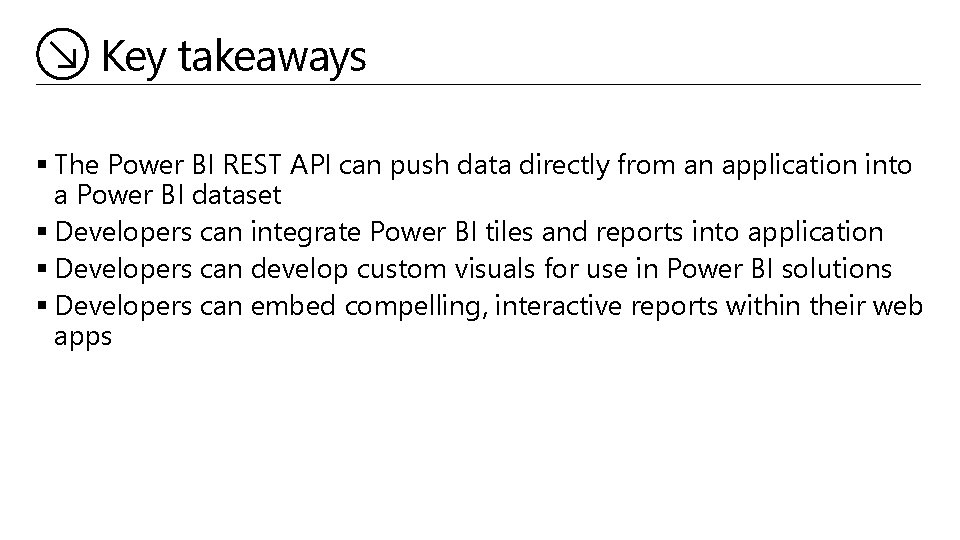
Key takeaways § The Power BI REST API can push data directly from an application into a Power BI dataset § Developers can integrate Power BI tiles and reports into application § Developers can develop custom visuals for use in Power BI solutions § Developers can embed compelling, interactive reports within their web apps
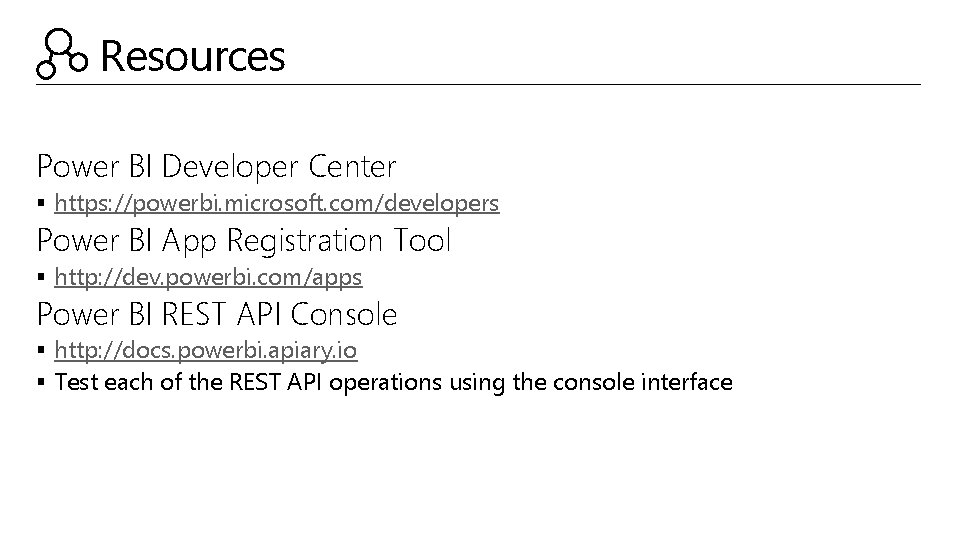
Resources Power BI Developer Center § https: //powerbi. microsoft. com/developers Power BI App Registration Tool § http: //dev. powerbi. com/apps Power BI REST API Console § http: //docs. powerbi. apiary. io § Test each of the REST API operations using the console interface
Resources Git. Hub: Integrate a tile into an app § https: //github. com/Microsoft/Power. BI- CSharp/tree/master/samples/webforms/embed-a-tile-into-an-app Git. Hub: Integrate a report into an app § https: //github. com/Microsoft/Power. BI- CSharp/tree/master/samples/webforms/embed-a-report-into-an-app
Resources Extend Power BI with Custom Visuals § https: //powerbi. microsoft. com/custom-visuals § https: //github. com/microsoft/powerbi-visuals Power BI Visuals Gallery § https: //app. powerbi. com/visuals § Submit custom visuals for discovery and use by the Power BI community Azure Power BI Embedded § https: //azure. microsoft. com/en-us/services/power-bi-embedded § https: //azure. microsoft. com/en-us/pricing/details/power-bi-embedded/
© 2016 Microsoft Corporation. All rights reserved. Microsoft, Windows, Microsoft Azure, and other product names are or may be registered trademarks and/or trademarks in the U. S. and/or other countries. The information herein is for informational purposes only and represents the current view of Microsoft Corporation as of the date of this presentation. Because Microsoft must respond to changing market conditions, it should not be interpreted to be a commitment on the part of Microsoft, and Microsoft cannot guarantee the accuracy of any information provided after the date of this presentation. MICROSOFT MAKES NO WARRANTIES, EXPRESS, IMPLIED OR STATUTORY, AS TO THE INFORMATION IN THIS PRESENTATION
Microsoft C+E Technology Training Solution Area Data Analytics Solution Business Intelligence Technology Power BI Summary Peter Myers
Summary outline Power BI overview Power BI benefits by role Power BI licensing Signing up for Power BI
Power BI overview Saa. S solutions E. g. Marketo, Salesforce, Git. Hub, Google analytics Content packs Natural language query Sharing & collaboration On-premises data E. g. Analysis Services Live dashboards Organizational content packs Corporate data sources or external data services Visualizations Azure services E. g. Azure SQL, Stream Analytics Reports Excel files Workbook data and data models 01001 10101 Power BI Desktop files Related data from files, databases, Azure, and other sources Datasets Data refresh Power BI Desktop Prepare Power BI REST API Explore Report Share
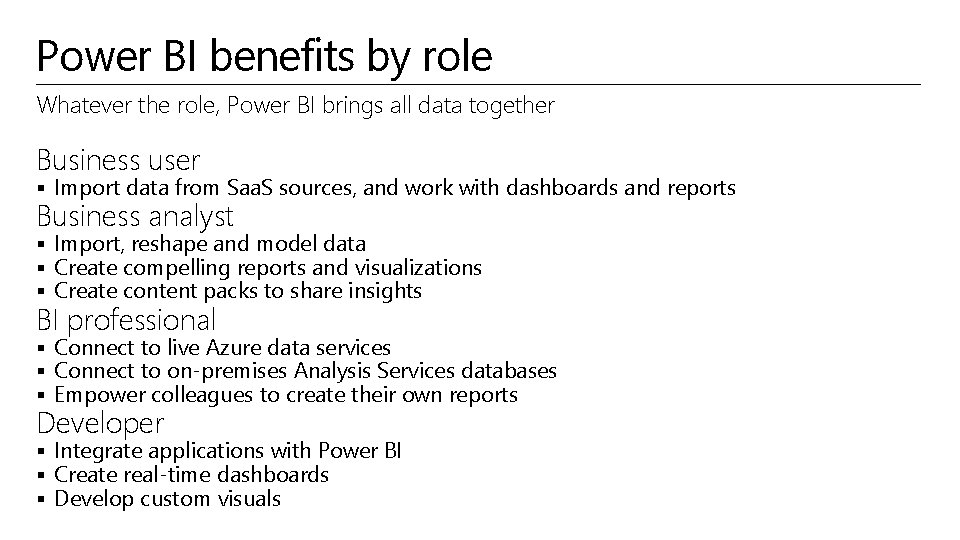
Power BI benefits by role Whatever the role, Power BI brings all data together Business user § Import data from Saa. S sources, and work with dashboards and reports Business analyst § Import, reshape and model data § Create compelling reports and visualizations § Create content packs to share insights BI professional § Connect to live Azure data services § Connect to on-premises Analysis Services databases § Empower colleagues to create their own reports Developer § Integrate applications with Power BI § Create real-time dashboards § Develop custom visuals
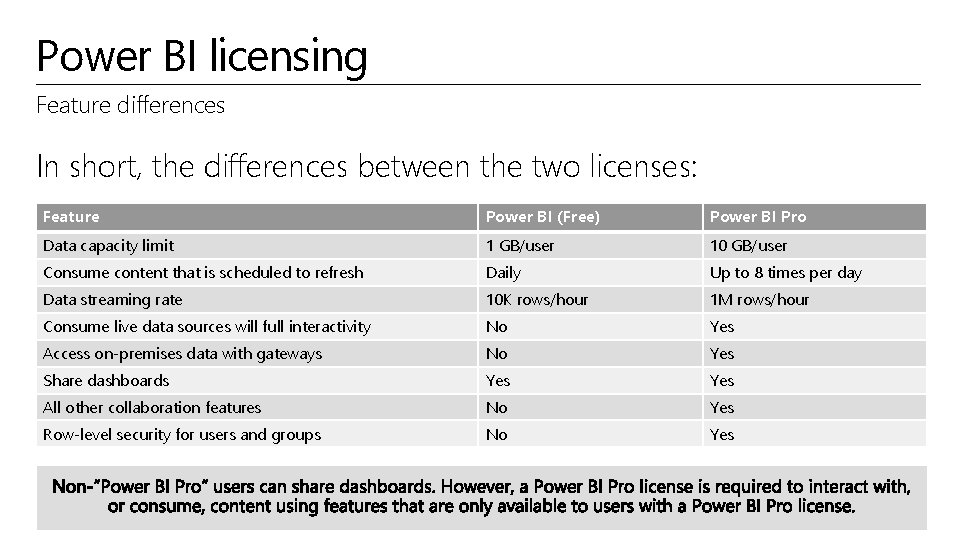
Power BI licensing Two licenses are available: § Power BI: Free! § Power BI Pro: Currently USD 9. 99/month with an annual subscription (Academic, government and non-profit pricing is available) Encourage customers to review the pricing and feature matrix § https: //powerbi. microsoft. com/pricing Power BI Pro trial license can be obtained for 60 days
Power BI licensing Feature differences In short, the differences between the two licenses: Feature Power BI (Free) Power BI Pro Data capacity limit 1 GB/user 10 GB/user Consume content that is scheduled to refresh Daily Up to 8 times per day Data streaming rate 10 K rows/hour 1 M rows/hour Consume live data sources will full interactivity No Yes Access on-premises data with gateways No Yes Share dashboards Yes All other collaboration features No Yes Row-level security for users and groups No Yes
Resources Power BI pricing § https: //powerbi. microsoft. com/pricing Microsoft Cloud and Enterprise Partner Resources § http: //aka. ms/powerbipartners § Includes up-to-date resources: § § § Customer-ready materials Customer evidence Training and labs Demos “What to do next”
Resources Continued § https: //technet. microsoft. com/en-us/virtuallabs § Search the growing library of Power BI technical labs
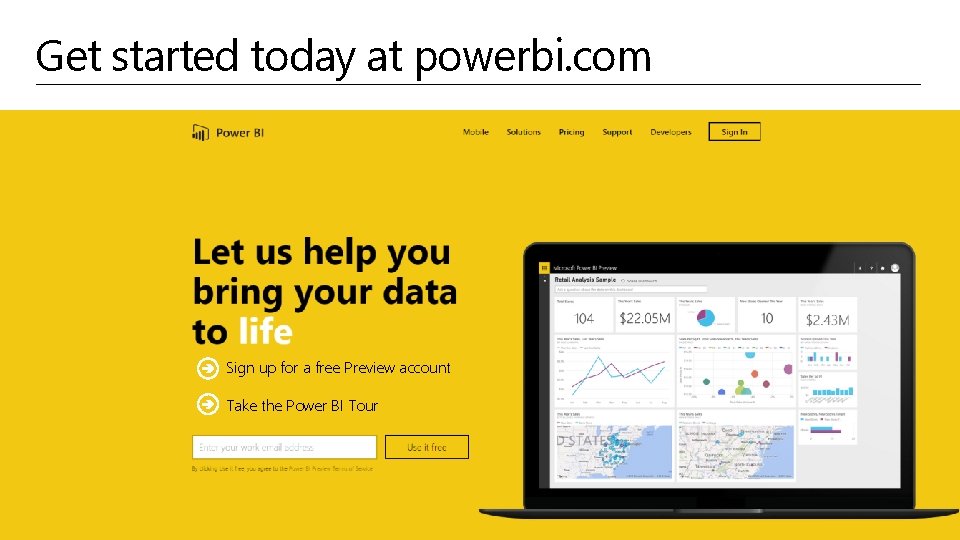
Get started today at powerbi. com Sign up for a free Preview account Take the Power BI Tour
© 2016 Microsoft Corporation. All rights reserved. Microsoft, Windows, Microsoft Azure, and other product names are or may be registered trademarks and/or trademarks in the U. S. and/or other countries. The information herein is for informational purposes only and represents the current view of Microsoft Corporation as of the date of this presentation. Because Microsoft must respond to changing market conditions, it should not be interpreted to be a commitment on the part of Microsoft, and Microsoft cannot guarantee the accuracy of any information provided after the date of this presentation. MICROSOFT MAKES NO WARRANTIES, EXPRESS, IMPLIED OR STATUTORY, AS TO THE INFORMATION IN THIS PRESENTATION