
Microsoft Briefcase Visual Representation By Jeff Jackson June
Microsoft Briefcase Visual Representation By: Jeff Jackson June 19, 2008
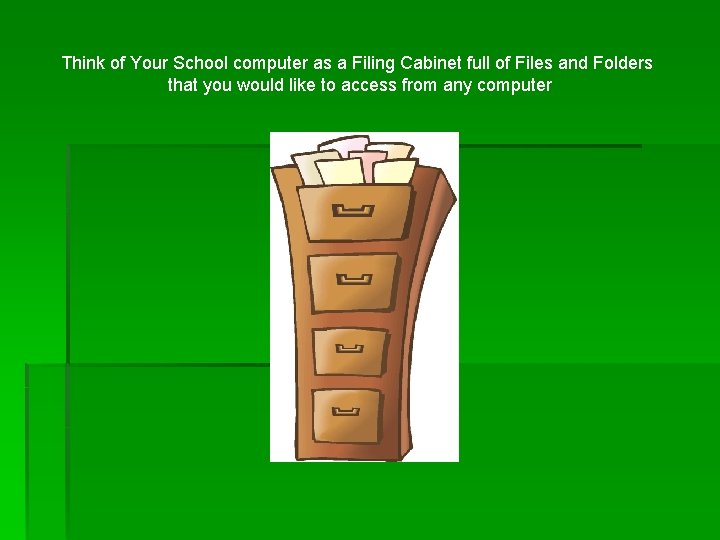
Think of Your School computer as a Filing Cabinet full of Files and Folders that you would like to access from any computer
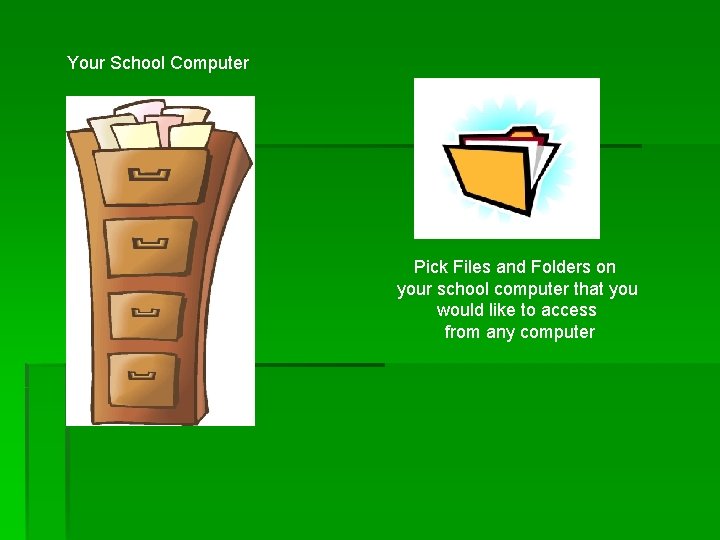
Your School Computer Pick Files and Folders on your school computer that you would like to access from any computer
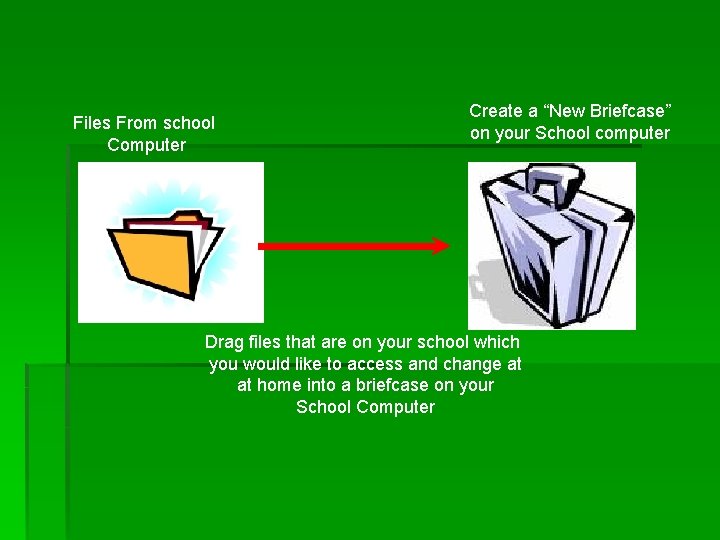
Files From school Computer Create a “New Briefcase” on your School computer Drag files that are on your school which you would like to access and change at at home into a briefcase on your School Computer
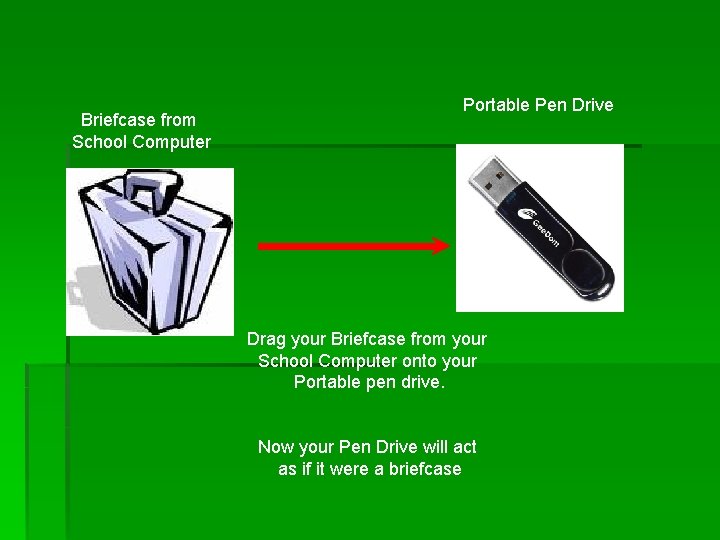
Briefcase from School Computer Portable Pen Drive Drag your Briefcase from your School Computer onto your Portable pen drive. Now your Pen Drive will act as if it were a briefcase
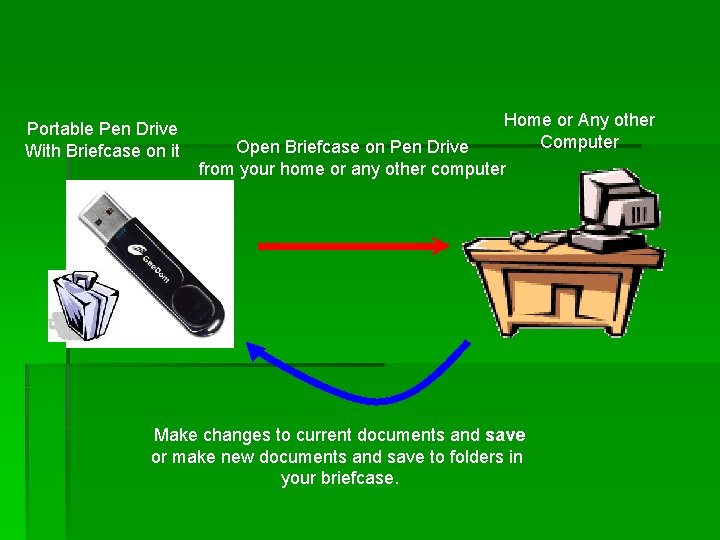
Portable Pen Drive With Briefcase on it Home or Any other Computer Open Briefcase on Pen Drive from your home or any other computer Make changes to current documents and save or make new documents and save to folders in your briefcase.
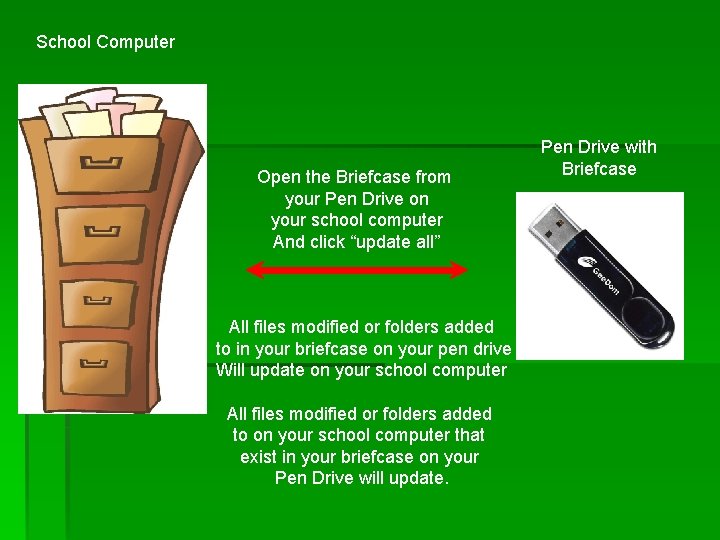
School Computer Open the Briefcase from your Pen Drive on your school computer And click “update all” All files modified or folders added to in your briefcase on your pen drive Will update on your school computer All files modified or folders added to on your school computer that exist in your briefcase on your Pen Drive will update. Pen Drive with Briefcase
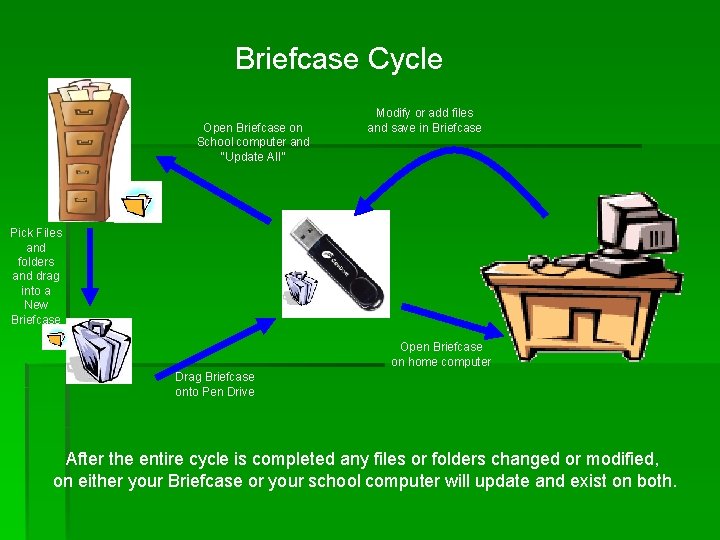
Briefcase Cycle Open Briefcase on School computer and “Update All” Modify or add files and save in Briefcase Pick Files and folders and drag into a New Briefcase Open Briefcase on home computer Drag Briefcase onto Pen Drive After the entire cycle is completed any files or folders changed or modified, on either your Briefcase or your school computer will update and exist on both.
- Slides: 8