
Microsoft Access 2010 Chapter 2 Querying a Database
Microsoft Access 2010 Chapter 2 Querying a Database
Objectives • • Create queries using Design view Include fields in the design grid Use text and numeric data in criteria Save a query and use the saved query Create and use parameter queries Use compound criteria in queries Sort data in queries Querying a Database 2
Objectives Join tables in queries Create a report and a form from a query Export data from a query to another application Perform calculations and calculate statistics in queries • Create crosstab queries • Customize the Navigation Pane • • Querying a Database 3
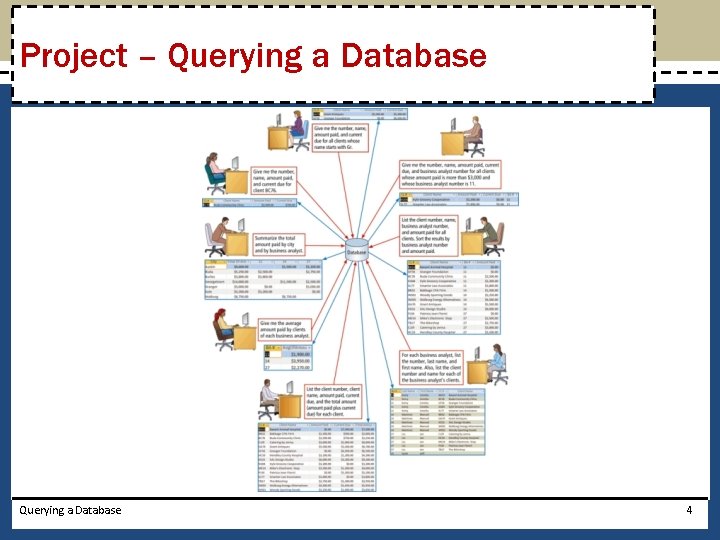
Project – Querying a Database 4
General Project Guidelines Identify the fields Identify restrictions Determine whether special order is required Determine whether more than one table is required • Determine whether calculations are required • If data is to be summarized, determine whether a crosstab query would be appropriate • • Querying a Database 5
Creating a Query in Design View • Click Create on the Ribbon to display the Create tab • Click the Query Design button (Create tab | Queries group) to create a new query • Click the table to add to the query • Click the Add button to add the selected table to the query • Click the Close button to remove the dialog box from the screen • Drag the lower edge of the field list down far enough so all fields in the table appear Querying a Database 6
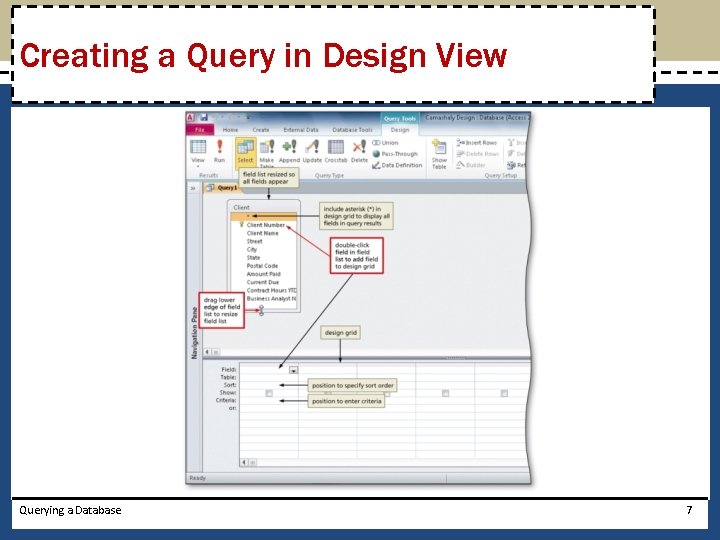
Creating a Query in Design View Querying a Database 7
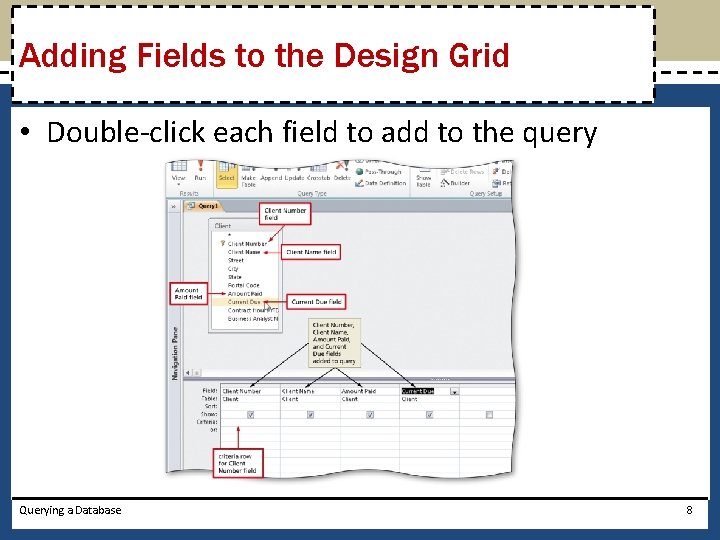
Adding Fields to the Design Grid • Double-click each field to add to the query Querying a Database 8
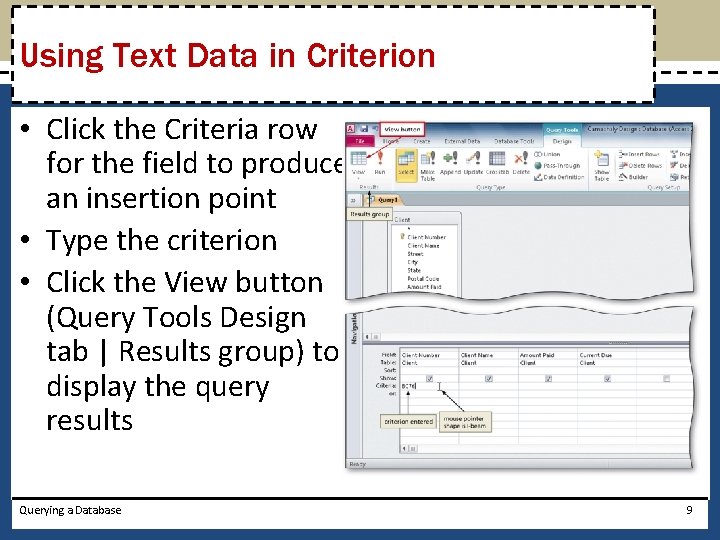
Using Text Data in Criterion • Click the Criteria row for the field to produce an insertion point • Type the criterion • Click the View button (Query Tools Design tab | Results group) to display the query results Querying a Database 9
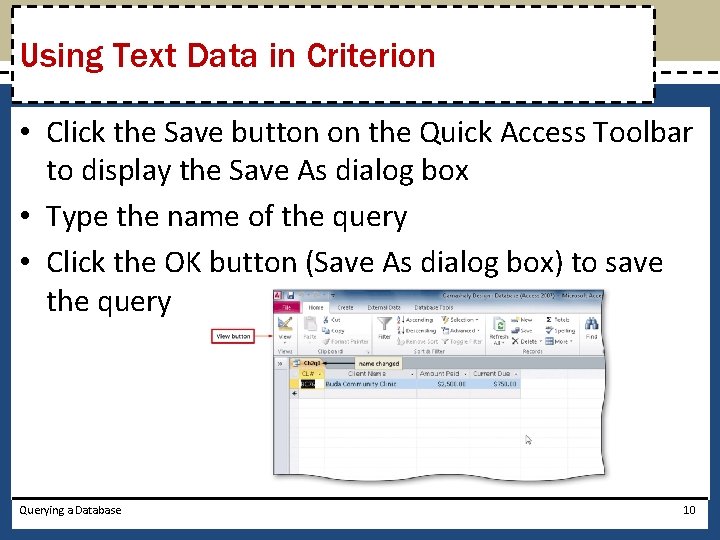
Using Text Data in Criterion • Click the Save button on the Quick Access Toolbar to display the Save As dialog box • Type the name of the query • Click the OK button (Save As dialog box) to save the query Querying a Database 10

Using a Wildcard • If necessary, click the Criteria row below the desired field to produce an insertion point • If necessary, delete the current entry • Type the criterion containing the wildcard character (*) Querying a Database 11
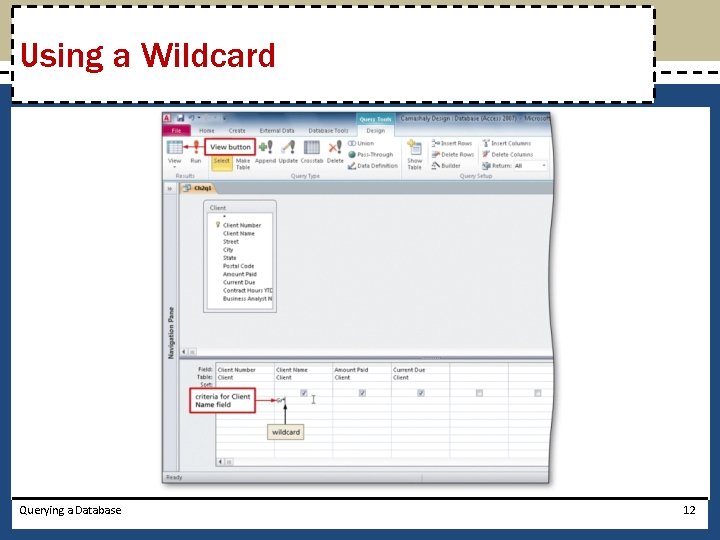
Using a Wildcard Querying a Database 12
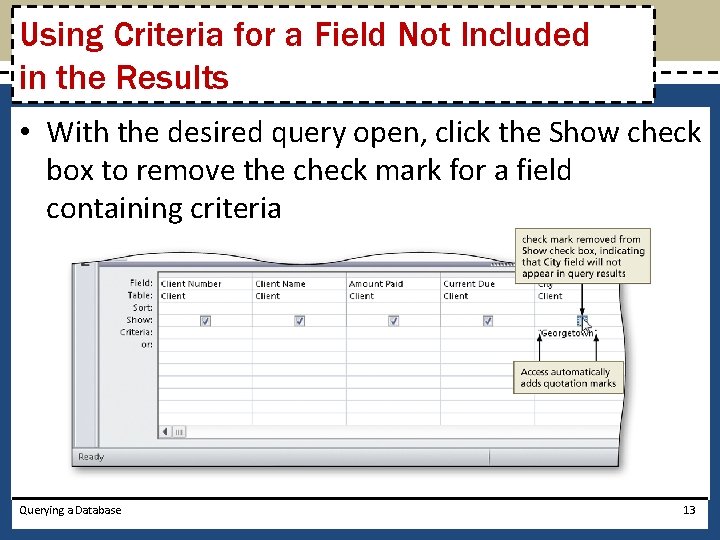
Using Criteria for a Field Not Included in the Results • With the desired query open, click the Show check box to remove the check mark for a field containing criteria Querying a Database 13
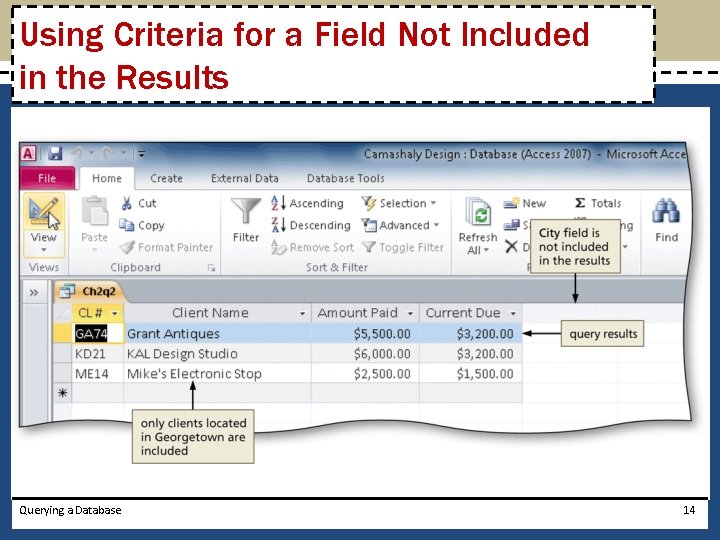
Using Criteria for a Field Not Included in the Results Querying a Database 14
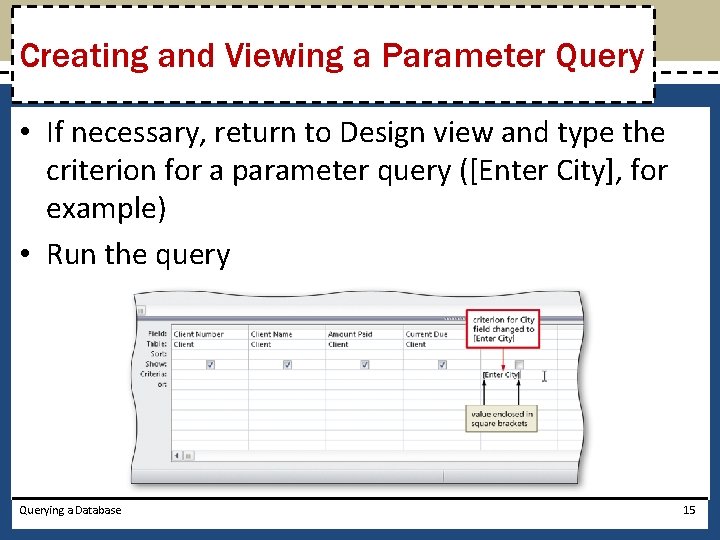
Creating and Viewing a Parameter Query • If necessary, return to Design view and type the criterion for a parameter query ([Enter City], for example) • Run the query Querying a Database 15
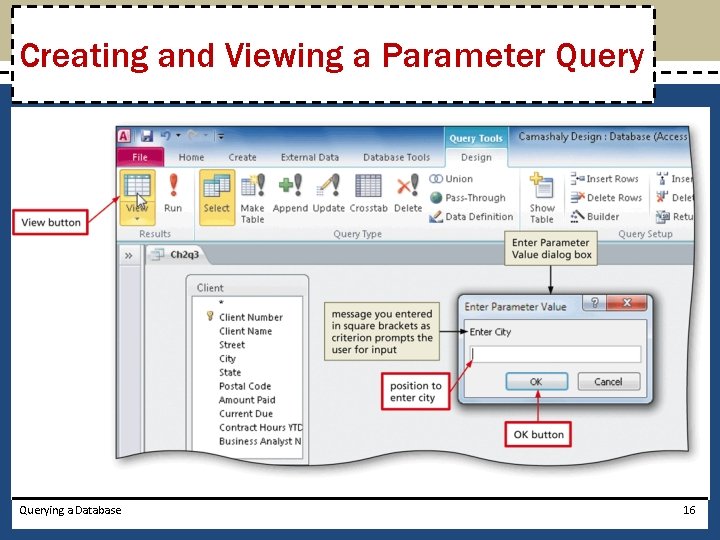
Creating and Viewing a Parameter Querying a Database 16
Using a Number in a Criterion • Click the Query Design button (Create tab | Queries group) to create a new query • Click the table you wish to add to the query • Click the Add button to add the selected table to the query • Click the Close button to remove the dialog box from the screen • Add the desired fields to the query • Add a numeric criterion for a numeric field Querying a Database 17
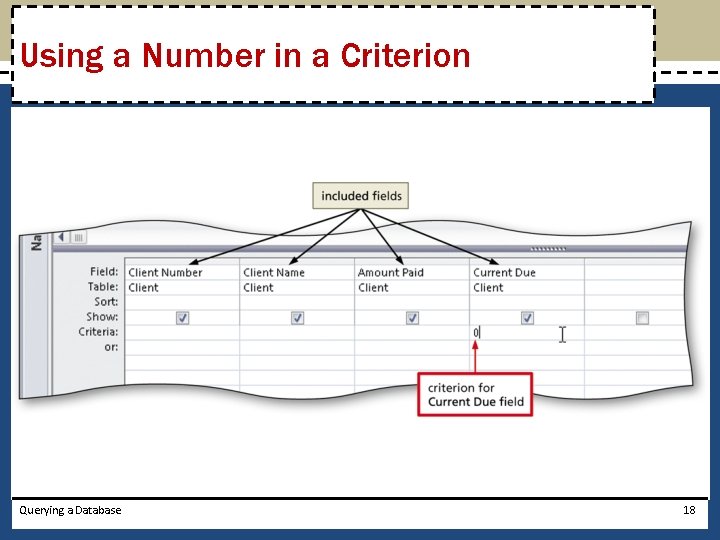
Using a Number in a Criterion Querying a Database 18
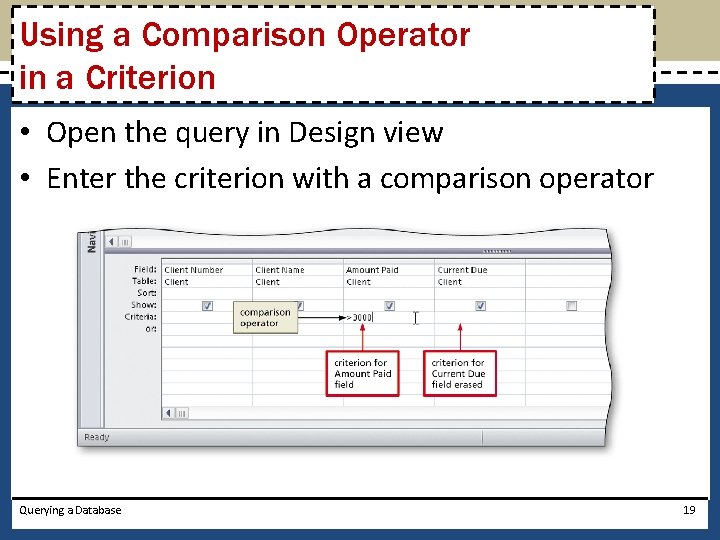
Using a Comparison Operator in a Criterion • Open the query in Design view • Enter the criterion with a comparison operator Querying a Database 19
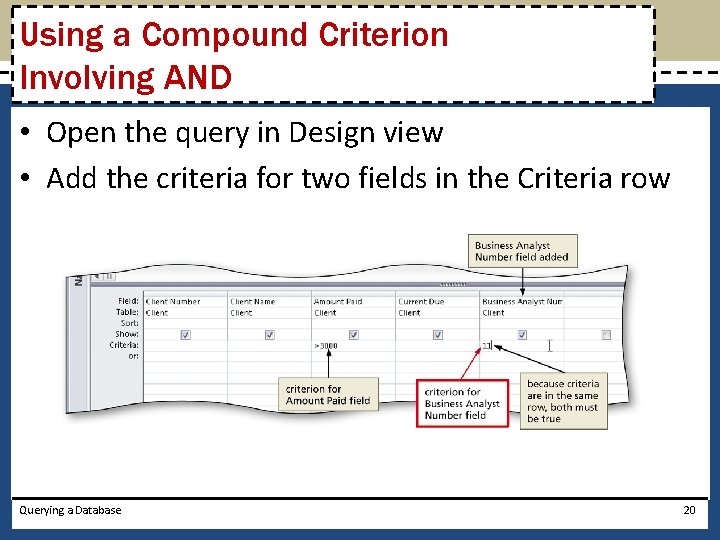
Using a Compound Criterion Involving AND • Open the query in Design view • Add the criteria for two fields in the Criteria row Querying a Database 20
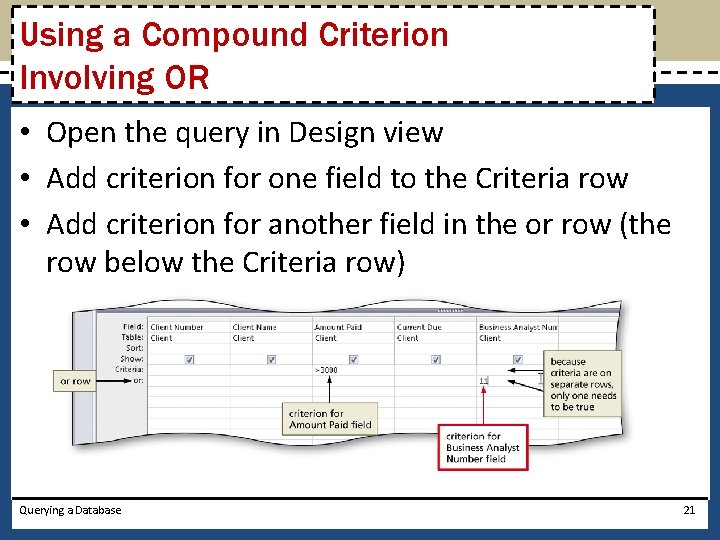
Using a Compound Criterion Involving OR • Open the query in Design view • Add criterion for one field to the Criteria row • Add criterion for another field in the or row (the row below the Criteria row) Querying a Database 21
Clearing the Design Grid • Open the query in Design view • Click just above the column heading in the first column in the grid to select the column • Hold the SHIFT key down and click just above the last column heading to select all the columns • Press the DELETE key to clear the design grid Querying a Database 22
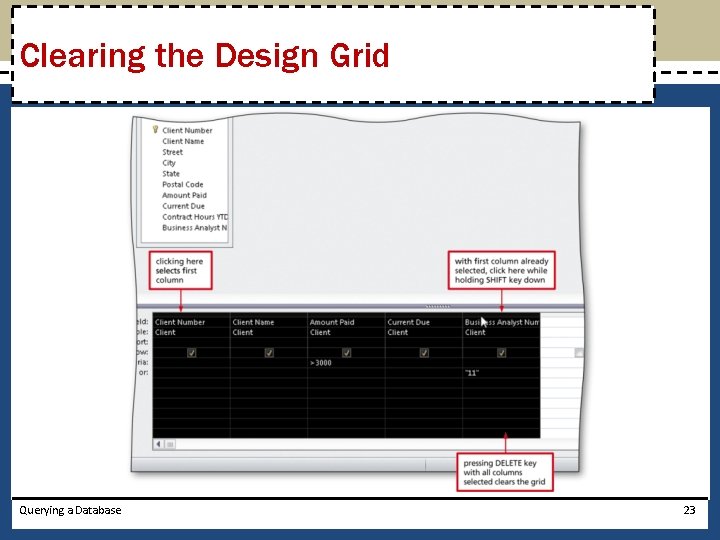
Clearing the Design Grid Querying a Database 23
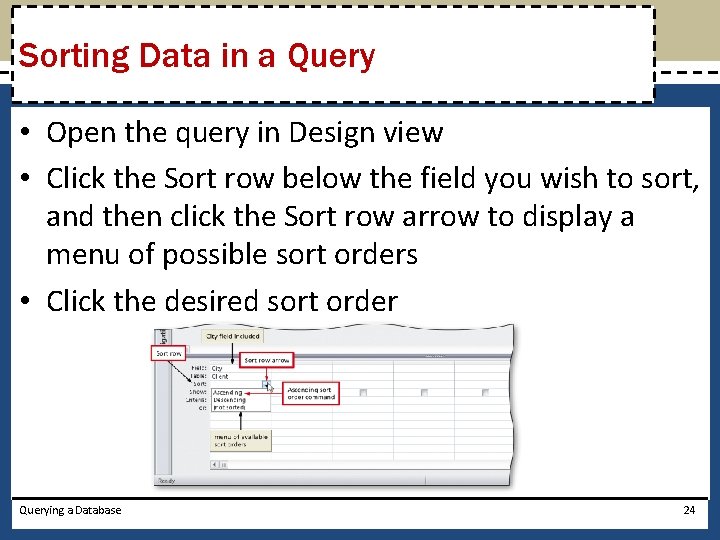
Sorting Data in a Query • Open the query in Design view • Click the Sort row below the field you wish to sort, and then click the Sort row arrow to display a menu of possible sort orders • Click the desired sort order Querying a Database 24
Omitting Duplicates • Open the query in Design view • Click an empty field in the design grid • Click the Property Sheet button (Query Tools Design tab | Show/Hide group) to display the property sheet • Click the Unique Values property box, and then click the arrow that appears to produce a list of available choices • Click Yes and then close the Query Properties property sheet by clicking the Property Sheet button (Query Tools Design tab | Show / Hide group) a second time Querying a Database 25
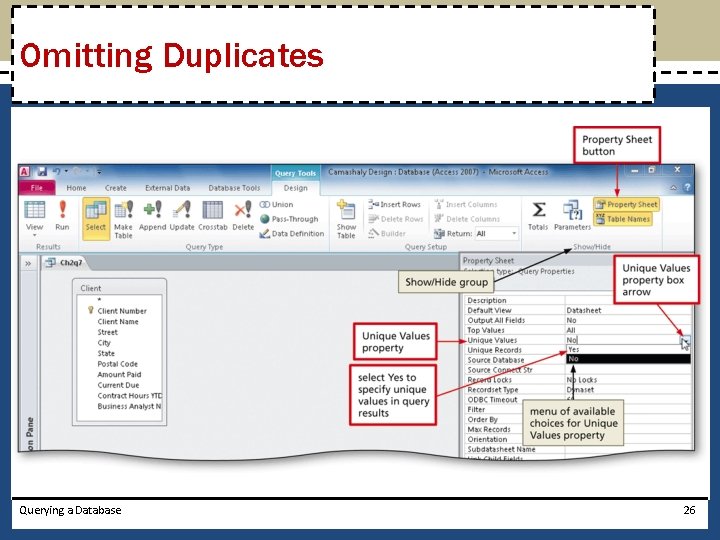
Omitting Duplicates Querying a Database 26
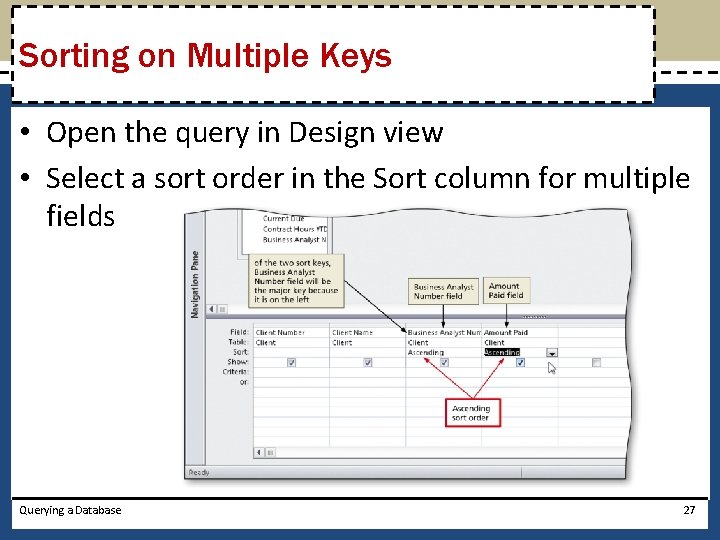
Sorting on Multiple Keys • Open the query in Design view • Select a sort order in the Sort column for multiple fields Querying a Database 27
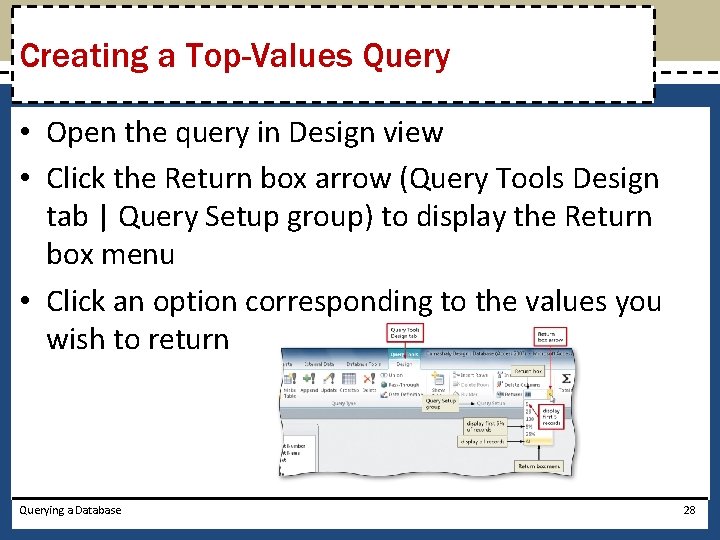
Creating a Top-Values Query • Open the query in Design view • Click the Return box arrow (Query Tools Design tab | Query Setup group) to display the Return box menu • Click an option corresponding to the values you wish to return Querying a Database 28
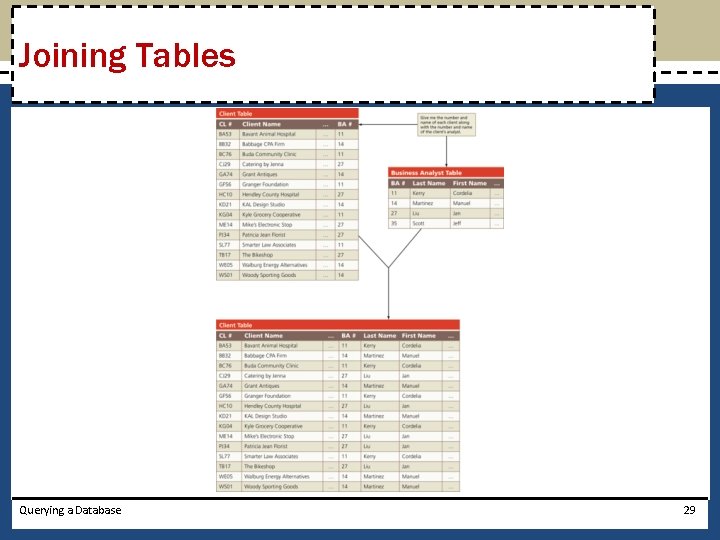
Joining Tables Querying a Database 29
Joining Tables • Click the Query Design button (Create tab | Queries group) to create a new query • Add two related tables to the new query • Add the desired fields from each table to the query Querying a Database 30
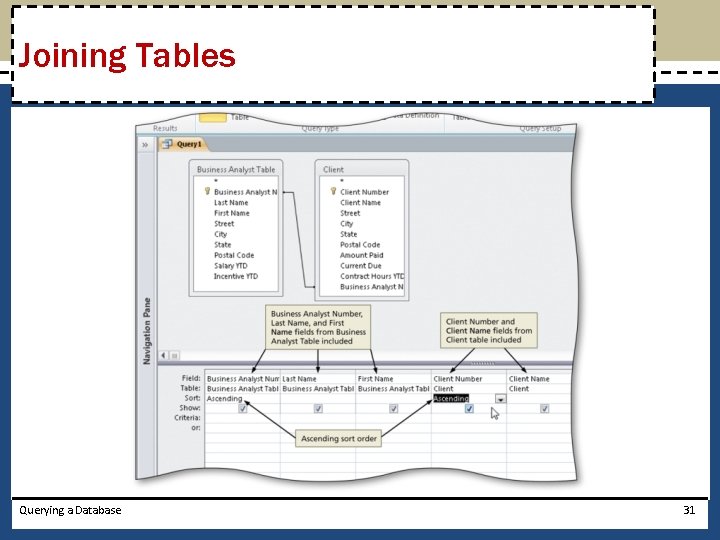
Joining Tables Querying a Database 31
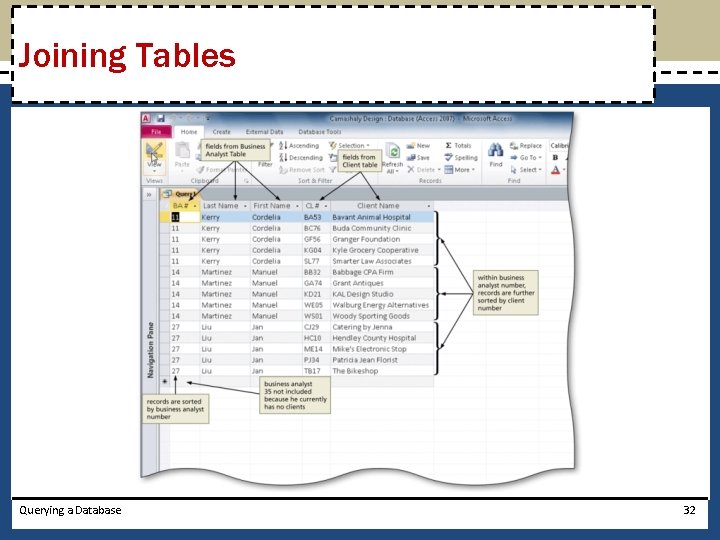
Joining Tables Querying a Database 32
Changing Join Properties • Open the query in Design view • Right-click the join line to produce a shortcut menu • Click Join Properties on the shortcut menu to display the Join Properties dialog box Querying a Database 33
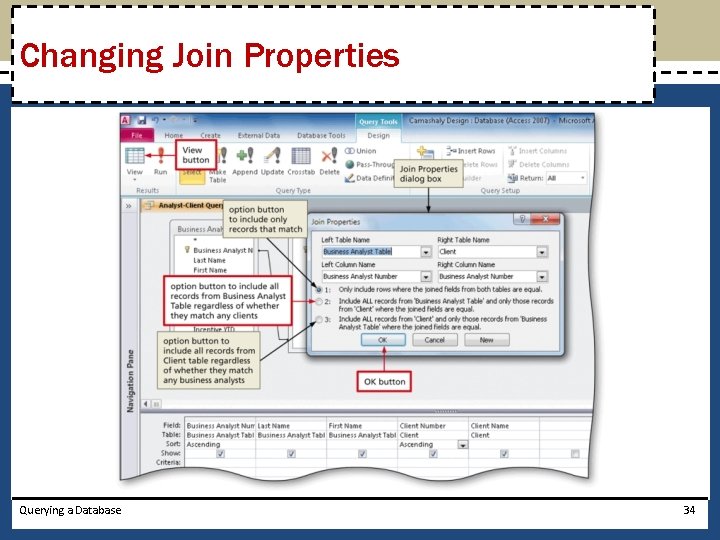
Changing Join Properties Querying a Database 34
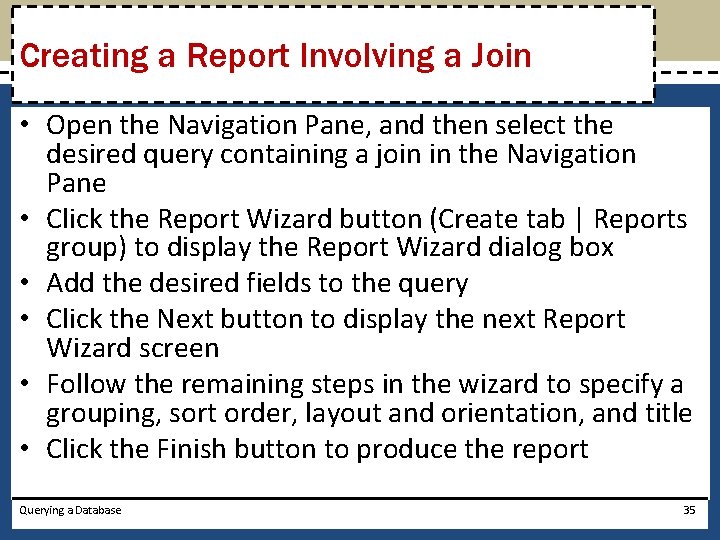
Creating a Report Involving a Join • Open the Navigation Pane, and then select the desired query containing a join in the Navigation Pane • Click the Report Wizard button (Create tab | Reports group) to display the Report Wizard dialog box • Add the desired fields to the query • Click the Next button to display the next Report Wizard screen • Follow the remaining steps in the wizard to specify a grouping, sort order, layout and orientation, and title • Click the Finish button to produce the report Querying a Database 35
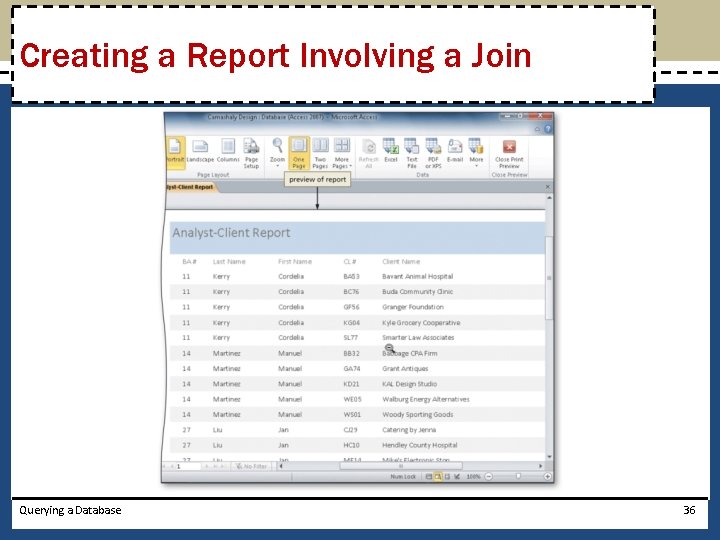
Creating a Report Involving a Join Querying a Database 36
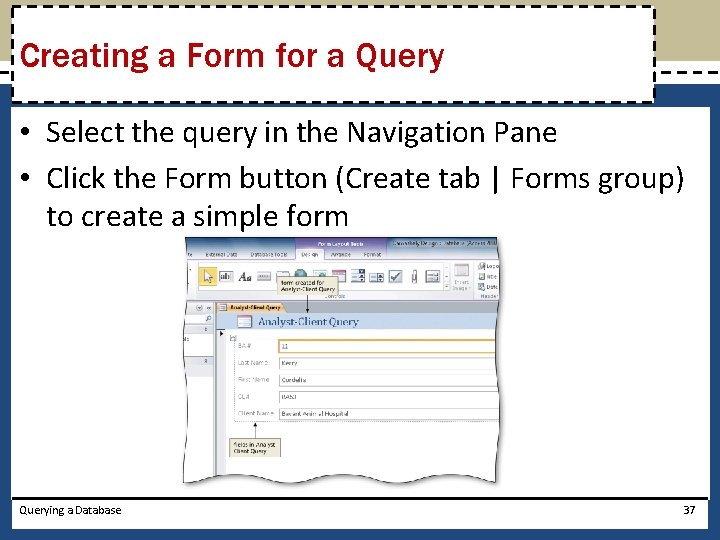
Creating a Form for a Query • Select the query in the Navigation Pane • Click the Form button (Create tab | Forms group) to create a simple form Querying a Database 37
Exporting Data to Excel • Click the desired query in the Navigation pane to select it • Click the Excel button (External Data tab | Export group) to display the Export - Excel Spreadsheet dialog box • Click the Browse button (Export - Excel Spreadsheet dialog box) to display the File Save dialog box • Navigate to the location to save the exported file • Click the OK button (Export - Excel Spreadsheet dialog box) to export the data Querying a Database 38
Exporting Data to Excel • Click the ‘Save export steps’ check box (Export Excel Spreadsheet dialog box) to display the Save export steps options • Type the desired name for the steps in the Save as text box • If necessary, type a description for the export steps • Click the Save Export button (Export - Excel Spreadsheet dialog box) to save the export steps Querying a Database 39
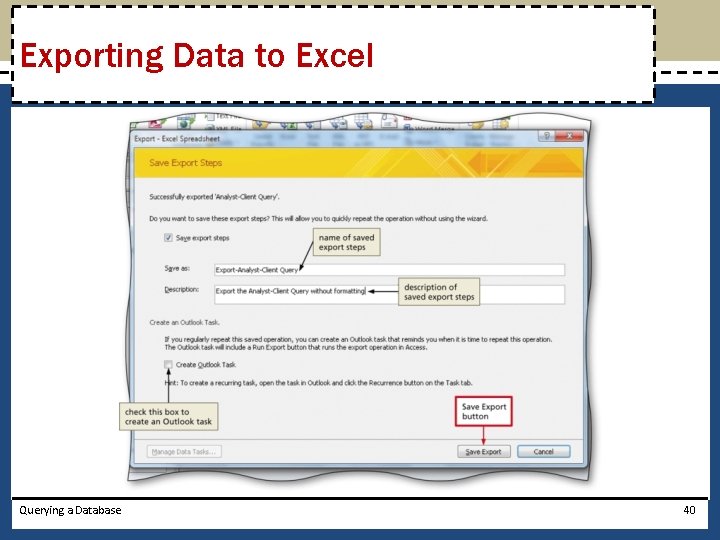
Exporting Data to Excel Querying a Database 40
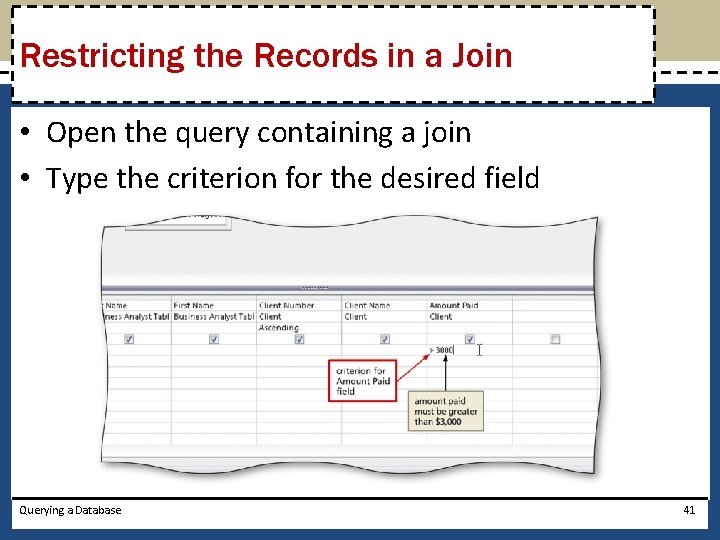
Restricting the Records in a Join • Open the query containing a join • Type the criterion for the desired field Querying a Database 41
Using a Calculated Field in a Query • Open the query in Design view containing a field that can be calculated • Right-click the Field row in the first open column in the design grid to display a shortcut menu • Click Zoom on the shortcut menu to display the Zoom dialog box • Type the calculation in the Zoom dialog box • Click the OK button (Zoom dialog box) to enter the expression Querying a Database 42
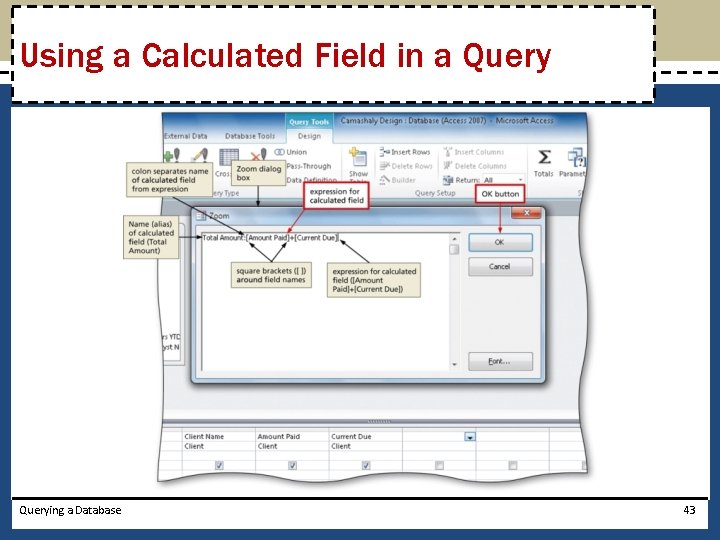
Using a Calculated Field in a Querying a Database 43
Changing a Caption • Open the query in Design view • Click the field in the design grid to which you wish to add the caption, and then click the Property Sheet button (Query Tools Design tab | Show/Hide group) to display the properties for the field • Click the Caption box, and then type the desired caption • Close the property sheet by clicking the property Sheet button a second time Querying a Database 44
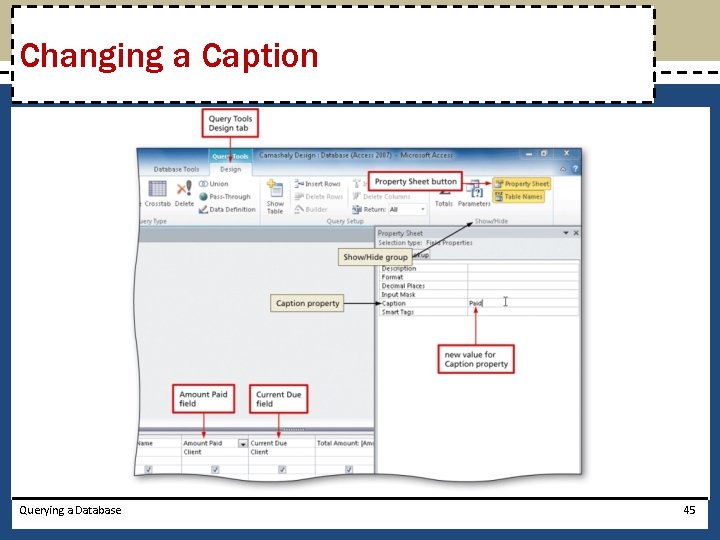
Changing a Caption Querying a Database 45
Calculating Statistics • Create a new query for a table containing fields for which you can calculate statistics • Click the Totals button (Query Tools Design tab | Show/Hide group) to include the Total row in the design grid • Add the field for which you wish to total • Click the Total row for the added field • Click the Total box arrow to display the Total list • Select the desired calculation for Access to perform Querying a Database 46
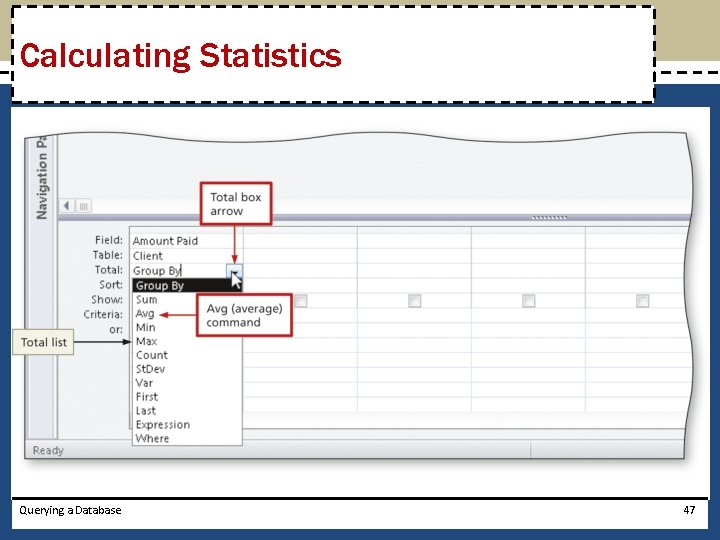
Calculating Statistics Querying a Database 47
Using Criteria in Calculating Statistics • Add a field to the query containing statistics for which you wish to add criteria • Click the Total box arrow for the added field to produce a Total list • Click Where • Type the criterion in the Criteria row Querying a Database 48
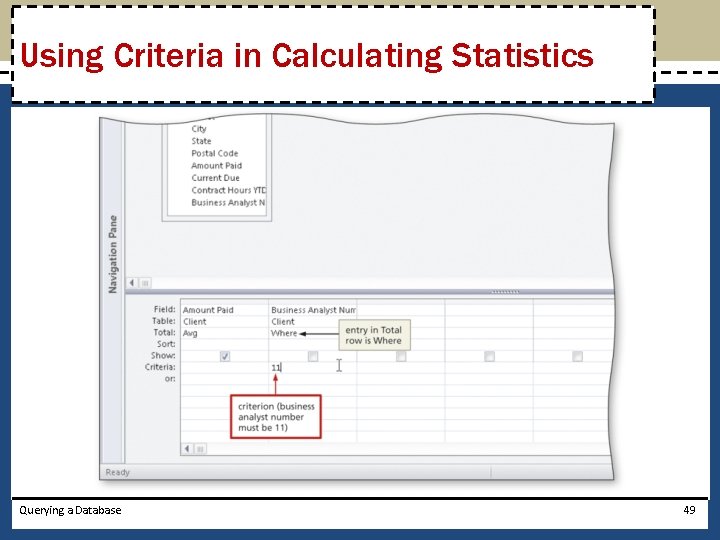
Using Criteria in Calculating Statistics Querying a Database 49
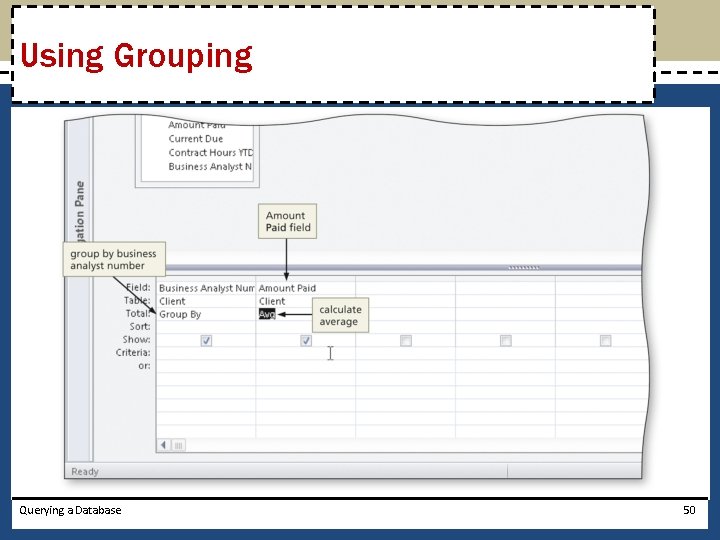
Using Grouping Querying a Database 50
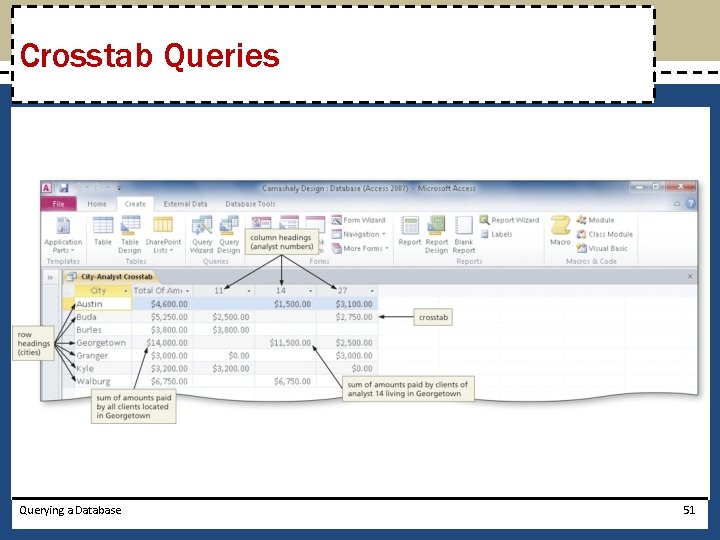
Crosstab Queries Querying a Database 51
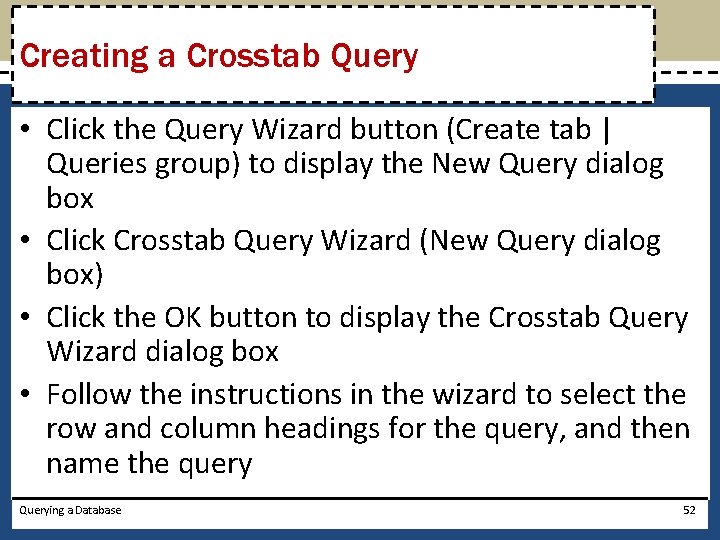
Creating a Crosstab Query • Click the Query Wizard button (Create tab | Queries group) to display the New Query dialog box • Click Crosstab Query Wizard (New Query dialog box) • Click the OK button to display the Crosstab Query Wizard dialog box • Follow the instructions in the wizard to select the row and column headings for the query, and then name the query Querying a Database 52
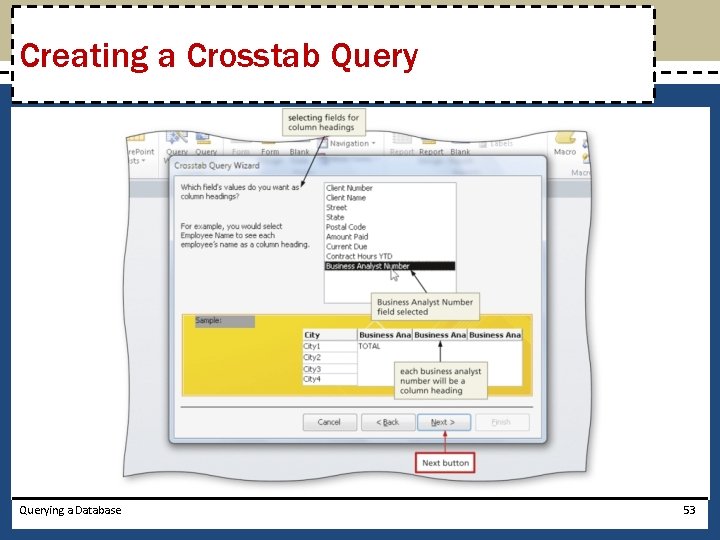
Creating a Crosstab Querying a Database 53
Customizing the Navigation Pane • If necessary, click the Shutter Bar Open/Close Button to open the Navigation Pane • Click the Navigation Pane arrow to produce the Navigation Pane menu • Click the desired option to organize the Navigation Pane Querying a Database 54
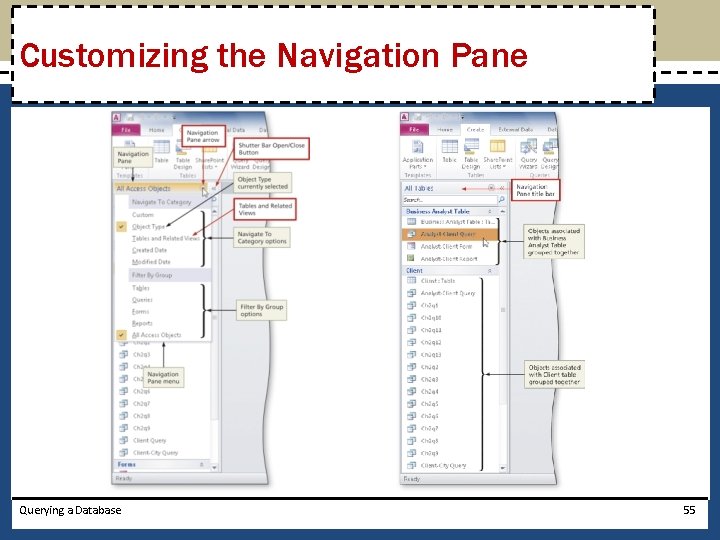
Customizing the Navigation Pane Querying a Database 55
Chapter Summary • • Create queries using Design view Include fields in the design grid Use text and numeric data in criteria Save a query and use the saved query Create and use parameter queries Use compound criteria in queries Sort data in queries Querying a Database 56
Chapter Summary Join tables in queries Create a report and a form from a query Export data from a query to another application Perform calculations and calculate statistics in queries • Create crosstab queries • Customize the Navigation Pane • • Querying a Database 57
Microsoft Access 2010 Chapter 2 Complete
- Slides: 58