
Microsoft Access 2000 Creating Tables and Relationships Creating

Microsoft Access 2000 Creating Tables and Relationships
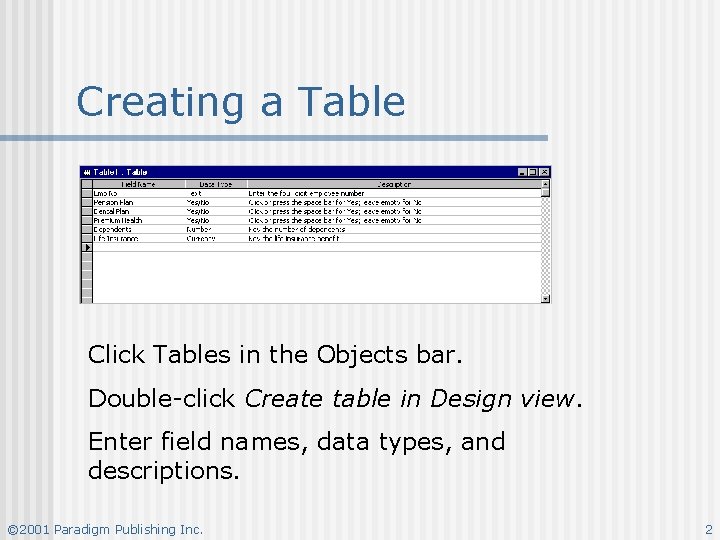
Creating a Table Click Tables in the Objects bar. Double-click Create table in Design view. Enter field names, data types, and descriptions. © 2001 Paradigm Publishing Inc. 2
Primary Key n n n The field in the table which will contain unique data for each record. Access automatically sorts the table data by the primary key field whenever the table is opened. Access will prevent a new record from being added to a table if the data in the primary key field is a duplicate of an existing record. © 2001 Paradigm Publishing Inc. 3
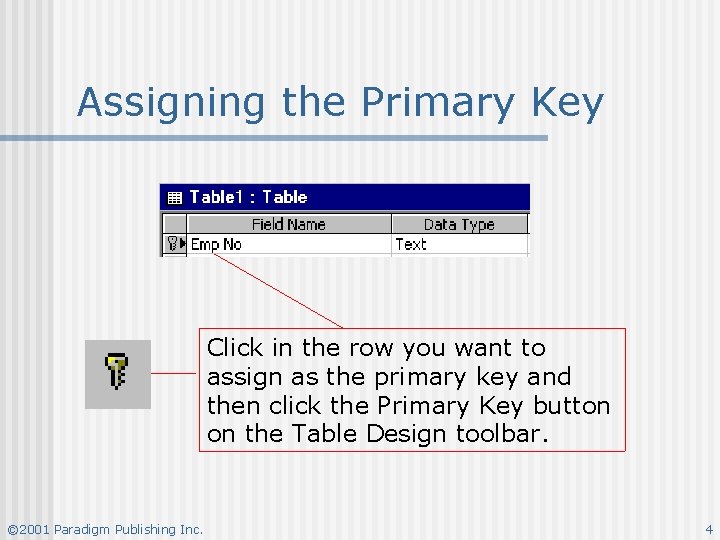
Assigning the Primary Key Click in the row you want to assign as the primary key and then click the Primary Key button on the Table Design toolbar. © 2001 Paradigm Publishing Inc. 4
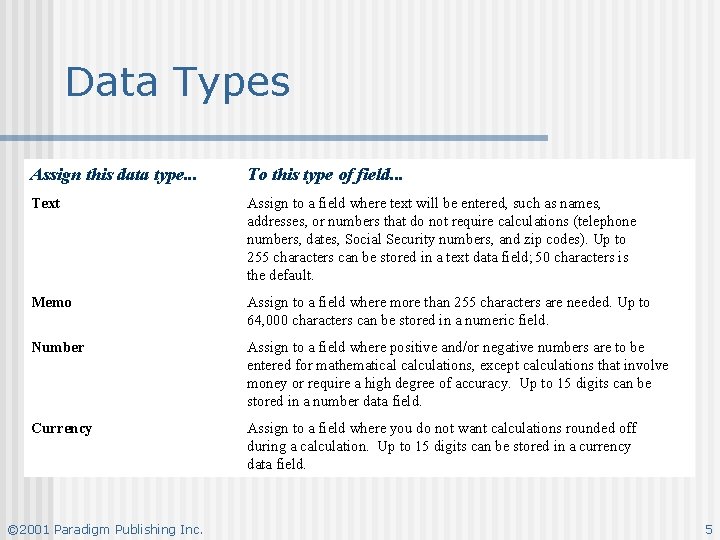
Data Types Assign this data type. . . To this type of field. . . Text Assign to a field where text will be entered, such as names, addresses, or numbers that do not require calculations (telephone numbers, dates, Social Security numbers, and zip codes). Up to 255 characters can be stored in a text data field; 50 characters is the default. Memo Assign to a field where more than 255 characters are needed. Up to 64, 000 characters can be stored in a numeric field. Number Assign to a field where positive and/or negative numbers are to be entered for mathematical calculations, except calculations that involve money or require a high degree of accuracy. Up to 15 digits can be stored in a number data field. Currency Assign to a field where you do not want calculations rounded off during a calculation. Up to 15 digits can be stored in a currency data field. © 2001 Paradigm Publishing Inc. 5
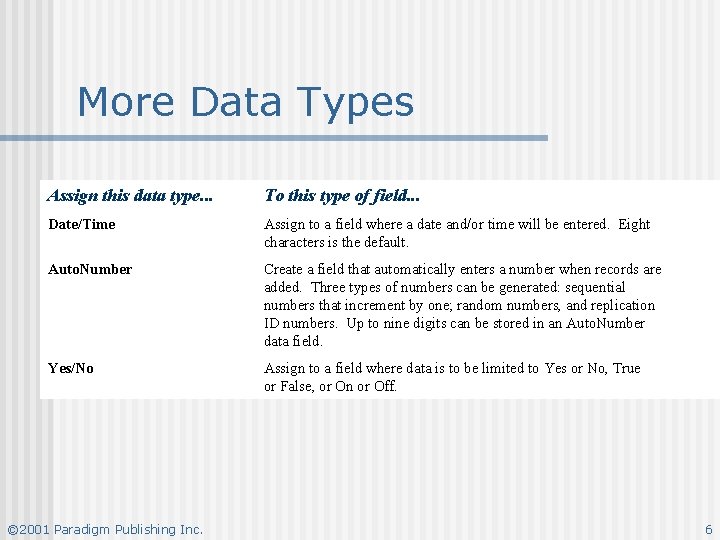
More Data Types Assign this data type. . . To this type of field. . . Date/Time Assign to a field where a date and/or time will be entered. Eight characters is the default. Auto. Number Create a field that automatically enters a number when records are added. Three types of numbers can be generated: sequential numbers that increment by one; random numbers, and replication ID numbers. Up to nine digits can be stored in an Auto. Number data field. Yes/No Assign to a field where data is to be limited to Yes or No, True or False, or On or Off. © 2001 Paradigm Publishing Inc. 6

Lookup Wizard © 2001 Paradigm Publishing Inc. 7
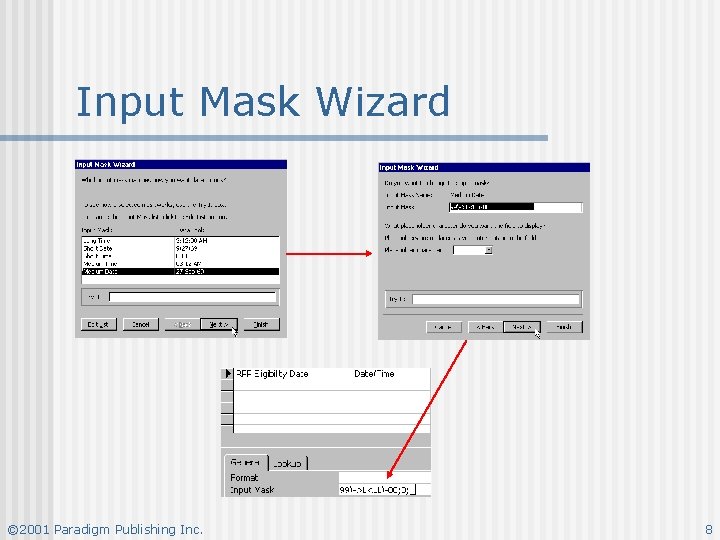
Input Mask Wizard © 2001 Paradigm Publishing Inc. 8
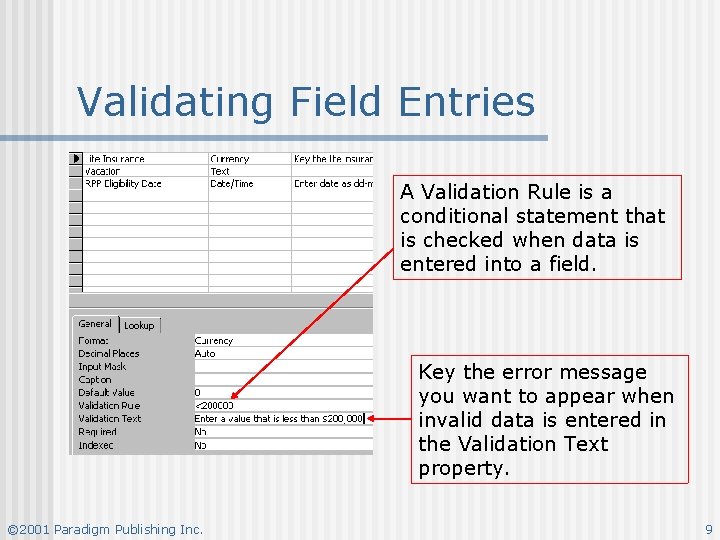
Validating Field Entries A Validation Rule is a conditional statement that is checked when data is entered into a field. Key the error message you want to appear when invalid data is entered in the Validation Text property. © 2001 Paradigm Publishing Inc. 9
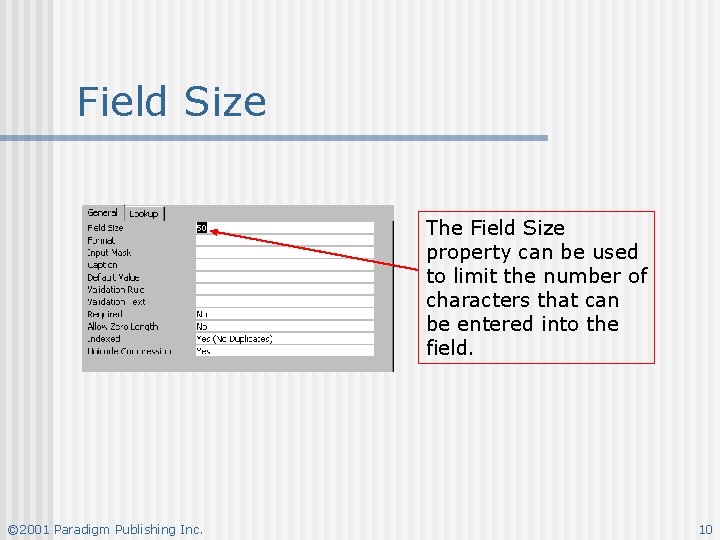
Field Size The Field Size property can be used to limit the number of characters that can be entered into the field. © 2001 Paradigm Publishing Inc. 10
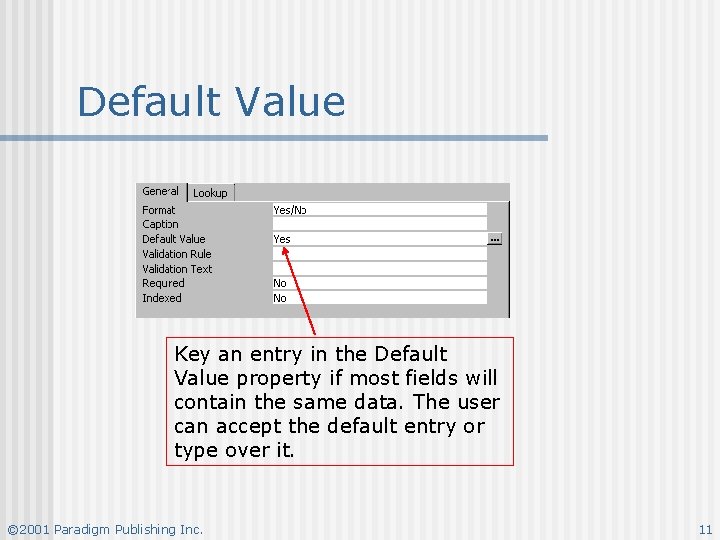
Default Value Key an entry in the Default Value property if most fields will contain the same data. The user can accept the default entry or type over it. © 2001 Paradigm Publishing Inc. 11
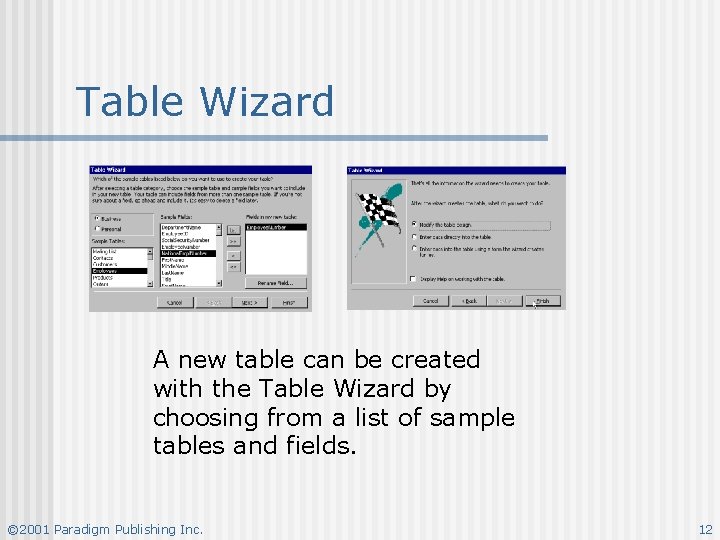
Table Wizard A new table can be created with the Table Wizard by choosing from a list of sample tables and fields. © 2001 Paradigm Publishing Inc. 12

Creating a Table by Adding Records Key data directly into a blank datasheet. When you save the datasheet, Access automatically assigns data types and formats based on the data entered. © 2001 Paradigm Publishing Inc. 13
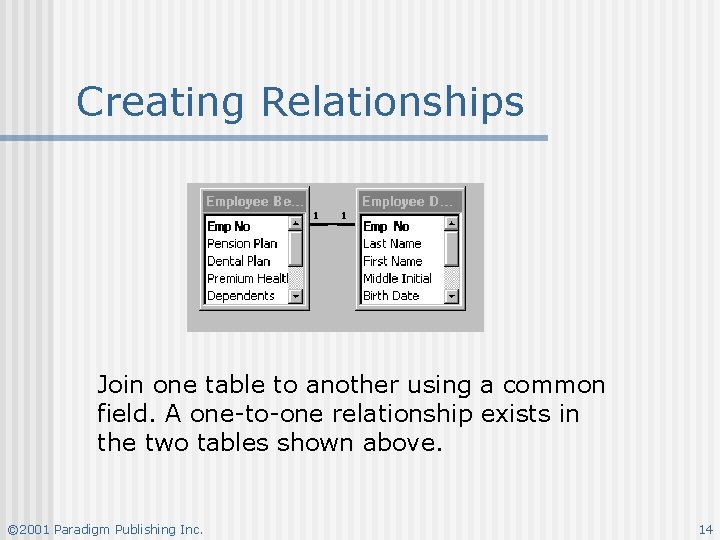
Creating Relationships Join one table to another using a common field. A one-to-one relationship exists in the two tables shown above. © 2001 Paradigm Publishing Inc. 14
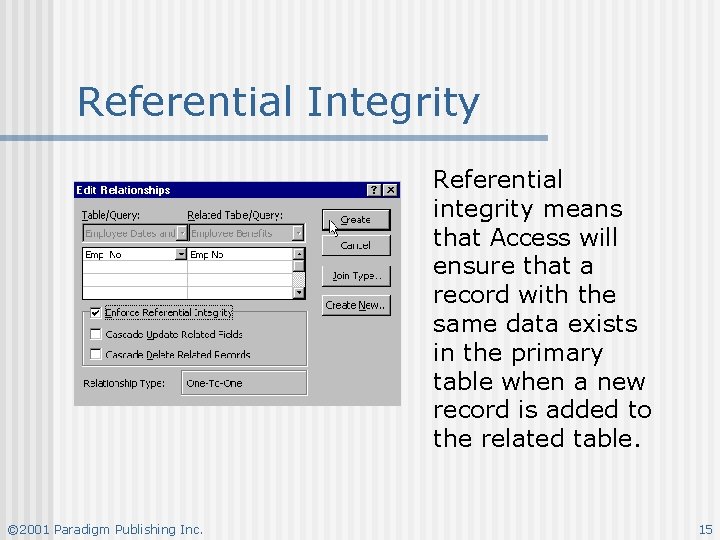
Referential Integrity Referential integrity means that Access will ensure that a record with the same data exists in the primary table when a new record is added to the related table. © 2001 Paradigm Publishing Inc. 15
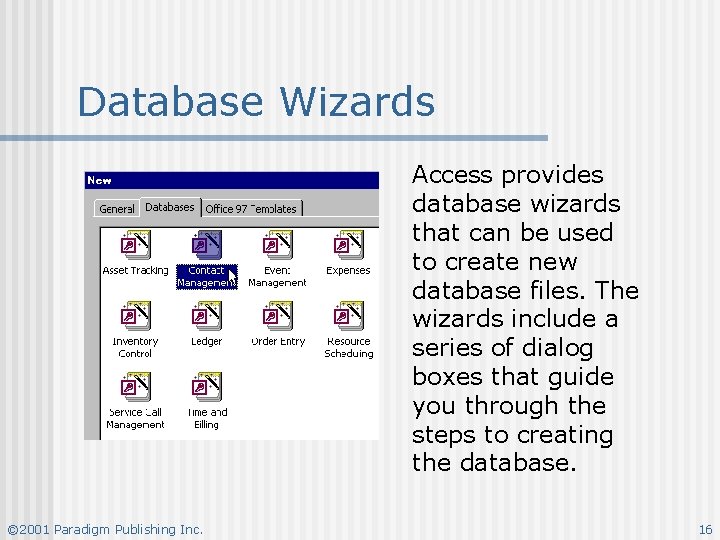
Database Wizards Access provides database wizards that can be used to create new database files. The wizards include a series of dialog boxes that guide you through the steps to creating the database. © 2001 Paradigm Publishing Inc. 16
- Slides: 16