
Micronova Nanofabrication Centre PESO MANUAL Version 2 2
Micronova Nanofabrication Centre PESO MANUAL Version 2. 2 23. 5. 2013 1
THINGS TO REMEMBER Micronova Nanofabrication Centre • Always record your tool use – immediately! • Check the PESO label on the tool. • Use ”Comments” field freely to write anything interesting to you or others. PESO is the equipment diary! • Use correct project: generally your own project. • If you use a tool for another person: use her project. • All tool maintenance on project Maintenance Nanofab Aalto. • All training on project Training and Process Support. • Main Users: if ”Training and Process Support” does not require actual use of equipment, use imaginary tool ”Process Support” in PESO. • You are allowed to use only tools with the status “OK” or “PROBLEMS”. For any other status – do not use the tool! 2
WHAT IS PESO? Micronova Nanofabrication Centre PESO is the computerised database for processing and equipment use. VTT and Aalto have separate databases, but both use basically the same software (developed and maintained by VTT). PESO is used by all who use, repair or maintain equipment. The equipment included in the database are identified with a PESO label. Some tools outside the cleanroom are also included! If in doubt, check from the Equipment list in PESO is used for – Logging equipment use – Keeping track of problems & equipment failures, and up/downtime data – Collecting maintenance data – A processing diary – Collecting data for invoicing. Note: invoicing is based on projects – be careful to use the correct project! Access – PESO can be accessed with any browser within the cleanroom and/or on the Nanofab network at the address http: //130. 233. 166. 6/ 3
BEFORE YOU START - PROJECT! Micronova Nanofabrication Centre Make sure your name and the project you are working on are already in PESO! • Users are entered into the database by the Cleanroom Engineer. This is done when you get permission to use the cleanroom. • Projects are entered by the Nanofab personnel (Cleanroom Engineer Paula Kettula or Assistant Controller Mari Kaleva). (Please do not add projects yourself –we need to have the correct invoicing address for each project. ) • Every research group must have at least 1 project. Following data are required: 1) Name of the project 2) Group 3) Name of the principal scientist (Note: this project manager – the person who receives the invoices!) 4) Start date 5) End date Note: Basically every project must have an End Date! Only 1 “general” project / group can be indefinitely continuing. 4
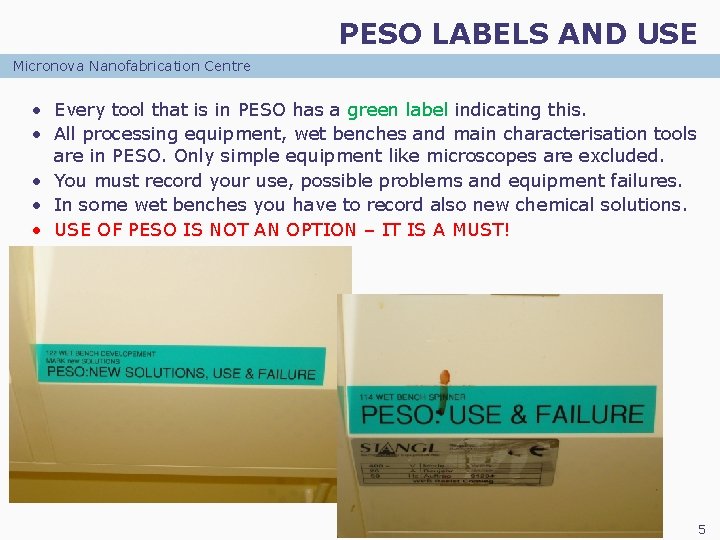
PESO LABELS AND USE Micronova Nanofabrication Centre • Every tool that is in PESO has a green label indicating this. • All processing equipment, wet benches and main characterisation tools are in PESO. Only simple equipment like microscopes are excluded. • You must record your use, possible problems and equipment failures. • In some wet benches you have to record also new chemical solutions. • USE OF PESO IS NOT AN OPTION – IT IS A MUST! 5
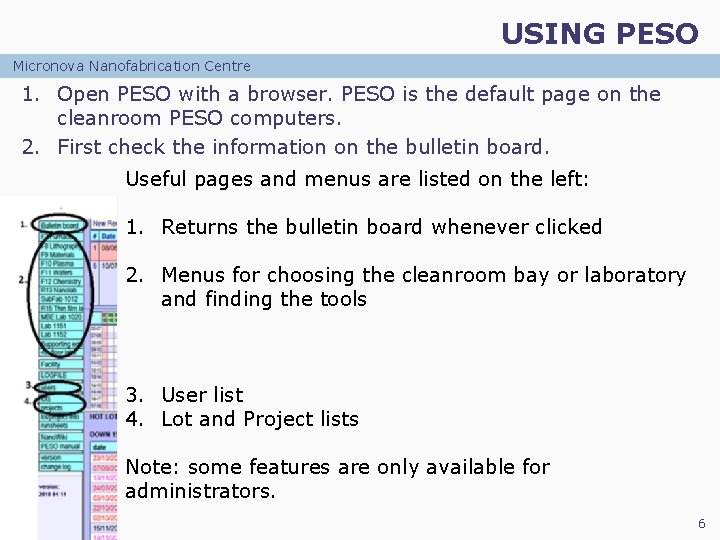
USING PESO Micronova Nanofabrication Centre 1. Open PESO with a browser. PESO is the default page on the cleanroom PESO computers. 2. First check the information on the bulletin board. Useful pages and menus are listed on the left: 1. Returns the bulletin board whenever clicked 2. Menus for choosing the cleanroom bay or laboratory and finding the tools 3. User list 4. Lot and Project lists Note: some features are only available for administrators. 6
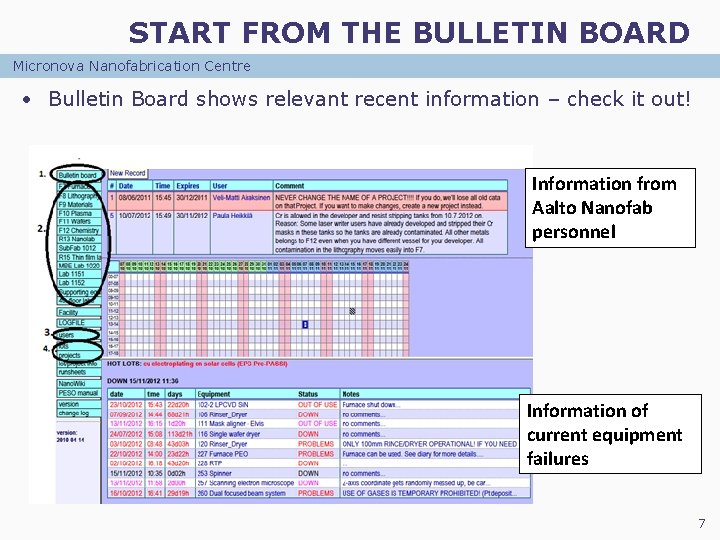
START FROM THE BULLETIN BOARD Micronova Nanofabrication Centre • Bulletin Board shows relevant recent information – check it out! Information from Aalto Nanofab personnel Information of current equipment failures 7
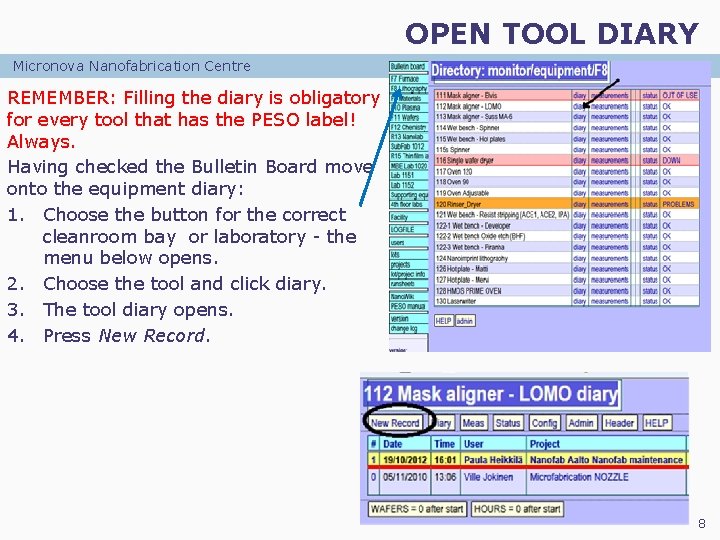
OPEN TOOL DIARY Micronova Nanofabrication Centre REMEMBER: Filling the diary is obligatory for every tool that has the PESO label! Always. Having checked the Bulletin Board move onto the equipment diary: 1. Choose the button for the correct cleanroom bay or laboratory - the menu below opens. 2. Choose the tool and click diary. 3. The tool diary opens. 4. Press New Record. 8
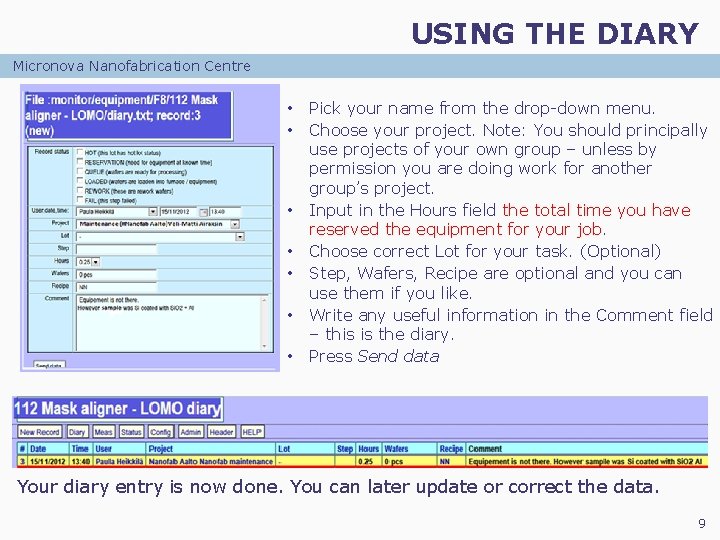
USING THE DIARY Micronova Nanofabrication Centre • • Pick your name from the drop-down menu. Choose your project. Note: You should principally use projects of your own group – unless by permission you are doing work for another group’s project. Input in the Hours field the total time you have reserved the equipment for your job. Choose correct Lot for your task. (Optional) Step, Wafers, Recipe are optional and you can use them if you like. Write any useful information in the Comment field – this is the diary. Press Send data Your diary entry is now done. You can later update or correct the data. 9
TOOL STATUS Micronova Nanofabrication Centre If the tool doesn’t work properly or doesn’t work at all: − Record your findings in the Comment field of PESO. − Inform other users by selecting correct STATUS for the tool. STATUS classes are: 1. OK 2. 3. 4. 5. - Tool is operational and in perfect condition. SCHEDULED MAINTENANCE - Preventive maintenance under way. DOWN - Tool is unusable due to faults. OUT OF USE - Tool basically OK, but has been taken out of use (e. g. due to facility problems). PROBLEMS – Tool has problems but can be used. Specify in diary. Inform the Main User You can find his contact information in PESO user list and in LIMS. 8. 11. 2012 Version 2. 0 10
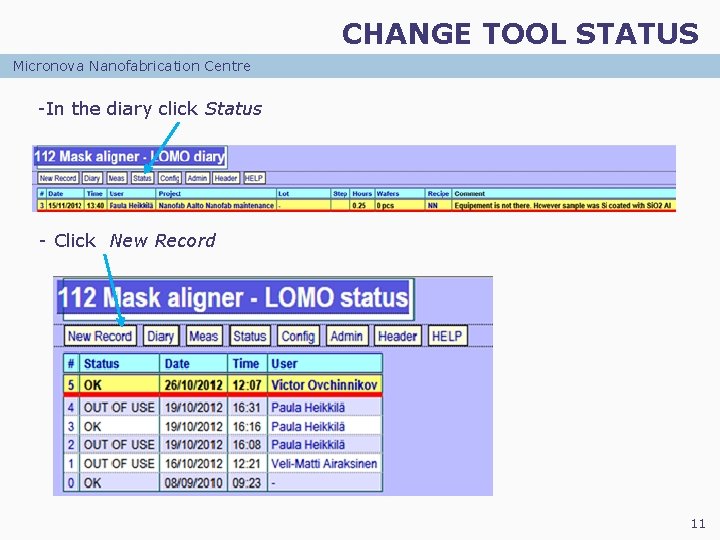
CHANGE TOOL STATUS Micronova Nanofabrication Centre -In the diary click Status - Click New Record 11
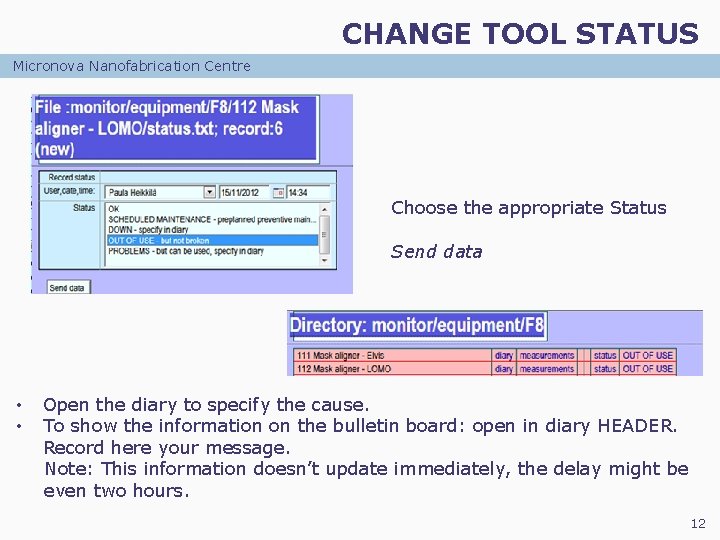
CHANGE TOOL STATUS Micronova Nanofabrication Centre Choose the appropriate Status Send data • • Open the diary to specify the cause. To show the information on the bulletin board: open in diary HEADER. Record here your message. Note: This information doesn’t update immediately, the delay might be even two hours. 12
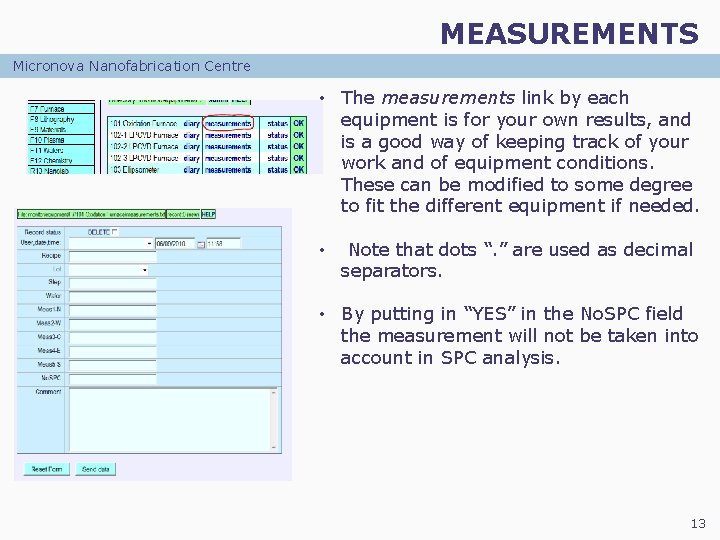
MEASUREMENTS Micronova Nanofabrication Centre • The measurements link by each equipment is for your own results, and is a good way of keeping track of your work and of equipment conditions. These can be modified to some degree to fit the different equipment if needed. • Note that dots “. ” are used as decimal separators. • By putting in “YES” in the No. SPC field the measurement will not be taken into account in SPC analysis. 13
SPECIAL ISSUE: USE OF VTT’S EQUIPMENT Micronova Nanofabrication Centre • Most of VTT’s tools in the M 2 cleanroom are also accessible for Aalto’s users. Training and permissions: • Contact equipment responsible person through LIMS for user training. • You may use the equipment after given the permission by the equipment responsible person. Ø Database • VTT has a separate Process Registration Database (similar to PESO). • Register your use in the database in the normal way. • If your usage is infrequent, use generic project Aalto_2013. • Important: note your own project in the ”comments” field (for our invoicing information)! • If your usage of VTT’s tool is fairly frequent, get your own project into VTT’s database (through Ulrika Gyllenberg). This will greatly help our invoicing!
SPECIAL ISSUE: PROCESSING FOR OTHERS Micronova Nanofabrication Centre • You may use equipment to perform processing / measurement services. For instance for a cleanroom user who does not have permission to use the tool; or for a researcher who does not have access to the cleanroom. Do the following: • Check whether your ”Client” has a project in PESO. Ø If your Client has a project in PESO: • Use this project to log your equipment use – then our invoicing will find the right target! Ø If your Client does not have a project in PESO: • Give her our standard ”Nanofab Processing Order” form to fill. This form has to be signed by the Project Leader. The Client should send the signed form directly to the Cleanroom Engineer. • Cleanroom Engineer creates the project in PESO and sends notification to you (and Nanofab’s assistant Controller). • You may now do the processing. Log use in PESO using the Client’s project!
SPECIAL ISSUE: MAINTAINING STANDARD PROCESSES Micronova Nanofabrication Centre • Occasionally before a tool can be used, the performance of a standard process has to be validated (i. e. after major maintenance), or special maintenance runs have to be run on the tool (i. e. cleaning runs). Ø Process validation/qualification: • Contact the Main User and get her permission. • Perform process validation. • Log equipment use and data in PESO, project ”Training and Process Support”. Ø Cleaning Runs • Cleaning runs are specified in the short user manual. • Perform cleaning run. • Log equipment use and data in PESO, project ”Training and Process Support”. • If in doubt – contact Main User or Nanofab personnel.
SPECIAL ISSUE: DEVELOPING NEW PROCESS Micronova Nanofabrication Centre • Generally you’ll be using standard recipes in each tool. Only basic parameters may be adjusted (e. g. processing time. ). These are defined for each process. • Occasionally, standard processes do not produce the required results and a significantly modified process may be required. Do the following: • Contact Main User and discuss process requirements with him. • If the Main User likes the idea, fill in our document ”Nanofab Process Development Plan”. • Main User decides whether the new process is potentially generally useful, and could thus become a new Standard Process. Ø If new process is intended for a Standard Process: • Main User submits the Process Development Plan to Nanofab for approval. • After the plan has been approved, process development can proceed. • Main User logs worktime for process development on ”Training and Process Support”. • Equipment Use by the user is also logged on ”Training and Process Support”. Ø If new process will not become a Standard Process: • Process development can proceed under the supervision of the Main User. • Main User logs worktime for process development on ”Training and Process Support”. • But: equipment use is logged on the user’s own project.
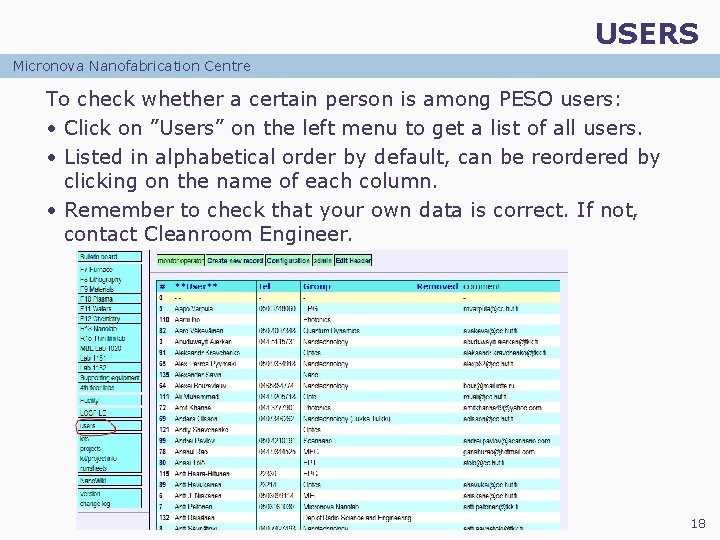
USERS Micronova Nanofabrication Centre To check whether a certain person is among PESO users: • Click on ”Users” on the left menu to get a list of all users. • Listed in alphabetical order by default, can be reordered by clicking on the name of each column. • Remember to check that your own data is correct. If not, contact Cleanroom Engineer. 18
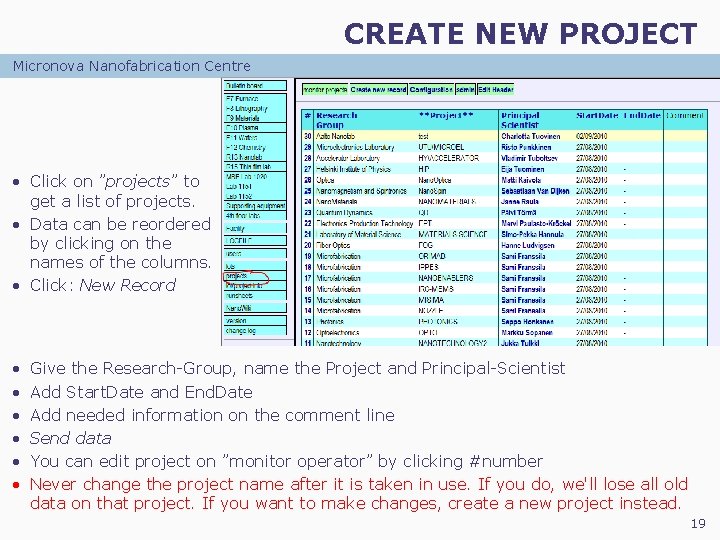
CREATE NEW PROJECT Micronova Nanofabrication Centre • Click on ”projects” to get a list of projects. • Data can be reordered by clicking on the names of the columns. • Click: New Record • • • Give the Research-Group, name the Project and Principal-Scientist Add Start. Date and End. Date Add needed information on the comment line Send data You can edit project on ”monitor operator” by clicking #number Never change the project name after it is taken in use. If you do, we'll lose all old data on that project. If you want to make changes, create a new project instead. 19
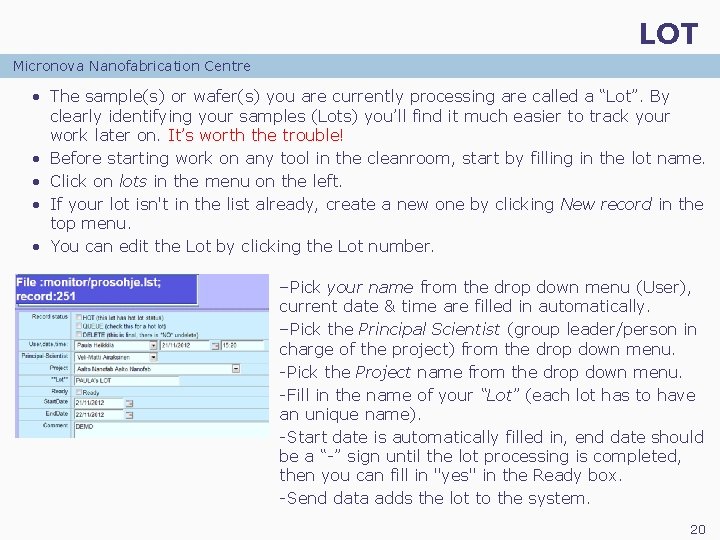
LOT Micronova Nanofabrication Centre • The sample(s) or wafer(s) you are currently processing are called a “Lot”. By clearly identifying your samples (Lots) you’ll find it much easier to track your work later on. It’s worth the trouble! • Before starting work on any tool in the cleanroom, start by filling in the lot name. • Click on lots in the menu on the left. • If your lot isn't in the list already, create a new one by clicking New record in the top menu. • You can edit the Lot by clicking the Lot number. –Pick your name from the drop down menu (User), current date & time are filled in automatically. –Pick the Principal Scientist (group leader/person in charge of the project) from the drop down menu. -Pick the Project name from the drop down menu. -Fill in the name of your “Lot” (each lot has to have an unique name). -Start date is automatically filled in, end date should be a “-” sign until the lot processing is completed, then you can fill in "yes" in the Ready box. -Send data adds the lot to the system. 20
- Slides: 20