
Microcontroller basics Lesson 5 Io T Bluetooth Wireless
Microcontroller basics
Lesson 5 • Io. T • Bluetooth • Wireless internet • Local network • Servers
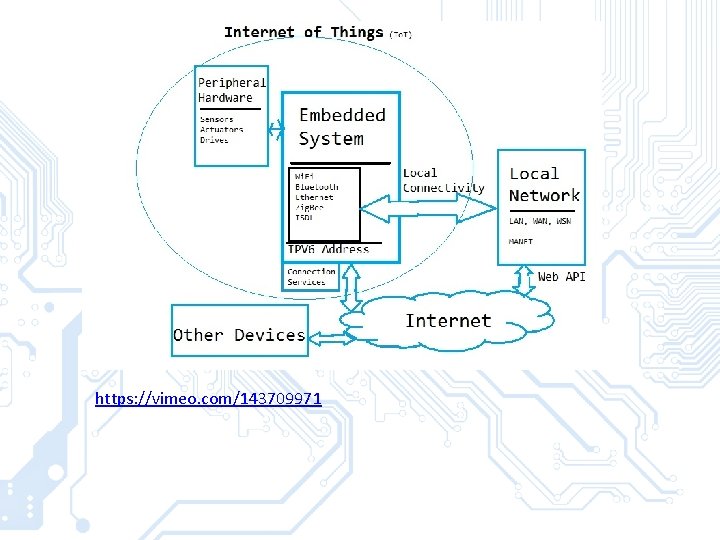
Internet of Things • ”Io. T is a network of physical objects with embedded electronics that collect and share data”
https: //vimeo. com/143709971
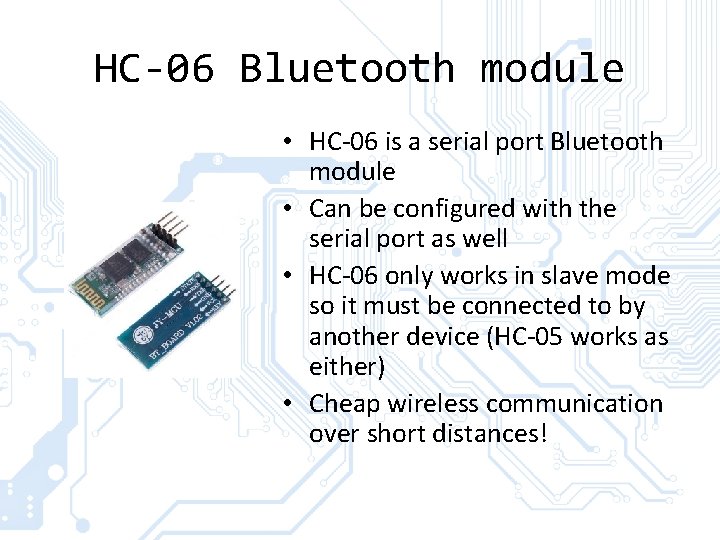
HC-06 Bluetooth module • HC-06 is a serial port Bluetooth module • Can be configured with the serial port as well • HC-06 only works in slave mode so it must be connected to by another device (HC-05 works as either) • Cheap wireless communication over short distances!
HC-06 Bluetooth module • Module has a transistor-transistor logic level of 3. 3 V while Arduino Uno has a TTL of 5 V • Correct solution would be to use a logic level converter (More of LLCs later) • This module can be used without a LLC by doing some hacking – Using voltage division the Arduino TX voltage can be dropped to around 3. 3 V – The HC-06 HIGH voltage (3. 3 V) is enough to register on the Arduino as HIGH (limit is around 3 V)
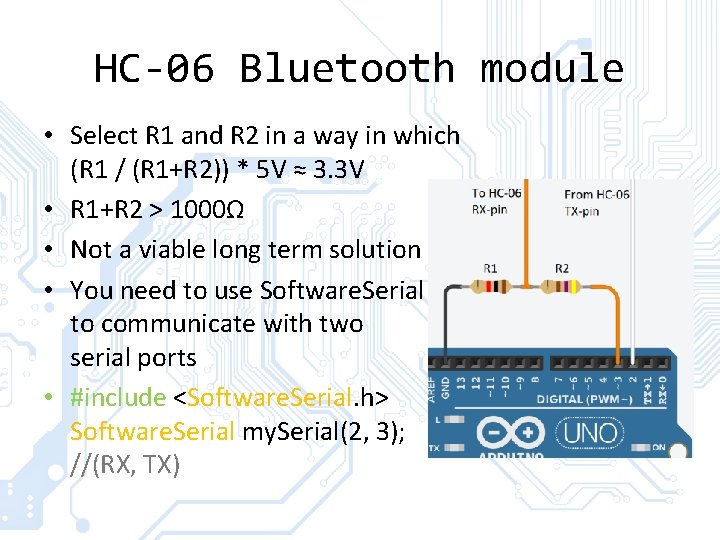
HC-06 Bluetooth module • Select R 1 and R 2 in a way in which (R 1 / (R 1+R 2)) * 5 V ≈ 3. 3 V • R 1+R 2 > 1000Ω • Not a viable long term solution • You need to use Software. Serial to communicate with two serial ports • #include <Software. Serial. h> Software. Serial my. Serial(2, 3); //(RX, TX)
HC-06 Bluetooth module • The module can be configured with AT commands written to the serial monitor • AT, returns “OK” • AT+NAMEmodule. Name, sets name to module. Name • AT+PINxxxx, sets the pin to xxxx • AT+VERSION, returns the module firmware version • AT+BAUDX, sets the BAUD rate – Values of X, 4 by default: [1 -> 1200, 2 -> 2400, 3 -> 4800, 4 -> 9600, 5 -> 19200, 6 -> 38400, 7 -> 57600, 8 -> 115200] bps
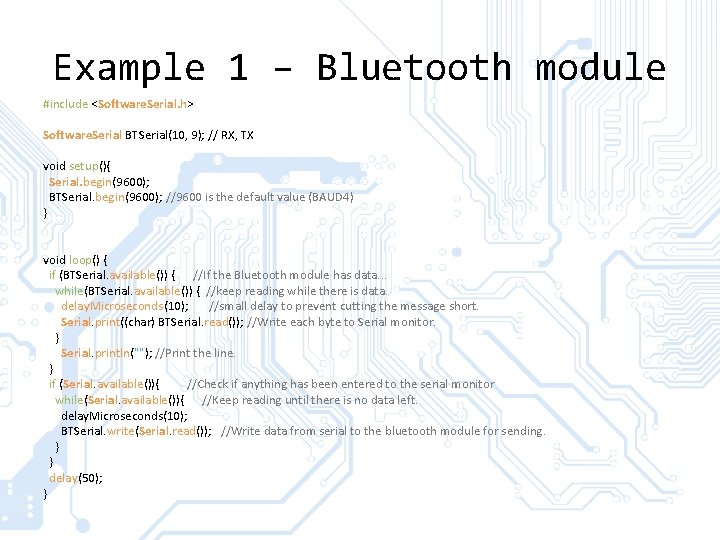
Example 1 – Bluetooth module #include <Software. Serial. h> Software. Serial BTSerial(10, 9); // RX, TX void setup(){ Serial. begin(9600); BTSerial. begin(9600); //9600 is the default value (BAUD 4) } void loop() { if (BTSerial. available()) { //If the Bluetooth module has data. . . while(BTSerial. available()) { //keep reading while there is data. delay. Microseconds(10); //small delay to prevent cutting the message short. Serial. print((char) BTSerial. read()); //Write each byte to Serial monitor. } Serial. println(""); //Print the line. } if (Serial. available()){ //Check if anything has been entered to the serial monitor while(Serial. available()){ //Keep reading until there is no data left. delay. Microseconds(10); BTSerial. write(Serial. read()); //Write data from serial to the bluetooth module for sending. } } delay(50); }
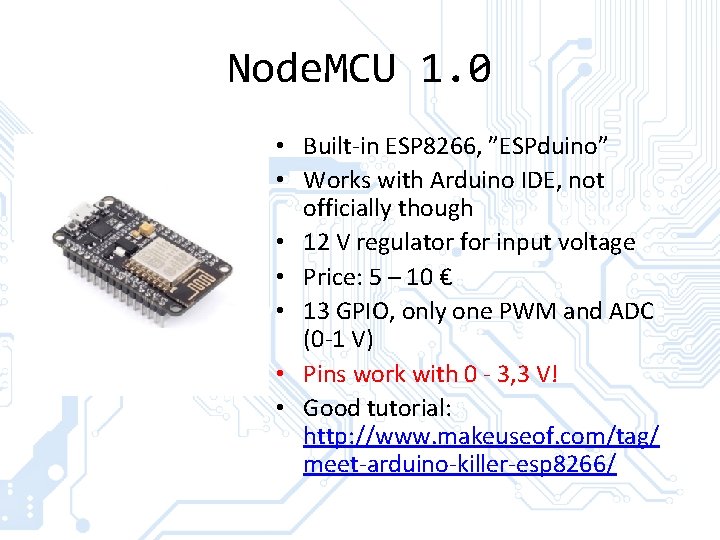
Node. MCU 1. 0 • Built-in ESP 8266, ”ESPduino” • Works with Arduino IDE, not officially though • 12 V regulator for input voltage • Price: 5 – 10 € • 13 GPIO, only one PWM and ADC (0 -1 V) • Pins work with 0 - 3, 3 V! • Good tutorial: http: //www. makeuseof. com/tag/ meet-arduino-killer-esp 8266/
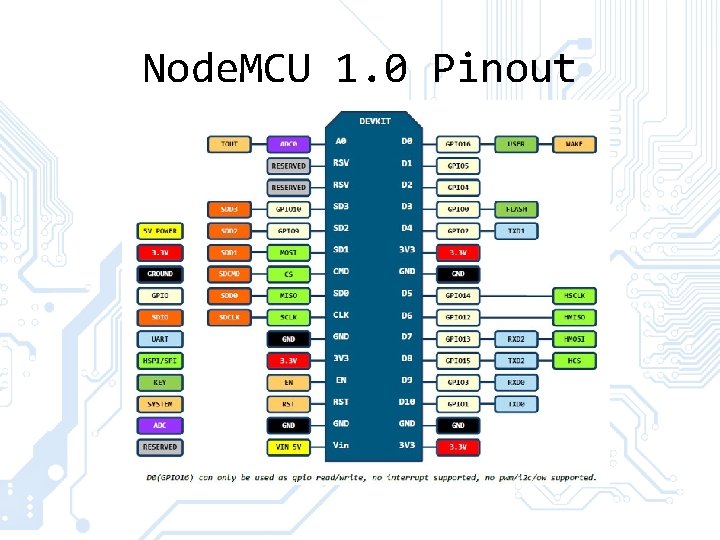
Node. MCU 1. 0 Pinout
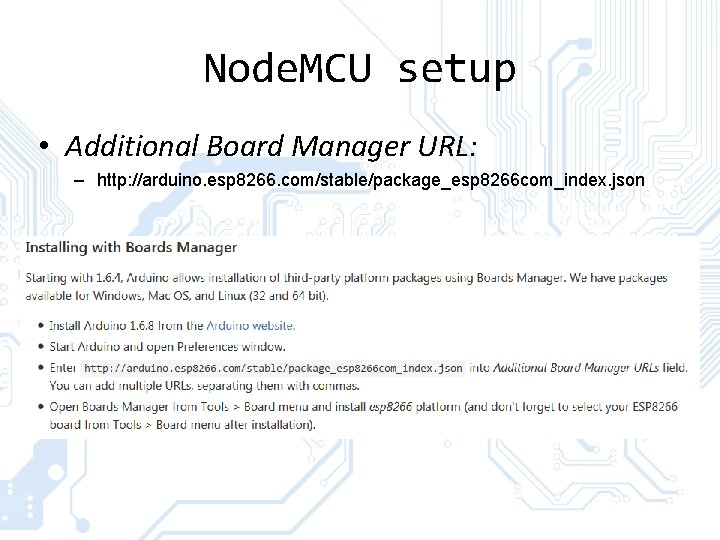
Node. MCU setup • Additional Board Manager URL: – http: //arduino. esp 8266. com/stable/package_esp 8266 com_index. json
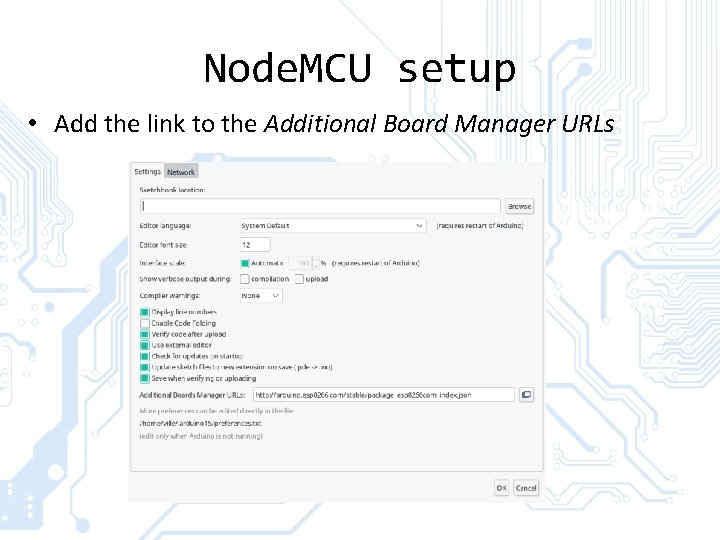
Node. MCU setup • Add the link to the Additional Board Manager URLs
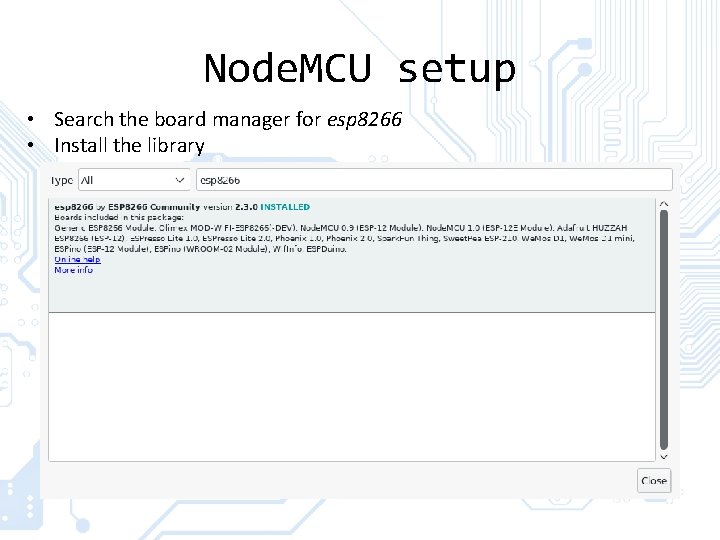
Node. MCU setup • Search the board manager for esp 8266 • Install the library
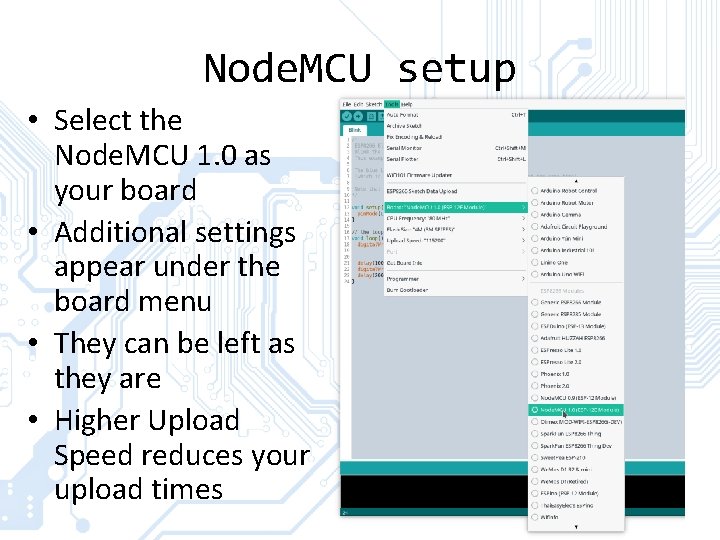
Node. MCU setup • Select the Node. MCU 1. 0 as your board • Additional settings appear under the board menu • They can be left as they are • Higher Upload Speed reduces your upload times
Node. MCU setup • If the device doesn’t appear in the port menu after installing the library and connecting the board you can try installing the USB to Serial chip drivers. • The chip is the ch 340 g • Drivers can be found on the Node. MCU git: https: //github. com/nodemcudevkit/tree/master/Drivers
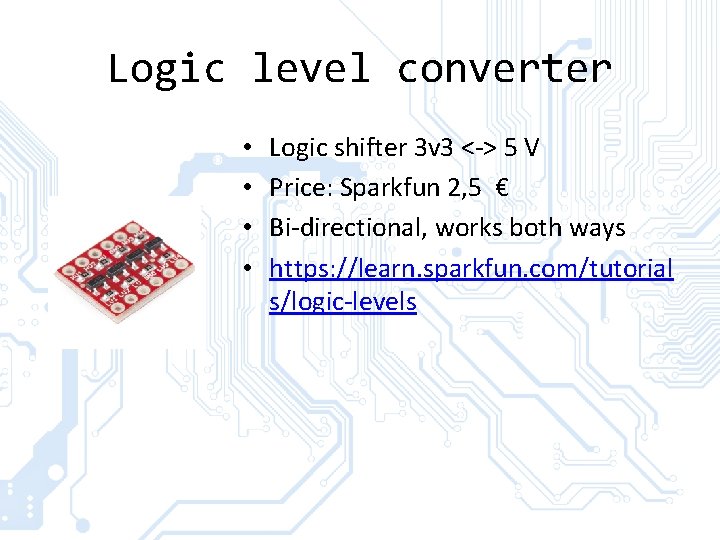
Logic level converter • • Logic shifter 3 v 3 <-> 5 V Price: Sparkfun 2, 5 € Bi-directional, works both ways https: //learn. sparkfun. com/tutorial s/logic-levels
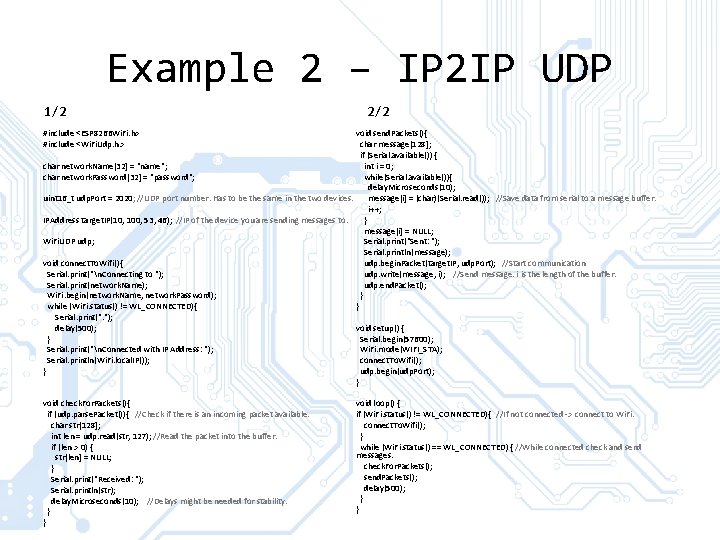
Example 2 – IP 2 IP UDP 1/2 2/2 #include <ESP 8266 Wi. Fi. h> #include <Wi. Fi. Udp. h> void send. Packets(){ char message[128]; if (Serial. available()) { char network. Name[32] = "name"; int i = 0; char network. Password[32] = "password"; while(Serial. available()){ delay. Microseconds(10); uint 16_t udp. Port = 2020; //UDP port number. Has to be the same in the two devices. message[i] = (char)(Serial. read()); //Save data from serial to a message buffer. i++; IPAddress target. IP(10, 100, 53, 46); //IP of the device you are sending messages to. } message[i] = NULL; Wi. Fi. UDP udp; Serial. print("Sent: "); Serial. println(message); void connect. To. Wifi(){ udp. begin. Packet(target. IP, udp. Port); //Start communication Serial. print("n. Connecting to "); udp. write(message, i); //Send message. i is the length of the buffer. Serial. print(network. Name); udp. end. Packet(); Wi. Fi. begin(network. Name, network. Password); } while (Wi. Fi. status() != WL_CONNECTED){ } Serial. print(". "); delay(500); void setup() { } Serial. begin(57600); Serial. print("n. Connected with IP Address: "); Wi. Fi. mode(WIFI_STA); Serial. println(Wi. Fi. local. IP()); connect. To. Wifi(); } udp. begin(udp. Port); } void check. For. Packets(){ if (udp. parse. Packet()){ //Check if there is an incoming packet available. char str[128]; int len = udp. read(str, 127); //Read the packet into the buffer. if (len > 0) { str[len] = NULL; } Serial. print("Received: "); Serial. println(str); delay. Microseconds(10); //Delays might be needed for stability. } } void loop() { if (Wi. Fi. status() != WL_CONNECTED){ //If not connected -> connect to Wi. Fi. connect. To. Wifi(); } while (Wi. Fi. status() == WL_CONNECTED) { //While connected check and send messages. check. For. Packets(); send. Packets(); delay(500); } }
Example 3 – UDP Broadcast • Otherwise similar to IP 2 IP but target. IP is changed to a broadcast IP • It can be calculated from local IP and subnet mask • Uses almost the same sketch as in previous example • Changes shown in the next slide • Full sketches for both UDP examples can be found in the exercise materials
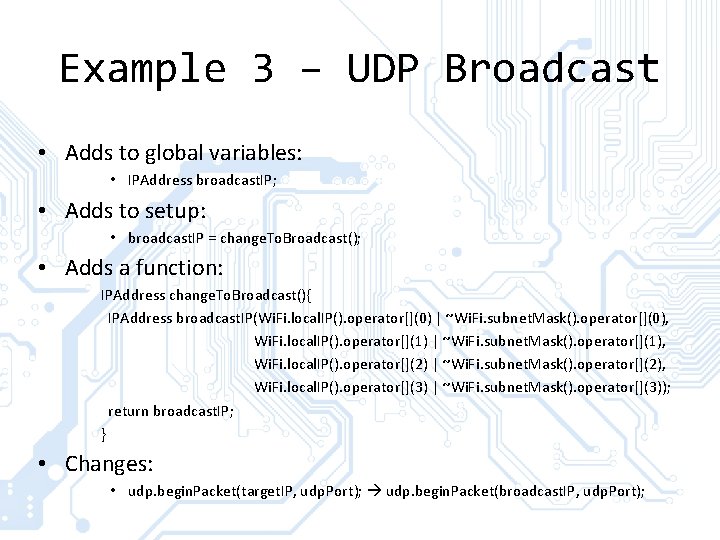
Example 3 – UDP Broadcast • Adds to global variables: • IPAddress broadcast. IP; • Adds to setup: • broadcast. IP = change. To. Broadcast(); • Adds a function: IPAddress change. To. Broadcast(){ IPAddress broadcast. IP(Wi. Fi. local. IP(). operator[](0) | ~Wi. Fi. subnet. Mask(). operator[](0), Wi. Fi. local. IP(). operator[](1) | ~Wi. Fi. subnet. Mask(). operator[](1), Wi. Fi. local. IP(). operator[](2) | ~Wi. Fi. subnet. Mask(). operator[](2), Wi. Fi. local. IP(). operator[](3) | ~Wi. Fi. subnet. Mask(). operator[](3)); return broadcast. IP; } • Changes: • udp. begin. Packet(target. IP, udp. Port); udp. begin. Packet(broadcast. IP, udp. Port);
Blynk • Blynk is a free Io. T server • Great GUI builder on a phone application • Free version has some limitations to the complexity of the GUI but not much • Very easy to use • Instructables has full instructions for setting up Blynk using a Node. MCU • http: //www. instructables. com/id/Simple-Led-Control -With-Blynk-and-Node. MCU-Esp 8266 -/
ESP 8266 after Blynk • Using the ESP 8266 without an app like Blynk requires some coding skills, although lots of ready -made code can be found on the internet. • There will also be some extra examples in the end of the slides • You can connect with the module directly within its range or anywhere through internet. • For internet connection you’ll need a website to which the module sends data or where you can send data to the module.
More reading and links • Google & Youtube - search for projects, solutions to occurring problems and data sheets for components • http: //www. blynk. cc/ - Homepage of the Blynk software, getting started, community forums • http: //www. esp 8266. com/ - Everything on ESP 8266, wiki • https: //www. adafruit. com/ - Learning materials, guides, example projects, forums, store • https: //github. com/ - Largest code host, lots of projects and sample code • http: //allaboutee. com/ - good ESP 8266 tutorials • https: //nurdspace. nl/ESP 8266/ - ESP 8266 info and basic list of AT commands
Non proven older examples • Will be found in a separate zip in the exercise materials
ESP 8266 ADC server (just HTML) Download Node. MCU. zip (place it in your sketchbook folder) Attach potentiometer to ADC pin (and 3. 3 V & GND) Upload ESP 8266_Pot example Access the webserver by typing in the ip of the ESP 8266 in a browser • (the sketch prints it in the serial monitor, if you missed it push reset) • • • REMEMBER THE ADC IS ONLY 1. 0 V • (if you want “full range” voltage divider)
ESP 8266 ADC (dynamic) • Upload ESP 8266_Pot_DYN example • Uses javascript and HTTP PUT (XML) to update ADC value (client side scripting) • https: //en. wikipedia. org/wiki/Hypertext_Transfer_Protocol# Request_methods
Getting data from the internet • There are numerous ways of getting data from the internet • One common way is using HTTPRequests that return JSON objects and arrays • You can also use XML in very similar way • You can get e. g. weather, time or other data with by using JSON APIs • Sometimes you need to sign up to get an API key • List of public JSON APIs
Inspirator • Download and install Arduino. Json library • https: //github. com/bblanchon/Arduino. Json • Upload Inspirator • Become inspired
ESP 8266 ADC (socket) • There is an even faster way to transfer data to / from a webserver WEBSOCKETS • “standardized way for the server to send content to the browser without being solicited by the client, and allowing for messages to be passed back and forth while keeping the connection open” • https: //en. wikipedia. org/wiki/Web. Socket
ESP 8266 ADC (socket) • • • We can make this even more complicated! Let’s put the server files (html, js, etc. ) in SPIFFS (SPI flash file system), (there is external SPI flash on the ESP 8266) Download. zip from https: //github. com/esp 8266/arduino-esp 8266 fsplugin/releases/tag/0. 3. 0 Create ‘tools’ directory in the sketchbook directory Copy the ESP 8266 FS folder there (the path will look like <home_dir>/Arduino/tools/ESP 8266 FS/tool/esp 8266 fs. jar). Restart Arduino IDE
ESP 8266 ADC (socket) Download the ESP 8266 Websockets library: https: //github. com/Links 2004/arduino. Web. Sockets Upload the Node. MCUSocket sketch Write the IP down that the ESP gets (it prints it in the serial monitor) • Modify the menuinterface. js file to have the correct ip for the socket server • Upload the sketch data to SPIFFS (close serial monitors before) • (Tools ESP 8266 sketch data upload) • •
This is the final exercise • Course assistant will now be oncall at the Lab at times announced later • Most likely at the same times as the exercises were • You can also contact the assistant for meetings or help at: eemeli. mykra@aalto. fi
- Slides: 32