
Micro Irrigation Progress Monitoring System User Manual Under

- Slides: 40
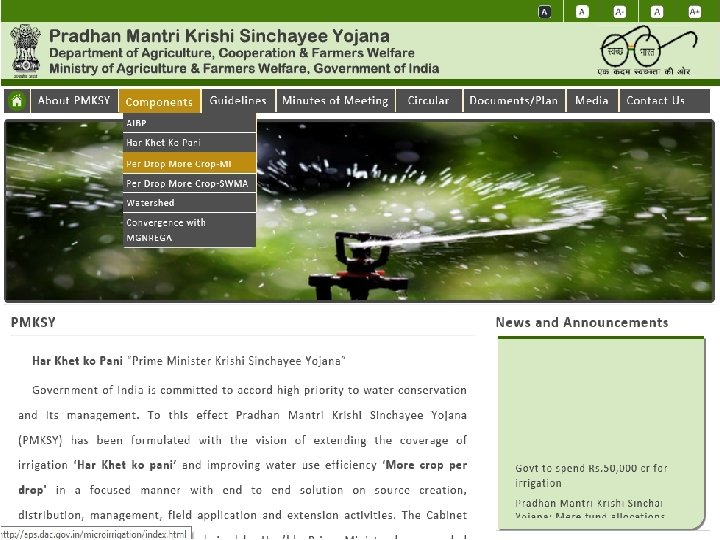
Micro Irrigation Progress Monitoring System User Manual Under PMKSY (http: //pmksy. gov. in)
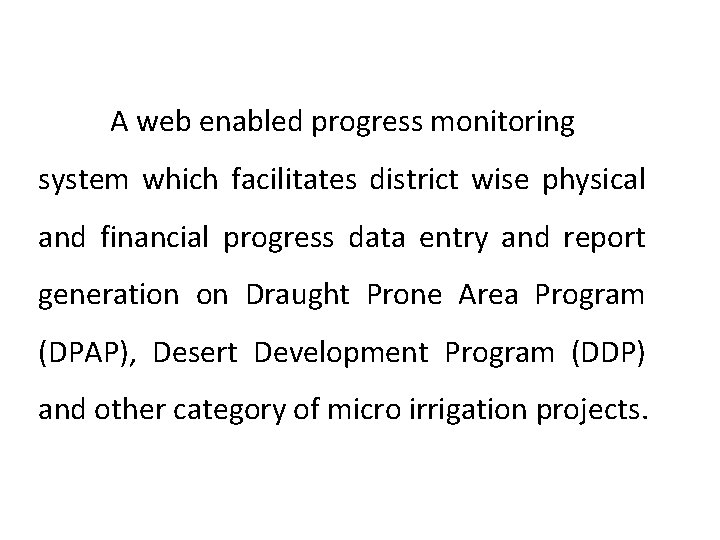
A web enabled progress monitoring system which facilitates district wise physical and financial progress data entry and report generation on Draught Prone Area Program (DPAP), Desert Development Program (DDP) and other category of micro irrigation projects.
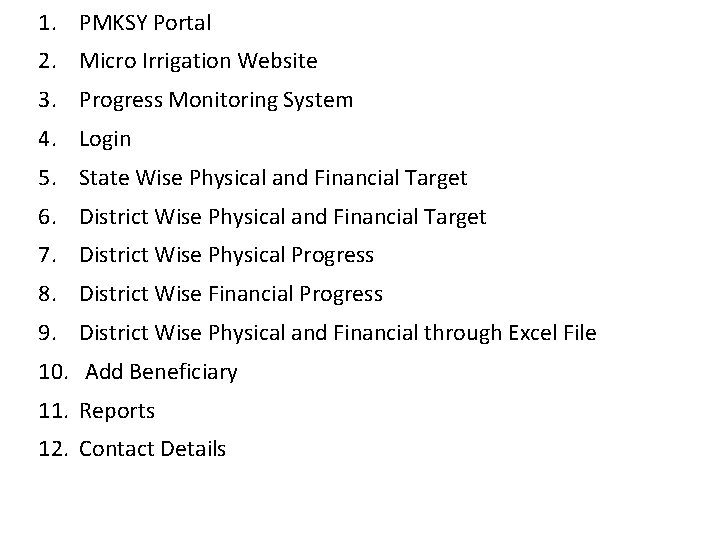
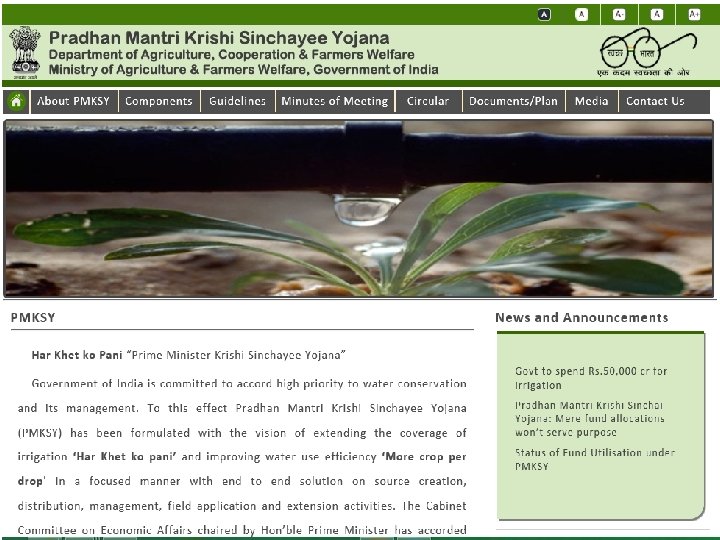
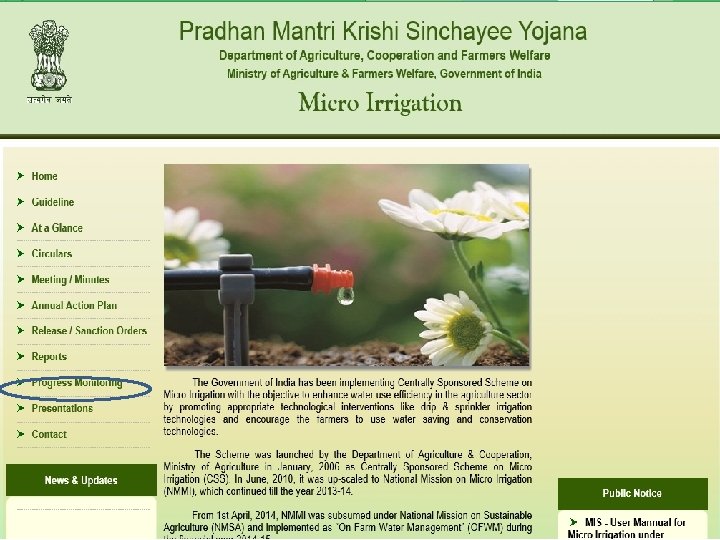
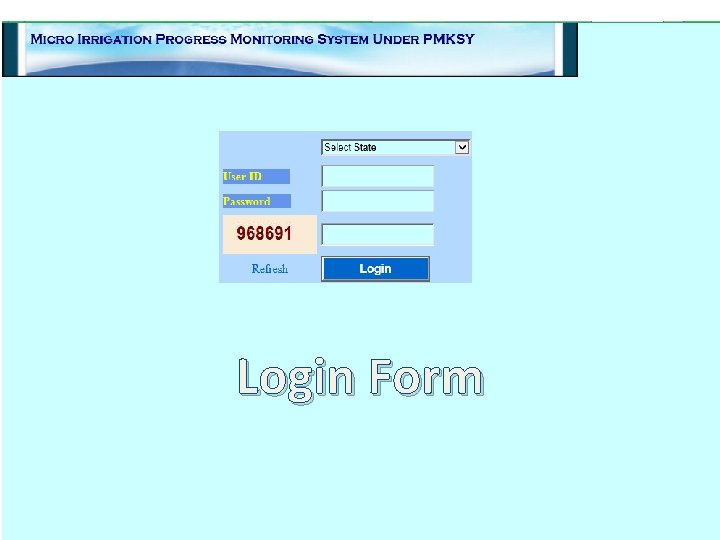
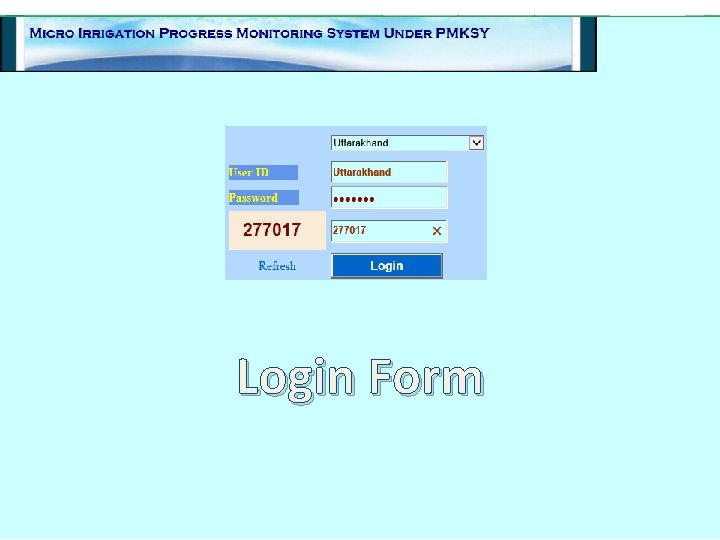
1. PMKSY Portal 2. Micro Irrigation Website 3. Progress Monitoring System 4. Login 5. State Wise Physical and Financial Target 6. District Wise Physical and Financial Target 7. District Wise Physical Progress 8. District Wise Financial Progress 9. District Wise Physical and Financial through Excel File 10. Add Beneficiary 11. Reports 12. Contact Details
Login Form
Login Form
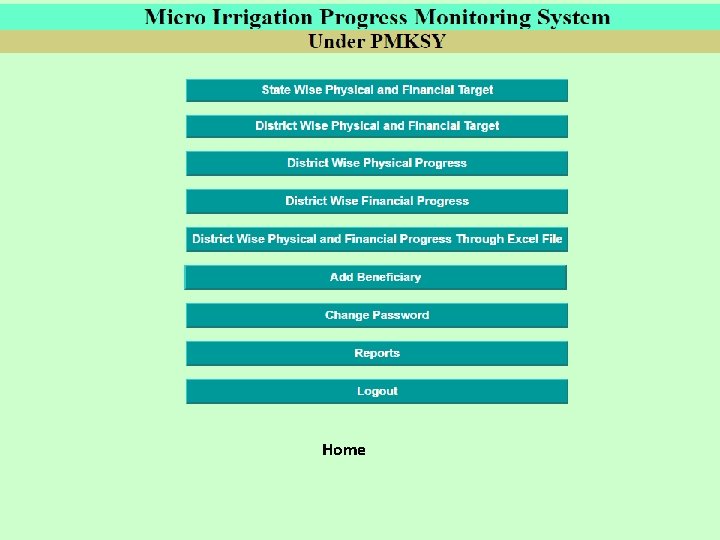
Home
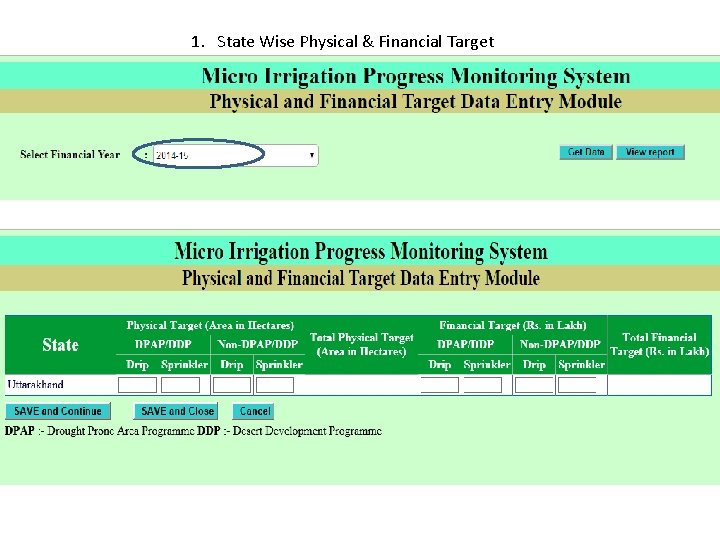
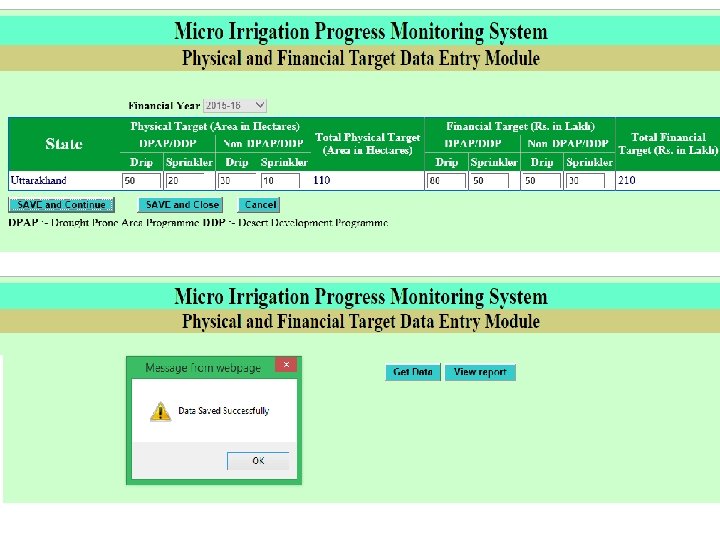
1. State Wise Physical & Financial Target
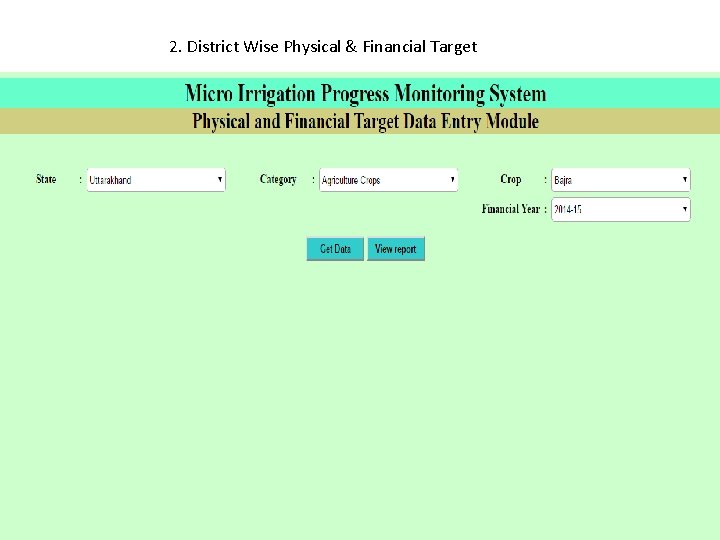
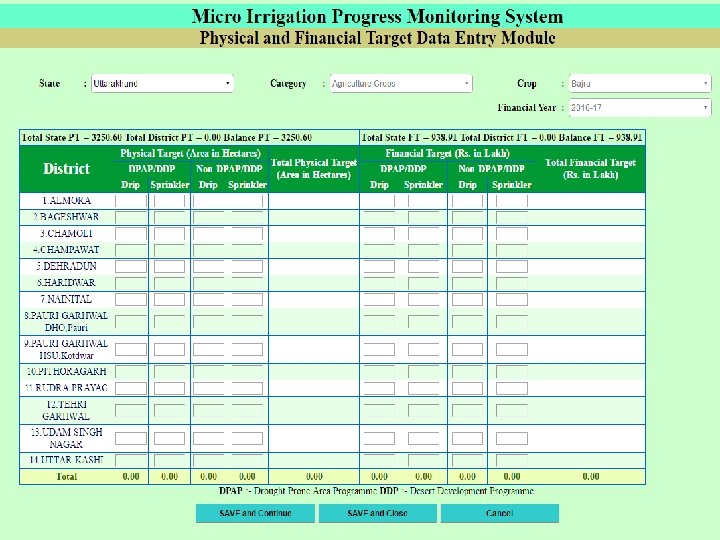
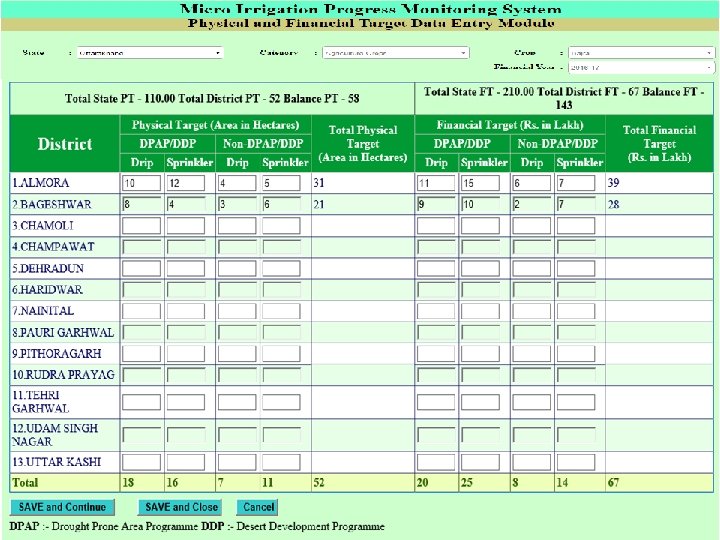
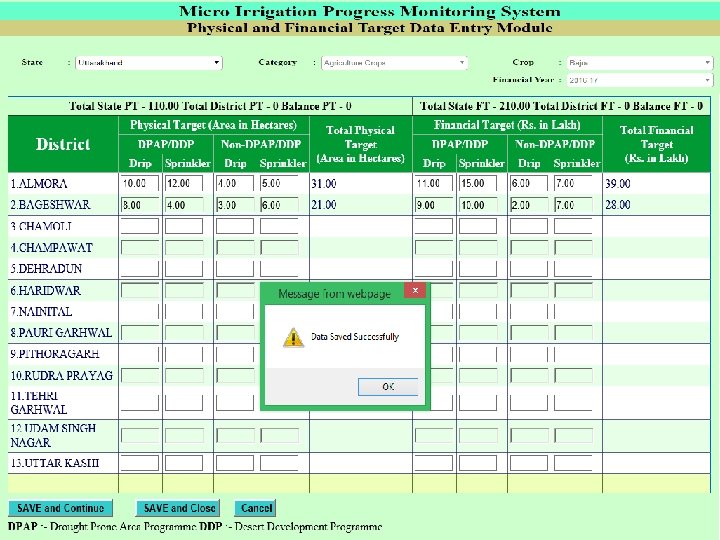
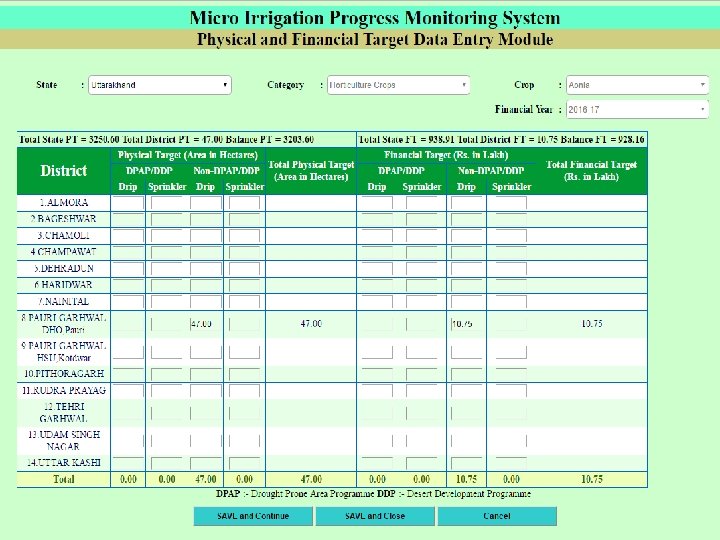
2. District Wise Physical & Financial Target
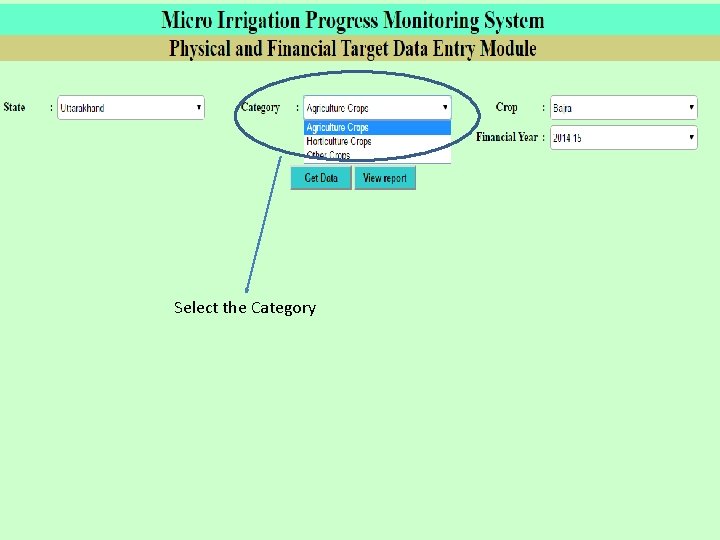
Select the Category
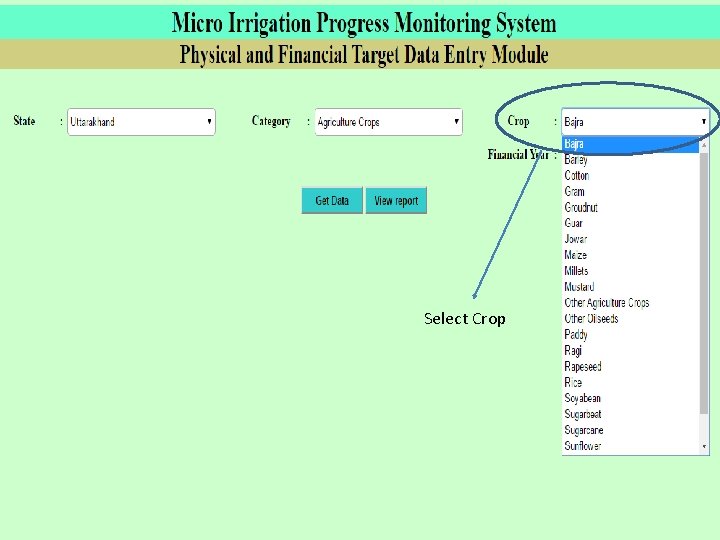
Select Crop
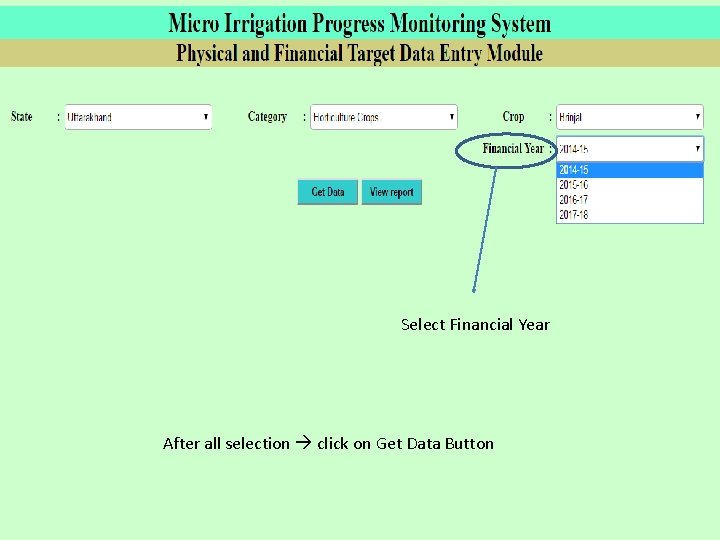
Select Financial Year After all selection click on Get Data Button
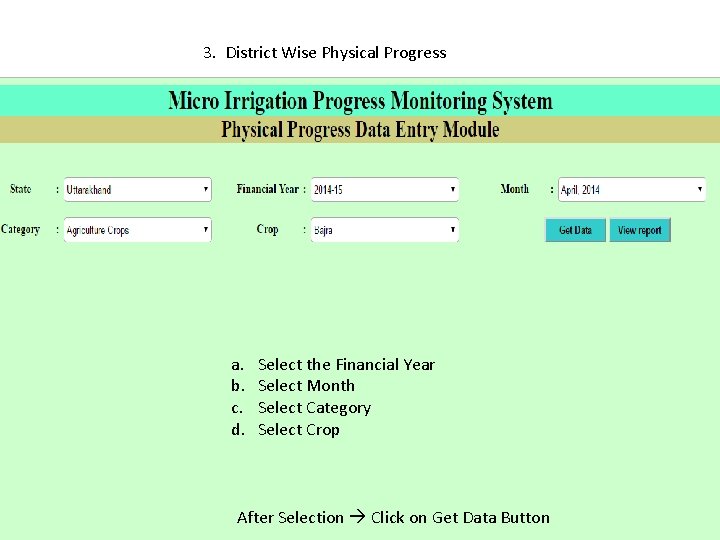
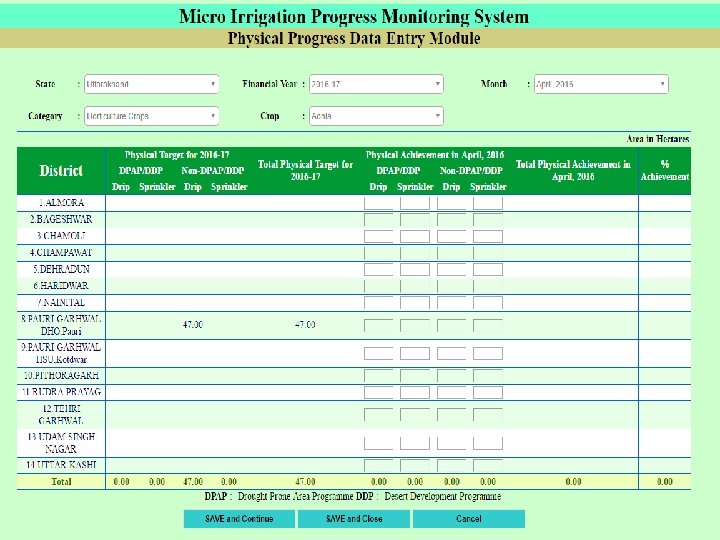
3. District Wise Physical Progress a. b. c. d. Select the Financial Year Select Month Select Category Select Crop After Selection Click on Get Data Button
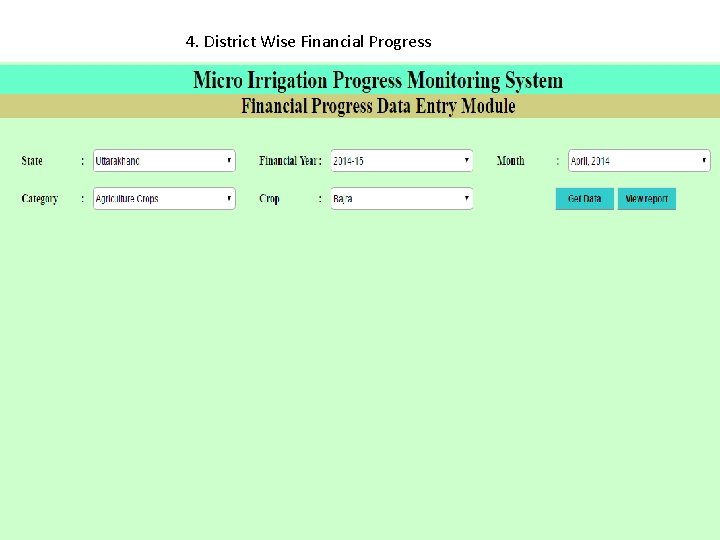
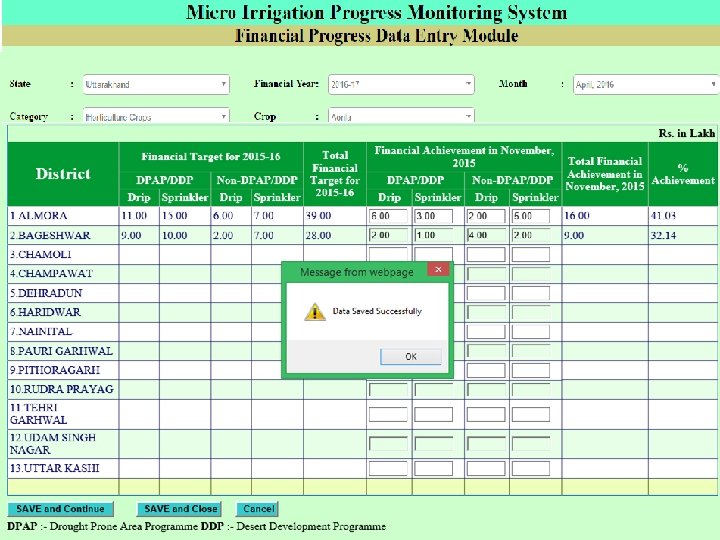
4. District Wise Financial Progress
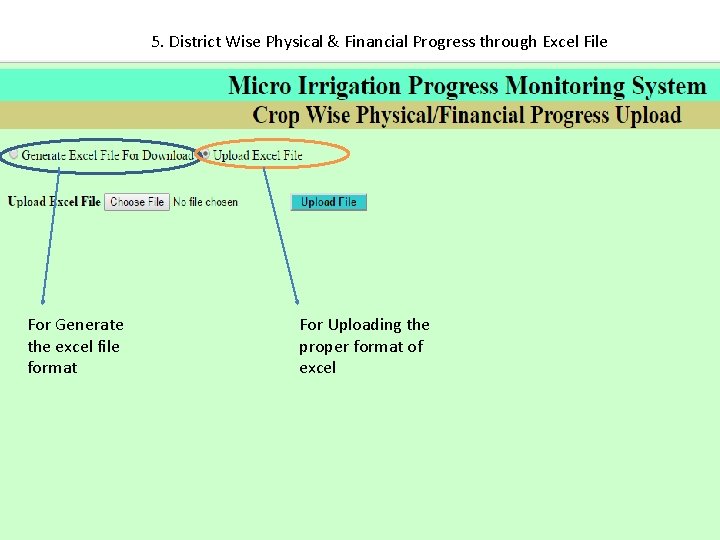
5. District Wise Physical & Financial Progress through Excel File For Generate the excel file format For Uploading the proper format of excel Reports
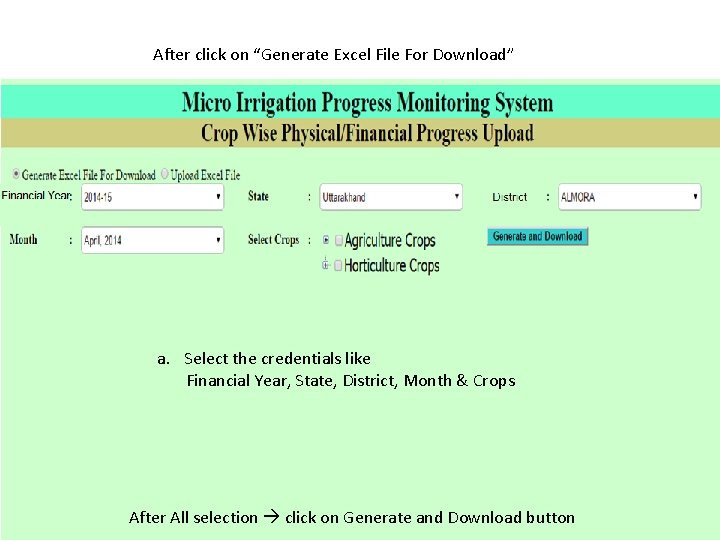
After click on “Generate Excel File For Download” a. Select the credentials like Financial Year, State, District, Month & Crops After All selection click on Generate and Download button
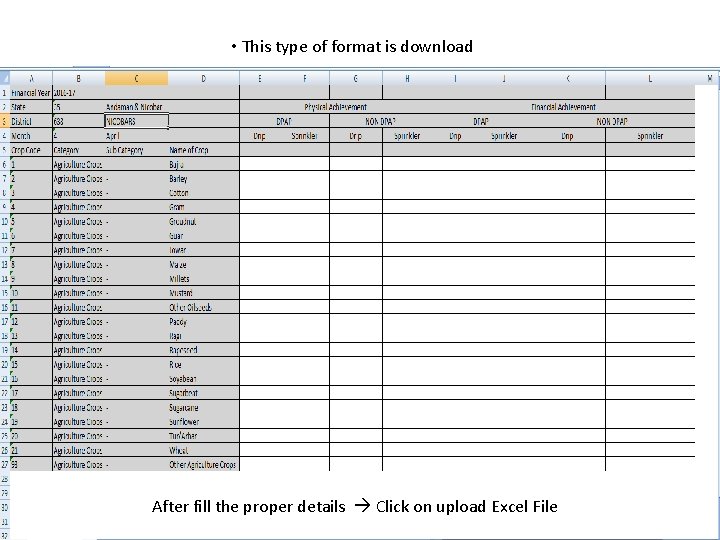
• This type of format is download After fill the proper details Click on upload Excel File
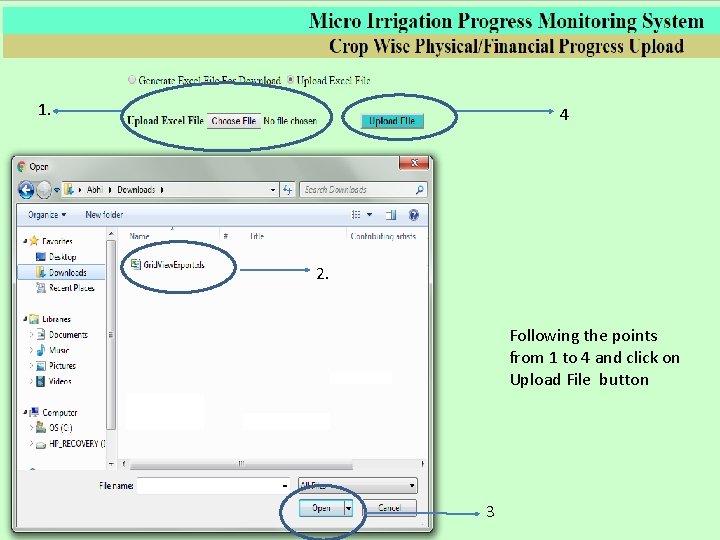
1. 4 2. Following the points from 1 to 4 and click on Upload File button 3
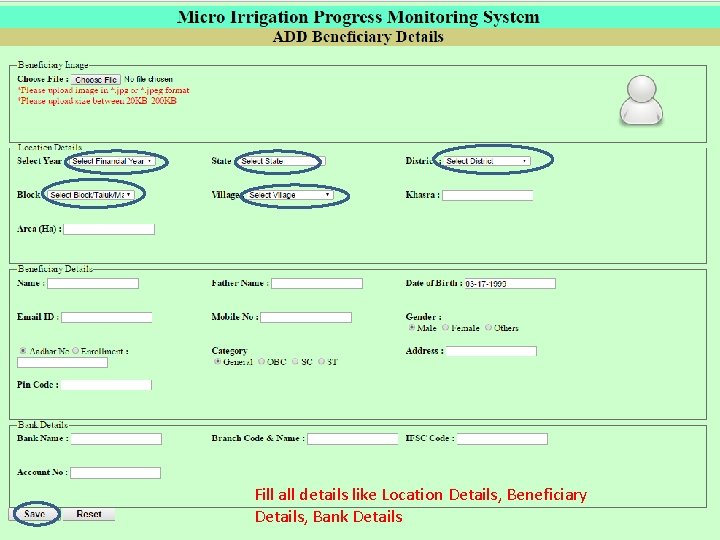
6. Add Beneficiary
Fill all details like Location Details, Beneficiary Details, Bank Details
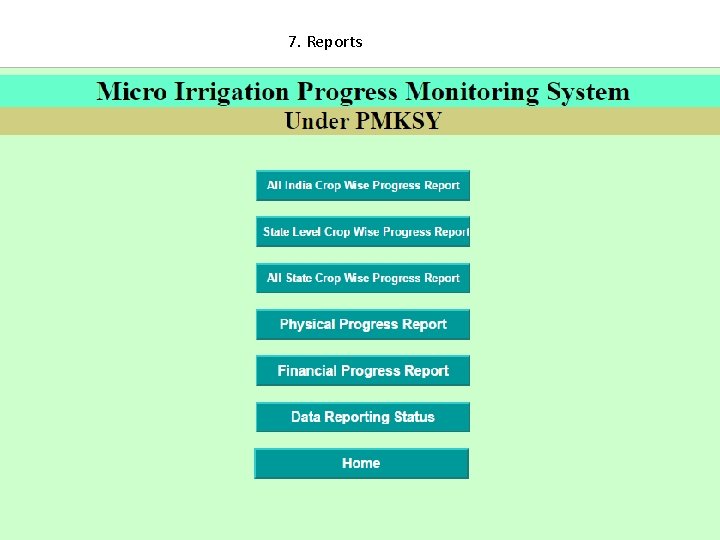
7. Reports
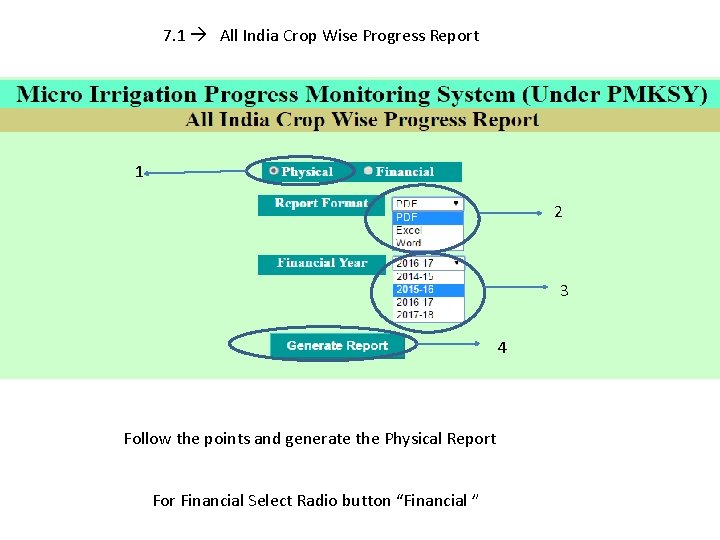
7. 1 All India Crop Wise Progress Report 1 2 3 4 Follow the points and generate the Physical Report For Financial Select Radio button “Financial ”
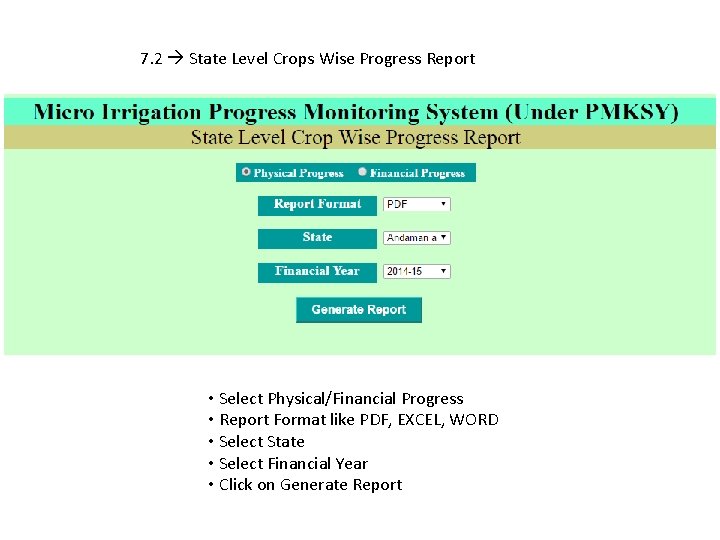
7. 2 State Level Crops Wise Progress Report • Select Physical/Financial Progress • Report Format like PDF, EXCEL, WORD • Select State • Select Financial Year • Click on Generate Report
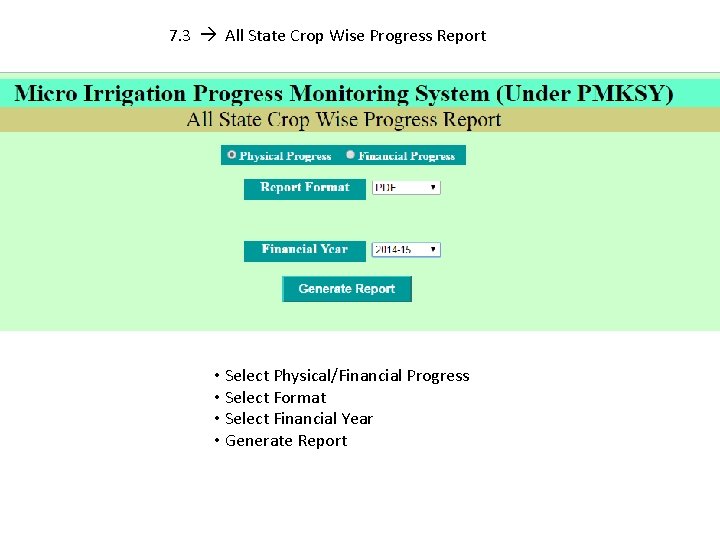
7. 3 All State Crop Wise Progress Report • Select Physical/Financial Progress • Select Format • Select Financial Year • Generate Report
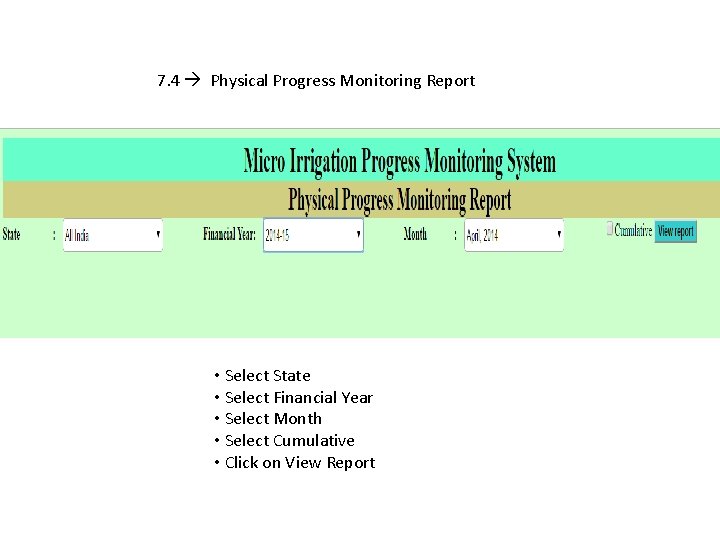
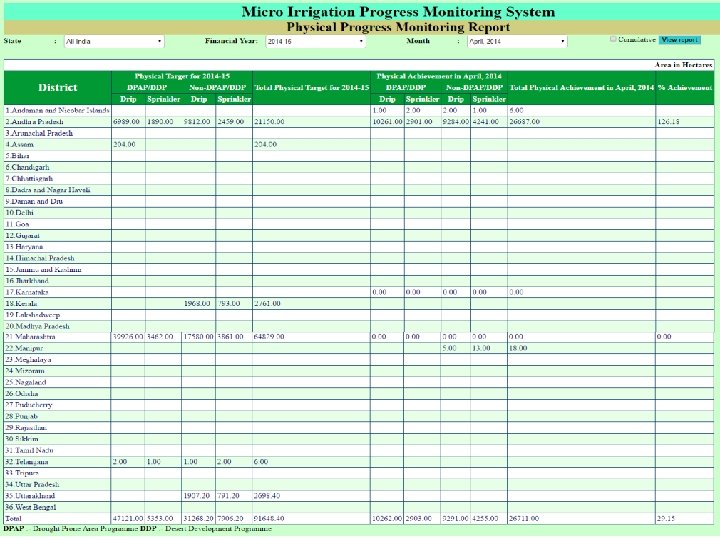
7. 4 Physical Progress Monitoring Report • Select State • Select Financial Year • Select Month • Select Cumulative • Click on View Report
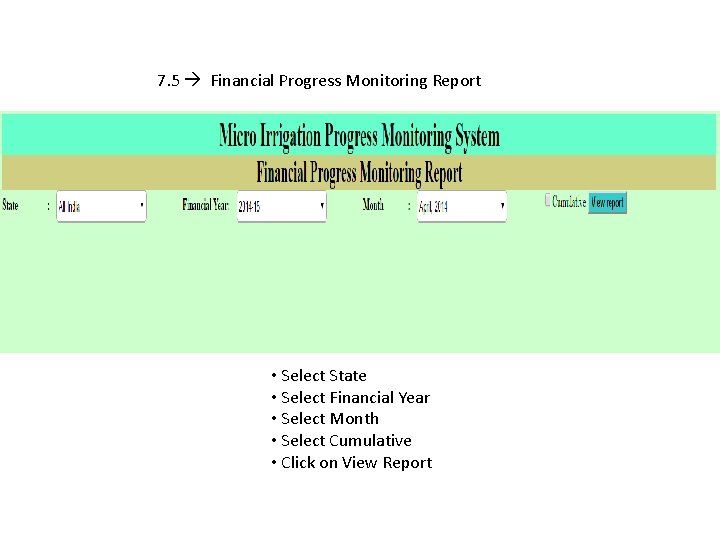
7. 5 Financial Progress Monitoring Report • Select State • Select Financial Year • Select Month • Select Cumulative • Click on View Report
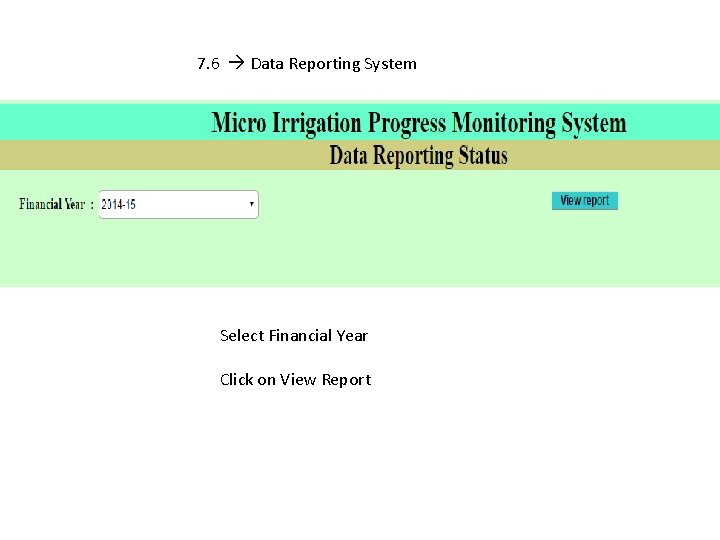
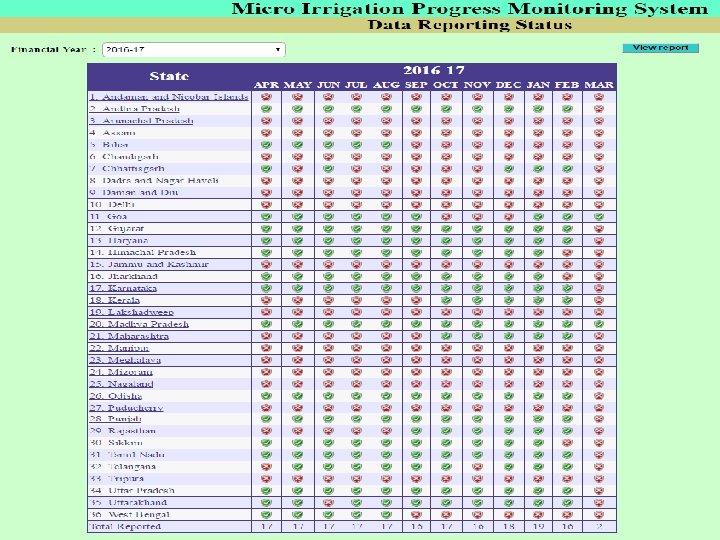
7. 6 Data Reporting System Select Financial Year Click on View Report
Contact details
Support/Feedback support. pmksy-dac@gov. in THANKS