
MESSAGING MESSAGING Messaging capability to communicate with the

MESSAGING
MESSAGING • • • Messaging - capability to communicate with the outside world Enable you to send sms message to another phone when an event happens Events like Geographical location is reached • Access a webservice such as currency exchange, weather •
CONTENTS How to send SMS messages � programmatically within your application � Using the built-in Messaging application How to receive incoming SMS messages How to send Email messages from your application
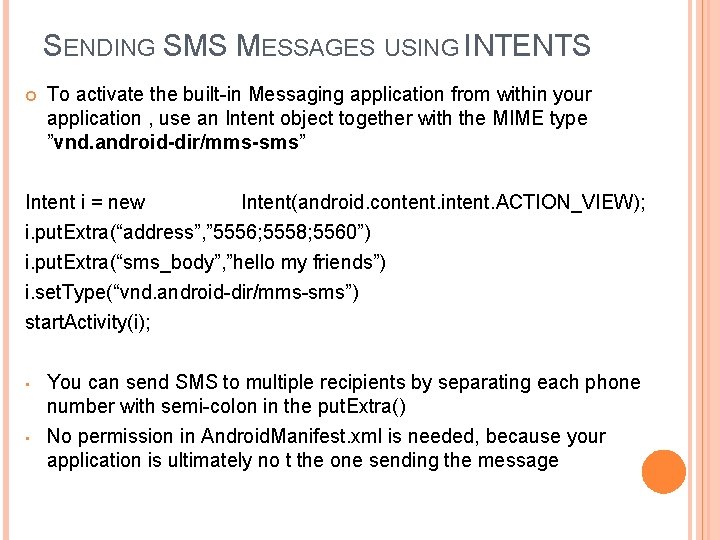
SENDING SMS MESSAGES USING INTENTS To activate the built-in Messaging application from within your application , use an Intent object together with the MIME type ”vnd. android-dir/mms-sms” Intent i = new Intent(android. content. intent. ACTION_VIEW); i. put. Extra(“address”, ” 5556; 5558; 5560”) i. put. Extra(“sms_body”, ”hello my friends”) i. set. Type(“vnd. android-dir/mms-sms”) start. Activity(i); • • You can send SMS to multiple recipients by separating each phone number with semi-colon in the put. Extra() No permission in Android. Manifest. xml is needed, because your application is ultimately no t the one sending the message
SENDING SMS MESSAGES PROGRAMMATICALLY Android has a built-in SMS application that enables to send and receive SMS messages. For Example Application automatically sends SMS at regular time intervals Track location of kids- app sending SMS msg containing the geographical location on every 30 minutes So need to programmatically send and receive SMS messages in your Android application
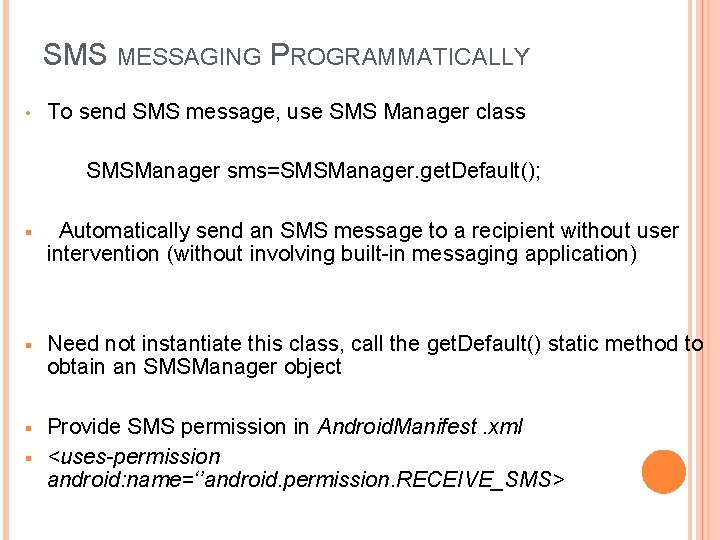
SMS MESSAGING PROGRAMMATICALLY • To send SMS message, use SMS Manager class SMSManager sms=SMSManager. get. Default(); § Automatically send an SMS message to a recipient without user intervention (without involving built-in messaging application) § Need not instantiate this class, call the get. Default() static method to obtain an SMSManager object § Provide SMS permission in Android. Manifest. xml <uses-permission android: name=‘’android. permission. RECEIVE_SMS> §
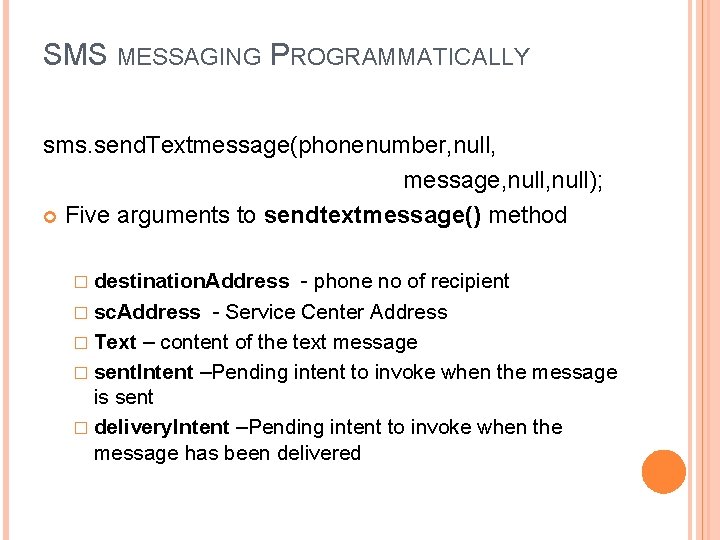
SMS MESSAGING PROGRAMMATICALLY sms. send. Textmessage(phonenumber, null, message, null); Five arguments to sendtextmessage() method � destination. Address - phone no of recipient � sc. Address - Service Center Address � Text – content of the text message � sent. Intent –Pending intent to invoke when the message is sent � delivery. Intent –Pending intent to invoke when the message has been delivered
BROADCAST RECEIVERS Broadcast Receivers simply respond to broadcast messages from other applications or from the system itself. These messages are sometime called events or intents. For example, applications can also initiate broadcasts to let other applications know that some data has been downloaded to the device and is available for them to use. Broadcast receiver is the one who will intercept this communication and will initiate appropriate action.
BROADCAST RECEIVERS Two important steps to make Broadcast. Receiver works for the system broadcasted intents � Creating the Broadcast Receiver. � Registering Broadcast Receiver
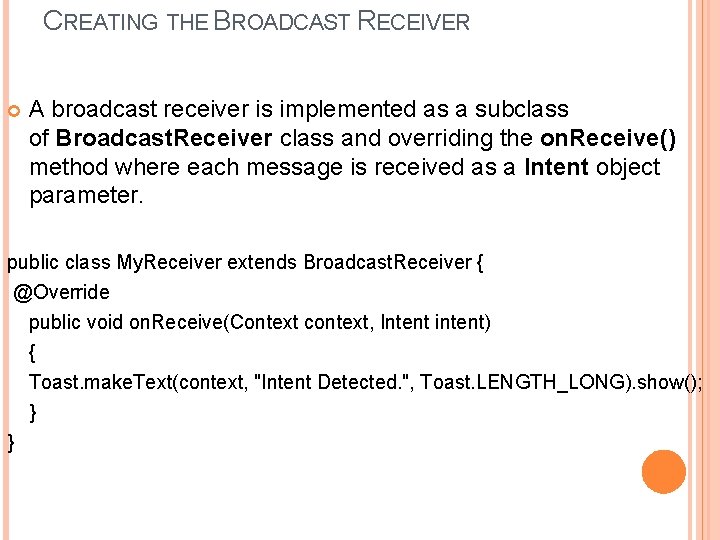
CREATING THE BROADCAST RECEIVER A broadcast receiver is implemented as a subclass of Broadcast. Receiver class and overriding the on. Receive() method where each message is received as a Intent object parameter. public class My. Receiver extends Broadcast. Receiver { @Override public void on. Receive(Context context, Intent intent) { Toast. make. Text(context, "Intent Detected. ", Toast. LENGTH_LONG). show(); } }
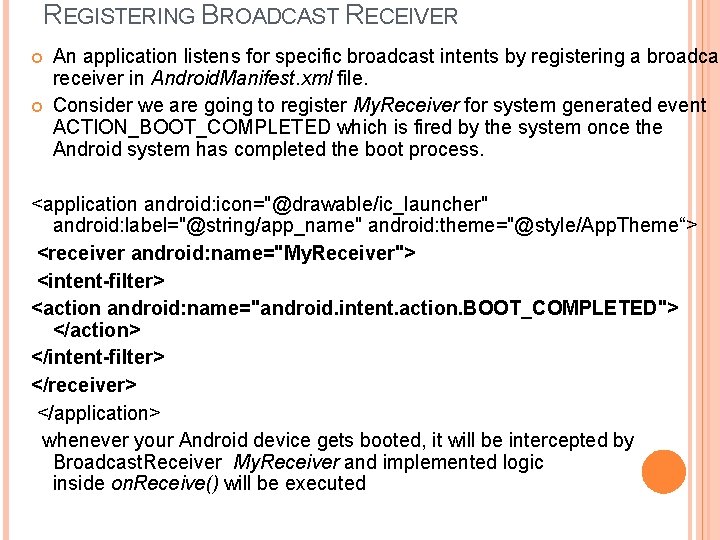
REGISTERING BROADCAST RECEIVER An application listens for specific broadcast intents by registering a broadcas receiver in Android. Manifest. xml file. Consider we are going to register My. Receiver for system generated event ACTION_BOOT_COMPLETED which is fired by the system once the Android system has completed the boot process. <application android: icon="@drawable/ic_launcher" android: label="@string/app_name" android: theme="@style/App. Theme“> <receiver android: name="My. Receiver"> <intent-filter> <action android: name="android. intent. action. BOOT_COMPLETED"> </action> </intent-filter> </receiver> </application> whenever your Android device gets booted, it will be intercepted by Broadcast. Receiver My. Receiver and implemented logic inside on. Receive() will be executed
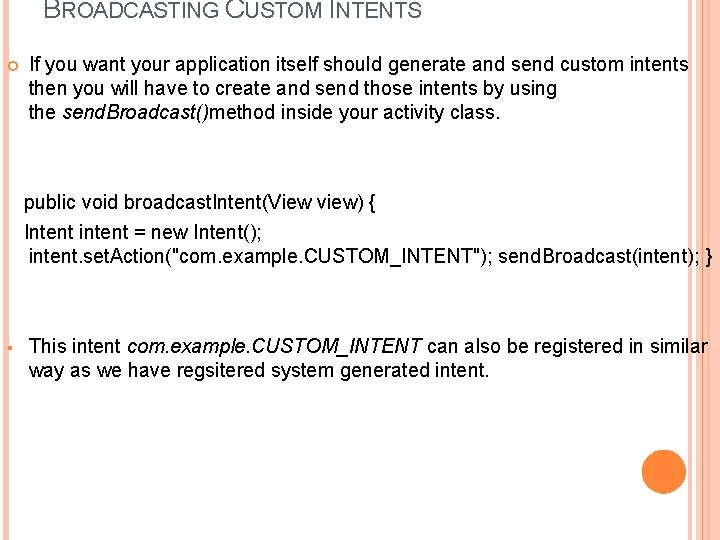
BROADCASTING CUSTOM INTENTS If you want your application itself should generate and send custom intents then you will have to create and send those intents by using the send. Broadcast()method inside your activity class. public void broadcast. Intent(View view) { Intent intent = new Intent(); intent. set. Action("com. example. CUSTOM_INTENT"); send. Broadcast(intent); } § This intent com. example. CUSTOM_INTENT can also be registered in similar way as we have regsitered system generated intent.
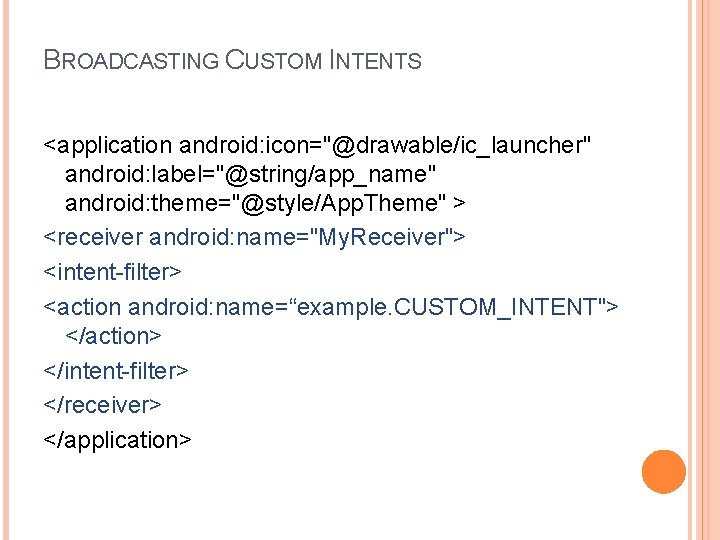
BROADCASTING CUSTOM INTENTS <application android: icon="@drawable/ic_launcher" android: label="@string/app_name" android: theme="@style/App. Theme" > <receiver android: name="My. Receiver"> <intent-filter> <action android: name=“example. CUSTOM_INTENT"> </action> </intent-filter> </receiver> </application>
PENDING INTENT A Pending Intent specifies an action to take in the future. It lets you pass a future Intent to another application and allow that application to execute that Intent as if it had the same permissions as your application, whether or not your application is still around when the Intent is eventually invoked. A Pending. Intent provides a means for applications to work, even after their process exits. It��s important to note that even after the applic that created the Pending. Intent has been killed, that Intent can still run.
PENDING INTENT To perform a broadcast via a pending intent so get a Pending. Intent via Pending. Intent. get. Broadcast(). To perform an activity via an pending intent you receive the activity via Pending. Intent. get. Activity(). A description of an Intent and target action to perform with it. Instances of this class are created with get. Activity(Context, int, Intent, int), get. Broadcast(Context, int, Intent, int), get. Service (Context, int, Intent, int); Ø Returned object can be handed to other applications so that they can perform the action you described on your behalf at a later time.
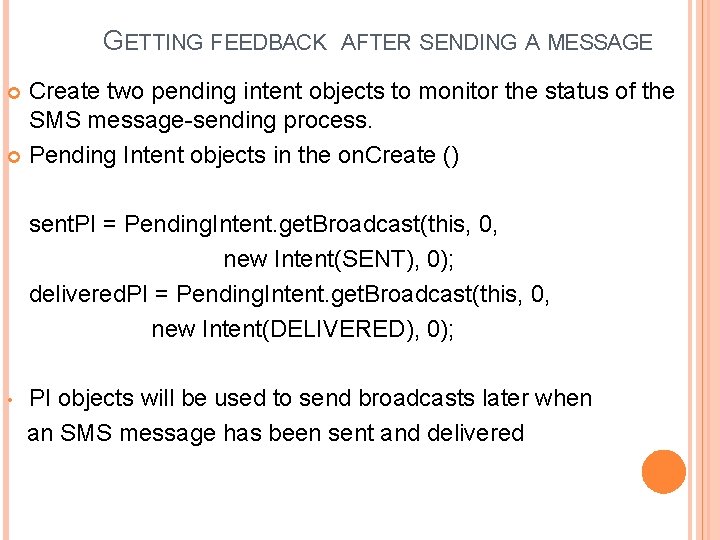
GETTING FEEDBACK AFTER SENDING A MESSAGE Create two pending intent objects to monitor the status of the SMS message-sending process. Pending Intent objects in the on. Create () sent. PI = Pending. Intent. get. Broadcast(this, 0, new Intent(SENT), 0); delivered. PI = Pending. Intent. get. Broadcast(this, 0, new Intent(DELIVERED), 0); • PI objects will be used to send broadcasts later when an SMS message has been sent and delivered
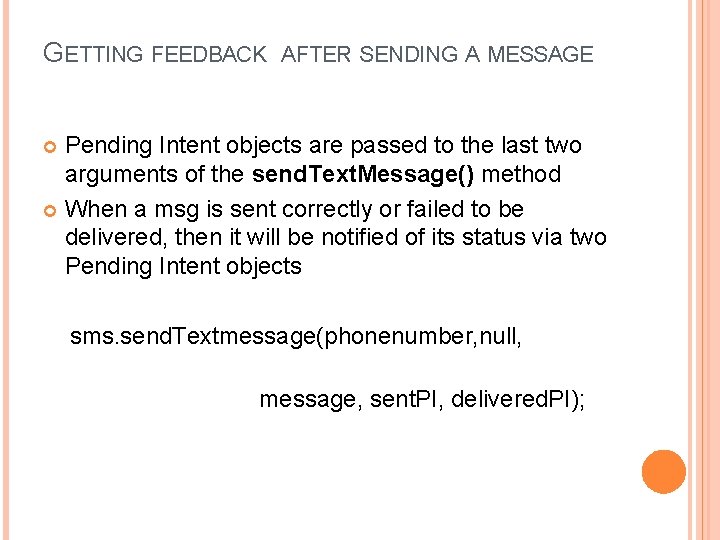
GETTING FEEDBACK AFTER SENDING A MESSAGE Pending Intent objects are passed to the last two arguments of the send. Text. Message() method When a msg is sent correctly or failed to be delivered, then it will be notified of its status via two Pending Intent objects sms. send. Textmessage(phonenumber, null, message, sent. PI, delivered. PI);
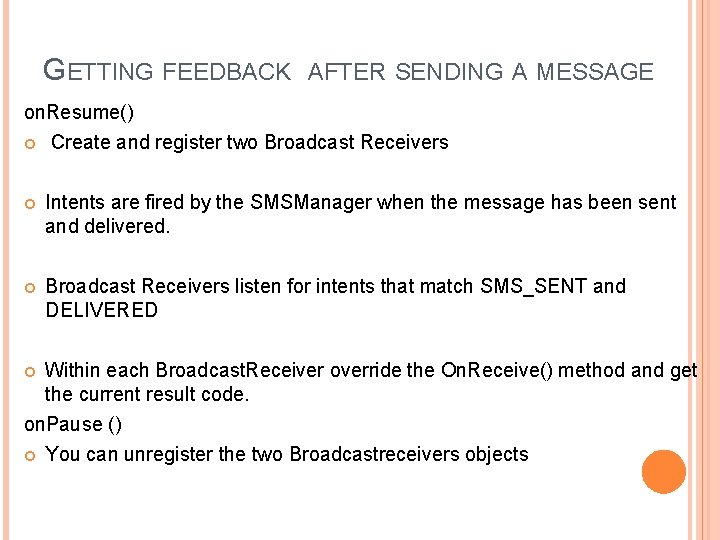
GETTING FEEDBACK AFTER SENDING A MESSAGE on. Resume() Create and register two Broadcast Receivers Intents are fired by the SMSManager when the message has been sent and delivered. Broadcast Receivers listen for intents that match SMS_SENT and DELIVERED Within each Broadcast. Receiver override the On. Receive() method and get the current result code. on. Pause () You can unregister the two Broadcastreceivers objects
RECEIVING SMS MESSAGES Receive incoming SMS messages within the application is useful when the application to perform need to perform an action when the a certain SMS message is received. Suppose you want to track the location of the phone in case stolen or lost. � Create an application that automatically listens for SMS messages containing secret code. Once that SMS is received then send an SMS containing the location’s coordinates back to the sender
RECEIVING SMS MESSAGES To listen for the incoming SMS msgs create a Broadcast. Receiver class, � Enable the app to receive intents sent by other applications using the send. Broadcast() method. � Enable the app to handle events raised by other application When an incoming msg is received the On. Receive() method is fired If device receives 5 sms msgs , then on. Receive () method will be called five times.
RECEIVING SMS MESSAGES To extract the content of each msg , use create. From. PDU() method from the SMSMessage class Phone no obtained via get. Orginating. Address()-to send autoreply Body of the msg via get. Message. Body() The application will continue to listen to the incoming msgs even if the application is not running, as long as application installed in the device.
PREVENTING FROM RECEIVING A MESSAGE To prevent an incoming msg from being handled by the built-in Message application, the app you created needs to handle the msg before the Message app has a chance to do so To do this android: priority attribute to the <intent-filter> element like this <intent-filter android: priority=‘’ 100’’> Set this attribute to a high no such as 100. The higher the no the earlier Android executes our application. To prevent other applications from seeing the message, call abort. Broadcast() method of the Broadcast. Receiver class.
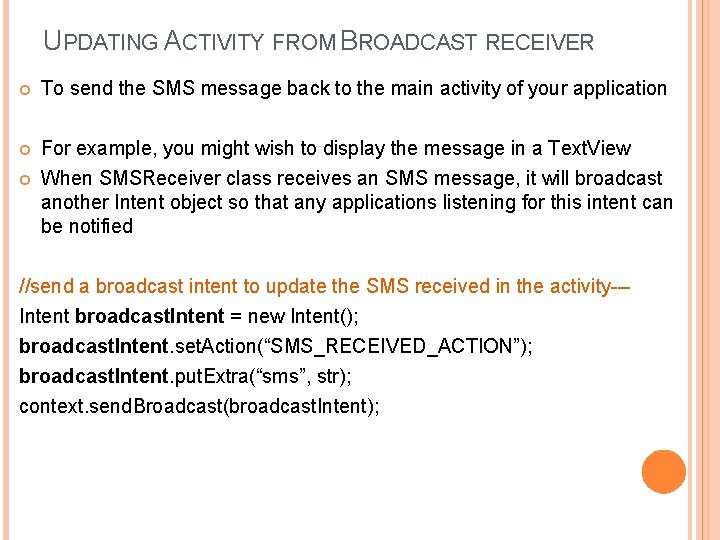
UPDATING ACTIVITY FROM BROADCAST RECEIVER To send the SMS message back to the main activity of your application For example, you might wish to display the message in a Text. View When SMSReceiver class receives an SMS message, it will broadcast another Intent object so that any applications listening for this intent can be notified //send a broadcast intent to update the SMS received in the activity--Intent broadcast. Intent = new Intent(); broadcast. Intent. set. Action(“SMS_RECEIVED_ACTION”); broadcast. Intent. put. Extra(“sms”, str); context. send. Broadcast(broadcast. Intent);
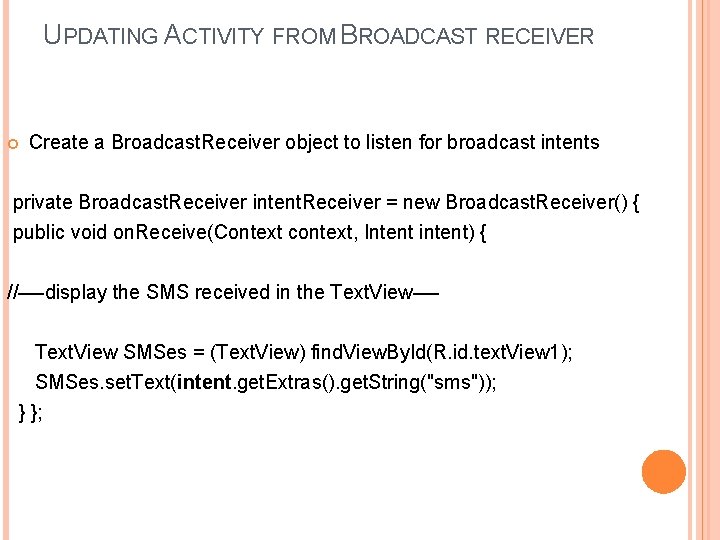
UPDATING ACTIVITY FROM BROADCAST RECEIVER Create a Broadcast. Receiver object to listen for broadcast intents private Broadcast. Receiver intent. Receiver = new Broadcast. Receiver() { public void on. Receive(Context context, Intent intent) { //—-display the SMS received in the Text. View—Text. View SMSes = (Text. View) find. View. By. Id(R. id. text. View 1); SMSes. set. Text(intent. get. Extras(). get. String("sms")); } };
UPDATING ACTIVITY FROM BROADCAST RECEIVER When a broadcast intent is received, you update the SMS message in the Text. View will display the SMS message only when the message is received while the activity is visible on the screen. If the SMS message is received when the activity is not in the foreground, the Text. View will not be updated.
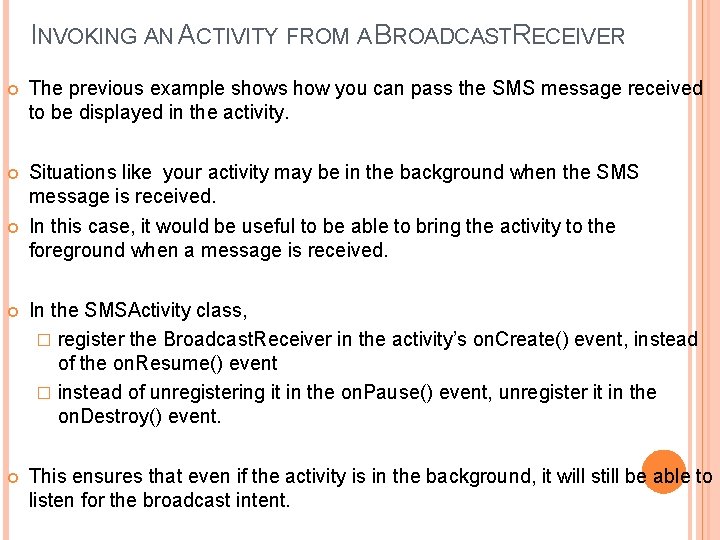
INVOKING AN ACTIVITY FROM A BROADCASTRECEIVER The previous example shows how you can pass the SMS message received to be displayed in the activity. Situations like your activity may be in the background when the SMS message is received. In this case, it would be useful to be able to bring the activity to the foreground when a message is received. In the SMSActivity class, � register the Broadcast. Receiver in the activity’s on. Create() event, instead of the on. Resume() event � instead of unregistering it in the on. Pause() event, unregister it in the on. Destroy() event. This ensures that even if the activity is in the background, it will still be able to listen for the broadcast intent.
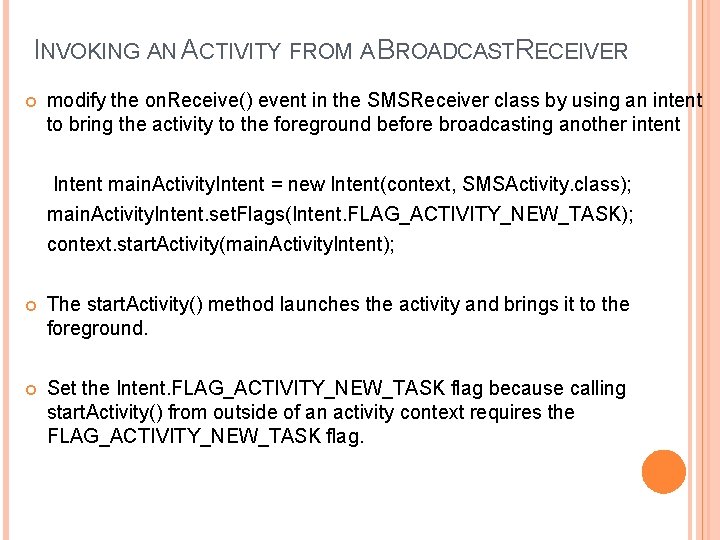
INVOKING AN ACTIVITY FROM A BROADCASTRECEIVER modify the on. Receive() event in the SMSReceiver class by using an intent to bring the activity to the foreground before broadcasting another intent Intent main. Activity. Intent = new Intent(context, SMSActivity. class); main. Activity. Intent. set. Flags(Intent. FLAG_ACTIVITY_NEW_TASK); context. start. Activity(main. Activity. Intent); The start. Activity() method launches the activity and brings it to the foreground. Set the Intent. FLAG_ACTIVITY_NEW_TASK flag because calling start. Activity() from outside of an activity context requires the FLAG_ACTIVITY_NEW_TASK flag.
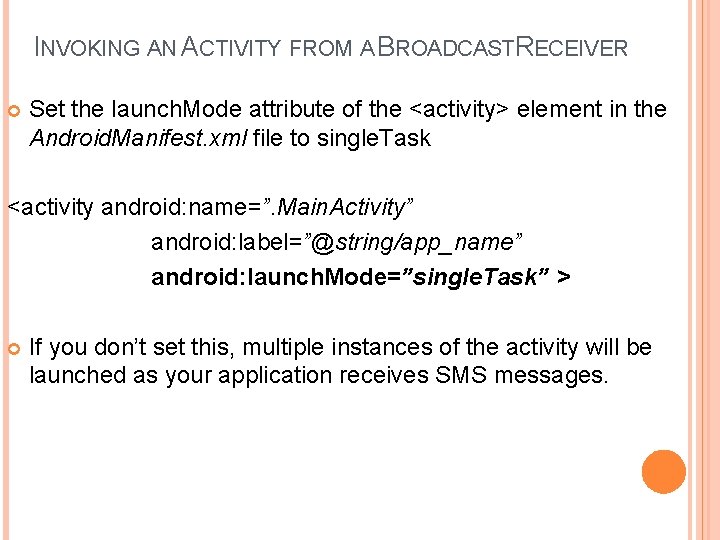
INVOKING AN ACTIVITY FROM A BROADCASTRECEIVER Set the launch. Mode attribute of the <activity> element in the Android. Manifest. xml file to single. Task <activity android: name=”. Main. Activity” android: label=”@string/app_name” android: launch. Mode=”single. Task” > If you don’t set this, multiple instances of the activity will be launched as your application receives SMS messages.

THANK YOU
- Slides: 29