
Mendeley Manage and Share Your Research By Reference

Mendeley Manage and Share Your Research By Reference Management Team

UPCOMING WORKSHOPS j. mp/RU_ABOUT
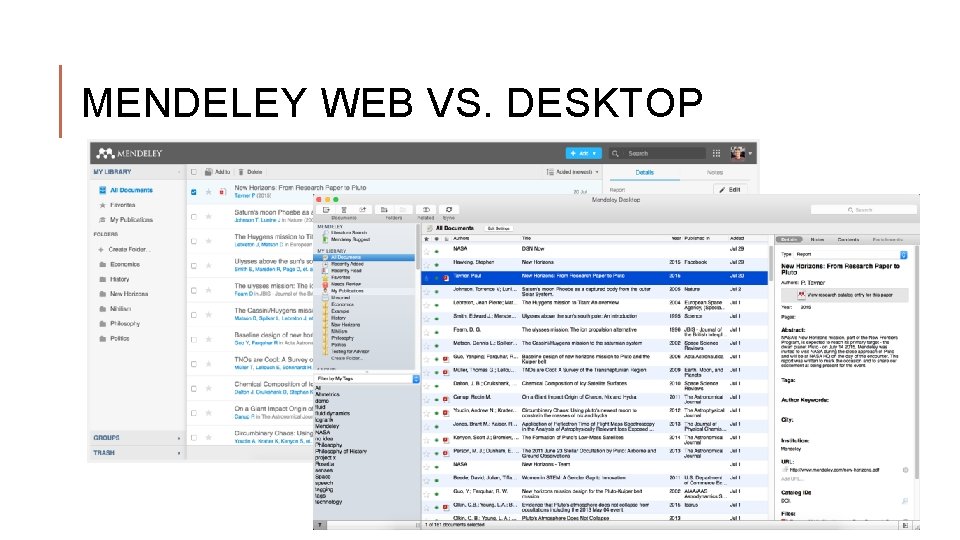
MENDELEY WEB VS. DESKTOP
JOINING MENDELEY INSTITUTIONAL EDITION (MIE) 1. Head to this special Mendeley link for NUS Staff and Students 2. Login with your NUSNET ID and Password if prompted and accept the Acceptable Use Policy 3. Login to the Mendeley website using the email and the password you used to register with Mendeley 4. More information: http: //libguides. nus. edu. sg/mendeley/MIE
OVERVIEW Using Mendeley
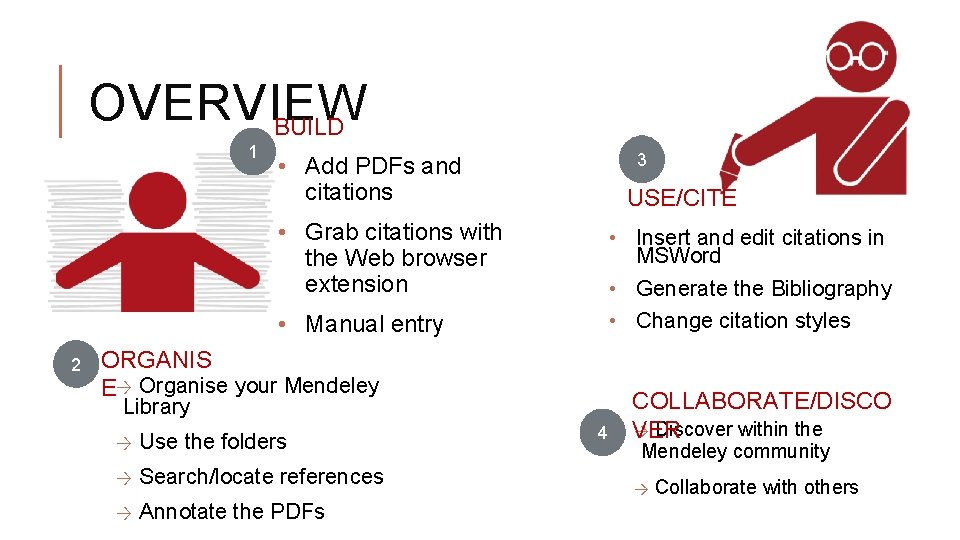
OVERVIEW BUILD 1 3 • Add PDFs and citations USE/CITE • Grab citations with the Web browser extension • Insert and edit citations in MSWord • Generate the Bibliography • Change citation styles • Manual entry 2 ORGANIS E→ Organise your Mendeley Library → Use the folders → Search/locate references → Annotate the PDFs 4 COLLABORATE/DISCO → Discover within the VER Mendeley community → Collaborate with others
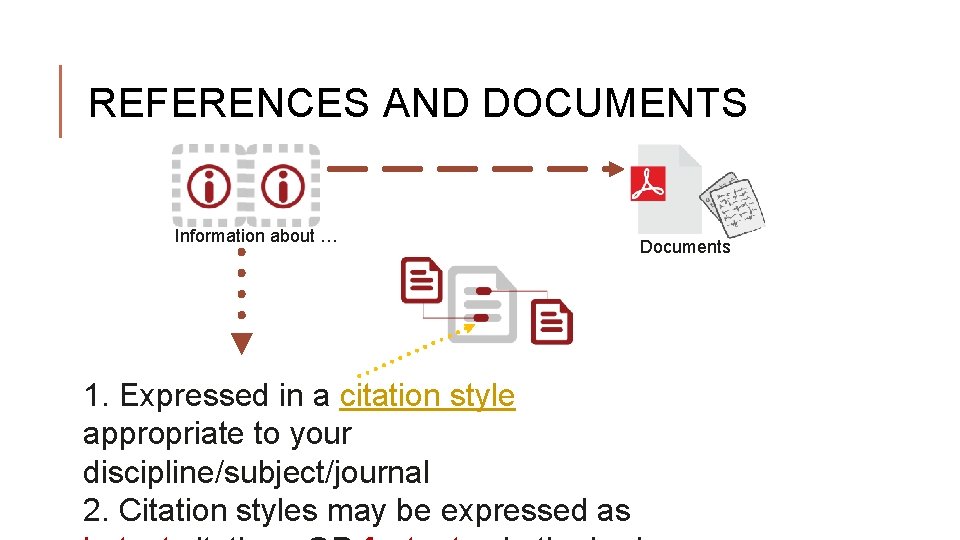
REFERENCES AND DOCUMENTS Information about … 1. Expressed in a citation style appropriate to your discipline/subject/journal 2. Citation styles may be expressed as Documents

BUILD Populating a Mendeley Library
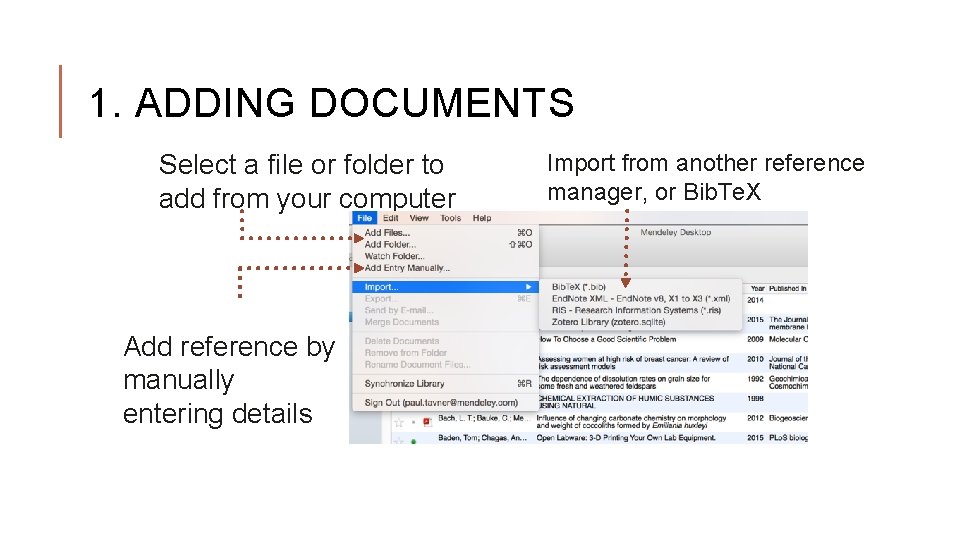
1. ADDING DOCUMENTS Select a file or folder to add from your computer Add reference by manually entering details Import from another reference manager, or Bib. Te. X
ADDING PDFS • PDFs must have a DOI (Digital Object Identifier) to enable Mendeley to auto-populate the key metadata fields of a citation/reference • Click on the PDF, drag and drop into the middle panel of your Mendeley Desktop • Check that the metadata fields are populated correctly
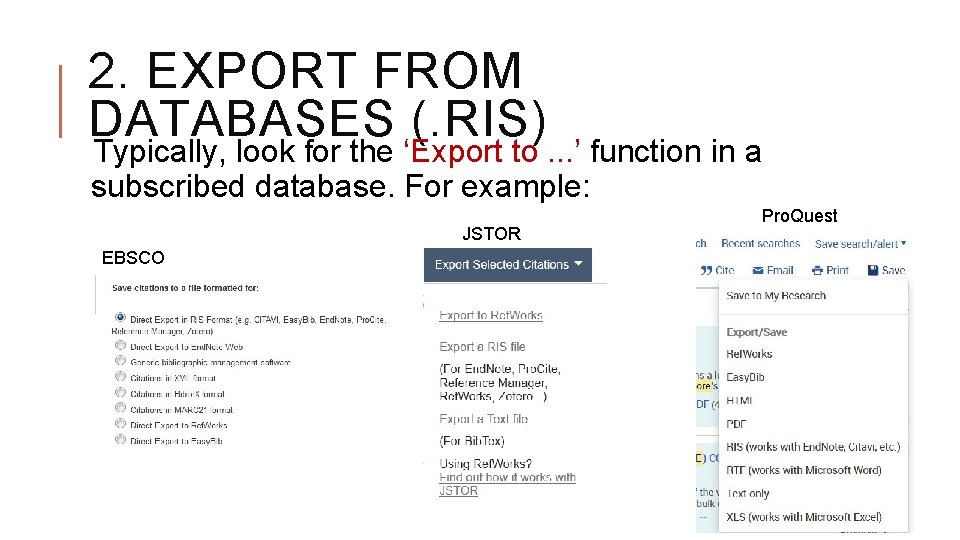
2. EXPORT FROM DATABASES (. RIS) Typically, look for the ‘Export to. . . ’ function in a subscribed database. For example: JSTOR EBSCO Pro. Quest
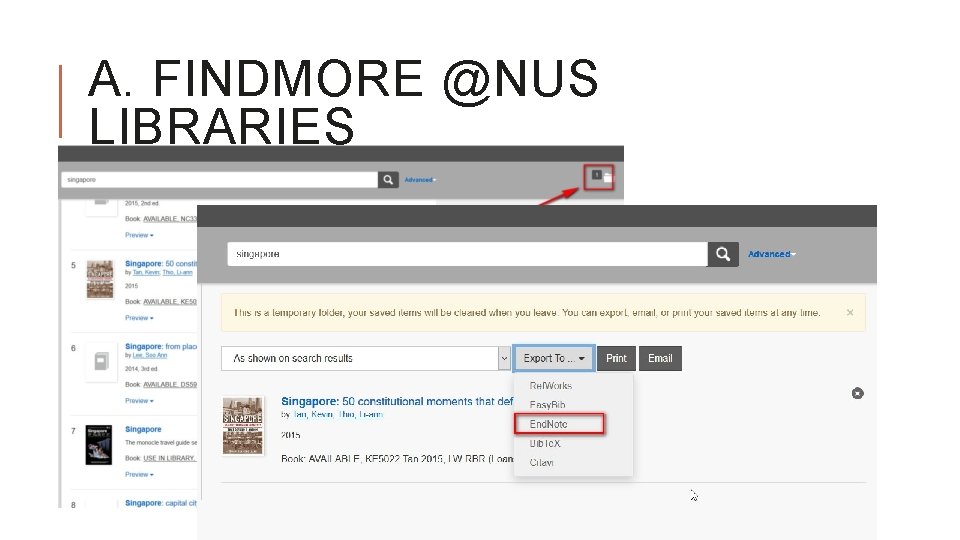
A. FINDMORE @NUS LIBRARIES
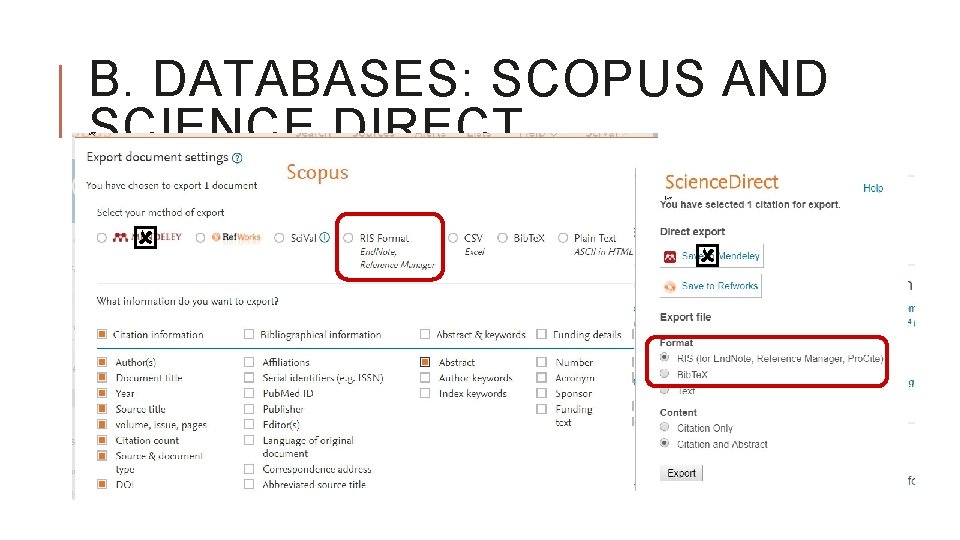
B. DATABASES: SCOPUS AND SCIENCE DIRECT
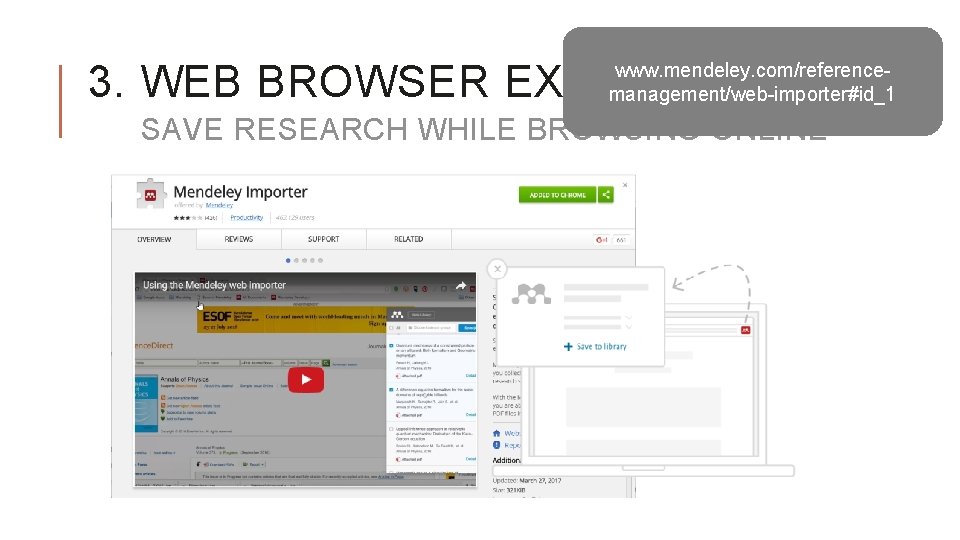
3. WEB BROWSER EXTENSION www. mendeley. com/referencemanagement/web-importer#id_1 SAVE RESEARCH WHILE BROWSING ONLINE
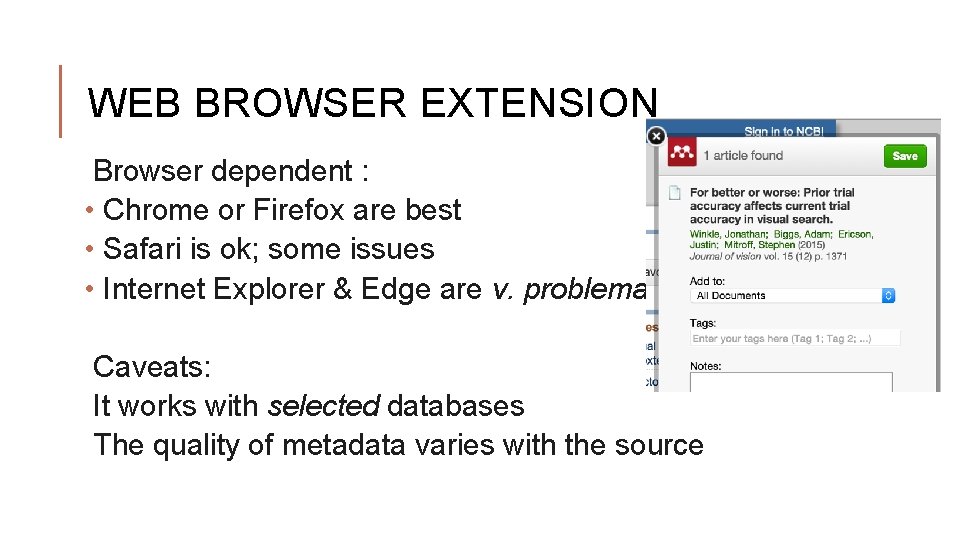
WEB BROWSER EXTENSION Browser dependent : • Chrome or Firefox are best • Safari is ok; some issues • Internet Explorer & Edge are v. problematic Caveats: It works with selected databases The quality of metadata varies with the source
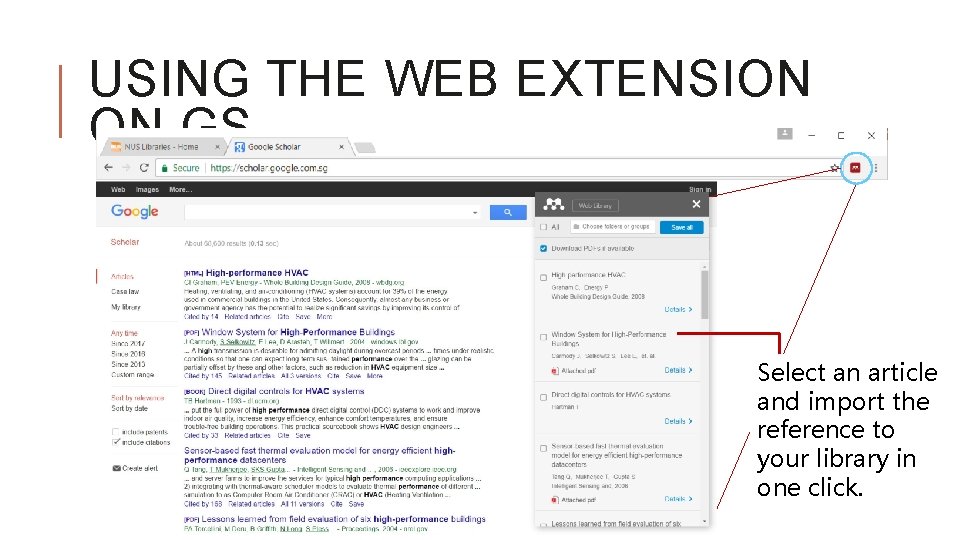
USING THE WEB EXTENSION ON GS Select an article and import the reference to your library in one click.

4. ADD AN ENTRY MANUALLY Title: Health Beliefs and Practices Related to Dengue Fever: A Focus Group Study Authors: Wong Li Ping and Sazaly Abu. Bakar Journal details: PLOS Neglected Tropical Diseases, 2003, Volume 7, Issue No. 7 DOI: 10. 1371/journal. pntd. 0002310
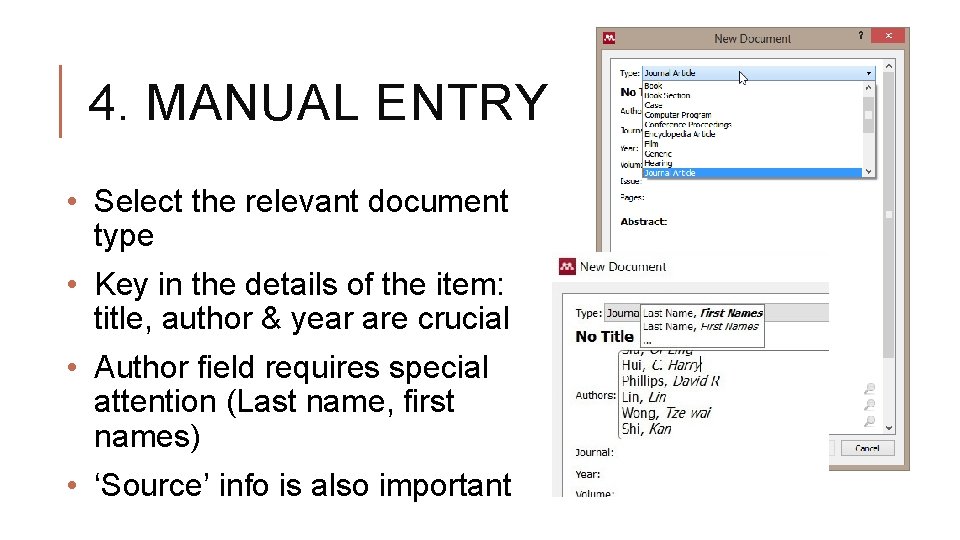
4. MANUAL ENTRY • Select the relevant document type • Key in the details of the item: title, author & year are crucial • Author field requires special attention (Last name, first names) • ‘Source’ info is also important
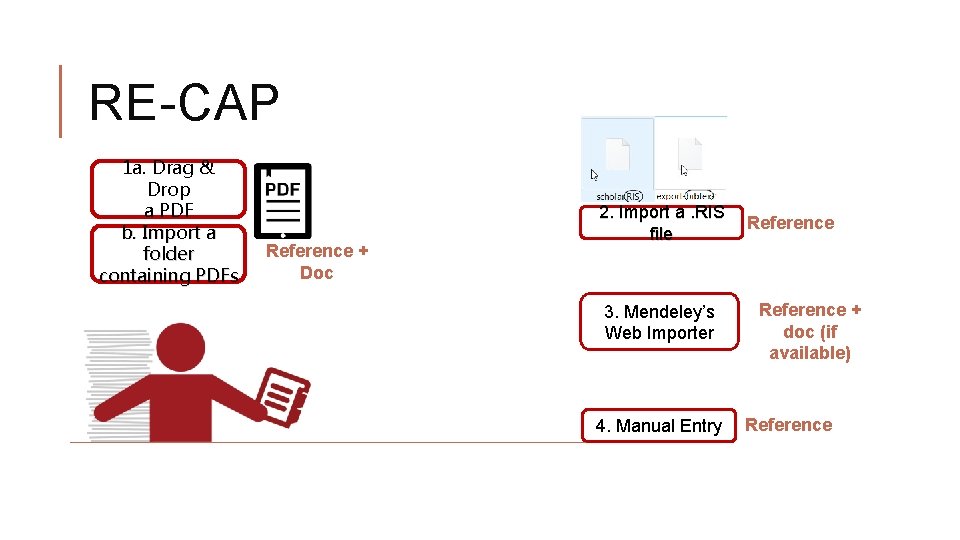
RE-CAP 1 a. Drag & Drop a PDF b. Import a folder containing PDFs Reference + Doc 2. Import a. RIS file 3. Mendeley’s Web Importer 4. Manual Entry Reference + doc (if available) Reference

ORGANIZE Managing Your Library
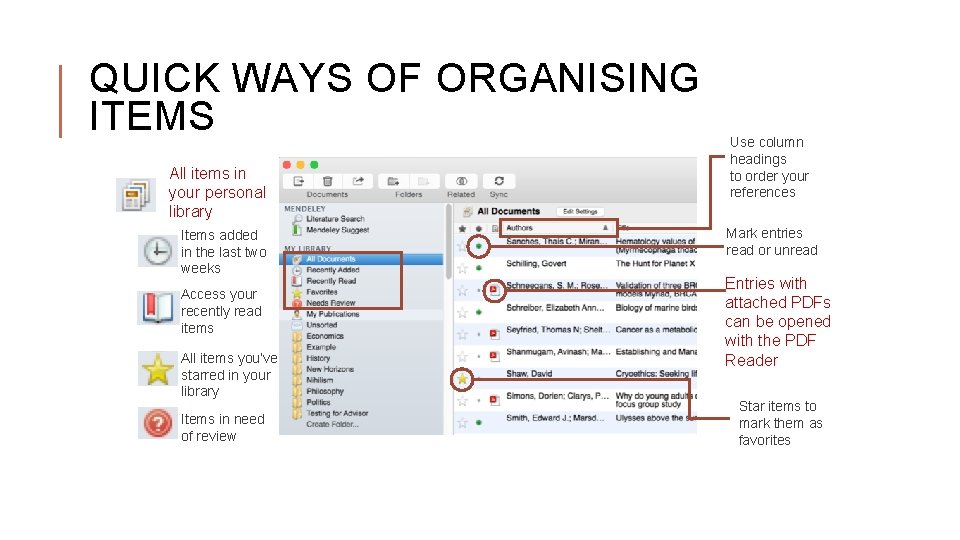
QUICK WAYS OF ORGANISING ITEMS All items in your personal library Items added in the last two weeks Access your recently read items All items you’ve starred in your library Items in need of review Use column headings to order your references Mark entries read or unread Entries with attached PDFs can be opened with the PDF Reader Star items to mark them as favorites
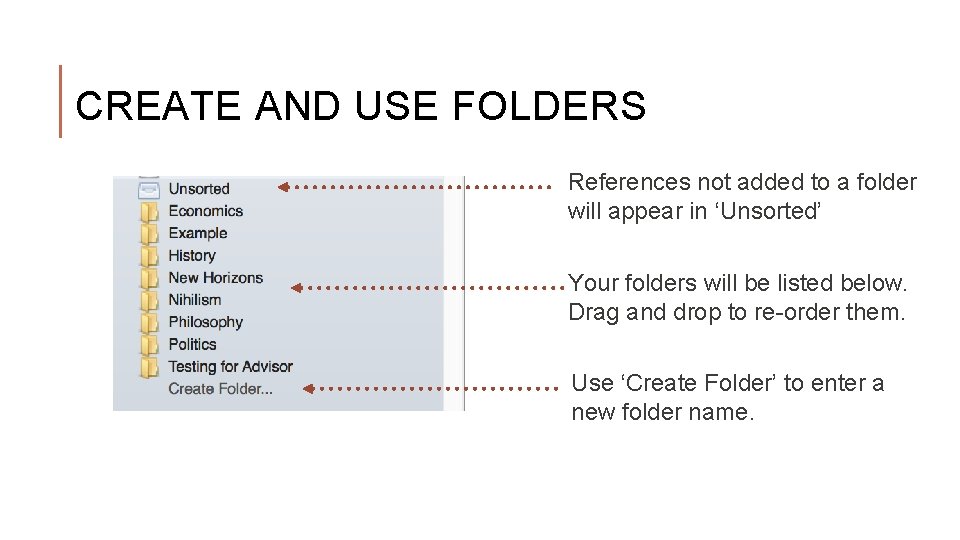
CREATE AND USE FOLDERS References not added to a folder will appear in ‘Unsorted’ Your folders will be listed below. Drag and drop to re-order them. Use ‘Create Folder’ to enter a new folder name.
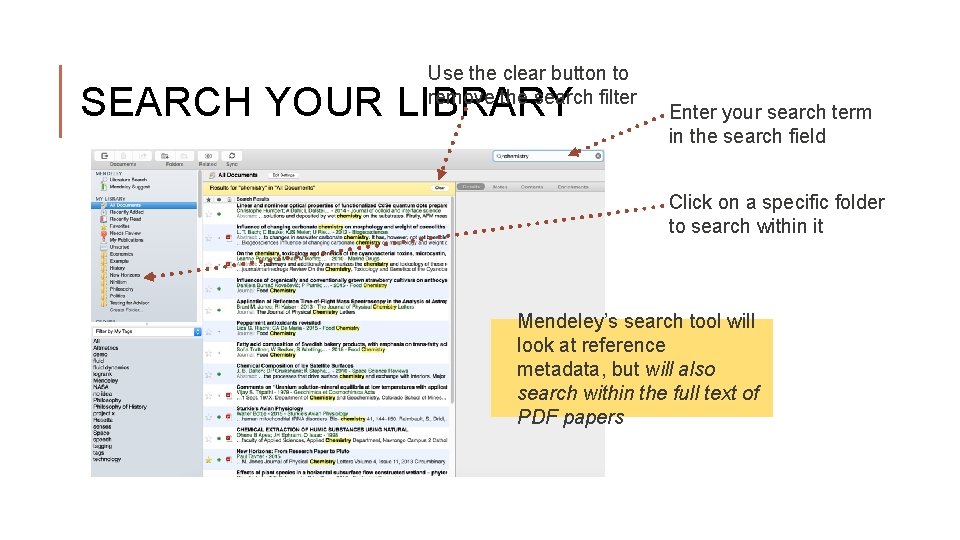
Use the clear button to remove the search filter SEARCH YOUR LIBRARY Enter your search term in the search field Click on a specific folder to search within it Mendeley’s search tool will look at reference metadata, but will also search within the full text of PDF papers
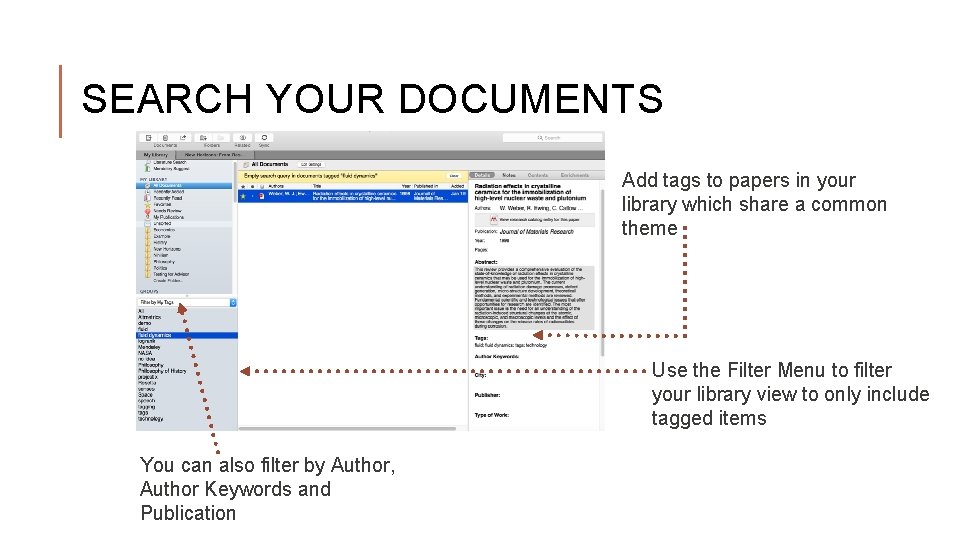
SEARCH YOUR DOCUMENTS Add tags to papers in your library which share a common theme Use the Filter Menu to filter your library view to only include tagged items You can also filter by Author, Author Keywords and Publication
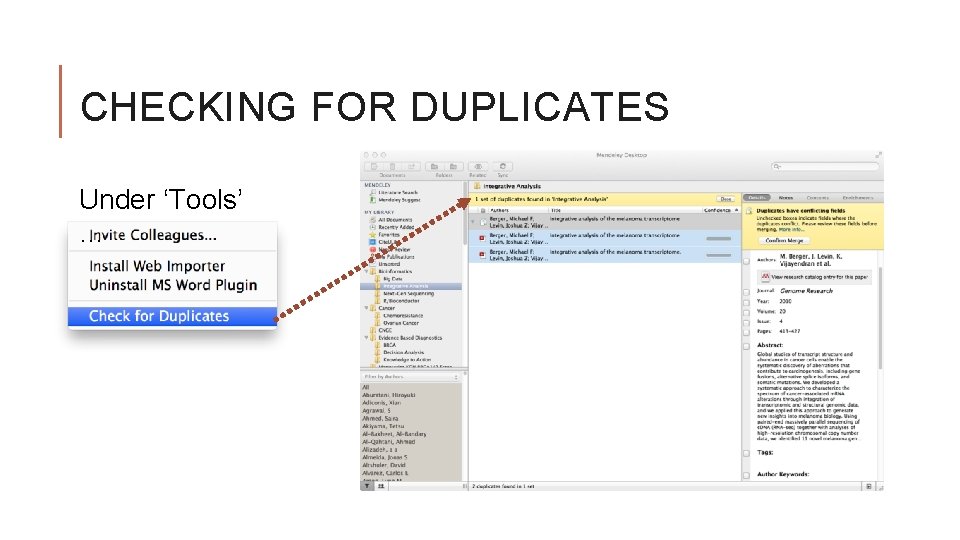
CHECKING FOR DUPLICATES Under ‘Tools’ …
PDF VIEWER Highlight and Annotate Documents
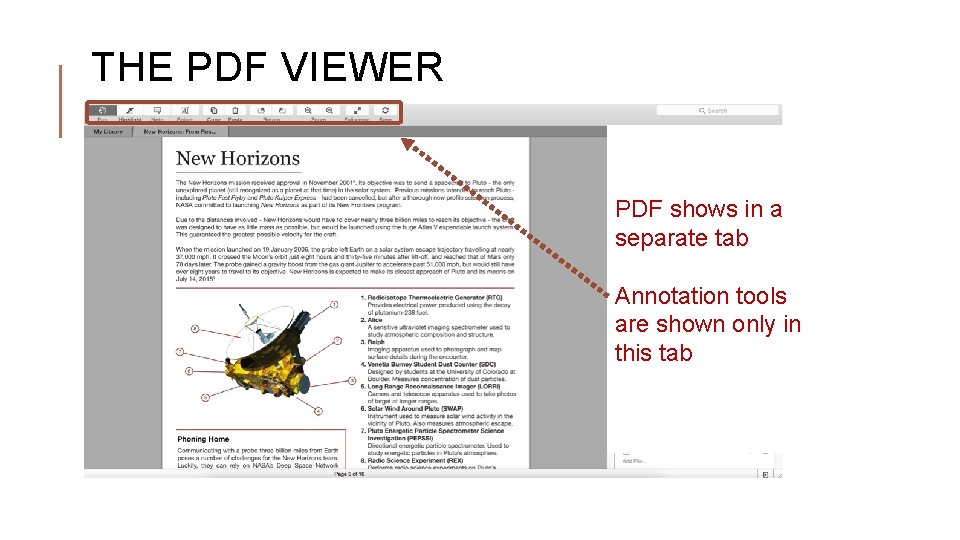
THE PDF VIEWER PDF shows in a separate tab Annotation tools are shown only in this tab
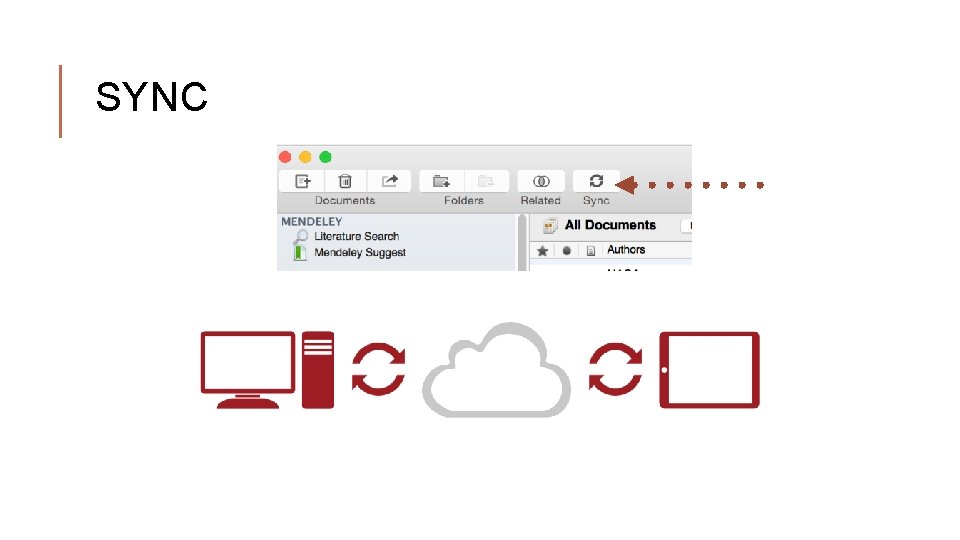
SYNC

CITE Using the Mendeley Citation Plug-In
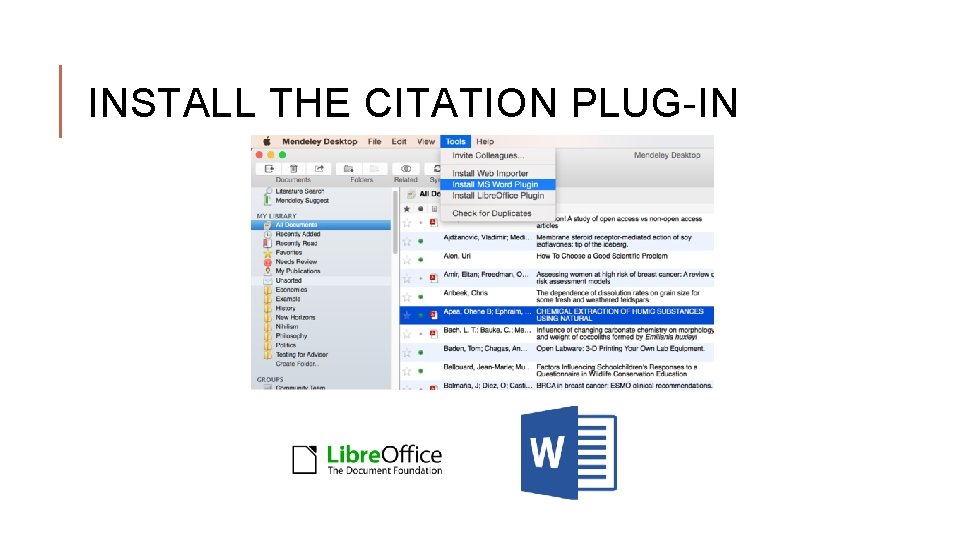
INSTALL THE CITATION PLUG-IN
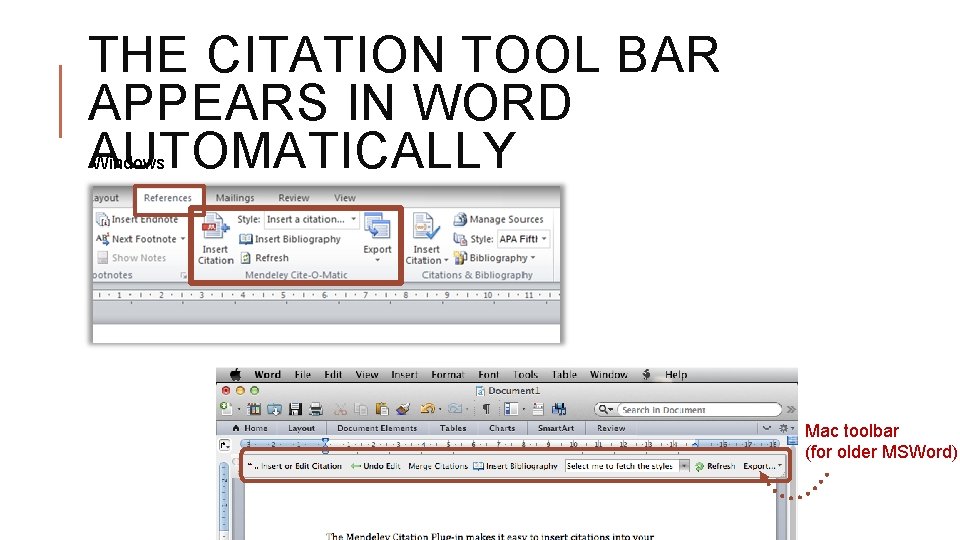
THE CITATION TOOL BAR APPEARS IN WORD AUTOMATICALLY Windows Mac toolbar (for older MSWord)
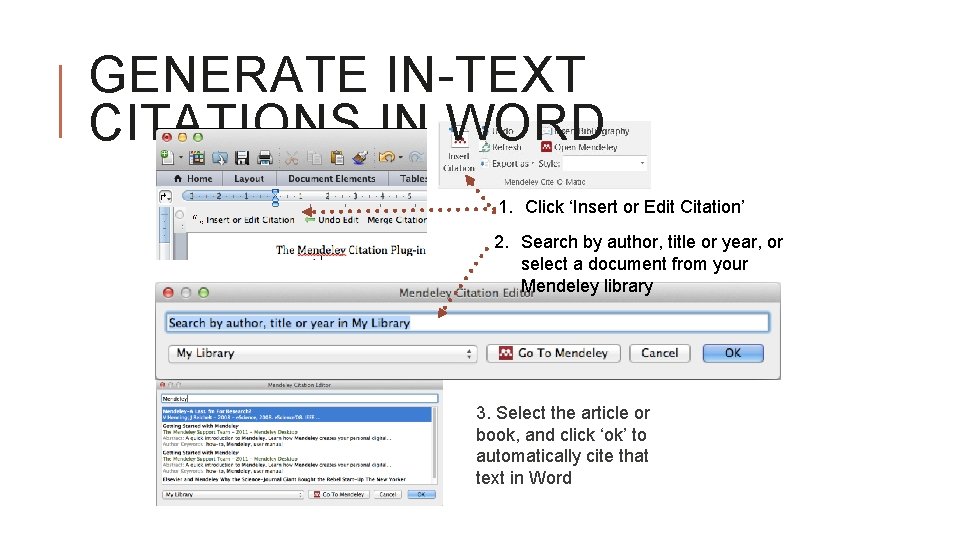
GENERATE IN-TEXT CITATIONS IN WORD 1. Click ‘Insert or Edit Citation’ 2. Search by author, title or year, or select a document from your Mendeley library 3. Select the article or book, and click ‘ok’ to automatically cite that text in Word
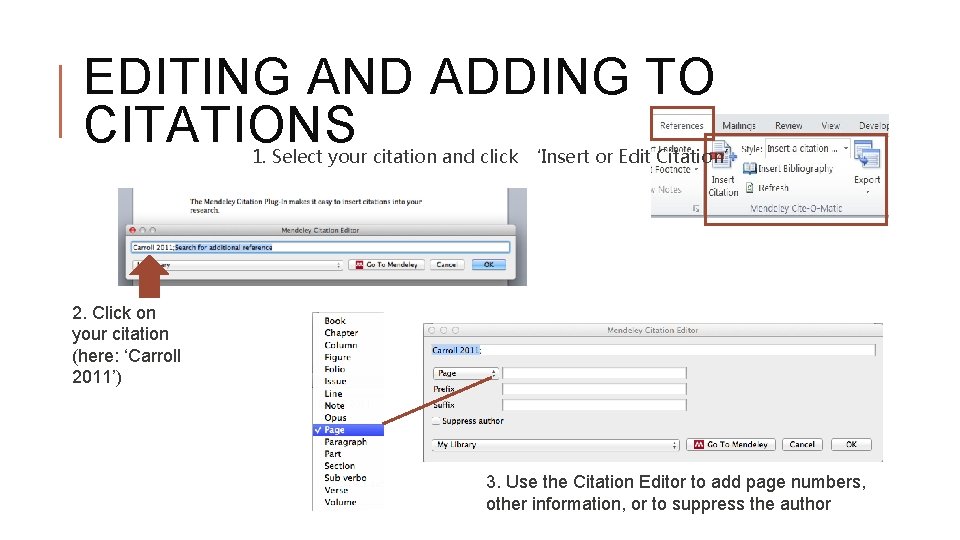
EDITING AND ADDING TO CITATIONS 1. Select your citation and click ‘Insert or Edit Citation’ 2. Click on your citation (here: ‘Carroll 2011’) 3. Use the Citation Editor to add page numbers, other information, or to suppress the author
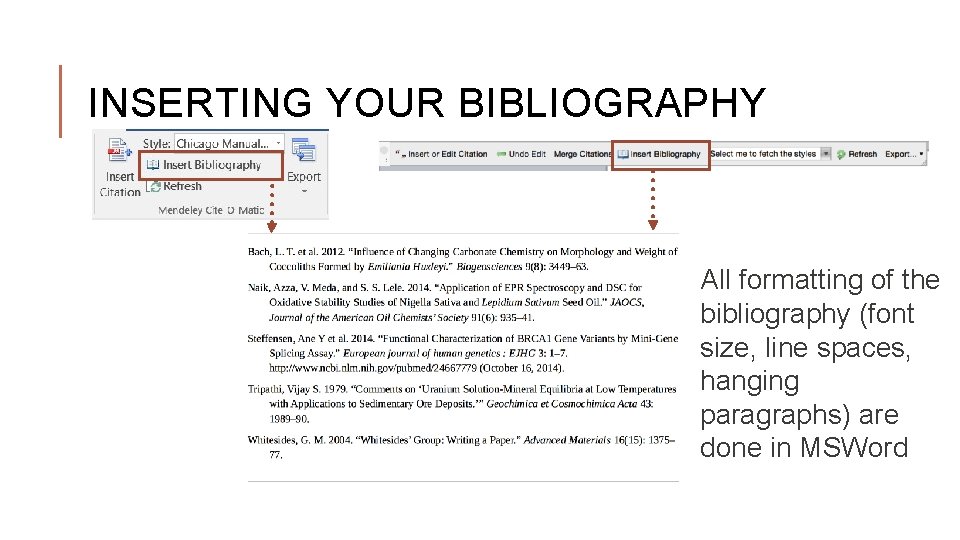
INSERTING YOUR BIBLIOGRAPHY All formatting of the bibliography (font size, line spaces, hanging paragraphs) are done in MSWord
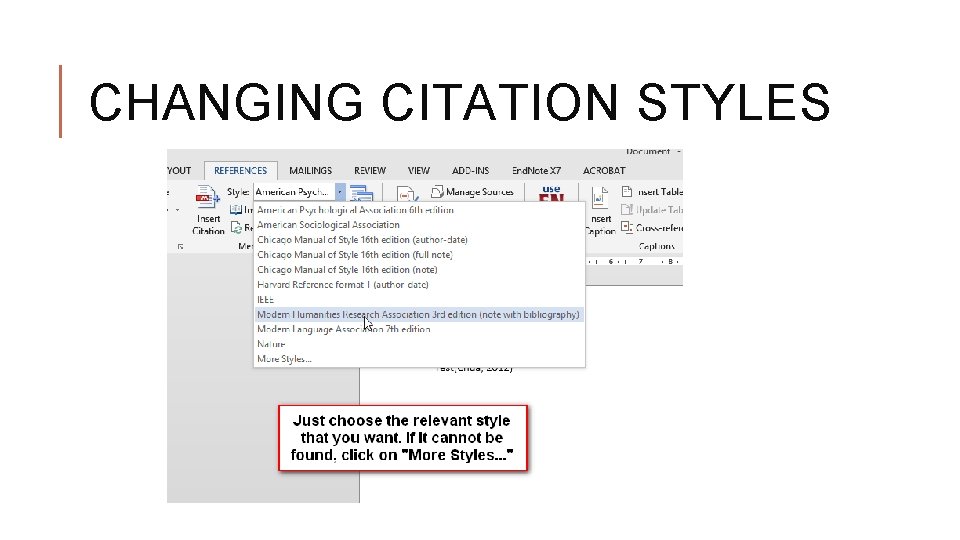
CHANGING CITATION STYLES
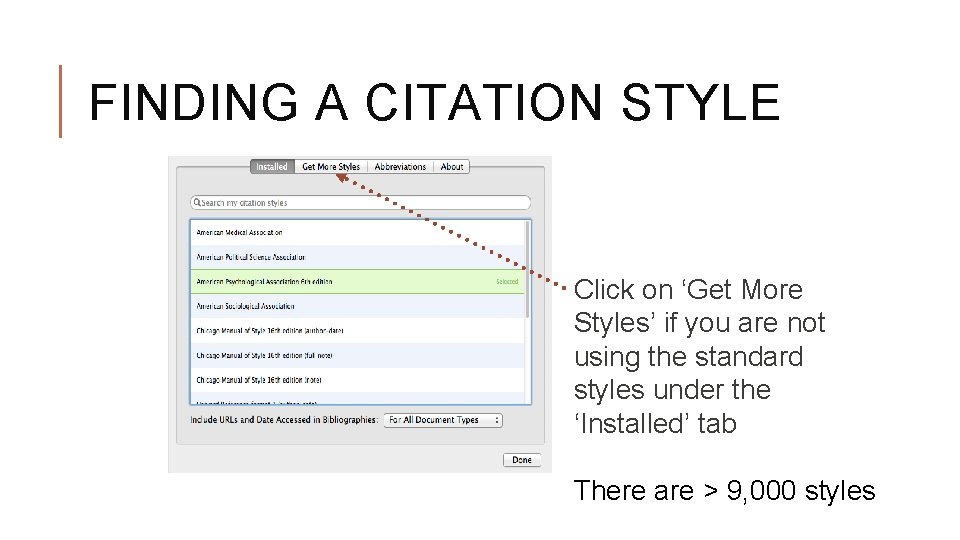
FINDING A CITATION STYLE Click on ‘Get More Styles’ if you are not using the standard styles under the ‘Installed’ tab There are > 9, 000 styles
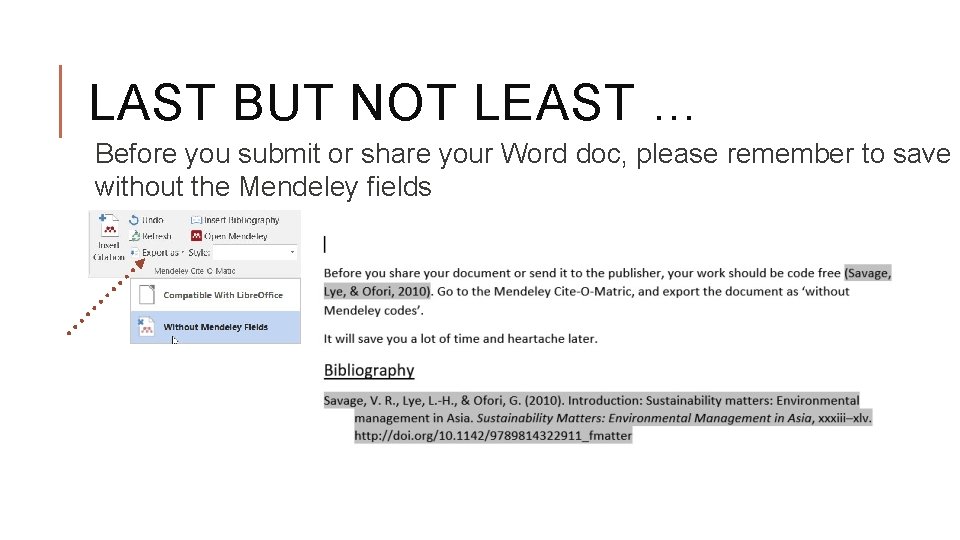
LAST BUT NOT LEAST … Before you submit or share your Word doc, please remember to save i without the Mendeley fields

VIDEO COLLABORATE Join and Create Groups to Share References

VIDEO DISCOVER New Research, Recommendations, and Impact
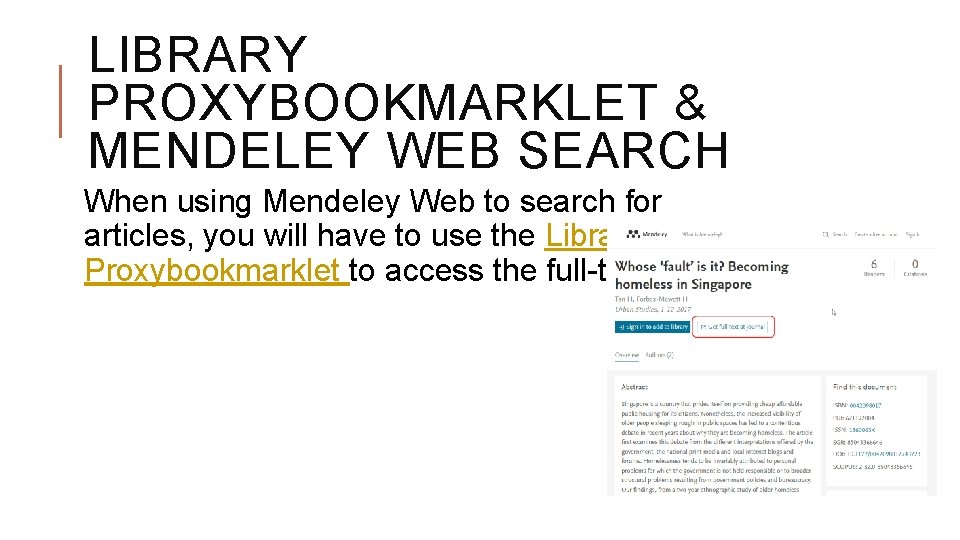
LIBRARY PROXYBOOKMARKLET & MENDELEY WEB SEARCH When using Mendeley Web to search for articles, you will have to use the Library Proxybookmarklet to access the full-text

TALK TO US Let us know if you need help or resources

TECH SUPPORT (UK BASED) Mendeley Support Hub 42
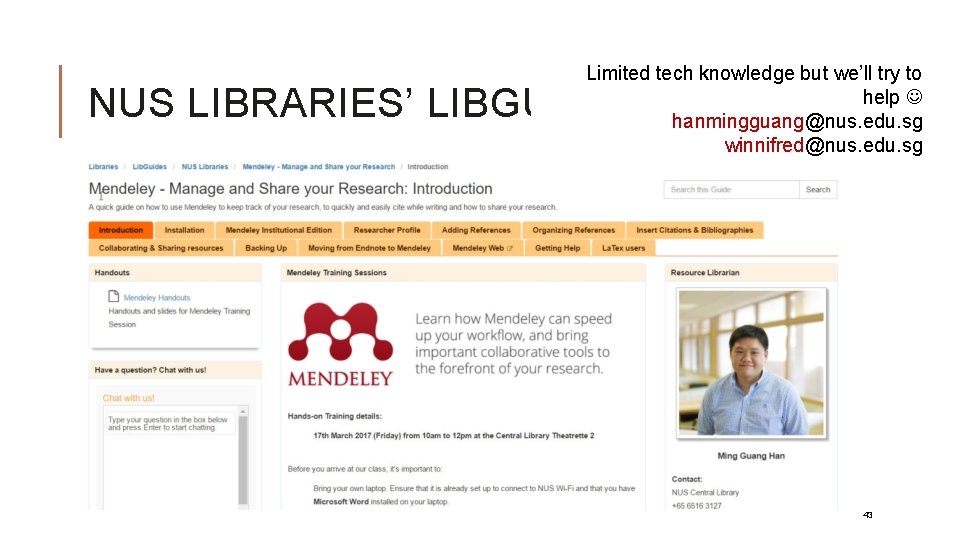
Limited tech knowledge but we’ll try to help hanmingguang@nus. edu. sg winnifred@nus. edu. sg NUS LIBRARIES’ LIBGUIDE 43

CONNECT WITH US @NUSLIBRARIES

HAVE A MINUTE? HELP US IMPROVE 18 th Sep 2019 http: //bit. ly/Mendeley 18 Se p
- Slides: 45