
Membership Management System MMS BASIC INSTRUCTIONS FOR CIRCLE
Membership Management System (MMS) BASIC INSTRUCTIONS FOR CIRCLE OFFICERS 2020 -21
Table of Contents Open this document in viewer mode. The section links become bookmarks. Jump to a section by clicking on the link. What is MMS? How to Access My MMS Account ◦ Log In Credentials ◦ Officer Administration Page ◦ Edit Your Account Developing Your Membership Applications ◦ ◦ ◦ ◦ ◦ Application Development Timeframe Application Structure How Custom Questions Work Customize the Application Activating/Deactivating Your Application Custom Text Fields Special Items and Pin Type Special or Surprise Initiation Publish the Application Revised: August 2020 Application Review and Approval ◦ Application Review, Approval, and Rejection ◦ Special or Surprise Inductions ◦ Correct the Information on a Certificate Order Form ◦ Membership Payments ◦ Membership Certificate Order ◦ Select What Type of Ceremony ◦ Select the Certificate/Pin Shipping ◦ Revised Amount Owed Section COPYRIGHT © 2020. ALL RIGHTS RESERVED. After the Ceremony ◦ Returning Certificates/Pins ◦ Clearing Unhandled Records ◦ Downloading Past Certificate Orders ◦ Search for an Individual Member ◦ Exporting Rosters Circle Minimum Standards Tracking MMS Assistance 2
What is MMS? DESCRIPTION OF THE PROGRAM NEW FOR 2020 -21 Revised: August 2020 COPYRIGHT © 2020. ALL RIGHTS RESERVED. 3
What is MMS? MMS refers to the Membership Management System developed by Omicron Delta Kappa to coordinate the mandatory national membership application, approval, and certificate process. MMS allows circle advisors, and with some limitations circle presidents, to: ◦ ◦ ◦ Tailor the national applications to the needs of the circle Accept or reject individuals who have applied for membership Review initiation rosters from previous years Download reports and spreadsheets of applicants and approved members Manage their personal administrative accounts MMS provides specific initiation reports but not real time membership rosters and contact information. Revised: August 2020 COPYRIGHT © 2020. ALL RIGHTS RESERVED. 4
What’s New for FY 2021 1. New Section Titles for better referencing when talking with OK HQ staff. [Slide 10] 2. Application Period Beginning and End Dates – circles will enter the schedule of your application cycle so ODK National Headquarters will be able to schedule resources to support the circle. [Slide 18] 3. Expanded Application Management Panel – more information and easier viewing. [Slides 25] 4. New Payment Tracking – separates payments made to circle from those made online. [Slides 28 -29] 5. Select Type of Ceremony (In-person, Circle Virtual, National Virtual). [Slide 32] 6. Certificates and Pins Mailing – options now tied to invoicing. [Slides 33 -34] 7. Revised Amount Owed Section – includes credits for online payments, honorary, and charges for mailing. [Slide 34] Revised: August 2020 COPYRIGHT © 2020. ALL RIGHTS RESERVED. 5
How to Access My MMS Account LOG IN CREDENTIALS, OFFICER ADMINISTRATION PAGE, EDIT YOUR ACCOUNT Revised: August 2020 COPYRIGHT © 2020. ALL RIGHTS RESERVED. 6
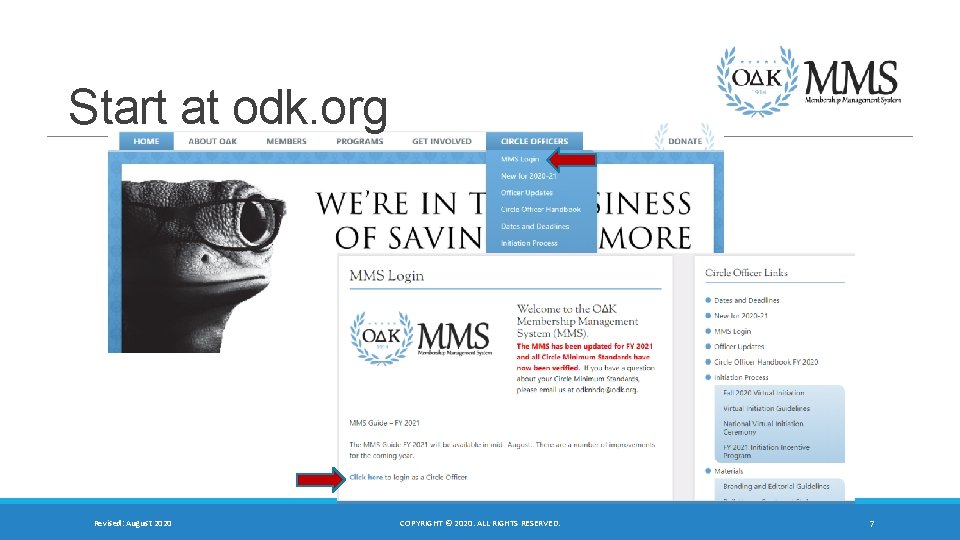
Start at odk. org Revised: August 2020 COPYRIGHT © 2020. ALL RIGHTS RESERVED. 7
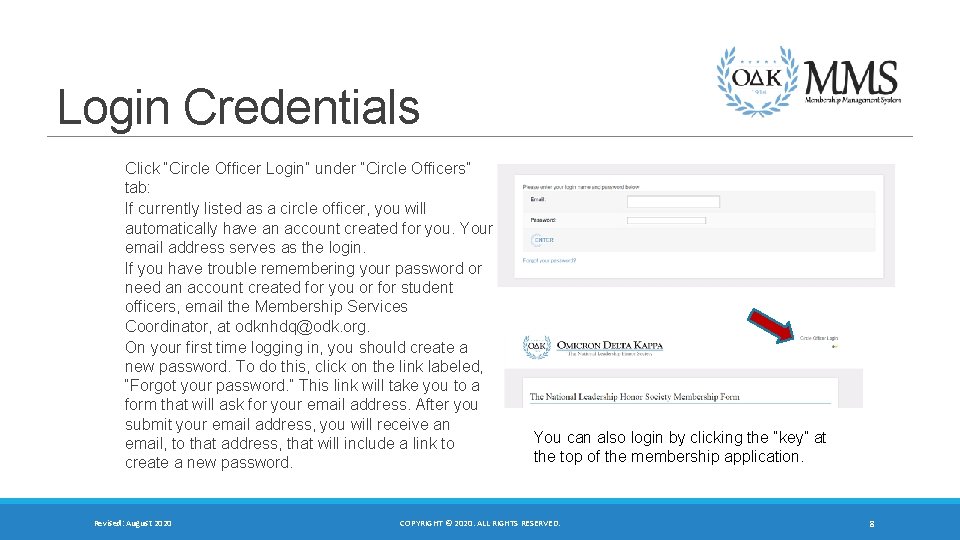
Login Credentials Click “Circle Officer Login” under “Circle Officers” tab: If currently listed as a circle officer, you will automatically have an account created for you. Your email address serves as the login. If you have trouble remembering your password or need an account created for you or for student officers, email the Membership Services Coordinator, at odknhdq@odk. org. On your first time logging in, you should create a new password. To do this, click on the link labeled, “Forgot your password. ” This link will take you to a form that will ask for your email address. After you submit your email address, you will receive an email, to that address, that will include a link to create a new password. Revised: August 2020 You can also login by clicking the “key” at the top of the membership application. COPYRIGHT © 2020. ALL RIGHTS RESERVED. 8
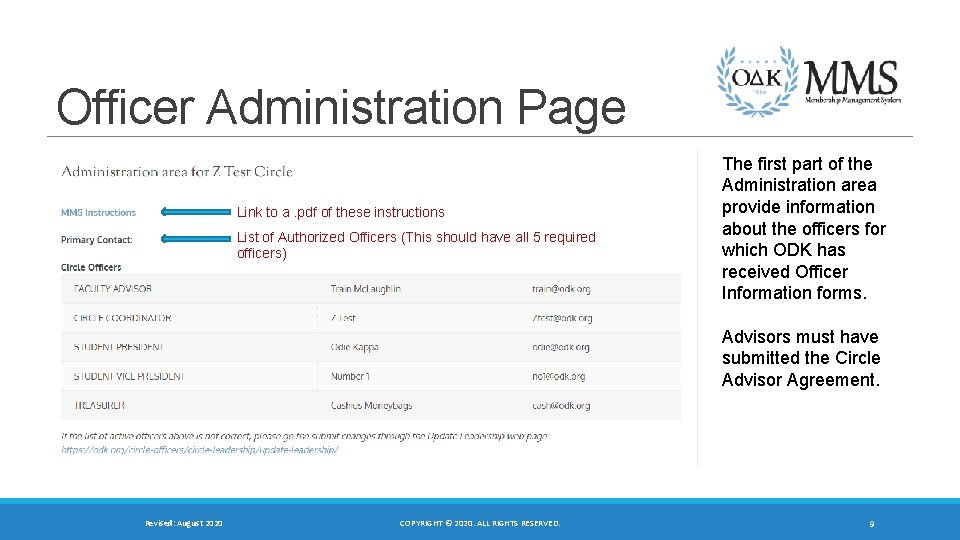
Officer Administration Page Link to a. pdf of these instructions List of Authorized Officers (This should have all 5 required officers) The first part of the Administration area provide information about the officers for which ODK has received Officer Information forms. Advisors must have submitted the Circle Advisor Agreement. Revised: August 2020 COPYRIGHT © 2020. ALL RIGHTS RESERVED. 9
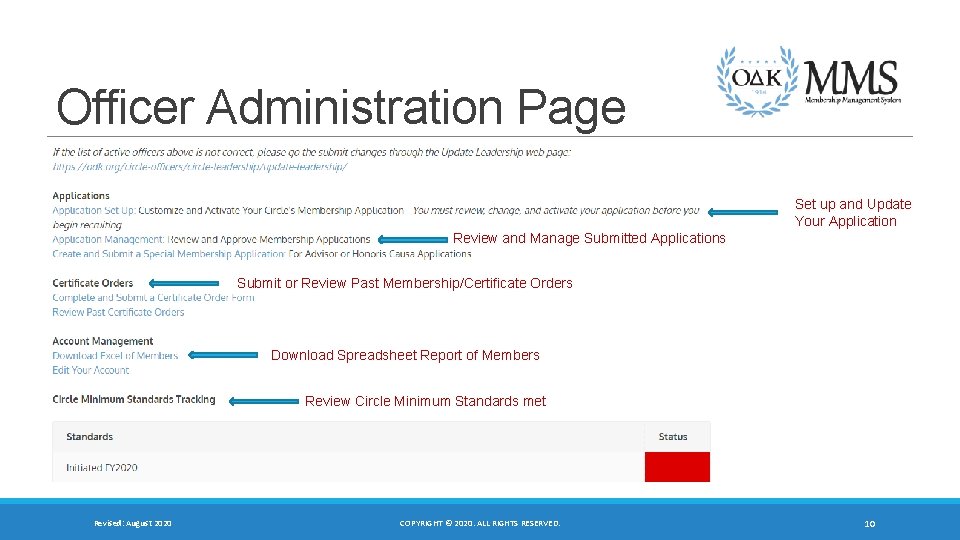
Officer Administration Page Set up and Update Your Application Review and Manage Submitted Applications Submit or Review Past Membership/Certificate Orders Download Spreadsheet Report of Members Review Circle Minimum Standards met Revised: August 2020 COPYRIGHT © 2020. ALL RIGHTS RESERVED. 10
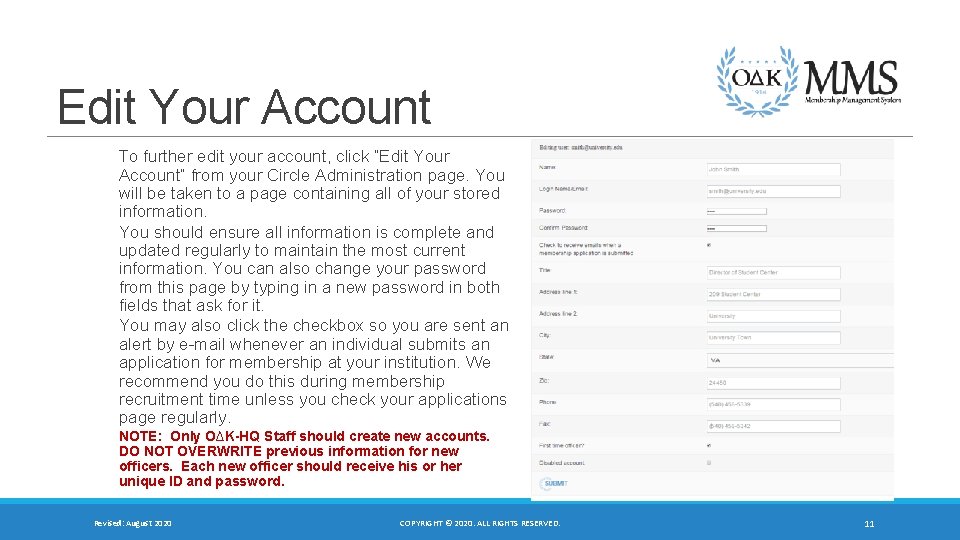
Edit Your Account To further edit your account, click “Edit Your Account” from your Circle Administration page. You will be taken to a page containing all of your stored information. You should ensure all information is complete and updated regularly to maintain the most current information. You can also change your password from this page by typing in a new password in both fields that ask for it. You may also click the checkbox so you are sent an alert by e-mail whenever an individual submits an application for membership at your institution. We recommend you do this during membership recruitment time unless you check your applications page regularly. NOTE: Only O∆K-HQ Staff should create new accounts. DO NOT OVERWRITE previous information for new officers. Each new officer should receive his or her unique ID and password. Revised: August 2020 COPYRIGHT © 2020. ALL RIGHTS RESERVED. 11
Developing Your Membership Application C IRCLES CAN ADD SPECIAL QUESTIONS AND FIELDS TO THE NATIONAL APPLICATION Revised: August 2020 COPYRIGHT © 2020. ALL RIGHTS RESERVED. 12
Application Development Timeframe Review: Review the previous application for any changes, spelling correction, or changes in information that will improve your application. Revise: Revisions should always occur BEFORE you start accepting applications for a cycle. All applicants should receive the same application version. Test: Have officers complete “test application” to ensure all fields report in the manner intended. Remember to delete test applications. Publish: All application changes are “live” when the “submit” button is selected. Make sure everything is set before you activate your application. Revised: August 2020 COPYRIGHT © 2020. ALL RIGHTS RESERVED. 13
Application Structure The National Leadership Honor Society Membership Form (Application) has two types of items: Required (by the Society) and custom (inserted by the circle). Required items include the basic membership information (name, email, address, etc. ) is required and cannot be changed. The default application has the required items and the pin selection is open. If the circle does not change any fields, this is the application your prospective members will see. Custom items are those that the circle chooses to select and add to the application. Only the items selected and approved by the circle will appear on the application seen by individuals on your campus. Revised: August 2020 COPYRIGHT © 2020. ALL RIGHTS RESERVED. 14
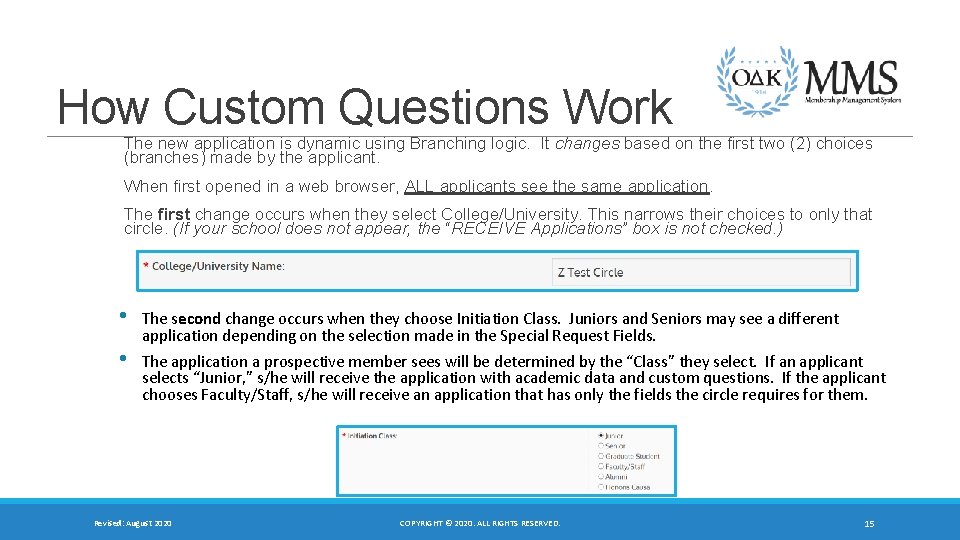
How Custom Questions Work The new application is dynamic using Branching logic. It changes based on the first two (2) choices (branches) made by the applicant. When first opened in a web browser, ALL applicants see the same application. The first change occurs when they select College/University. This narrows their choices to only that circle. (If your school does not appear, the “RECEIVE Applications” box is not checked. ) • • The second change occurs when they choose Initiation Class. Juniors and Seniors may see a different application depending on the selection made in the Special Request Fields. The application a prospective member sees will be determined by the “Class” they select. If an applicant selects “Junior, ” s/he will receive the application with academic data and custom questions. If the applicant chooses Faculty/Staff, s/he will receive an application that has only the fields the circle requires for them. Revised: August 2020 COPYRIGHT © 2020. ALL RIGHTS RESERVED. 15
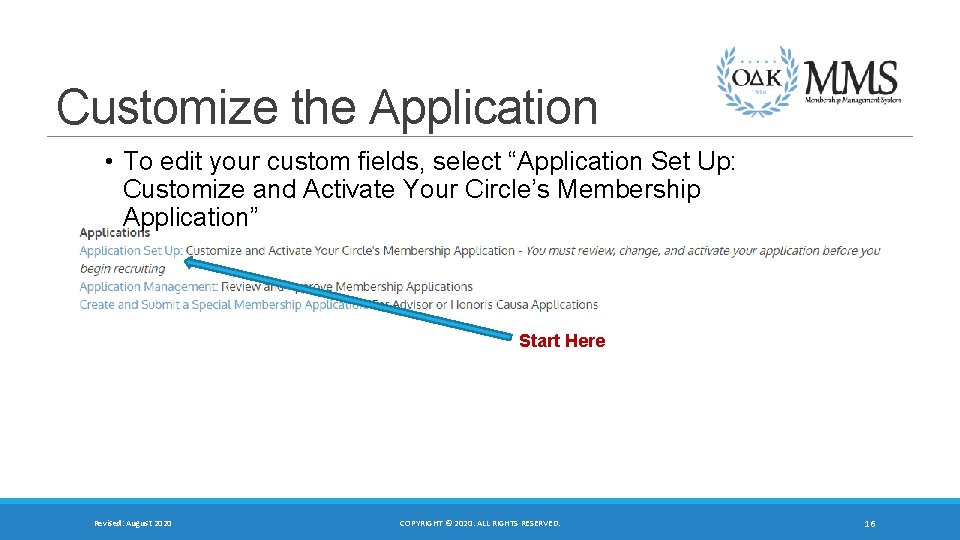
Customize the Application • To edit your custom fields, select “Application Set Up: Customize and Activate Your Circle’s Membership Application” Start Here Revised: August 2020 COPYRIGHT © 2020. ALL RIGHTS RESERVED. 16
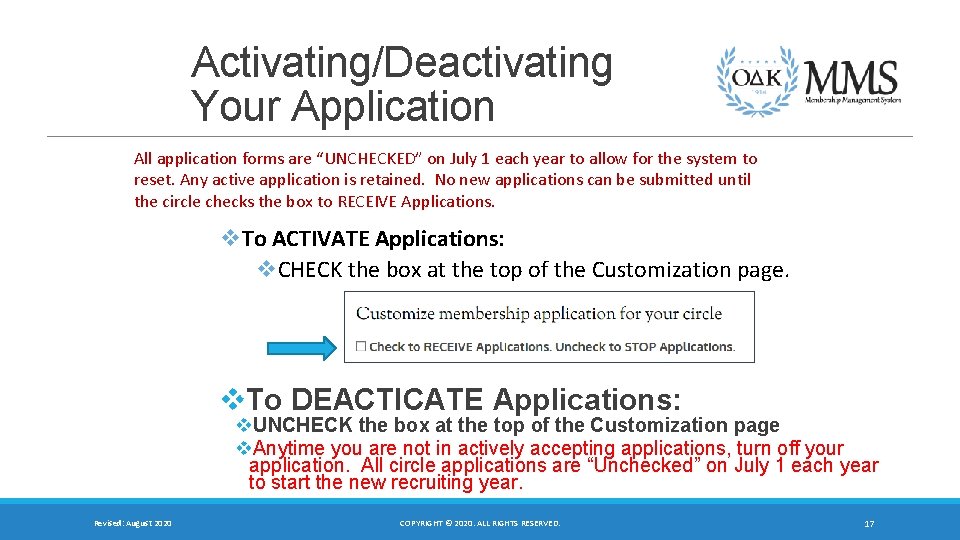
Activating/Deactivating Your Application All application forms are “UNCHECKED” on July 1 each year to allow for the system to reset. Any active application is retained. No new applications can be submitted until the circle checks the box to RECEIVE Applications. v. To ACTIVATE Applications: v. CHECK the box at the top of the Customization page. v. To DEACTICATE Applications: v. UNCHECK the box at the top of the Customization page v. Anytime you are not in actively accepting applications, turn off your application. All circle applications are “Unchecked” on July 1 each year to start the new recruiting year. Revised: August 2020 COPYRIGHT © 2020. ALL RIGHTS RESERVED. 17
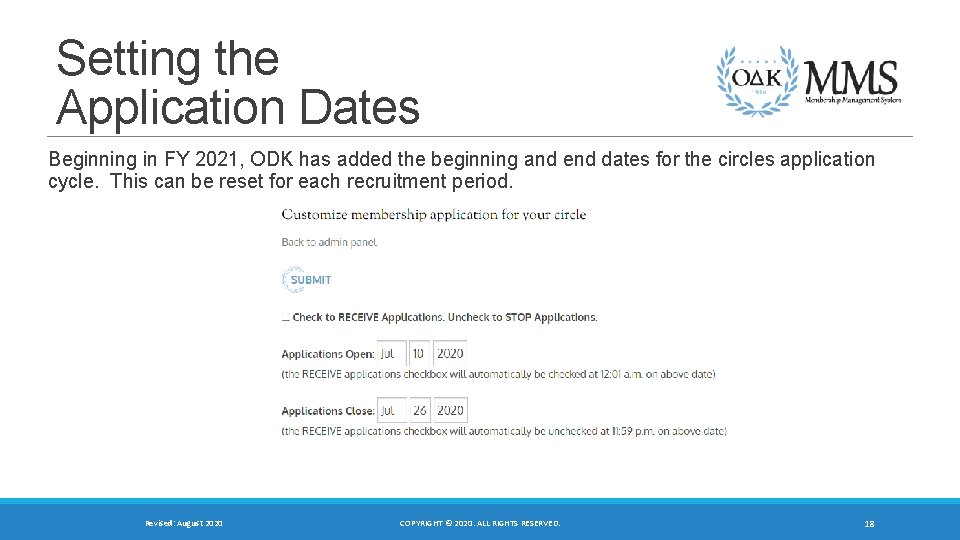
Setting the Application Dates Beginning in FY 2021, ODK has added the beginning and end dates for the circles application cycle. This can be reset for each recruitment period. Revised: August 2020 COPYRIGHT © 2020. ALL RIGHTS RESERVED. 18
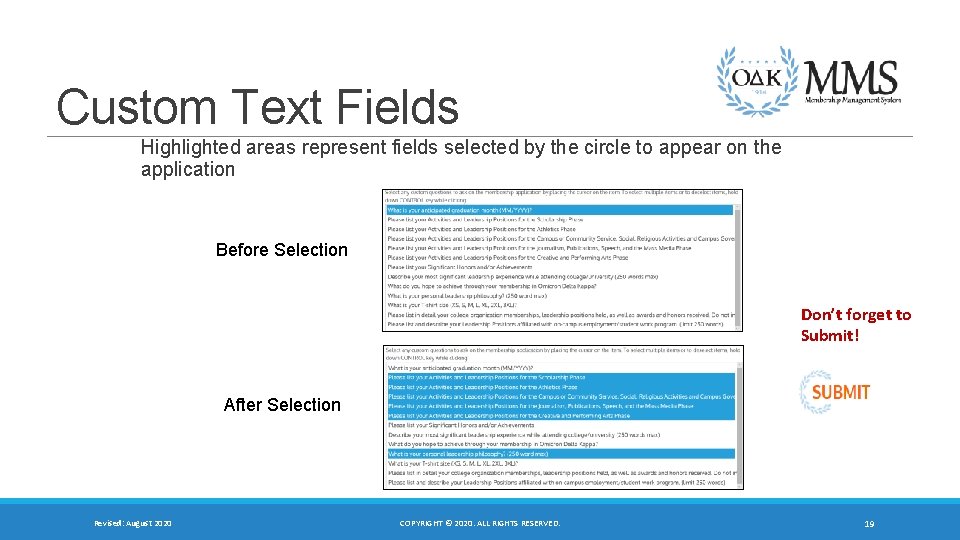
Custom Text Fields Highlighted areas represent fields selected by the circle to appear on the application Before Selection Don’t forget to Submit! After Selection Revised: August 2020 COPYRIGHT © 2020. ALL RIGHTS RESERVED. 19
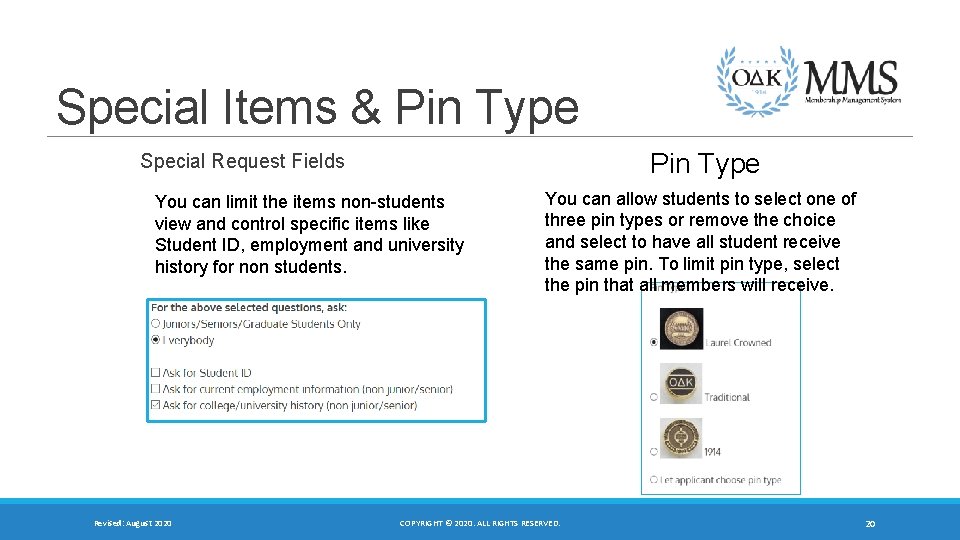
Special Items & Pin Type Special Request Fields You can limit the items non-students view and control specific items like Student ID, employment and university history for non students. Revised: August 2020 You can allow students to select one of three pin types or remove the choice and select to have all student receive the same pin. To limit pin type, select the pin that all members will receive. COPYRIGHT © 2020. ALL RIGHTS RESERVED. 20
Special or Surprise Initiation Many circles want to surprise a faculty member, alumnus, or honoris causa member with initiation into ODK. That is perfectly fine to do. Please note the following: Anyone using the circle’s customized form will receive notification that an application has been received. If you do not want your “surprise inductee” to be notified, you can complete the application for that individual. This is the ONLY time you can complete an application for the individual. To complete the special or surprise application: 1. Go to the Administration Area on MMS. 2. Select “Create and Submit a Special Membership Application” 3. Complete the form with all information and submit. Because the advisor is completing the form, the advisor will receive confirmation from the system that application has been received. This should not be used for student inductees. This form should be used for NEW Circle Advisors. Revised: August 2020 COPYRIGHT © 2020. ALL RIGHTS RESERVED. 21
Publish the Application Once you have customized all fields, select Submit. The changes will occur immediately. To review the new application, Return to the login/application (membershi. odk. org) Remember, you must select a circle AND a class for to review the application for your circle. (see slide 12) Revised: August 2020 COPYRIGHT © 2020. ALL RIGHTS RESERVED. 22
Application Review and Approval T HREE S TEPSTO A PPLICATION P ROCESSING Revised: August 2020 COPYRIGHT © 2020. ALL RIGHTS RESERVED. 23
Application Review and Approval There are 4 steps in the Application Review and Approval Process: ◦ Step 1 - Review Applications ◦ Step 2 - Accept/Reject Applications ◦ Step 3 - Verify Payment and Approve for Membership ◦ Step 4 – Submit the Certificate Order For on-campus or in-person initiation ceremonies: All of these steps should be completed no less than 14 calendar days prior to your initiation ceremony. This ensures that ODK can process your order, print certificates, and ship them to you in time. Many times is takes less than 14 days. For virtual ceremonies: All of these steps should be completed no less than 7 calendar days prior to your virtual initiation ceremony. Since certificates and pins are shipped after the ceremony for virtual ceremonies, the timeline is shorter. Only faculty advisors and circle coordinators are permitted to access applications. Applications can be printed for officers or committee to review. Advisors can download a spreadsheet of application information to provide to officers or committee as well. Revised: August 2020 COPYRIGHT © 2020. ALL RIGHTS RESERVED. IMPORTANT NOTICE: Circle advisors or other members of the circle are not permitted to complete an application for the initiate. This includes FACULTY/STAFF and ALUMNI because the application constitutes a contract and includes permissions that must be accepted by the member. A third party may no longer complete the application for the initiate. Honoris Causa and Special Inductions can be completed by a third party but MUST include all required information accurately submitted. 24
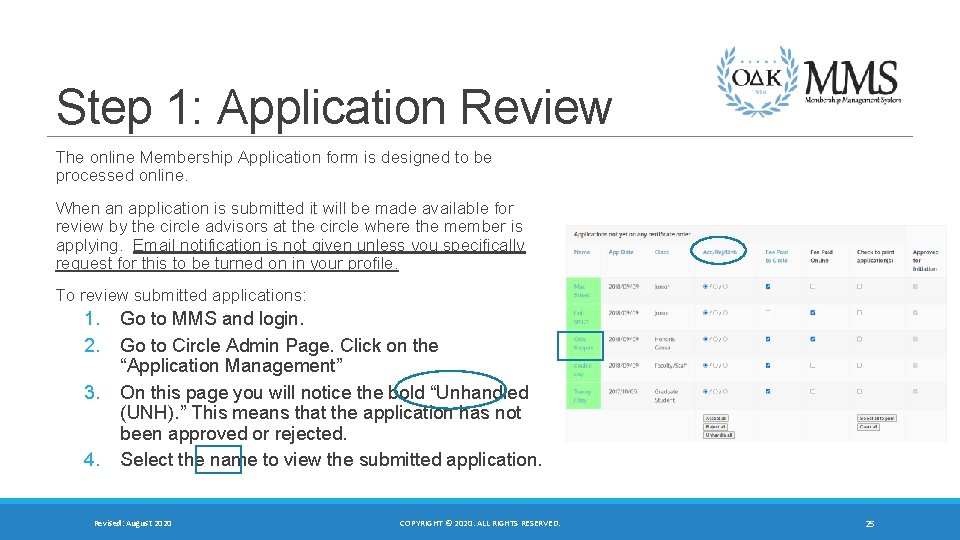
Step 1: Application Review The online Membership Application form is designed to be processed online. When an application is submitted it will be made available for review by the circle advisors at the circle where the member is applying. Email notification is not given unless you specifically request for this to be turned on in your profile. To review submitted applications: 1. 2. 3. 4. Go to MMS and login. Go to Circle Admin Page. Click on the “Application Management” On this page you will notice the bold “Unhandled (UNH). ” This means that the application has not been approved or rejected. Select the name to view the submitted application. Revised: August 2020 COPYRIGHT © 2020. ALL RIGHTS RESERVED. 25
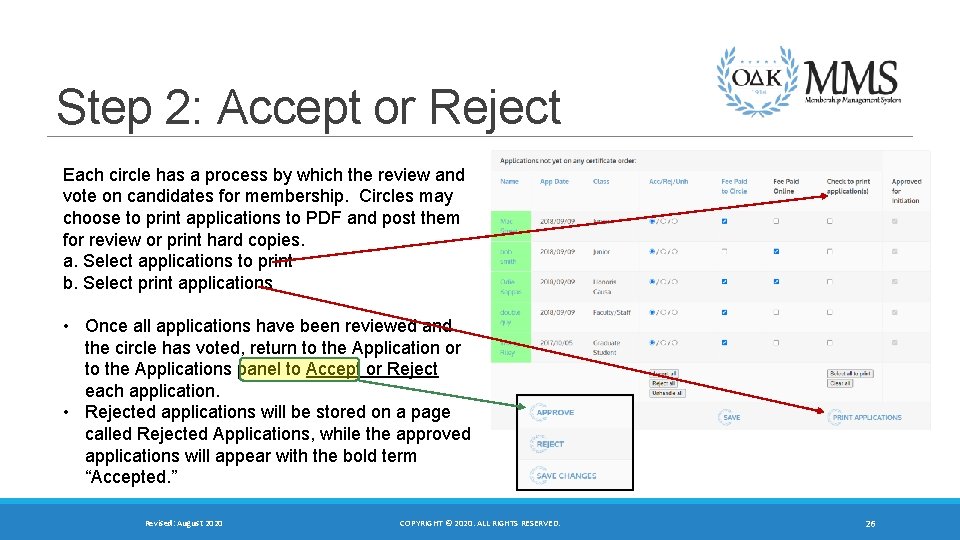
Step 2: Accept or Reject Each circle has a process by which the review and vote on candidates for membership. Circles may choose to print applications to PDF and post them for review or print hard copies. a. Select applications to print b. Select print applications • Once all applications have been reviewed and the circle has voted, return to the Application or to the Applications panel to Accept or Reject each application. • Rejected applications will be stored on a page called Rejected Applications, while the approved applications will appear with the bold term “Accepted. ” Revised: August 2020 COPYRIGHT © 2020. ALL RIGHTS RESERVED. 26
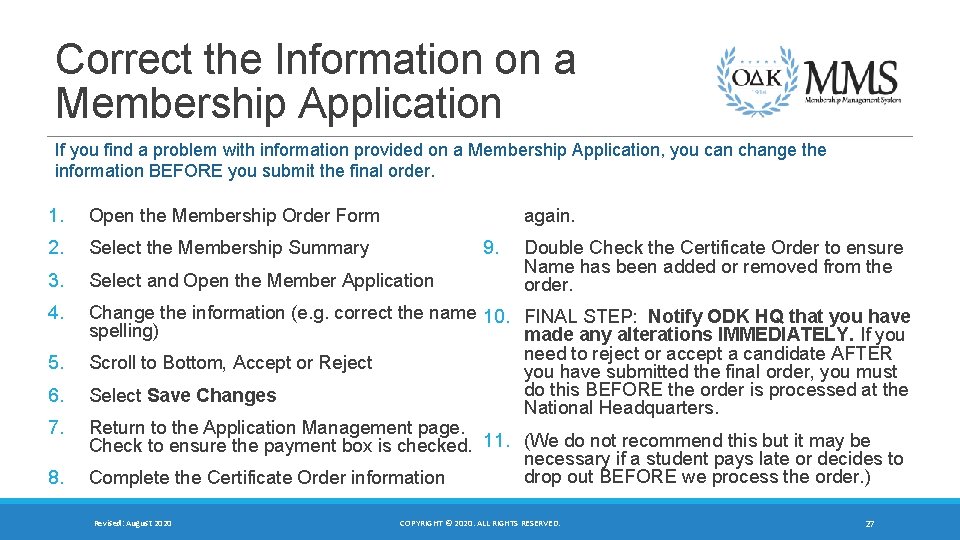
Correct the Information on a Membership Application If you find a problem with information provided on a Membership Application, you can change the information BEFORE you submit the final order. 1. Open the Membership Order Form 2. Select the Membership Summary 3. Select and Open the Member Application 4. Change the information (e. g. correct the name 10. FINAL STEP: Notify ODK HQ that you have spelling) made any alterations IMMEDIATELY. If you need to reject or accept a candidate AFTER Scroll to Bottom, Accept or Reject you have submitted the final order, you must do this BEFORE the order is processed at the Select Save Changes National Headquarters. Return to the Application Management page. Check to ensure the payment box is checked. 11. (We do not recommend this but it may be necessary if a student pays late or decides to drop out BEFORE we process the order. ) Complete the Certificate Order information 5. 6. 7. 8. Revised: August 2020 again. 9. Double Check the Certificate Order to ensure Name has been added or removed from the order. COPYRIGHT © 2020. ALL RIGHTS RESERVED. 27
Step 3: Membership Payment The circle is responsible to make sure each new member pays the national lifetime membership fee. There are two options: Circle Pays from Invoice - Each circle has the option to either collect the fees from the initiate and remit a single check or credit card payment to the national headquarters. Initiates Pay via web form - Initiates can also pay online, but the circle is responsible to verify that each new member has paid before the initiation date. http: //odk. org/national-membershipenrollment-and-payment/ ◦ We now have the ability to turn the payment system on and off for each circle. ◦ Circles using the online payment system must notify the National Headquarters in advance. ◦ All payment systems will be set to off until ODKHQ is instructed to start accepting payments. As soon as the certificate order is submitted, the payment portal will be turned off. Revised: August 2020 COPYRIGHT © 2020. ALL RIGHTS RESERVED. 28
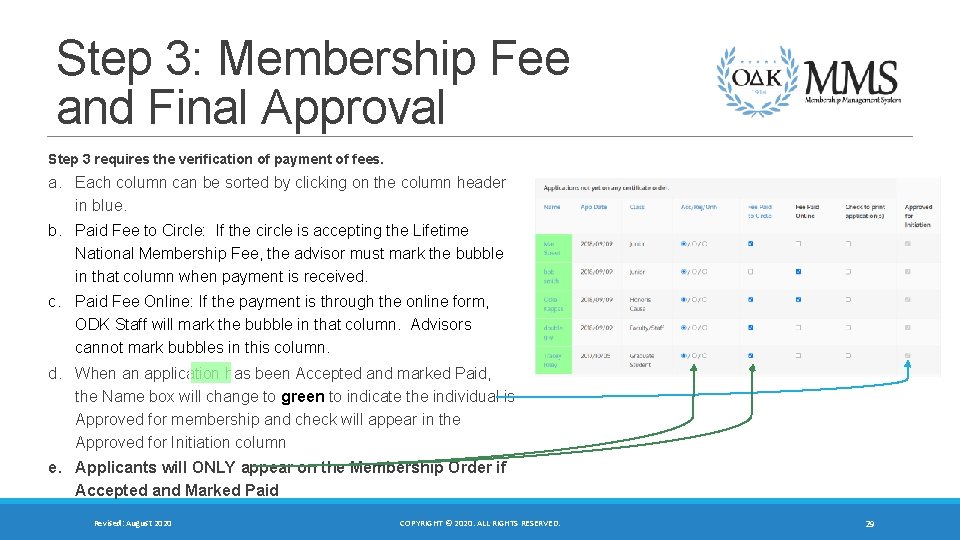
Step 3: Membership Fee and Final Approval Step 3 requires the verification of payment of fees. a. Each column can be sorted by clicking on the column header in blue. b. Paid Fee to Circle: If the circle is accepting the Lifetime National Membership Fee, the advisor must mark the bubble in that column when payment is received. c. Paid Fee Online: If the payment is through the online form, ODK Staff will mark the bubble in that column. Advisors cannot mark bubbles in this column. d. When an application has been Accepted and marked Paid, the Name box will change to green to indicate the individual is Approved for membership and check will appear in the Approved for Initiation column e. Applicants will ONLY appear on the Membership Order if Accepted and Marked Paid Revised: August 2020 COPYRIGHT © 2020. ALL RIGHTS RESERVED. 29
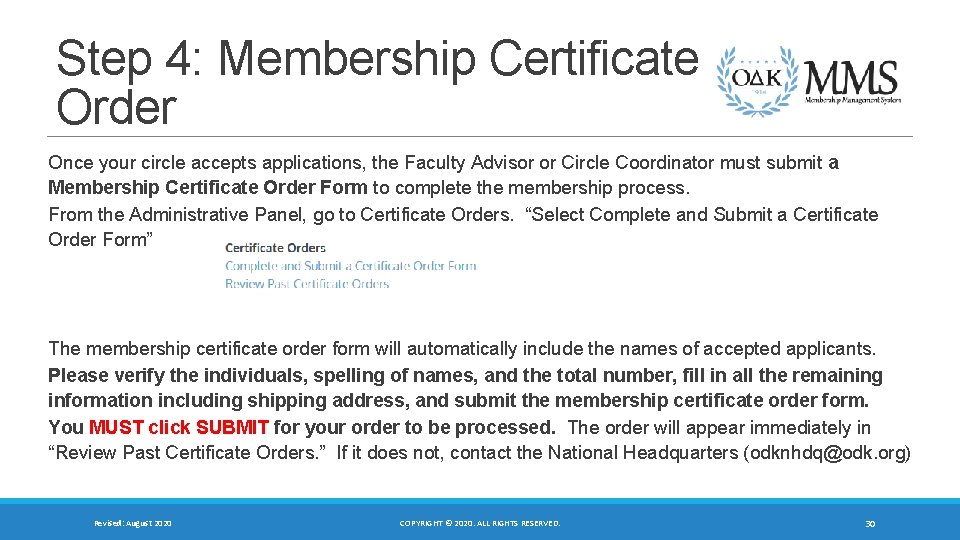
Step 4: Membership Certificate Order Once your circle accepts applications, the Faculty Advisor or Circle Coordinator must submit a Membership Certificate Order Form to complete the membership process. From the Administrative Panel, go to Certificate Orders. “Select Complete and Submit a Certificate Order Form” The membership certificate order form will automatically include the names of accepted applicants. Please verify the individuals, spelling of names, and the total number, fill in all the remaining information including shipping address, and submit the membership certificate order form. You MUST click SUBMIT for your order to be processed. The order will appear immediately in “Review Past Certificate Orders. ” If it does not, contact the National Headquarters (odknhdq@odk. org) Revised: August 2020 COPYRIGHT © 2020. ALL RIGHTS RESERVED. 30
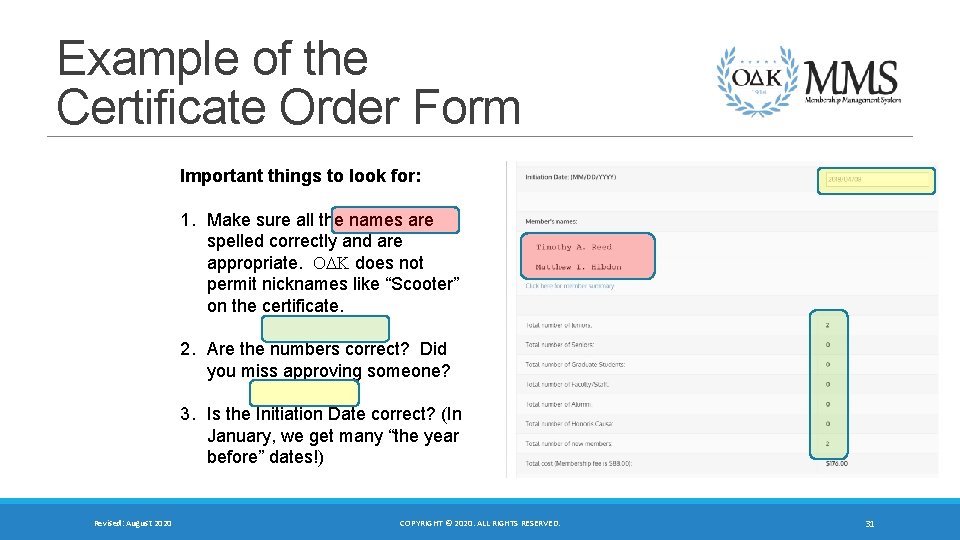
Example of the Certificate Order Form Important things to look for: 1. Make sure all the names are spelled correctly and are appropriate. ODK does not permit nicknames like “Scooter” on the certificate. 2. Are the numbers correct? Did you miss approving someone? 3. Is the Initiation Date correct? (In January, we get many “the year before” dates!) Revised: August 2020 COPYRIGHT © 2020. ALL RIGHTS RESERVED. 31
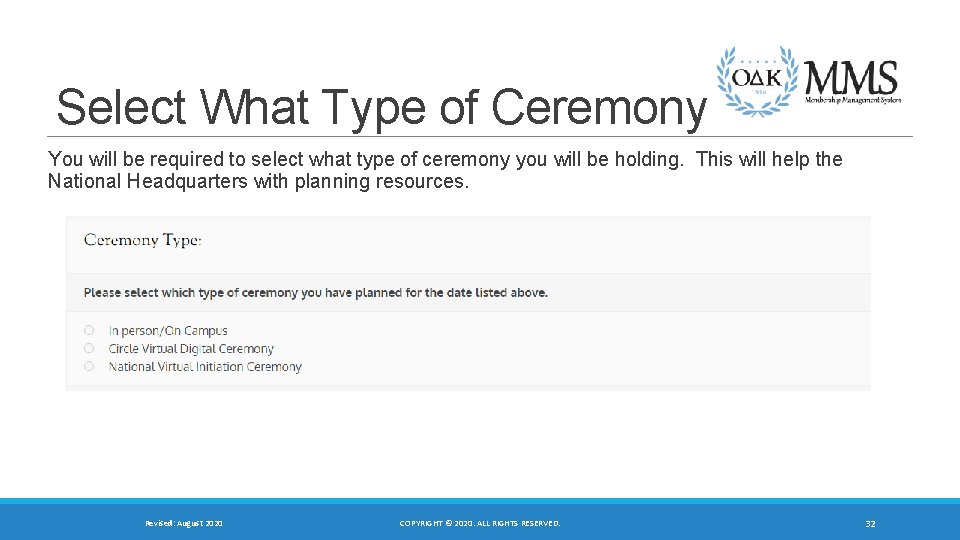
Select What Type of Ceremony You will be required to select what type of ceremony you will be holding. This will help the National Headquarters with planning resources. Revised: August 2020 COPYRIGHT © 2020. ALL RIGHTS RESERVED. 32
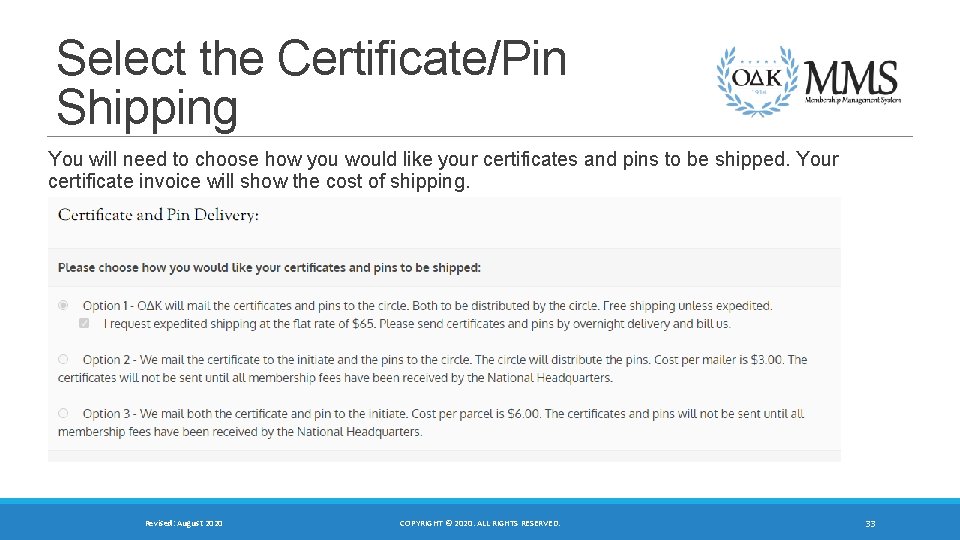
Select the Certificate/Pin Shipping You will need to choose how you would like your certificates and pins to be shipped. Your certificate invoice will show the cost of shipping. Revised: August 2020 COPYRIGHT © 2020. ALL RIGHTS RESERVED. 33
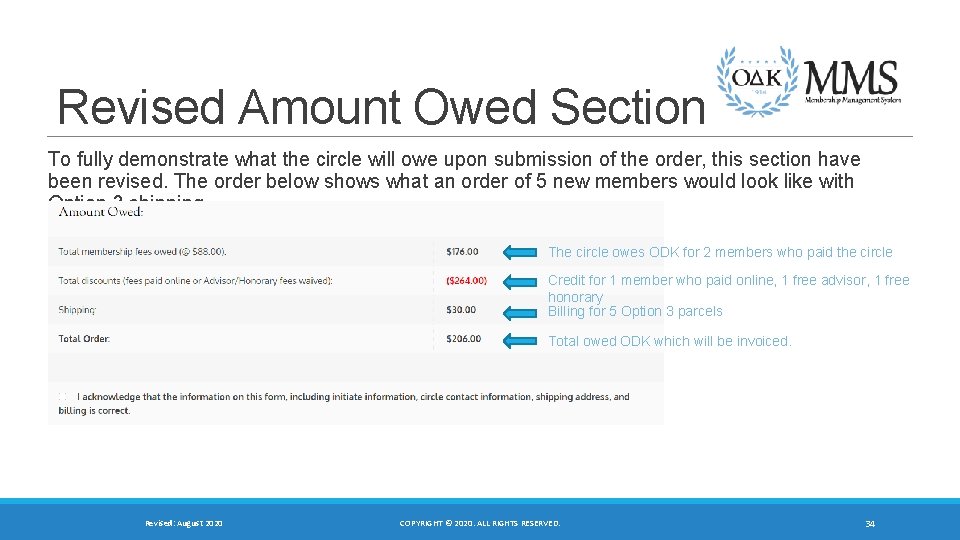
Revised Amount Owed Section To fully demonstrate what the circle will owe upon submission of the order, this section have been revised. The order below shows what an order of 5 new members would look like with Option 3 shipping. The circle owes ODK for 2 members who paid the circle Credit for 1 member who paid online, 1 free advisor, 1 free honorary Billing for 5 Option 3 parcels Total owed ODK which will be invoiced. Revised: August 2020 COPYRIGHT © 2020. ALL RIGHTS RESERVED. 34
After the Ceremony THE INITIATION PROCESS IS NOT COMPLETE UNTIL YOU MAKE SURE ALL RECORDS ARE HANDLED. Revised: August 2020 COPYRIGHT © 2020. ALL RIGHTS RESERVED. 35
Returning Certificates/Pins The official policy of Omicron Delta Kappa is that there are no refunds once certificates have been printed. We will refund membership fees provided the certificate and pin are returned to the ODK Headquarters no less than 30 days after the initiation ceremony. After 30 days, ODK has the right to refuse to refund the fees. o If the certificate and pin are returned, an $8. 00 processing fee will be withheld from the credit (Total $80 credit) o If the pin is not returned, an additional $15. 00 will be withheld from the credit (Total $65 credit) o If no certificates or pins are returned, the circle will be held accountable for all membership fees approved as part of the membership order. Please note that because the individual was not fully initiated, he/she will still not be considered a member of ODK even if the fees were not refunded. Revised: August 2020 COPYRIGHT © 2020. ALL RIGHTS RESERVED. 36
Clearing Unhandled Records Once a ceremony has been held, all fees are fully paid, and the initiation process is closed, the circle advisor should log in to MMS and process “unhandled” applications. All unhandled applications should be marked “rejected. ” Once this process is complete, the application queue should be empty and ready for the next round of applications. ODK national headquarters will audit all circle records on an annual basis and reject any application that has been left “unhandled” for more than 12 consecutive months. Revised: August 2020 COPYRIGHT © 2020. ALL RIGHTS RESERVED. 37
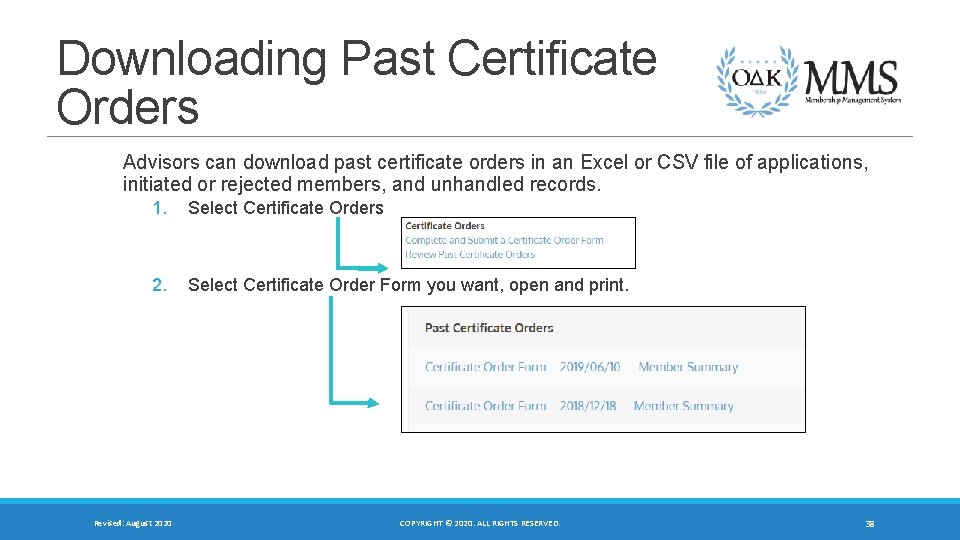
Downloading Past Certificate Orders Advisors can download past certificate orders in an Excel or CSV file of applications, initiated or rejected members, and unhandled records. 1. Select Certificate Orders 2. Select Certificate Order Form you want, open and print. Revised: August 2020 COPYRIGHT © 2020. ALL RIGHTS RESERVED. 38
General Membership Record Management REVIEW, MANAGE, AND DOWNLOAD MEMBERSHIP LISTS AND INDIVIDUAL RECORDS. Revised: August 2020 COPYRIGHT © 2020. ALL RIGHTS RESERVED. 39
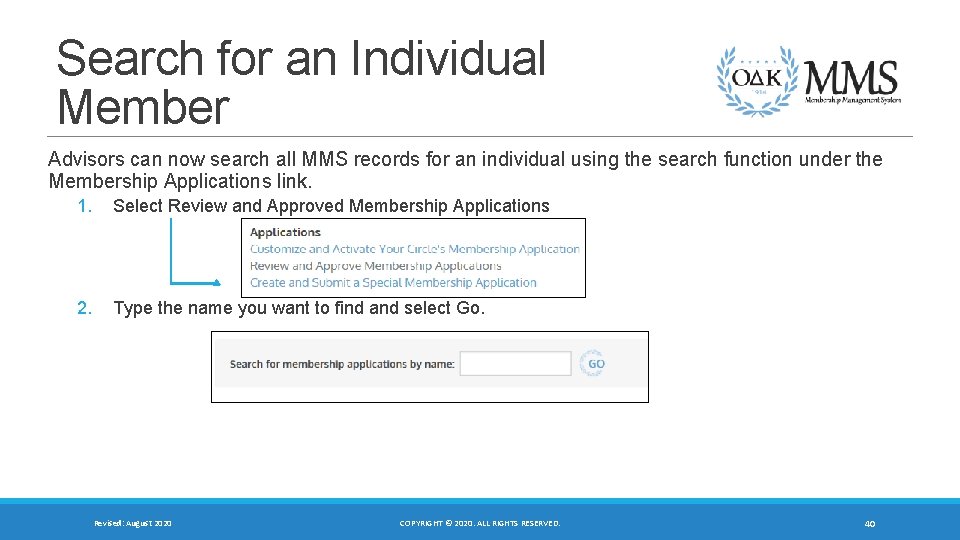
Search for an Individual Member Advisors can now search all MMS records for an individual using the search function under the Membership Applications link. 1. Select Review and Approved Membership Applications 2. Type the name you want to find and select Go. Revised: August 2020 COPYRIGHT © 2020. ALL RIGHTS RESERVED. 40
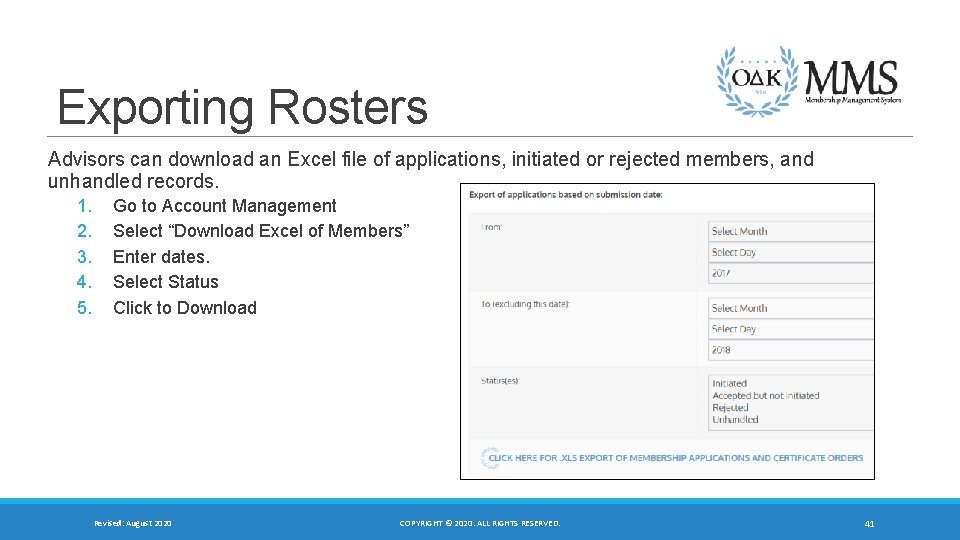
Exporting Rosters Advisors can download an Excel file of applications, initiated or rejected members, and unhandled records. 1. 2. 3. 4. 5. Go to Account Management Select “Download Excel of Members” Enter dates. Select Status Click to Download Revised: August 2020 COPYRIGHT © 2020. ALL RIGHTS RESERVED. 41
Circle Minimum Standards Tracking KNOW WHAT YOUR CIRCLE HAS COMPLETED AND NEEDS TO COMPLETE Revised: August 2020 COPYRIGHT © 2020. ALL RIGHTS RESERVED. 42
Minimum Standards The O∆K Minimum Standards synthesize the various bylaws and policies that require specific action by the circles in one list. These minimum standards will be the basis by which the national organization considers a circle “in good standing. ” Only circles in good standing will be eligible for Clay Grants, Gift of Membership, and Circle Recognition Awards. Print a copy of the O∆K Minimum Standards for your records. Circle Minimum Standards Tracking is reset on September 1 each year. ◦ The circle advisor and voting F/S member columns will be reset when we learn of a vacancy in these positions. ◦ The student officer columns will be reset if we have not received an update for more than 1 calendar years form the last update. Revised: August 2020 COPYRIGHT © 2020. ALL RIGHTS RESERVED. 43
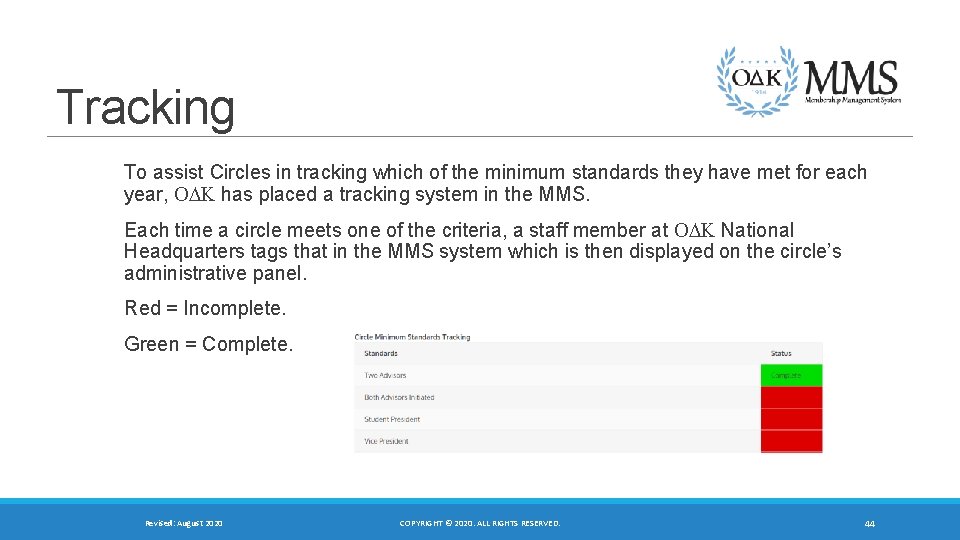
Tracking To assist Circles in tracking which of the minimum standards they have met for each year, ODK has placed a tracking system in the MMS. Each time a circle meets one of the criteria, a staff member at ODK National Headquarters tags that in the MMS system which is then displayed on the circle’s administrative panel. Red = Incomplete. Green = Complete. Revised: August 2020 COPYRIGHT © 2020. ALL RIGHTS RESERVED. 44
MMS Assistance If you ever need assistance with MMS, do not hesitate to call the ODK national headquarters (540 -458 -5336). Our office hours are 8: 30 am – 5: 30 pm Eastern, Monday through Friday. You can also email us at odknhdq@odk. org Some reminders: üCertificate request submission should be placed NO LESS than 14 days BEFORE your CEREMONY. üALL initiates must have PAID BEFORE we will issue certificates and pins. For circles paying by check, this means an invoice has been issued. For those paying online, we will only process those paid. üDo not count on weekend deliveries for certificate orders. üWe will not process refunds after 30 days post-ceremony. Revised: August 2020 COPYRIGHT © 2020. ALL RIGHTS RESERVED. 45
- Slides: 45