
Meet the Expert Load Balance and Availability High
Meet the Expert Load Balance and Availability High
Load Balancing
Load Balancing • The Load Balancing mechanism maps endpoint registrations (both phones and trunks) to specific servers in the cluster. • The concept is each endpoint knows the servers in the cluster that match it’s location (via the Call Agent or SIP Proxy settings). • The Aeonix maps each endpoint (phones and trunks) to a specific server (based on location setting). • When a register request comes to the server it can either allow it or deny it.
Load Balancing • When an endpoint tries to connect to a server that it is mapped to, the server will immediately accepts it’s registration. • When an endpoint tries to connect to a server that it is NOT mapped to, the server will initially reject it’s registration. – After a Grace period (default is 180 seconds) the server will stop rejecting the registration and accept the endpoint.
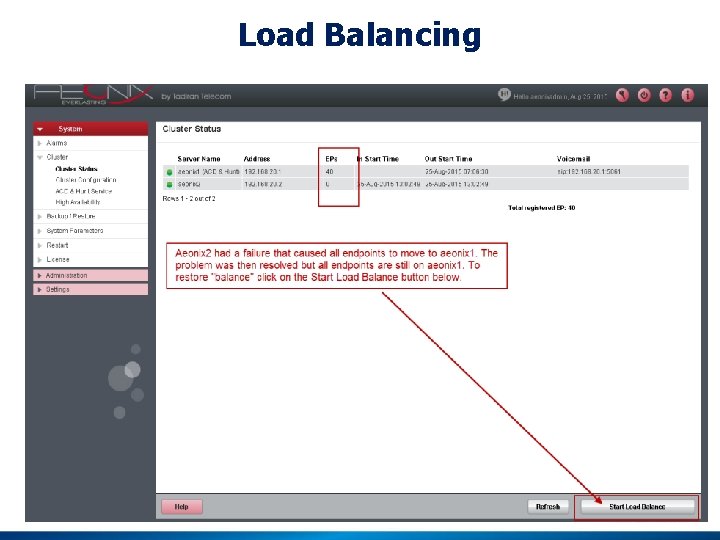
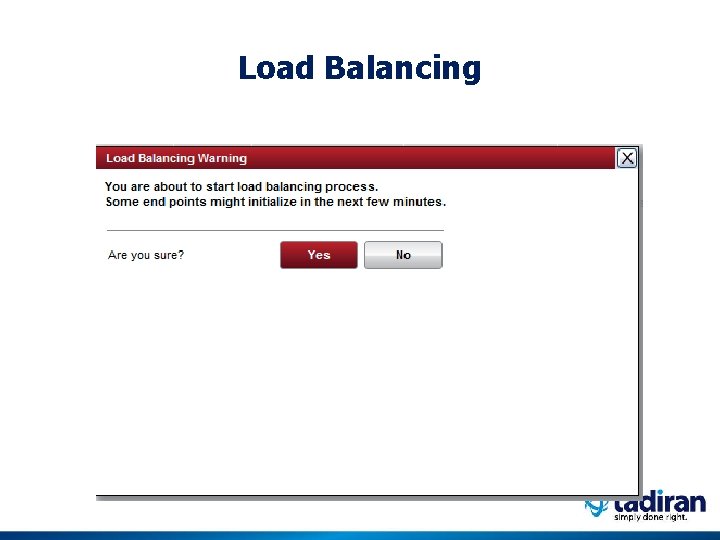
Server Down and restarts • The Grace period is a Cluster wide time and starts counting from the first register attempt of the endpoint. – The Grace period can be changed using Dynamic. Params (by a script and not in the Web interface). • When a server goes down (maintenance, hardware failure) the endpoints will register to other servers. • When the server comes back up the system administrator can use the “Start Load Balancing” button on the web to restore the servers to a balanced condition.
Load Balancing
Load Balancing
Start Load Balance Button • The mapping is recalculated each time the Load Balance button is pressed (or on a server restart). • Activating (pressing the load balance button) will not disconnect any ongoing calls, when an endpoint to be moved is on a call the Load Balancing will retry several times (default is 5 times once a minute) until the call is over and then move the phone to the correct server. • The number of attempts can be configured by Dynamic. Params (by a script and not in the Web interface)
Option: End Point Capacity • In some cases you may want more endpoints to register to a particular server that has greater CPU processing power, Memory and HD space. • To achieve this, set the EP capacity on each server to values that are desired when the clustered system is working normally. • For example, you have 700 endpoints total. You’d like 500 to register on your powerful server and 200 on your other server.

Option: End Point Capacity
Configuring Endpoints for Load Balance • Phones and Gateways need to be configured to use load balancing • Phones – – SIP phones MGCP phones Analog phones on TGW 24/96 Digital and Analog phones on Wave Gateway • Trunks – Digital and Analog trunks on Wave. Gateway Note: TGW FXSFXO and TGW PRI will support load balancing in the near future – Load balancing has limited support on the MP-118 and M 800
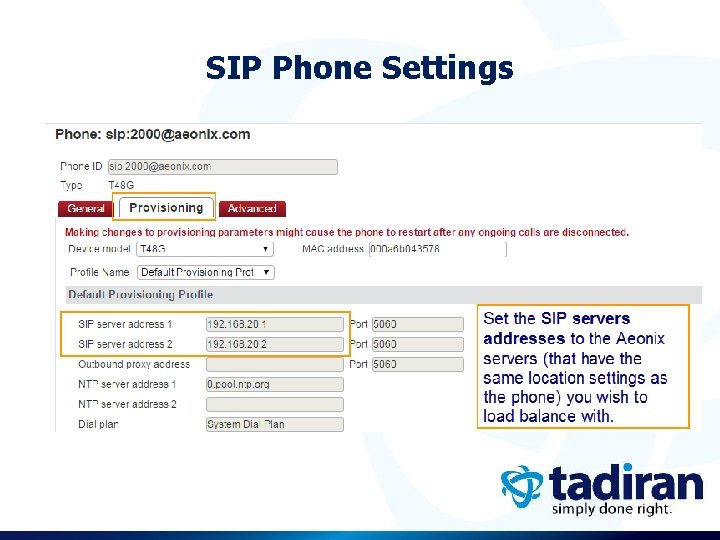
SIP Phone Settings
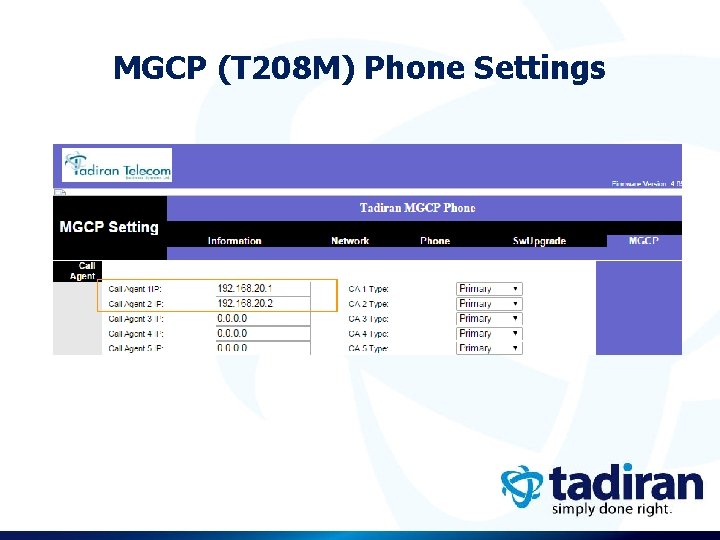
MGCP (T 208 M) Phone Settings
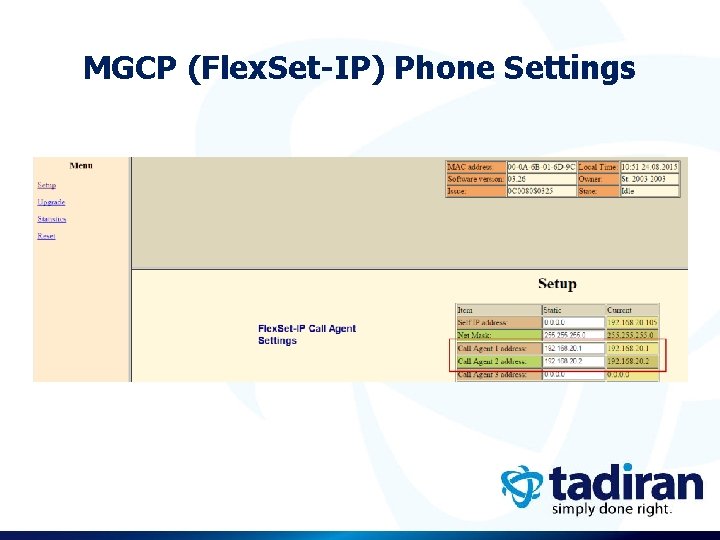
MGCP (Flex. Set-IP) Phone Settings
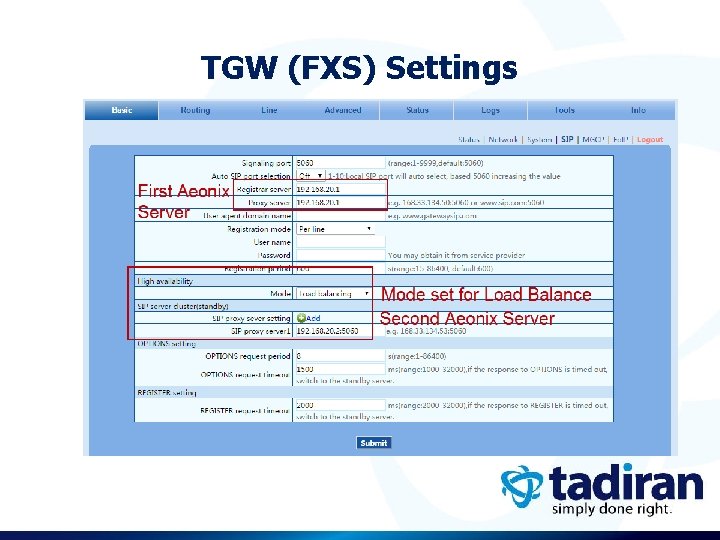
TGW (FXS) Settings

Wave Gateway Settings
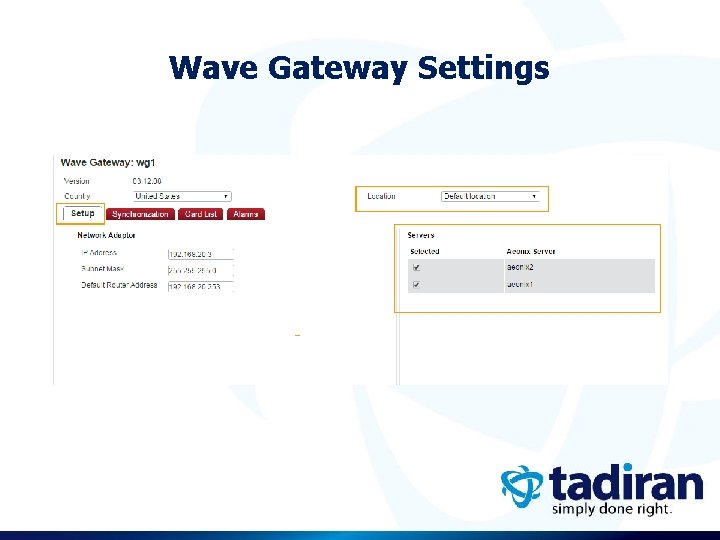
Wave Gateway Settings

Option: Use DNS instead of IP Address DNS Settings – Set the DNS to resolve the name to multiple IP addresses – The IP addresses are the Aeonix servers you want the phone or trunk to connect to. – Send a fixed list instead of “round robin”. If you must use round robin, disable the refresh time or make it as high as possible. – Example: Proxy or CA Name = Aeonix Resolved to IP addresses: – 192. 168. 20. 1 – 192. 168. 20. 2

Warning: MGCP Phone Setting The Survivability option must be OFF on MGCP phones (this option was relevant for Coral systems) – Default is Off, but if you are migrating from an existing Coral system to Aeonix, it may have been activated – This setting can be accessed via the phone menu – On the T 207 MT 208 M it can also be accessed via the phone browser.

High Availability
High Availability • If a server suffers a failure and the High Availability feature is enabled, the workload of the failed server is distributed to other servers in the cluster. • This allows ongoing T 300 and T 40 Series (and Wave Gateway) phone calls and call options (such as transfer, hold, and retrieve) to continue unaffected in the event of a failure on the server where the phone is originally registered on. • High Availability applies to users with T 300 and T 40 Series phones (T 320, T 320 P, T 322, T 328, T 19, T 41, T 42, T 46 and T 48), which support DNS-SRV (transport protocol)

High Availability • High Availability DOES NOT apply to MGCP phones • High Availability DOES NOT apply to 3 rd party (Non–provisioned) SIP Terminals

WG High Availability • Purpose: Calls are maintained even when a server fails. After normal disconnect the phone/trunk will register to a working Aeonix server • WG version – 3. 10. 02 or higher • The call will be kept until a disconnect event arrives on the phone or trunk • The call will be automatically disconnected after a long (several hours) configured timeout. • After handling the disconnect event, the device will register to another server. • Devices in idle state will register immediately to another server.

WG High Availability (Limitations) Limitations: • No action can be made on a call that is in progress while the server is down (hold, transfer…). • High Availability applies to WG only calls. • The High Availability does not apply on non-WG to WG calls. – Non-WG call examples: – A call with an IP device. – A conference call. – Silent monitor call.

High Availability – To Do List • Use Auto provisioning for the phones that will use high availability • You can select the Aeonix radial button or enter a name to resolve. If using a name, make sure to resolve it on your internal DNS server. In the system below that would be aeonix • The phone will resolve this name via the DNS server to get the Aeonix IP address to connect to.
High Availability – To Do List On the customer’s internal DNS server enter the name used for the “Provisioning SIP server” setting along with the IP addresses of all Aeonix servers that the phone will use for High Availability. For example: • • aeonix 192. 168. 110. 121 • aeonix 192. 168. 110. 122 Enable High Availability via System>Cluster>High Availability Note: If the customer does not have an internal DNS server you can use IP addresses for the Primary and Secondary (SIP Server 1 and 2 in the Provisioning Profile) and the phone will use High Availability between these 2 servers •
High Availability (HA) • You can enable the High Availability feature to work on servers both within and among Aeonix cluster locations. • High Availability requires higher bandwidth capacities. Ensure that your Aeonix network meets bandwidth requirements before enabling this feature.
High Availability (HA) • You can configure server “Locations” for High Availability purposes, including: • Which locations backup the other. • The timeout duration between servers within the same location. • The timeout duration between servers in different locations. • The timeout specifies how long the corresponding server waits before initiating the failover process.
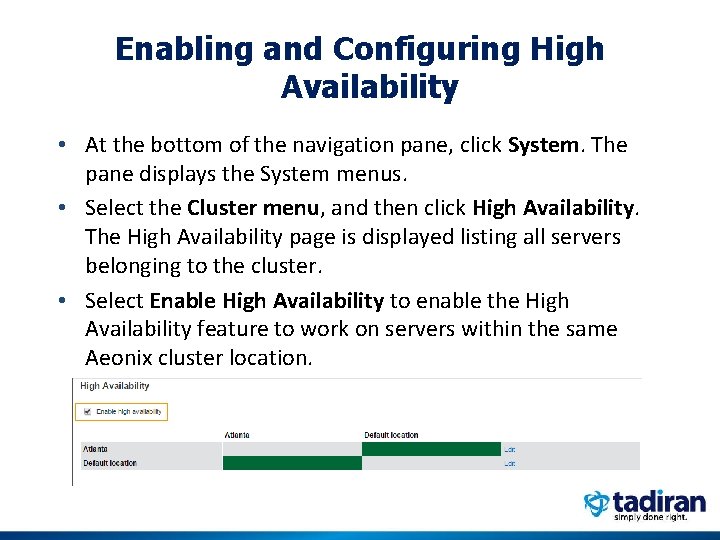
Enabling and Configuring High Availability • At the bottom of the navigation pane, click System. The pane displays the System menus. • Select the Cluster menu, and then click High Availability. The High Availability page is displayed listing all servers belonging to the cluster. • Select Enable High Availability to enable the High Availability feature to work on servers within the same Aeonix cluster location.
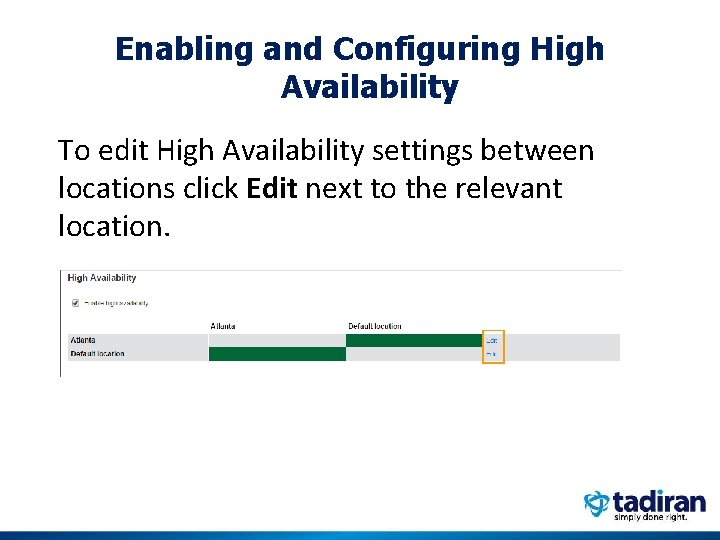
Enabling and Configuring High Availability To edit High Availability settings between locations click Edit next to the relevant location.

Enabling and Configuring High Availability • A dialog box is displayed for specifying High Availability settings for the selected location. • Here we show the settings for the “Default Location” (New York) with respect to the other clustered server location (Atlanta) luster ocation (Atlanta).
Enabling and Configuring High Availability is not applicable for MGCP phones. If an MGCP phone loses connection to its primary server, it will reset in 30 seconds and connect to a secondary server (based on it’s CA settings).

- Slides: 33