
Meditech SignIn and Accessing the PWM Desktop Signing


- Slides: 11
Meditech Sign-In and Accessing the PWM Desktop Signing in to Meditech to Access the PWM Desktop Rounding Lists January 2020 – Joy Aloan, RN
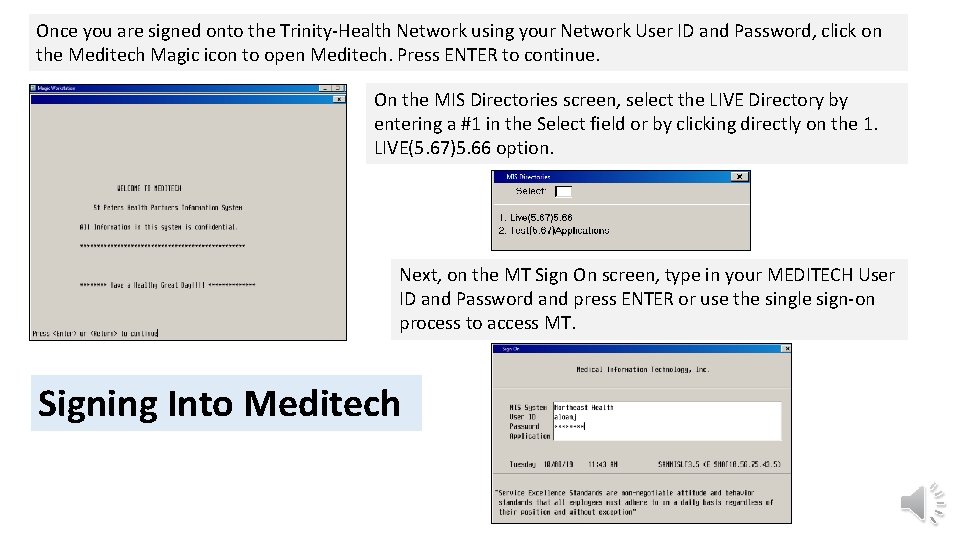
Once you are signed onto the Trinity-Health Network using your Network User ID and Password, click on the Meditech Magic icon to open Meditech. Press ENTER to continue. On the MIS Directories screen, select the LIVE Directory by entering a #1 in the Select field or by clicking directly on the 1. LIVE(5. 67)5. 66 option. Next, on the MT Sign On screen, type in your MEDITECH User ID and Password and press ENTER or use the single sign-on process to access MT. Signing Into Meditech
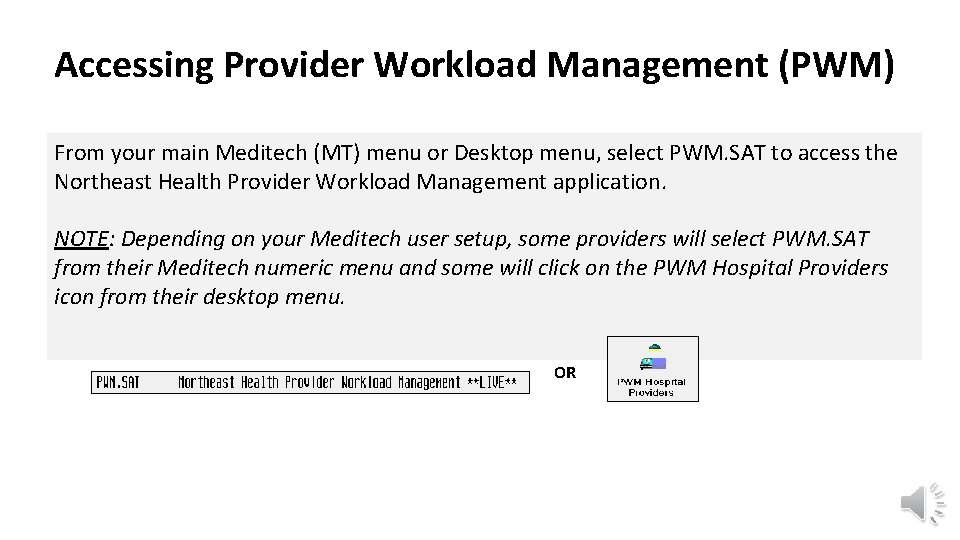
Accessing Provider Workload Management (PWM) From your main Meditech (MT) menu or Desktop menu, select PWM. SAT to access the Northeast Health Provider Workload Management application. NOTE: Depending on your Meditech user setup, some providers will select PWM. SAT from their Meditech numeric menu and some will click on the PWM Hospital Providers icon from their desktop menu. OR
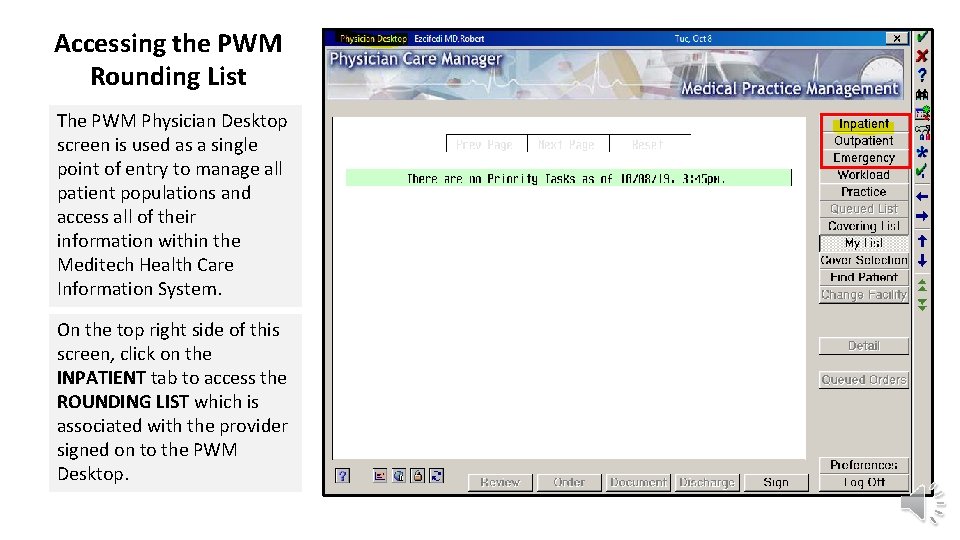
Accessing the PWM Rounding List The PWM Physician Desktop screen is used as a single point of entry to manage all patient populations and access all of their information within the Meditech Health Care Information System. On the top right side of this screen, click on the INPATIENT tab to access the ROUNDING LIST which is associated with the provider signed on to the PWM Desktop.
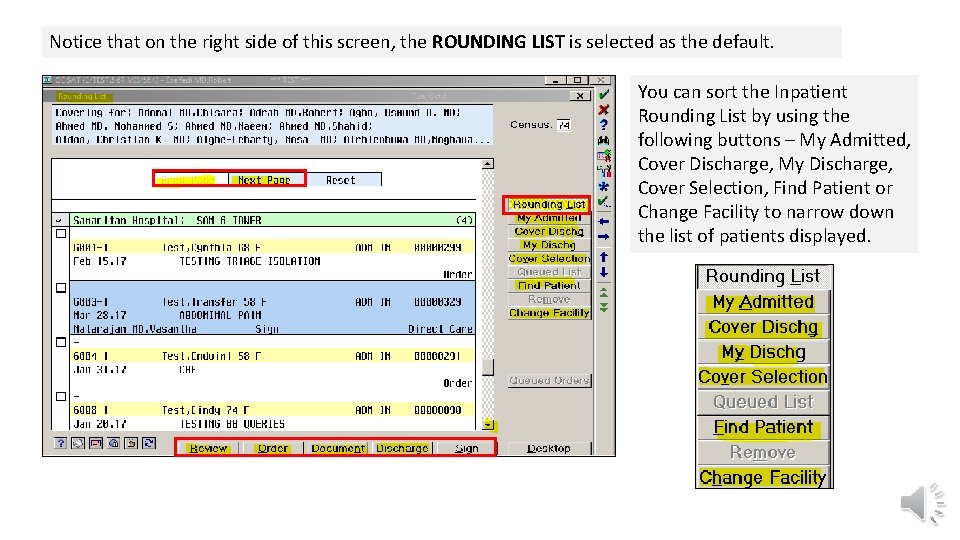
Notice that on the right side of this screen, the ROUNDING LIST is selected as the default. You can sort the Inpatient Rounding List by using the following buttons – My Admitted, Cover Discharge, My Discharge, Cover Selection, Find Patient or Change Facility to narrow down the list of patients displayed.
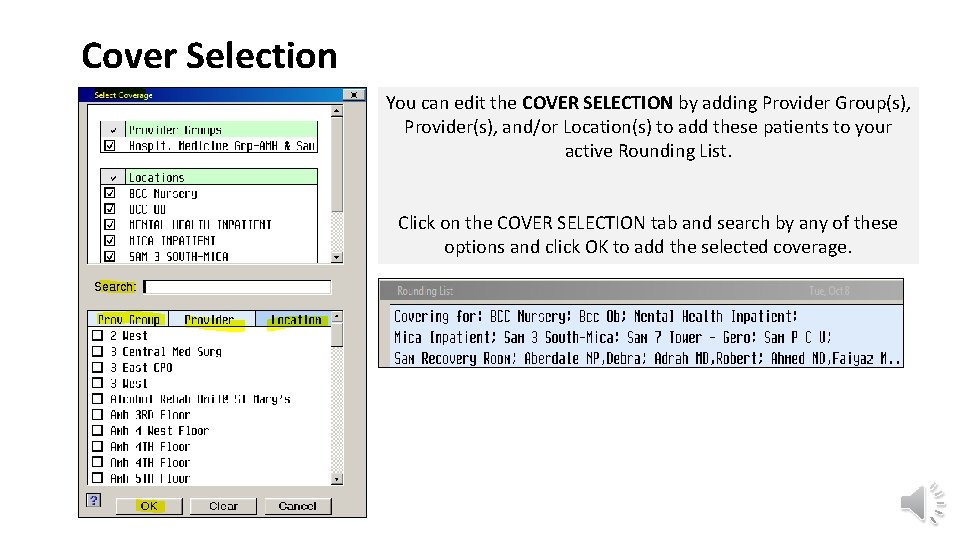
Cover Selection You can edit the COVER SELECTION by adding Provider Group(s), Provider(s), and/or Location(s) to add these patients to your active Rounding List. Click on the COVER SELECTION tab and search by any of these options and click OK to add the selected coverage.
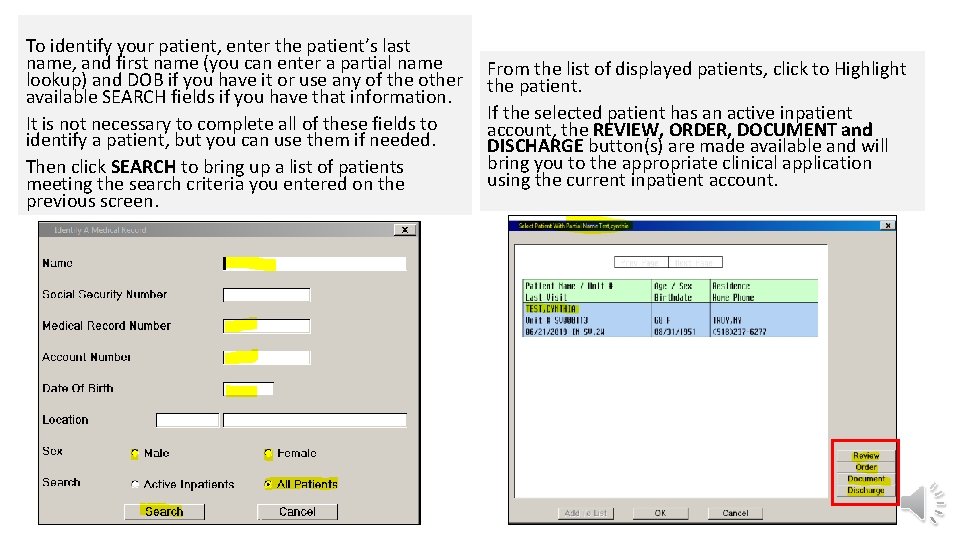
Find Patient You can also use the FIND PATIENT routine to find a patient who is NOT on your Rounding List. Click on the FIND PATIENT Button If you have been assigned access to multiple Meditech facilities, you will be prompted to select a facility from the Facilities Lookup screen. In the print screen below, enter the numeric choice in the SELECT box or click on the facility to open the Identify a Medical Record Screen.
To identify your patient, enter the patient’s last name, and first name (you can enter a partial name lookup) and DOB if you have it or use any of the other available SEARCH fields if you have that information. It is not necessary to complete all of these fields to identify a patient, but you can use them if needed. Then click SEARCH to bring up a list of patients meeting the search criteria you entered on the previous screen. From the list of displayed patients, click to Highlight the patient. If the selected patient has an active inpatient account, the REVIEW, ORDER, DOCUMENT and DISCHARGE button(s) are made available and will bring you to the appropriate clinical application using the current inpatient account.
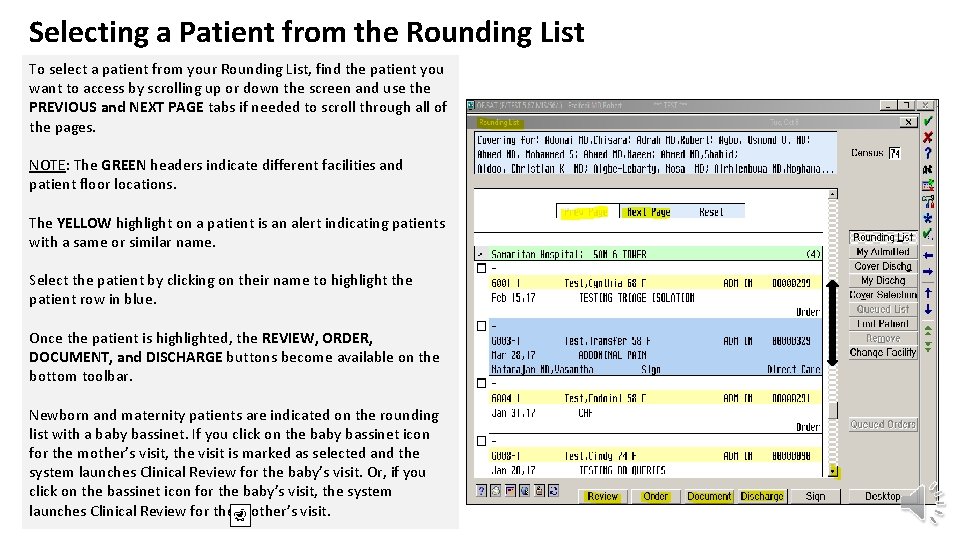
Selecting a Patient from the Rounding List To select a patient from your Rounding List, find the patient you want to access by scrolling up or down the screen and use the PREVIOUS and NEXT PAGE tabs if needed to scroll through all of the pages. NOTE: The GREEN headers indicate different facilities and patient floor locations. The YELLOW highlight on a patient is an alert indicating patients with a same or similar name. Select the patient by clicking on their name to highlight the patient row in blue. Once the patient is highlighted, the REVIEW, ORDER, DOCUMENT, and DISCHARGE buttons become available on the bottom toolbar. Newborn and maternity patients are indicated on the rounding list with a baby bassinet. If you click on the baby bassinet icon for the mother’s visit, the visit is marked as selected and the system launches Clinical Review for the baby’s visit. Or, if you click on the bassinet icon for the baby’s visit, the system launches Clinical Review for the mother’s visit.
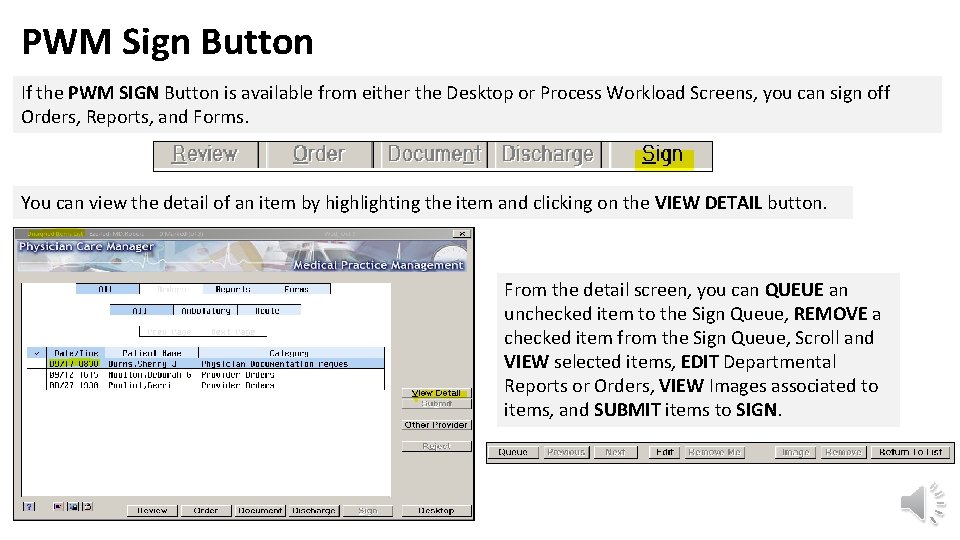
PWM Sign Button If the PWM SIGN Button is available from either the Desktop or Process Workload Screens, you can sign off Orders, Reports, and Forms. You can view the detail of an item by highlighting the item and clicking on the VIEW DETAIL button. From the detail screen, you can QUEUE an unchecked item to the Sign Queue, REMOVE a checked item from the Sign Queue, Scroll and VIEW selected items, EDIT Departmental Reports or Orders, VIEW Images associated to items, and SUBMIT items to SIGN.
Support Contacts: Service Now – Help Desk 1 -888 -667 -3003 or 518 -271 -3495 Dr. First Support for e-Prescribing 1 -866 -263 -6512 – 24/7 coverage Trinity Dragon Support Line 1. 734. 343. 5523 – 24/7 coverage