
Medbot Learn about robot behaviors as you transport
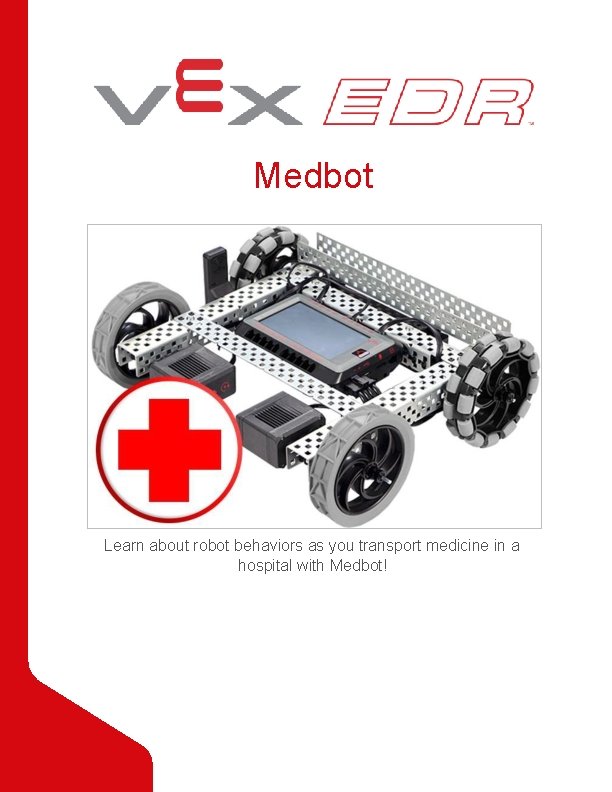
Medbot Learn about robot behaviors as you transport medicine in a hospital with Medbot!
Discover new hands-on builds and programming opportunities to further your understanding of a subject matter.

The Completed Look of the Build Completed VEX V 5 Speedbot This robot is designed so that it can be built quickly and driven around either autonomously or with the V 5 Controller.
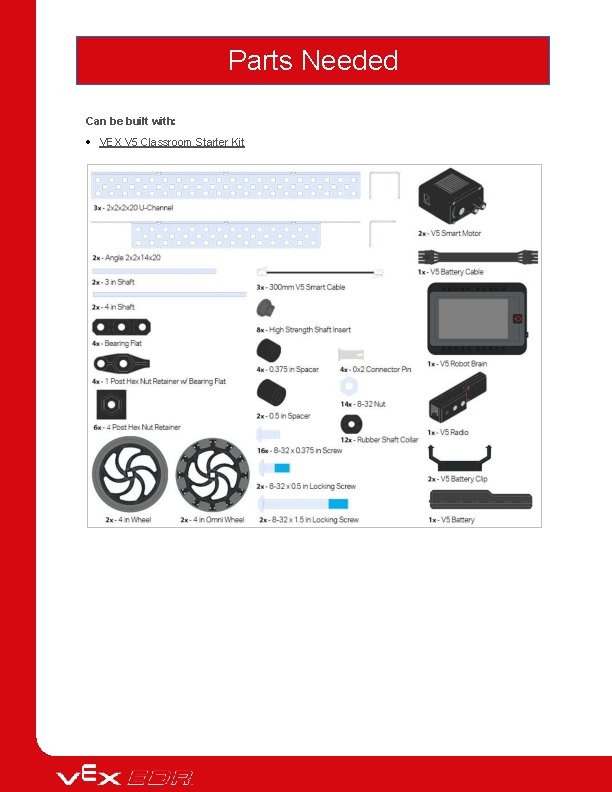
Parts Needed Can be built with: VEX V 5 Classroom Starter Kit
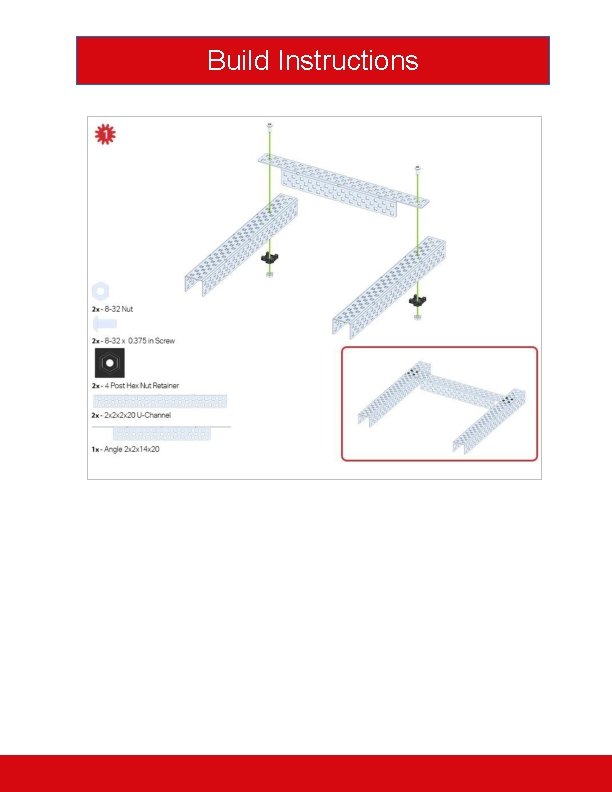
Build Instructions
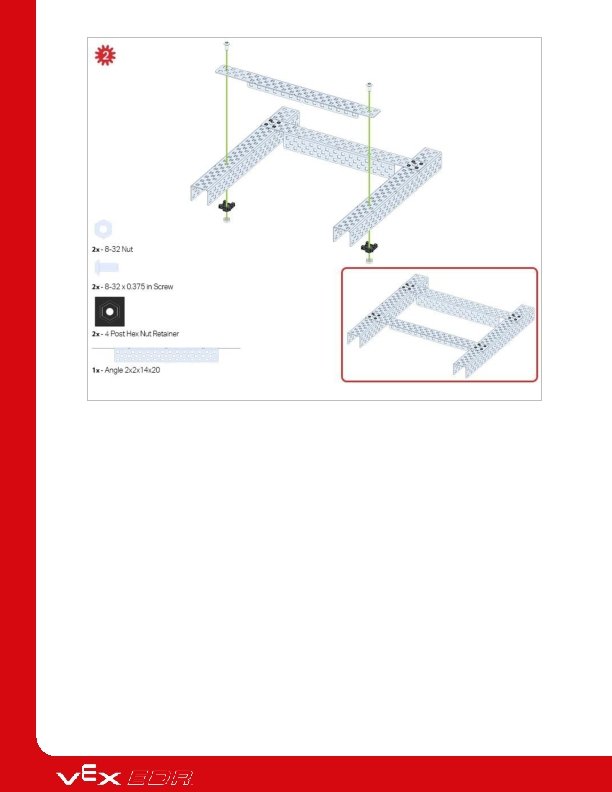
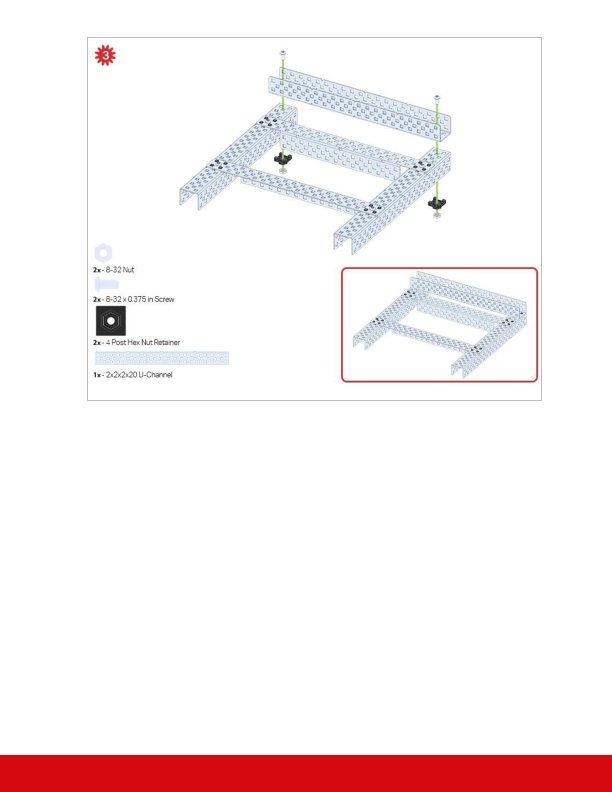
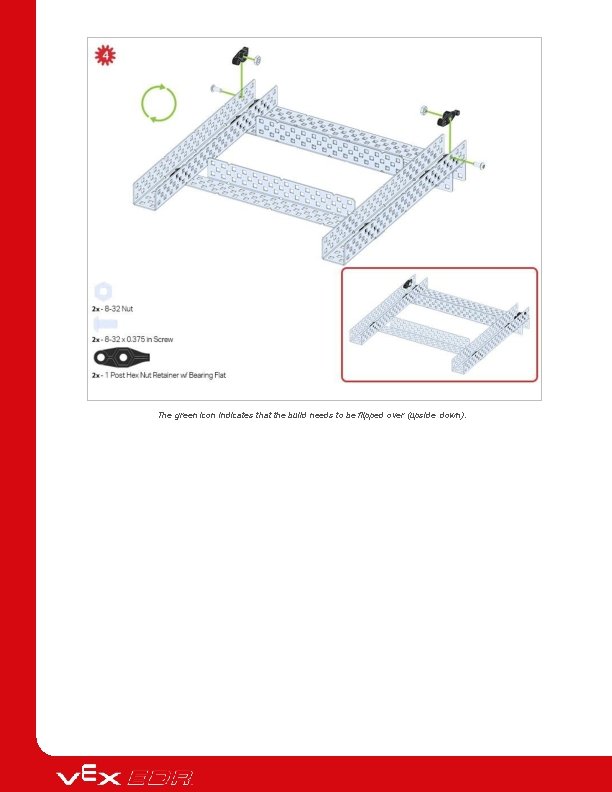
The green icon indicates that the build needs to be flipped over (upside down).
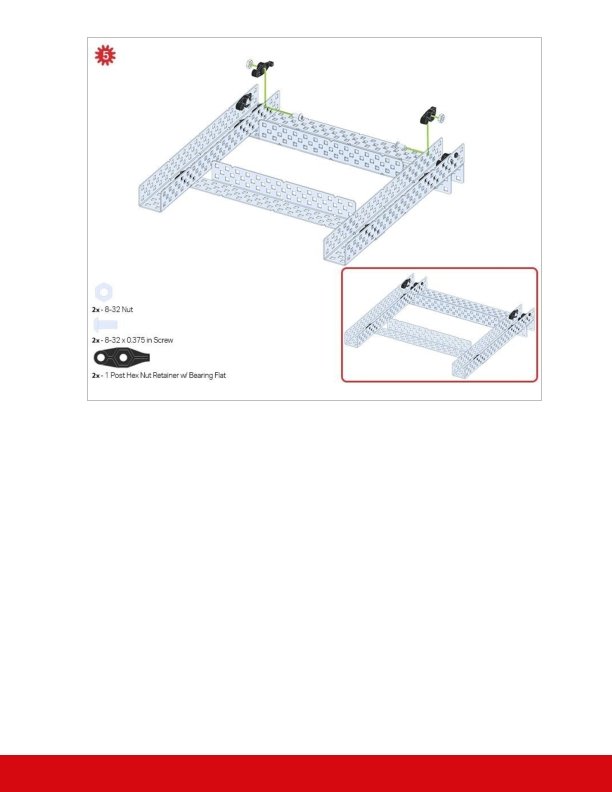
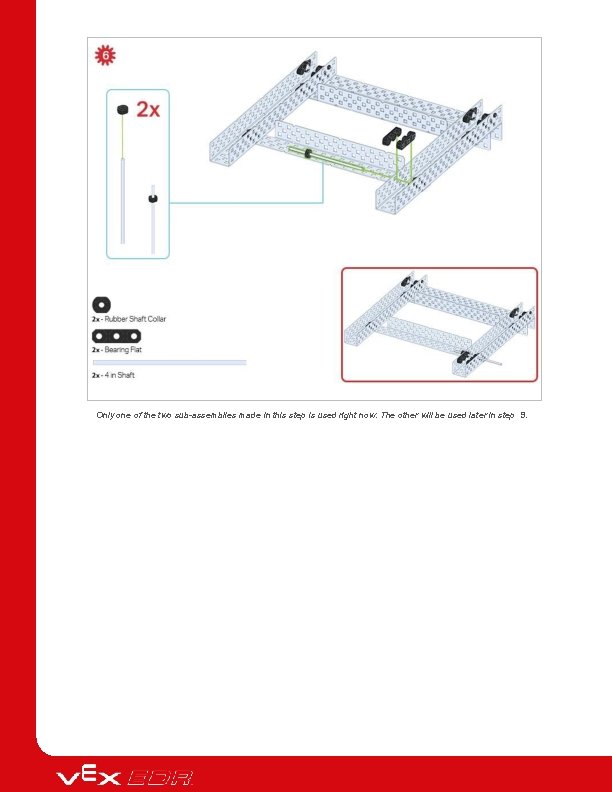
Only one of the two sub-assemblies made in this step is used right now. The other will be used later in step 9.
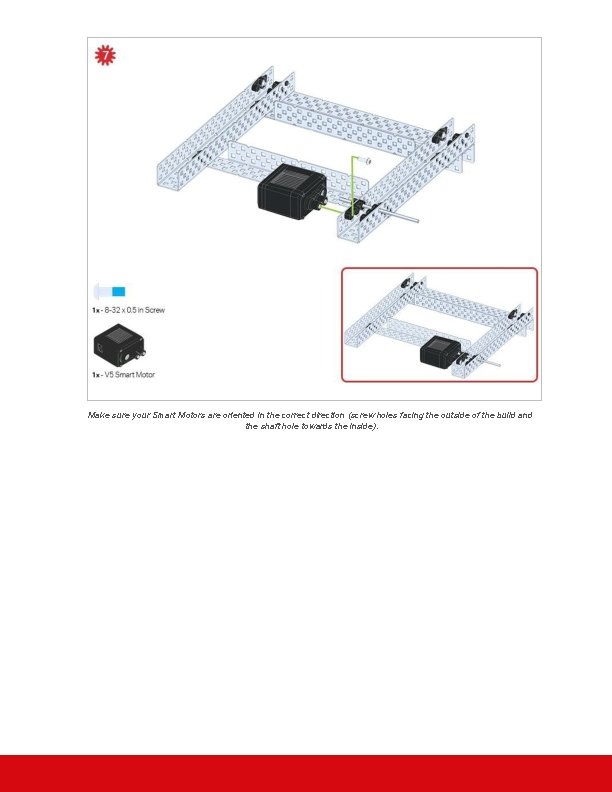
Make sure your Smart Motors are oriented in the correct direction (screw holes facing the outside of the build and the shaft hole towards the inside).
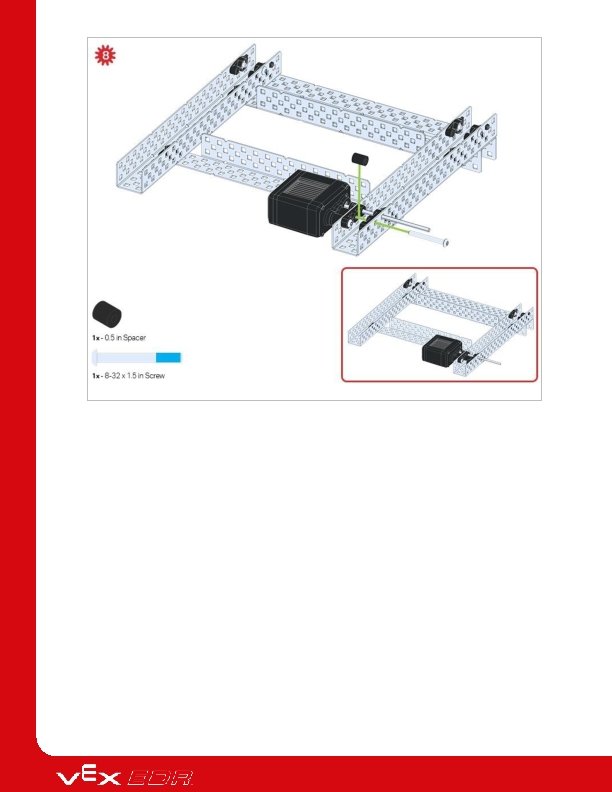
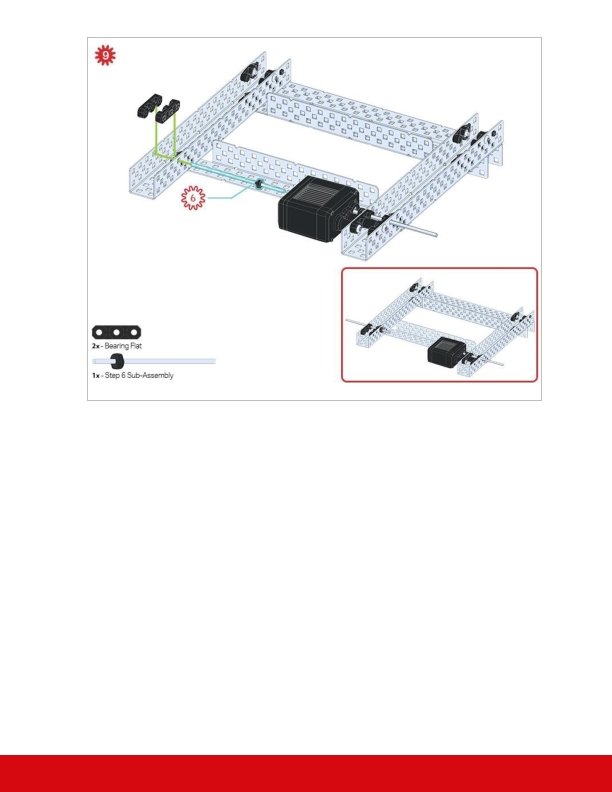
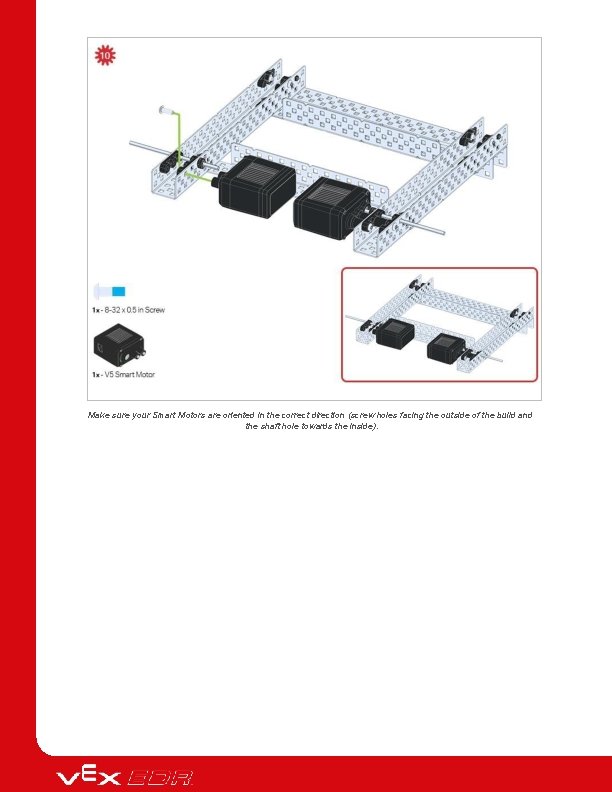
Make sure your Smart Motors are oriented in the correct direction (screw holes facing the outside of the build and the shaft hole towards the inside).
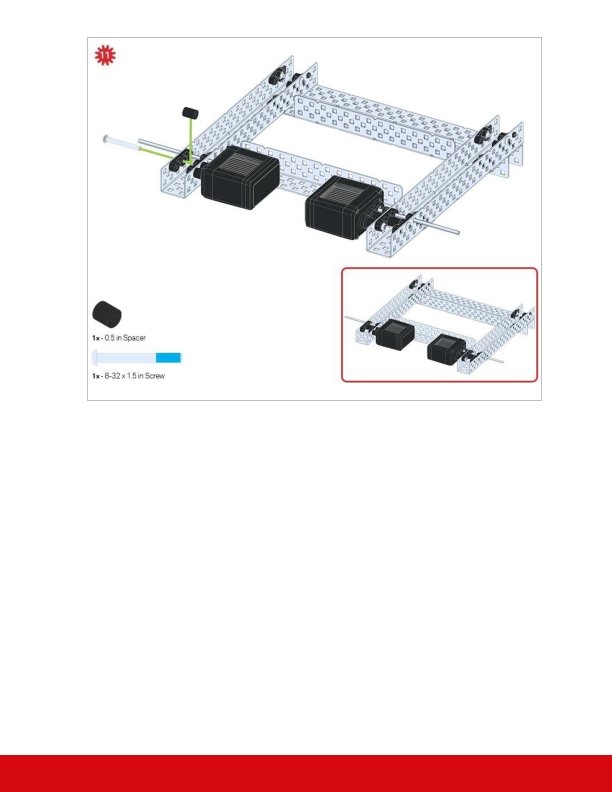
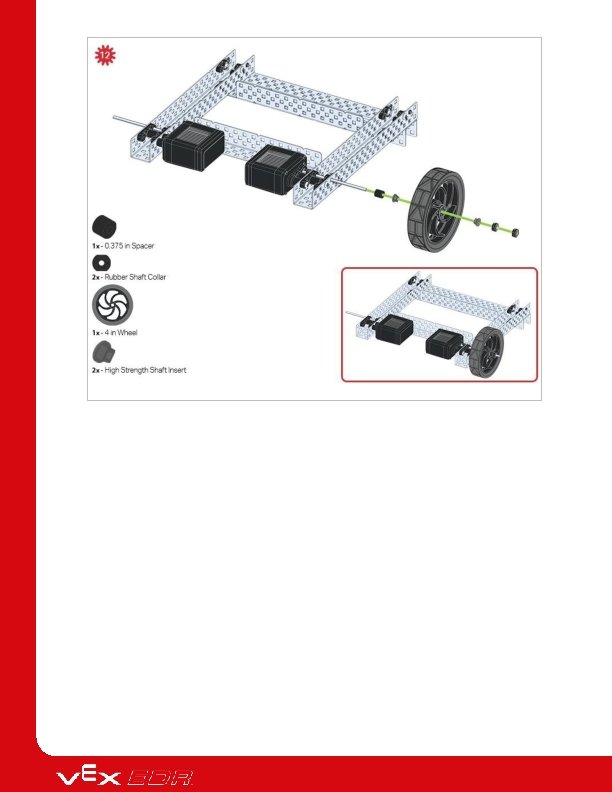
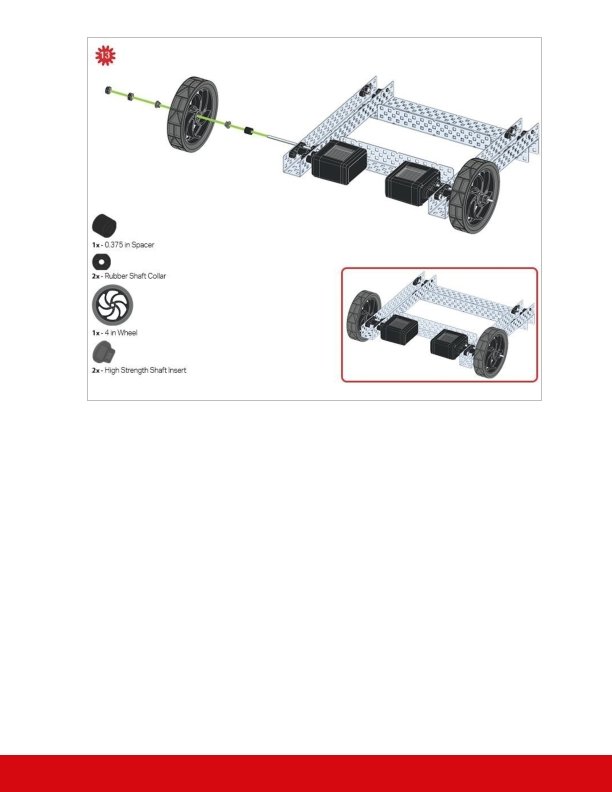
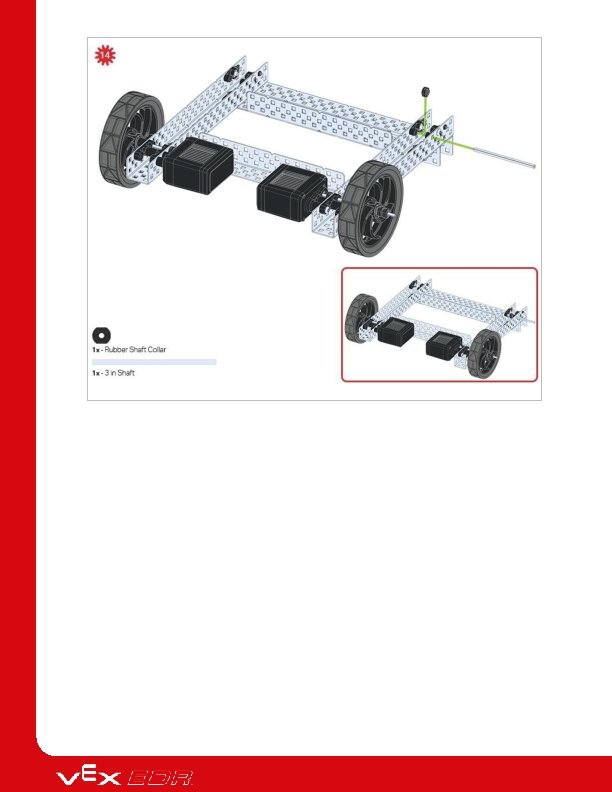
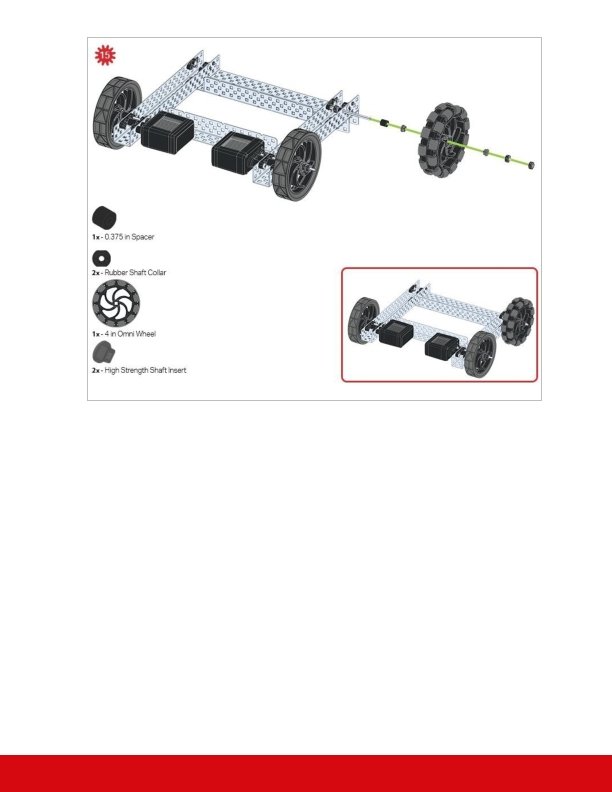
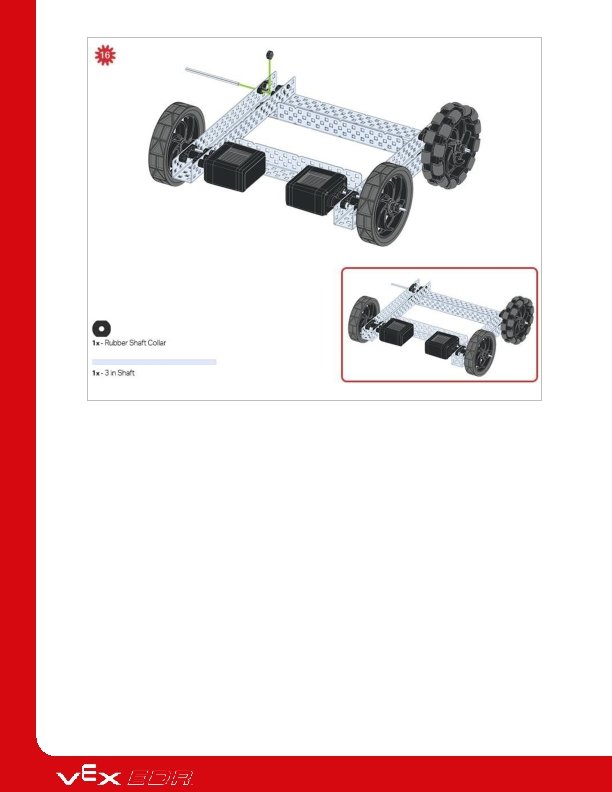
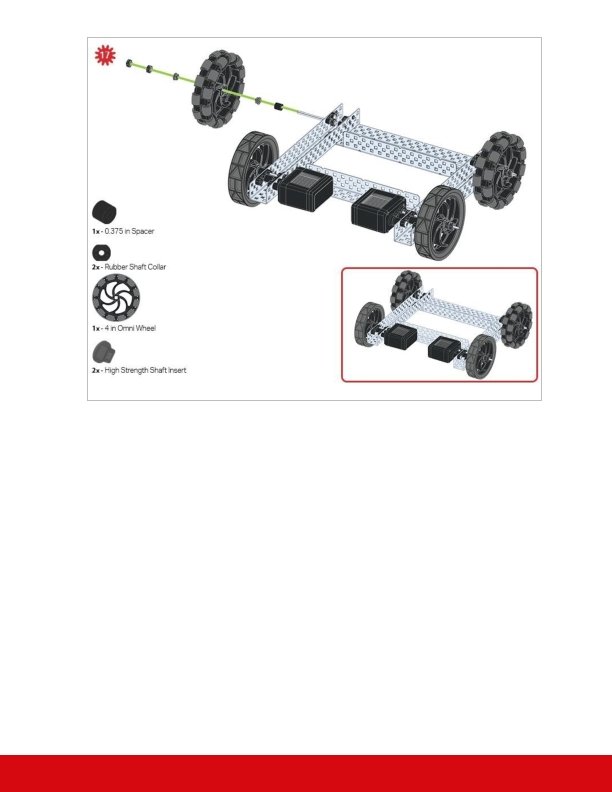
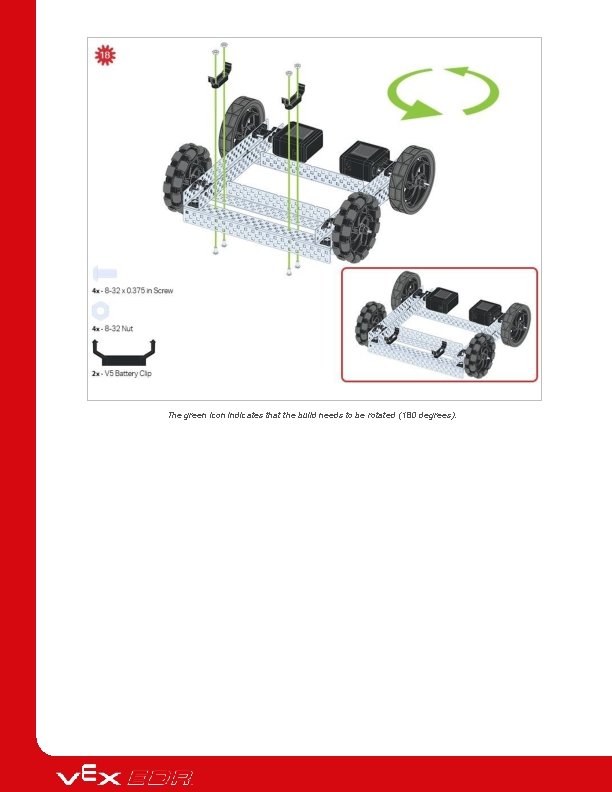
The green icon indicates that the build needs to be rotated (180 degrees).
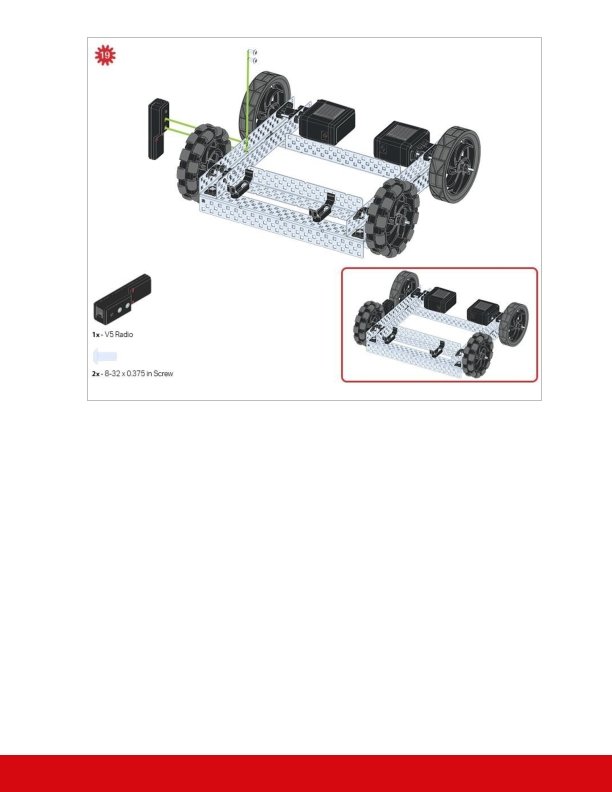
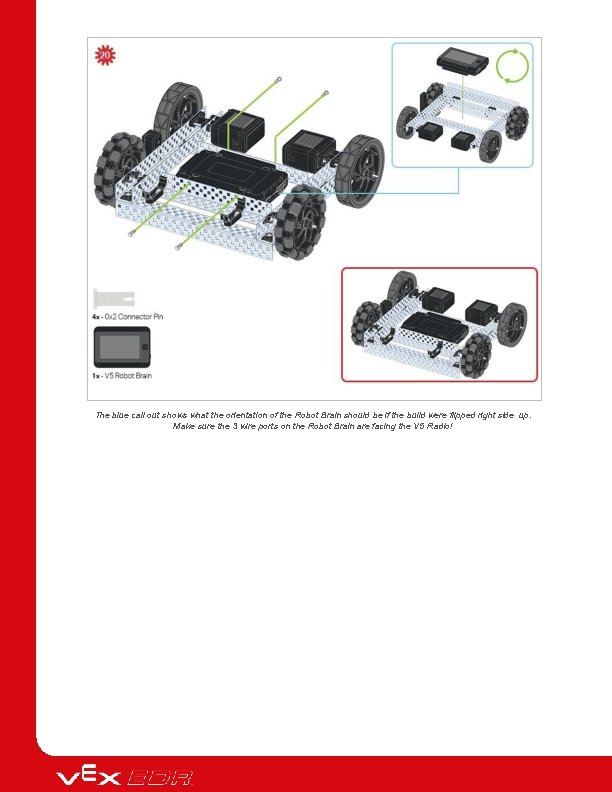
The blue call out shows what the orientation of the Robot Brain should be if the build were flipped right side up. Make sure the 3 wire ports on the Robot Brain are facing the V 5 Radio!
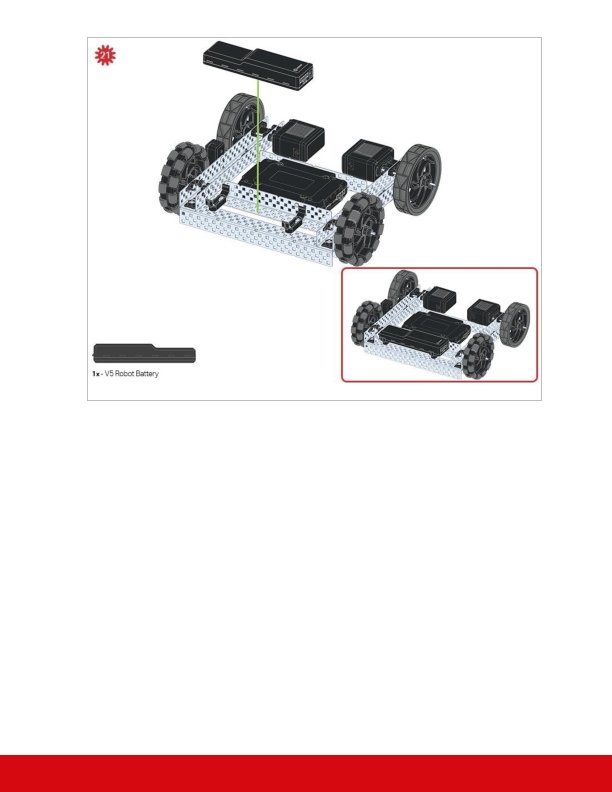
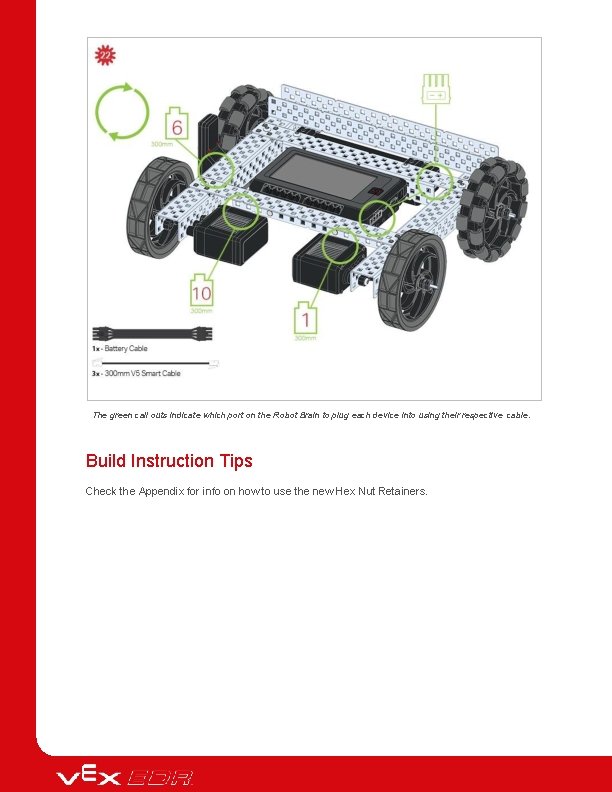
The green call outs indicate which port on the Robot Brain to plug each device into using their respective cable. Build Instruction Tips Check the Appendix for info on how to use the new Hex Nut Retainers.
Exploration Now that you've finished the VEX V 5 Speedbot, power it on and see what it does! Explore with your build and then answer these questions in your engineering notebook. What sort of tasks would this robot be useful for in the real world? If this robot had the task of making deliveries, what features would be important? Why? What parts of the robot would you change or enhance to better complete the tasks from question 1? Explain with details or sketches.
Test your build, observe how it functions, and fuel your logic and reasoning skills through imaginative, creative play.
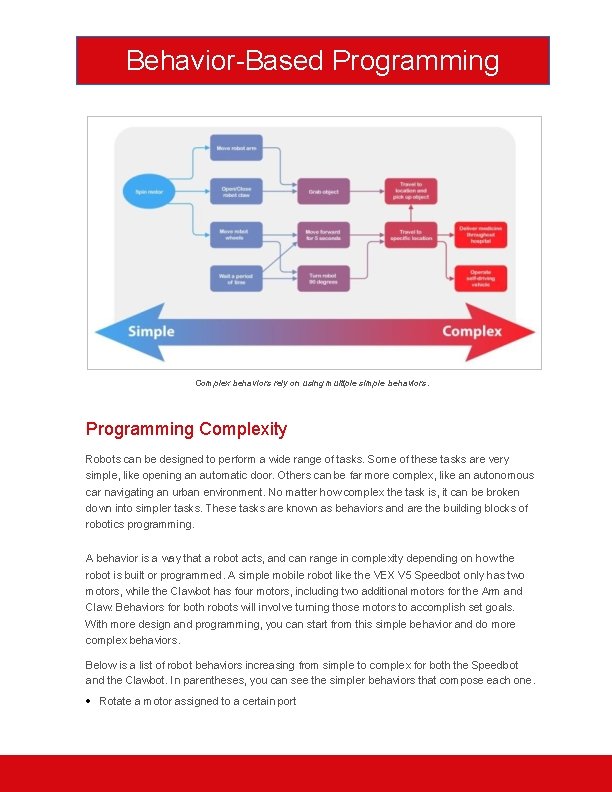
Behavior-Based Programming Complex behaviors rely on using multiple simple behaviors. Programming Complexity Robots can be designed to perform a wide range of tasks. Some of these tasks are very simple, like opening an automatic door. Others can be far more complex, like an autonomous car navigating an urban environment. No matter how complex the task is, it can be broken down into simpler tasks. These tasks are known as behaviors and are the building blocks of robotics programming. A behavior is a way that a robot acts, and can range in complexity depending on how the robot is built or programmed. A simple mobile robot like the VEX V 5 Speedbot only has two motors, while the Clawbot has four motors, including two additional motors for the Arm and Claw. Behaviors for both robots will involve turning those motors to accomplish set goals. With more design and programming, you can start from this simple behavior and do more complex behaviors. Below is a list of robot behaviors increasing from simple to complex for both the Speedbot and the Clawbot. In parentheses, you can see the simpler behaviors that compose each one. Rotate a motor assigned to a certain port

Drive forward (rotate both the left and right motors using the Drivetrain) Travel 5 meters (drive forward, then stop) Grab a distant object (travel 2 meters, rotate the claw motor to grab it) Retrieve an object and put it on a high shelf (grab a distant object, turn around, travel 2 meters, use the arm and claw motors to raise and release the object) You can see how you can deconstruct any of the more complex behaviors into simpler behaviors. These become the building blocks of any complex task.
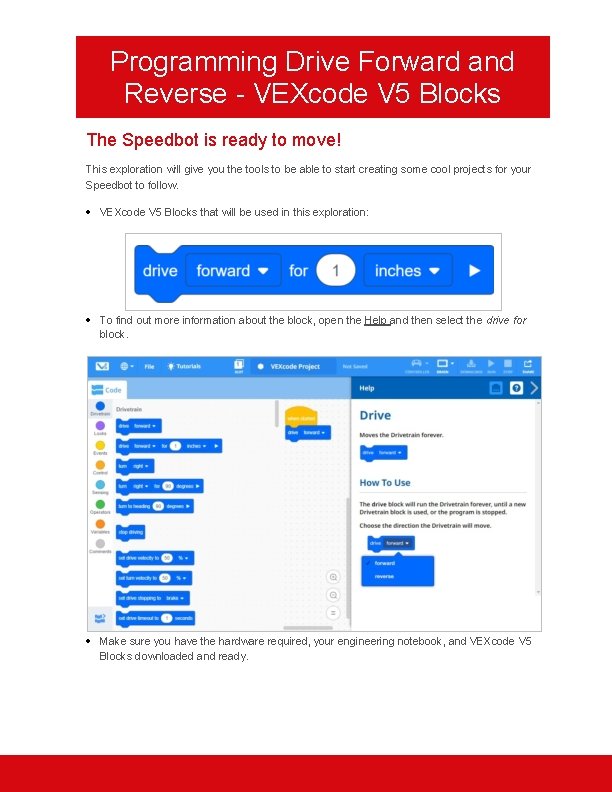
Programming Drive Forward and Reverse - VEXcode V 5 Blocks The Speedbot is ready to move! This exploration will give you the tools to be able to start creating some cool projects for your Speedbot to follow. VEXcode V 5 Blocks that will be used in this exploration: To find out more information about the block, open the Help and then select the drive for block. Make sure you have the hardware required, your engineering notebook, and VEXcode V 5 Blocks downloaded and ready.
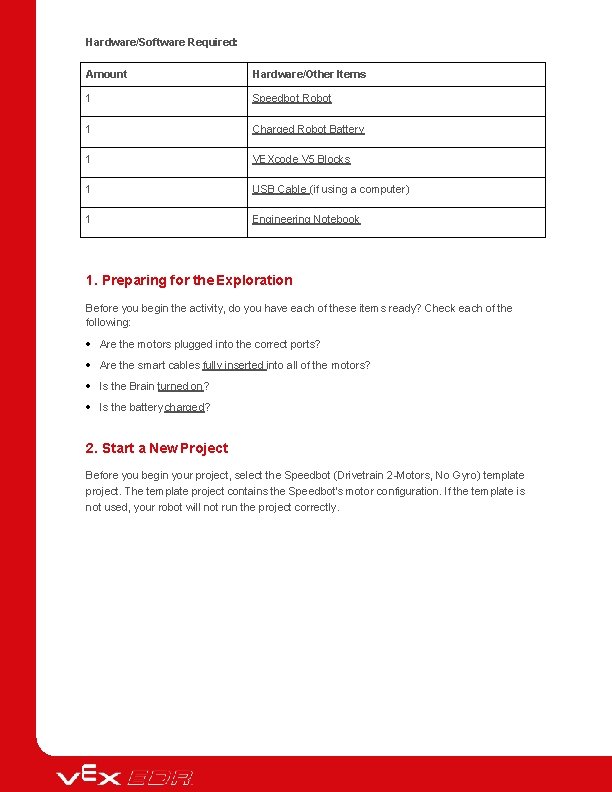
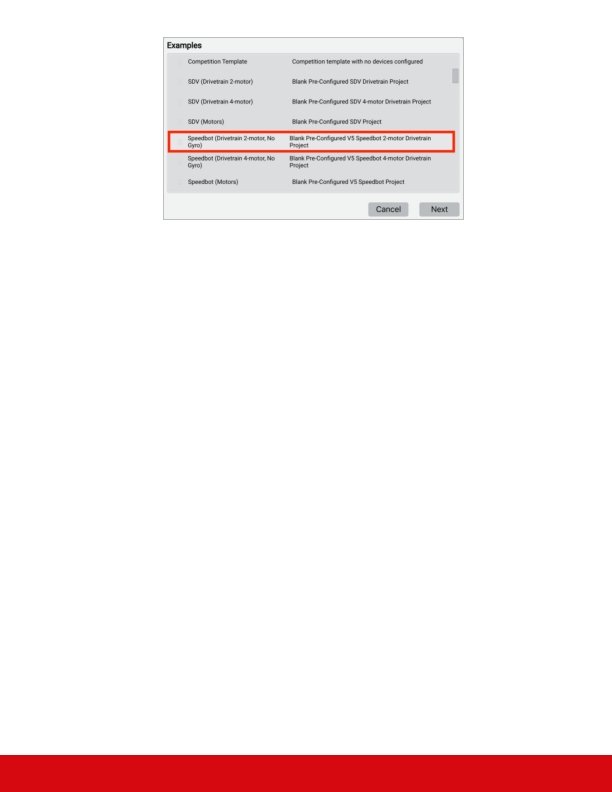
Hardware/Software Required: Amount Hardware/Other Items 1 Speedbot Robot 1 Charged Robot Battery 1 VEXcode V 5 Blocks 1 USB Cable (if using a computer) 1 Engineering Notebook 1. Preparing for the Exploration Before you begin the activity, do you have each of these items ready? Check each of the following: Are the motors plugged into the correct ports? Are the smart cables fully inserted into all of the motors? Is the Brain turned on? Is the battery charged? 2. Start a New Project Before you begin your project, select the Speedbot (Drivetrain 2 -Motors, No Gyro) template project. The template project contains the Speedbot's motor configuration. If the template is not used, your robot will not run the project correctly.
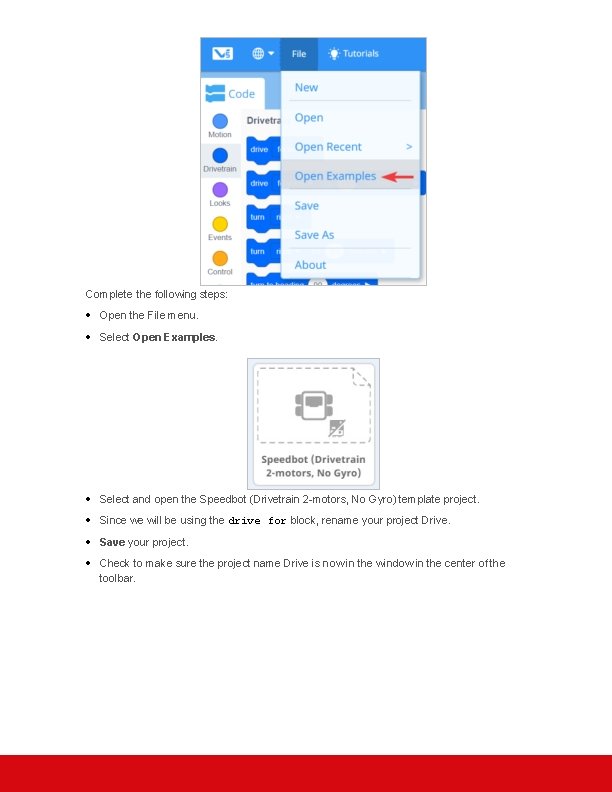
Complete the following steps: Open the File menu. Select Open Examples. Select and open the Speedbot (Drivetrain 2 -motors, No Gyro) template project. Since we will be using the drive for block, rename your project Drive. Save your project. Check to make sure the project name Drive is now in the window in the center of the toolbar.
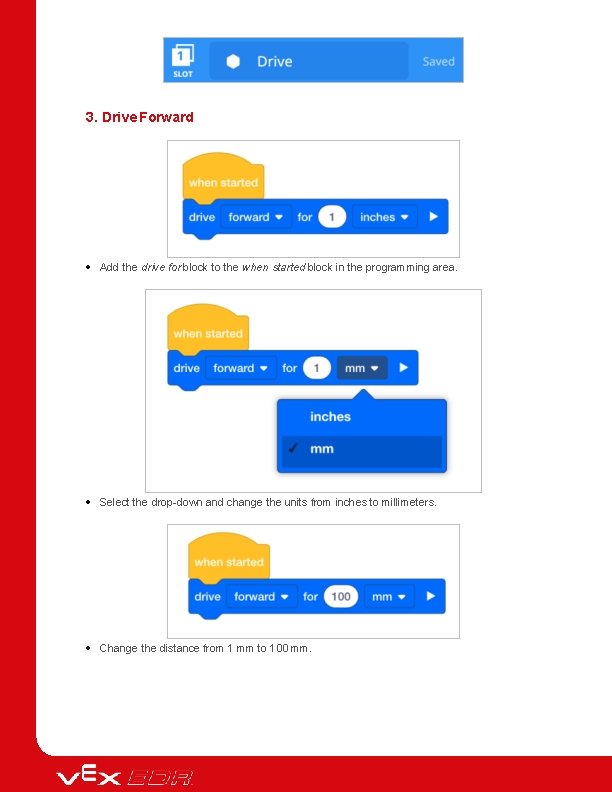
3. Drive Forward Add the drive for block to the when started block in the programming area. Select the drop-down and change the units from inches to millimeters. Change the distance from 1 mm to 100 mm.
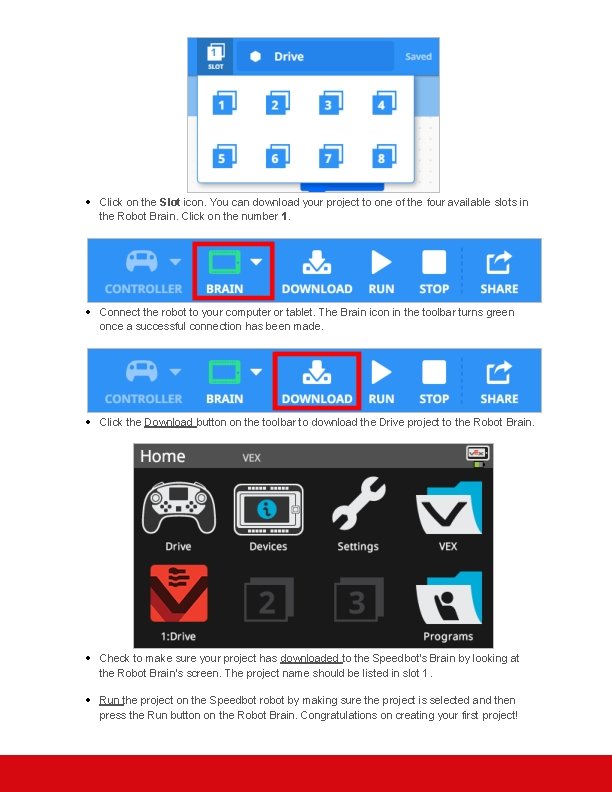
Click on the Slot icon. You can download your project to one of the four available slots in the Robot Brain. Click on the number 1. Connect the robot to your computer or tablet. The Brain icon in the toolbar turns green once a successful connection has been made. Click the Download button on the toolbar to download the Drive project to the Robot Brain. Check to make sure your project has downloaded to the Speedbot's Brain by looking at the Robot Brain’s screen. The project name should be listed in slot 1. Run the project on the Speedbot robot by making sure the project is selected and then press the Run button on the Robot Brain. Congratulations on creating your first project!
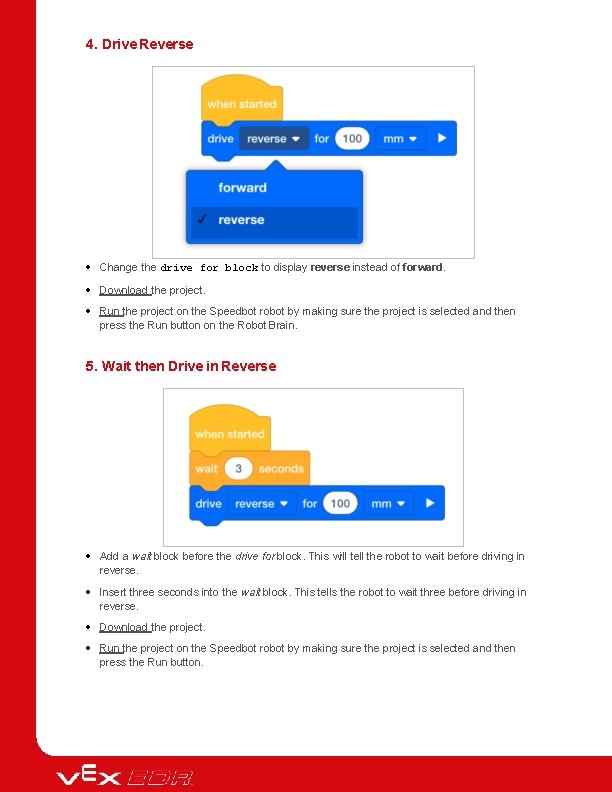
4. Drive Reverse Change the drive for block to display reverse instead of forward. Download the project. Run the project on the Speedbot robot by making sure the project is selected and then press the Run button on the Robot Brain. 5. Wait then Drive in Reverse Add a wait block before the drive for block. This will tell the robot to wait before driving in reverse. Insert three seconds into the wait block. This tells the robot to wait three before driving in reverse. Download the project. Run the project on the Speedbot robot by making sure the project is selected and then press the Run button.
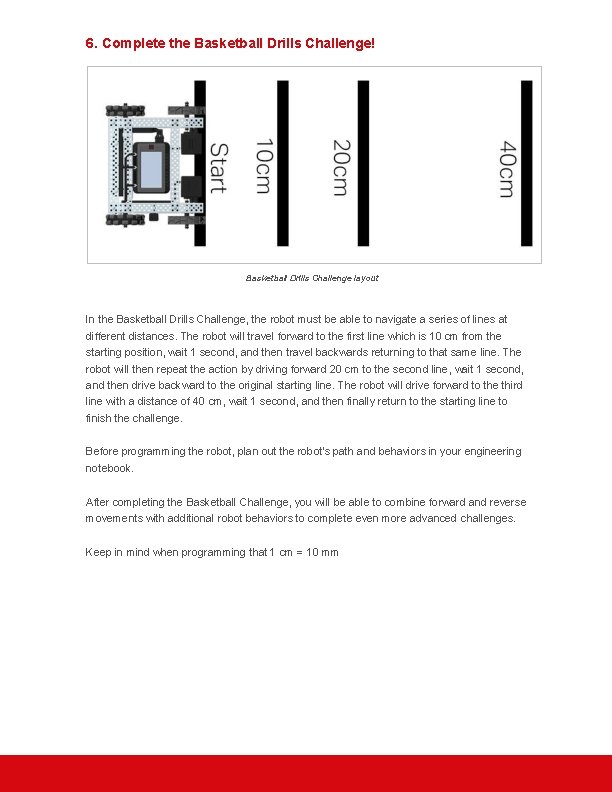
6. Complete the Basketball Drills Challenge! Basketball Drills Challenge layout In the Basketball Drills Challenge, the robot must be able to navigate a series of lines at different distances. The robot will travel forward to the first line which is 10 cm from the starting position, wait 1 second, and then travel backwards returning to that same line. The robot will then repeat the action by driving forward 20 cm to the second line, wait 1 second, and then drive backward to the original starting line. The robot will drive forward to the third line with a distance of 40 cm, wait 1 second, and then finally return to the starting line to finish the challenge. Before programming the robot, plan out the robot's path and behaviors in your engineering notebook. After completing the Basketball Challenge, you will be able to combine forward and reverse movements with additional robot behaviors to complete even more advanced challenges. Keep in mind when programming that 1 cm = 10 mm
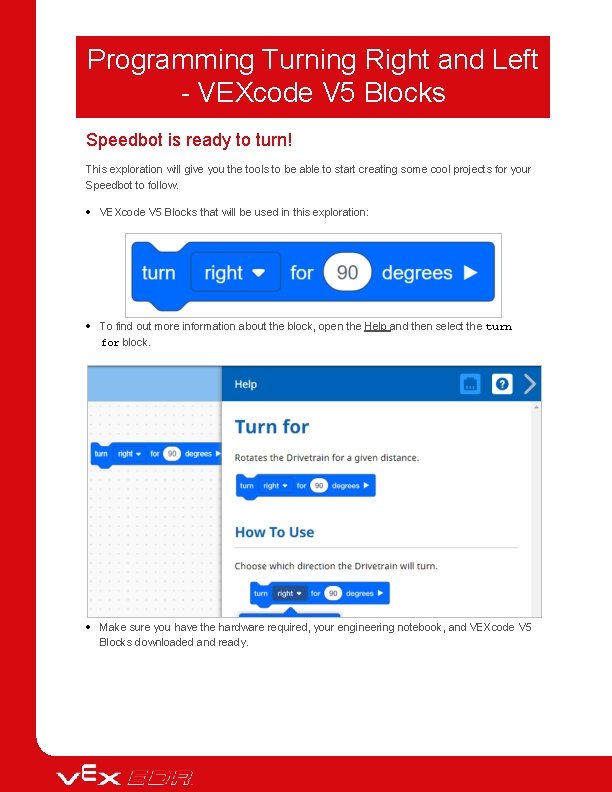
Programming Turning Right and Left - VEXcode V 5 Blocks Speedbot is ready to turn! This exploration will give you the tools to be able to start creating some cool projects for your Speedbot to follow. VEXcode V 5 Blocks that will be used in this exploration: To find out more information about the block, open the Help and then select the turn for block. Make sure you have the hardware required, your engineering notebook, and VEXcode V 5 Blocks downloaded and ready.
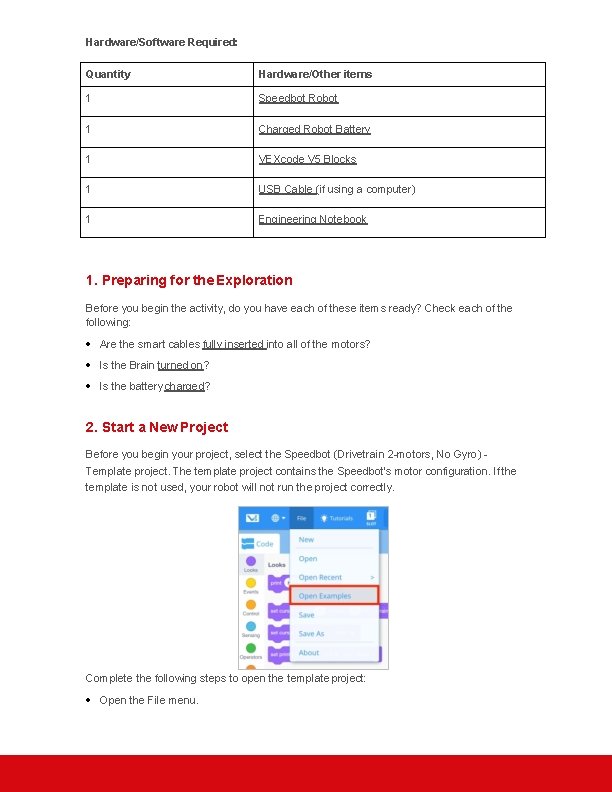
Hardware/Software Required: Quantity Hardware/Other items 1 Speedbot Robot 1 Charged Robot Battery 1 VEXcode V 5 Blocks 1 USB Cable (if using a computer) 1 Engineering Notebook 1. Preparing for the Exploration Before you begin the activity, do you have each of these items ready? Check each of the following: Are the smart cables fully inserted into all of the motors? Is the Brain turned on? Is the battery charged? 2. Start a New Project Before you begin your project, select the Speedbot (Drivetrain 2 -motors, No Gyro) Template project. The template project contains the Speedbot's motor configuration. If the template is not used, your robot will not run the project correctly. Complete the following steps to open the template project: Open the File menu.
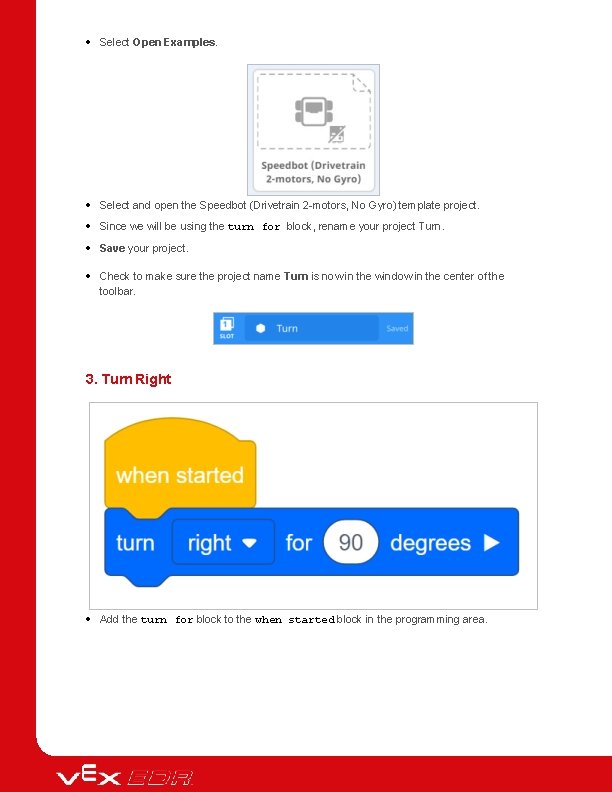
Select Open Examples. Select and open the Speedbot (Drivetrain 2 -motors, No Gyro) template project. Since we will be using the turn for block, rename your project Turn. Save your project. Check to make sure the project name Turn is now in the window in the center of the toolbar. 3. Turn Right Add the turn for block to the when started block in the programming area.
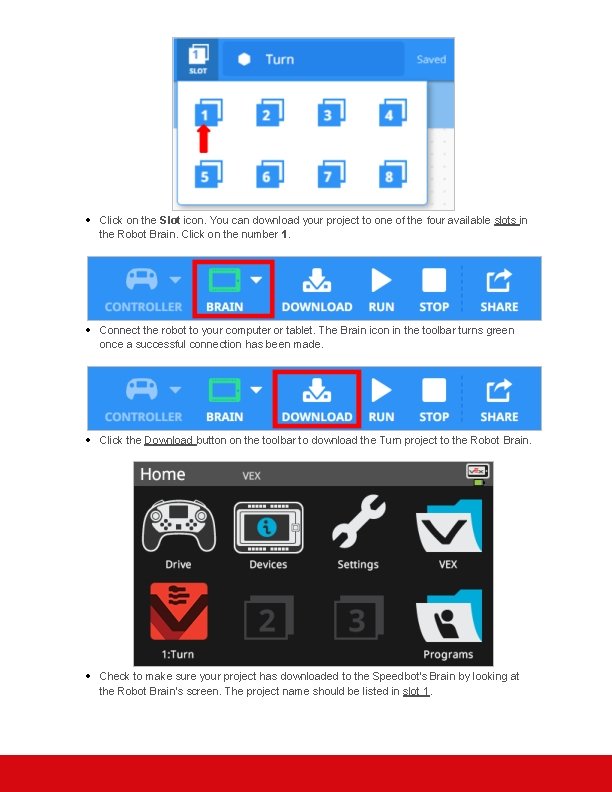
Click on the Slot icon. You can download your project to one of the four available slots in the Robot Brain. Click on the number 1. Connect the robot to your computer or tablet. The Brain icon in the toolbar turns green once a successful connection has been made. Click the Download button on the toolbar to download the Turn project to the Robot Brain. Check to make sure your project has downloaded to the Speedbot's Brain by looking at the Robot Brain’s screen. The project name should be listed in slot 1.
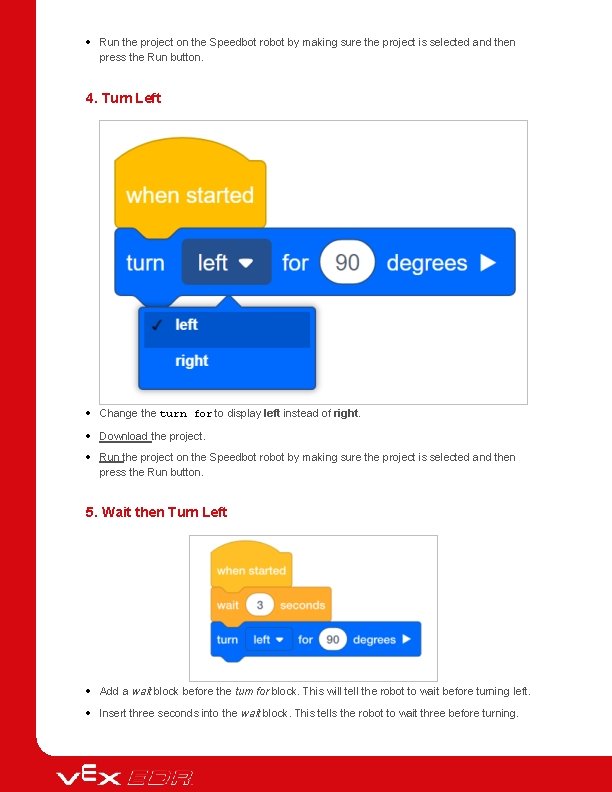
Run the project on the Speedbot robot by making sure the project is selected and then press the Run button. 4. Turn Left Change the turn for to display left instead of right. Download the project. Run the project on the Speedbot robot by making sure the project is selected and then press the Run button. 5. Wait then Turn Left Add a wait block before the turn for block. This will tell the robot to wait before turning left. Insert three seconds into the wait block. This tells the robot to wait three before turning.
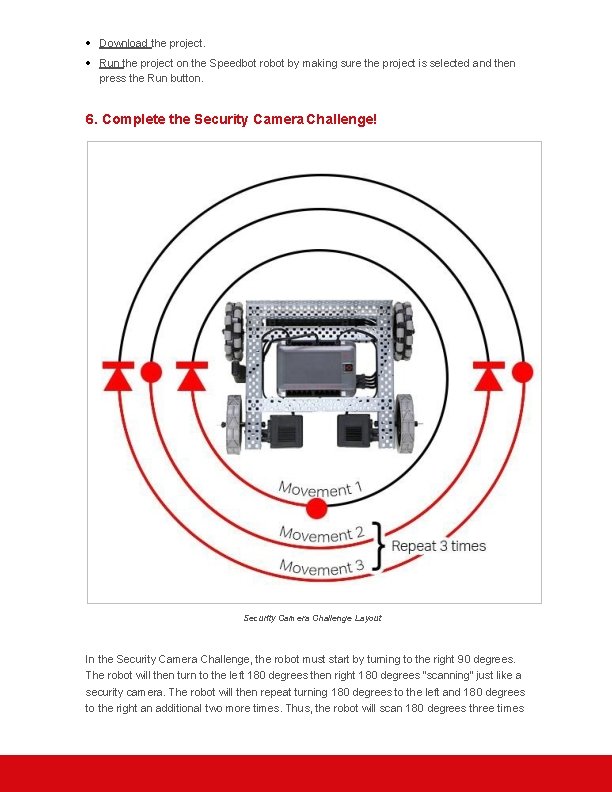
Download the project. Run the project on the Speedbot robot by making sure the project is selected and then press the Run button. 6. Complete the Security Camera Challenge! Security Camera Challenge Layout In the Security Camera Challenge, the robot must start by turning to the right 90 degrees. The robot will then turn to the left 180 degrees then right 180 degrees “scanning” just like a security camera. The robot will then repeat turning 180 degrees to the left and 180 degrees to the right an additional two more times. Thus, the robot will scan 180 degrees three times

total. Before programming the robot, plan out the robot's path and behaviors in your engineering notebook. After completing the Security Camera Challenge, you will be able to combine forward and backwards movements with additional robot behaviors to complete even more advanced challenges.
Introduction to Text-Based Programming What is Text-Based Programming? In order to control your robot, you will be creating projects in a text-based programming language called VEXcode V 5 Text. This is a language based on C++ and it uses text and special syntax to write the instructions which ultimately tell the robot what to do. If you worked with block-based programming before, such as VEXcode V 5 Blocks, these text instructions are replacing the blocks. An instruction is an entire line within the project. The instruction can contain portions of information for the device, the command, the parameters. The image below shows an instruction with each of these portions outlined. It’s important to remember specific rules for writing instructions in VEXcode V 5 Text. For example, capitalization has specific rules within instructions. Devices are capitalized, but the commands must be in camel case. For more information on how to format the grammar and syntax, click here. It’s also helpful to remember that there is help available within VEXcode V 5 Text. Review how to access this help by clicking here.
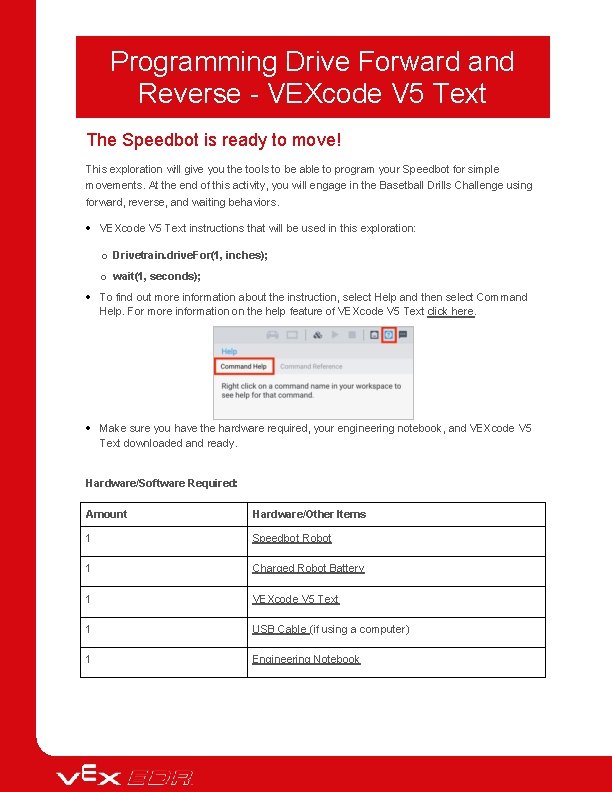
Programming Drive Forward and Reverse - VEXcode V 5 Text The Speedbot is ready to move! This exploration will give you the tools to be able to program your Speedbot for simple movements. At the end of this activity, you will engage in the Basetball Drills Challenge using forward, reverse, and waiting behaviors. VEXcode V 5 Text instructions that will be used in this exploration: o Drivetrain. drive. For(1, inches); o wait(1, seconds); To find out more information about the instruction, select Help and then select Command Help. For more information on the help feature of VEXcode V 5 Text click here. Make sure you have the hardware required, your engineering notebook, and VEXcode V 5 Text downloaded and ready. Hardware/Software Required: Amount Hardware/Other Items 1 Speedbot Robot 1 Charged Robot Battery 1 VEXcode V 5 Text 1 USB Cable (if using a computer) 1 Engineering Notebook
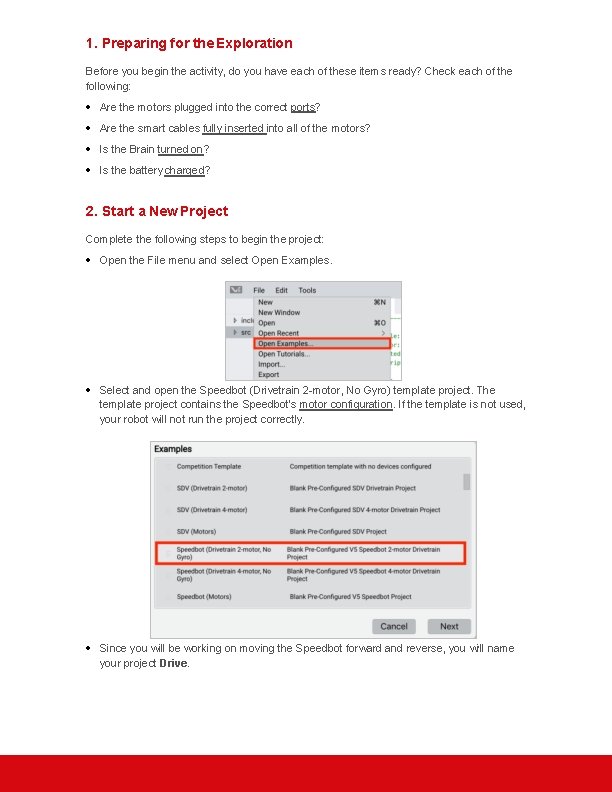
1. Preparing for the Exploration Before you begin the activity, do you have each of these items ready? Check each of the following: Are the motors plugged into the correct ports? Are the smart cables fully inserted into all of the motors? Is the Brain turned on? Is the battery charged? 2. Start a New Project Complete the following steps to begin the project: Open the File menu and select Open Examples. Select and open the Speedbot (Drivetrain 2 -motor, No Gyro) template project. The template project contains the Speedbot's motor configuration. If the template is not used, your robot will not run the project correctly. Since you will be working on moving the Speedbot forward and reverse, you will name your project Drive.
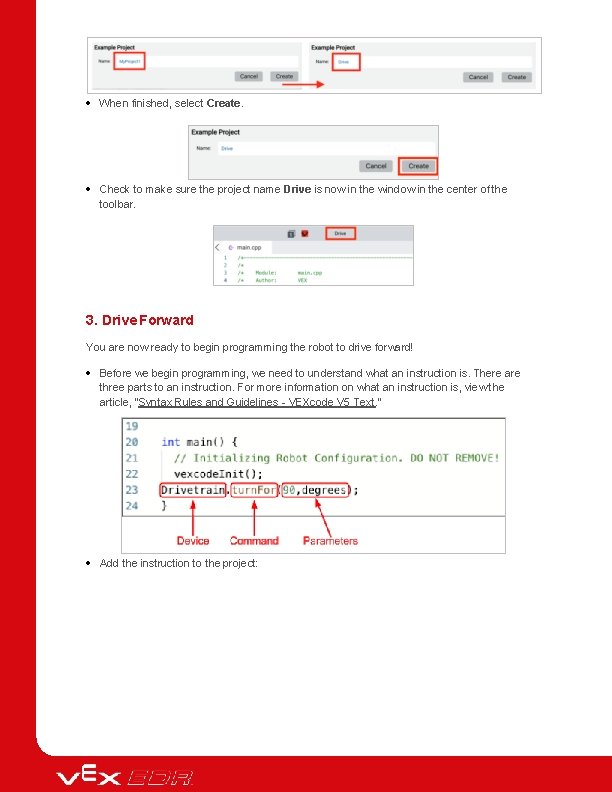
When finished, select Create. Check to make sure the project name Drive is now in the window in the center of the toolbar. 3. Drive Forward You are now ready to begin programming the robot to drive forward! Before we begin programming, we need to understand what an instruction is. There are three parts to an instruction. For more information on what an instruction is, view the article, "Syntax Rules and Guidelines - VEXcode V 5 Text. " Add the instruction to the project:
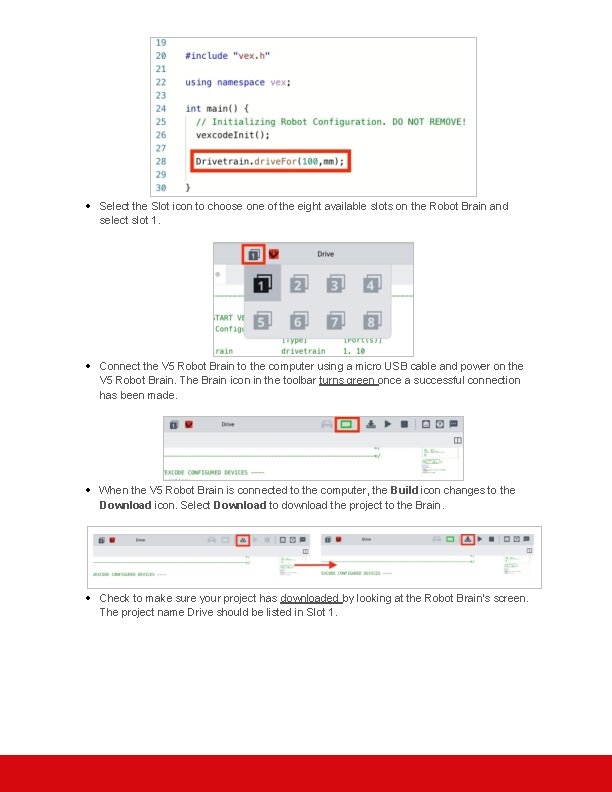
Select the Slot icon to choose one of the eight available slots on the Robot Brain and select slot 1. Connect the V 5 Robot Brain to the computer using a micro USB cable and power on the V 5 Robot Brain. The Brain icon in the toolbar turns green once a successful connection has been made. When the V 5 Robot Brain is connected to the computer, the Build icon changes to the Download icon. Select Download to download the project to the Brain. Check to make sure your project has downloaded by looking at the Robot Brain’s screen. The project name Drive should be listed in Slot 1.
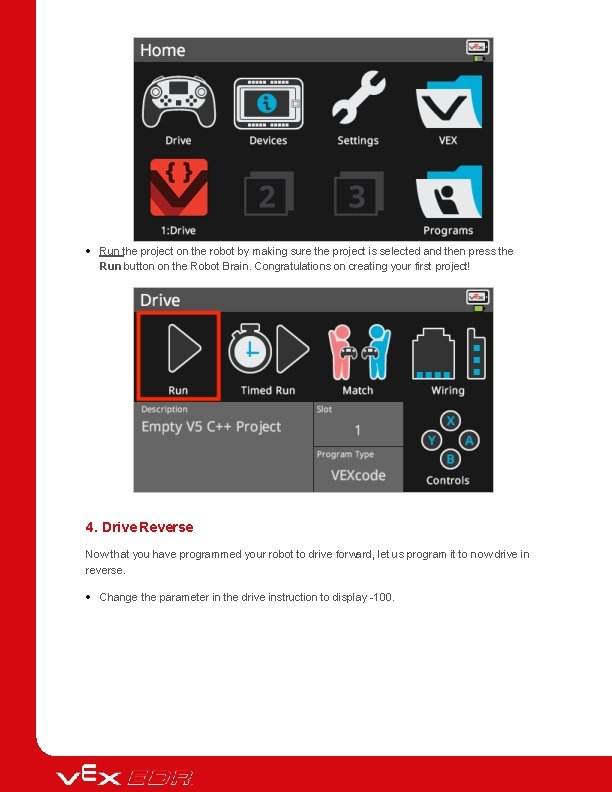
Run the project on the robot by making sure the project is selected and then press the Run button on the Robot Brain. Congratulations on creating your first project! 4. Drive Reverse Now that you have programmed your robot to drive forward, let us program it to now drive in reverse. Change the parameter in the drive instruction to display -100.
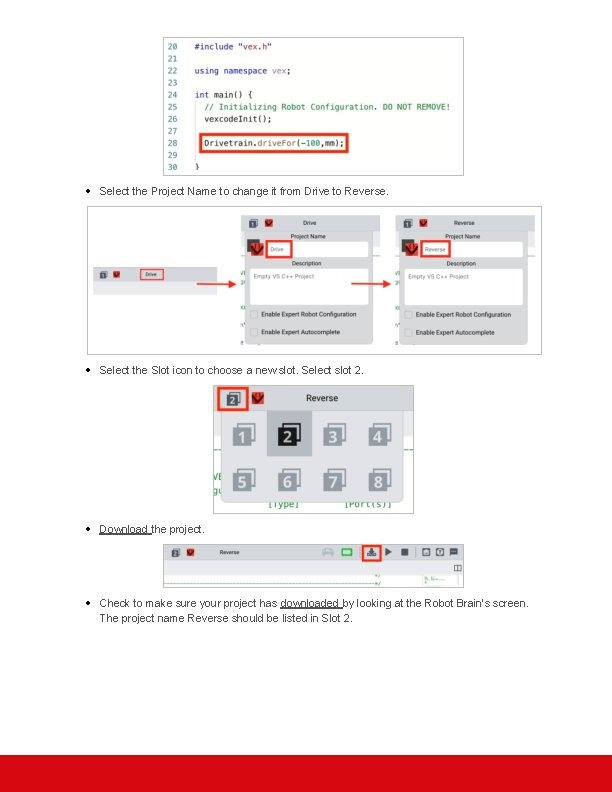
Select the Project Name to change it from Drive to Reverse. Select the Slot icon to choose a new slot. Select slot 2. Download the project. Check to make sure your project has downloaded by looking at the Robot Brain’s screen. The project name Reverse should be listed in Slot 2.
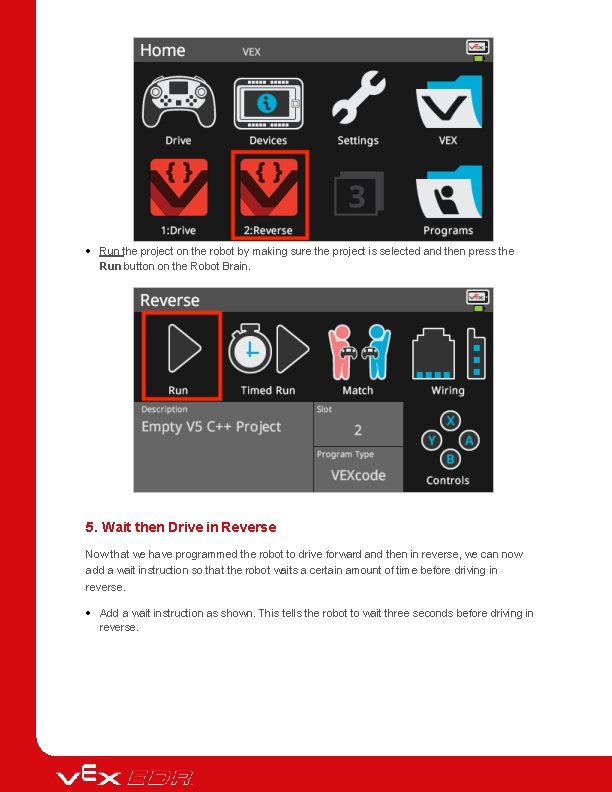
Run the project on the robot by making sure the project is selected and then press the Run button on the Robot Brain. 5. Wait then Drive in Reverse Now that we have programmed the robot to drive forward and then in reverse, we can now add a wait instruction so that the robot waits a certain amount of time before driving in reverse. Add a wait instruction as shown. This tells the robot to wait three seconds before driving in reverse.
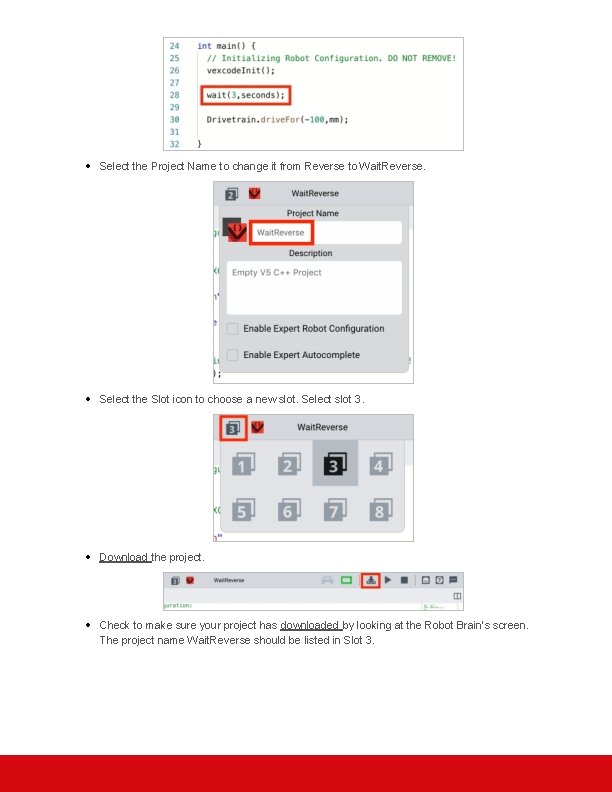
Select the Project Name to change it from Reverse to Wait. Reverse. Select the Slot icon to choose a new slot. Select slot 3. Download the project. Check to make sure your project has downloaded by looking at the Robot Brain’s screen. The project name Wait. Reverse should be listed in Slot 3.
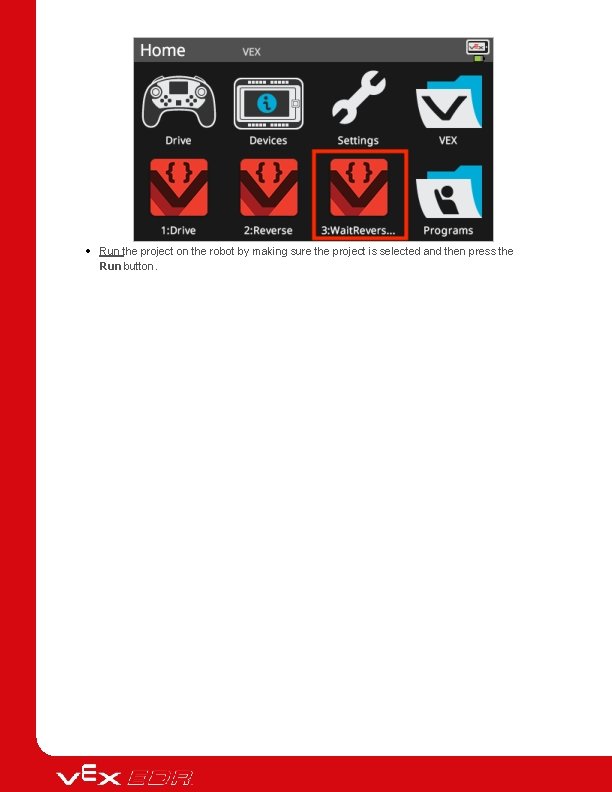
Run the project on the robot by making sure the project is selected and then press the Run button.
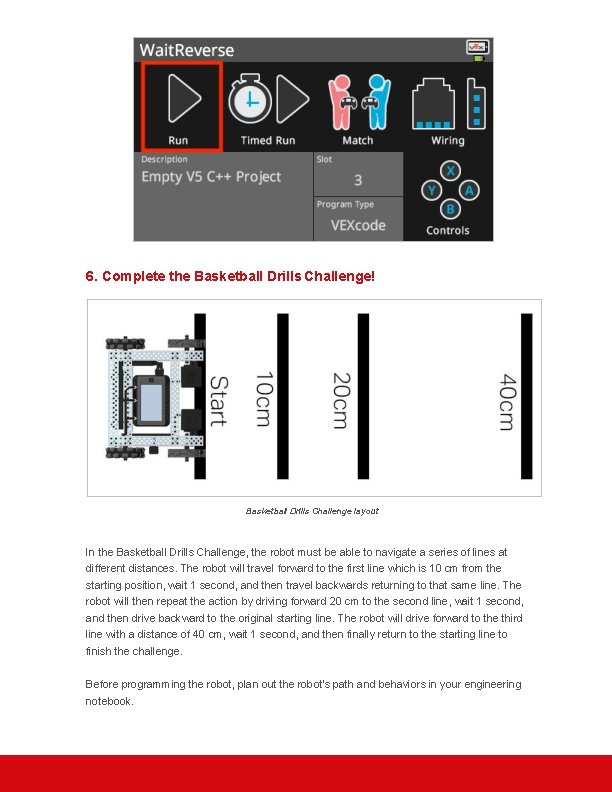
6. Complete the Basketball Drills Challenge! Basketball Drills Challenge layout In the Basketball Drills Challenge, the robot must be able to navigate a series of lines at different distances. The robot will travel forward to the first line which is 10 cm from the starting position, wait 1 second, and then travel backwards returning to that same line. The robot will then repeat the action by driving forward 20 cm to the second line, wait 1 second, and then drive backward to the original starting line. The robot will drive forward to the third line with a distance of 40 cm, wait 1 second, and then finally return to the starting line to finish the challenge. Before programming the robot, plan out the robot's path and behaviors in your engineering notebook.

After completing the Basketball Challenge, you will be able to combine forward and reverse movements with additional robot behaviors to complete even more advanced challenges. Keep in mind when programming that 1 cm = 10 mm.
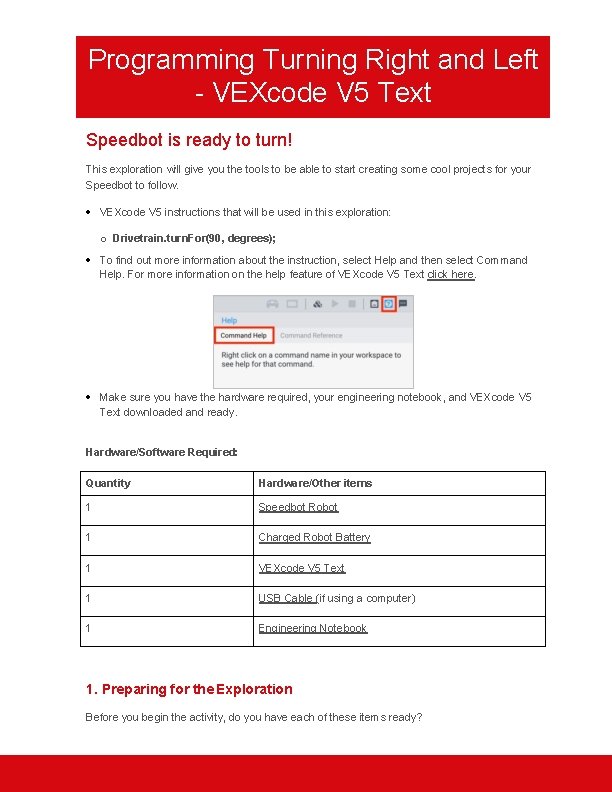
Programming Turning Right and Left - VEXcode V 5 Text Speedbot is ready to turn! This exploration will give you the tools to be able to start creating some cool projects for your Speedbot to follow. VEXcode V 5 instructions that will be used in this exploration: o Drivetrain. turn. For(90, degrees); To find out more information about the instruction, select Help and then select Command Help. For more information on the help feature of VEXcode V 5 Text click here. Make sure you have the hardware required, your engineering notebook, and VEXcode V 5 Text downloaded and ready. Hardware/Software Required: Quantity Hardware/Other items 1 Speedbot Robot 1 Charged Robot Battery 1 VEXcode V 5 Text 1 USB Cable (if using a computer) 1 Engineering Notebook 1. Preparing for the Exploration Before you begin the activity, do you have each of these items ready?
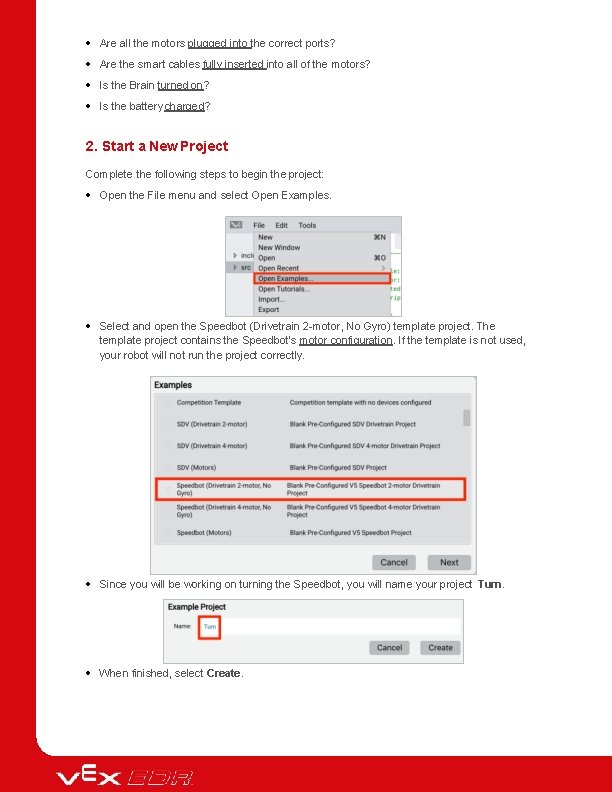
Are all the motors plugged into the correct ports? Are the smart cables fully inserted into all of the motors? Is the Brain turned on? Is the battery charged? 2. Start a New Project Complete the following steps to begin the project: Open the File menu and select Open Examples. Select and open the Speedbot (Drivetrain 2 -motor, No Gyro) template project. The template project contains the Speedbot's motor configuration. If the template is not used, your robot will not run the project correctly. Since you will be working on turning the Speedbot, you will name your project Turn. When finished, select Create.
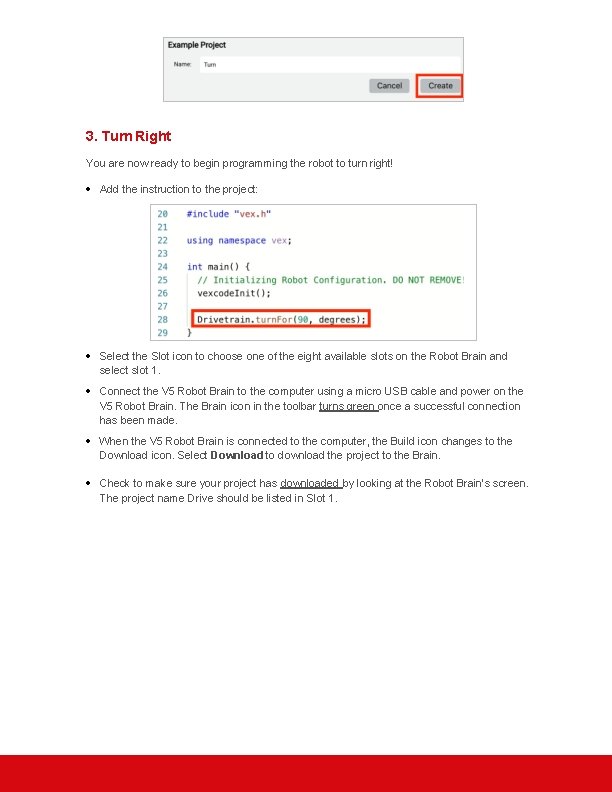
3. Turn Right You are now ready to begin programming the robot to turn right! Add the instruction to the project: Select the Slot icon to choose one of the eight available slots on the Robot Brain and select slot 1. Connect the V 5 Robot Brain to the computer using a micro USB cable and power on the V 5 Robot Brain. The Brain icon in the toolbar turns green once a successful connection has been made. When the V 5 Robot Brain is connected to the computer, the Build icon changes to the Download icon. Select Download to download the project to the Brain. Check to make sure your project has downloaded by looking at the Robot Brain’s screen. The project name Drive should be listed in Slot 1.
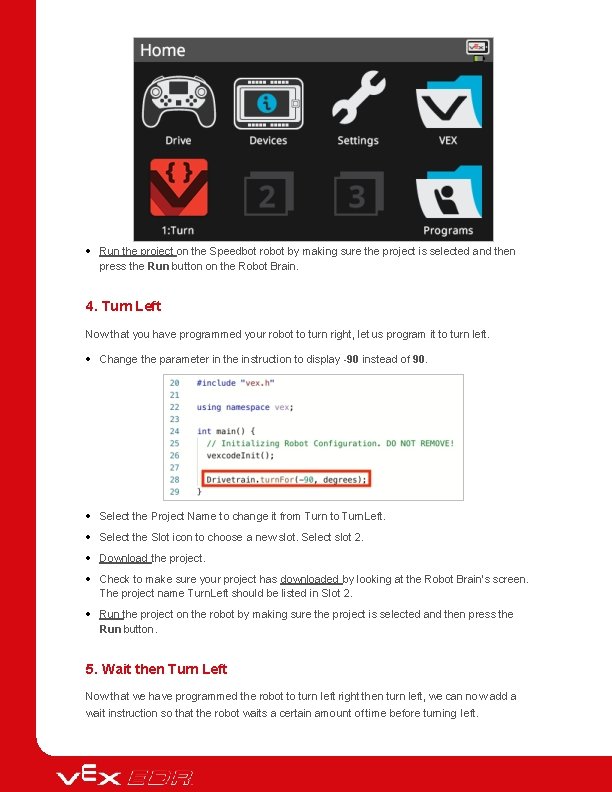
Run the project on the Speedbot robot by making sure the project is selected and then press the Run button on the Robot Brain. 4. Turn Left Now that you have programmed your robot to turn right, let us program it to turn left. Change the parameter in the instruction to display -90 instead of 90. Select the Project Name to change it from Turn to Turn. Left. Select the Slot icon to choose a new slot. Select slot 2. Download the project. Check to make sure your project has downloaded by looking at the Robot Brain’s screen. The project name Turn. Left should be listed in Slot 2. Run the project on the robot by making sure the project is selected and then press the Run button. 5. Wait then Turn Left Now that we have programmed the robot to turn left right then turn left, we can now add a wait instruction so that the robot waits a certain amount of time before turning left.
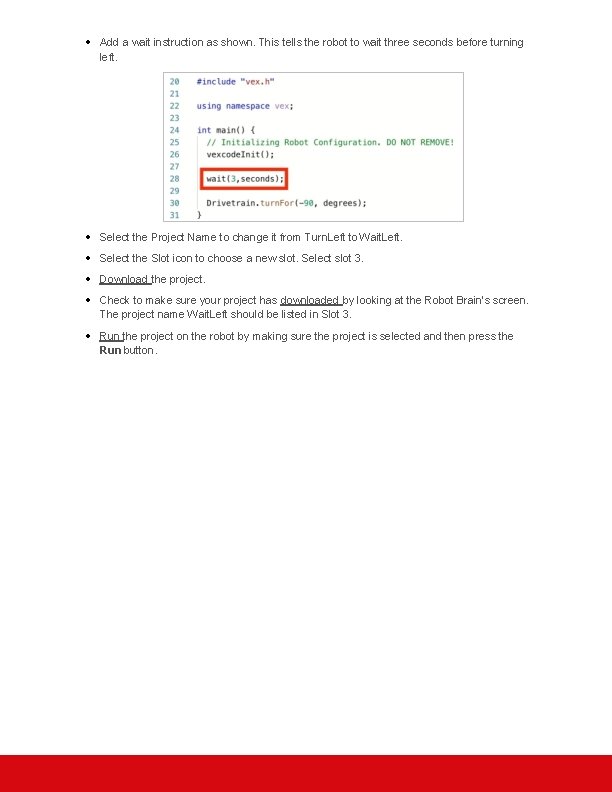
Add a wait instruction as shown. This tells the robot to wait three seconds before turning left. Select the Project Name to change it from Turn. Left to Wait. Left. Select the Slot icon to choose a new slot. Select slot 3. Download the project. Check to make sure your project has downloaded by looking at the Robot Brain’s screen. The project name Wait. Left should be listed in Slot 3. Run the project on the robot by making sure the project is selected and then press the Run button.
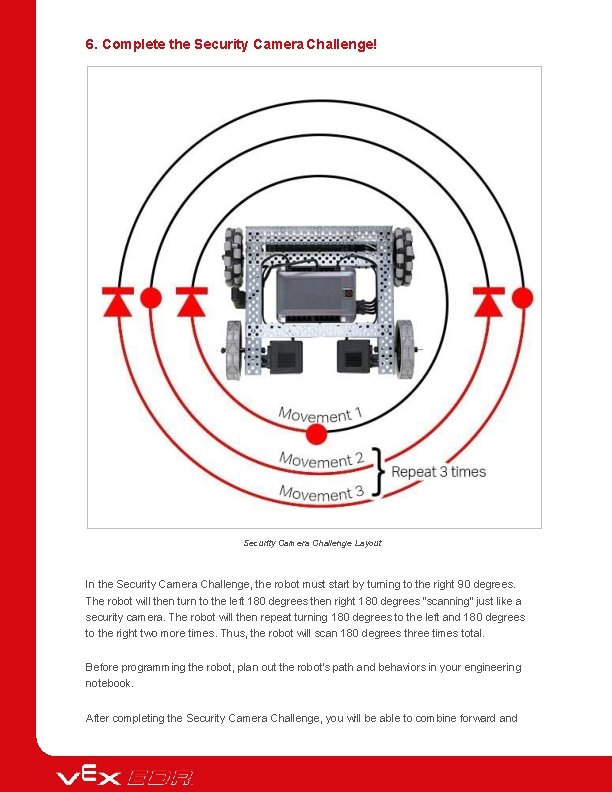
6. Complete the Security Camera Challenge! Security Camera Challenge Layout In the Security Camera Challenge, the robot must start by turning to the right 90 degrees. The robot will then turn to the left 180 degrees then right 180 degrees “scanning” just like a security camera. The robot will then repeat turning 180 degrees to the left and 180 degrees to the right two more times. Thus, the robot will scan 180 degrees three times total. Before programming the robot, plan out the robot's path and behaviors in your engineering notebook. After completing the Security Camera Challenge, you will be able to combine forward and

backwards movements with additional robot behaviors to complete even more advanced challenges.
Become a 21 st century problem solver by applying the core skills and concepts you learned to other problems.
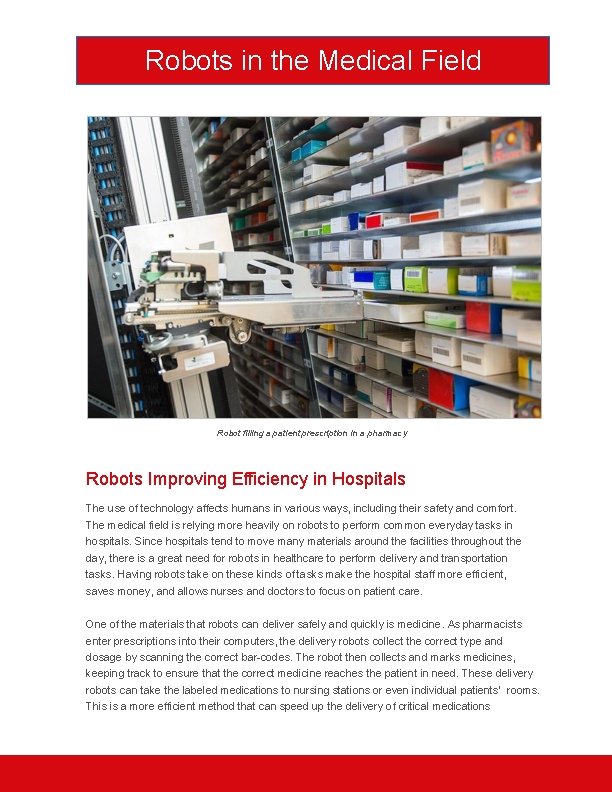
Robots in the Medical Field Robot filling a patient prescription in a pharmacy Robots Improving Efficiency in Hospitals The use of technology affects humans in various ways, including their safety and comfort. The medical field is relying more heavily on robots to perform common everyday tasks in hospitals. Since hospitals tend to move many materials around the facilities throughout the day, there is a great need for robots in healthcare to perform delivery and transportation tasks. Having robots take on these kinds of tasks make the hospital staff more efficient, saves money, and allows nurses and doctors to focus on patient care. One of the materials that robots can deliver safely and quickly is medicine. As pharmacists enter prescriptions into their computers, the delivery robots collect the correct type and dosage by scanning the correct bar-codes. The robot then collects and marks medicines, keeping track to ensure that the correct medicine reaches the patient in need. These delivery robots can take the labeled medications to nursing stations or even individual patients' rooms. This is a more efficient method that can speed up the delivery of critical medications

to patients, help fill the gap of staff shortages, and keep prescriptions in a safe secure place while in transit. Some medical delivery robots will travel over 400 miles in a week completing their rounds as they navigate the corridors, ride elevators, and stop at various stations. In addition to delivering medical supplies, some robots are even visiting to check on patients and take their vital signs for doctors. As robotics continues to develop, patients will continue to benefit from robots being in the hospital environment.
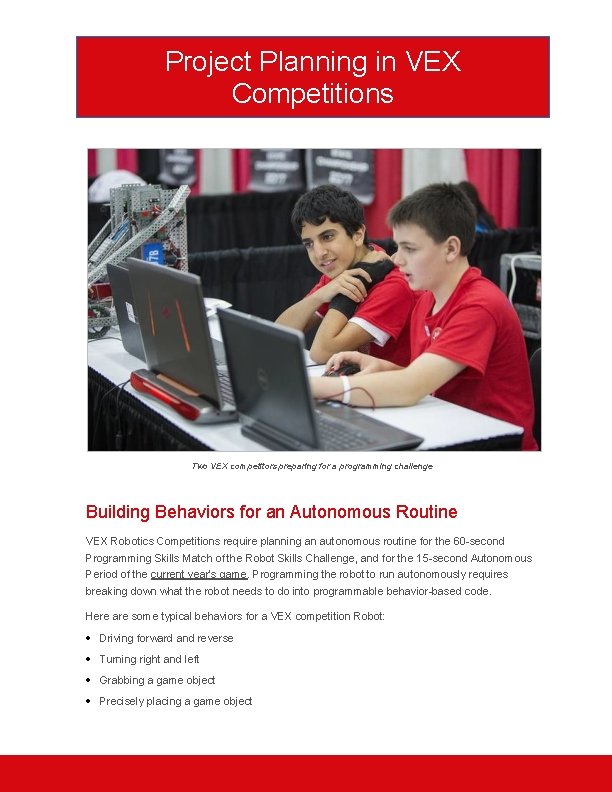
Project Planning in VEX Competitions Two VEX competitors preparing for a programming challenge Building Behaviors for an Autonomous Routine VEX Robotics Competitions require planning an autonomous routine for the 60 -second Programming Skills Match of the Robot Skills Challenge, and for the 15 -second Autonomous Period of the current year's game. Programming the robot to run autonomously requires breaking down what the robot needs to do into programmable behavior-based code. Here are some typical behaviors for a VEX competition Robot: Driving forward and reverse Turning right and left Grabbing a game object Precisely placing a game object

Sorting between different game objects Once you have built the basic instructions for these types of behaviors, running a successful autonomous routine simply means planning the order of these actions!
Is there a more efficient way to come to the same conclusion? Take what you’ve learned and try to improve it.
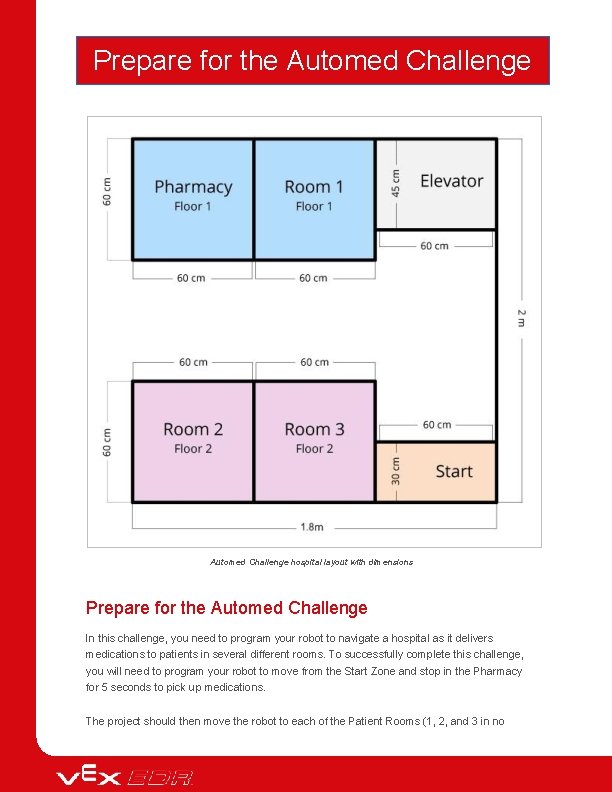
Prepare for the Automed Challenge hospital layout with dimensions Prepare for the Automed Challenge In this challenge, you need to program your robot to navigate a hospital as it delivers medications to patients in several different rooms. To successfully complete this challenge, you will need to program your robot to move from the Start Zone and stop in the Pharmacy for 5 seconds to pick up medications. The project should then move the robot to each of the Patient Rooms (1, 2, and 3 in no
particular order) and stop in the room for 3 seconds to deliver the medication. In order to move between floors in the hospital, the robot needs to park in the area designated as the Elevator for 5 seconds to indicate it is moving to another floor. After medication has been delivered to all of the rooms, the robot should then return to the Start Zone. You should recreate the hospital map above on your floor using tape and a meter stick or ruler. Be sure to indicate where the Start Zone, Pharmacy, Elevator, and Patient Rooms are located. To complete the challenge, you will need: Roll of tape (to create the hospital layout on the floor) 1. 8 meter by 2 meter open area Meter stick or ruler
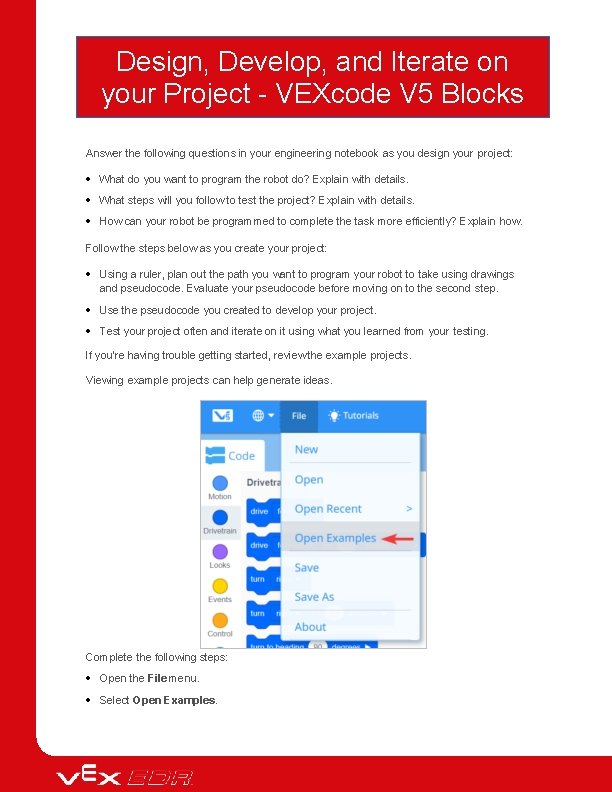
Design, Develop, and Iterate on your Project - VEXcode V 5 Blocks Answer the following questions in your engineering notebook as you design your project: What do you want to program the robot do? Explain with details. What steps will you follow to test the project? Explain with details. How can your robot be programmed to complete the task more efficiently? Explain how. Follow the steps below as you create your project: Using a ruler, plan out the path you want to program your robot to take using drawings and pseudocode. Evaluate your pseudocode before moving on to the second step. Use the pseudocode you created to develop your project. Test your project often and iterate on it using what you learned from your testing. If you're having trouble getting started, review the example projects. Viewing example projects can help generate ideas. Complete the following steps: Open the File menu. Select Open Examples.

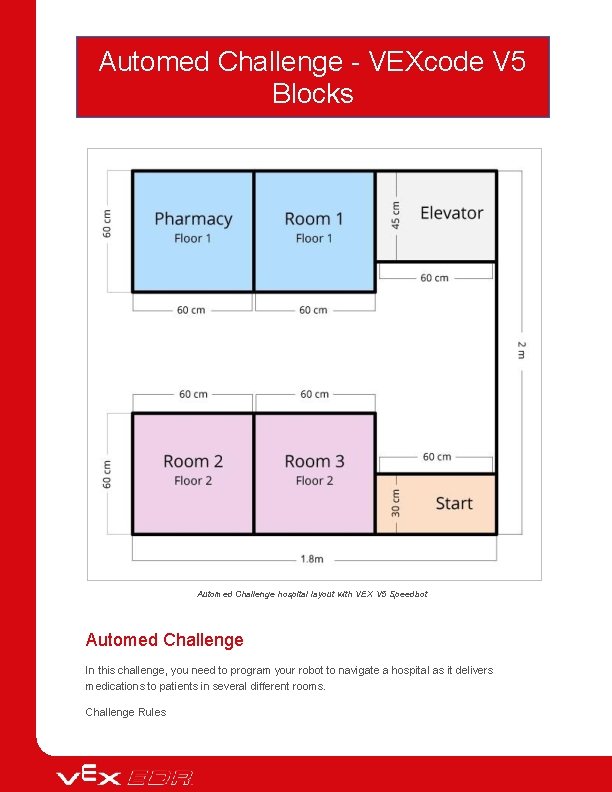
Automed Challenge - VEXcode V 5 Blocks Automed Challenge hospital layout with VEX V 5 Speedbot Automed Challenge In this challenge, you need to program your robot to navigate a hospital as it delivers medications to patients in several different rooms. Challenge Rules
The robot must begin and end in the Start Zone. The entire robot must be inside the Pharmacy, Elevator, and Patient Rooms and wait for the following times in order to complete the actions: o Pharmacy: Wait at least 5 seconds to pickup medications. o Elevator: Wait at least 5 seconds to reach another floor. o Patient Room: Wait at least 3 seconds to drop off medications. The robot must not come into contact with or pass over any walls. The robot must visit the Pharmacy first to pickup medications for Patient Rooms. The robot must visit each of the Patient Rooms (in no particular order) to drop off medication. Have fun!
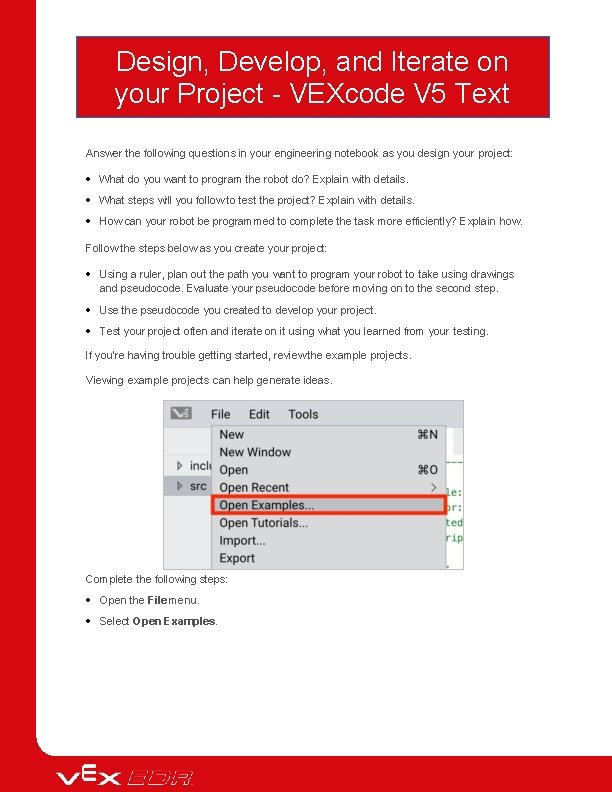
Design, Develop, and Iterate on your Project - VEXcode V 5 Text Answer the following questions in your engineering notebook as you design your project: What do you want to program the robot do? Explain with details. What steps will you follow to test the project? Explain with details. How can your robot be programmed to complete the task more efficiently? Explain how. Follow the steps below as you create your project: Using a ruler, plan out the path you want to program your robot to take using drawings and pseudocode. Evaluate your pseudocode before moving on to the second step. Use the pseudocode you created to develop your project. Test your project often and iterate on it using what you learned from your testing. If you're having trouble getting started, review the example projects. Viewing example projects can help generate ideas. Complete the following steps: Open the File menu. Select Open Examples.
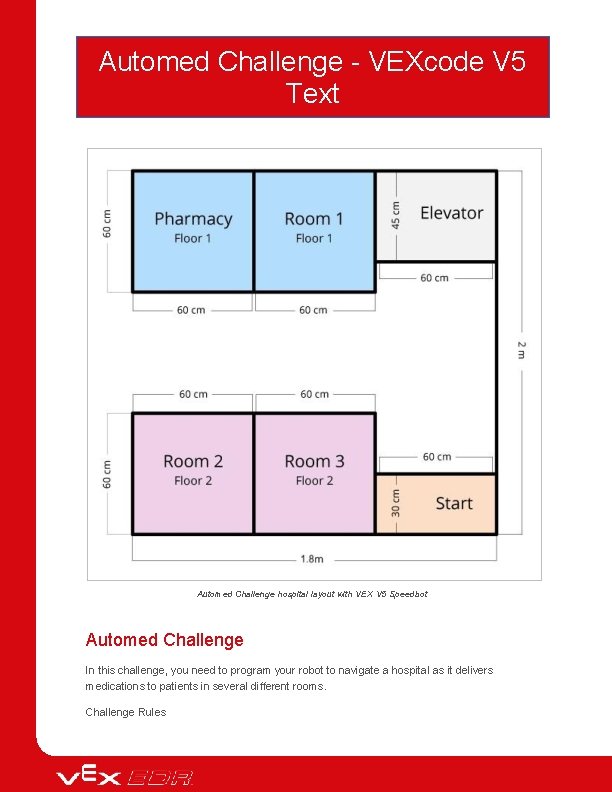
Automed Challenge - VEXcode V 5 Text Automed Challenge hospital layout with VEX V 5 Speedbot Automed Challenge In this challenge, you need to program your robot to navigate a hospital as it delivers medications to patients in several different rooms. Challenge Rules
The robot must begin and end in the Start Zone. The entire robot must be inside the Pharmacy, Elevator, and Patient Rooms and wait for the following times in order to complete the actions: o Pharmacy: Wait at least 5 seconds to pickup medications. o Elevator: Wait at least 5 seconds to reach another floor. o Patient Room: Wait at least 3 seconds to drop off medications. The robot must not come into contact with or pass over any walls. The robot must visit the Pharmacy first to pickup medications for Patient Rooms. The robot must visit each of the Patient Rooms (in no particular order) to drop off medication. Have fun!
Understand the core concepts and how to apply them to different situations. This review process will fuel motivation to learn.
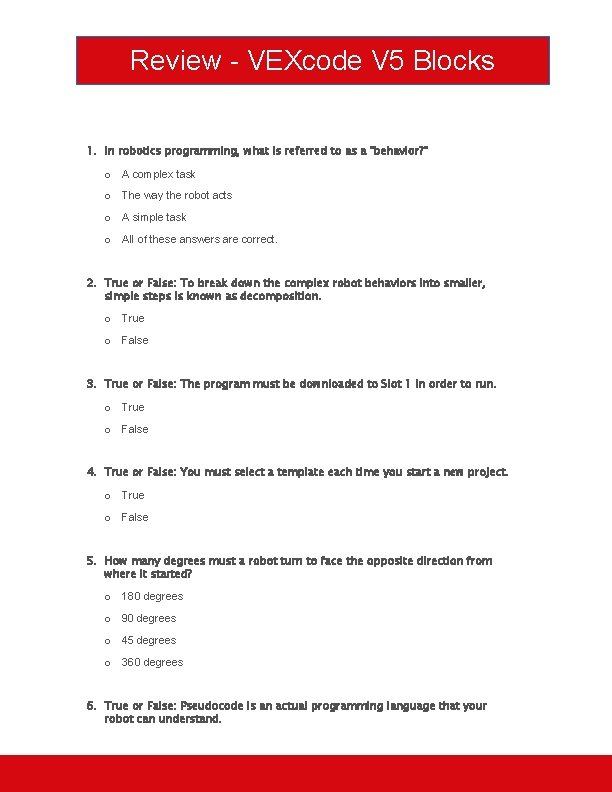
Review - VEXcode V 5 Blocks 1. In robotics programming, what is referred to as a "behavior? " o A complex task o The way the robot acts o A simple task o All of these answers are correct. 2. True or False: To break down the complex robot behaviors into smaller, simple steps is known as decomposition. o True o False 3. True or False: The program must be downloaded to Slot 1 in order to run. o True o False 4. True or False: You must select a template each time you start a new project. o True o False 5. How many degrees must a robot turn to face the opposite direction from where it started? o 180 degrees o 90 degrees o 45 degrees o 360 degrees 6. True or False: Pseudocode is an actual programming language that your robot can understand.

o True o False
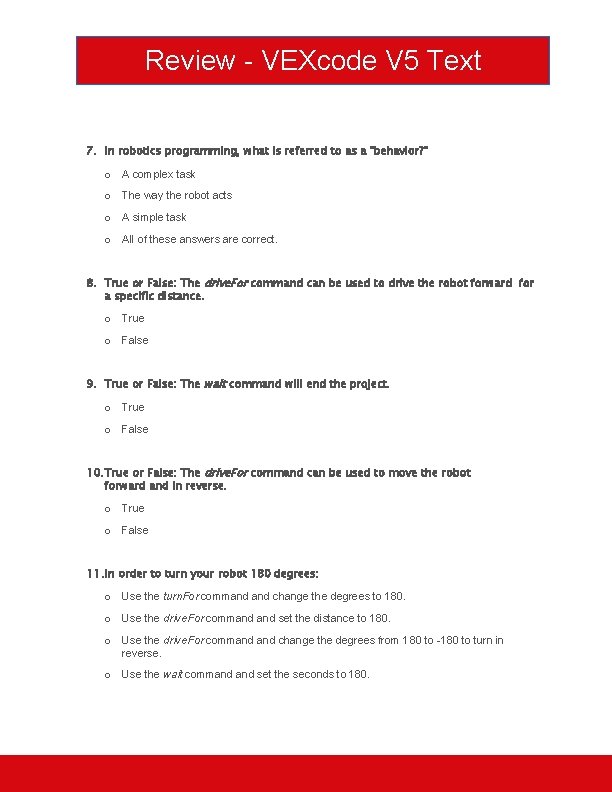
Review - VEXcode V 5 Text 7. In robotics programming, what is referred to as a "behavior? " o A complex task o The way the robot acts o A simple task o All of these answers are correct. 8. True or False: The drive. For command can be used to drive the robot forward for a specific distance. o True o False 9. True or False: The wait command will end the project. o True o False 10. True or False: The drive. For command can be used to move the robot forward and in reverse. o True o False 11. In order to turn your robot 180 degrees: o Use the turn. For command change the degrees to 180. o Use the drive. For command set the distance to 180. o Use the drive. For command change the degrees from 180 to -180 to turn in reverse. o Use the wait command set the seconds to 180.
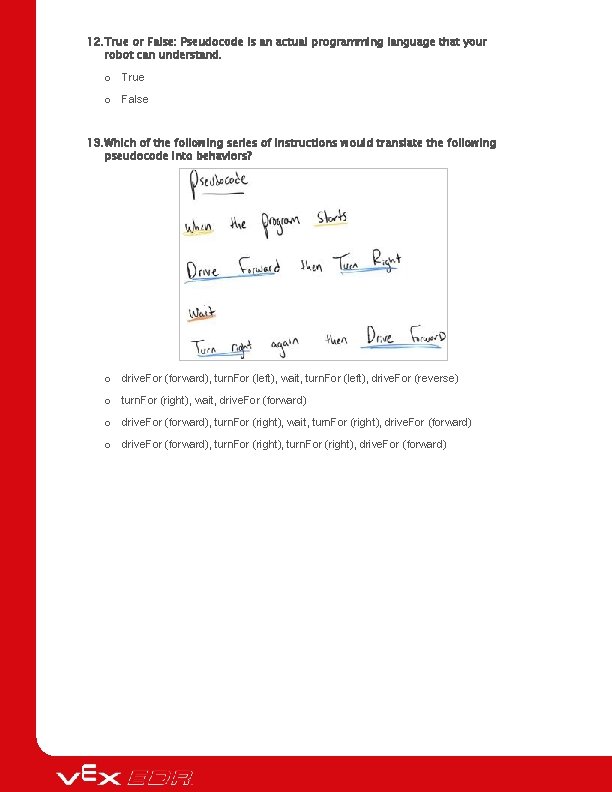
12. True or False: Pseudocode is an actual programming language that your robot can understand. o True o False 13. Which of the following series of instructions would translate the following pseudocode into behaviors? o drive. For (forward), turn. For (left), wait, turn. For (left), drive. For (reverse) o turn. For (right), wait, drive. For (forward) o drive. For (forward), turn. For (right), wait, turn. For (right), drive. For (forward) o drive. For (forward), turn. For (right), drive. For (forward)

Additional information, resources, and materials.
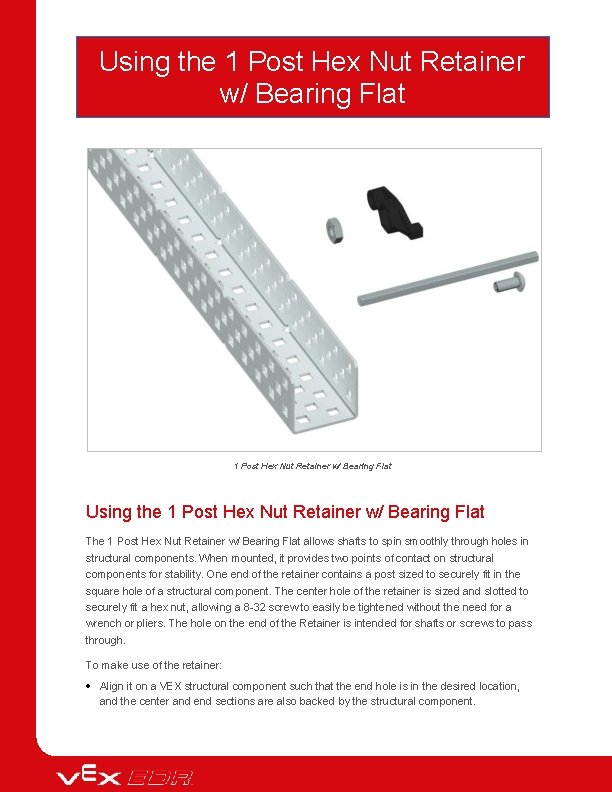
Using the 1 Post Hex Nut Retainer w/ Bearing Flat The 1 Post Hex Nut Retainer w/ Bearing Flat allows shafts to spin smoothly through holes in structural components. When mounted, it provides two points of contact on structural components for stability. One end of the retainer contains a post sized to securely fit in the square hole of a structural component. The center hole of the retainer is sized and slotted to securely fit a hex nut, allowing a 8 -32 screw to easily be tightened without the need for a wrench or pliers. The hole on the end of the Retainer is intended for shafts or screws to pass through. To make use of the retainer: Align it on a VEX structural component such that the end hole is in the desired location, and the center and end sections are also backed by the structural component.

Insert the square post extruding from the retainer into the structural component to help keep it in place. Insert a hex nut into the center section of the retainer so that it is flush with the rest of the component. Align any additional structural components to the back of the main structural component, if applicable. Use an 8 -32 screw of appropriate length to secure the structural component(s) to the retainer through the center hole and hex nut.
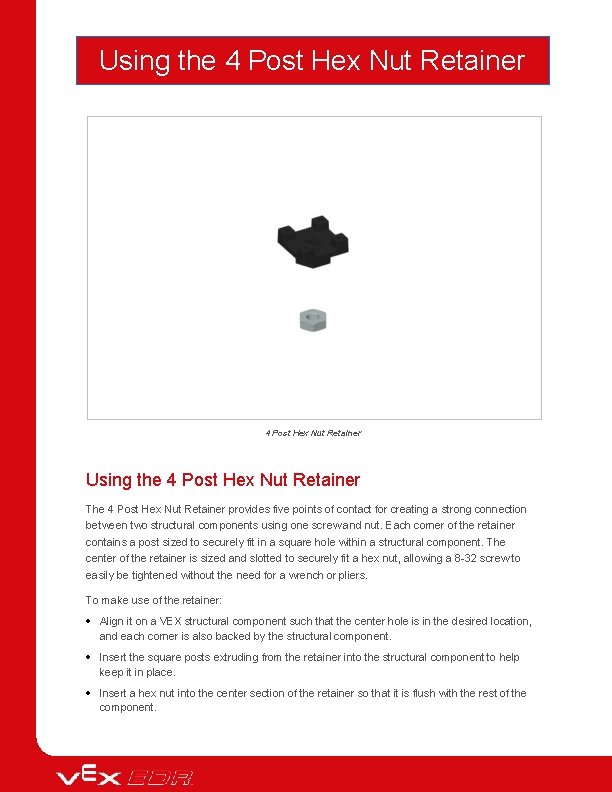
Using the 4 Post Hex Nut Retainer The 4 Post Hex Nut Retainer provides five points of contact for creating a strong connection between two structural components using one screw and nut. Each corner of the retainer contains a post sized to securely fit in a square hole within a structural component. The center of the retainer is sized and slotted to securely fit a hex nut, allowing a 8 -32 screw to easily be tightened without the need for a wrench or pliers. To make use of the retainer: Align it on a VEX structural component such that the center hole is in the desired location, and each corner is also backed by the structural component. Insert the square posts extruding from the retainer into the structural component to help keep it in place. Insert a hex nut into the center section of the retainer so that it is flush with the rest of the component.

Align any additional structural components to the back of the main structural component, if applicable. Use an 8 -32 screw of appropriate length to secure the structural component(s) to the retainer through the center hole and hex nut.
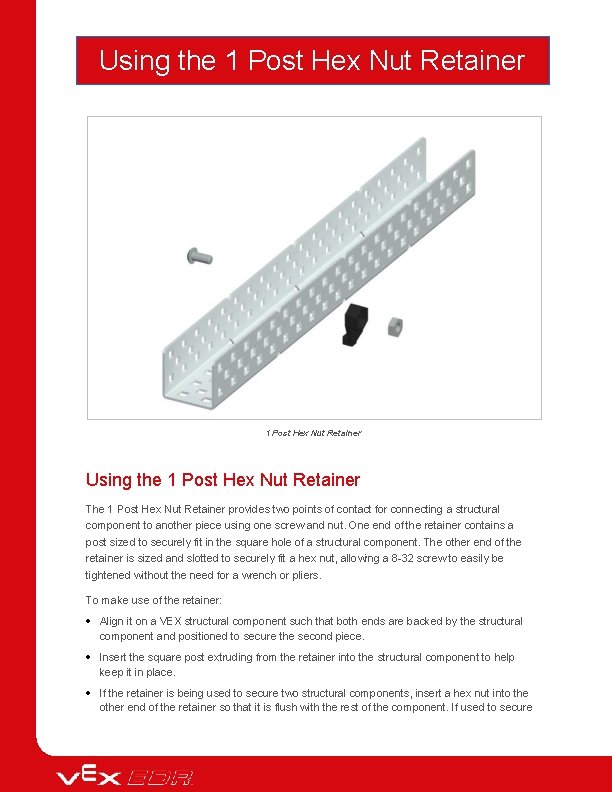
Using the 1 Post Hex Nut Retainer The 1 Post Hex Nut Retainer provides two points of contact for connecting a structural component to another piece using one screw and nut. One end of the retainer contains a post sized to securely fit in the square hole of a structural component. The other end of the retainer is sized and slotted to securely fit a hex nut, allowing a 8 -32 screw to easily be tightened without the need for a wrench or pliers. To make use of the retainer: Align it on a VEX structural component such that both ends are backed by the structural component and positioned to secure the second piece. Insert the square post extruding from the retainer into the structural component to help keep it in place. If the retainer is being used to secure two structural components, insert a hex nut into the other end of the retainer so that it is flush with the rest of the component. If used to secure

a different type of component, such as a standoff, it may be appropriate to insert the screw through this side. Align any additional components to the back of the main structural component, if applicable. If the retainer is being used to connect two structural components, use an 8 -32 screw of appropriate length to secure the structural components through the hole and hex nut. If used to connect a different type of component, such as a standoff, secure it directly or with a hex nut.
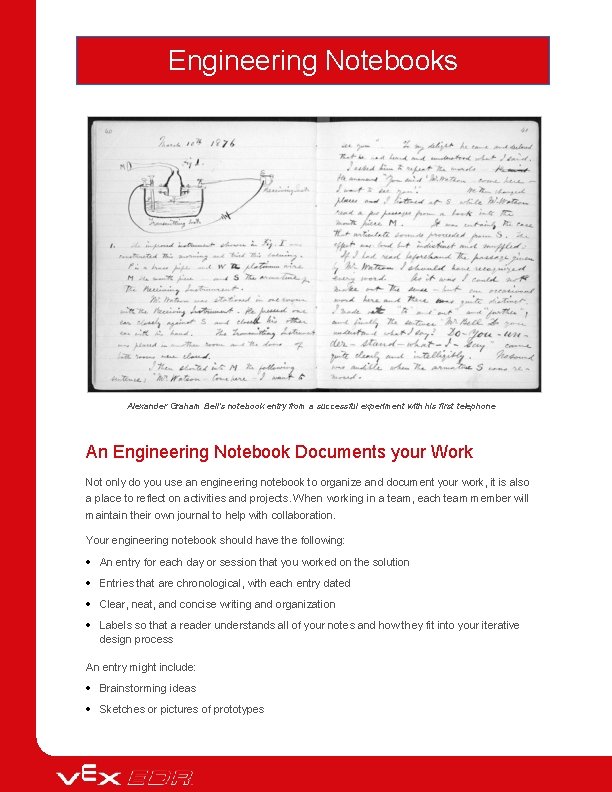
Engineering Notebooks Alexander Graham Bell's notebook entry from a successful experiment with his first telephone An Engineering Notebook Documents your Work Not only do you use an engineering notebook to organize and document your work, it is also a place to reflect on activities and projects. When working in a team, each team member will maintain their own journal to help with collaboration. Your engineering notebook should have the following: An entry for each day or session that you worked on the solution Entries that are chronological, with each entry dated Clear, neat, and concise writing and organization Labels so that a reader understands all of your notes and how they fit into your iterative design process An entry might include: Brainstorming ideas Sketches or pictures of prototypes

Pseudocode and flowcharts for planning Any worked calculations or algorithms used Answers to guiding questions Notes about observations and/or conducted tests Notes about and reflections on your different iterations
- Slides: 93