
Mec Lab Dealer Training Mec Lab Dealer Training

Mec. Lab Dealer Training
Mec. Lab Dealer Training Agenda What is Mec. Lab? Quoting Mec. Lab Assembling Mec. Lab Stations Fluid. Sim Familiarization Hands-On Activities

What is Mec. Lab? The purpose of Mec. Lab is to provide students an opportunity to learn the practical and theoretical aspects of automation technology.
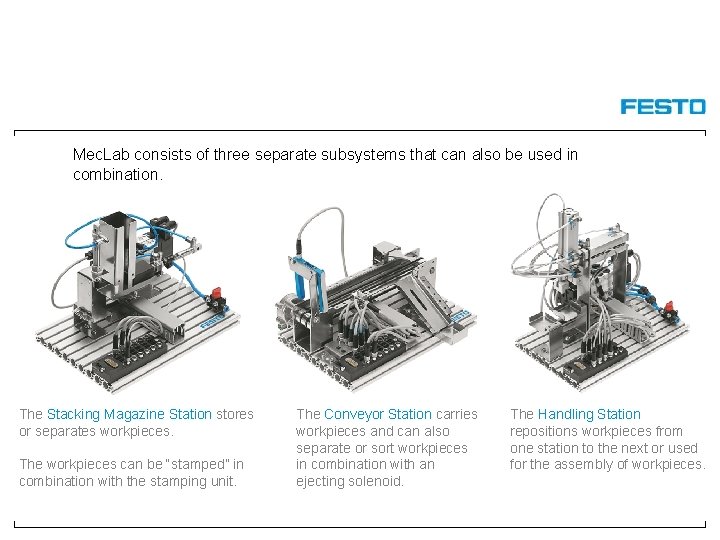
Mec. Lab consists of three separate subsystems that can also be used in combination. The Stacking Magazine Station stores or separates workpieces. The workpieces can be “stamped” in combination with the stamping unit. The Conveyor Station carries workpieces and can also separate or sort workpieces in combination with an ejecting solenoid. The Handling Station repositions workpieces from one station to the next or used for the assembly of workpieces.
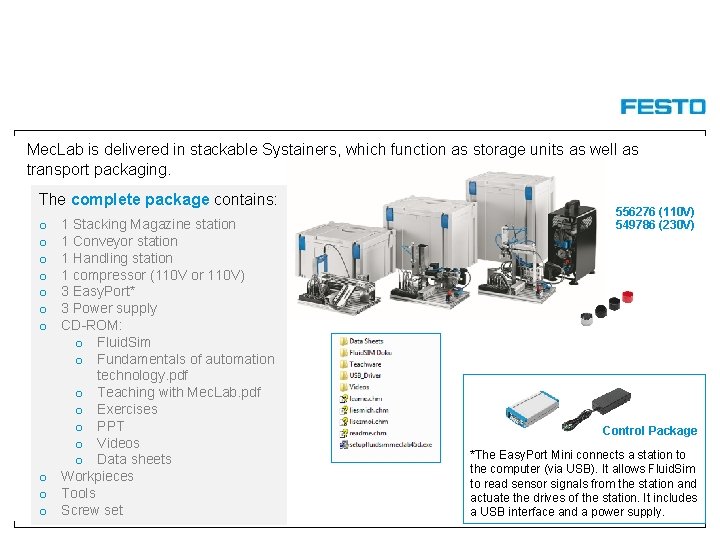
Mec. Lab is delivered in stackable Systainers, which function as storage units as well as transport packaging. The complete package contains: 1 Stacking Magazine station 1 Conveyor station 1 Handling station 1 compressor (110 V or 110 V) 3 Easy. Port* 3 Power supply CD-ROM: o Fluid. Sim o Fundamentals of automation technology. pdf o Teaching with Mec. Lab. pdf o Exercises o PPT o Videos o Data sheets o Workpieces o Tools o Screw set o o o o 556276 (110 V) 549786 (230 V) Control Package *The Easy. Port Mini connects a station to the computer (via USB). It allows Fluid. Sim to read sensor signals from the station and actuate the drives of the station. It includes a USB interface and a power supply.
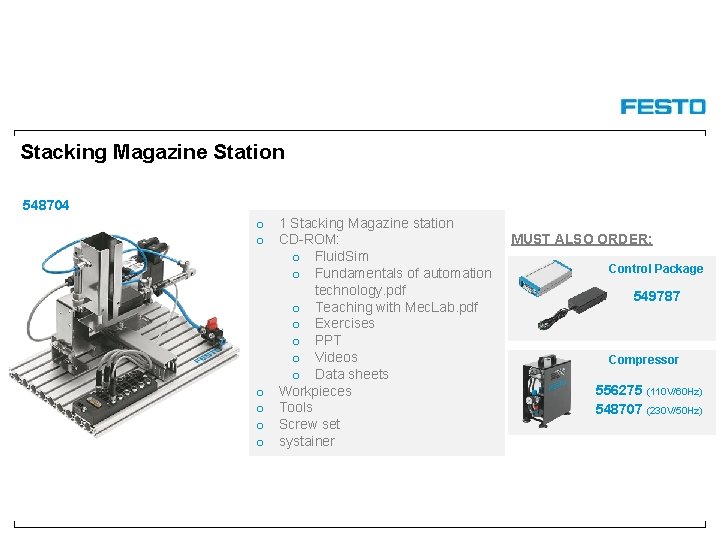
Stacking Magazine Station 548704 o 1 Stacking Magazine station o CD-ROM: o Fluid. Sim o Fundamentals of automation technology. pdf o Teaching with Mec. Lab. pdf o Exercises o PPT o Videos o Data sheets o Workpieces o Tools o Screw set o systainer MUST ALSO ORDER: Control Package 549787 Compressor 556275 (110 V/60 Hz) 548707 (230 V/50 Hz)
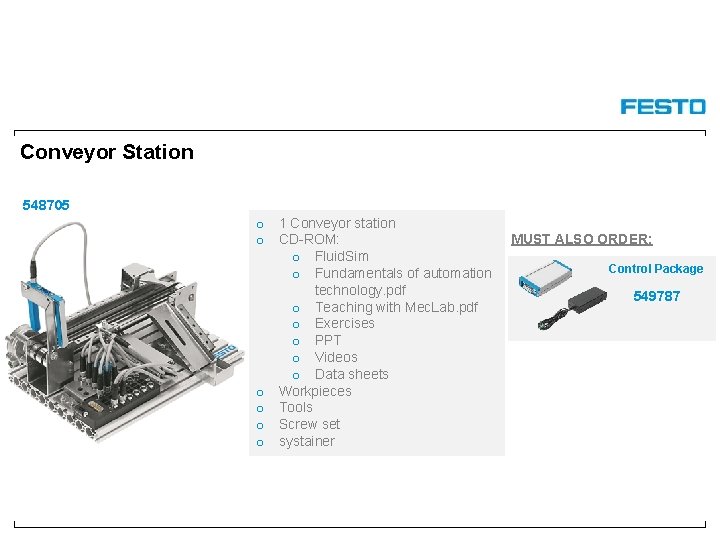
Conveyor Station 548705 o 1 Conveyor station o CD-ROM: o Fluid. Sim o Fundamentals of automation technology. pdf o Teaching with Mec. Lab. pdf o Exercises o PPT o Videos o Data sheets o Workpieces o Tools o Screw set o systainer MUST ALSO ORDER: Control Package 549787
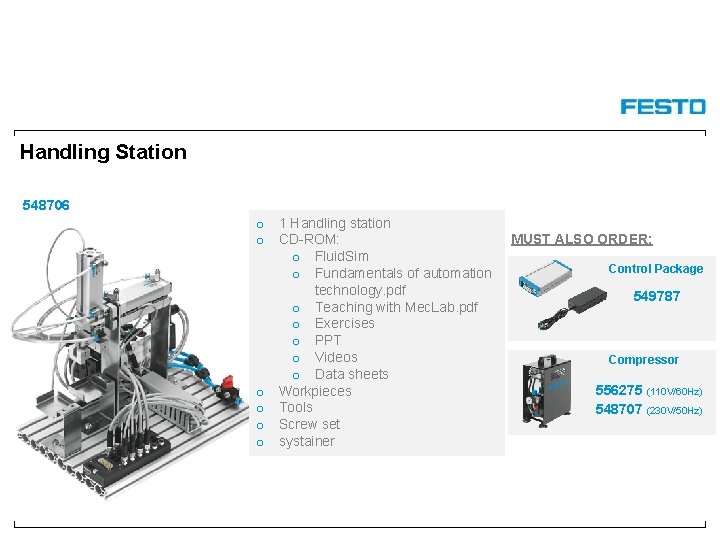
Handling Station 548706 o 1 Handling station o CD-ROM: o Fluid. Sim o Fundamentals of automation technology. pdf o Teaching with Mec. Lab. pdf o Exercises o PPT o Videos o Data sheets o Workpieces o Tools o Screw set o systainer MUST ALSO ORDER: Control Package 549787 Compressor 556275 (110 V/60 Hz) 548707 (230 V/50 Hz)
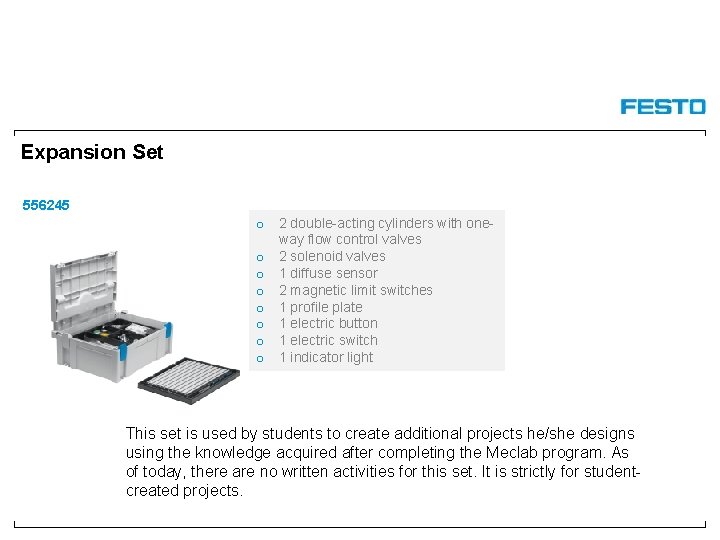
Expansion Set 556245 o 2 double-acting cylinders with oneway flow control valves o 2 solenoid valves o 1 diffuse sensor o 2 magnetic limit switches o 1 profile plate o 1 electric button o 1 electric switch o 1 indicator light This set is used by students to create additional projects he/she designs using the knowledge acquired after completing the Meclab program. As of today, there are no written activities for this set. It is strictly for studentcreated projects.
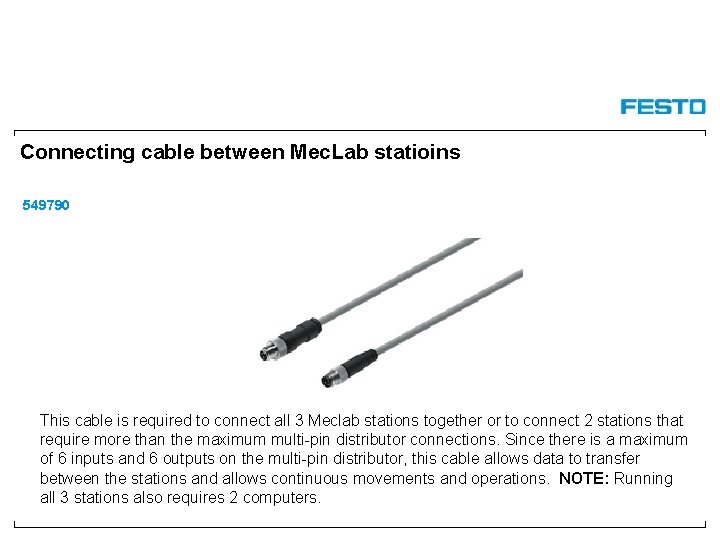
Connecting cable between Mec. Lab statioins 549790 This cable is required to connect all 3 Meclab stations together or to connect 2 stations that require more than the maximum multi-pin distributor connections. Since there is a maximum of 6 inputs and 6 outputs on the multi-pin distributor, this cable allows data to transfer between the stations and allows continuous movements and operations. NOTE: Running all 3 stations also requires 2 computers.
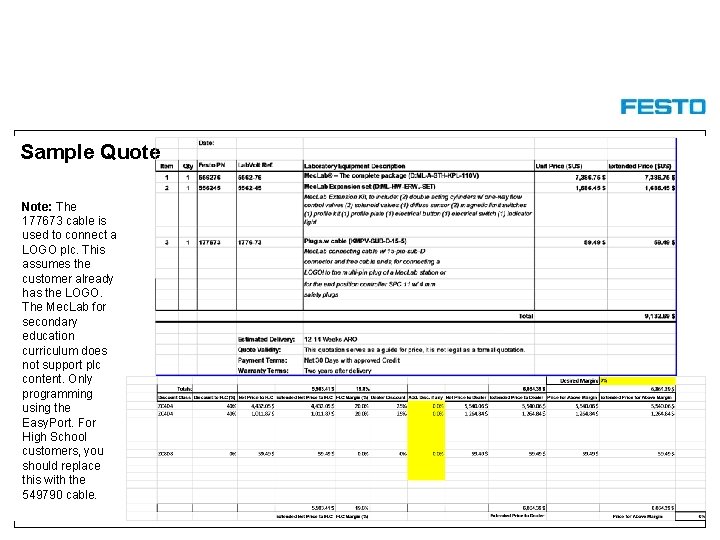
Sample Quote Note: The 177673 cable is used to connect a LOGO plc. This assumes the customer already has the LOGO. The Mec. Lab for secondary education curriculum does not support plc content. Only programming using the Easy. Port. For High School customers, you should replace this with the 549790 cable.
Stacking Magazine Station
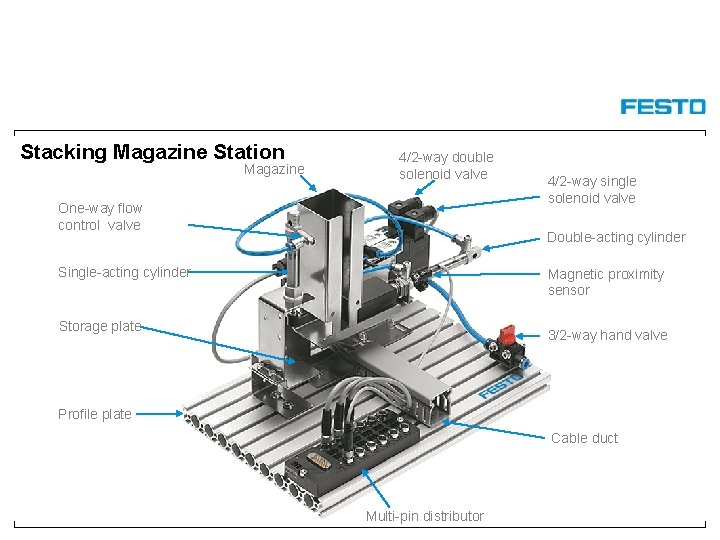
Stacking Magazine Station Magazine 4/2 -way double solenoid valve One-way flow control valve 4/2 -way single solenoid valve Double-acting cylinder Single-acting cylinder Magnetic proximity sensor Storage plate 3/2 -way hand valve Profile plate Cable duct Multi-pin distributor
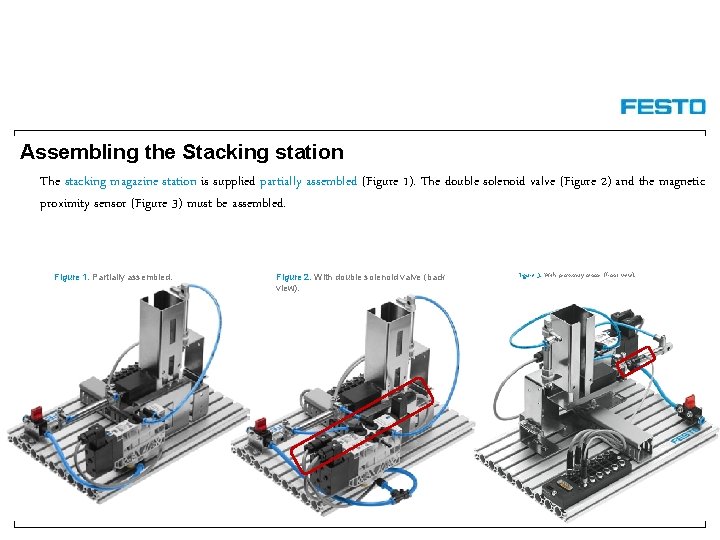
Assembling the Stacking station The stacking magazine station is supplied partially assembled (Figure 1). The double solenoid valve (Figure 2) and the magnetic proximity sensor (Figure 3) must be assembled. Figure 1. Partially assembled. Figure 2. With double solenoid valve (back view). Figure 3. With proximity sensor (front view).
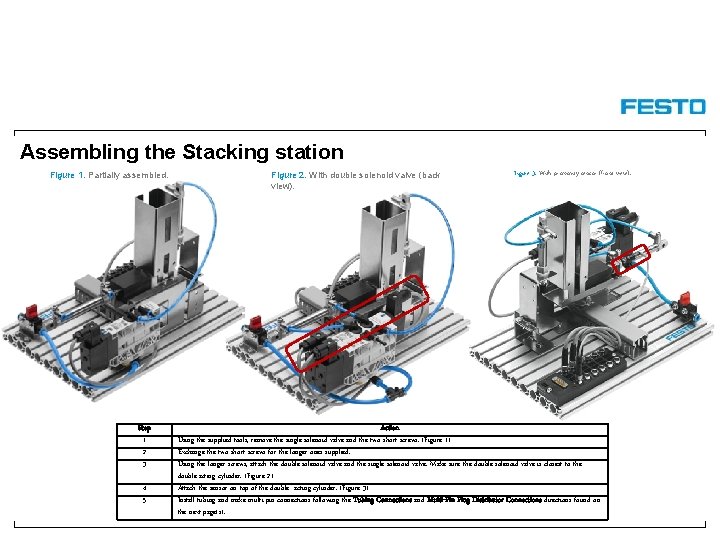
Assembling the Stacking station Figure 1. Partially assembled. Step 1 2 3 4 5 Figure 2. With double solenoid valve (back view). Figure 3. With proximity sensor (front view). Action Using the supplied tools, remove the single-solenoid valve and the two short screws. (Figure 1) Exchange the two short screws for the longer ones supplied. Using the longer screws, attach the double-solenoid valve and the single-solenoid valve. Make sure the double-solenoid valve is closest to the double-acting cylinder. (Figure 2) Attach the sensor on top of the double- acting cylinder. (Figure 3) Install tubing and make multi-pin connections following the Tubing Connections and Multi-Pin Plug Distributor Connections directions found on the next page(s).
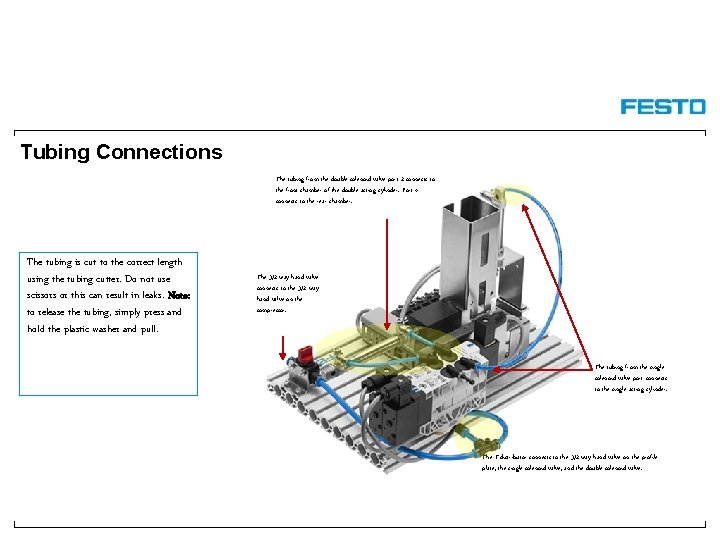
Tubing Connections The tubing from the double-solenoid valve port 2 connects to the front chamber of the double-acting cylinder. Port 4 connects to the rear chamber. The tubing is cut to the correct length using the tubing cutter. Do not use scissors or this can result in leaks. Note: to release the tubing, simply press and hold the plastic washer and pull. The 3/2 way hand valve connects to the 3/2 way hand valve on the compressor. The tubing from the singlesolenoid valve port connects to the single-acting cylinder. The T-distributor connects to the 3/2 way hand valve on the profile plate, the single-solenoid valve, and the double-solenoid valve.
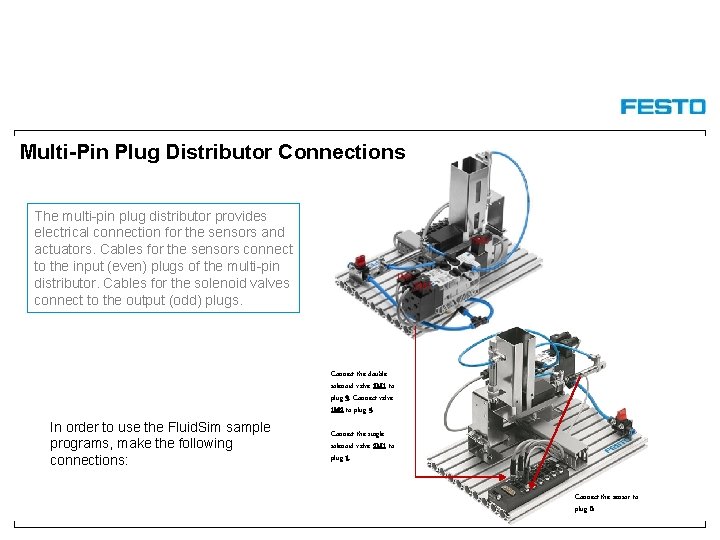
Multi-Pin Plug Distributor Connections The multi-pin plug distributor provides electrical connection for the sensors and actuators. Cables for the sensors connect to the input (even) plugs of the multi-pin distributor. Cables for the solenoid valves connect to the output (odd) plugs. Connect the doublesolenoid valve 1 M 1 to plug 3. Connect valve 1 M 2 to plug 5. In order to use the Fluid. Sim sample programs, make the following connections: Connect the singlesolenoid valve 2 M 1 to plug 1. Connect the sensor to plug 0.
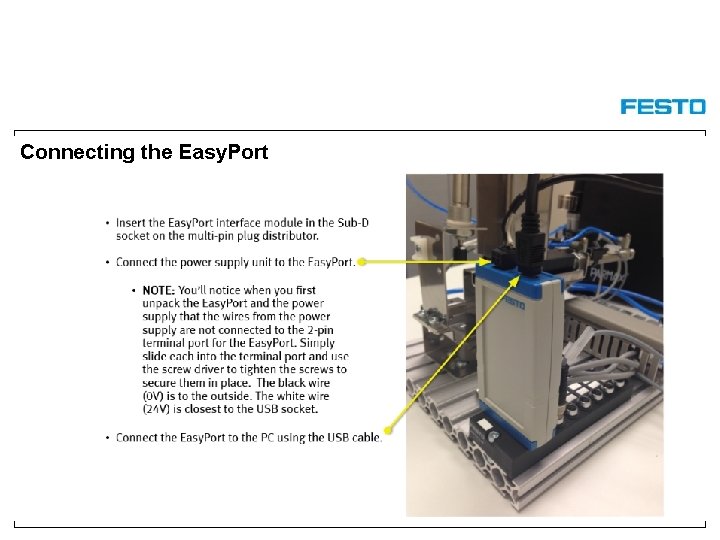
Connecting the Easy. Port
Working with Fluid. Sim
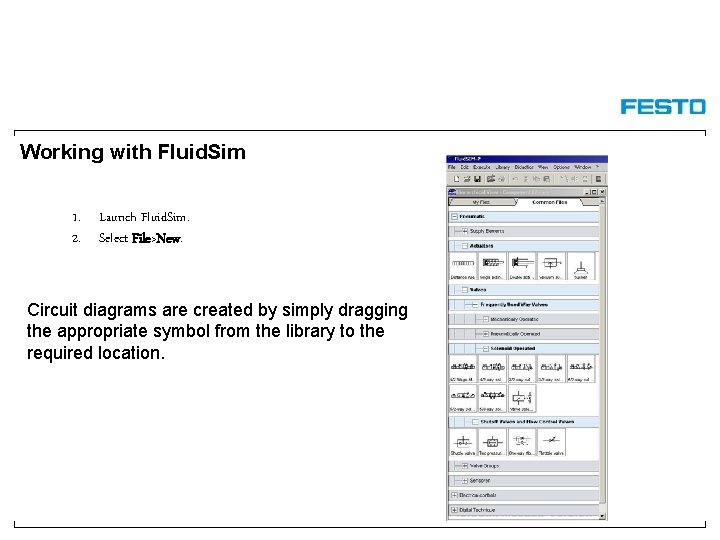
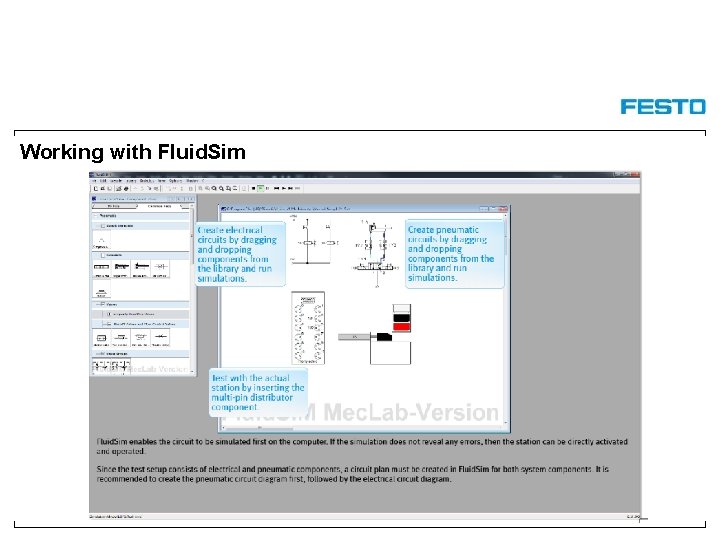
Working with Fluid. Sim 1. Launch Fluid. Sim. 2. Select File>New. Circuit diagrams are created by simply dragging the appropriate symbol from the library to the required location.
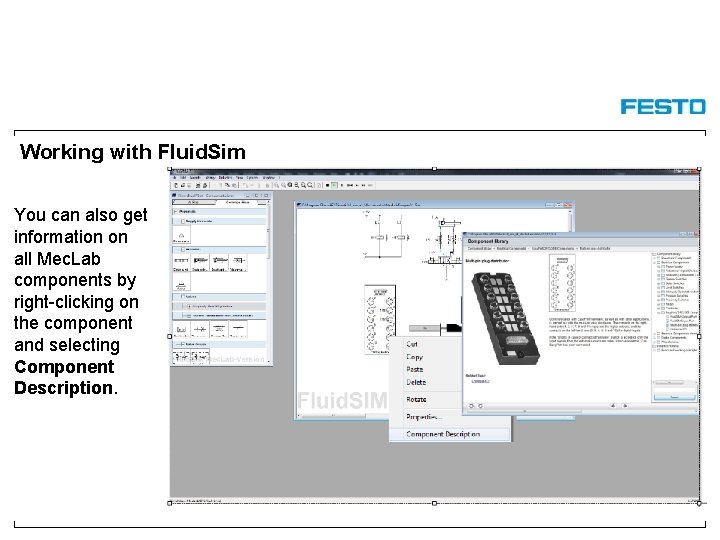
Working with Fluid. Sim You can also get information on all Mec. Lab components by right-clicking on the component and selecting Component Description.
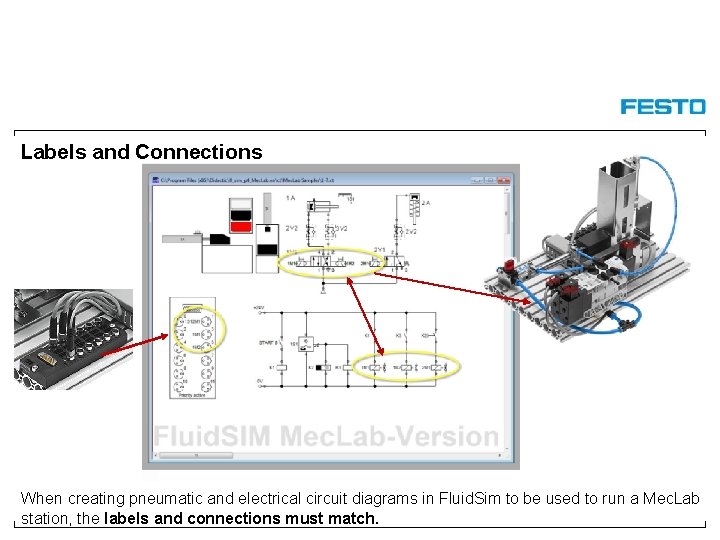
Labels and Connections When creating pneumatic and electrical circuit diagrams in Fluid. Sim to be used to run a Mec. Lab station, the labels and connections must match.
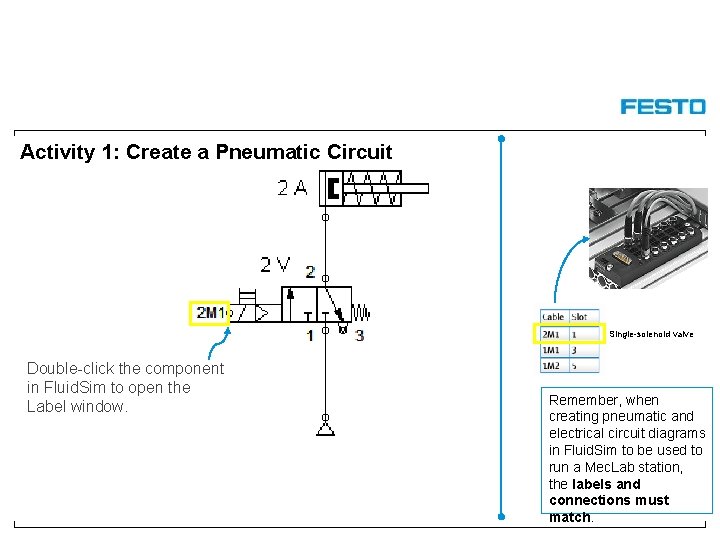
Activity 1: Create a Pneumatic Circuit Single-solenoid valve Double-click the component in Fluid. Sim to open the Label window. Remember, when creating pneumatic and electrical circuit diagrams in Fluid. Sim to be used to run a Mec. Lab station, the labels and connections must match.
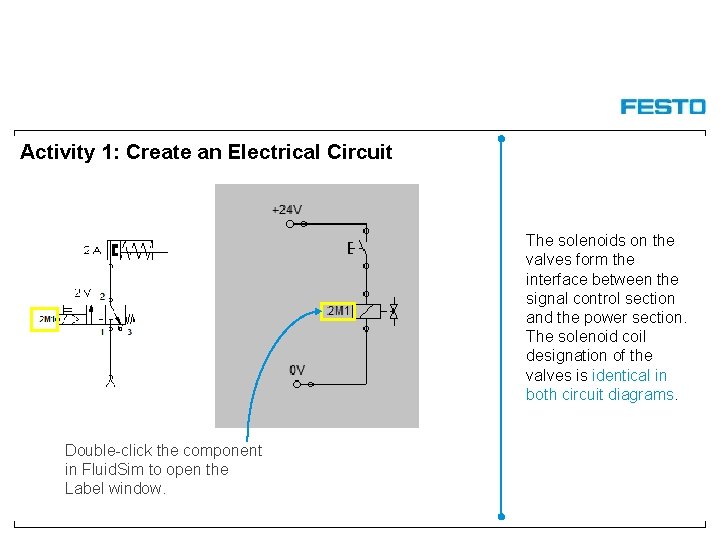
Activity 1: Create an Electrical Circuit The solenoids on the valves form the interface between the signal control section and the power section. The solenoid coil designation of the valves is identical in both circuit diagrams. Double-click the component in Fluid. Sim to open the Label window.
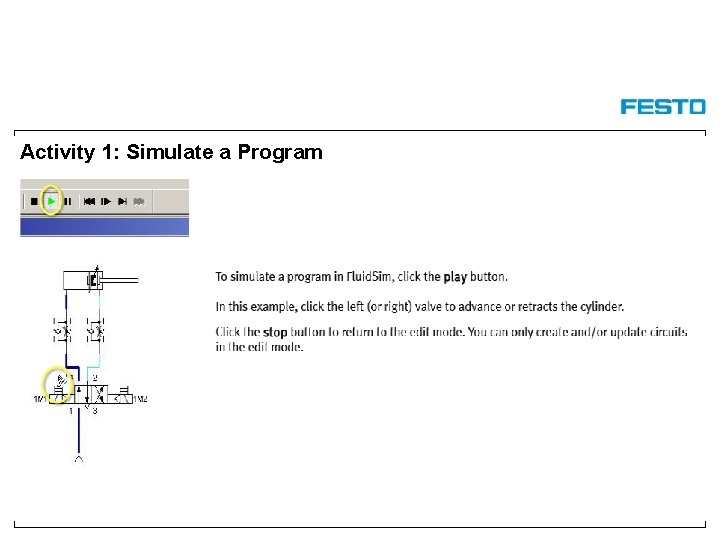
Activity 1: Simulate a Program Simulate the circuit
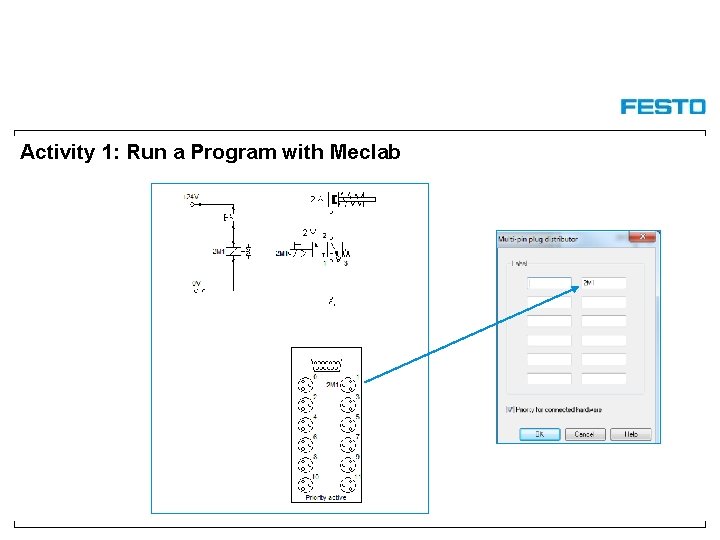
Activity 1: Run a Program with Meclab
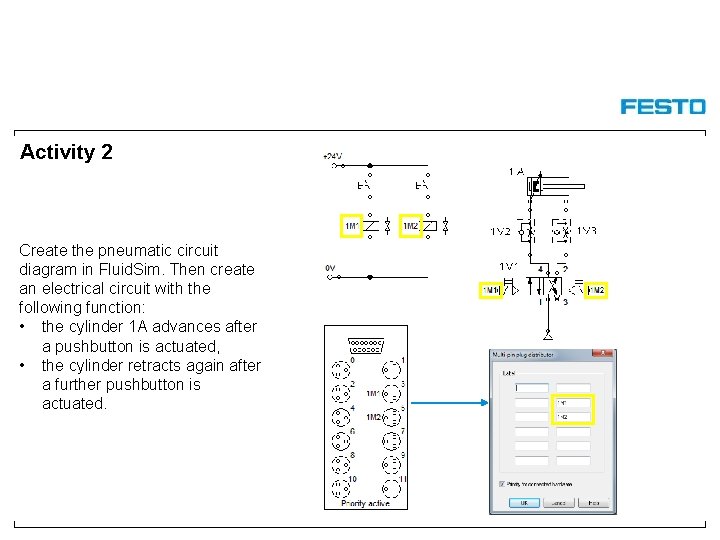
Activity 2 Create the pneumatic circuit diagram in Fluid. Sim. Then create an electrical circuit with the following function: • the cylinder 1 A advances after a pushbutton is actuated, • the cylinder retracts again after a further pushbutton is actuated.
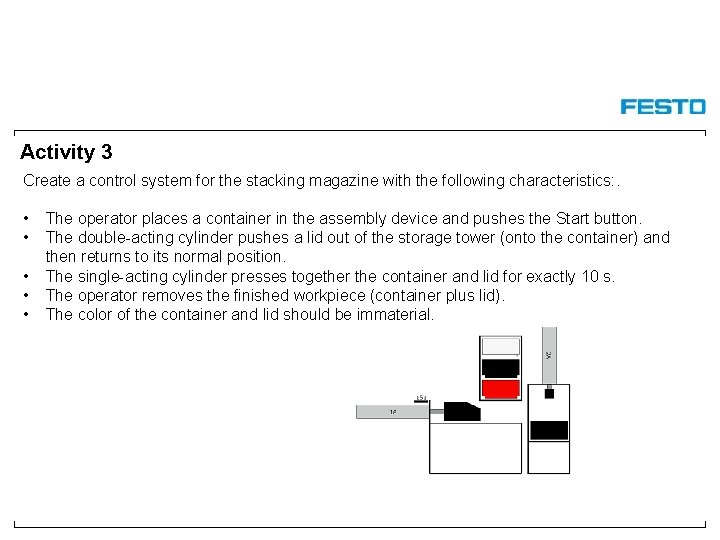
Activity 3 Create a control system for the stacking magazine with the following characteristics: . • • • The operator places a container in the assembly device and pushes the Start button. The double-acting cylinder pushes a lid out of the storage tower (onto the container) and then returns to its normal position. The single-acting cylinder presses together the container and lid for exactly 10 s. The operator removes the finished workpiece (container plus lid). The color of the container and lid should be immaterial.
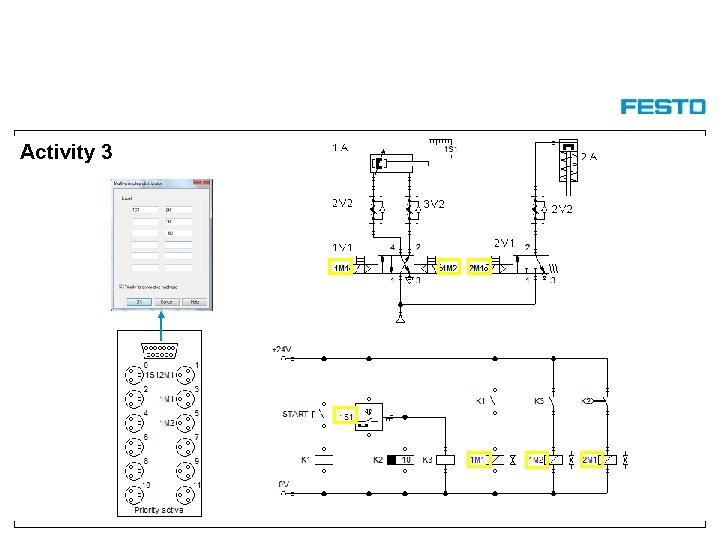
Activity 3
Conveyor Station
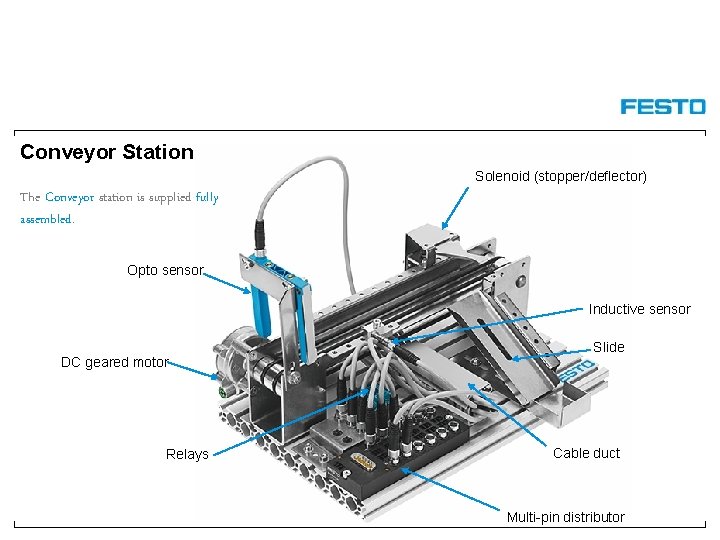
Conveyor Station Solenoid (stopper/deflector) The Conveyor station is supplied fully assembled. Opto sensor Inductive sensor DC geared motor Relays Slide Cable duct Multi-pin distributor
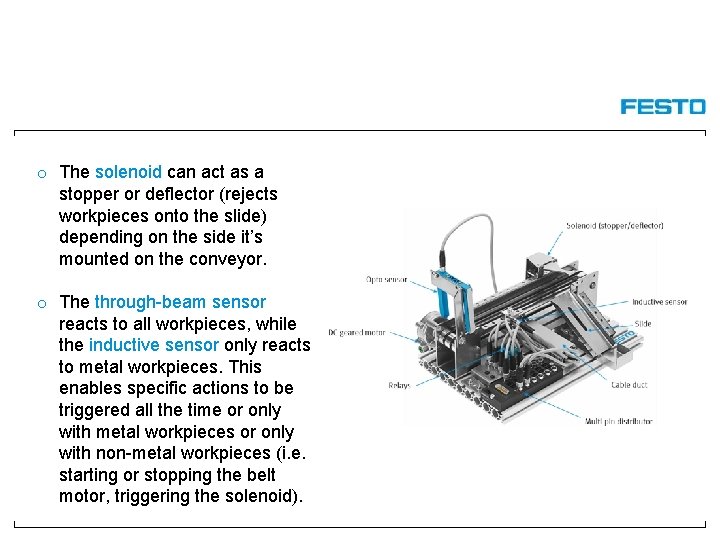
o The solenoid can act as a stopper or deflector (rejects workpieces onto the slide) depending on the side it’s mounted on the conveyor. o The through-beam sensor reacts to all workpieces, while the inductive sensor only reacts to metal workpieces. This enables specific actions to be triggered all the time or only with metal workpieces or only with non-metal workpieces (i. e. starting or stopping the belt motor, triggering the solenoid).
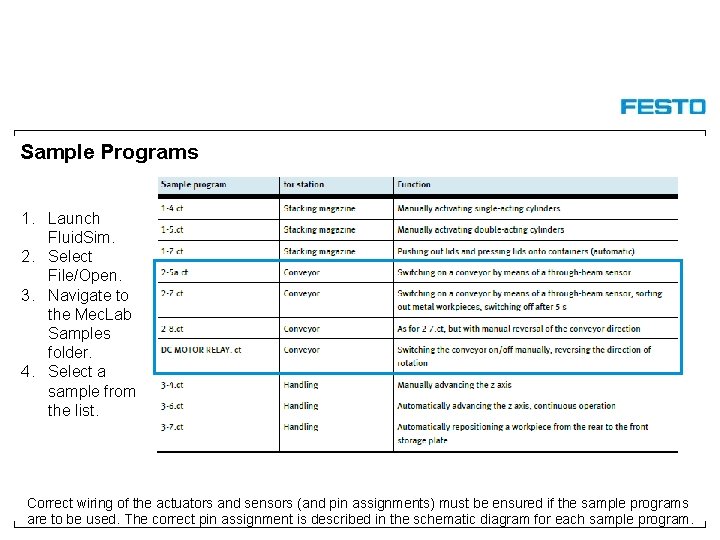
Sample Programs 1. Launch Fluid. Sim. 2. Select File/Open. 3. Navigate to the Mec. Lab Samples folder. 4. Select a sample from the list. Correct wiring of the actuators and sensors (and pin assignments) must be ensured if the sample programs are to be used. The correct pin assignment is described in the schematic diagram for each sample program.
Handling Station
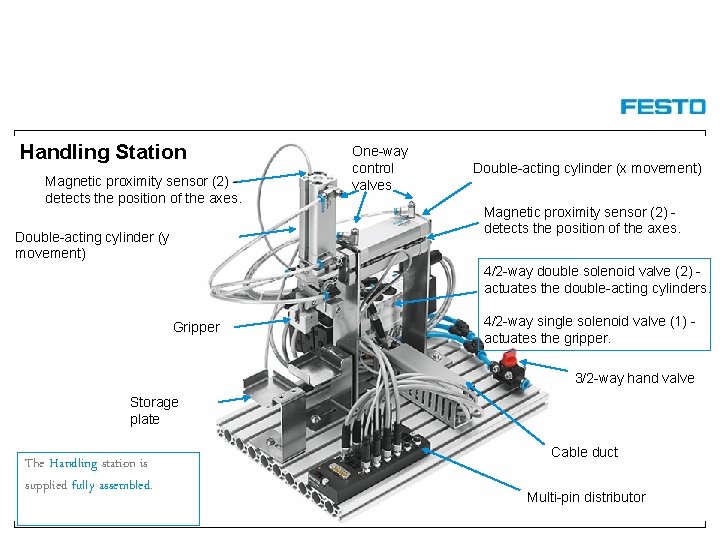
Handling Station Magnetic proximity sensor (2) detects the position of the axes. Double-acting cylinder (y movement) One-way control valves Double-acting cylinder (x movement) Magnetic proximity sensor (2) detects the position of the axes. 4/2 -way double solenoid valve (2) actuates the double-acting cylinders. Gripper 4/2 -way single solenoid valve (1) actuates the gripper. 3/2 -way hand valve Storage plate The Handling station is supplied fully assembled. Cable duct Multi-pin distributor
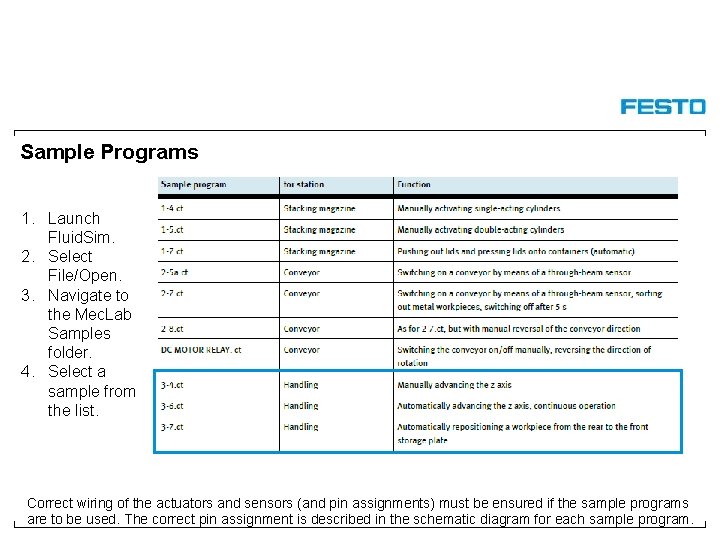
Sample Programs 1. Launch Fluid. Sim. 2. Select File/Open. 3. Navigate to the Mec. Lab Samples folder. 4. Select a sample from the list. Correct wiring of the actuators and sensors (and pin assignments) must be ensured if the sample programs are to be used. The correct pin assignment is described in the schematic diagram for each sample program.
Coupling Stations
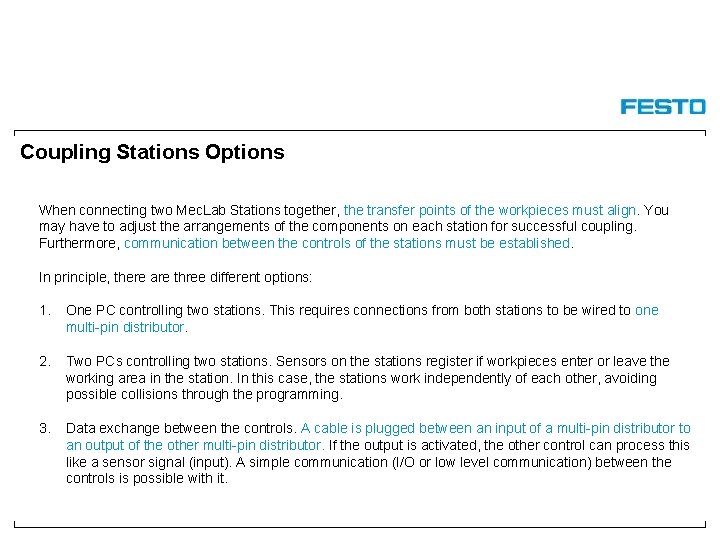
Coupling Stations Options When connecting two Mec. Lab Stations together, the transfer points of the workpieces must align. You may have to adjust the arrangements of the components on each station for successful coupling. Furthermore, communication between the controls of the stations must be established. In principle, there are three different options: 1. One PC controlling two stations. This requires connections from both stations to be wired to one multi-pin distributor. 2. Two PCs controlling two stations. Sensors on the stations register if workpieces enter or leave the working area in the station. In this case, the stations work independently of each other, avoiding possible collisions through the programming. 3. Data exchange between the controls. A cable is plugged between an input of a multi-pin distributor to an output of the other multi-pin distributor. If the output is activated, the other control can process this like a sensor signal (input). A simple communication (I/O or low level communication) between the controls is possible with it.
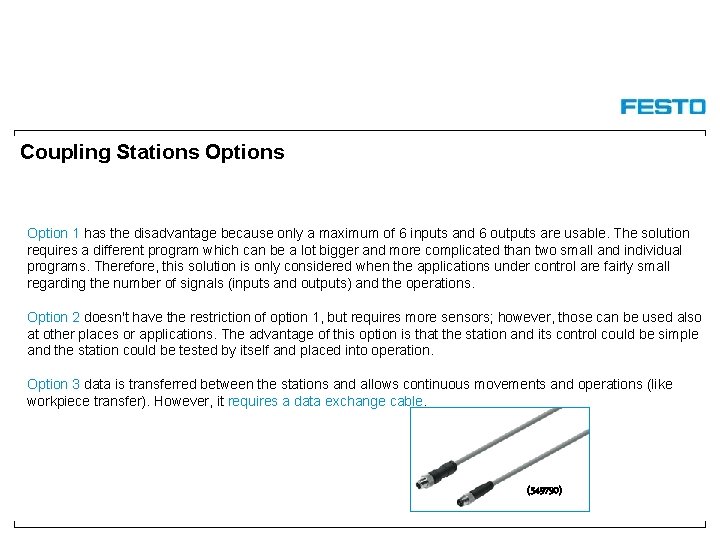
Coupling Stations Option 1 has the disadvantage because only a maximum of 6 inputs and 6 outputs are usable. The solution requires a different program which can be a lot bigger and more complicated than two small and individual programs. Therefore, this solution is only considered when the applications under control are fairly small regarding the number of signals (inputs and outputs) and the operations. Option 2 doesn't have the restriction of option 1, but requires more sensors; however, those can be used also at other places or applications. The advantage of this option is that the station and its control could be simple and the station could be tested by itself and placed into operation. Option 3 data is transferred between the stations and allows continuous movements and operations (like workpiece transfer). However, it requires a data exchange cable. (549790)
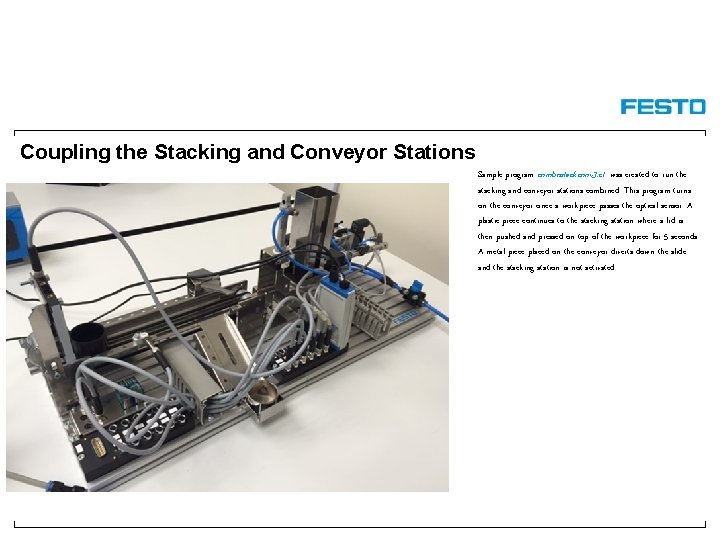
Coupling the Stacking and Conveyor Stations Sample program combostackconv 3. ct was created to run the stacking and conveyor stations combined. This program turns on the conveyor once a workpiece passes the optical sensor. A plastic piece continues to the stacking station where a lid is then pushed and pressed on top of the workpiece for 5 seconds. A metal piece placed on the conveyor diverts down the slide and the stacking station is not activated.
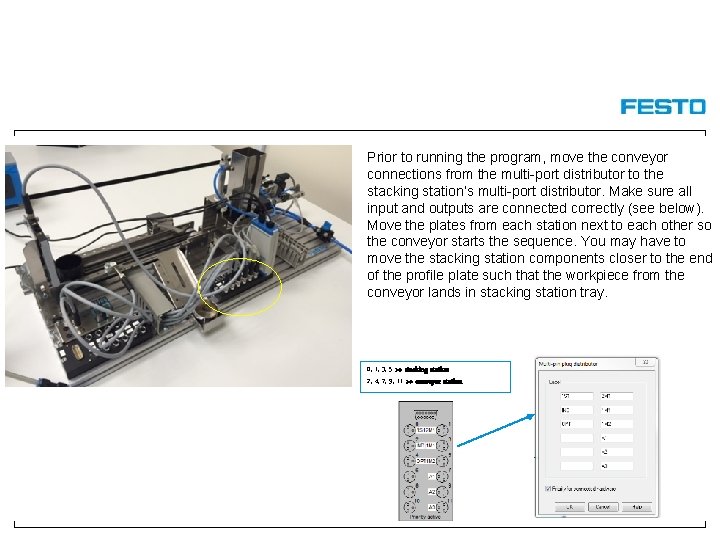
Prior to running the program, move the conveyor connections from the multi-port distributor to the stacking station’s multi-port distributor. Make sure all input and outputs are connected correctly (see below). Move the plates from each station next to each other so the conveyor starts the sequence. You may have to move the stacking station components closer to the end of the profile plate such that the workpiece from the conveyor lands in stacking station tray. 0, 1, 3, 5 >> stacking station 2, 4, 7, 9, 11 >> conveyor station
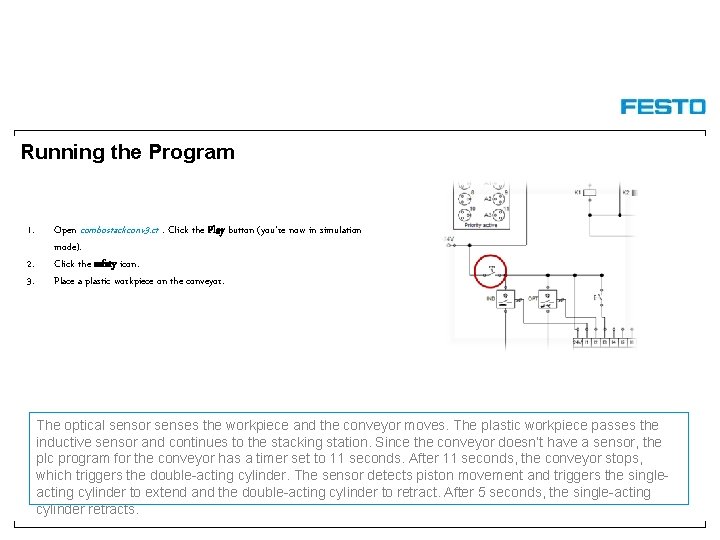
Running the Program 1. 2. 3. Open combostackconv 3. ct. Click the Play button (you’re now in simulation mode). Click the safety icon. Place a plastic workpiece on the conveyor. The optical sensor senses the workpiece and the conveyor moves. The plastic workpiece passes the inductive sensor and continues to the stacking station. Since the conveyor doesn’t have a sensor, the plc program for the conveyor has a timer set to 11 seconds. After 11 seconds, the conveyor stops, which triggers the double-acting cylinder. The sensor detects piston movement and triggers the singleacting cylinder to extend and the double-acting cylinder to retract. After 5 seconds, the single-acting cylinder retracts.

Thank You!
- Slides: 43