
Measures of Academic Progress MAP Test Administration Proctor
- Slides: 27
Measures of Academic Progress (MAP) – Test Administration Proctor Training August 31, 2016 Presented by: Miss Hammer & Ms. Shin Created by: Michele Cunha, R&E, SAUSD
Please report to the appropriate session at this time • ELA, Math, Science Teachers who are Veteran to MAP Proctoring – Learning Center – Ms. Shin • PE, Elective, Social Science Teachers & who are NEW to MAP Proctoring – Lab 4104 – Miss Hammer Research & Evaluation, SAUSD 2
• Please make sure cell phones are off, on silent, or vibrate. Research & Evaluation, SAUSD 3
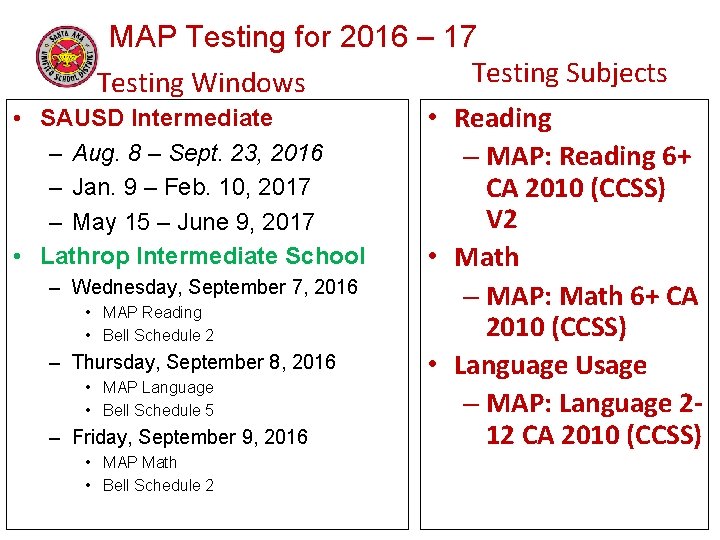
• MAP Testing for 2016 – 17 Testing Subjects Testing Windows SAUSD Intermediate • Reading – Aug. 8 – Sept. 23, 2016 – MAP: Reading 6+ – Jan. 9 – Feb. 10, 2017 – May 15 – June 9, 2017 • Lathrop Intermediate School – Wednesday, September 7, 2016 • MAP Reading • Bell Schedule 2 – Thursday, September 8, 2016 • MAP Language • Bell Schedule 5 – Friday, September 9, 2016 • MAP Math • Bell Schedule 2 CA 2010 (CCSS) V 2 • Math – MAP: Math 6+ CA 2010 (CCSS) • Language Usage – MAP: Language 212 CA 2010 (CCSS)
Chromebooks • Tuesday, September 6, 2016 – Specific instructions for students who have still not yet been issued a Chromebook will be provided. 5
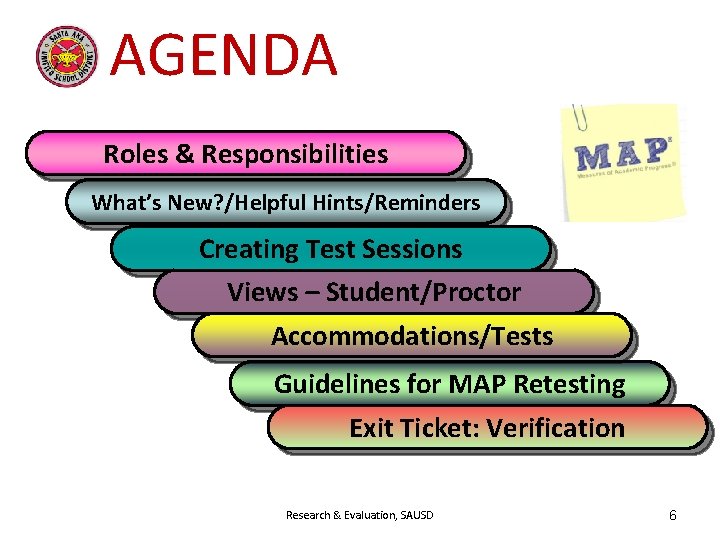
AGENDA Roles & Responsibilities What’s New? /Helpful Hints/Reminders Creating Test Sessions Views – Student/Proctor Accommodations/Tests Guidelines for MAP Retesting Exit Ticket: Verification Research & Evaluation, SAUSD 6
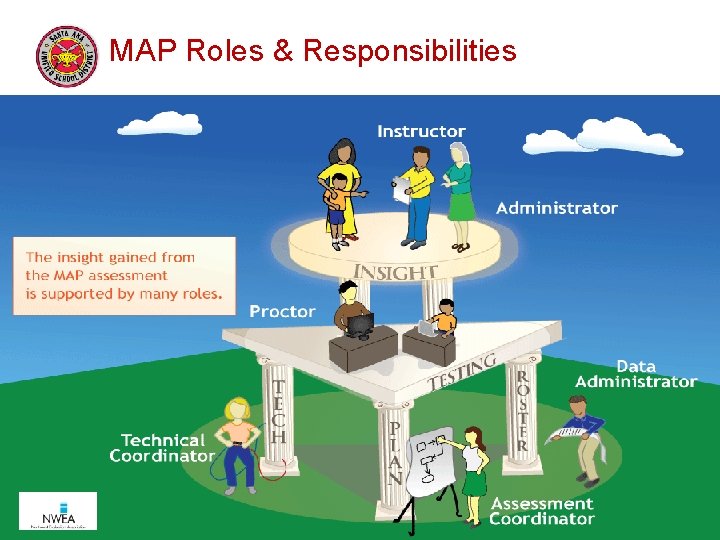
MAP Roles & Responsibilities 7
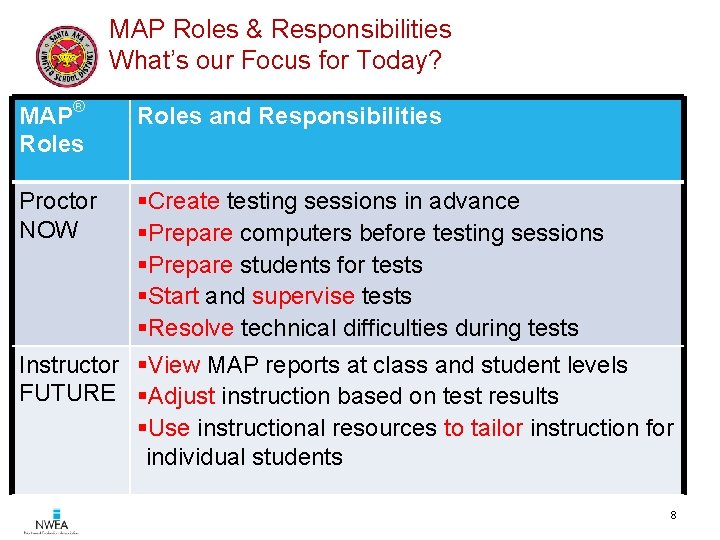
MAP Roles & Responsibilities What’s our Focus for Today? MAP® Roles and Responsibilities §Create testing sessions in advance §Prepare computers before testing sessions §Prepare students for tests §Start and supervise tests §Resolve technical difficulties during tests Instructor §View MAP reports at class and student levels FUTURE §Adjust instruction based on test results §Use instructional resources to tailor instruction for individual students Proctor NOW 8
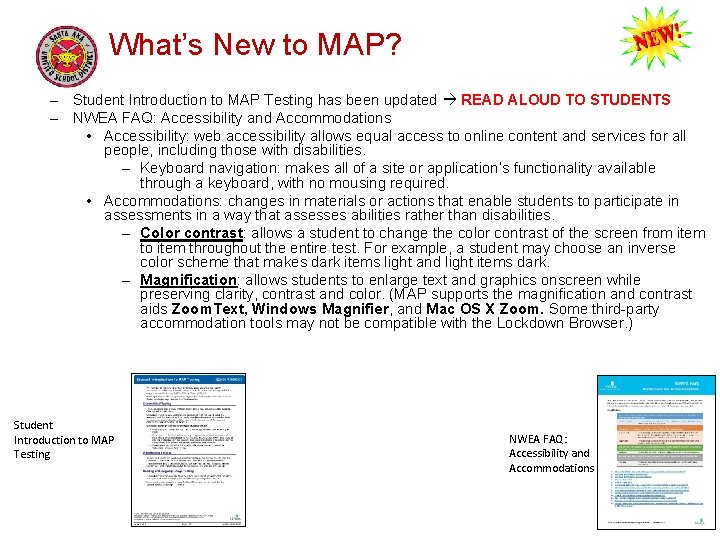
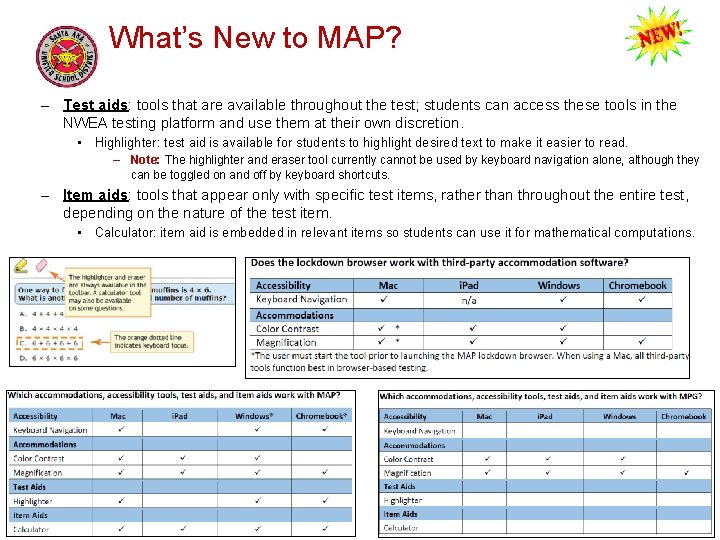
What’s New to MAP? – Student Introduction to MAP Testing has been updated READ ALOUD TO STUDENTS – NWEA FAQ: Accessibility and Accommodations • Accessibility: web accessibility allows equal access to online content and services for all people, including those with disabilities. – Keyboard navigation: makes all of a site or application’s functionality available through a keyboard, with no mousing required. • Accommodations: changes in materials or actions that enable students to participate in assessments in a way that assesses abilities rather than disabilities. – Color contrast: allows a student to change the color contrast of the screen from item to item throughout the entire test. For example, a student may choose an inverse color scheme that makes dark items light and light items dark. – Magnification: allows students to enlarge text and graphics onscreen while preserving clarity, contrast and color. (MAP supports the magnification and contrast aids Zoom. Text, Windows Magnifier, and Mac OS X Zoom. Some third-party accommodation tools may not be compatible with the Lockdown Browser. ) Student Introduction to MAP Testing NWEA FAQ: Accessibility and Accommodations 9
What’s New to MAP? – Test aids: tools that are available throughout the test; students can access these tools in the NWEA testing platform and use them at their own discretion. • Highlighter: test aid is available for students to highlight desired text to make it easier to read. – Note: The highlighter and eraser tool currently cannot be used by keyboard navigation alone, although they can be toggled on and off by keyboard shortcuts. – Item aids: tools that appear only with specific test items, rather than throughout the entire test, depending on the nature of the test item. • Calculator: item aid is embedded in relevant items so students can use it for mathematical computations. 10
11
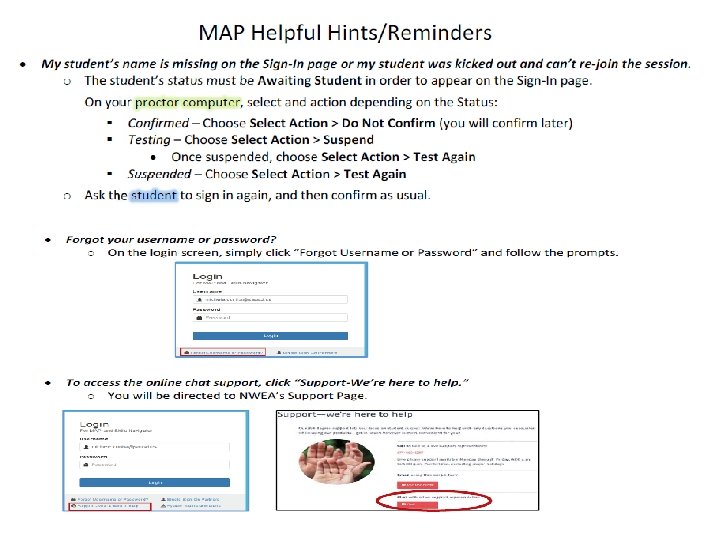
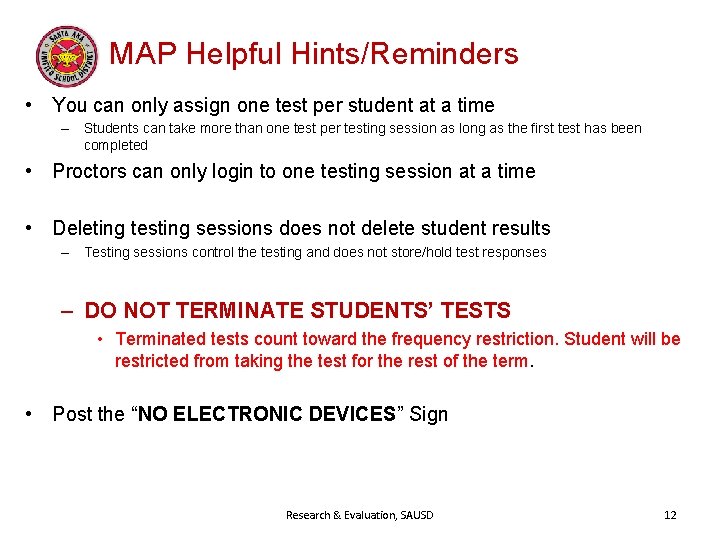
MAP Helpful Hints/Reminders • You can only assign one test per student at a time – Students can take more than one test per testing session as long as the first test has been completed • Proctors can only login to one testing session at a time • Deleting testing sessions does not delete student results – Testing sessions control the testing and does not store/hold test responses – DO NOT TERMINATE STUDENTS’ TESTS • Terminated tests count toward the frequency restriction. Student will be restricted from taking the test for the rest of the term. • Post the “NO ELECTRONIC DEVICES” Sign Research & Evaluation, SAUSD 12
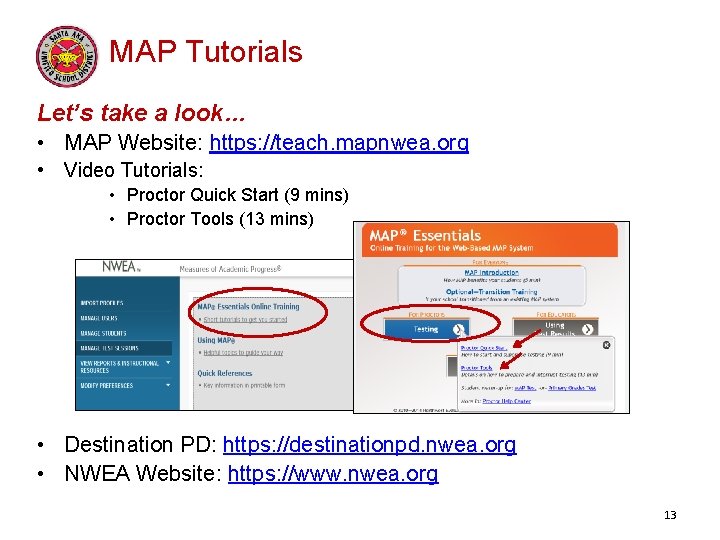
MAP Tutorials Let’s take a look… • MAP Website: https: //teach. mapnwea. org • Video Tutorials: • Proctor Quick Start (9 mins) • Proctor Tools (13 mins) • Destination PD: https: //destinationpd. nwea. org • NWEA Website: https: //www. nwea. org 13
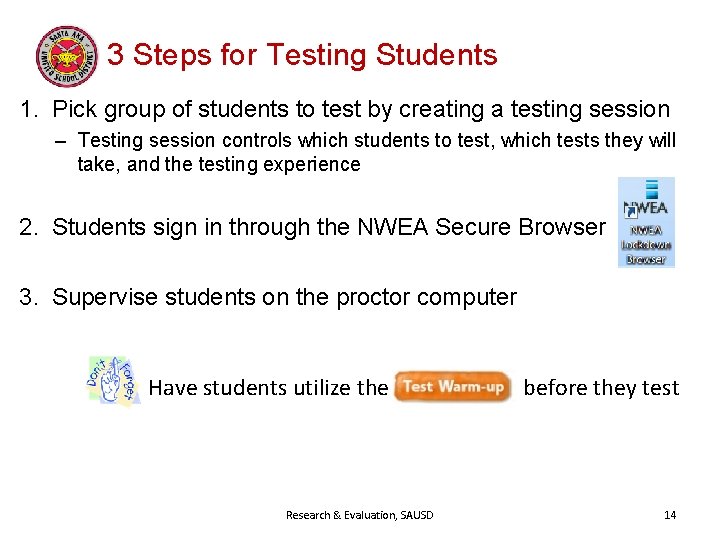
3 Steps for Testing Students 1. Pick group of students to test by creating a testing session – Testing session controls which students to test, which tests they will take, and the testing experience 2. Students sign in through the NWEA Secure Browser 3. Supervise students on the proctor computer Have students utilize the Research & Evaluation, SAUSD before they test 14
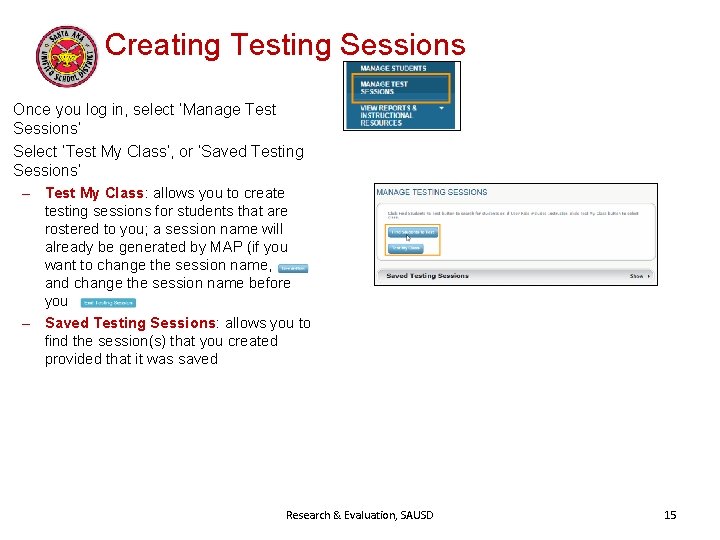
Creating Testing Sessions Once you log in, select ‘Manage Test Sessions’ Select ‘Test My Class’, or ‘Saved Testing Sessions’ – Test My Class: allows you to create testing sessions for students that are rostered to you; a session name will already be generated by MAP (if you want to change the session name, and change the session name before you – Saved Testing Sessions: allows you to find the session(s) that you created provided that it was saved Research & Evaluation, SAUSD 15
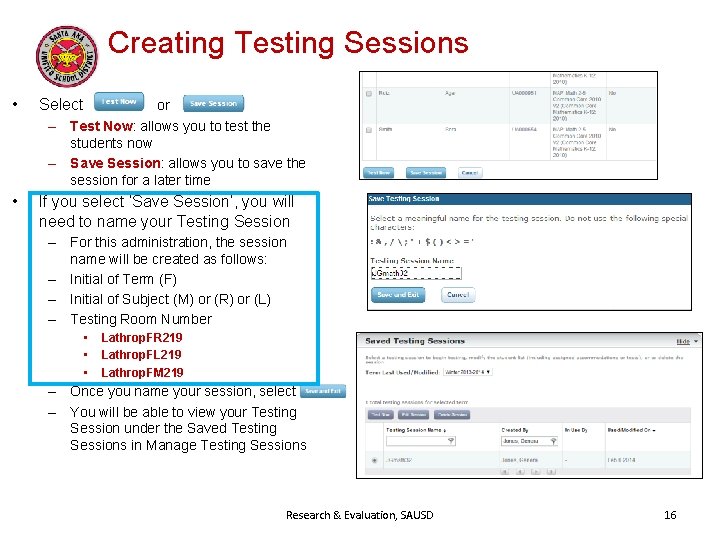
Creating Testing Sessions • Select • If you select ‘Save Session’, you will need to name your Testing Session or – Test Now: allows you to test the students now – Save Session: allows you to save the session for a later time – For this administration, the session name will be created as follows: – Initial of Term (F) – Initial of Subject (M) or (R) or (L) – Testing Room Number • • • Lathrop. FR 219 Lathrop. FL 219 Lathrop. FM 219 – Once you name your session, select – You will be able to view your Testing Session under the Saved Testing Sessions in Manage Testing Sessions Research & Evaluation, SAUSD 16
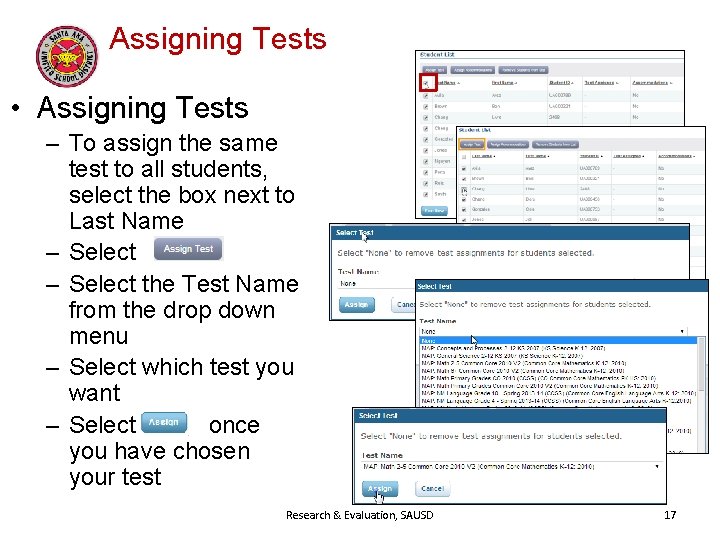
Assigning Tests • Assigning Tests – To assign the same test to all students, select the box next to Last Name – Select the Test Name from the drop down menu – Select which test you want – Select once you have chosen your test Research & Evaluation, SAUSD 17
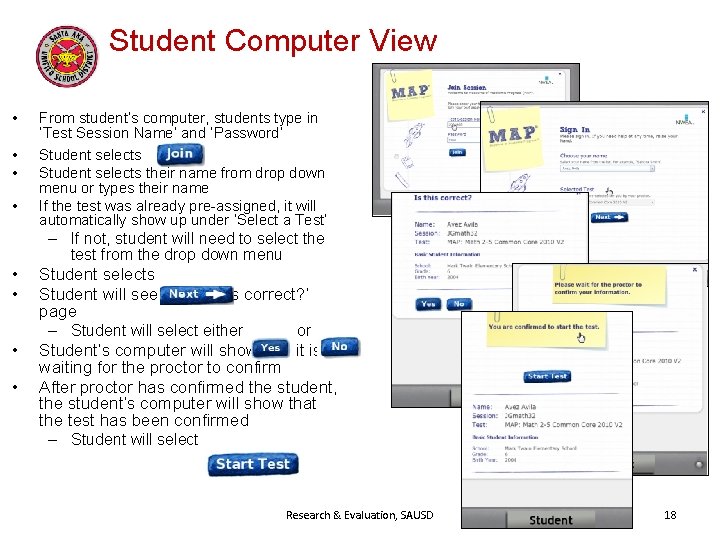
Student Computer View • From student’s computer, students type in ‘Test Session Name’ and ‘Password’ • • Student selects their name from drop down menu or types their name If the test was already pre-assigned, it will automatically show up under ‘Select a Test’ • • • – If not, student will need to select the test from the drop down menu Student selects Student will see the ‘Is this correct? ’ page – Student will select either or Student’s computer will show that it is waiting for the proctor to confirm After proctor has confirmed the student, the student’s computer will show that the test has been confirmed – Student will select Research & Evaluation, SAUSD 18
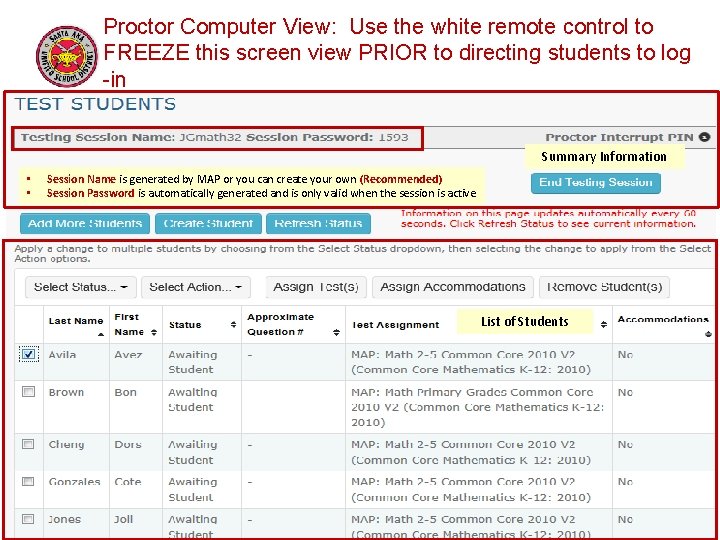
Proctor Computer View: Use the white remote control to FREEZE this screen view PRIOR to directing students to log -in Summary Information • • Session Name is generated by MAP or you can create your own (Recommended) Session Password is automatically generated and is only valid when the session is active List of Students
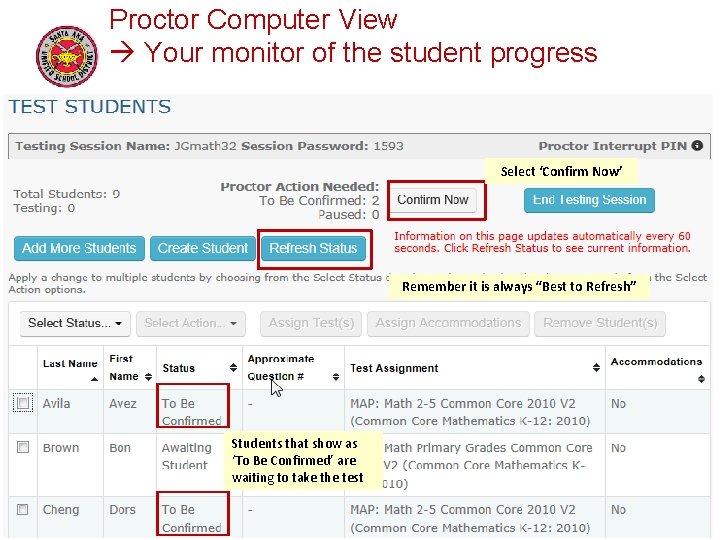
Proctor Computer View Your monitor of the student progress Select ‘Confirm Now’ Remember it is always “Best to Refresh” Students that show as ‘To Be Confirmed’ are waiting to take the test
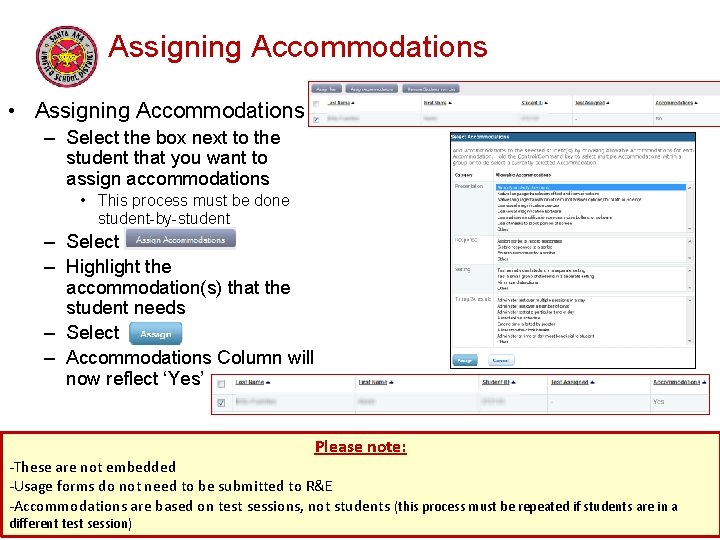
Assigning Accommodations • Assigning Accommodations – Select the box next to the student that you want to assign accommodations • This process must be done student-by-student – Select – Highlight the accommodation(s) that the student needs – Select – Accommodations Column will now reflect ‘Yes’ Please note: -These are not embedded -Usage forms do not need to be submitted to R&E -Accommodations are based on test sessions, not students (this process must be repeated if students are in a different test session) 21
Important Notes: • Special Education Teachers – Please assign accommodations to your Caseload Students according to their IEP – Refer to “Other State-Wide/District-Wide Assessment(s)” for this information • Students with an IEP will be tested by their Case Manager. – Therefore, at this time, General Education Teachers will not be assigning accommodations for students with an IEP. 22
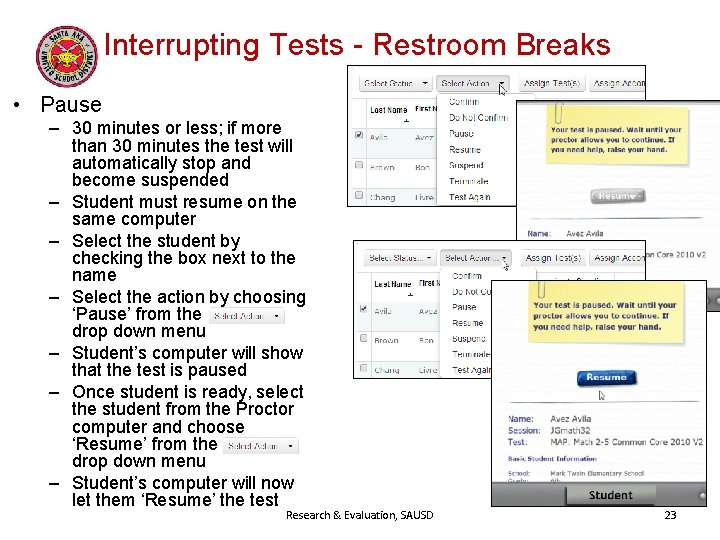
Interrupting Tests - Restroom Breaks • Pause – 30 minutes or less; if more than 30 minutes the test will automatically stop and become suspended – Student must resume on the same computer – Select the student by checking the box next to the name – Select the action by choosing ‘Pause’ from the drop down menu – Student’s computer will show that the test is paused – Once student is ready, select the student from the Proctor computer and choose ‘Resume’ from the drop down menu – Student’s computer will now let them ‘Resume’ the test Research & Evaluation, SAUSD 23
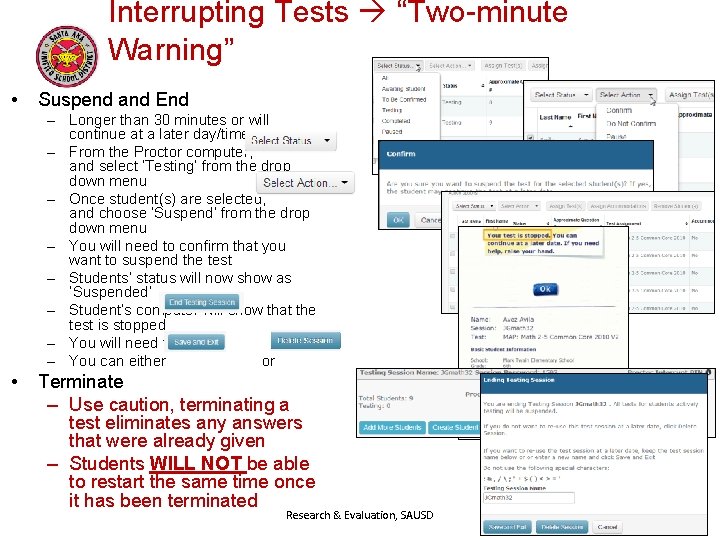
Interrupting Tests “Two-minute Warning” • Suspend and End – Longer than 30 minutes or will continue at a later day/time – From the Proctor computer, and select ‘Testing’ from the drop down menu – Once student(s) are selected, and choose ‘Suspend’ from the drop down menu – You will need to confirm that you want to suspend the test – Students’ status will now show as ‘Suspended’ – Student’s computer will show that the test is stopped – You will need to – You can either or • Terminate – Use caution, terminating a test eliminates any answers that were already given – Students WILL NOT be able to restart the same time once it has been terminated Research & Evaluation, SAUSD 24
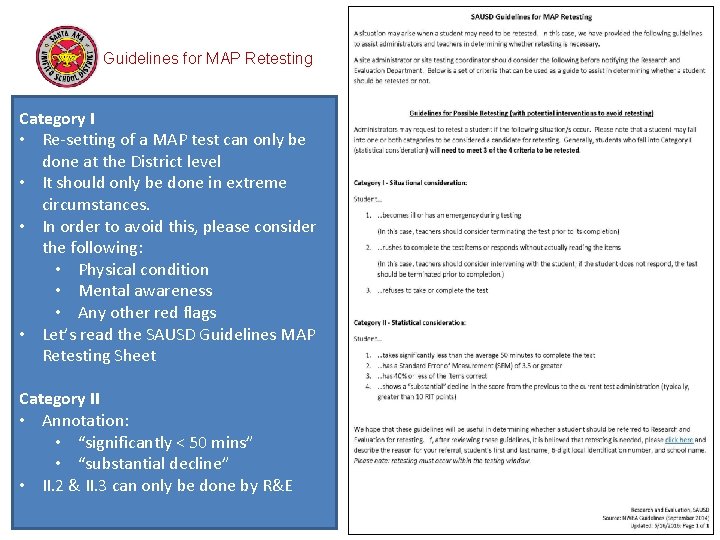
Guidelines for MAP Retesting Category I • Re-setting of a MAP test can only be done at the District level • It should only be done in extreme circumstances. • In order to avoid this, please consider the following: • Physical condition • Mental awareness • Any other red flags • Let’s read the SAUSD Guidelines MAP Retesting Sheet Category II • Annotation: • “significantly < 50 mins” • “substantial decline” • II. 2 & II. 3 can only be done by R&E 25
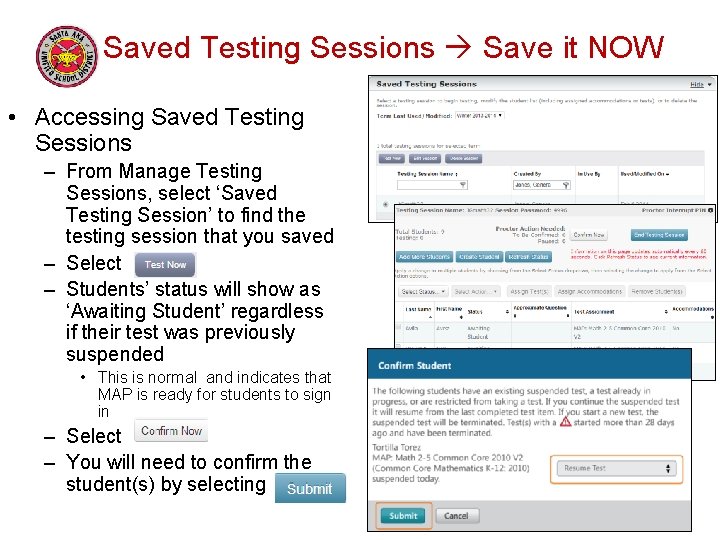
Saved Testing Sessions Save it NOW • Accessing Saved Testing Sessions – From Manage Testing Sessions, select ‘Saved Testing Session’ to find the testing session that you saved – Select – Students’ status will show as ‘Awaiting Student’ regardless if their test was previously suspended • This is normal and indicates that MAP is ready for students to sign in – Select – You will need to confirm the student(s) by selecting 26
Exit Ticket: 1. Check in with your presenter to verify that you have correctly named your 3 testing sessions for Fall MAP administration 2. Verify on Aeries, that all names on your College Prep Period Roster are also present on your MAP roster 3. Sign in to your SAUSDLEARNS. NET email account, and fill out the following form: 4. https: //goo. gl/forms/UC 7 Tw. Ge. OCYe. CUa. ZP 2 If you need further clarification or assistance after today’s training, please feel free contact us! • Ms. Shin x 53328 • Miss Hammer x 53373(office) or x 52051(testing room) Research & Evaluation, SAUSD 27