
MCSE GUIDE TO MICROSOFT WINDOWS 7 Chapter 5
- Slides: 55
MCSE GUIDE TO MICROSOFT WINDOWS 7 Chapter 5 Managing File Systems
2 Objectives • Understand file system features and limits in Windows 7 • Understand file system management tasks • Understand file and folder attributes used in the FAT and NTFS file systems • Understand file and folder permissions, permission scope and inheritance, plus the impact of ownership and moving or copying content • Understand how to use previous versions of files
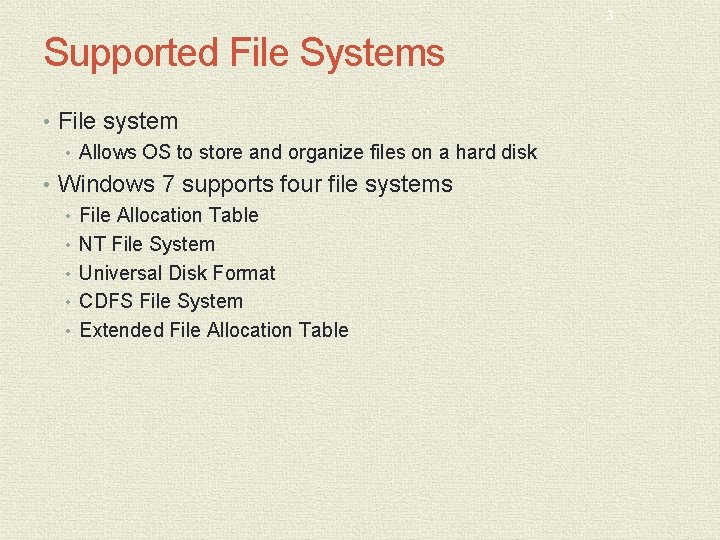
3 Supported File Systems • File system • Allows OS to store and organize files on a hard disk • Windows 7 supports four file systems • File Allocation Table • NT File System • Universal Disk Format • CDFS File System • Extended File Allocation Table
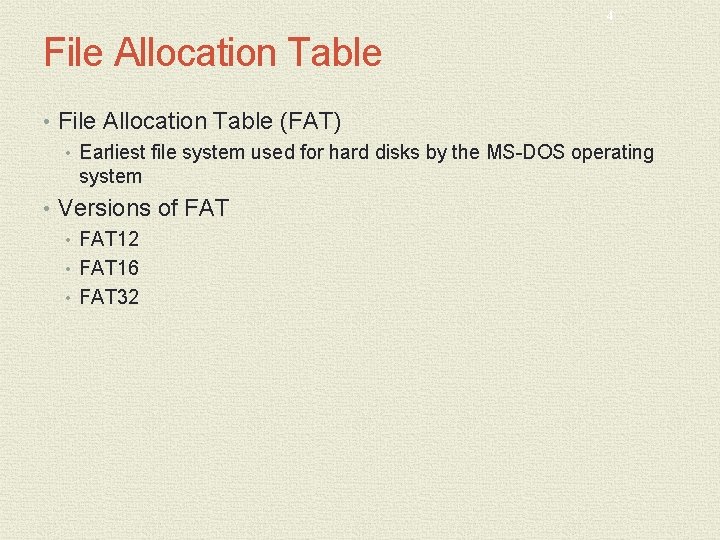
4 File Allocation Table • File Allocation Table (FAT) • Earliest file system used for hard disks by the MS-DOS operating system • Versions of FAT • FAT 12 • FAT 16 • FAT 32
5 File Allocation Table (cont'd. ) • FAT limitations • Limited fault tolerance • Inefficient storage • Limited security • FAT benefits • Supported by many legacy operating systems • Simple technology • Adequate when file and folder requirements are simple • Suitable for removable media
6 New Technology File System • New Technology File System (NTFS) • First introduced with Windows NT • NTFS partitions are theoretically limited to 256 Terabytes • Each operating system that supports NTFS is designed for a specific version of NTFS • NTFS stores files very similar to FAT • Data is secure, reliably managed, and allowed to grow
7 New Technology File System (cont'd. ) • NTFS advantages • Log file and checkpoint consistency checks • Automatic bad cluster management • Transactional NTFS • File names stored in Unicode and 8. 3 DOS format • Alternate data streams • Encrypted File System (EFS) • File and folder permissions • Compression • Disk quotas • Shrinkable/extendable partitions and volumes • Mount points • Sparse files
8 New Technology File System (cont'd. ) • Log File and Checkpoint Consistency Checks • Information about files and folders stored on the disk is kept in a special file • Called the Master File Table (MFT) • System files are hidden from general browsing • NTFS system files are protected by a transactional file system • Changes made to the NTFS system files can be rolled back to a known good state
9 New Technology File System (cont'd. ) • Automatic Bad Cluster Management • Bad Cluster File keeps a record of all the clusters that are considered unusable • If the bad cluster is currently used by a file or folder • OS will try to move that data to a different cluster
10 New Technology File System (cont'd. ) • Transactional NTFS • Similar to the transactional system used to protect NTFS system files • Utilize change logs and checkpoints to validate that updates have successfully completed • File Names Stored in Unicode and 8. 3 DOS Format • Windows 7 can use Unicode characters in the filename • Each file has two names assigned to it • Long filename • 8. 3 filename compatible with MS-DOS
11 New Technology File System (cont'd. ) • Alternate Data Streams • NTFS file system can have multiple streams of data associated with it • Applications can create additional named streams and link them to the file • Encrypted File System • NTFS files can be encrypted to protect the information from unauthorized users • Valuable form of protection for local file access • Digital encryption keys from each user are implemented to encrypt and decrypt the file
12 New Technology File System (cont'd. ) • File and Folder Permissions • Each file and folder on an NTFS file system has its own list of permissions • Determine the actions that users or groups are allowed to perform with that item • List of permissions is known as the Access Control List (ACL) • ACL permissions are stored in NTFS system files hidden on the partition itself • Compression • Can compress files to save space on NTFS volumes
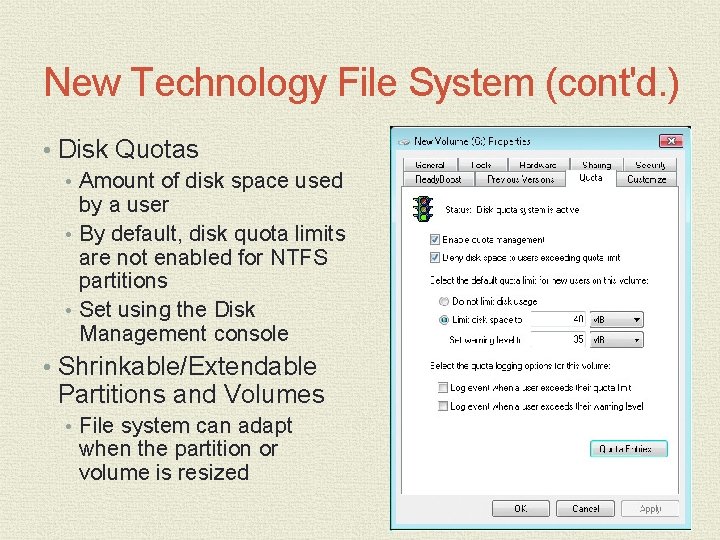
New Technology File System (cont'd. ) • Disk Quotas • Amount of disk space used by a user • By default, disk quota limits are not enabled for NTFS partitions • Set using the Disk Management console • Shrinkable/Extendable Partitions and Volumes • File system can adapt when the partition or volume is resized
14 New Technology File System (cont'd. ) • Volume Mount Points • Allow an empty folder in an NTFS-formatted file system to point to another partition or volume in the local computer • Created with the Disk Management console • Different mount points can point to the same target partition or volume • Symbolic Links • Introduced with Windows Vista • Point to a file or folder located somewhere other than that folder
15 New Technology File System (cont'd. ) • Sparse Files • Large portions of a sparse file contain bytes with the value of zero • Contain nonzero data and a list that identifies where ranges of empty data occur between the nonzero data • Space occupied in the disk corresponds only to the nonzero part
16 Universal Disk Format • Universal Disk Format (UDF) • File system defined by the Optical Storage Technology Association (OSTA) • OSTA was created to promote the use of recordable optical technologies and products • Developed as a standard to allow file interchange between different operating systems • Ideal for storing files on portable CD-ROM and DVD media • UDF is an evolving specification and several versions are defined by the OSTA
17 CDFS File System • CD-ROM File System (CDFS) • Legacy file system for read-only CD-ROM media • Windows 7 supports CDFS for compatibility with older CD- ROM media • CDFS standard closely follows the ISO 9660 standard • UDF is current preferred file system for CD media
18 Extended File Allocation Table • Extended File Allocation Table (ex. FAT) • New file system used by the manufacturer for large portable memory devices • Recommended for volume sizes of 512 TB or less • Can theoretically support a volume size equivalent to the sum total of a billion blocks sized at 64 TB each • Microsoft introduced native support for ex. FAT with Windows Vista Service Pack 1
19 File System Tasks • Common file system changes • Changing the assigned drive letter • Converting the installed file system
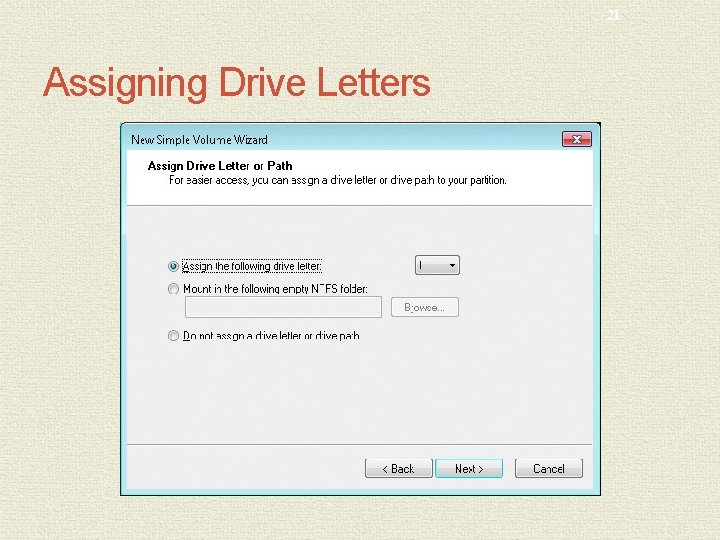
20 Changing Drive Letters • Drive letters • Used by applications and users as a quick reference to locate files • Can change the drive letter, or assign a new one, to a partition or volume • Using the Disk Management console • A single drive letter can only be assigned to one partition or volume • Can remove drive letters from a partition or volume
21 Assigning Drive Letters
22 Converting File Systems • Steps to convert NTFS to FAT • Back up the data on the partition • Reformat the partition with FAT or FAT 32 • Restore the data originally backed up from the NTFS partition • Steps to convert FAT to NTFS • Back up the data on the partition • Ensure free space remains on the partition • Convert partition using convert command-line utility • Convert command-line utility has the syntax of convert drive_id /FS: NTFS • Converting a partition requires that the convert utility runs with full Administrative access • To the local computer
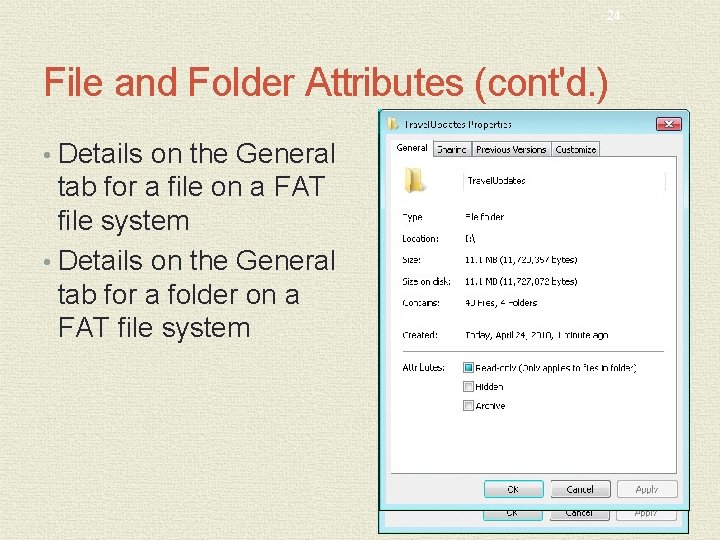
23 File and Folder Attributes • FAT and NTFS file systems use attributes • To describe general information about a file or folder
24 File and Folder Attributes (cont'd. ) • Details on the General tab for a file on a FAT file system • Details on the General tab for a folder on a FAT file system
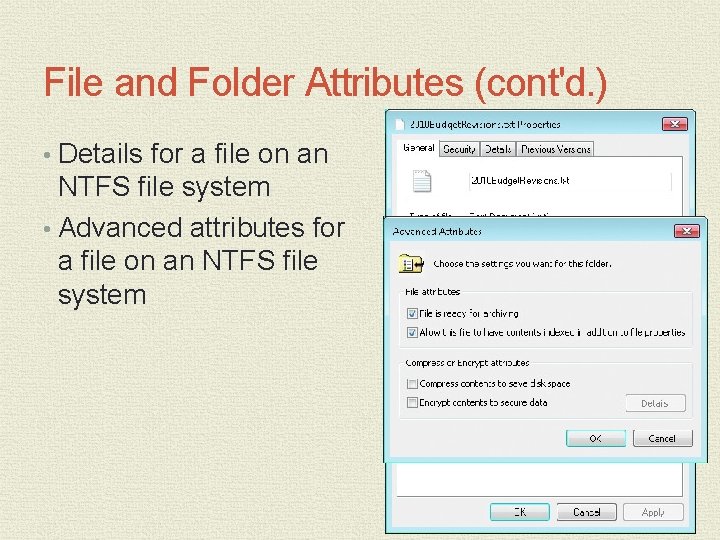
File and Folder Attributes (cont'd. ) • Details for a file on an NTFS file system • Advanced attributes for a file on an NTFS file system
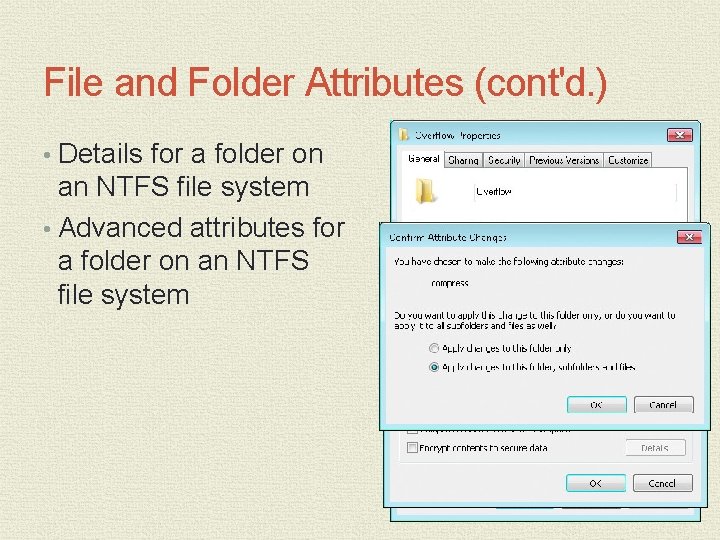
File and Folder Attributes (cont'd. ) • Details for a folder on an NTFS file system • Advanced attributes for a folder on an NTFS file system
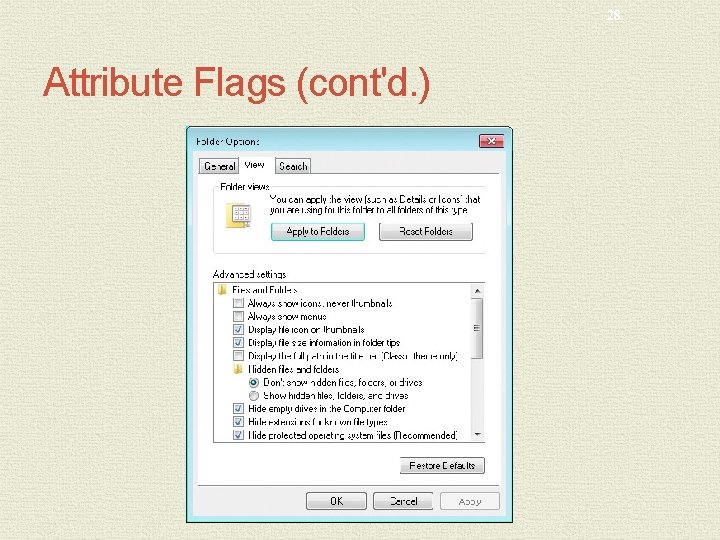
27 Attribute Flags • Attribute flags • Control some aspects of how the operating system interacts with the object • Read Only • Flag will block changes to the contents of a file • Flag is used to indicate that the folder is a system folder and should be treated differently • Archive • Set by OS when a file or folder changes
28 Attribute Flags (cont'd. )
29 Attribute Flags (cont'd. ) • Archive (cont'd. ) • Indicates that the contents have changed since the last time the file was backed up • Hidden • Set by user or OS to hide folders and files from user • System • Set by OS for specific folders and files
30 Attribute Flags (cont'd. ) • Compress • Only supported on volumes and partitions formatted with NTFS • When a file is moved from its current location to a new location in the same NTFS partition • Attributes do not change • When copying compressed files • Compress attribute on the file becomes the same as the target folder’s compress attribute setting
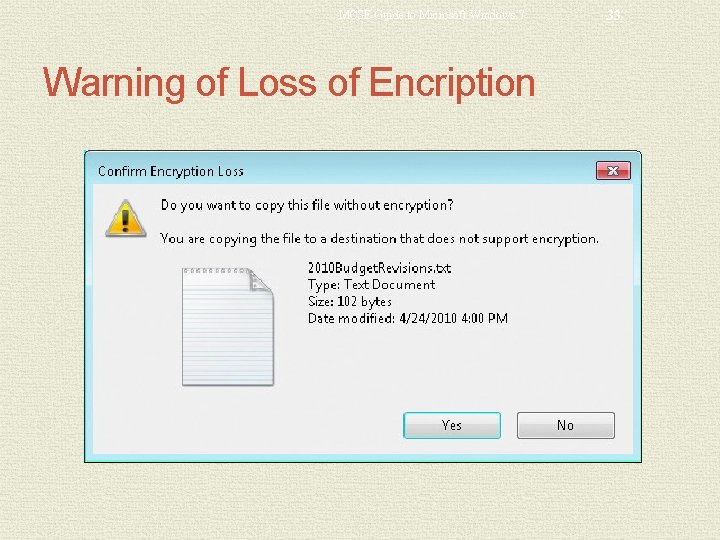
31 Attribute Flags (cont'd. ) • Encrypt • Only supported on volumes and partitions formatted with NTFS • Folder or file that is set to be encrypted cannot be compressed • Folder that is set as encrypted is not encrypted itself • Only users with valid digital security keys can decrypt and access an encrypted file’s contents • Encrypted file will remain encrypted unless: • Encrypt attribute is disabled • File is saved to a volume that does not support encrypt
32 File Certificate
MCSE Guide to Microsoft Windows 7 Warning of Loss of Encription 33
34 File and Folder Permissions • Access Control List (ACL) • Collection of Access Control Entries (ACE) • Identify a specific security identifier (that is, who) can perform a given action (that is, what) to a file or folder • Used to specify what a user or group is allowed to do with the file or folder • ACLs are supported by Windows 7 for the NTFS file system
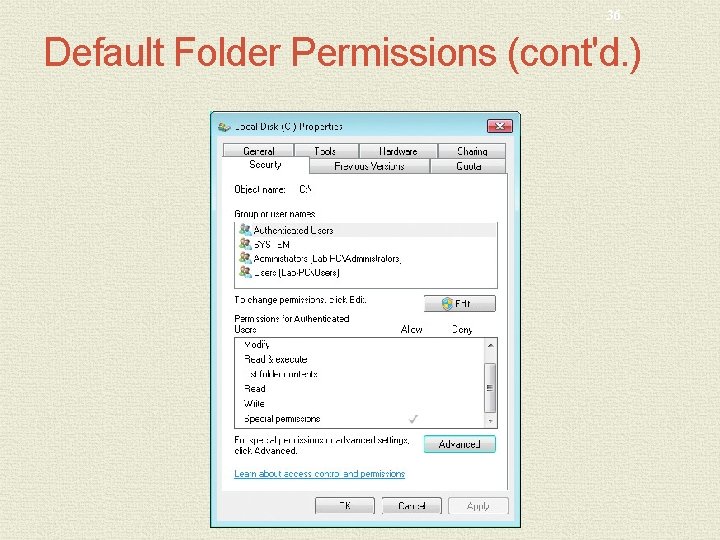
35 Default Folder Permissions • First level of folder in an NTFS partition is root folder • Default permissions for the root folder • Members of the Administrators group have full control • OS has full control • Members of Users group can read and execute programs • Authenticated users can create folders in this folder • Authenticated users can create files and write data in subfolders only
36 Default Folder Permissions (cont'd. )
37 Default Folder Permissions (cont'd. ) • Default permissions for C: subfolders • Members of Administrators group have full control • OS has full control • Members of Users group can read and execute programs • Authenticated users can create, modify, and delete files and folders • In this folder and its subfolders • Additional folders and files inherit permissions from the parent • Inheritance allows a permission setting to propagate to lower subfolders • NTFS permissions are assigned using two formats • NTFS standard permissions • Individual NTFS permissions
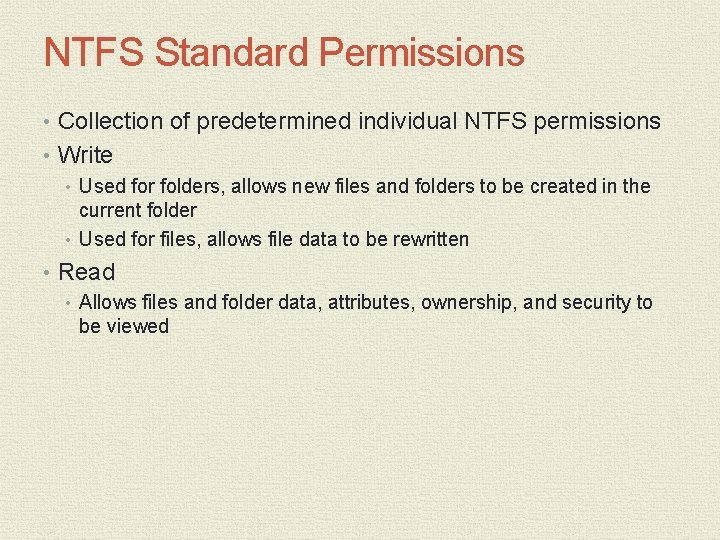
NTFS Standard Permissions • Collection of predetermined individual NTFS permissions • Write • Used for folders, allows new files and folders to be created in the current folder • Used for files, allows file data to be rewritten • Read • Allows files and folder data, attributes, ownership, and security to be viewed
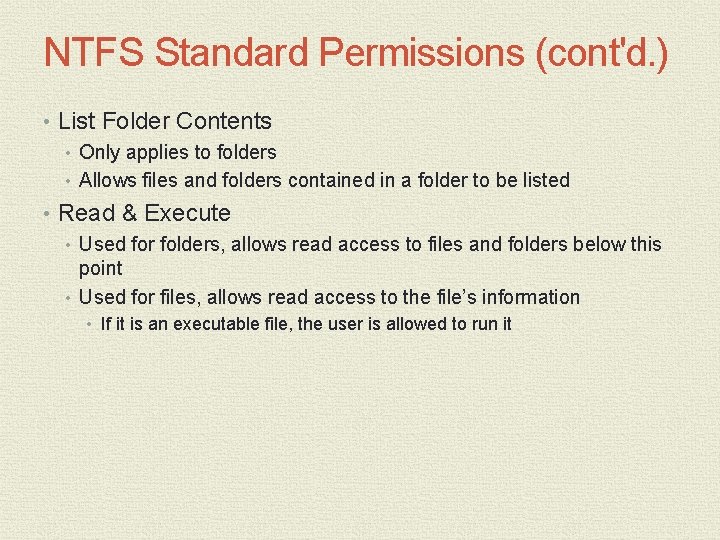
NTFS Standard Permissions (cont'd. ) • List Folder Contents • Only applies to folders • Allows files and folders contained in a folder to be listed • Read & Execute • Used for folders, allows read access to files and folders below this point • Used for files, allows read access to the file’s information • If it is an executable file, the user is allowed to run it
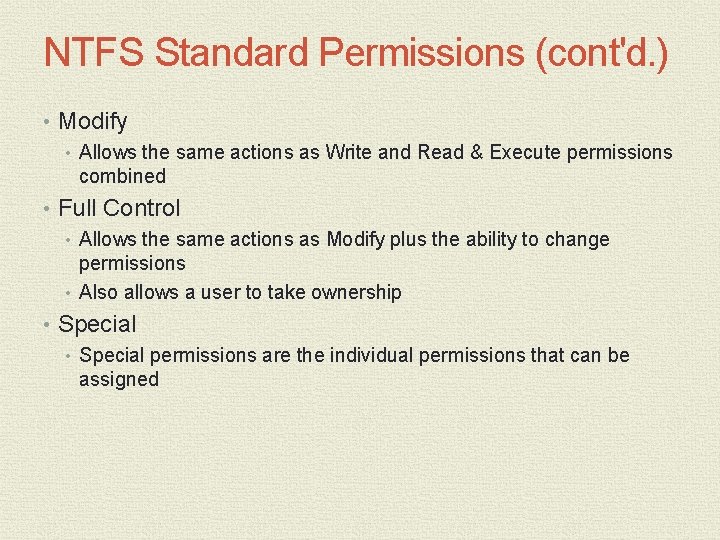
NTFS Standard Permissions (cont'd. ) • Modify • Allows the same actions as Write and Read & Execute permissions combined • Full Control • Allows the same actions as Modify plus the ability to change permissions • Also allows a user to take ownership • Special permissions are the individual permissions that can be assigned
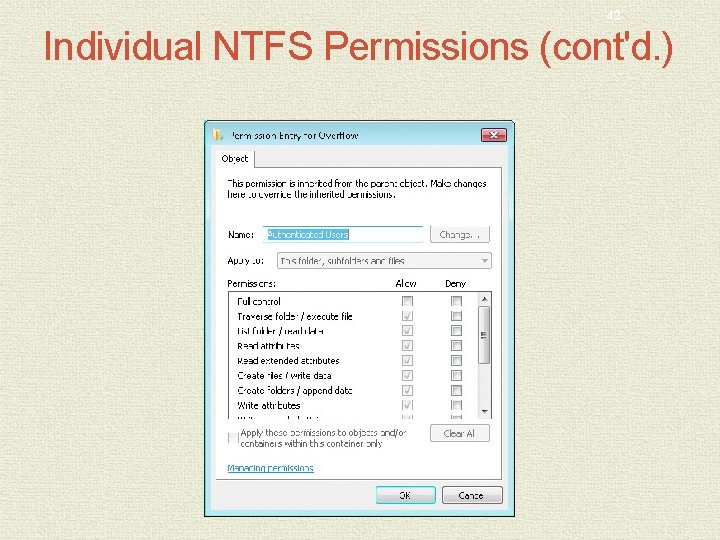
Individual NTFS Permissions • Fine-tune access and control for files and folders • Only visible when editing a permission entry in the advanced security view
42 Individual NTFS Permissions (cont'd. )
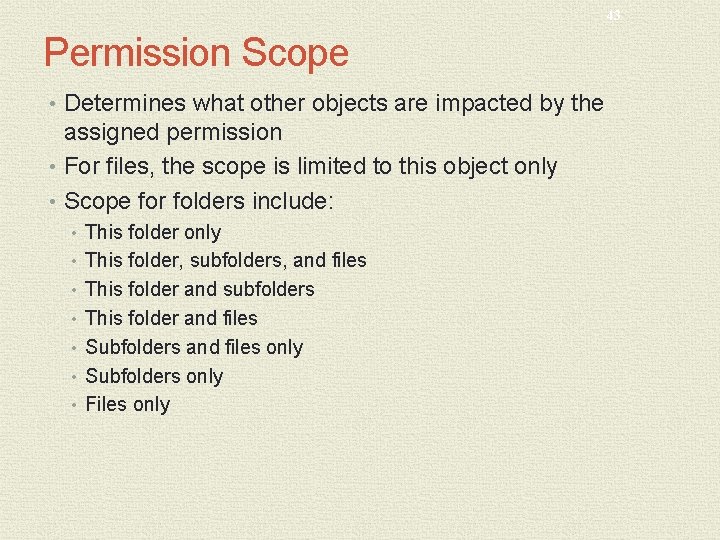
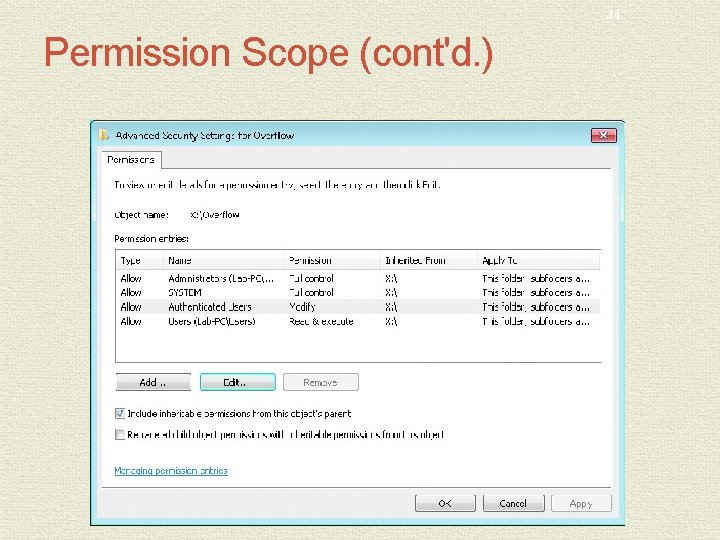
43 Permission Scope • Determines what other objects are impacted by the assigned permission • For files, the scope is limited to this object only • Scope for folders include: • This folder only • This folder, subfolders, and files • This folder and subfolders • This folder and files • Subfolders and files only • Subfolders only • Files only
44 Permission Scope (cont'd. )
45 Permission Inheritance • NTFS permissions for folders apply to the first folder on which they are used • Permission propagates to all folders below that point • Inheritance can be blocked • Once blocked, the object needs new permissions assigned to it • Any file or folder can have additional permissions assigned directly to the object • That combine with the inherited permissions
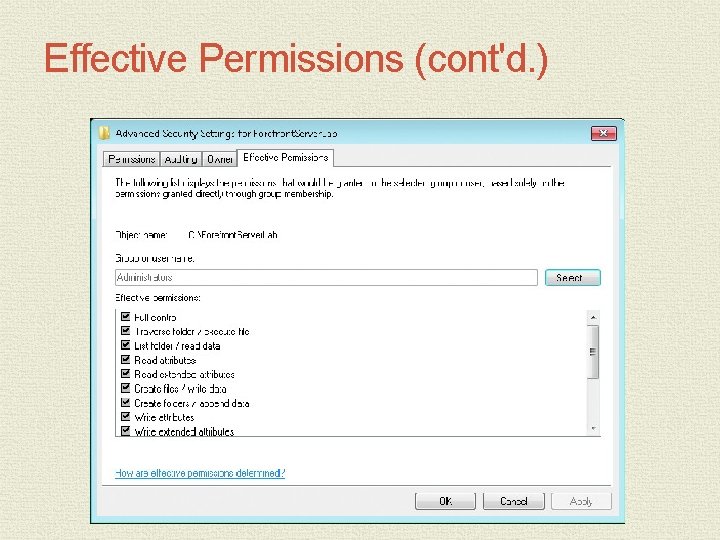
46 Effective Permissions • Many items have an impact on calculating permissions • Permissions can be inherited or directly assigned • Each permission has a scope that determines what range of objects it applies to • Permissions can be allowed or denied • Permissions can be applied to groups, and any member of that group receives those permissions • Users can be members in multiple groups that have different permissions to the same object • Owners of a file or folder have full control of the object • Effective Permissions tab • Helps to simplify the analysis of assigned permissions
Effective Permissions (cont'd. )
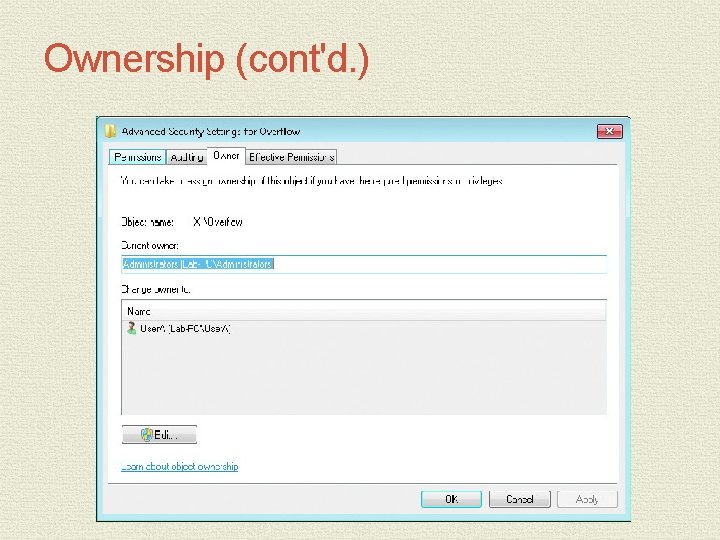
Ownership • Each NTFS file or folder has an owner • Owner of a file or folder always has the ability to assign permissions to that file or folder • Members of the Administrator group • Have the right, by default, to assign or take ownership of a file or folder • Users with the Full control standard permission or the individual NTFS permission Take ownership • Can also assume ownership of a file
Ownership (cont'd. )
Permission Changes When Content Is Copied or Moved • Copy operations always create new versions of the content that is being copied • New versions will inherit the permission settings of the target location • Move operations affect permissions differently • Depending on the destination location relative to the source location • Source and target locations on the same volume, no changes • Source and target locations on different volumes, just like a copy operation
Permission Strategy Considerations • Poorly designed permission strategy can quickly lead to problems • Best practices • Folder structure should be designed so that permissions can easily • • flow down Folder structure should have a specific permission strategy before users are allowed to store files in it Specific permissions can be applied to a file or folder for a given user or group of users Exceptions to permissions can be made All folder permissions strategies should be tested
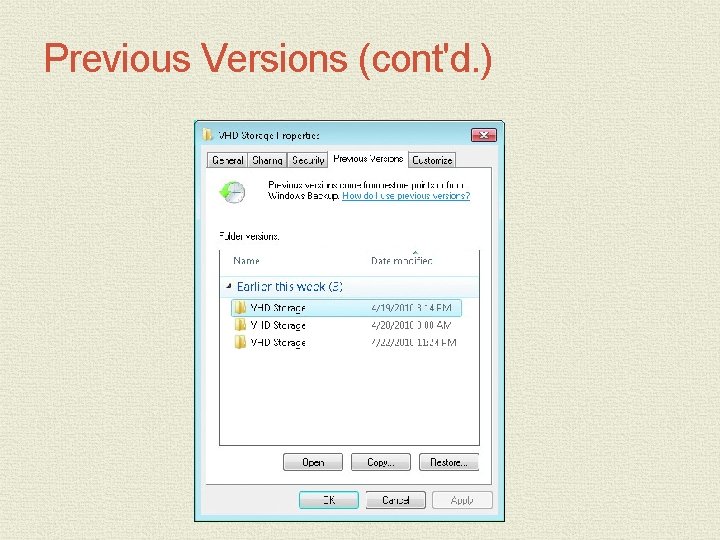
Previous Versions • Windows 7 includes a new Previous Versions tab • Use this tab to restore a previous version of a file after it has been modified or deleted • Previous versions of a file on the local computer are generated by backup or shadow copies • System in which the computer takes a snapshot of files at a specific point in time • And then tracks changes to those files
Previous Versions (cont'd. )
Summary • Primary file systems used to format bulk storage are FAT, NTFS, and UDF • Users and applications can use drive letters or mount points to access partitions and volumes • NTFS allows special support for larger partitions, alternate data streams, sparse files, file names with special characters, and transactional reliability • NTFS allows the use of symbolic links • Files stored in FAT and NTFS partitions use attributes to control and limit file access
Summary (cont'd. ) • Given a NTFS formatted source location, a copy operation will create content in a destination location • NTFS files and folders are protected by standard permissions • Permissions strategies should be carefully considered and documented before they are implemented • Previous Versions tab can be used to restore files from backup or shadow copies