
Mazes Drawing the map The map layout is
- Slides: 16
Mazes
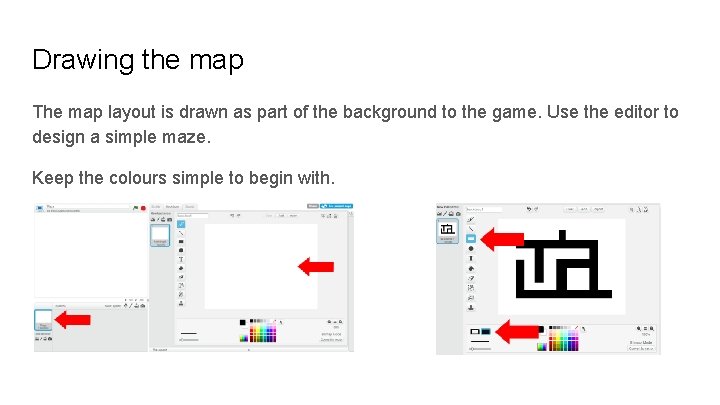
Drawing the map The map layout is drawn as part of the background to the game. Use the editor to design a simple maze. Keep the colours simple to begin with.
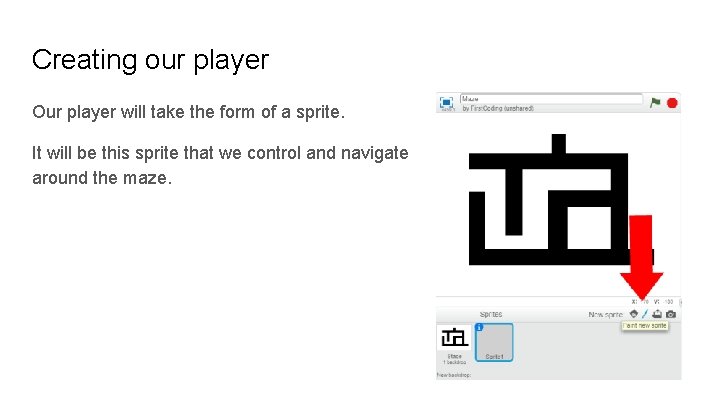
Creating our player Our player will take the form of a sprite. It will be this sprite that we control and navigate around the maze.
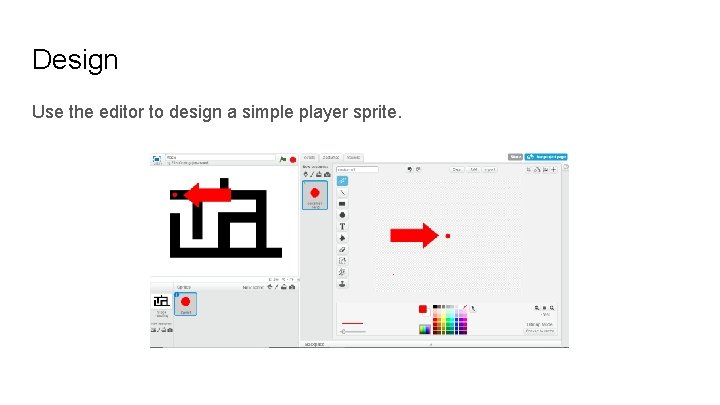
Design Use the editor to design a simple player sprite.
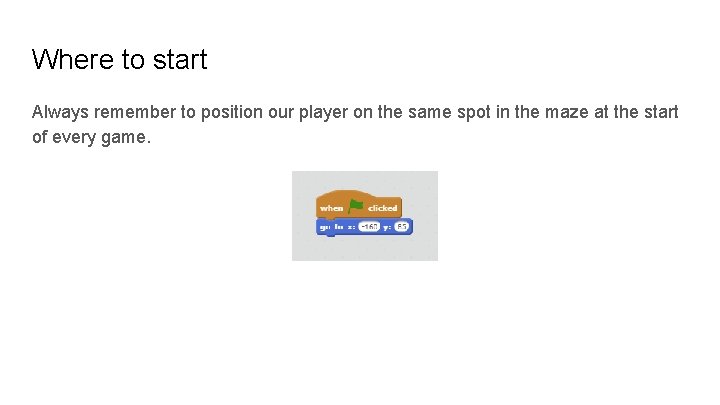
Where to start Always remember to position our player on the same spot in the maze at the start of every game.
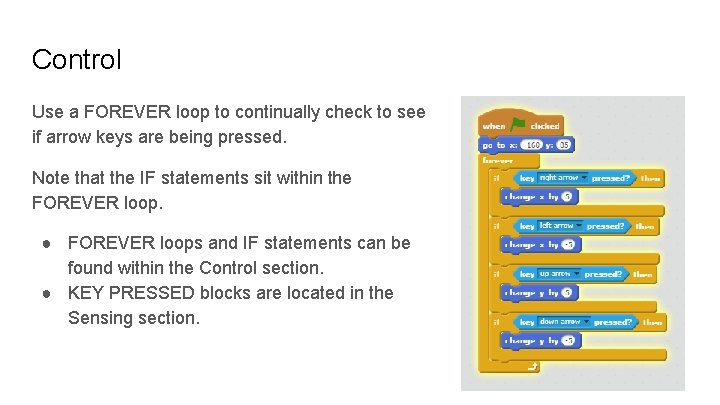
Control Use a FOREVER loop to continually check to see if arrow keys are being pressed. Note that the IF statements sit within the FOREVER loop. ● FOREVER loops and IF statements can be found within the Control section. ● KEY PRESSED blocks are located in the Sensing section.
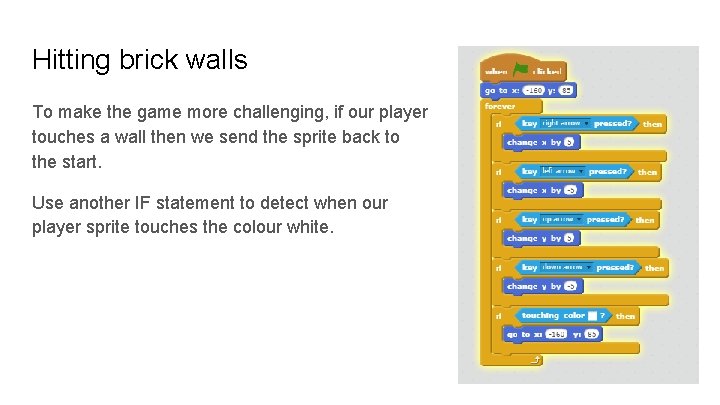
Hitting brick walls To make the game more challenging, if our player touches a wall then we send the sprite back to the start. Use another IF statement to detect when our player sprite touches the colour white.
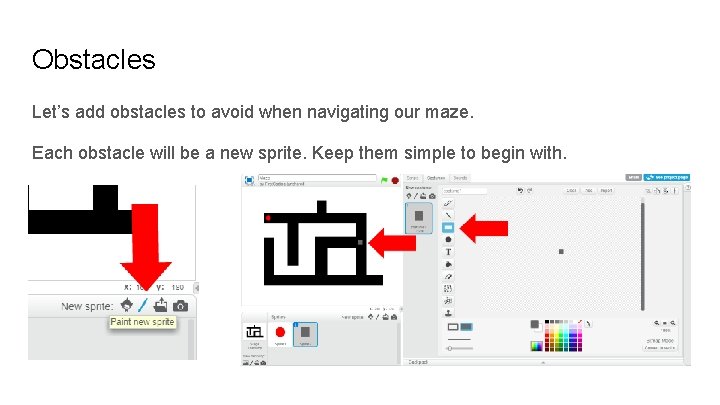
Obstacles Let’s add obstacles to avoid when navigating our maze. Each obstacle will be a new sprite. Keep them simple to begin with.
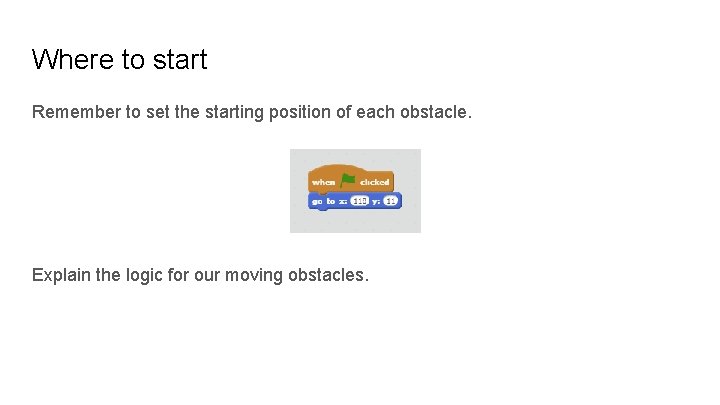
Where to start Remember to set the starting position of each obstacle. Explain the logic for our moving obstacles.
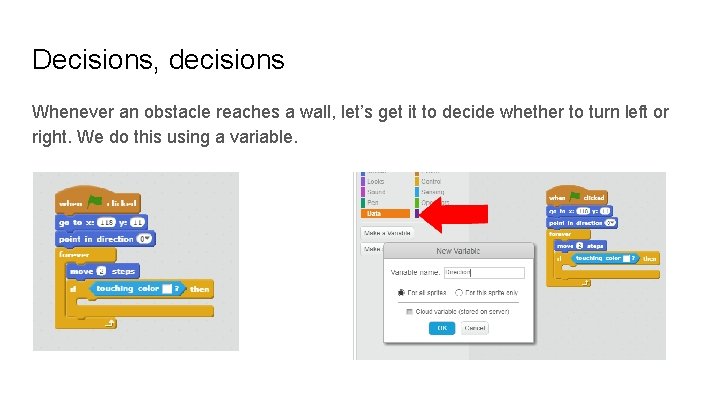
Decisions, decisions Whenever an obstacle reaches a wall, let’s get it to decide whether to turn left or right. We do this using a variable.
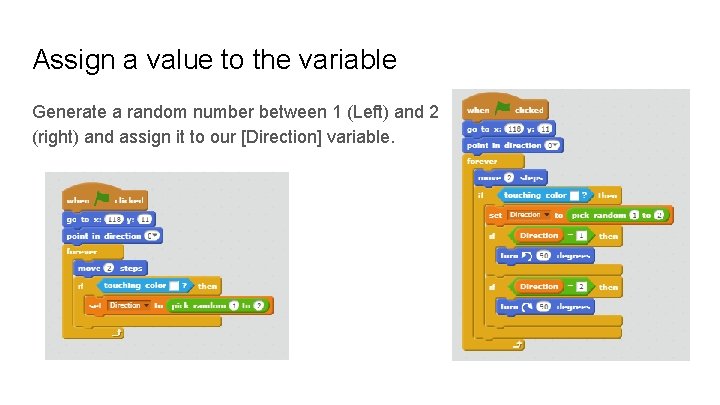
Assign a value to the variable Generate a random number between 1 (Left) and 2 (right) and assign it to our [Direction] variable.
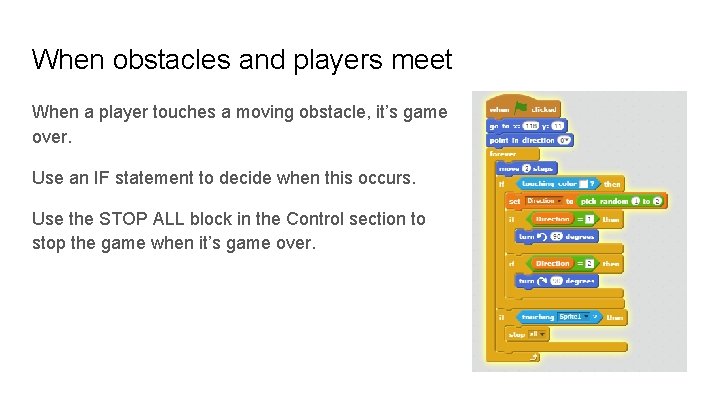
When obstacles and players meet When a player touches a moving obstacle, it’s game over. Use an IF statement to decide when this occurs. Use the STOP ALL block in the Control section to stop the game when it’s game over.
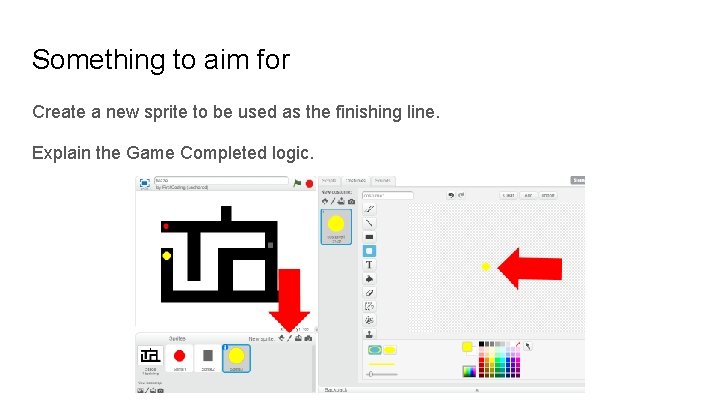
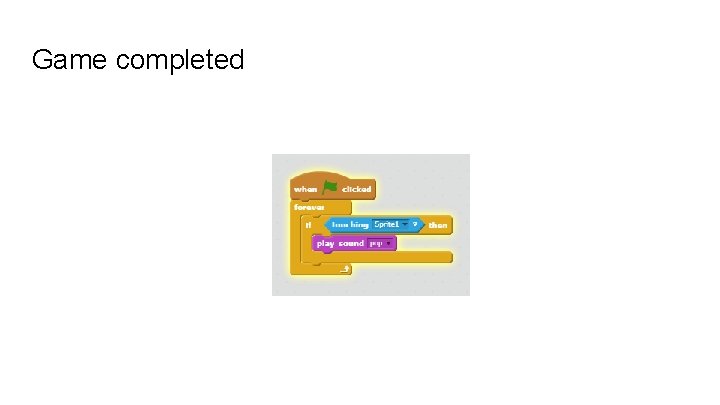
Something to aim for Create a new sprite to be used as the finishing line. Explain the Game Completed logic.
Game completed
Improvements How can we make the game better? ● More obstacles to avoid ● Different levels ● Randomly selecting the finishing line position
Ideas: ● Add more moving obstacles. We can duplicate the obstacle we’ve already created but remember to amend the starting coordinates for each new sprite. ● Add a timer and a leader board to record the fastest times. ● Randomly change the position of the goal when a new game starts ● Change the maze layout each time a new game starts.