
Max TECH Technical Training Building a Custom Application
Max. TECH Technical Training: Building a Custom Application to Manage Queries Paul Irving Product Development Lead
Agenda • • • What is Max. TECH? Roundtable Introductions Course Objectives Creating the Application Showing Related Data Creating an Automation Script Linking an Automation Script with a Push Button Testing the Application Review, Questions & Answers BPD Zenith | UK | Canada | USA | Australia | New Zealand
What is Max. TECH? • The first ever dedicated Maximo Technical User Group aimed at Maximo Administrators, Developers & Technical Support staff. • Created by Stephen Hume, Maximo Consultant at BPD Canada in 2017. Max. TECH is sponsored by BPD Zenith, supported by IBM and has a User Steering Committee (Spire Energy, Lawrence Berkeley National Labs, Wood). • The first event was held in Calgary, it was so good that we decided to present it in St. Louis, Maximo. World, Houston, MUWG, Northern California MUG and now at the UK & Ireland MUG! • It’s a great place for users to ask questions, share information, learn the intricacies of Maximo and take back free training to your organisation. BPD Zenith | UK | Canada | USA | Australia | New Zealand
Round Table Introductions • Name, Role, Business • What version of Maximo are you on? • Technical gripe or Funny story? BPD Zenith | UK | Canada | USA | Australia | New Zealand
Problem Scenario Maximo allows users to create queries in applications that can be used on Start Centre Portlets: • These queries can only be edited by the owner of the query; • There is no central application to manage all the queries; • There is no way to clearly see where a query is being used. BPD Zenith | UK | Canada | USA | Australia | New Zealand
Proposed Solution • Create an application to centrally manage queries • Clearly show which Start Centres the query is used on • Allow Maximo Administrators to change the query clause Out of Scope – Deleting queries owned by another user BPD Zenith | UK | Canada | USA | Australia | New Zealand
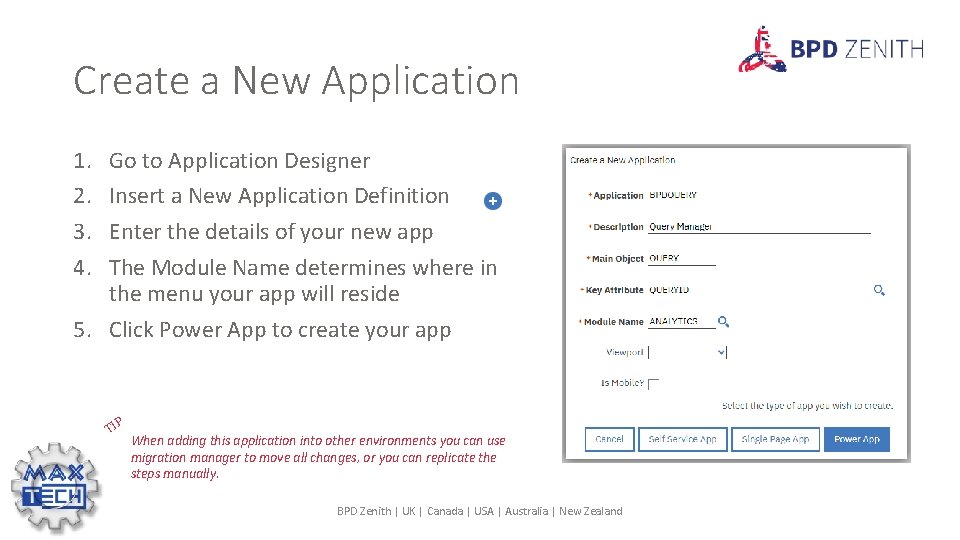
Create a New Application 1. 2. 3. 4. Go to Application Designer Insert a New Application Definition Enter the details of your new app The Module Name determines where in the menu your app will reside 5. Click Power App to create your app TIP When adding this application into other environments you can use migration manager to move all changes, or you can replicate the steps manually. BPD Zenith | UK | Canada | USA | Australia | New Zealand
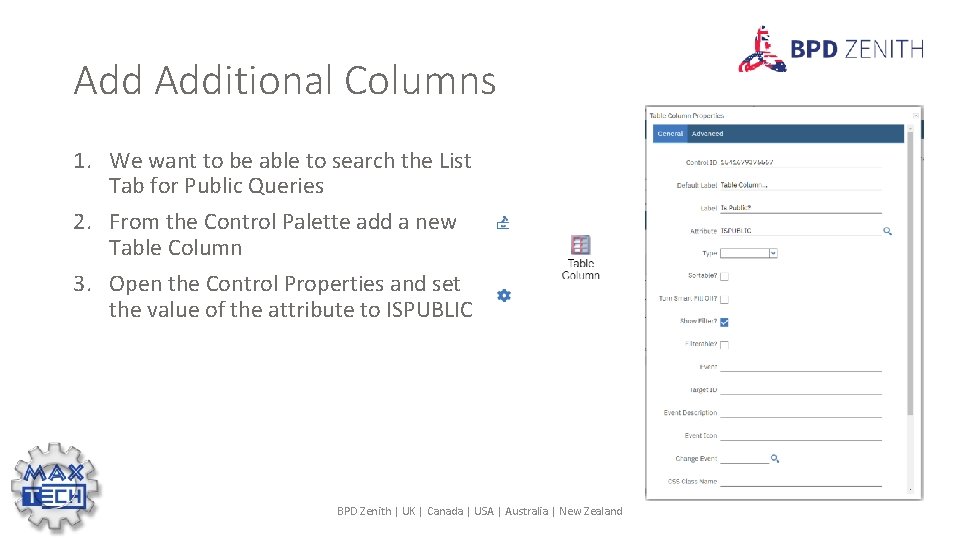
Add Additional Columns 1. We want to be able to search the List Tab for Public Queries 2. From the Control Palette add a new Table Column 3. Open the Control Properties and set the value of the attribute to ISPUBLIC BPD Zenith | UK | Canada | USA | Australia | New Zealand
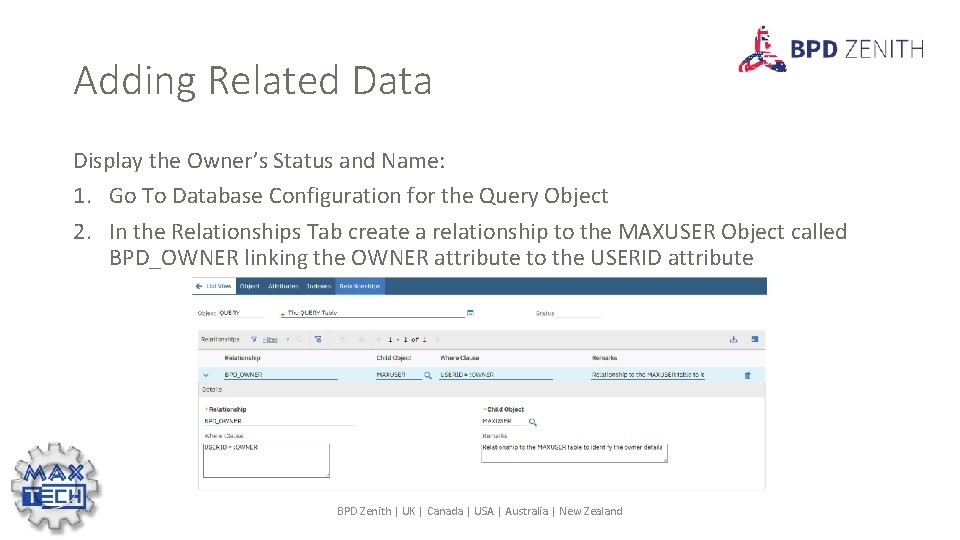
Adding Related Data Display the Owner’s Status and Name: 1. Go To Database Configuration for the Query Object 2. In the Relationships Tab create a relationship to the MAXUSER Object called BPD_OWNER linking the OWNER attribute to the USERID attribute BPD Zenith | UK | Canada | USA | Australia | New Zealand
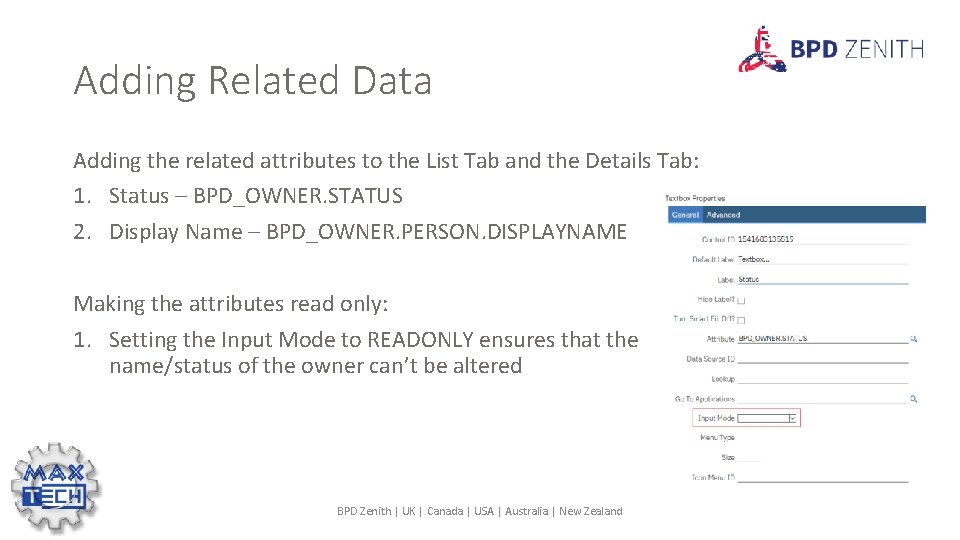
Adding Related Data Adding the related attributes to the List Tab and the Details Tab: 1. Status – BPD_OWNER. STATUS 2. Display Name – BPD_OWNER. PERSON. DISPLAYNAME Making the attributes read only: 1. Setting the Input Mode to READONLY ensures that the name/status of the owner can’t be altered BPD Zenith | UK | Canada | USA | Australia | New Zealand
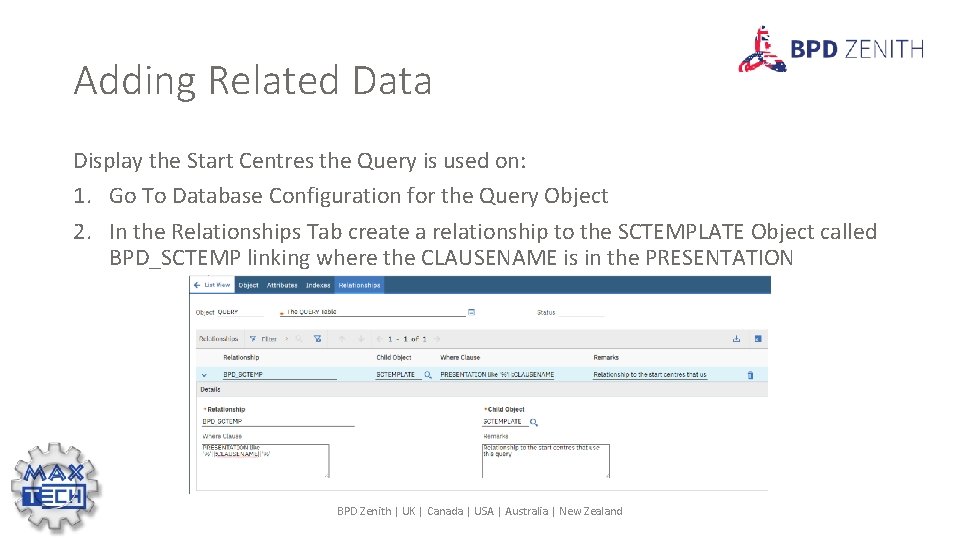
Adding Related Data Display the Start Centres the Query is used on: 1. Go To Database Configuration for the Query Object 2. In the Relationships Tab create a relationship to the SCTEMPLATE Object called BPD_SCTEMP linking where the CLAUSENAME is in the PRESENTATION BPD Zenith | UK | Canada | USA | Australia | New Zealand
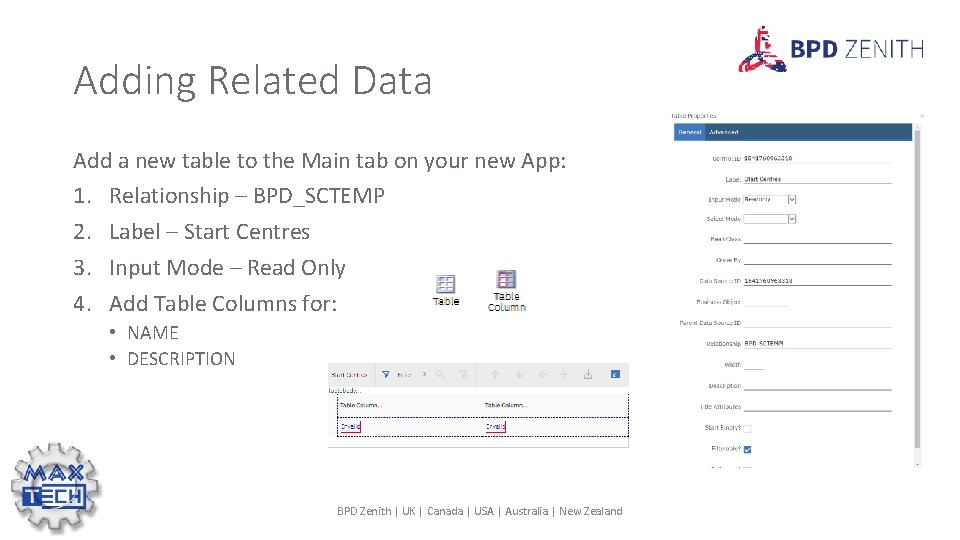
Adding Related Data Add a new table to the Main tab on your new App: 1. Relationship – BPD_SCTEMP 2. Label – Start Centres 3. Input Mode – Read Only 4. Add Table Columns for: • NAME • DESCRIPTION BPD Zenith | UK | Canada | USA | Australia | New Zealand
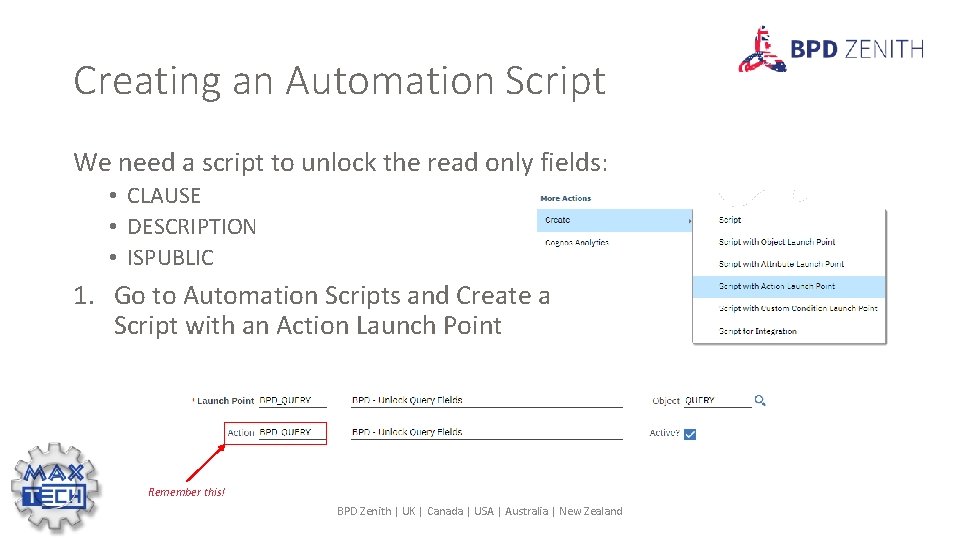
Creating an Automation Script We need a script to unlock the read only fields: • CLAUSE • DESCRIPTION • ISPUBLIC 1. Go to Automation Scripts and Create a Script with an Action Launch Point Remember this! BPD Zenith | UK | Canada | USA | Australia | New Zealand
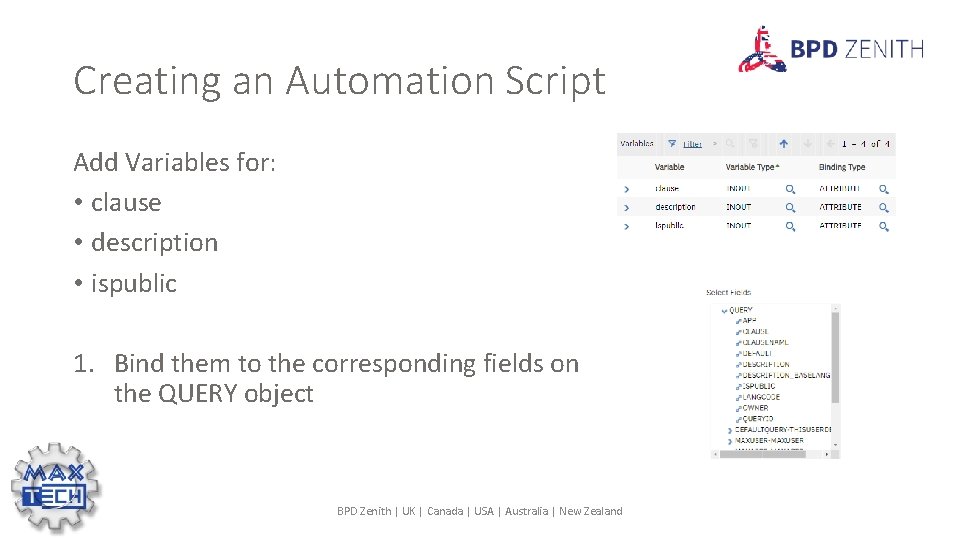
Creating an Automation Script Add Variables for: • clause • description • ispublic 1. Bind them to the corresponding fields on the QUERY object BPD Zenith | UK | Canada | USA | Australia | New Zealand
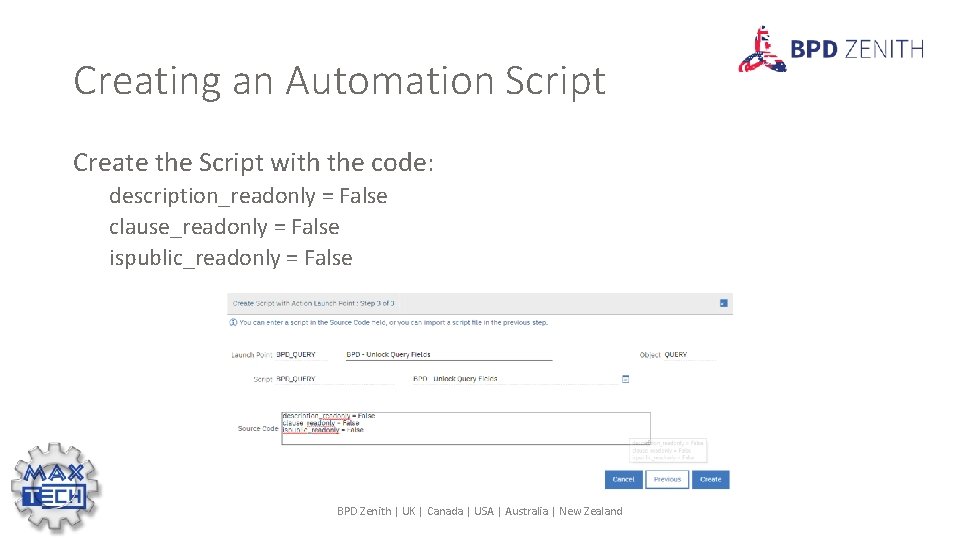
Creating an Automation Script Create the Script with the code: description_readonly = False clause_readonly = False ispublic_readonly = False BPD Zenith | UK | Canada | USA | Australia | New Zealand
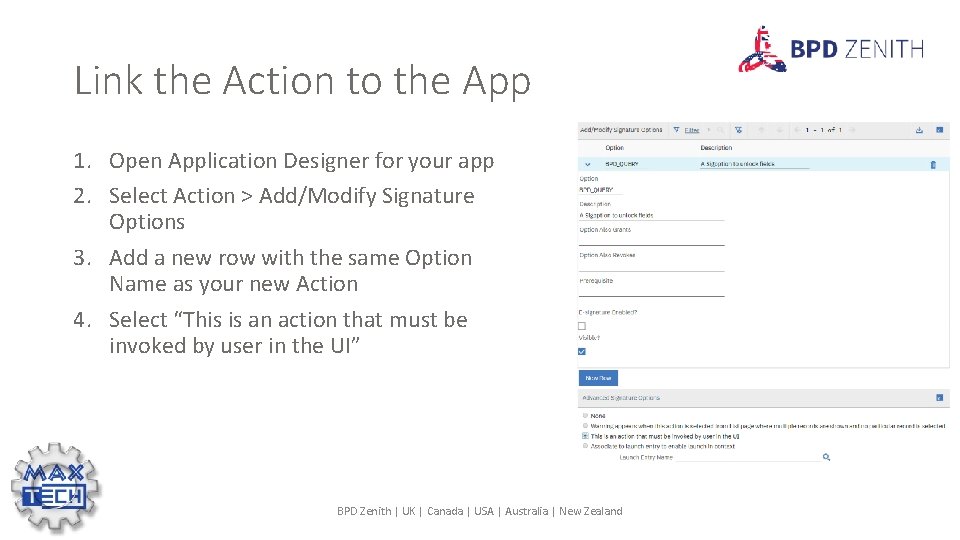
Link the Action to the App 1. Open Application Designer for your app 2. Select Action > Add/Modify Signature Options 3. Add a new row with the same Option Name as your new Action 4. Select “This is an action that must be invoked by user in the UI” BPD Zenith | UK | Canada | USA | Australia | New Zealand
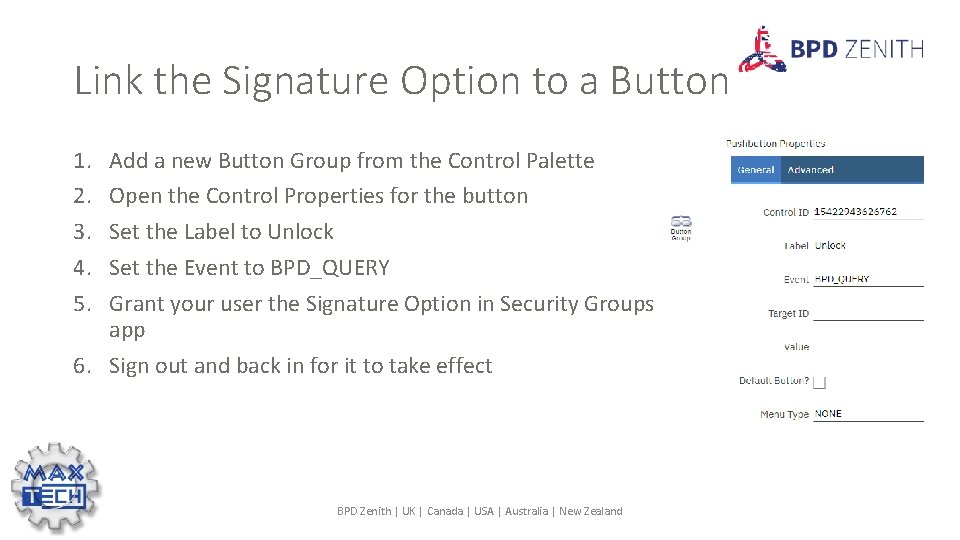
Link the Signature Option to a Button 1. 2. 3. 4. 5. Add a new Button Group from the Control Palette Open the Control Properties for the button Set the Label to Unlock Set the Event to BPD_QUERY Grant your user the Signature Option in Security Groups app 6. Sign out and back in for it to take effect BPD Zenith | UK | Canada | USA | Australia | New Zealand
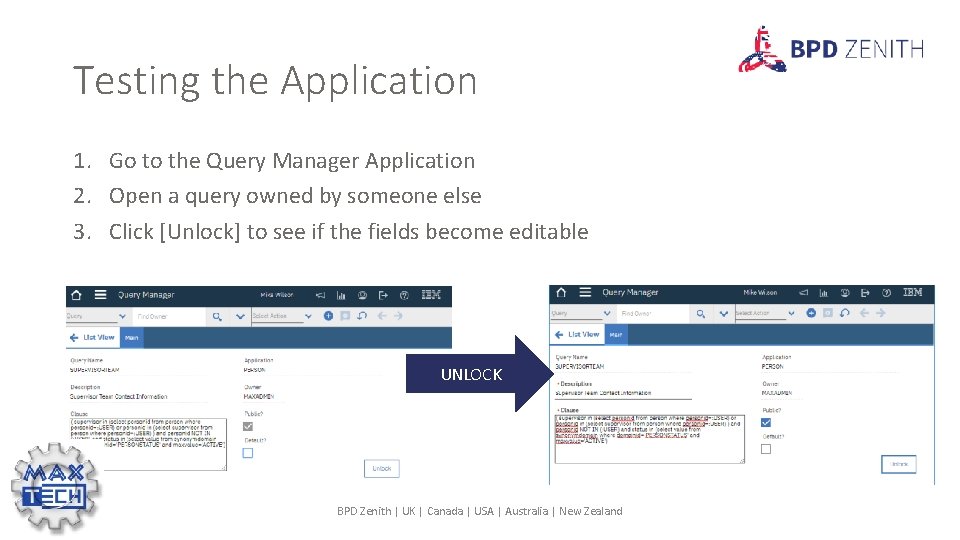
Testing the Application 1. Go to the Query Manager Application 2. Open a query owned by someone else 3. Click [Unlock] to see if the fields become editable UNLOCK BPD Zenith | UK | Canada | USA | Australia | New Zealand
Review You have learned the following skills through this training class: ü How to create a new custom application against an existing Maximo Object ü How to create relationships and use those relationships to display data from related tables ü How to create a table of related data in an application ü How to add new signature options ü How to create an action triggered automation script ü How to add a pushbutton to an application to trigger an action ü How to give access to the pushbutton through security BPD Zenith | UK | Canada | USA | Australia | New Zealand
Thank You! If you have any queries about this tutorial, please feel free to contact: Paul Irving Product Development Lead BPD Zenith Ltd paul. irving@bpdzenith. com www. bpdzenith. com https: //www. linkedin. com/groups/12074250/ https: //tinyurl. com/IBMMax. Tech BPD Zenith | UK | Canada | USA | Australia | New Zealand
- Slides: 20