
Matrices and Linear Equations By the end of
Matrices and Linear Equations By the end of this Lab, you should be able to: Laboratory Outcomes: • Have more practice with scripts C. 1 solve engineering problems using computer tools. • create and Address Arrays in MATLAB C. 2 apply arrays and array manipulations. • complete Array Calculations in MATLAB C. 3 use and explain text variables & ASCII text files. • solve Linear Systems w/MATLAB C. 4 write a function with multiple inputs and outputs at the command line. • describe potential problems with linear solutions C. 5 write a function that results in a non-numerical output. • Carry out complex number calculations in MATALB C. 6 write programs using logical expressions and conditional statements. Preparation: • Log into Computer • Open MATLAB • Change working directory to your h: drive • Download Torus. m from website C. 7 write programs using loop structures. C. 8 fit data that follows linear, exponential or power law forms. C. 9 properly communicate a solution based on computer calculation or program.
MATLAB Review • MATLAB Setup Learn the various windows Adjust the current directory • Hand Calculations can use as a calculator • Variables • Vectors labeled information storage bins, various types lists of related numbers, row or column (Qs ? ) • Scripts (a type of program) • Edit window to start: new script or open an existing file to edit • Command Window Important: file must be in the current directory Create Program file Execute Program
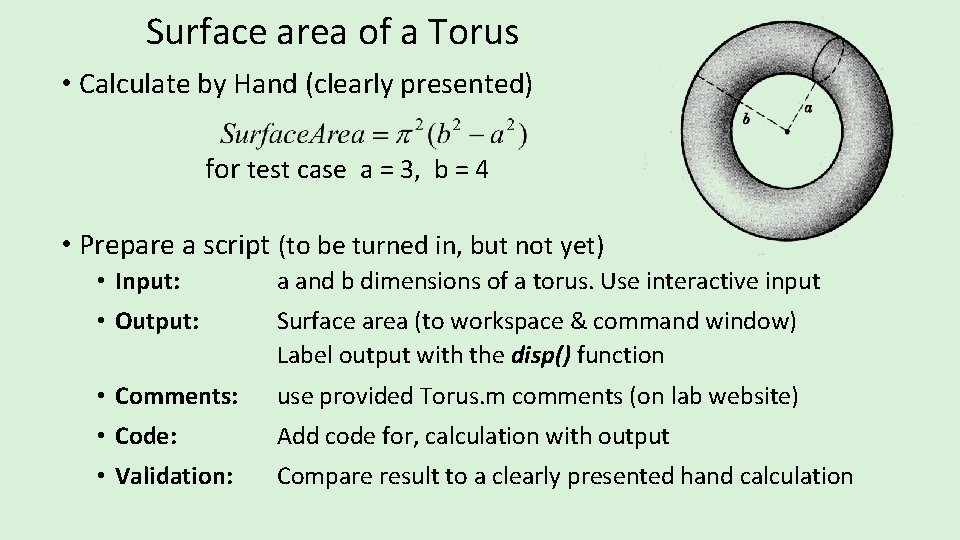
Surface area of a Torus • Calculate by Hand (clearly presented) for test case a = 3, b = 4 • Prepare a script (to be turned in, but not yet) • Input: a and b dimensions of a torus. Use interactive input • Output: Surface area (to workspace & command window) Label output with the disp() function • Comments: use provided Torus. m comments (on lab website) • Code: Add code for, calculation with output • Validation: Compare result to a clearly presented hand calculation

Matrices (Arrays): Putting more in the bin • Multidimensional tables of Numbers A 3 x 4 Matrix Always list Rows and then Columns 19 20 23 25 19 21 25 22 20 26 22 19
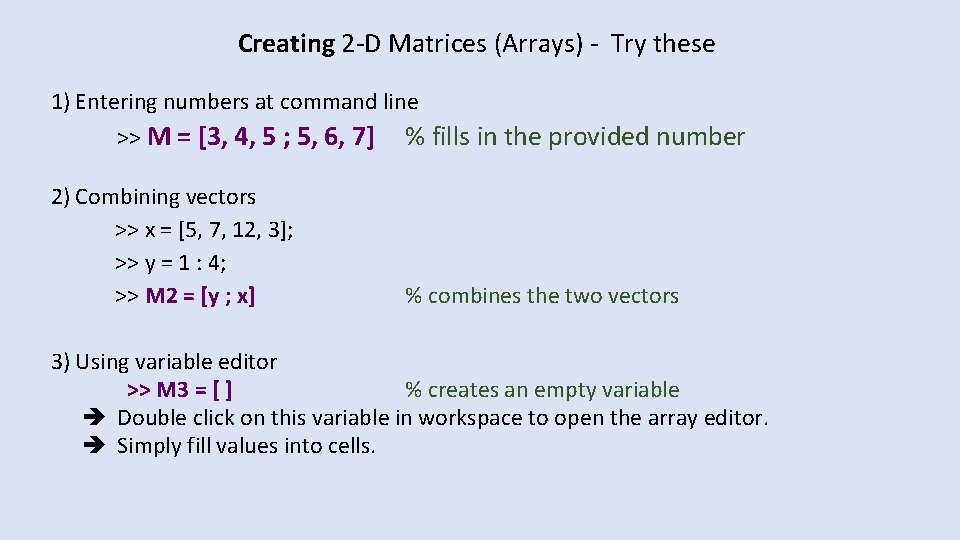
Creating 2 -D Matrices (Arrays) - Try these 1) Entering numbers at command line >> M = [3, 4, 5 ; 5, 6, 7] 2) Combining vectors >> x = [5, 7, 12, 3]; >> y = 1 : 4; >> M 2 = [y ; x] % fills in the provided number % combines the two vectors 3) Using variable editor >> M 3 = [ ] % creates an empty variable Double click on this variable in workspace to open the array editor. Simply fill values into cells.
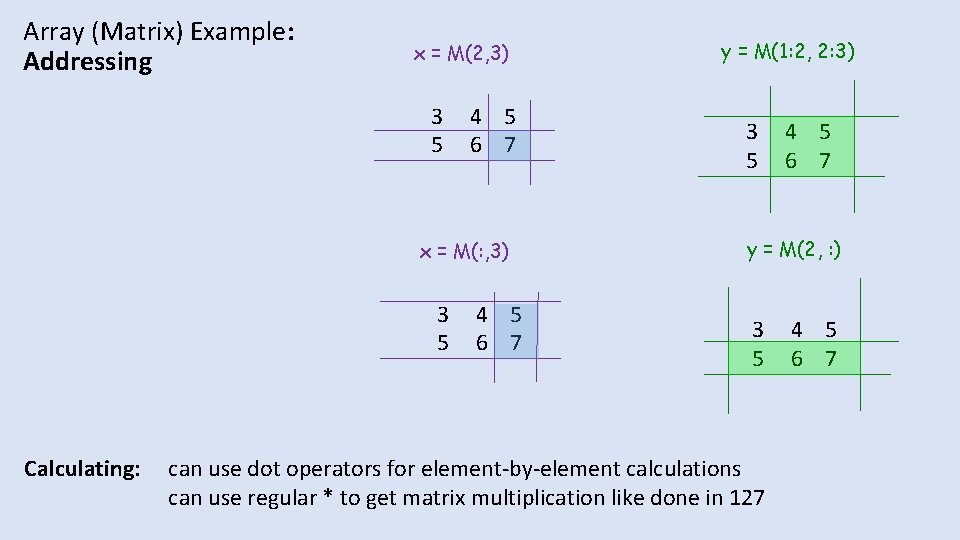
Array (Matrix) Example: Addressing x = M(2, 3) 3 5 4 5 6 7 x = M(: , 3) 3 5 Calculating: 4 5 6 7 y = M(1: 2, 2: 3) 3 5 4 5 6 7 y = M(2, : ) 3 5 can use dot operators for element-by-element calculations can use regular * to get matrix multiplication like done in 127 4 5 6 7
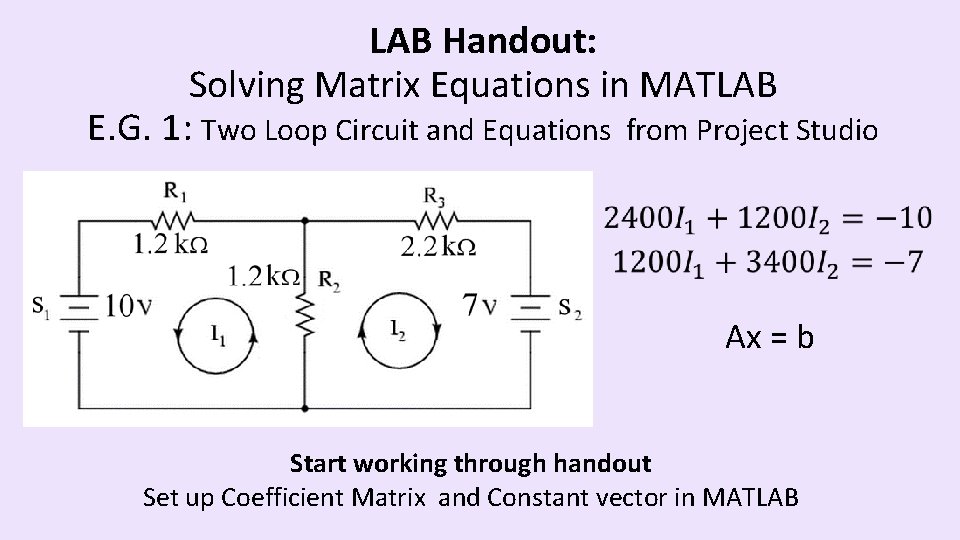
LAB Handout: Solving Matrix Equations in MATLAB E. G. 1: Two Loop Circuit and Equations from Project Studio Ax = b Start working through handout Set up Coefficient Matrix and Constant vector in MATLAB
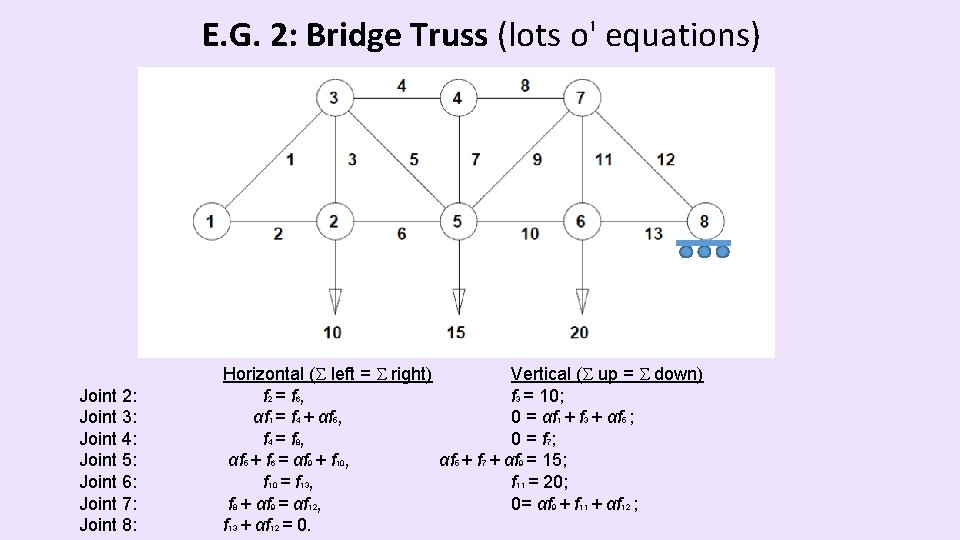
E. G. 2: Bridge Truss (lots o' equations) Joint 2: Joint 3: Joint 4: Joint 5: Joint 6: Joint 7: Joint 8: Horizontal ( left = right) Vertical ( up = down) f 2 = f 6 , f 3 = 10; αf 1 = f 4 + αf 5, 0 = αf 1 + f 3 + αf 5 ; f 4 = f 8 , 0 = f 7 ; αf 5 + f 6 = αf 9 + f 10, αf 5 + f 7 + αf 9 = 15; f 10 = f 13, f 11 = 20; f 8 + αf 9 = αf 12, 0= αf 9 + f 11 + αf 12 ; f 13 + αf 12 = 0.
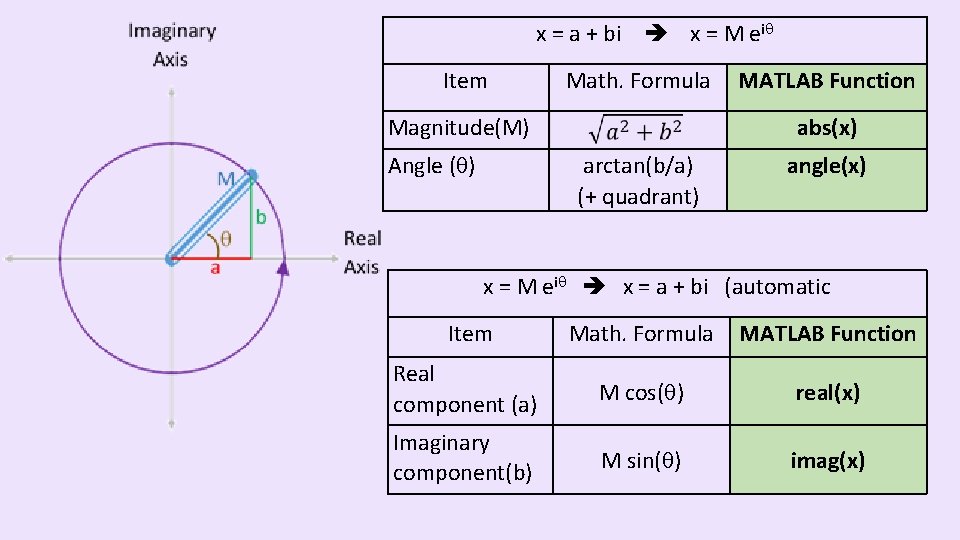
x = a + bi x = M ei Item Math. Formula Magnitude(M) Angle ( ) MATLAB Function abs(x) arctan(b/a) (+ quadrant) angle(x) x = M ei x = a + bi (automatic Item Math. Formula MATLAB Function Real component (a) M cos( ) real(x) Imaginary component(b) M sin( ) imag(x)
- Slides: 9