
MATLAB Remote Access Instructions Click here for off
MATLAB Remote Access Instructions Click here for off campus access Click here if using a BU network
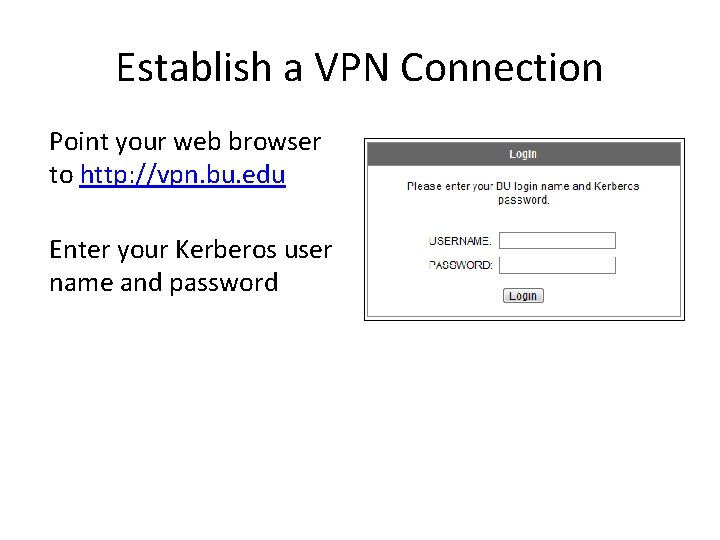
Establish a VPN Connection Point your web browser to http: //vpn. bu. edu Enter your Kerberos user name and password
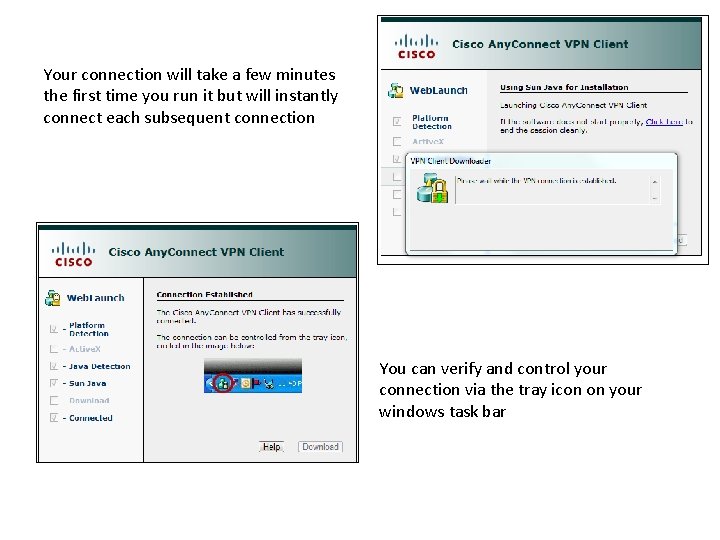
Your connection will take a few minutes the first time you run it but will instantly connect each subsequent connection You can verify and control your connection via the tray icon on your windows task bar
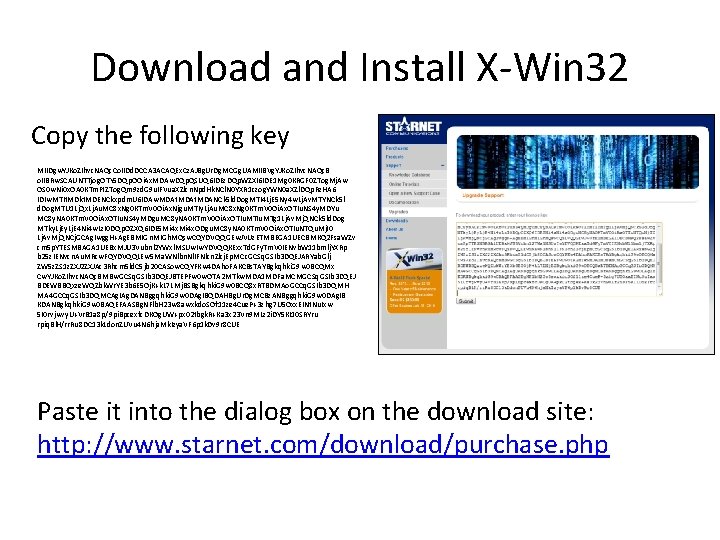
Download and Install X-Win 32 Copy the following key MIIDgw. YJKo. ZIhvc. NAQc. Co. IIDd. DCCA 3 ACAQEx. Cz. AJBg. Ur. Dg. MCGg. UAMIIBVg. YJKo. ZIhvc. NAQc. B o. IIBRw. SCAUNTTjog. OTY 5 DQp. OOi. Ax. MDAw. DQp. QSUQ 6 IDEz. DQp. WZXI 6 IDE 1 Mg 0 KRGF 0 ZTog. Mj. Aw OS 0 w. Ni 0 x. OA 0 KTm. Ft. ZTog. Qm 9 zd. G 9 u. IFVua. XZlcn. Npd. Hk. NCl. N 0 YXR 1 czog. YWN 0 a. XZl. DQp. Fe. HA 6 IDIw. MTIt. MDkt. MDENCkxpdm. U 6 IDAw. MDAt. MDANCk 5 ld. Dog. MTI 4 Lj. E 5 Ny 4 w. Lj. Av. MTYNCk 5 l d. Dog. MTU 1 Lj. Qx. Lj. Au. MC 8 x. Ng 0 KTm. V 0 Oi. Ax. Njgu. MTIy. Lj. Au. MC 8 x. Ng 0 KTm. V 0 Oi. Ax. OTIu. NS 4 y. MDYu MC 8 y. NA 0 KTm. V 0 Oi. Ax. OTIu. NS 4 y. MDgu. MC 8 y. NA 0 KTm. V 0 Oi. Ax. OTIu. MTg 1 Lj. Av. Mj. QNCk 5 ld. Dog MTky. Lj. E 4 Ni 4 w. Lz. I 0 DQp. OZXQ 6 IDE 5 Mi 4 x. ODgu. MC 8 y. NA 0 KTm. V 0 Oi. Ax. OTIu. NTQu. Mj. I 0 Lj. Av. Mj. QNCj. GCAg. Iwgg. H+Ag. EBMIGn. MIGh. MQsw. CQYDVQQGEw. JVUz. ETMBEGA 1 UECBMKQ 2 Fsa. WZv cm 5 p. YTESMBAGA 1 UEBx. MJU 3 Vubnl 2 YWxl. MSUw. Iw. YDVQQKExx. Td. GFy. Tm. V 0 IENvb. W 11 bmlj. YXRp b 25 z. IENvcn. Au. MRcw. FQYDVQQLEw 5 Ma. WNlbn. Nl. IFNlcn. Zlcj. Ep. MCc. GCSq. GSIb 3 DQEJARYab. Glj ZW 5 z. ZS 1 z. ZXJ 2 ZXJAc 3 Rhcm 5 ld. C 5 jb 20 CASow. CQYFKw 4 DAho. FAKCBs. TAYBgkqhki. G 9 w 0 BCQMx Cw. YJKo. ZIhvc. NAQc. BMBw. GCSq. GSIb 3 DQEJBTEPFw 0 w. OTA 2 MTkw. MDA 1 MDFa. MCMGCSq. GSIb 3 DQEJ BDEWBBQxze. WQZbk. Wr. YE 3 b 6 E 5 Oj. K+k. L 7 LMj. BSBgkqhki. G 9 w 0 BCQ 8 x. RTBDMAo. GCCq. GSIb 3 DQMH MA 4 GCCq. GSIb 3 DQMCAg. IAg. DANBggqhki. G 9 w 0 DAg. IBQDAHBg. Ur. Dg. MCBz. ANBggqhki. G 9 w 0 DAg. IB KDANBgkqhki. G 9 w 0 BAQEFAASBg. NFlb. H 23 w 8 awxkdo. SOf 11 ze 4 Cue. P+3 zhg 7 U 5 Oxx. EINt. Nu. Ixw 5 I 0 rvjwvy. U+Vr. B 1 a 8 p/9 pi. Bpcexfc. DKOg. UW+px 02 tbgk. R+Ka 3 x 23 Vn 9 MLz 2 i. DY 5 KI 10 SRYru rpiq. Bl. H/rr. Ru 8 DC 13 k. Ldon. ZUVu 4 N 6 hja. Mk. Izya. VF 6 p 1 k. Dv 9 r 8 CUE Paste it into the dialog box on the download site: http: //www. starnet. com/download/purchase. php
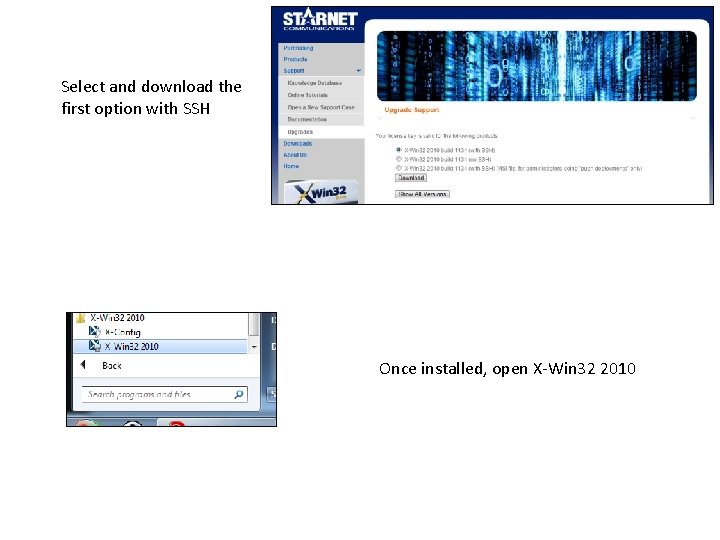
Select and download the first option with SSH Once installed, open X-Win 32 2010
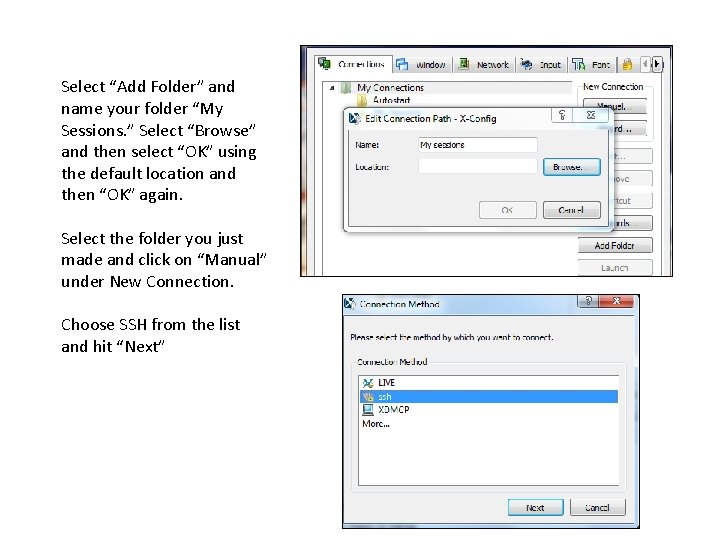
Select “Add Folder” and name your folder “My Sessions. ” Select “Browse” and then select “OK” using the default location and then “OK” again. Select the folder you just made and click on “Manual” under New Connection. Choose SSH from the list and hit “Next”
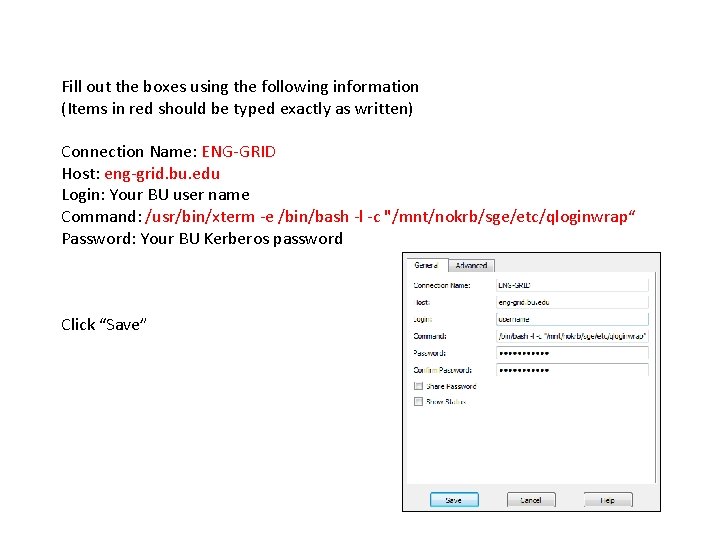
Fill out the boxes using the following information (Items in red should be typed exactly as written) Connection Name: ENG-GRID Host: eng-grid. bu. edu Login: Your BU user name Command: /usr/bin/xterm -e /bin/bash -l -c "/mnt/nokrb/sge/etc/qloginwrap“ Password: Your BU Kerberos password Click “Save”
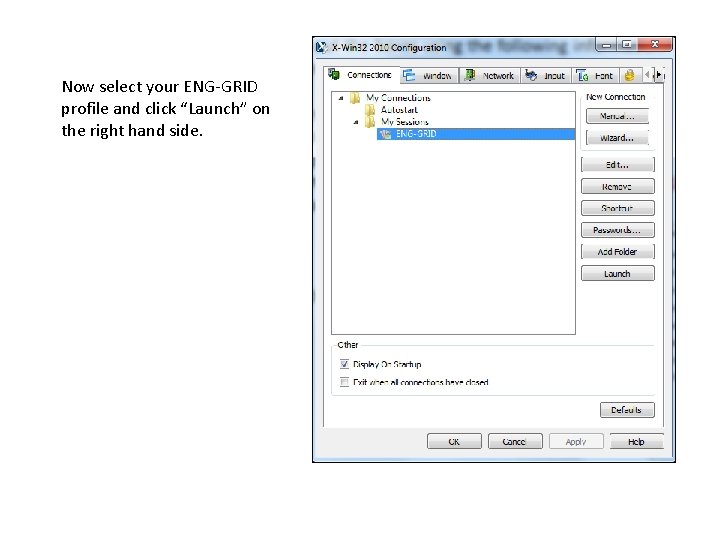
Now select your ENG-GRID profile and click “Launch” on the right hand side.
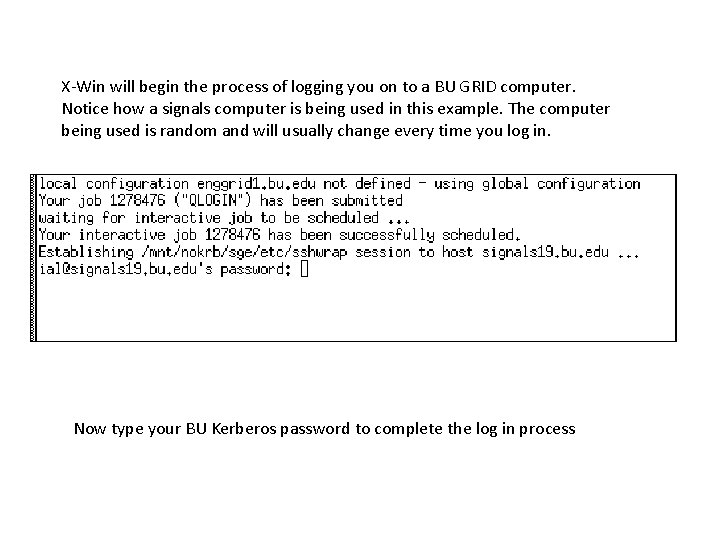
X-Win will begin the process of logging you on to a BU GRID computer. Notice how a signals computer is being used in this example. The computer being used is random and will usually change every time you log in. Now type your BU Kerberos password to complete the log in process
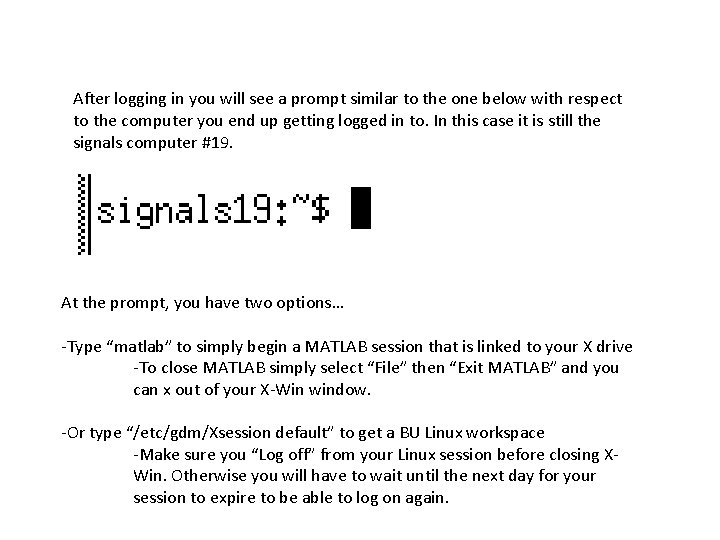
After logging in you will see a prompt similar to the one below with respect to the computer you end up getting logged in to. In this case it is still the signals computer #19. At the prompt, you have two options… -Type “matlab” to simply begin a MATLAB session that is linked to your X drive -To close MATLAB simply select “File” then “Exit MATLAB” and you can x out of your X-Win window. -Or type “/etc/gdm/Xsession default” to get a BU Linux workspace -Make sure you “Log off” from your Linux session before closing XWin. Otherwise you will have to wait until the next day for your session to expire to be able to log on again.
To begin a MATLAB or BU Linux session again, start the VPN if you are off campus, open X-Win, launch your ENG-GRID profile, and follow the steps from the previous slide. Congratulations! You now have home access to MATLAB and other resources available through BU Linux!
- Slides: 11