
MATLAB for Engineers EEE278 Edited and Modified by
® MATLAB for Engineers EEE-278 Edited and Modified by Dr. Khaliqur Rahman Assistant Professor, EED Simulink
Introduction • Simulink is a software package and is a graphical extension of MATLAB for modelling, simulation and analysis of a variety of dynamical systems under a GUI environment. • In Simulink, models of the systems are drawn on a screen as block diagrams. • It includes a comprehensive block library for creating standard components such as: • Sinks • Sources • Connectors • Etc • To make a model of any system, the components are dragged and dropped in the Simulink window using the mouse
Advantages • The advantages of Simulink are: • It is user friendly • The need to remember the MATLAB codes becomes less • It has the ability to model a non linear system which a transfer function alone cannot do • The Simulink can automatically generate C source code for real-time implementation • There is a function also provision to write the user defined
Disadvantages • The disadvantages of Simulink are: • If an error occurs, it is difficult to solve • One may not be able to differentiate between the error of semantics and syntax • Although Simulink is supported by a debugger, solving the error becomes a tough task
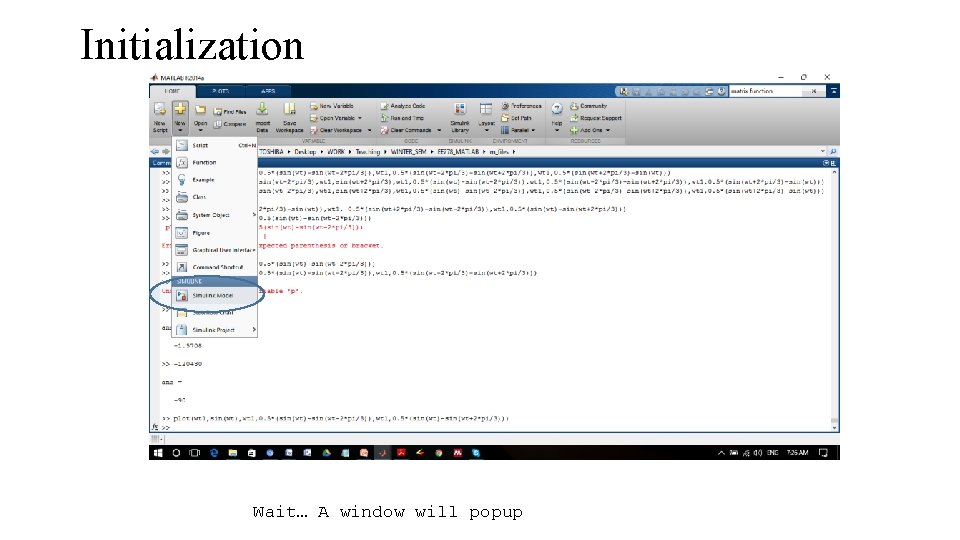
Initialization Wait… A window will popup
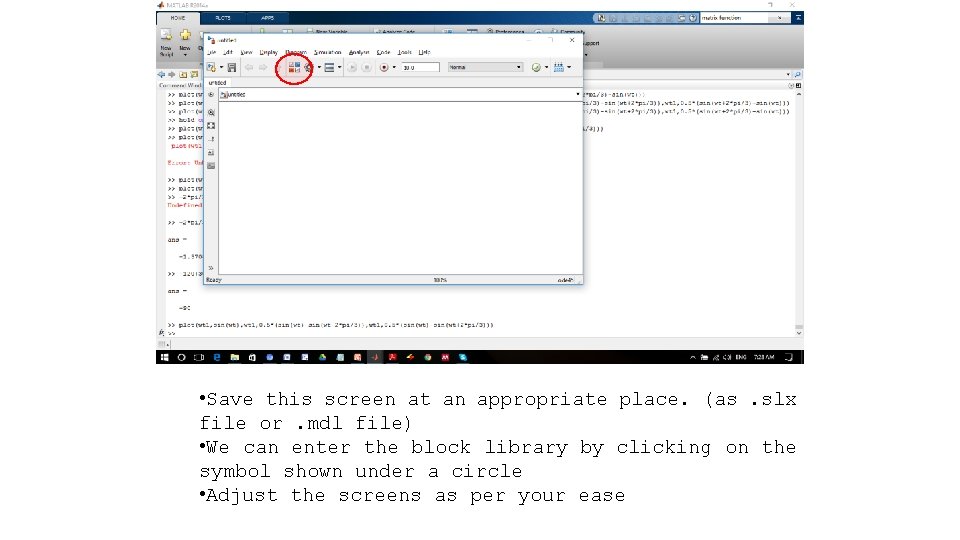
Initialization • Save this screen at an appropriate place. (as. slx file or. mdl file) • We can enter the block library by clicking on the symbol shown under a circle • Adjust the screens as per your ease

Initialization
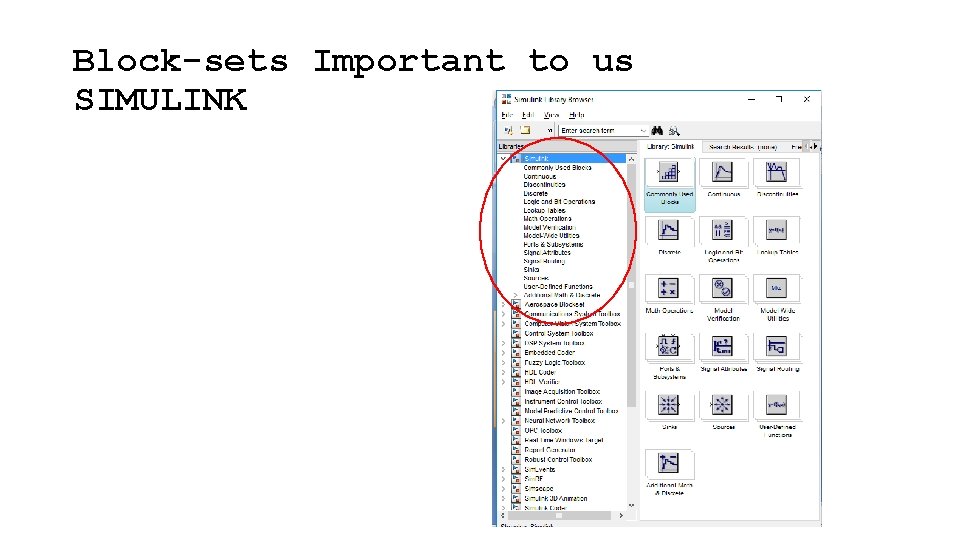
Block-sets Important to us SIMULINK
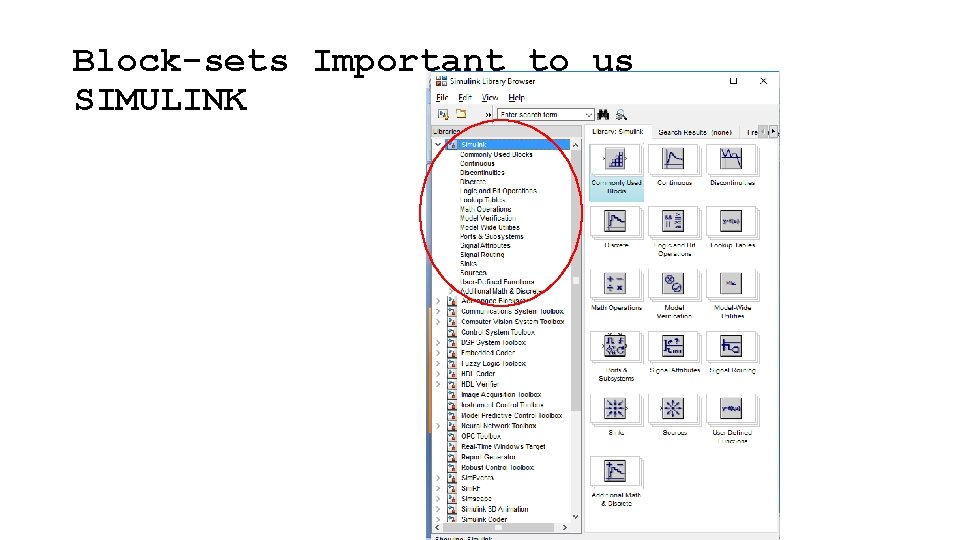
Block-sets Important to us SIMULINK
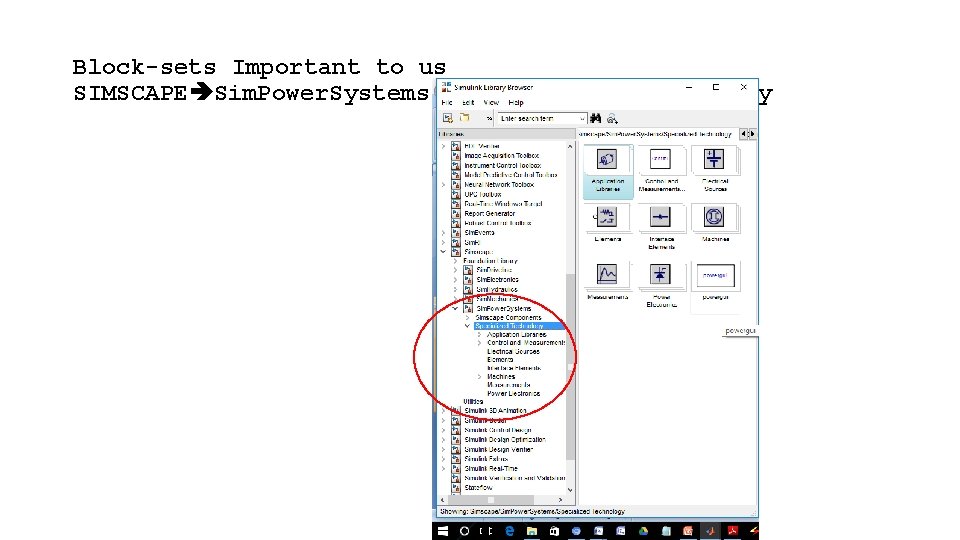
Block-sets Important to us SIMSCAPE Sim. Power. Systems Specialized Technology
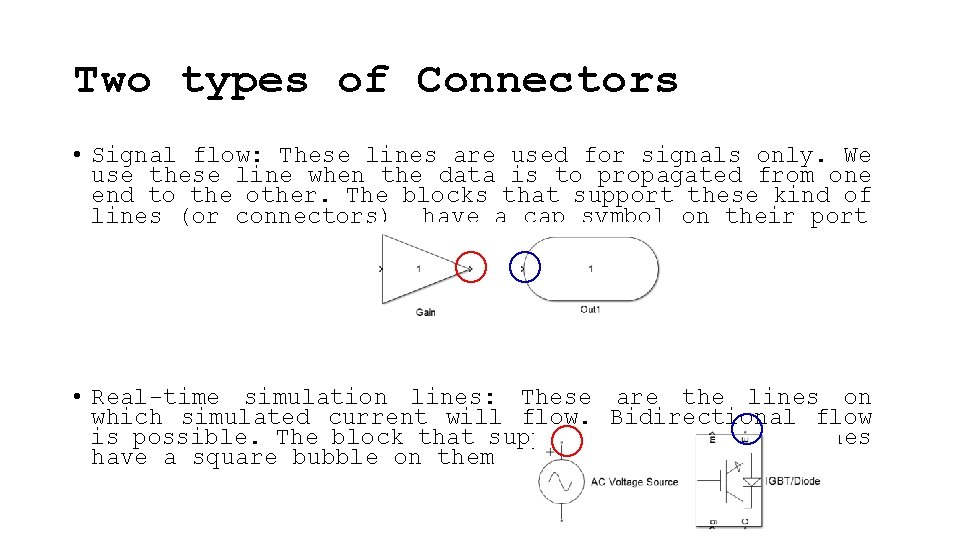
Two types of Connectors • Signal flow: These lines are used for signals only. We use these line when the data is to propagated from one end to the other. The blocks that support these kind of lines (or connectors) have a cap symbol on their port • Real-time simulation lines: These are the lines on which simulated current will flow. Bidirectional flow is possible. The block that support these kind of lines have a square bubble on them
Design a three-phase supply • We will stick to signal format. That is we are not going to use actual current lines. We will use only the signal lines to SIMULATE the three phase balanced supply • First of all we must know the equations of the system that we are going to built • v 1 = Vm*sin(wt), • v 2 = Vm*sin(wt-2*pi/3), • v 3 = Vm*sin(wt+2*pi/3) • Also it must be noted that the syntax must comply with MATLAB.
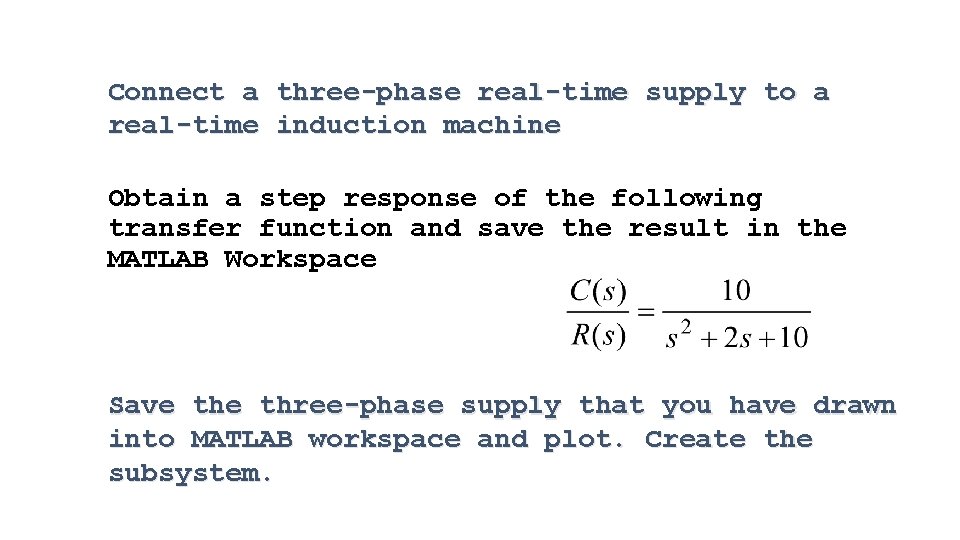
Connect a three-phase real-time supply to a real-time induction machine Obtain a step response of the following transfer function and save the result in the MATLAB Workspace Save three-phase supply that you have drawn into MATLAB workspace and plot. Create the subsystem.
Running a Simulation • Running a simulation requires an understanding of different ODE solvers which will be discussed in next chapter. • If simulation fails to run, or does not give appropriate solution, then one may change its solver in the ‘Model Configuration Parameters’ icon • We can run a simulation by clicking the PLAY button on the tool bar
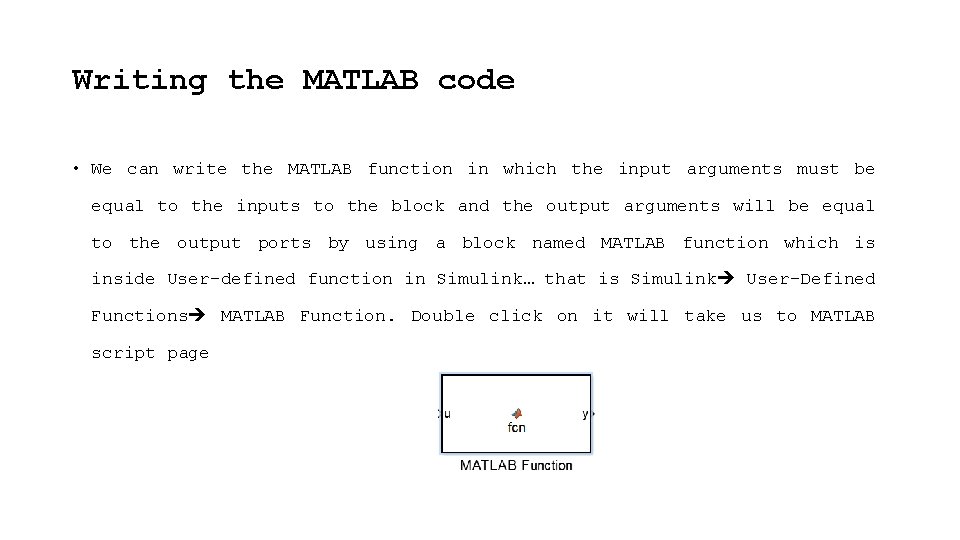
Writing the MATLAB code • We can write the MATLAB function in which the input arguments must be equal to the inputs to the block and the output arguments will be equal to the output ports by using a block named MATLAB function which is inside User-defined function in Simulink… that is Simulink User-Defined Functions MATLAB Function. Double click on it will take us to MATLAB script page
Homework • Using Simulink blocks demonstrate the formation of a sine wave. • On the same scope get a plot of a cosine wave of half the amplitude and twice the frequency of the sine wave. • Obtain the plot through workspace.
- Slides: 16