
Mathematics for Business Decisions part I Histograms Math
Mathematics for Business Decisions, part I Histograms Math 115 a
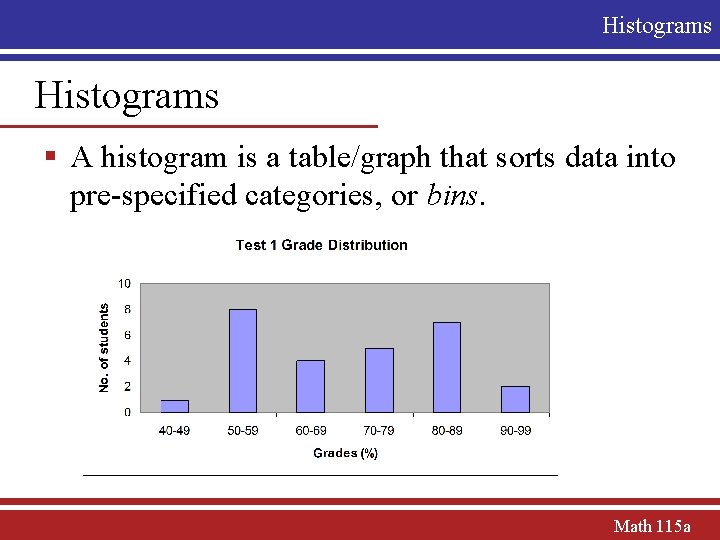
Histograms § A histogram is a table/graph that sorts data into pre-specified categories, or bins. Math 115 a
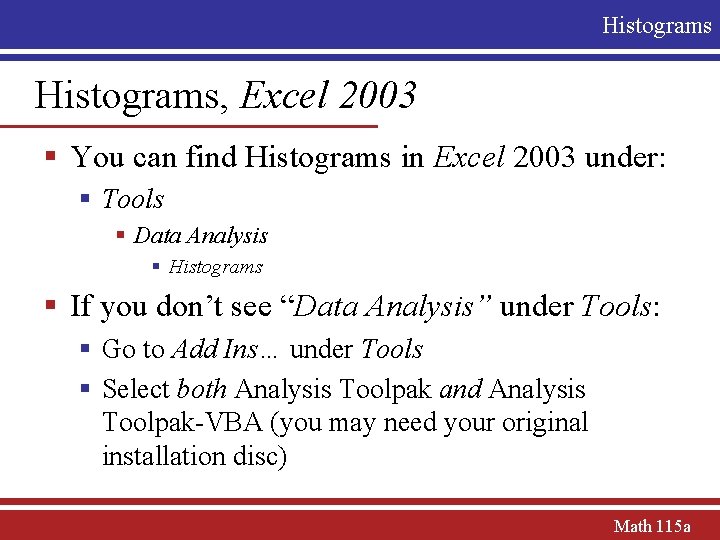
Histograms, Excel 2003 § You can find Histograms in Excel 2003 under: § Tools § Data Analysis § Histograms § If you don’t see “Data Analysis” under Tools: § Go to Add Ins… under Tools § Select both Analysis Toolpak and Analysis Toolpak-VBA (you may need your original installation disc) Math 115 a
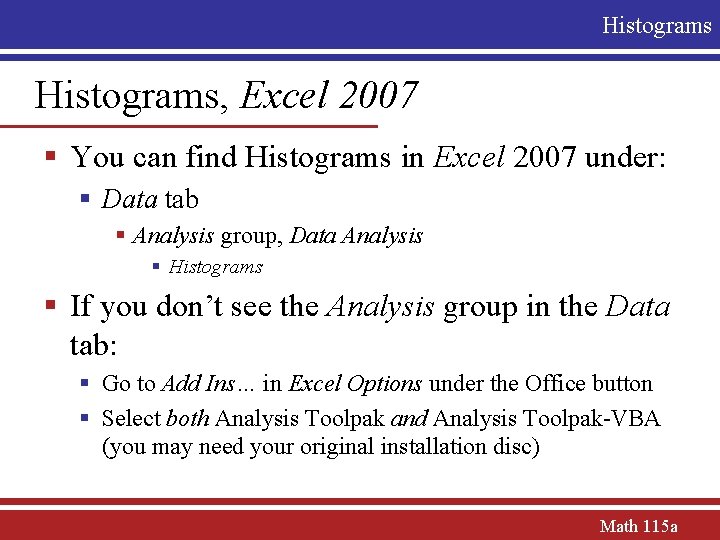
Histograms, Excel 2007 § You can find Histograms in Excel 2007 under: § Data tab § Analysis group, Data Analysis § Histograms § If you don’t see the Analysis group in the Data tab: § Go to Add Ins… in Excel Options under the Office button § Select both Analysis Toolpak and Analysis Toolpak-VBA (you may need your original installation disc) Math 115 a

Histograms Histogram You’ll need to specify: §Input Range §Bin Range §Labels (if applicable) §Output Range Math 115 a
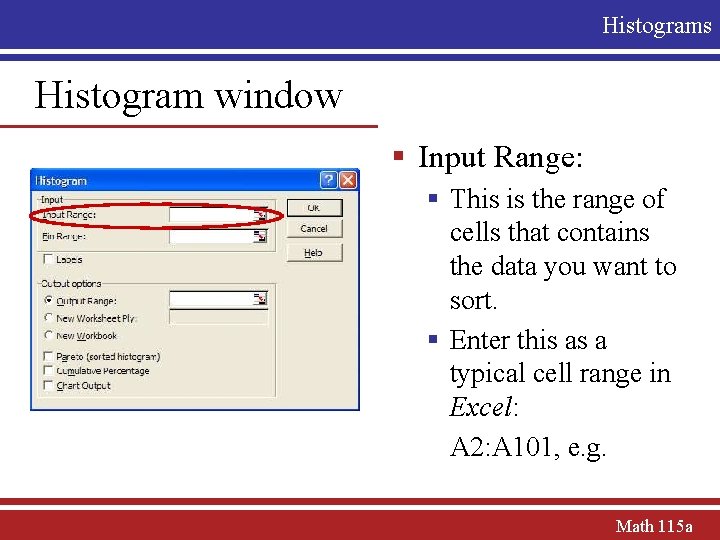
Histograms Histogram window § Input Range: § This is the range of cells that contains the data you want to sort. § Enter this as a typical cell range in Excel: A 2: A 101, e. g. Math 115 a
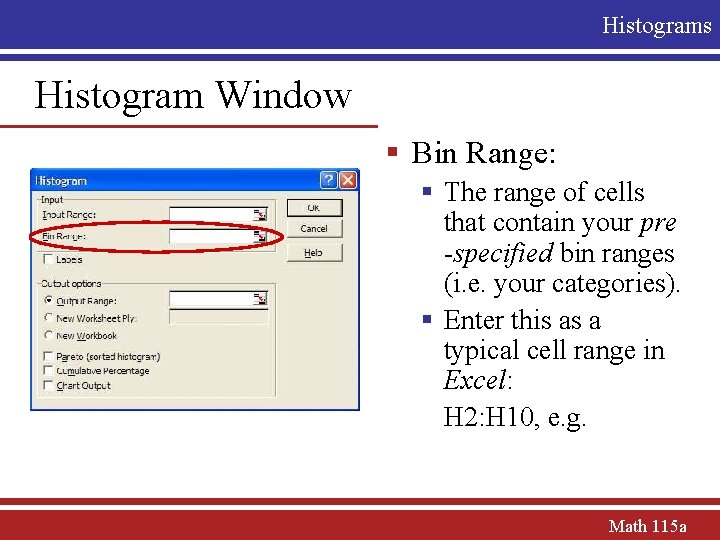
Histograms Histogram Window § Bin Range: § The range of cells that contain your pre -specified bin ranges (i. e. your categories). § Enter this as a typical cell range in Excel: H 2: H 10, e. g. Math 115 a
Histograms Bins in Excel § Again, “bins” are your categories that you want to sort your data into. § You must specify the intervals that you want, or else you’ll get some odd endpoints! § Let’s say you want to sort the test scores into the categories 40 -49, 50 -59, 60 -69, … , 90 -99. § You will designate these intervals by the right endpoint for each interval: 49, 59, 69, …, 99 Math 115 a
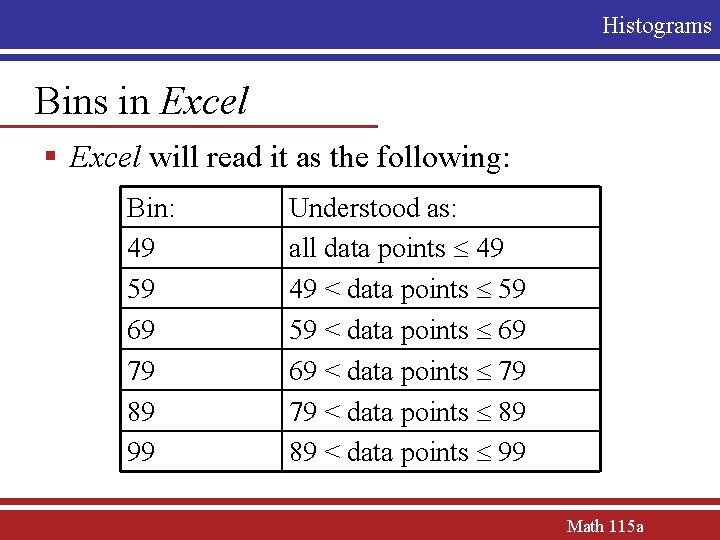
Histograms Bins in Excel § Excel will read it as the following: Bin: 49 59 69 79 89 99 Understood as: all data points 49 49 < data points 59 59 < data points 69 69 < data points 79 79 < data points 89 89 < data points 99 Math 115 a
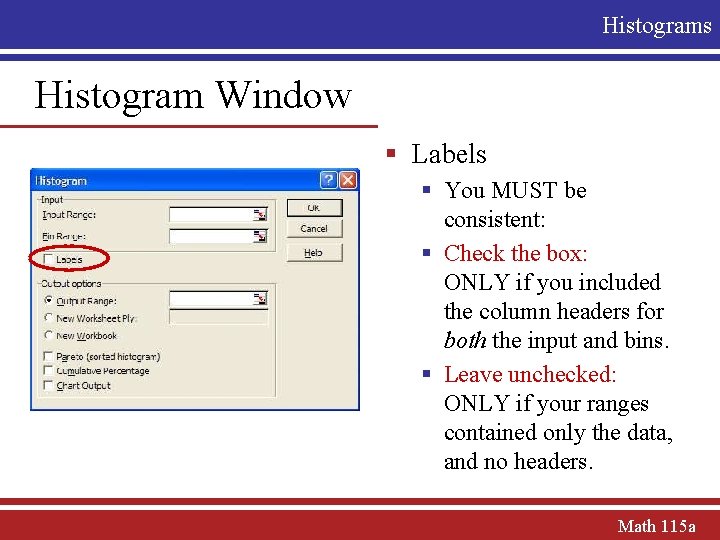
Histograms Histogram Window § Labels § You MUST be consistent: § Check the box: ONLY if you included the column headers for both the input and bins. § Leave unchecked: ONLY if your ranges contained only the data, and no headers. Math 115 a
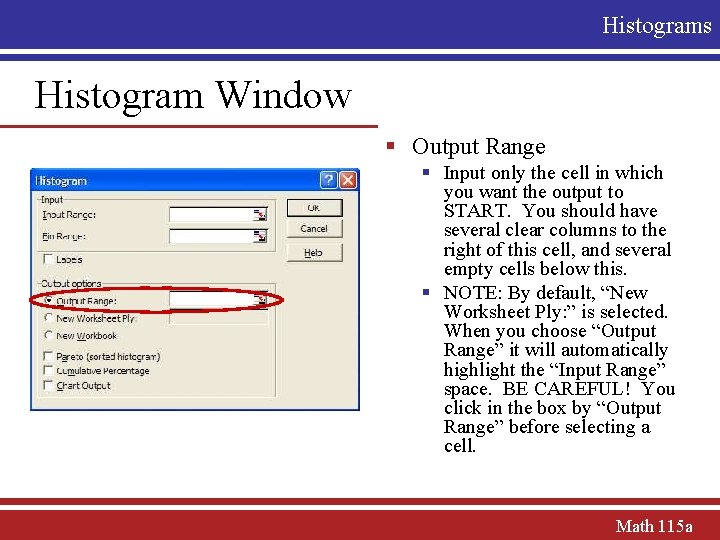
Histograms Histogram Window § Output Range § Input only the cell in which you want the output to START. You should have several clear columns to the right of this cell, and several empty cells below this. § NOTE: By default, “New Worksheet Ply: ” is selected. When you choose “Output Range” it will automatically highlight the “Input Range” space. BE CAREFUL! You click in the box by “Output Range” before selecting a cell. Math 115 a
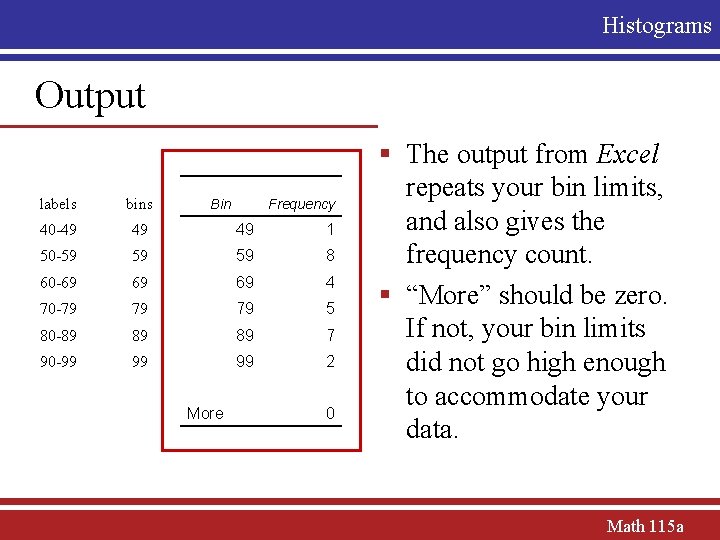
Histograms Output labels bins 40 -49 49 49 1 50 -59 59 59 8 60 -69 69 69 4 70 -79 79 79 5 80 -89 89 89 7 90 -99 99 99 2 Bin More Frequency 0 § The output from Excel repeats your bin limits, and also gives the frequency count. § “More” should be zero. If not, your bin limits did not go high enough to accommodate your data. Math 115 a
Histograms Choosing appropriate bin limits § Bins do not need to start at zero! § Find the range of your data § range = maximum – minimum § Your first bin limit should be reasonably above your minimum data point § Good rule-of-thumb: your first bin limit should be equal to your minimum value + bin width § Your last bin limit should be greater than your maximum data point Math 115 a
Histograms Choosing the bin size § Rule of thumb: start your bin size by the calculation: range of data 10 § Make your endpoints nice numbers, but make sure every bin has the same size interval § See how your histogram looks: § If it’s too “blocky”, increase the number of bins by decreasing the bin size § If it’s too detailed, decrease the number of bins by increasing the bin size Math 115 a
Histograms Graphing the histogram § Histograms are typically shown as a column graph. § Use Excel’s Chart Wizard § Select Column Graph as the type § In “Data Range” select only the non-More Frequency cells. § Click on the “Series” tab and enter the range of cells for labels for “X-axis labels” Math 115 a
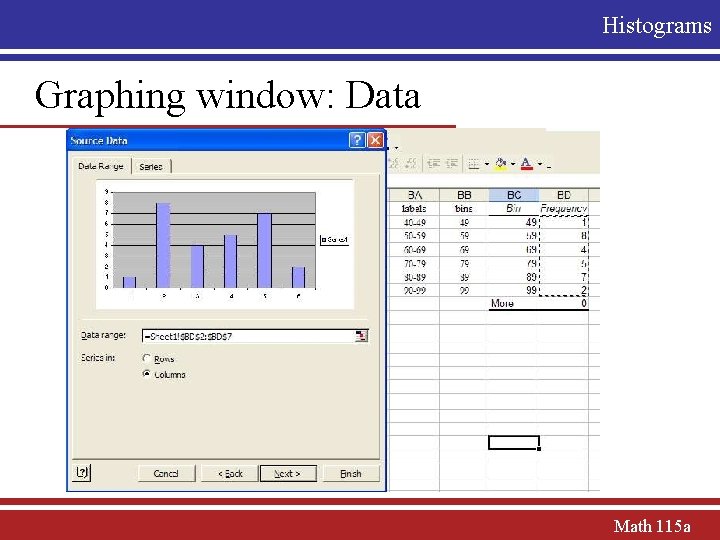
Histograms Graphing window: Data Math 115 a
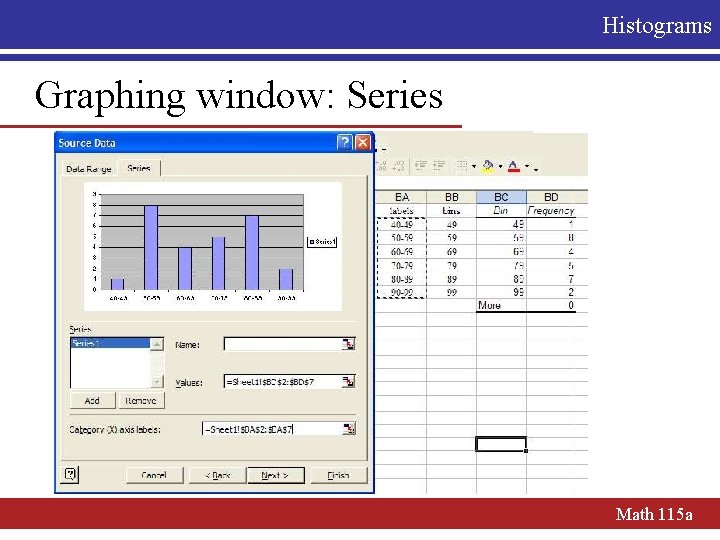
Histograms Graphing window: Series Math 115 a
Histograms Labels § NOTE: Labels will always be centered under each column. Therefore it is not a good idea to label a column by its right endpoint. Labeling by the full interval (i. e. “ 40 -49”) is acceptable only if you have enough room, and not too many bins. Usually it is best to have a column of midpoints for each interval, and label with these. (Remember, the label is centered under each column!) Math 115 a
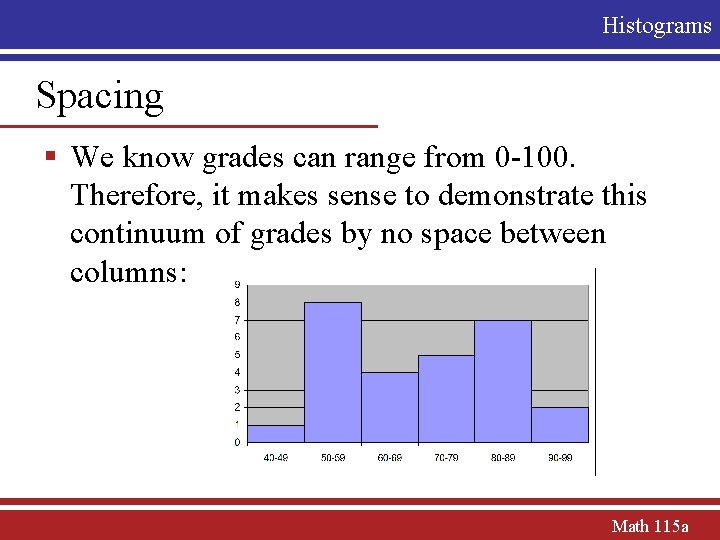
Histograms Spacing § We know grades can range from 0 -100. Therefore, it makes sense to demonstrate this continuum of grades by no space between columns: Math 115 a
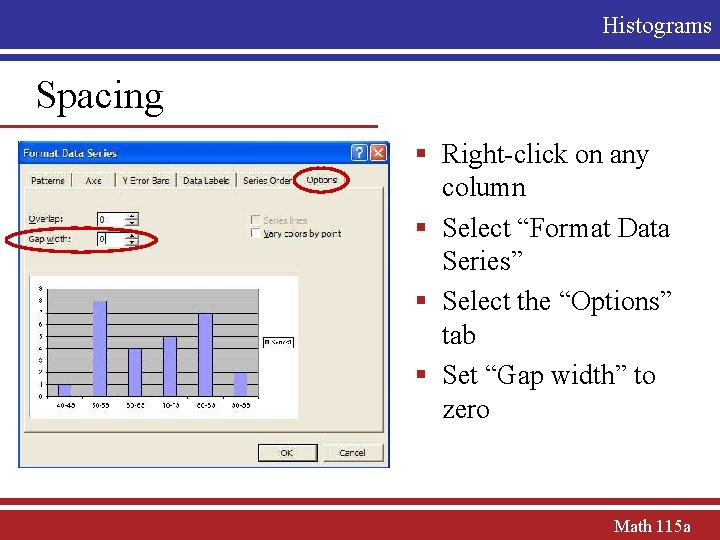
Histograms Spacing § Right-click on any column § Select “Format Data Series” § Select the “Options” tab § Set “Gap width” to zero Math 115 a
- Slides: 20