
Material or Fake VRay Mtl 2 Sided Lesson

- Slides: 16
Material or Fake: VRay. Mtl 2 Sided
Lesson Introduction – Orientation • This presentation will take you through using the Two-sided Material in V-Ray for Maya • The information centers around the VRay. Mtl 2 Sided node • This lesson topic is approximately 20 minutes in length • Presentation covers all 3 Learning Cycles for the Lesson Topic – Lecture, Demonstration, and Activity
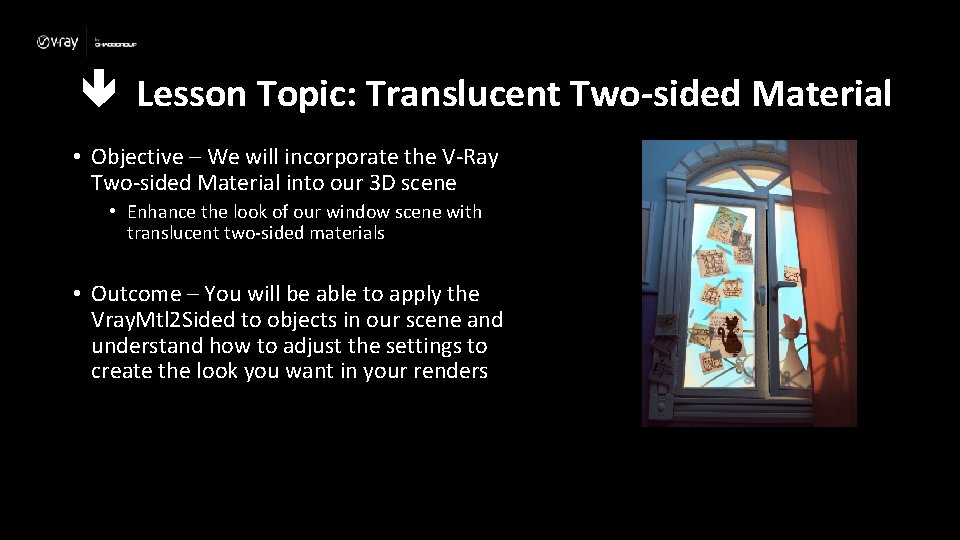
Lesson Topic: Translucent Two-sided Material • Objective – We will incorporate the V-Ray Two-sided Material into our 3 D scene • Enhance the look of our window scene with translucent two-sided materials • Outcome – You will be able to apply the Vray. Mtl 2 Sided to objects in our scene and understand how to adjust the settings to create the look you want in your renders
Lecture: Terminology • This material allows you to have two sides to a surface, making it great to use for translucent materials like paper. Here are some terms to be aware of when thinking about the VRay. Mtl 2 Sided – Front Materials – The material displayed on the front-side of an object based on its normals – Back Materials – The material displayed on the back-side of an object based on its normal – Translucency – Allows light to pass through the material without being scattered
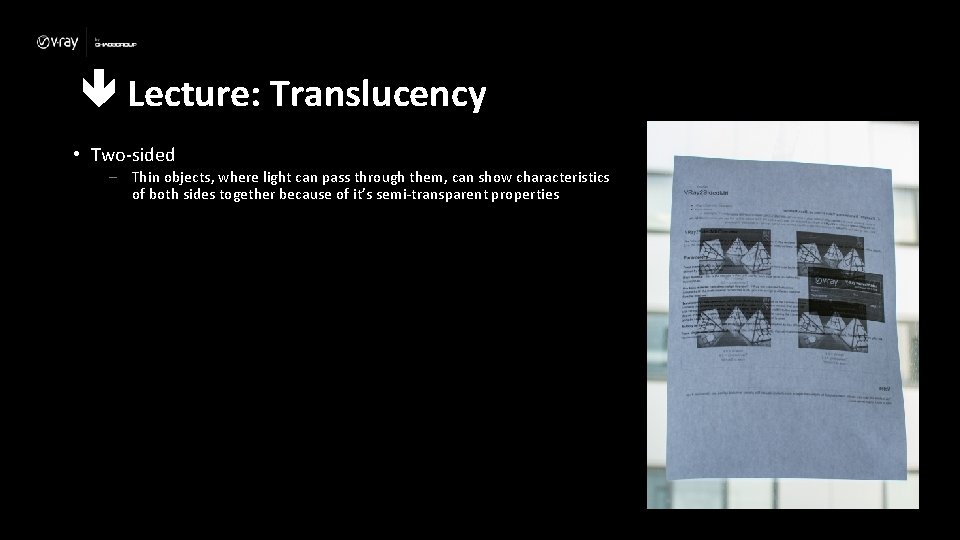
Lecture: Translucency • Two-sided – Thin objects, where light can pass through them, can show characteristics of both sides together because of it’s semi-transparent properties
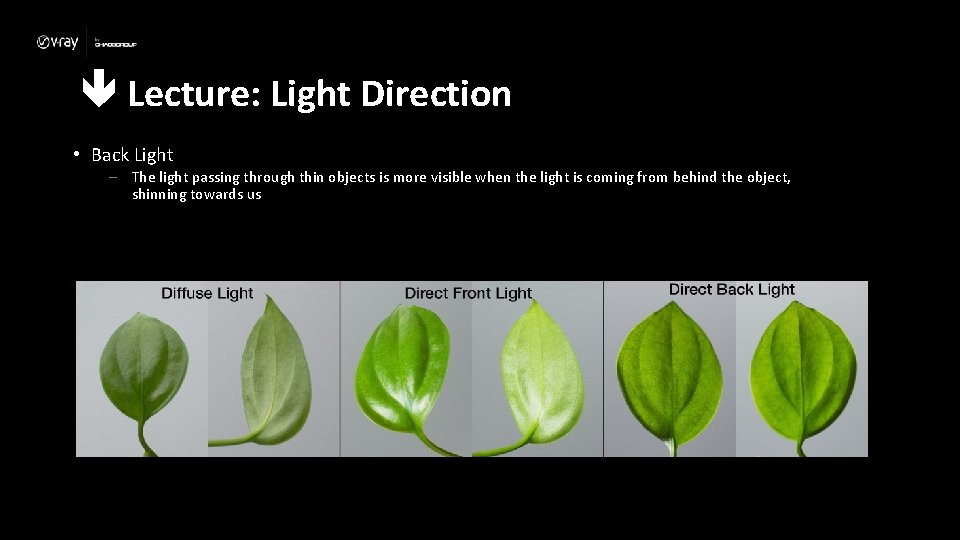
Lecture: Light Direction • Back Light – The light passing through thin objects is more visible when the light is coming from behind the object, shinning towards us
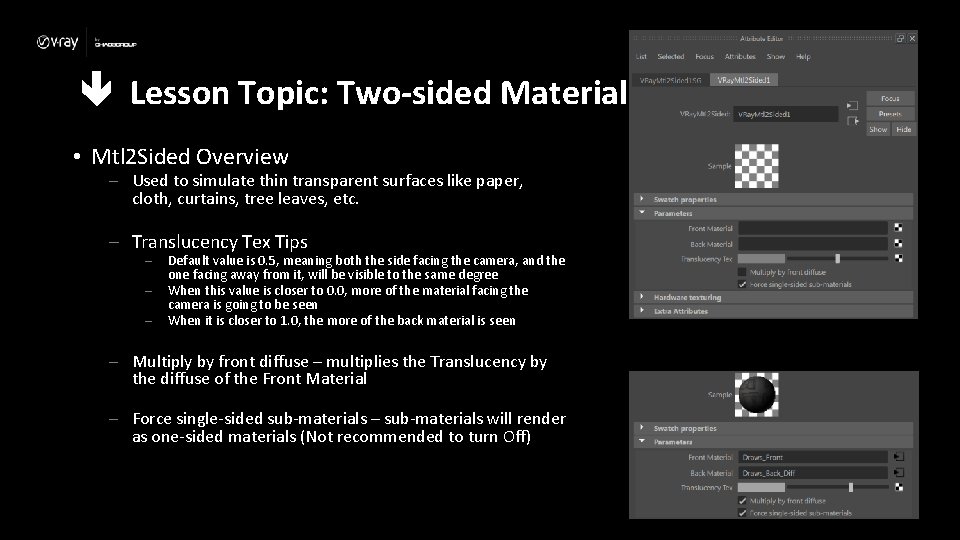
Lesson Topic: Two-sided Material • Mtl 2 Sided Overview – Used to simulate thin transparent surfaces like paper, cloth, curtains, tree leaves, etc. – Translucency Tex Tips – – – Default value is 0. 5, meaning both the side facing the camera, and the one facing away from it, will be visible to the same degree When this value is closer to 0. 0, more of the material facing the camera is going to be seen When it is closer to 1. 0, the more of the back material is seen – Multiply by front diffuse – multiplies the Translucency by the diffuse of the Front Material – Force single-sided sub-materials – sub-materials will render as one-sided materials (Not recommended to turn Off)
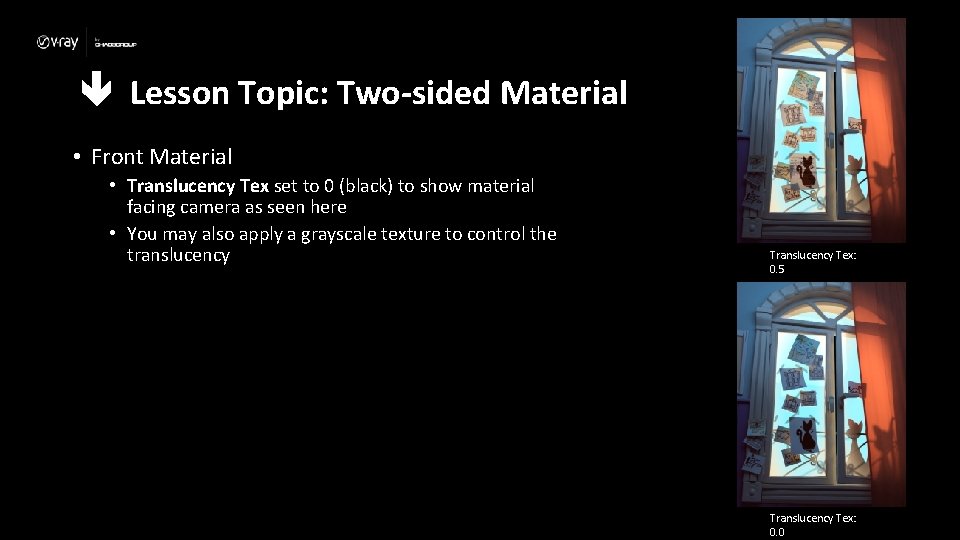
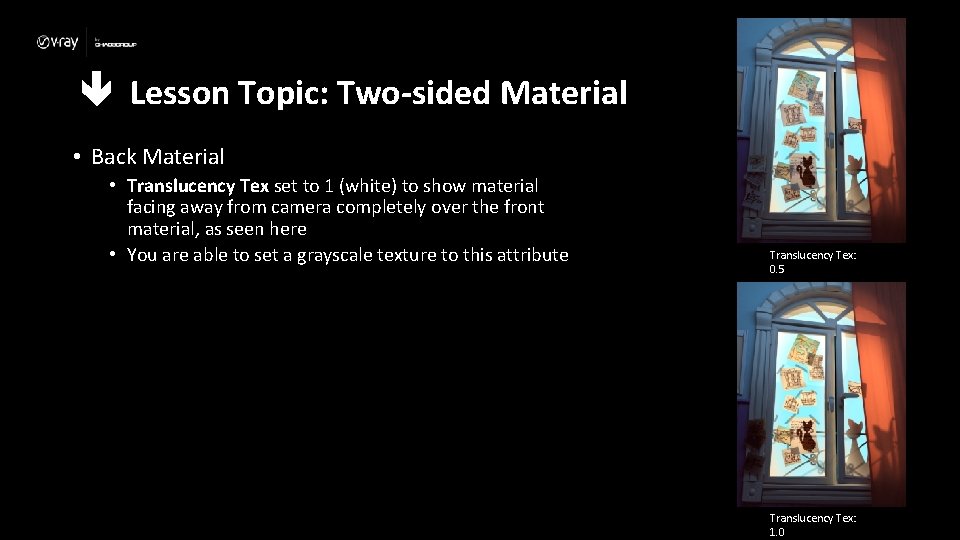
Lesson Topic: Two-sided Material • Front Material • Translucency Tex set to 0 (black) to show material facing camera as seen here • You may also apply a grayscale texture to control the translucency Tex: 0. 5 Translucency Tex: 0. 0
Lesson Topic: Two-sided Material • Back Material • Translucency Tex set to 1 (white) to show material facing away from camera completely over the front material, as seen here • You are able to set a grayscale texture to this attribute Translucency Tex: 0. 5 Translucency Tex: 1. 0
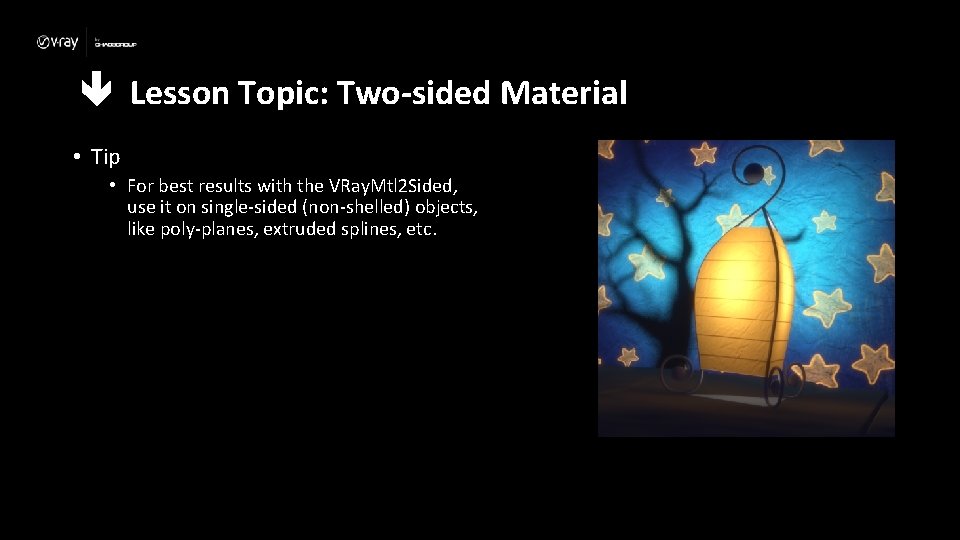
Lesson Topic: Two-sided Material • Tip • For best results with the VRay. Mtl 2 Sided, use it on single-sided (non-shelled) objects, like poly-planes, extruded splines, etc.
Lecture Conclusion: Two-sided Material • Front Materials – Normally the material on the faces facing you (check your normals!) • Back Materials – What gets applied to the reverse side of a face’s normal • Translucency – How we blend the materials together to create a material that’s see through
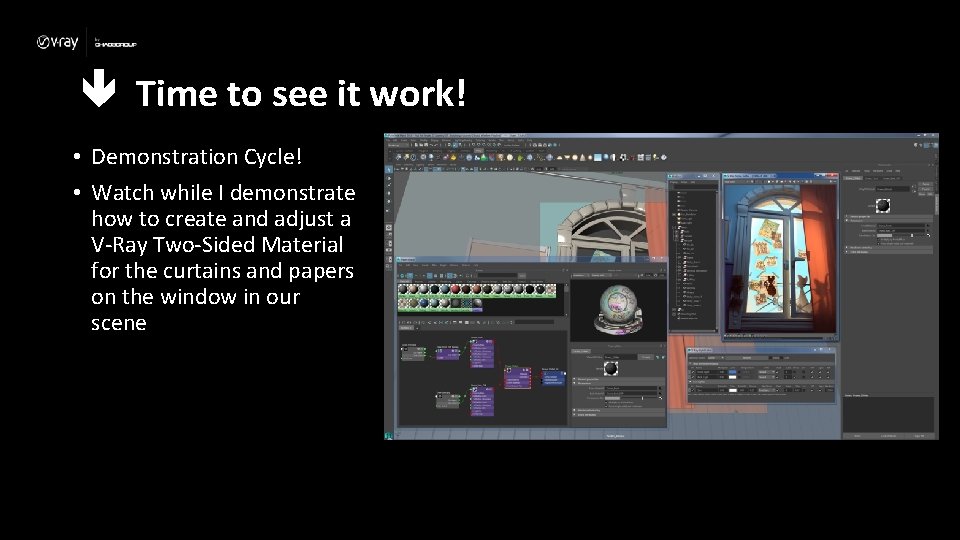
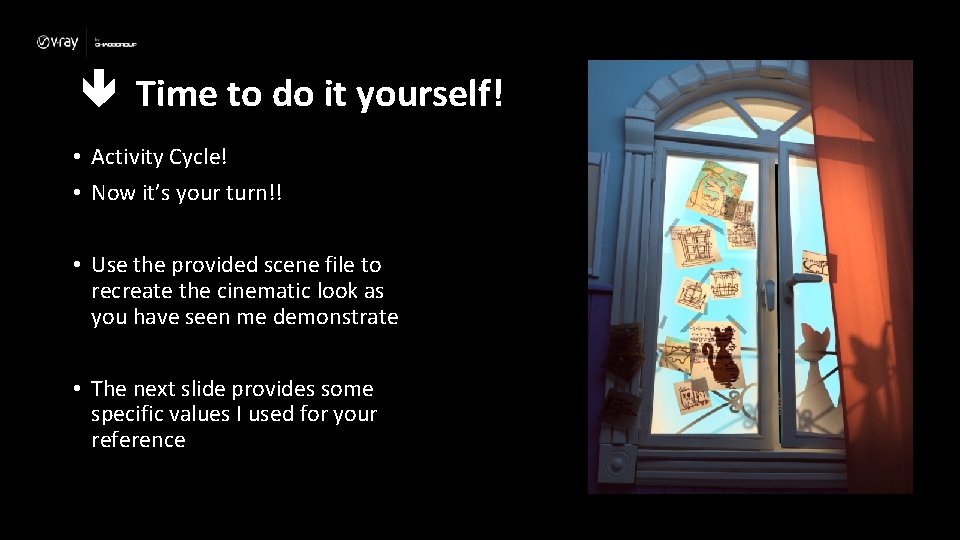
Time to see it work! • Demonstration Cycle! • Watch while I demonstrate how to create and adjust a V-Ray Two-Sided Material for the curtains and papers on the window in our scene
Time to do it yourself! • Activity Cycle! • Now it’s your turn!! • Use the provided scene file to recreate the cinematic look as you have seen me demonstrate • The next slide provides some specific values I used for your reference
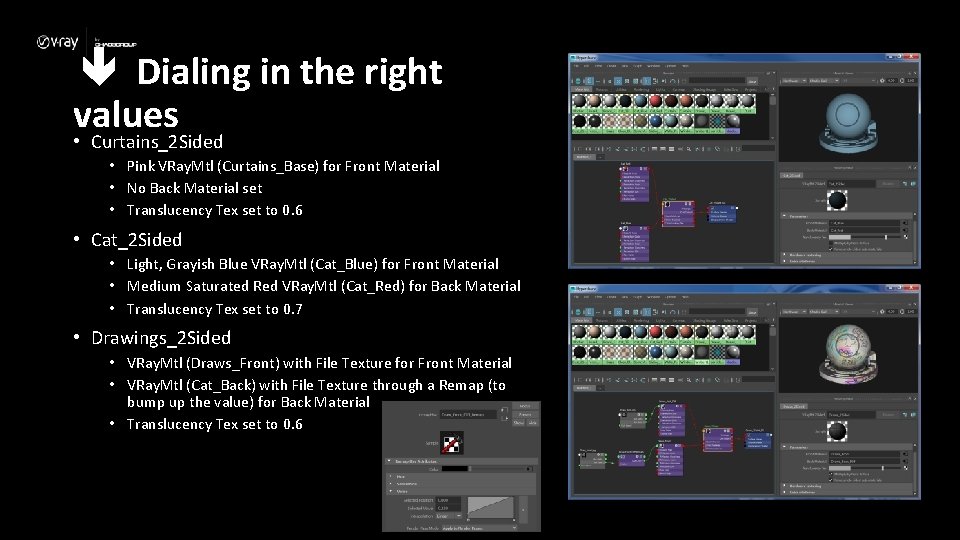
Dialing in the right values • Curtains_2 Sided • Pink VRay. Mtl (Curtains_Base) for Front Material • No Back Material set • Translucency Tex set to 0. 6 • Cat_2 Sided • Light, Grayish Blue VRay. Mtl (Cat_Blue) for Front Material • Medium Saturated Red VRay. Mtl (Cat_Red) for Back Material • Translucency Tex set to 0. 7 • Drawings_2 Sided • VRay. Mtl (Draws_Front) with File Texture for Front Material • VRay. Mtl (Cat_Back) with File Texture through a Remap (to bump up the value) for Back Material • Translucency Tex set to 0. 6