
Material or Fake VRay Light Mtl Lesson Introduction
- Slides: 18
Material or Fake: VRay. Light. Mtl
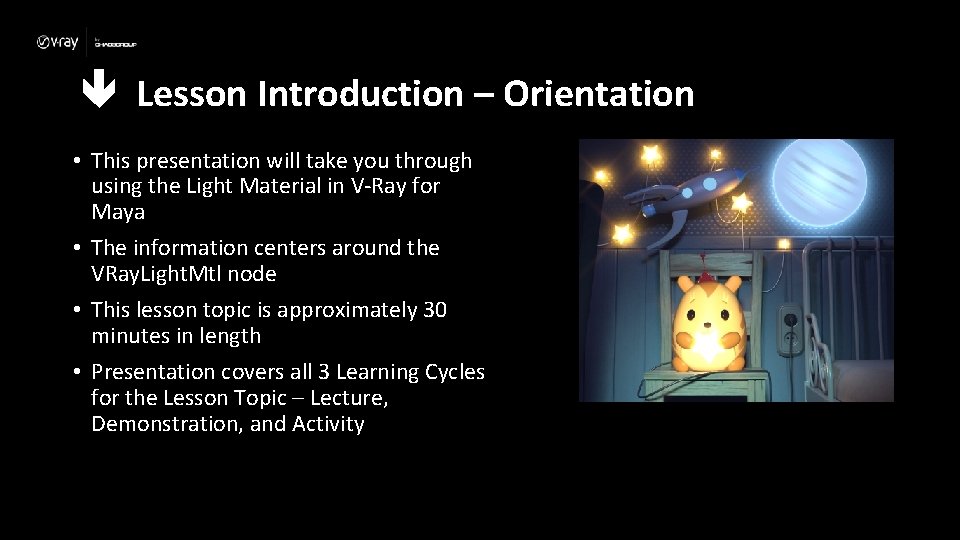
Lesson Introduction – Orientation • This presentation will take you through using the Light Material in V-Ray for Maya • The information centers around the VRay. Light. Mtl node • This lesson topic is approximately 30 minutes in length • Presentation covers all 3 Learning Cycles for the Lesson Topic – Lecture, Demonstration, and Activity
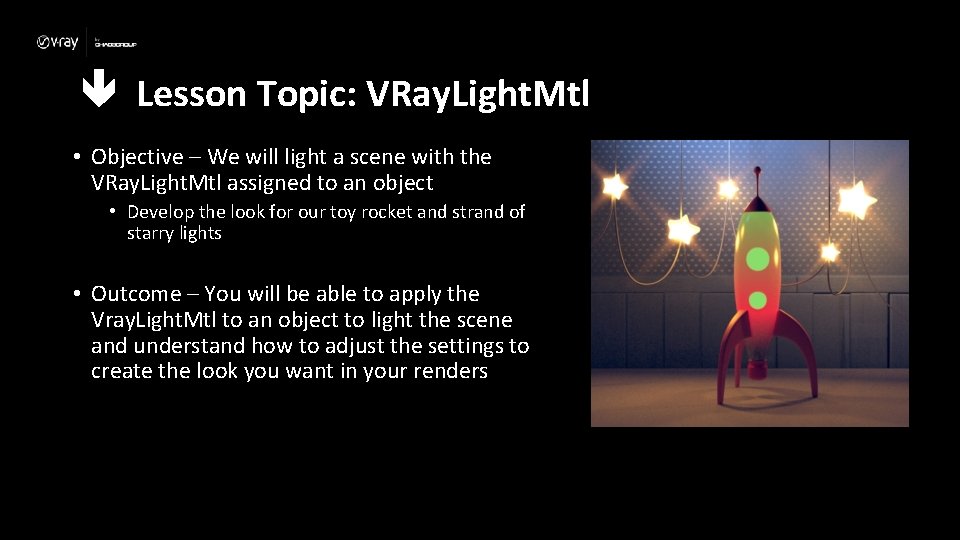
Lesson Topic: VRay. Light. Mtl • Objective – We will light a scene with the VRay. Light. Mtl assigned to an object • Develop the look for our toy rocket and strand of starry lights • Outcome – You will be able to apply the Vray. Light. Mtl to an object to light the scene and understand how to adjust the settings to create the look you want in your renders
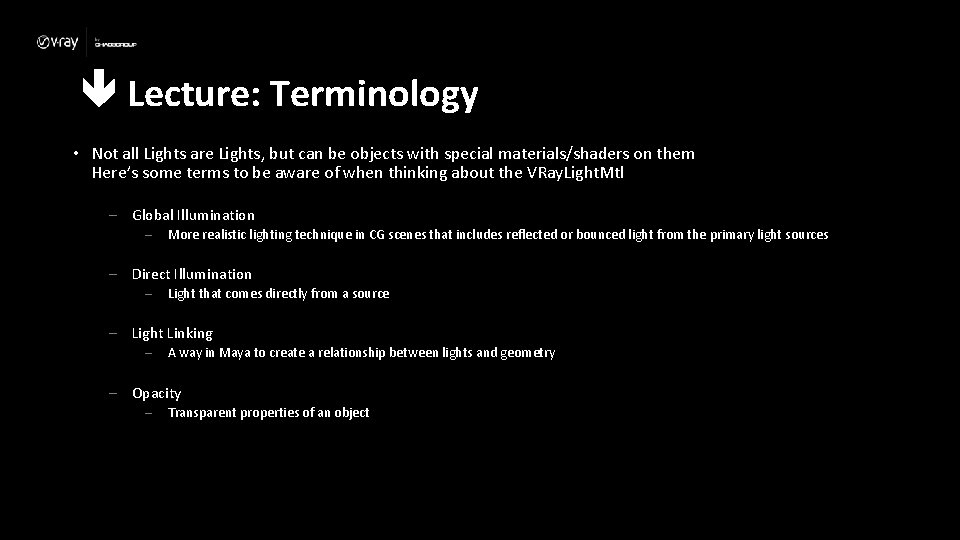
Lecture: Terminology • Not all Lights are Lights, but can be objects with special materials/shaders on them Here’s some terms to be aware of when thinking about the VRay. Light. Mtl – Global Illumination – More realistic lighting technique in CG scenes that includes reflected or bounced light from the primary light sources – Direct Illumination – Light that comes directly from a source – Light Linking – A way in Maya to create a relationship between lights and geometry – Opacity – Transparent properties of an object
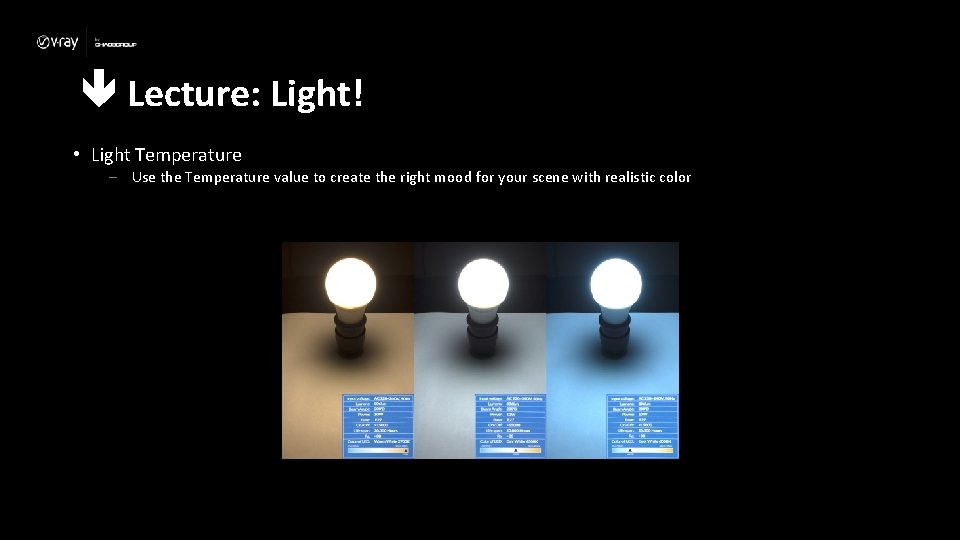
Lecture: Light! • Light Temperature – Use the Temperature value to create the right mood for your scene with realistic color
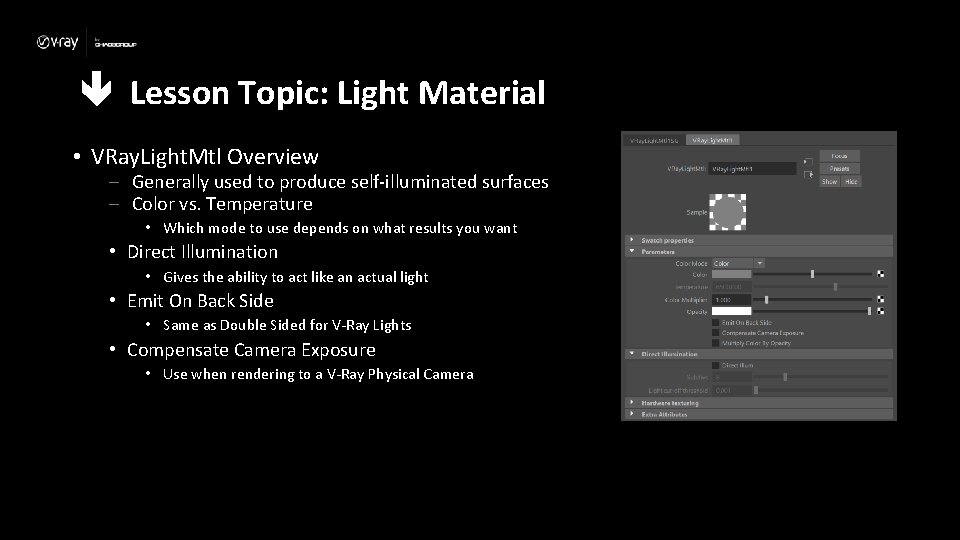
Lesson Topic: Light Material • VRay. Light. Mtl Overview – Generally used to produce self-illuminated surfaces – Color vs. Temperature • Which mode to use depends on what results you want • Direct Illumination • Gives the ability to act like an actual light • Emit On Back Side • Same as Double Sided for V-Ray Lights • Compensate Camera Exposure • Use when rendering to a V-Ray Physical Camera
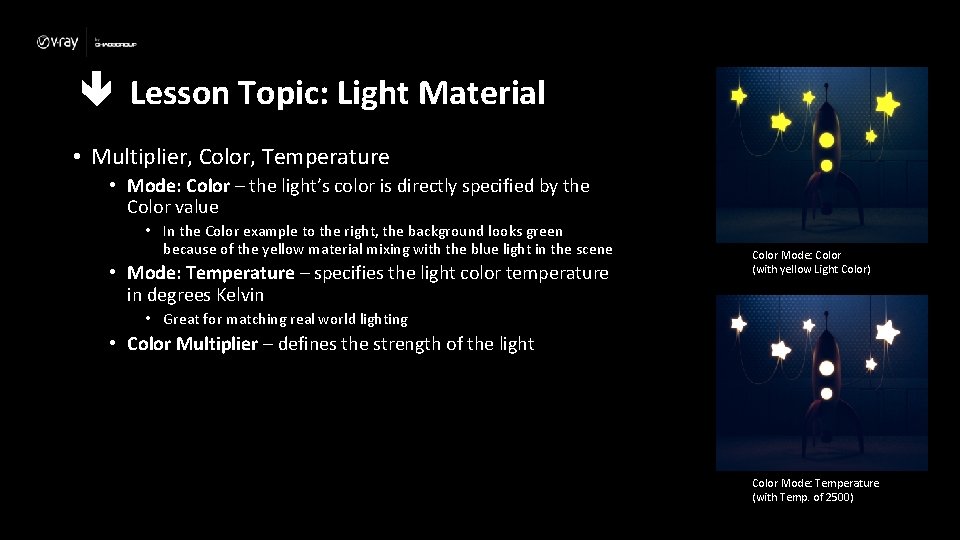
Lesson Topic: Light Material • Multiplier, Color, Temperature • Mode: Color – the light’s color is directly specified by the Color value • In the Color example to the right, the background looks green because of the yellow material mixing with the blue light in the scene • Mode: Temperature – specifies the light color temperature in degrees Kelvin Color Mode: Color (with yellow Light Color) • Great for matching real world lighting • Color Multiplier – defines the strength of the light Color Mode: Temperature (with Temp. of 2500)
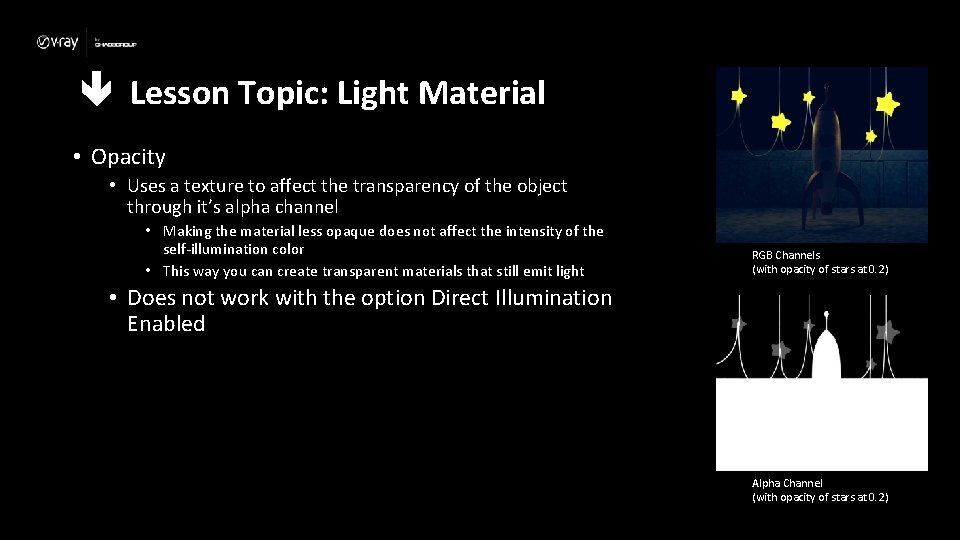
Lesson Topic: Light Material • Opacity • Uses a texture to affect the transparency of the object through it’s alpha channel • Making the material less opaque does not affect the intensity of the self-illumination color • This way you can create transparent materials that still emit light RGB Channels (with opacity of stars at 0. 2) • Does not work with the option Direct Illumination Enabled Alpha Channel (with opacity of stars at 0. 2)
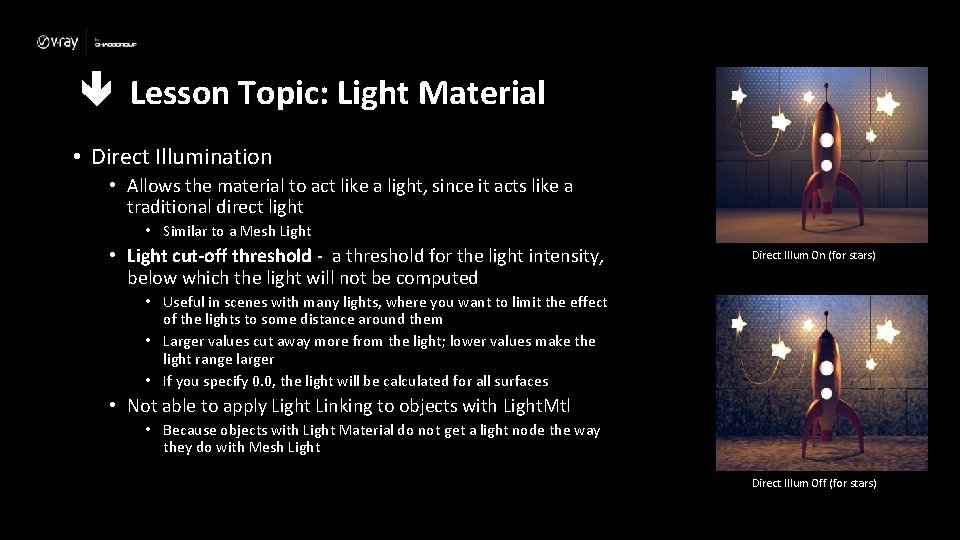
Lesson Topic: Light Material • Direct Illumination • Allows the material to act like a light, since it acts like a traditional direct light • Similar to a Mesh Light • Light cut-off threshold - a threshold for the light intensity, below which the light will not be computed Direct Illum On (for stars) • Useful in scenes with many lights, where you want to limit the effect of the lights to some distance around them • Larger values cut away more from the light; lower values make the light range larger • If you specify 0. 0, the light will be calculated for all surfaces • Not able to apply Light Linking to objects with Light. Mtl • Because objects with Light Material do not get a light node the way they do with Mesh Light Direct Illum Off (for stars)
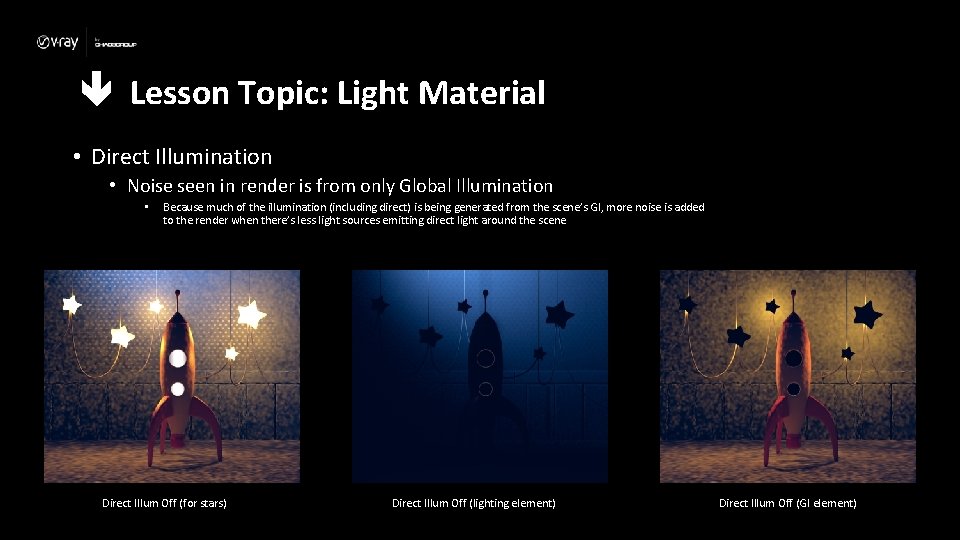
Lesson Topic: Light Material • Direct Illumination • Noise seen in render is from only Global Illumination • Because much of the illumination (including direct) is being generated from the scene’s GI, more noise is added to the render when there’s less light sources emitting direct light around the scene Direct Illum Off (for stars) Direct Illum Off (lighting element) Direct Illum Off (GI element)
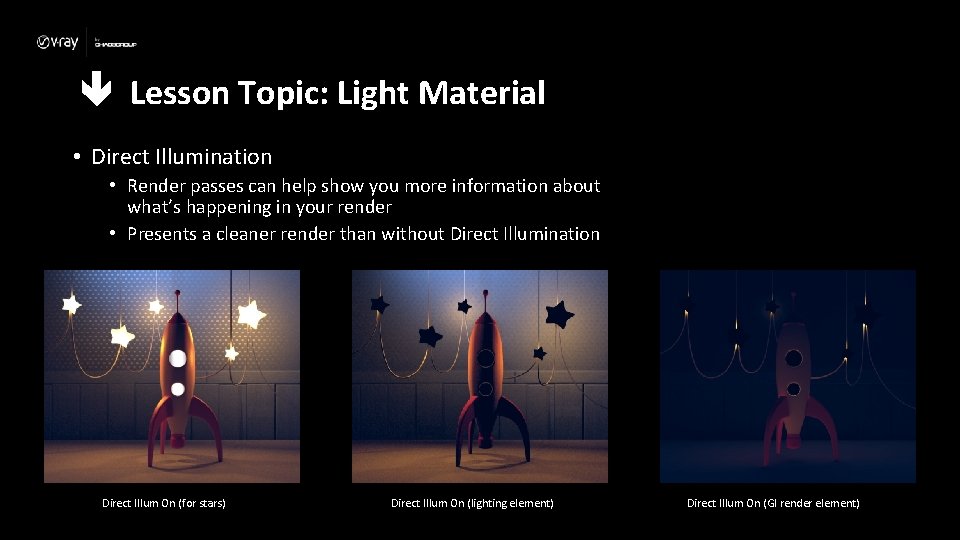
Lesson Topic: Light Material • Direct Illumination • Render passes can help show you more information about what’s happening in your render • Presents a cleaner render than without Direct Illumination Direct Illum On (for stars) Direct Illum On (lighting element) Direct Illum On (GI render element)
Lesson Topic: Light Material • Light Material vs. Mesh Light • Mesh Light is categorized in the scene as a Light (vray. Mesh. Light. Properties node) • Effected objects can be configured with Light Linking • Mesh Light has more Options to customize the light’s effect • No Decay, Double Sided, Invisible, Affect Diffuse/Specular/Reflections, etc.
Lesson Topic: Lecture Conclusion • Direct Illumination – Not just self-illuminating, but scene illuminating • Color Modes – Temperature vs. Color • Opacity – Makes objects with light. Mtl assigned to them transparent, if Direct Illumination is Off
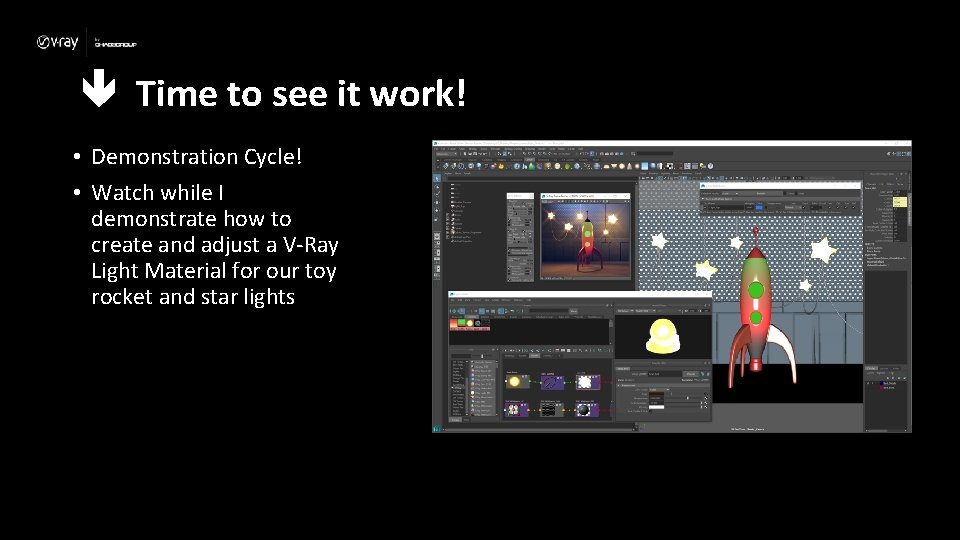
Time to see it work! • Demonstration Cycle! • Watch while I demonstrate how to create and adjust a V-Ray Light Material for our toy rocket and star lights
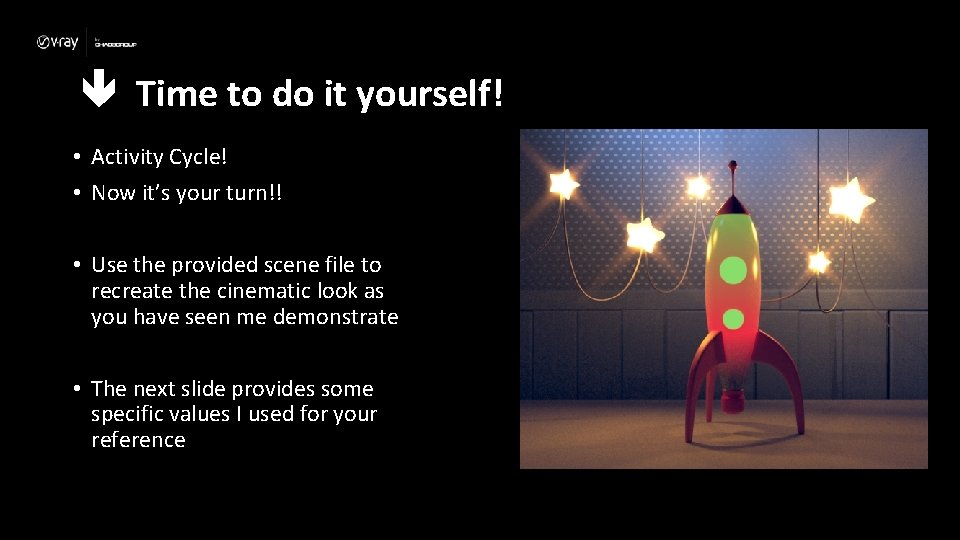
Time to do it yourself! • Activity Cycle! • Now it’s your turn!! • Use the provided scene file to recreate the cinematic look as you have seen me demonstrate • The next slide provides some specific values I used for your reference
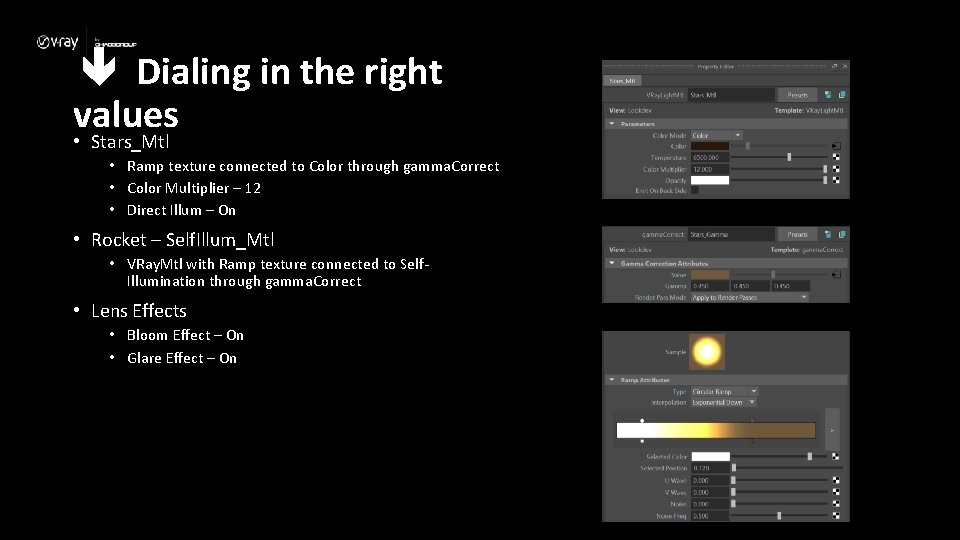
Dialing in the right values • Stars_Mtl • Ramp texture connected to Color through gamma. Correct • Color Multiplier – 12 • Direct Illum – On • Rocket – Self. Illum_Mtl • VRay. Mtl with Ramp texture connected to Self. Illumination through gamma. Correct • Lens Effects • Bloom Effect – On • Glare Effect – On