
Master Slides Power Point Office 365 Powerpoint Desktop

![(6) Title only – blank beneath! [7 - Next slide ‘blank!’]](https://slidetodoc.com/presentation_image_h2/2c26274cee7e04dea2ab71af152a340b/image-23.jpg "(6) Title only – blank beneath! [7 - Next slide ‘blank!’]")

![Paste options/ select ‘destination’ style [left hand icon]](https://slidetodoc.com/presentation_image_h2/2c26274cee7e04dea2ab71af152a340b/image-35.jpg "Paste options/ select ‘destination’ style [left hand icon]")
![Default = 1_[original]](https://slidetodoc.com/presentation_image_h2/2c26274cee7e04dea2ab71af152a340b/image-38.jpg "Default = 1_[original]")
- Slides: 56
Master Slides Power. Point
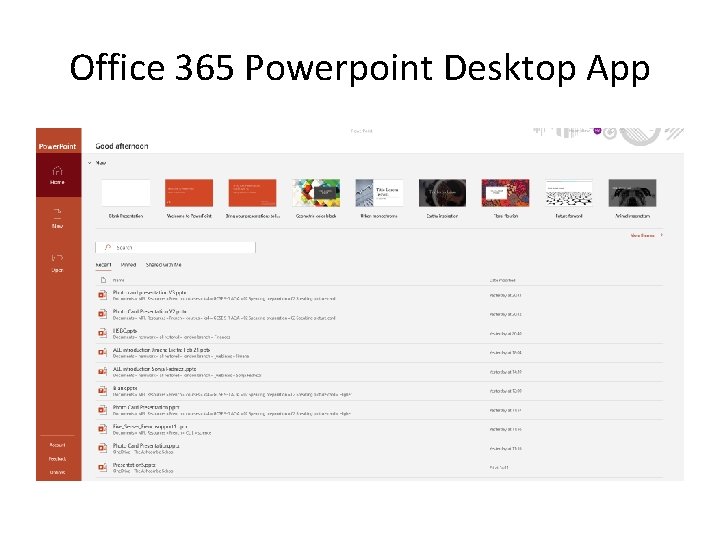
Office 365 Powerpoint Desktop App
Section A WHY HAVE MASTER SLIDES?
Rationale • You want access to commonly used formats to save time e. g. paragraphs animated / not animated • You want to maintain the formatting of your master slides to make appearance uniform • You may not want to re-use slides from other presentations whose master slides may have settings you do not want to re-use (e. g. coloured background / font etc. ) and which may interfere with creating new slides (adding new slide with right click automatically assumes the format of the previous master slide).
Solution • Create a core ‘Blank presentation’ with your favourite slide layouts readily available in the master slide menu. • For any new presentation, start with this one! • You can then alter the master slide to determine colour / fonts etc. which will carry over to all other layouts related to the master slide. • This presentation will try to explain all!
Section B WHAT ARE MASTER SLIDES AND WHERE ARE THEY?
Definition • A slide master is the top slide in a hierarchy of slides that stores information about theme and slide layouts of a presentation, including the background, colour, fonts, effects, placeholder sizes, and positioning.
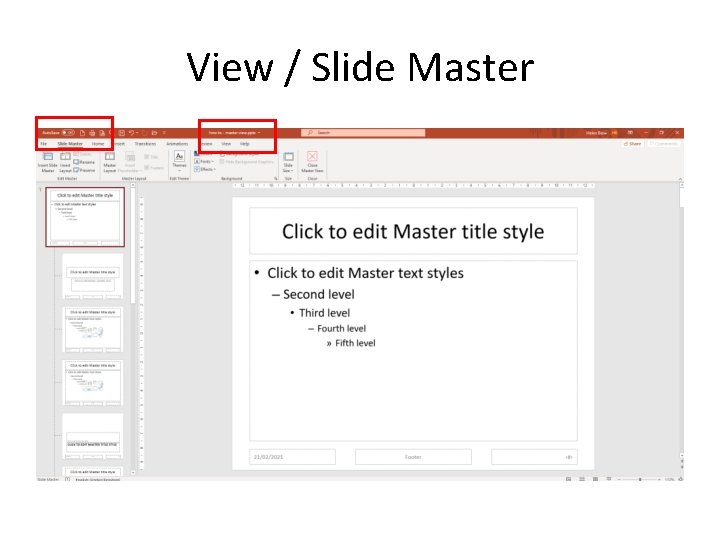
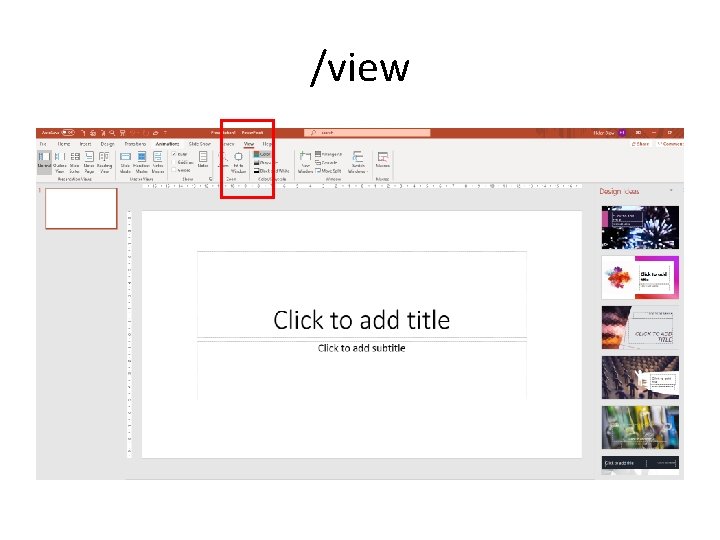
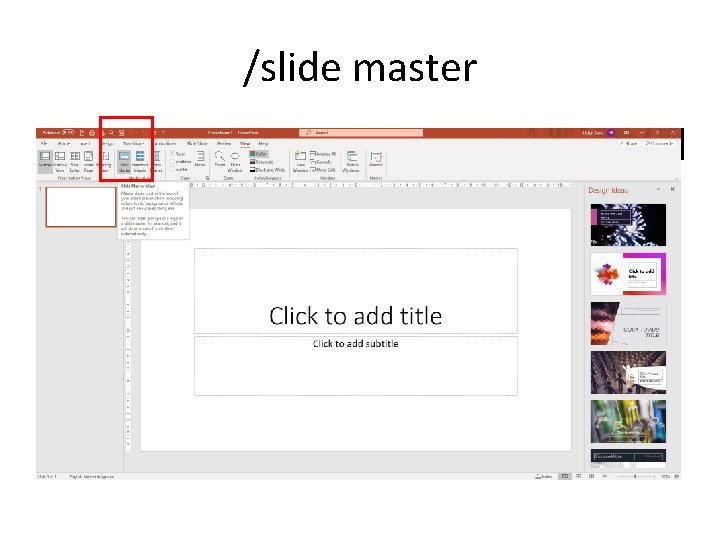
View / Slide Master
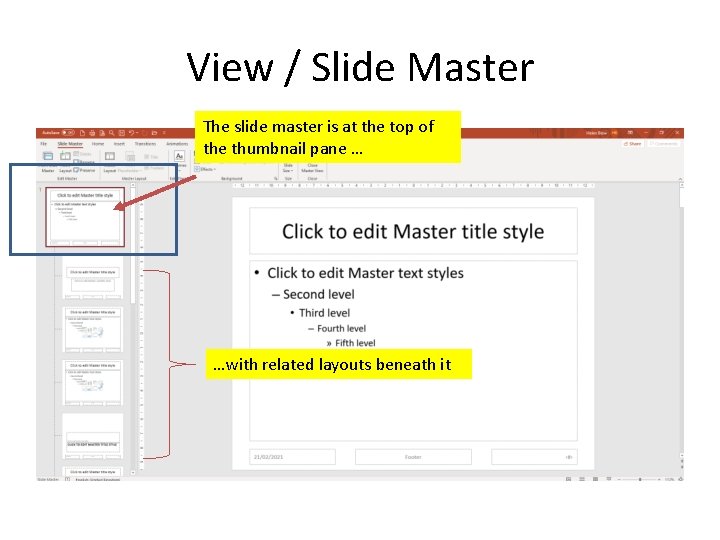
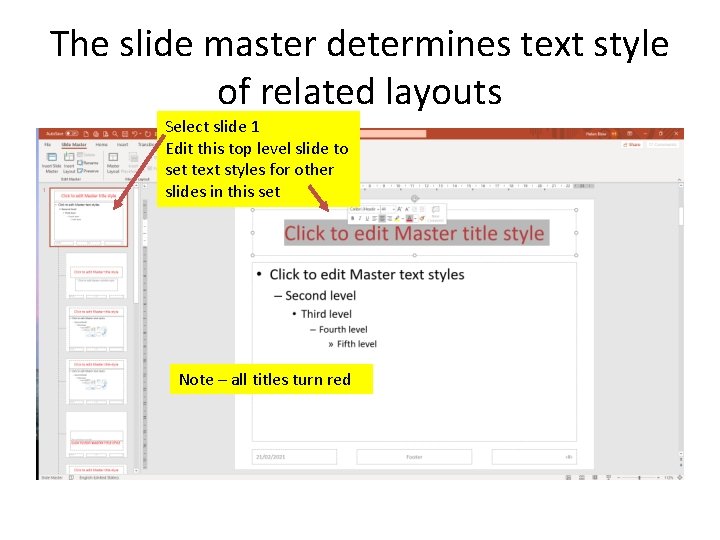
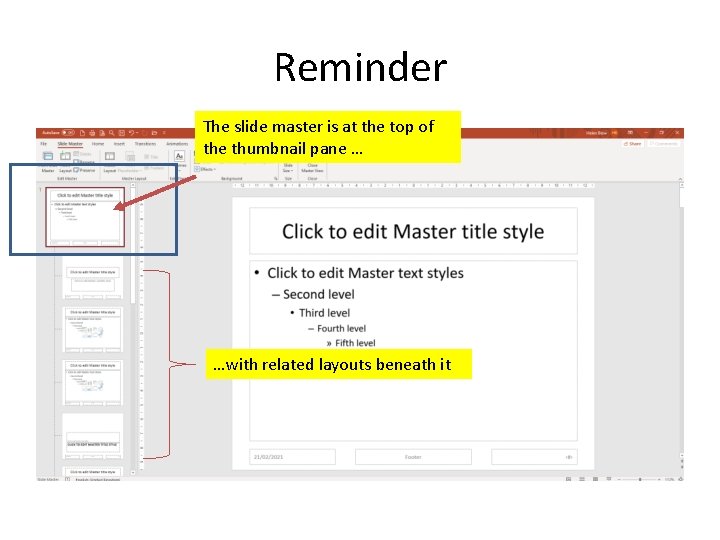
View / Slide Master The slide master is at the top of the thumbnail pane … …with related layouts beneath it
The slide master determines text style of related layouts Select slide 1 Edit this top level slide to set text styles for other slides in this set Note – all titles turn red
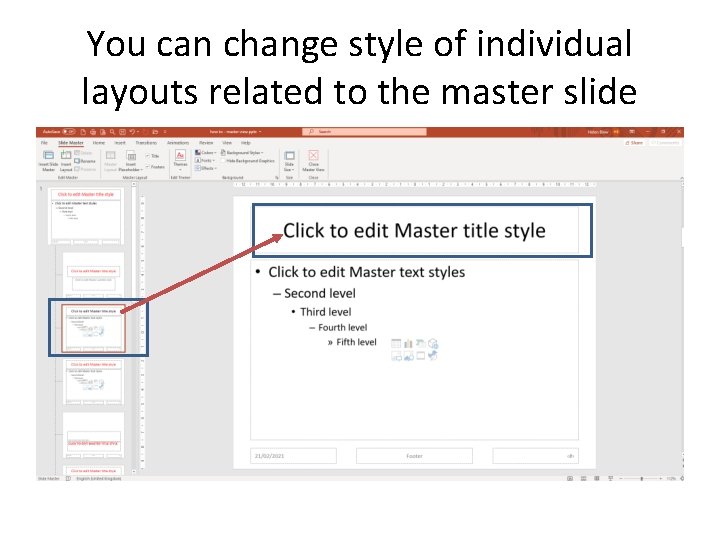
You can change style of individual layouts related to the master slide
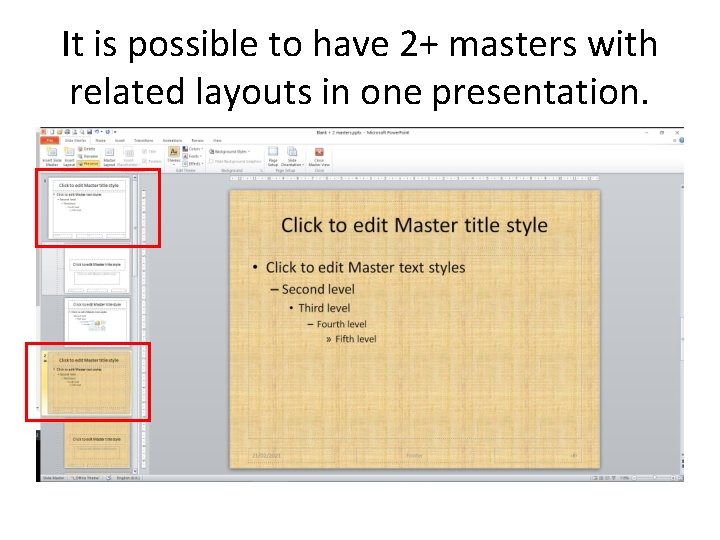
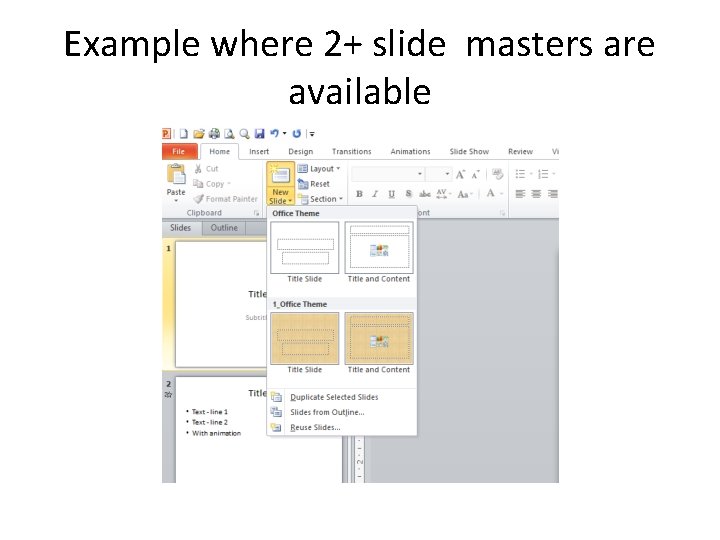
It is possible to have 2+ masters with related layouts in one presentation.
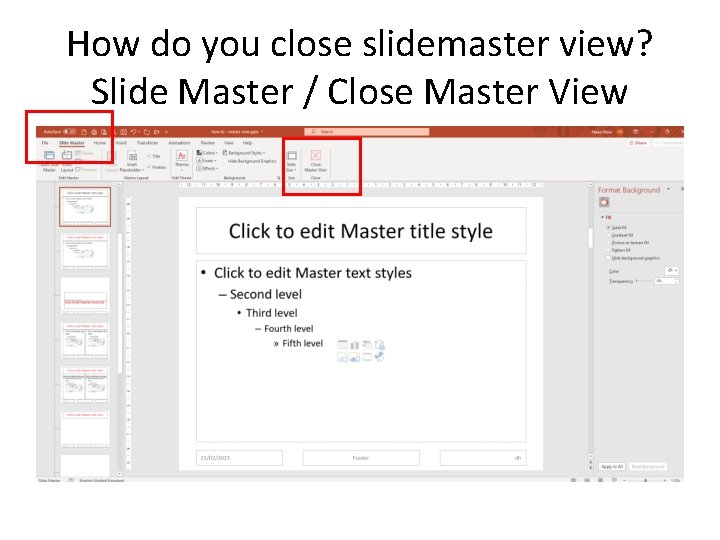
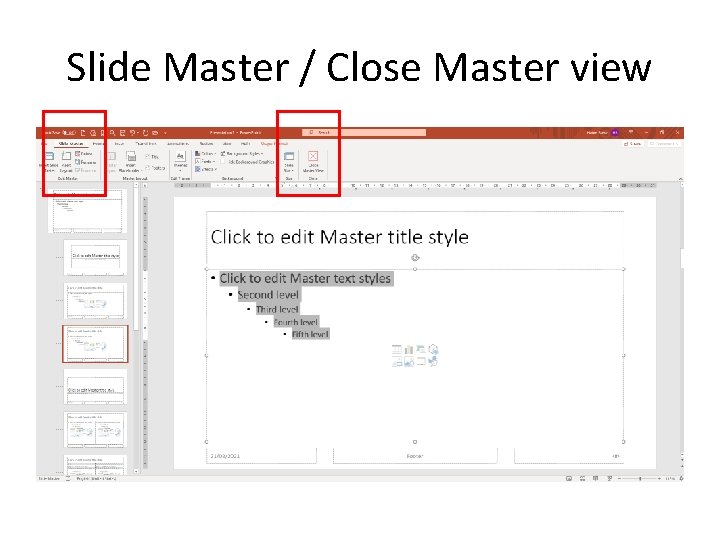
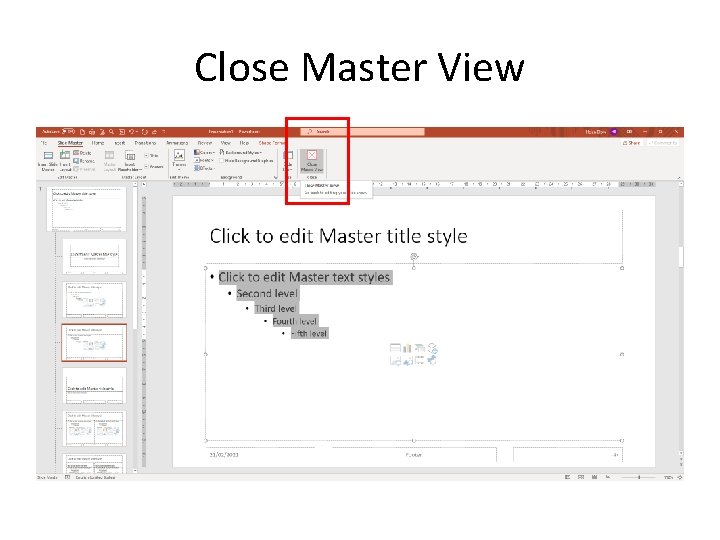
How do you close slidemaster view? Slide Master / Close Master View
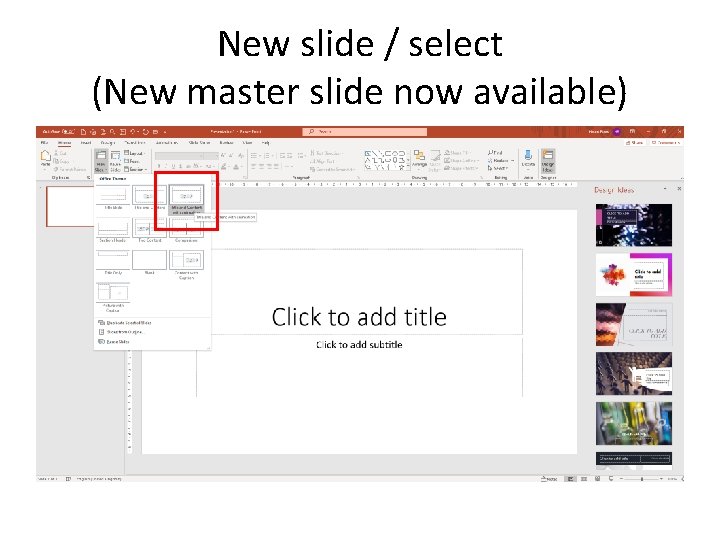
How do you select a new layout when editing?
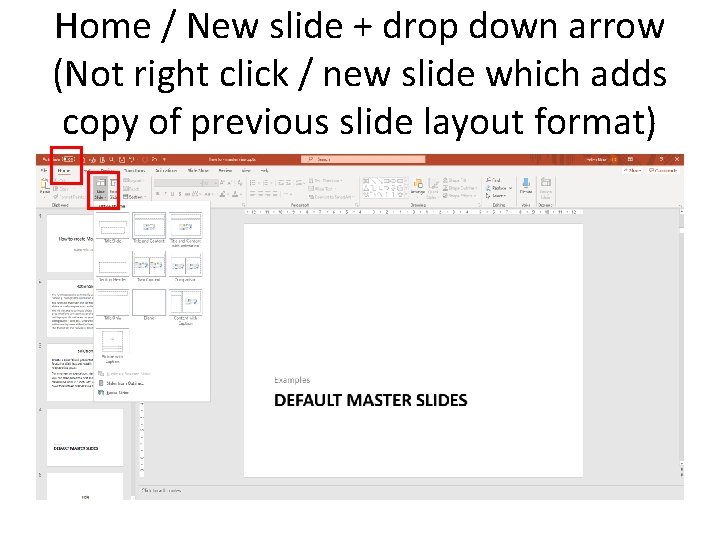
Home / New slide + drop down arrow (Not right click / new slide which adds copy of previous slide layout format)
Example where 2+ slide masters are available
Section C WHAT DO THE DEFAULT SLIDE LAYOUTS LOOK LIKE?
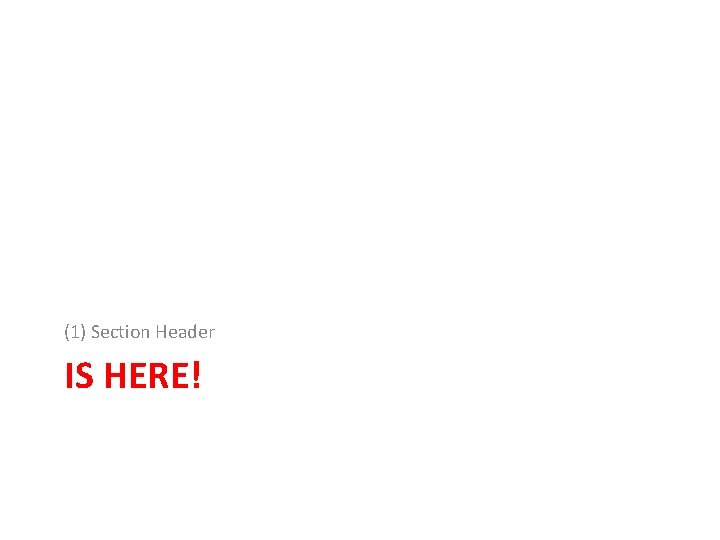
(1) Section Header IS HERE!
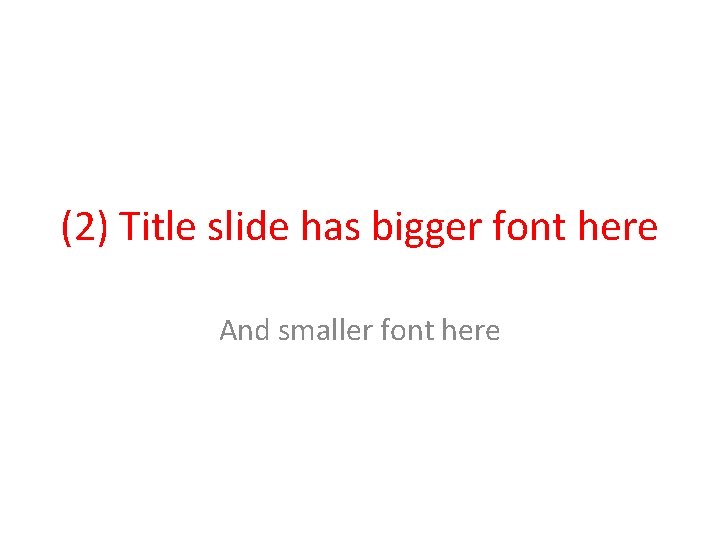
(2) Title slide has bigger font here And smaller font here
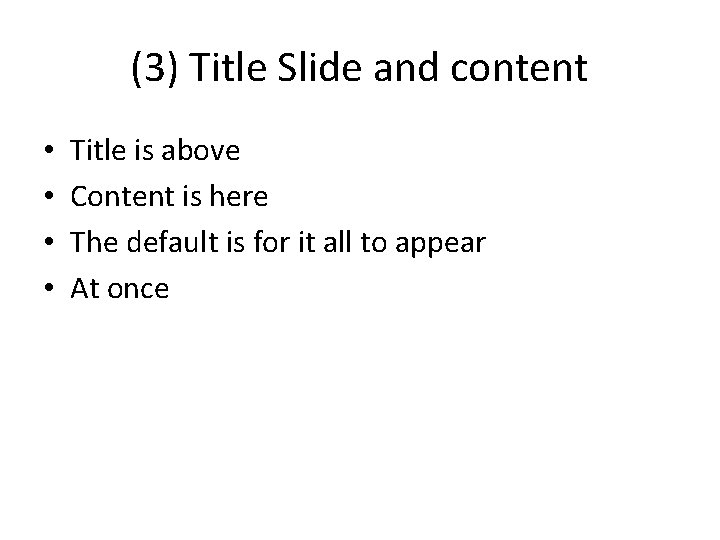
(3) Title Slide and content • • Title is above Content is here The default is for it all to appear At once
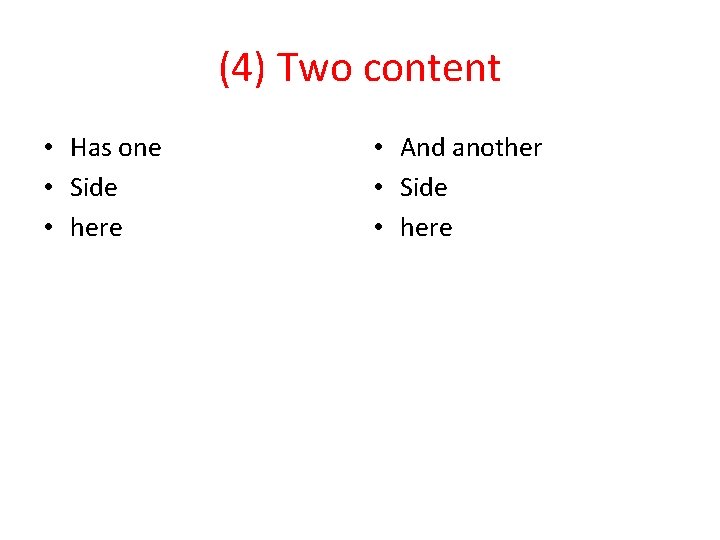
(4) Two content • Has one • Side • here • And another • Side • here
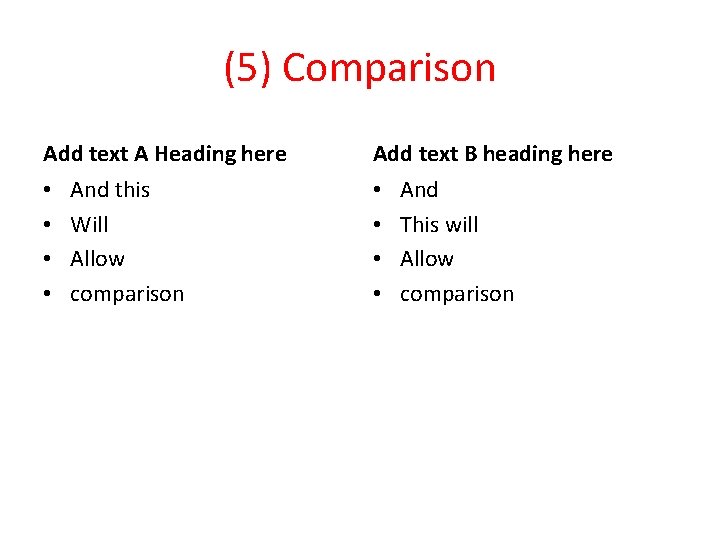
(5) Comparison Add text A Heading here • • And this Will Allow comparison Add text B heading here • • And This will Allow comparison
(6) Title only – blank beneath! [7 - Next slide ‘blank!’]
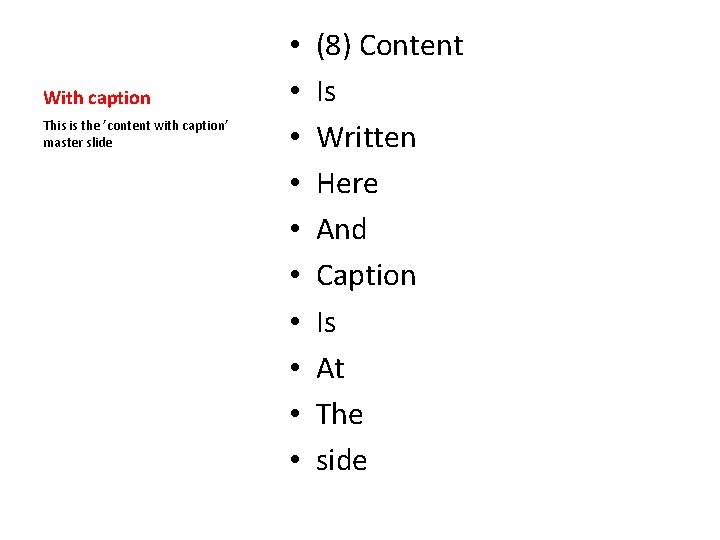
With caption This is the ’content with caption’ master slide • • • (8) Content Is Written Here And Caption Is At The side
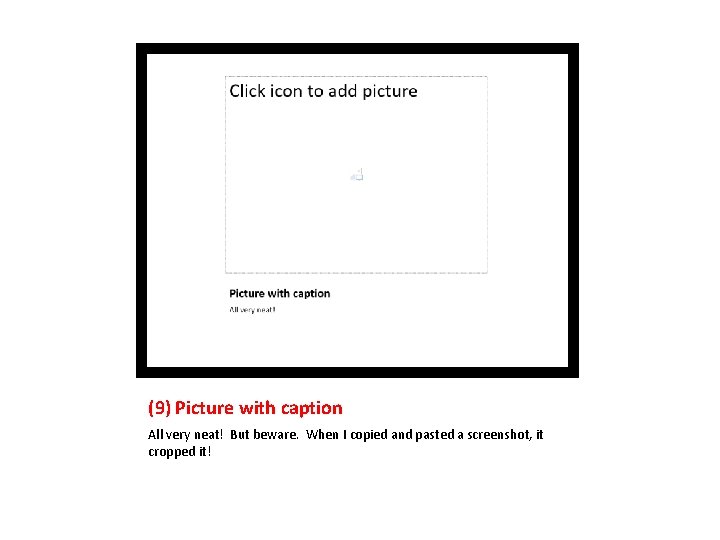
(9) Picture with caption All very neat! But beware. When I copied and pasted a screenshot, it cropped it!
Section D HOW DO YOU CREATE A NEW LAYOUT RELATED TO YOUR MASTER SLIDE?
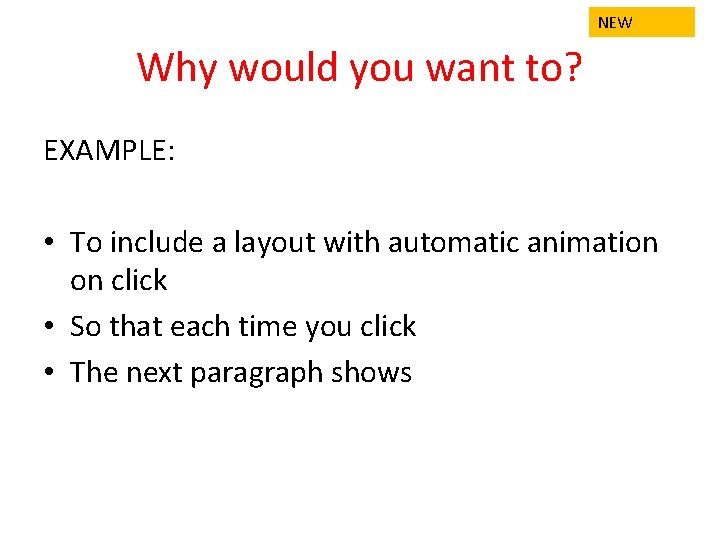
Why would you want to? EXAMPLE: • To include a layout with automatic animation on click • So that each time you click • The next paragraph shows
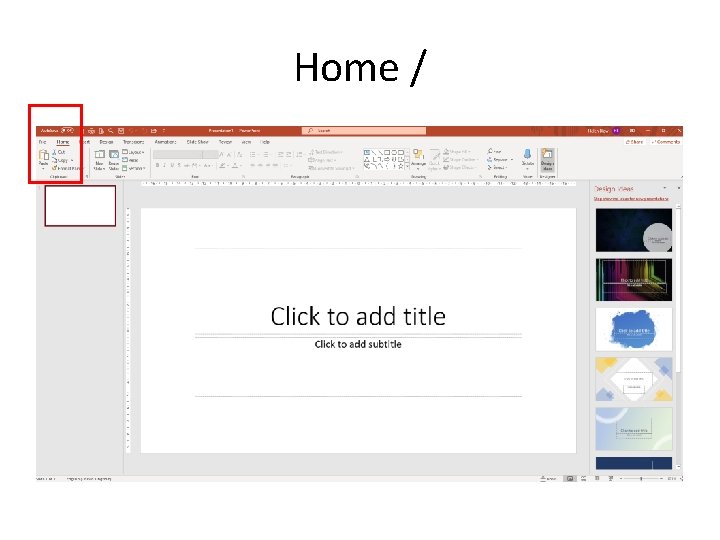
Home /
/view
/slide master
Reminder The slide master is at the top of the thumbnail pane … …with related layouts beneath it
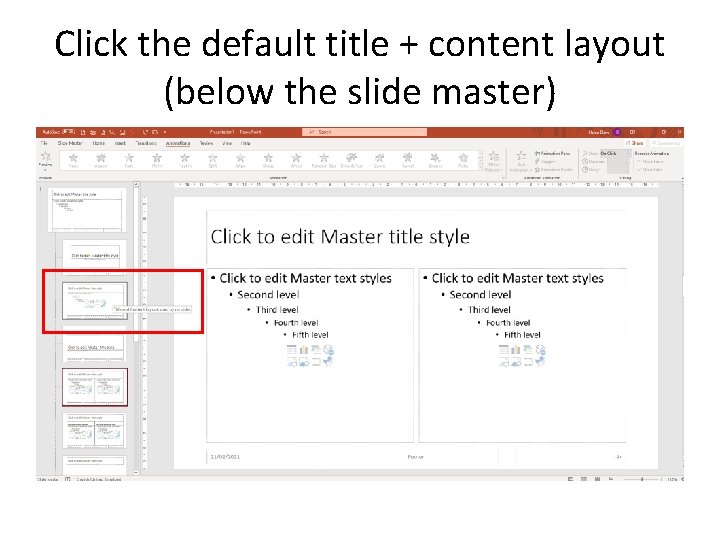
Click the default title + content layout (below the slide master)
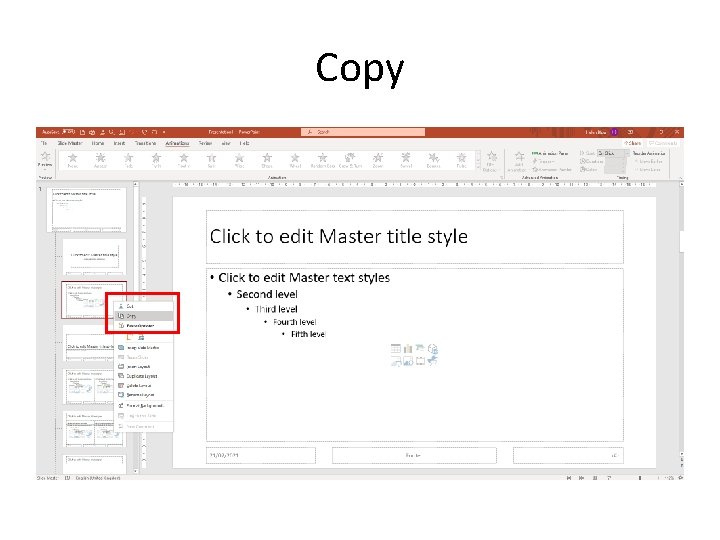
Copy
Paste options/ select ‘destination’ style [left hand icon]
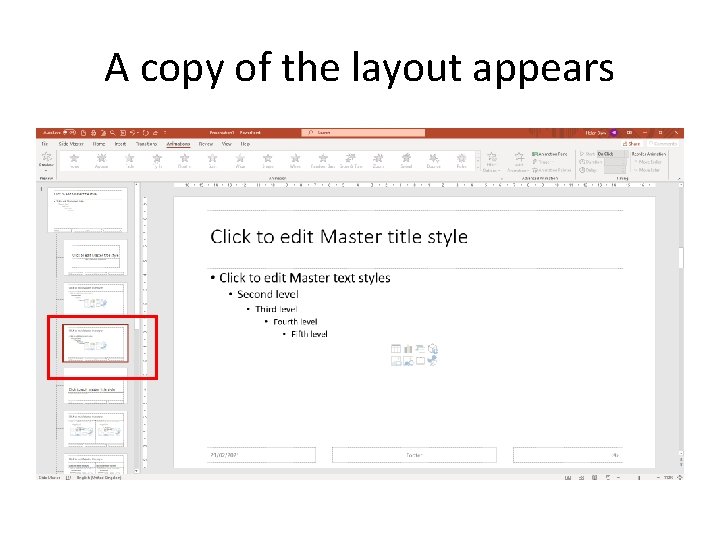
A copy of the layout appears
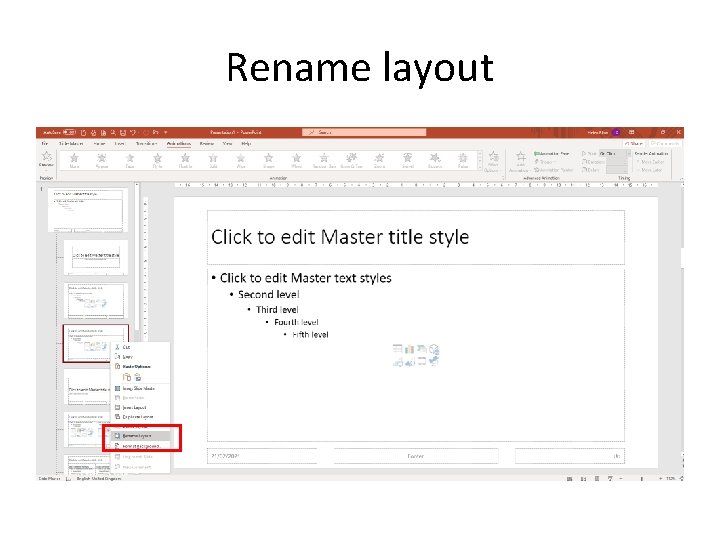
Rename layout
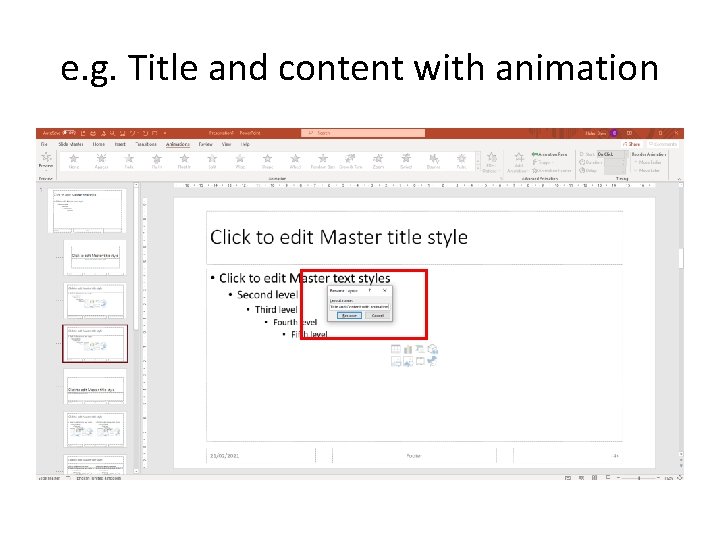
Default = 1_[original]
e. g. Title and content with animation
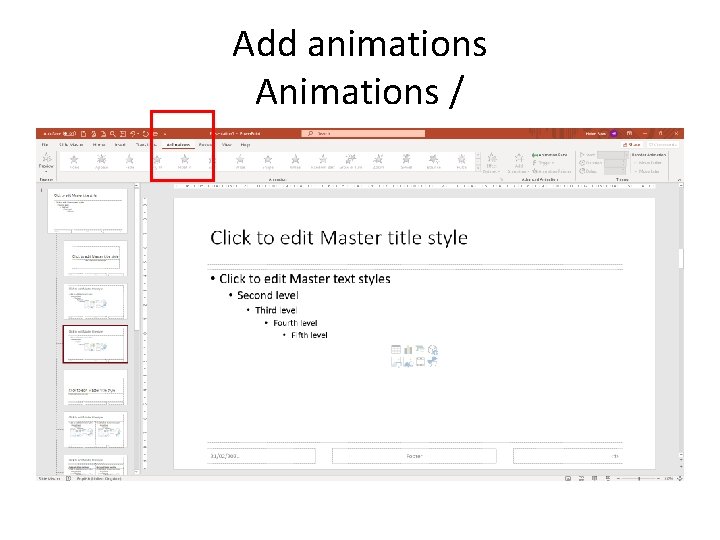
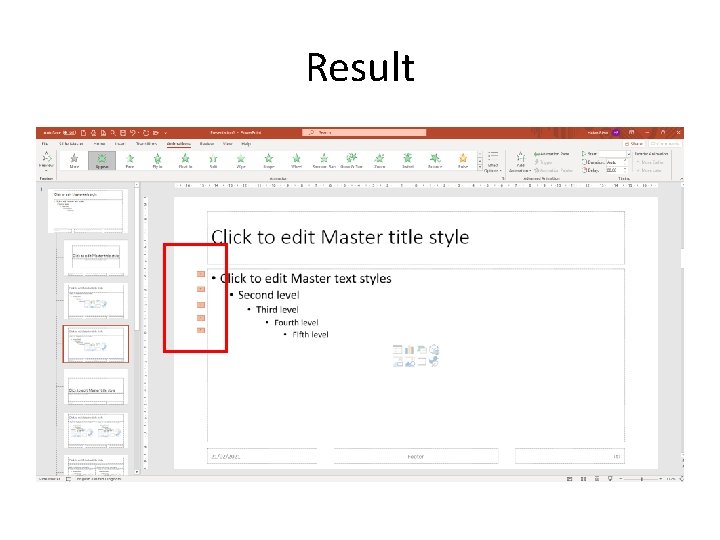
Add animations Animations /
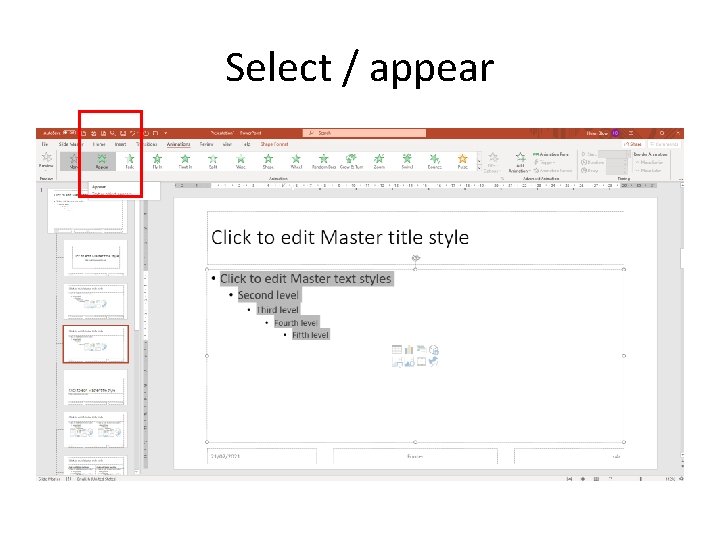
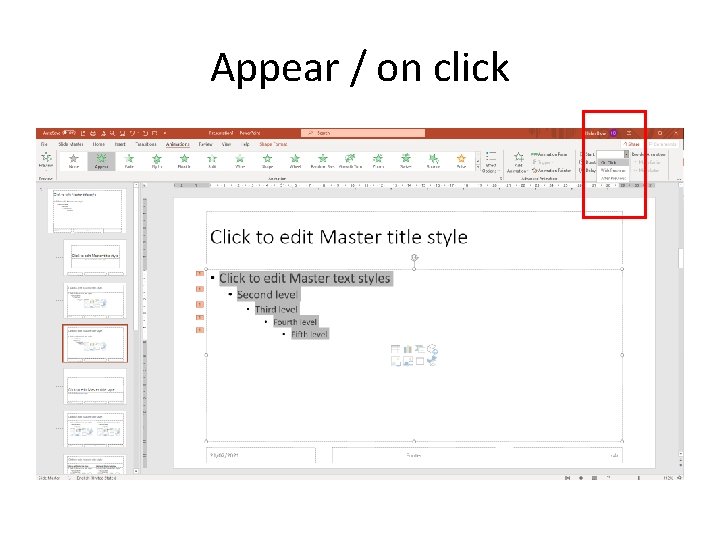
Select / appear
Result
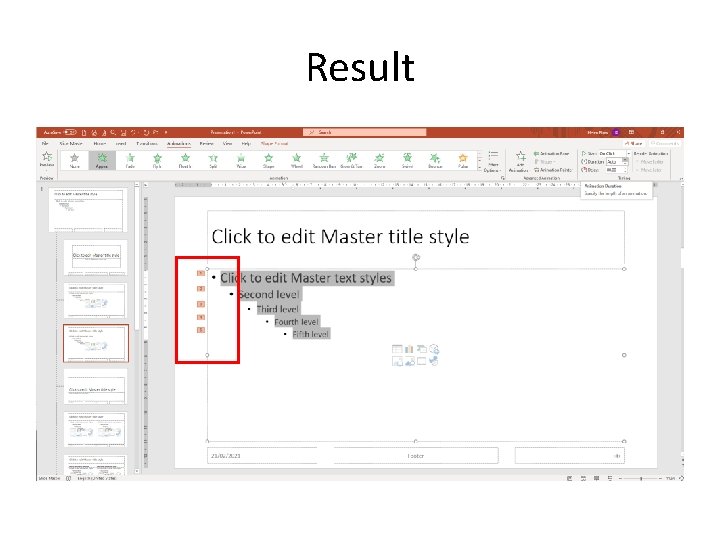
Appear / on click
Result
Slide Master / Close Master view
Close Master View
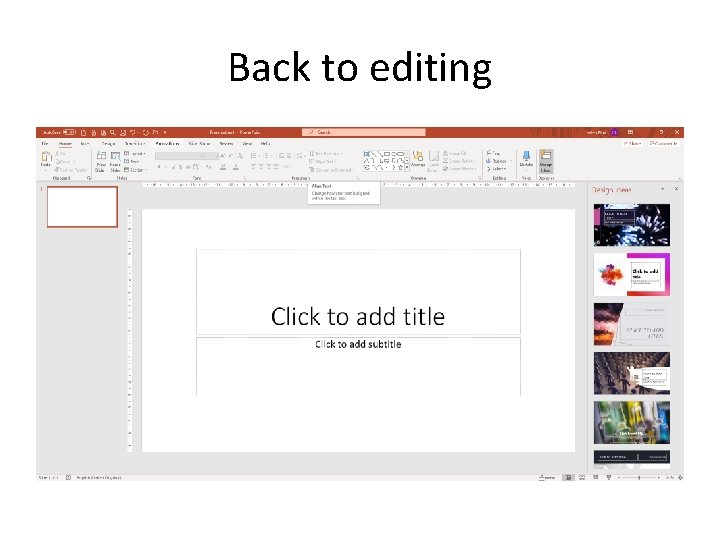
Back to editing
New slide / select (New master slide now available)
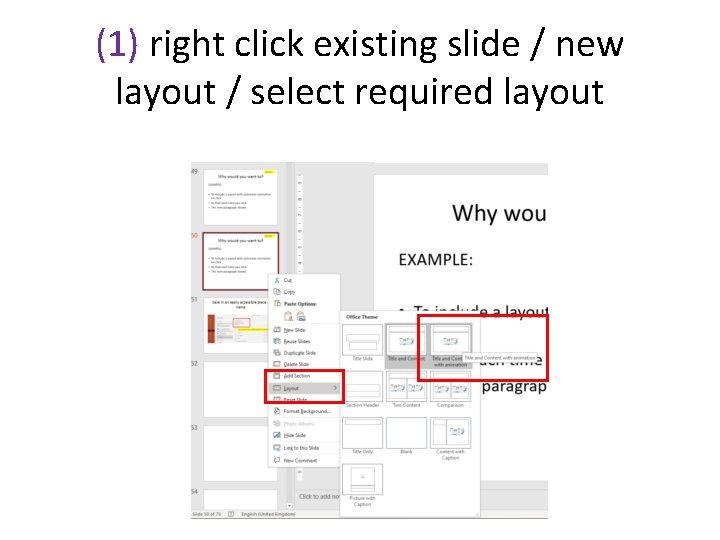
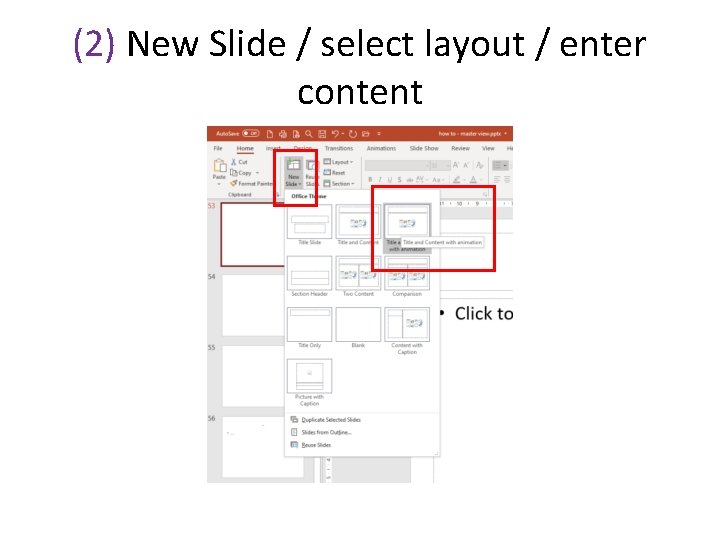
Has it worked? 2 ways to use new layout (1) Apply to existing slide (2) Select New Slide Layout
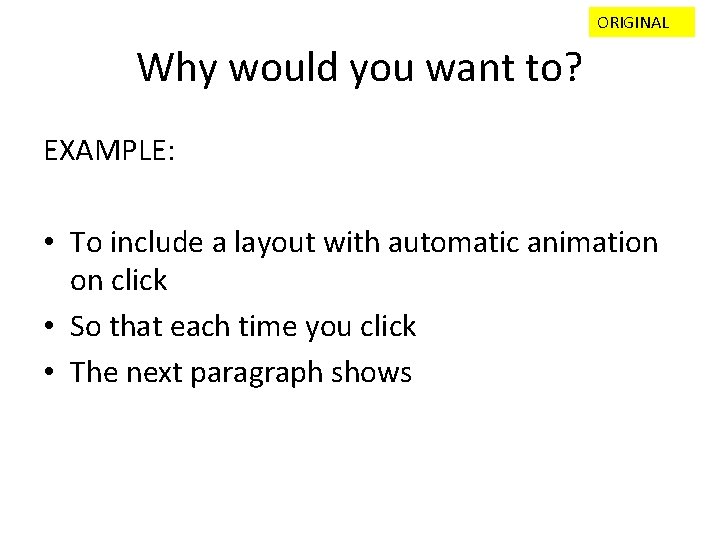
ORIGINAL Why would you want to? EXAMPLE: • To include a layout with automatic animation on click • So that each time you click • The next paragraph shows
(1) right click existing slide / new layout / select required layout
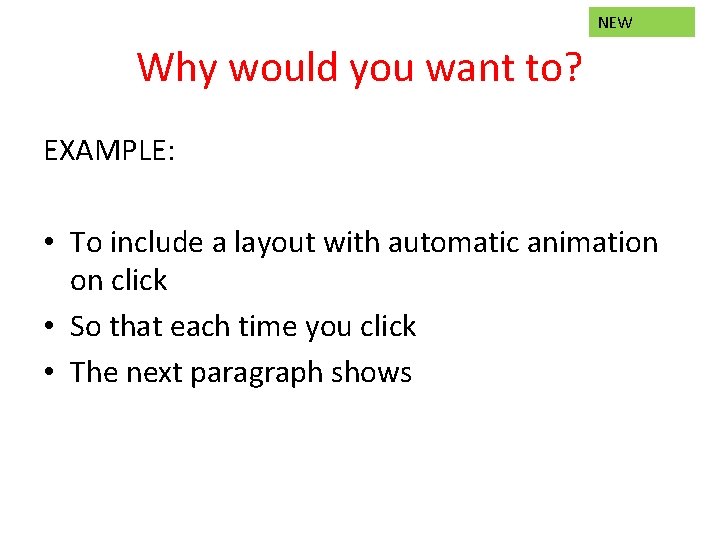
NEW Why would you want to? EXAMPLE: • To include a layout with automatic animation on click • So that each time you click • The next paragraph shows
(2) New Slide / select layout / enter content
NEW Why would you want to? EXAMPLE: • To include a layout with automatic animation on click • So that each time you click • The next paragraph shows
Section E HOW DO YOU RETRIEVE IT?
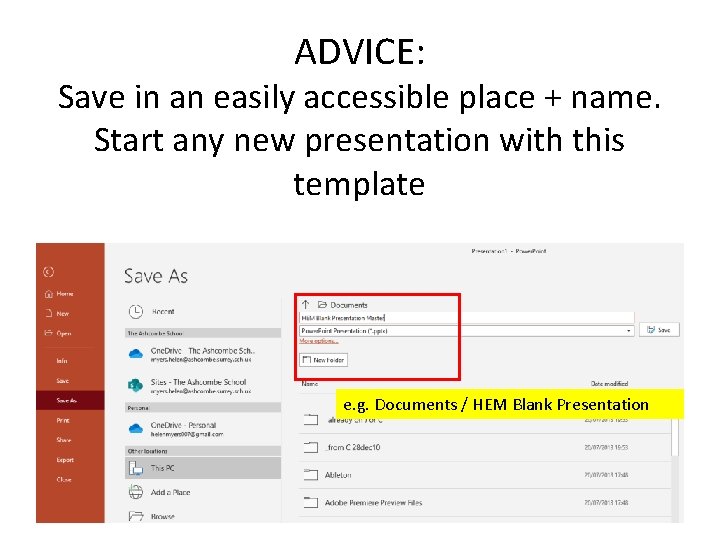
ADVICE: Save in an easily accessible place + name. Start any new presentation with this template e. g. Documents / HEM Blank Presentation