
Marking a Journal for Posting and Running the
- Slides: 38
Marking a Journal for Posting and Running the Post Process Concept
Marking a Journal for Posting and Running the Post Process
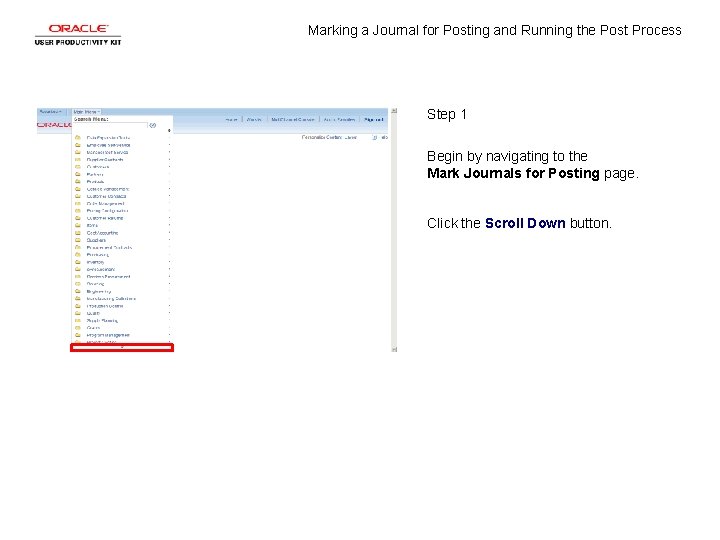
Marking a Journal for Posting and Running the Post Process Step 1 Begin by navigating to the Mark Journals for Posting page. Click the Scroll Down button.
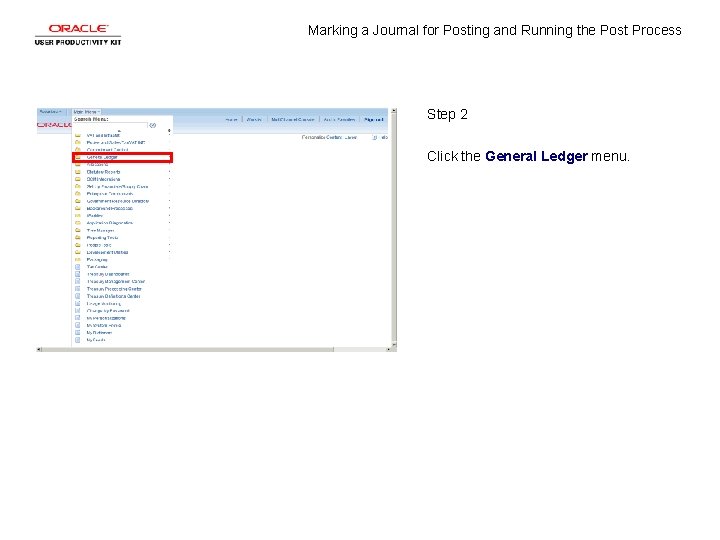
Marking a Journal for Posting and Running the Post Process Step 2 Click the General Ledger menu.
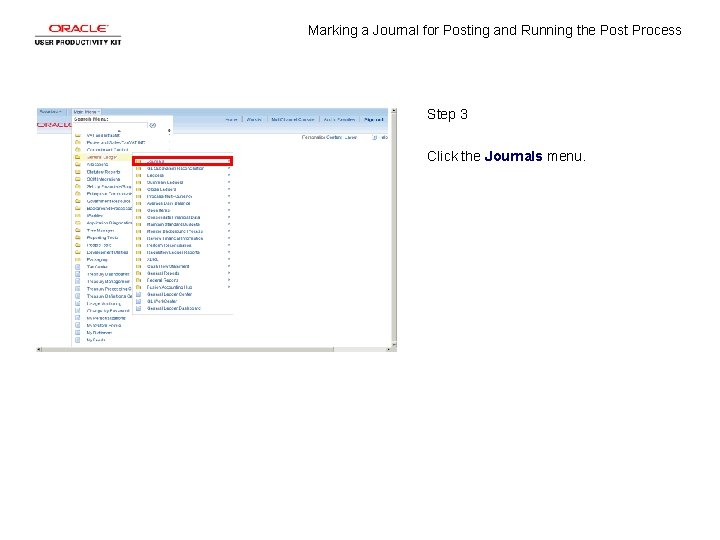
Marking a Journal for Posting and Running the Post Process Step 3 Click the Journals menu.
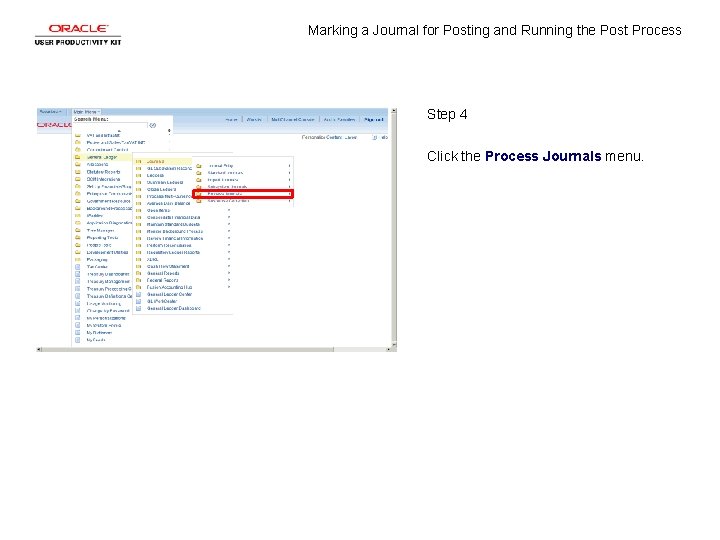
Marking a Journal for Posting and Running the Post Process Step 4 Click the Process Journals menu.
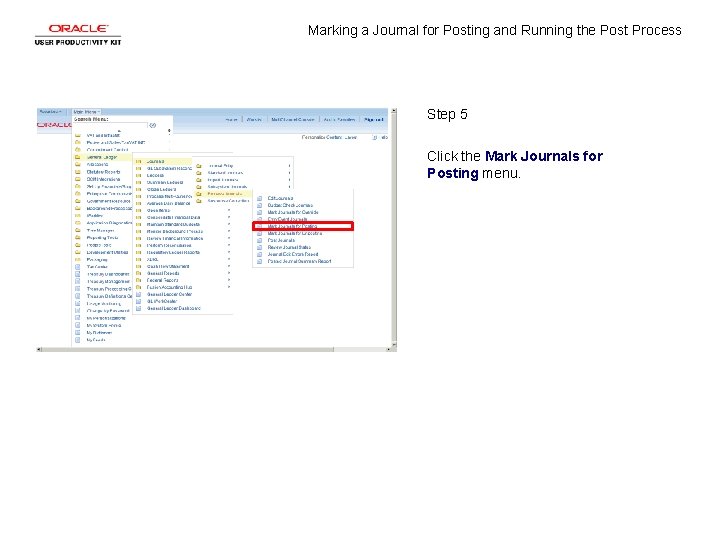
Marking a Journal for Posting and Running the Post Process Step 5 Click the Mark Journals for Posting menu.
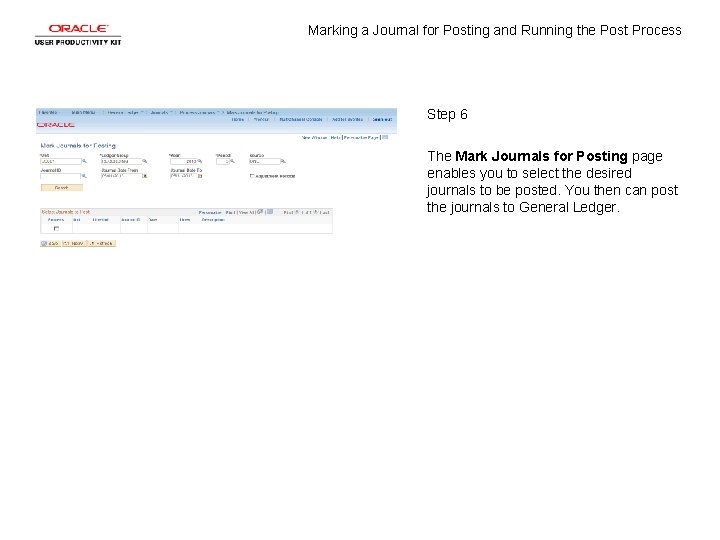
Marking a Journal for Posting and Running the Post Process Step 6 The Mark Journals for Posting page enables you to select the desired journals to be posted. You then can post the journals to General Ledger.
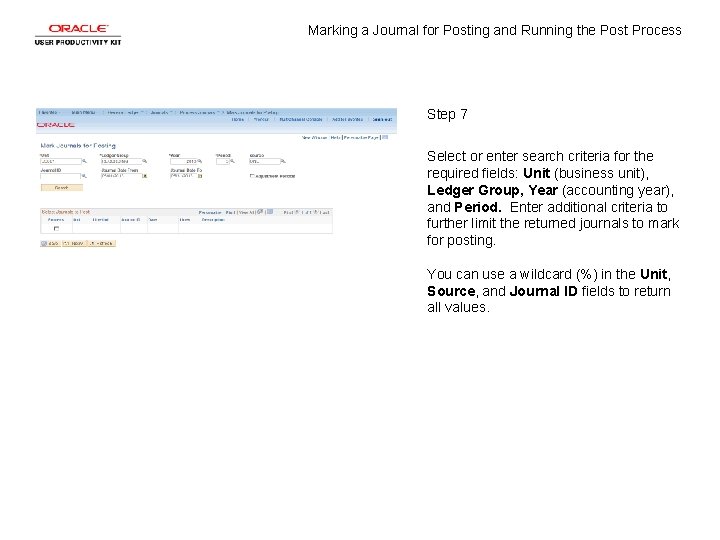
Marking a Journal for Posting and Running the Post Process Step 7 Select or enter search criteria for the required fields: Unit (business unit), Ledger Group, Year (accounting year), and Period. Enter additional criteria to further limit the returned journals to mark for posting. You can use a wildcard (%) in the Unit, Source, and Journal ID fields to return all values.
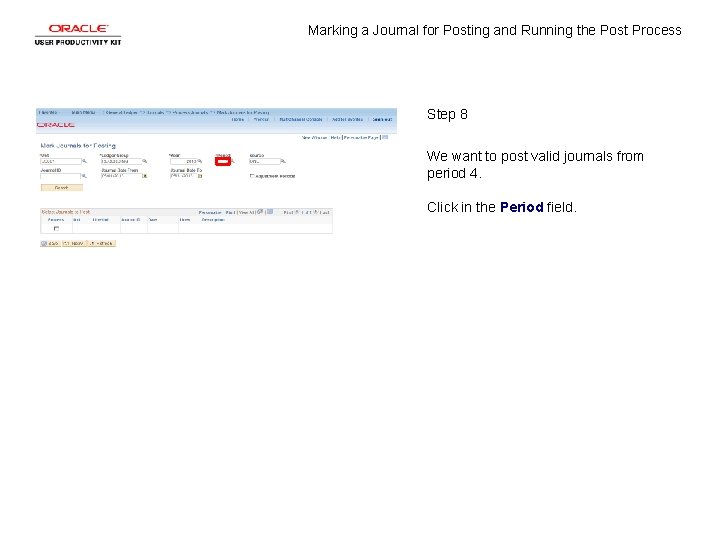
Marking a Journal for Posting and Running the Post Process Step 8 We want to post valid journals from period 4. Click in the Period field.
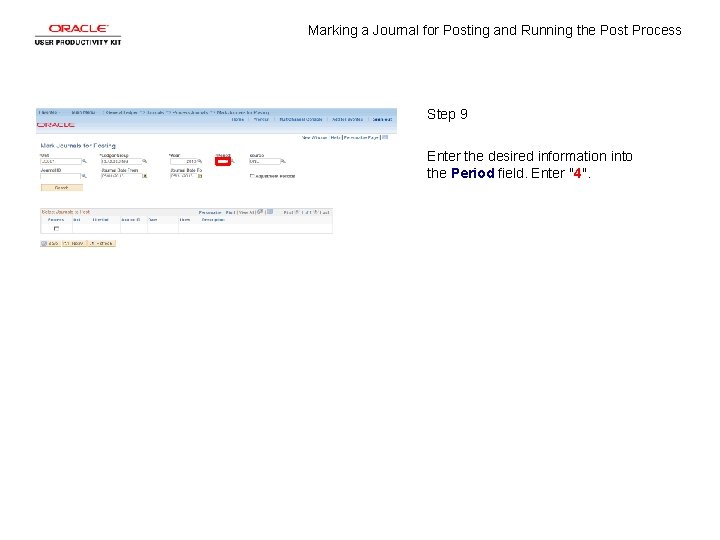
Marking a Journal for Posting and Running the Post Process Step 9 Enter the desired information into the Period field. Enter "4".
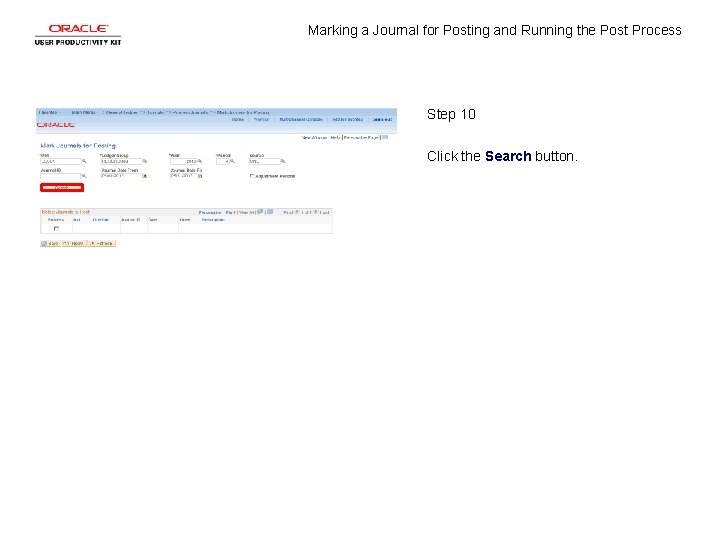
Marking a Journal for Posting and Running the Post Process Step 10 Click the Search button.
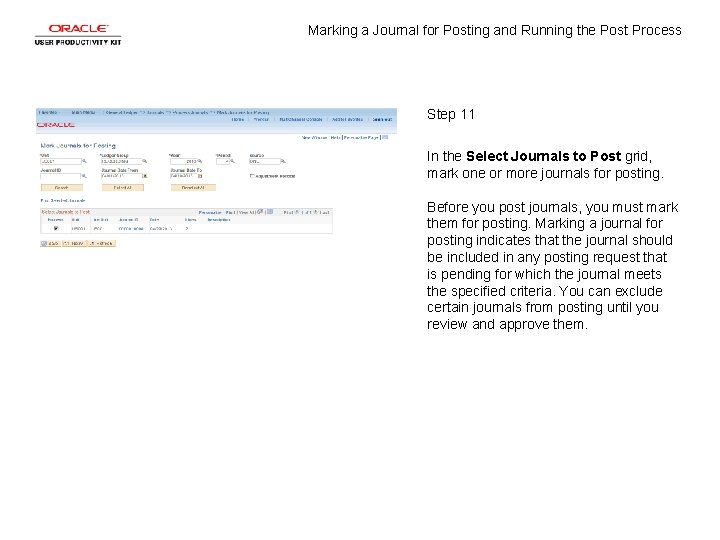
Marking a Journal for Posting and Running the Post Process Step 11 In the Select Journals to Post grid, mark one or more journals for posting. Before you post journals, you must mark them for posting. Marking a journal for posting indicates that the journal should be included in any posting request that is pending for which the journal meets the specified criteria. You can exclude certain journals from posting until you review and approve them.
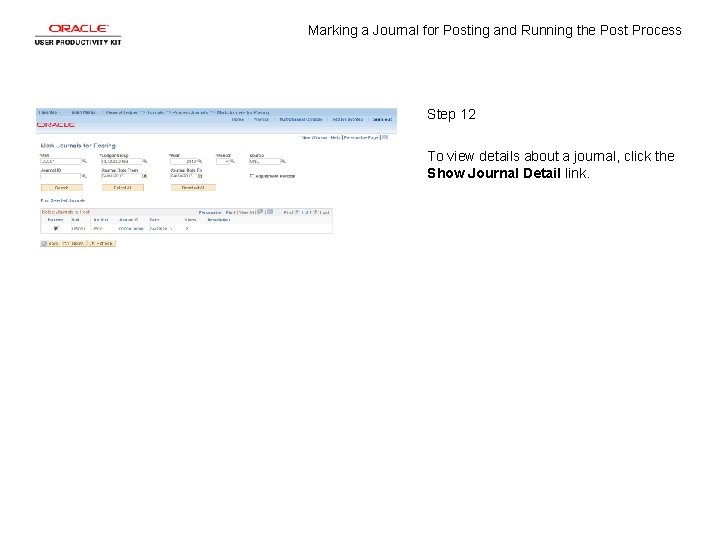
Marking a Journal for Posting and Running the Post Process Step 12 To view details about a journal, click the Show Journal Detail link.
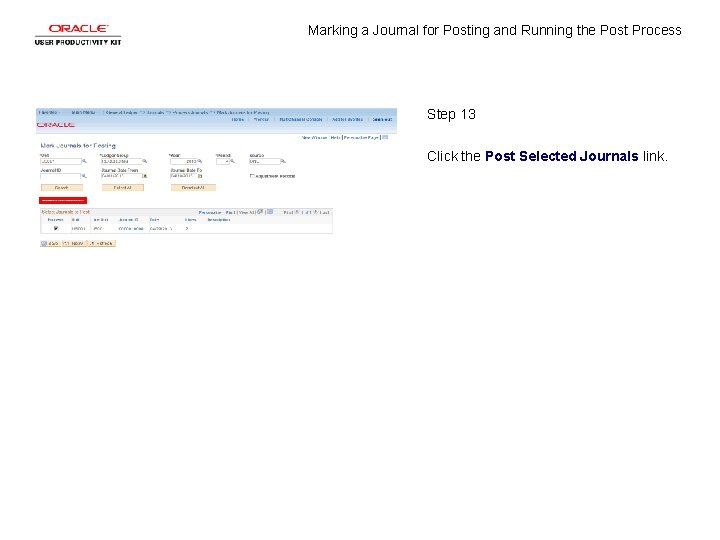
Marking a Journal for Posting and Running the Post Process Step 13 Click the Post Selected Journals link.
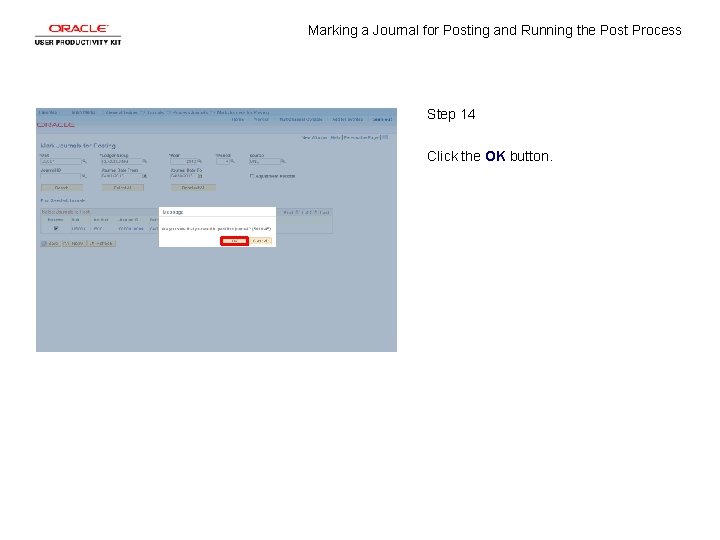
Marking a Journal for Posting and Running the Post Process Step 14 Click the OK button.
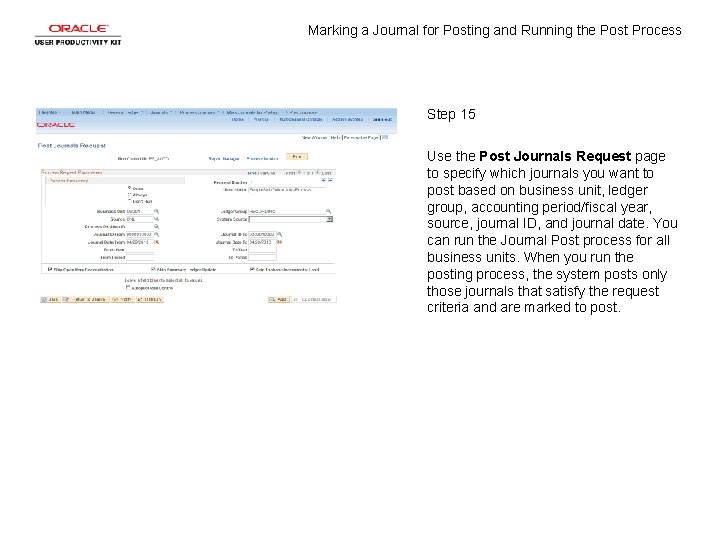
Marking a Journal for Posting and Running the Post Process Step 15 Use the Post Journals Request page to specify which journals you want to post based on business unit, ledger group, accounting period/fiscal year, source, journal ID, and journal date. You can run the Journal Post process for all business units. When you run the posting process, the system posts only those journals that satisfy the request criteria and are marked to post.
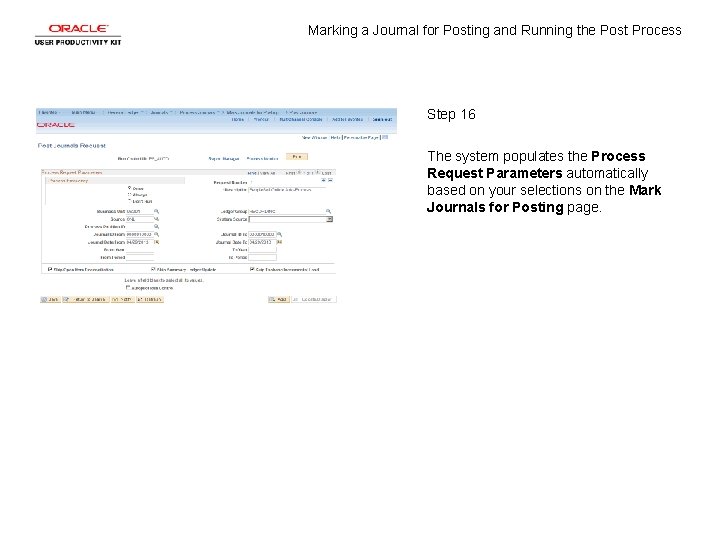
Marking a Journal for Posting and Running the Post Process Step 16 The system populates the Process Request Parameters automatically based on your selections on the Mark Journals for Posting page.
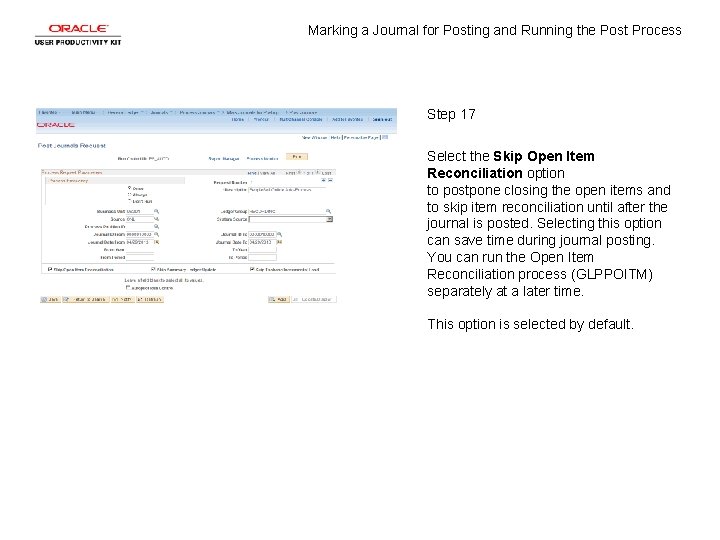
Marking a Journal for Posting and Running the Post Process Step 17 Select the Skip Open Item Reconciliation option to postpone closing the open items and to skip item reconciliation until after the journal is posted. Selecting this option can save time during journal posting. You can run the Open Item Reconciliation process (GLPPOITM) separately at a later time. This option is selected by default.
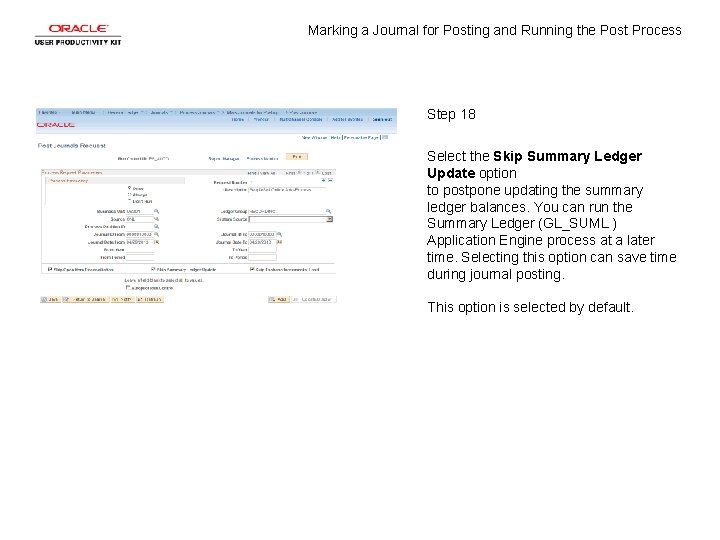
Marking a Journal for Posting and Running the Post Process Step 18 Select the Skip Summary Ledger Update option to postpone updating the summary ledger balances. You can run the Summary Ledger (GL_SUML ) Application Engine process at a later time. Selecting this option can save time during journal posting. This option is selected by default.
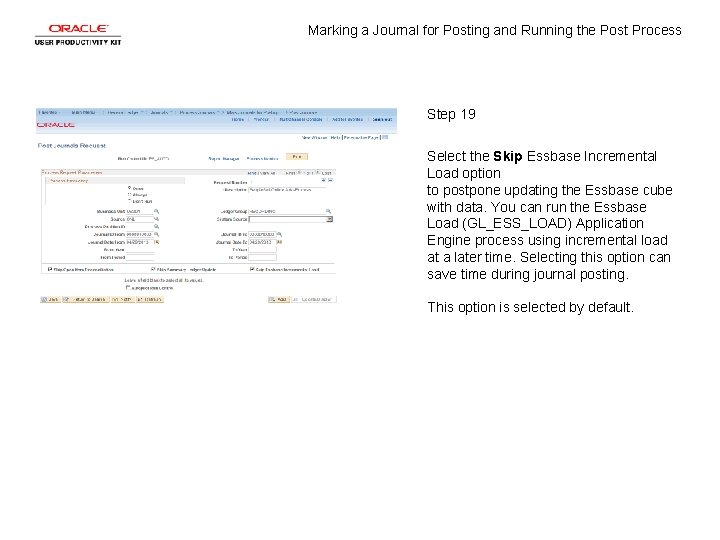
Marking a Journal for Posting and Running the Post Process Step 19 Select the Skip Essbase Incremental Load option to postpone updating the Essbase cube with data. You can run the Essbase Load (GL_ESS_LOAD) Application Engine process using incremental load at a later time. Selecting this option can save time during journal posting. This option is selected by default.
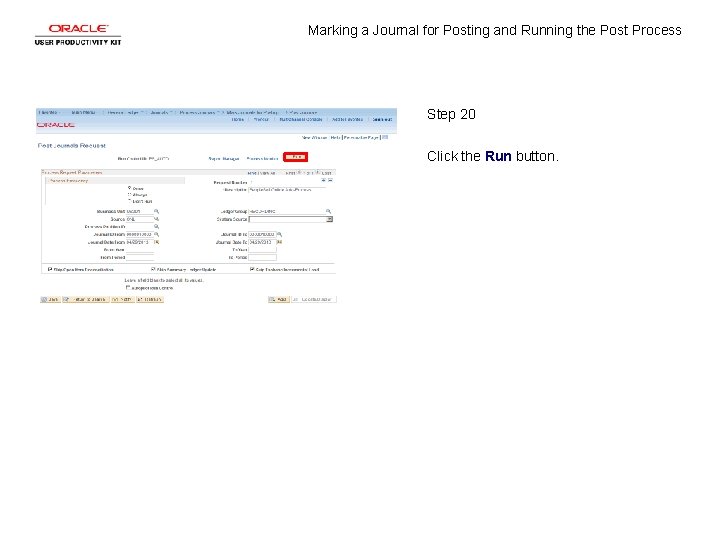
Marking a Journal for Posting and Running the Post Process Step 20 Click the Run button.
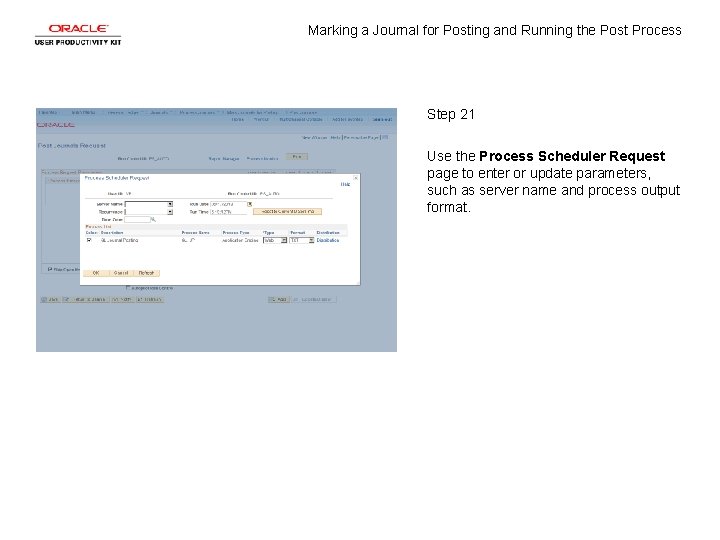
Marking a Journal for Posting and Running the Post Process Step 21 Use the Process Scheduler Request page to enter or update parameters, such as server name and process output format.
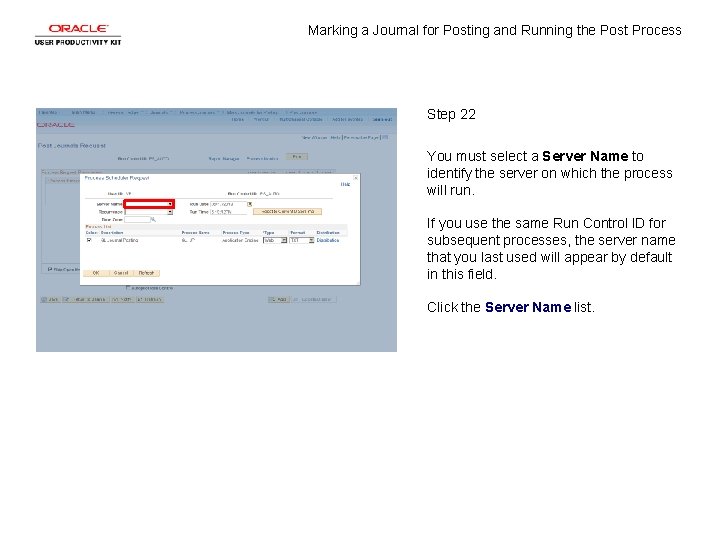
Marking a Journal for Posting and Running the Post Process Step 22 You must select a Server Name to identify the server on which the process will run. If you use the same Run Control ID for subsequent processes, the server name that you last used will appear by default in this field. Click the Server Name list.
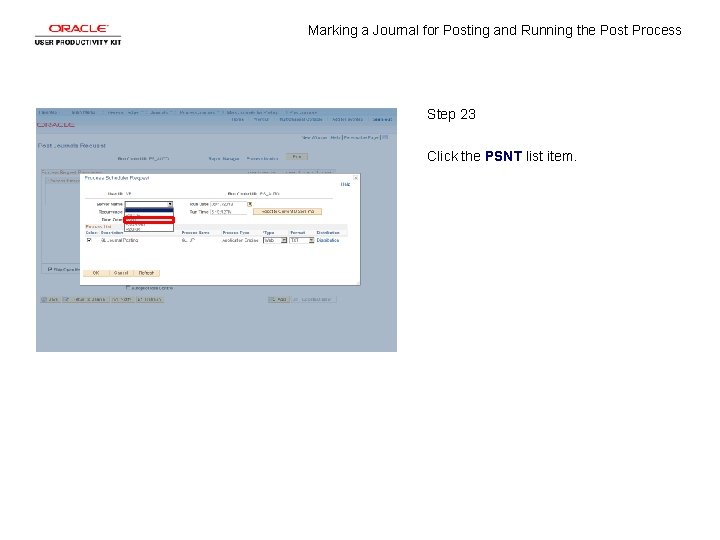
Marking a Journal for Posting and Running the Post Process Step 23 Click the PSNT list item.
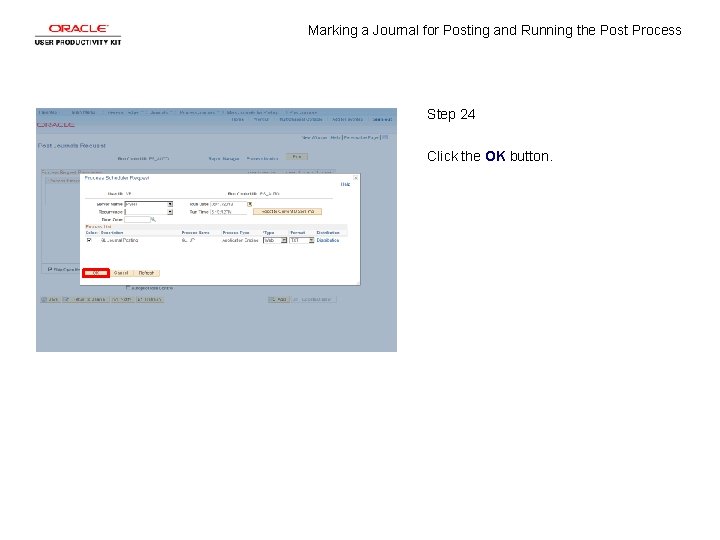
Marking a Journal for Posting and Running the Post Process Step 24 Click the OK button.
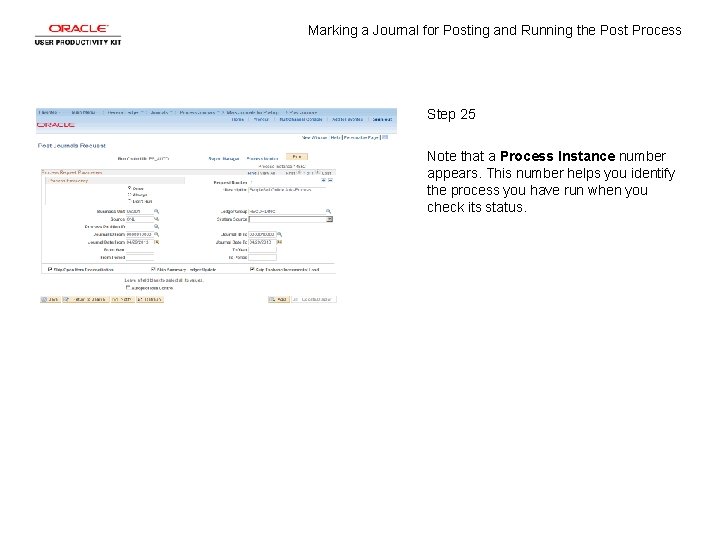
Marking a Journal for Posting and Running the Post Process Step 25 Note that a Process Instance number appears. This number helps you identify the process you have run when you check its status.
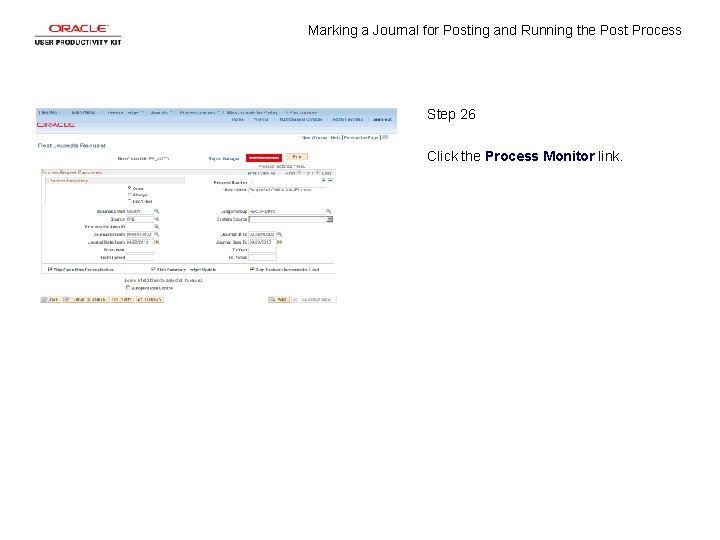
Marking a Journal for Posting and Running the Post Process Step 26 Click the Process Monitor link.
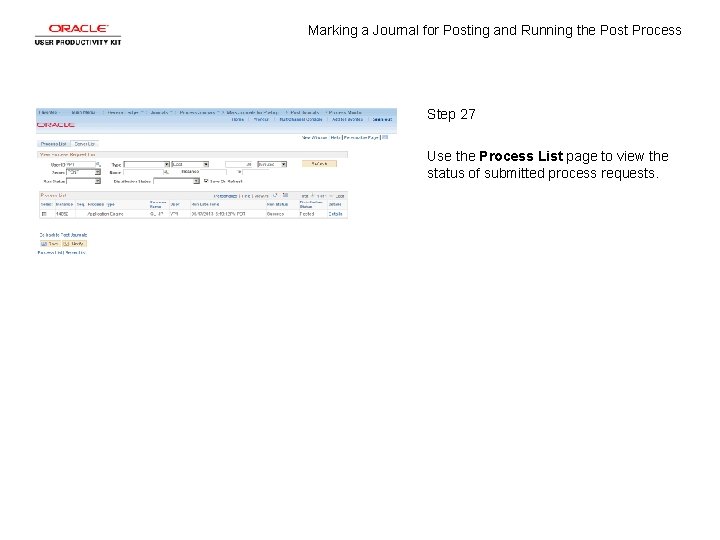
Marking a Journal for Posting and Running the Post Process Step 27 Use the Process List page to view the status of submitted process requests.
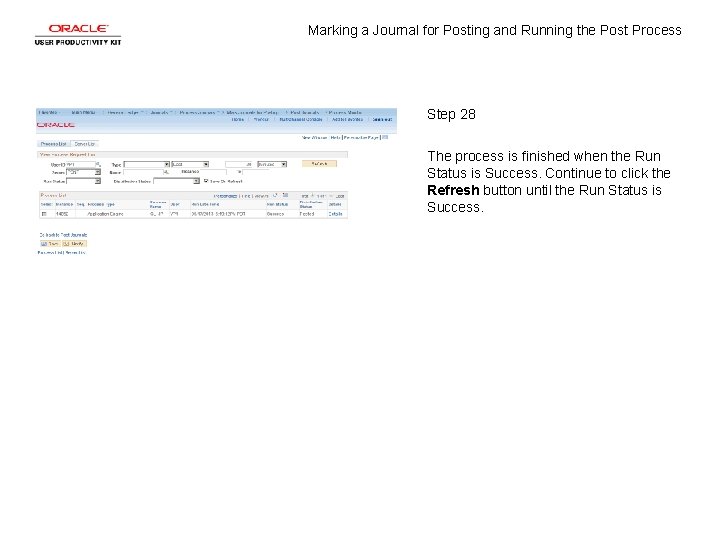
Marking a Journal for Posting and Running the Post Process Step 28 The process is finished when the Run Status is Success. Continue to click the Refresh button until the Run Status is Success.
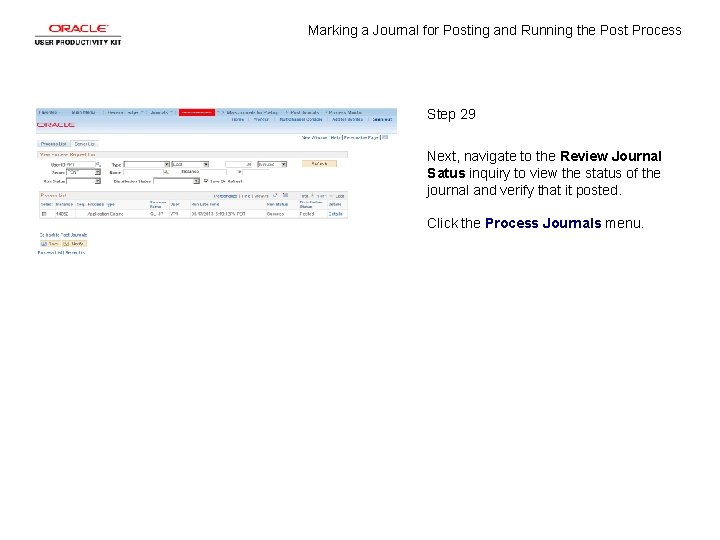
Marking a Journal for Posting and Running the Post Process Step 29 Next, navigate to the Review Journal Satus inquiry to view the status of the journal and verify that it posted. Click the Process Journals menu.
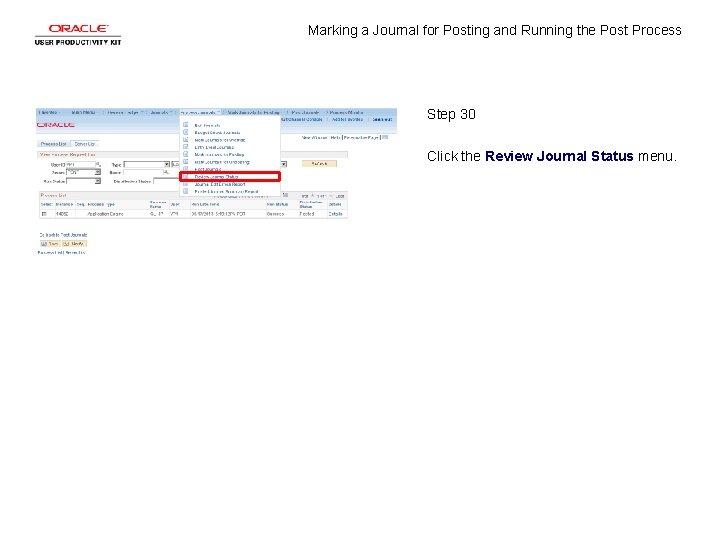
Marking a Journal for Posting and Running the Post Process Step 30 Click the Review Journal Status menu.
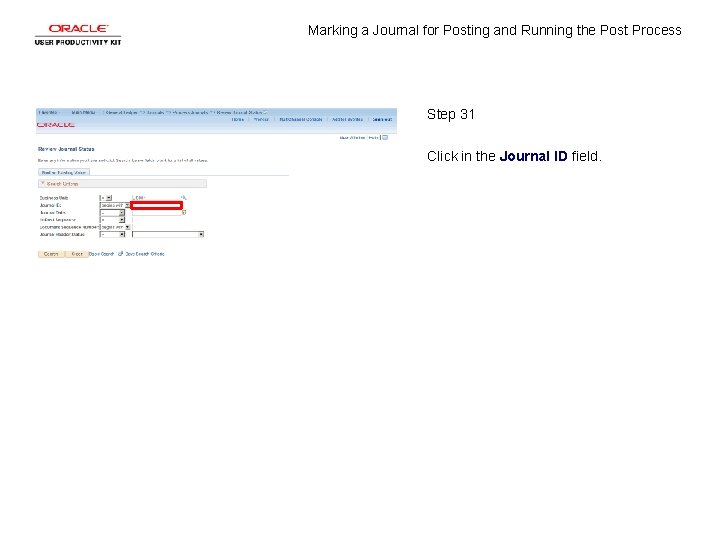
Marking a Journal for Posting and Running the Post Process Step 31 Click in the Journal ID field.
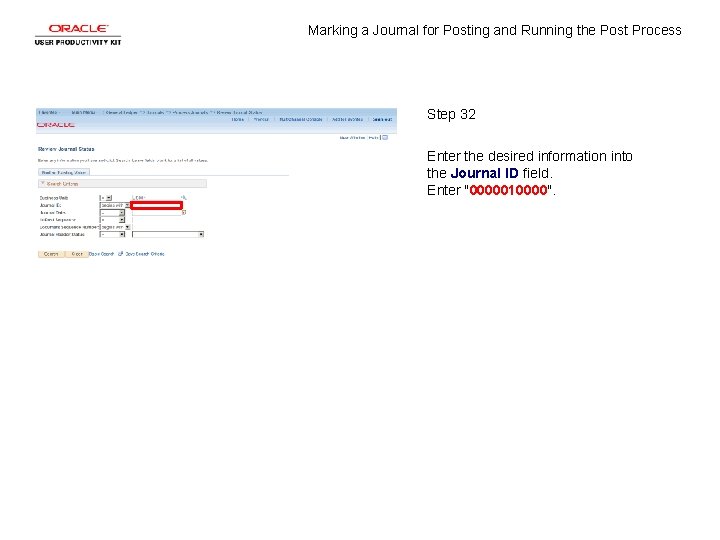
Marking a Journal for Posting and Running the Post Process Step 32 Enter the desired information into the Journal ID field. Enter "0000010000".
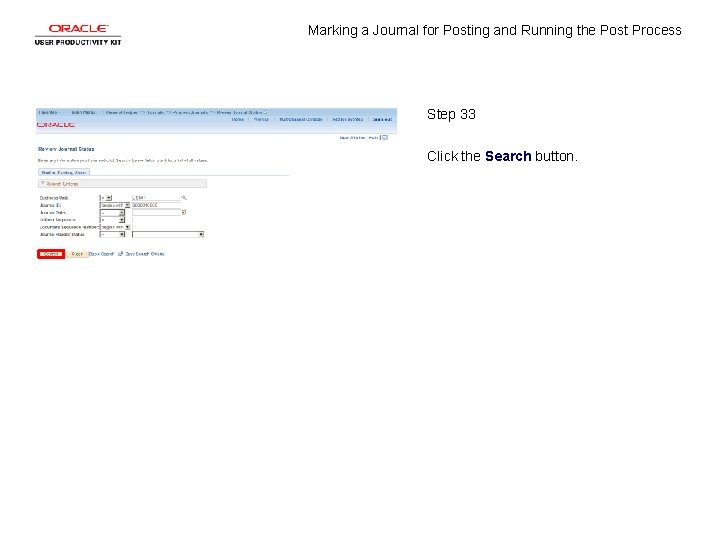
Marking a Journal for Posting and Running the Post Process Step 33 Click the Search button.
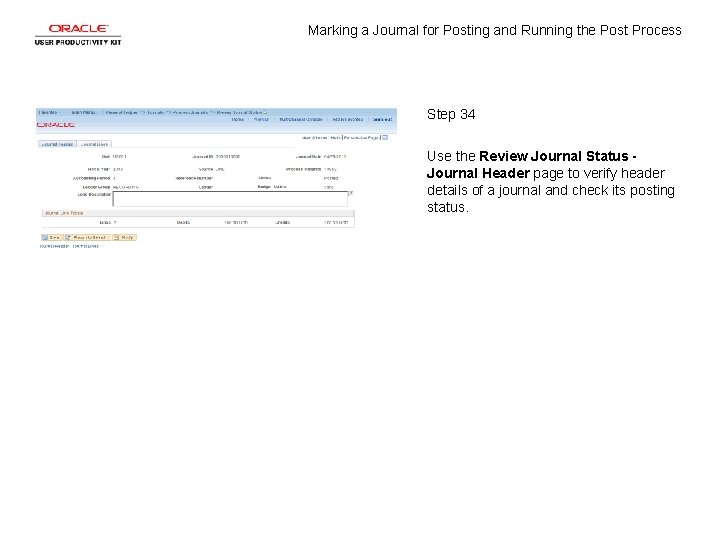
Marking a Journal for Posting and Running the Post Process Step 34 Use the Review Journal Status - Journal Header page to verify header details of a journal and check its posting status.
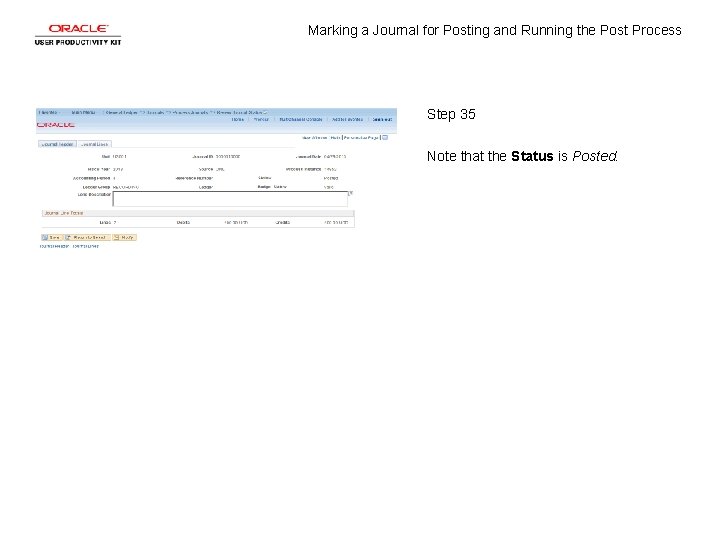
Marking a Journal for Posting and Running the Post Process Step 35 Note that the Status is Posted.
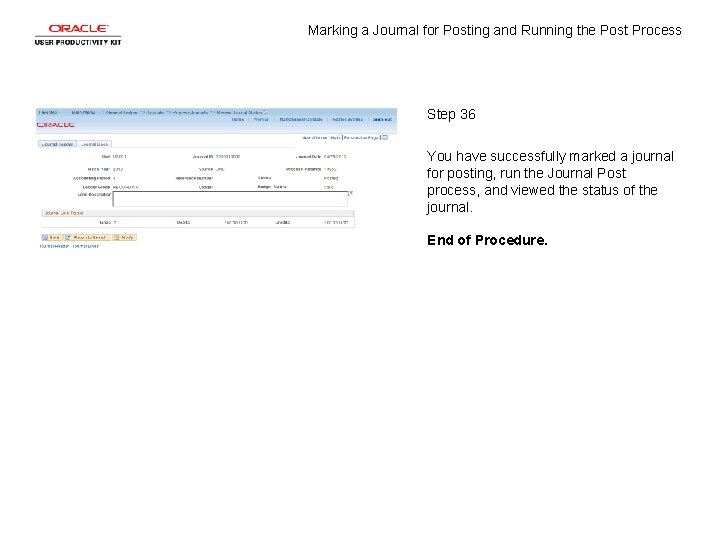
Marking a Journal for Posting and Running the Post Process Step 36 You have successfully marked a journal for posting, run the Journal Post process, and viewed the status of the journal. End of Procedure.