
Mark Entry Understand role of entering marks and


- Slides: 11
Mark Entry Understand role of entering marks and module results in student life cycle Be confident in processing marks and calculating module results –Mark Entry –Module Results
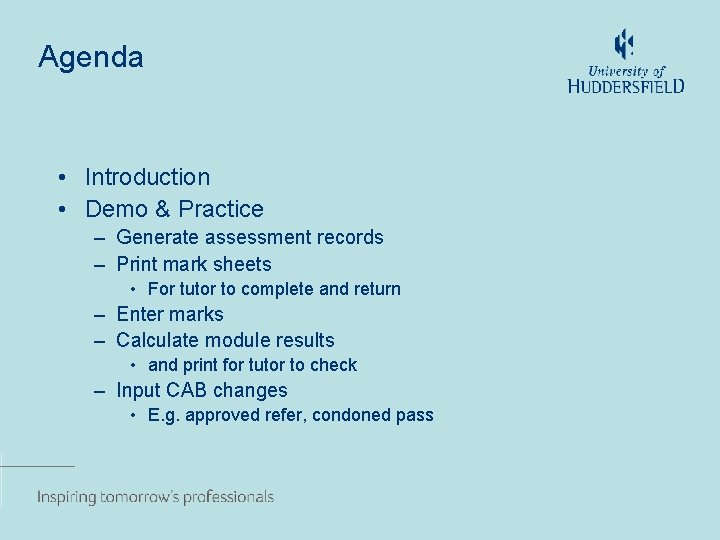
Agenda • Introduction • Demo & Practice – Generate assessment records – Print mark sheets • For tutor to complete and return – Enter marks – Calculate module results • and print for tutor to check – Input CAB changes • E. g. approved refer, condoned pass
Overview • Context – Recording student achievement – Source data for progression and award • Process and data structure – Processing options: SAS, RAS & TMR – Data options: SAT, SRA & SMR
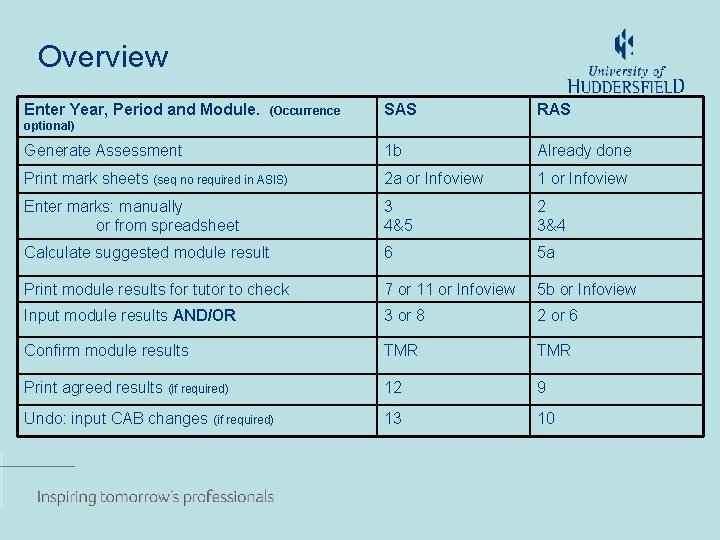
Overview Enter Year, Period and Module. SAS RAS Generate Assessment 1 b Already done Print mark sheets (seq no required in ASIS) 2 a or Infoview 1 or Infoview Enter marks: manually or from spreadsheet 3 4&5 2 3&4 Calculate suggested module result 6 5 a Print module results for tutor to check 7 or 11 or Infoview 5 b or Infoview Input module results AND/OR 3 or 8 2 or 6 Confirm module results TMR Print agreed results (if required) 12 9 Undo: input CAB changes (if required) 13 10 (Occurrence optional)
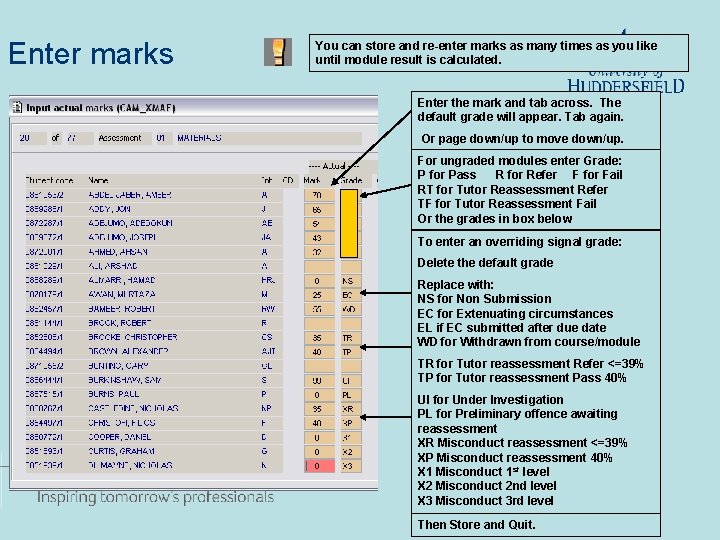
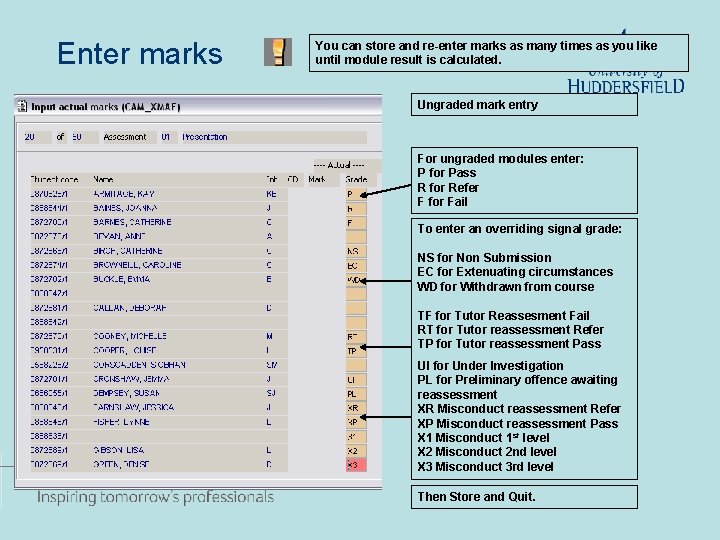
Enter marks You can store and re-enter marks as many times as you like until module result is calculated. Enter the mark and tab across. The default grade will appear. Tab again. Or page down/up to move down/up. For ungraded modules enter Grade: P for Pass R for Refer F for Fail RT for Tutor Reassessment Refer TF for Tutor Reassessment Fail Or the grades in box below To enter an overriding signal grade: Delete the default grade Replace with: NS for Non Submission EC for Extenuating circumstances EL if EC submitted after due date WD for Withdrawn from course/module TR for Tutor reassessment Refer <=39% TP for Tutor reassessment Pass 40% UI for Under Investigation PL for Preliminary offence awaiting reassessment XR Misconduct reassessment <=39% XP Misconduct reassessment 40% X 1 Misconduct 1 st level X 2 Misconduct 2 nd level X 3 Misconduct 3 rd level Then Store and Quit.
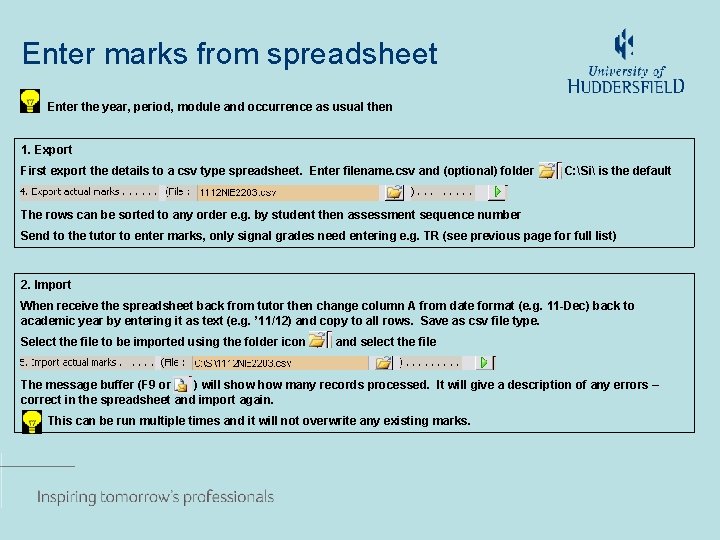
Enter marks from spreadsheet Enter the year, period, module and occurrence as usual then 1. Export First export the details to a csv type spreadsheet. Enter filename. csv and (optional) folder C: Si is the default The rows can be sorted to any order e. g. by student then assessment sequence number Send to the tutor to enter marks, only signal grades need entering e. g. TR (see previous page for full list) 2. Import When receive the spreadsheet back from tutor then change column A from date format (e. g. 11 -Dec) back to academic year by entering it as text (e. g. ’ 11/12) and copy to all rows. Save as csv file type. Select the file to be imported using the folder icon and select the file The message buffer (F 9 or ) will show many records processed. It will give a description of any errors – correct in the spreadsheet and import again. This can be run multiple times and it will not overwrite any existing marks.
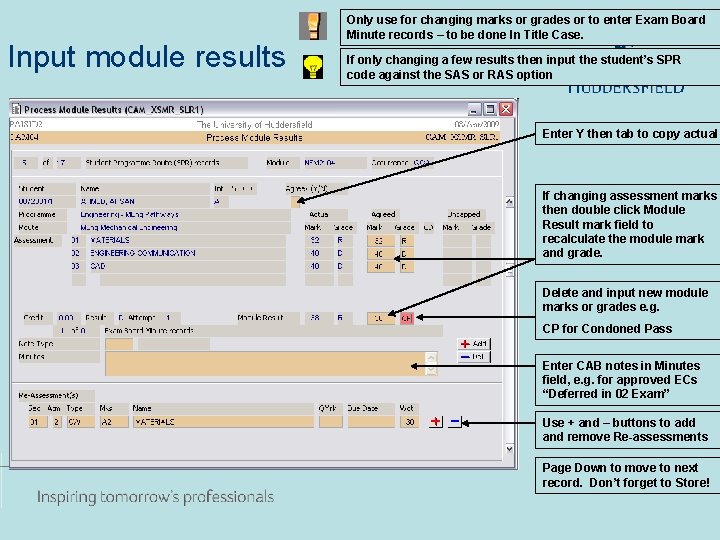
Input module results Only use for changing marks or grades or to enter Exam Board Minute records – to be done In Title Case. If only changing a few results then input the student’s SPR code against the SAS or RAS option Enter Y then tab to copy actual If changing assessment marks then double click Module Result mark field to recalculate the module mark and grade. Delete and input new module marks or grades e. g. CP for Condoned Pass Enter CAB notes in Minutes field, e. g. for approved ECs “Deferred in 02 Exam” Use + and – buttons to add and remove Re-assessments Page Down to move to next record. Don’t forget to Store!
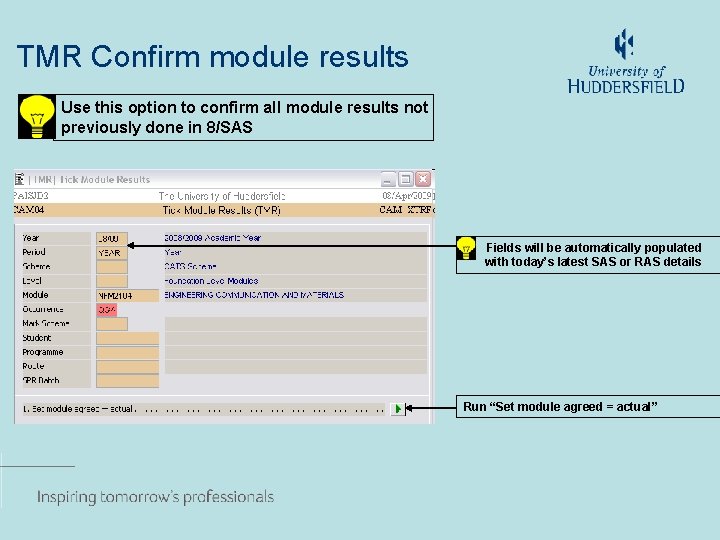
TMR Confirm module results Use this option to confirm all module results not previously done in 8/SAS Fields will be automatically populated with today’s latest SAS or RAS details Run “Set module agreed = actual”
Extras • Defers and Refers to following year – Attach module to student with assessment group D or R – Enter results in RAS in previous year • Other print options – – SAS 11 and 12 SAR 8 or 5 SCT 4 Check which one your school uses
Summary • Any Questions? • What are your next steps? • Anything required from ASIS Support?
Enter marks You can store and re-enter marks as many times as you like until module result is calculated. Ungraded mark entry For ungraded modules enter: P for Pass R for Refer F for Fail To enter an overriding signal grade: NS for Non Submission EC for Extenuating circumstances WD for Withdrawn from course TF for Tutor Reassesment Fail RT for Tutor reassessment Refer TP for Tutor reassessment Pass UI for Under Investigation PL for Preliminary offence awaiting reassessment XR Misconduct reassessment Refer XP Misconduct reassessment Pass X 1 Misconduct 1 st level X 2 Misconduct 2 nd level X 3 Misconduct 3 rd level Then Store and Quit.