
Mapping Guide Labels To label your map follow
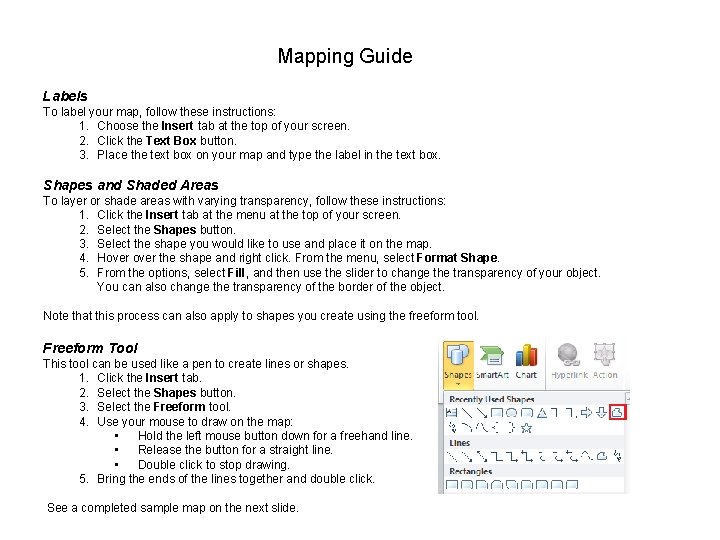
Mapping Guide Labels To label your map, follow these instructions: 1. Choose the Insert tab at the top of your screen. 2. Click the Text Box button. 3. Place the text box on your map and type the label in the text box. Shapes and Shaded Areas To layer or shade areas with varying transparency, follow these instructions: 1. Click the Insert tab at the menu at the top of your screen. 2. Select the Shapes button. 3. Select the shape you would like to use and place it on the map. 4. Hover the shape and right click. From the menu, select Format Shape. 5. From the options, select Fill, and then use the slider to change the transparency of your object. You can also change the transparency of the border of the object. Note that this process can also apply to shapes you create using the freeform tool. Freeform Tool This tool can be used like a pen to create lines or shapes. 1. Click the Insert tab. 2. Select the Shapes button. 3. Select the Freeform tool. 4. Use your mouse to draw on the map: • Hold the left mouse button down for a freehand line. • Release the button for a straight line. • Double click to stop drawing. 5. Bring the ends of the lines together and double click. See a completed sample map on the next slide.
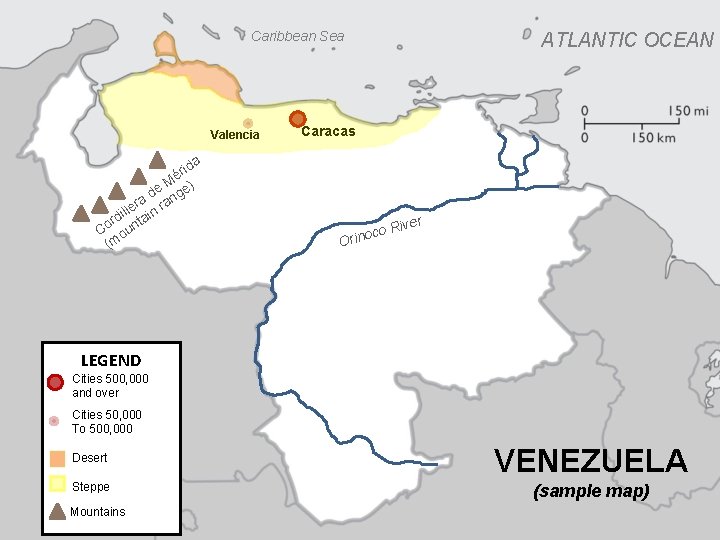
Caribbean Sea Valencia ida r Mé ) e d nge a r ra ille ain d r t Co oun (m ATLANTIC OCEAN Caracas iver co R Orino LEGEND Cities 500, 000 and over Cities 50, 000 To 500, 000 Desert VENEZUELA Steppe (sample map) Mountains
- Slides: 2