
MAPPING A New Inteface Xpress Feature MAPS n
- Slides: 19
MAPPING A New Inteface. Xpress Feature
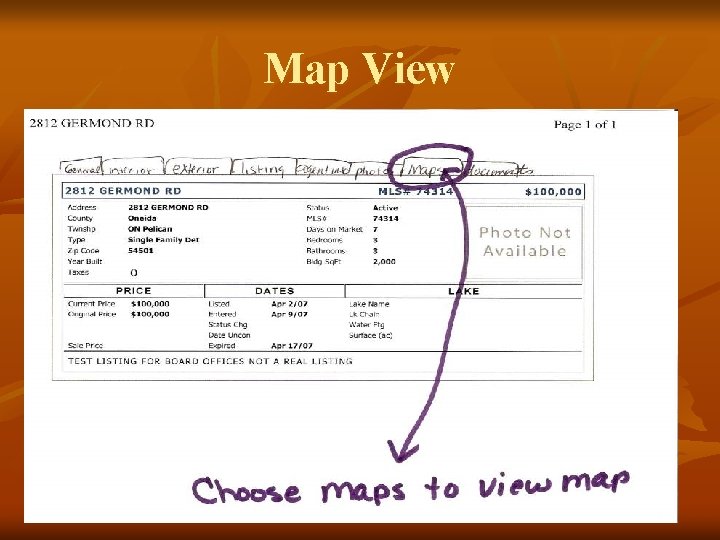
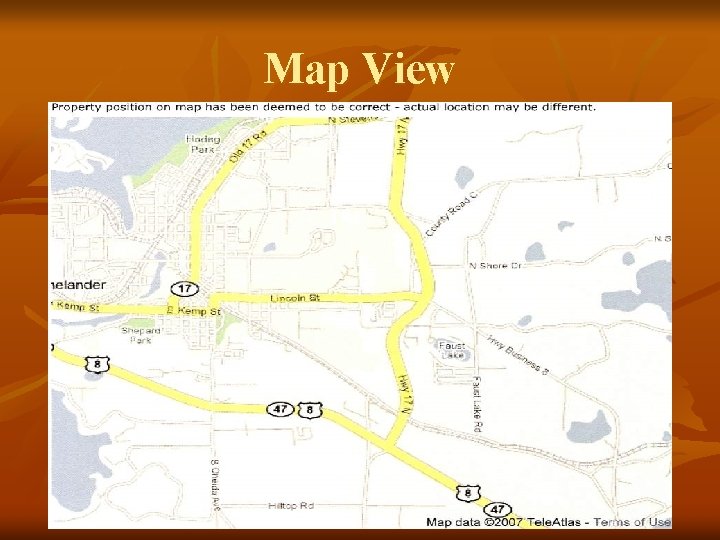
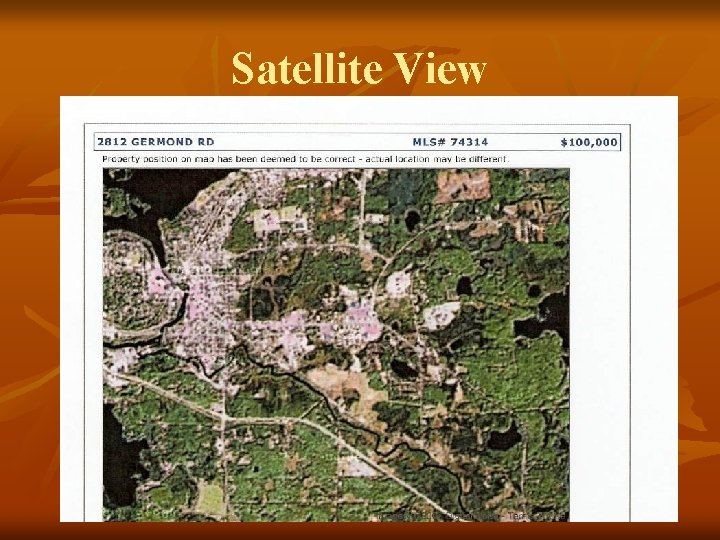
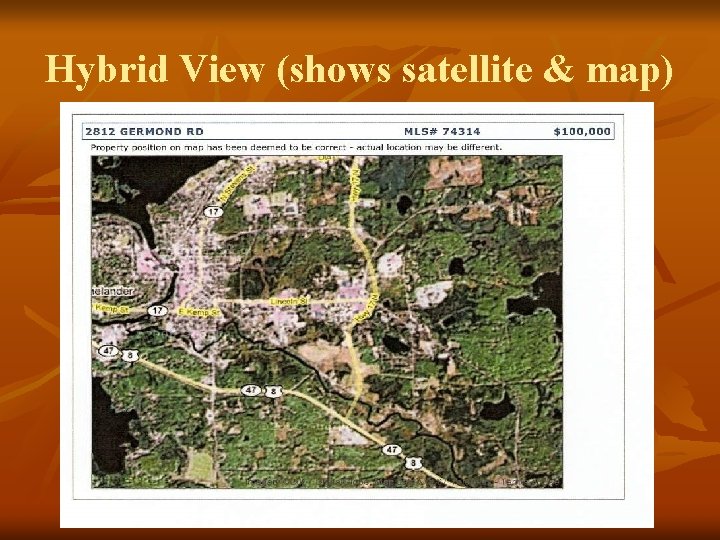
MAPS n n n Maps by Google are now available through Inteface. Xpress First you must search for a property or properties Click on the map tab to view the map- you can choose map view, satellite view or hybrid-
Map View
Map View
Satellite View
Hybrid View (shows satellite & map)
Verifying the map n n n You may opt to delete, verify or change the map. First go to the Maintenance Tab in Interface. Xpress Second Choose Edit Map Location
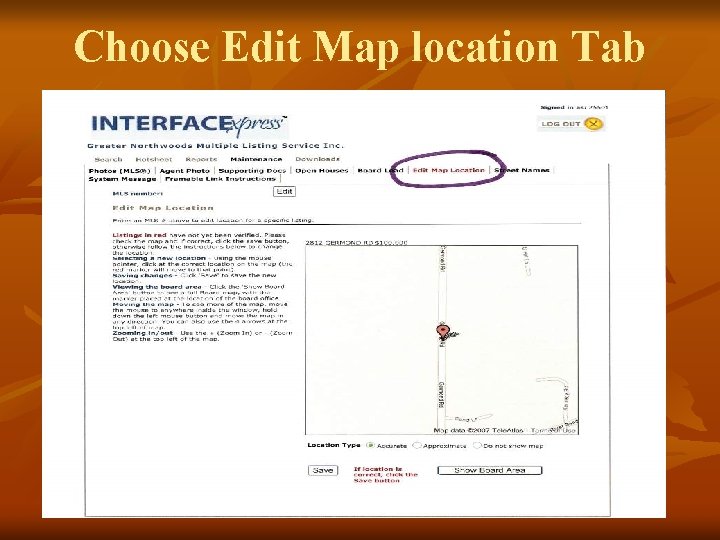
Choose Edit Map location Tab
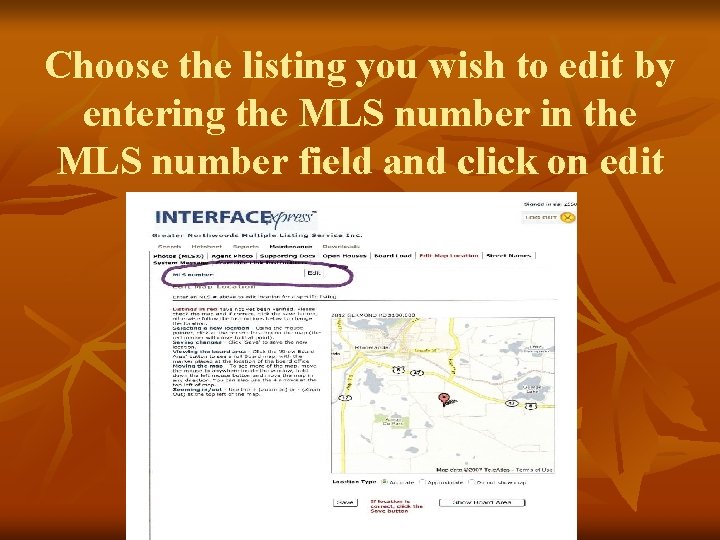
Choose the listing you wish to edit by entering the MLS number in the MLS number field and click on edit
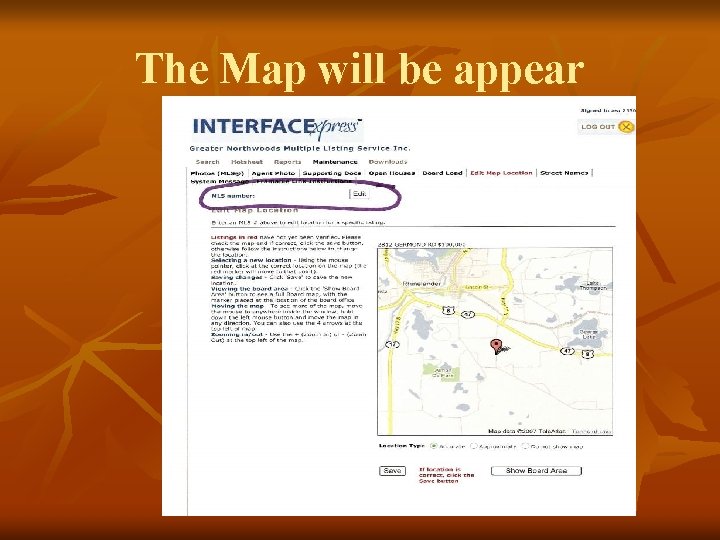
The Map will be appear
Please check the map and if correct, click the save button, otherwise follow the instructions below to change the location.
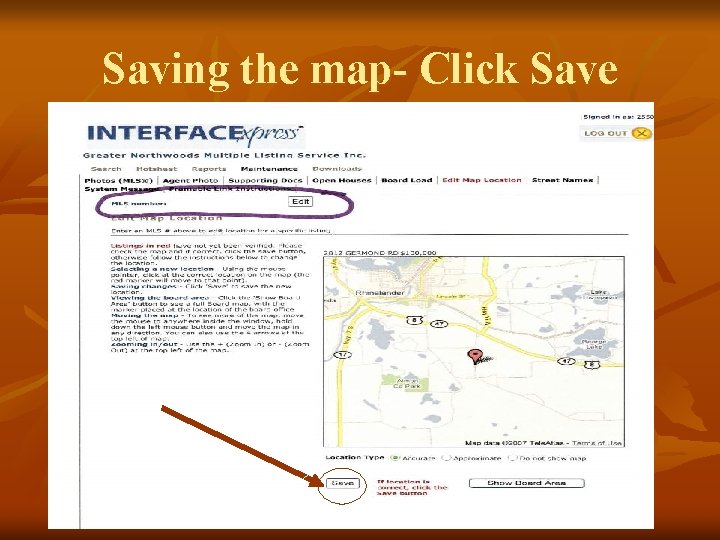
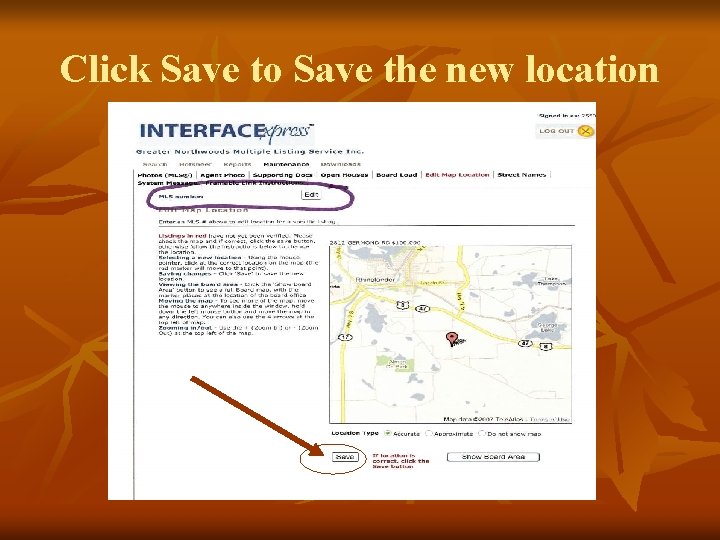
Saving the map- Click Save
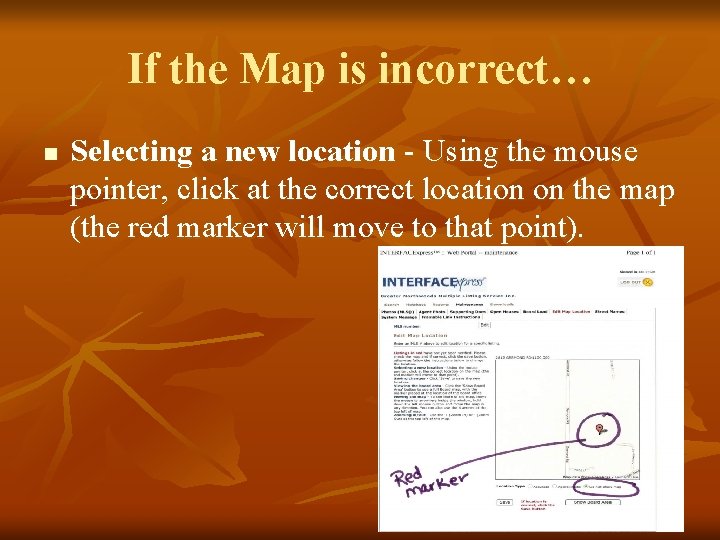
If the Map is incorrect… n Selecting a new location - Using the mouse pointer, click at the correct location on the map (the red marker will move to that point).
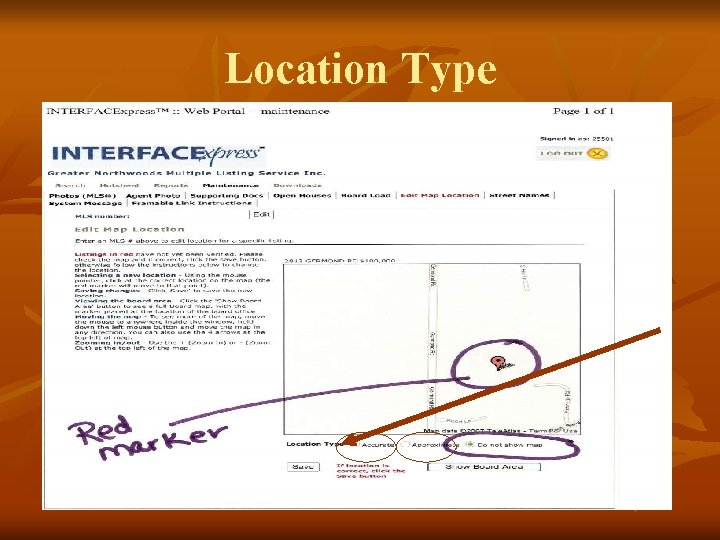
Options… n n n You may opt to remove the map from your listing by choosing “Do not show map” and clicking the save button You may choose to deem the map as accurate and click Save You may choose to deem the map as approximate and click Save
Location Type
Click Save to Save the new location
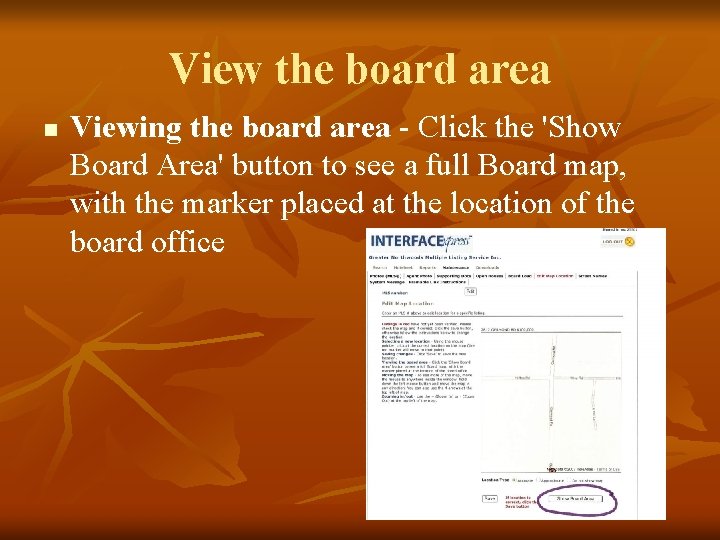
View the board area n Viewing the board area - Click the 'Show Board Area' button to see a full Board map, with the marker placed at the location of the board office
Moving the Map n Moving the map - To see more of the map, move the mouse to anywhere inside the window, hold down the left mouse button and move the map in any direction. You can also use the 4 arrows at the top left of map.
Zoom n Use the + (Zoom In) or - (Zoom Out) at the top left of the map to zoom in and out of the map