
MANGO LANGUAGES LEARNING A LANGUAGE WITH YOUR LIBRARY
MANGO LANGUAGES: LEARNING A LANGUAGE WITH YOUR LIBRARY CARD
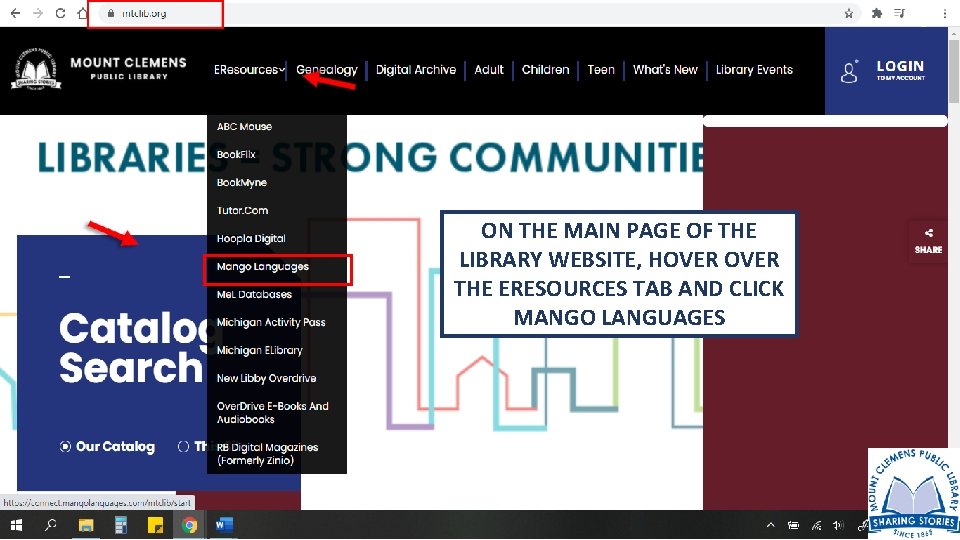
ON THE MAIN PAGE OF THE LIBRARY WEBSITE, HOVER THE ERESOURCES TAB AND CLICK MANGO LANGUAGES
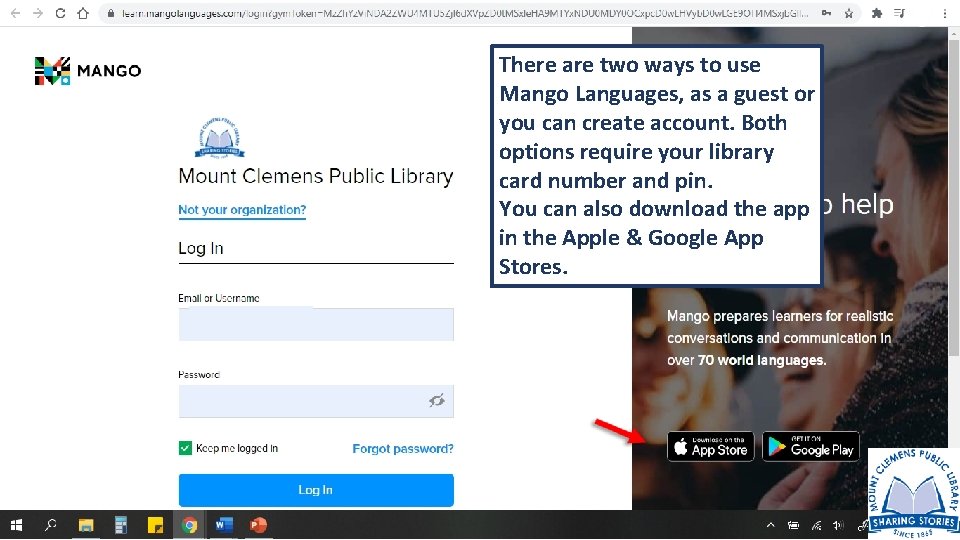
There are two ways to use Mango Languages, as a guest or you can create account. Both options require your library card number and pin. You can also download the app in the Apple & Google App Stores.
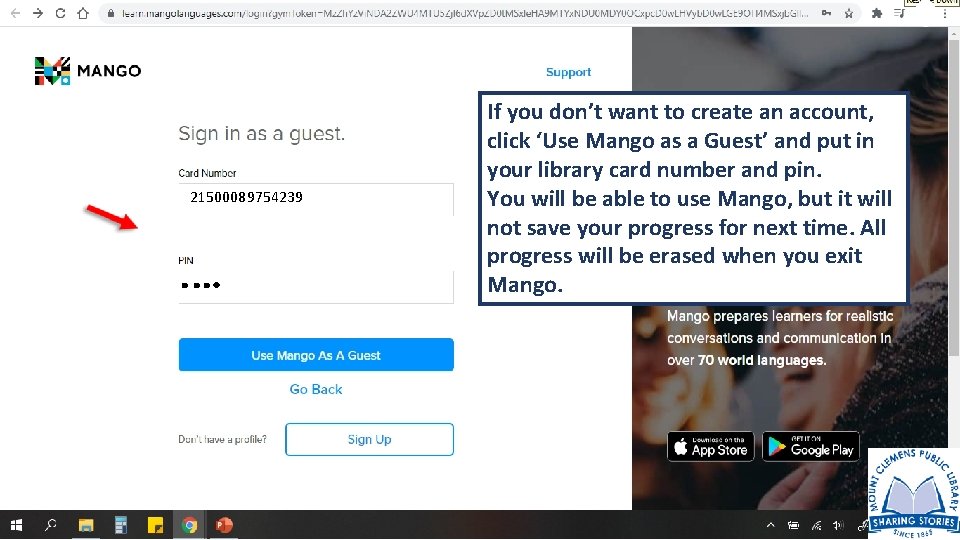
21500089754239 If you don’t want to create an account, click ‘Use Mango as a Guest’ and put in your library card number and pin. You will be able to use Mango, but it will not save your progress for next time. All progress will be erased when you exit Mango.
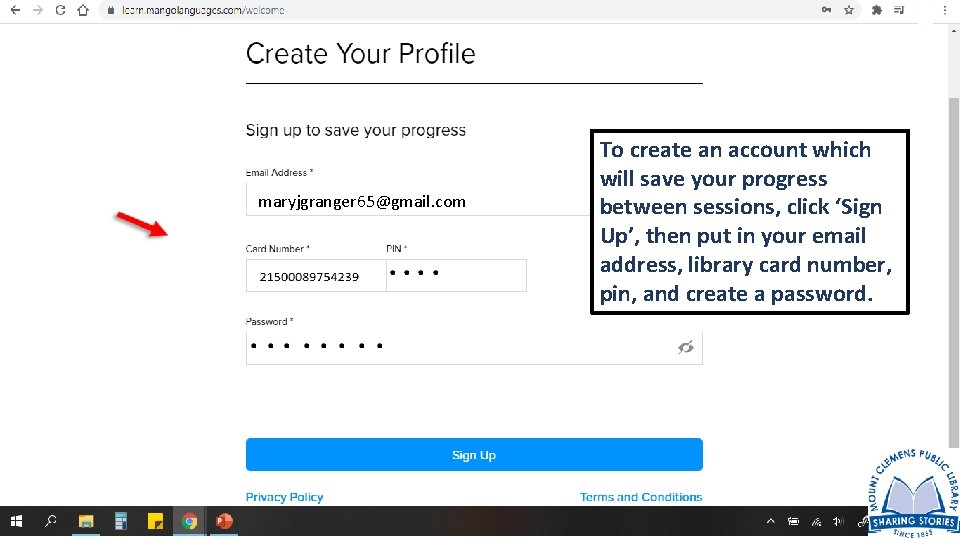
maryjgranger 65@gmail. com To create an account which will save your progress between sessions, click ‘Sign Up’, then put in your email address, library card number, pin, and create a password.
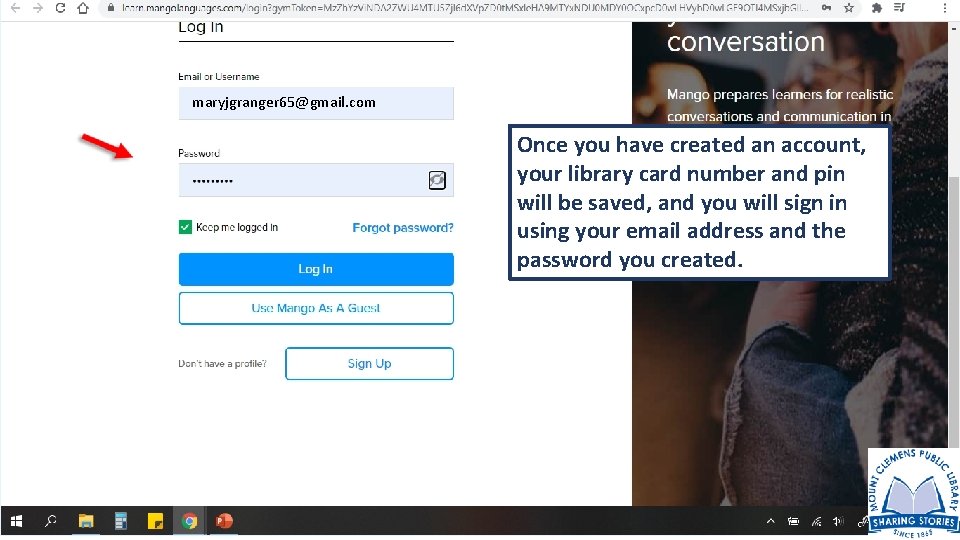
maryjgranger 65@gmail. com Once you have created an account, your library card number and pin will be saved, and you will sign in using your email address and the password you created.
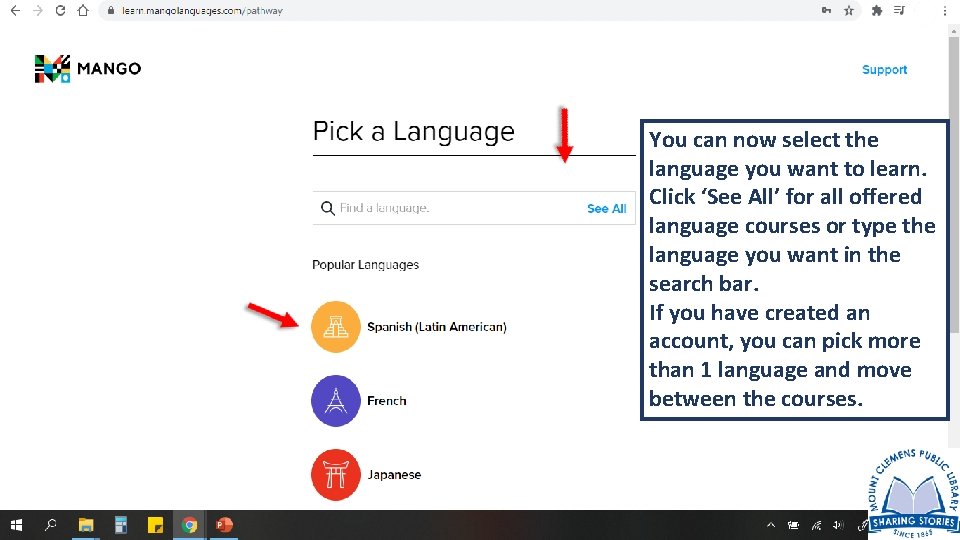
You can now select the language you want to learn. Click ‘See All’ for all offered language courses or type the language you want in the search bar. If you have created an account, you can pick more than 1 language and move between the courses.
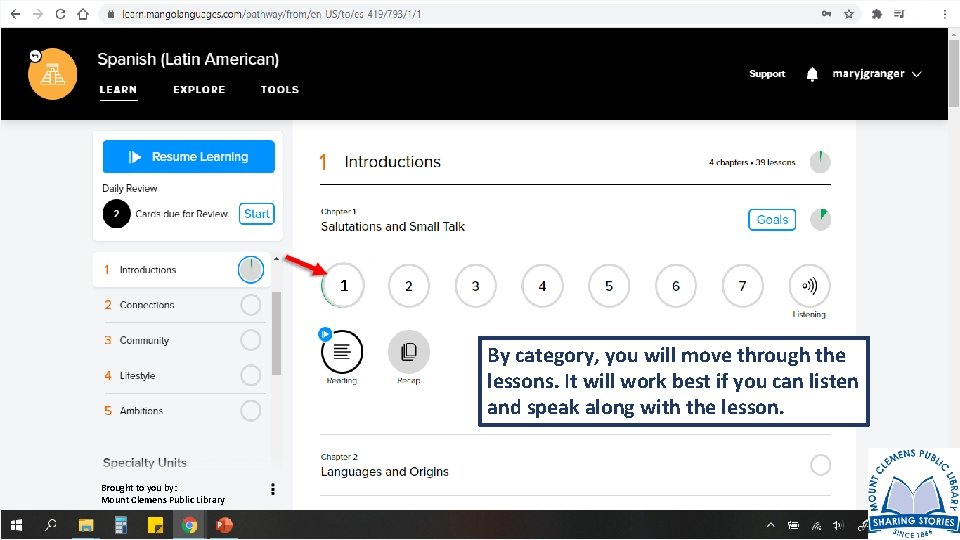
1 By category, you will move through the lessons. It will work best if you can listen and speak along with the lesson. Brought to you by: Mount Clemens Public Library
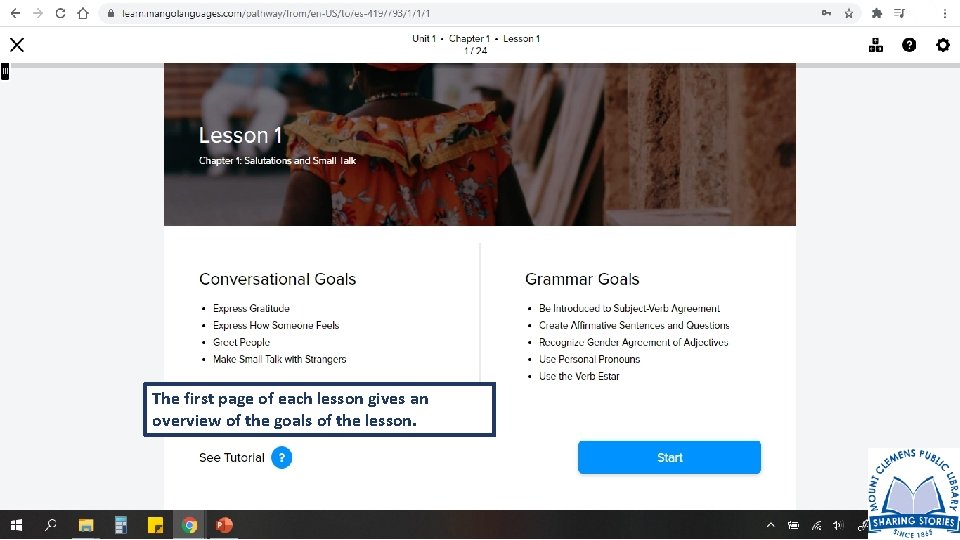
The first page of each lesson gives an overview of the goals of the lesson.
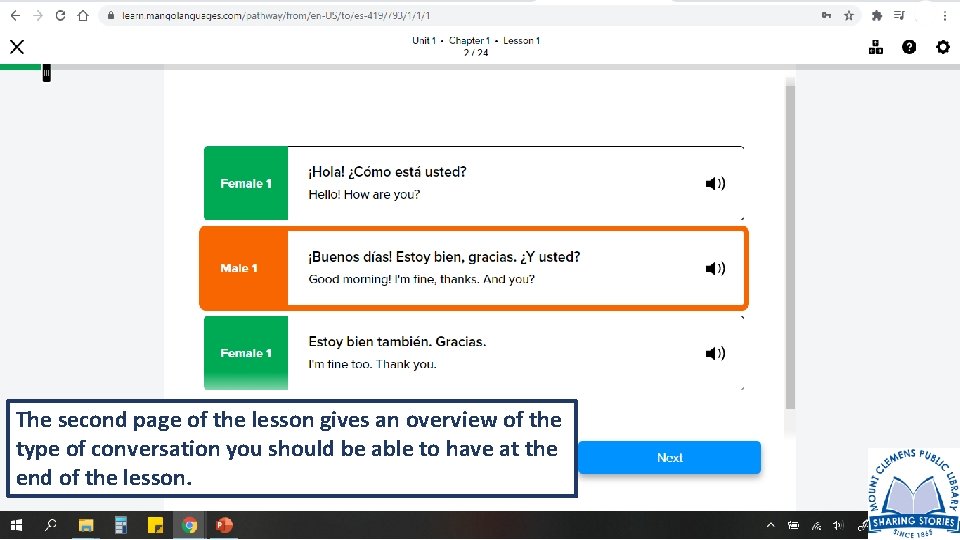
The second page of the lesson gives an overview of the type of conversation you should be able to have at the end of the lesson.
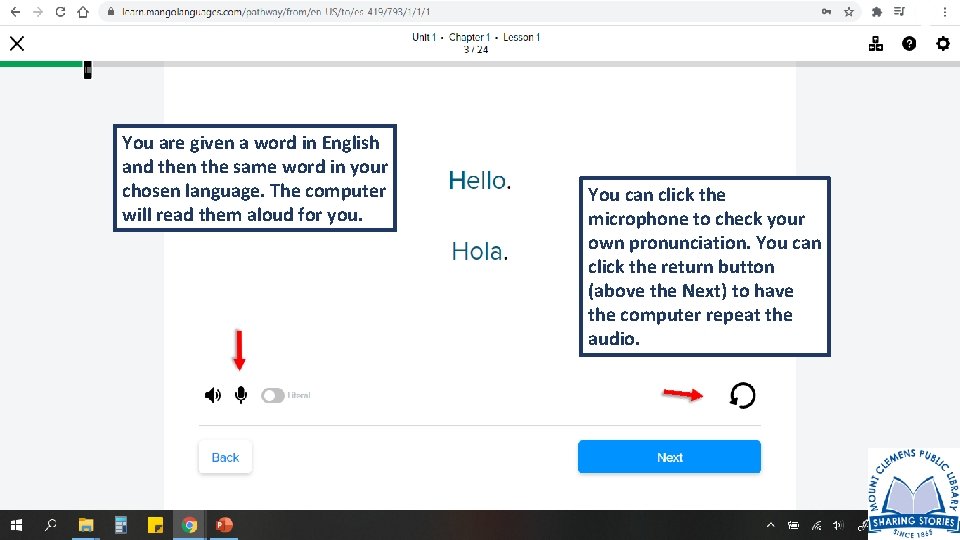
You are given a word in English and then the same word in your chosen language. The computer will read them aloud for you. You can click the microphone to check your own pronunciation. You can click the return button (above the Next) to have the computer repeat the audio.
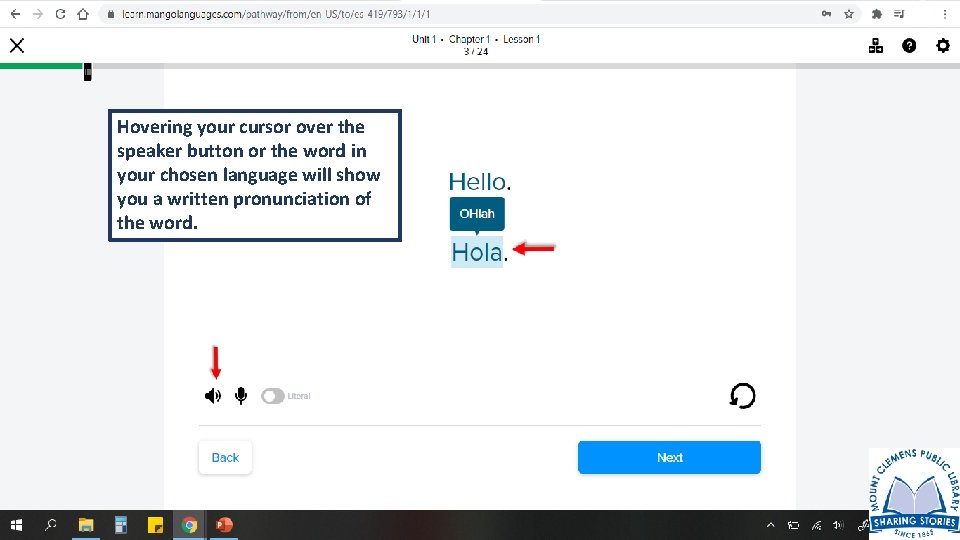
Hovering your cursor over the speaker button or the word in your chosen language will show you a written pronunciation of the word.
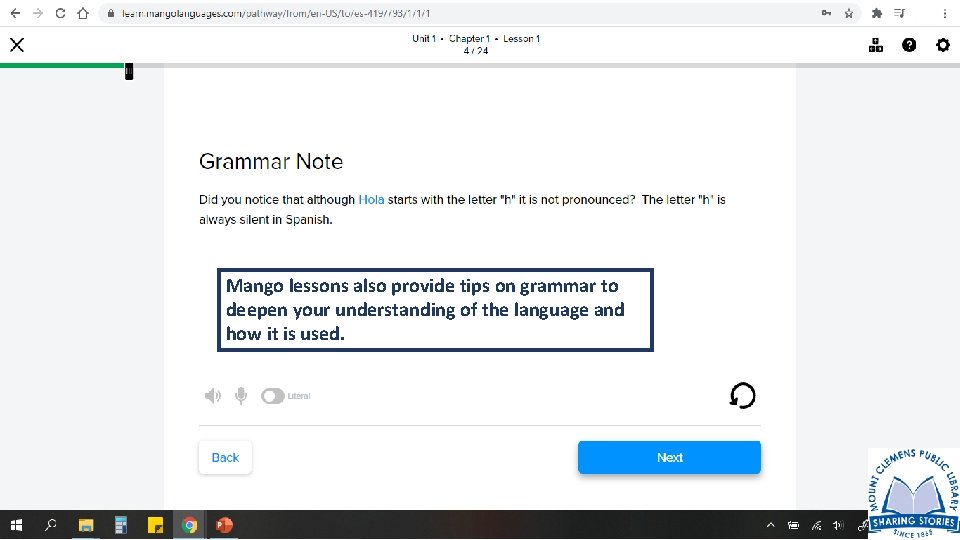
Mango lessons also provide tips on grammar to deepen your understanding of the language and how it is used.
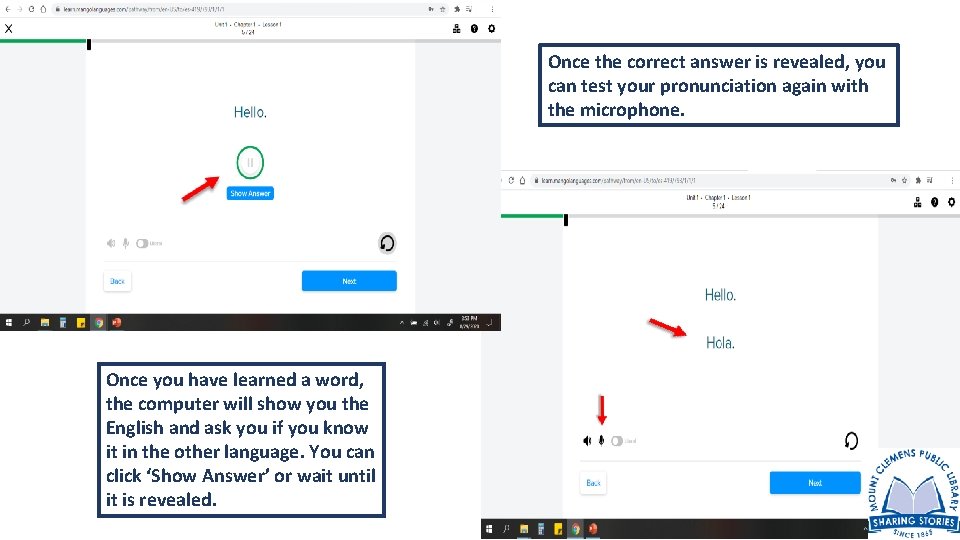
Once the correct answer is revealed, you can test your pronunciation again with the microphone. Once you have learned a word, the computer will show you the English and ask you if you know it in the other language. You can click ‘Show Answer’ or wait until it is revealed.
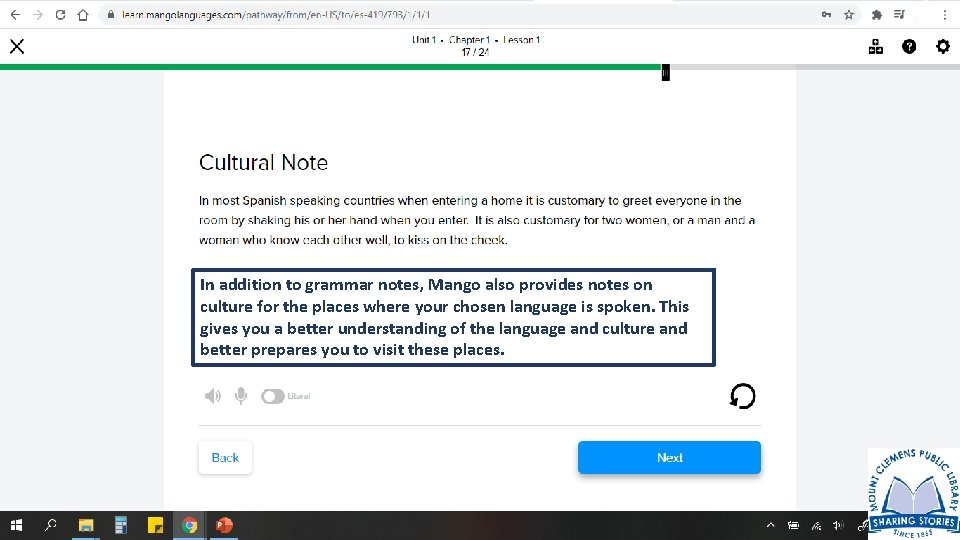
In addition to grammar notes, Mango also provides notes on culture for the places where your chosen language is spoken. This gives you a better understanding of the language and culture and better prepares you to visit these places.
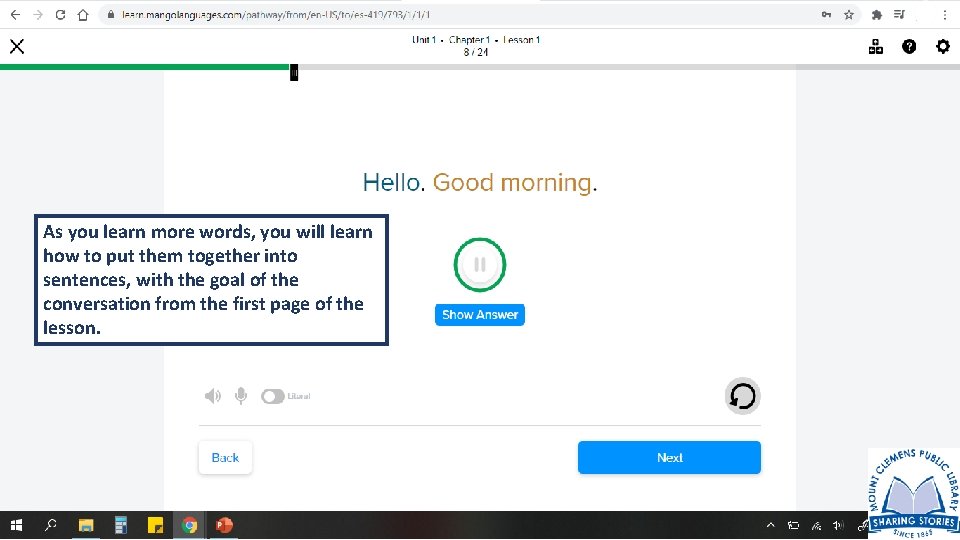
As you learn more words, you will learn how to put them together into sentences, with the goal of the conversation from the first page of the lesson.
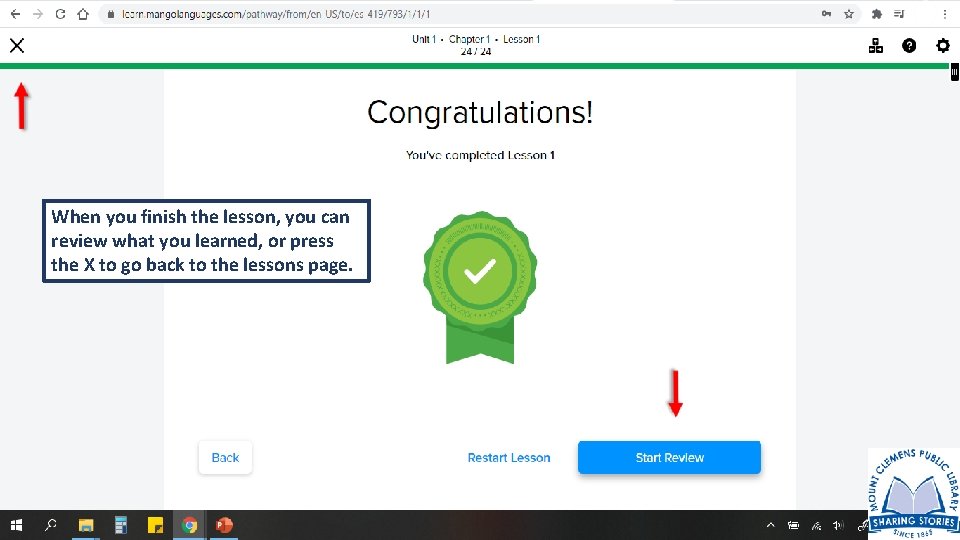
When you finish the lesson, you can review what you learned, or press the X to go back to the lessons page.
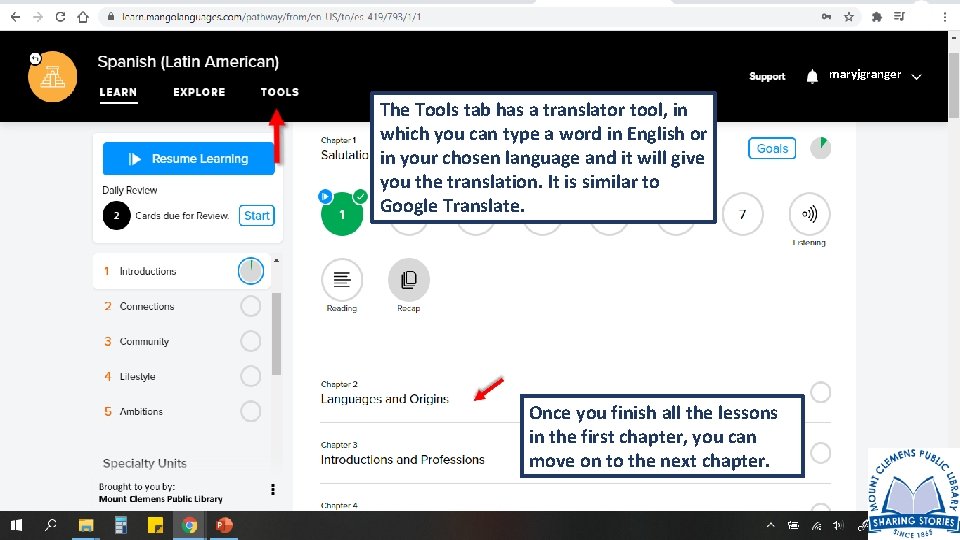
maryjgranger The Tools tab has a translator tool, in which you can type a word in English or in your chosen language and it will give you the translation. It is similar to Google Translate. Once you finish all the lessons in the first chapter, you can move on to the next chapter.
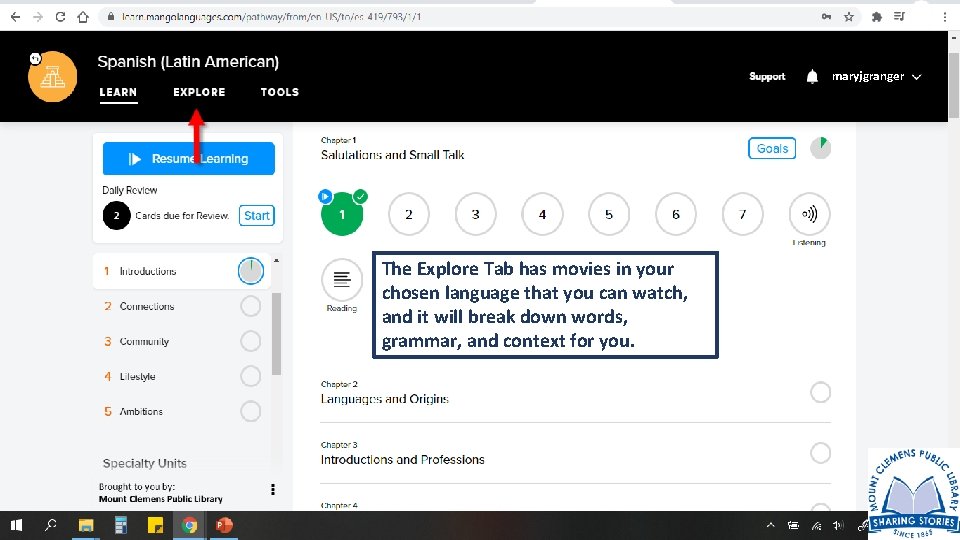
maryjgranger The Explore Tab has movies in your chosen language that you can watch, and it will break down words, grammar, and context for you.
- Slides: 19