
Managing References Using the free reference management tool

![Zotero Citation Style Repository Click on the “[Install]” link next to the style which](https://slidetodoc.com/presentation_image_h/8ec384aad8039e619f82b8e534fad17f/image-46.jpg "Zotero Citation Style Repository Click on the “[Install]” link next to the style which")
- Slides: 47
Managing References Using the free reference management tool Zotero 1
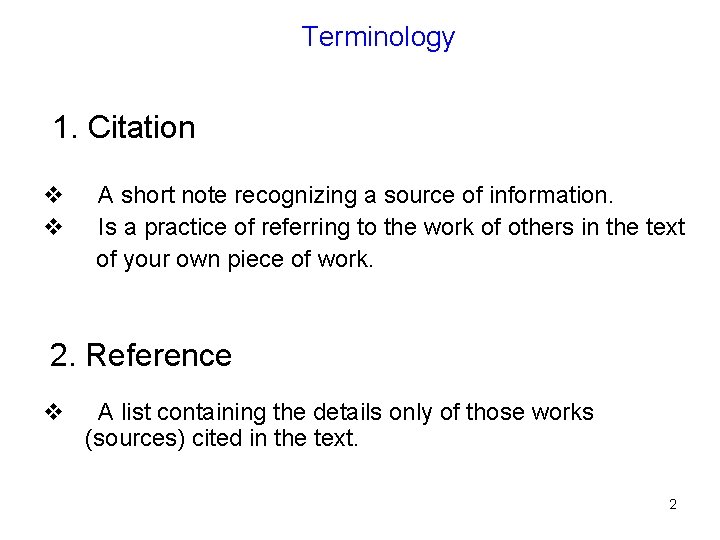
Terminology 1. Citation v A short note recognizing a source of information. v Is a practice of referring to the work of others in the text of your own piece of work. 2. Reference v A list containing the details only of those works (sources) cited in the text. 2
Why do we need reference? v To give credit to the ideas/works of other authors. v To allow others (readers) to find the original sources easily (cited reference) v To make the work informative. (Quality) v To get recognition & authentication of the work. v To address the issue of plagiarism 3
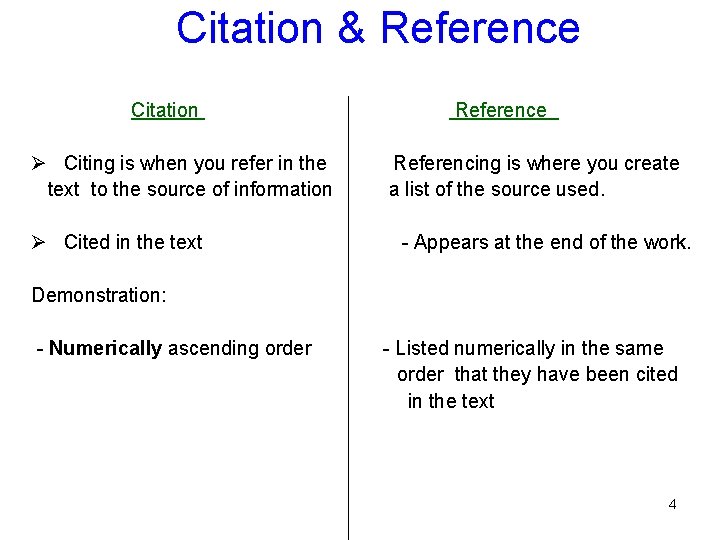
Citation & Reference Citation Reference Ø Citing is when you refer in the Referencing is where you create text to the source of information a list of the source used. Ø Cited in the text - Appears at the end of the work. Demonstration: - Numerically ascending order - Listed numerically in the same order that they have been cited in the text 4
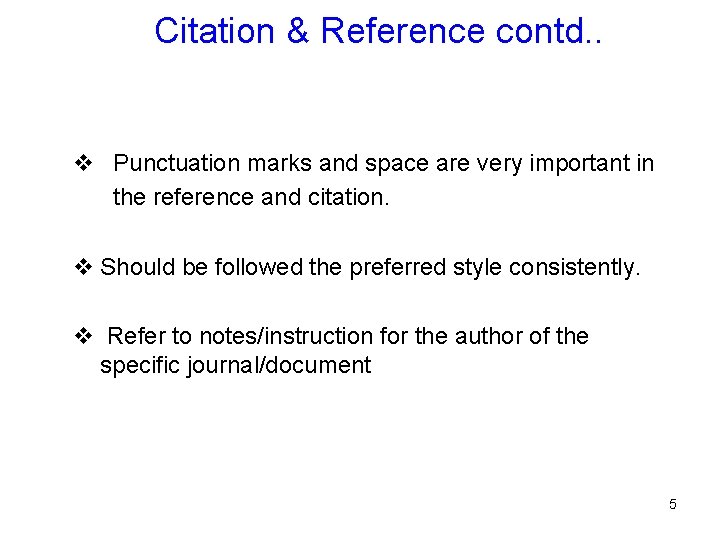
Citation & Reference contd. . v Punctuation marks and space are very important in the reference and citation. v Should be followed the preferred style consistently. v Refer to notes/instruction for the author of the specific journal/document 5
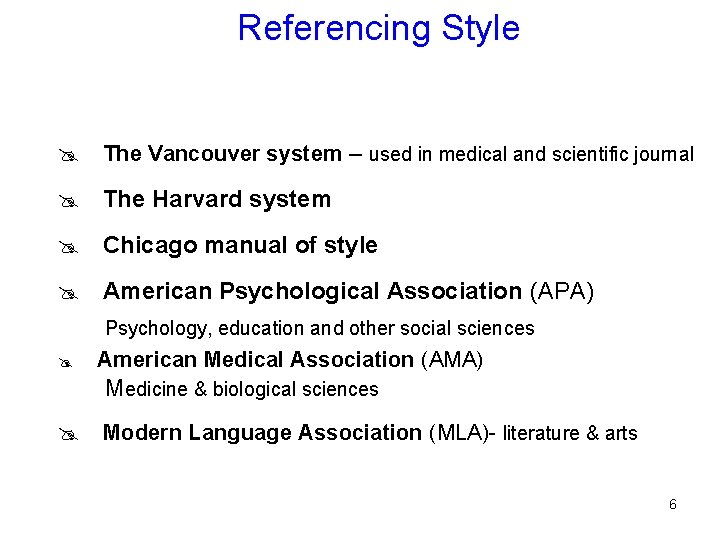
Referencing Style @ The Vancouver system – used in medical and scientific journal @ The Harvard system @ Chicago manual of style @ American Psychological Association (APA) Psychology, education and other social sciences @ American Medical Association (AMA) Medicine & biological sciences @ Modern Language Association (MLA)- literature & arts 6
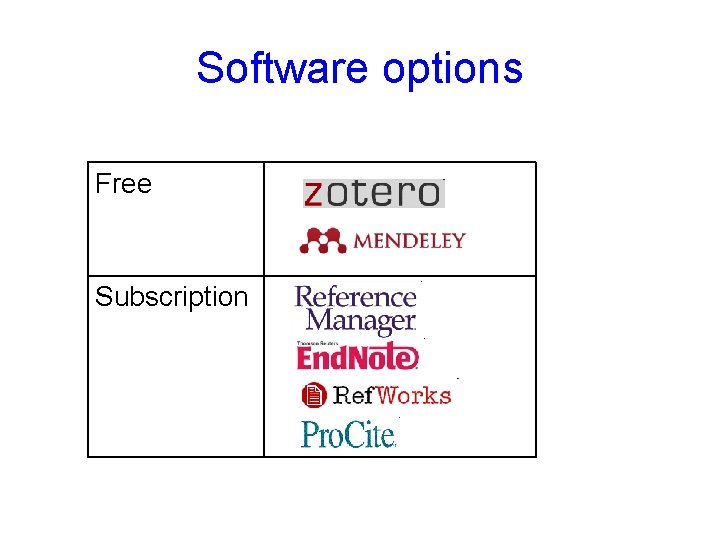
Software options Free Subscription
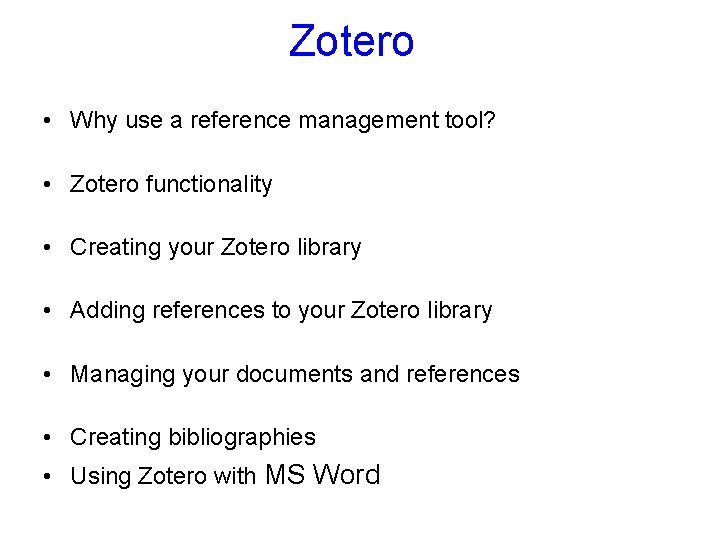
Zotero • Why use a reference management tool? • Zotero functionality • Creating your Zotero library • Adding references to your Zotero library • Managing your documents and references • Creating bibliographies • Using Zotero with MS Word
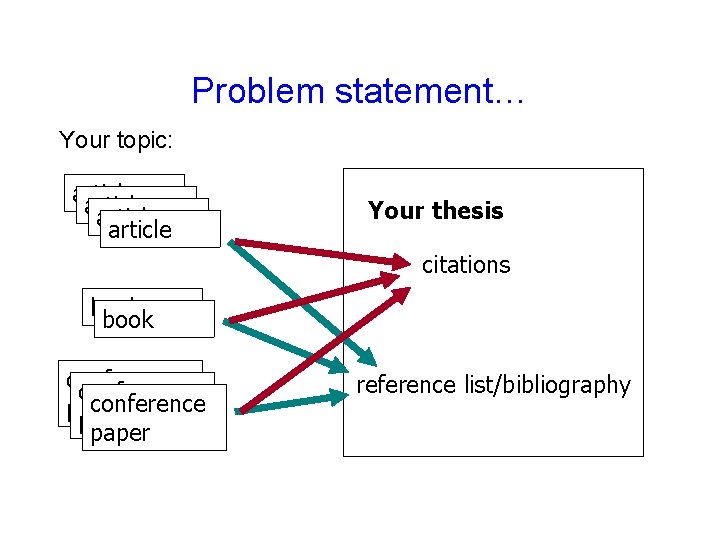
Problem statement… Your topic: article Your thesis citations book conference paper reference list/bibliography
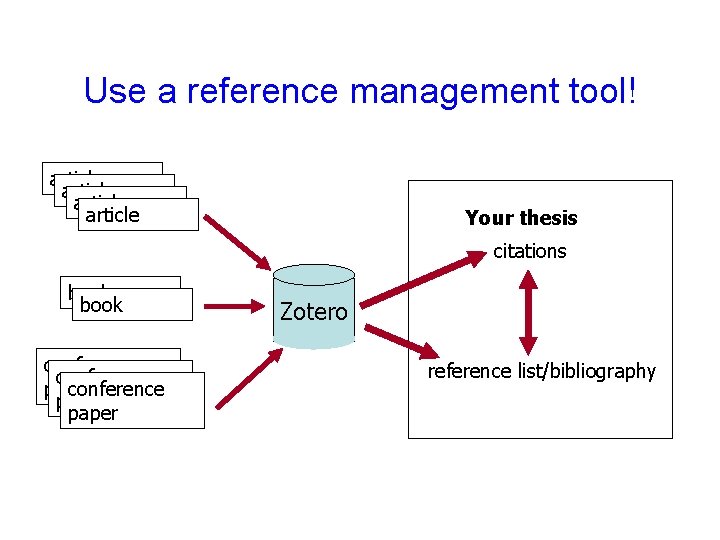
Use a reference management tool! article Your thesis citations book conference paper Zotero reference list/bibliography
Zotero • The Firefox web browser can be downloaded for free at: http: //www. mozilla. com/en-US/firefox/ • To download and install Zotero go to: http: //www. zotero. org
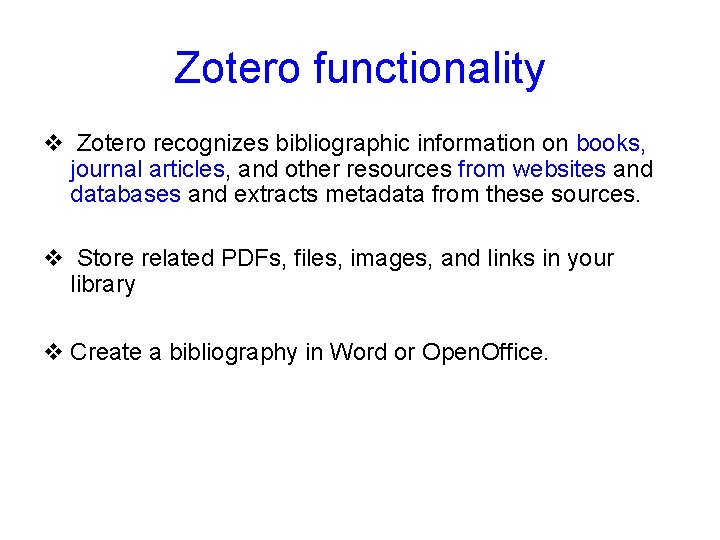
Zotero functionality v Zotero recognizes bibliographic information on books, journal articles, and other resources from websites and databases and extracts metadata from these sources. v Store related PDFs, files, images, and links in your library v Create a bibliography in Word or Open. Office.
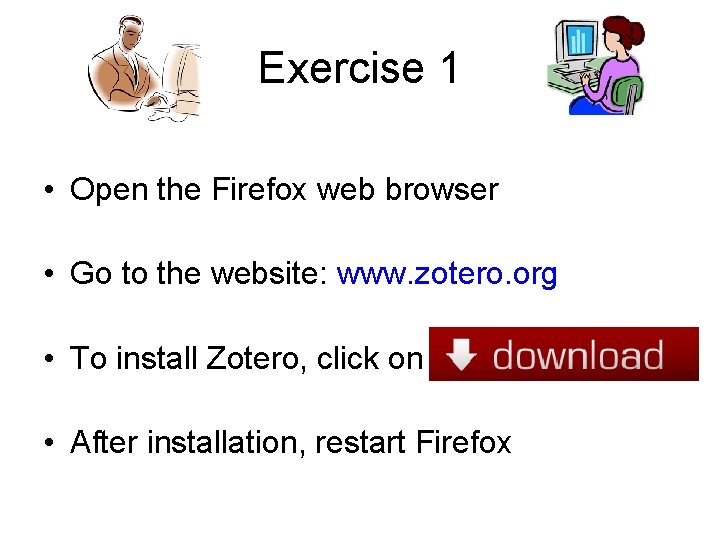
Exercise 1 • Open the Firefox web browser • Go to the website: www. zotero. org • To install Zotero, click on • After installation, restart Firefox
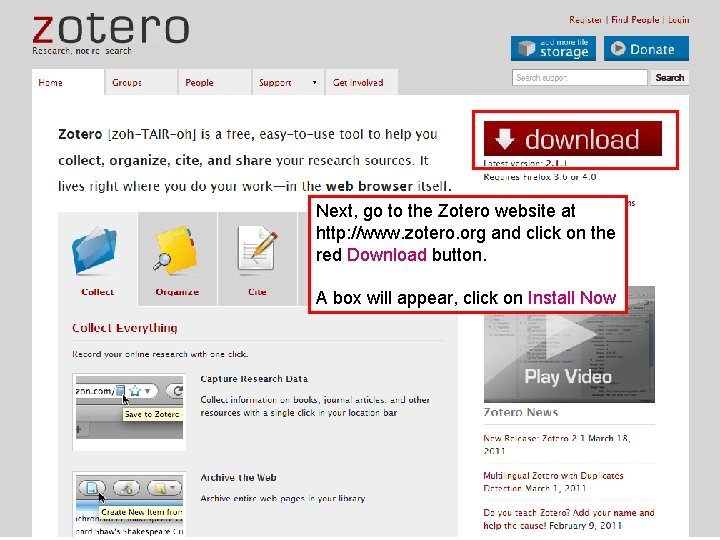
Next, go to the Zotero website at http: //www. zotero. org and click on the red Download button. A box will appear, click on Install Now
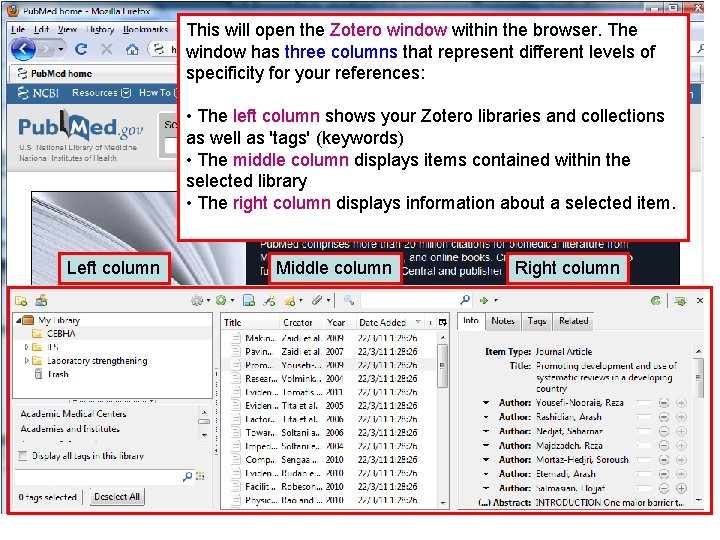
This will open the Zotero window within the browser. The window has three columns that represent different levels of specificity for your references: • The left column shows your Zotero libraries and collections as well as 'tags' (keywords) • The middle column displays items contained within the selected library • The right column displays information about a selected item. Left column Middle column Right column
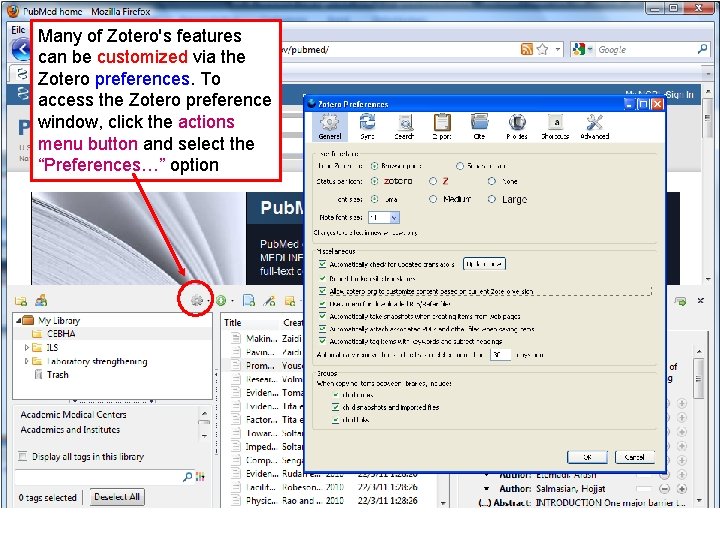
Many of Zotero's features can be customized via the Zotero preferences. To access the Zotero preference window, click the actions menu button and select the “Preferences…” option
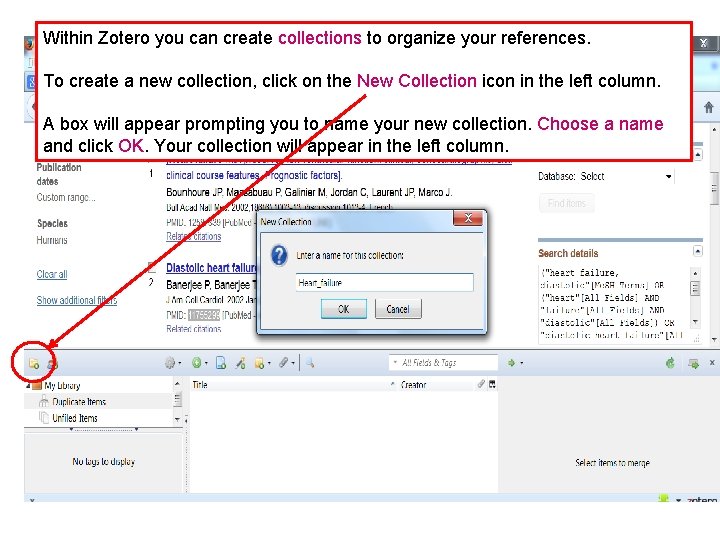
Within Zotero you can create collections to organize your references. To create a new collection, click on the New Collection icon in the left column. A box will appear prompting you to name your new collection. Choose a name and click OK. Your collection will appear in the left column.
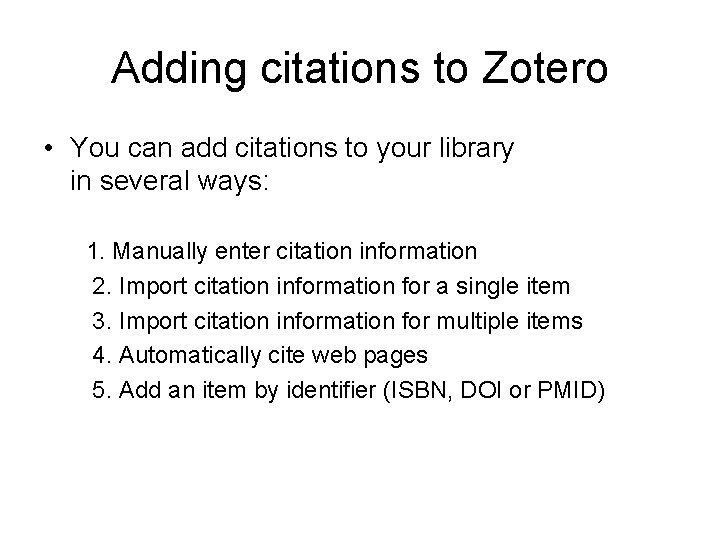
Adding citations to Zotero • You can add citations to your library in several ways: 1. Manually enter citation information 2. Import citation information for a single item 3. Import citation information for multiple items 4. Automatically cite web pages 5. Add an item by identifier (ISBN, DOI or PMID)
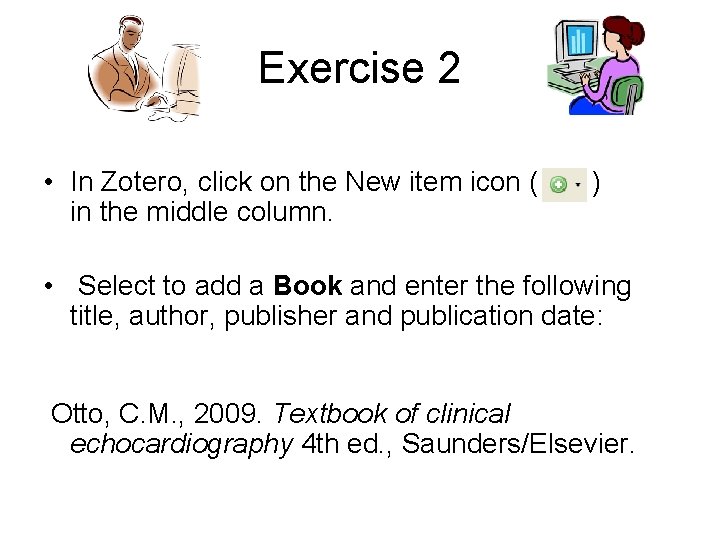
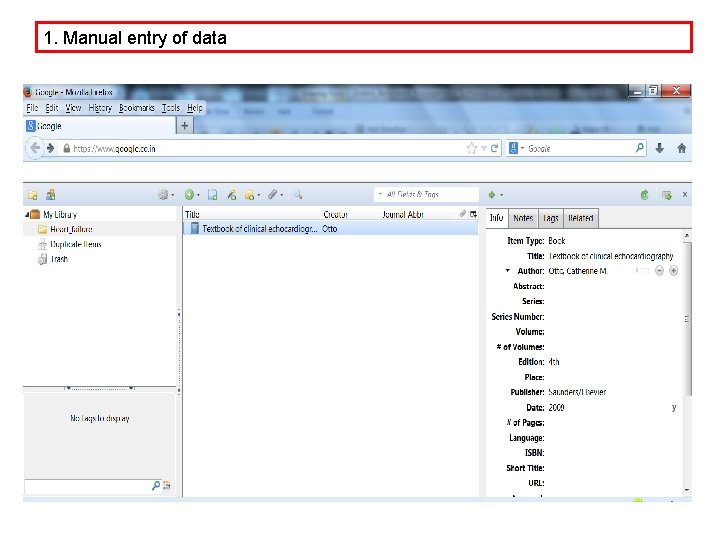
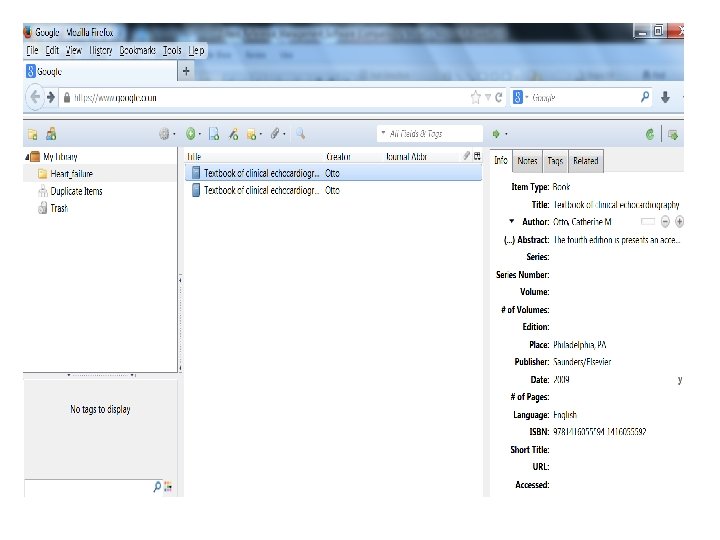
Exercise 2 • In Zotero, click on the New item icon ( ) in the middle column. • Select to add a Book and enter the following title, author, publisher and publication date: Otto, C. M. , 2009. Textbook of clinical echocardiography 4 th ed. , Saunders/Elsevier.
1. Manual entry of data
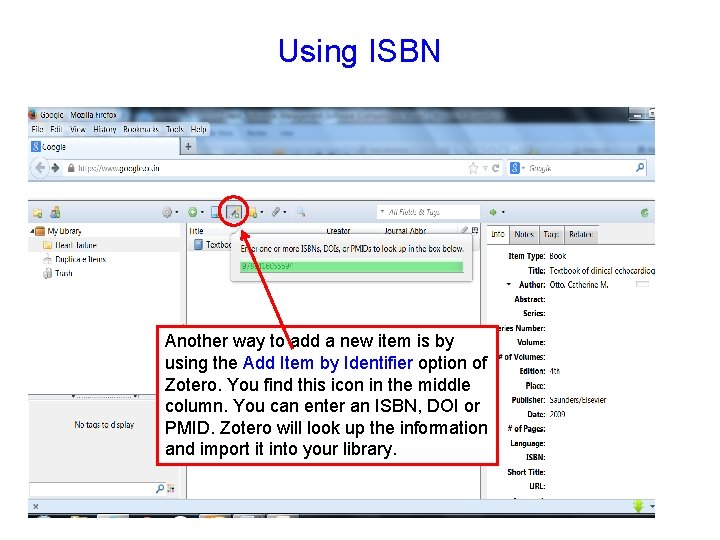
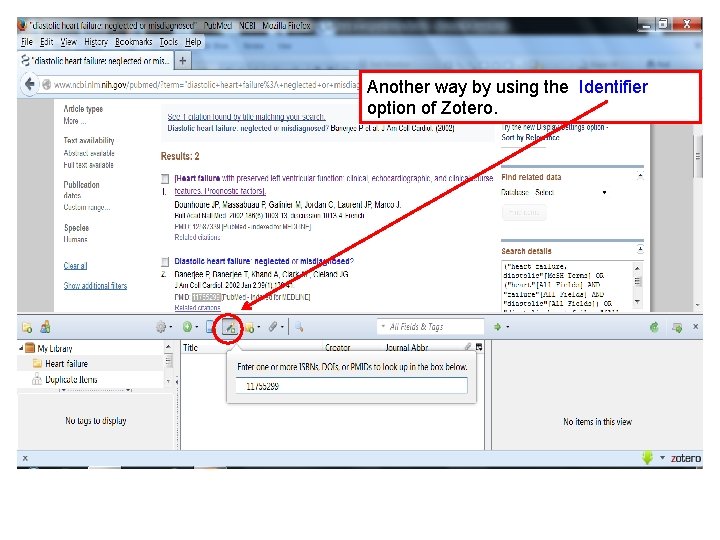
Using ISBN Another way to add a new item is by using the Add Item by Identifier option of Zotero. You find this icon in the middle column. You can enter an ISBN, DOI or PMID. Zotero will look up the information and import it into your library.
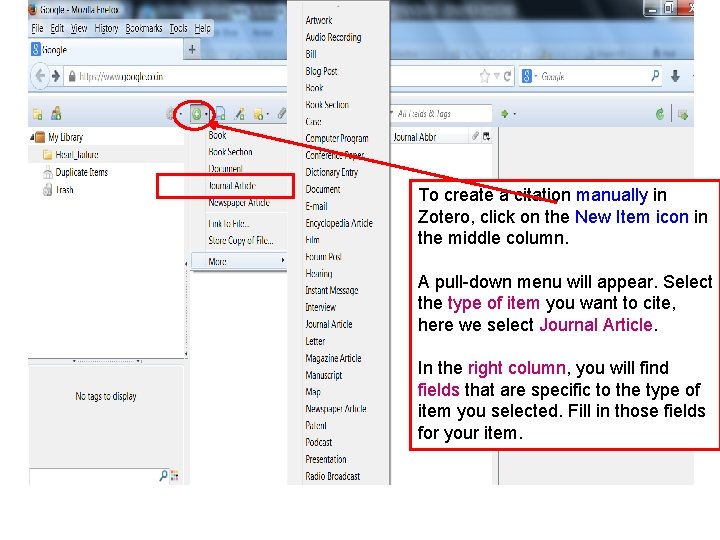
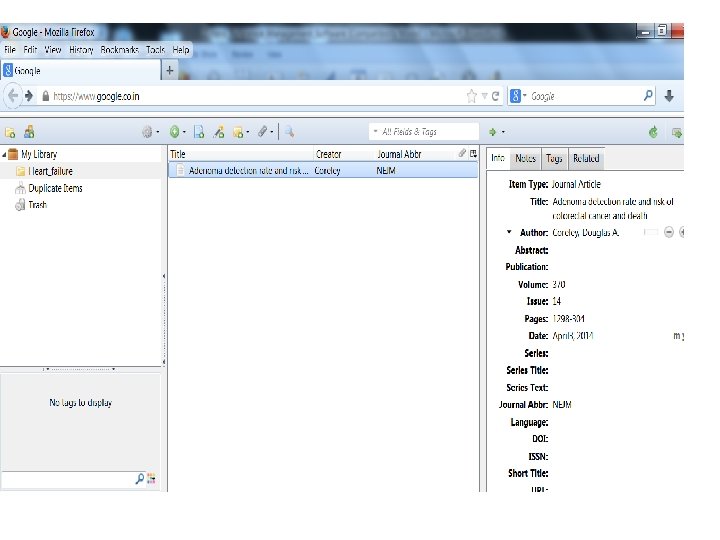
To create a citation manually in Zotero, click on the New Item icon in the middle column. A pull-down menu will appear. Select the type of item you want to cite, here we select Journal Article. In the right column, you will find fields that are specific to the type of item you selected. Fill in those fields for your item.
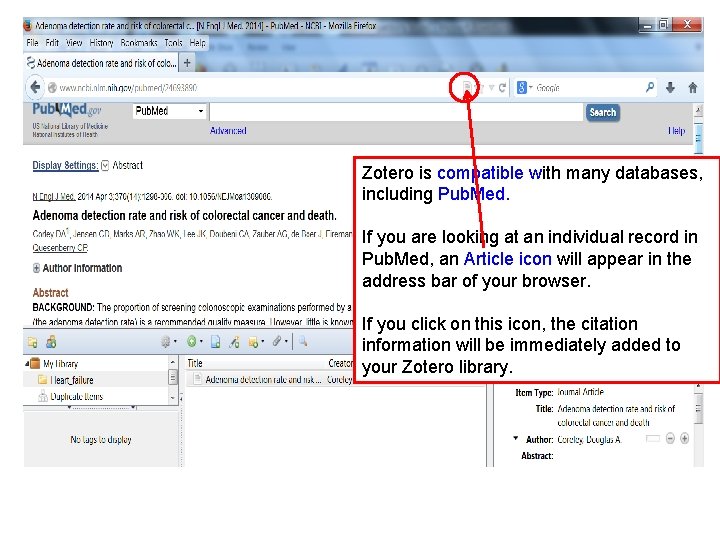
Zotero is compatible with many databases, including Pub. Med. If you are looking at an individual record in Pub. Med, an Article icon will appear in the address bar of your browser. If you click on this icon, the citation information will be immediately added to your Zotero library.
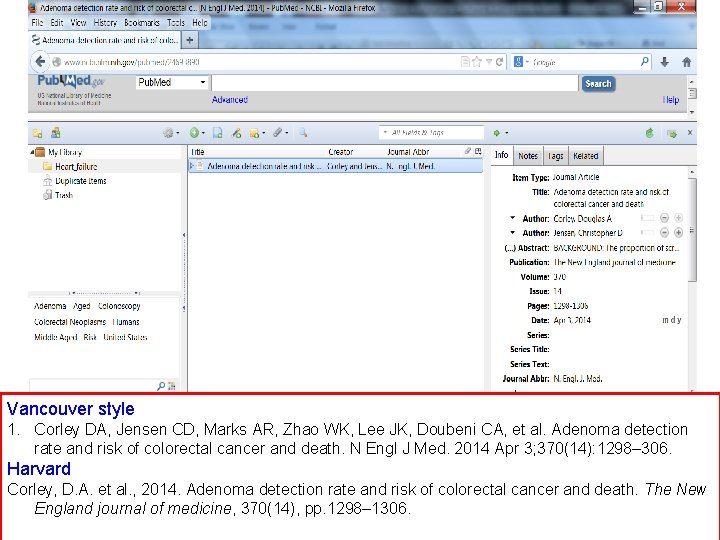
Vancouver style 1. Corley DA, Jensen CD, Marks AR, Zhao WK, Lee JK, Doubeni CA, et al. Adenoma detection rate and risk of colorectal cancer and death. N Engl J Med. 2014 Apr 3; 370(14): 1298– 306. Harvard Corley, D. A. et al. , 2014. Adenoma detection rate and risk of colorectal cancer and death. The New England journal of medicine, 370(14), pp. 1298– 1306.
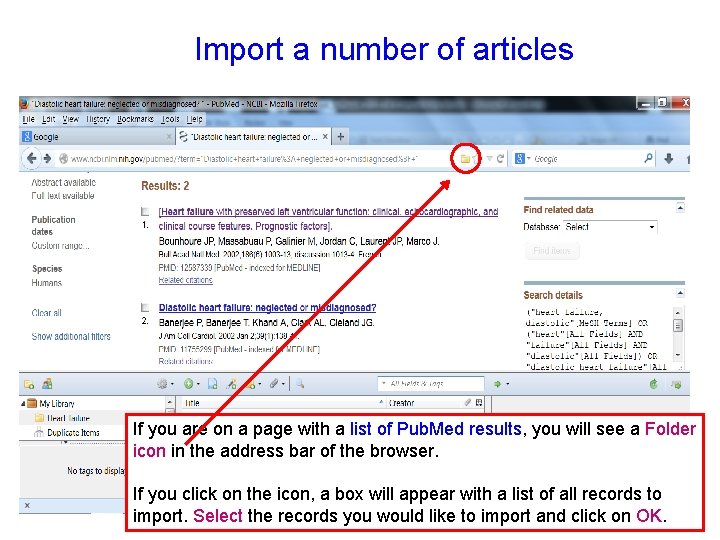
Import a number of articles If you are on a page with a list of Pub. Med results, you will see a Folder icon in the address bar of the browser. If you click on the icon, a box will appear with a list of all records to import. Select the records you would like to import and click on OK.
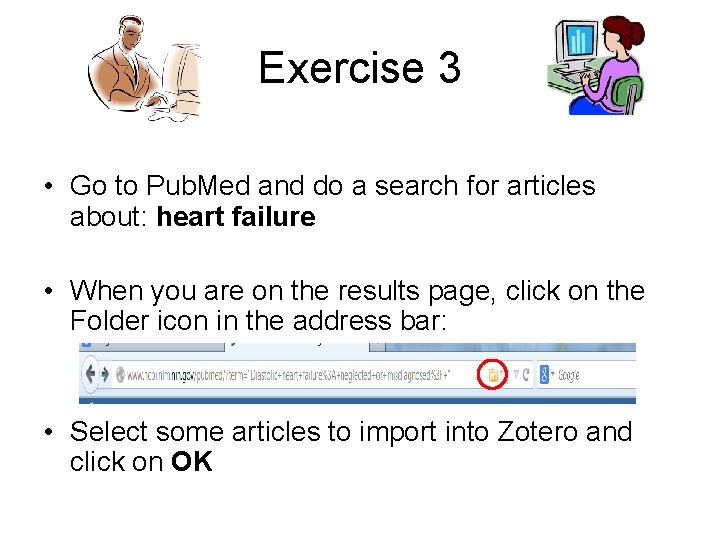
Exercise 3 • Go to Pub. Med and do a search for articles about: heart failure • When you are on the results page, click on the Folder icon in the address bar: • Select some articles to import into Zotero and click on OK
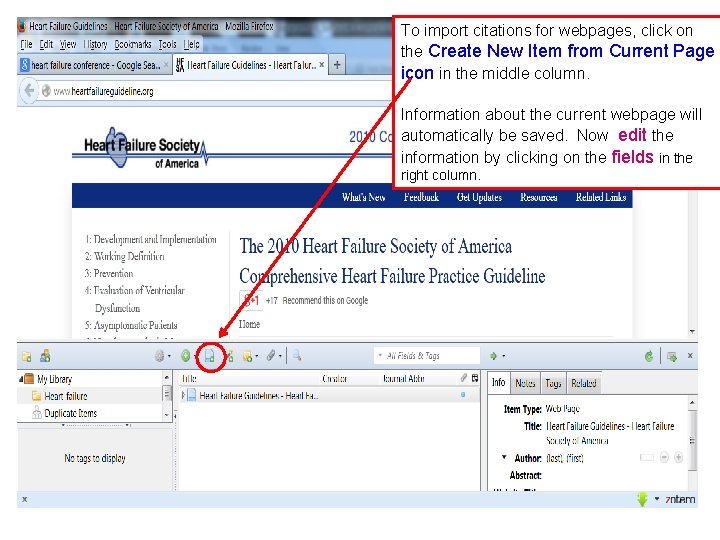
To import citations for webpages, click on the Create New Item from Current Page icon in the middle column. Information about the current webpage will automatically be saved. Now edit the information by clicking on the fields in the right column.
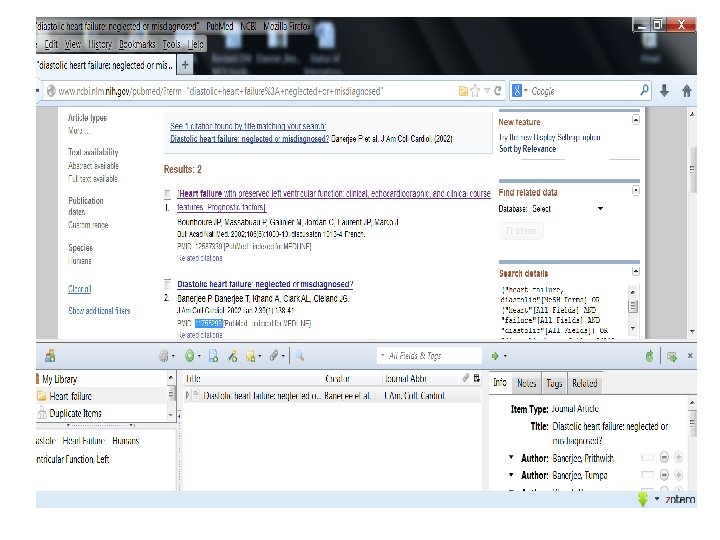
Another way by using the Identifier option of Zotero.
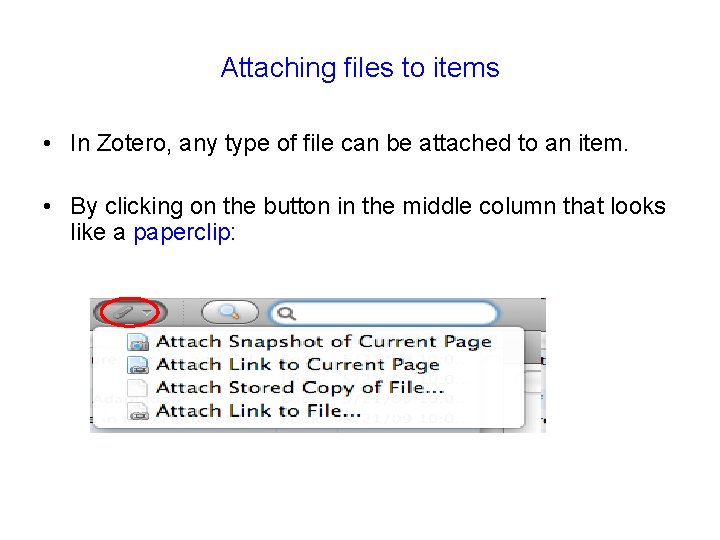
Attaching files to items • In Zotero, any type of file can be attached to an item. • By clicking on the button in the middle column that looks like a paperclip:
How to create Reference / Bibliography?
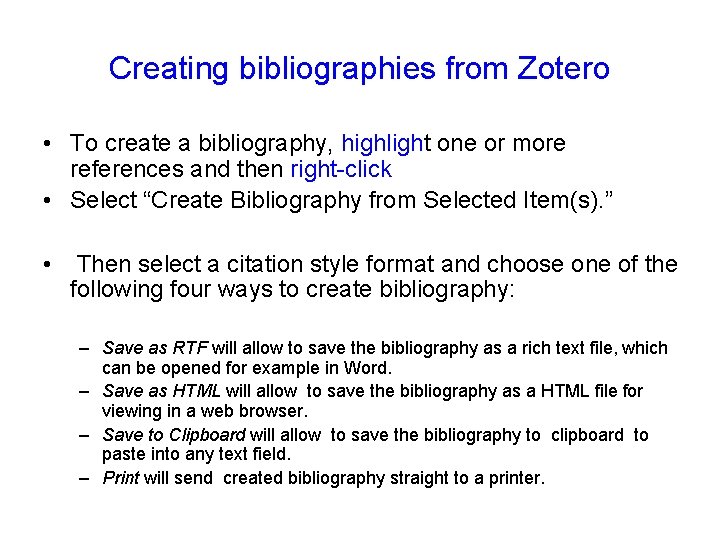
Creating bibliographies from Zotero • To create a bibliography, highlight one or more references and then right-click • Select “Create Bibliography from Selected Item(s). ” • Then select a citation style format and choose one of the following four ways to create bibliography: – Save as RTF will allow to save the bibliography as a rich text file, which can be opened for example in Word. – Save as HTML will allow to save the bibliography as a HTML file for viewing in a web browser. – Save to Clipboard will allow to save the bibliography to clipboard to paste into any text field. – Print will send created bibliography straight to a printer.
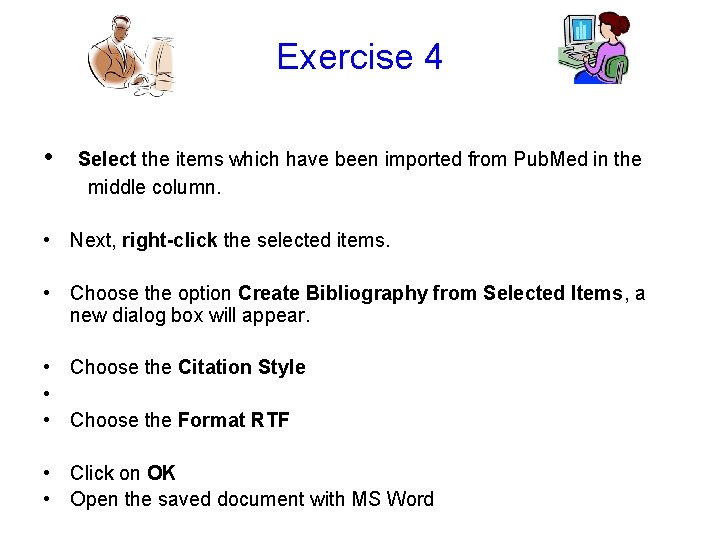
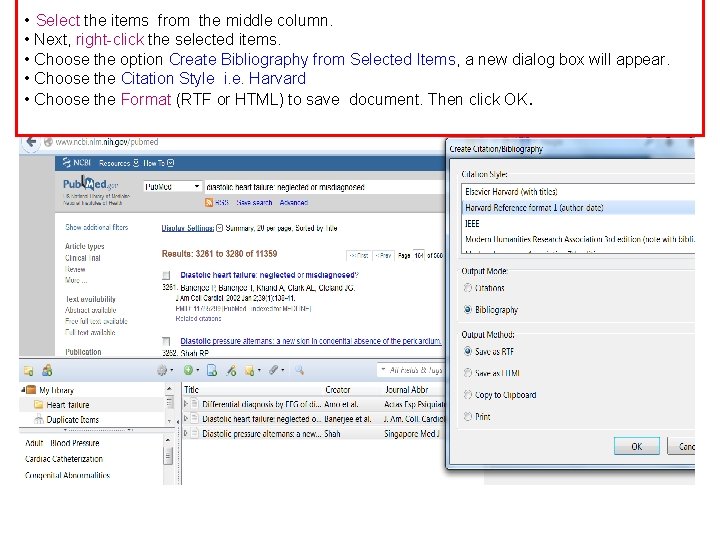
Exercise 4 • Select the items which have been imported from Pub. Med in the middle column. • Next, right-click the selected items. • Choose the option Create Bibliography from Selected Items, a new dialog box will appear. • Choose the Citation Style • • Choose the Format RTF • Click on OK • Open the saved document with MS Word
• Select the items from the middle column. • Next, right-click the selected items. • Choose the option Create Bibliography from Selected Items, a new dialog box will appear. • Choose the Citation Style i. e. Harvard • Choose the Format (RTF or HTML) to save document. Then click OK.
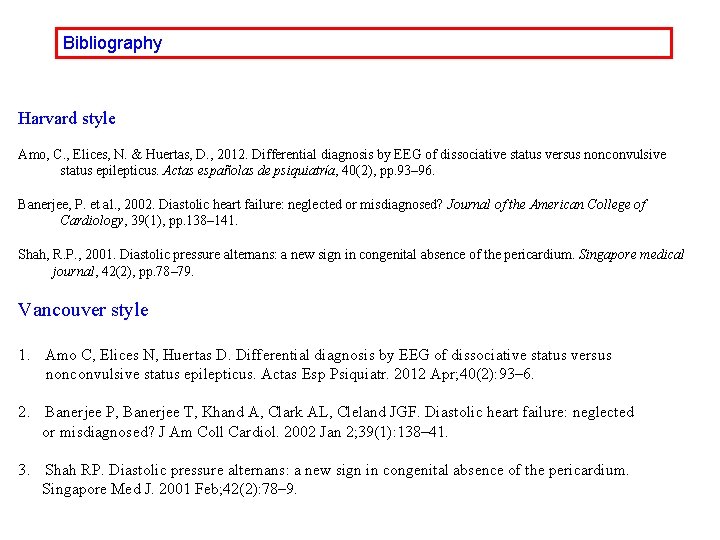
Bibliography Harvard style Amo, C. , Elices, N. & Huertas, D. , 2012. Differential diagnosis by EEG of dissociative status versus nonconvulsive status epilepticus. Actas españolas de psiquiatría, 40(2), pp. 93– 96. Banerjee, P. et al. , 2002. Diastolic heart failure: neglected or misdiagnosed? Journal of the American College of Cardiology, 39(1), pp. 138– 141. Shah, R. P. , 2001. Diastolic pressure alternans: a new sign in congenital absence of the pericardium. Singapore medical journal, 42(2), pp. 78– 79. Vancouver style 1. Amo C, Elices N, Huertas D. Differential diagnosis by EEG of dissociative status versus nonconvulsive status epilepticus. Actas Esp Psiquiatr. 2012 Apr; 40(2): 93– 6. 2. Banerjee P, Banerjee T, Khand A, Clark AL, Cleland JGF. Diastolic heart failure: neglected or misdiagnosed? J Am Coll Cardiol. 2002 Jan 2; 39(1): 138– 41. 3. Shah RP. Diastolic pressure alternans: a new sign in congenital absence of the pericardium. Singapore Med J. 2001 Feb; 42(2): 78– 9.
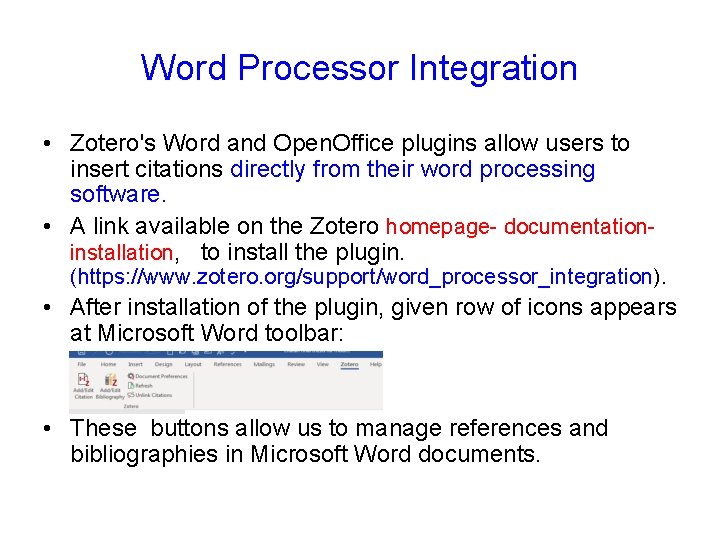
Word Processor Integration • Zotero's Word and Open. Office plugins allow users to insert citations directly from their word processing software. • A link available on the Zotero homepage- documentation- installation, to install the plugin. (https: //www. zotero. org/support/word_processor_integration). • After installation of the plugin, given row of icons appears at Microsoft Word toolbar: • These buttons allow us to manage references and bibliographies in Microsoft Word documents.
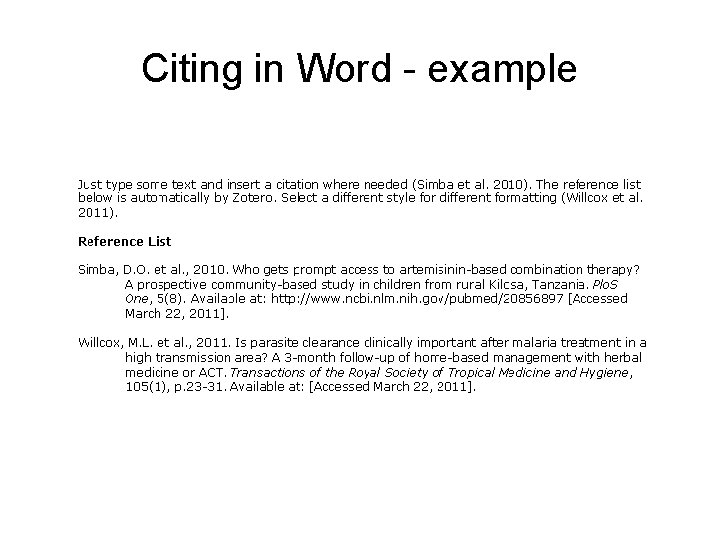
Citing in Word - example
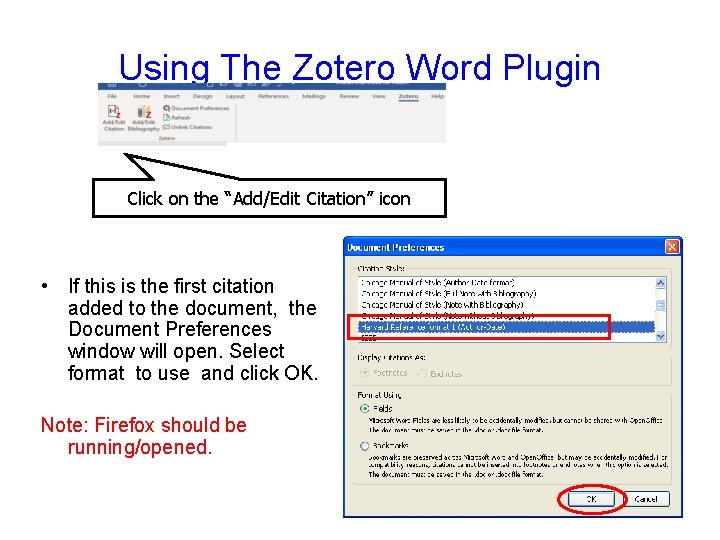
Using The Zotero Word Plugin Click on the “Add/Edit Citation” icon • If this is the first citation added to the document, the Document Preferences window will open. Select format to use and click OK. Note: Firefox should be running/opened.
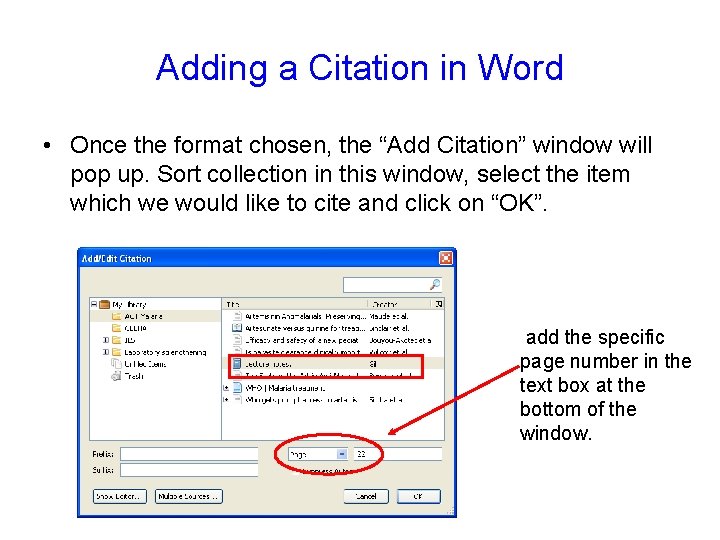
Adding a Citation in Word • Once the format chosen, the “Add Citation” window will pop up. Sort collection in this window, select the item which we would like to cite and click on “OK”. add the specific page number in the text box at the bottom of the window.
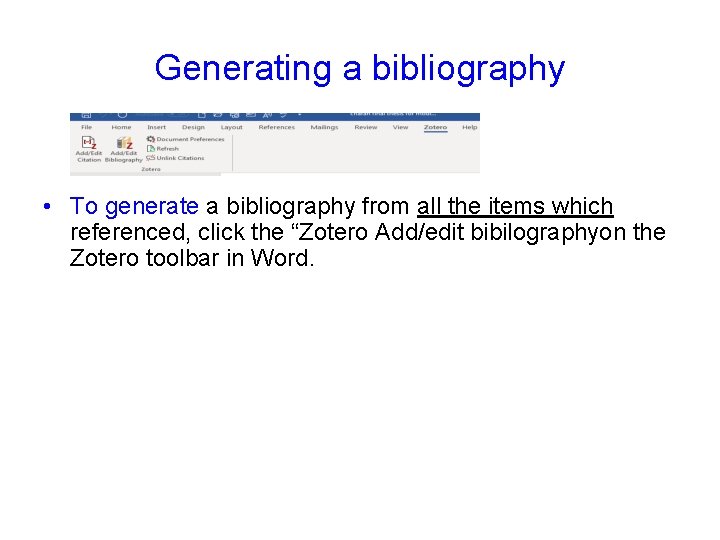
Generating a bibliography • To generate a bibliography from all the items which referenced, click the “Zotero Add/edit bibilographyon the Zotero toolbar in Word.
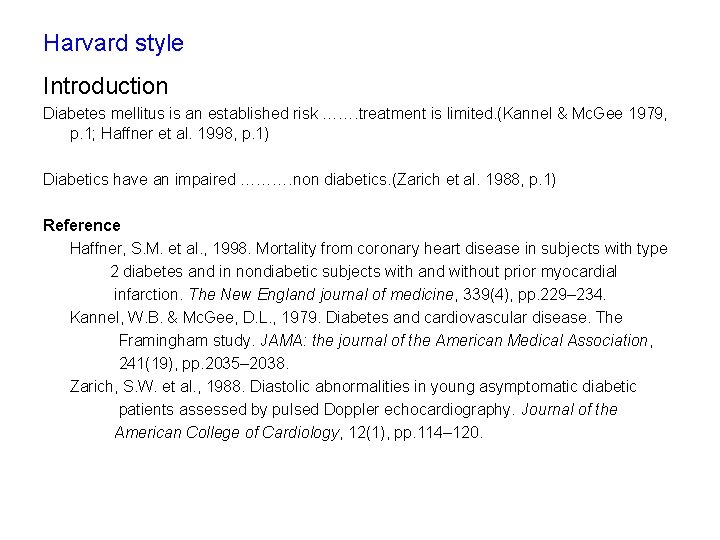
Harvard style Introduction Diabetes mellitus is an established risk ……. treatment is limited. (Kannel & Mc. Gee 1979, p. 1; Haffner et al. 1998, p. 1) Diabetics have an impaired ………. non diabetics. (Zarich et al. 1988, p. 1) Reference Haffner, S. M. et al. , 1998. Mortality from coronary heart disease in subjects with type 2 diabetes and in nondiabetic subjects with and without prior myocardial infarction. The New England journal of medicine, 339(4), pp. 229– 234. Kannel, W. B. & Mc. Gee, D. L. , 1979. Diabetes and cardiovascular disease. The Framingham study. JAMA: the journal of the American Medical Association, 241(19), pp. 2035– 2038. Zarich, S. W. et al. , 1988. Diastolic abnormalities in young asymptomatic diabetic patients assessed by pulsed Doppler echocardiography. Journal of the American College of Cardiology, 12(1), pp. 114– 120.
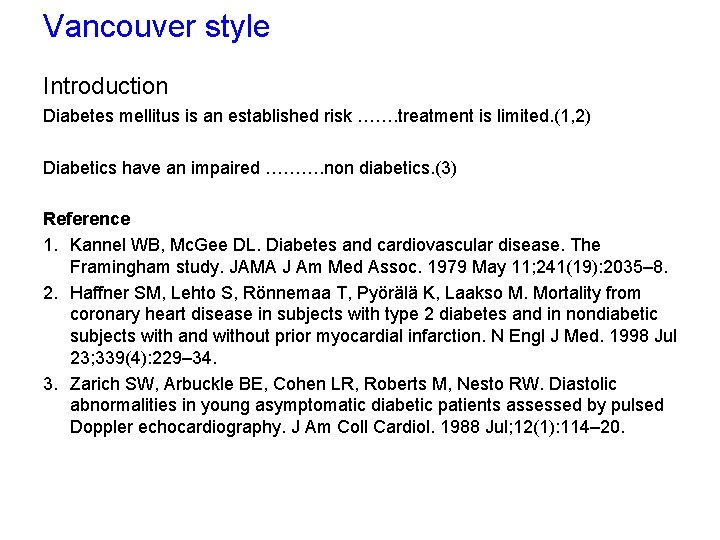
Vancouver style Introduction Diabetes mellitus is an established risk ……. treatment is limited. (1, 2) Diabetics have an impaired ………. non diabetics. (3) Reference 1. Kannel WB, Mc. Gee DL. Diabetes and cardiovascular disease. The Framingham study. JAMA J Am Med Assoc. 1979 May 11; 241(19): 2035– 8. 2. Haffner SM, Lehto S, Rönnemaa T, Pyörälä K, Laakso M. Mortality from coronary heart disease in subjects with type 2 diabetes and in nondiabetic subjects with and without prior myocardial infarction. N Engl J Med. 1998 Jul 23; 339(4): 229– 34. 3. Zarich SW, Arbuckle BE, Cohen LR, Roberts M, Nesto RW. Diastolic abnormalities in young asymptomatic diabetic patients assessed by pulsed Doppler echocardiography. J Am Coll Cardiol. 1988 Jul; 12(1): 114– 20.
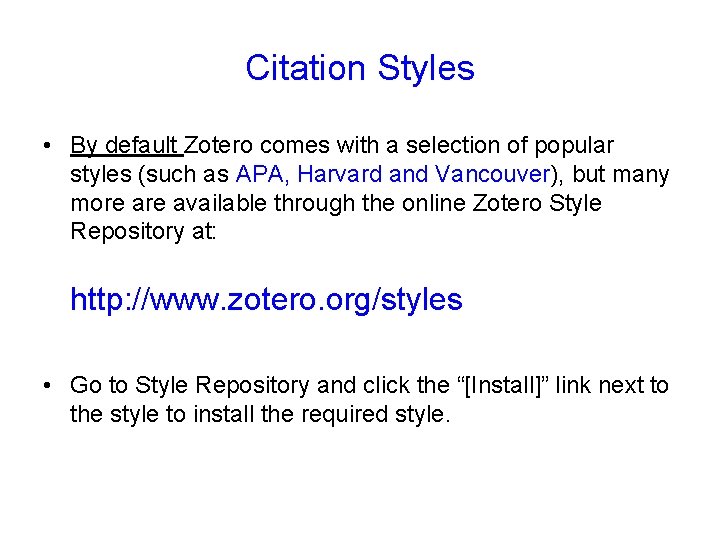
Citation Styles • By default Zotero comes with a selection of popular styles (such as APA, Harvard and Vancouver), but many more available through the online Zotero Style Repository at: http: //www. zotero. org/styles • Go to Style Repository and click the “[Install]” link next to the style to install the required style.
Zotero Citation Style Repository Click on the “[Install]” link next to the style which we wish to install.
Which citation style to use? Thanks