
Manager Time Off Request Step by Step guide

Manager – Time Off Request Step by Step guide for reviewing, approving & denying your employees’ Paid Time Off requests through our Workforce Now ADP portal. Copyright © 2015 ADP, LLC. Proprietary and Confidential.
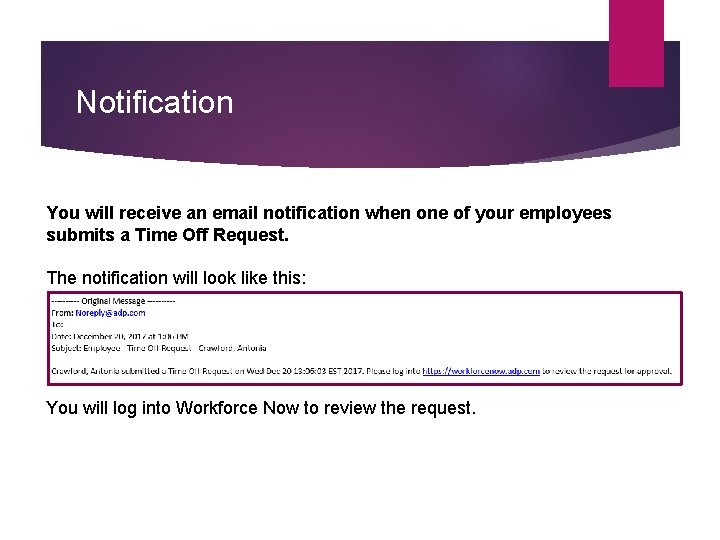
Notification You will receive an email notification when one of your employees submits a Time Off Request. The notification will look like this: You will log into Workforce Now to review the request.

Login to Workforce Now https: //workforcenow. adp. com/ The Registration passcode for new users is: Richards-1234.
Step by Step Summary Approving a Time Off Request for an Employees Click the Message Center icon. Select the Tasks to view a list of pending requests click on the View All Messages icon You can approve or reject the request(s) by selecting the to approve or the X deny. To review the employee’s time off request details select Review On the Time Off Request page, click Check Schedule to see whether someone else has an approved, denied or pending request for the same date. Optional: Enter Comments Click Approve.
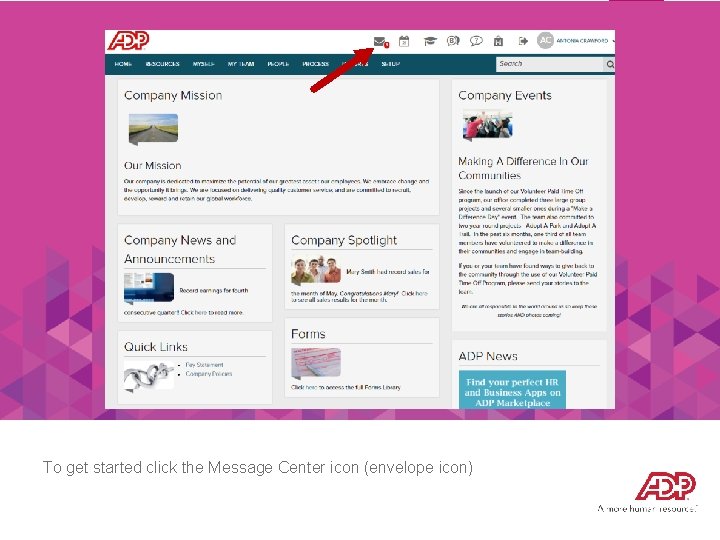
To get started click the Message Center icon (envelope icon)
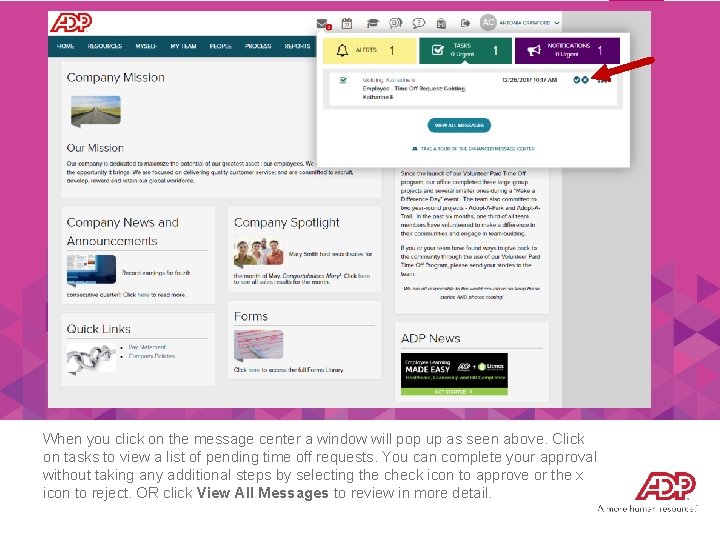
When you click on the message center a window will pop up as seen above. Click on tasks to view a list of pending time off requests. You can complete your approval without taking any additional steps by selecting the check icon to approve or the x icon to reject. OR click View All Messages to review in more detail.
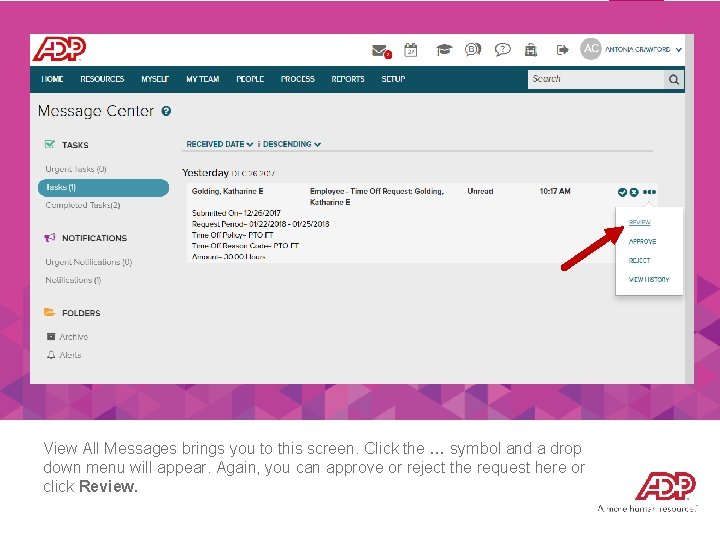
View All Messages brings you to this screen. Click the … symbol and a drop down menu will appear. Again, you can approve or reject the request here or click Review.
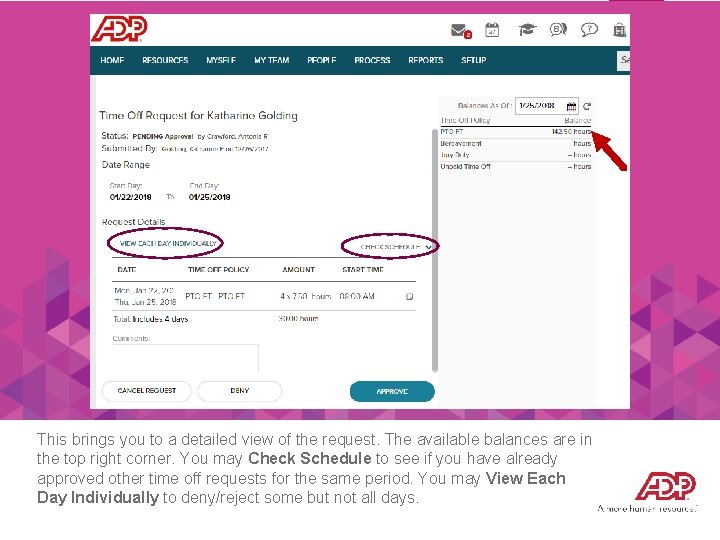
This brings you to a detailed view of the request. The available balances are in the top right corner. You may Check Schedule to see if you have already approved other time off requests for the same period. You may View Each Day Individually to deny/reject some but not all days.
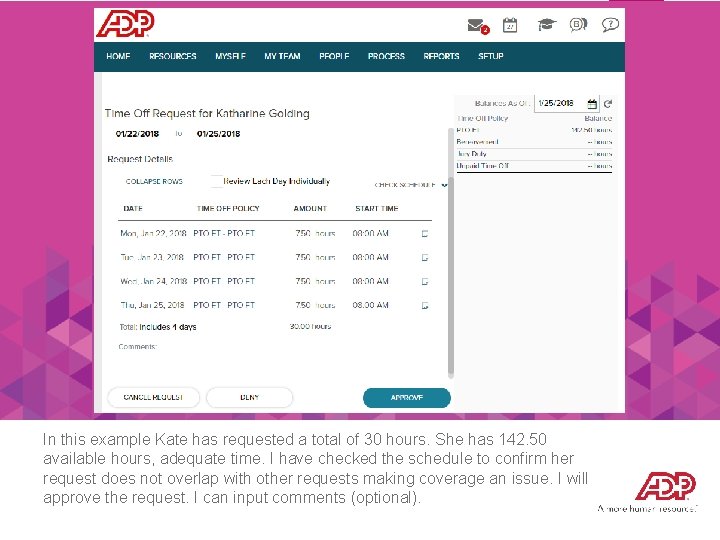
In this example Kate has requested a total of 30 hours. She has 142. 50 available hours, adequate time. I have checked the schedule to confirm her request does not overlap with other requests making coverage an issue. I will approve the request. I can input comments (optional).
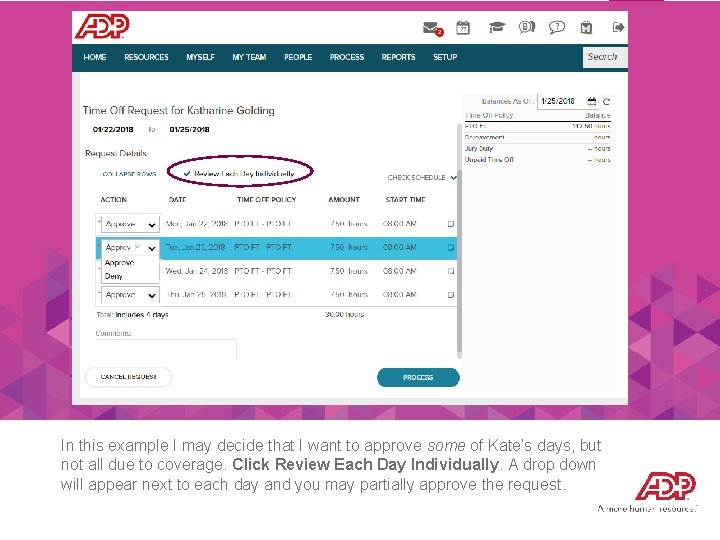
In this example I may decide that I want to approve some of Kate’s days, but not all due to coverage. Click Review Each Day Individually. A drop down will appear next to each day and you may partially approve the request.
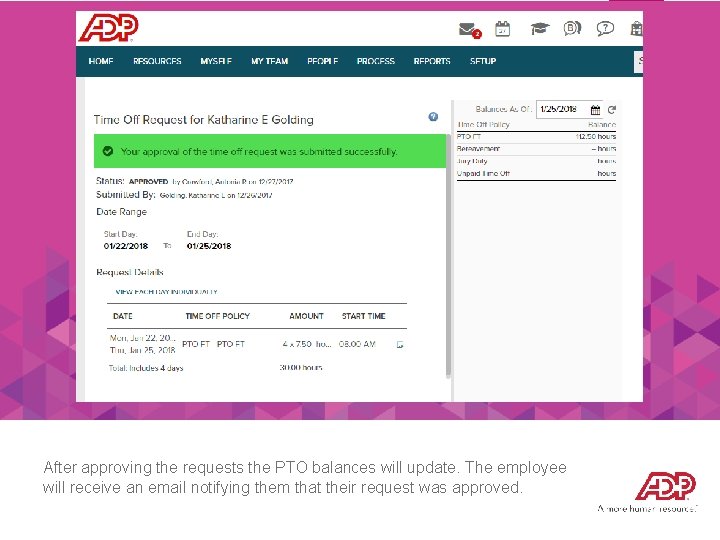
After approving the requests the PTO balances will update. The employee will receive an email notifying them that their request was approved.

Additional Information: - If you get stuck or need help, please contact your Administrator: Antonia Crawford acrawford@therichardsgrp. com Submitting Time Off Request
- Slides: 12