
Manage Teacher and Student Records Update Student Records
- Slides: 35
Manage Teacher and Student Records Update Student Records
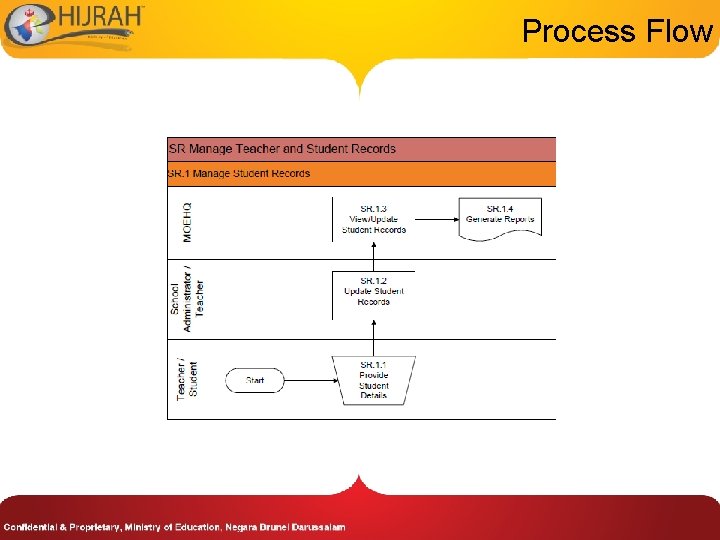
Process Flow
C 1 -SR 01: Update Student Records • Description: – This function allows teacher to add or update students’ personal information • Granted Role: – Class Teacher, School Administrator – Student Records, School Registrar
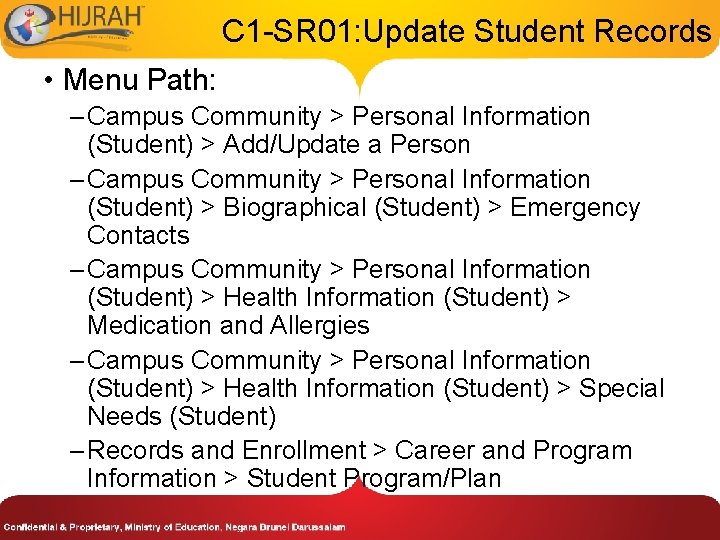
C 1 -SR 01: Update Student Records • Menu Path: – Campus Community > Personal Information (Student) > Add/Update a Person – Campus Community > Personal Information (Student) > Biographical (Student) > Emergency Contacts – Campus Community > Personal Information (Student) > Health Information (Student) > Medication and Allergies – Campus Community > Personal Information (Student) > Health Information (Student) > Special Needs (Student) – Records and Enrollment > Career and Program Information > Student Program/Plan
How to use the system 1. 2. 3. 4. Navigate to the screen via menu path Search for a particular student Update student’s existing data Save Refer to Online Help for more details
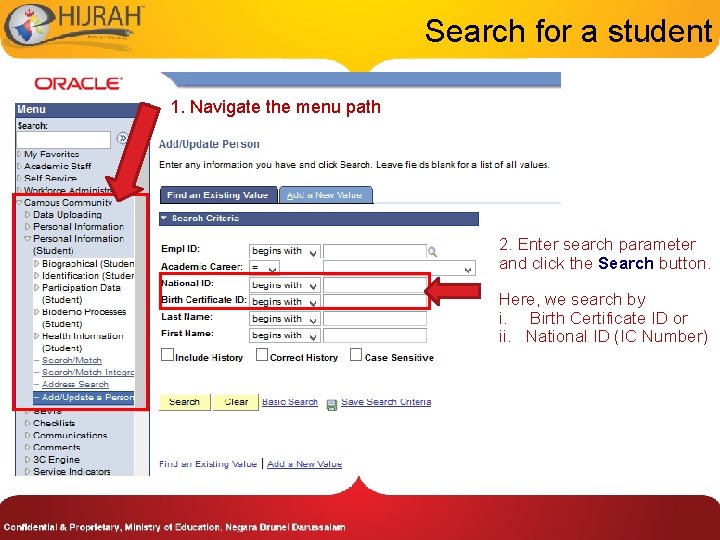
Search for a student 1. Navigate the menu path 2. Enter search parameter and click the Search button. Here, we search by i. Birth Certificate ID or ii. National ID (IC Number)
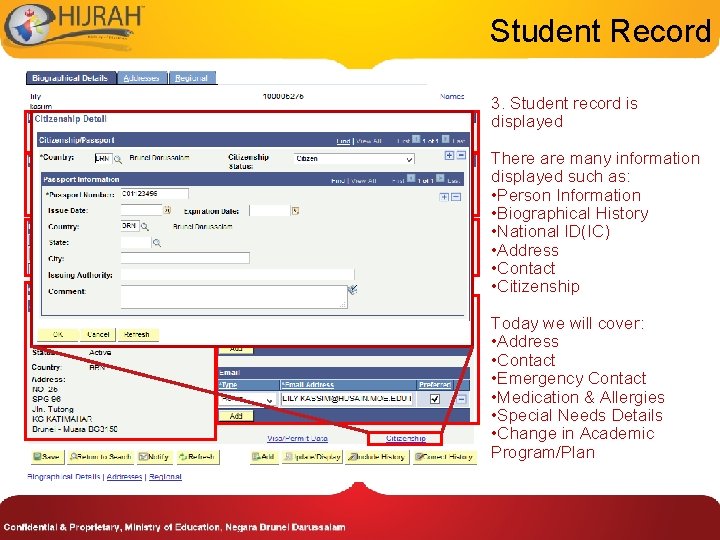
Student Record 3. Student record is displayed There are many information displayed such as: • Person Information • Biographical History • National ID(IC) • Address • Contact • Citizenship Today we will cover: • Address • Contact • Emergency Contact • Medication & Allergies • Special Needs Details • Change in Academic Program/Plan
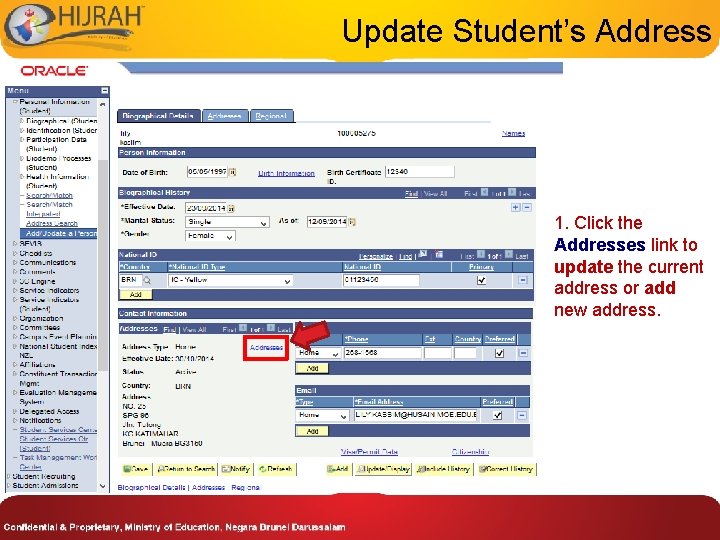
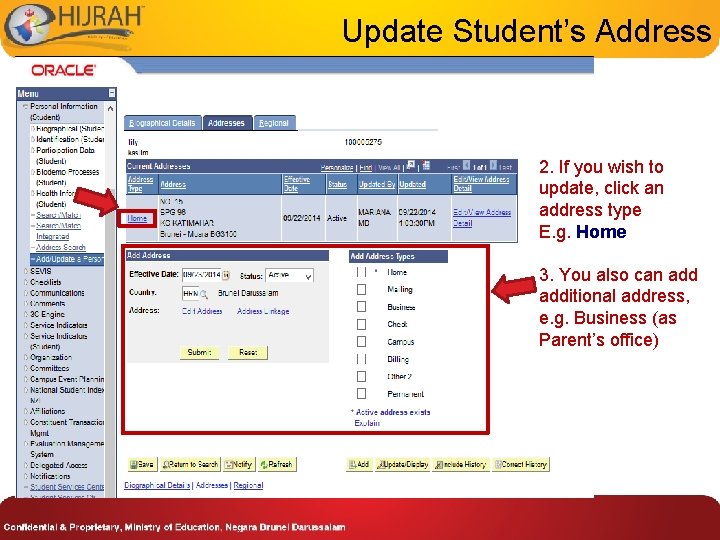
Update Student’s Address 1. Click the Addresses link to update the current address or add new address.
Update Student’s Address 2. If you wish to update, click an address type E. g. Home 3. You also can additional address, e. g. Business (as Parent’s office)
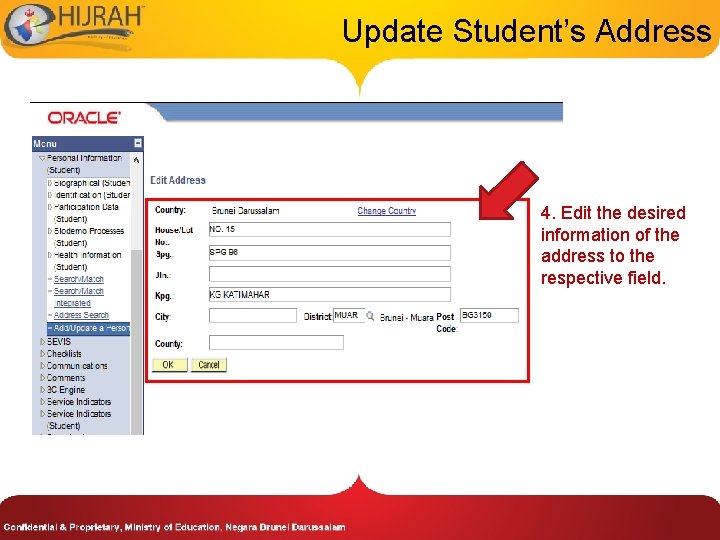
Update Student’s Address 4. Edit the desired information of the address to the respective field.
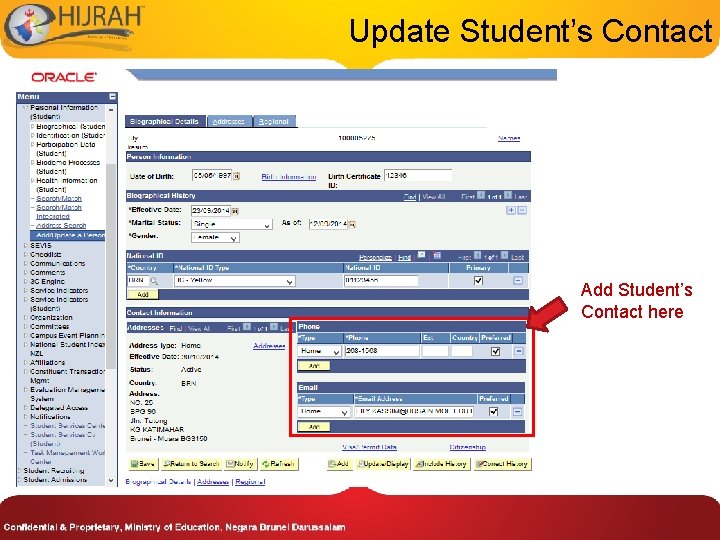
Update Student’s Contact Add Student’s Contact here
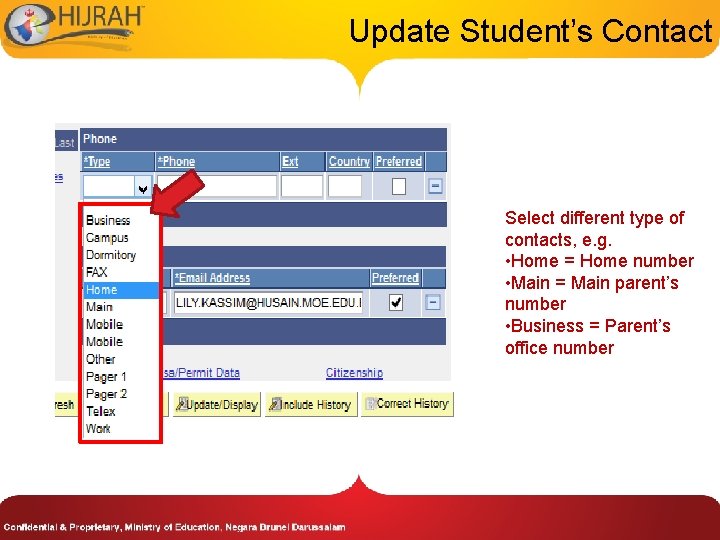
Update Student’s Contact Select different type of contacts, e. g. • Home = Home number • Main = Main parent’s number • Business = Parent’s office number
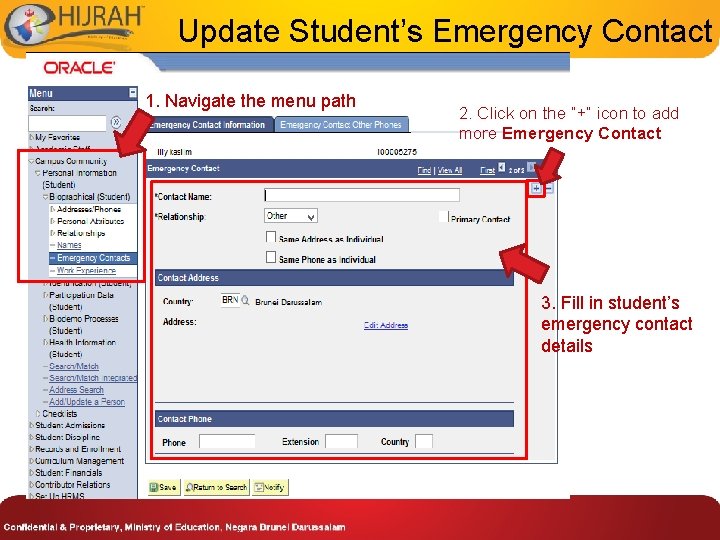
Update Student’s Emergency Contact 1. Navigate the menu path 2. Click on the “+” icon to add more Emergency Contact 3. Fill in student’s emergency contact details
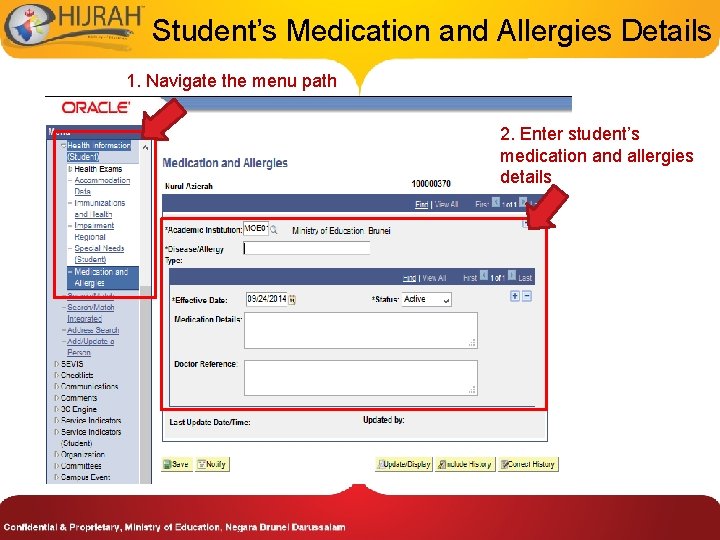
Student’s Medication and Allergies Details 1. Navigate the menu path 2. Enter student’s medication and allergies details
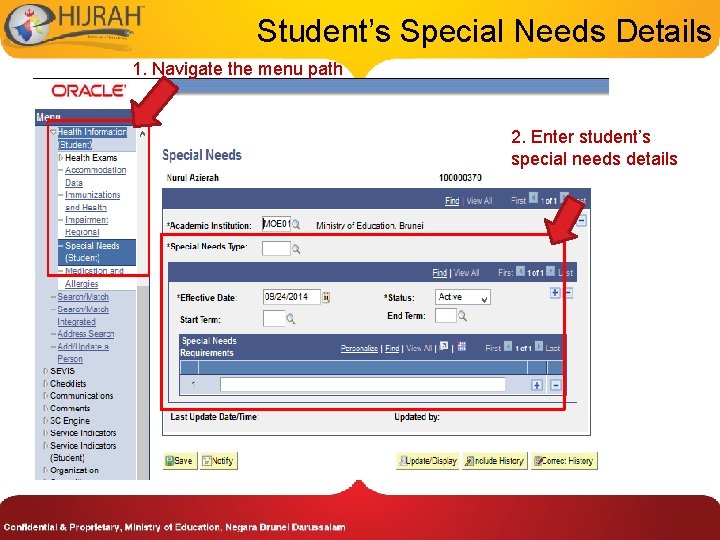
Student’s Special Needs Details 1. Navigate the menu path 2. Enter student’s special needs details
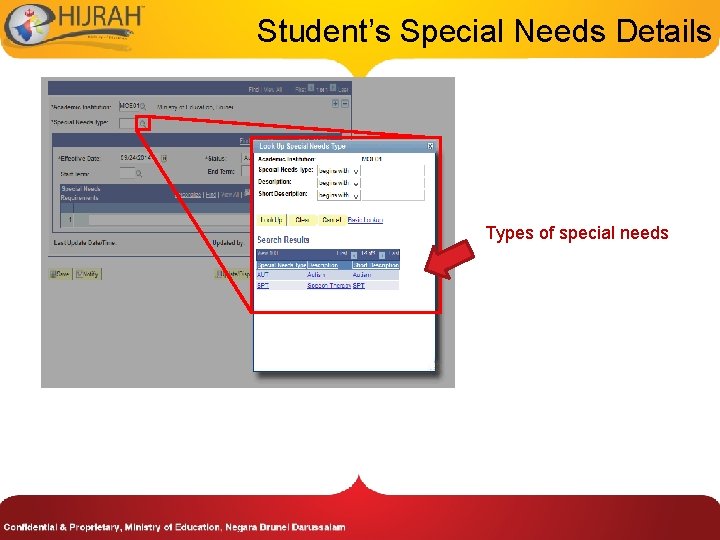
Student’s Special Needs Details Types of special needs
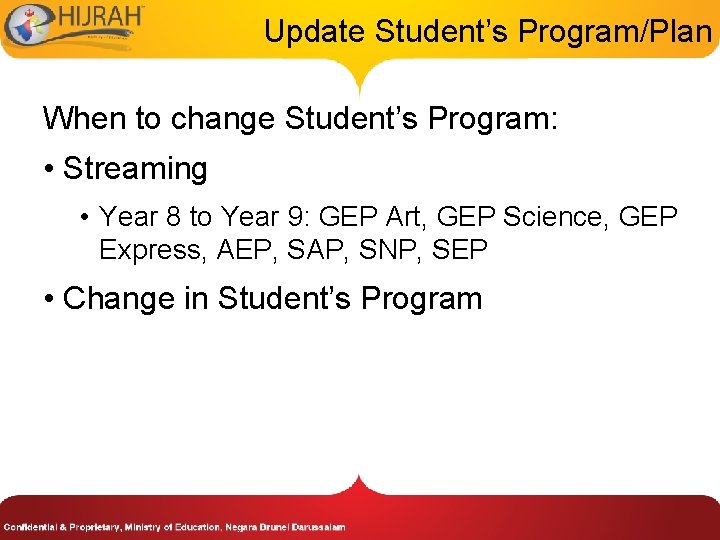
Update Student’s Program/Plan When to change Student’s Program: • Streaming • Year 8 to Year 9: GEP Art, GEP Science, GEP Express, AEP, SAP, SNP, SEP • Change in Student’s Program
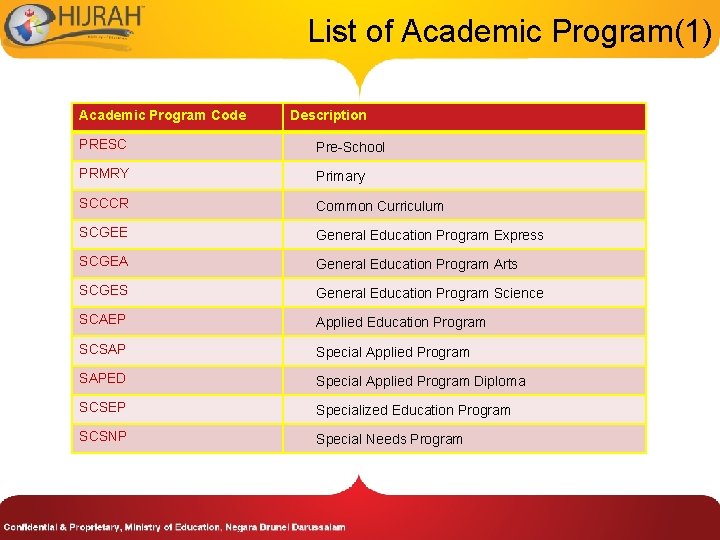
List of Academic Program(1) Academic Program Code Description PRESC Pre-School PRMRY Primary SCCCR Common Curriculum SCGEE General Education Program Express SCGEA General Education Program Arts SCGES General Education Program Science SCAEP Applied Education Program SCSAP Special Applied Program SAPED Special Applied Program Diploma SCSEP Specialized Education Program SCSNP Special Needs Program
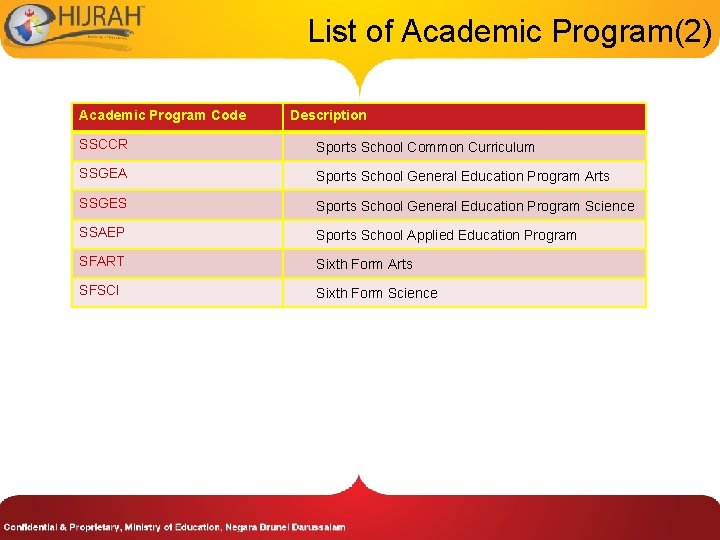
List of Academic Program(2) Academic Program Code Description SSCCR Sports School Common Curriculum SSGEA Sports School General Education Program Arts SSGES Sports School General Education Program Science SSAEP Sports School Applied Education Program SFART Sixth Form Arts SFSCI Sixth Form Science
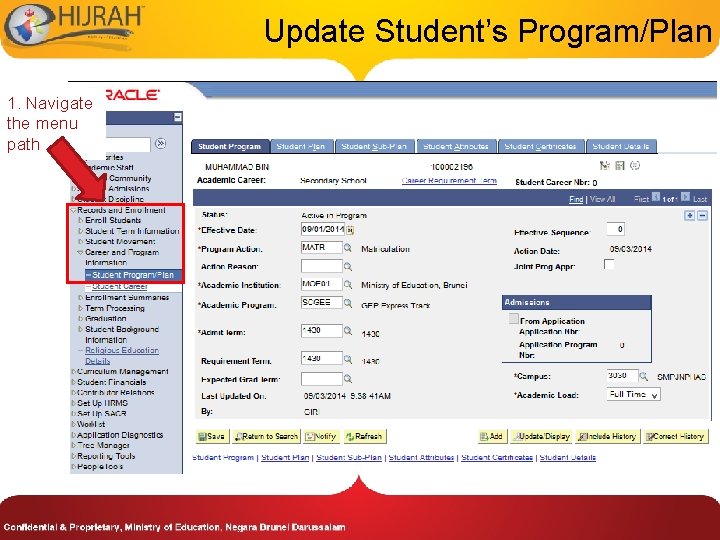
Update Student’s Program/Plan 1. Navigate the menu path
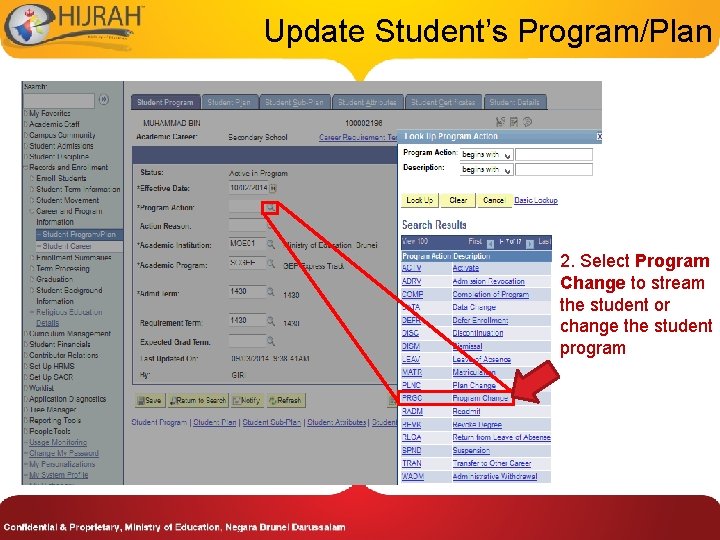
Update Student’s Program/Plan 2. Select Program Change to stream the student or change the student program
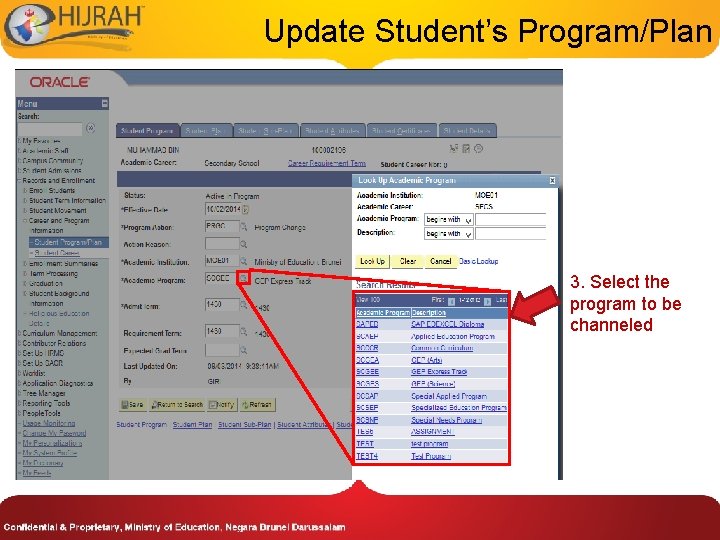
Update Student’s Program/Plan 3. Select the program to be channeled
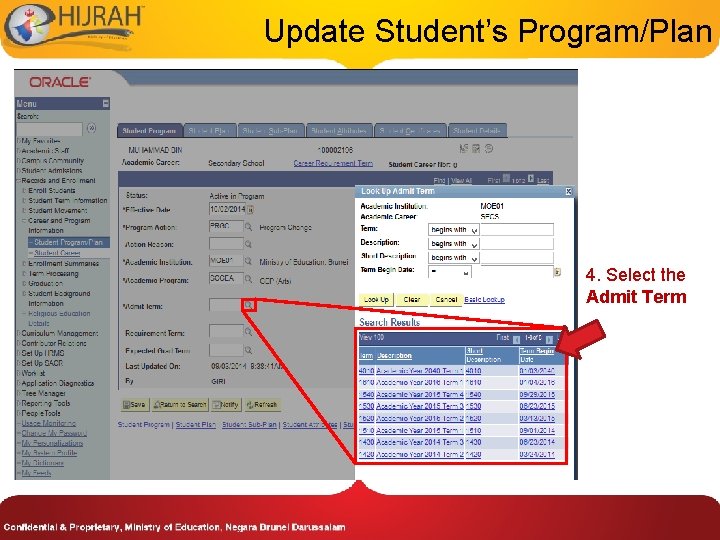
Update Student’s Program/Plan 4. Select the Admit Term
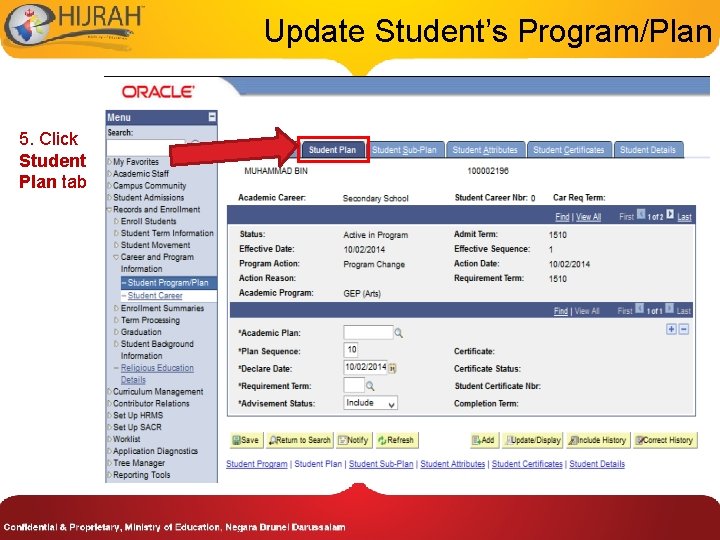
Update Student’s Program/Plan 5. Click Student Plan tab
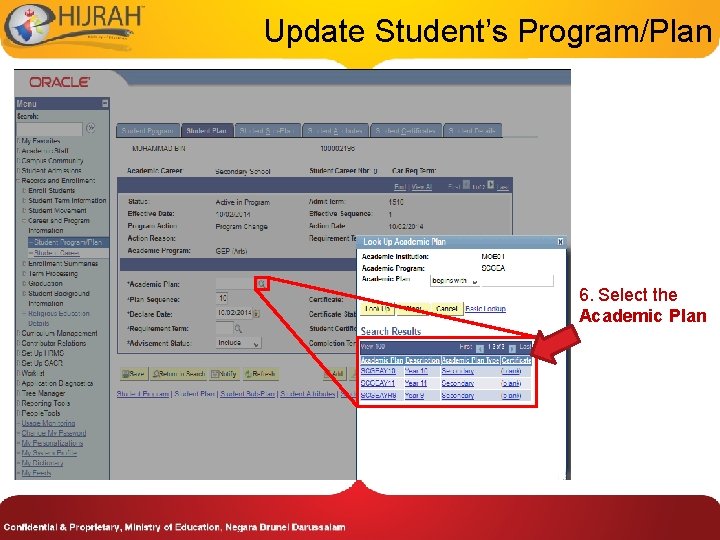
Update Student’s Program/Plan 6. Select the Academic Plan
Update Student’s Program/Plan When to change Student’s Plan: • Progression • Students progress to next academic plan. For eg. Year 1 to Year 2 • Year 9 SAP to Year 10 SAP with 6 specialisations (Hospitality, Business Administration, Sports & Leisure, IT User, Creative Media Production, Art & Design)
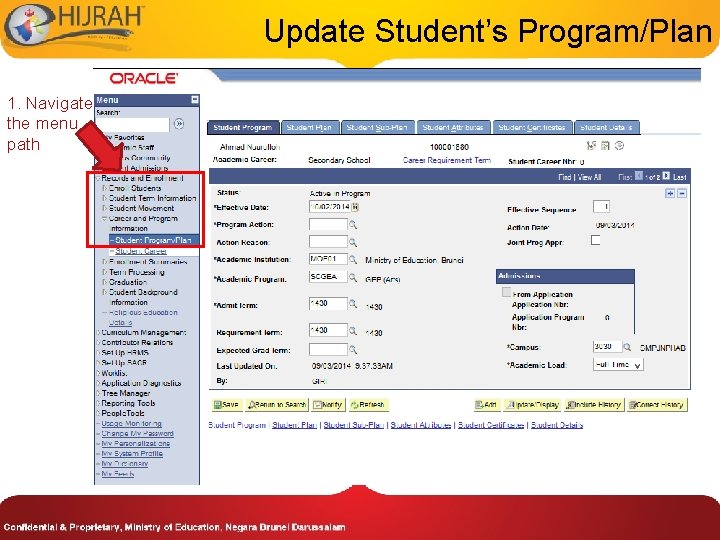
Update Student’s Program/Plan 1. Navigate the menu path
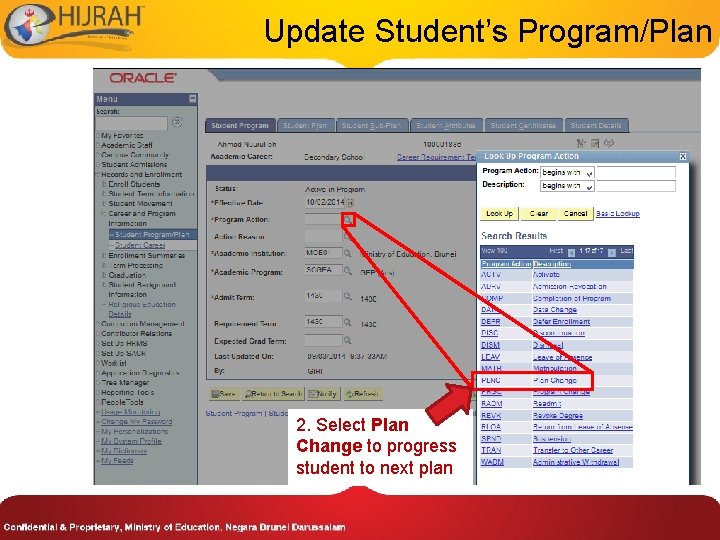
Update Student’s Program/Plan 2. Select Plan Change to progress student to next plan
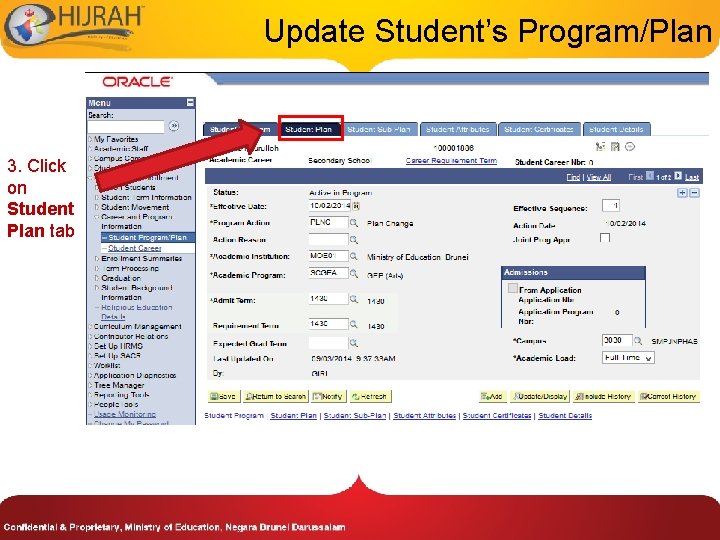
Update Student’s Program/Plan 3. Click on Student Plan tab
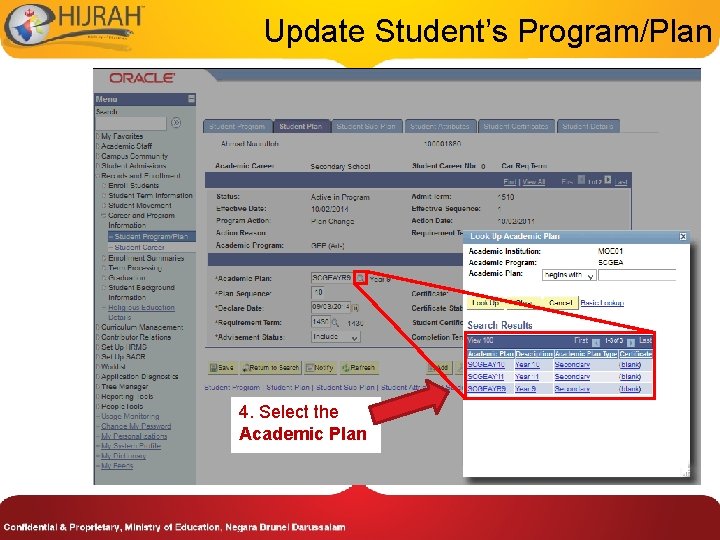
Update Student’s Program/Plan 4. Select the Academic Plan
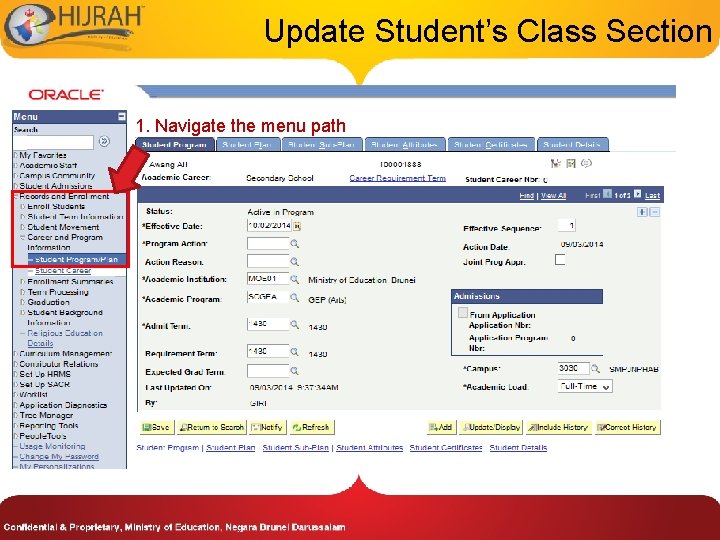
Update Student’s Class Section 1. Navigate the menu path
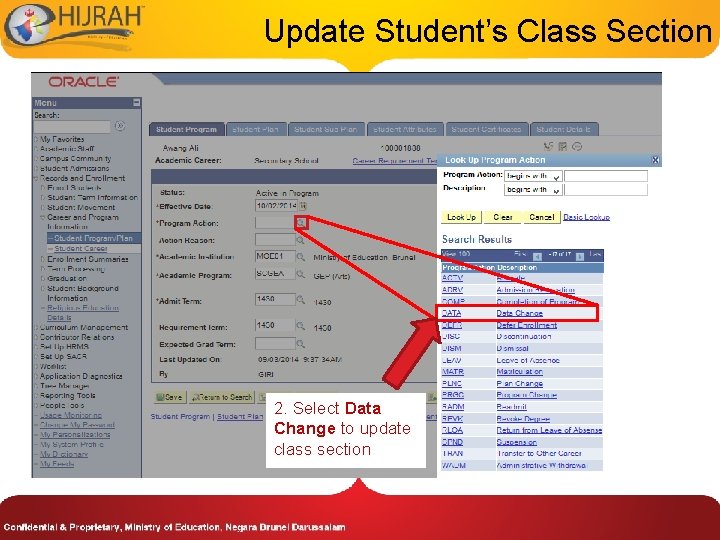
Update Student’s Class Section 2. Select Data Change to update class section
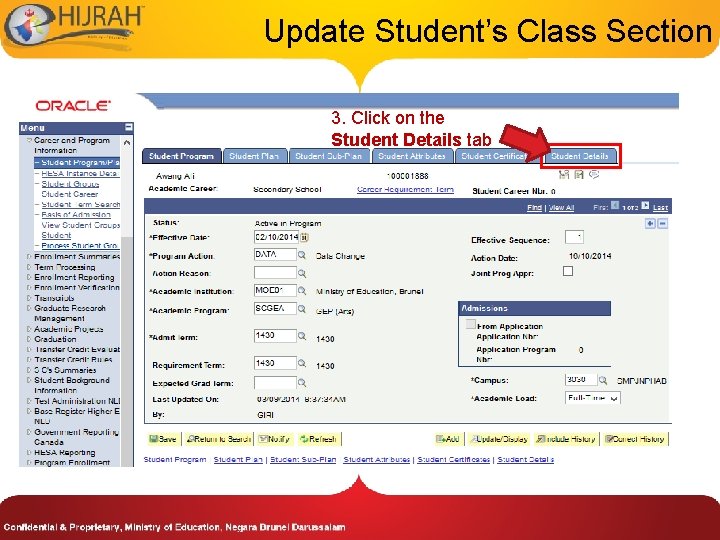
Update Student’s Class Section 3. Click on the Student Details tab
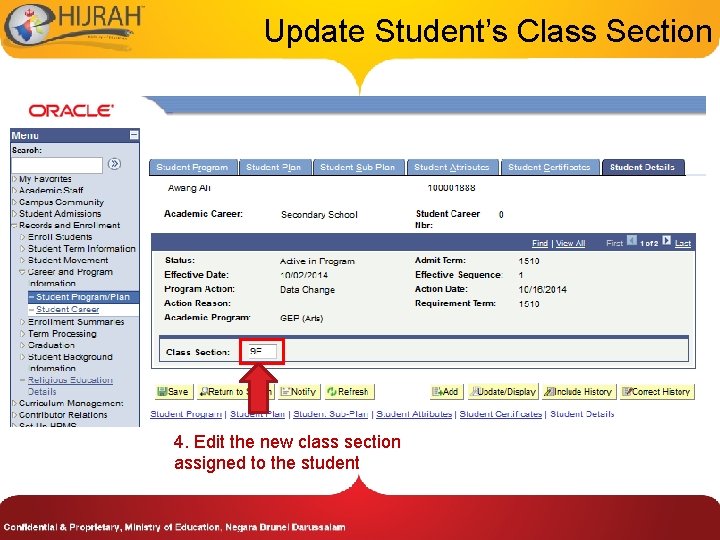
Update Student’s Class Section 4. Edit the new class section assigned to the student
End of Presentation Thank You