
Making Quizzes More Fun with Quizizz Yao Hong

- Slides: 25
Making Quizzes More Fun with Quizizz Yao Hong, The Webb Schools Bella Chen, UC Santa Barbara
Creating a Quizizz 以下四张投影片来自Quizizz 网站提供的Teachers Resource
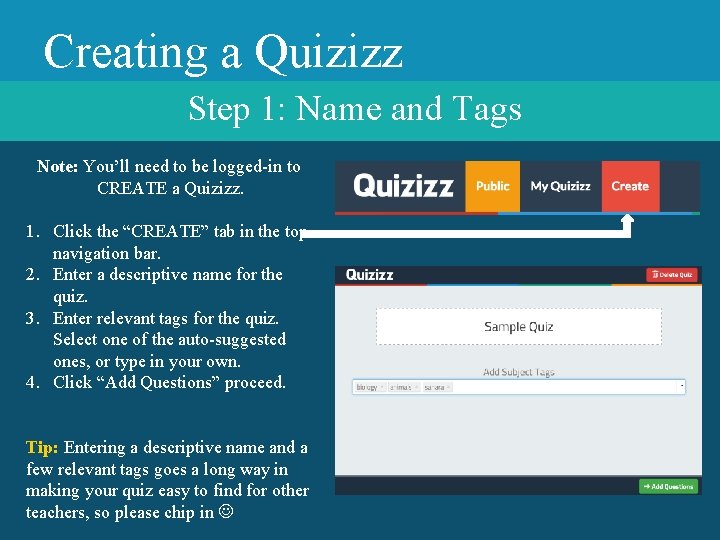
Creating a Quizizz Step 1: Name and Tags Note: You’ll need to be logged-in to CREATE a Quizizz. 1. Click the “CREATE” tab in the top navigation bar. 2. Enter a descriptive name for the quiz. 3. Enter relevant tags for the quiz. Select one of the auto-suggested ones, or type in your own. 4. Click “Add Questions” proceed. Tip: Entering a descriptive name and a few relevant tags goes a long way in making your quiz easy to find for other teachers, so please chip in
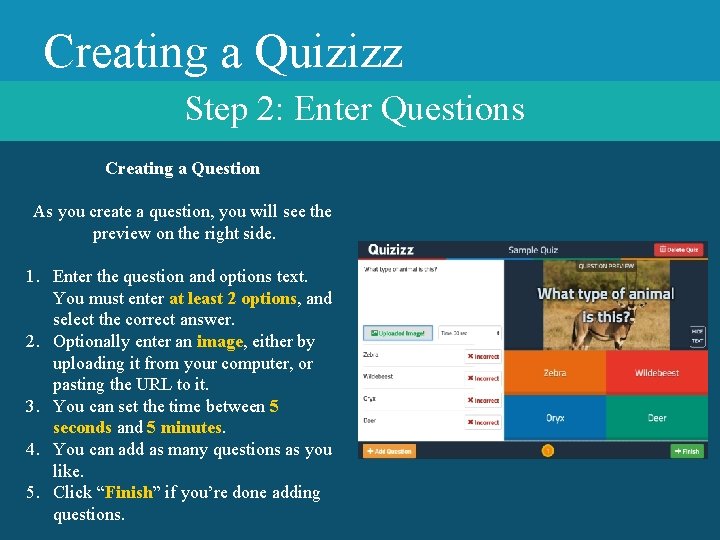
Creating a Quizizz Step 2: Enter Questions Creating a Question As you create a question, you will see the preview on the right side. 1. Enter the question and options text. You must enter at least 2 options, and select the correct answer. 2. Optionally enter an image, either by uploading it from your computer, or pasting the URL to it. 3. You can set the time between 5 seconds and 5 minutes. 4. You can add as many questions as you like. 5. Click “Finish” if you’re done adding questions.
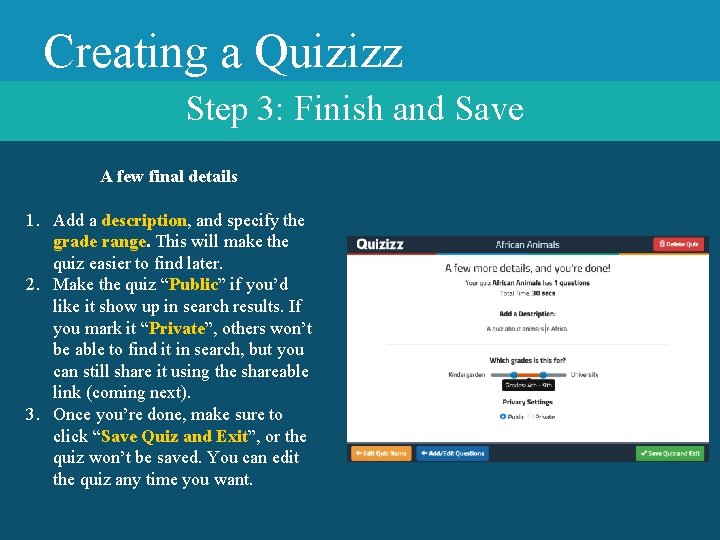
Creating a Quizizz Step 3: Finish and Save A few final details 1. Add a description, and specify the grade range. This will make the quiz easier to find later. 2. Make the quiz “Public” if you’d like it show up in search results. If you mark it “Private”, others won’t be able to find it in search, but you can still share it using the shareable link (coming next). 3. Once you’re done, make sure to click “Save Quiz and Exit”, or the quiz won’t be saved. You can edit the quiz any time you want.
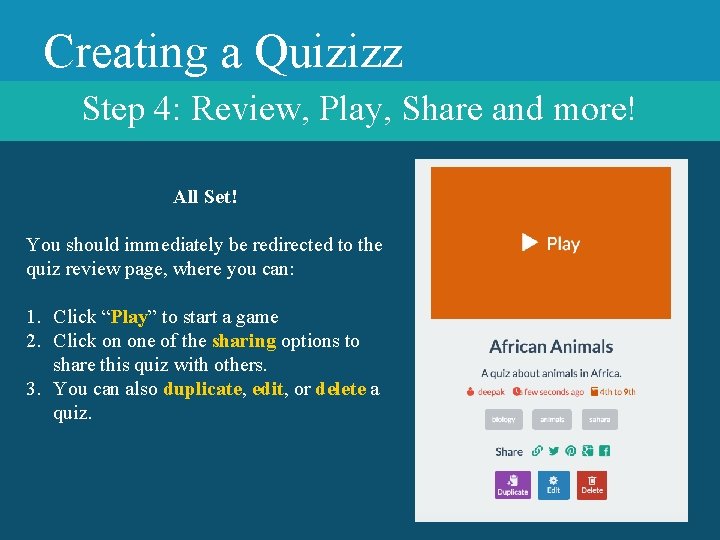
Creating a Quizizz Step 4: Review, Play, Share and more! All Set! You should immediately be redirected to the quiz review page, where you can: 1. Click “Play” to start a game 2. Click on one of the sharing options to share this quiz with others. 3. You can also duplicate, edit, or delete a quiz.
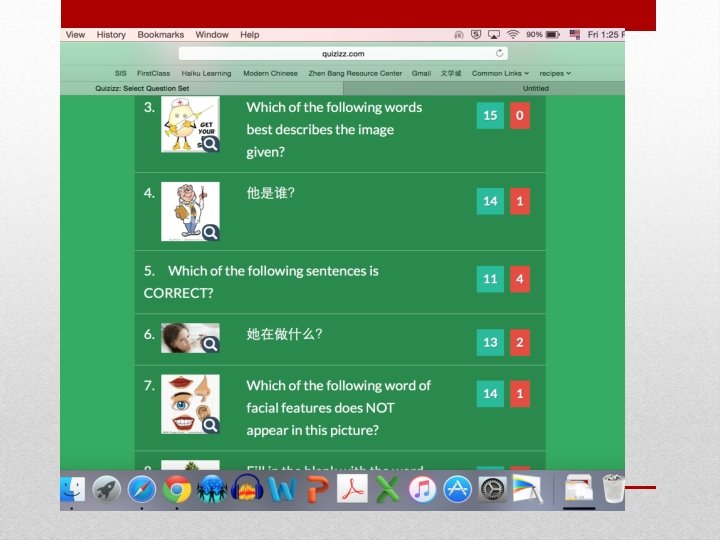
• Sample 1: Taiwan Night Market • Sample 2: Ch 2 Unit 1 LB 范例
• Quizizz Tutorial • Assement Tool-Quizizz 自学辅导视频链接