
Making Math Look Pretty How to Use La

![Figures n Begin the figure environment by begin{figure}[placement] n n n placement is an](https://slidetodoc.com/presentation_image_h2/8c10ea3e49b3126d517f7599ed13eaea/image-28.jpg "Figures n Begin the figure environment by begin{figure}[placement] n n n placement is an")
![Figures n Include the file that you want n n n includegraphics[display]{filename} display is](https://slidetodoc.com/presentation_image_h2/8c10ea3e49b3126d517f7599ed13eaea/image-29.jpg "Figures n Include the file that you want n n n includegraphics[display]{filename} display is")
![Figures n Can create a caption for your figure n caption[shortname]{longname} n n shortname](https://slidetodoc.com/presentation_image_h2/8c10ea3e49b3126d517f7599ed13eaea/image-30.jpg "Figures n Can create a caption for your figure n caption[shortname]{longname} n n shortname")
![Sections of a Paper n title[label]{actual title} n n n author{authors} n n If](https://slidetodoc.com/presentation_image_h2/8c10ea3e49b3126d517f7599ed13eaea/image-32.jpg "Sections of a Paper n title[label]{actual title} n n n author{authors} n n If")
- Slides: 39
Making Math Look Pretty How to Use La. Te. X Haseena Ahmed Iowa State University haseena@iastate. edu
Basics of La. Te. X n A computer program for typesetting text and mathematical formulas n Uses commands to create mathematical symbols n Not a WYSIWYG program n Need to compile the file in order to see the finished product
Basics of La. Te. X – Commands n Always begin with a backslash n Case sensitive n Consist of letters only n Some have parameters n n Square brackets [ ] after the command name are for optional parameters Curly braces { } after the command name are for required parameters
Getting Started n Can use lots of different programs to create a La. Te. X file n All computers here use Win. Edt n Need to begin by creating a new file
Downloads n n La. Te. X is available online for free at http: //www. latexproject. org/ Win. Edt is also available online with a free 30 day trial period at http: //www. winedt. com/
Input File Structure n Begins with a preamble (Preamble is where the overall construction of your document is listed) n documentclass[options]{class} n class specifies the type of document to be created n n n Usually use article or amsart Can also use slides or siamltex options customizes the document class you are using n Can be used to set font size (10, 11, or 12 pt), set paper size, use one or two columns, etc.
Input File Structure n Begins with a preamble n usepackage{package} n n n Packages add new features and commands to La. Te. X Common packages: amsmath, amssymb, graphicx Can also define new commands in the preamble, specify page numbering, etc.
Input File Structure n Now we’re ready to begin the body of the text n begin{document} n begin{…} commands always need to be followed (eventually) by end{…} commands n Enter the actual content here n end{document}
Typesetting Your Document n n Click the “La. Te. X” or “PDF La. Te. X” button on the top right To view your file, click “DVI” or the Adobe Acrobat symbol n n DVI stands for “De. Vice Independent” – it’s basically a generic viewer Can change between DVI, PDF, or PS files and document is automatically saved when you typeset it
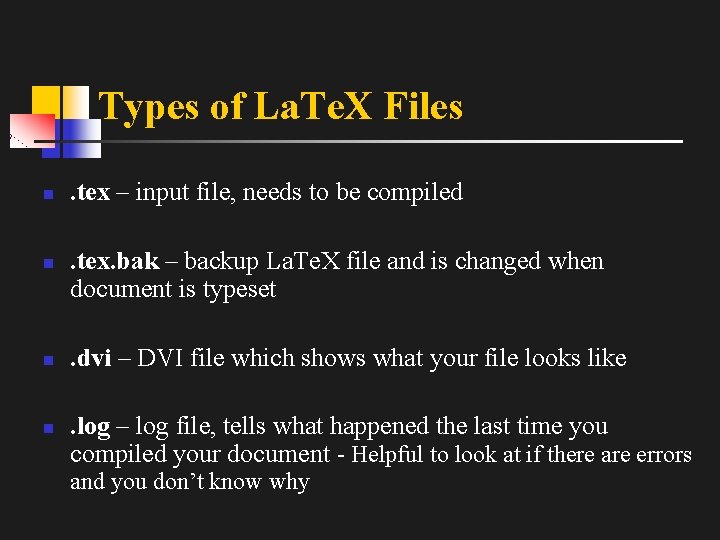
Types of La. Te. X Files n n . tex – input file, needs to be compiled. tex. bak – backup La. Te. X file and is changed when document is typeset. dvi – DVI file which shows what your file looks like. log – log file, tells what happened the last time you compiled your document - Helpful to look at if there are errors and you don’t know why
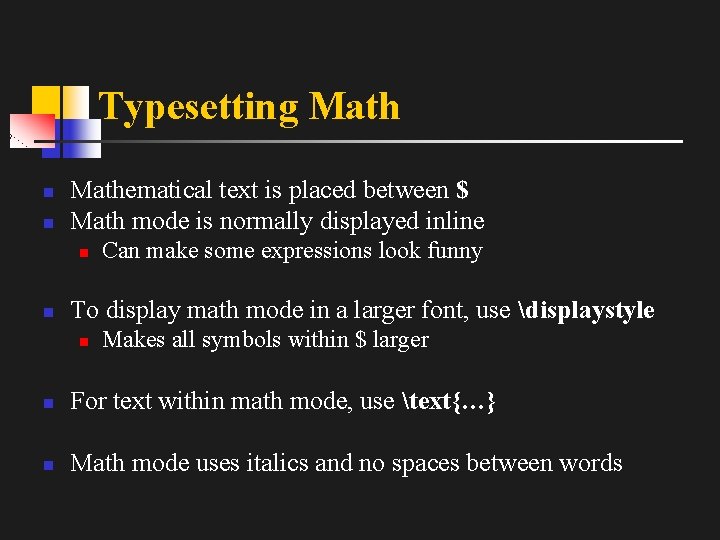
Typesetting Math n n Mathematical text is placed between $ Math mode is normally displayed inline n n Can make some expressions look funny To display math mode in a larger font, use displaystyle n Makes all symbols within $ larger n For text within math mode, use text{…} n Math mode uses italics and no spaces between words
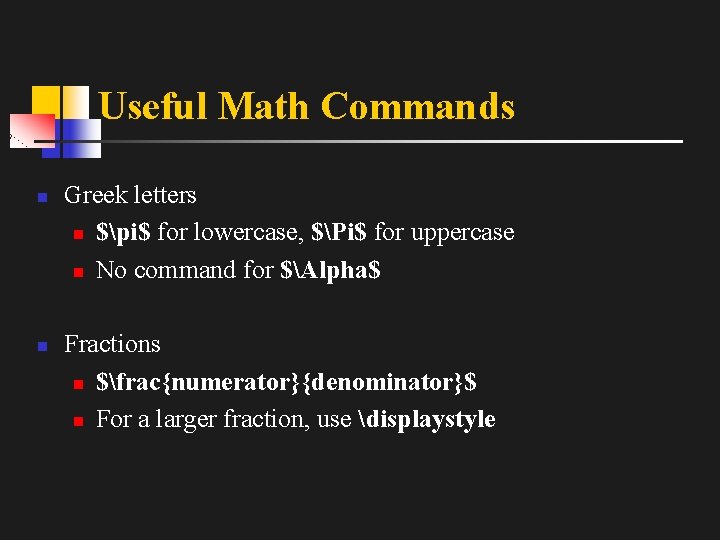
Useful Math Commands n n Greek letters n $pi$ for lowercase, $Pi$ for uppercase n No command for $Alpha$ Fractions n $frac{numerator}{denominator}$ n For a larger fraction, use displaystyle
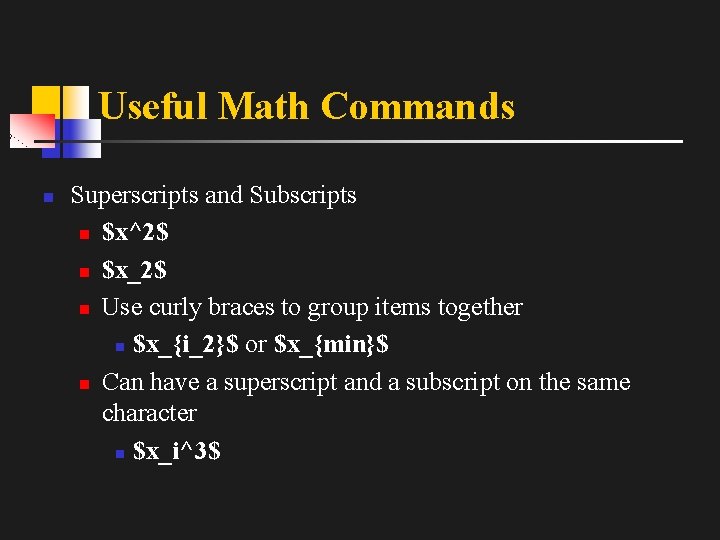
Useful Math Commands n Superscripts and Subscripts n $x^2$ n $x_2$ n Use curly braces to group items together n $x_{i_2}$ or $x_{min}$ n Can have a superscript and a subscript on the same character n $x_i^3$
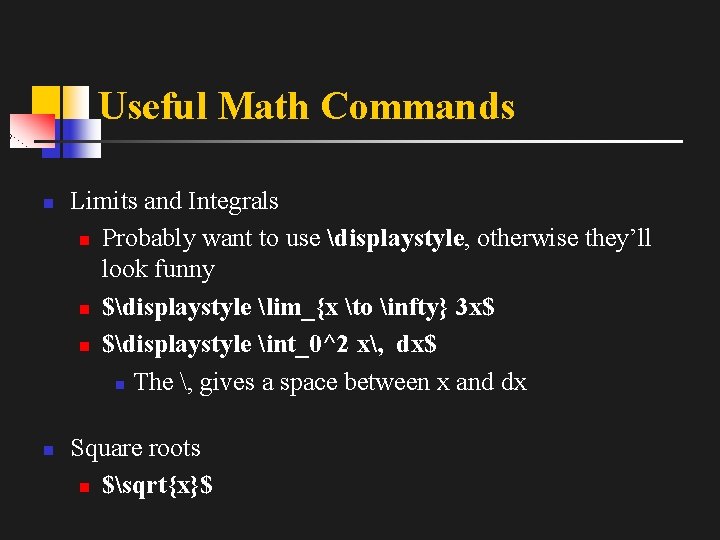
Useful Math Commands n n Limits and Integrals n Probably want to use displaystyle, otherwise they’ll look funny n $displaystyle lim_{x to infty} 3 x$ n $displaystyle int_0^2 x, dx$ n The , gives a space between x and dx Square roots n $sqrt{x}$
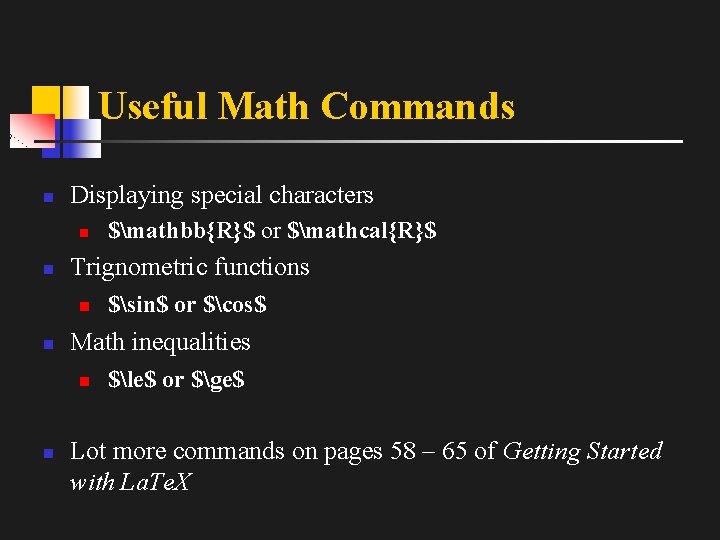
Useful Math Commands n Displaying special characters n n Trignometric functions n n $sin$ or $cos$ Math inequalities n n $mathbb{R}$ or $mathcal{R}$ $le$ or $ge$ Lot more commands on pages 58 – 65 of Getting Started with La. Te. X
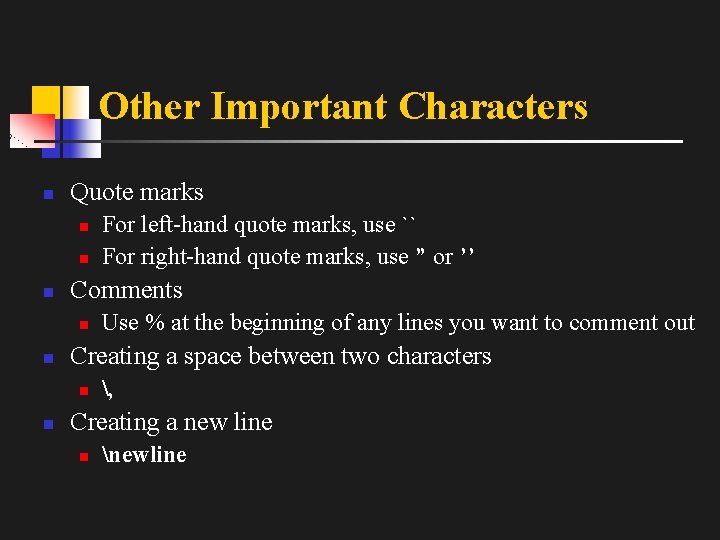
Other Important Characters n Quote marks n n n Comments n n Use % at the beginning of any lines you want to comment out Creating a space between two characters n n For left-hand quote marks, use `` For right-hand quote marks, use ” or ’’ , Creating a new line n newline
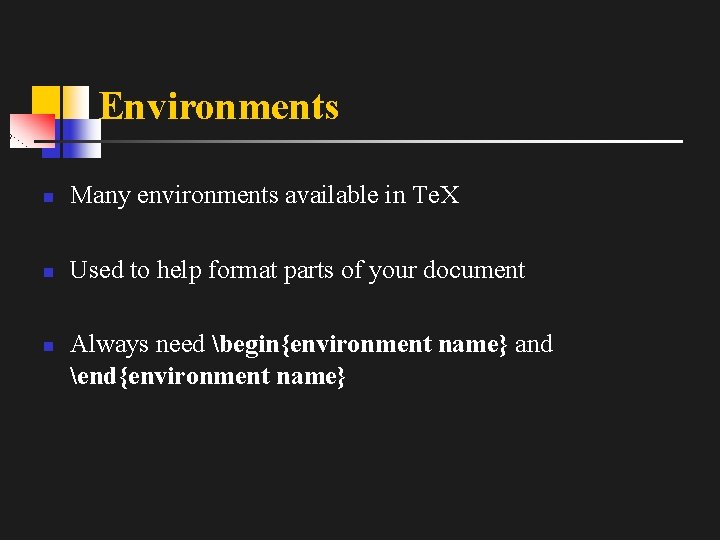
Environments n Many environments available in Te. X n Used to help format parts of your document n Always need begin{environment name} and end{environment name}
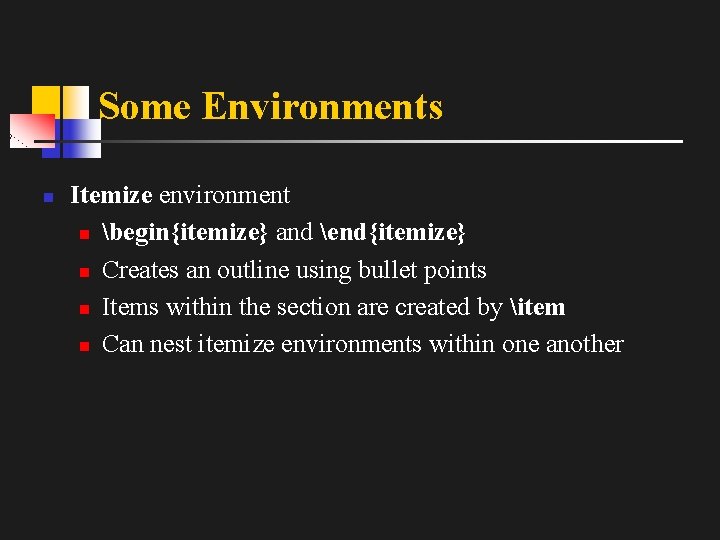
Some Environments n Itemize environment n begin{itemize} and end{itemize} n Creates an outline using bullet points n Items within the section are created by item n Can nest itemize environments within one another
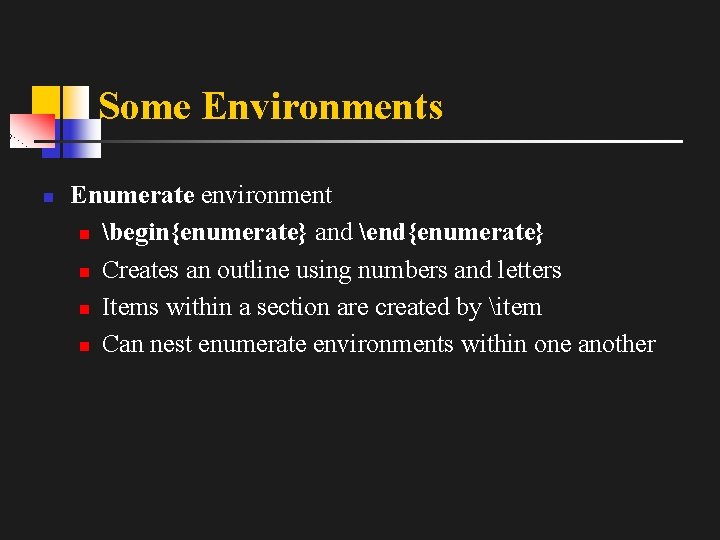
Some Environments n Enumerate environment n begin{enumerate} and end{enumerate} n Creates an outline using numbers and letters n Items within a section are created by item n Can nest enumerate environments within one another
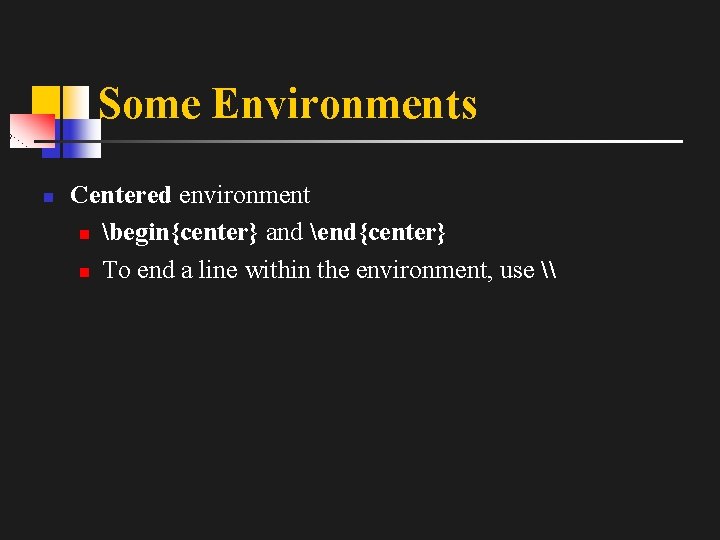
Some Environments n Centered environment n begin{center} and end{center} n To end a line within the environment, use \
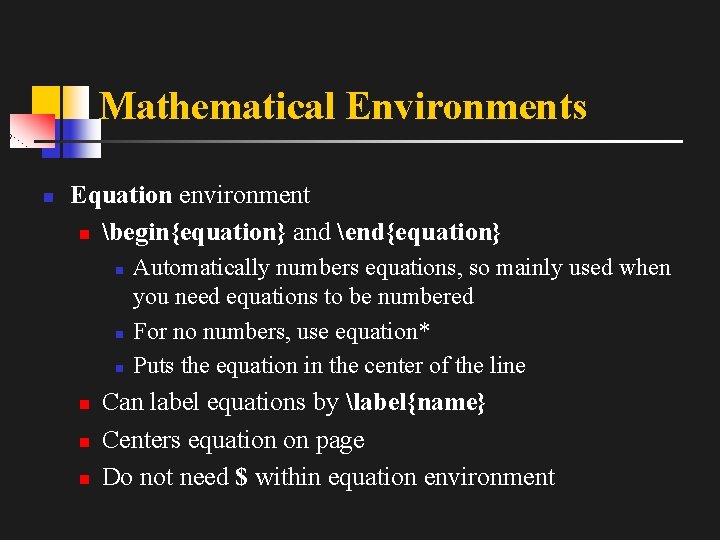
Mathematical Environments n Equation environment n begin{equation} and end{equation} n n n Automatically numbers equations, so mainly used when you need equations to be numbered For no numbers, use equation* Puts the equation in the center of the line Can label equations by label{name} Centers equation on page Do not need $ within equation environment
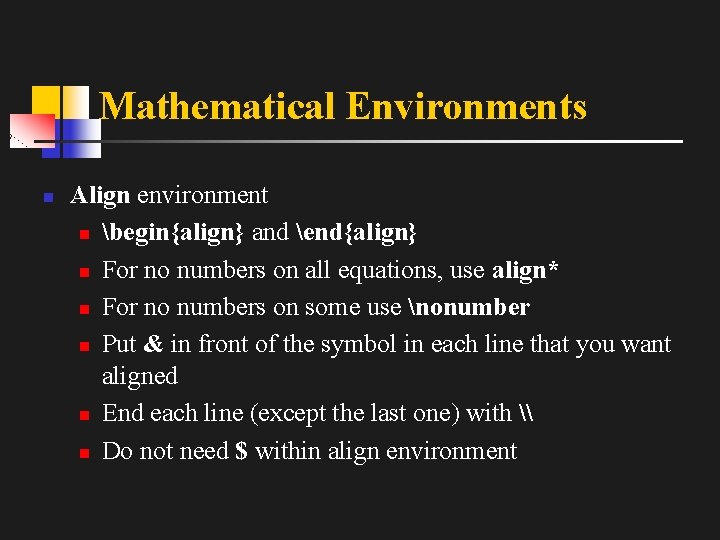
Mathematical Environments n Align environment n begin{align} and end{align} n For no numbers on all equations, use align* n For no numbers on some use nonumber n Put & in front of the symbol in each line that you want aligned n End each line (except the last one) with \ n Do not need $ within align environment
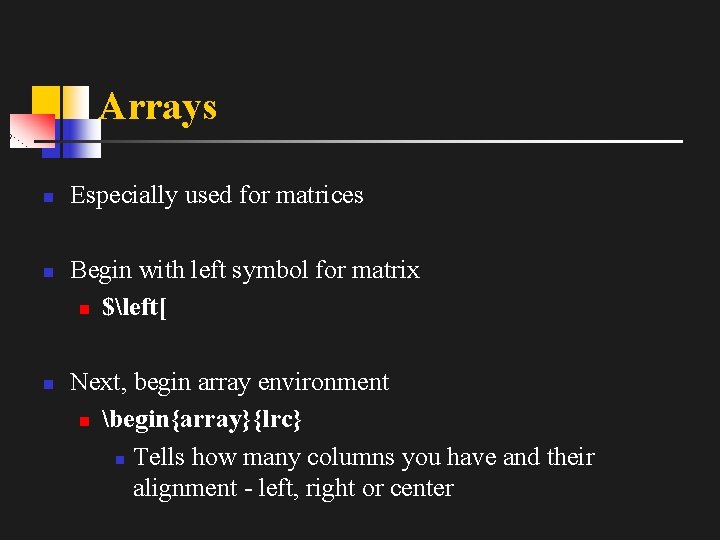
Arrays n n n Especially used for matrices Begin with left symbol for matrix n $left[ Next, begin array environment n begin{array}{lrc} n Tells how many columns you have and their alignment - left, right or center
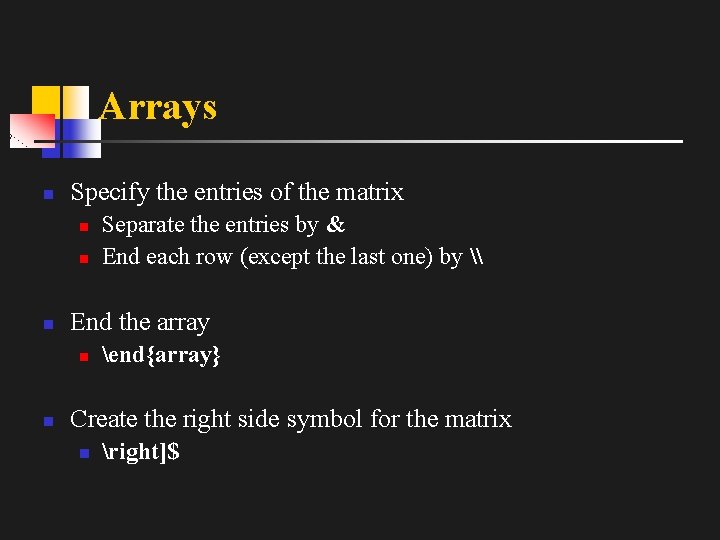
Arrays n Specify the entries of the matrix n n n End the array n n Separate the entries by & End each row (except the last one) by \ end{array} Create the right side symbol for the matrix n right]$
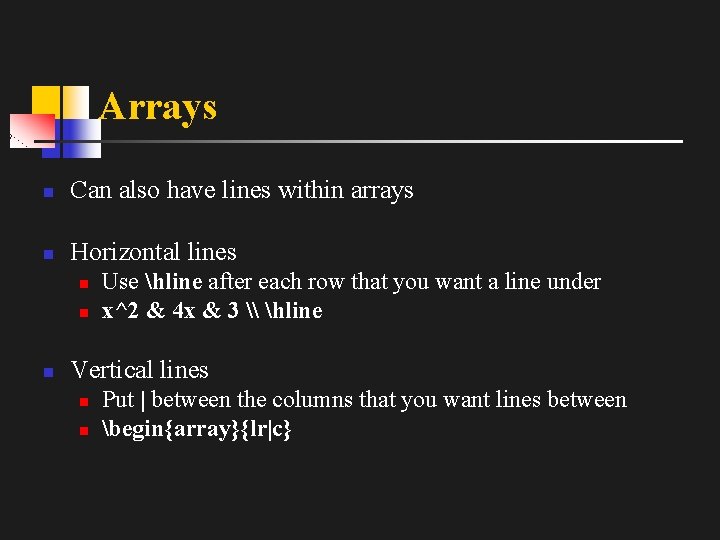
Arrays n Can also have lines within arrays n Horizontal lines n n n Use hline after each row that you want a line under x^2 & 4 x & 3 \ hline Vertical lines n n Put | between the columns that you want lines between begin{array}{lr|c}
Tables n Basically the same as arrays n begin{tabular}{lrc} and end{tabular} n Can add lines in the same way that you do for arrays n For more info see pages 34 - 37 of Getting Started with La. Te. X
Figures n n Often used to import some other type of file (usually a. eps file) into your document Can generate graphics in La. Te. X, but this is harder to do Any imported file needs to be in the same directory as your main file Also need to include the package graphicx in your preamble
Figures n Begin the figure environment by begin{figure}[placement] n n n placement is an optional argument that tells La. Te. X where on the page you want the figure Can be h (here), t (top), b (bottom), or p (on a separate page) Put an ! before the placement if you really want the figure at that page location
Figures n Include the file that you want n n n includegraphics[display]{filename} display is an optional parameter which allows you to change the appearance of your graphic Can use the following parameters: n n width, height, angle (rotates the graphic counterclockwise), scale (number between 0 and 1) Changing width or height will preserve the aspect ratio
Figures n Can create a caption for your figure n caption[shortname]{longname} n n shortname is displayed in the Table of Contents (if you create one) longname is displayed below the figure Captioning also automatically labels your figures Can label your figure n n label{reference} Allows you to refer to your figure later by using ref{reference}
Figures n n n End the figure environment n end{figure} May sometimes need to create a Post. Script file instead of a PDF file in order to get graphics to display properly More info on pages 38 – 40 of Getting Started with La. Te. X
Sections of a Paper n title[label]{actual title} n n n author{authors} n n If you label your title, you’ll be able to reference it later Can also label theorems, equations, figures, tables, etc. Need to put maketitle after title and authors today n n Gives the current date Usually want this centered
Sections of a Paper n thanks{…} n n n Abstract n n Creates a footnote with whatever is in the braces Usually used after authors’ names for academic information Use begin{abstract} and end{abstract} Keywords n n Use begin{keywords} and end{keywords} OR use keywords{…}
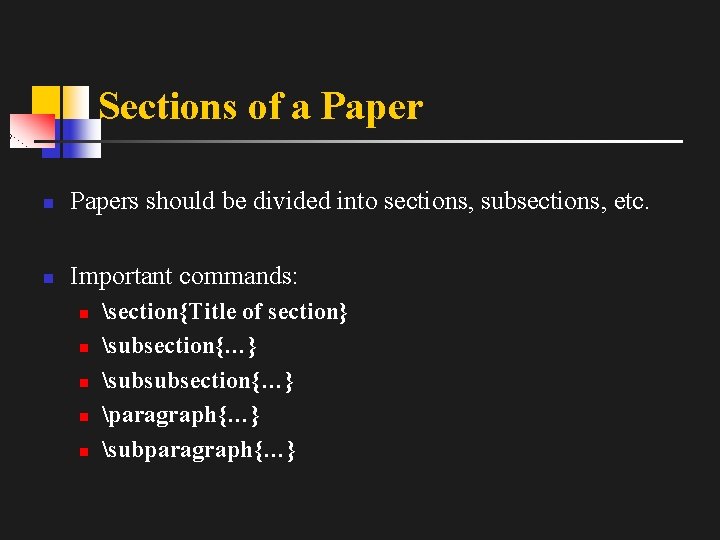
Sections of a Paper n Papers should be divided into sections, subsections, etc. n Important commands: n n n section{Title of section} subsection{…} subsubsection{…} paragraph{…} subparagraph{…}
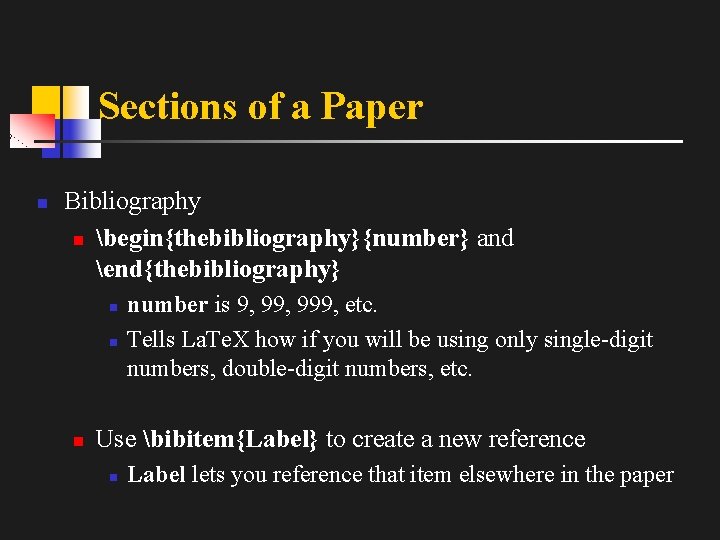
Sections of a Paper n Bibliography n begin{thebibliography}{number} and end{thebibliography} n number is 9, 999, etc. Tells La. Te. X how if you will be using only single-digit numbers, double-digit numbers, etc. Use bibitem{Label} to create a new reference n Label lets you reference that item elsewhere in the paper
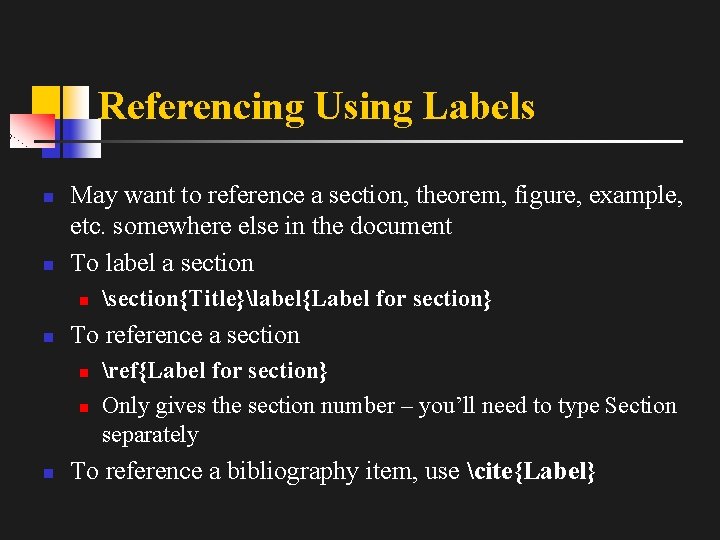
Referencing Using Labels n n May want to reference a section, theorem, figure, example, etc. somewhere else in the document To label a section n n To reference a section n section{Title}label{Label for section} ref{Label for section} Only gives the section number – you’ll need to type Section separately To reference a bibliography item, use cite{Label}
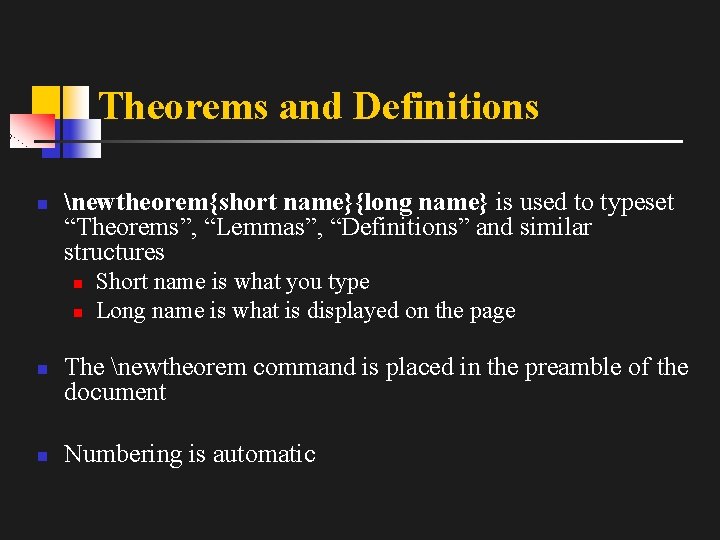
Theorems and Definitions n newtheorem{short name}{long name} is used to typeset “Theorems”, “Lemmas”, “Definitions” and similar structures n n Short name is what you type Long name is what is displayed on the page The newtheorem command is placed in the preamble of the document Numbering is automatic
Theorems and Definitions n For unnumbered theorems, use either command with newtheorem* n n * can be used in many environments for unnumbered items May need to include the package amsthm in order to properly display theorems
Defining New Commands n Typing some long commands over and over is not fun n Can define a new command that’s easier to type n Goes in preamble n newcommand{newname}{oldname} n newname cannot be the name of an existing command