
Making effective presentation with Power Point and structuring


- Slides: 53
Making effective presentation: with Power. Point and structuring a scientific talk Dr. Muhsen Al-ibadi Vice -Chancellor Kufa University 2
Making effective presentation: with Power. Point and structuring a scientific talk • Effective Power. Point presentation • Good Presentation • structuring a scientific talk. 3
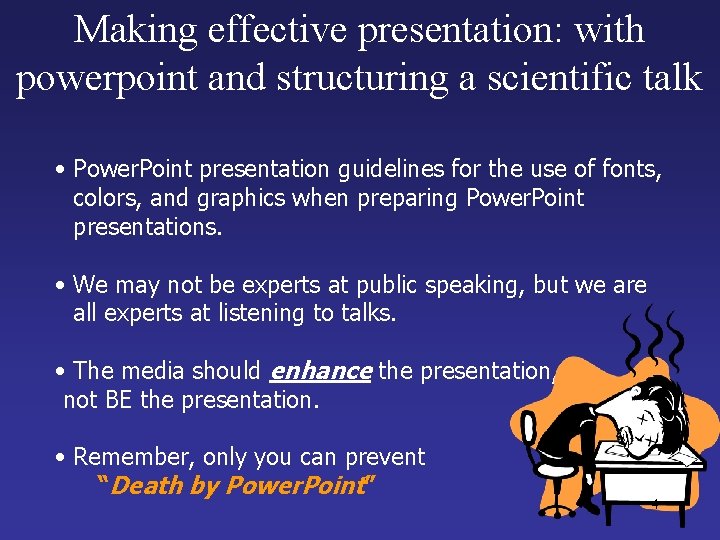
Making effective presentation: with powerpoint and structuring a scientific talk • Power. Point presentation guidelines for the use of fonts, colors, and graphics when preparing Power. Point presentations. • We may not be experts at public speaking, but we are all experts at listening to talks. • The media should enhance the presentation, not BE the presentation. • Remember, only you can prevent “Death by Power. Point” 4
Power. Point presentation • Before planning your talk think about its purpose, the audience and the setting. • Don’t assume the audience will all be experts. • Never underestimate your audience! • Check on the time that has been allotted to you. • How big is the room? 5
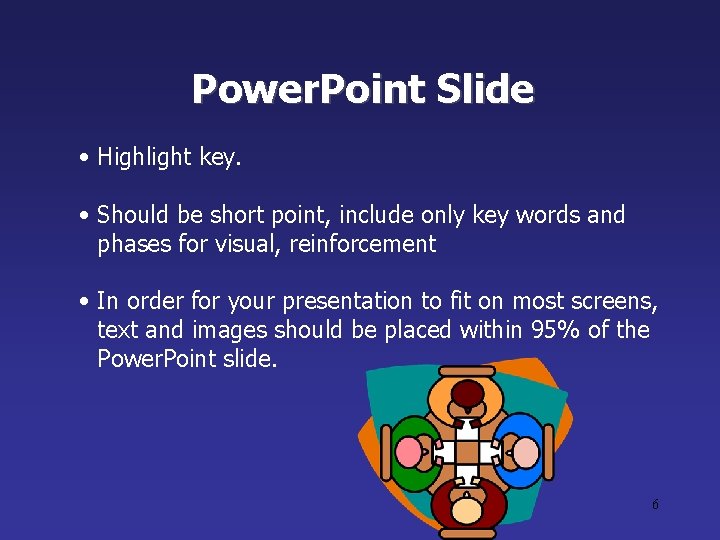
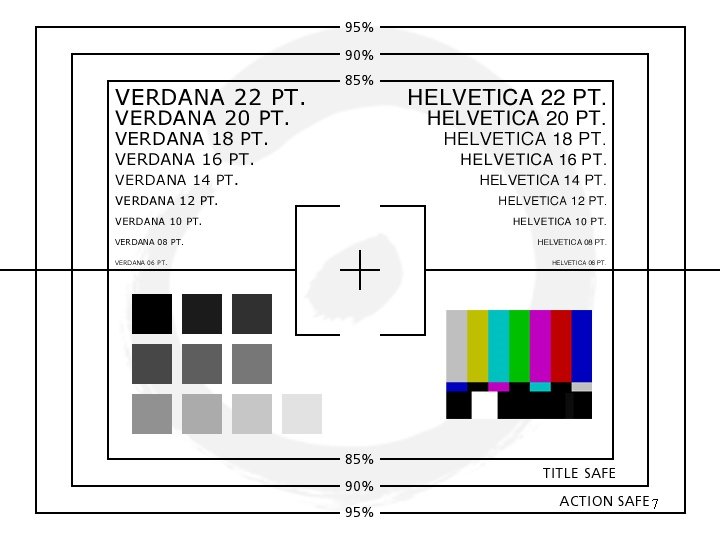
Power. Point Slide • Highlight key. • Should be short point, include only key words and phases for visual, reinforcement • In order for your presentation to fit on most screens, text and images should be placed within 95% of the Power. Point slide. 6
7
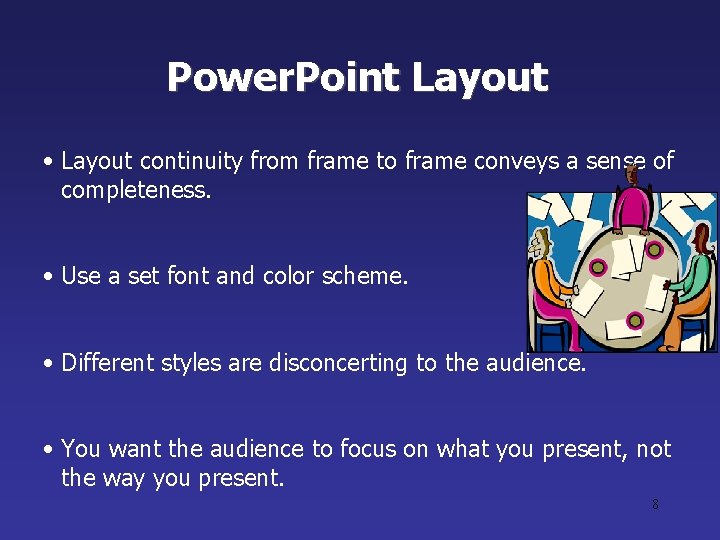
Power. Point Layout • Layout continuity from frame to frame conveys a sense of completeness. • Use a set font and color scheme. • Different styles are disconcerting to the audience. • You want the audience to focus on what you present, not the way you present. 8
Power. Point Layout • Headings, subheadings, and logos should show up in the same spot on each frame. • Margins, font size, and colors should be consistent with graphics located in the same general position on each frame. • Lines, borders, and open space also should be consistent throughout 9
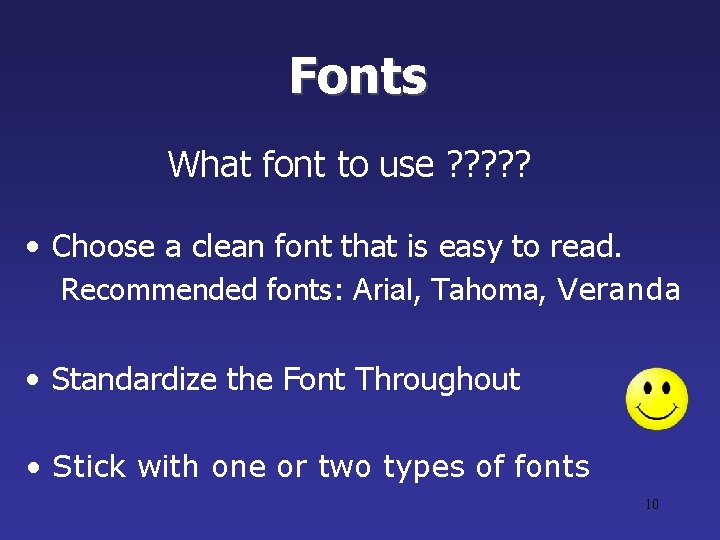
Fonts What font to use ? ? ? • Choose a clean font that is easy to read. Recommended fonts: Arial, Tahoma, Veranda • Standardize the Font Throughout • Stick with one or two types of fonts 10
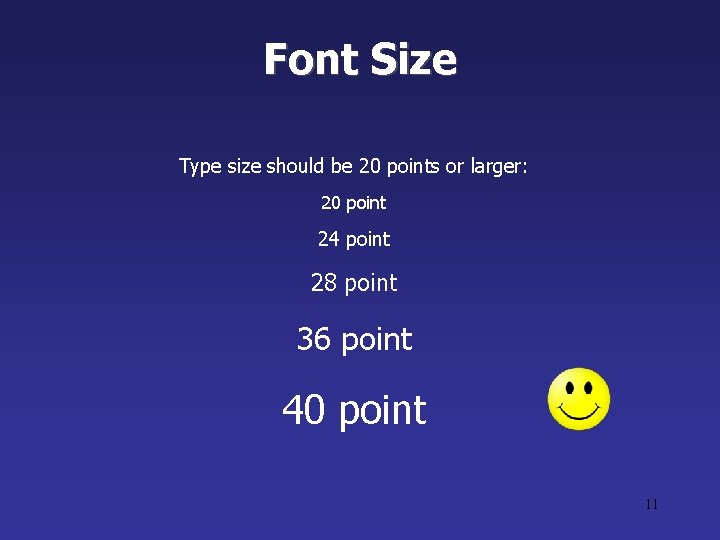
Font Size Type size should be 20 points or larger: 20 point 24 point 28 point 36 point 40 point 11
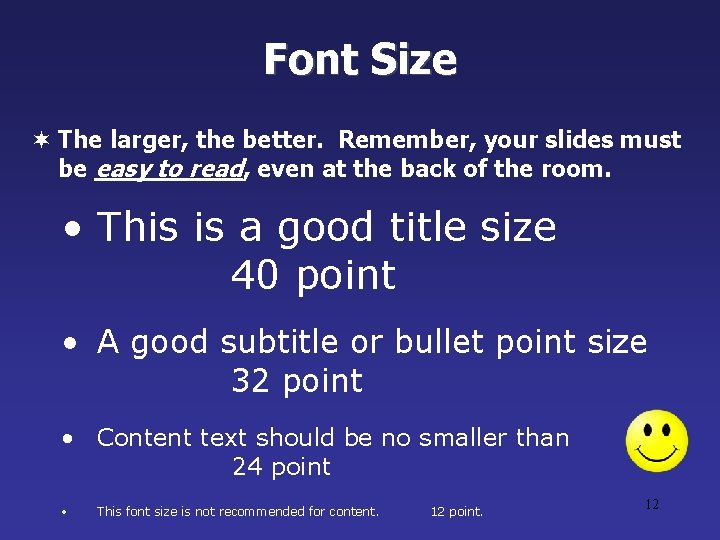
Font Size ¬ The larger, the better. Remember, your slides must be easy to read, even at the back of the room. • This is a good title size 40 point • A good subtitle or bullet point size 32 point • Content text should be no smaller than 24 point • This font size is not recommended for content. 12 point. 12
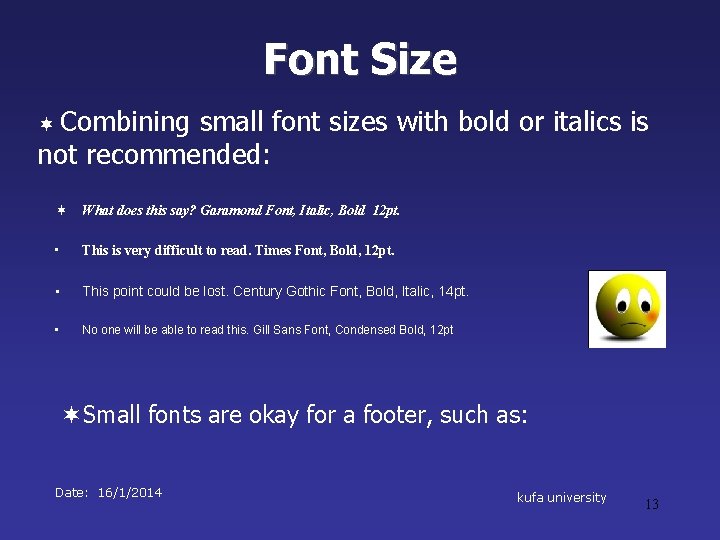
Font Size ¬ Combining small font sizes with bold or italics is not recommended: ¬ What does this say? Garamond Font, Italic, Bold 12 pt. • This is very difficult to read. Times Font, Bold, 12 pt. • This point could be lost. Century Gothic Font, Bold, Italic, 14 pt. • No one will be able to read this. Gill Sans Font, Condensed Bold, 12 pt ¬Small fonts are okay for a footer, such as: Date: 16/1/2014 kufa university 13
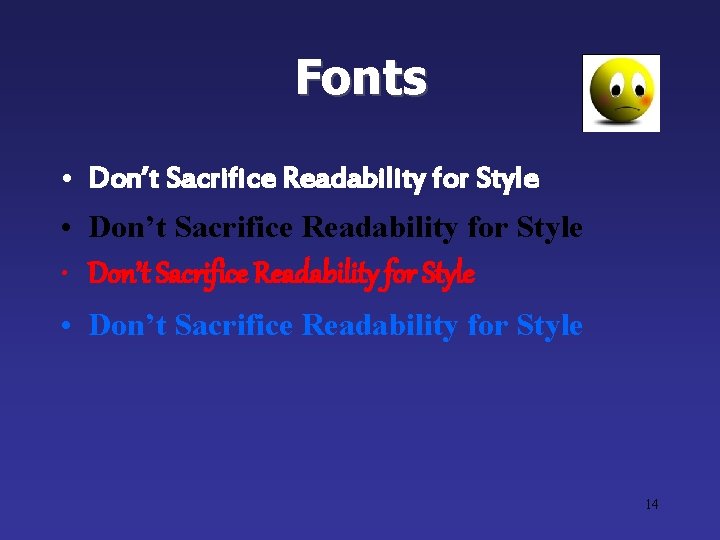
Fonts • Don’t Sacrifice Readability for Style 14
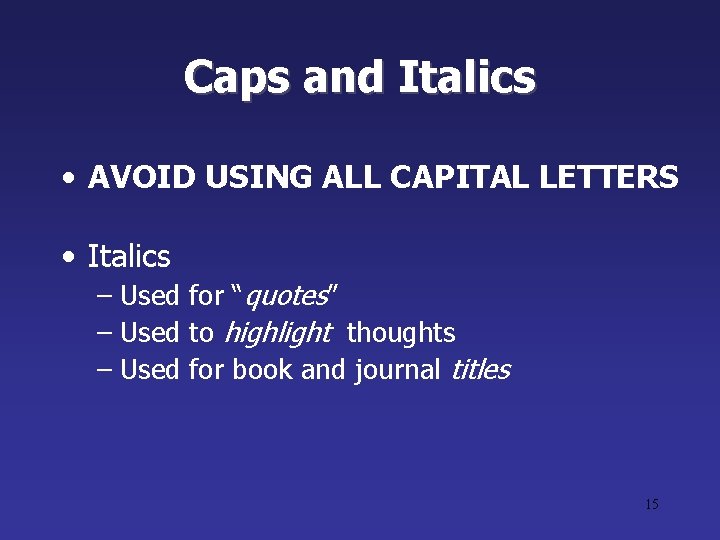
Caps and Italics • AVOID USING ALL CAPITAL LETTERS • Italics – Used for “quotes” – Used to highlight thoughts – Used for book and journal titles 15
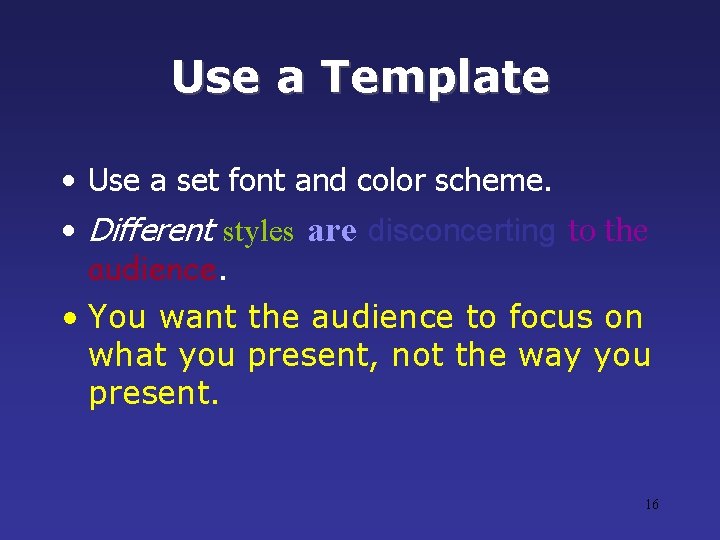
Use a Template • Use a set font and color scheme. • Different styles are disconcerting to the audience. • You want the audience to focus on what you present, not the way you present. 16
Use the Same Background on Each Slide 17
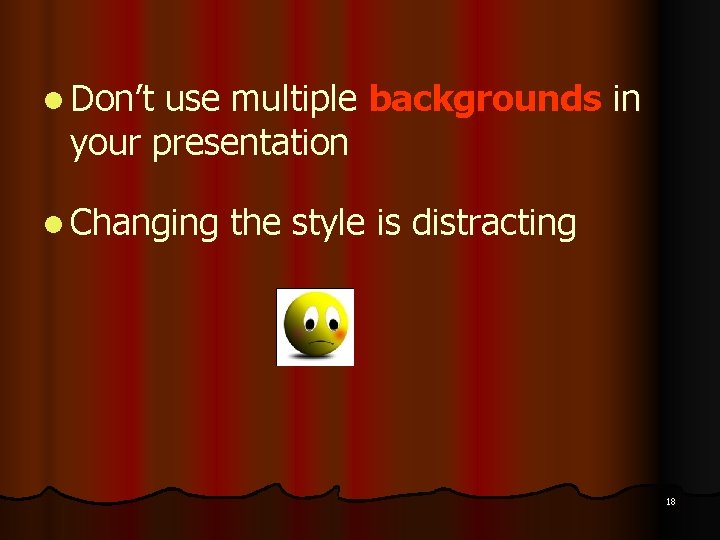
l Don’t use multiple backgrounds in your presentation l Changing the style is distracting 18
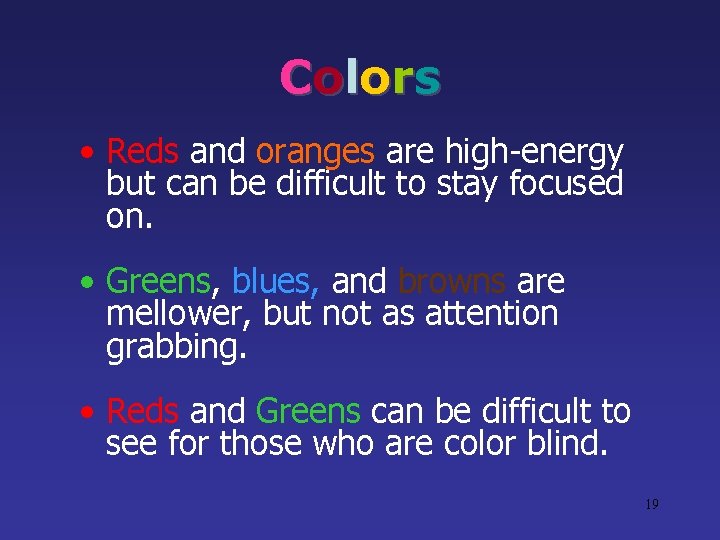
C o l o rs • Reds and oranges are high-energy but can be difficult to stay focused on. • Greens, blues, and browns are mellower, but not as attention grabbing. • Reds and Greens can be difficult to see for those who are color blind. 19
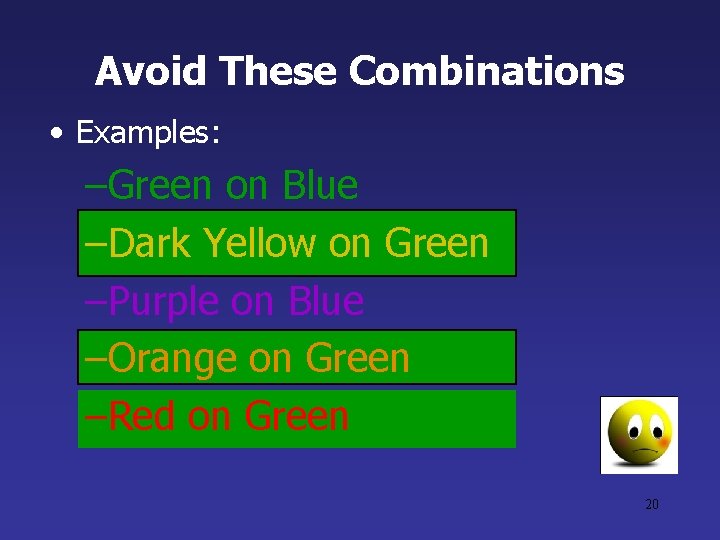
Avoid These Combinations • Examples: –Green on Blue –Dark Yellow on Green –Purple on Blue –Orange on Green –Red on Green 20
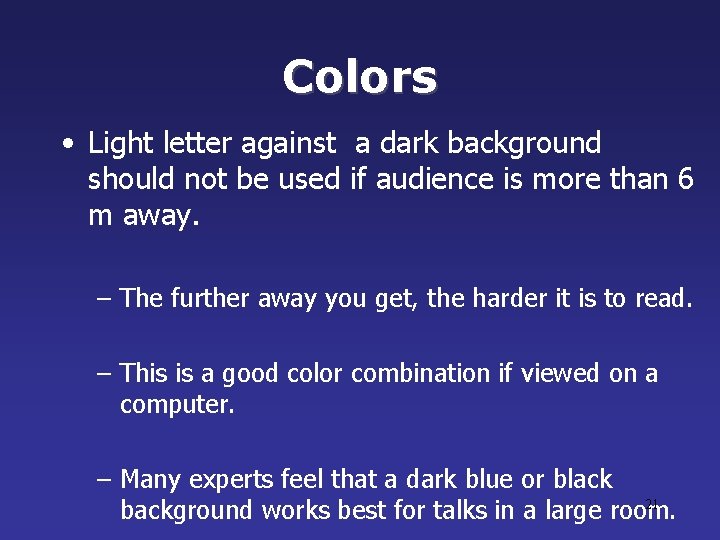
Colors • Light letter against a dark background should not be used if audience is more than 6 m away. – The further away you get, the harder it is to read. – This is a good color combination if viewed on a computer. – Many experts feel that a dark blue or black 21 background works best for talks in a large room.
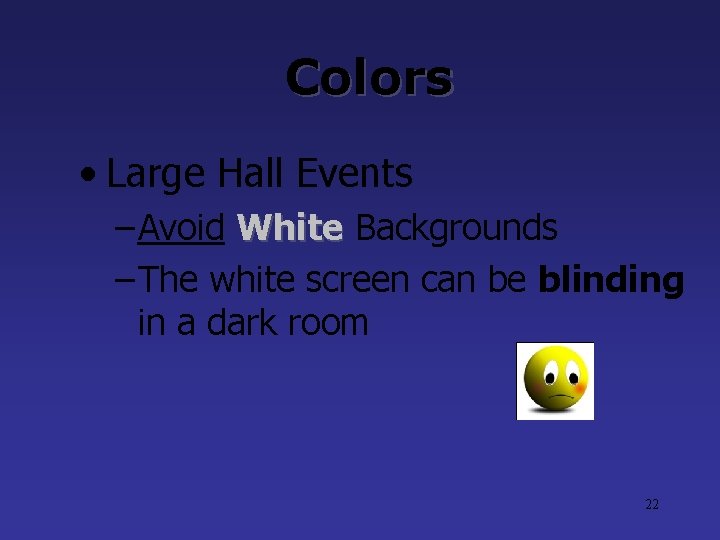
Colors • Large Hall Events – Avoid White Backgrounds White – The white screen can be blinding in a dark room 22
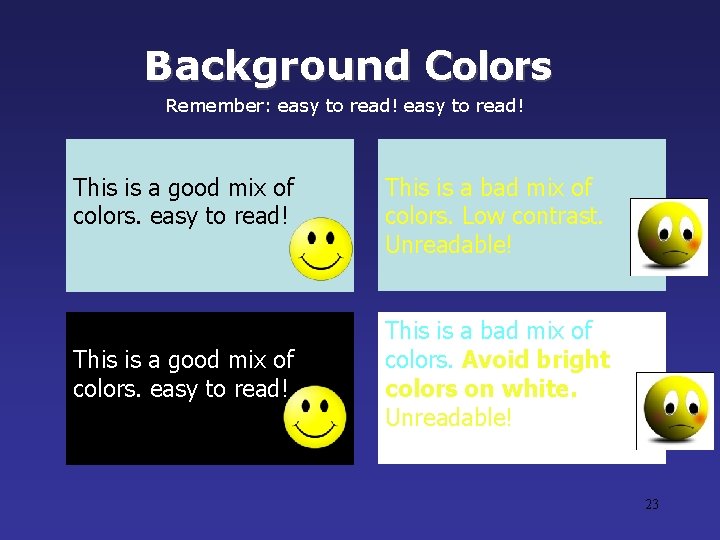
Background Colors Remember: easy to read! This is a good mix of colors. easy to read! This is a bad mix of colors. Low contrast. Unreadable! This is a bad mix of colors. Avoid bright colors on white. Unreadable! 23
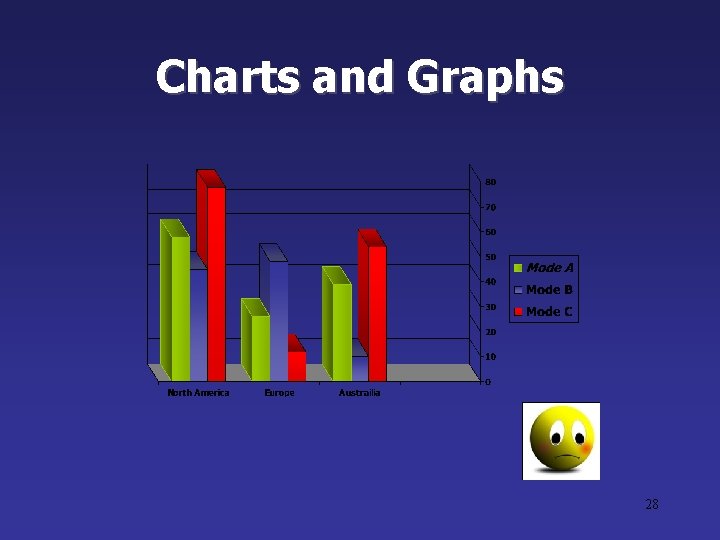
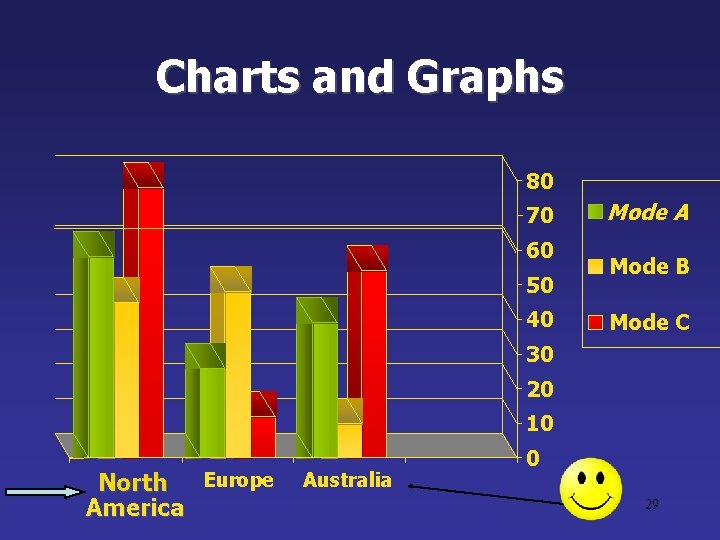
Graphs and Charts Make sure the audience can read them! 24
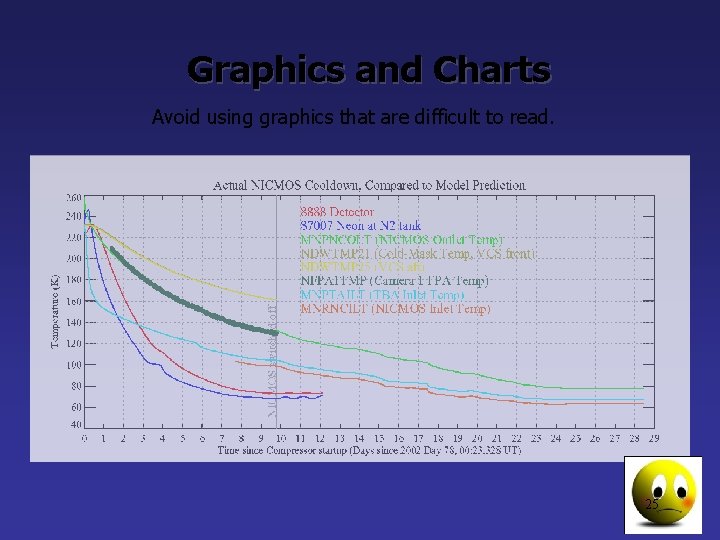
Graphics and Charts Avoid using graphics that are difficult to read. 25 8
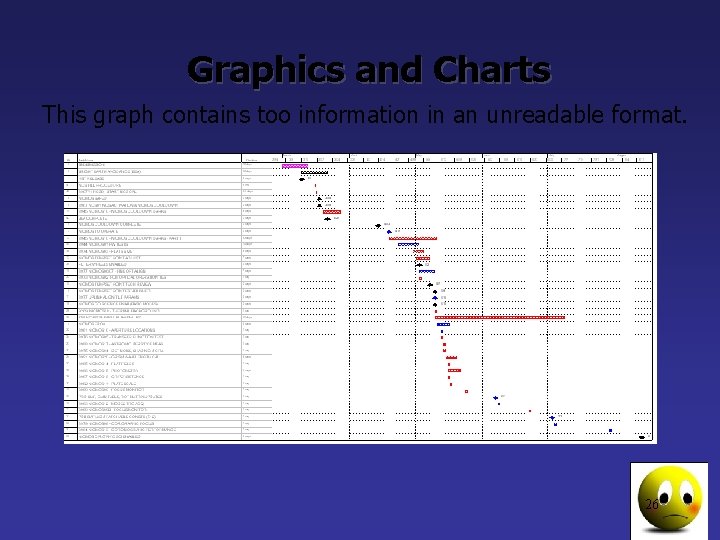
Graphics and Charts This graph contains too information in an unreadable format. 10 26
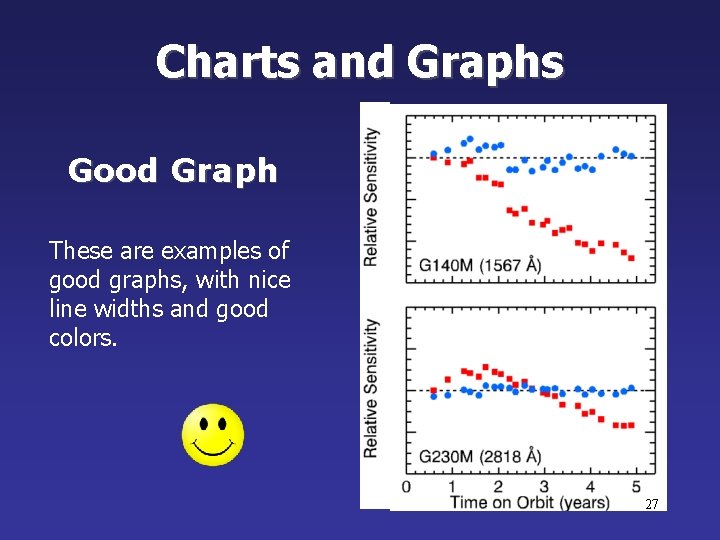
Charts and Graphs Good Graph These are examples of good graphs, with nice line widths and good colors. 27
Charts and Graphs 28
Charts and Graphs 80 70 60 50 40 Mode A Mode B Mode C 30 20 10 Europe North America Australia 0 29
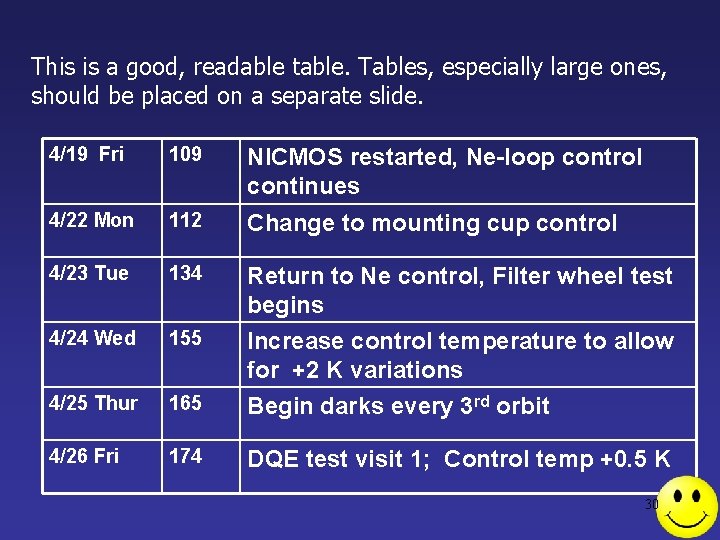
This is a good, readable table. Tables, especially large ones, should be placed on a separate slide. 4/19 Fri 109 NICMOS restarted, Ne-loop control continues 4/22 Mon 112 Change to mounting cup control 4/23 Tue 134 Return to Ne control, Filter wheel test begins 4/24 Wed 155 Increase control temperature to allow for +2 K variations 4/25 Thur 165 Begin darks every 3 rd orbit 4/26 Fri 174 DQE test visit 1; Control temp +0. 5 K 30
Illustrations • Use only when needed. • Simple diagrams are great communicators • They should relate to the message. • Ask yourself if it makes the message clearer 31
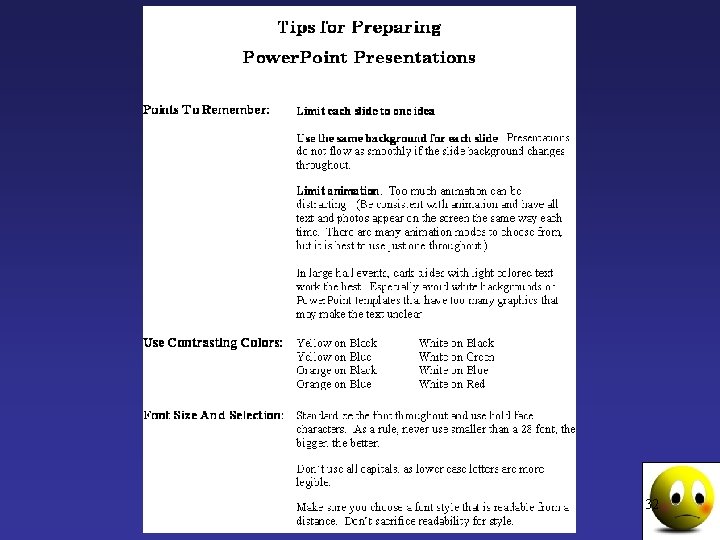
32
Limit Each Slide to One Idea • Use Bullet Points to Cover Components of Each Idea 33
Points to Remember • Limit each slide to 1 idea • Keep bullet points brief • Use the same background for each slide • Use dark slides with light colored text in large hall events 34
Avoid the “All Word” Slide Another thing to avoid is the use of a large block paragraph to introduce your information. Attendees do not like to have what is on the screen, read to them verbatim. So, please use short, bulleted statements and avoid typing out your whole presentation on to the slides. Also, it is difficult for some to listen and read a large amount of text at the same time. 35
• To make a slide stand out, change the font, background, or add animation. 36
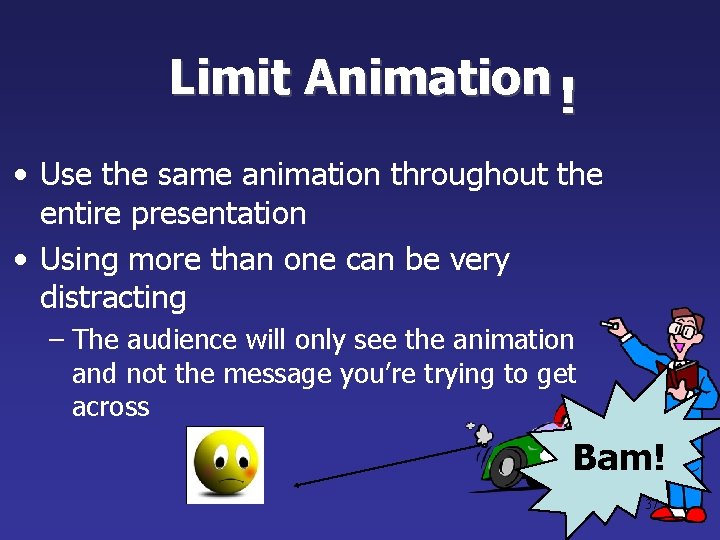
Limit Animation ! • Use the same animation throughout the entire presentation • Using more than one can be very distracting – The audience will only see the animation and not the message you’re trying to get across Bam! 37
Limit Animation ! • Use the same animation throughout the entire presentation • Using more than one can be very distracting – The audience will only see the animation and not the message you’re trying to get across 38
YOU • Do not use the media to hide you • The audience came to SEE you • The media should ENHANCE the presentation, not BE the presentation • If you’re only going to read from the slides, then just send them the slides! • Remember, only you can prevent “Death by Power. Point” 39
Good talk 40
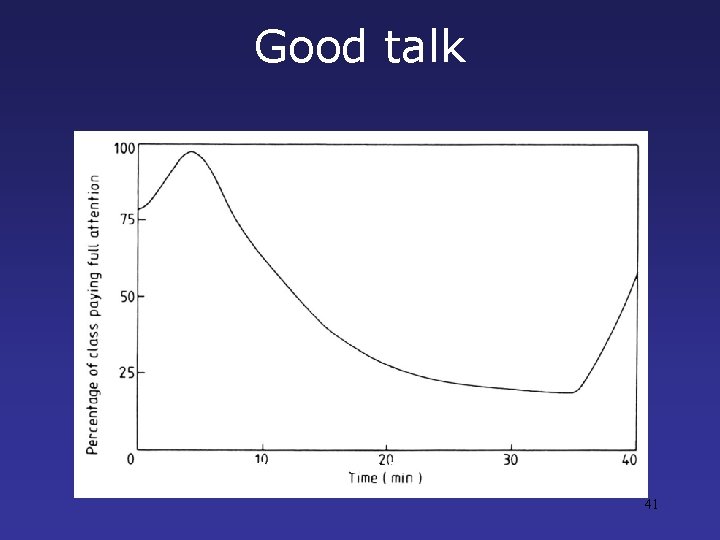
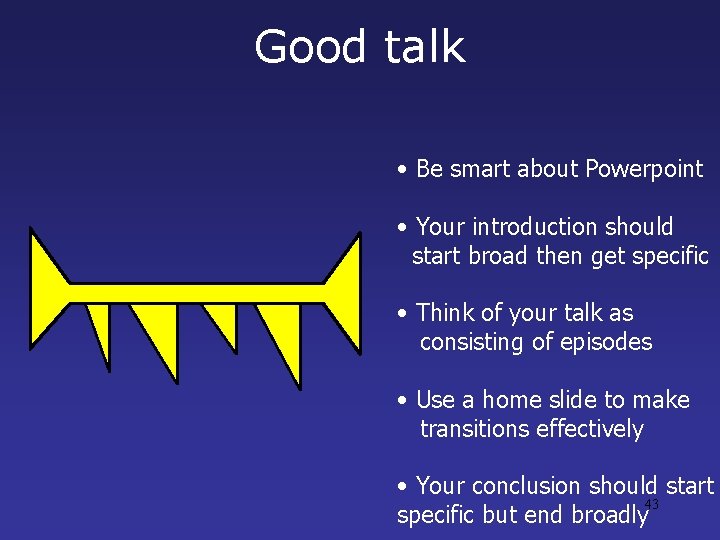
Good talk Audience attention curve. 41
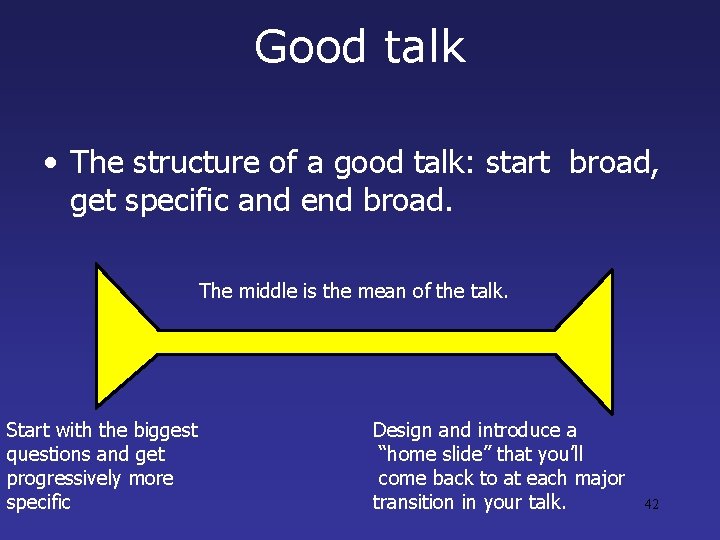
Good talk • The structure of a good talk: start broad, get specific and end broad. The middle is the mean of the talk. Start with the biggest questions and get progressively more specific Design and introduce a “home slide” that you’ll come back to at each major transition in your talk. 42
Good talk • Be smart about Powerpoint • Your introduction should start broad then get specific • Think of your talk as consisting of episodes • Use a home slide to make transitions effectively • Your conclusion should start 43 specific but end broadly
Thank you for your attention 44
Presentation skills • How Good Are Your Presentation Skills? • How do you feel when you have to make a presentation? • Are you well prepared and relaxed, confident. • Or is the thought of standing on a podium, holding a microphone, enough to give you stage fright? • Enjoy it or not, presenting 45
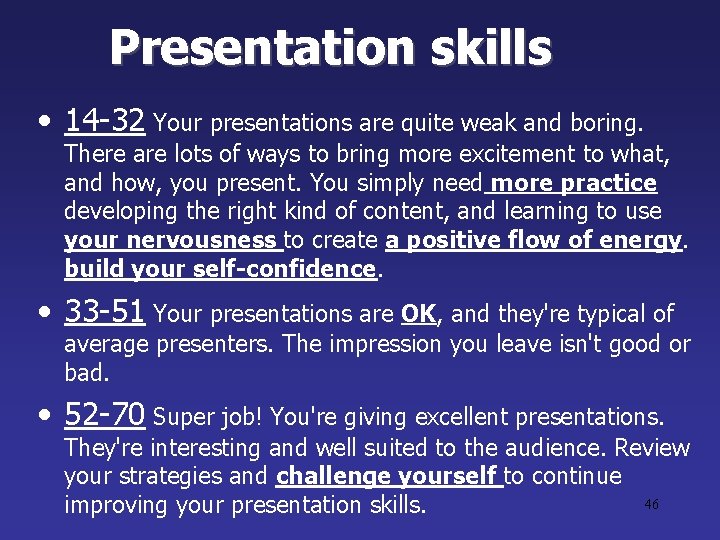
Presentation skills • 14 -32 Your presentations are quite weak and boring. There are lots of ways to bring more excitement to what, and how, you present. You simply need more practice developing the right kind of content, and learning to use your nervousness to create a positive flow of energy. build your self-confidence. • 33 -51 Your presentations are OK, and they're typical of average presenters. The impression you leave isn't good or bad. • 52 -70 Super job! You're giving excellent presentations. They're interesting and well suited to the audience. Review your strategies and challenge yourself to continue 46 improving your presentation skills.
Becoming a Better Presenter • 1. Understanding your audience. • 2. Preparing your content. • 3. Delivering confidently. • 4. Controlling the environment. 47
1. Understanding your audience • Determine who the members of the audience are. • Find out what they want and expect? What do they need to learn? • what do they already know that you don't have to repeat? • Create an outline for your presentation, and ask for advance feedback on your proposed content 48
2. Preparing Your Content • • • Identify a few key points. Don't include every detail Use an outline Start and end strongly Use examples 49
2. Preparing Your Content • Get the attention of your audience: Use an interesting 'hook' or opening point, like a shocking statistic. Be provocative and stimulating, not boring or calm. • Create a need: Convince the audience there's a problem, explain how it affects them – and persuade them that things need to change. • Define your solution: Explain what you think needs to be done. • Describe a detailed picture of success (or failure): Give the audience a vision; something they can see, hear, taste, and touch. • Ask the audience to do something right away: Get the audience involved right from the start. Then it's usually much easier to keep them engaged and active in your cause 50
3. Delivering confidently • • • Practice to build confidence. Be flexible Welcome statements from the audience Use slides and other visual aids Keep your visuals simple and brief Manage your stress - physical relaxation techniques - imagery - build your self-confidence 51
4. Controlling the environment • Practice in the presentation room. • Do your own setup • Test your timing 52
Thank you for your attention 53