
Making Books using Board Maker Open image search
Making Books using Board. Maker
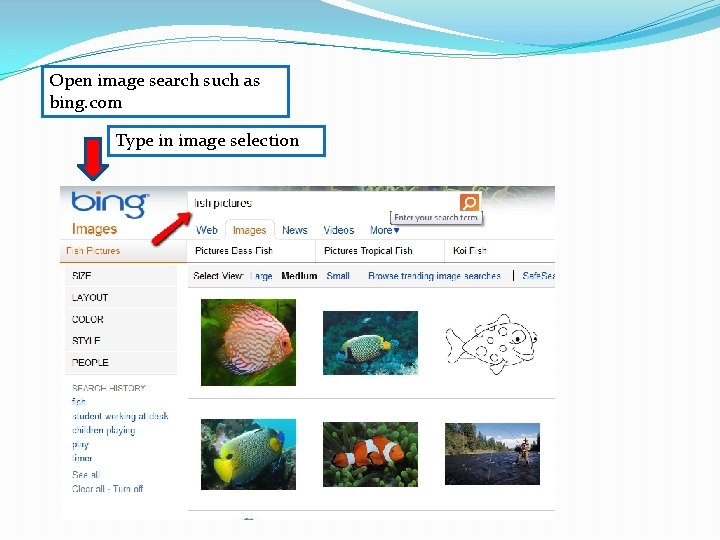
Open image search such as bing. com Type in image selection
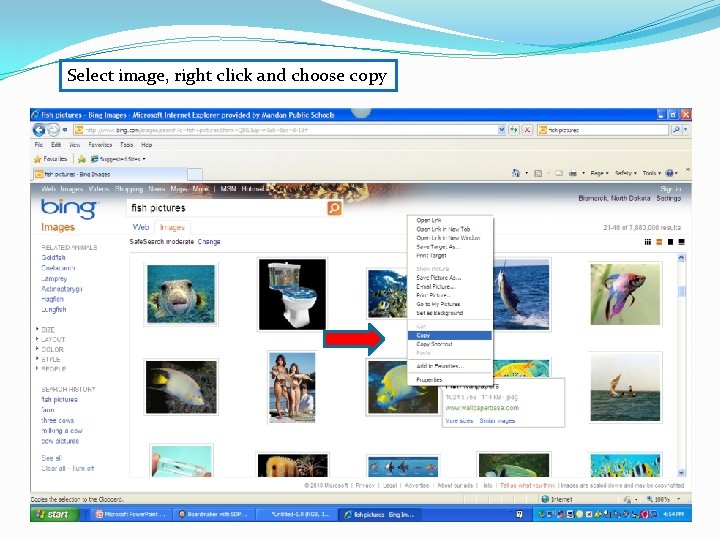
Select image, right click and choose copy
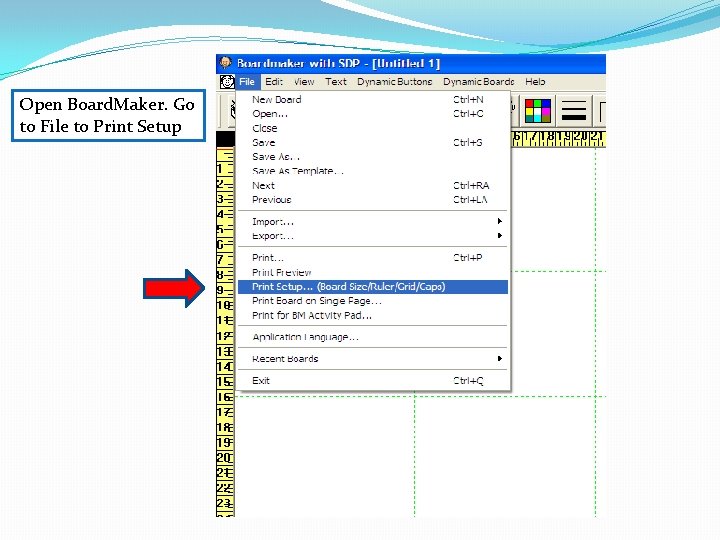
Open Board. Maker. Go to File to Print Setup
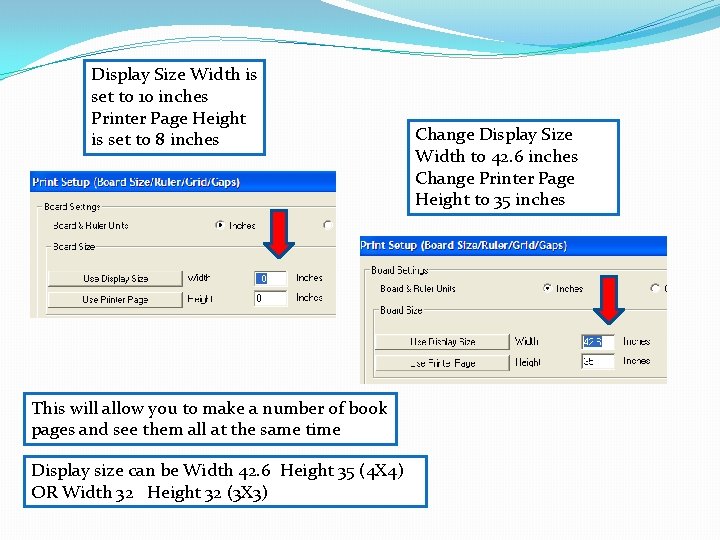
Display Size Width is set to 10 inches Printer Page Height is set to 8 inches This will allow you to make a number of book pages and see them all at the same time Display size can be Width 42. 6 Height 35 (4 X 4) OR Width 32 Height 32 (3 X 3) Change Display Size Width to 42. 6 inches Change Printer Page Height to 35 inches
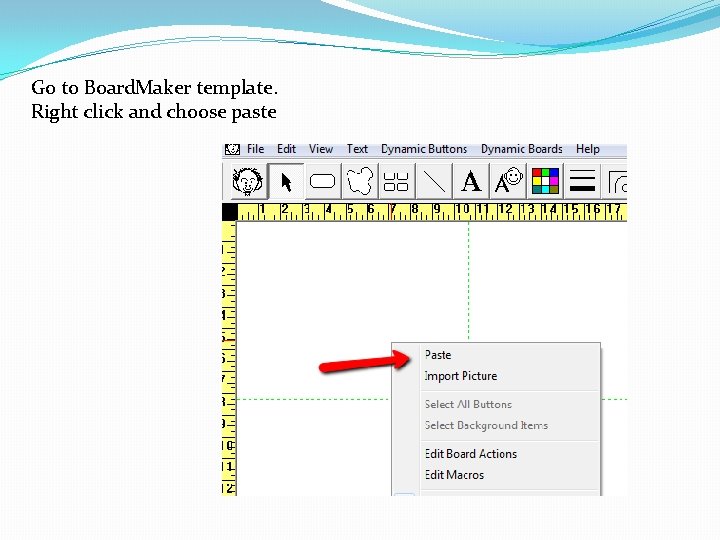
Go to Board. Maker template. Right click and choose paste
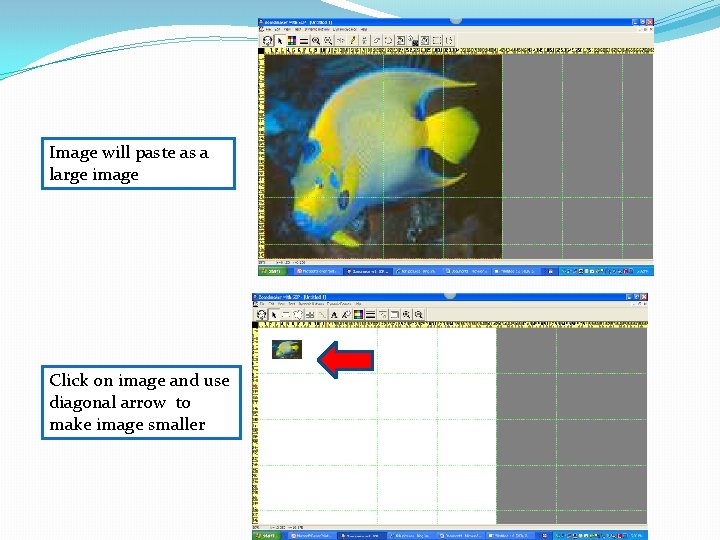
Image will paste as a large image Click on image and use diagonal arrow to make image smaller
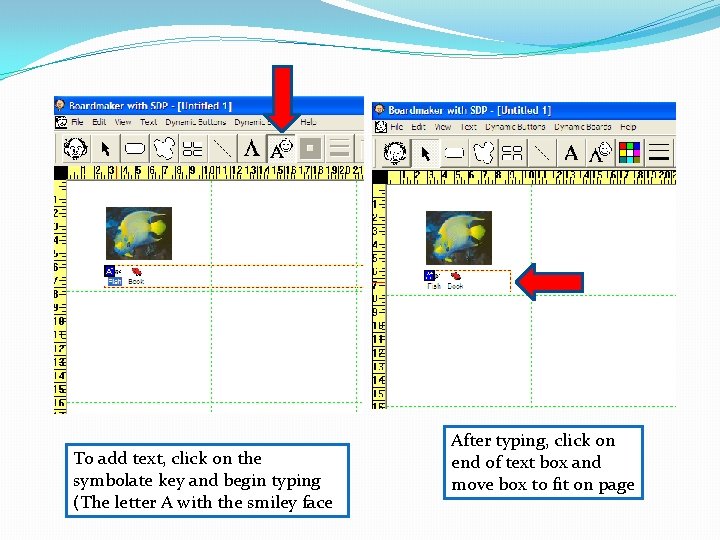
To add text, click on the symbolate key and begin typing (The letter A with the smiley face After typing, click on end of text box and move box to fit on page
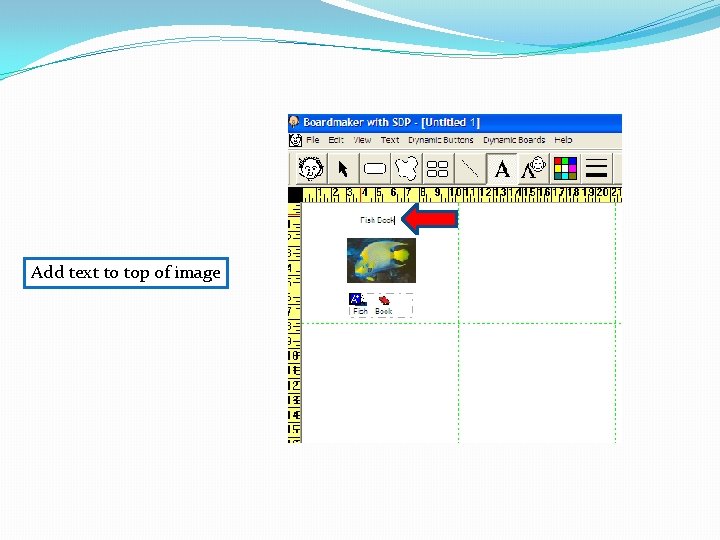
Add text to top of image
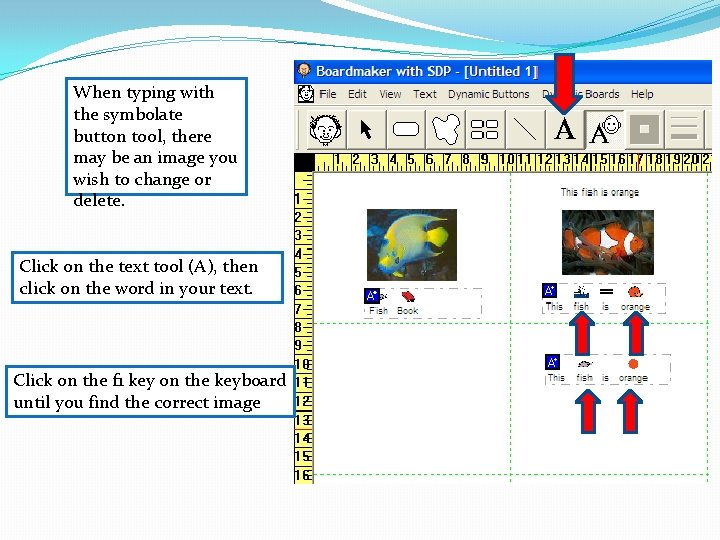
When typing with the symbolate button tool, there may be an image you wish to change or delete. Click on the text tool (A), then click on the word in your text. Click on the f 1 key on the keyboard until you find the correct image
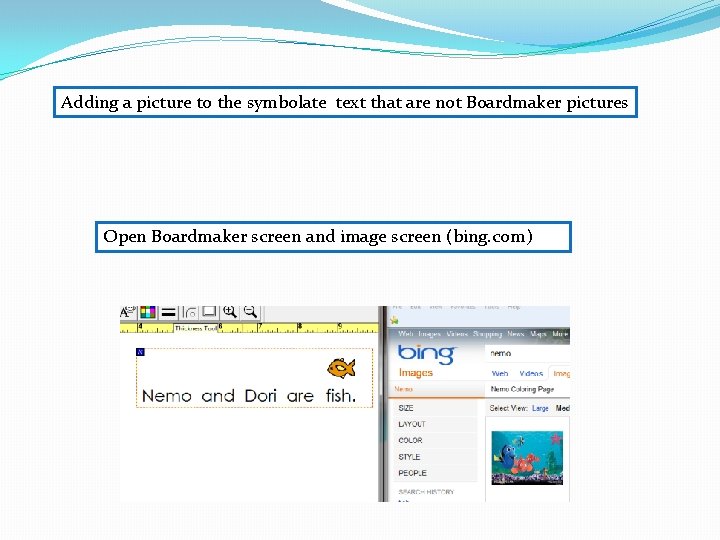
Adding a picture to the symbolate text that are not Boardmaker pictures Open Boardmaker screen and image screen (bing. com)
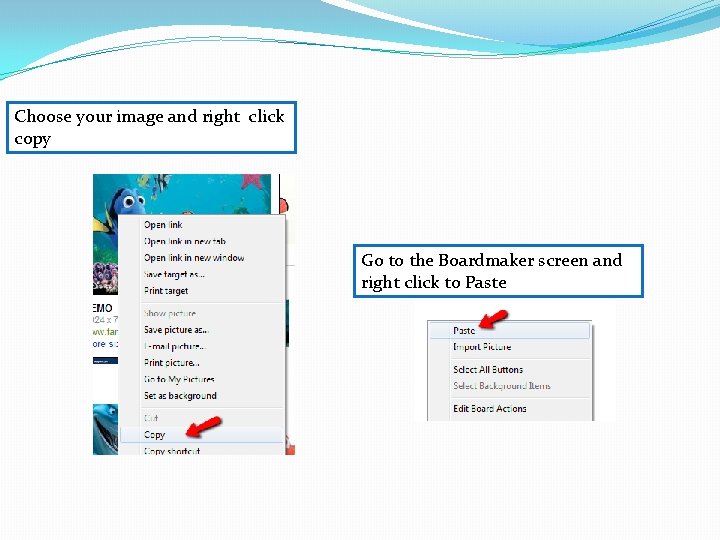
Choose your image and right click copy Go to the Boardmaker screen and right click to Paste
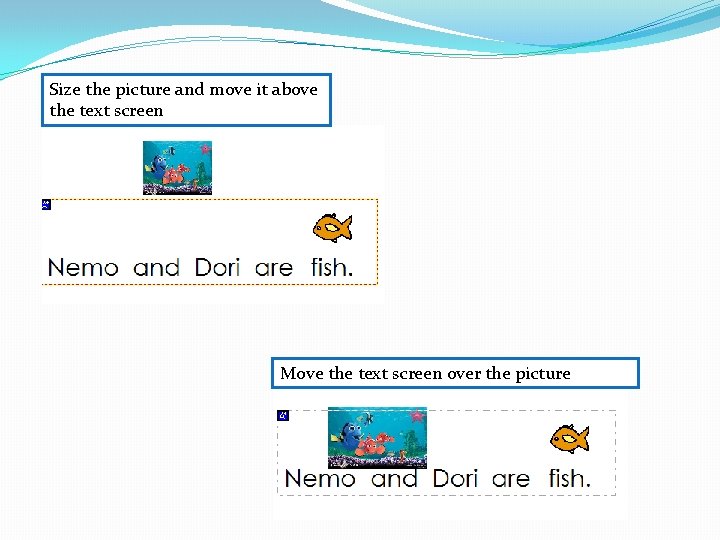
Size the picture and move it above the text screen Move the text screen over the picture
- Slides: 13