
Making a graph with a spreadsheet First open
- Slides: 8
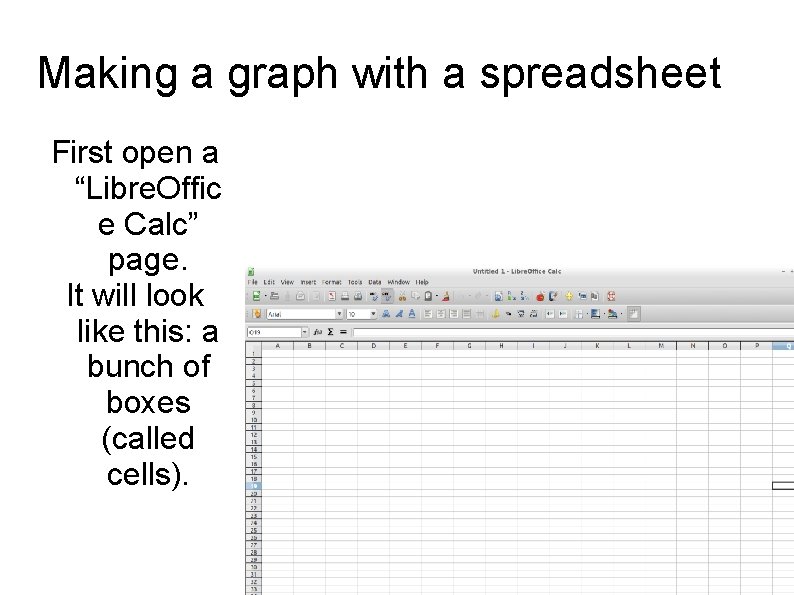
Making a graph with a spreadsheet First open a “Libre. Offic e Calc” page. It will look like this: a bunch of boxes (called cells).
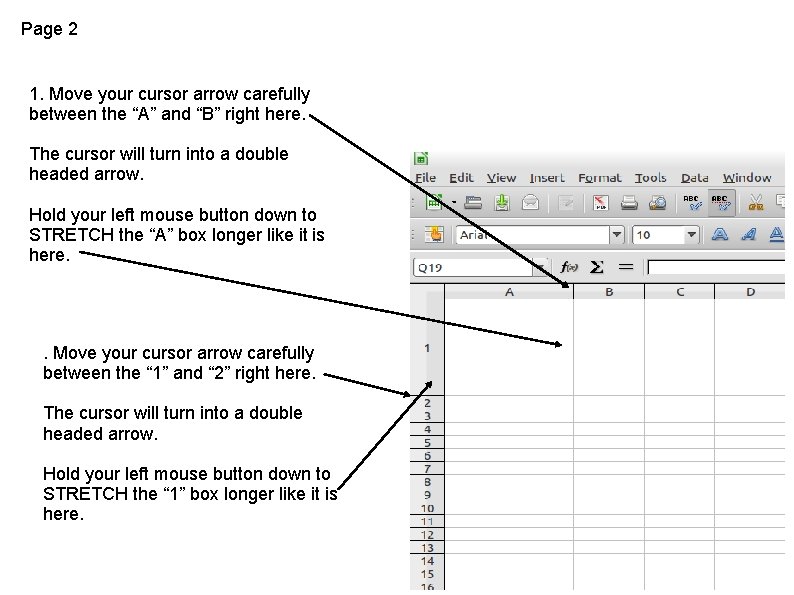
Page 2 1. Move your cursor arrow carefully between the “A” and “B” right here. The cursor will turn into a double headed arrow. Hold your left mouse button down to STRETCH the “A” box longer like it is here. . Move your cursor arrow carefully between the “ 1” and “ 2” right here. The cursor will turn into a double headed arrow. Hold your left mouse button down to STRETCH the “ 1” box longer like it is here.
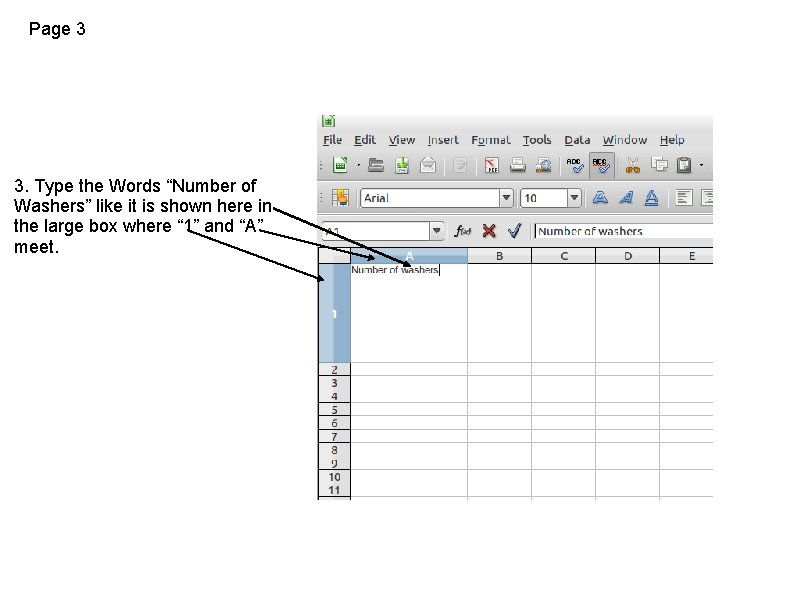
Page 3 3. Type the Words “Number of Washers” like it is shown here in the large box where “ 1” and “A” meet.
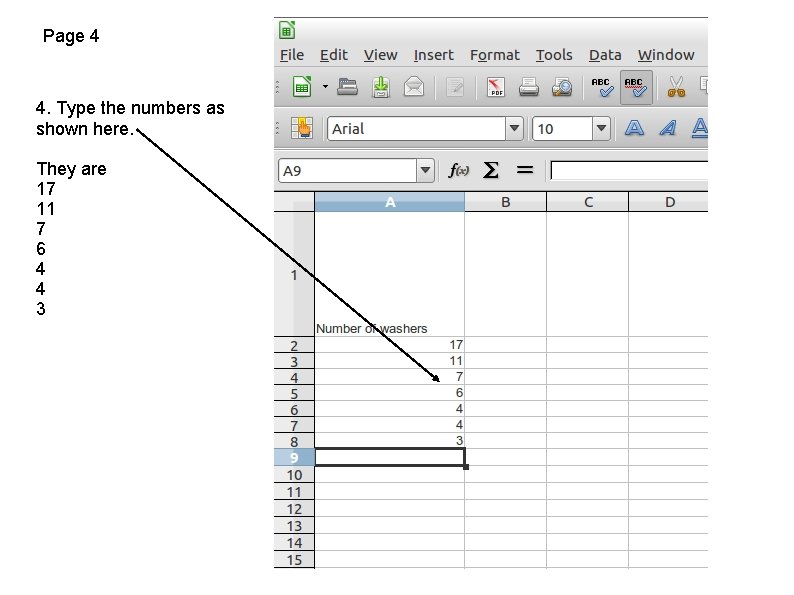
Page 4 4. Type the numbers as shown here. They are 17 11 7 6 4 4 3
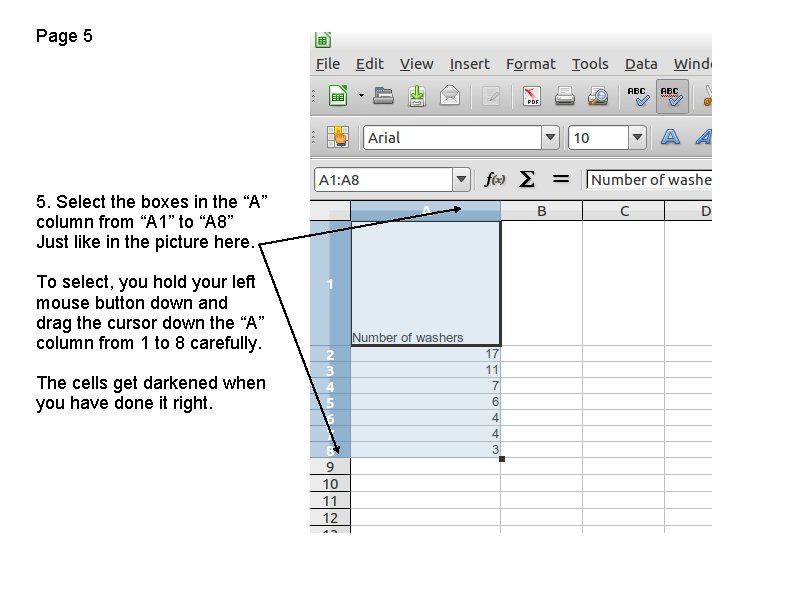
Page 5 5. Select the boxes in the “A” column from “A 1” to “A 8” Just like in the picture here. To select, you hold your left mouse button down and drag the cursor down the “A” column from 1 to 8 carefully. The cells get darkened when you have done it right.
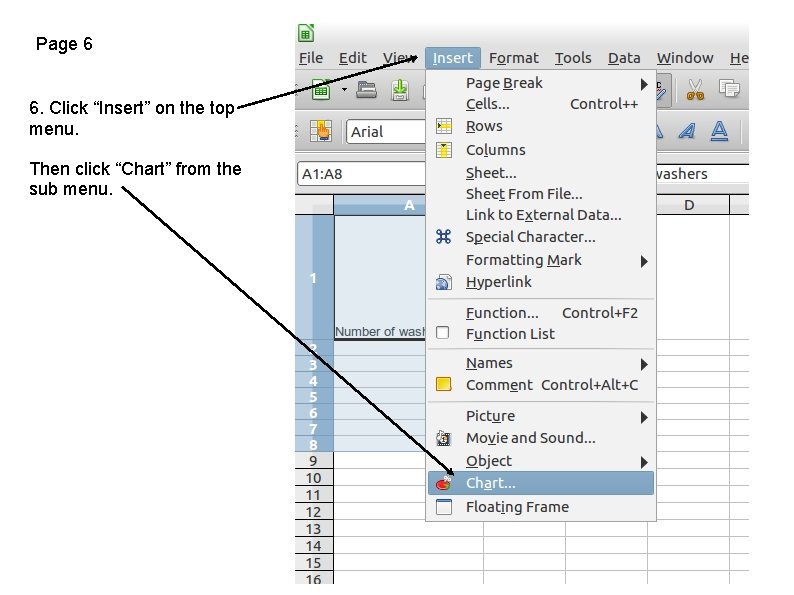
Page 6 6. Click “Insert” on the top menu. Then click “Chart” from the sub menu.
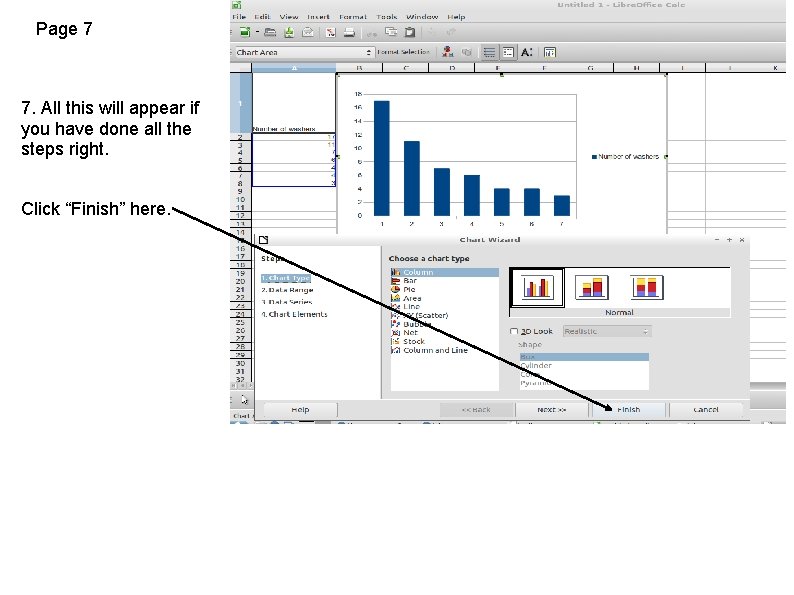
Page 7 7. All this will appear if you have done all the steps right. Click “Finish” here.
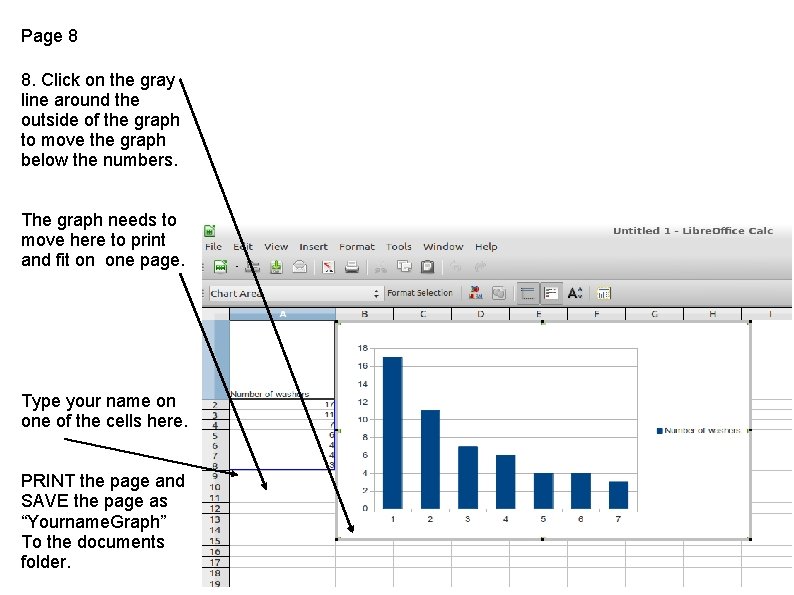
Page 8 8. Click on the gray line around the outside of the graph to move the graph below the numbers. The graph needs to move here to print and fit on one page. Type your name on one of the cells here. PRINT the page and SAVE the page as “Yourname. Graph” To the documents folder.