
Macromedia Flash MX A Brief Tutorial for Programming
Macromedia Flash MX A Brief Tutorial for “Programming Usable Interfaces” Andrew Ko
Versions • Macromedia Flash MX • Not Flash MX 2004 (the newer version) • Not any older version • No site license • PC version: Wean clusters, Cyert Hall • Mac version: Hunt Library, Cyert Hall Intro • The Stage • Vector Graphics • Timelines • Layers • Symbols • Action. Script •
A Beginner’s Book • Foundation Macromedia Flash MX • Kris Besley • Comes highly recommended on Amazon • ~$10 paperback on Amazon and Half. com • Not a reference, but a very detailed introduction for people unfamiliar with Flash Intro • The Stage • Vector Graphics • Timelines • Layers • Symbols • Action. Script •
VB. NET vs. Flash MX • VB is great form-based applications • Flash is great for time-based applications • Both VB and Flash are event-based. Intro • The Stage • Vector Graphics • Timelines • Layers • Symbols • Action. Script •
Intro • The Stage • Vector Graphics • Timelines • Layers • Symbols • Action. Script •
What is Flash? And lots and lots of terminology. . . Intro • The Stage • Vector Graphics • Timelines • Layers • Symbols • Action. Script •
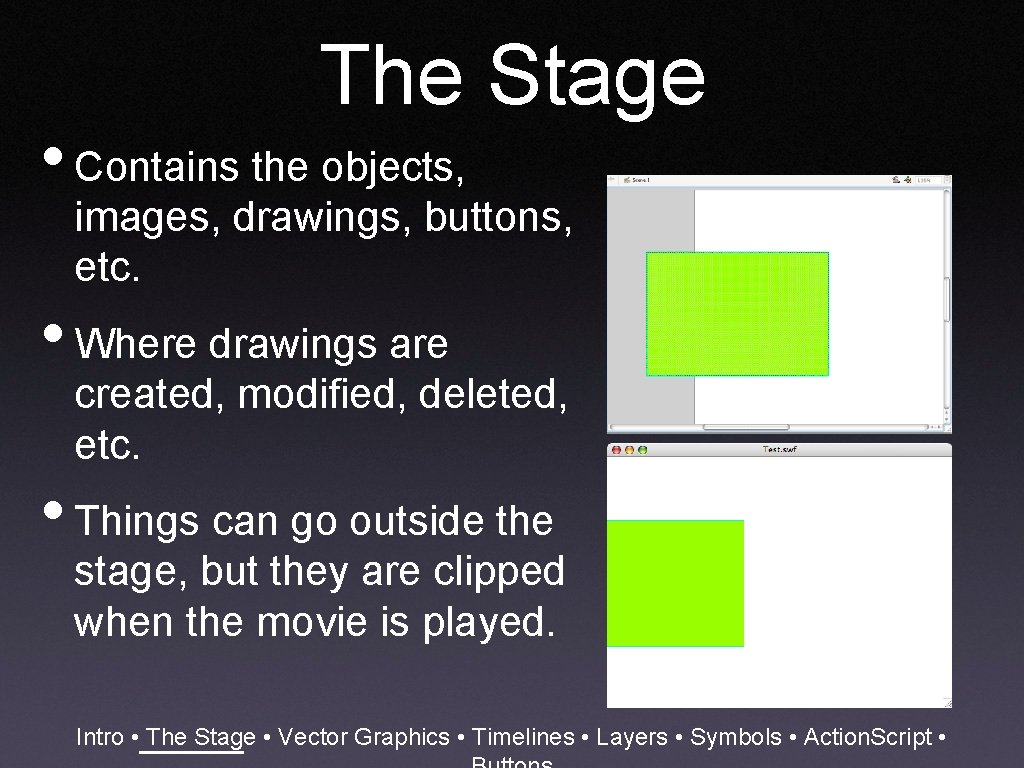
The Stage • Contains the objects, images, drawings, buttons, etc. • Where drawings are created, modified, deleted, etc. • Things can go outside the stage, but they are clipped when the movie is played. Intro • The Stage • Vector Graphics • Timelines • Layers • Symbols • Action. Script •
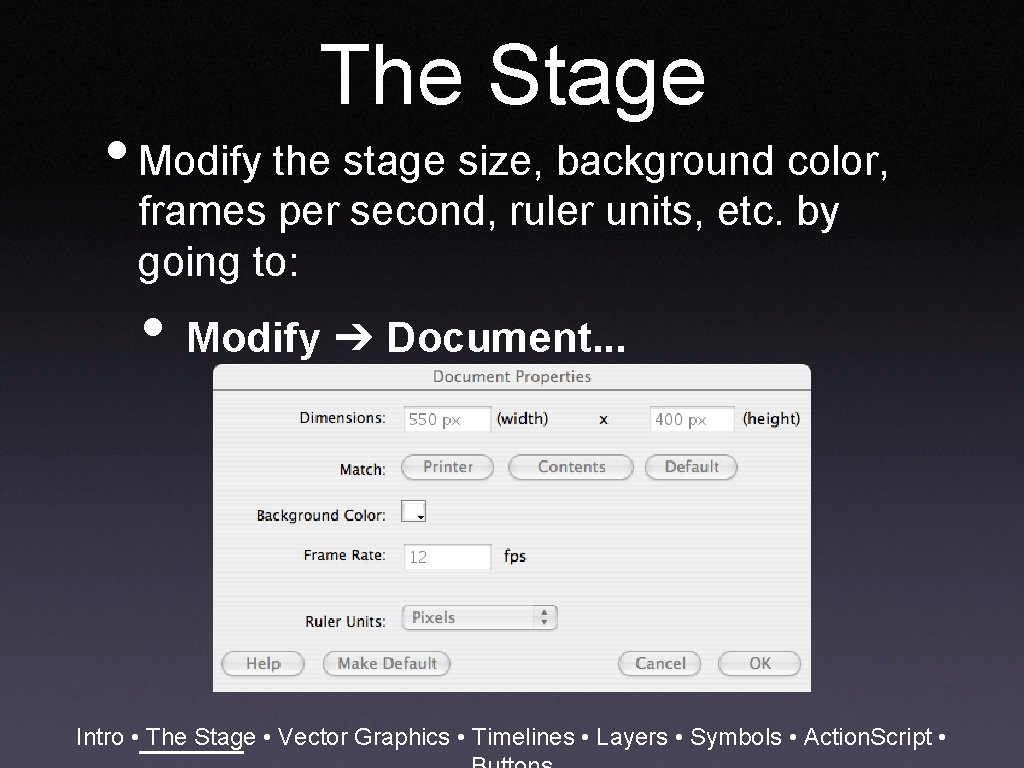
The Stage • Modify the stage size, background color, frames per second, ruler units, etc. by going to: • Modify ➔ Document. . . Intro • The Stage • Vector Graphics • Timelines • Layers • Symbols • Action. Script •
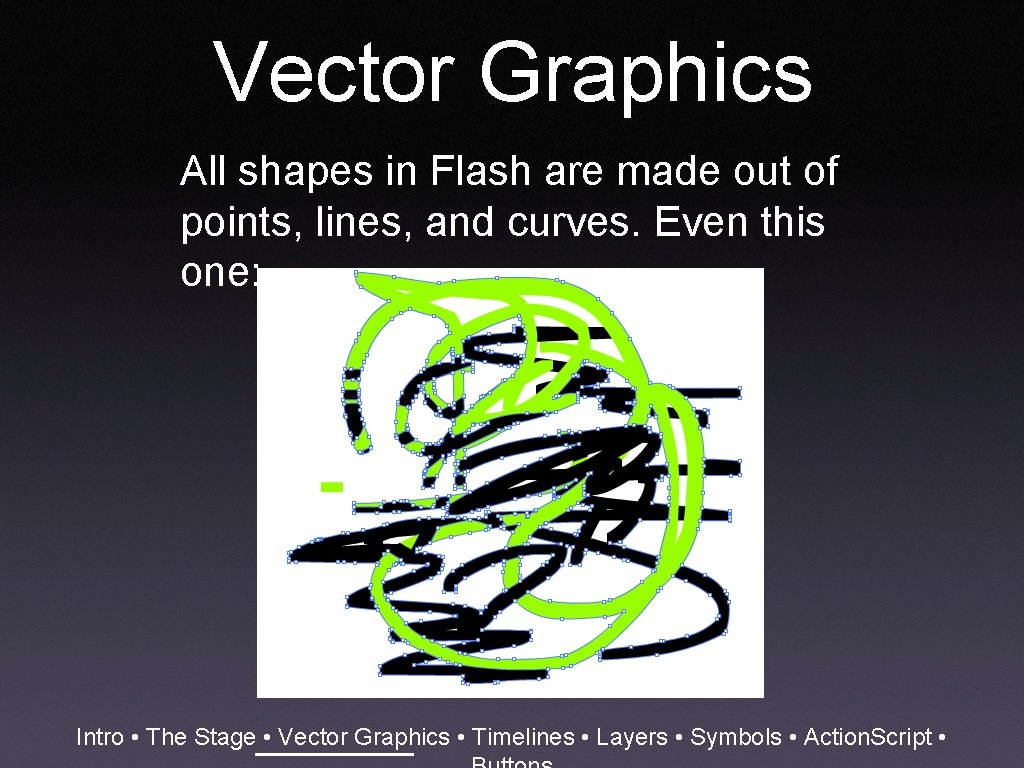
Vector Graphics All shapes in Flash are made out of points, lines, and curves. Even this one: Intro • The Stage • Vector Graphics • Timelines • Layers • Symbols • Action. Script •
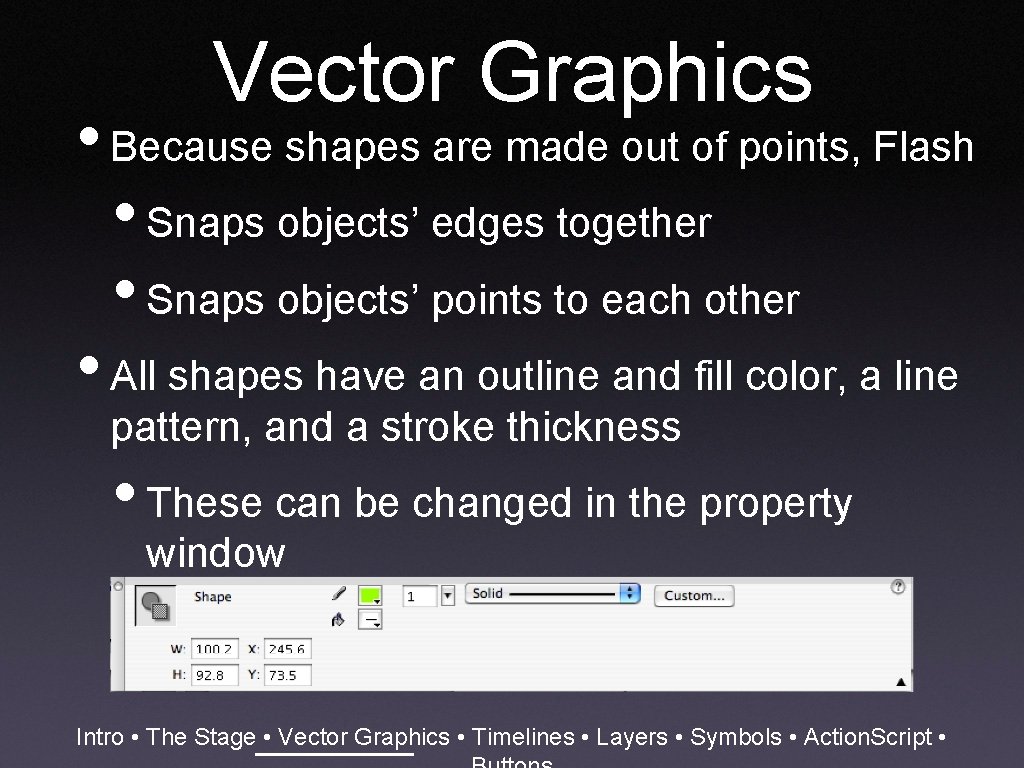
Vector Graphics • Because shapes are made out of points, Flash • Snaps objects’ edges together • Snaps objects’ points to each other • All shapes have an outline and fill color, a line pattern, and a stroke thickness • These can be changed in the property window Intro • The Stage • Vector Graphics • Timelines • Layers • Symbols • Action. Script •
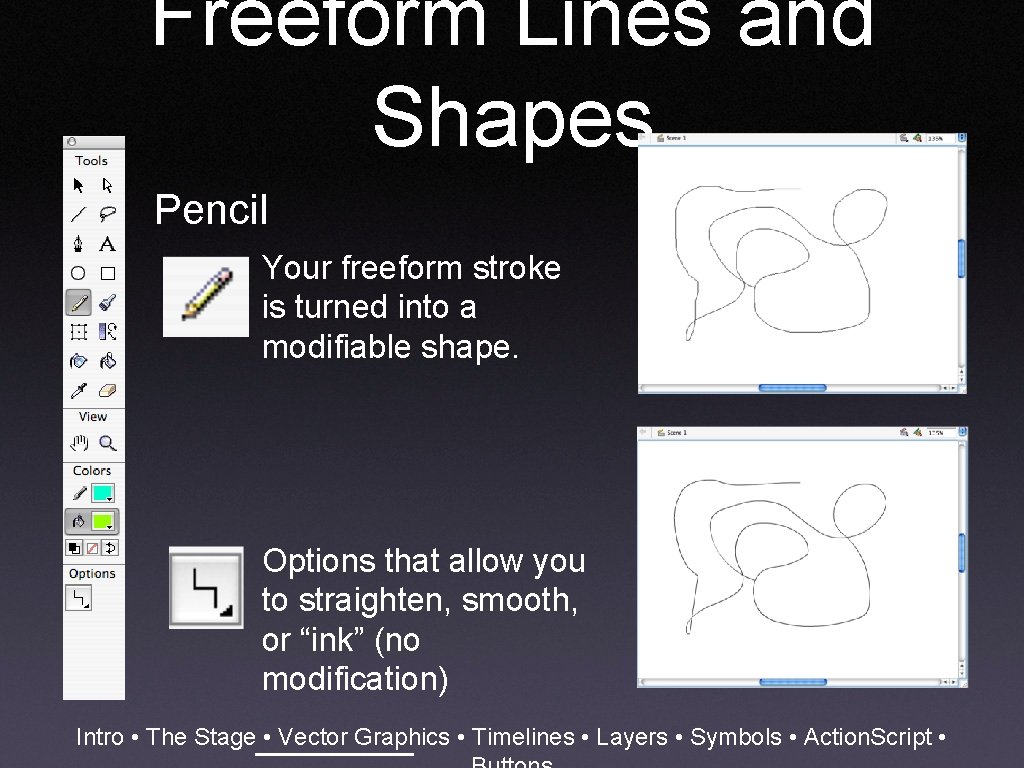
Freeform Lines and Shapes Pencil Your freeform stroke is turned into a modifiable shape. Options that allow you to straighten, smooth, or “ink” (no modification) Intro • The Stage • Vector Graphics • Timelines • Layers • Symbols • Action. Script •
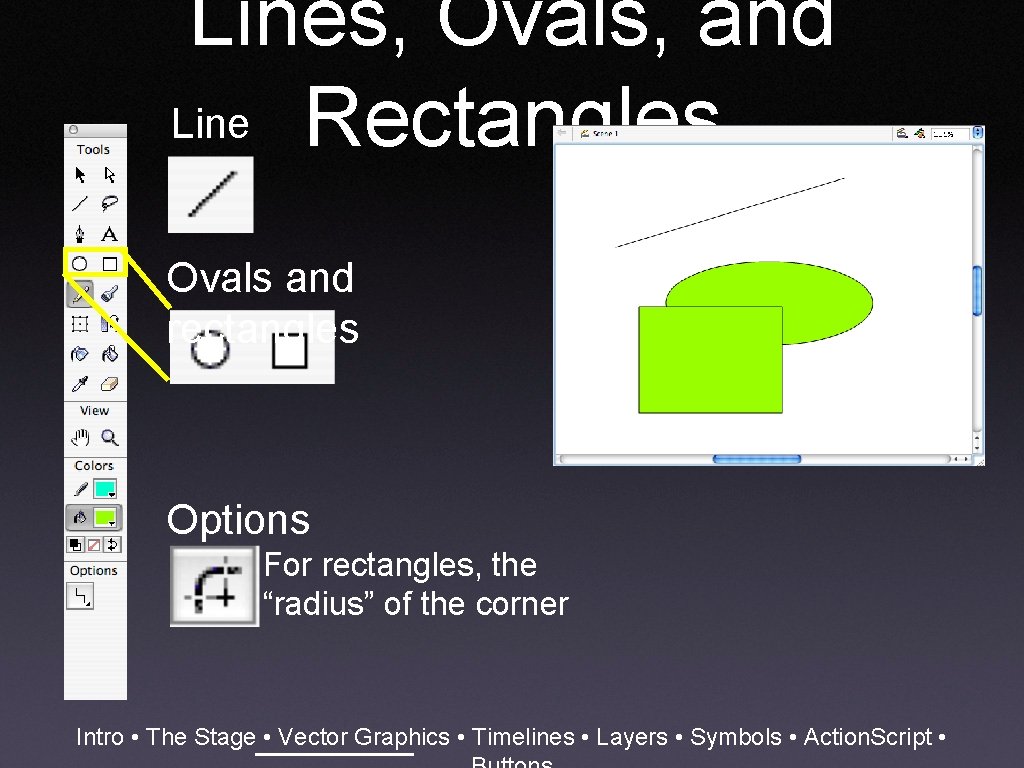
Lines, Ovals, and Line Rectangles Ovals and rectangles Options For rectangles, the “radius” of the corner Intro • The Stage • Vector Graphics • Timelines • Layers • Symbols • Action. Script •
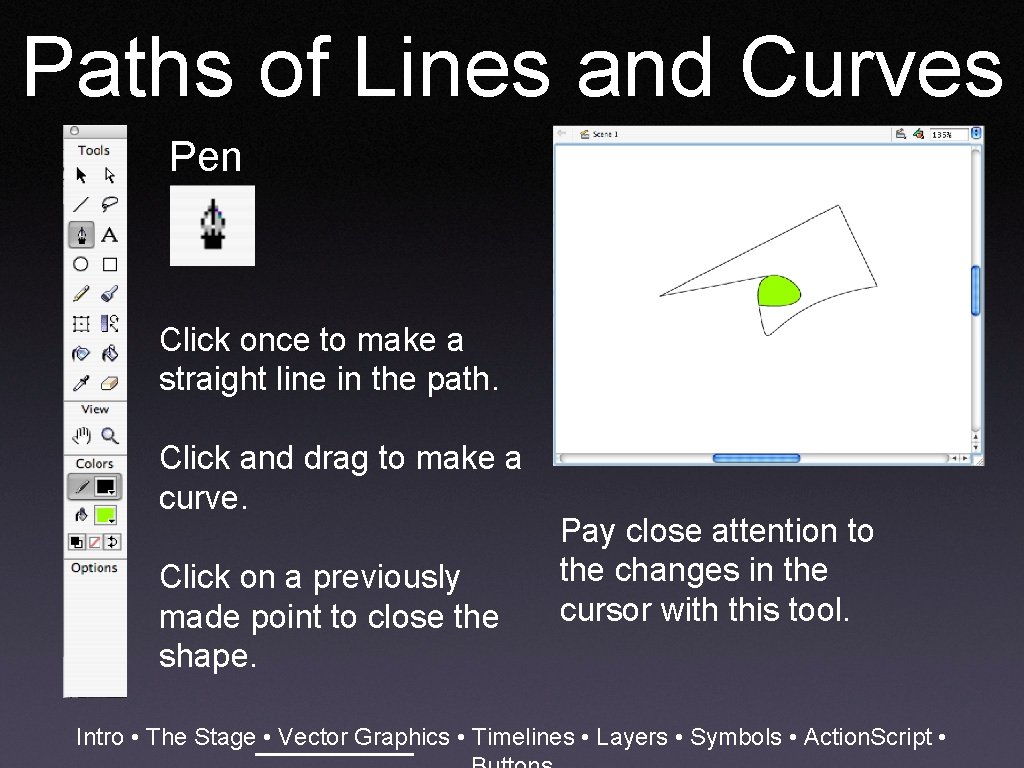
Paths of Lines and Curves Pen Click once to make a straight line in the path. Click and drag to make a curve. Click on a previously made point to close the shape. Pay close attention to the changes in the cursor with this tool. Intro • The Stage • Vector Graphics • Timelines • Layers • Symbols • Action. Script •
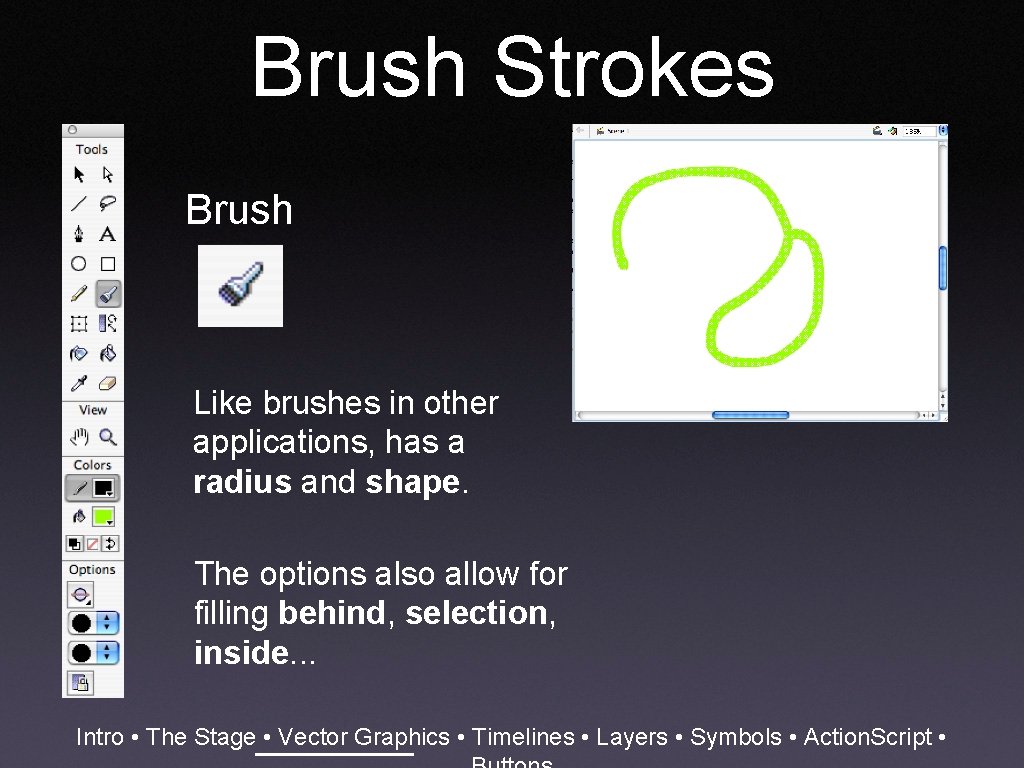
Brush Strokes Brush Like brushes in other applications, has a radius and shape. The options also allow for filling behind, selection, inside. . . Intro • The Stage • Vector Graphics • Timelines • Layers • Symbols • Action. Script •
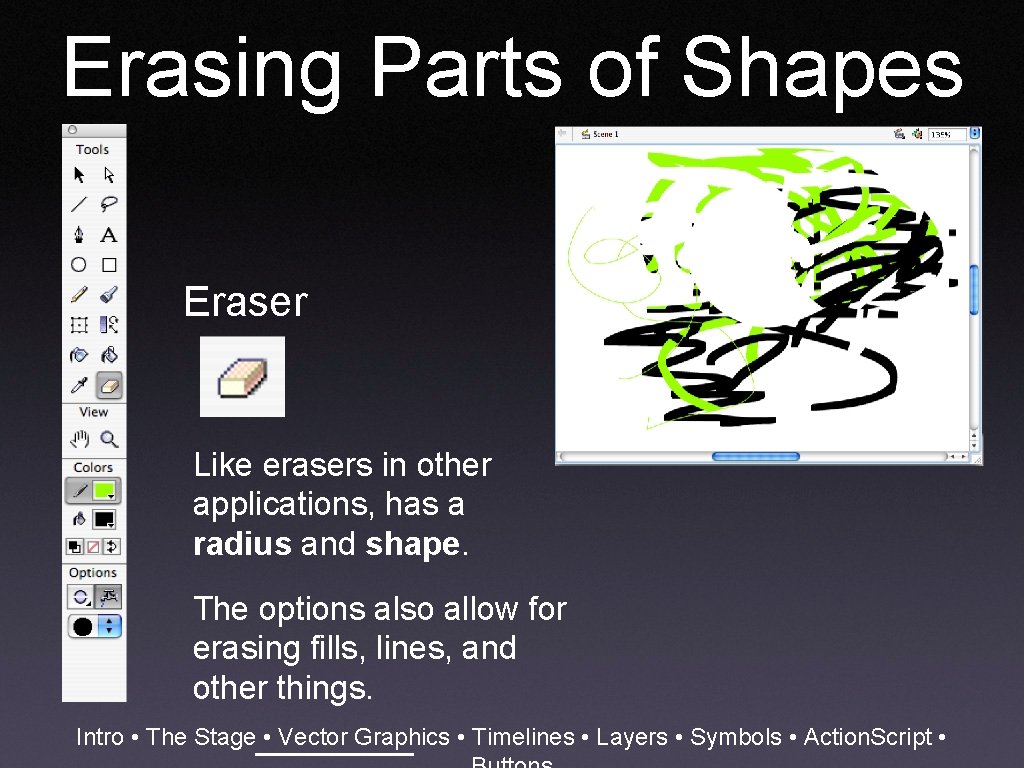
Erasing Parts of Shapes Eraser Like erasers in other applications, has a radius and shape. The options also allow for erasing fills, lines, and other things. Intro • The Stage • Vector Graphics • Timelines • Layers • Symbols • Action. Script •
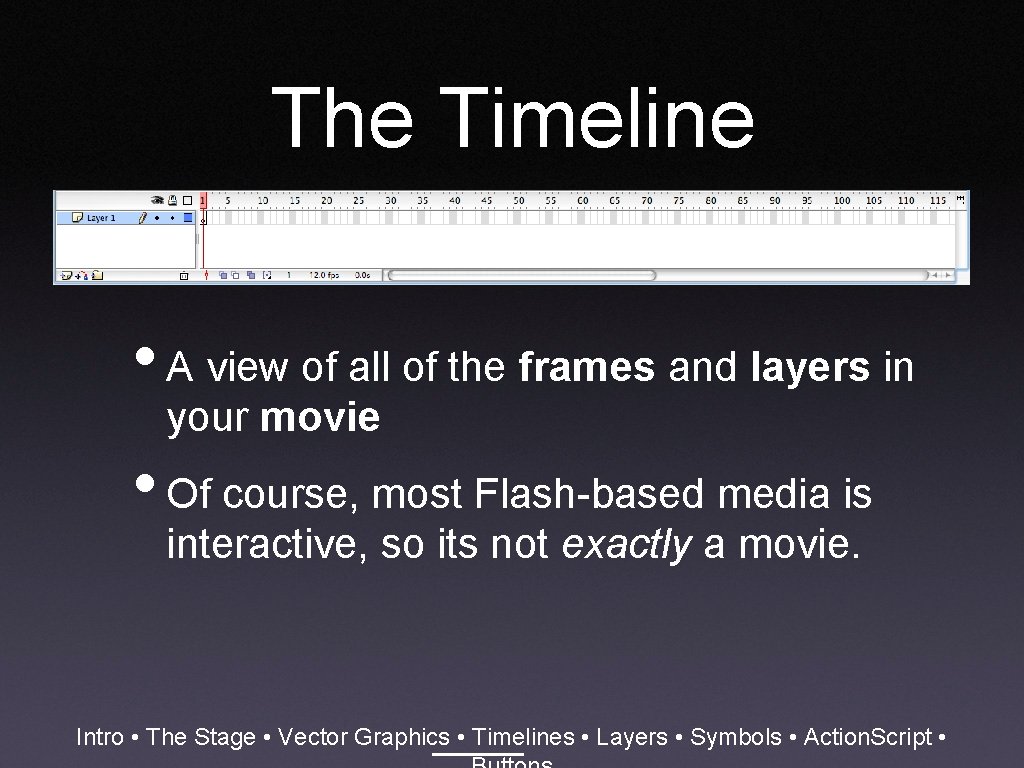
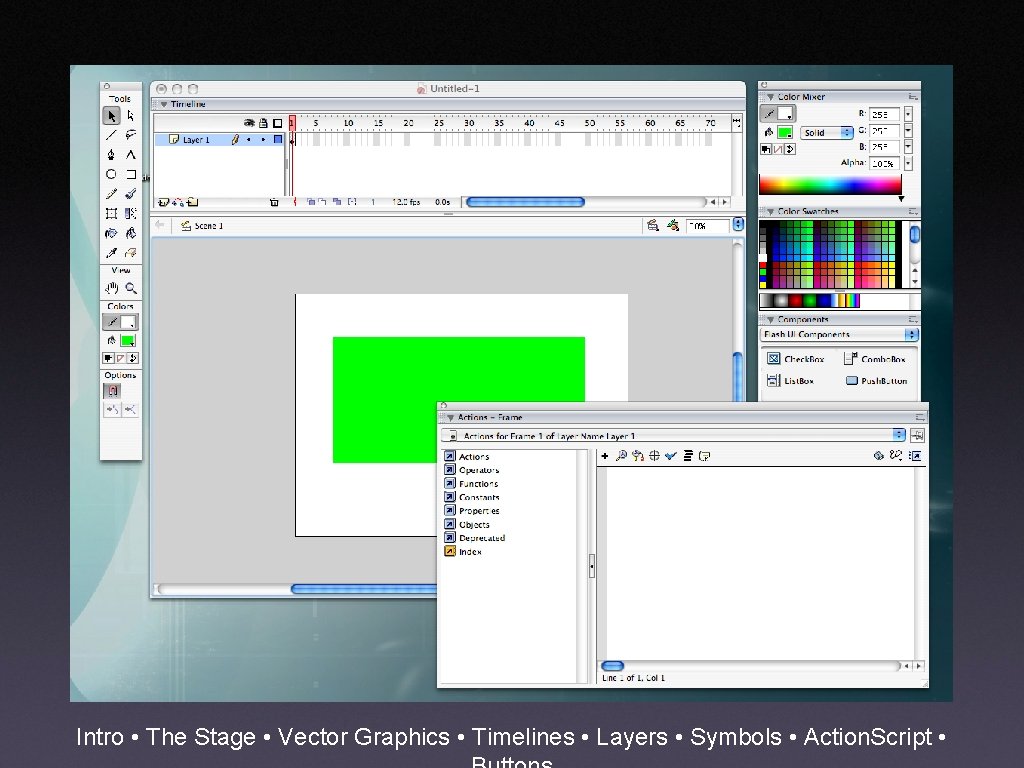
The Timeline • A view of all of the frames and layers in your movie • Of course, most Flash-based media is interactive, so its not exactly a movie. Intro • The Stage • Vector Graphics • Timelines • Layers • Symbols • Action. Script •
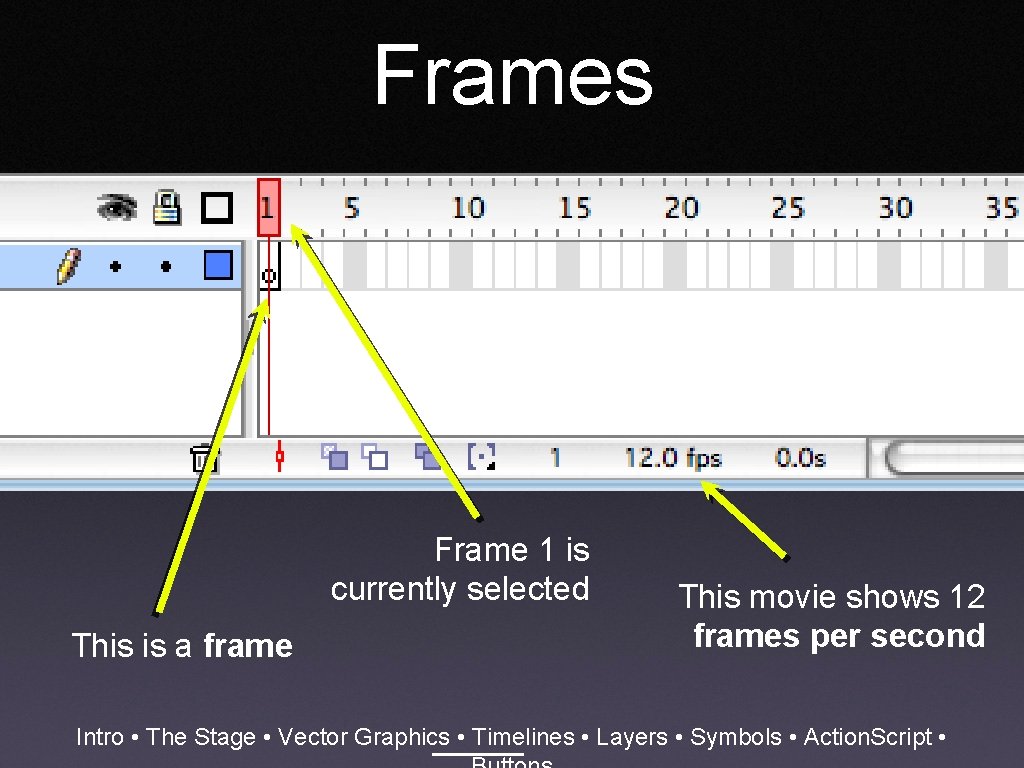
Frames Frame 1 is currently selected This is a frame This movie shows 12 frames per second Intro • The Stage • Vector Graphics • Timelines • Layers • Symbols • Action. Script •
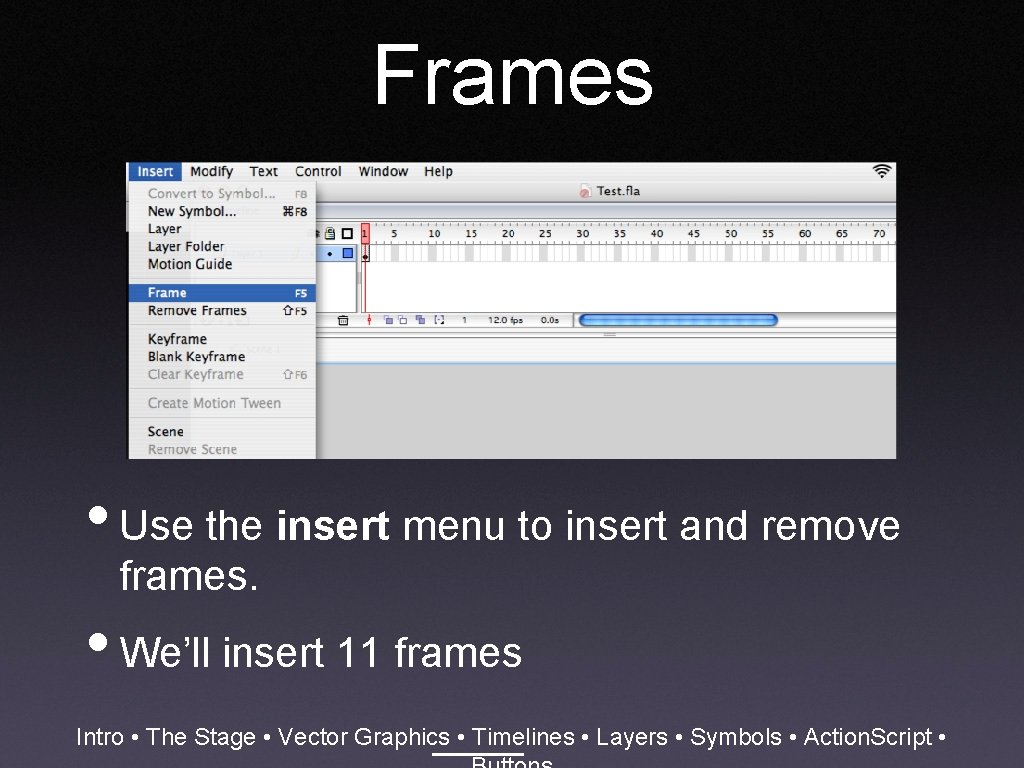
Frames • Use the insert menu to insert and remove frames. • We’ll insert 11 frames Intro • The Stage • Vector Graphics • Timelines • Layers • Symbols • Action. Script •
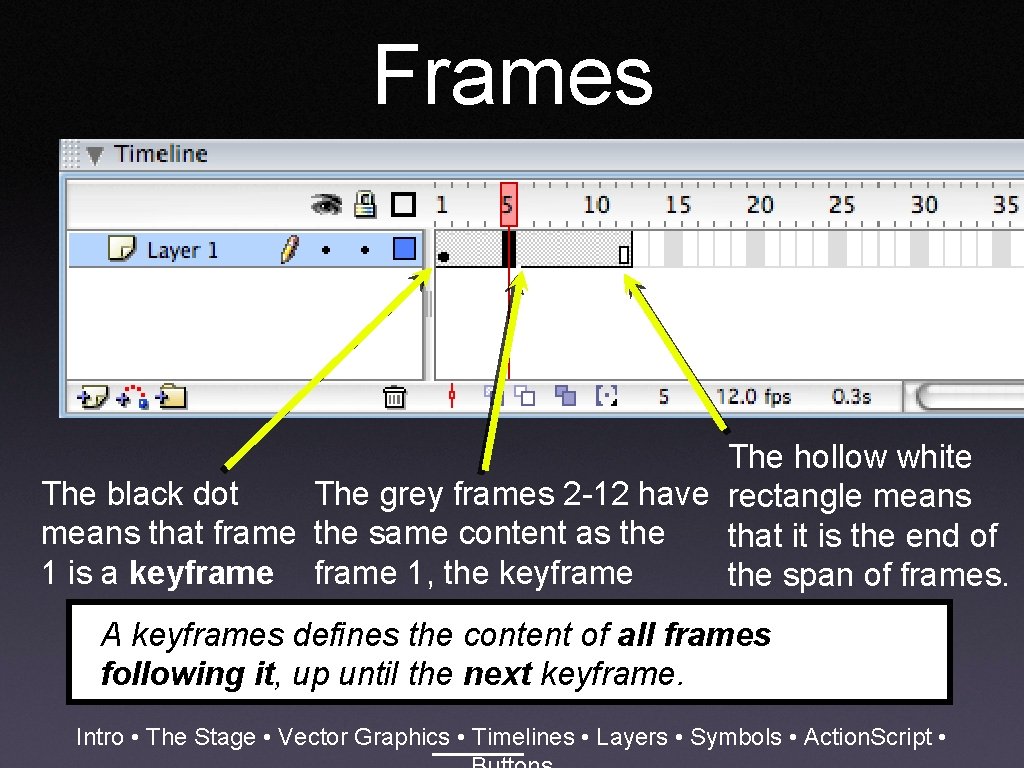
Frames The hollow white The black dot The grey frames 2 -12 have rectangle means that frame the same content as the that it is the end of 1 is a keyframe 1, the keyframe the span of frames. A keyframes defines the content of all frames following it, up until the next keyframe. Intro • The Stage • Vector Graphics • Timelines • Layers • Symbols • Action. Script •
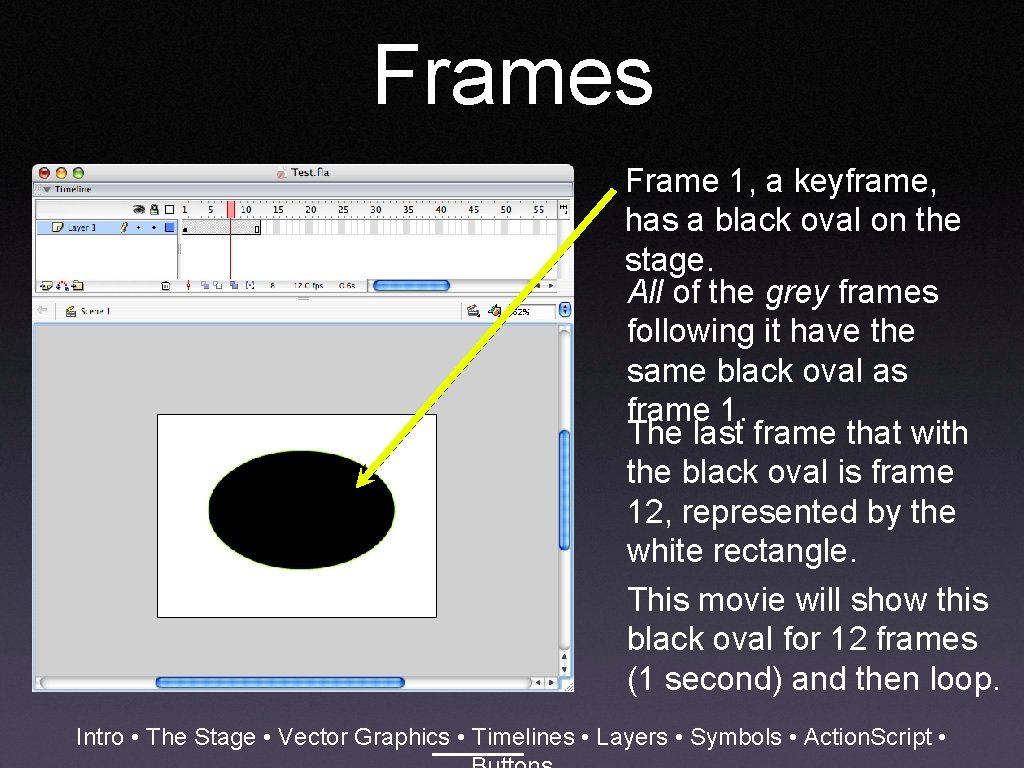
Frames Frame 1, a keyframe, has a black oval on the stage. All of the grey frames following it have the same black oval as frame 1. The last frame that with the black oval is frame 12, represented by the white rectangle. This movie will show this black oval for 12 frames (1 second) and then loop. Intro • The Stage • Vector Graphics • Timelines • Layers • Symbols • Action. Script •
Intro • The Stage • Vector Graphics • Timelines • Layers • Symbols • Action. Script •
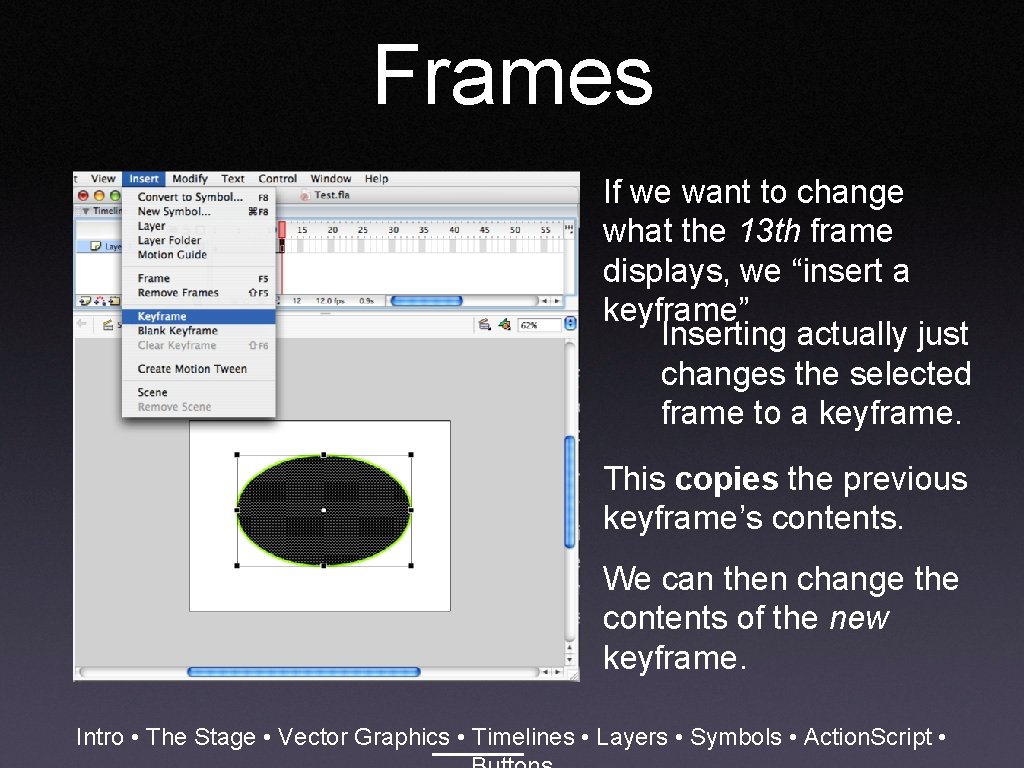
Frames If we want to change what the 13 th frame displays, we “insert a keyframe” Inserting actually just changes the selected frame to a keyframe. This copies the previous keyframe’s contents. We can then change the contents of the new keyframe. Intro • The Stage • Vector Graphics • Timelines • Layers • Symbols • Action. Script •
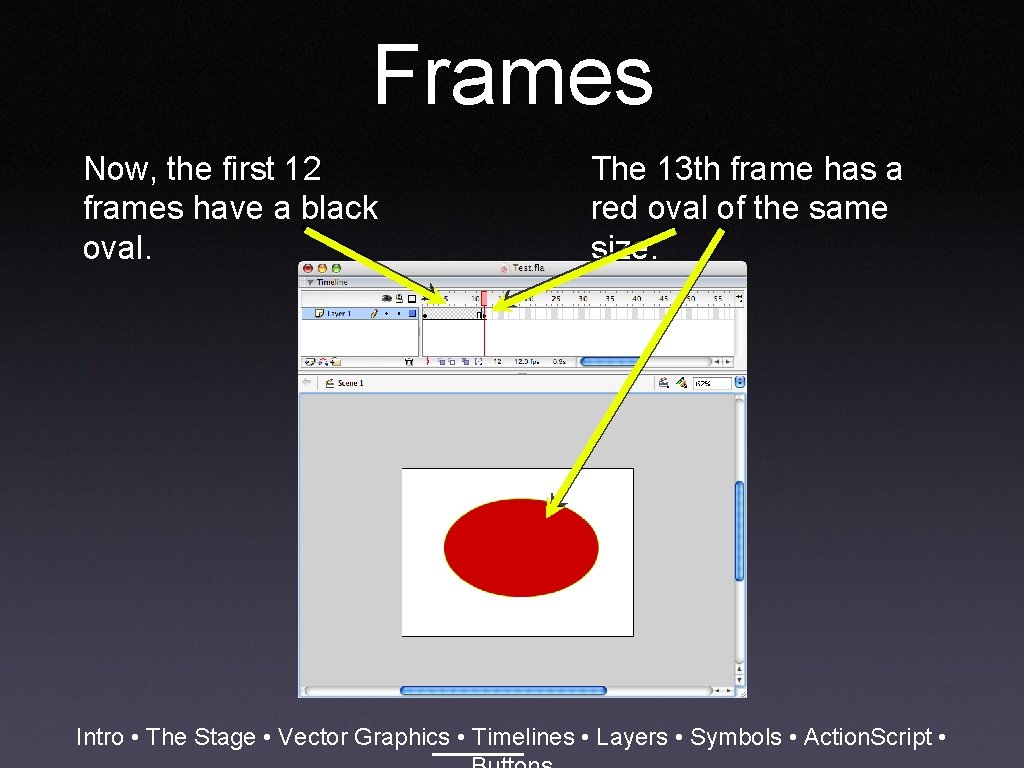
Frames Now, the first 12 frames have a black oval. The 13 th frame has a red oval of the same size. Intro • The Stage • Vector Graphics • Timelines • Layers • Symbols • Action. Script •
Intro • The Stage • Vector Graphics • Timelines • Layers • Symbols • Action. Script •
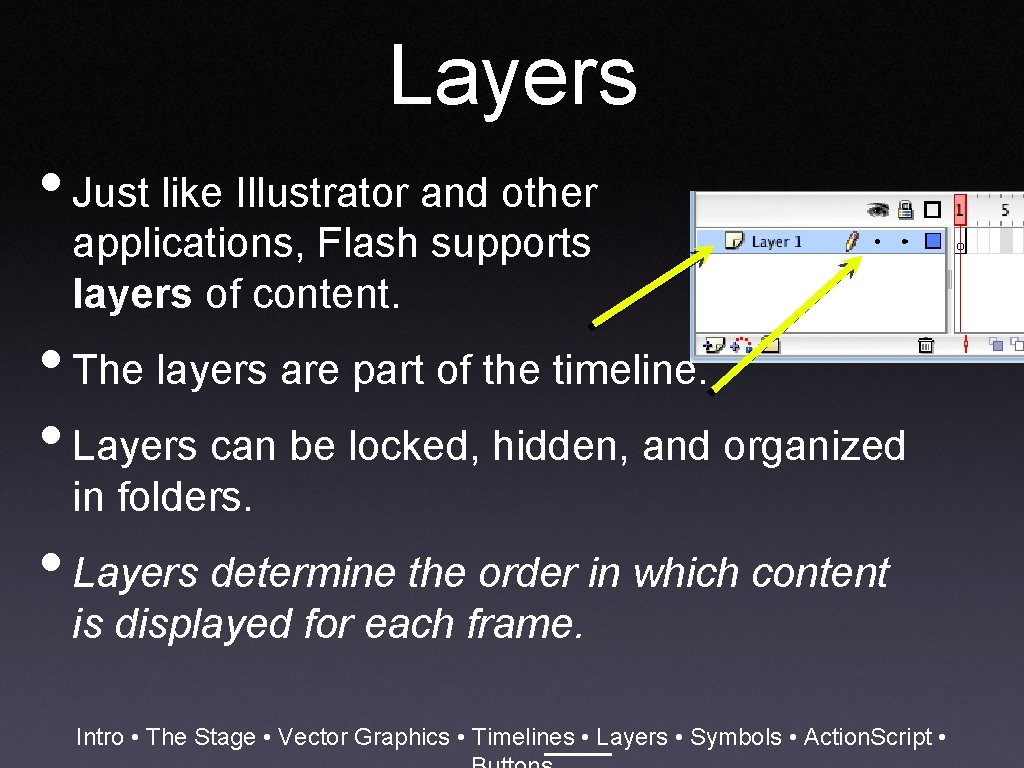
Layers • Just like Illustrator and other applications, Flash supports layers of content. • The layers are part of the timeline. • Layers can be locked, hidden, and organized in folders. • Layers determine the order in which content is displayed for each frame. Intro • The Stage • Vector Graphics • Timelines • Layers • Symbols • Action. Script •
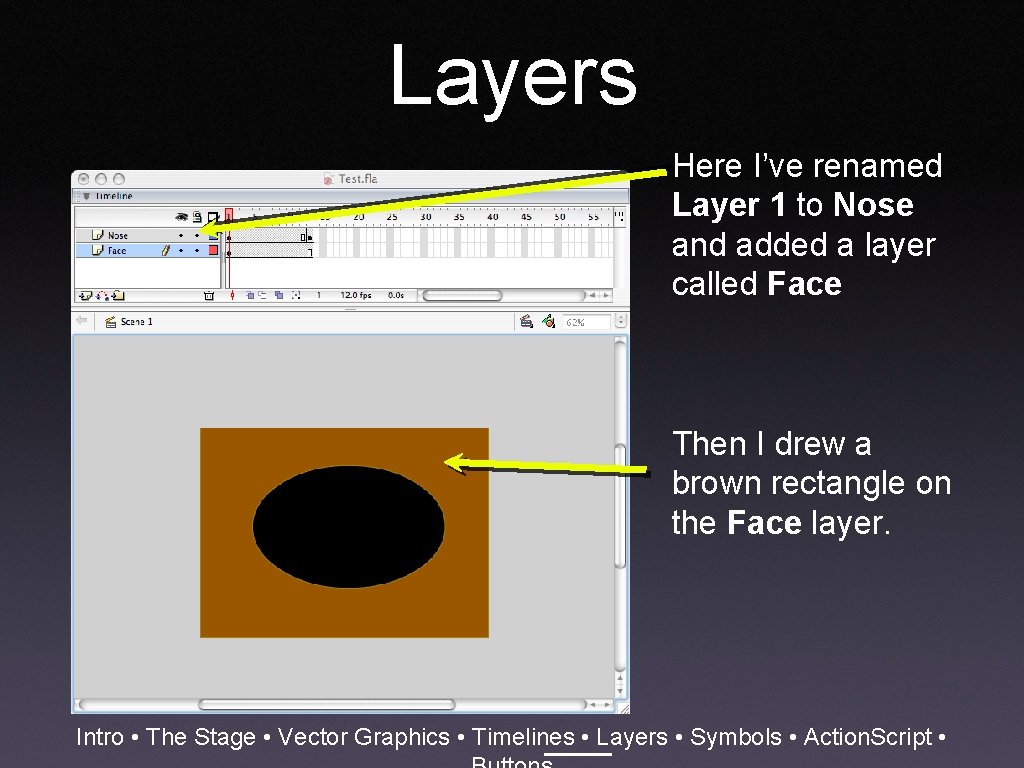
Layers Here I’ve renamed Layer 1 to Nose and added a layer called Face Then I drew a brown rectangle on the Face layer. Intro • The Stage • Vector Graphics • Timelines • Layers • Symbols • Action. Script •
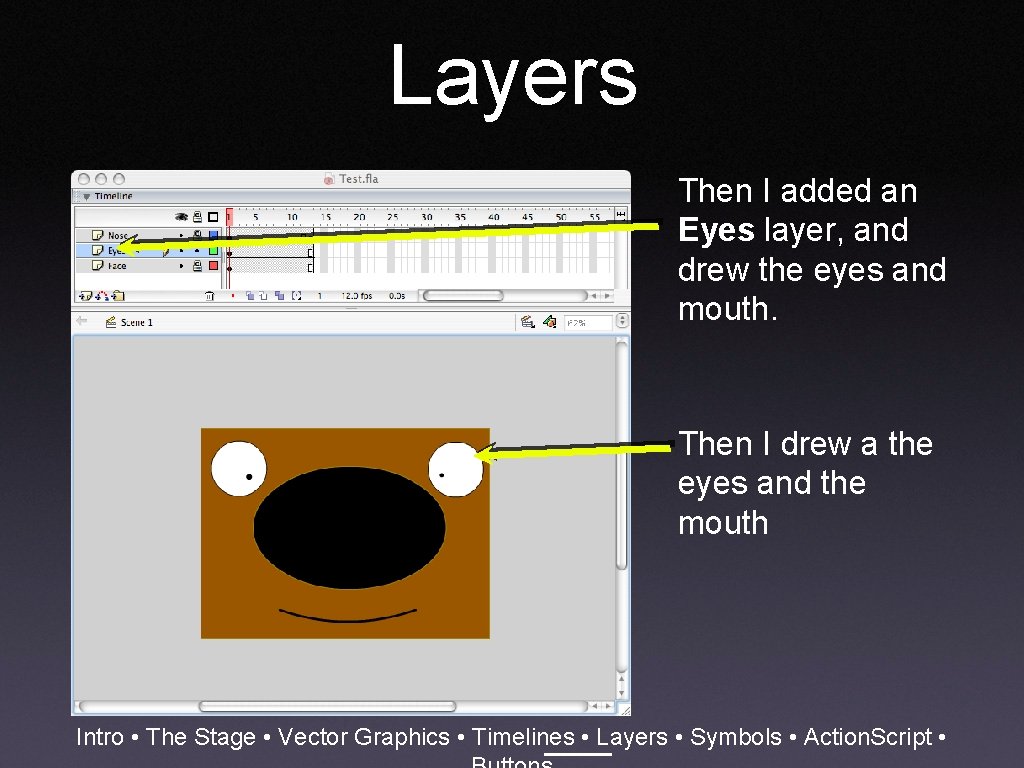
Layers Then I added an Eyes layer, and drew the eyes and mouth. Then I drew a the eyes and the mouth Intro • The Stage • Vector Graphics • Timelines • Layers • Symbols • Action. Script •
Intro • The Stage • Vector Graphics • Timelines • Layers • Symbols • Action. Script •
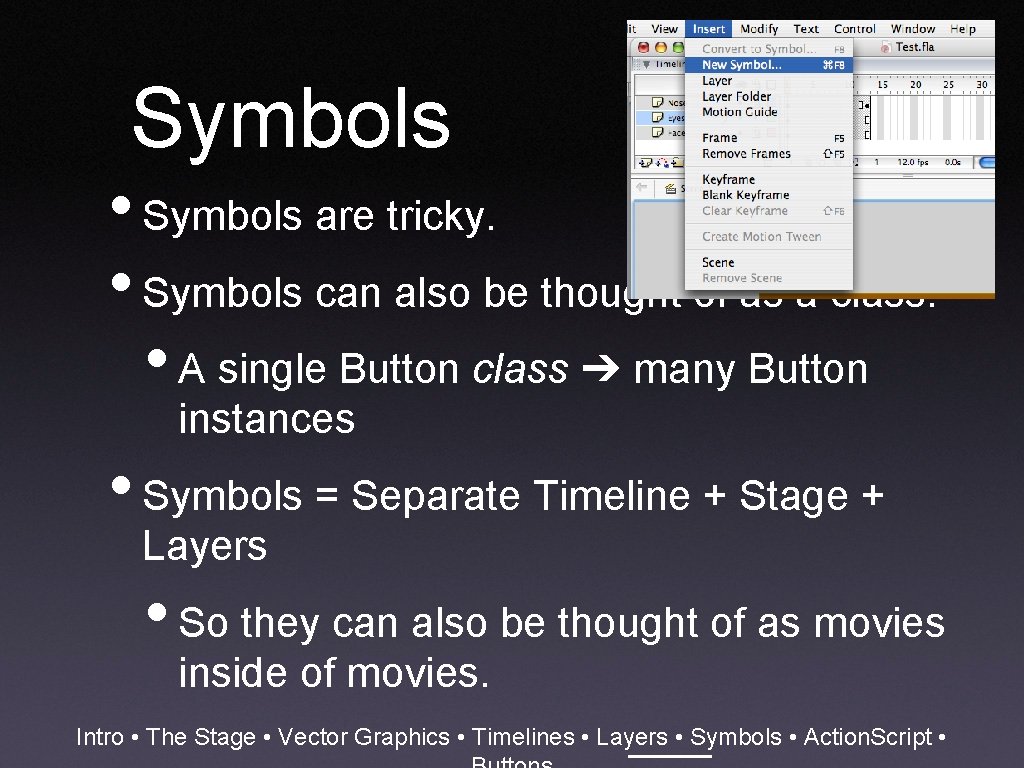
Symbols • Symbols are tricky. • Symbols can also be thought of as a class. • A single Button class ➔ many Button instances • Symbols = Separate Timeline + Stage + Layers • So they can also be thought of as movies inside of movies. Intro • The Stage • Vector Graphics • Timelines • Layers • Symbols • Action. Script •
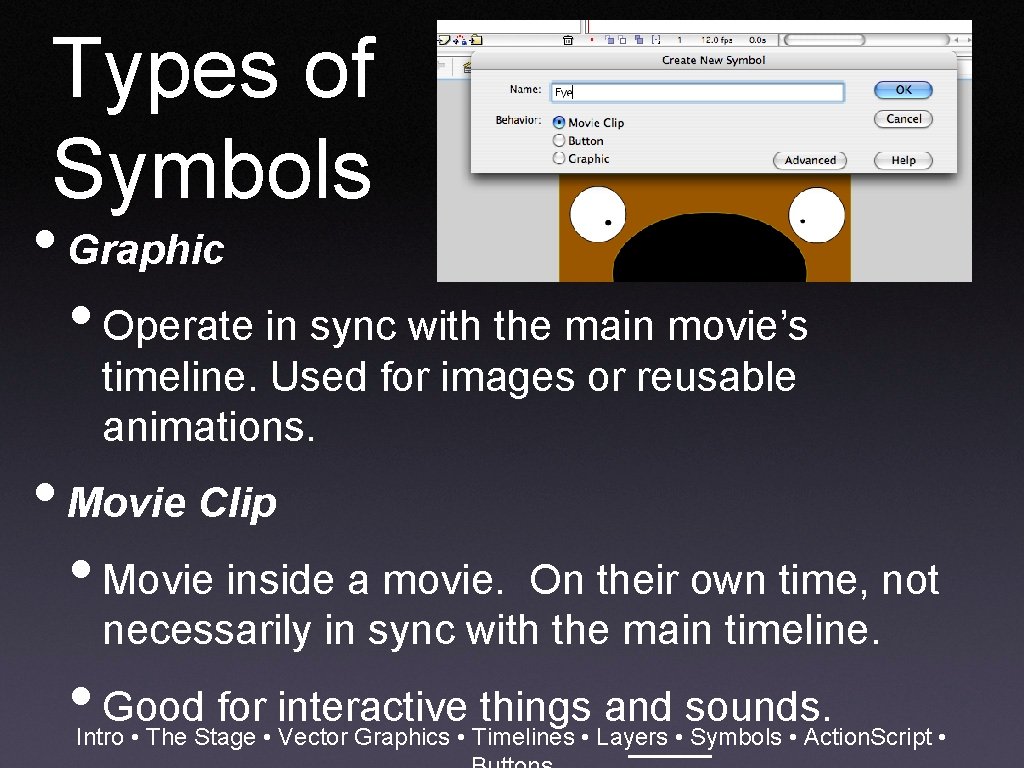
Types of Symbols • Graphic • Operate in sync with the main movie’s timeline. Used for images or reusable animations. • Movie Clip • Movie inside a movie. On their own time, not necessarily in sync with the main timeline. • Good for interactive things and sounds. Intro • The Stage • Vector Graphics • Timelines • Layers • Symbols • Action. Script •
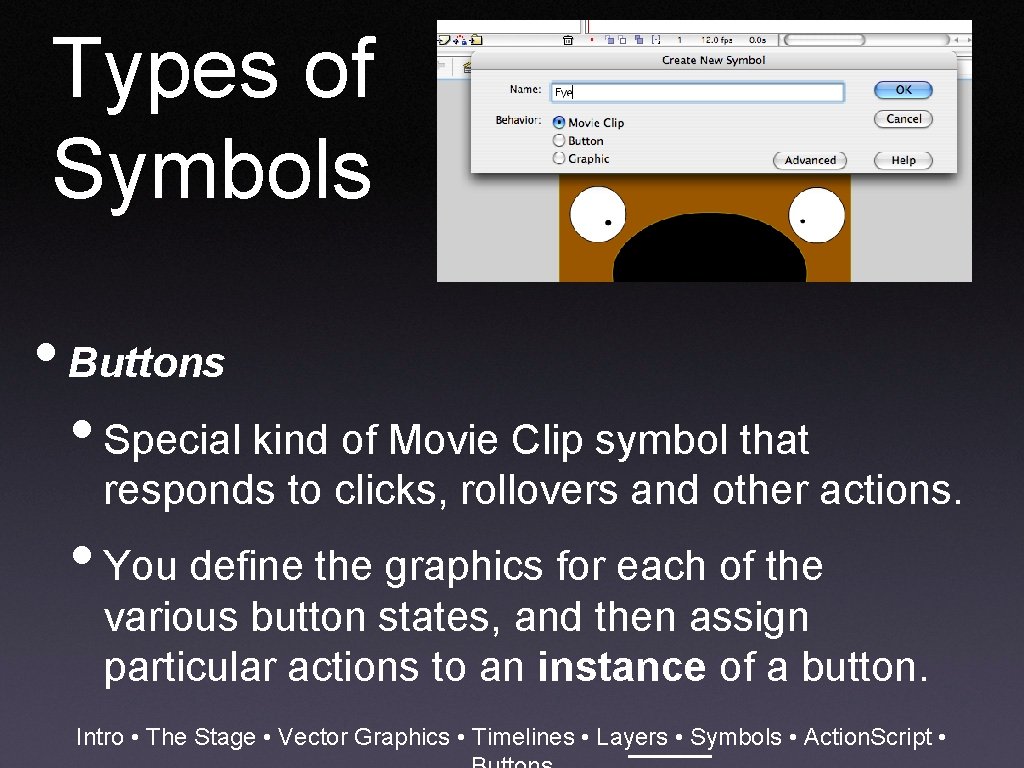
Types of Symbols • Buttons • Special kind of Movie Clip symbol that responds to clicks, rollovers and other actions. • You define the graphics for each of the various button states, and then assign particular actions to an instance of a button. Intro • The Stage • Vector Graphics • Timelines • Layers • Symbols • Action. Script •
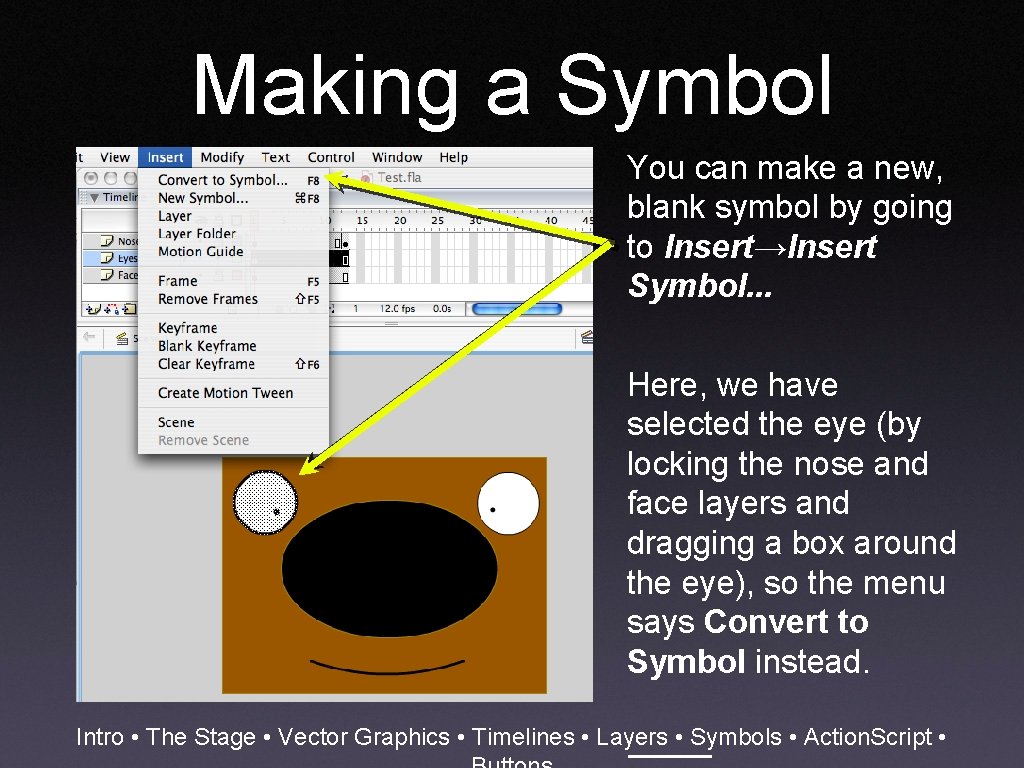
Making a Symbol You can make a new, blank symbol by going to Insert→Insert Symbol. . . Here, we have selected the eye (by locking the nose and face layers and dragging a box around the eye), so the menu says Convert to Symbol instead. Intro • The Stage • Vector Graphics • Timelines • Layers • Symbols • Action. Script •
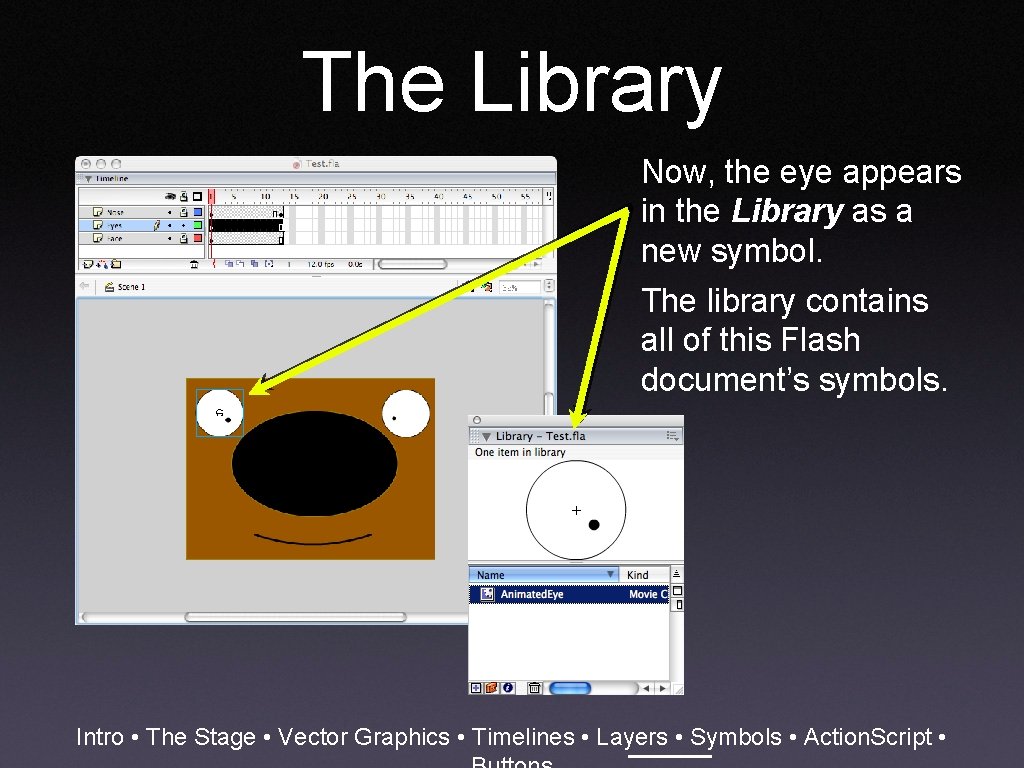
The Library Now, the eye appears in the Library as a new symbol. The library contains all of this Flash document’s symbols. Intro • The Stage • Vector Graphics • Timelines • Layers • Symbols • Action. Script •
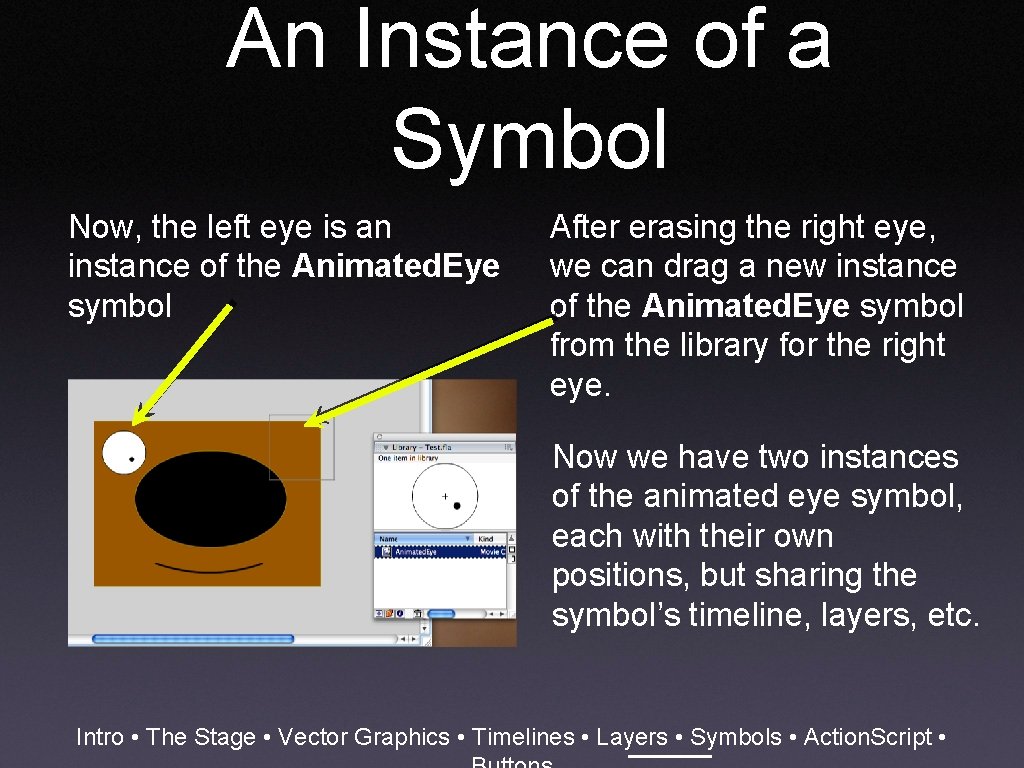
An Instance of a Symbol Now, the left eye is an instance of the Animated. Eye symbol After erasing the right eye, we can drag a new instance of the Animated. Eye symbol from the library for the right eye. Now we have two instances of the animated eye symbol, each with their own positions, but sharing the symbol’s timeline, layers, etc. Intro • The Stage • Vector Graphics • Timelines • Layers • Symbols • Action. Script •
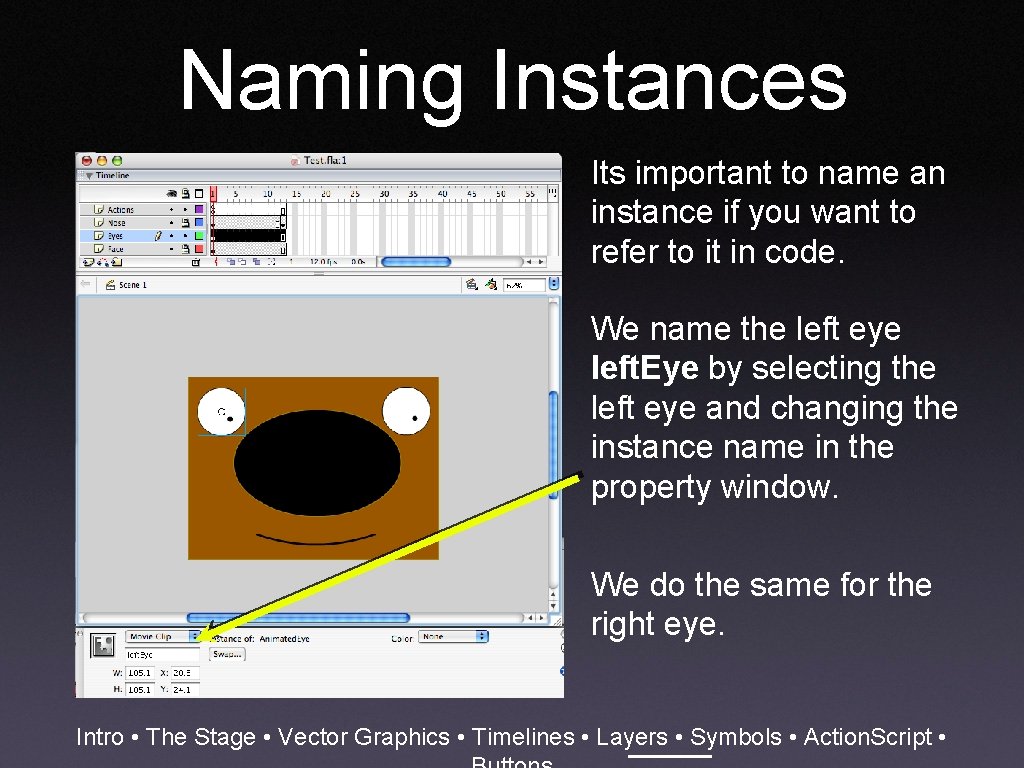
Naming Instances Its important to name an instance if you want to refer to it in code. We name the left eye left. Eye by selecting the left eye and changing the instance name in the property window. We do the same for the right eye. Intro • The Stage • Vector Graphics • Timelines • Layers • Symbols • Action. Script •
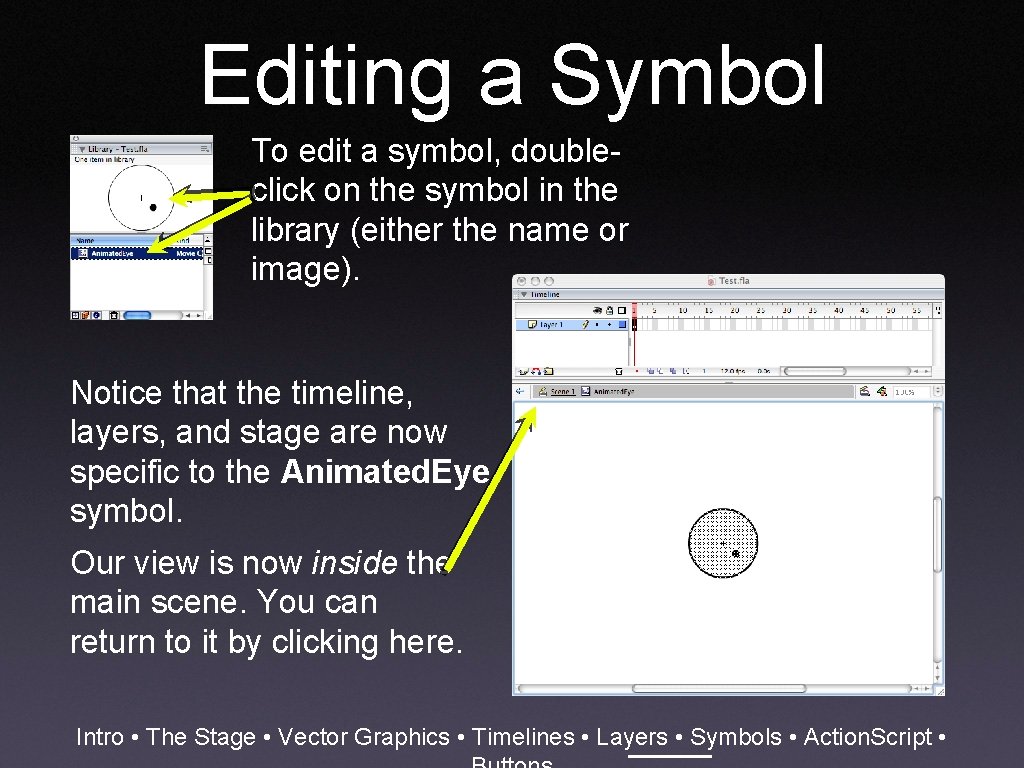
Editing a Symbol To edit a symbol, doubleclick on the symbol in the library (either the name or image). Notice that the timeline, layers, and stage are now specific to the Animated. Eye symbol. Our view is now inside the main scene. You can return to it by clicking here. Intro • The Stage • Vector Graphics • Timelines • Layers • Symbols • Action. Script •
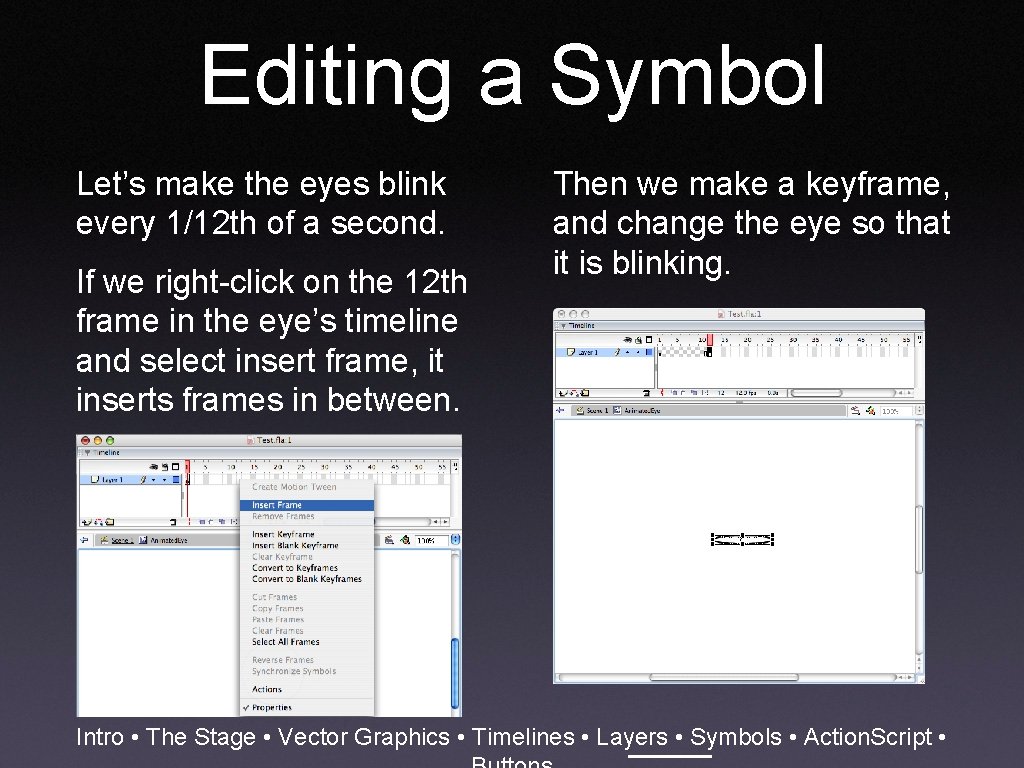
Editing a Symbol Let’s make the eyes blink every 1/12 th of a second. If we right-click on the 12 th frame in the eye’s timeline and select insert frame, it inserts frames in between. Then we make a keyframe, and change the eye so that it is blinking. Intro • The Stage • Vector Graphics • Timelines • Layers • Symbols • Action. Script •
Intro • The Stage • Vector Graphics • Timelines • Layers • Symbols • Action. Script •
Action. Script • Let’s make the eyes look at the mouse using Action. Script, the Flash scripting language. • Action. Script is event-based, like VB. NET, and has two main types of events: • Button events (pressed, released, roll. Over. . . ) • Movie. Clip events (load, enter. Frame, mouse. Move. . . ) • Each has its own syntax. Intro • The Stage • Vector Graphics • Timelines • Layers • Symbols • Action. Script •
Action. Script • Action. Script code is associated with frames, Movie Clips, and Buttons. • Just before a frame is displayed, its code is executed. • The frames following a keyframe share the same code as the keyframe. The keyframe’s code is executed just before it is displayed. Intro • The Stage • Vector Graphics • Timelines • Layers • Symbols • Action. Script •
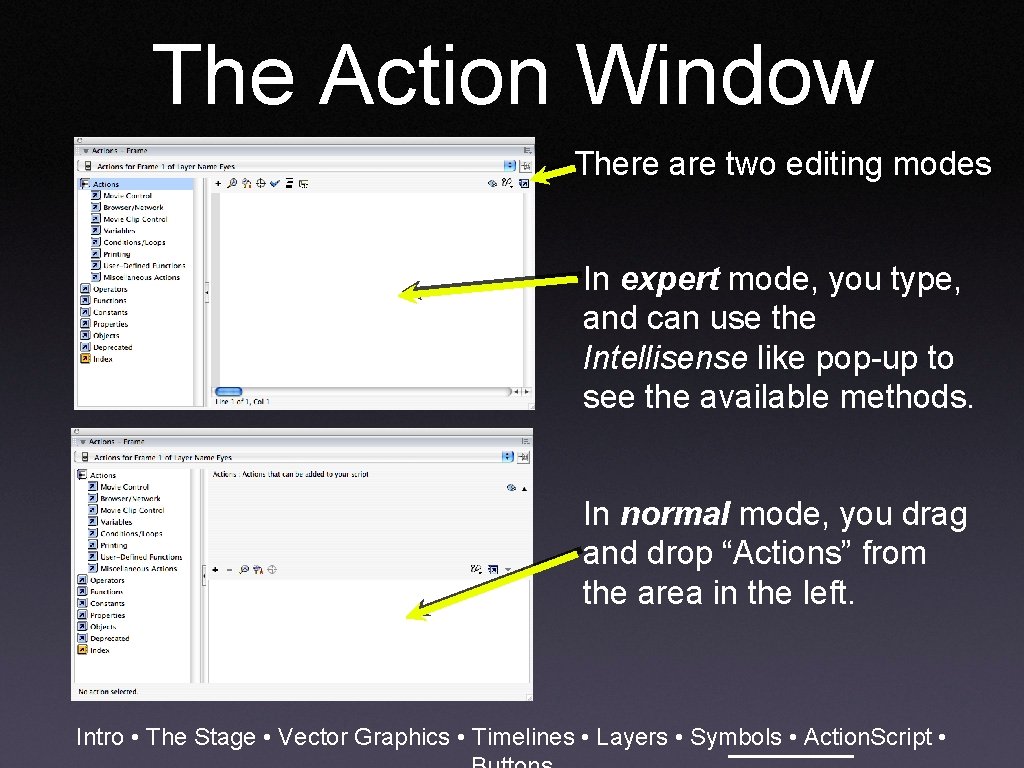
The Action Window There are two editing modes In expert mode, you type, and can use the Intellisense like pop-up to see the available methods. In normal mode, you drag and drop “Actions” from the area in the left. Intro • The Stage • Vector Graphics • Timelines • Layers • Symbols • Action. Script •
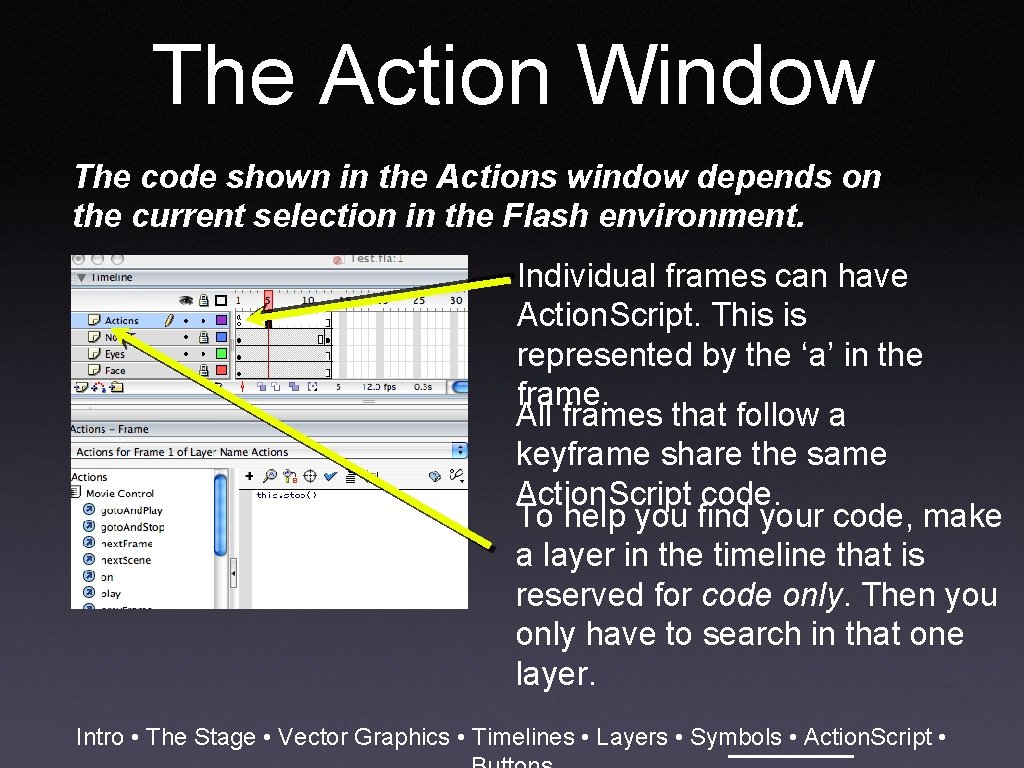
The Action Window The code shown in the Actions window depends on the current selection in the Flash environment. Individual frames can have Action. Script. This is represented by the ‘a’ in the frame. All frames that follow a keyframe share the same Action. Script code. To help you find your code, make a layer in the timeline that is reserved for code only. Then you only have to search in that one layer. Intro • The Stage • Vector Graphics • Timelines • Layers • Symbols • Action. Script •
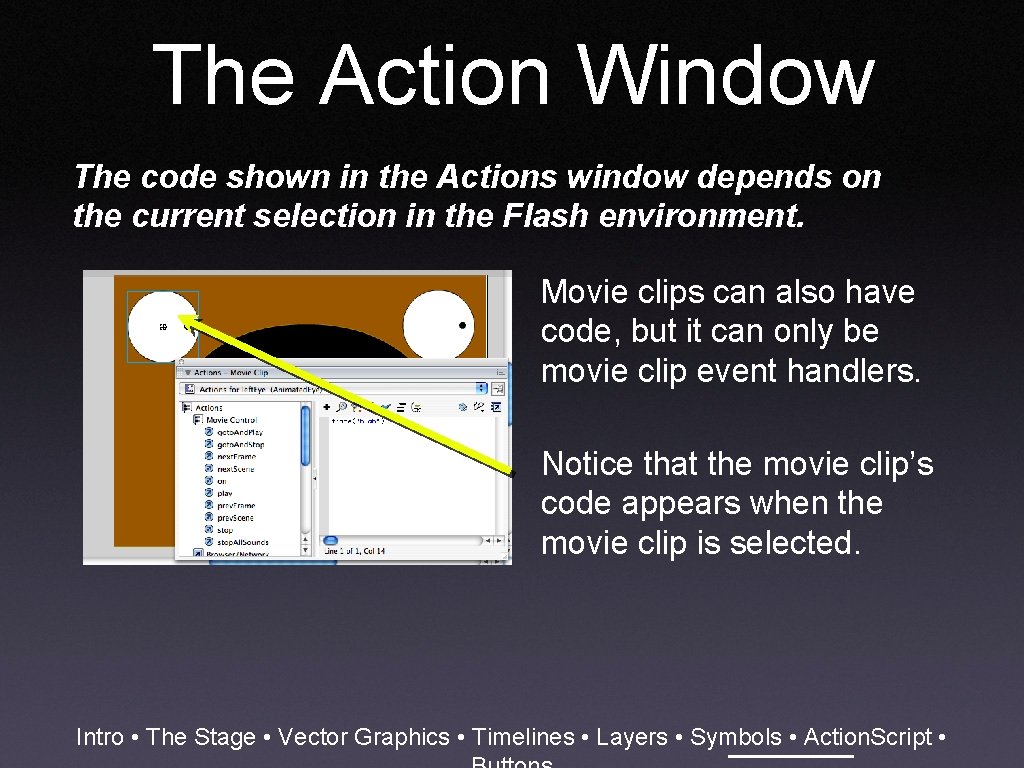
The Action Window The code shown in the Actions window depends on the current selection in the Flash environment. Movie clips can also have code, but it can only be movie clip event handlers. Notice that the movie clip’s code appears when the movie clip is selected. Intro • The Stage • Vector Graphics • Timelines • Layers • Symbols • Action. Script •
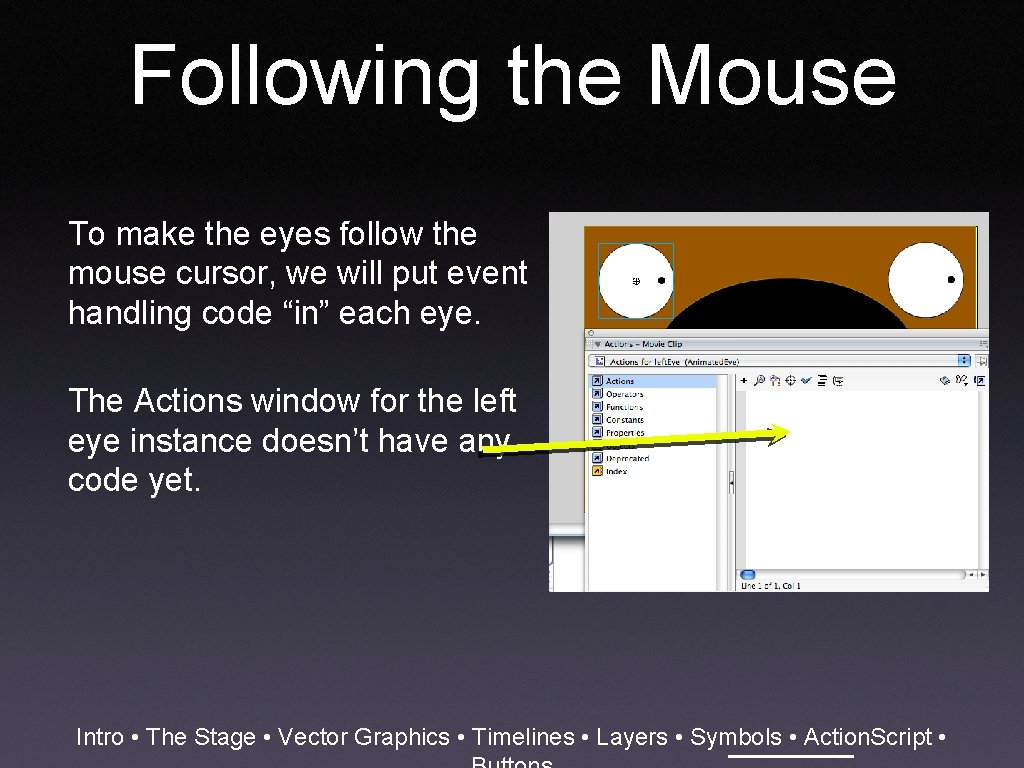
Following the Mouse To make the eyes follow the mouse cursor, we will put event handling code “in” each eye. The Actions window for the left eye instance doesn’t have any code yet. Intro • The Stage • Vector Graphics • Timelines • Layers • Symbols • Action. Script •
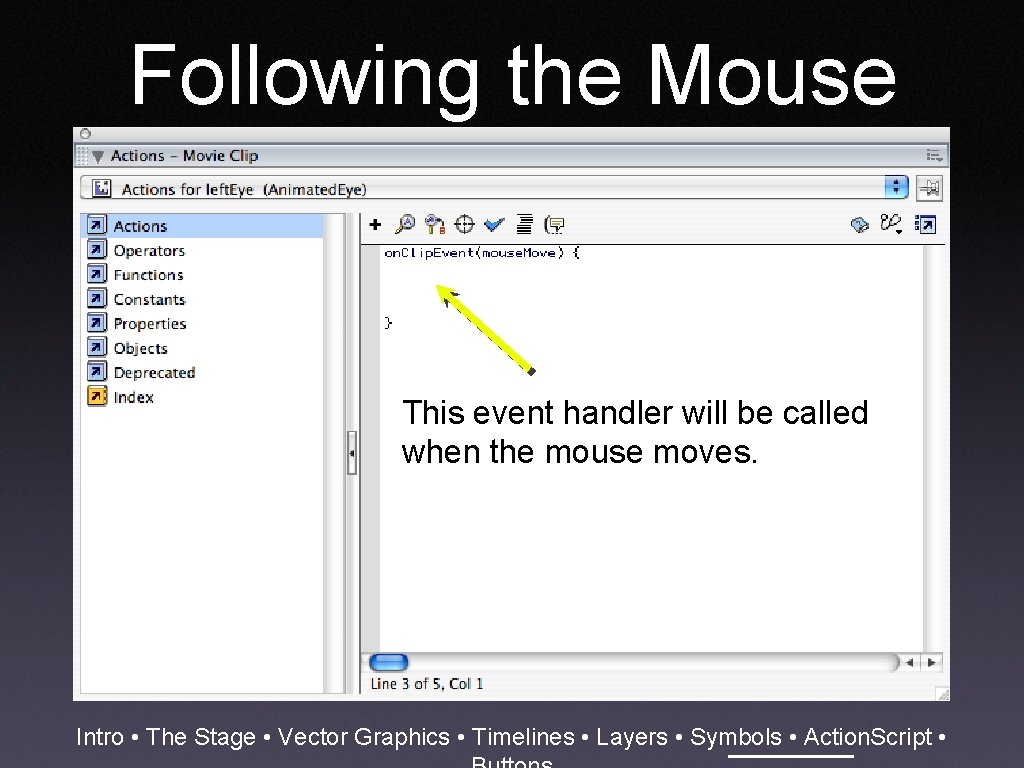
Following the Mouse This event handler will be called when the mouse moves. Intro • The Stage • Vector Graphics • Timelines • Layers • Symbols • Action. Script •
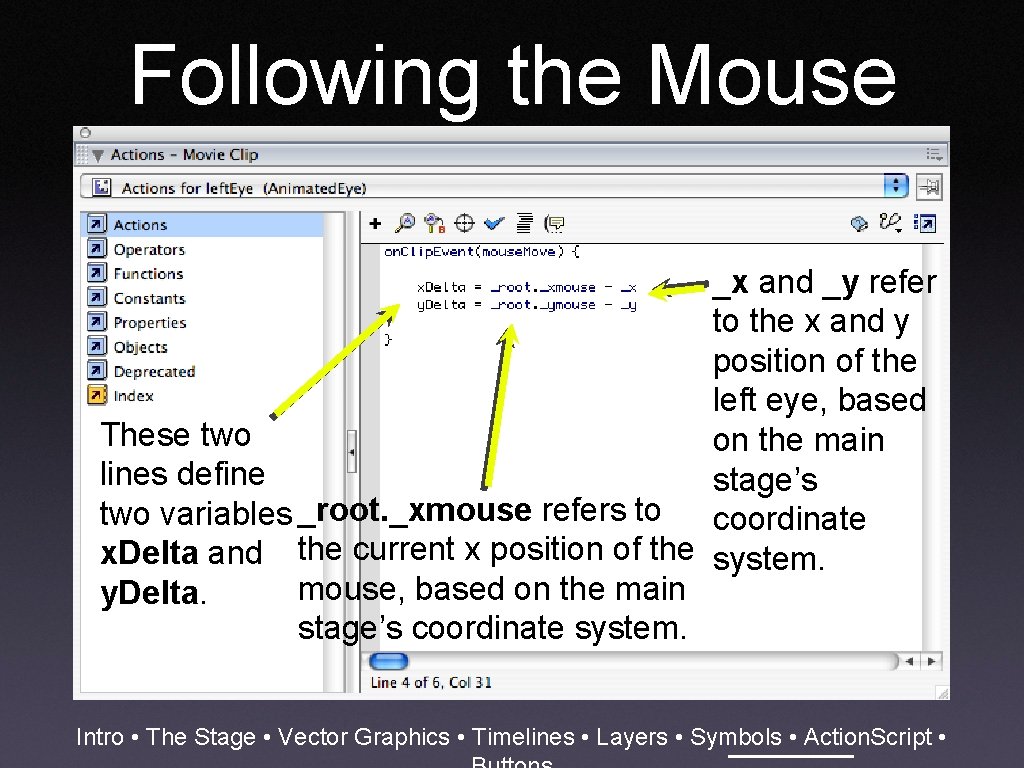
Following the Mouse _x and _y refer to the x and y position of the left eye, based These two on the main lines define stage’s two variables _root. _xmouse refers to coordinate x. Delta and the current x position of the system. mouse, based on the main y. Delta. stage’s coordinate system. Intro • The Stage • Vector Graphics • Timelines • Layers • Symbols • Action. Script •
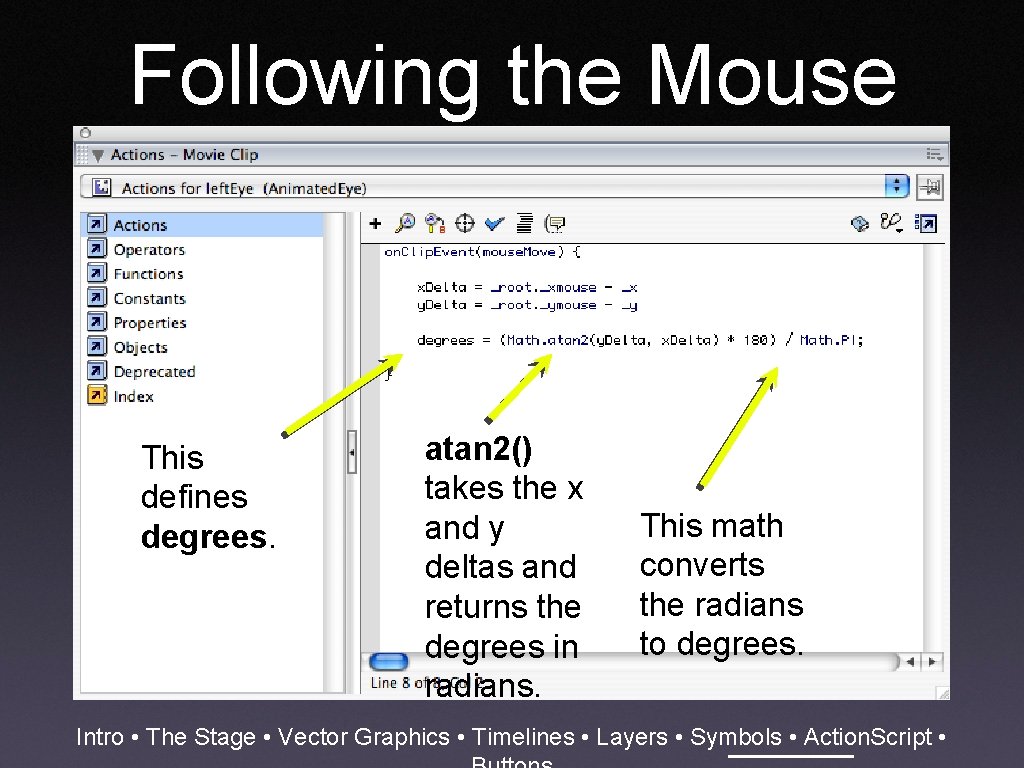
Following the Mouse This defines degrees. atan 2() takes the x and y deltas and returns the degrees in radians. This math converts the radians to degrees. Intro • The Stage • Vector Graphics • Timelines • Layers • Symbols • Action. Script •
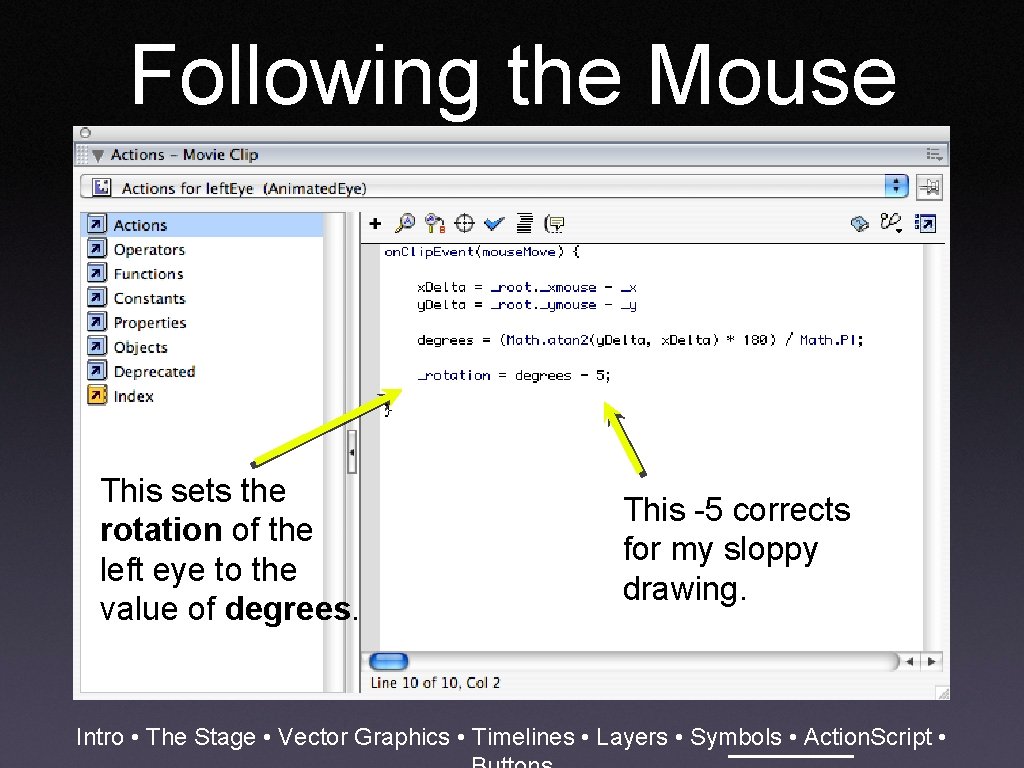
Following the Mouse This sets the rotation of the left eye to the value of degrees. This -5 corrects for my sloppy drawing. Intro • The Stage • Vector Graphics • Timelines • Layers • Symbols • Action. Script •
Intro • The Stage • Vector Graphics • Timelines • Layers • Symbols • Action. Script •
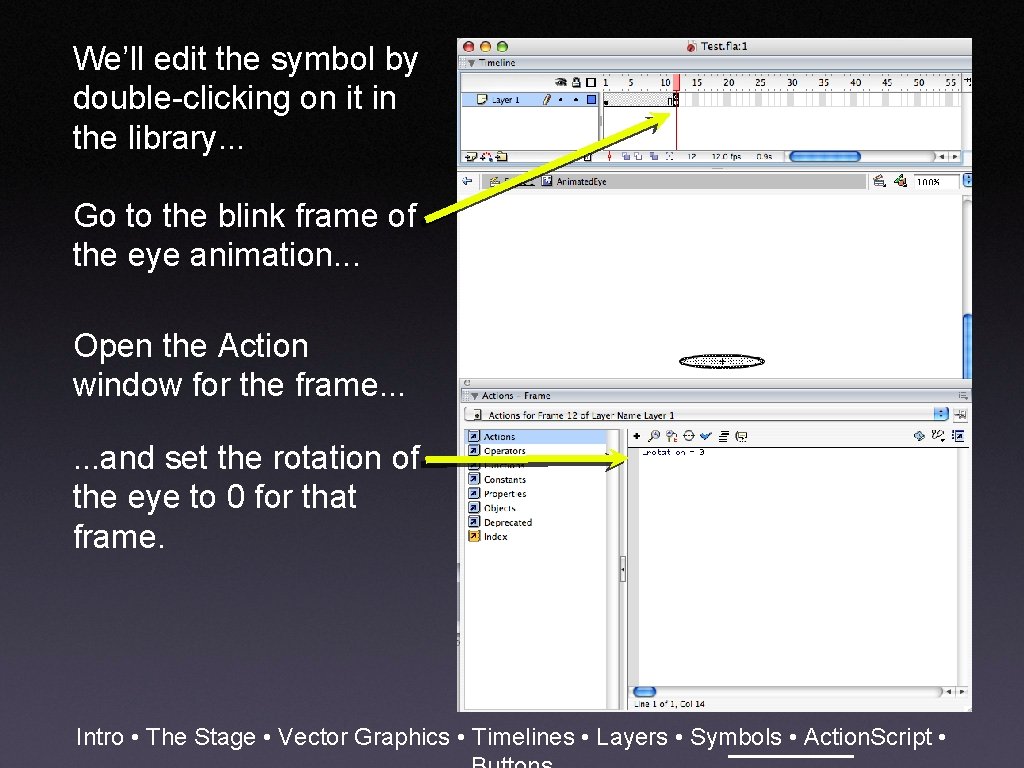
We’ll edit the symbol by double-clicking on it in the library. . . Go to the blink frame of the eye animation. . . Open the Action window for the frame. . . and set the rotation of the eye to 0 for that frame. Intro • The Stage • Vector Graphics • Timelines • Layers • Symbols • Action. Script •
Intro • The Stage • Vector Graphics • Timelines • Layers • Symbols • Action. Script •
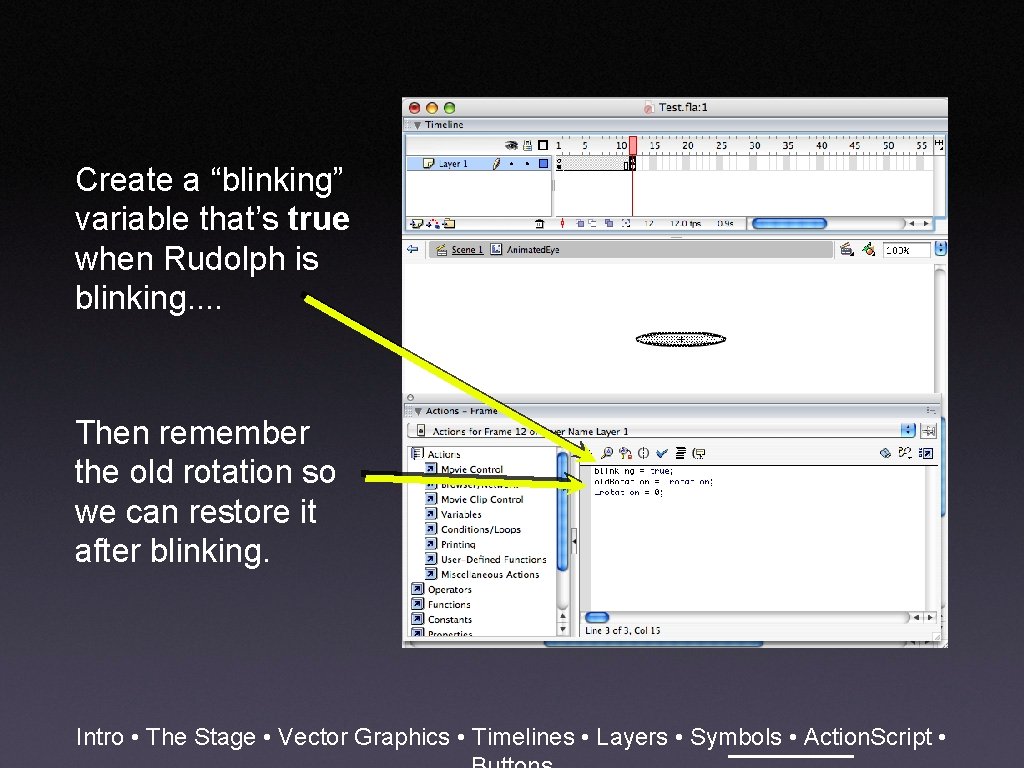
Create a “blinking” variable that’s true when Rudolph is blinking. . Then remember the old rotation so we can restore it after blinking. Intro • The Stage • Vector Graphics • Timelines • Layers • Symbols • Action. Script •
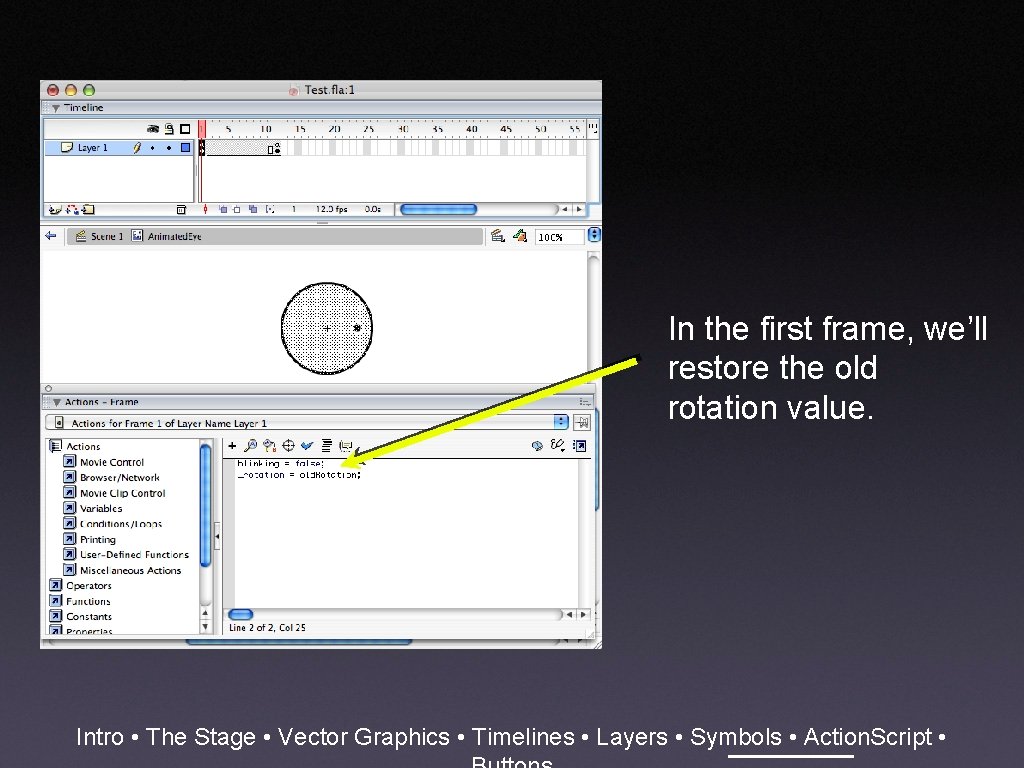
In the first frame, we’ll restore the old rotation value. Intro • The Stage • Vector Graphics • Timelines • Layers • Symbols • Action. Script •
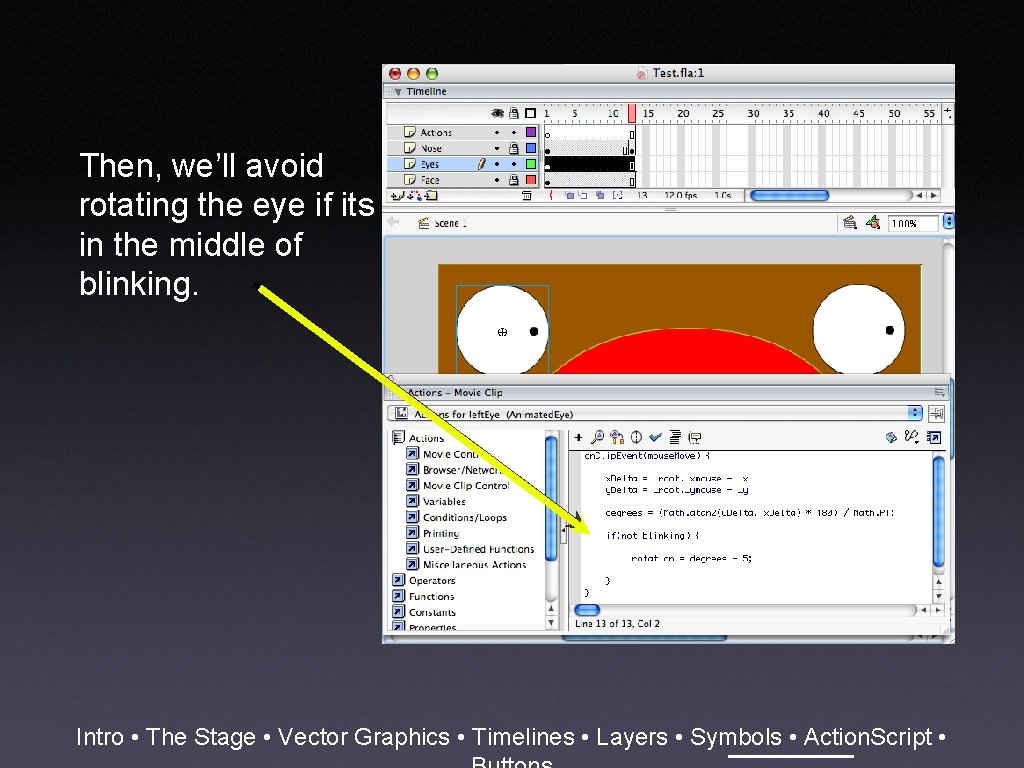
Then, we’ll avoid rotating the eye if its in the middle of blinking. Intro • The Stage • Vector Graphics • Timelines • Layers • Symbols • Action. Script •
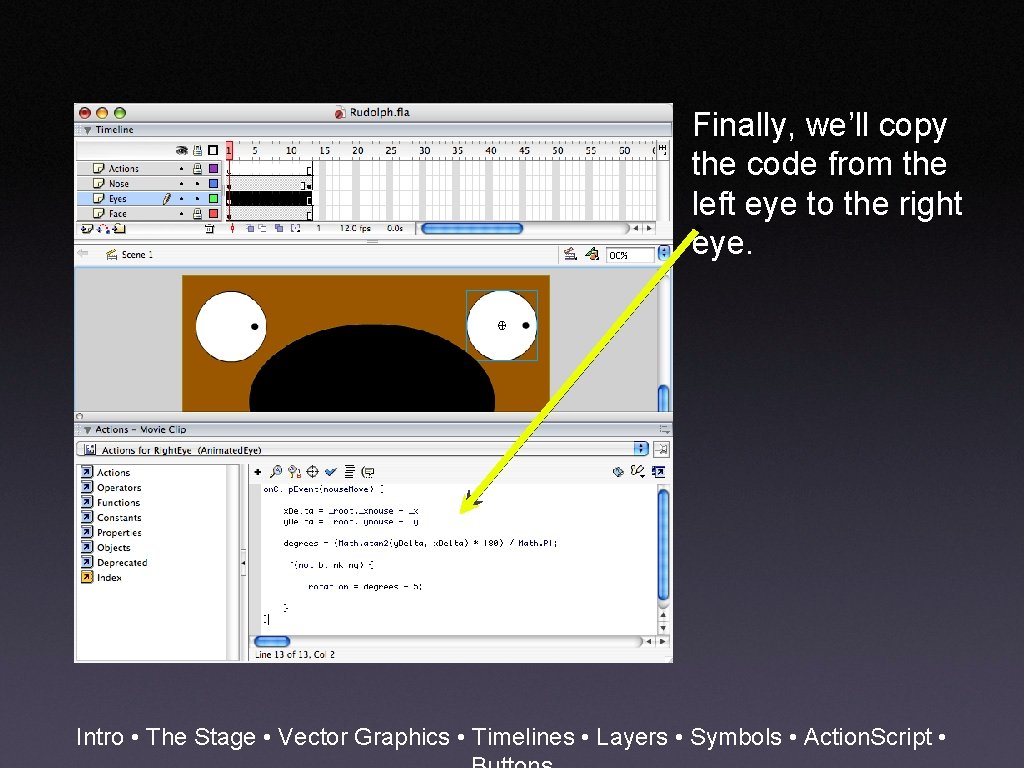
Finally, we’ll copy the code from the left eye to the right eye. Intro • The Stage • Vector Graphics • Timelines • Layers • Symbols • Action. Script •
Intro • The Stage • Vector Graphics • Timelines • Layers • Symbols • Action. Script •
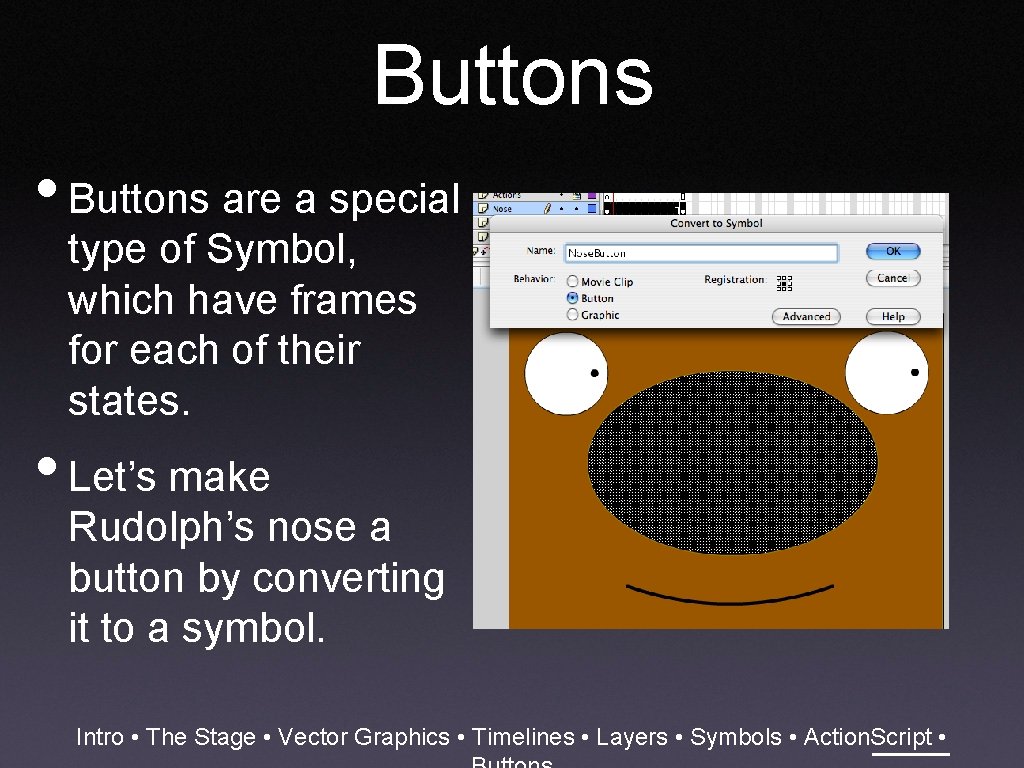
Buttons • Buttons are a special type of Symbol, which have frames for each of their states. • Let’s make Rudolph’s nose a button by converting it to a symbol. Intro • The Stage • Vector Graphics • Timelines • Layers • Symbols • Action. Script •
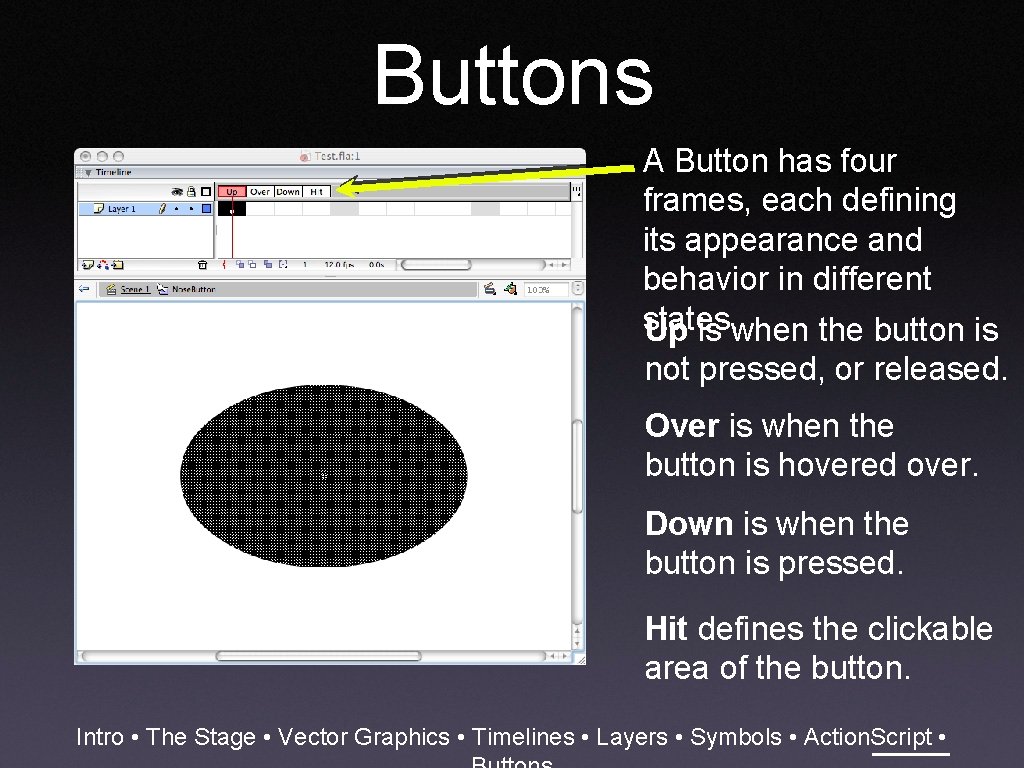
Buttons A Button has four frames, each defining its appearance and behavior in different states. Up is when the button is not pressed, or released. Over is when the button is hovered over. Down is when the button is pressed. Hit defines the clickable area of the button. Intro • The Stage • Vector Graphics • Timelines • Layers • Symbols • Action. Script •
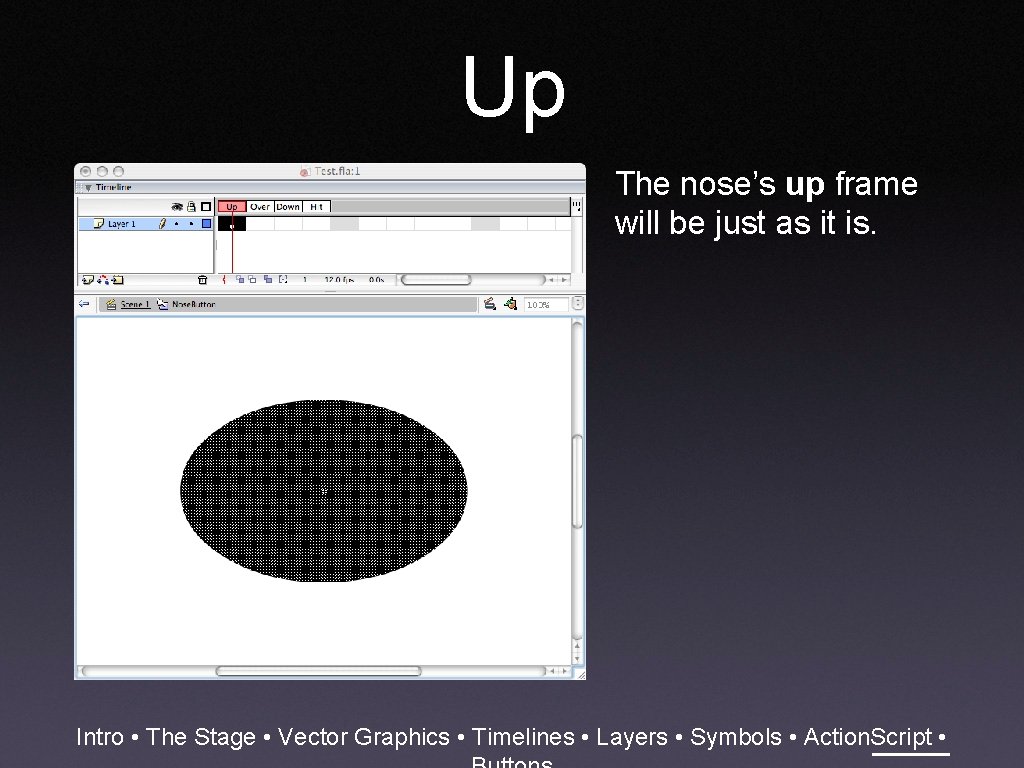
Up The nose’s up frame will be just as it is. Intro • The Stage • Vector Graphics • Timelines • Layers • Symbols • Action. Script •
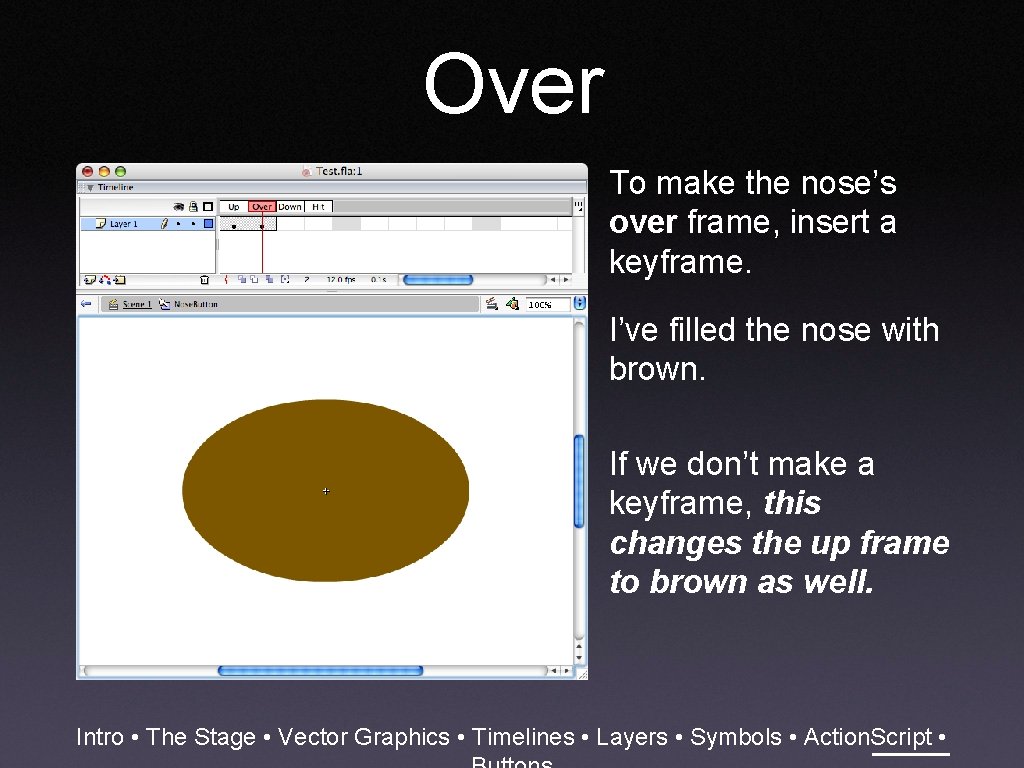
Over To make the nose’s over frame, insert a keyframe. I’ve filled the nose with brown. If we don’t make a keyframe, this changes the up frame to brown as well. Intro • The Stage • Vector Graphics • Timelines • Layers • Symbols • Action. Script •
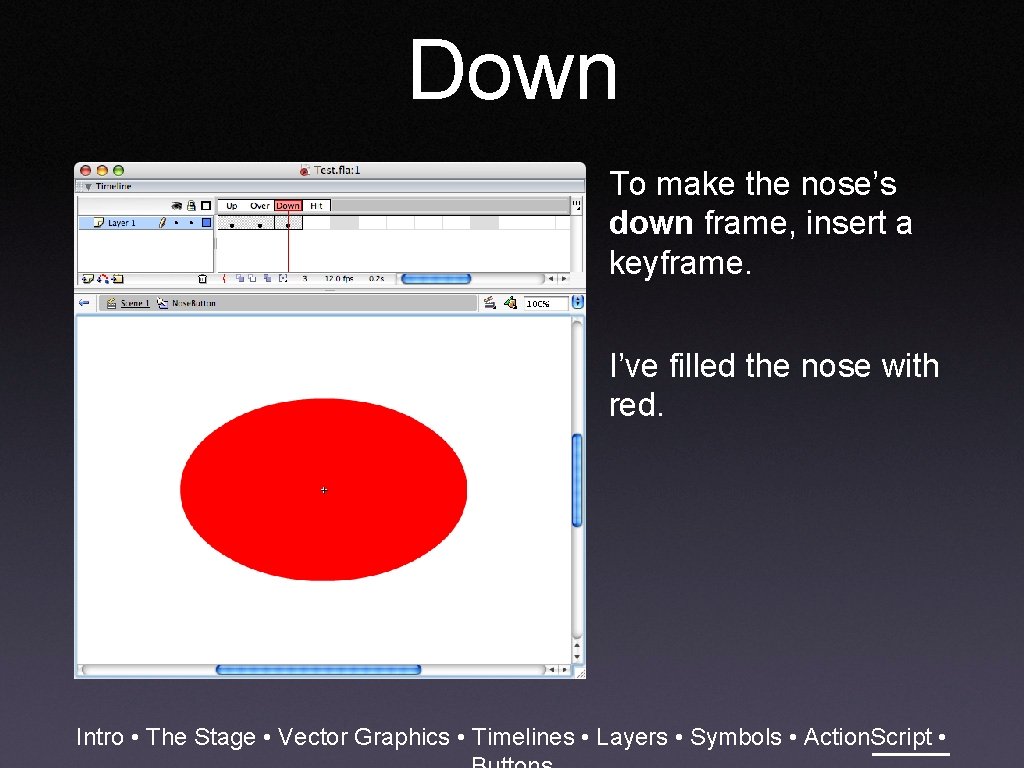
Down To make the nose’s down frame, insert a keyframe. I’ve filled the nose with red. Intro • The Stage • Vector Graphics • Timelines • Layers • Symbols • Action. Script •
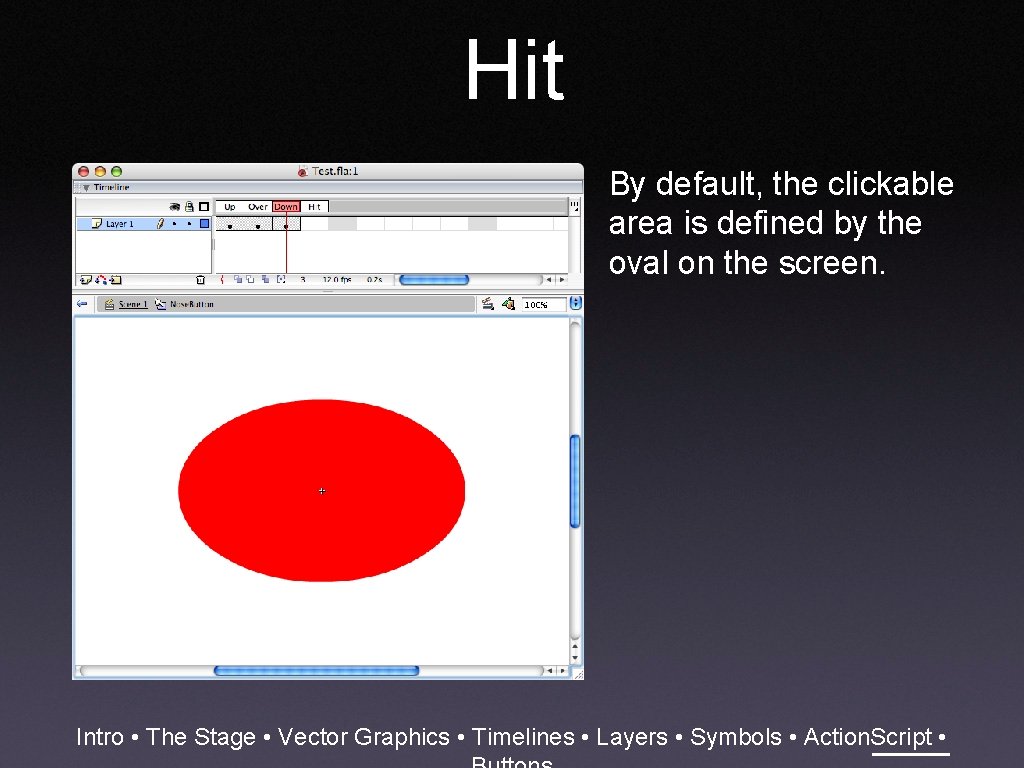
Hit By default, the clickable area is defined by the oval on the screen. Intro • The Stage • Vector Graphics • Timelines • Layers • Symbols • Action. Script •
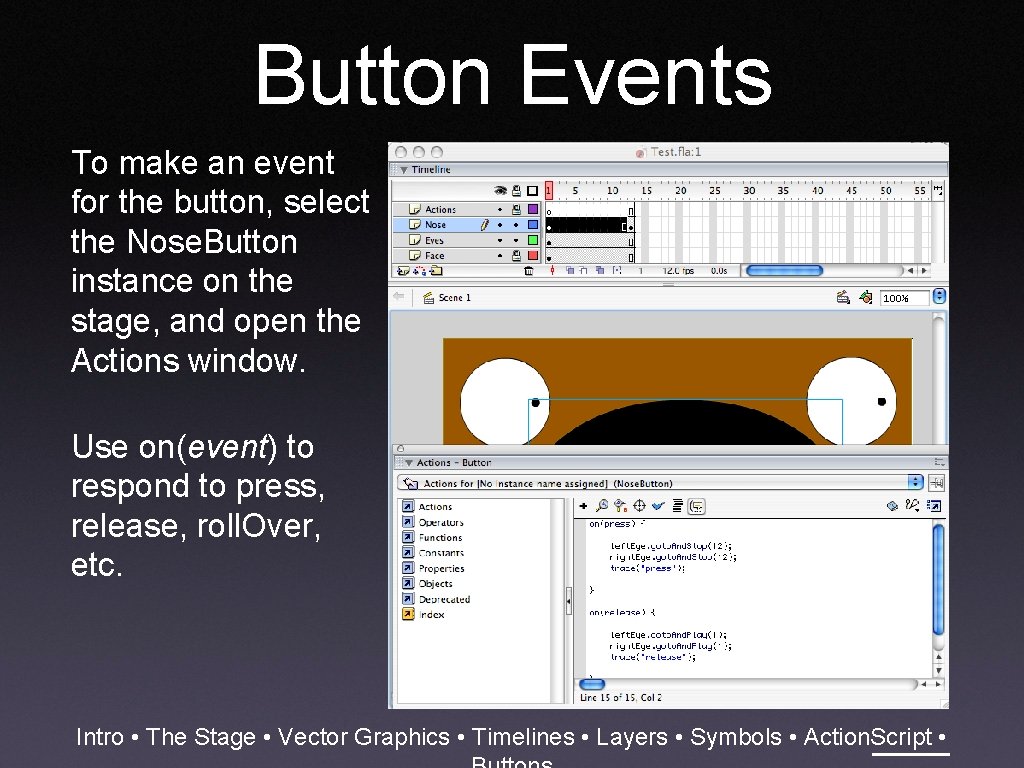
Button Events To make an event for the button, select the Nose. Button instance on the stage, and open the Actions window. Use on(event) to respond to press, release, roll. Over, etc. Intro • The Stage • Vector Graphics • Timelines • Layers • Symbols • Action. Script •
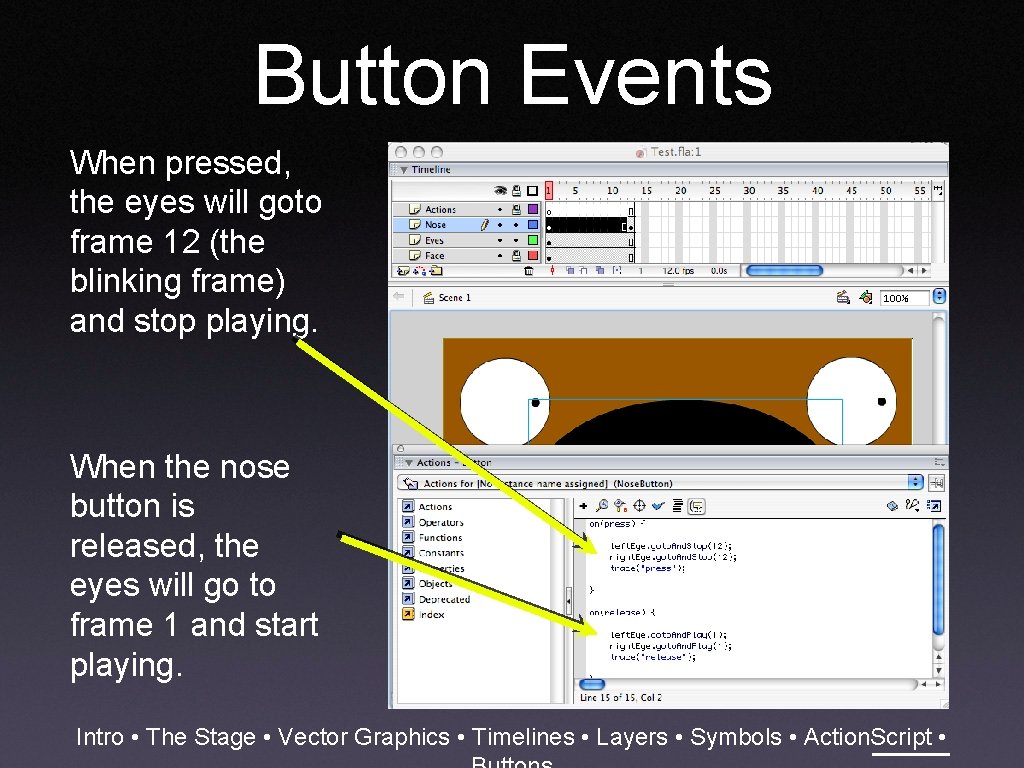
Button Events When pressed, the eyes will goto frame 12 (the blinking frame) and stop playing. When the nose button is released, the eyes will go to frame 1 and start playing. Intro • The Stage • Vector Graphics • Timelines • Layers • Symbols • Action. Script •
Button Events Intro • The Stage • Vector Graphics • Timelines • Layers • Symbols • Action. Script •
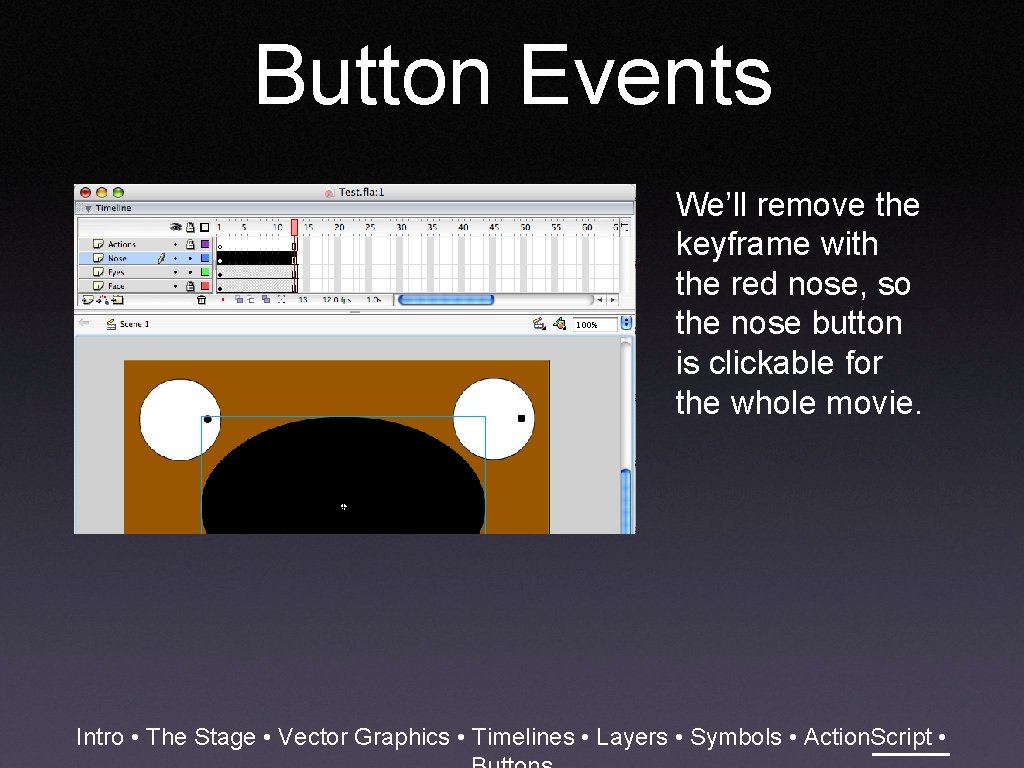
Button Events We’ll remove the keyframe with the red nose, so the nose button is clickable for the whole movie. Intro • The Stage • Vector Graphics • Timelines • Layers • Symbols • Action. Script •
Button Events Intro • The Stage • Vector Graphics • Timelines • Layers • Symbols • Action. Script •
- Slides: 67