
M 3904 Professional Telephone The M 3904 Professional
- Slides: 32
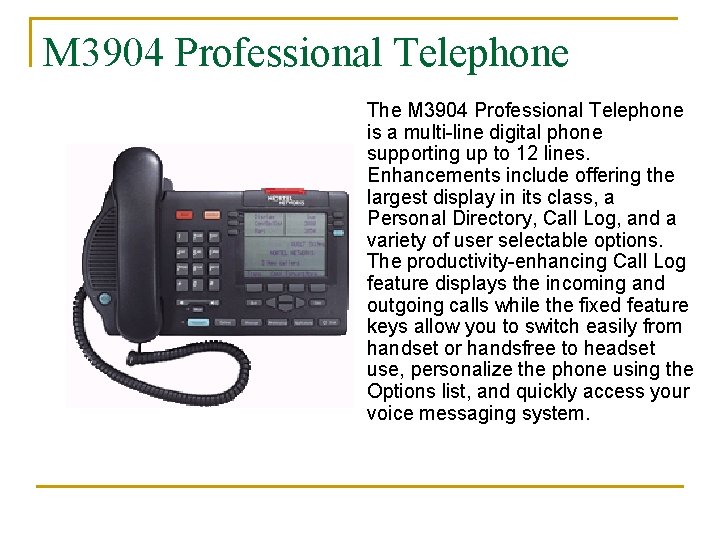
M 3904 Professional Telephone The M 3904 Professional Telephone is a multi-line digital phone supporting up to 12 lines. Enhancements include offering the largest display in its class, a Personal Directory, Call Log, and a variety of user selectable options. The productivity-enhancing Call Log feature displays the incoming and outgoing calls while the fixed feature keys allow you to switch easily from handset or handsfree to headset use, personalize the phone using the Options list, and quickly access your voice messaging system.
M 3904 Professional Telephone n n Press Enter to move through this module and learn everything about the set or select from this list of questions: q What is the red “bubble “ at the top of the set? <click here> q How do I change the volume on the set? <click here> q What is the Goodbye key? <click here> q What is the Hold key? <click here> q What is the Line key? <click here> q Do I have more than one line? <click here> q Tell me about the display. <click here> q How do I use Handsfree? <click here> q What is the Mute button? <click here> More questions? Press Enter.
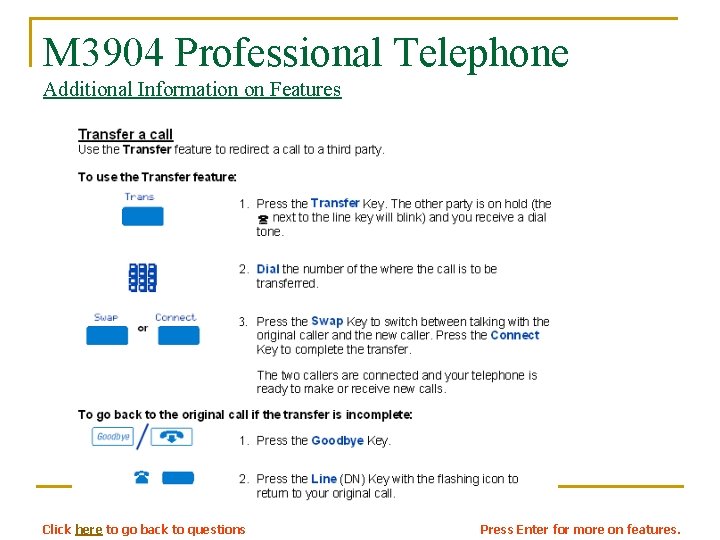
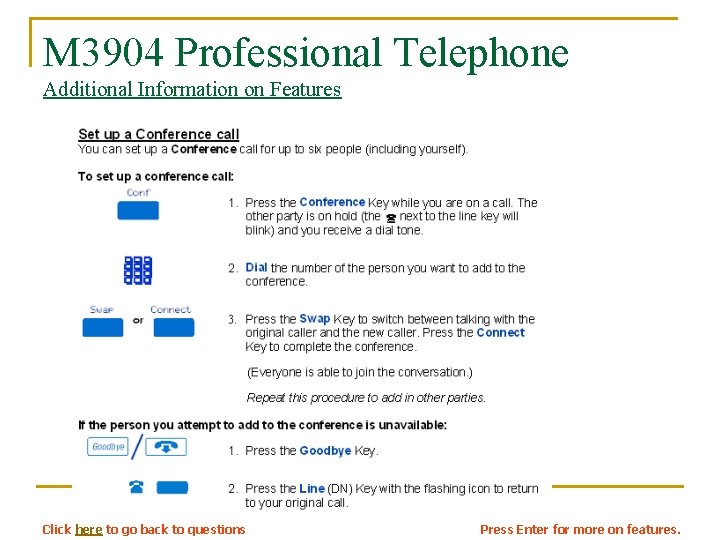
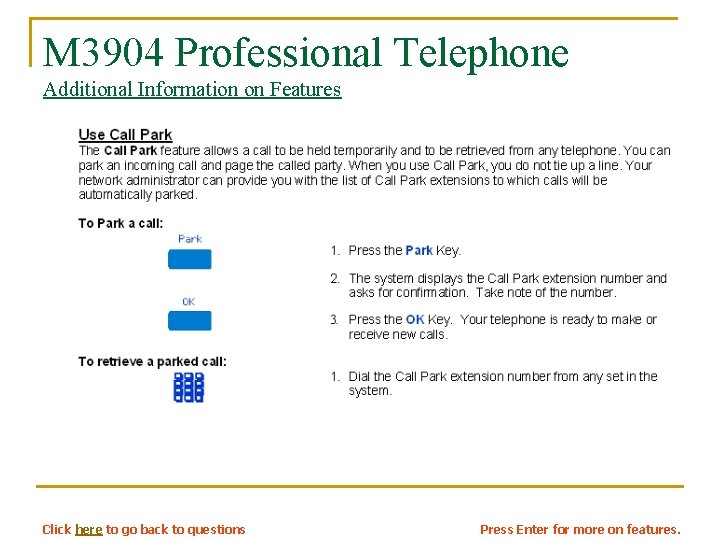
M 3904 Professional Telephone n n Press Enter to move through this module and learn everything about the set or select from this list of questions: q What is the Options button? <click here> q What is the Message key? <click here> q What is the Directory/Log button? <click here> q What is the Applications button? <click here> q What is the Shift button <click here> q How do I transfer a call? <click here> q What are the four feature keys? <click here> q How do I set up a Conference call? <click here> q How do I Park a call? <click here> More questions? Press Enter.
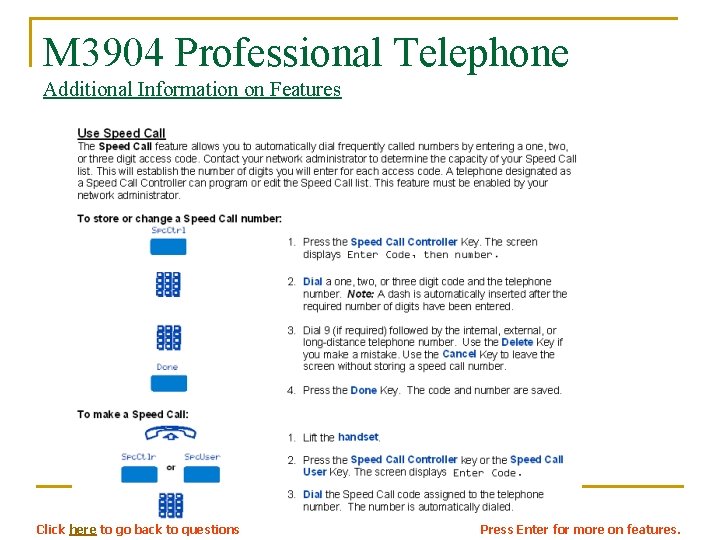
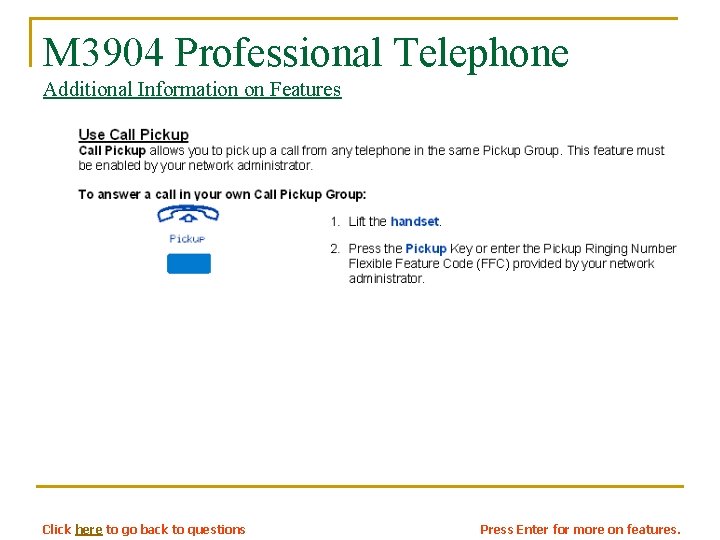
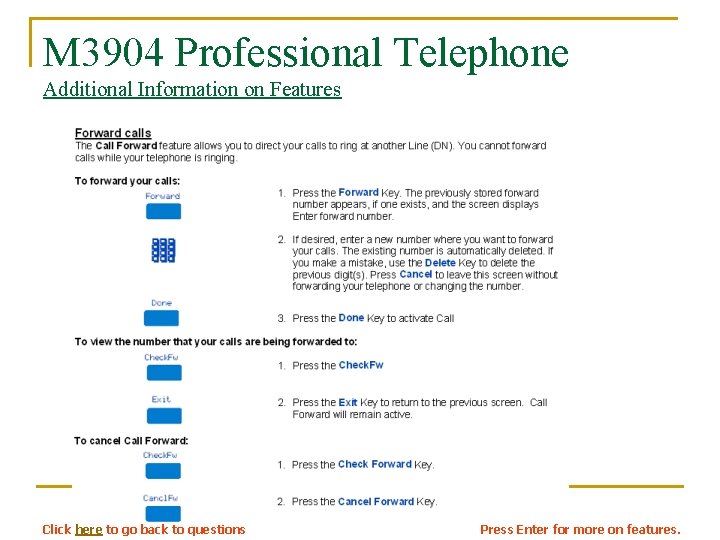
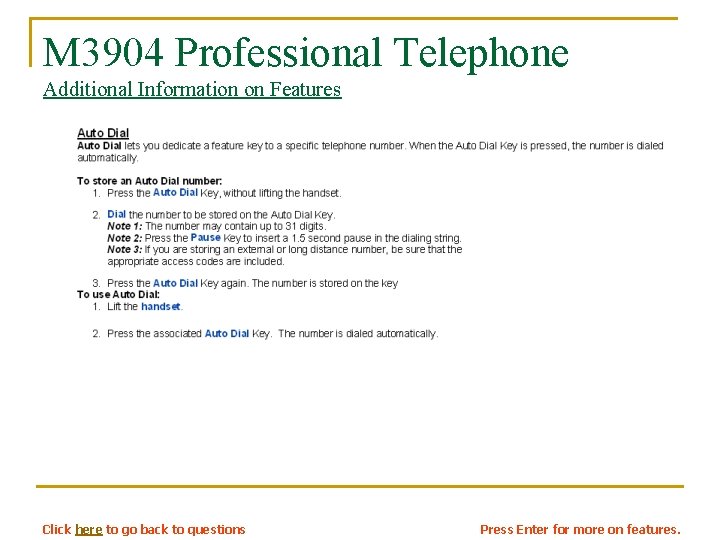
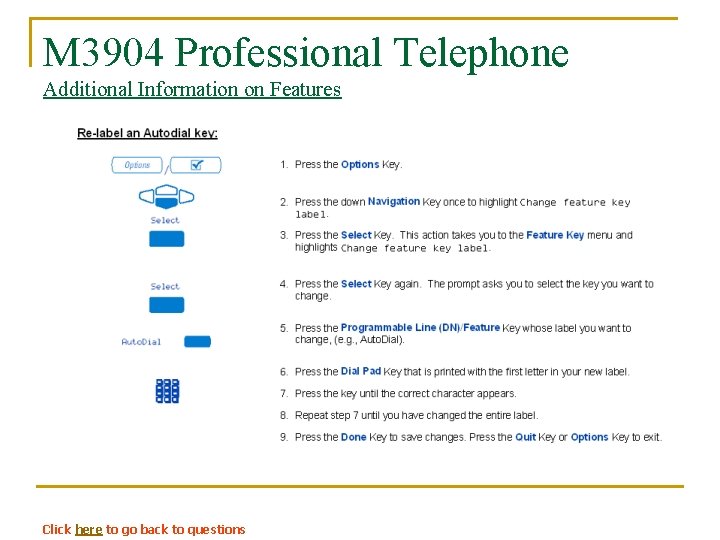
M 3904 Professional Telephone n Press Enter to move through this module and learn everything about the set or select from this list of questions: q How do I use Speed Call? <click here> q What is Call Pickup? <click here> q How do I forward my phone? <click here> q How do I use Autodial? <click here> q How do I re-label an Autodial key? <click here>
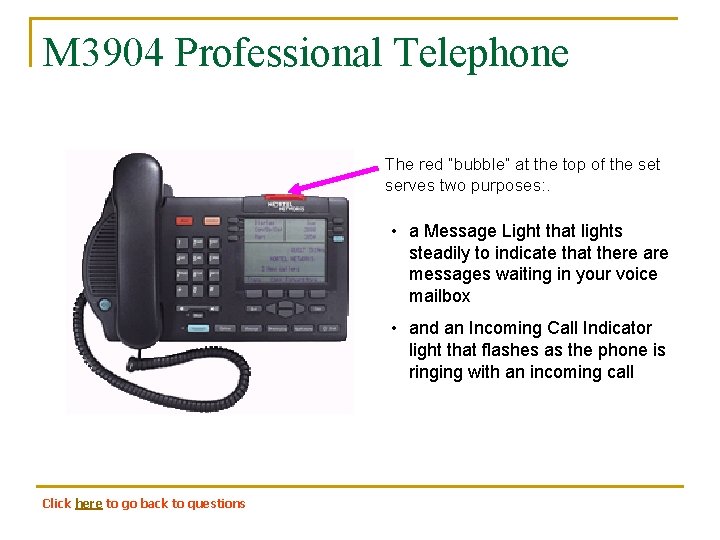
M 3904 Professional Telephone The red “bubble” at the top of the set serves two purposes: . • a Message Light that lights steadily to indicate that there are messages waiting in your voice mailbox • and an Incoming Call Indicator light that flashes as the phone is ringing with an incoming call Click here to go back to questions
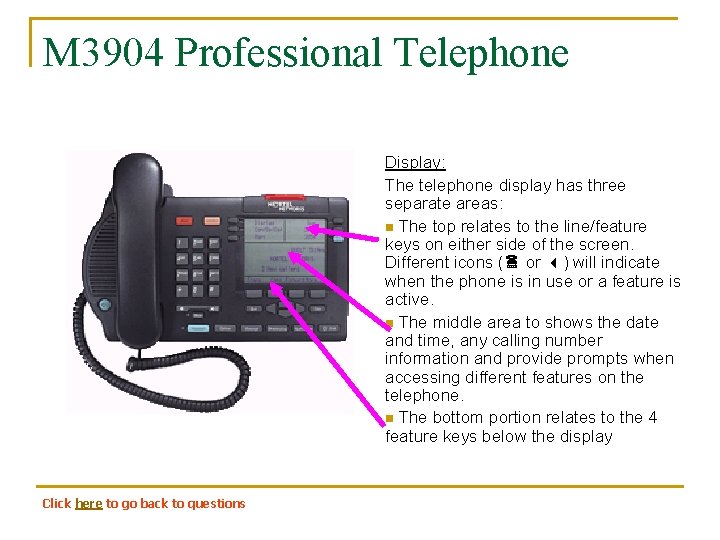
M 3904 Professional Telephone Display: The telephone display has three separate areas: n The top relates to the line/feature keys on either side of the screen. Different icons ( or ) will indicate when the phone is in use or a feature is active. n The middle area to shows the date and time, any calling number information and provide prompts when accessing different features on the telephone. n The bottom portion relates to the 4 feature keys below the display Click here to go back to questions
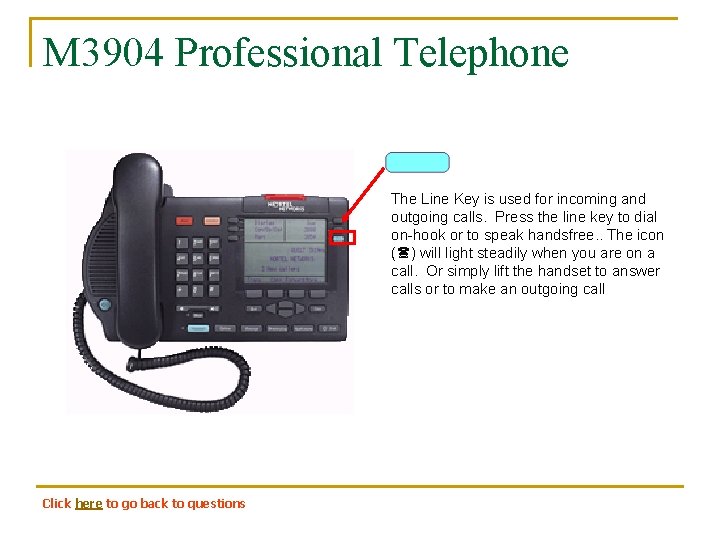
M 3904 Professional Telephone The Line Key is used for incoming and outgoing calls. Press the line key to dial on-hook or to speak handsfree. . The icon ( ) will light steadily when you are on a call. Or simply lift the handset to answer calls or to make an outgoing call Click here to go back to questions
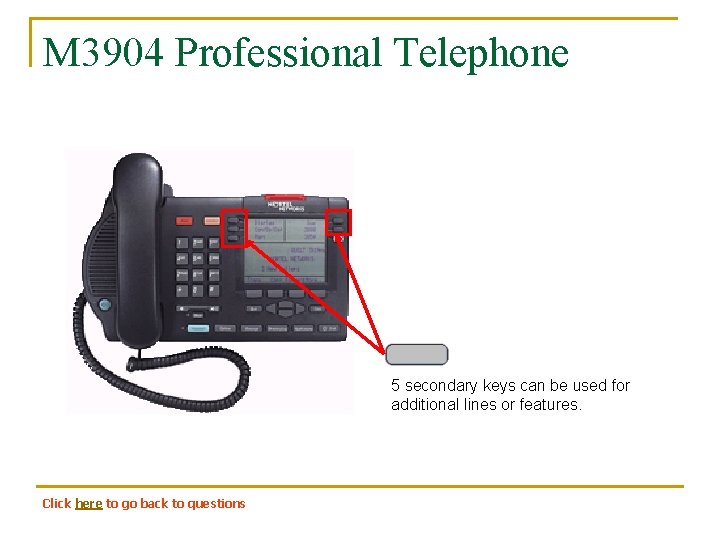
M 3904 Professional Telephone 5 secondary keys can be used for additional lines or features. Click here to go back to questions
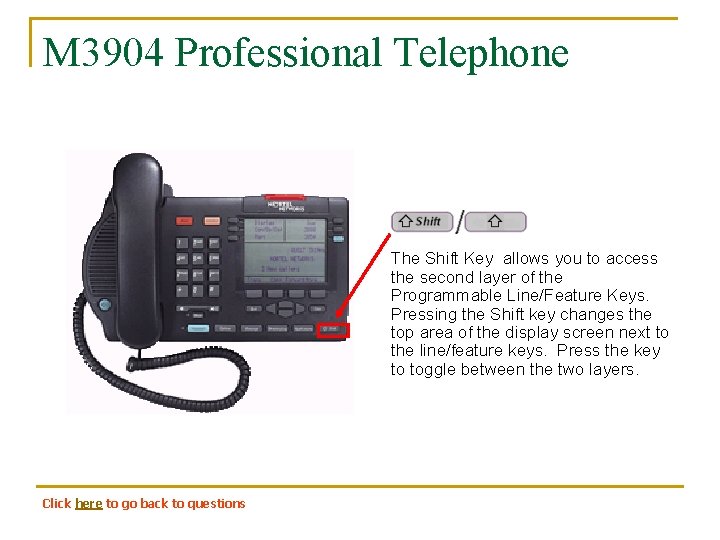
M 3904 Professional Telephone The Shift Key allows you to access the second layer of the Programmable Line/Feature Keys. Pressing the Shift key changes the top area of the display screen next to the line/feature keys. Press the key to toggle between the two layers. Click here to go back to questions
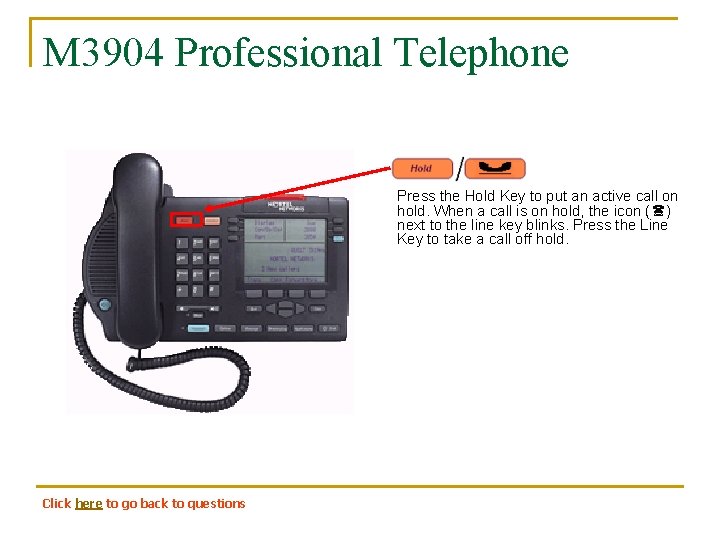
M 3904 Professional Telephone Press the Hold Key to put an active call on hold. When a call is on hold, the icon ( ) next to the line key blinks. Press the Line Key to take a call off hold. Click here to go back to questions
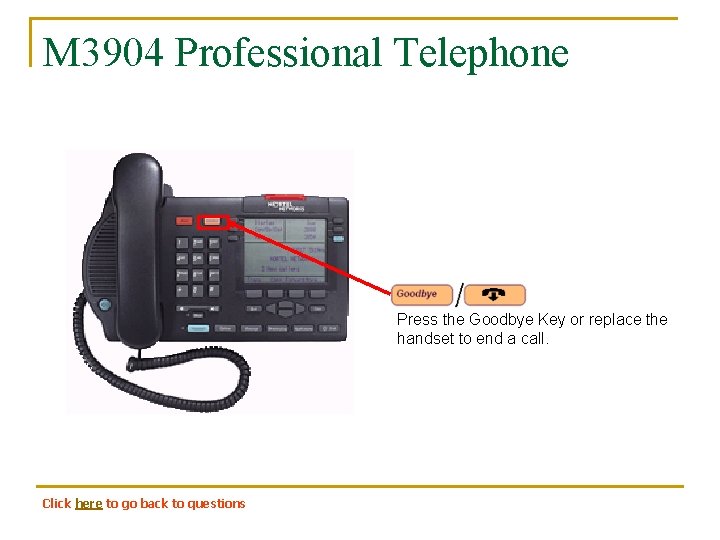
M 3904 Professional Telephone Press the Goodbye Key or replace the handset to end a call. Click here to go back to questions
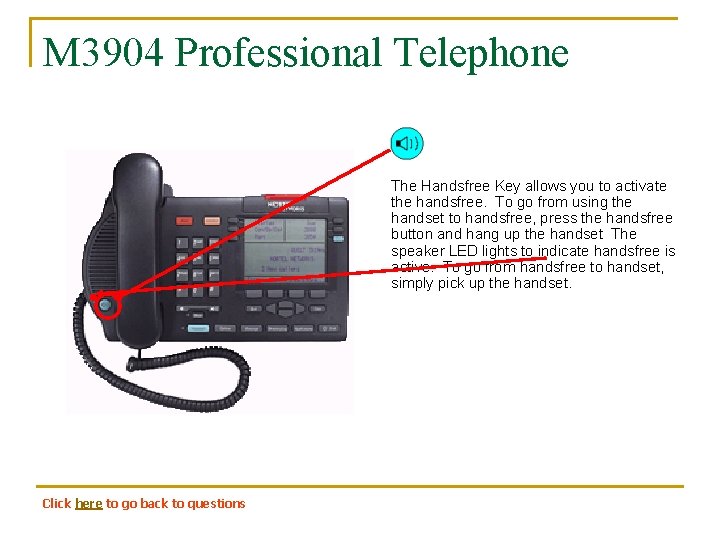
M 3904 Professional Telephone The Handsfree Key allows you to activate the handsfree. To go from using the handset to handsfree, press the handsfree button and hang up the handset The speaker LED lights to indicate handsfree is active. To go from handsfree to handset, simply pick up the handset. Click here to go back to questions
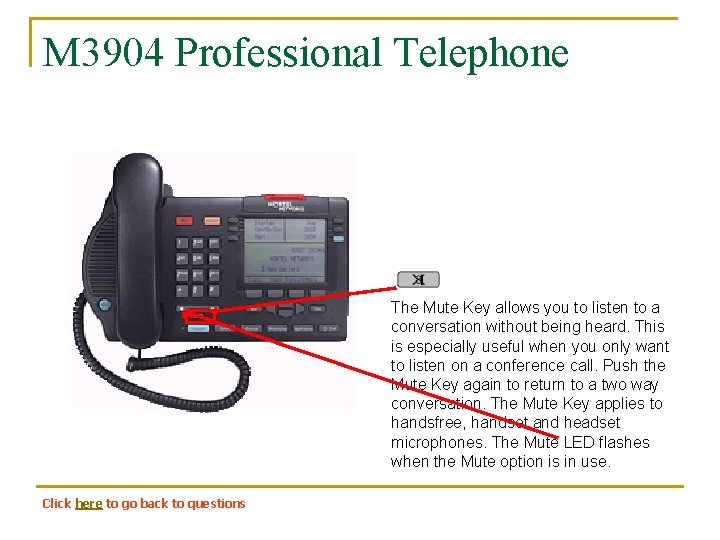
M 3904 Professional Telephone The Mute Key allows you to listen to a conversation without being heard. This is especially useful when you only want to listen on a conference call. Push the Mute Key again to return to a two way conversation. The Mute Key applies to handsfree, handset and headset microphones. The Mute LED flashes when the Mute option is in use. Click here to go back to questions
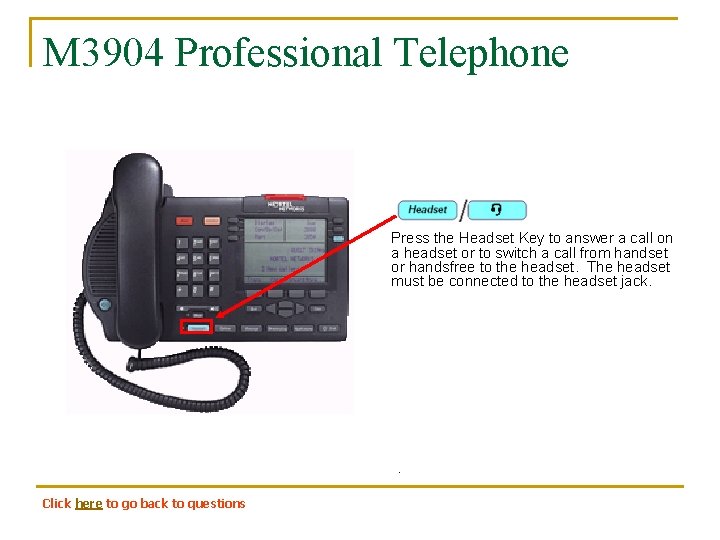
M 3904 Professional Telephone Press the Headset Key to answer a call on a headset or to switch a call from handset or handsfree to the headset. The headset must be connected to the headset jack. . Click here to go back to questions
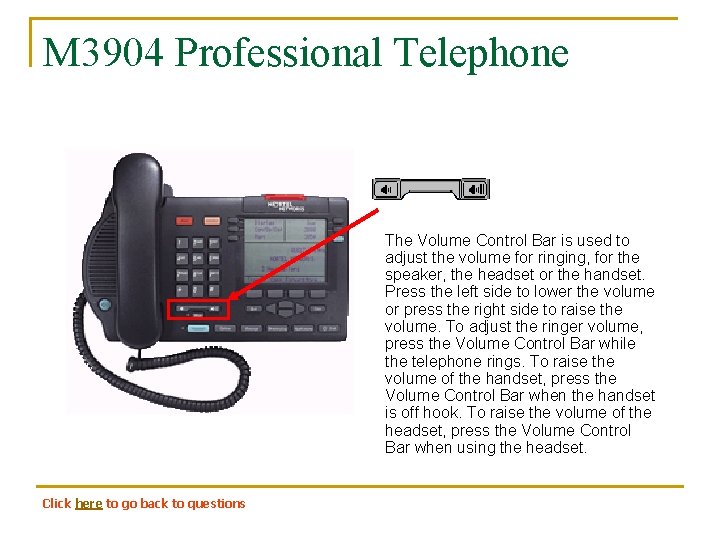
M 3904 Professional Telephone The Volume Control Bar is used to adjust the volume for ringing, for the speaker, the headset or the handset. Press the left side to lower the volume or press the right side to raise the volume. To adjust the ringer volume, press the Volume Control Bar while the telephone rings. To raise the volume of the handset, press the Volume Control Bar when the handset is off hook. To raise the volume of the headset, press the Volume Control Bar when using the headset. Click here to go back to questions
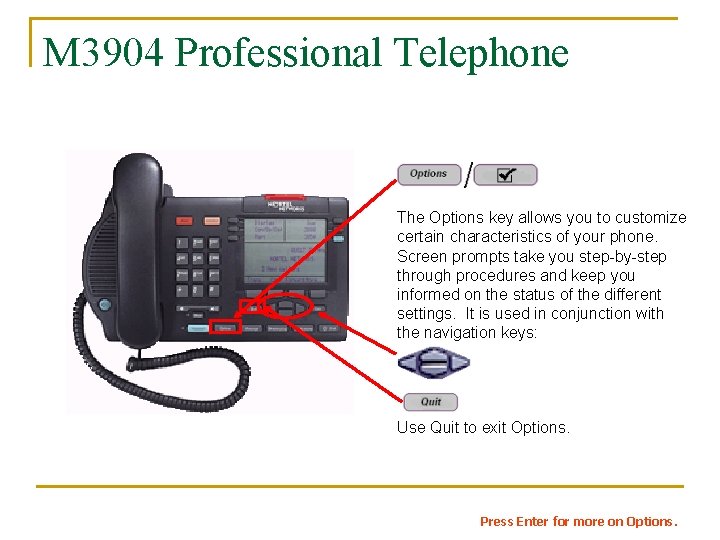
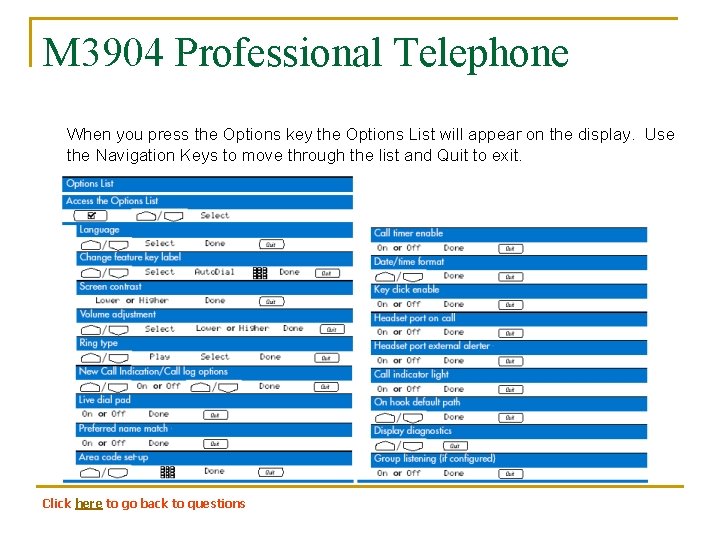
M 3904 Professional Telephone The Options key allows you to customize certain characteristics of your phone. Screen prompts take you step-by-step through procedures and keep you informed on the status of the different settings. It is used in conjunction with the navigation keys: Use Quit to exit Options. Press Enter for more on Options.
M 3904 Professional Telephone When you press the Options key the Options List will appear on the display. Use the Navigation Keys to move through the list and Quit to exit. Click here to go back to questions
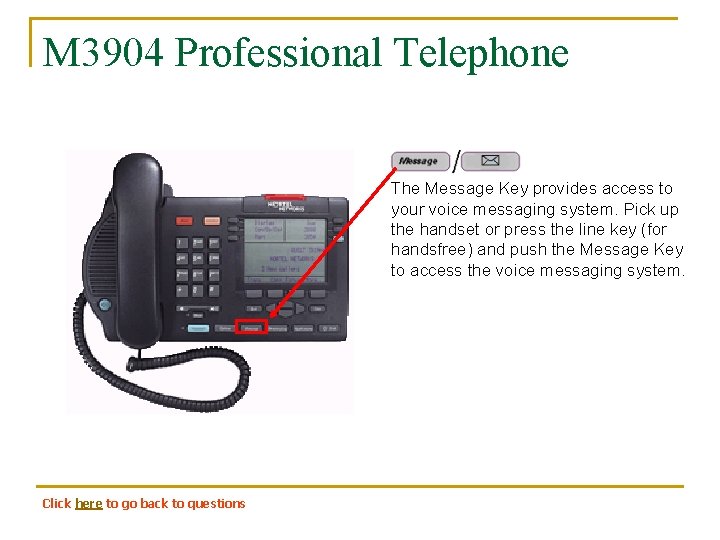
M 3904 Professional Telephone The Message Key provides access to your voice messaging system. Pick up the handset or press the line key (for handsfree) and push the Message Key to access the voice messaging system. Click here to go back to questions
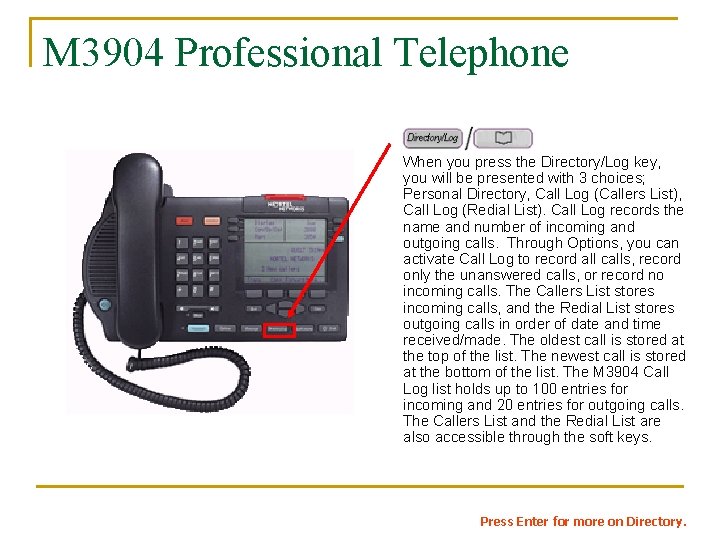
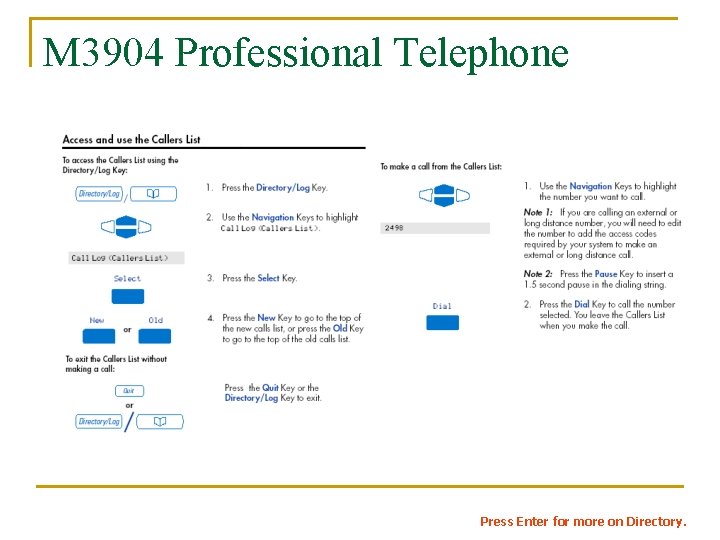
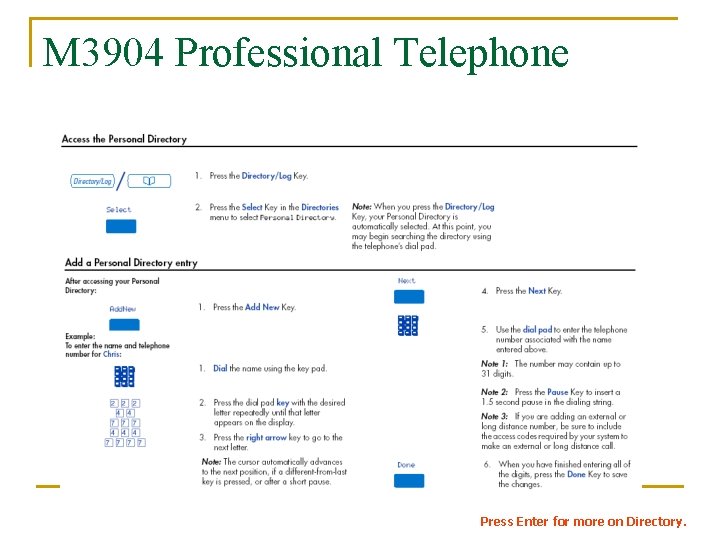
M 3904 Professional Telephone When you press the Directory/Log key, you will be presented with 3 choices; Personal Directory, Call Log (Callers List), Call Log (Redial List). Call Log records the name and number of incoming and outgoing calls. Through Options, you can activate Call Log to record all calls, record only the unanswered calls, or record no incoming calls. The Callers List stores incoming calls, and the Redial List stores outgoing calls in order of date and time received/made. The oldest call is stored at the top of the list. The newest call is stored at the bottom of the list. The M 3904 Call Log list holds up to 100 entries for incoming and 20 entries for outgoing calls. The Callers List and the Redial List are also accessible through the soft keys. Press Enter for more on Directory.
M 3904 Professional Telephone Press Enter for more on Directory.
M 3904 Professional Telephone Press Enter for more on Directory.
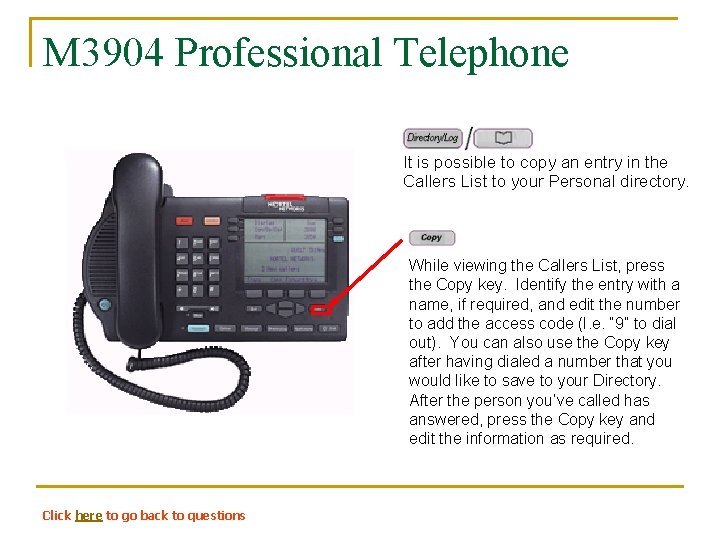
M 3904 Professional Telephone It is possible to copy an entry in the Callers List to your Personal directory. While viewing the Callers List, press the Copy key. Identify the entry with a name, if required, and edit the number to add the access code (I. e. “ 9” to dial out). You can also use the Copy key after having dialed a number that you would like to save to your Directory. After the person you’ve called has answered, press the Copy key and edit the information as required. Click here to go back to questions
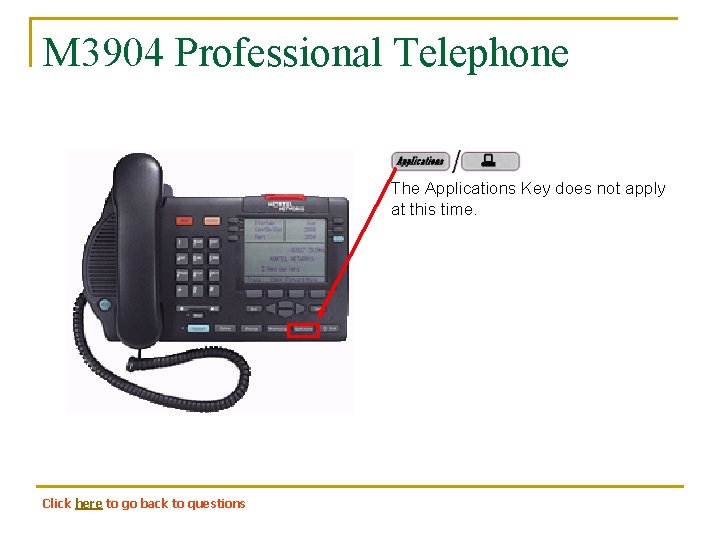
M 3904 Professional Telephone The Applications Key does not apply at this time. Click here to go back to questions
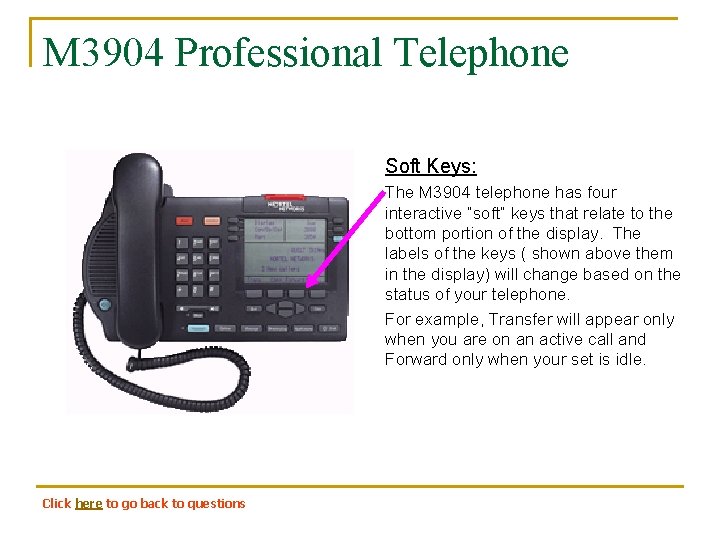
M 3904 Professional Telephone Soft Keys: The M 3904 telephone has four interactive “soft” keys that relate to the bottom portion of the display. The labels of the keys ( shown above them in the display) will change based on the status of your telephone. For example, Transfer will appear only when you are on an active call and Forward only when your set is idle. Click here to go back to questions
M 3904 Professional Telephone Additional Information on Features Click here to go back to questions Press Enter for more on features.
M 3904 Professional Telephone Additional Information on Features Click here to go back to questions Press Enter for more on features.
M 3904 Professional Telephone Additional Information on Features Click here to go back to questions Press Enter for more on features.
M 3904 Professional Telephone Additional Information on Features Click here to go back to questions Press Enter for more on features.
M 3904 Professional Telephone Additional Information on Features Click here to go back to questions Press Enter for more on features.
M 3904 Professional Telephone Additional Information on Features Click here to go back to questions Press Enter for more on features.
M 3904 Professional Telephone Additional Information on Features Click here to go back to questions Press Enter for more on features.
M 3904 Professional Telephone Additional Information on Features Click here to go back to questions