
LTI Planning in Work Day Planner Training December

LTI Planning in Work. Day Planner Training December 10, 2019
LTI Planning in Work. Day § Regular LTI awards will be completed in Work. Day § Special grants will still be handled manually on spreadsheets and those have been delivered to BU Compensation Partners today § Guidelines for LTI § Eligible employees in grade 16 or above may received LTI grants § LTI amounts maybe zero or between the threshold and maximum of the LTI ranges for each grade © Borg. Warner Inc. 2
Who are the planners and who will have access to LTI in Work. Day? § § CEO Direct Reports of CEO who have LTI eligible employees (16+) BU Presidents Direct Reports of BU Presidents who have LTI eligible employees (16+) § HRVPs § BU Compensation Partners § Compensation Administrators © Borg. Warner Inc. 3
LTI Planning in Work. Day § § Work. Day Process Overview § Similar to look and function of merit § Budgets for each organization § Spend will update automatically § Organizations will roll up to the next higher manager § Higher manager may override planning input of lower manager § If a lower manager in the organization is unavailable, the higher manager may pull that organization up and input for them © Borg. Warner Inc. 4 Guidelines in Work. Day § § Amounts must be above the minimum Amounts must be below the maximum Comments required if zero is given Spend total turns red when above budget
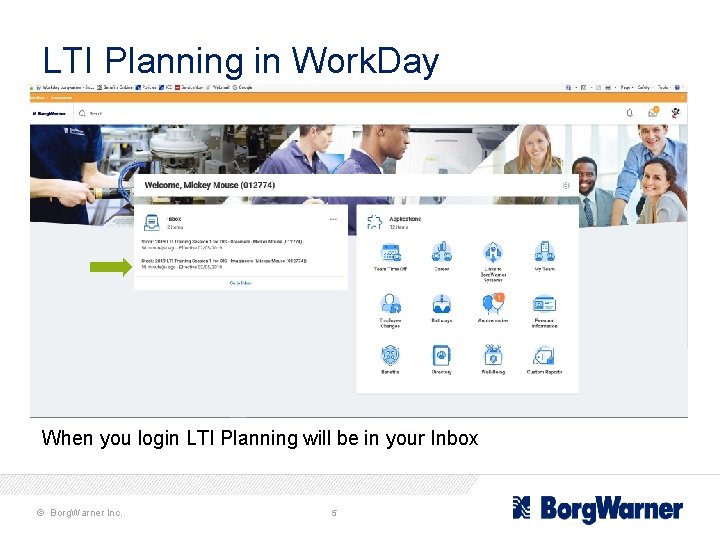
LTI Planning in Work. Day When you login LTI Planning will be in your Inbox © Borg. Warner Inc. 5
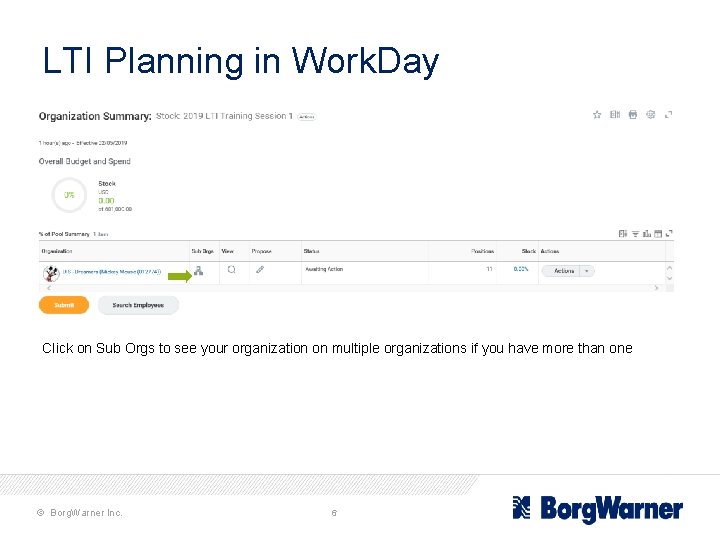
LTI Planning in Work. Day Click on Sub Orgs to see your organization on multiple organizations if you have more than one © Borg. Warner Inc. 6

LTI Planning in Work. Day A C B D A – Budget for that org and your spend will adjust as you enter amounts and move onto the next employee B – List of employees C – Amount line and comments field for the employee that you are currently clicked on D – Information box for the current employee that you are working on © Borg. Warner Inc. 7

LTI Planning in Work. Day The information box will contain some pertinent information on your employee: • Grade • Threshold, Target and Maximum LTI amounts for that grade in that country • The amount of the previous grant, if the employee had a grant the previous year • Business Unit of the employee • Their work location • The employee’s manager © Borg. Warner Inc. 8
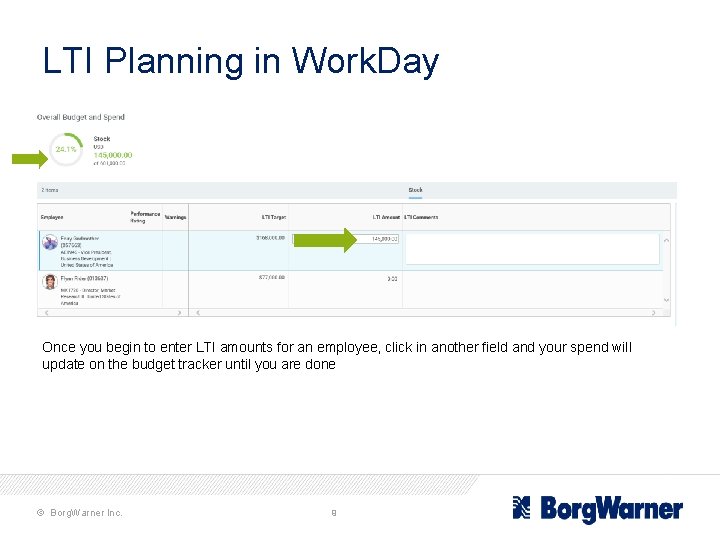
LTI Planning in Work. Day Once you begin to enter LTI amounts for an employee, click in another field and your spend will update on the budget tracker until you are done © Borg. Warner Inc. 9
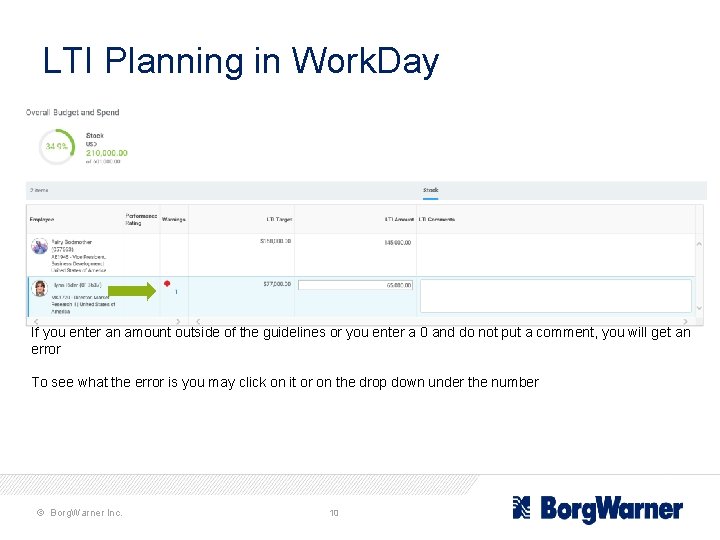
LTI Planning in Work. Day If you enter an amount outside of the guidelines or you enter a 0 and do not put a comment, you will get an error To see what the error is you may click on it or on the drop down under the number © Borg. Warner Inc. 10
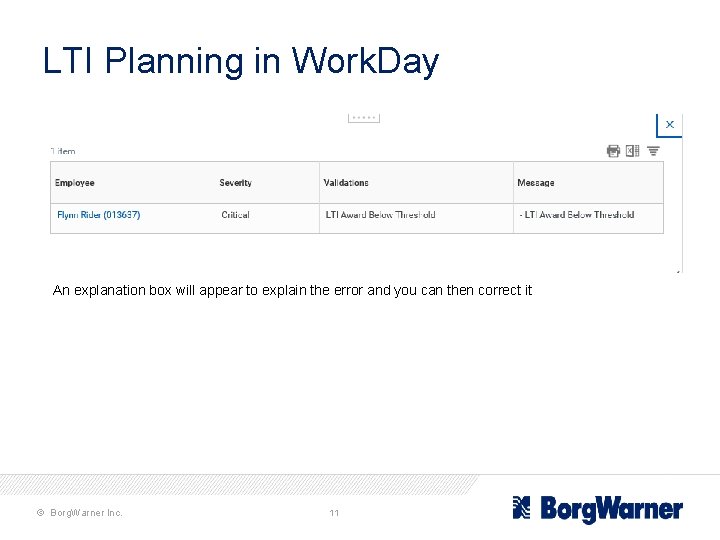
LTI Planning in Work. Day An explanation box will appear to explain the error and you can then correct it © Borg. Warner Inc. 11
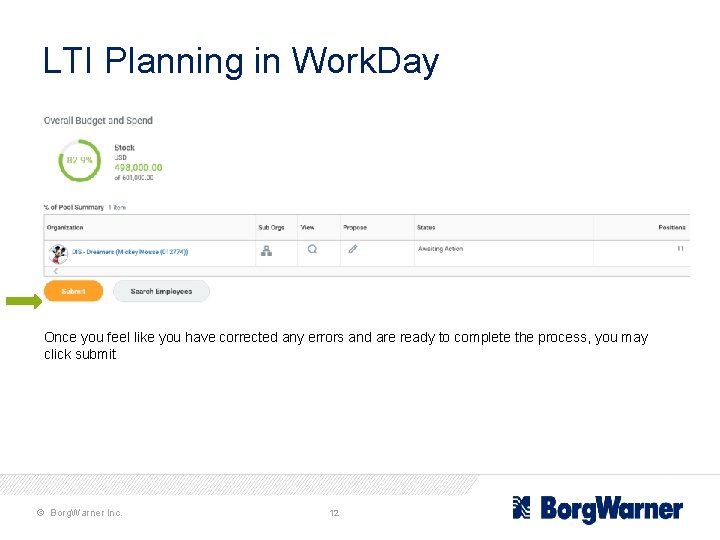
LTI Planning in Work. Day Once you feel like you have corrected any errors and are ready to complete the process, you may click submit © Borg. Warner Inc. 12
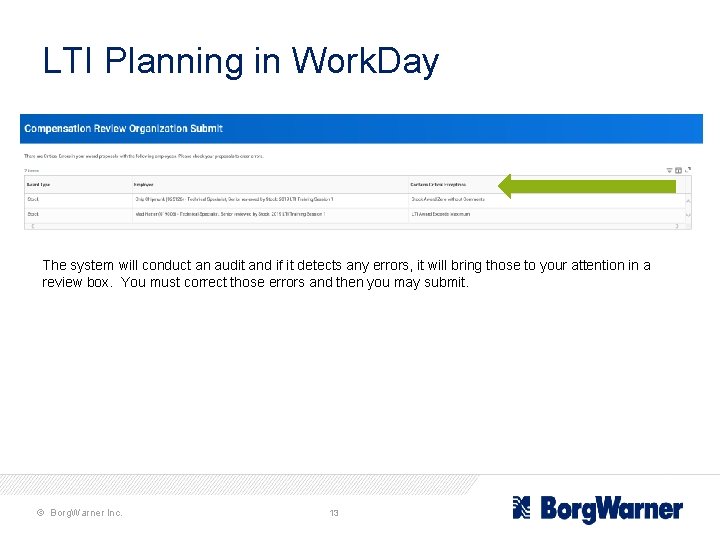
LTI Planning in Work. Day The system will conduct an audit and if it detects any errors, it will bring those to your attention in a review box. You must correct those errors and then you may submit. © Borg. Warner Inc. 13
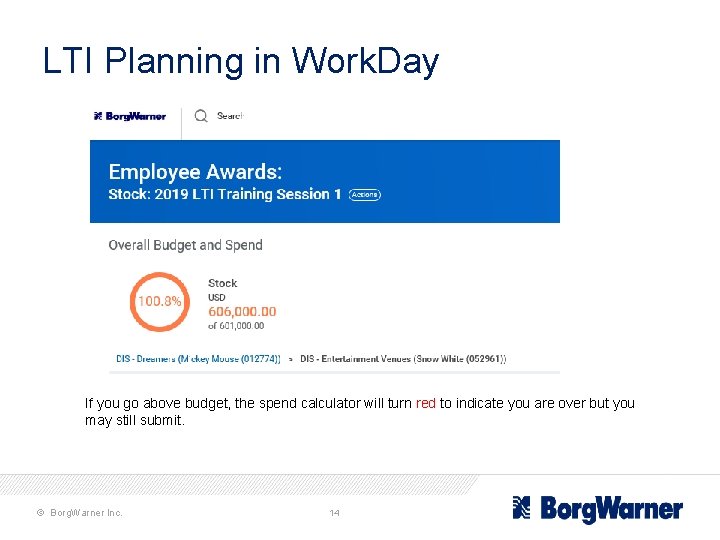
LTI Planning in Work. Day If you go above budget, the spend calculator will turn red to indicate you are over but you may still submit. © Borg. Warner Inc. 14
LTI Planning in Work. Day § Key Dates § Launch LTI in Work. Day January 2 nd § BU Finalize Work. Day Planning January 24 th (BU President – submits) § LTI Planning Effective Date February 12 th © Borg. Warner Inc. 15
LTI Planning in Work. Day © Borg. Warner Inc. 16

Thank you! © Borg. Warner Inc. 17
- Slides: 17