
LOST IN SPACE SPRITES Start a new Scratch

- Slides: 16
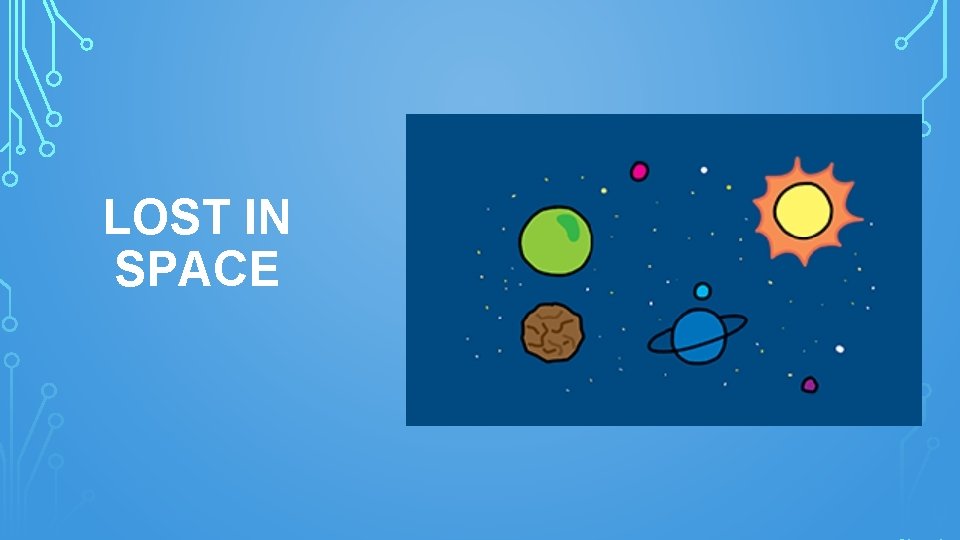
LOST IN SPACE
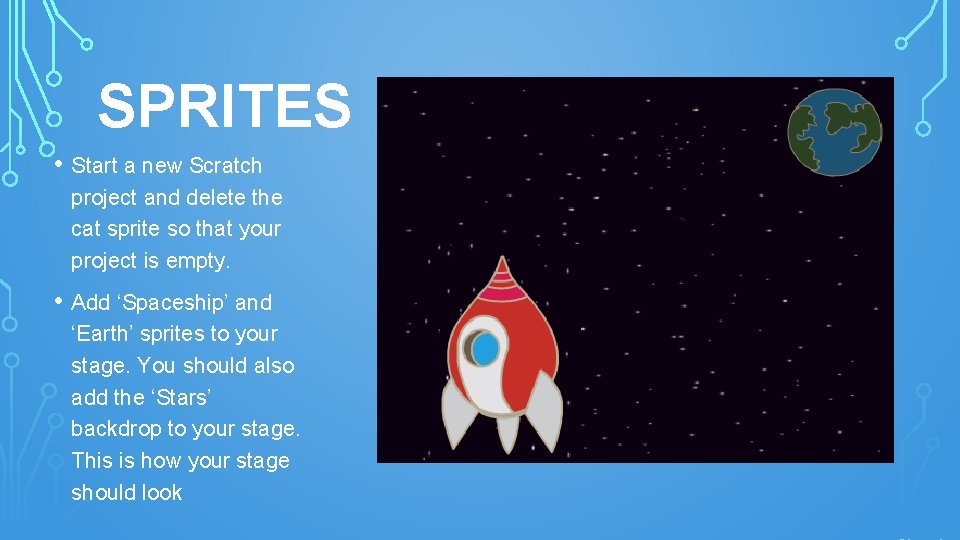
SPRITES • Start a new Scratch project and delete the cat sprite so that your project is empty. • Add ‘Spaceship’ and ‘Earth’ sprites to your stage. You should also add the ‘Stars’ backdrop to your stage. This is how your stage should look
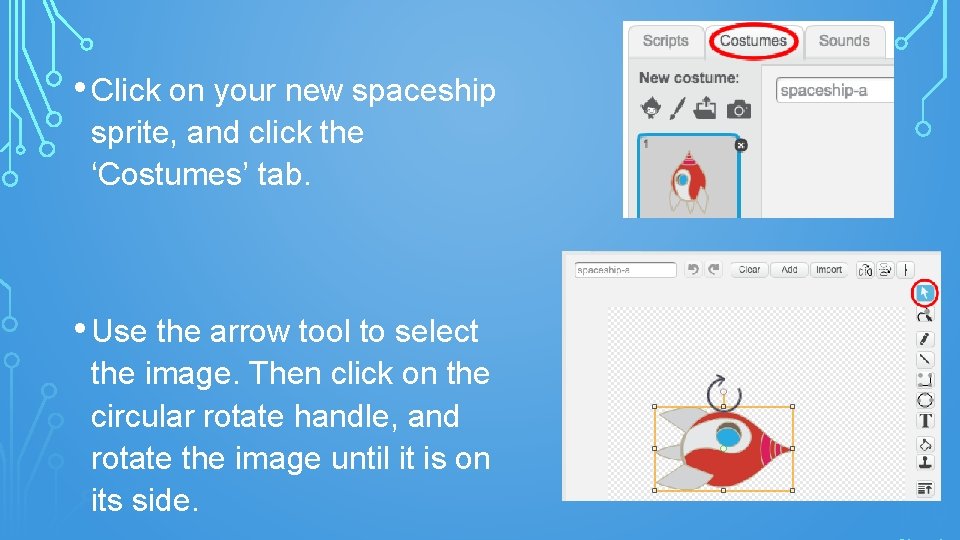
• Click on your new spaceship sprite, and click the ‘Costumes’ tab. • Use the arrow tool to select the image. Then click on the circular rotate handle, and rotate the image until it is on its side.
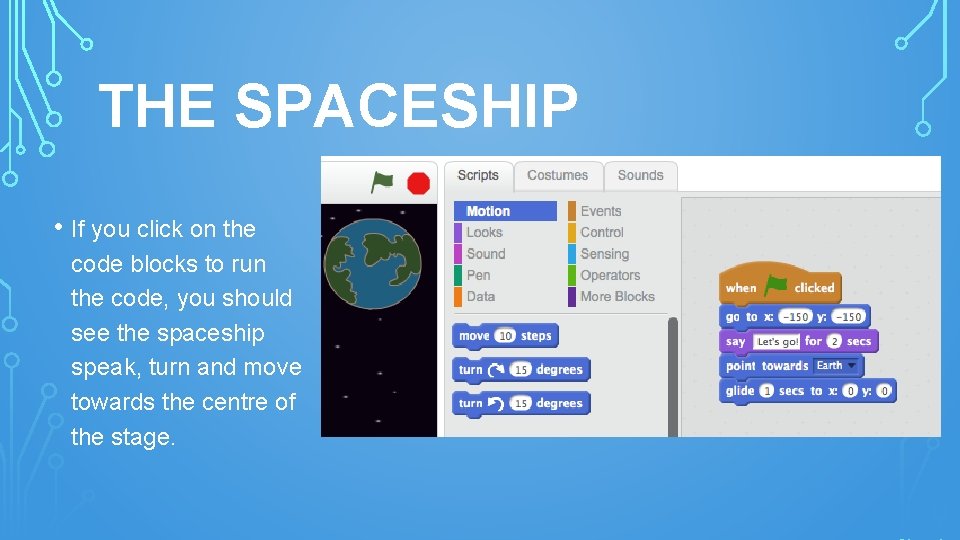
THE SPACESHIP • If you click on the code blocks to run the code, you should see the spaceship speak, turn and move towards the centre of the stage.
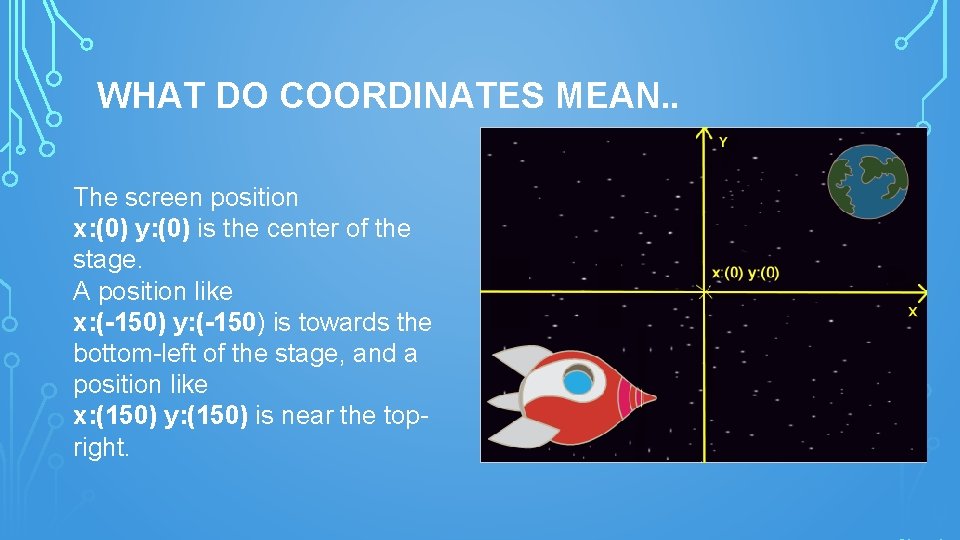
WHAT DO COORDINATES MEAN. . The screen position x: (0) y: (0) is the center of the stage. A position like x: (-150) y: (-150) is towards the bottom-left of the stage, and a position like x: (150) y: (150) is near the topright.
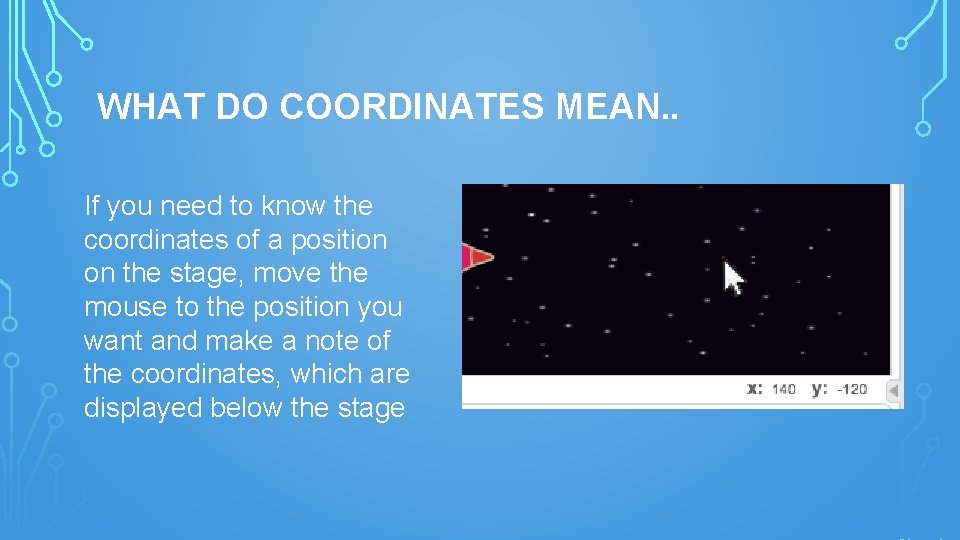
WHAT DO COORDINATES MEAN. . If you need to know the coordinates of a position on the stage, move the mouse to the position you want and make a note of the coordinates, which are displayed below the stage
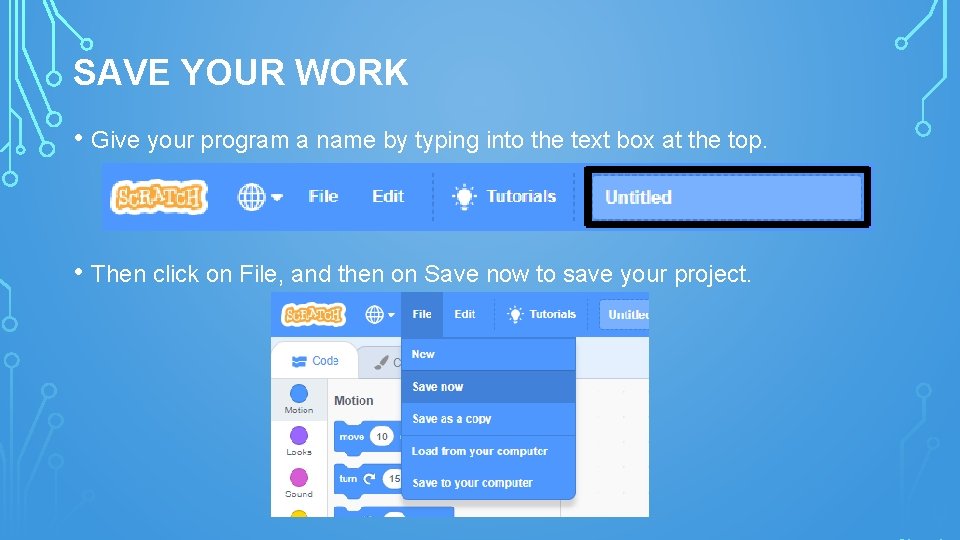
SAVE YOUR WORK • Give your program a name by typing into the text box at the top. • Then click on File, and then on Save now to save your project.
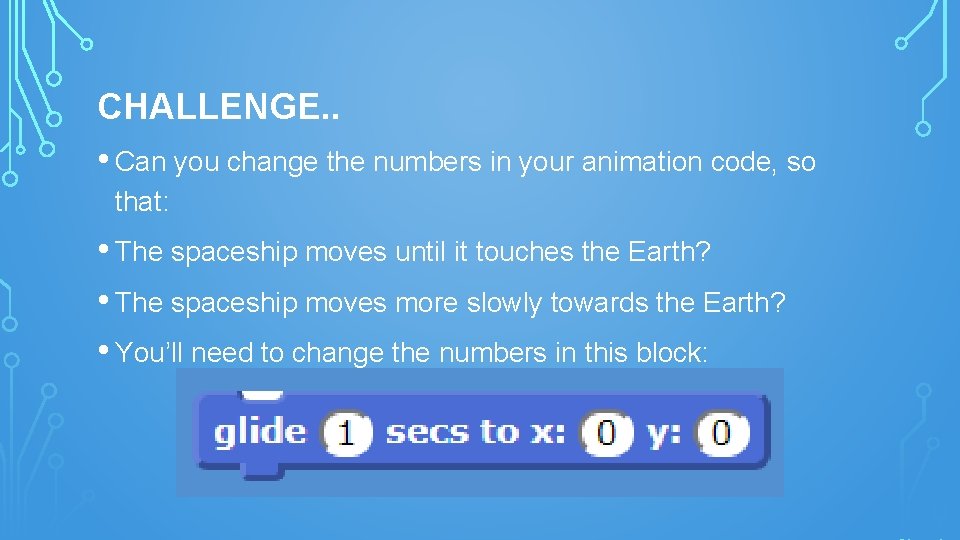
CHALLENGE. . • Can you change the numbers in your animation code, so that: • The spaceship moves until it touches the Earth? • The spaceship moves more slowly towards the Earth? • You’ll need to change the numbers in this block:
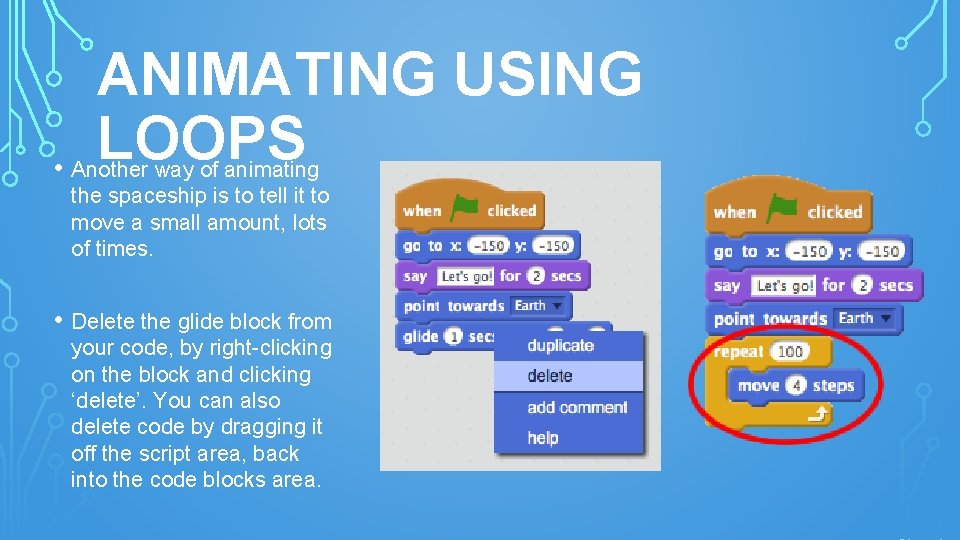
ANIMATING USING LOOPS • Another way of animating the spaceship is to tell it to move a small amount, lots of times. • Delete the glide block from your code, by right-clicking on the block and clicking ‘delete’. You can also delete code by dragging it off the script area, back into the code blocks area.
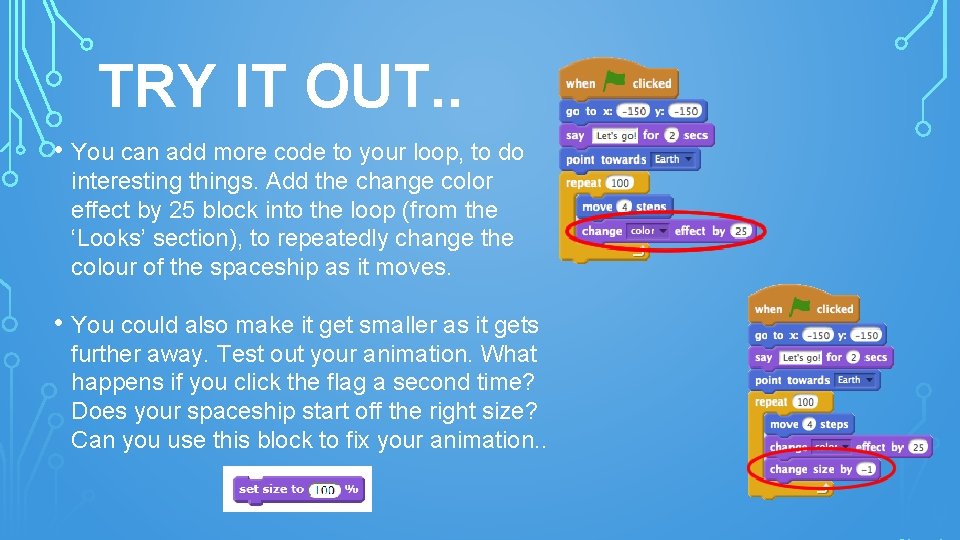
TRY IT OUT. . • You can add more code to your loop, to do interesting things. Add the change color effect by 25 block into the loop (from the ‘Looks’ section), to repeatedly change the colour of the spaceship as it moves. • You could also make it get smaller as it gets further away. Test out your animation. What happens if you click the flag a second time? Does your spaceship start off the right size? Can you use this block to fix your animation. .
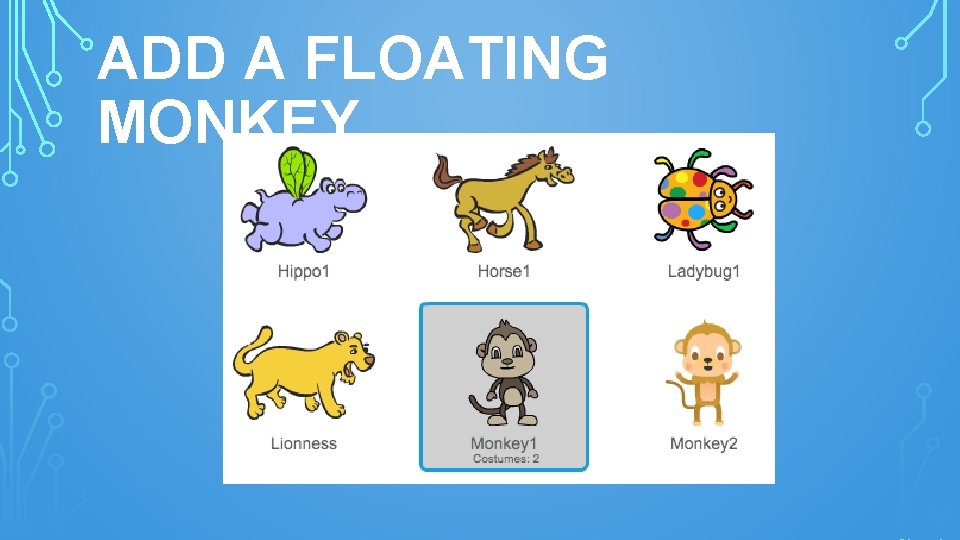
ADD A FLOATING MONKEY. .
• If you click on your new monkey sprite and then click ‘Costumes’, you can edit how the monkey looks. Click the ‘Ellipse’ tool, and draw a white space helmet around the monkey’s head
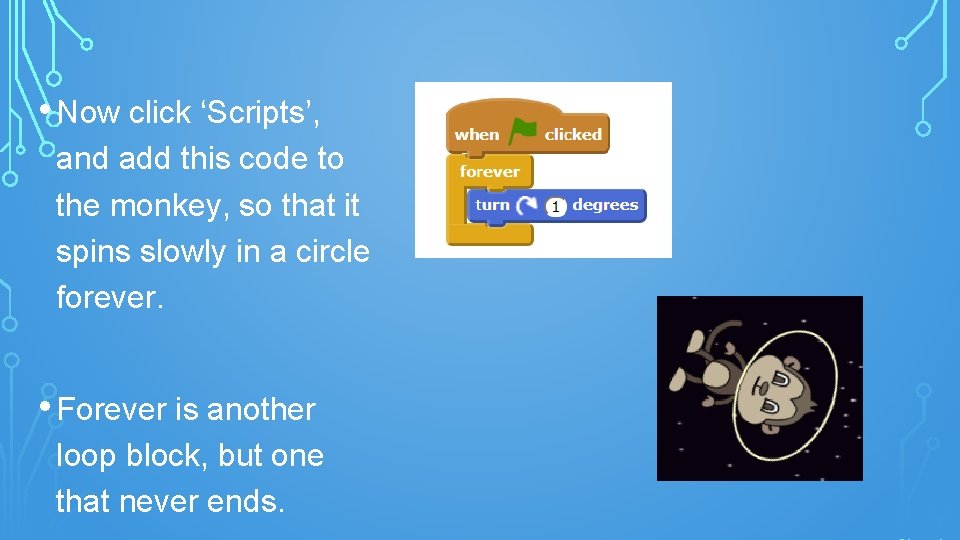
• Now click ‘Scripts’, and add this code to the monkey, so that it spins slowly in a circle forever. • Forever is another loop block, but one that never ends.
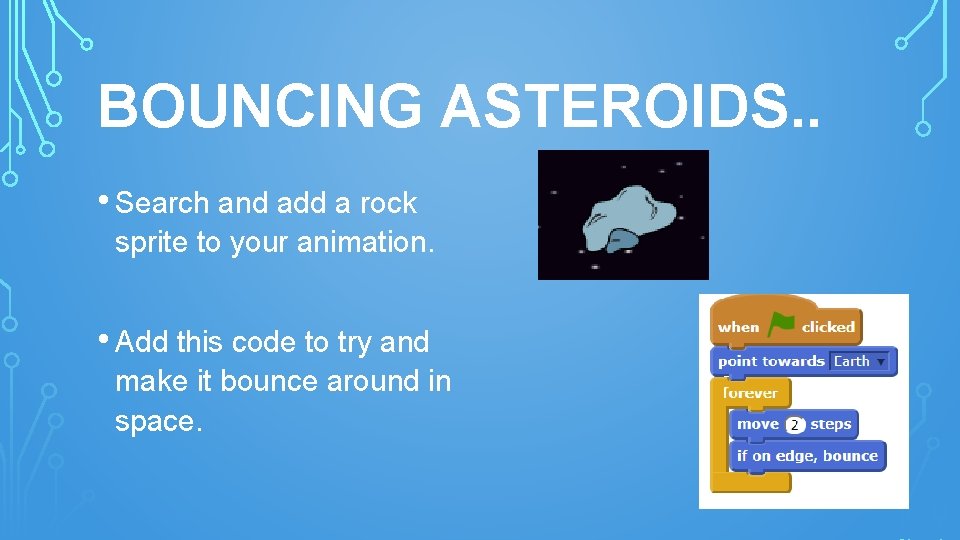
BOUNCING ASTEROIDS. . • Search and add a rock sprite to your animation. • Add this code to try and make it bounce around in space.
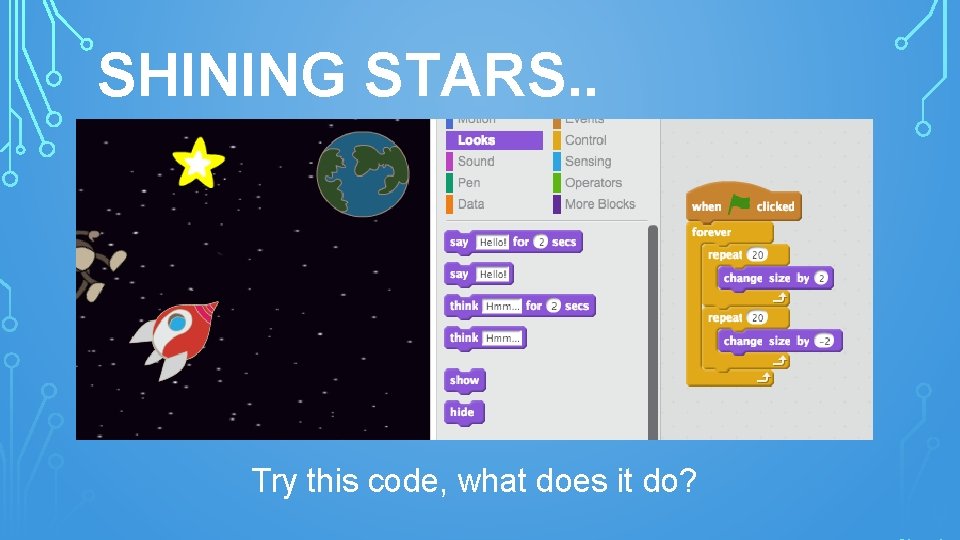
SHINING STARS. . Try this code, what does it do?